# Personalized links
Mailmeteor lets you customize both the text of the hyperlink and the URL it directs to. This way, you can send your campaign with personalized links to each recipient.
## How to add personalized links to your email campaigns
{% tabs %}
{% tab "Google Sheets" %}
Once you have created your hyperlinks in Google Sheets, you can insert the link right into your email template. Let’s see how to do it:
1. Create your mailing list in Google Sheets. Then add a new column and name it **link**.
2. Open Mailmeteor in Google Sheets.
3. Create a new template. Or edit an existing one.
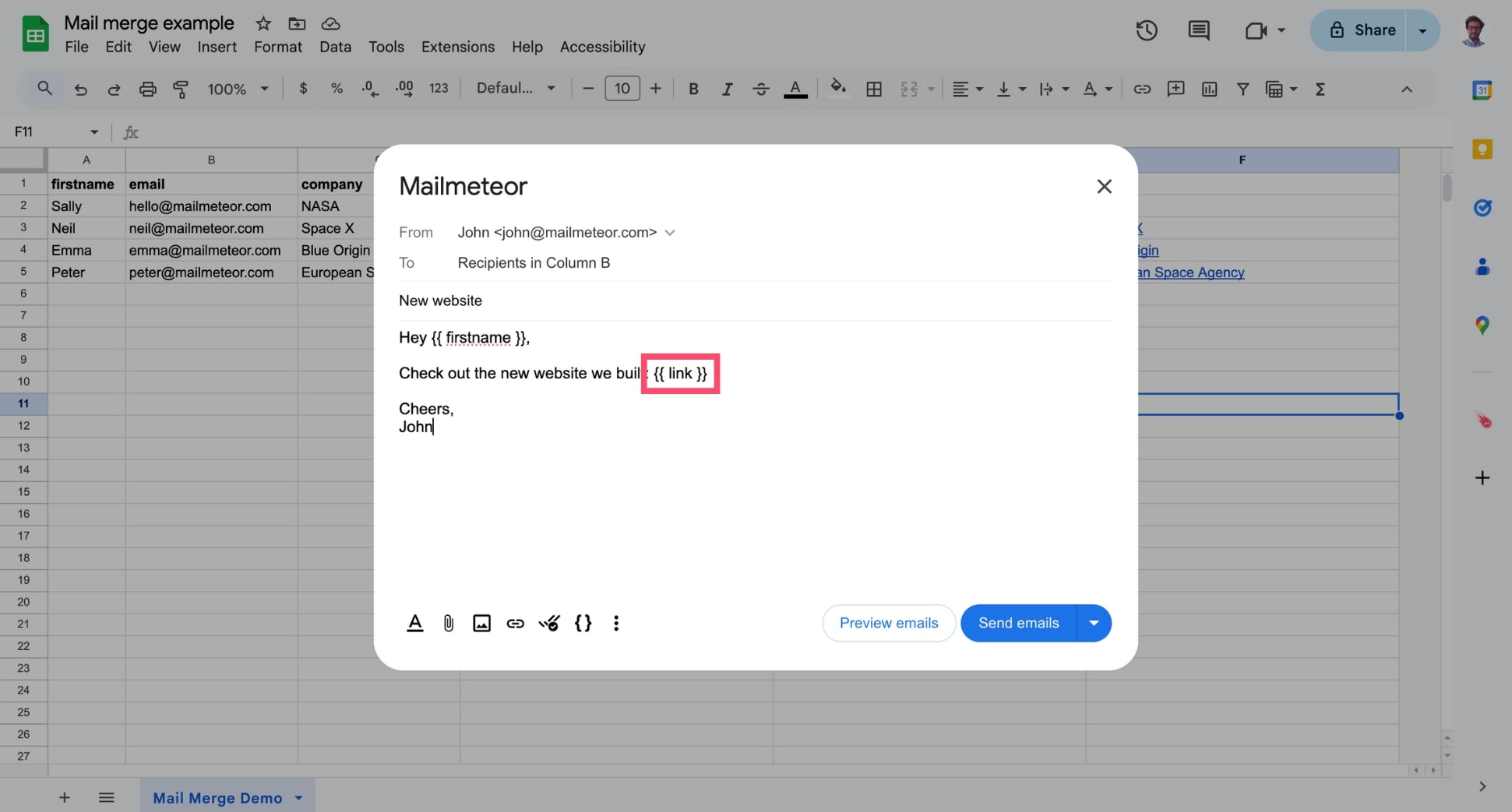
4. In the toolbar, click **Insert variable** and select the variable **link**. This variable will only appear if you have a column named **link** in your spreadsheet.
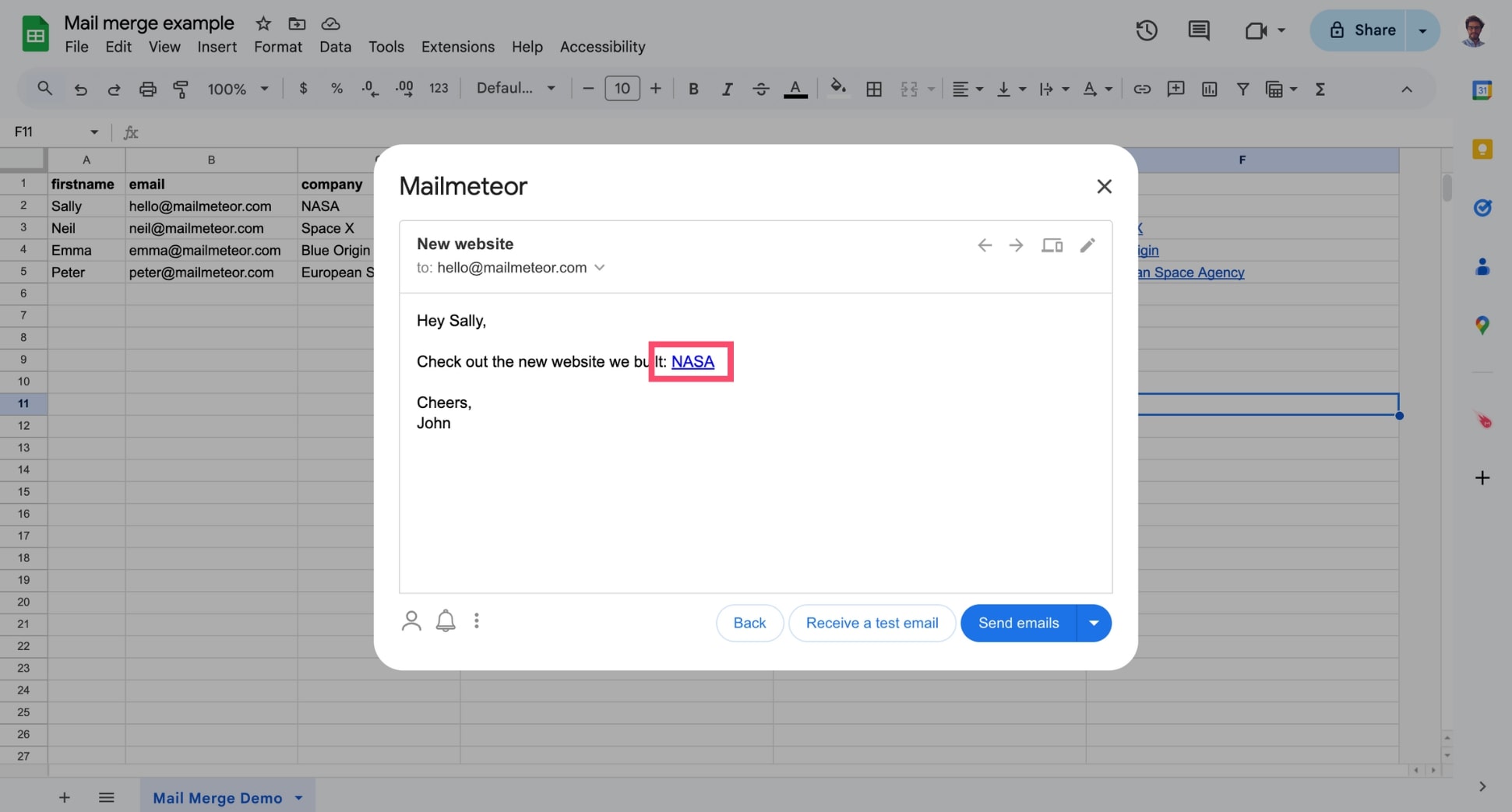
5. Use the [preview mode](https://mailmeteor.com/docs/campaigns/preview) to check that everything looks correct.
{% hint style="info" %}
By default, Mailmeteor will insert the exact content of the column **link**. Meaning that your link will appear like this [mailmeteor.com](https://mailmeteor.com/). If you want your link to look like this [Mailmeteor](https://mailmeteor.com/), you'll need to use the **=HYPERLINK** formula.
{% endhint %}
## How to use the =HYPERLINK formula to insert links
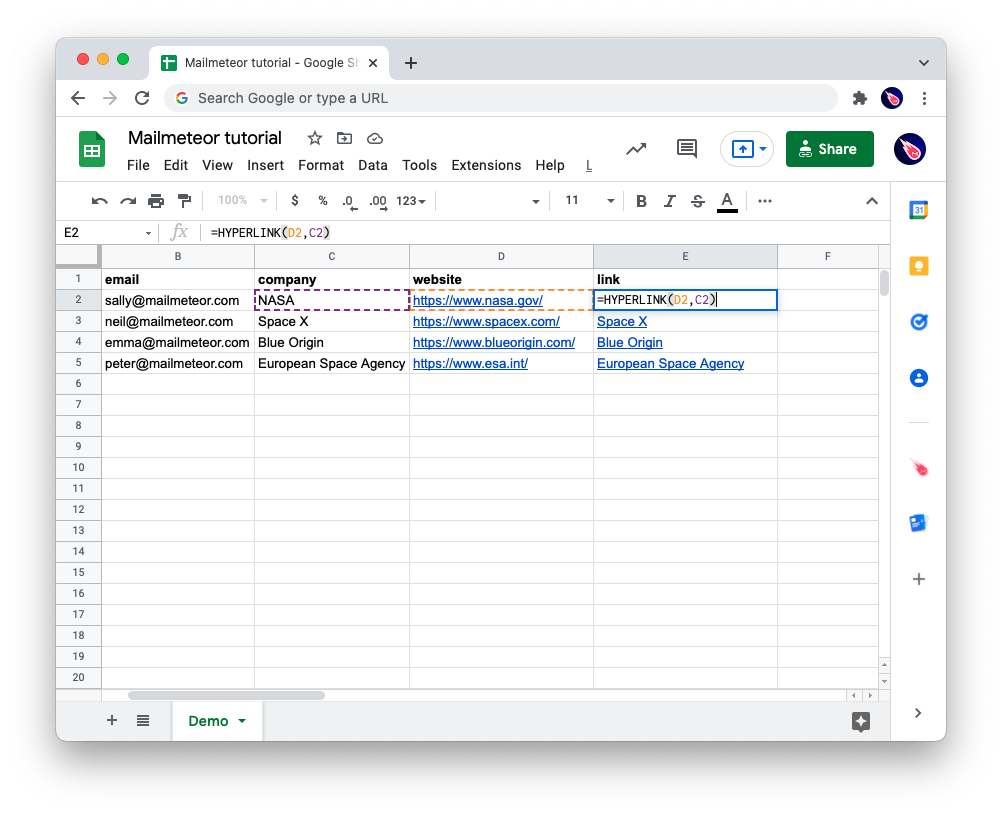
Google Sheets lets you add hyperlinks to your spreadsheets using the `=HYPERLINK` formula.
To use the `=HYPERLINK` function in Google Sheets:
1. Create a column for your links. Name it **link**, for example.
2. Enter the formula: `=HYPERLINK("https://mailmeteor.com","Mailmeteor").`
3. Make sure to replace the URL and the text with your own values.
{% endtab %}
{% endtabs %}