# Reply-to address
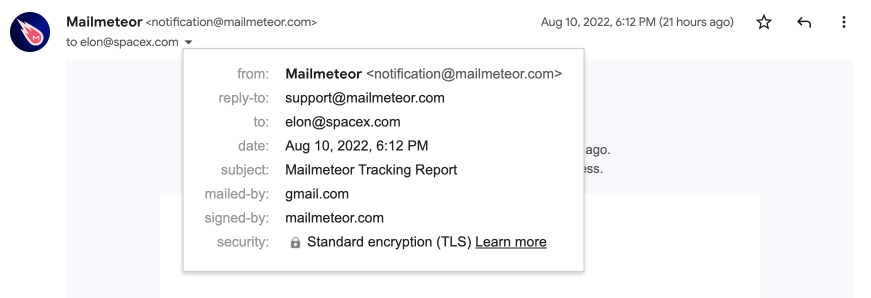
A "Reply-To" lets you send an email from one email address and tell the recipients to reply to another. In Gmail, Outlook, and other email clients, when your recipients click "Reply", they will automatically respond to the "Reply-To" address.
It's helpful when you send emails from a generic email address (such as `notification@yourdomain.com`), but you want the recipients to reply to another address (such as `support@yourdomain.com`).
## How to add a reply-to?
{% tabs %}
{% tab "Dashboard" %}
1. Open [Mailmeteor Dashboard](https://dashboard.mailmeteor.com/campaigns/new).
2. Create a new campaign.
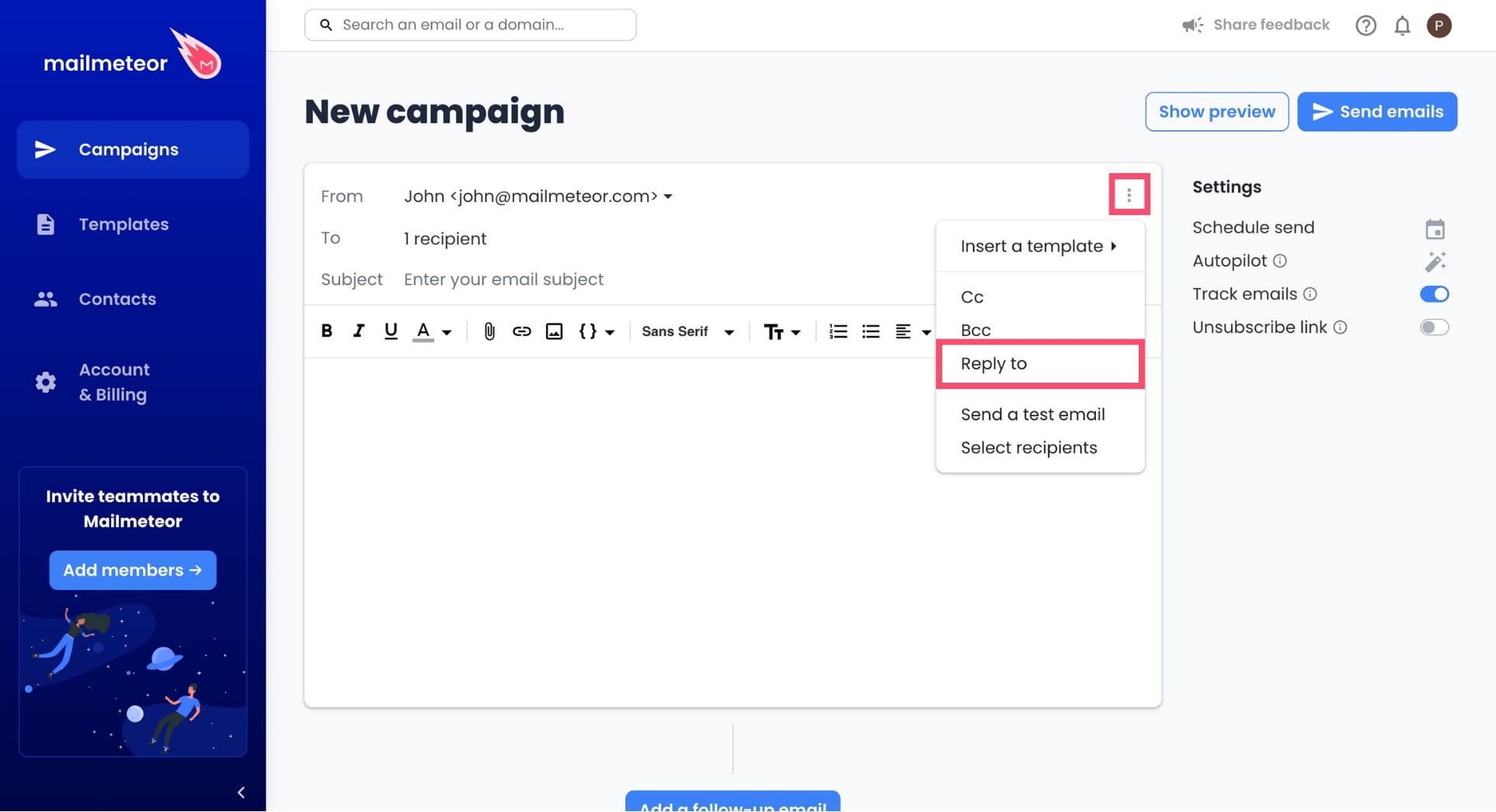
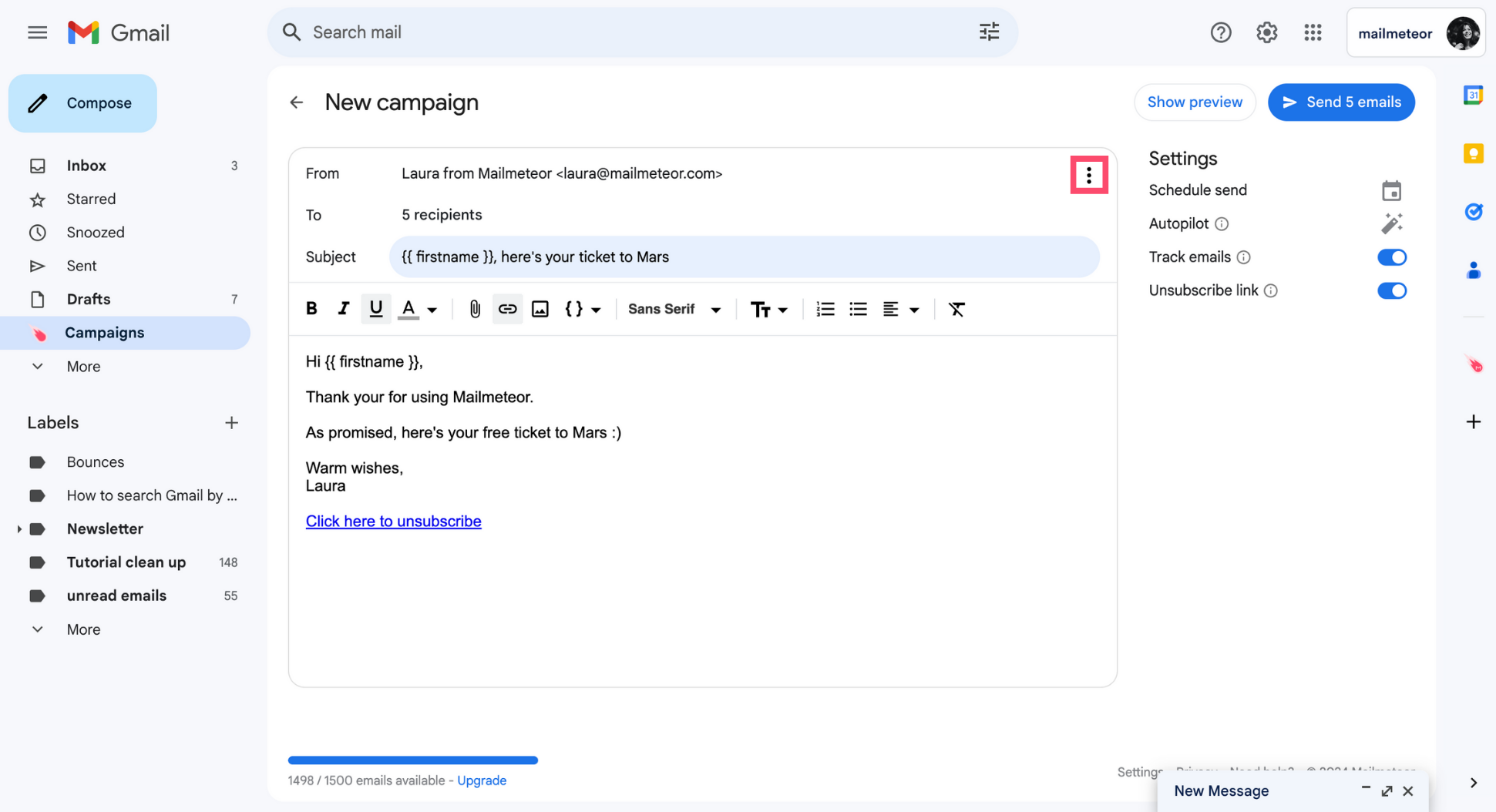
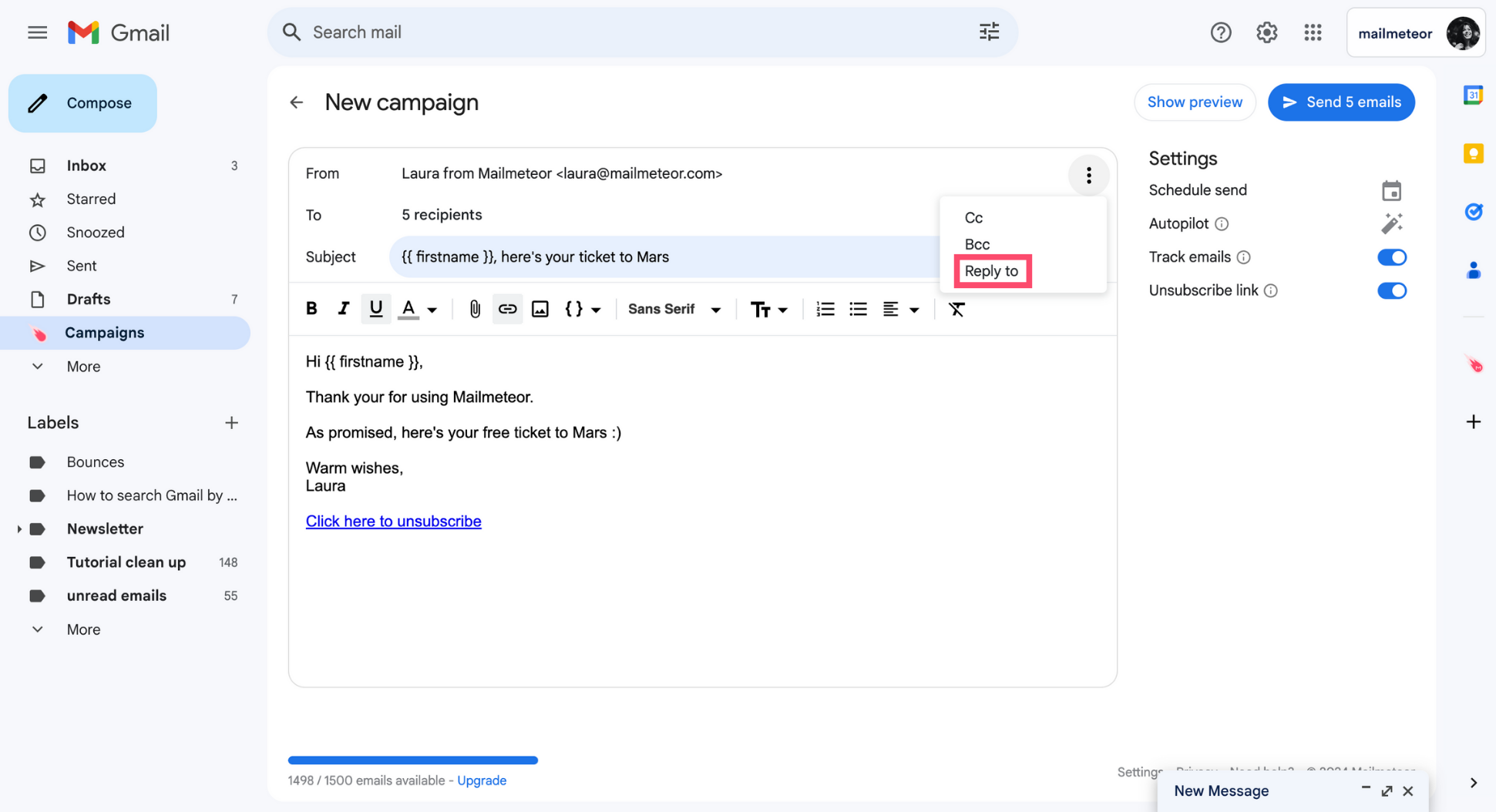
3. Click on the three vertical dots and select **Reply-To**.
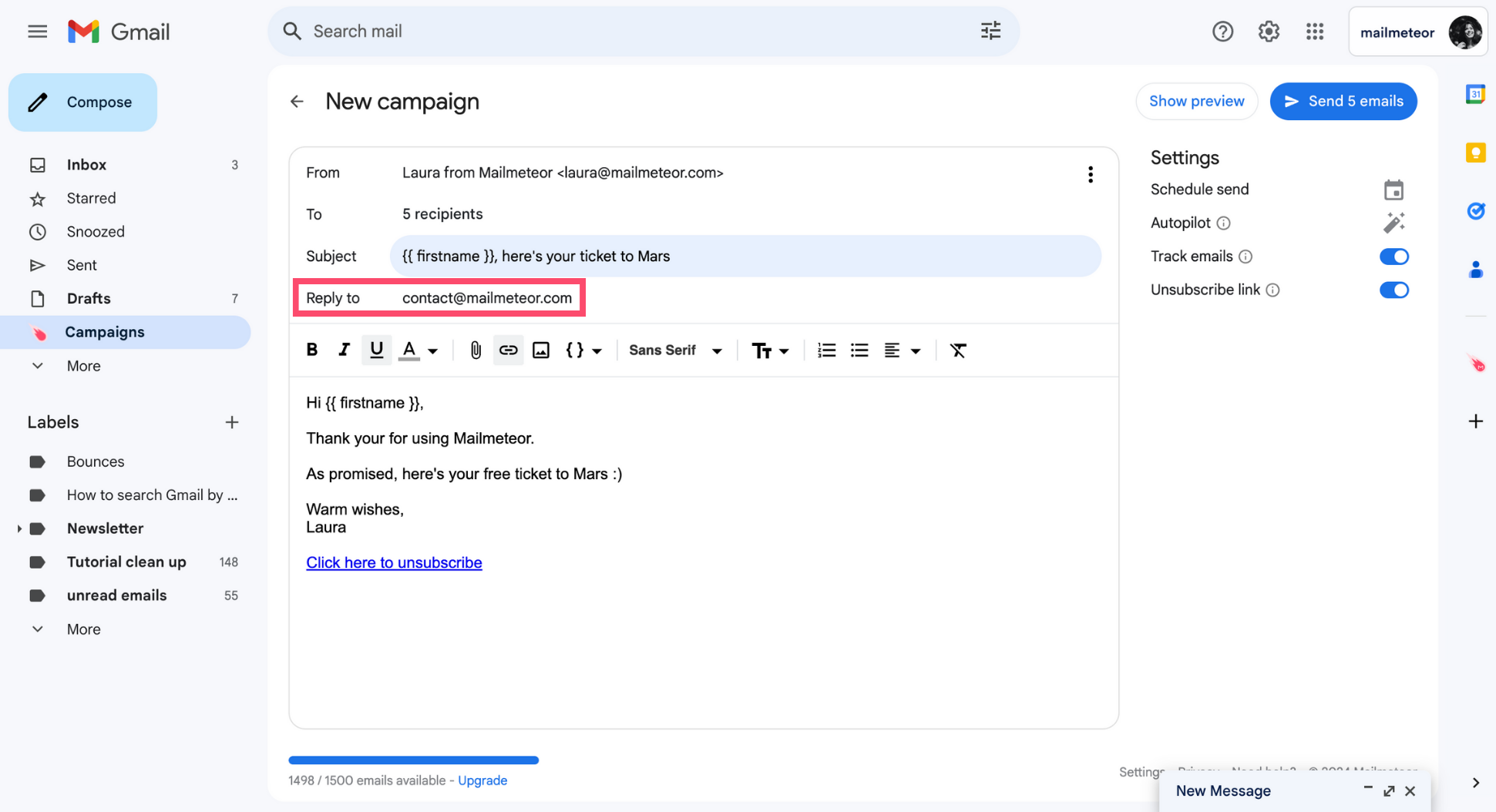
4. Enter your Reply-to email address.
{% hint style="info" %}
Each of your recipients will receive an email with the reply-to email address you've selected.
{% endhint %}
{% endtab %}
{% tab "Gmail" %}
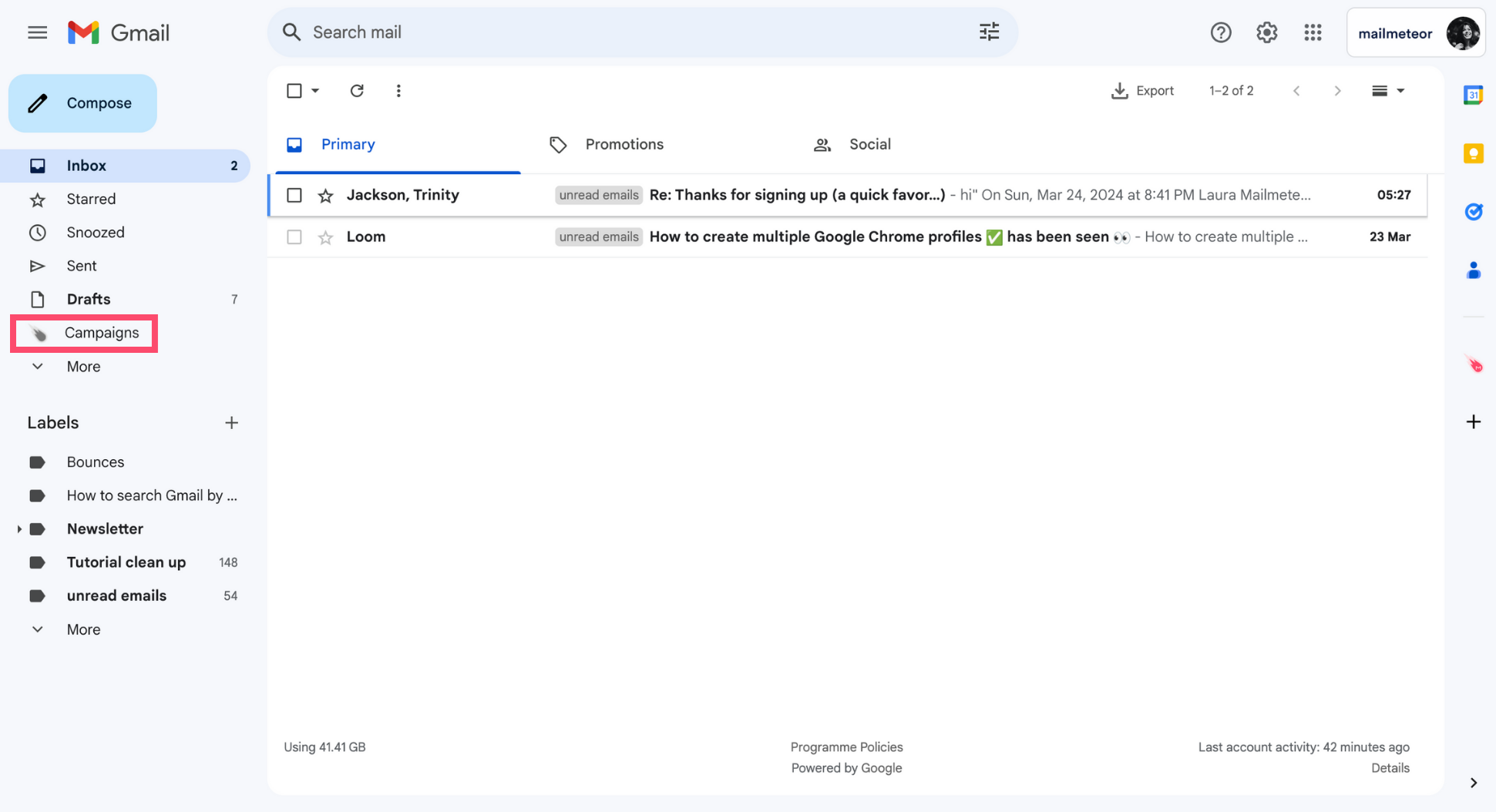
1. Sign in to your [Gmail](https://mail.google.com/mail/u/0/#inbox) account.
2. Go to **Campaigns**.
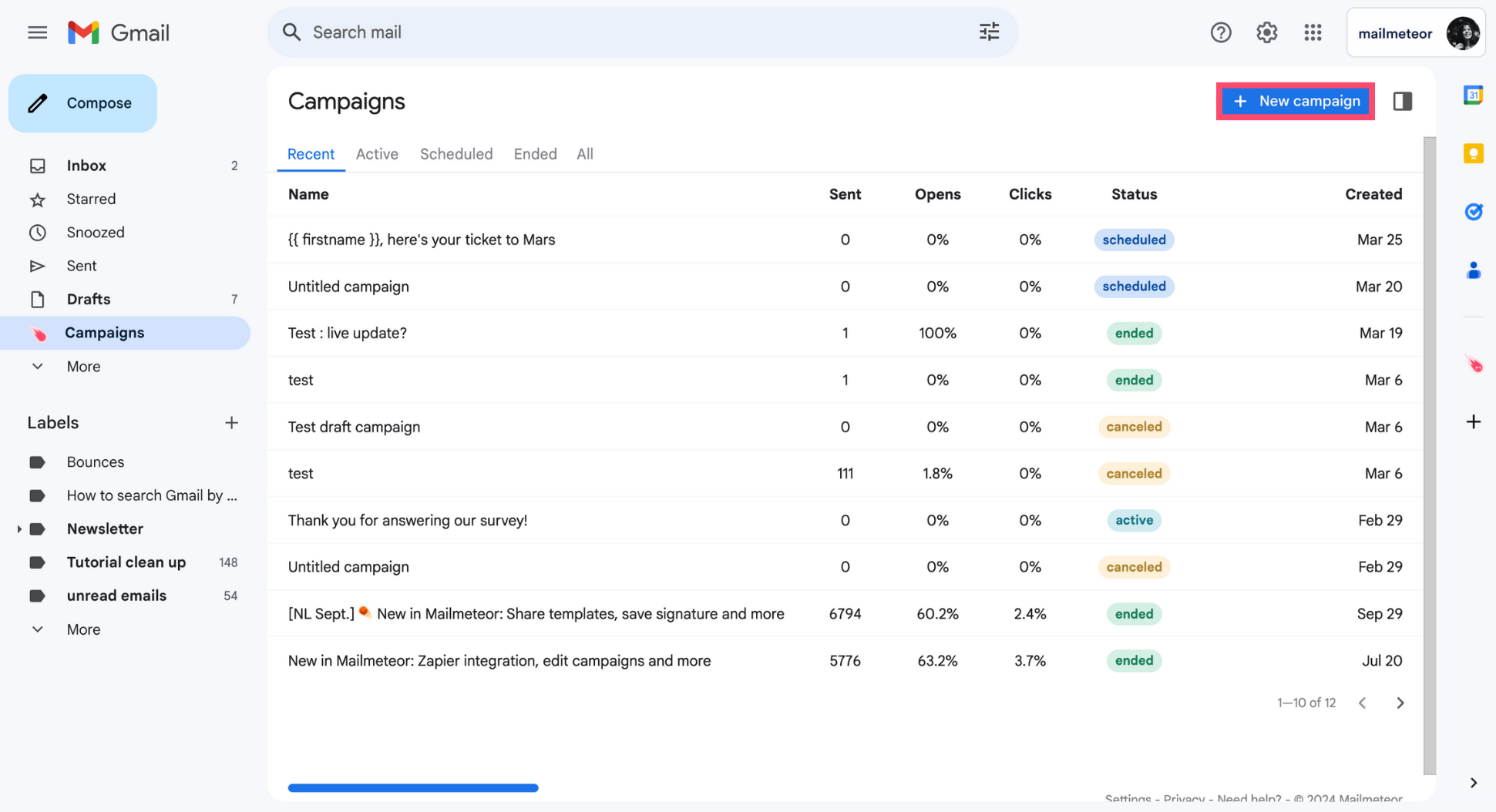
3. Create a **New campaign**.
4. Click the three vertical dots.
5. Select **Reply to**.
6. In the Reply to field, add your reply-to email address.
{% endtab %}
{% tab "Google Sheets" %}
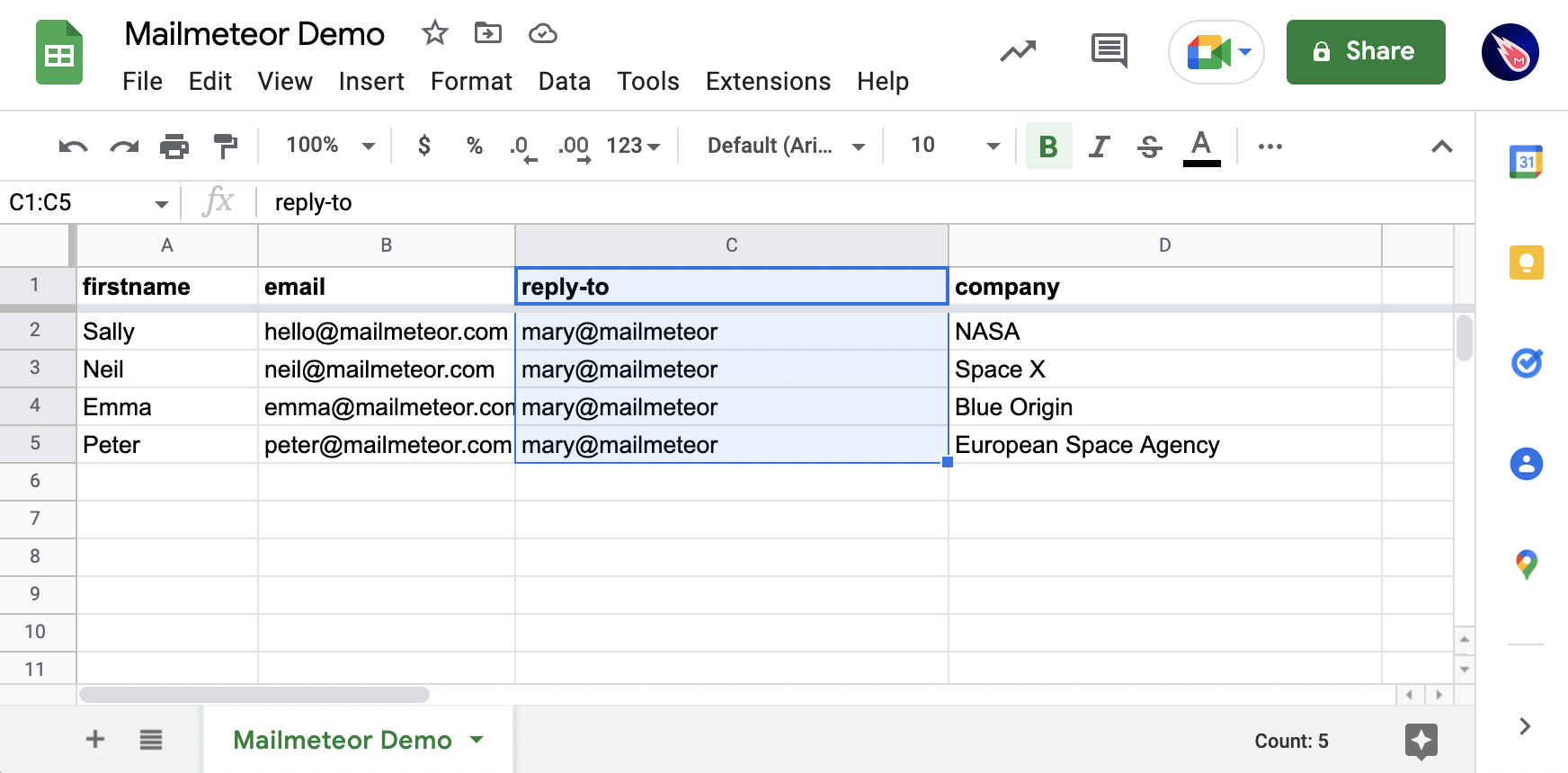
1. Add a new column to your Google Sheets spreadsheet.
2. Name it "reply-to".
3. Add your Reply-to email address.
In this example, each email will have a reply-to set to mary@mailmeteor.com
{% hint style="warning" %}
Make sure to add exactly 'reply-to' in lowercase. Mailmeteor is case-sensitive.
{% endhint %}
{% endtab %}
{% endtabs %}
## Going further
{% embed url="https://mailmeteor.com/blog/how-to-send-emails-with-reply-to-gmail" %}