# Scheduling a campaign

When you prepare a mail merge, you can schedule the emails to be sent at a later date. Here’s how to do it:

{% tabs %}
{% tab "Dashboard" %}

1. Go to [Mailmeteor Dashboard](https://dashboard.mailmeteor.com/).
2. Create a [new campaign](https://dashboard.mailmeteor.com/campaigns/new).
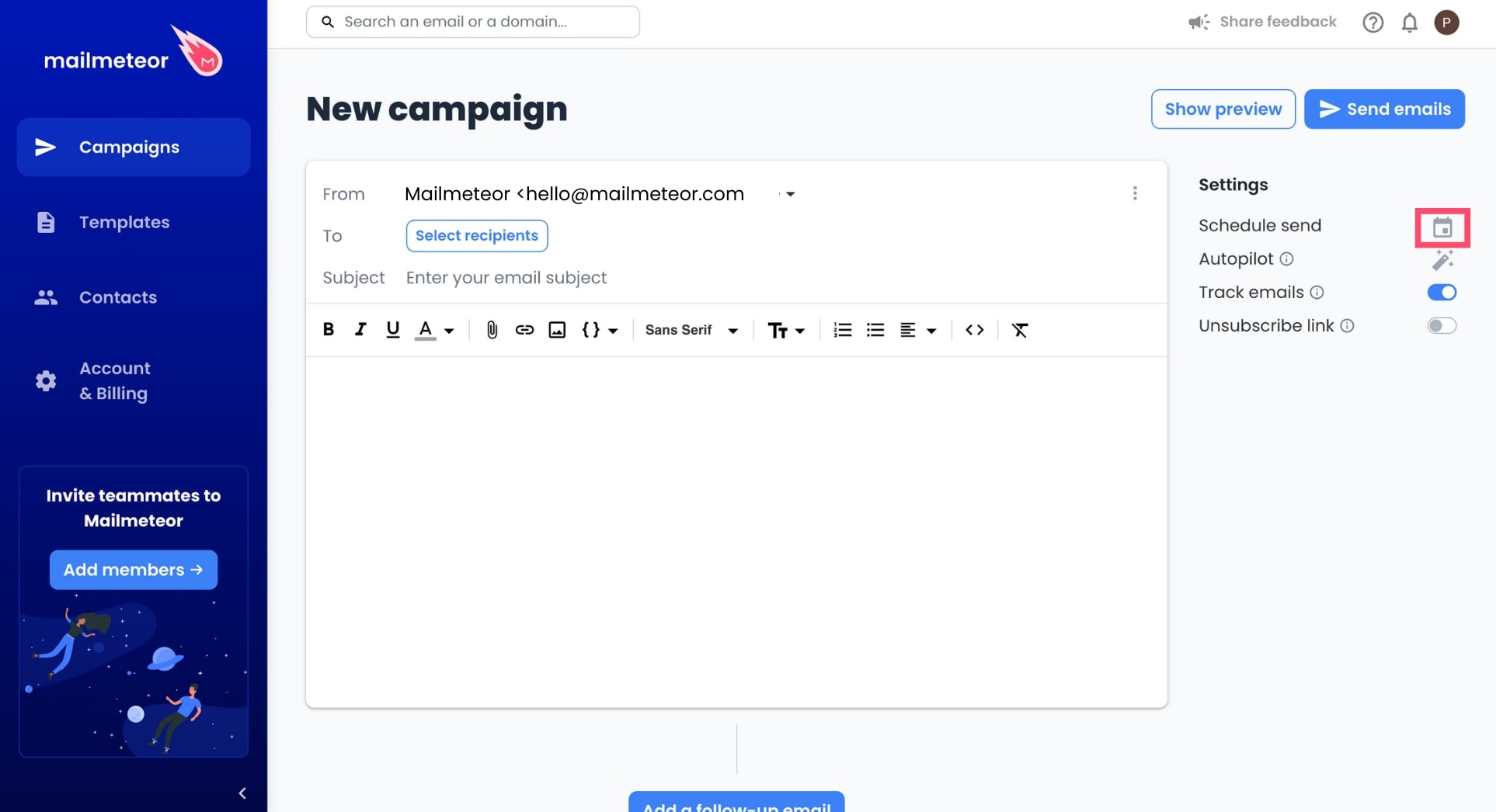
3. Click **Schedule send**.

    <figure><img src="https://mailmeteor.com/assets/docs/schedule-send-dashboard.jpg" loading="lazy" alt="Schedule emails in Mailmeteor"><figcaption></figcaption></figure>

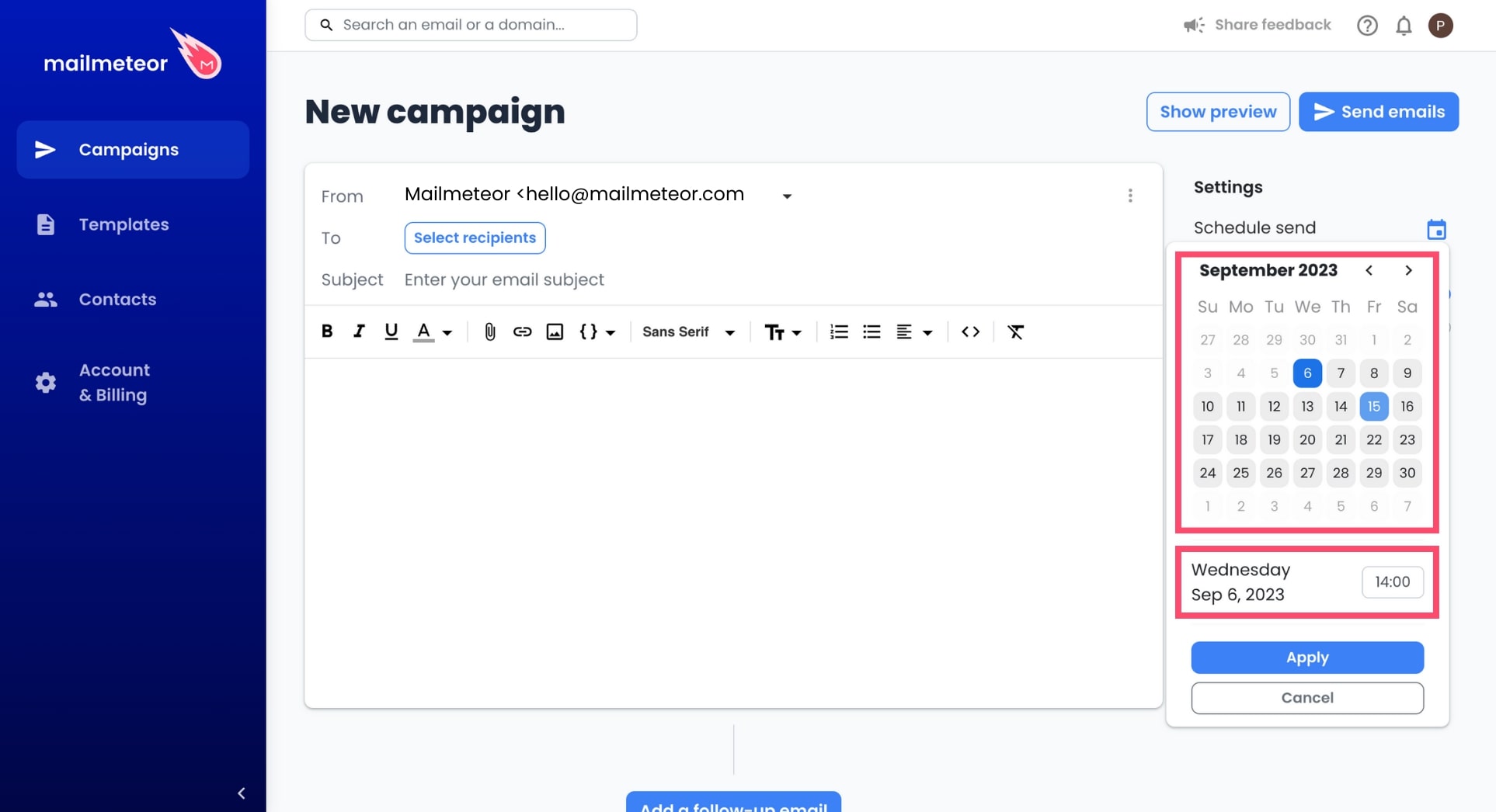
4. Select the date and time.&#x20;

    <figure><img src="https://mailmeteor.com/assets/docs/select-time-date-dashboard.jpg" loading="lazy" alt="Select time and date in Mailmeteor"><figcaption></figcaption></figure>

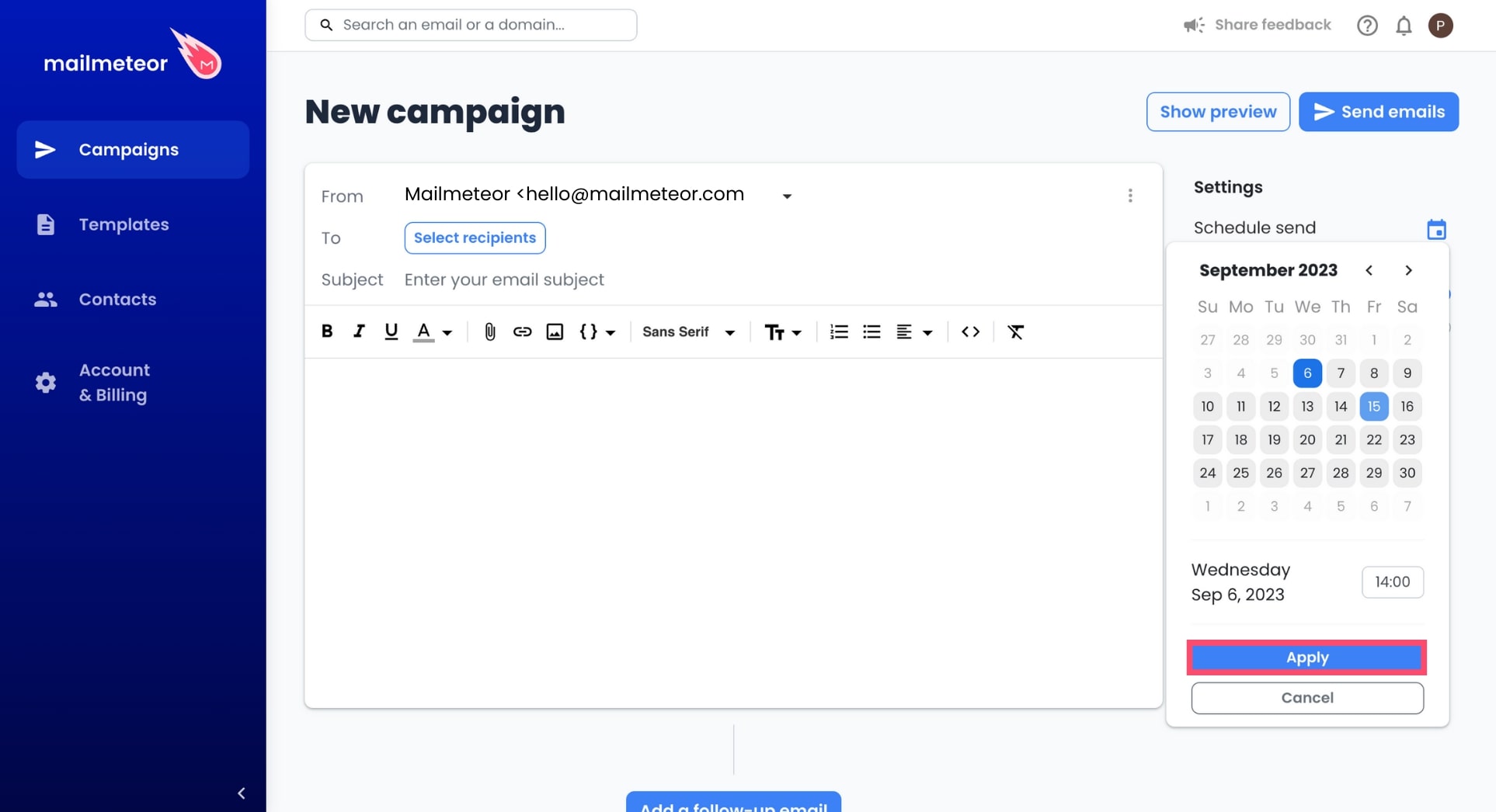
5. Click **Apply** to confirm.

    <figure><img src="https://mailmeteor.com/assets/docs/confirm-scheduling-dashboard.jpg" loading="lazy" alt="Confirm schedule send in Mailmeteor"><figcaption></figcaption></figure>

## How to view scheduled campaigns?

1. Sign in to [Mailmeteor Dashboard](https://dashboard.mailmeteor.com/).
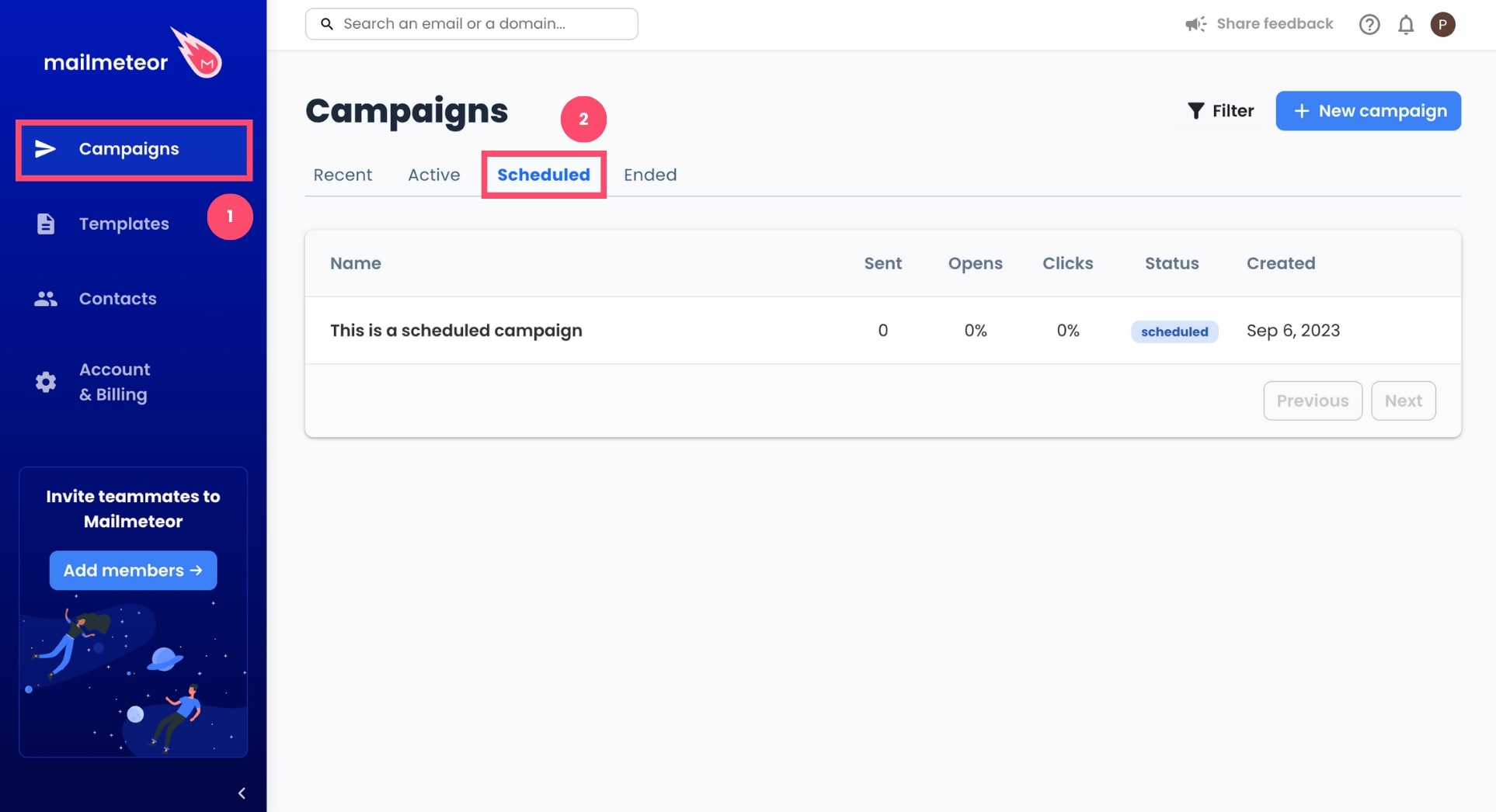
2. Go to **Campaigns** > **Scheduled**.

    <figure><img src="https://mailmeteor.com/assets/docs/view-scheduled-campaign.jpg" loading="lazy" alt="How to view scheduled campaigns in Mailmeteor"><figcaption></figcaption></figure>

3. Click on a campaign.

## How to edit a scheduled campaign?

Made a mistake? Or want to make some last-minute changes? Here's how you can edit a scheduled campaign in Mailmeteor before we start sending your emails.

1. Open [Mailmeteor Dashboard](https://dashboard.mailmeteor.com/).
2. Go to **Campaigns** > **Scheduled**.
3. Select your email campaign.
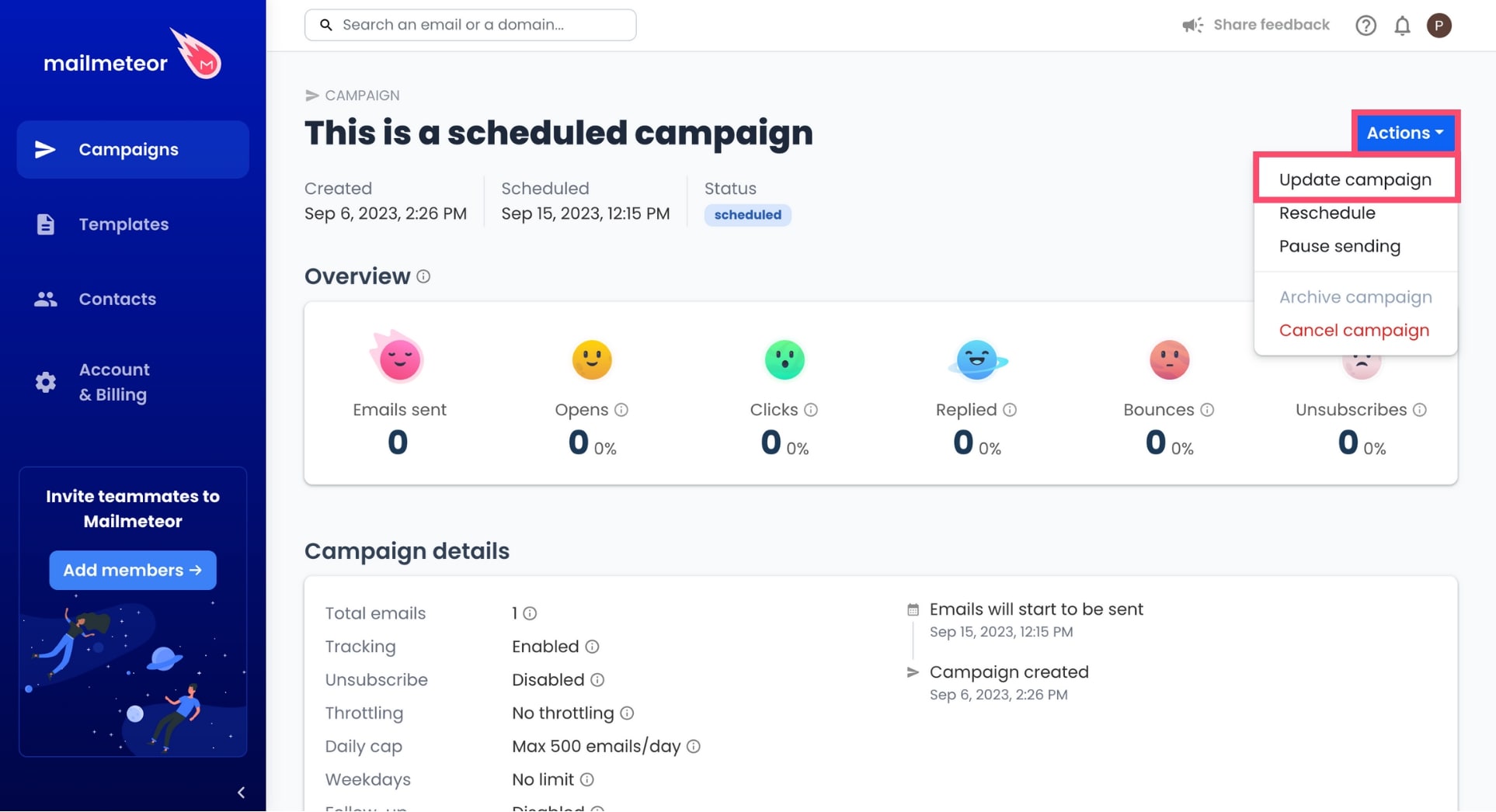
4. Click on the **Action** button.
5. Select **Update campaign**.

    <figure><img src="https://mailmeteor.com/assets/docs/update-scheduled-campaign-dashboard.jpg" loading="lazy" alt="How to update a scheduled campaign in Mailmeteor"><figcaption></figcaption></figure>

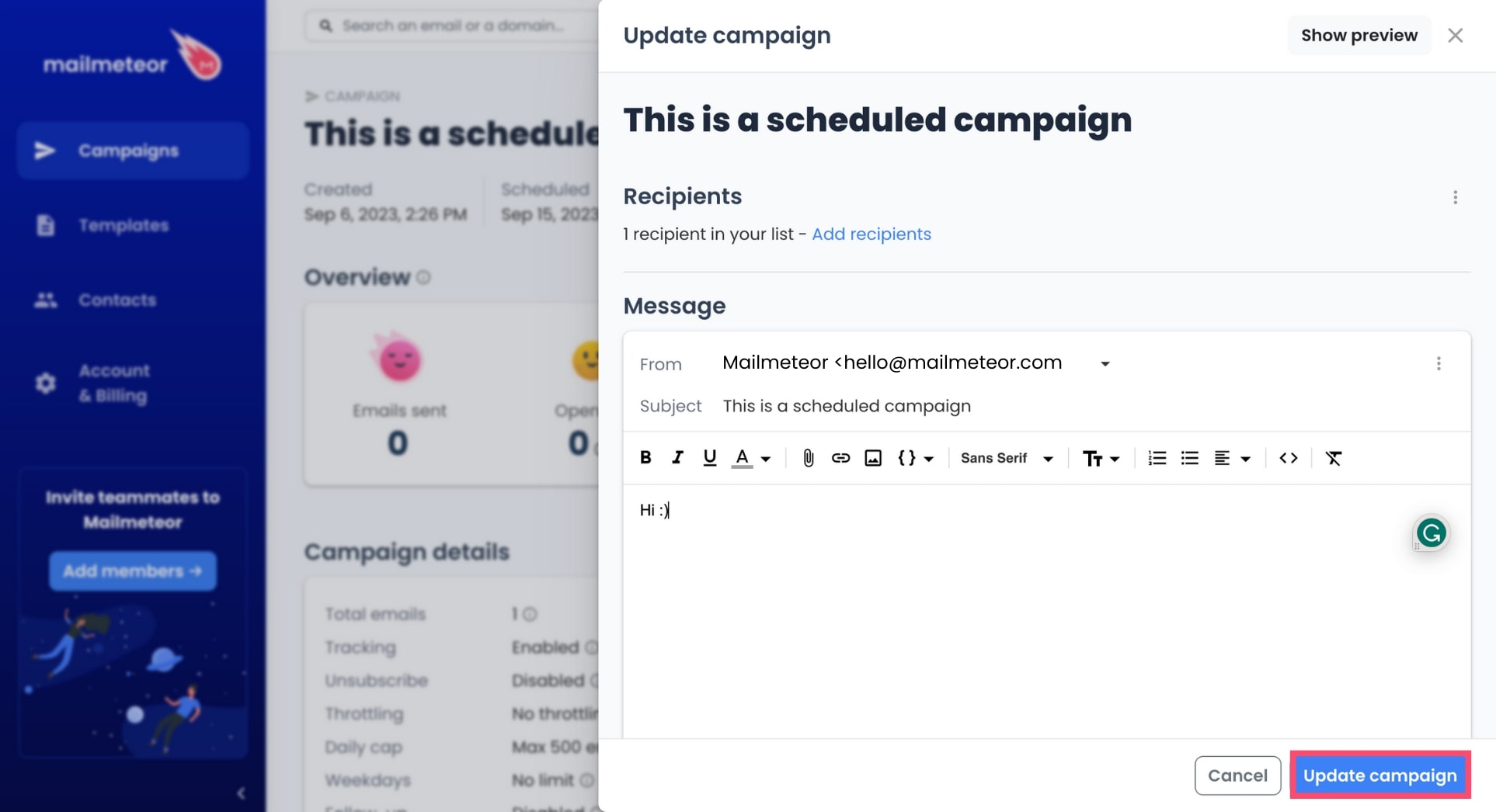
6. From there, you can edit your subject line, the body of your email, or the list of recipients.
7. Once you're happy with the changes you've made, click **Update campaign**.

    <figure><img src="https://mailmeteor.com/assets/docs/edit-scheduled-campaign-dashboard.jpg" loading="lazy" alt="Edit scheduled campaign in Mailmeteor"><figcaption></figcaption></figure>

## How to cancel a scheduled campaign?

Want to cancel a campaign you've scheduled? Here's how to do it:

1. Open [Mailmeteor Dashboard](https://dashboard.mailmeteor.com/).
2. Go to **Campaigns** > **Scheduled**.
3. Select your email campaign.
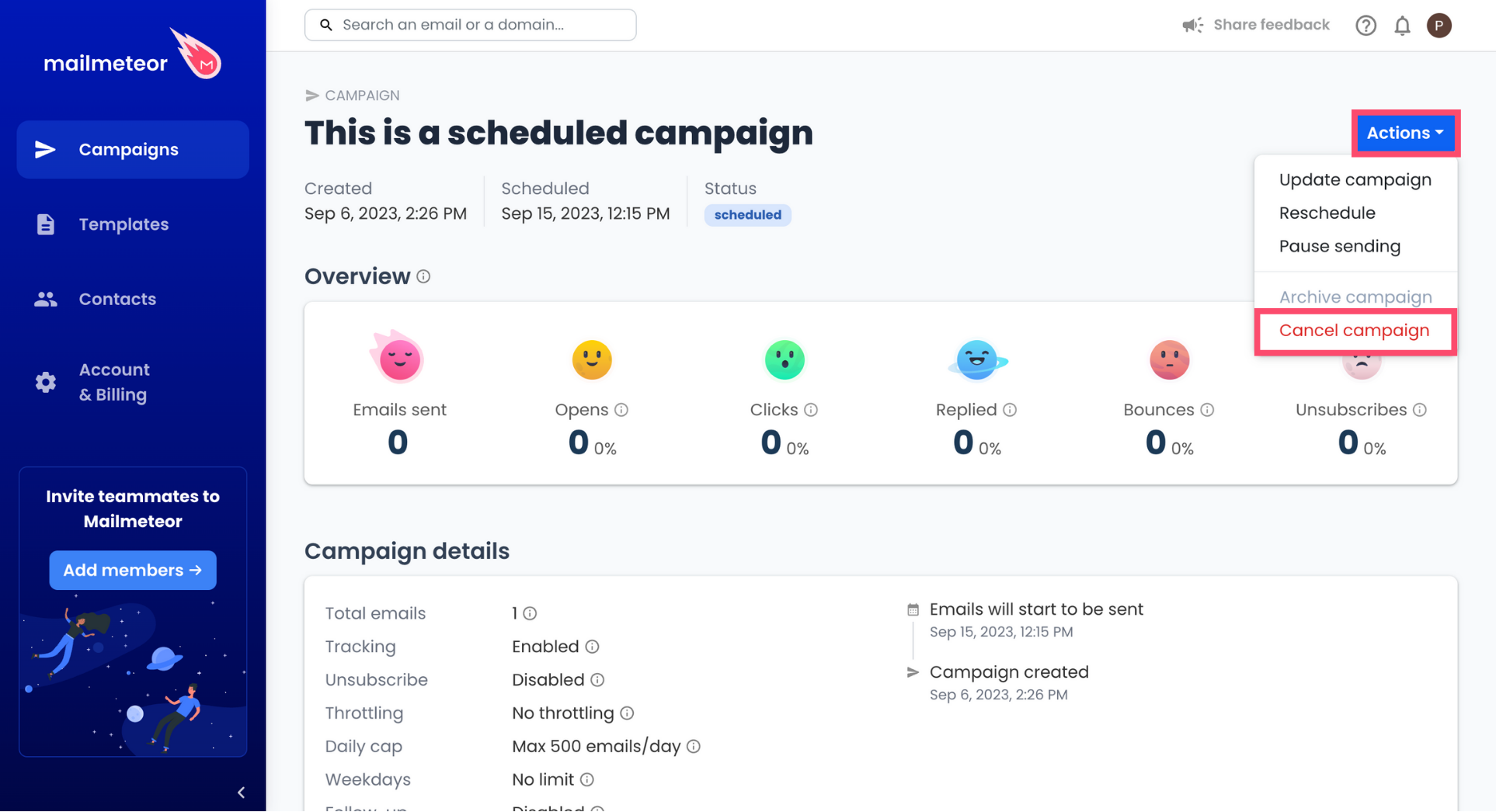
4. Click on the **Action** button and select **Cancel campaign**.

    <figure><img src="https://mailmeteor.com/assets/docs/cancel-scheduled-campaign-dashboard.png" loading="lazy" alt="Cancel scheduled campaign in Mailmeteor"><figcaption></figcaption></figure>

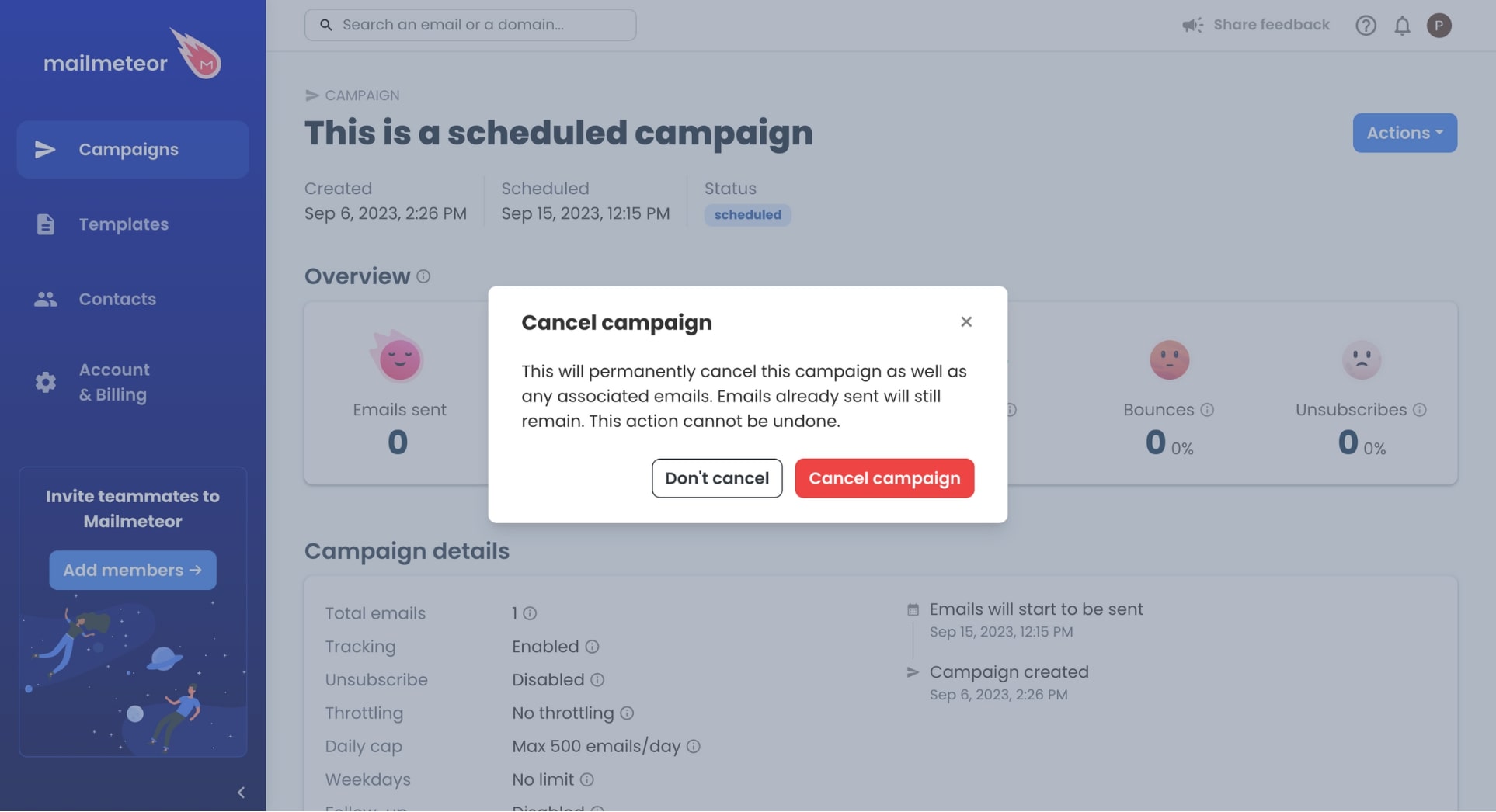
5. To confirm, click **Cancel campaign**.

    <figure><img src="https://mailmeteor.com/assets/docs/confirm-cancel-campaign.jpg" loading="lazy" alt="Cancel Mailmeteor campaign"><figcaption></figcaption></figure>

## Video tutorial

If you prefer to watch a video, here's a tutorial on how to schedule your campaigns with Mailmeteor:

{% embed_block url="https://www.youtube.com/watch?v=bZaC4x4T-TM" %}
Happy watching!
{% endembed_block %}
{% endtab %}
{% tab "Gmail" %}

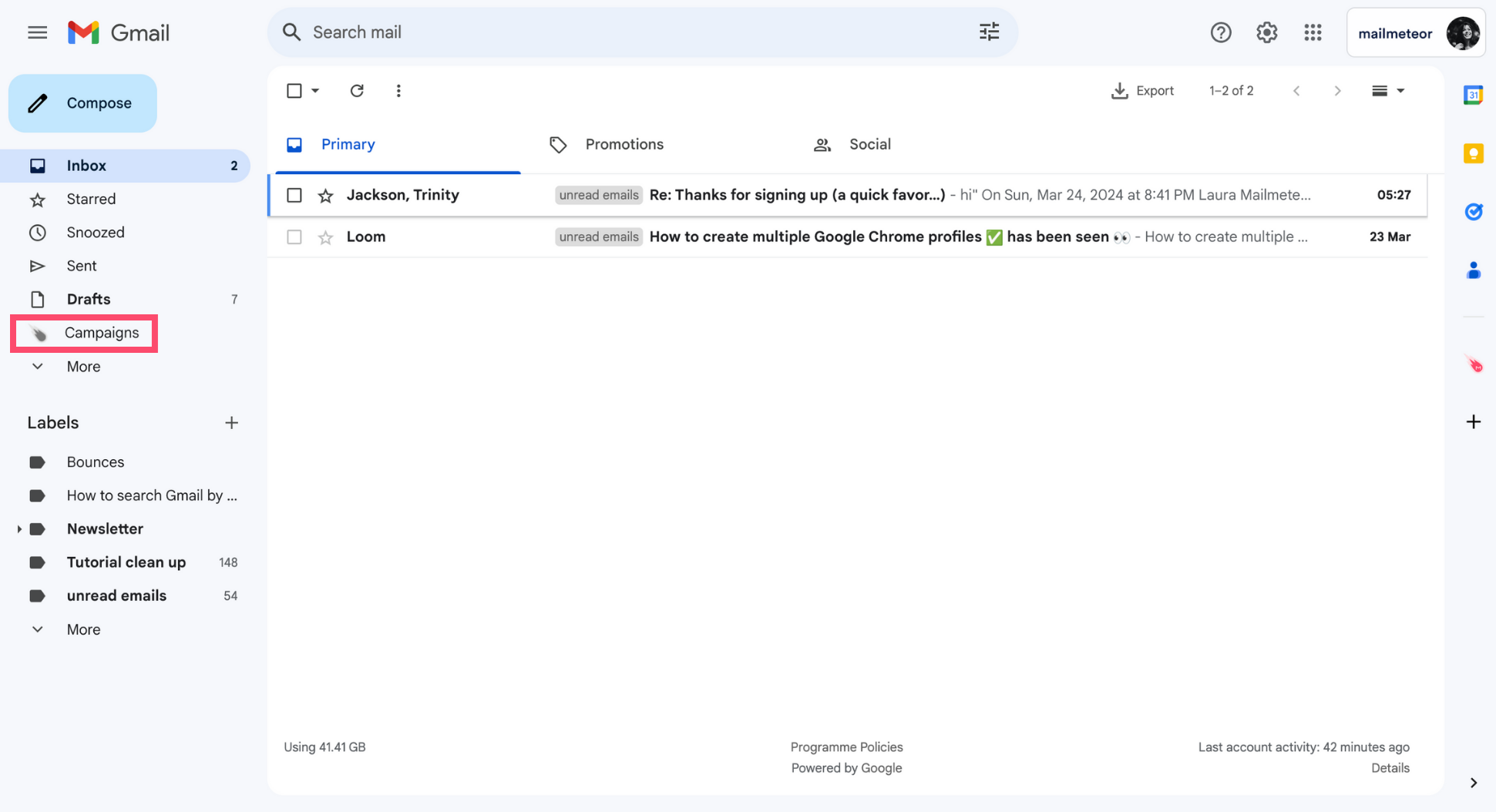
1. Sign in to your [Gmail](https://mail.google.com/mail/u/0/#inbox) account.
2. Go to **Campaigns**.

    <figure><img src="https://mailmeteor.com/assets/docs/campaigns-tab.png" loading="lazy" alt="Campaigns tab in Gmail"><figcaption></figcaption></figure>

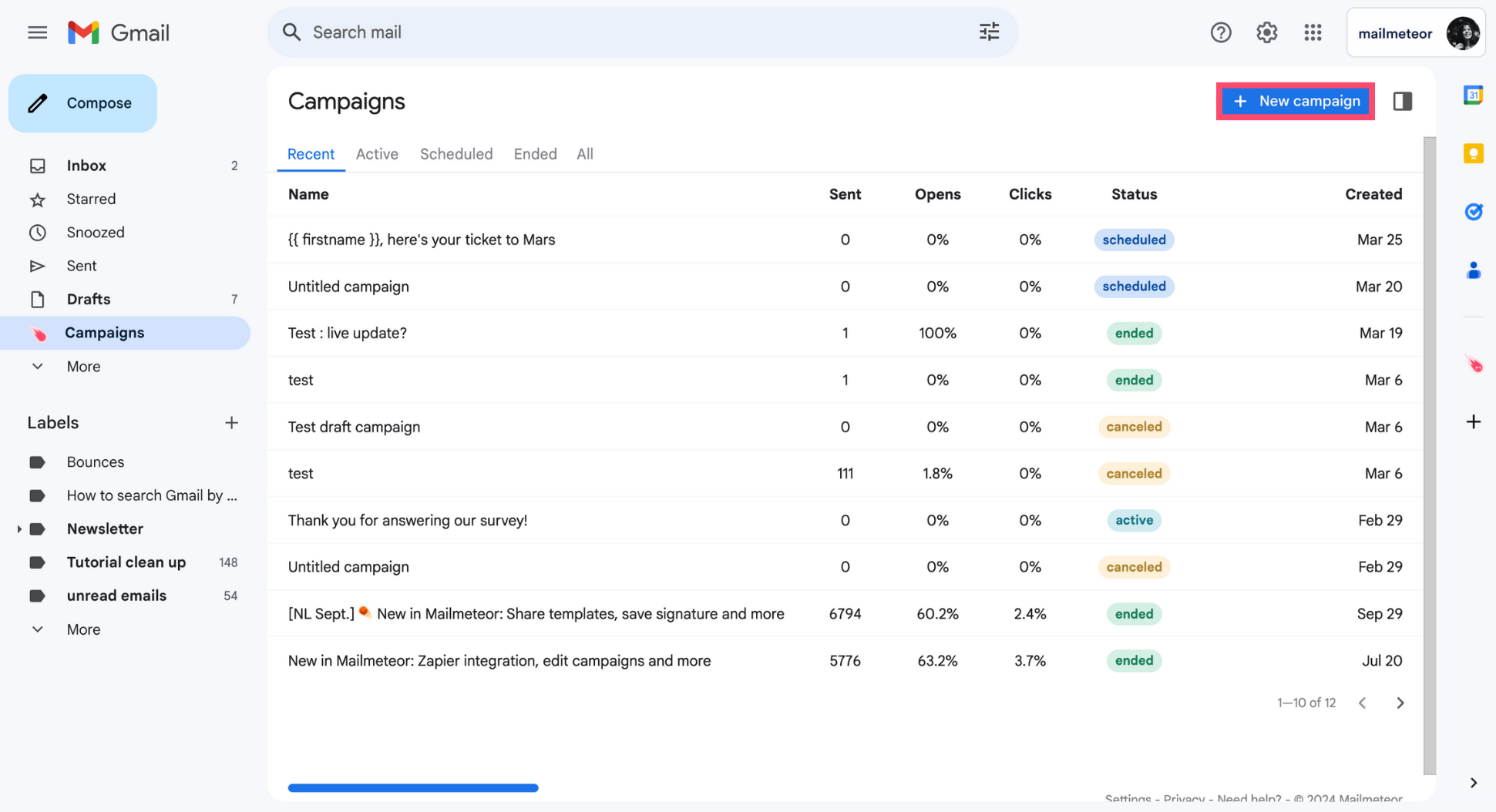
3. Create a **New campaign**.

    <figure><img src="https://mailmeteor.com/assets/docs/new-campaign-gmail.png" loading="lazy" alt="Create a new Mailmeteor campaign in Gmail"><figcaption></figcaption></figure>

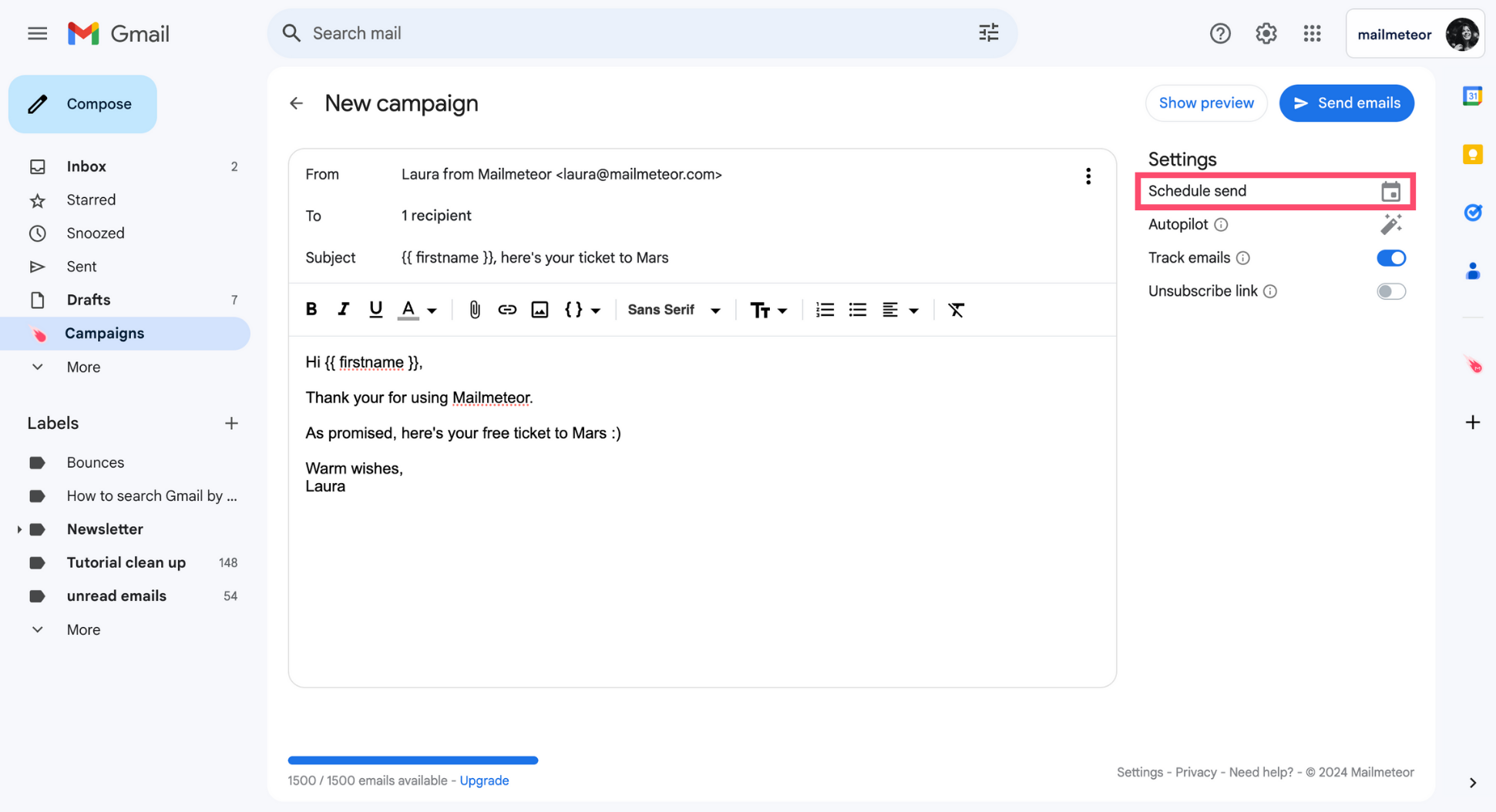
4. Under **Settings**, click **Schedule send**.

    <figure><img src="https://mailmeteor.com/assets/docs/schedule-email-gmail.png" loading="lazy" alt="Schedule a Mailmeteor campaign in Gmail"><figcaption></figcaption></figure>

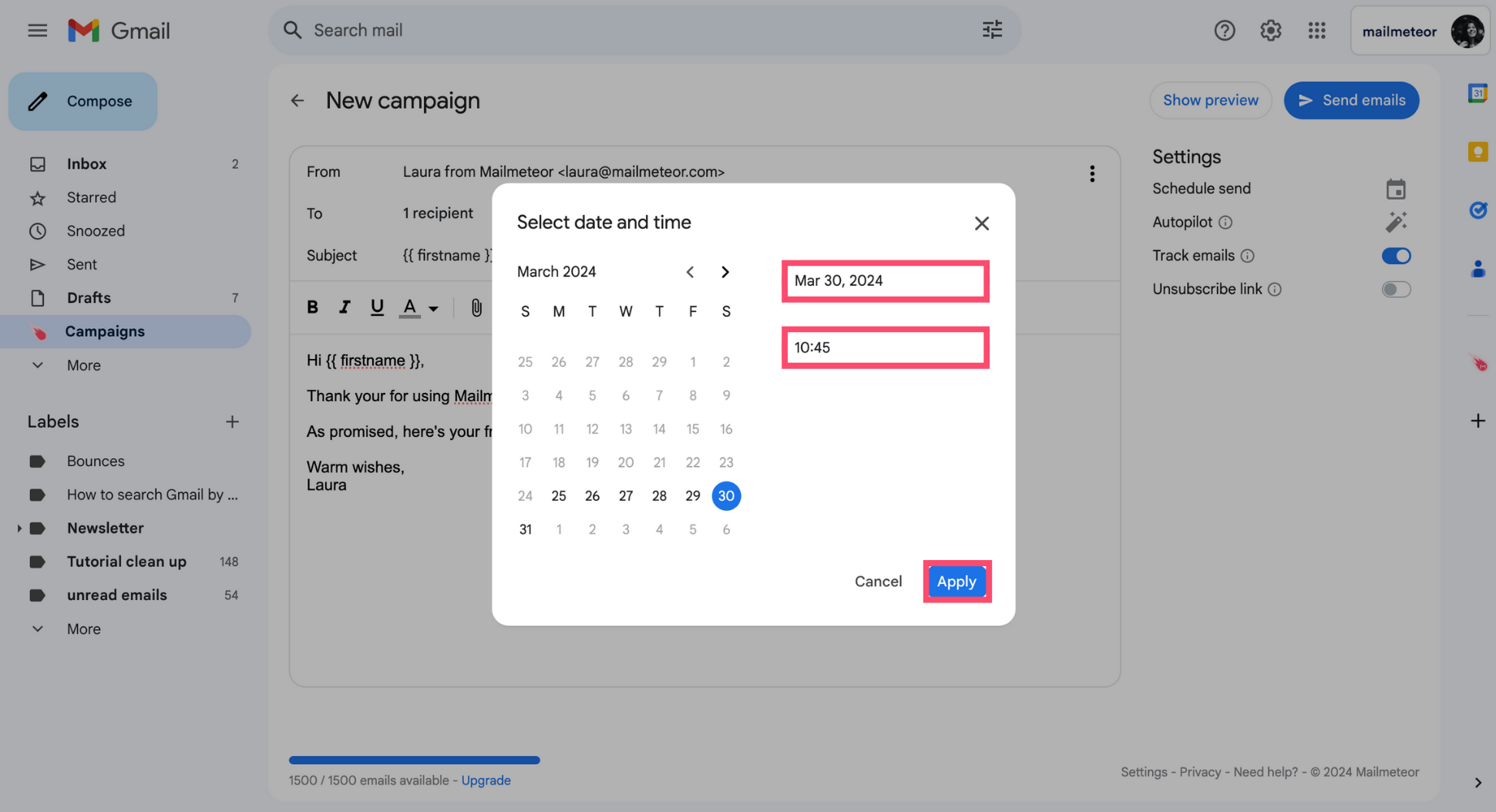
5. Pick a date and time. Then click **Apply**.

    <figure><img src="https://mailmeteor.com/assets/docs/select-time-and-date.png" loading="lazy" alt="Select a date and time in Gmail"><figcaption></figcaption></figure>

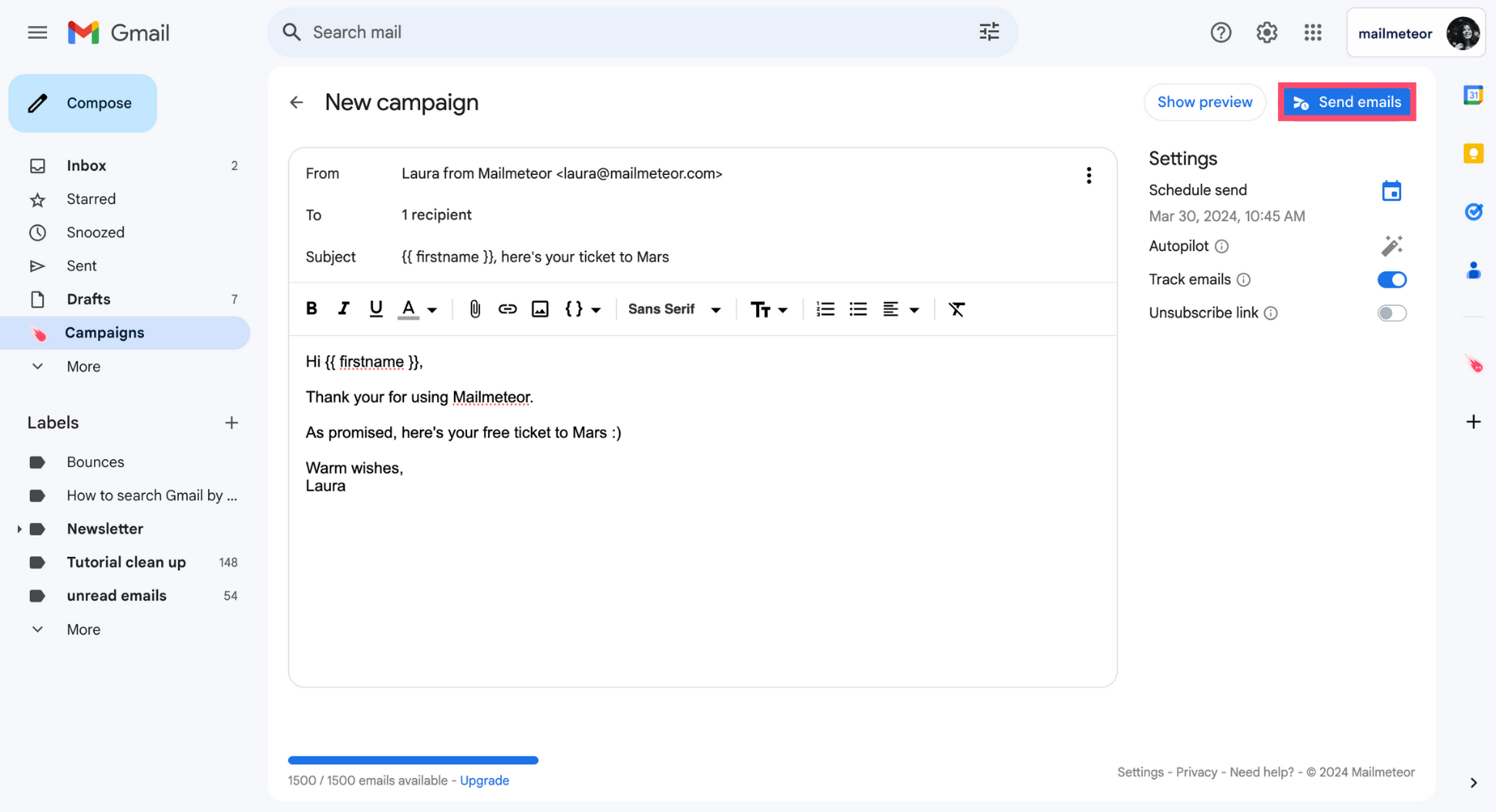
6. Once your campaign is ready, click **Send emails**.

    <figure><img src="https://mailmeteor.com/assets/docs/schedule-campaign-in-gmail.png" loading="lazy" alt="Send emails in Gmail with Mailmeteor"><figcaption></figcaption></figure>

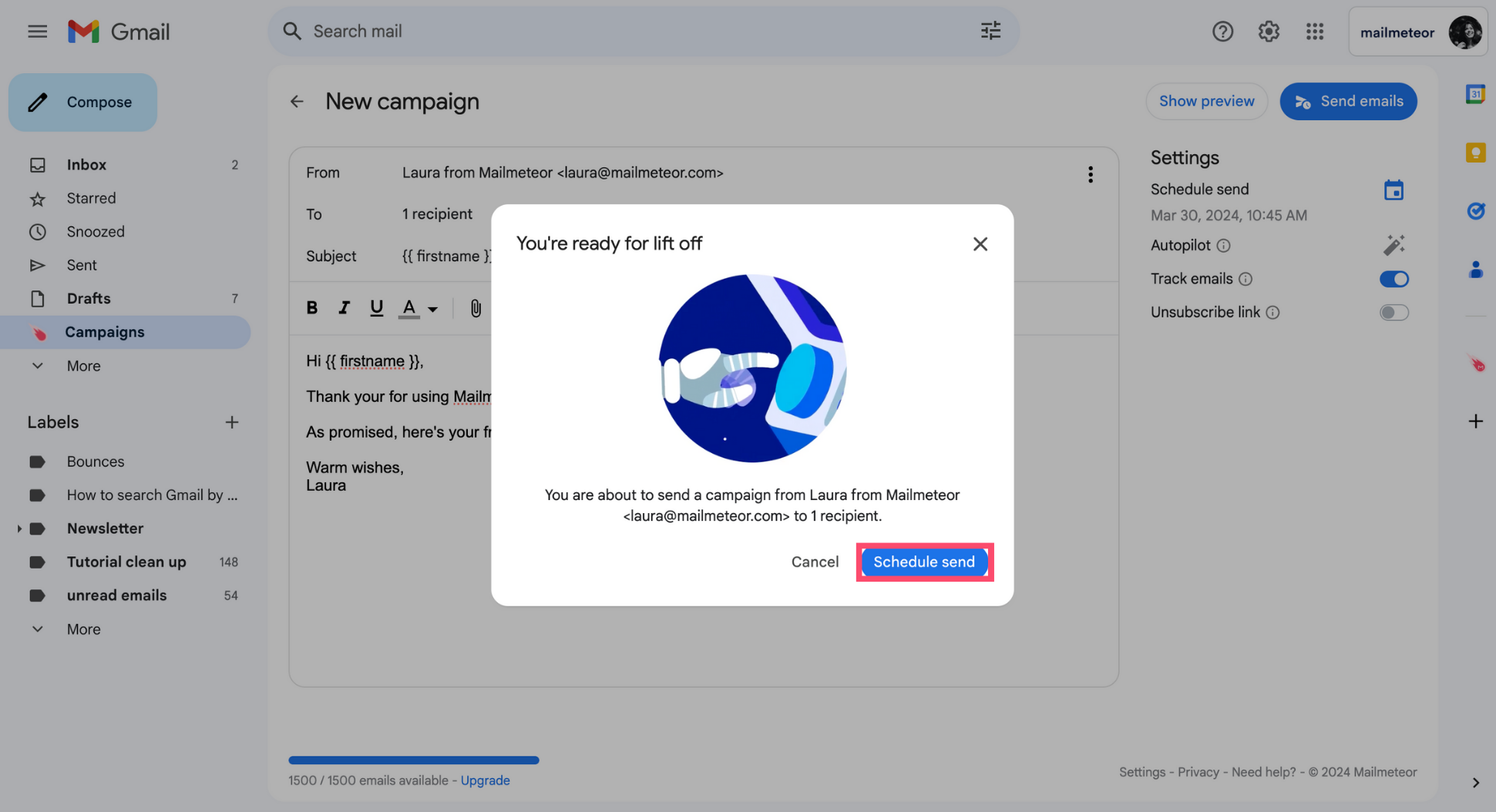
7. To confirm, click **Schedule send**.

    <figure><img src="https://mailmeteor.com/assets/docs/schedule-send-gmail.png" loading="lazy" alt="Schedule send in Gmail with Mailmeteor"><figcaption></figcaption></figure>

{% hint style="info" %}
Your emails will be sent gradually after the scheduled time. Depending on the size of your contact list, the dispatch may take a few minutes to one hour. This is designed to maximize your deliverability and secure your email account.
{% endhint %}

## How to view scheduled campaigns?

1. Sign in to your [Gmail](https://mail.google.com/mail/u/0/#inbox) account.
2. Open the **Campaigns** tab.

    <figure><img src="https://mailmeteor.com/assets/docs/campaigns-tab.png" loading="lazy" alt="Campaigns tab in Gmail"><figcaption></figcaption></figure>

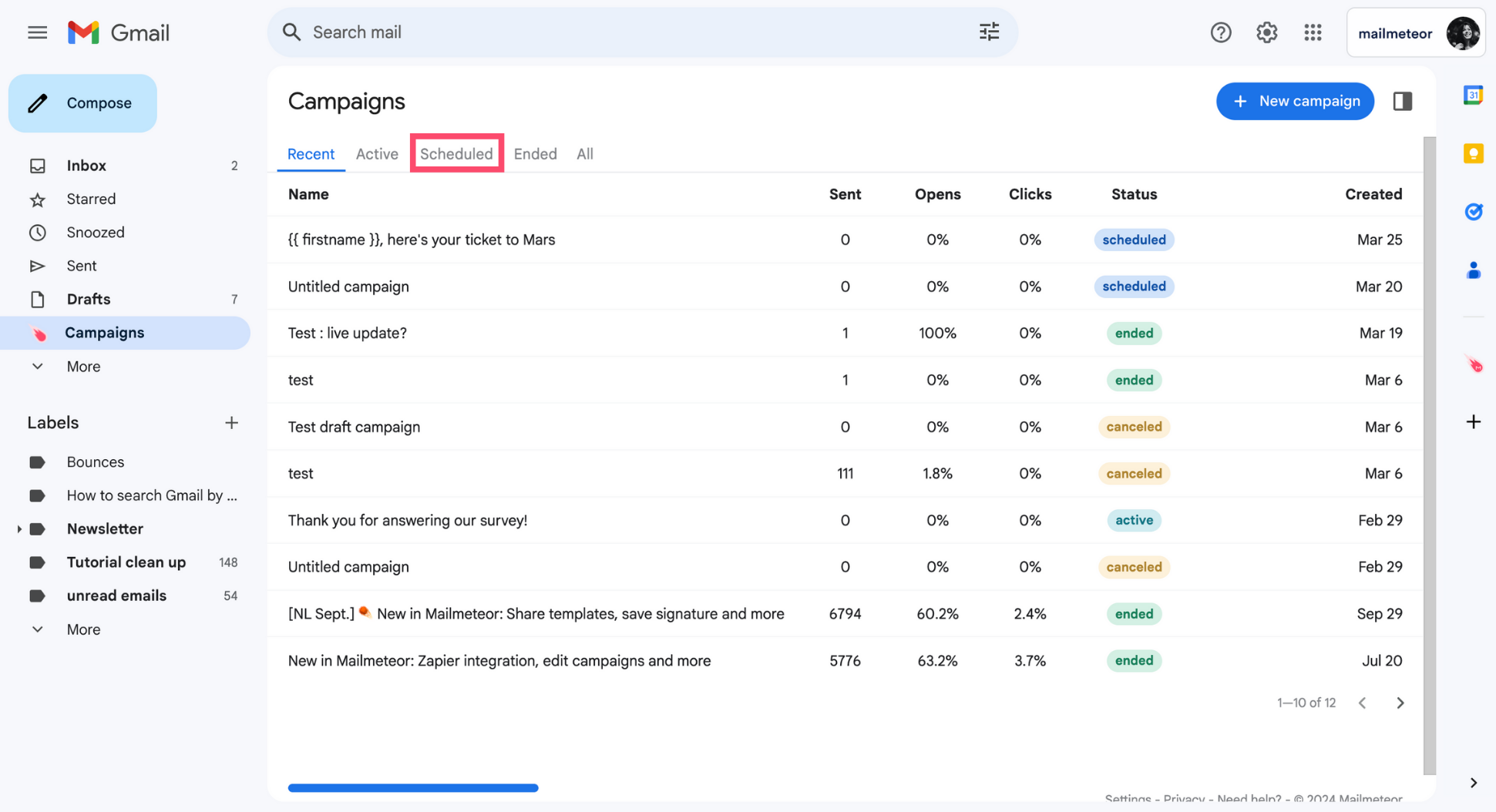
3. Go to **Scheduled**.

    <figure><img src="https://mailmeteor.com/assets/docs/scheduled-campaigns-gmail.png" loading="lazy" alt="Scheduled Mailmeteor campaigns"><figcaption></figcaption></figure>

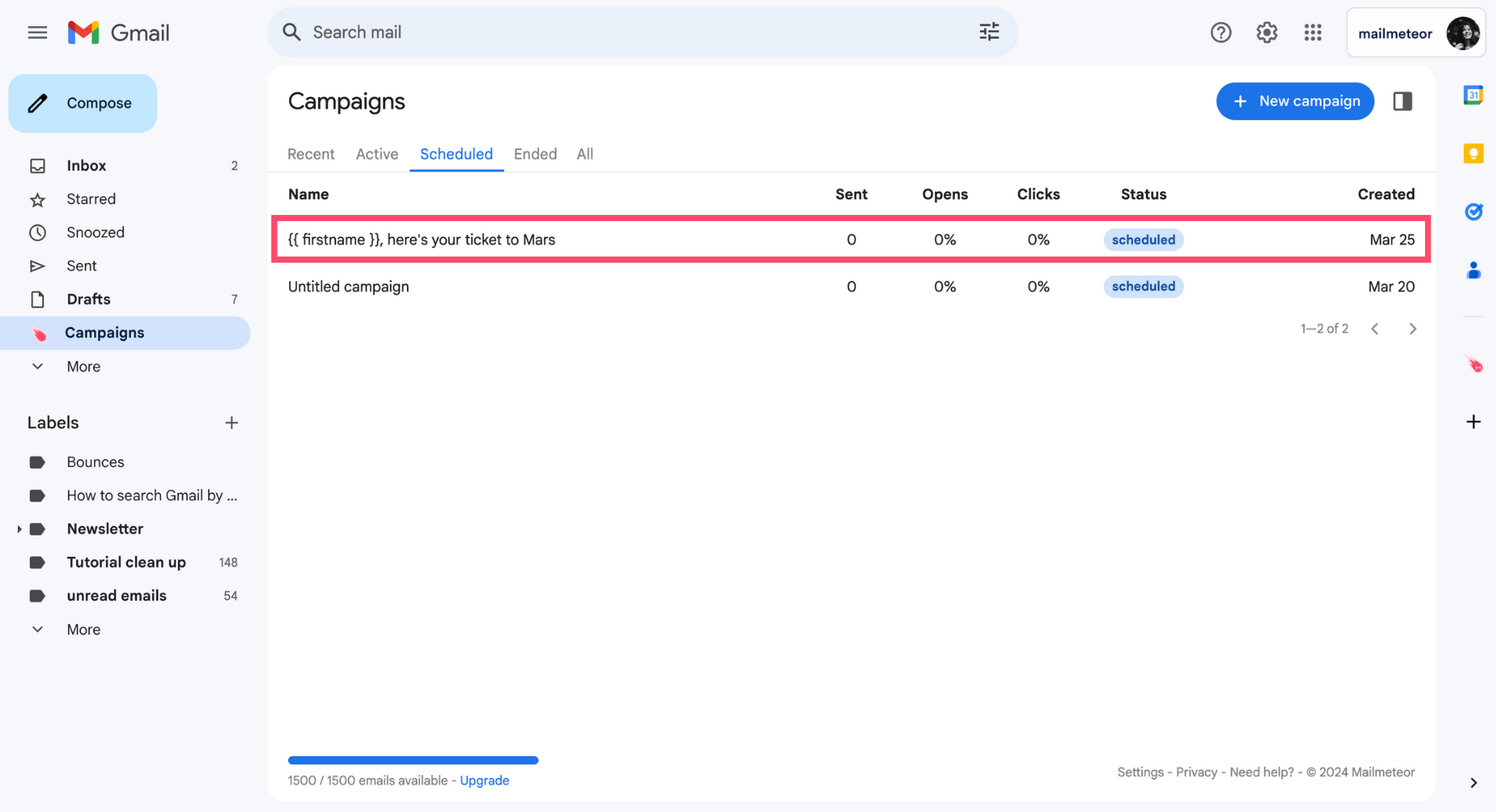
4. Select the campaign you want to view.

    <figure><img src="https://mailmeteor.com/assets/docs/select-campaign-gmail.png" loading="lazy" alt="Select a Mailmeteor campaign in Gmail"><figcaption></figcaption></figure>

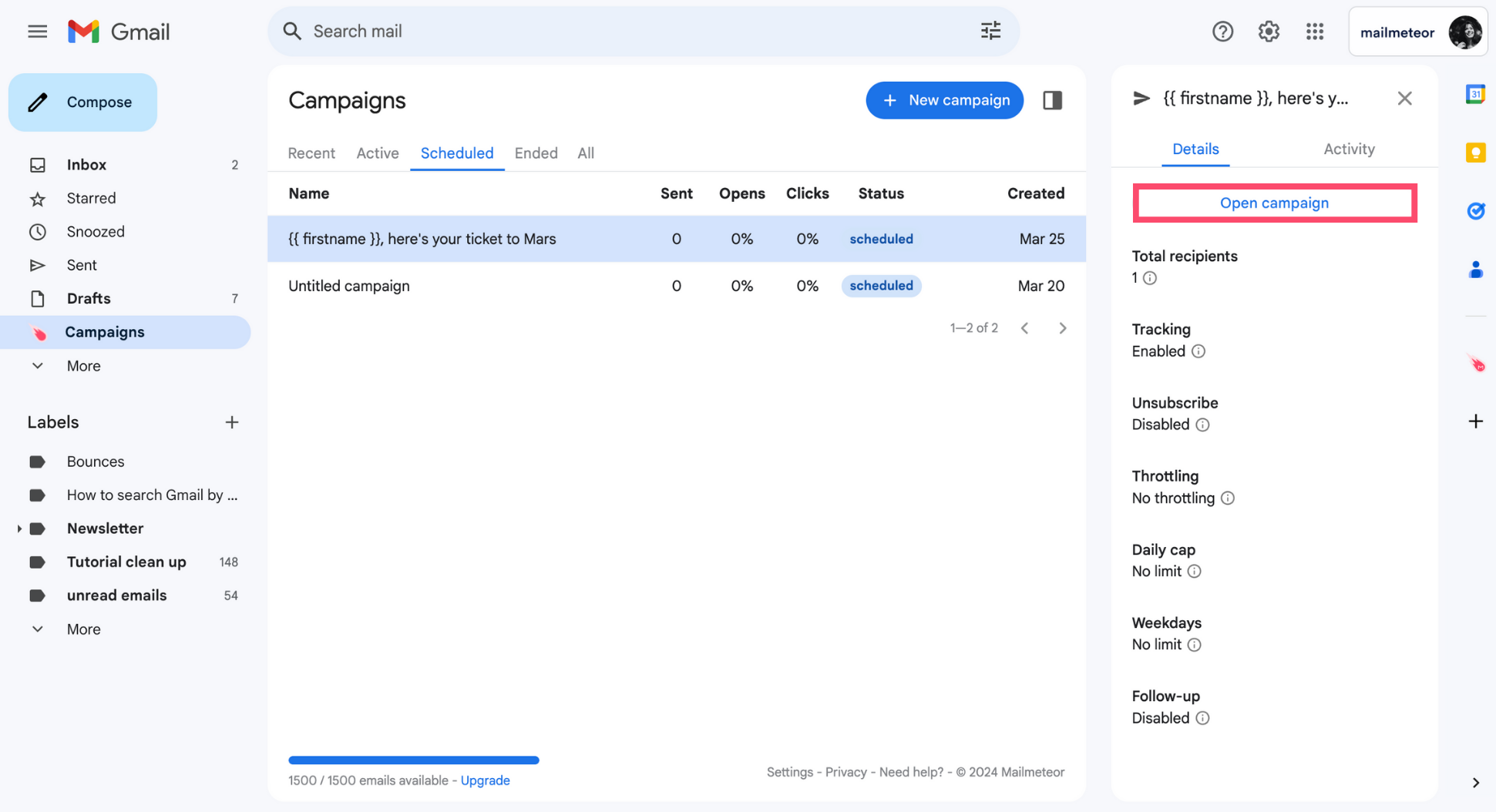
5. Click **Open campaign**.

    <figure><img src="https://mailmeteor.com/assets/docs/open-campaign-gmail.png" loading="lazy" alt="Open a Mailmeteor campaign in Gmail"><figcaption></figcaption></figure>

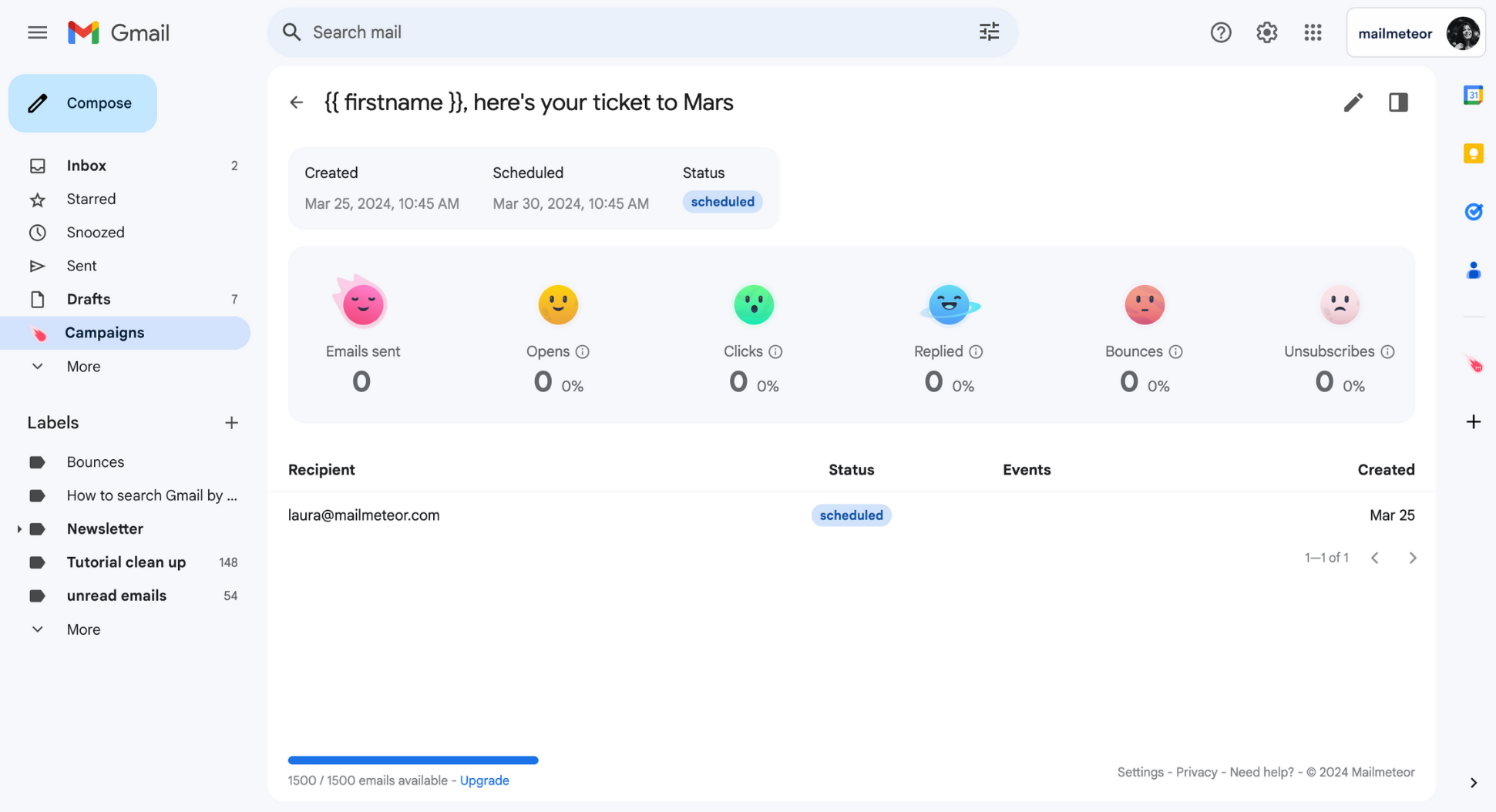
And voilà. You’ll get an overview of your scheduled campaign, with key information, like the scheduled date and time, as well as the contacts that will receive this email. Here’s what it looks like in Gmail ⤵️

<figure><img src="https://mailmeteor.com/assets/docs/view-campaign-gmail.png" loading="lazy" alt="View a scheduled Mailmeteor campaign in Gmail"><figcaption></figcaption></figure>

{% hint style="info" %}
From this window, you can reschedule, pause, resume, cancel, or [edit a scheduled campaign](https://mailmeteor.com/docs/campaigns/manage/edit) whenever you want.
{% endhint %}

## How to reschedule a campaign?

1. Open your campaign in Gmail.

    <figure><img src="https://mailmeteor.com/assets/docs/view-campaign-gmail.png" loading="lazy" alt="Open a scheduled Mailmeteor campaign in Gmail"><figcaption></figcaption></figure>

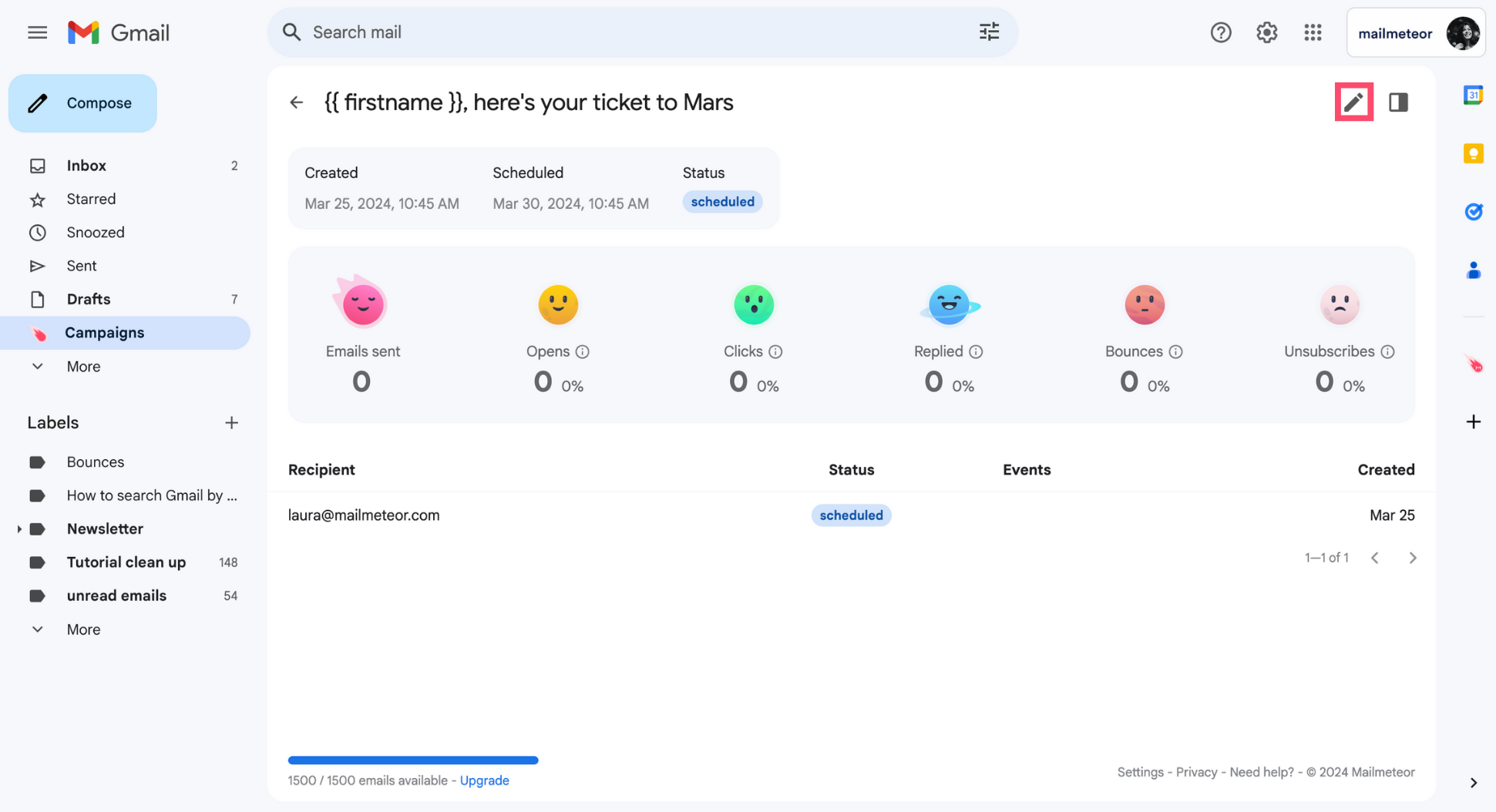
2. Click the **Pencil** icon.

    <figure><img src="https://mailmeteor.com/assets/docs/change-campaign-gmail.png" loading="lazy" alt="Edit a Mailmeteor campaign in Gmail"><figcaption></figcaption></figure>

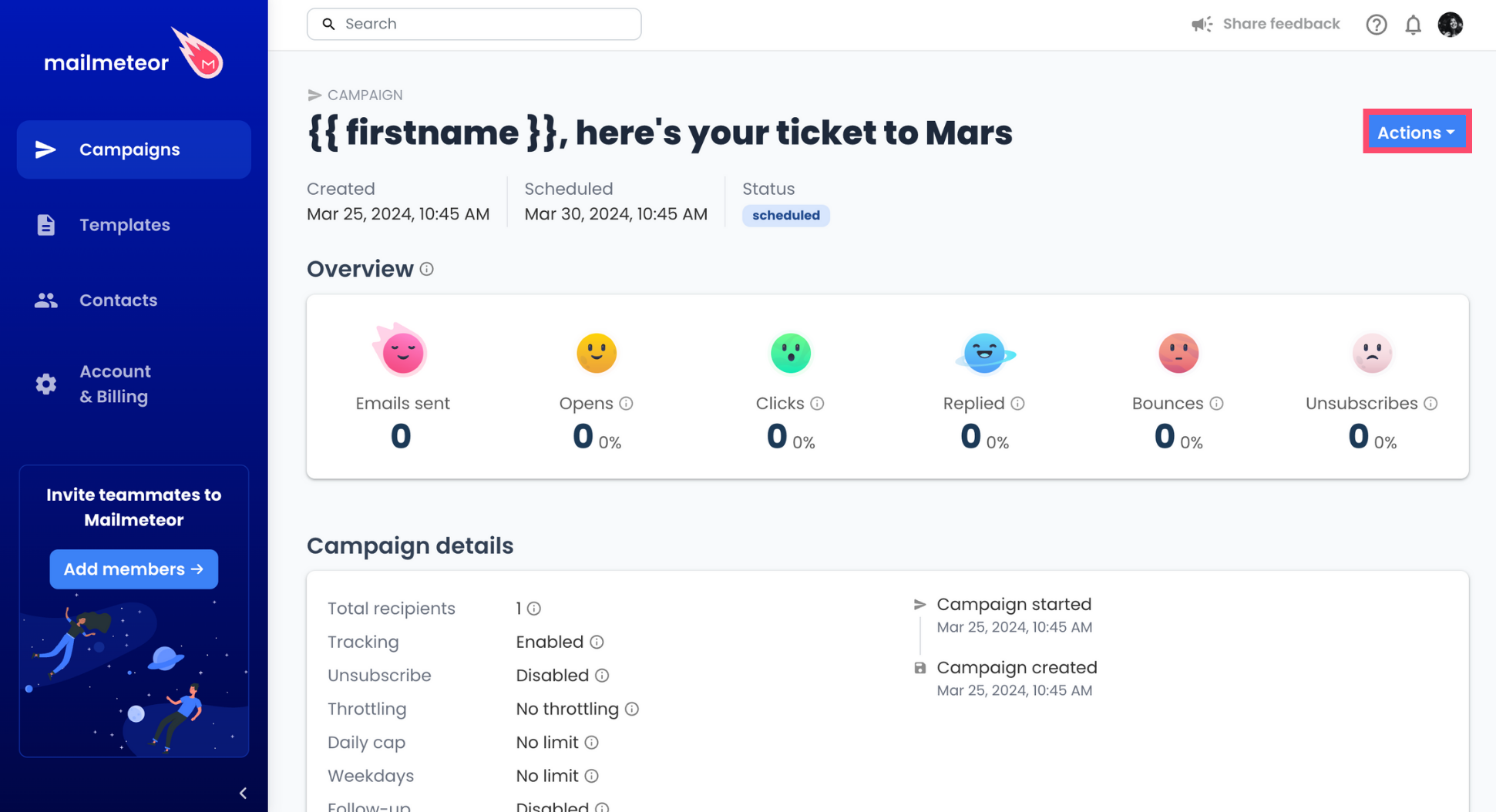
    This will take you to the [Mailmeteor Dashboard](https://dashboard.mailmeteor.com/), a special place where you can manage all your email campaigns in just a few clicks. If you don’t already have an account, you may need to create one.

3. Go to **Actions**.

    <figure><img src="https://mailmeteor.com/assets/docs/campaign-actions.png" loading="lazy" alt="More actions in the Mailmeteor Dashboard"><figcaption></figcaption></figure>

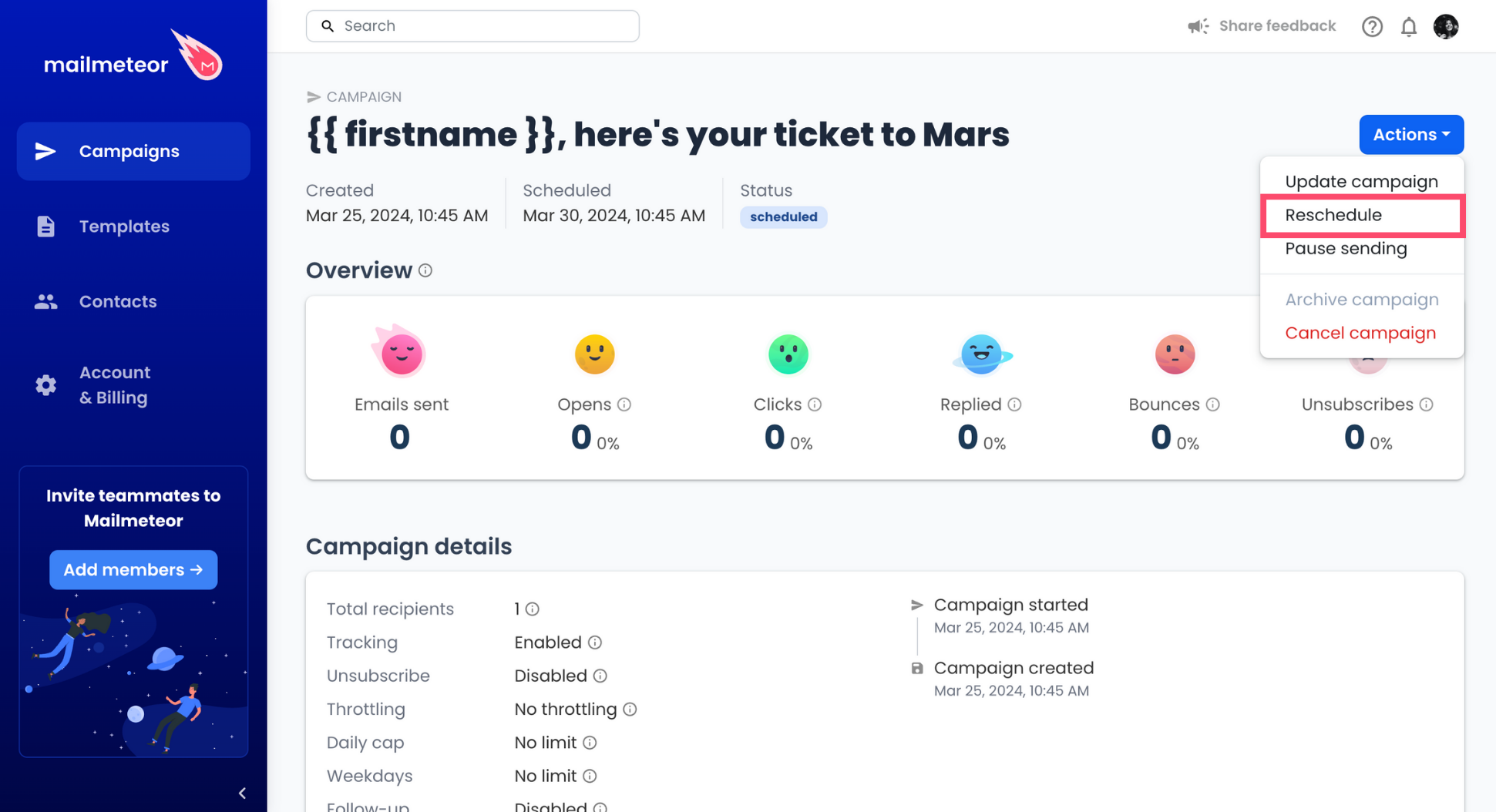
4. Select **Reschedule**.

    <figure><img src="https://mailmeteor.com/assets/docs/reschedule-campaign-dashboard.png" loading="lazy" alt="Reschedule a Mailmeteor campaign in the Dashboard"><figcaption></figcaption></figure>

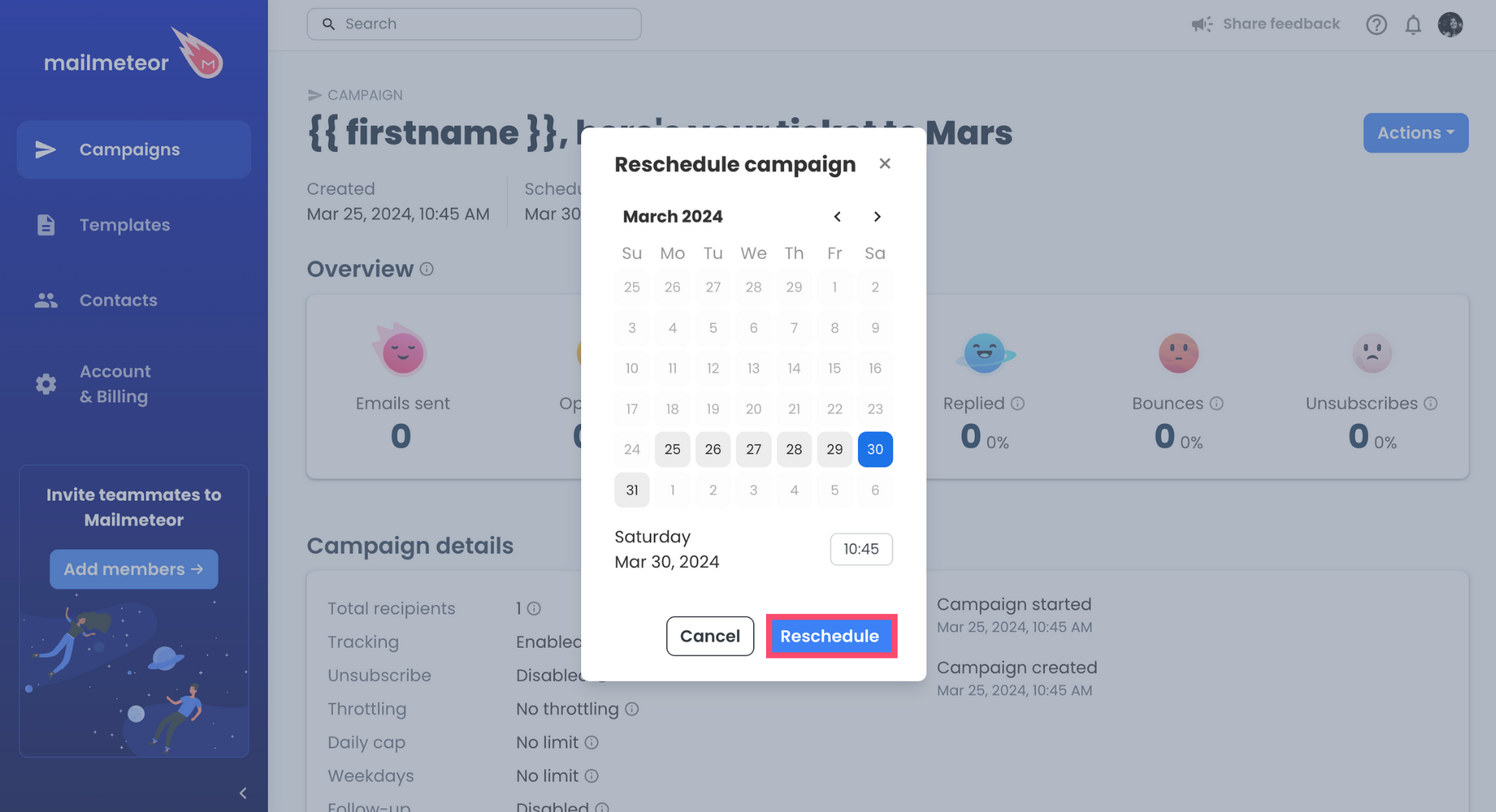
5. Pick a new date and time. Then click **Reschedule** to confirm.

    <figure><img src="https://mailmeteor.com/assets/docs/reschedule-campaign-mailmeteor.png" loading="lazy" alt="Reschedule your campaign with Mailmeteor"><figcaption></figcaption></figure>

{% endtab %}
{% tab "Google Sheets" %}

1. Open **Mailmeteor** for Sheets.

    <figure><img src="https://mailmeteor.com/assets/docs/open-mailmeteor-google-sheets.jpg" loading="lazy" alt="Open Maimeteor in Google Sheets"><figcaption></figcaption></figure>

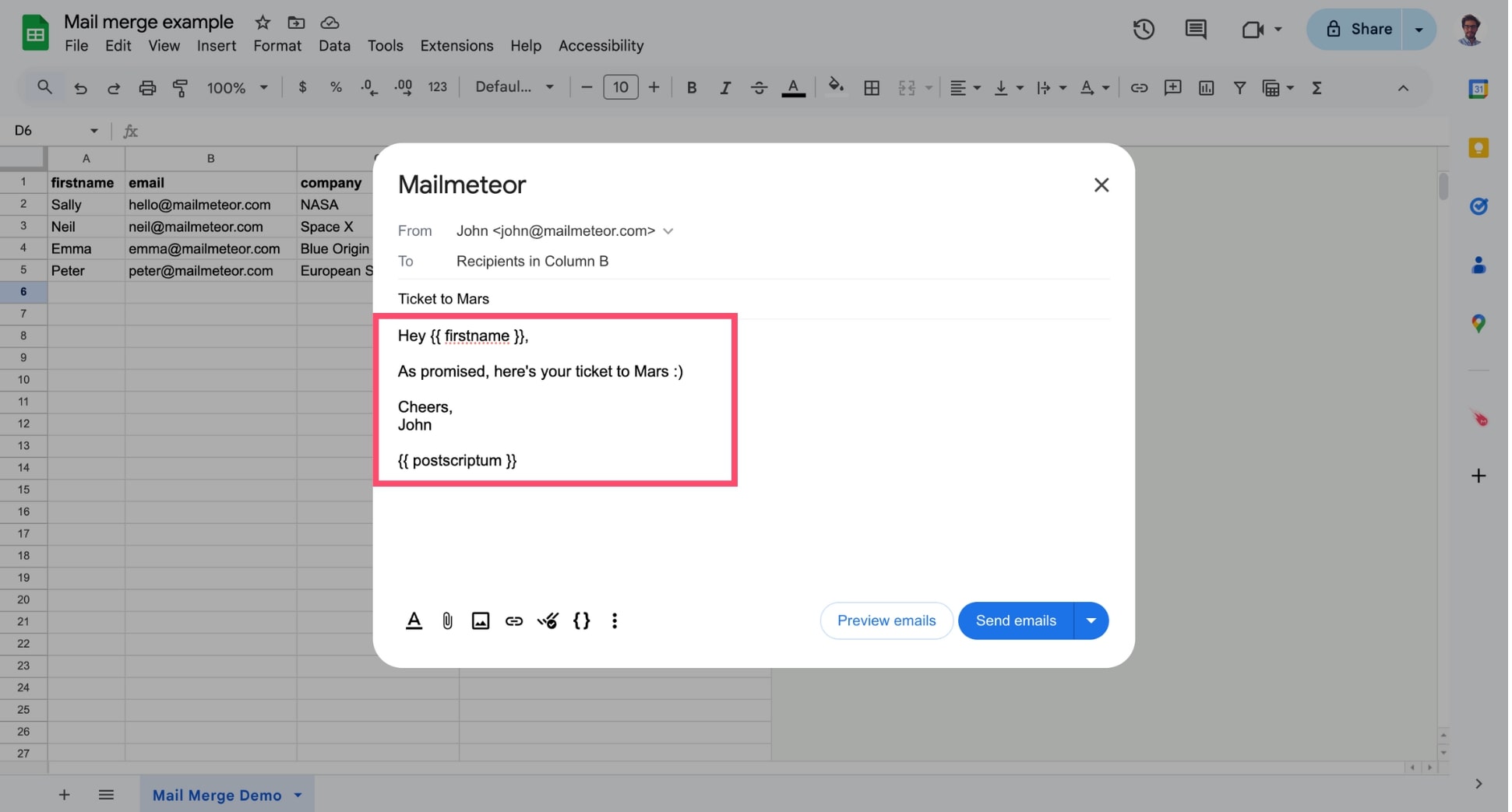
2. Compose your email or select a template.

    <figure><img src="https://mailmeteor.com/assets/docs/compose-email-google-sheets.jpg" loading="lazy" alt=""><figcaption></figcaption></figure>

3. Next to **Send emails**, click the small caret symbol ("▼") and select **Schedule send**.

    <figure><img src="https://mailmeteor.com/assets/docs/schedule-send-google-sheets (1).jpg" loading="lazy" alt=""><figcaption></figcaption></figure>

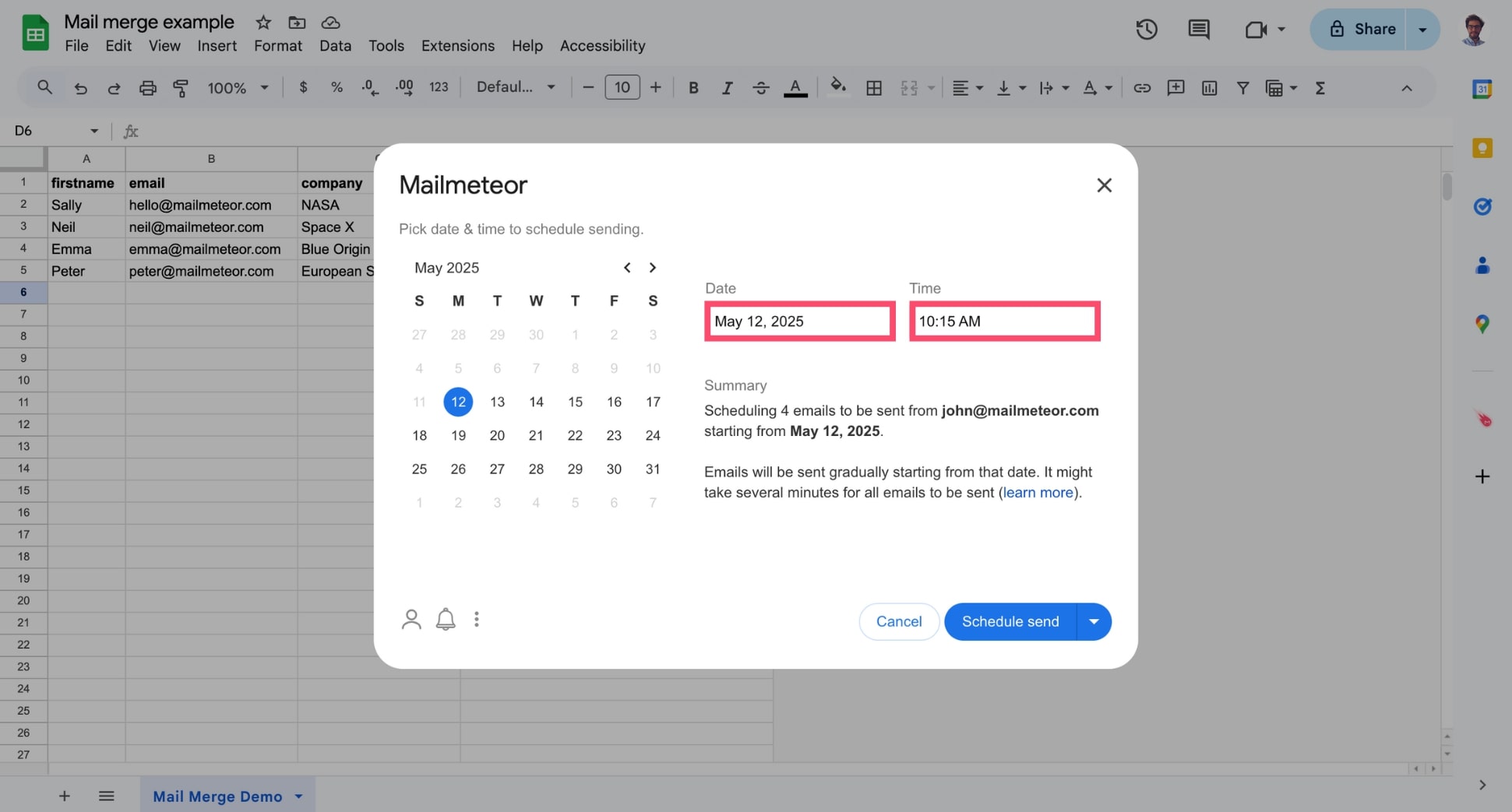
4. Select the date and time.

    <figure><img src="https://mailmeteor.com/assets/docs/select-time-and-date-google-sheets.jpg" loading="lazy" alt=""><figcaption></figcaption></figure>

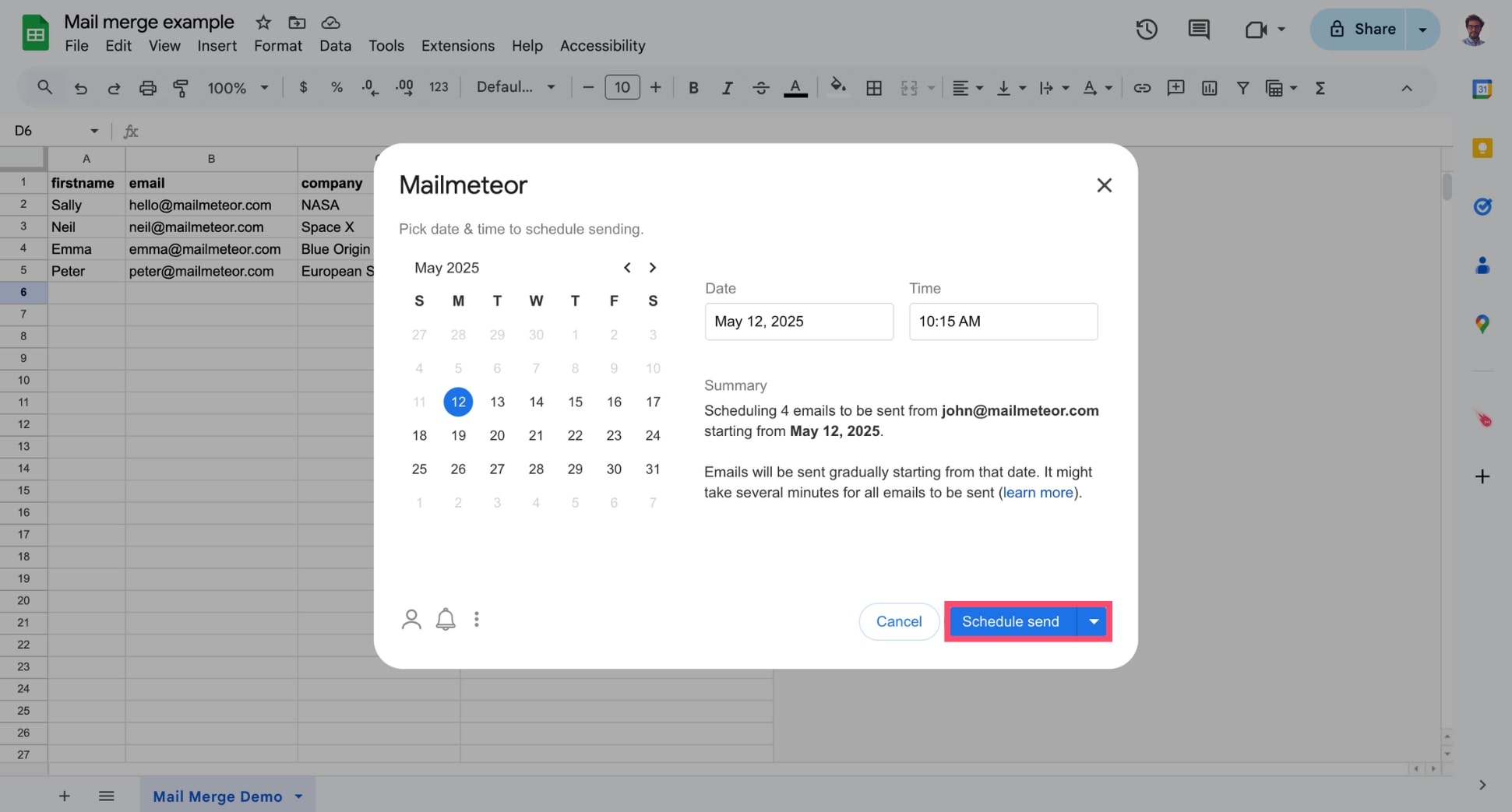
5. Click **Schedule send** to send emails at a later date.

    <figure><img src="https://mailmeteor.com/assets/docs/schedule-emails-google-sheets.jpg" loading="lazy" alt=""><figcaption></figcaption></figure>

{% hint style="info" %}
**Need to make changes?** You can [edit](https://mailmeteor.com/docs/campaigns/manage/edit) or [cancel](https://mailmeteor.com/docs/campaigns/manage/cancel) your scheduled campaign before it’s sent directly from your [Dashboard](https://dashboard.mailmeteor.com/).
{% endhint %}

{% endtab %}
{% tab "Google Docs" %}
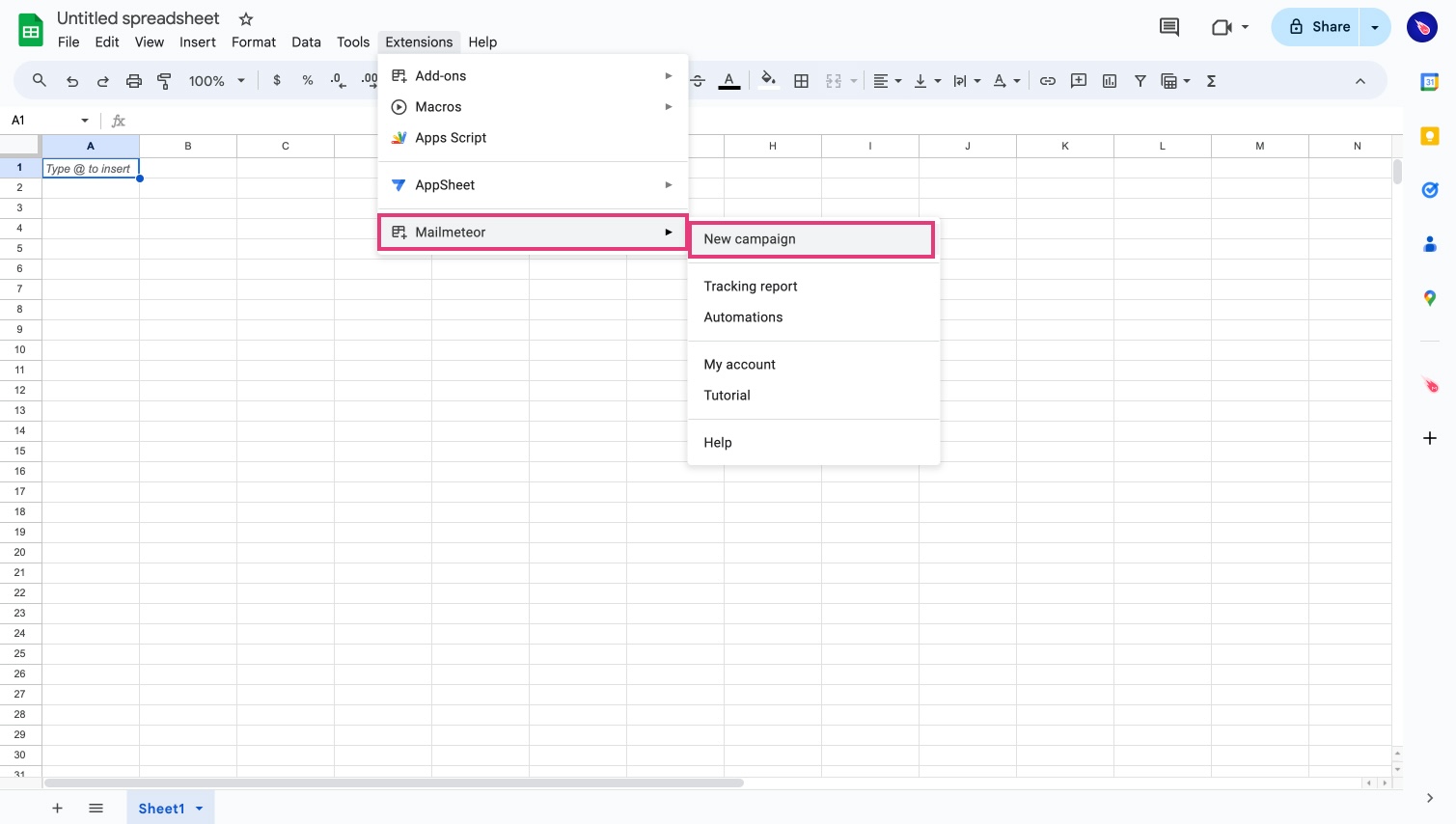
1. Open your Google Docs. Then navigate to **Extensions** > **Mailmeteor** > **New campaign** and [create a new campaign](https://mailmeteor.com/docs/campaigns/tutorial).
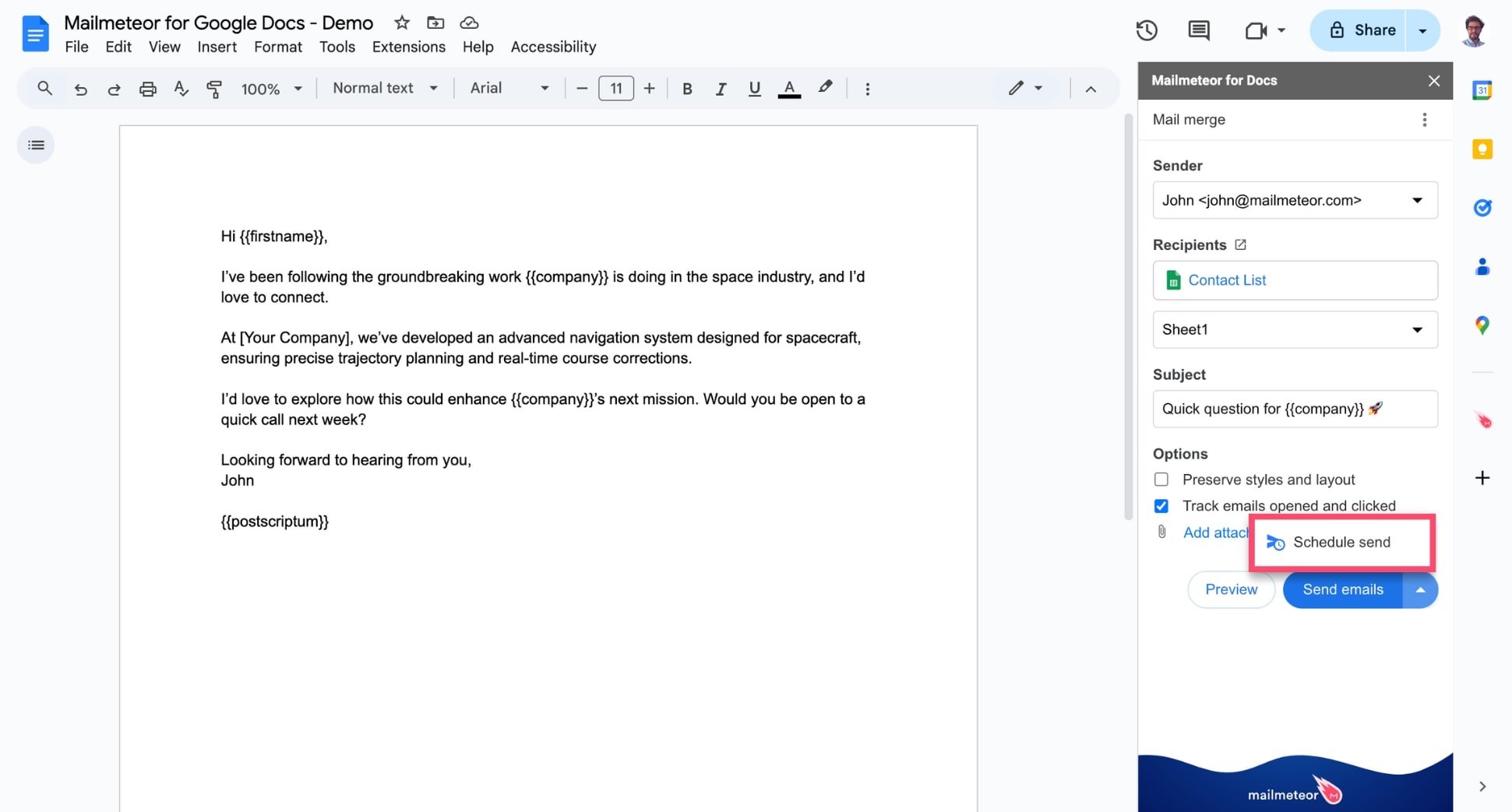
2. Next to **Send emails**, click the small caret symbol (▼). Then select **Schedule send**.

    <figure><img src="https://mailmeteor.com/assets/docs/schedule-send-mailmeteor-google-docs.jpg" loading="lazy" alt=""><figcaption></figcaption></figure>

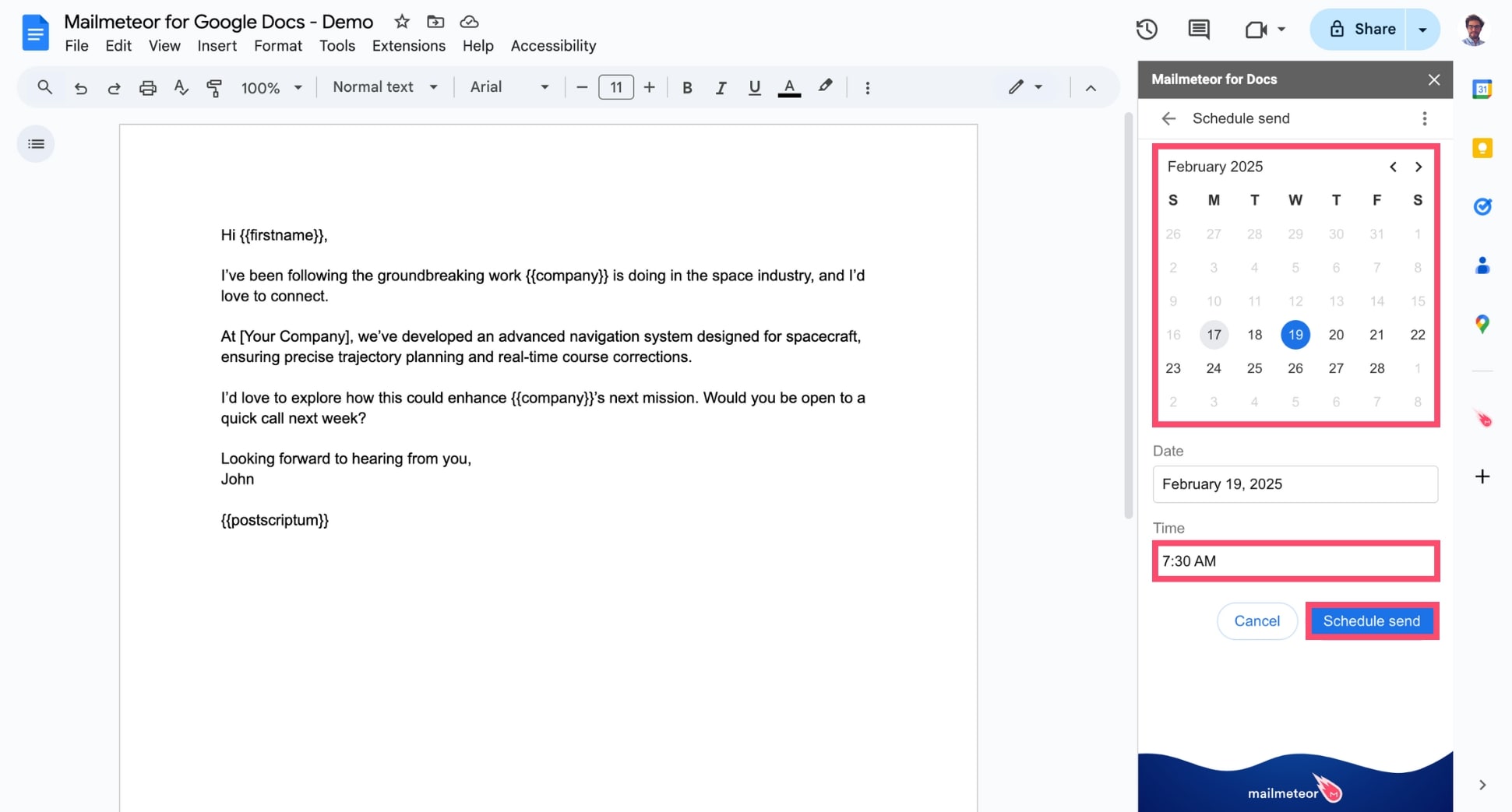
3. Pick the date and time. Then click **Schedule send** to confirm.

    <figure><img src="https://mailmeteor.com/assets/docs/pick-date-time-mailmeteor-google-docs.jpg" loading="lazy" alt=""><figcaption></figcaption></figure>

And voilà. Your campaign is now set to go out at the appointed time. You can sit back and relax while we take care of the rest.&#x20;

{% hint style="info" %}
**Need to make changes?** You can [edit](https://mailmeteor.com/docs/campaigns/manage/edit) or [cancel](https://mailmeteor.com/docs/campaigns/manage/cancel) your scheduled campaign before it’s sent directly from your [Dashboard](https://dashboard.mailmeteor.com/).
{% endhint %}

{% endtab %}
{% tab "Excel" %}

1. Open Excel and select your spreadsheet with your contact list.
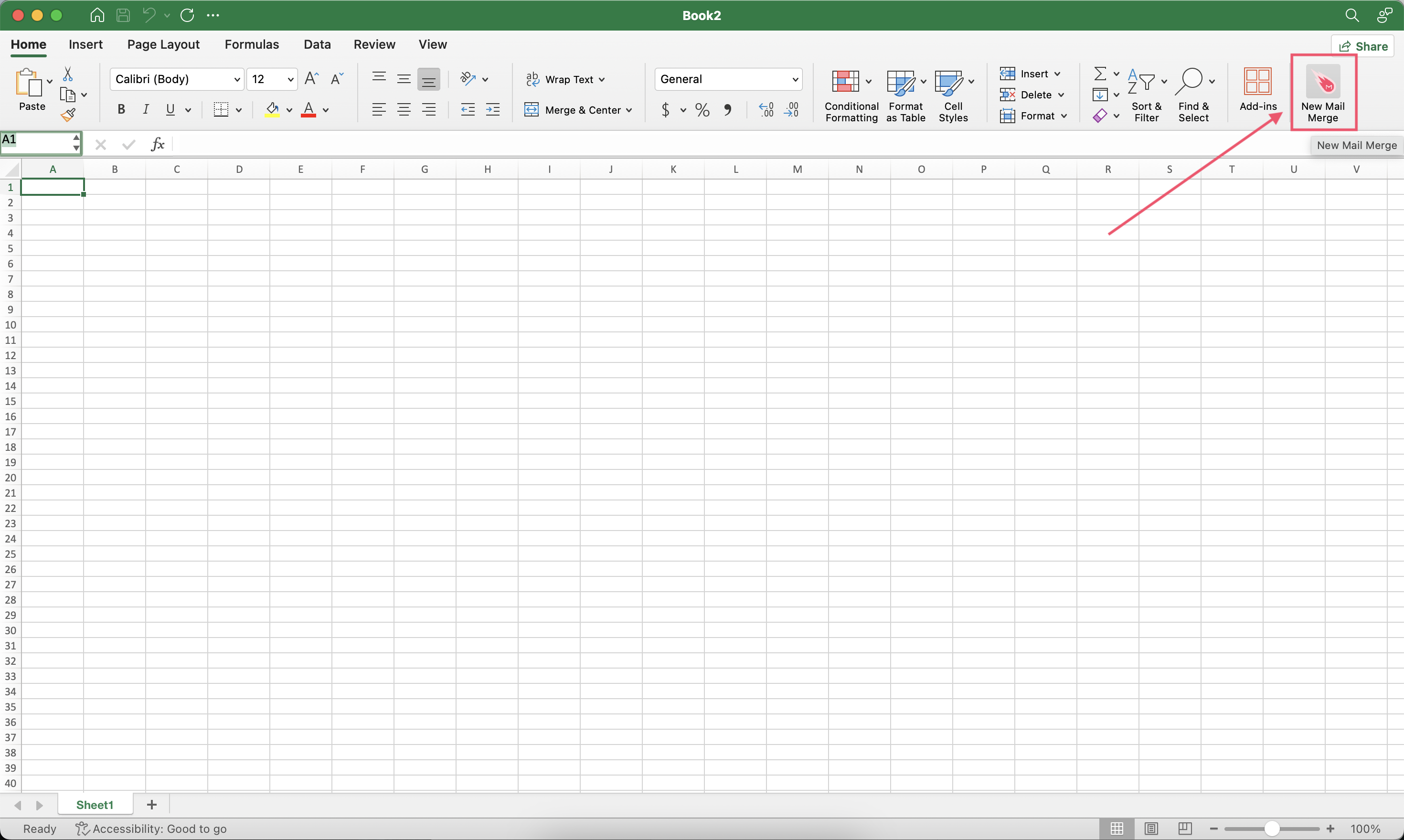
2. Open Mailmeteor's add-in for Excel

    <figure><img src="https://mailmeteor.com/assets/docs/excel-scheduling-campaign-new.png" loading="lazy" alt="Open Maimeteor in Google Sheets"><figcaption></figcaption></figure>

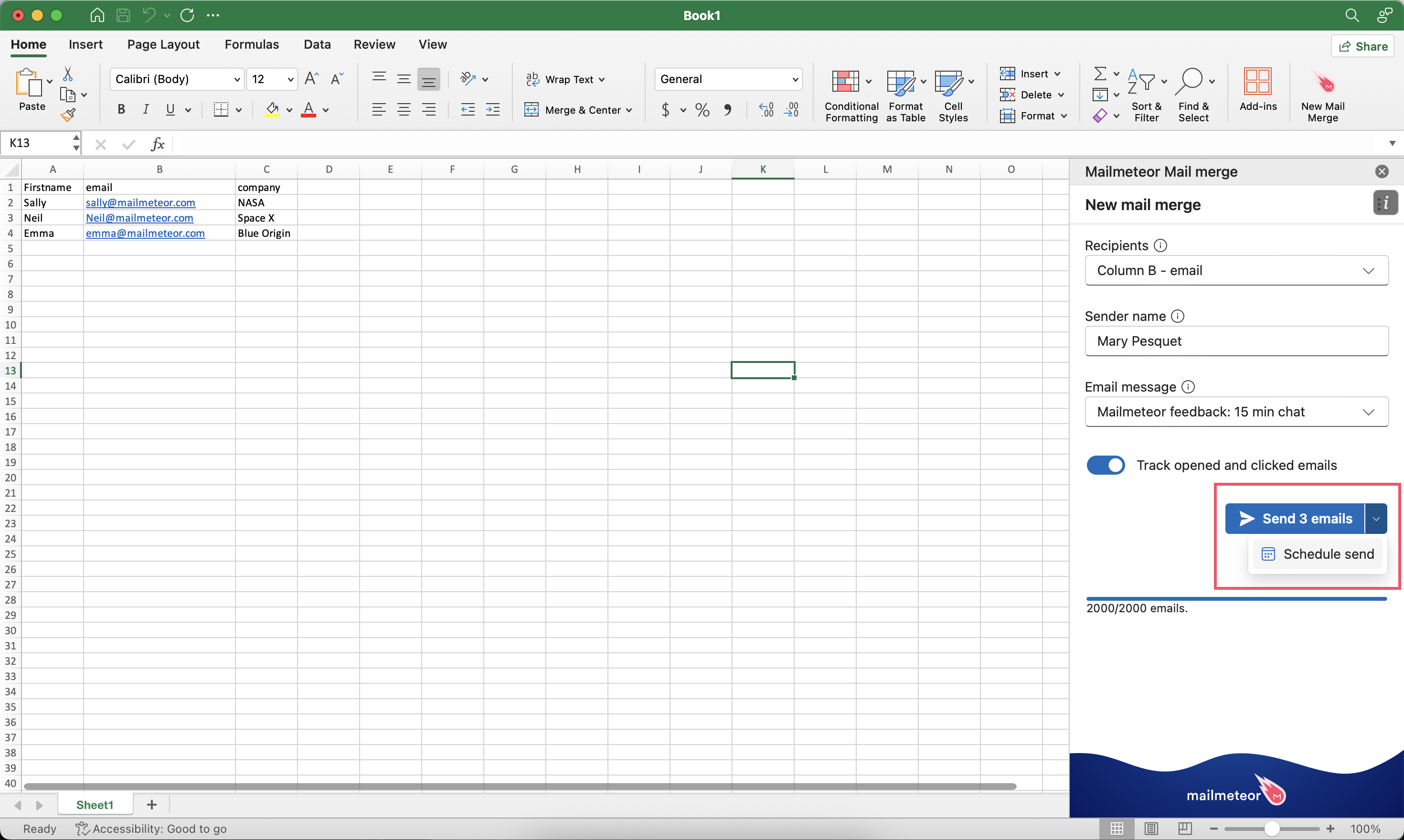
3. Next to **Send emails**, click the small caret symbol ("▼") and select **Schedule send**.

    <figure><img src="https://mailmeteor.com/assets/docs/excel-scheduling-campaign-send.png" loading="lazy" alt="Schedule send in Google Sheets"><figcaption></figcaption></figure>

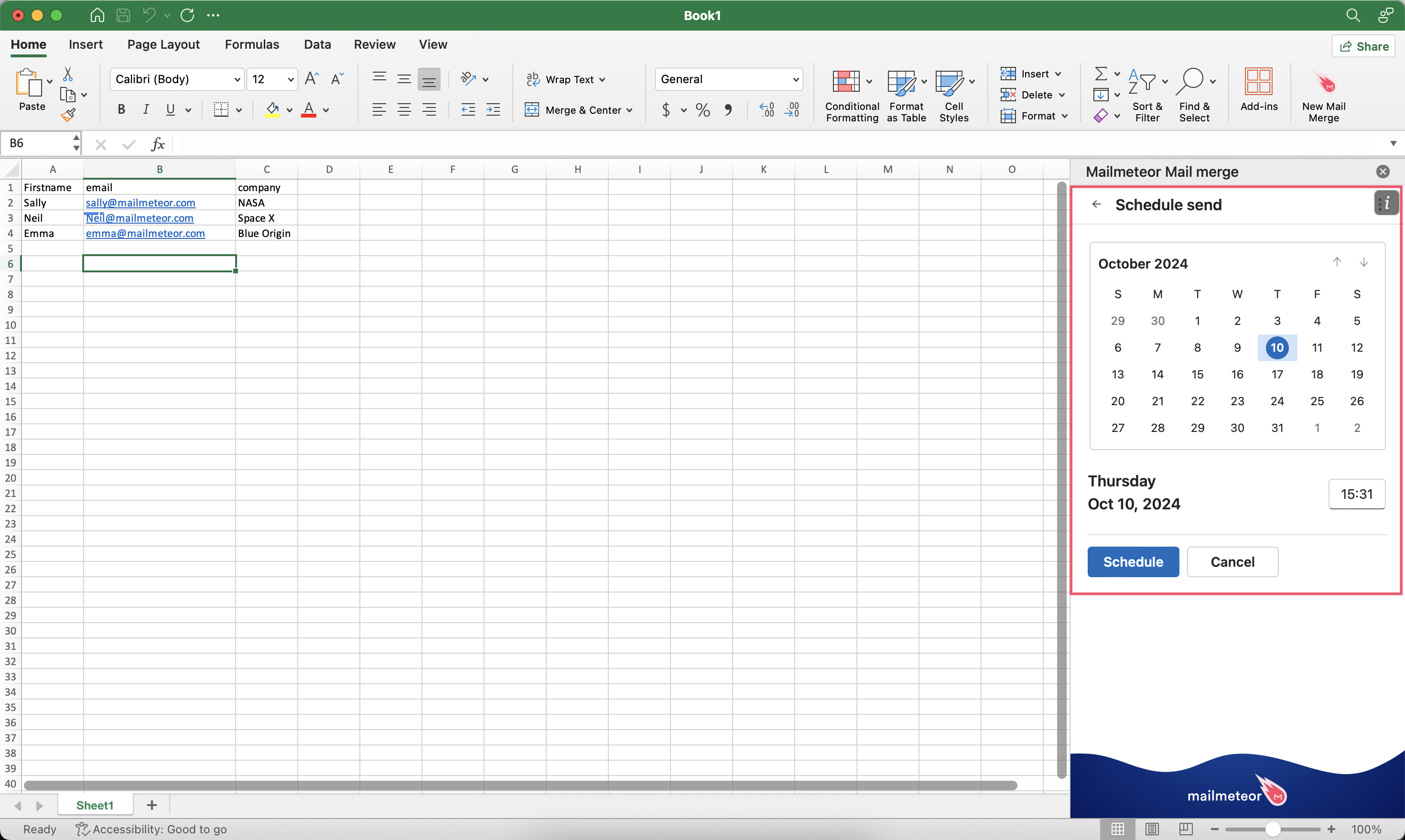
4. Select the date and time.

    <figure><img src="https://mailmeteor.com/assets/docs/excel-scheduling-campaign-date.png" loading="lazy" alt="Select time and date in Google Sheets"><figcaption></figcaption></figure>

5. Click **Schedule** to send emails at a later date.

## How to view scheduled campaigns?

1. Sign in to [Mailmeteor Dashboard](https://dashboard.mailmeteor.com/).
2. Go to **Campaigns** > **Scheduled**.
    <figure><img src="https://mailmeteor.com/assets/docs/view-scheduled-campaign.jpg" loading="lazy" alt="How to view scheduled campaigns in Mailmeteor"><figcaption></figcaption></figure>
3. Click on a campaign.

## How to edit a scheduled campaign?

Made a mistake? Or want to make some last-minute changes? Here's how you can edit a scheduled campaign in Mailmeteor before we start sending your emails.

1. Open [Mailmeteor Dashboard](https://dashboard.mailmeteor.com/).
2. Go to **Campaigns** > **Scheduled**.
3. Select your email campaign.
4. Click on the **Action** button.
5. Select **Update campaign**.

    <figure><img src="https://mailmeteor.com/assets/docs/update-scheduled-campaign-dashboard.jpg" loading="lazy" alt="How to update a scheduled campaign in Mailmeteor"><figcaption></figcaption></figure>

6. From there, you can edit your subject line, the body of your email, or the list of recipients.
7. Once you're happy with the changes you've made, click **Update campaign**.

    <figure><img src="https://mailmeteor.com/assets/docs/edit-scheduled-campaign-dashboard.jpg" loading="lazy" alt="Edit scheduled campaign in Mailmeteor"><figcaption></figcaption></figure>

{% endtab %}
{% endtabs %}

## When will my emails be sent?

With Mailmeteor's scheduling feature, you can plan when to send your emails. It could be in a few minutes or **up to 120 days** from now.

Your scheduled emails are sent gradually. Depending on the size of your contact list, the sending may take **a few minutes to one hour.** This helps prevent your emails from falling into spam and secure your account.