# Managing unsubscribers
## How to deal with people who unsubscribed?
Whenever someone opts out of your list, they are automatically added to your [unsubscribers list](https://dashboard.mailmeteor.com/contact_lists/cl_unsubscribes). This will be reported in your campaign's metrics.
Mailmeteor will no longer send your emails to this recipient, in all your future campaigns and follow-ups.
Alternatively, you can unsubscribe someone manually by following these steps:
1. Sign in to Mailmeteor Dashboard.
2. Open your contacts lists.
3. Access the [unsubscribers list](https://dashboard.mailmeteor.com/contact_lists/cl_unsubscribes).
4. Click on **Actions** > **Import contacts**.
5. Import contacts to unsubscribe and click on **Add**.
All new contacts will be opted out of your sending.
## How to resubscribe a contact?
To resubscribe a contact, from the Dashboard, search for the contact then click on **Actions** > **Remove from unsubscribers**. Only resubscribe a contact if they have explicitly requested it. Ignoring your contacts' preferences may have a negative impact on your email reputation.
## How to add an unsubscribe link?
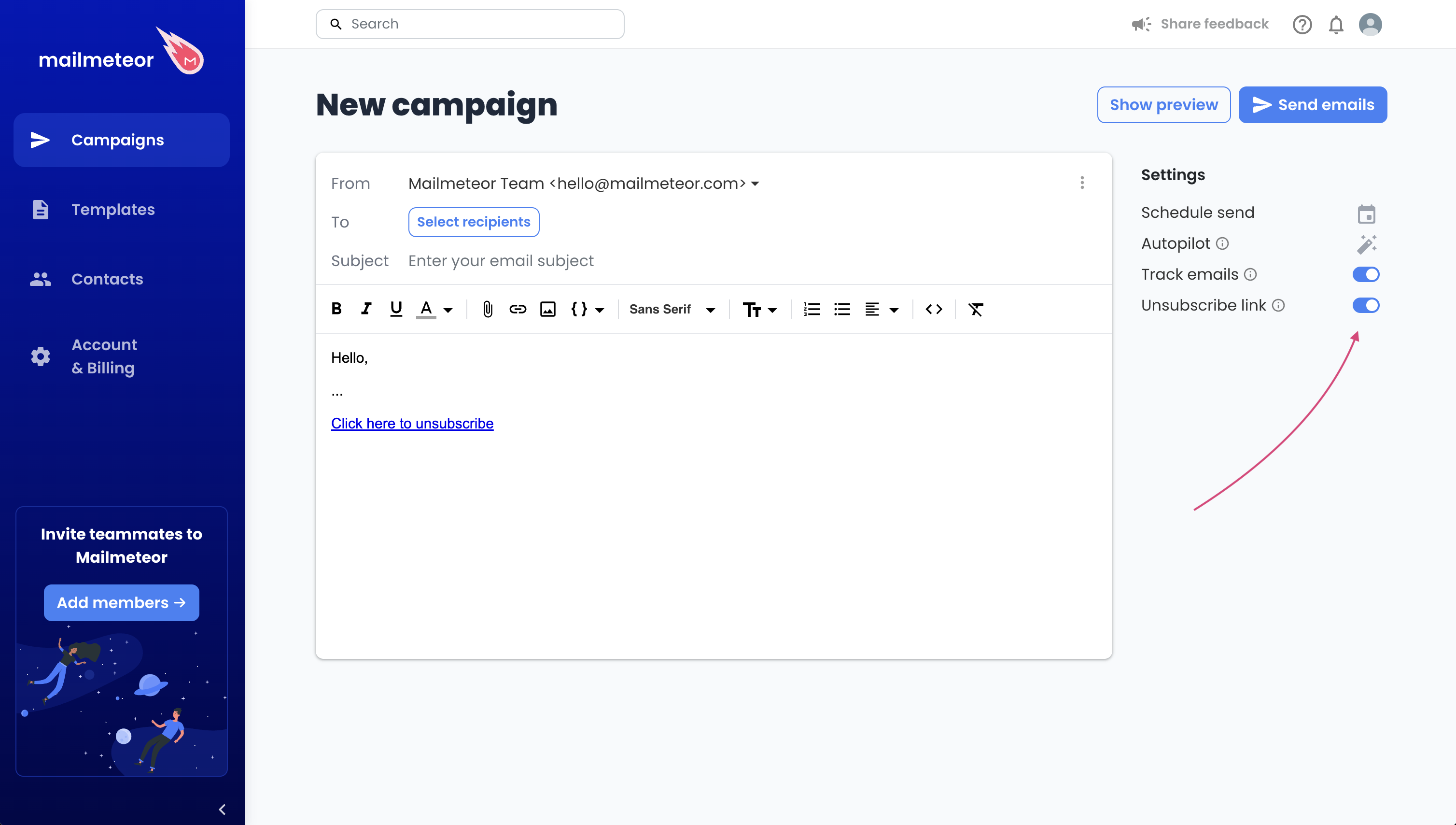
To add an unsubscribe link, you can use the toggle when creating a campaign.
Adding an unsubscribe link to your campaigns.
By default, the message is "Click here to unsubscribe". You can edit it by clicking on the link.
For more advanced use case, you can use the `{% raw %}{{ unsubscribe }}{% endraw %}` special variable in your email. It will be replaced by a special link that Mailmeteor uses to handle unsubscribe requests.
## Does Mailmeteor support One-Click Unsubscribe?
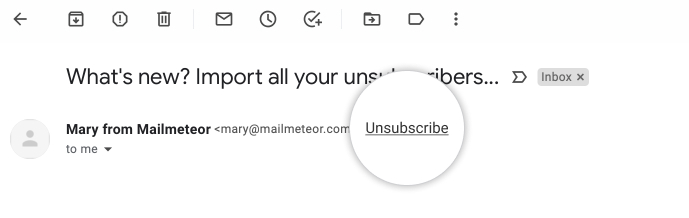
Yes. Whenever you insert an unsubscribe link to your emails, Mailmeteor will automatically make available One-Click Unsubscribe to make it easier for recipients to unsubscribe and comply with the [latest guidelines for bulk senders](https://mailmeteor.com/blog/new-gmail-protections).
One-Click Unsubscribe feature in an email sent via Mailmeteor
## How does the unsubscribe page look like?
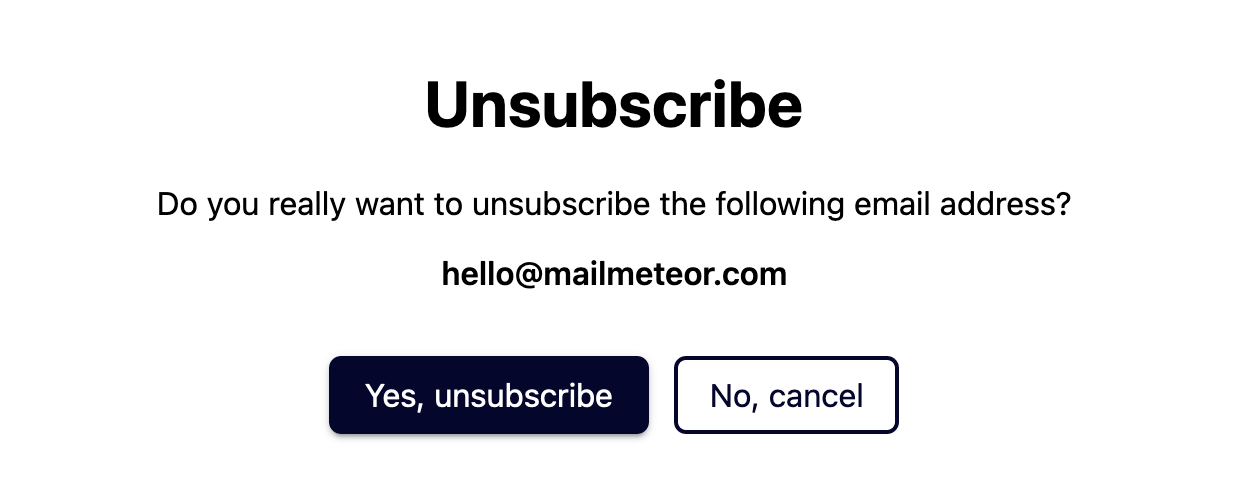
Whenever one of your recipients clicks to unsubscribe, they will be redirected to a page that looks like this like ⤵️
Unsubscribe validation page
{% hint style="info" %}
If you send yourself a test email, the unsubscribe link will redirect you to a generic page. It's normal if you don't see the unsubscribe page in this case.
{% endhint %}