# Send with follow-up
Mailmeteor lets you send follow-ups directly from your Gmail account. Use this feature to schedule conditional follow-ups that will be sent automatically when certain conditions are met, and boost your engagement rates.
### How to send follow-ups in Gmail?
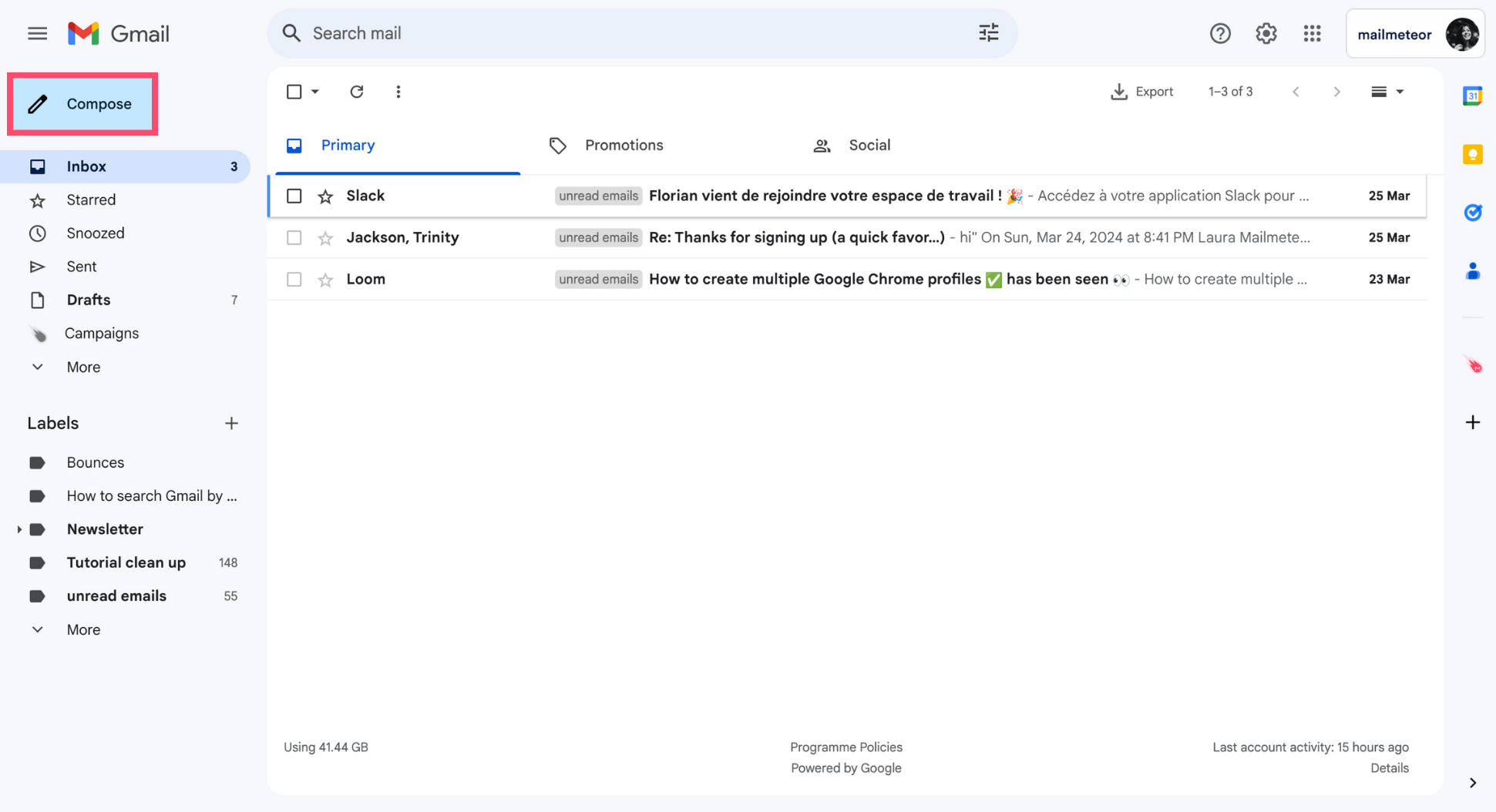
1\. Sign in to your [Gmail](https://mail.google.com/mail/u/0/#inbox) account.
2\. Click **Compose**.
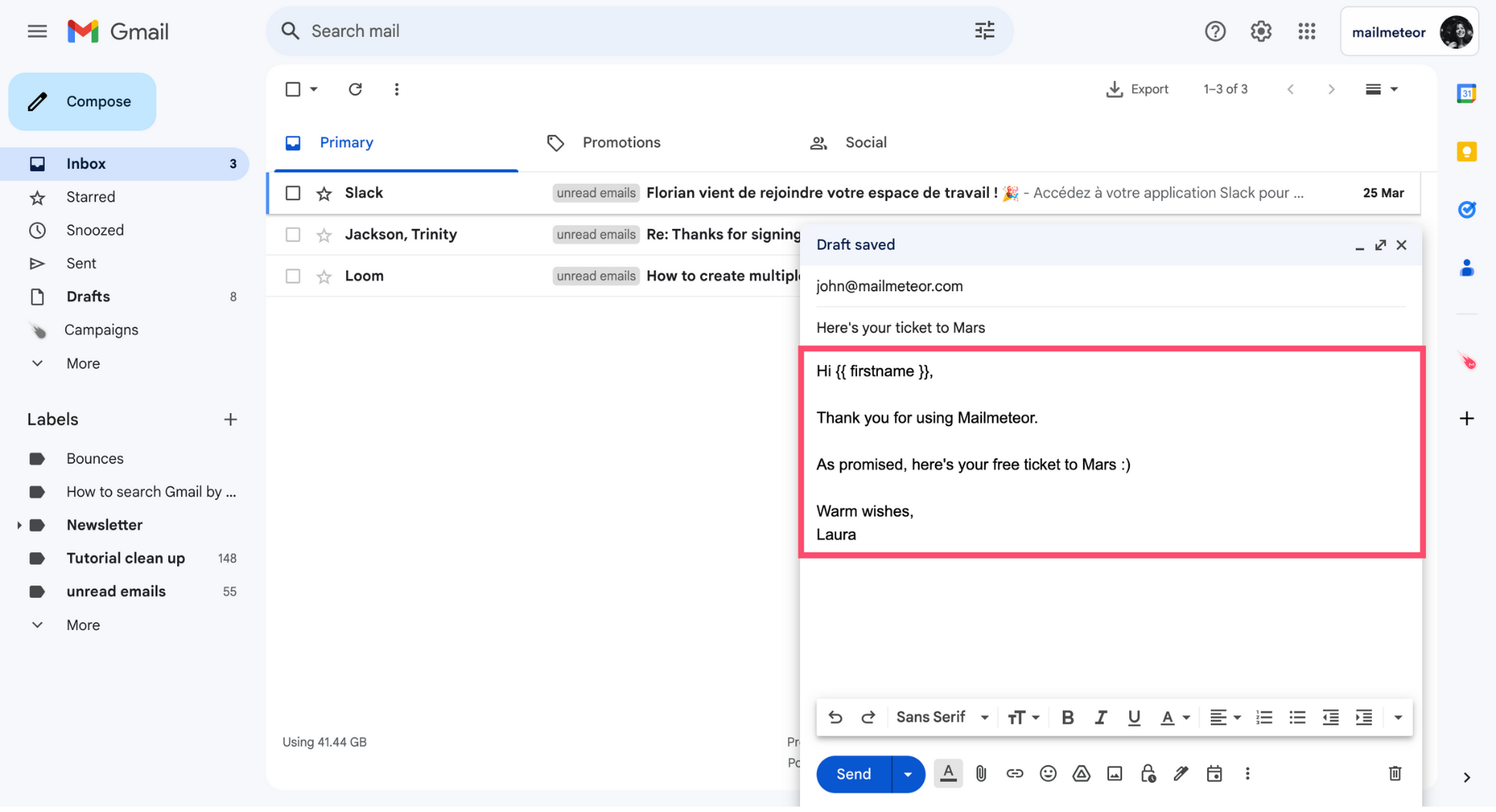
3\. Write your email as you normally would.
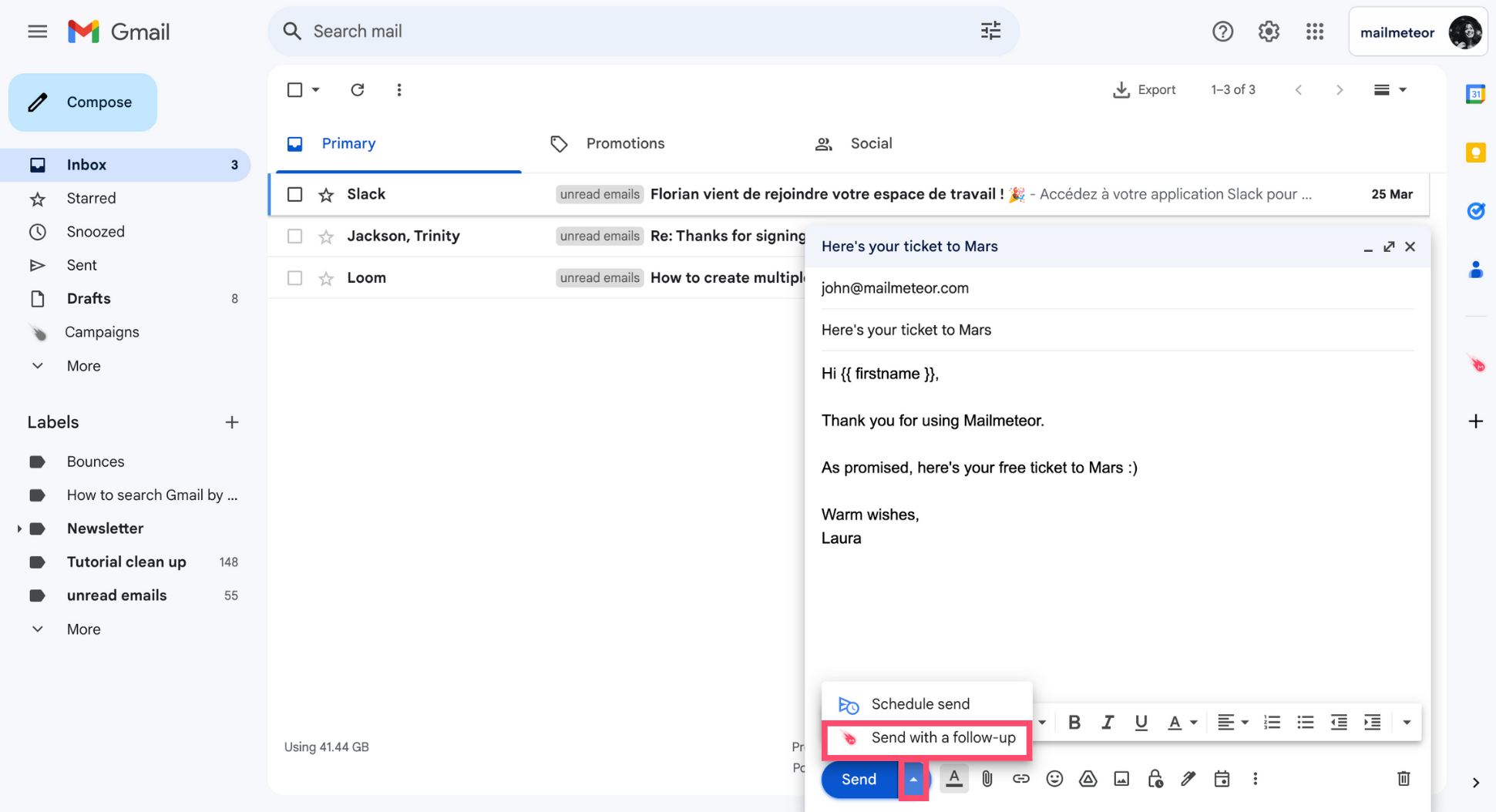
4\. Click the arrow next to **Send** and select **Send with a follow-up**.
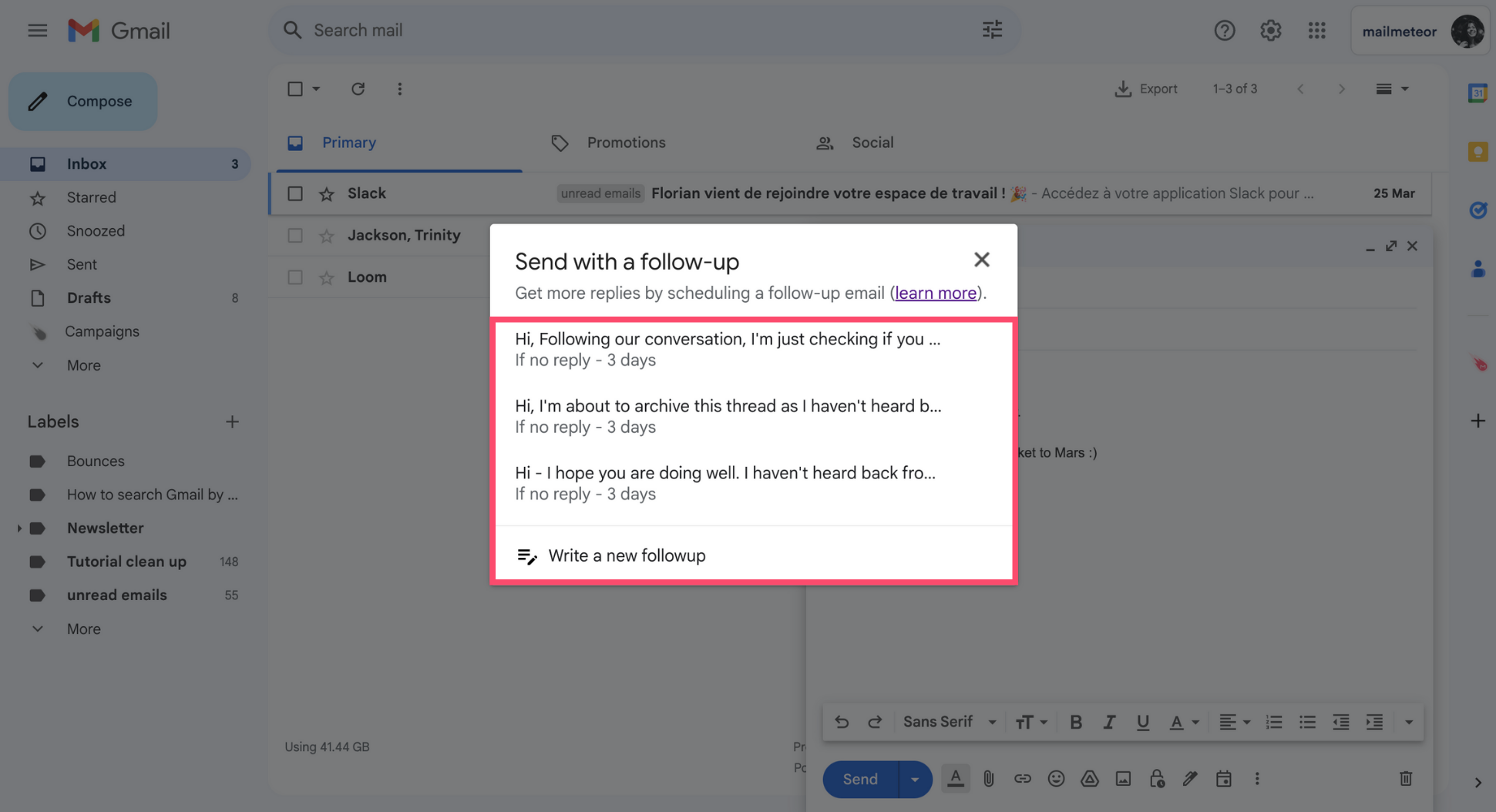
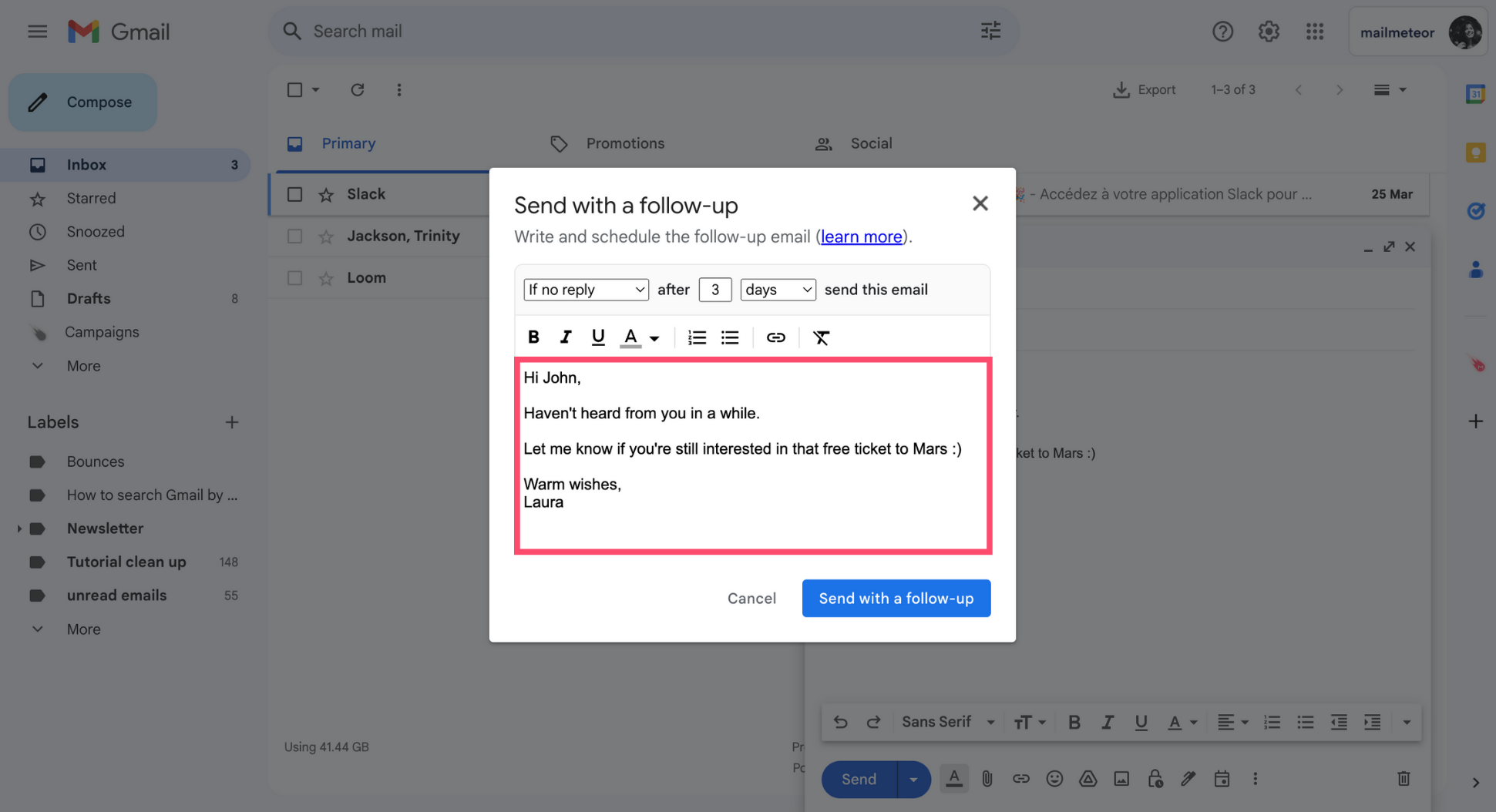
5\. Select a pre-written [follow-up template](https://mailmeteor.com/email-templates/category/follow-up/) or click **Write a new follow-up** to compose your own follow-up.
6\. Edit the content of your follow-up.
{% hint style="info" %}
You can add some dynamic content to your follow-ups using the [Mailmeteor Dashboard](https://mailmeteor.com/docs/dashboard/campaigns/follow-up) or the [Google Sheets extension](https://mailmeteor.com/docs/google-sheets/campaigns/follow-up).
{% endhint %}
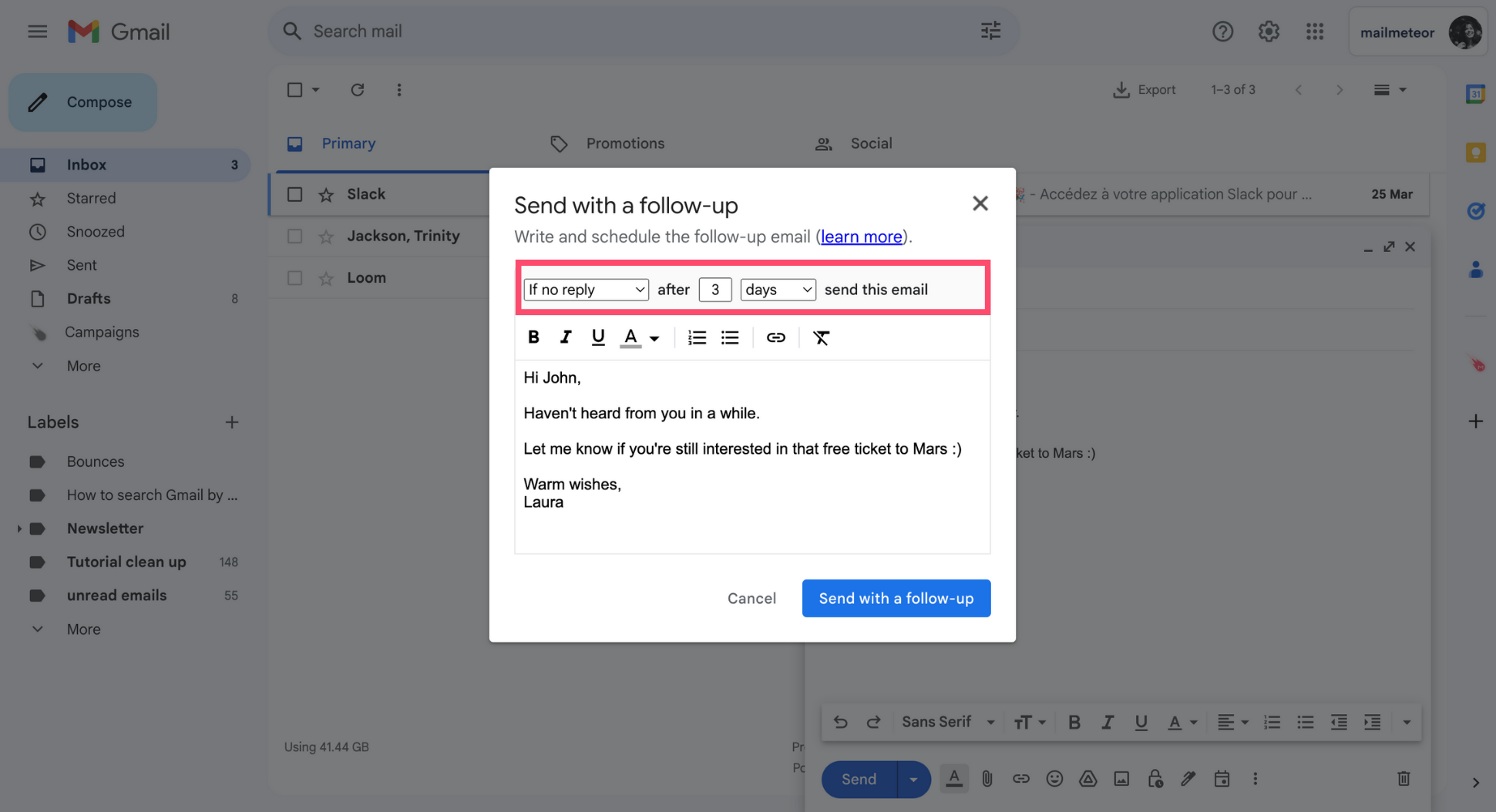
7\. Once you’re ready, choose under which conditions and when your follow-up will be sent automatically.
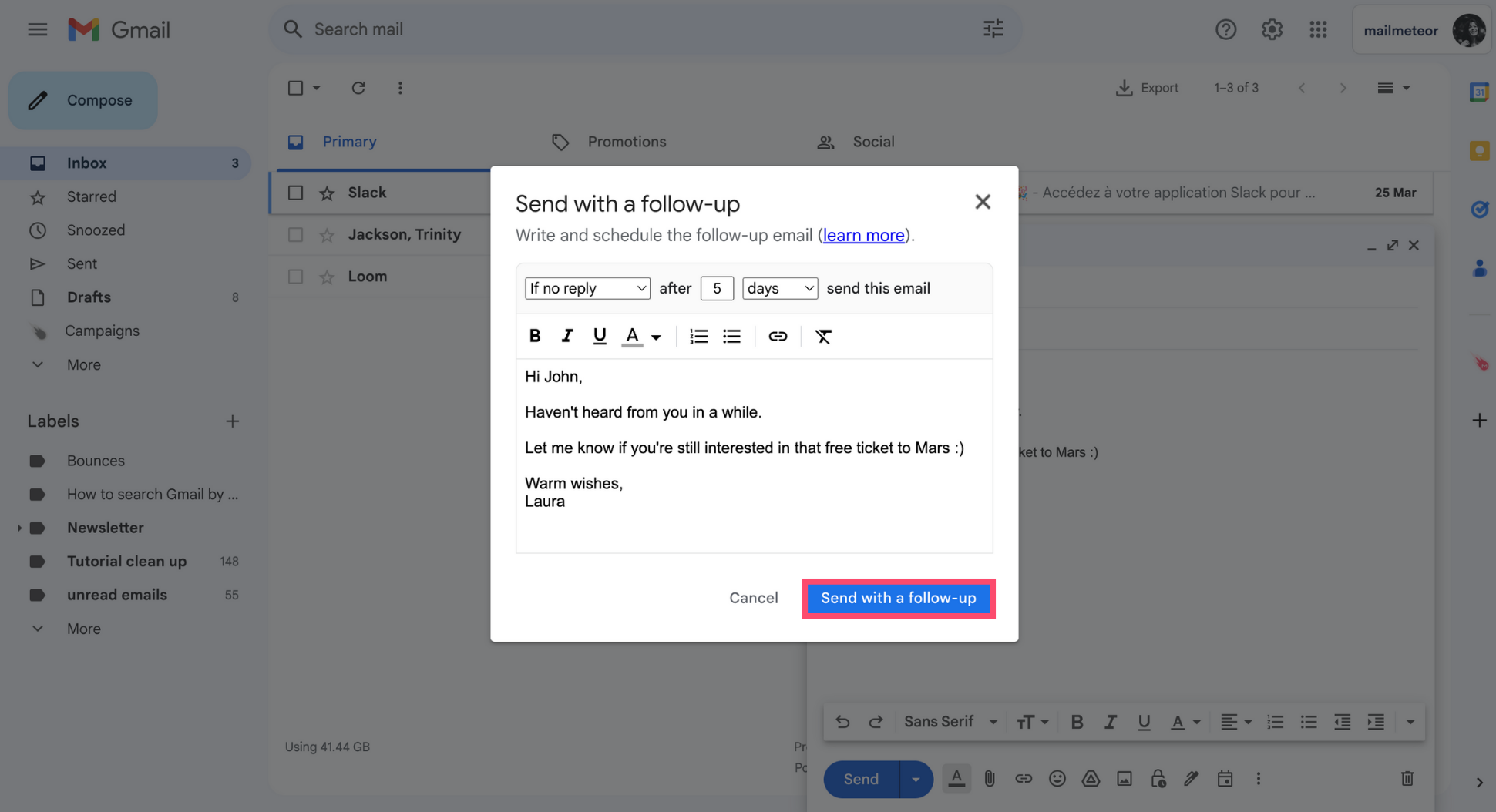
8\. Once you’re ready, click **Send with a follow-up**.
And voilà. By now, your first email should be on its way to your recipient's inbox. Mailmeteor will take care of sending your follow-up message automatically.
### How are follow-ups triggered?
You can define under what **conditions** your follow-ups will be triggered. Our Gmail extension gives you 3 options:
* **If replied:** send a follow-up if the recipient replied
* **If no reply:** send a follow-up if the recipient didn’t reply
* **No matter what:** send a follow-up whether the recipient replied or not
{% hint style="info" %}
More triggers are available when you send follow-ups using the [Mailmeteor Dashboard](https://mailmeteor.com/docs/dashboard/campaigns/follow-up) or the [Google Sheets extension](https://mailmeteor.com/docs/google-sheets/campaigns/follow-up).
{% endhint %}
You can also specify the **delay** before sending your follow-up:
* **After a few days:** send a follow-up email days later
* **After a few hours:** send a follow-up email hours later
* **After a few minutes:** send a follow-up email minutes later