# Mailmeteor for Google Sheets
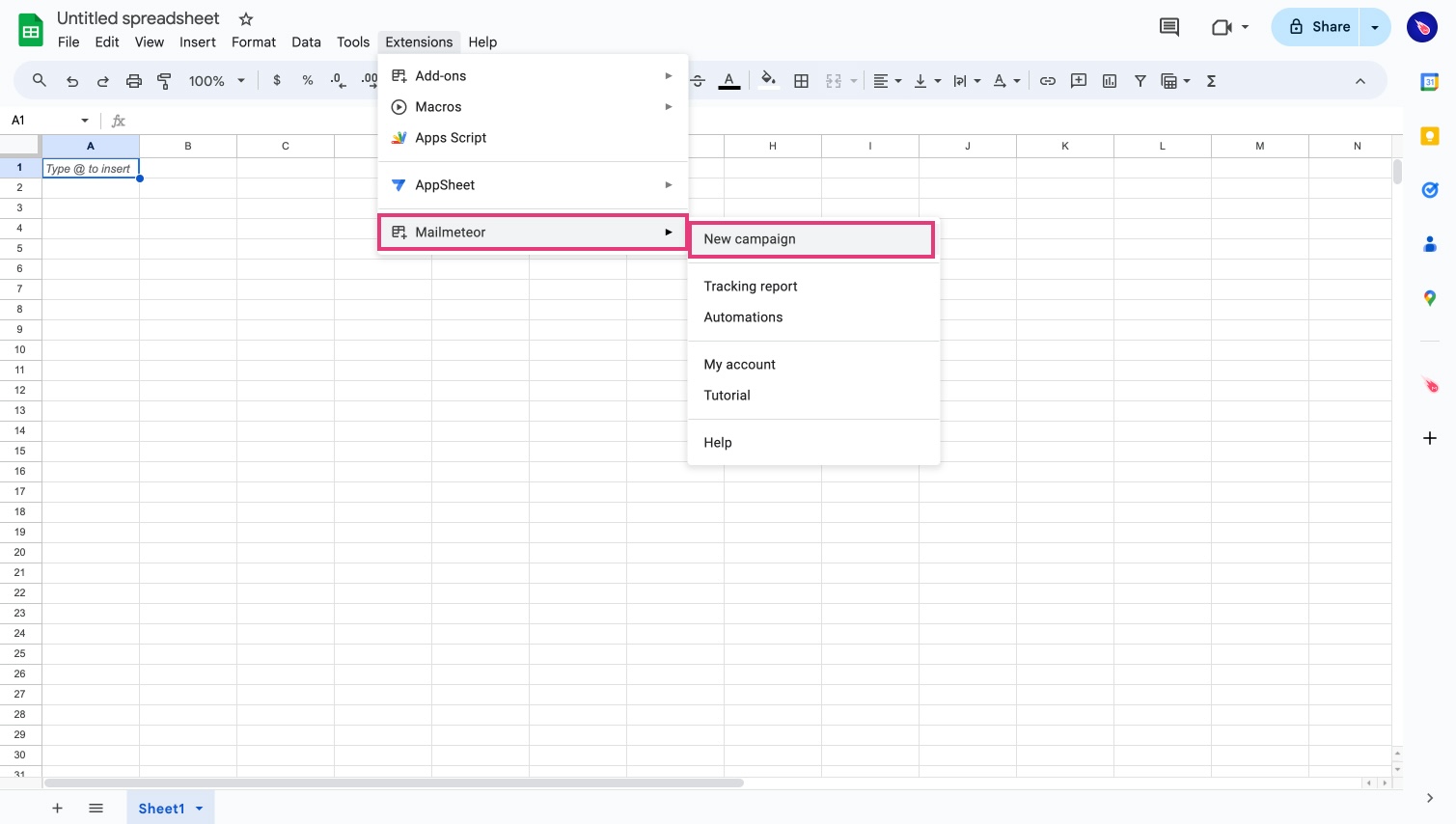
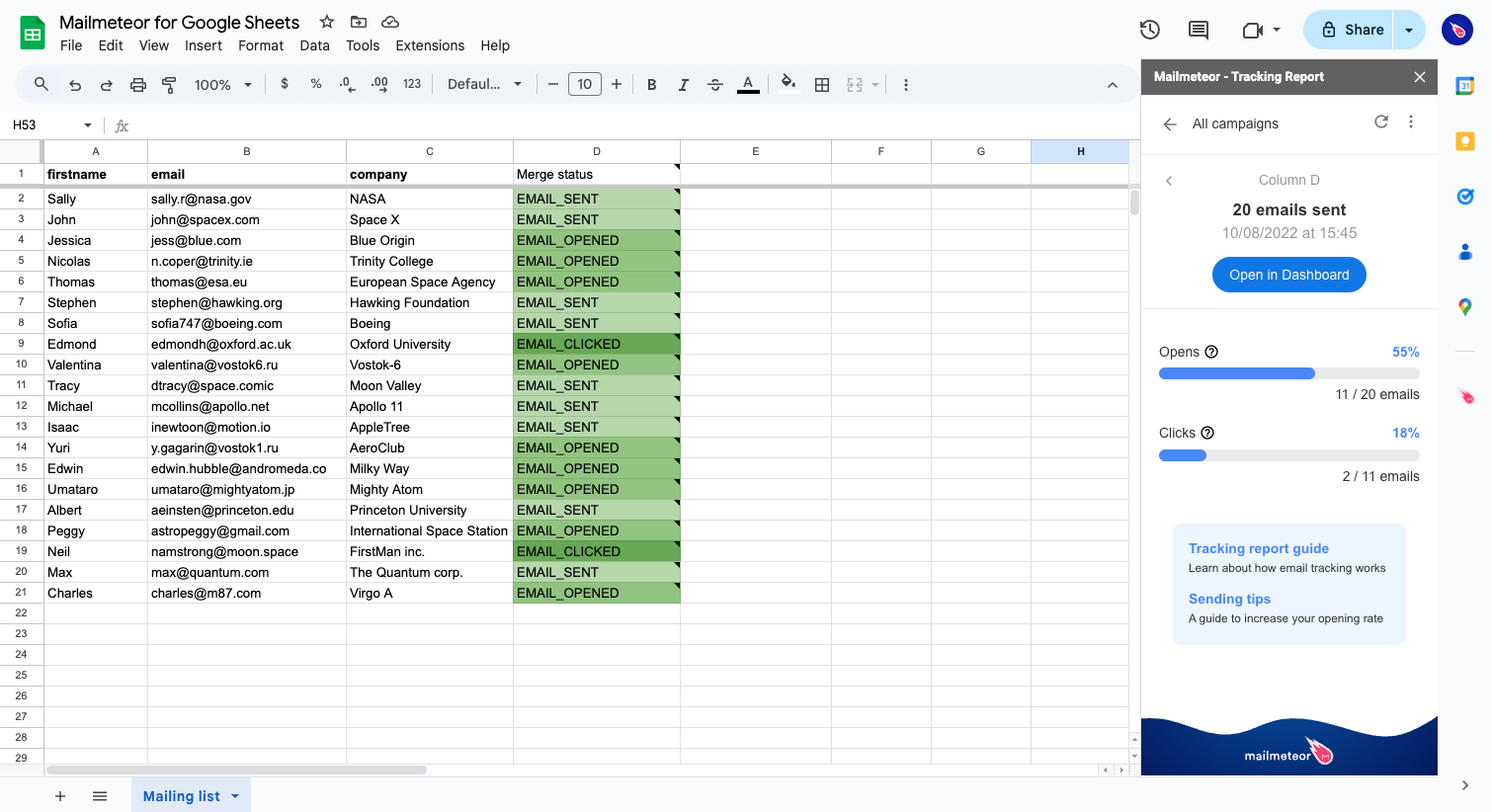
[Mailmeteor for Google Sheets](https://workspace.google.com/marketplace/app/mailmeteor/1008170693301) is our flagship product, trusted by over 6 million users worldwide and rated 4.9/5 with 11,500+ reviews. It lets you send hundreds of personalized emails directly from Google Sheets.
[](https://workspace.google.com/marketplace/app/mailmeteor/1008170693301)
This free add-on provides everything you need to send email campaigns within Google Sheets, with powerful features like [personalization](https://mailmeteor.com/docs/campaigns/advanced/personalization?product=google-sheets), [schedule send](https://mailmeteor.com/docs/campaigns/advanced/schedule?product=google-sheets), [autopilot](https://mailmeteor.com/docs/campaigns/advanced/autopilot?product=google-sheets), [tracking](https://mailmeteor.com/docs/campaigns/tracking?product=google-sheets), and more.
Here are some popular ways our users use it:
1. [Sending newsletters from Google Sheets](https://mailmeteor.com/docs/campaigns/tutorial?product=google-sheets)
2. [Sharing payslips or invoices](https://mailmeteor.com/docs/campaigns/advanced/attachments?product=google-sheets)
3. [Lead generation, with automated follow-ups](https://mailmeteor.com/docs/campaigns/follow-up?product=google-sheets)
4. [Automatically sending emails based on Google Sheets changes](https://mailmeteor.com/docs/sheets-automation?product=google-sheets)
## How to install Mailmeteor extension for Google Sheets?
Mailmeteor is a verified Google Workspace add-on. To start using the app, install it for your own use or for your all team:
- [Individual installation](#individual-installation)
- [Domain installation](#domain-installation)
### Individual installation
#### 1) Go to the Google Workspace Marketplace
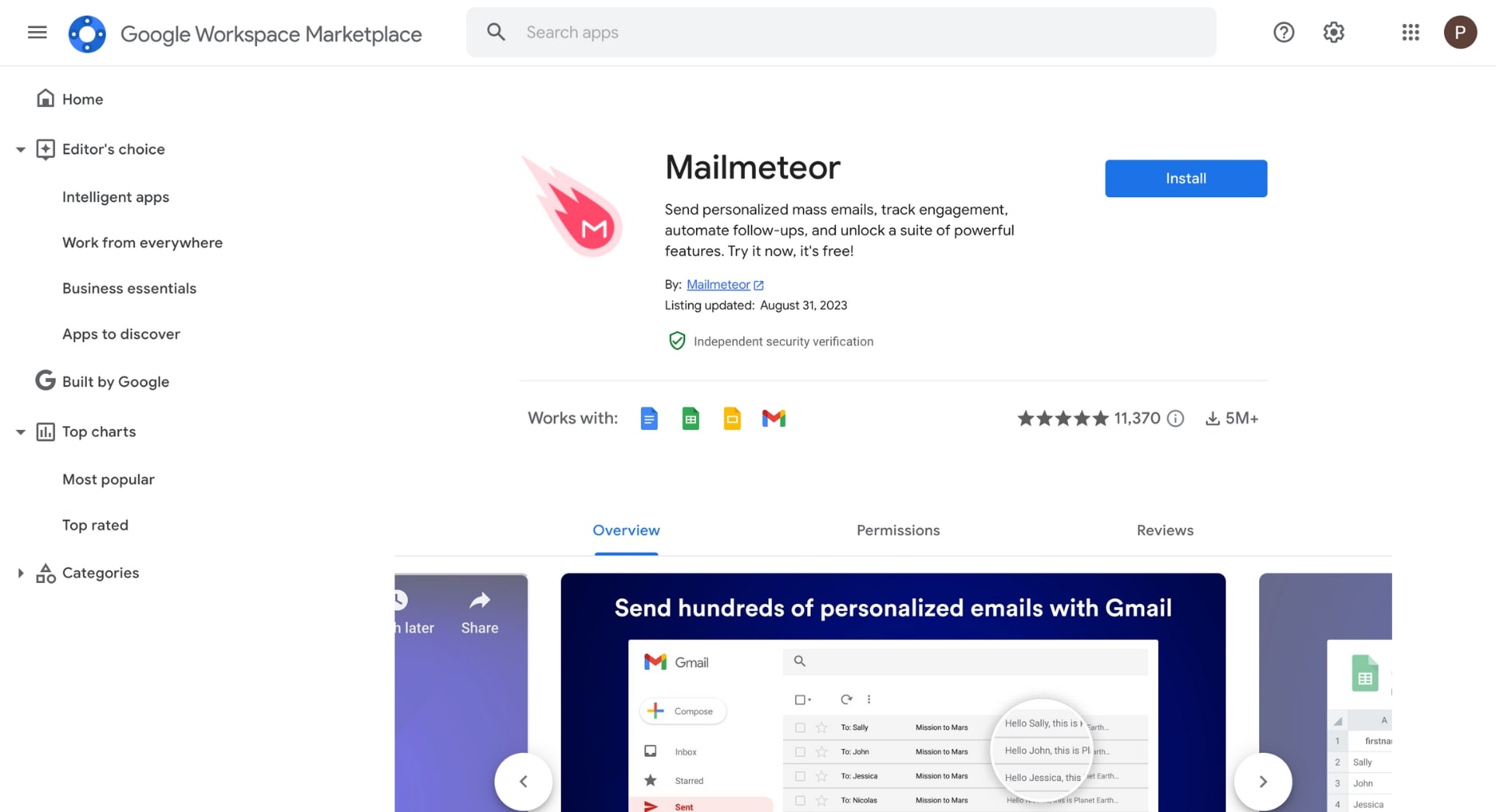
For starters, head to the [Mailmeteor page](https://workspace.google.com/u/0/marketplace/app/mailmeteor/1008170693301) on the Google Workspace Marketplace.
Go to the Google Workspace Marketplace
### 2) Install Mailmeteor and review permissions
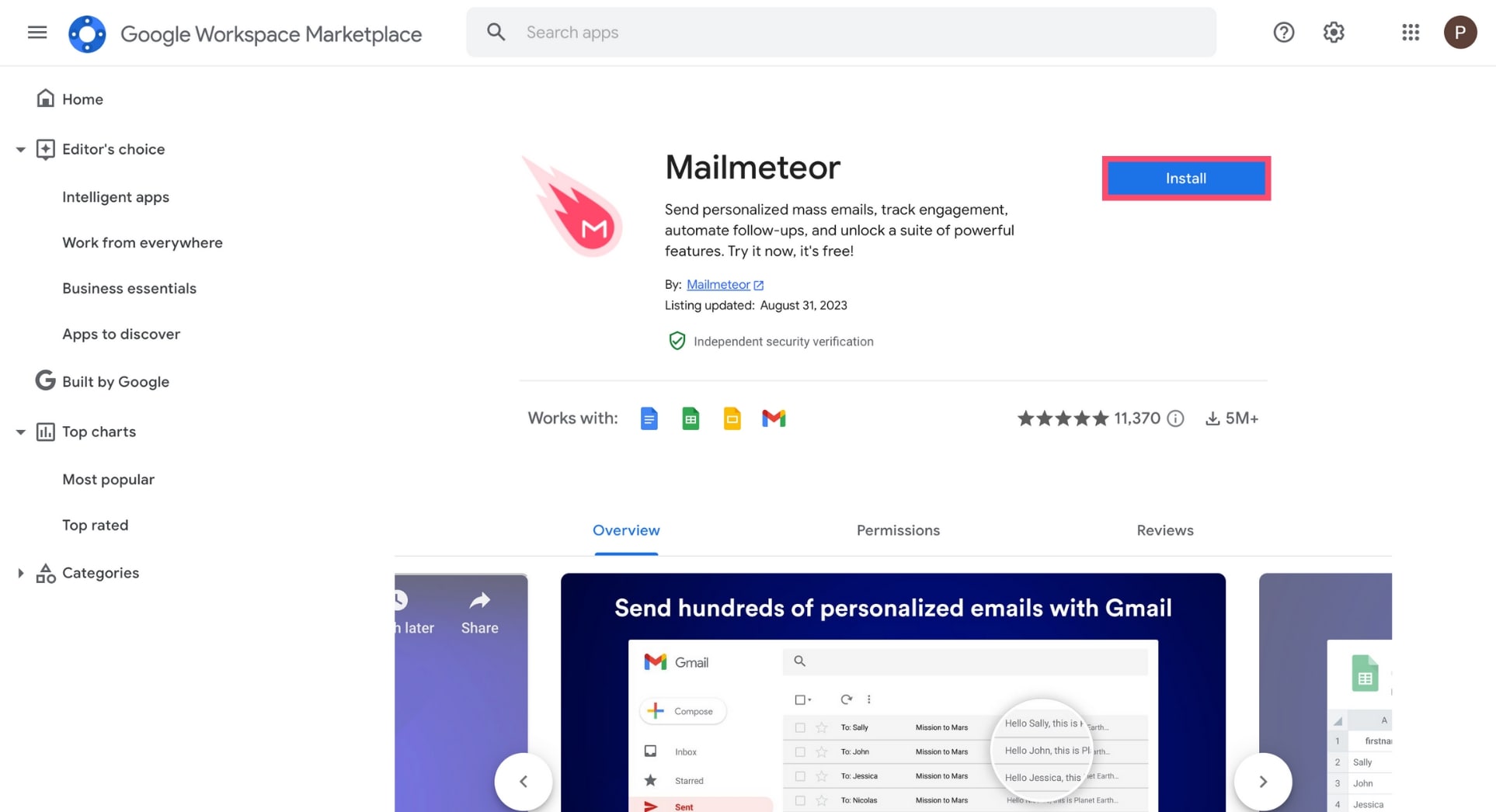
Click on the "**Install**" button.
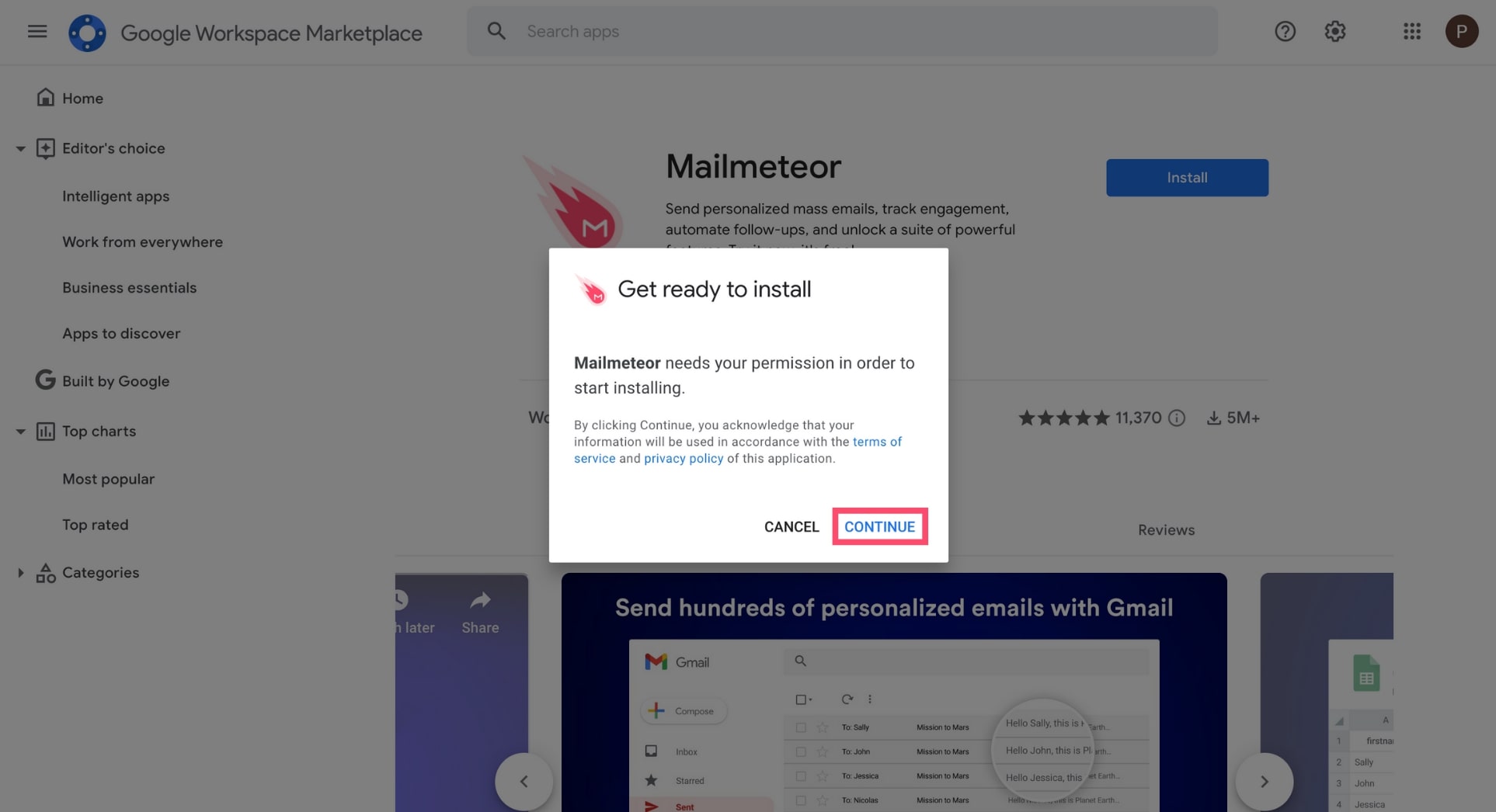
A consent popup will appear. Click on "**Continue**".
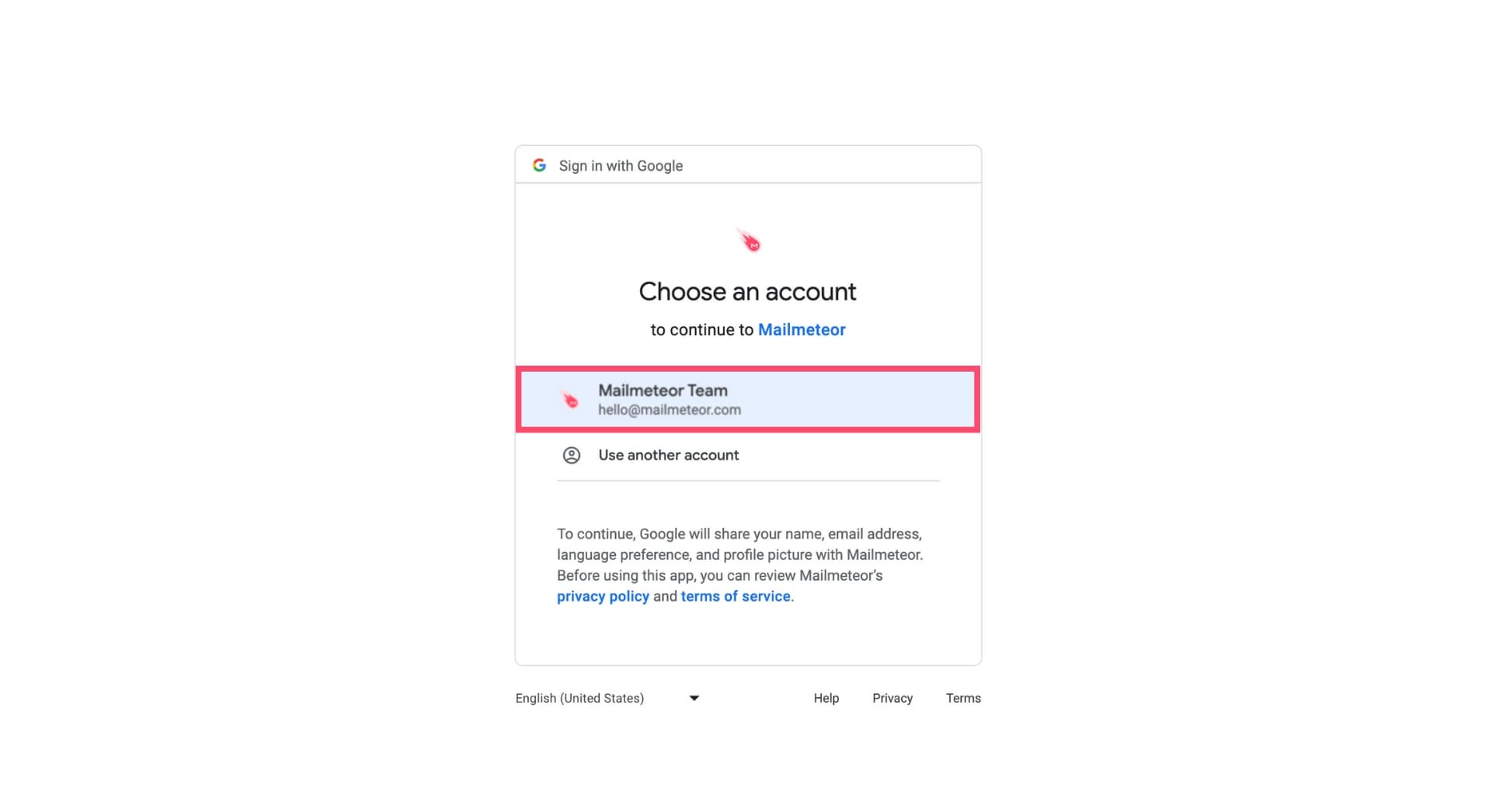
Select the Google account on which you wish to install Mailmeteor.
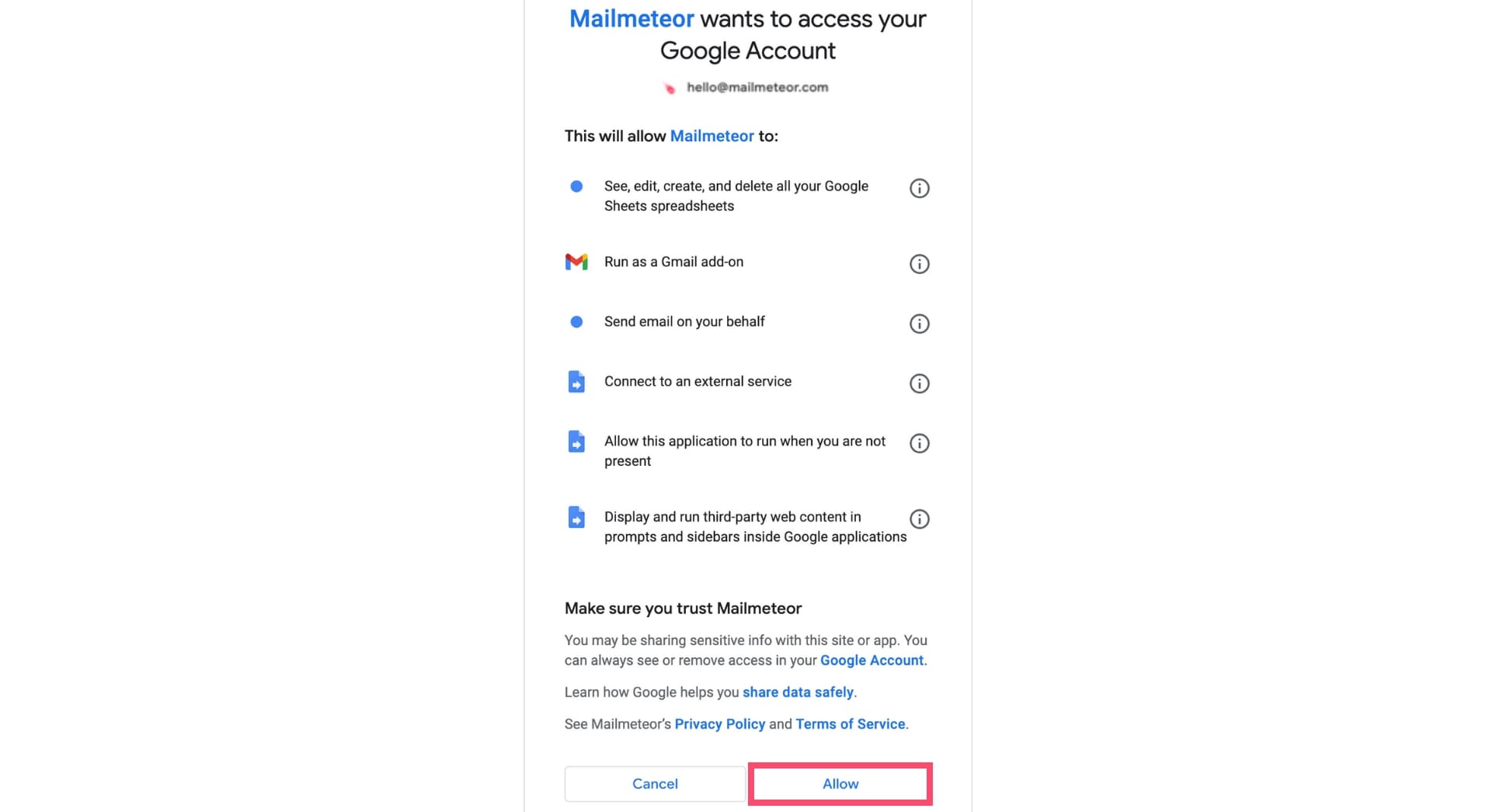
Review the permissions and click on "**Allow**"
{% hint style="info" %}
We built Mailmeteor to respect your privacy by design. [Visit this page to learn more about Mailmeteor permissions](https://mailmeteor.com/docs/help/privacy).
{% endhint %}
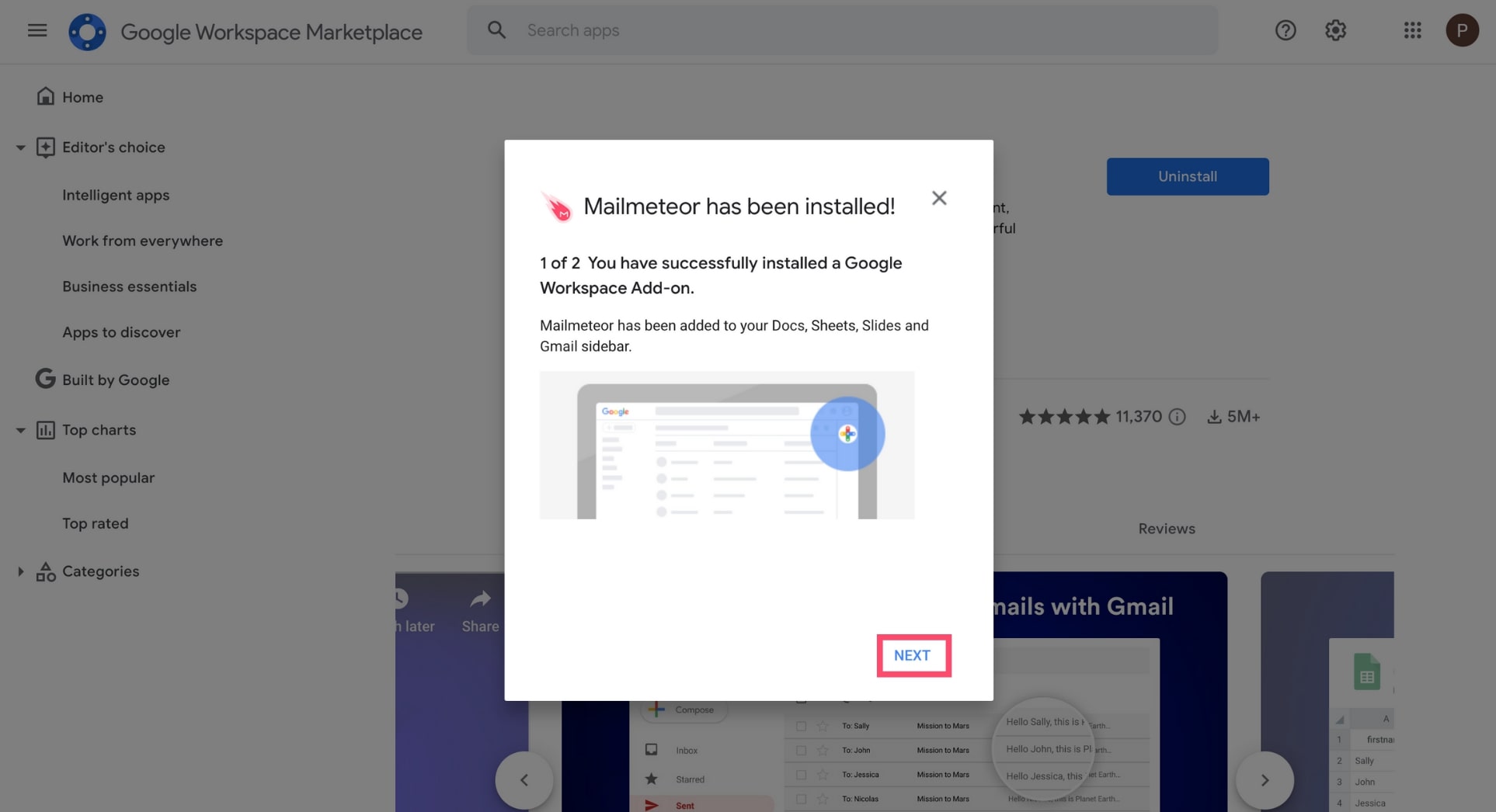
Click on "**Next**".
Then click on "**Done**".
#### 3) Start using Mailmeteor
{% hint style="success" %}
Mailmeteor is now installed 🥳 To start using the app, open a [Google Sheets spreadsheet](https://docs.google.com/spreadsheets), go to the **Extensions** menu. Then select **Mailmeteor** > **Open Mailmeteor**.
{% endhint %}
### Domain installation
The Google Workspace Marketplace provides a selection of enterprise apps that can enhance the features of native Google Cloud apps.
Mailmeteor is a verified Google Workspace add-on. To start using the app, install it on your domain.
#### 1) Go to the Google Workspace Marketplace
For starters, head to the [Mailmeteor page](https://workspace.google.com/marketplace/app/mailmeteor_mail_merge/1008170693301) on the Google Workspace Marketplace. Make sure that you're logged in with your Admin account.

#### 2) Install Mailmeteor on your domain
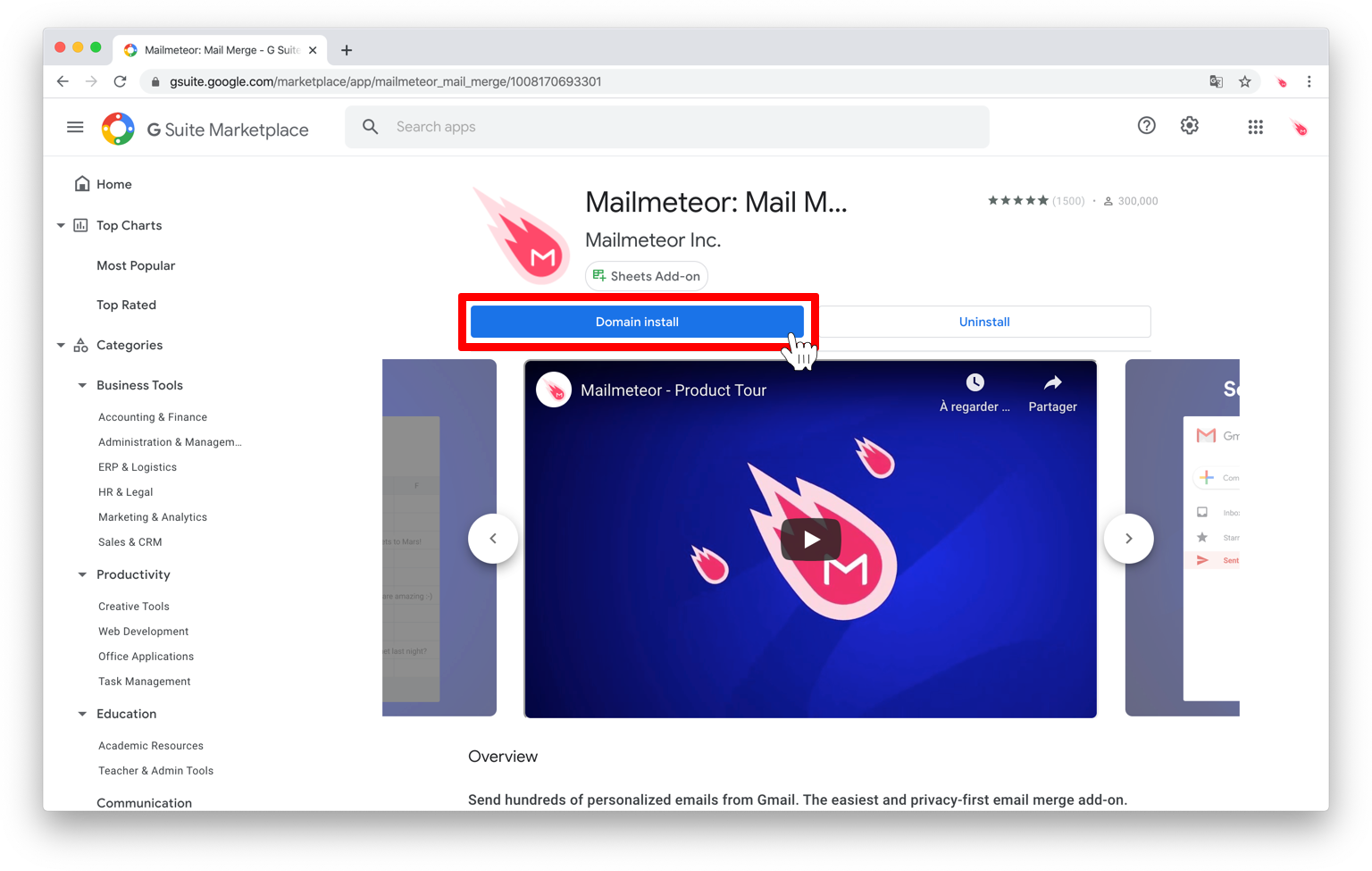
Click on the **Domain install** button.
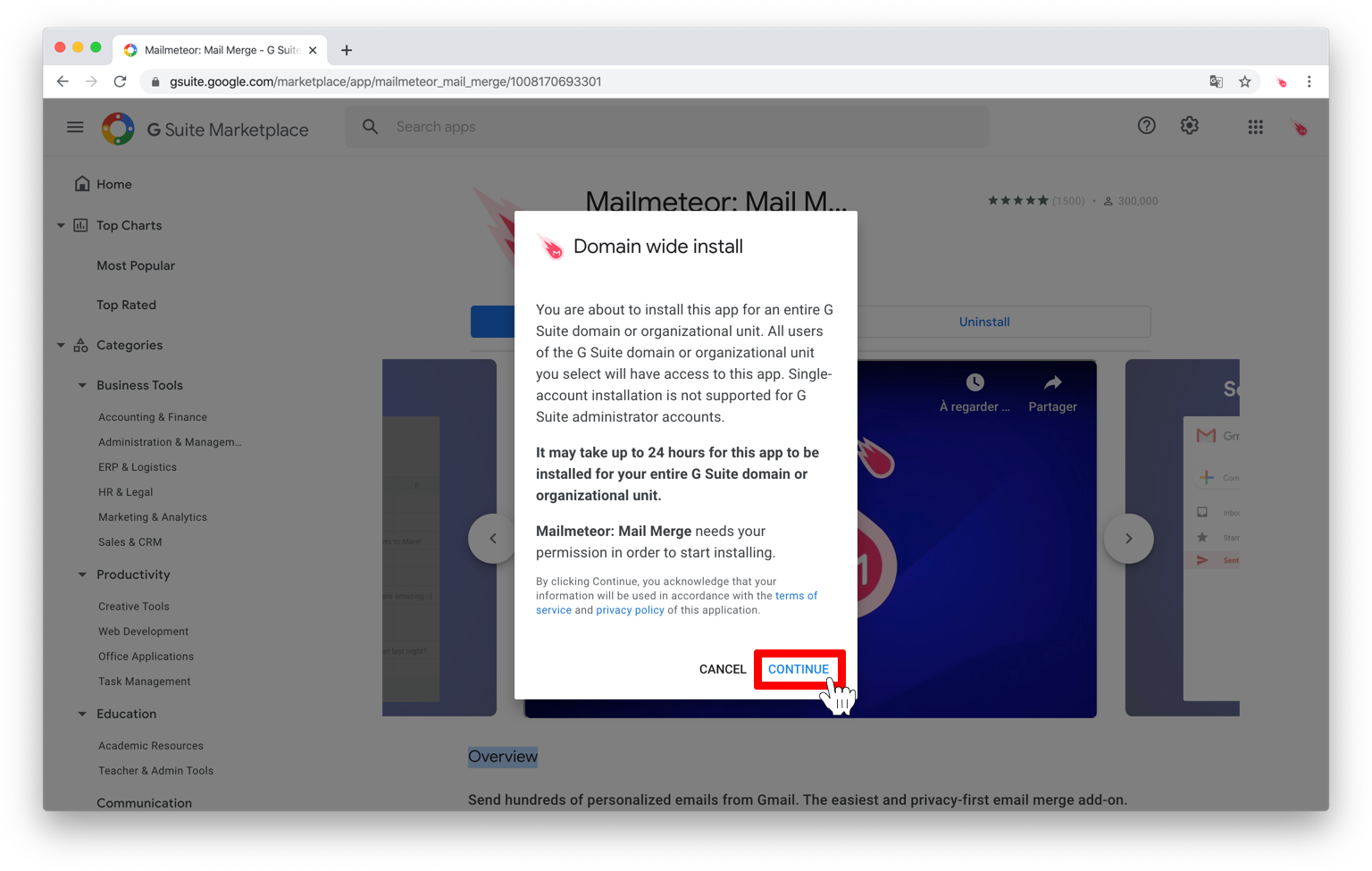
A consent popup will appear. Click **Continue**.
{% hint style="info" %}
**Mailmeteor is a verified Google Workspace** **add-on**. The app underwent a strict validation process before being published on the Google Marketplace. Read more about [Google's verification process](https://support.google.com/cloud/answer/9110914?hl=en\&ref_topic=3473162) and [how we keep our platform safe](https://mailmeteor.com/security).
{% endhint %}
Select the domain on which you want to install Mailmeteor. Then, review permissions, tick the **Terms of Service** box, and click **Accept**.

{% hint style="info" %}
We built Mailmeteor to respect your privacy by design. The app complies with the French Data Protection Laws and the European General Data Protection Regulation 2016/679 (GDPR). Read more about [Mailmeteor permissions](https://mailmeteor.com/docs/help/privacy).
{% endhint %}
To finish installing Mailmeteor, click **Next**.
Then click **Done**.
#### 3) Start using Mailmeteor
{% hint style="success" %}
Mailmeteor is now installed on your Google Workspace domain. Congratulations 🥳 To start using the app, open a [Google Sheets spreadsheet](https://docs.google.com/spreadsheets), go to the **Extensions** menu, and click **Mailmeteor** > **Open Mailmeteor**.
{% endhint %}
## What's next?
Now that you've installed Mailmeteor on your domain, here's how you can continue the onboarding process.
### Invite teammates to Mailmeteor 🤝
**Want to start working with the members of your team?** Mailmeteor lets you add more users in just a few clicks. [Here's how to invite your teammates to join](https://mailmeteor.com/docs/help/billing/team/add-users). Each user you add will automatically gain access to the same features as you.
### Education Program **🎓**
**Are you part of a school, college, or university?** The Mailmeteor Education Program offers free Premium accounts to all members of your staff or students. Learn more about the [Mailmeteor Education Program](https://mailmeteor.com/education-program) and how to apply.
.jpg)