# Sheet is edited
Whenever you make a change to your spreadsheet, you can send emails by creating an automation. The email will be sent only to the rows affected by a change. For example, if you edit cell B2, an email will be sent to the row B (and not your entire sheet).
To showcase this automation, let's take an example and consider you'd like to send a payment confirmation email whenever an invoice is paid in your spreadsheet:
1. Open a spreadsheet (or [copy this demo spreadsheet](https://docs.google.com/spreadsheets/d/1JifATMGIDL1VEqOB4bUCaJ5QHOM2Nae3hx1qqoTDx9w/copy#gid=779162856)).
2. From the extensions menu, select **Mailmeteor** > **Automations**.
3. In the "Templates" section, click on **Sheet is edited**.
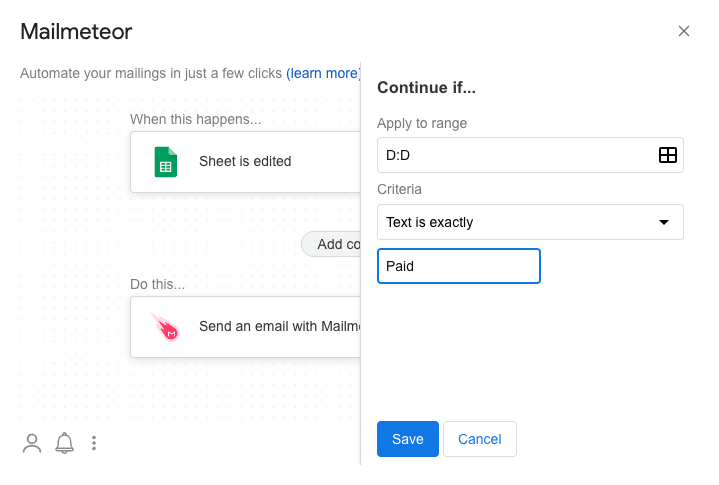
4. Click on **Add condition** to send emails only when an invoice is paid\\
5. Click on **Save** to save the condition.
6. Then click on **Send an email with Mailmeteor** to configure the email to send.\\
7. Once ready, click on **Save** to save the email then **Create automation**.
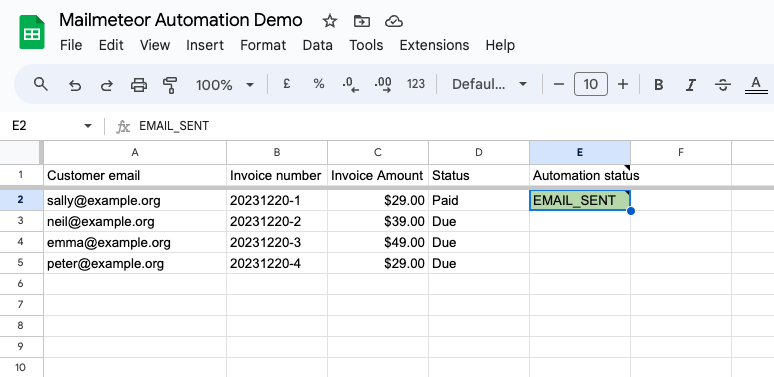
Now back to your spreadsheet, whenever an invoice is marked as Paid, an email will be sent:
A payment confirmation email sent from Google Sheets
Of course, this automation is not limited to payment confirmation. You can create as many workflows as you have, such as sales pipelines, construction work stages, student copies, etc.