# Creating a new template
With Mailmeteor you can create highly-personalized, reusable templates to email multiple recipients at once and save time.
## How to create a new email template
{% tabs %}
{% tab "Dashboard" %}
1. Open [Mailmeteor Dashboard](https://dashboard.mailmeteor.com/).
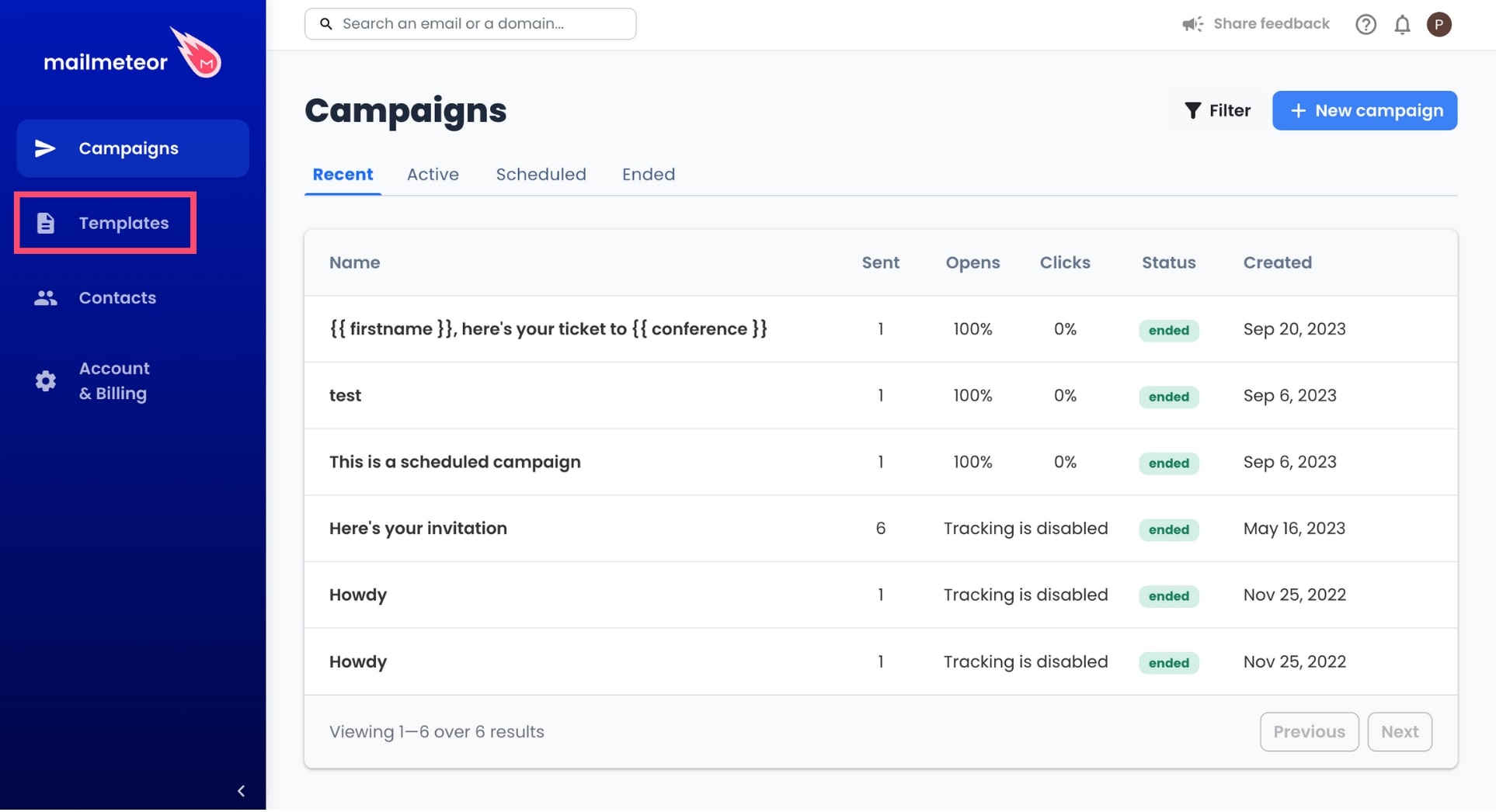
2. In the left-side menu, go to **Templates**.
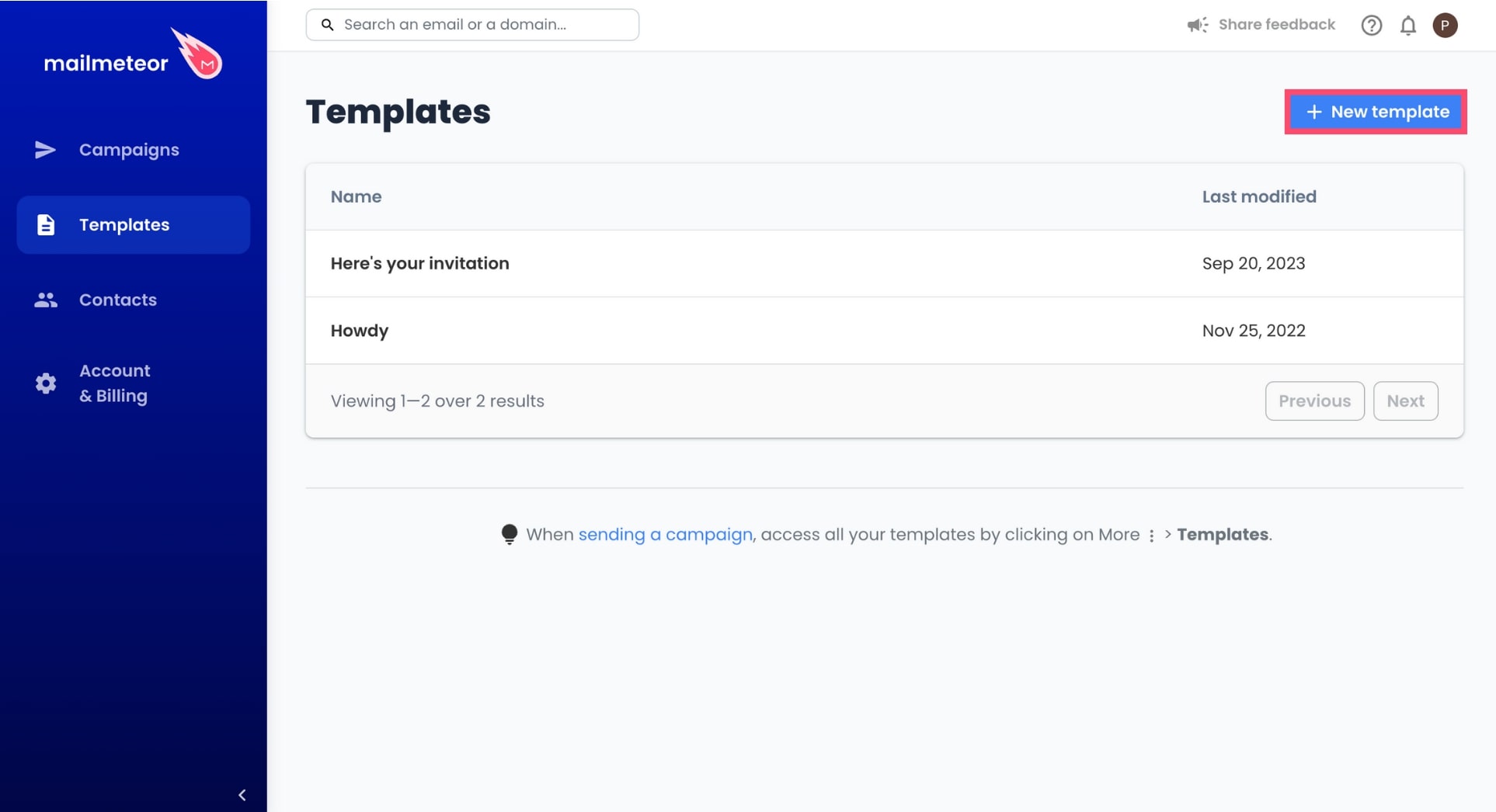
3. From there, click **New Template**.
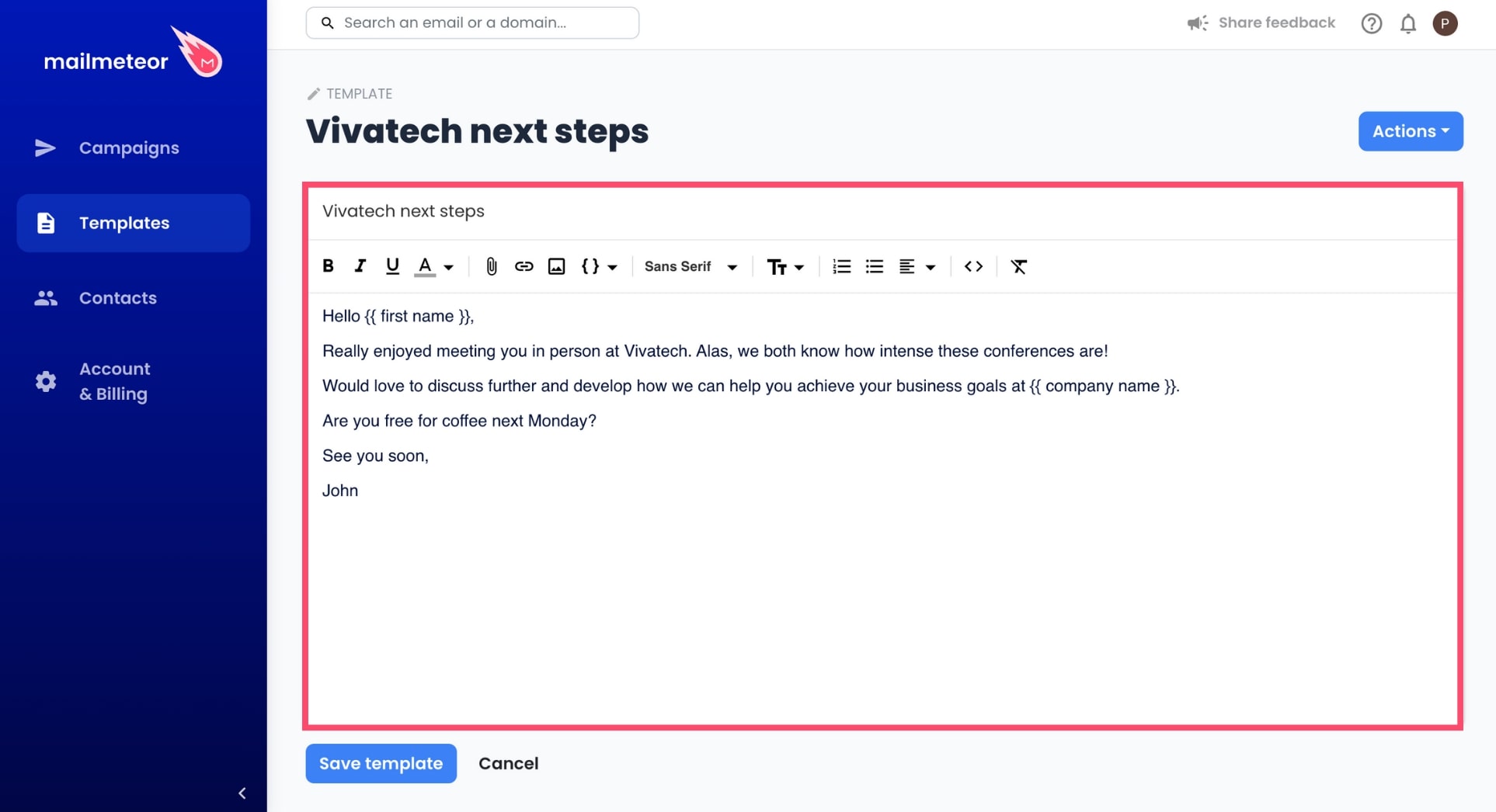
4. Compose your message and add a subject line.
{% hint style="info" %}
You can use the Mailmeteor editor toolbar to format your template, add an attachment, emojis, or images, and insert personalized variables. And if you need some inspiration, [take a look at our library of 40+ ready-to-use templates](https://mailmeteor.com/email-templates/).
{% endhint %}
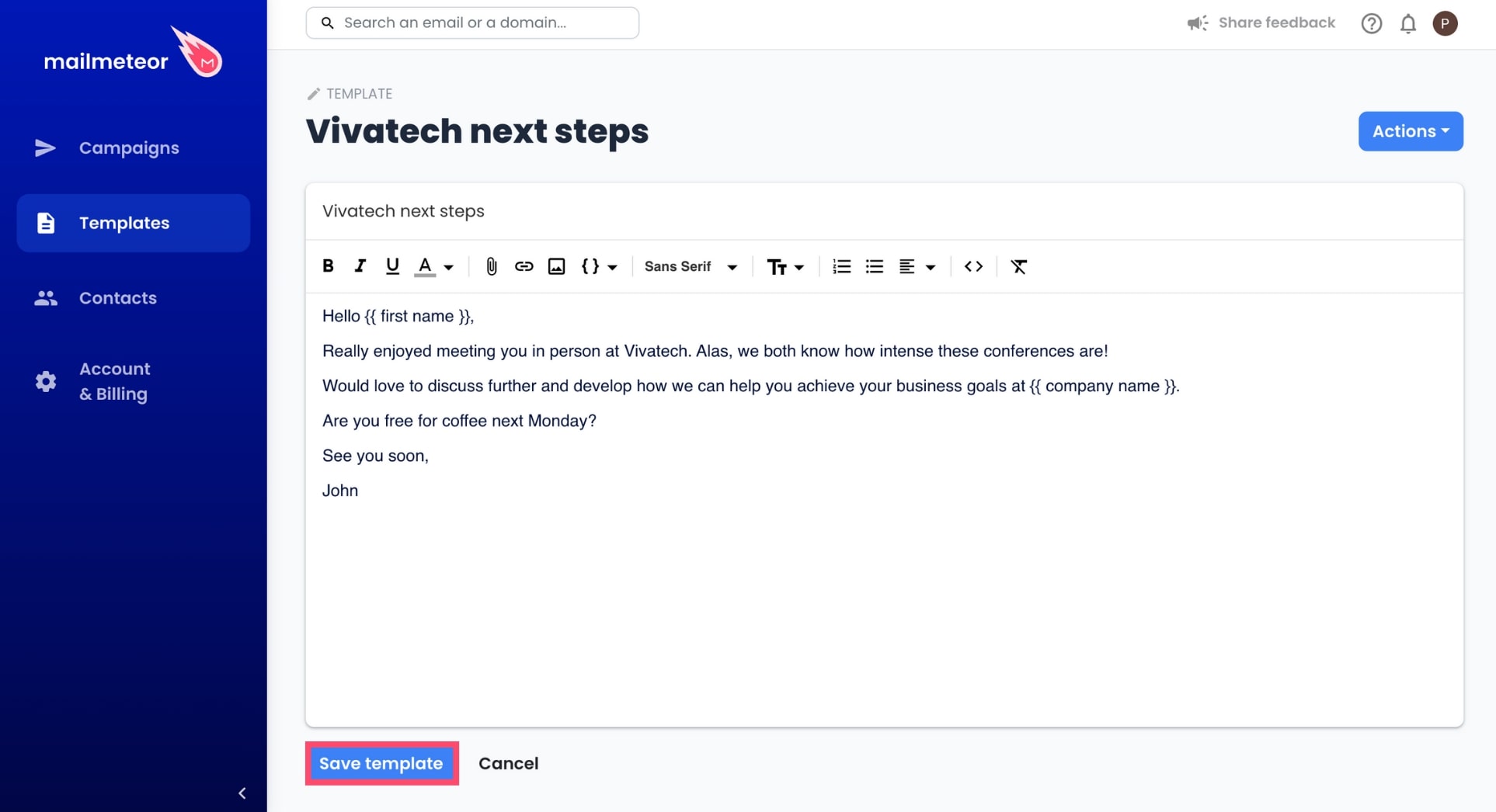
5. Once your template is ready, click **Save Template**.
{% endtab %}
{% tab "Google Sheets" %}
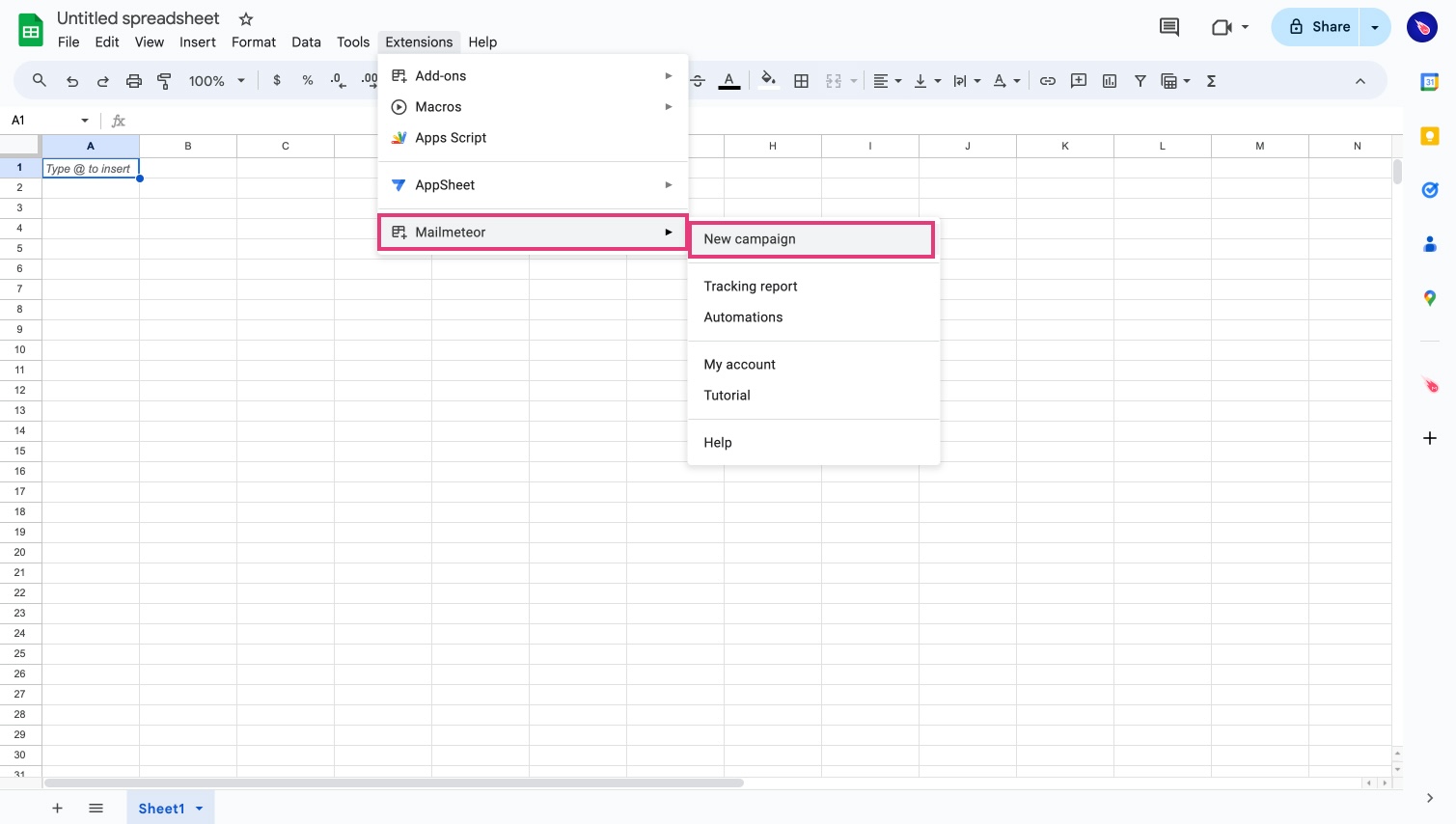
1. Open **Mailmeteor**.
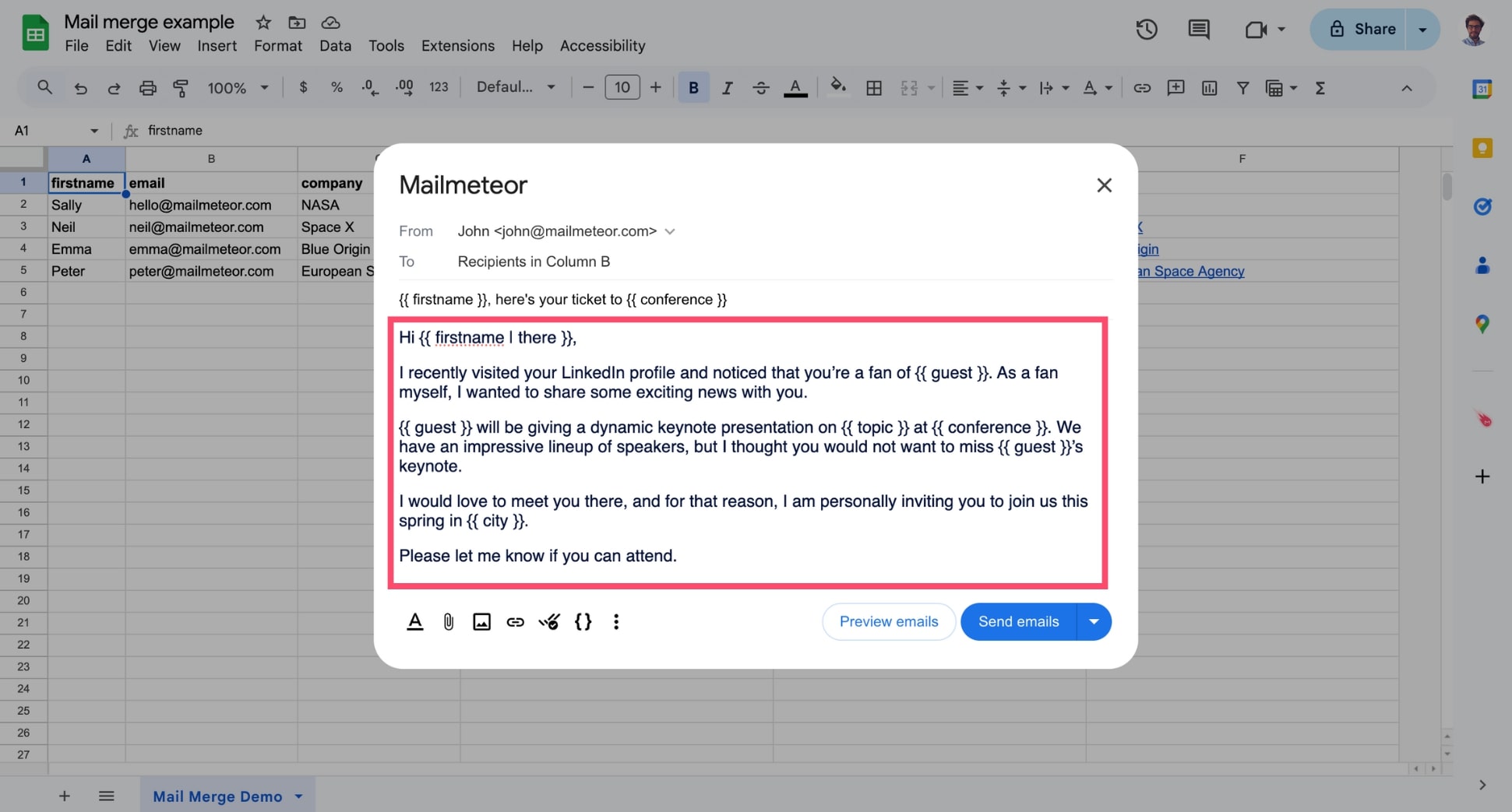
2. Write the content of your email. Don't forget the subject line.
You can add formating, [personalize](https://mailmeteor.com/docs/campaigns/advanced/personalization) with variables, [insert images](https://mailmeteor.com/docs/campaigns/advanced/images-and-emojis), and more.
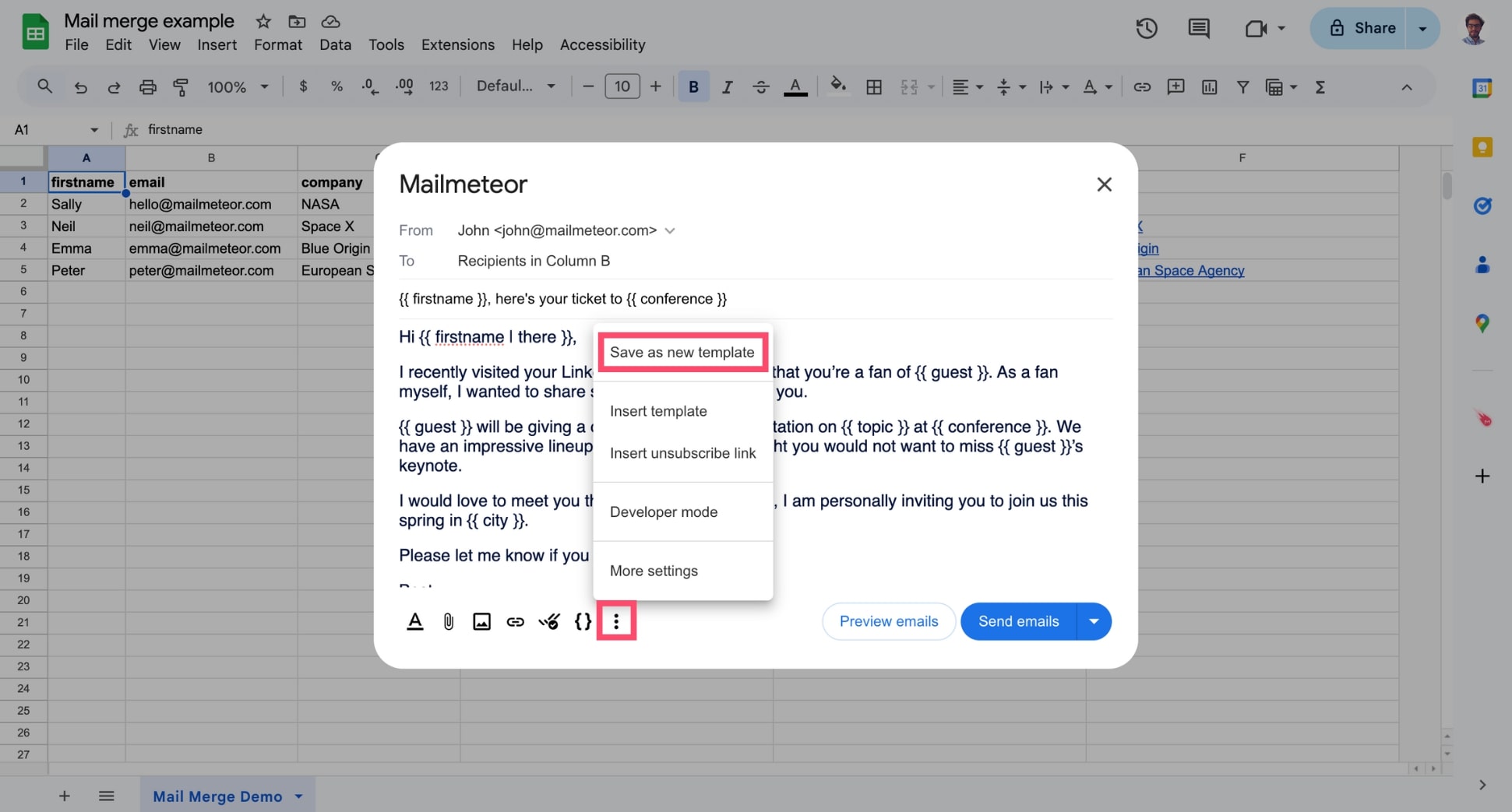
3. Once you're ready, click the **three vertical dots** and select **Save as new template**.
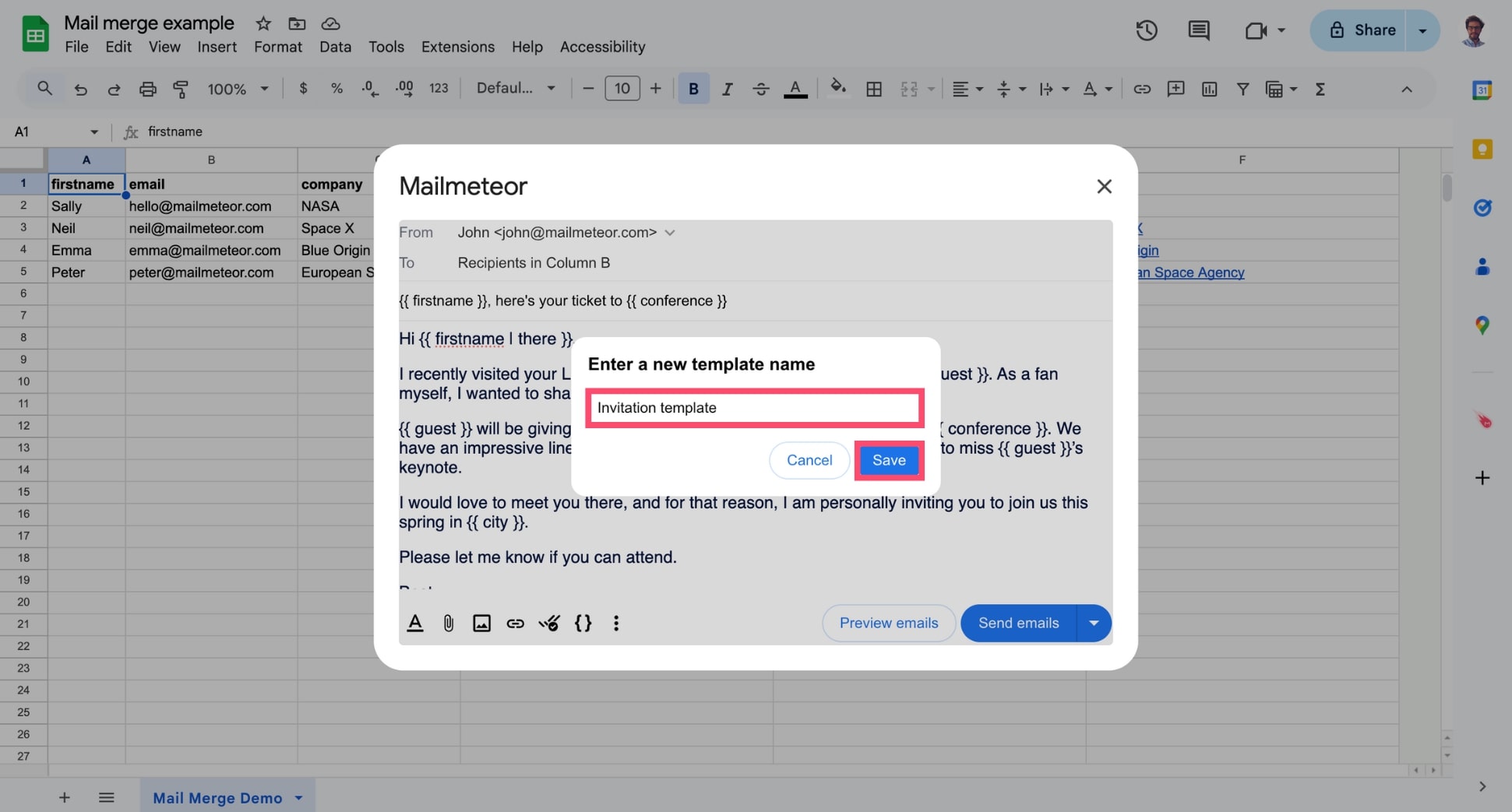
4. Name your template. Then press **Save**.
And voilà. You can now [reuse this template](https://mailmeteor.com/docs/templates/select) in **future campaigns** to craft personalized emails **in just a few clicks** and save time.
{% endtab %}
{% endtabs %}
{% hint style="info" %}
Once you've saved your template, you can view, edit, or delete it from the **Templates** tab in the left-side menu.
{% endhint %}
## Video tutorial
If you prefer watching a video, here's a quick tutorial on how to use email templates in Mailmeteor:
{% embed url="https://www.youtube.com/watch?v=iHaTON1t3aM" %}