# Editing a template
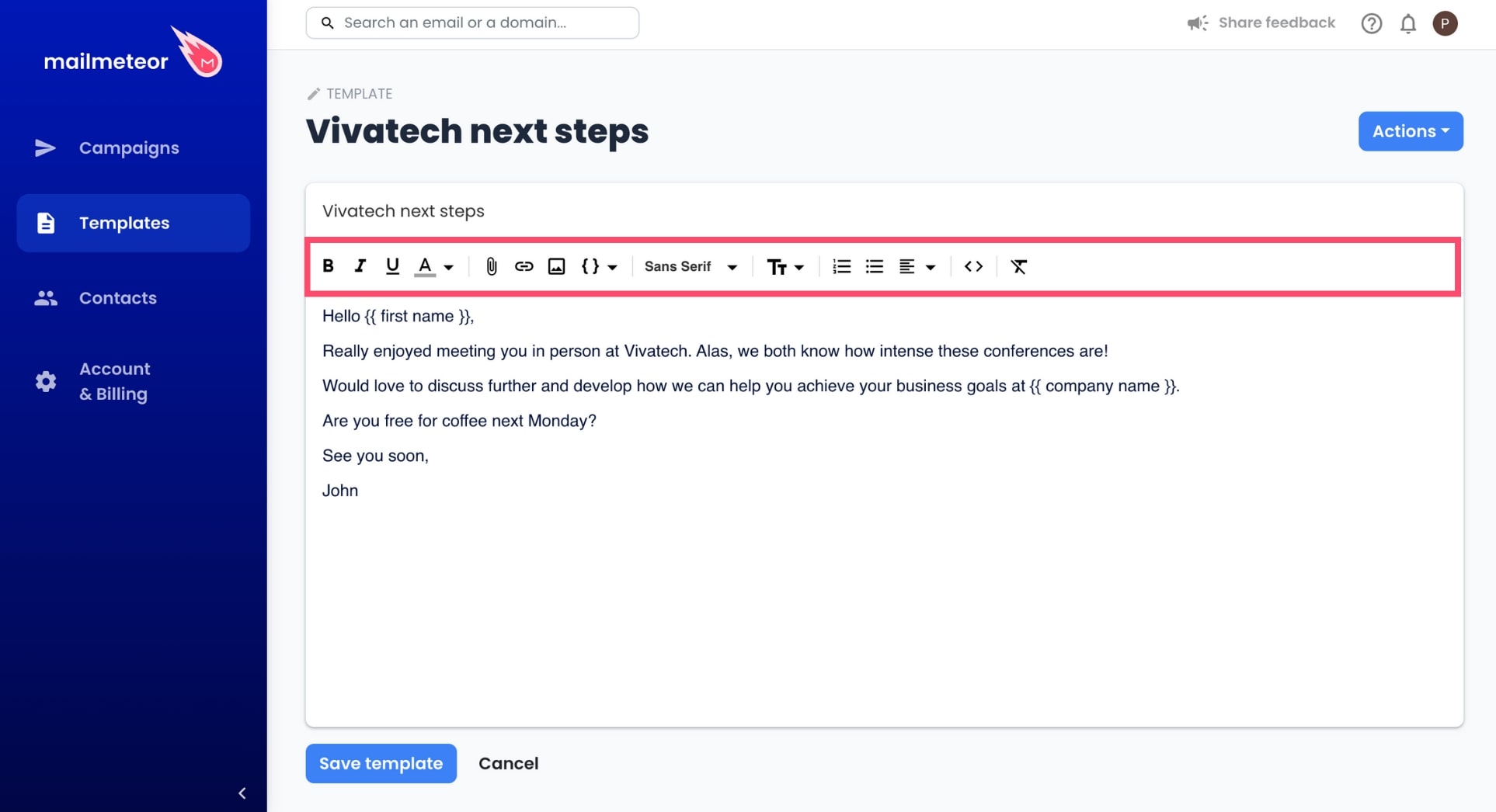
Mailmeteor allows you to [create personalized email templates](https://mailmeteor.com/docs/templates/edit) that can be easily accessed and modified using our built-in editor.
## How to edit an existing template
1. Open [Mailmeteor Dashboard](https://dashboard.mailmeteor.com/).
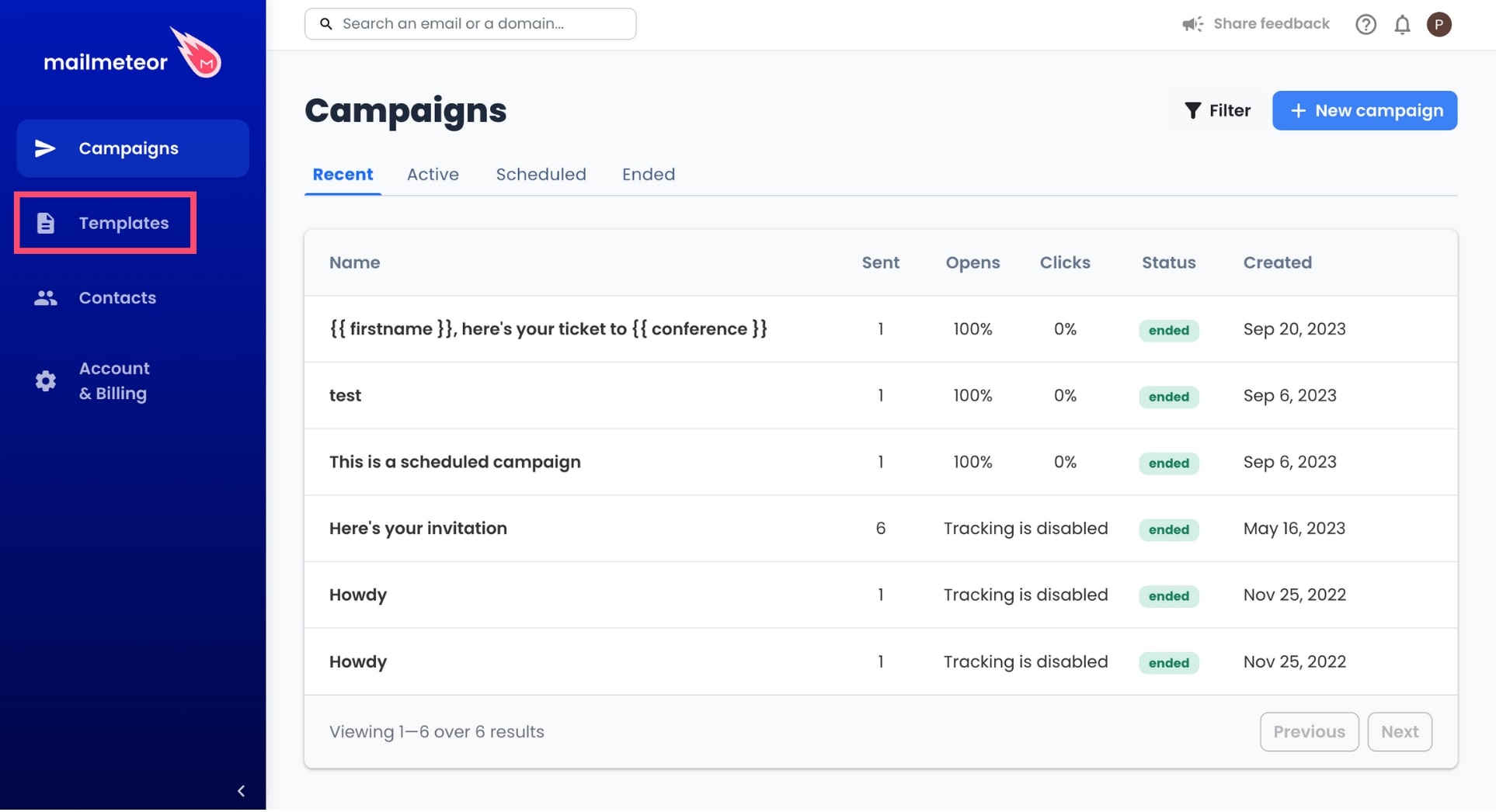
2. In the left-side menu, go to **Templates**.
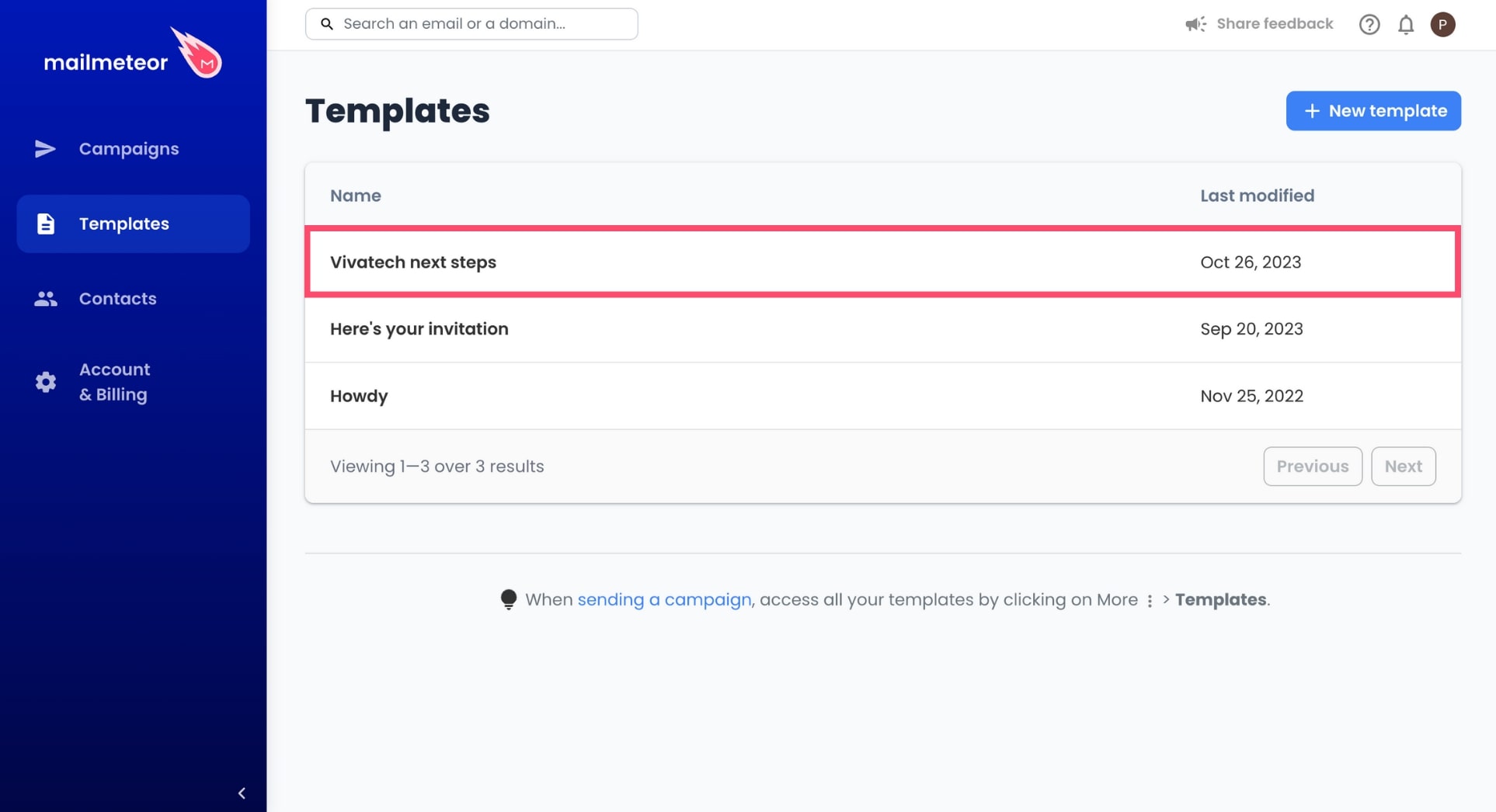
3. Select the template you want to edit.
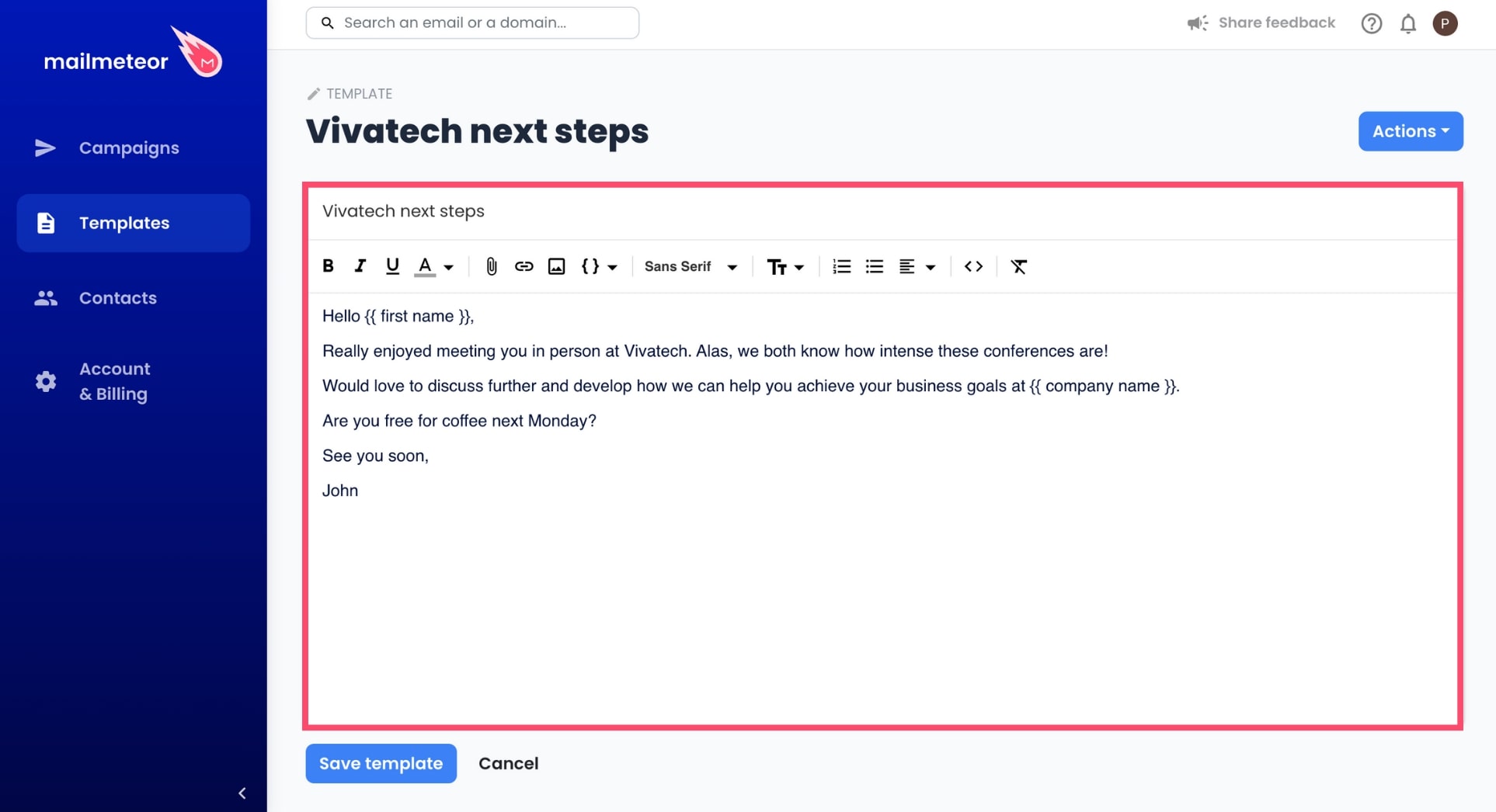
4. Use the editor to modify your template.
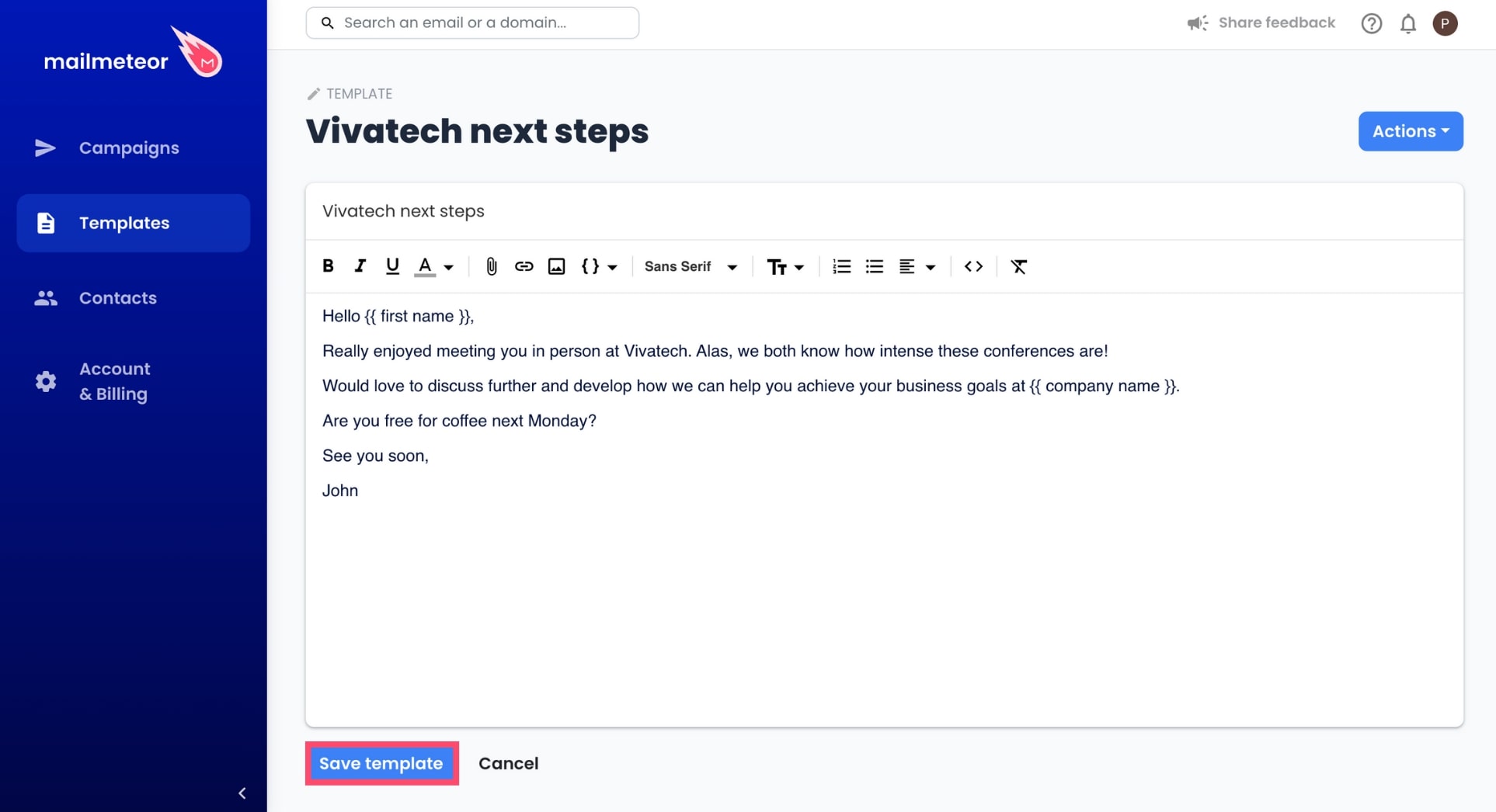
5. Once you're done, click **Save template**.
## How to use the template editor
Mailmeteor's editor lets you change the text, add links, attachments, or images, and edit the formatting of your templates. Here's how to use the editor's toolbar.
* **B** - Make your text bold.
* _**I**_ - Italicize your text.
* **U** - Underline your text.
* **A** - Select the color of your text.
* 📎 - Attach a file to your template.
* 🔗 - Add or remove a link.
* 🖼️ - Add an image.
* **{ }** - Insert a personalized variable.
* **Sans Serif** - Change the font of your text.
* **Tt** - Change the size of your text.
* **< >** - Activate developer mode to edit the HTML code of your template.
* ~~_**T**_~~ - Remove formatting.