Admin approval required to connect your Microsoft account
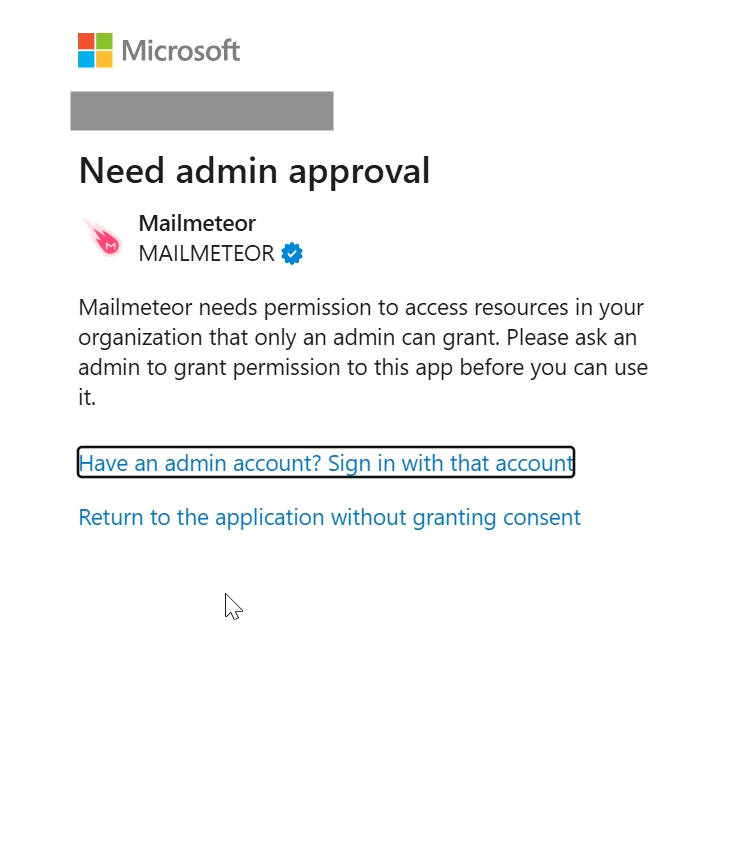
If you see a “Need admin approval” message when trying to connect your Outlook or Microsoft 365 account to Mailmeteor, it means your organization requires administrator consent before third‑party applications can be used.
This is a Microsoft security setting and is not caused by an issue with your authenticator app or verification codes.
Below is what the message typically looks like:
Why am I seeing this message?
Your Microsoft organization (tenant) is configured to restrict third‑party app access. Mailmeteor requires specific Microsoft permissions to send emails and manage campaigns, and only a Microsoft 365 / Entra ID administrator can approve those permissions.
Until admin consent is granted, Mailmeteor won’t be able to connect to your Outlook account.
How to resolve the issue
There are two ways your organization can approve Mailmeteor.
Option 1: Allow users to request admin consent (recommended)
Ask your Microsoft Office administrator to enable the following setting:
“Users can request admin consent to apps they are unable to consent to.”
Your administrator can find this setting by navigating to:
Microsoft Entra ID (Azure Active Directory) → Enterprise Applications → Consent and permissions → Admin consent settings
Once enabled, retry connecting your Microsoft account to Mailmeteor. A consent request will be sent to the admin for approval.
Option 2: Admin signs in and grants consent directly
If your administrator cannot enable user consent requests or use Microsoft’s Centralized Deployment feature, ask one of your Microsoft 365 admins to:
- Sign in to Mailmeteor using their admin account
- Approve the requested permissions when prompted by Microsoft
After approval, Mailmeteor will appear in Microsoft Entra → Enterprise Applications, where the admin can manage permissions and settings.
Once this is done, you can reconnect your Microsoft account normally.
How to reconnect your Microsoft account
After admin approval is granted:
- Log in to the Mailmeteor Dashboard
- Go to your Account settings
- Open the Integrations tab
- Connect (or reconnect) your Microsoft account
- Complete Microsoft’s authorization flow
You should then be redirected back to Mailmeteor with the connection successfully enabled.
How to confirm everything is working
To verify the connection:
- Send yourself a test campaign from the Mailmeteor Dashboard
- Ensure no warning or approval message appears
If emails send successfully, your account is fully configured.
Still blocked?
If you’re still unable to connect after admin approval, please contact our support team and share:
- A screenshot of the Microsoft error message
- Whether admin consent has already been granted
- Your Microsoft account type (personal vs. work/school)
We’ll be happy to help you resolve it quickly.