If you’re anything like me, chances are there are times when you find yourself writing the same email over and over — the same customer reply, the same booking confirmation, the same answer to a common question.
Gmail templates (formerly called canned responses) fix this. They let you save any email as a reusable template and insert it into a new message in just a couple of clicks, saving you countless hours of manual work.
In this guide, you’ll learn how to enable and create Gmail templates, how many you can save, whether they work on mobile, and how to build fully branded HTML templates — plus a faster, team-friendly alternative if Gmail’s built-in version starts to feel limiting.
Here’s what we’ll cover:
- How to enable Gmail templates
- How to create, edit, and delete Gmail templates
- How to create personalized Gmail templates with Mailmeteor
- How many templates you can save in Gmail
- Whether Gmail templates work on mobile
- How to auto-send templates with filters
- How to send HTML emails in Gmail
- Templates vs. Layouts vs. custom HTML
- Bonus: creating templates in Google Docs
Sounds good? Then let’s dive in.
How to Enable Gmail Templates
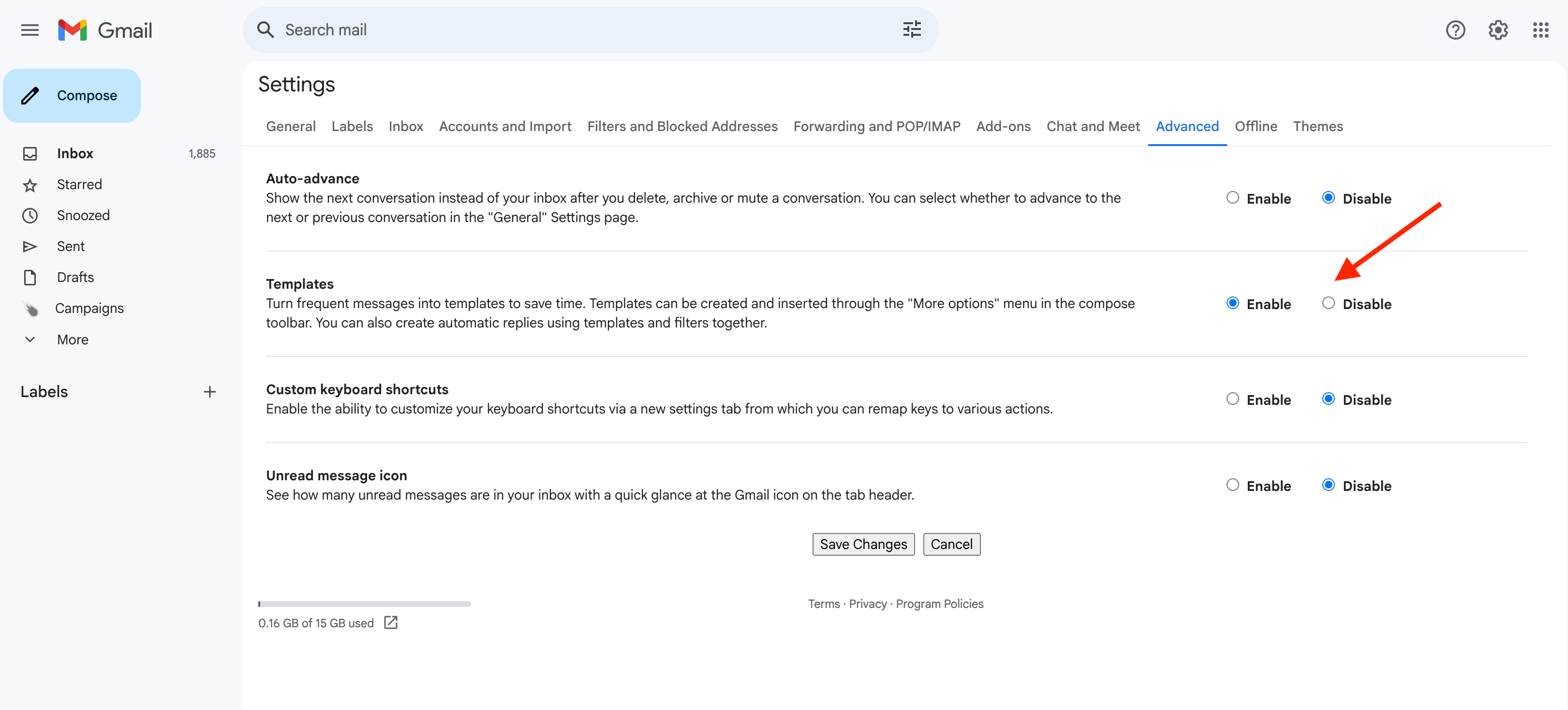
By default, Gmail templates aren’t enabled. Here’s how to activate them ⤵️
- Click the settings cog icon in the top-right corner of Gmail on your computer.
- Click See all settings from the tab that pops up.
- Navigate to the Advanced tab.
- Next to Templates click Enable.
- Scroll down and click Save changes.
And voilà. The Templates option will now appear in your compose window.
How to Create, Edit, and Delete Gmail Templates
Once Gmail templates are enabled, you can easily create, edit, and delete them. Here’s how ⤵️
Creating a Gmail Template
- Click Compose in the top-left corner of Gmail on your computer.
- Write the email you’d like to save as a template in the email composer.
- At the bottom of the email composer, click the three dots to open more options and select Templates.
- Choose Save draft as template and give your template a name.
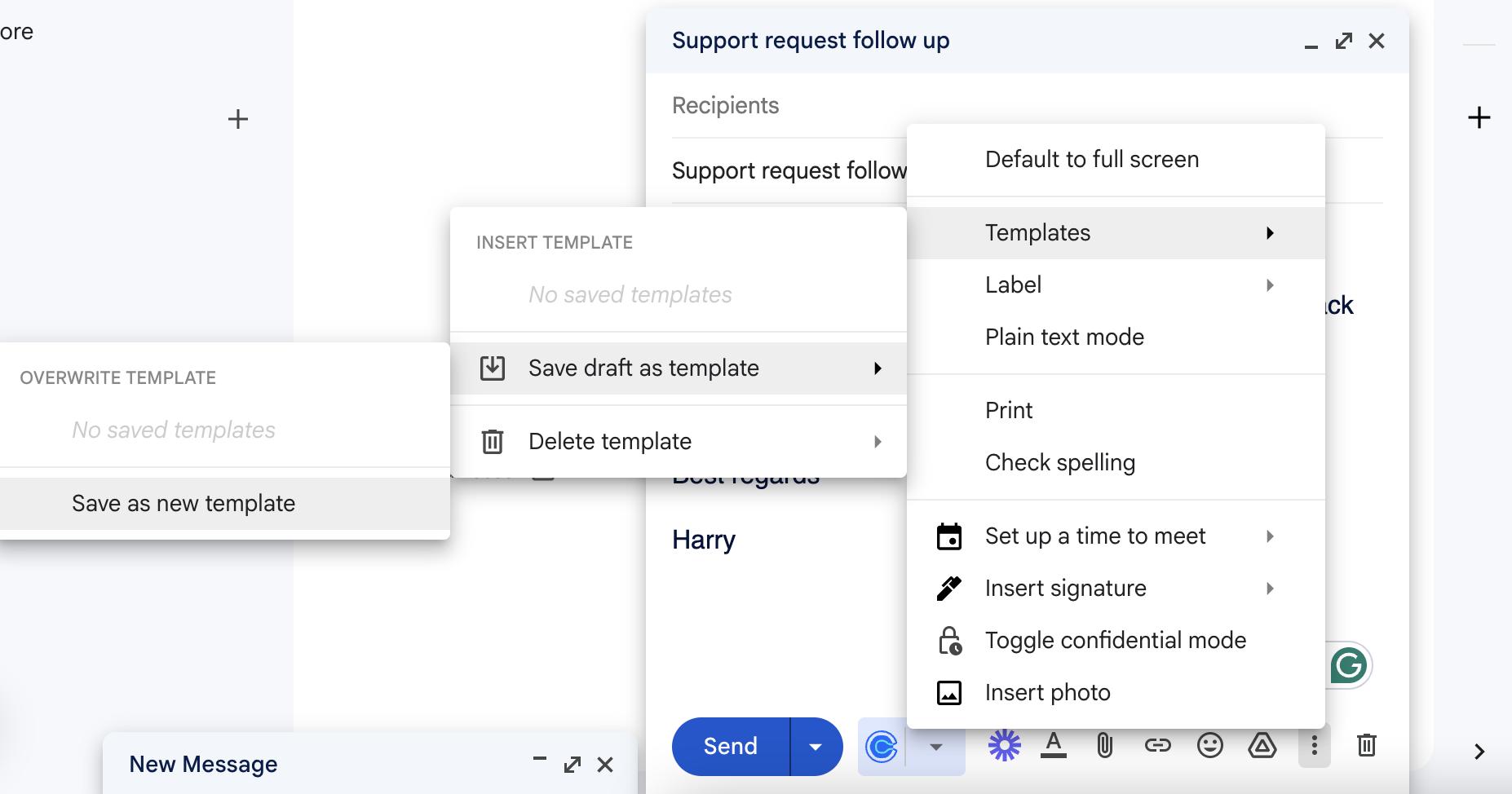
And that’s it. Your template is ready to insert into any future email.
Editing a Gmail Template
- Open the template you want to edit by clicking Compose and selecting it from the Templates menu.
- Make your changes in the email composer.
- Save the updated version by clicking the three dots, selecting Templates and choosing your existing template to overwrite it.
Deleting a Gmail Template
- Open the Templates menu by clicking the three dots in the email composer.
- Choose Delete template and select the template you wish to remove.
Note that once you delete a template, Gmail doesn’t offer a way to recover it — so it’s worth copying anything important into a Google Doc before you remove it.
How to Create Personalized Gmail Templates with Mailmeteor
Gmail’s built-in templates work fine for a solo inbox, but they hit their limits fast: no sharing, no keyboard shortcuts, and no personalization beyond copy-paste. Mailmeteor’s Gmail extension adds a reusable templates feature that fixes all 3 ⤵️
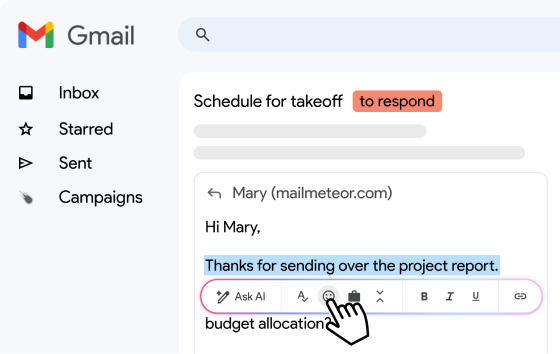
- Save any email as a template directly from your Gmail inbox, then insert it with a keyboard shortcut instead of digging through a three-dot menu.
- Share templates with your team — invite up to 10 collaborators to a template, even if they’re on a different Gmail or Google Workspace account.
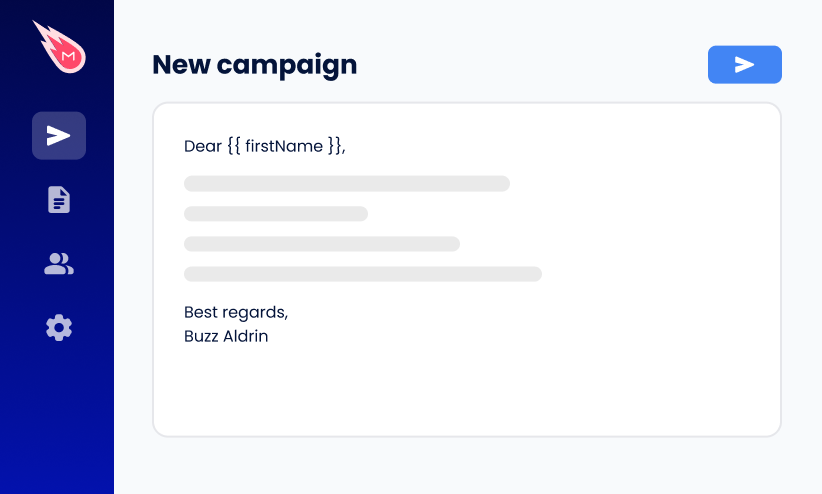
- Personalize each send by combining a template with mail merge variables (like ``), so the same base message still feels one-to-one.
- Start from a template library if you don’t want to write from scratch — Mailmeteor includes a set of 150+ pre-made templates you can adapt.
How Many Templates Can You Save in Gmail?
Gmail doesn’t currently publish an official cap on its Templates settings page. In practice, most users report hitting a ceiling around 50 saved templates per account, and that figure shows up consistently across support forums and third-party guides.
If you’re bumping up against it, the fix is simple: delete templates you no longer use, or keep a master copy of rarely-needed ones in a Google Doc you can paste from when needed. You can also use Mailmeteor to save as many reusable templates as you need.
Can You Use Gmail Templates on Your Phone?
No — not natively. Templates only work in Gmail on a computer. There’s no Templates option anywhere in the Gmail mobile app’s menu, on either Android or iPhone, no matter how you search for it.
If you’re mostly replying on the go, the closest built-in workaround is your phone keyboard’s text replacement feature. It won’t handle a full formatted template, but it’ll get a short, frequent reply typed out in a couple of taps.
If you’re mostly replying on the go, the closest built-in workaround is your phone’s text replacement feature. You set up a short trigger phrase (like “omw”) that automatically expands into a full canned reply as you type it — it won’t handle a formatted template with links or images, but it’s enough for a quick, frequent one-liner.
How to set it up:
- On iPhone: Go to Settings > General > Keyboard > Text Replacement, tap +, then enter your full reply under “Phrase” and a short trigger under Shortcut.
- On Android: Open your keyboard’s settings (usually Gboard) > Dictionary > Personal dictionary, then add a shortcut.
How to Auto-Send Templates with Gmail Filters
Want to automate email responses with templates? Gmail filters allow you to send specific templates automatically based on email criteria.
For example, if you have a contact form on your website and all submissions share the same subject line (e.g., “New form response”), you can set Gmail to send a confirmation email automatically.
Here’s how to do it ⤵️
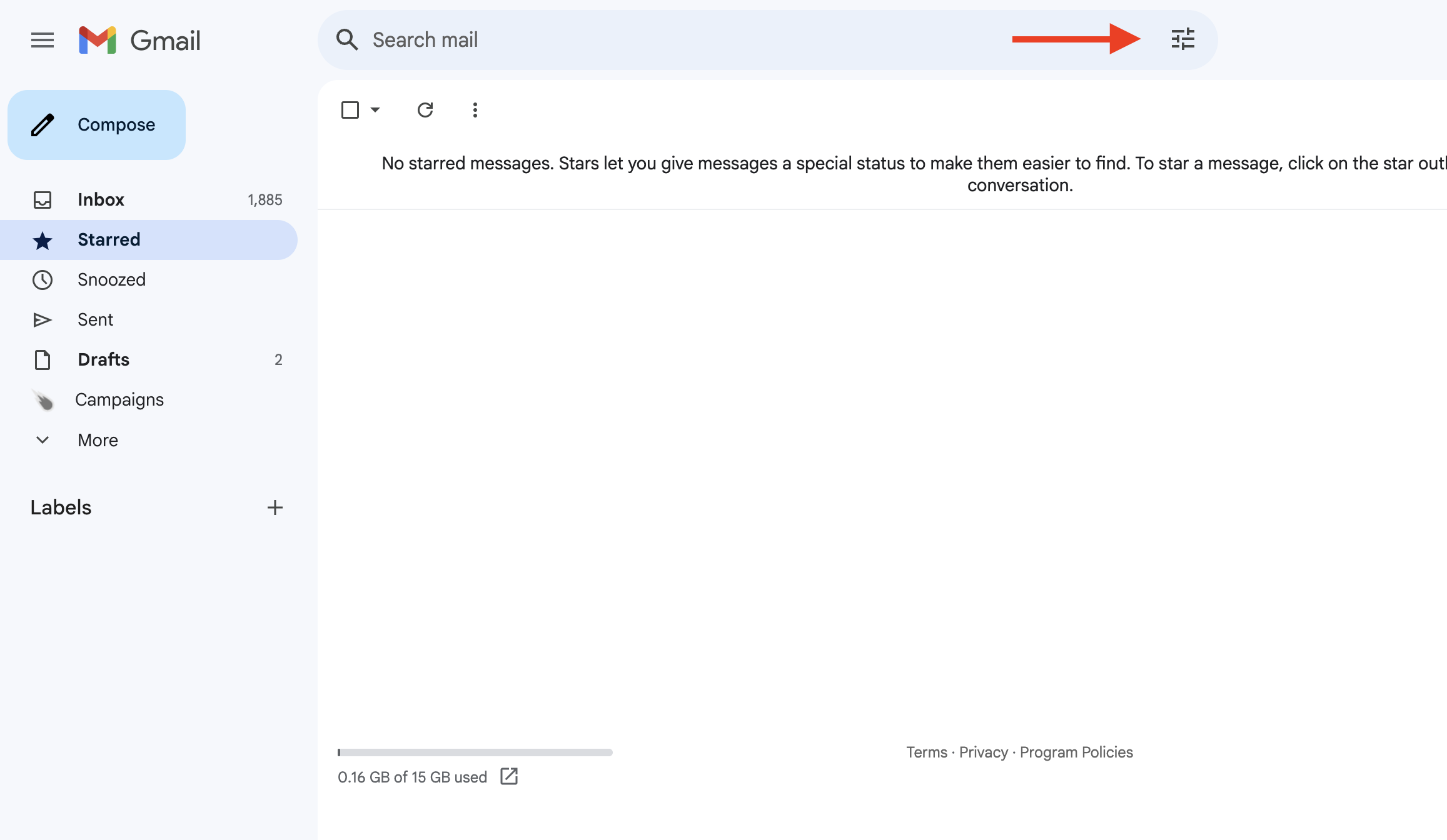
- Click the search settings icon in Gmail’s search bar (three sliders).
- Enter the criteria for the emails you want to respond to. For example, in the Subject field, enter New form response.
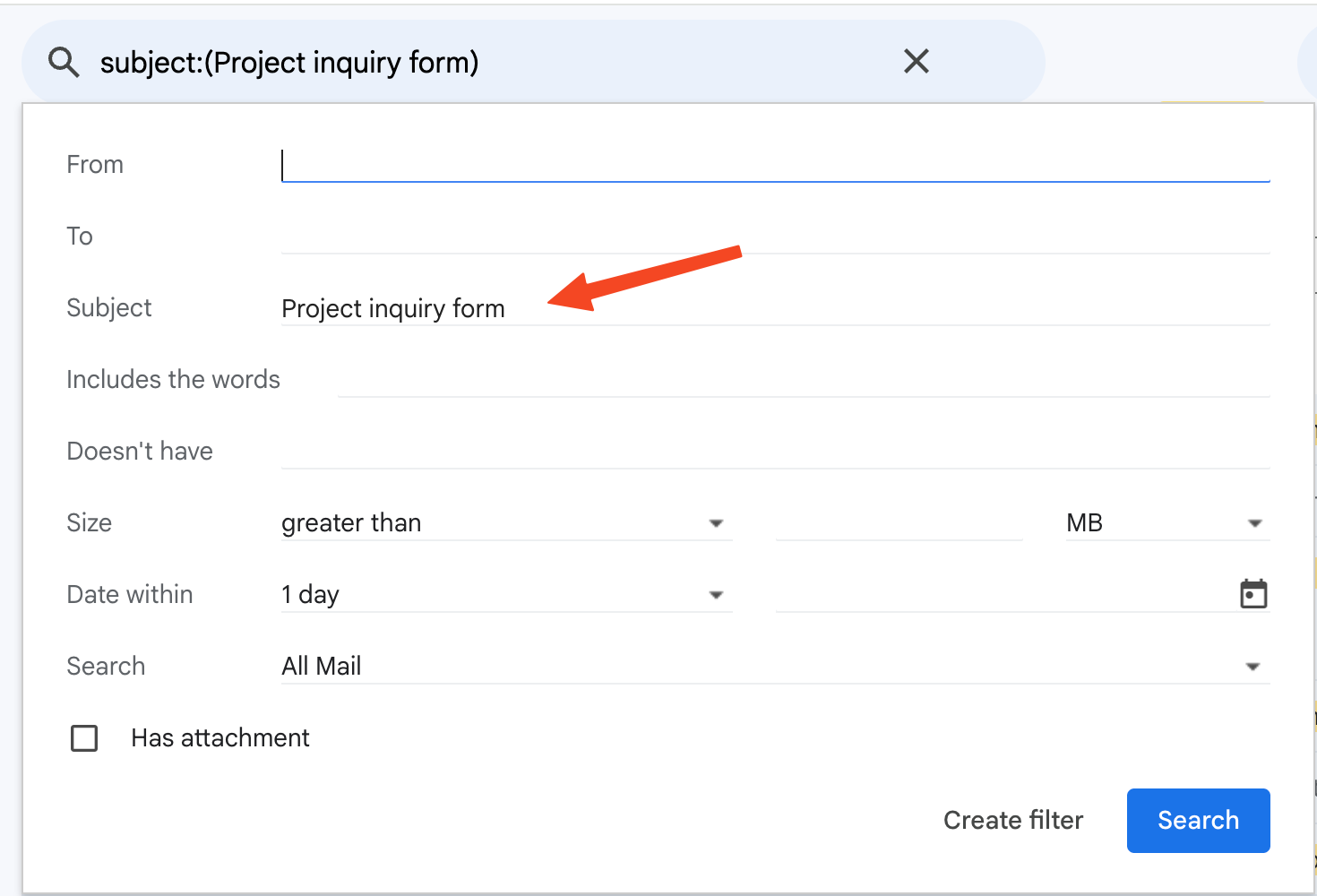
- Test your filter by clicking Search to ensure it identifies the correct emails.
- Once satisfied, click Create filter and check Send template.
- Choose your template from the dropdown and click Create filter.
And done. Matching emails will now get your template automatically.
Deleting a Filter
- Go to Settings > See all settings.
- Open the Filters and Blocked Addresses tab.
- Edit or delete your filters as needed.
How to Send HTML Emails Using Gmail Templates
If you’re creating email templates, you might wonder if you can go beyond plain text to include buttons, logos, or custom designs.
There was a time when pasting raw HTML into Gmail worked perfectly, but for security reasons, those days are gone. Now, if you paste something like <button>Your Button Text</button>, it just appears as raw code:
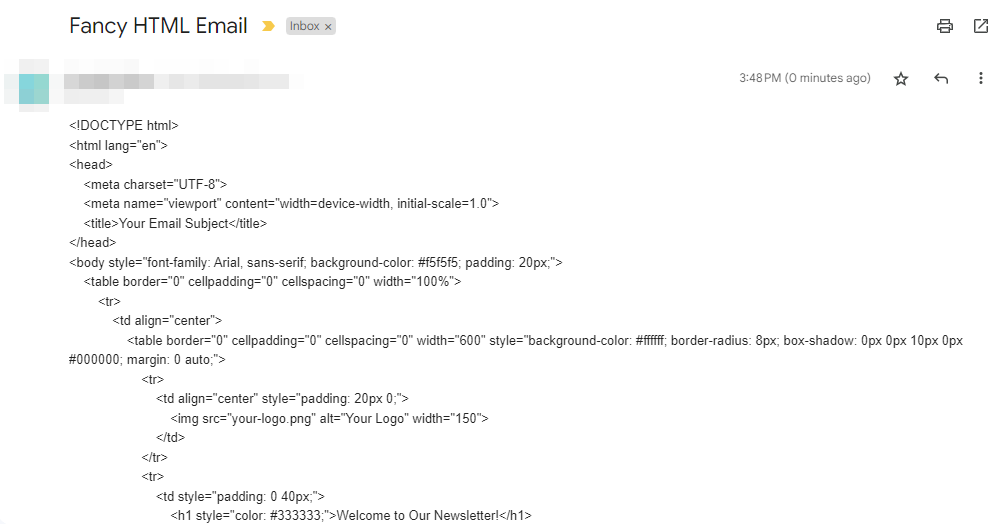
Thankfully, there’s an easy workaround. You can still create stunning HTML emails — you just need to paste the rendered HTML, not the raw code. Here’s how ⤵️
Option 1: For Developers
- Write your HTML email in a text editor like Notepad, TextEdit, or Visual Studio Code.
- Save the file with a
.htmlextension. - Open it in your browser, press Cmd + A (Mac) or Ctrl + A (Windows) to select everything, then right-click and copy.
- Open Gmail, click Compose and paste the copied HTML into the email body. Save it as a template for future use.
Option 2: For Non-Developers
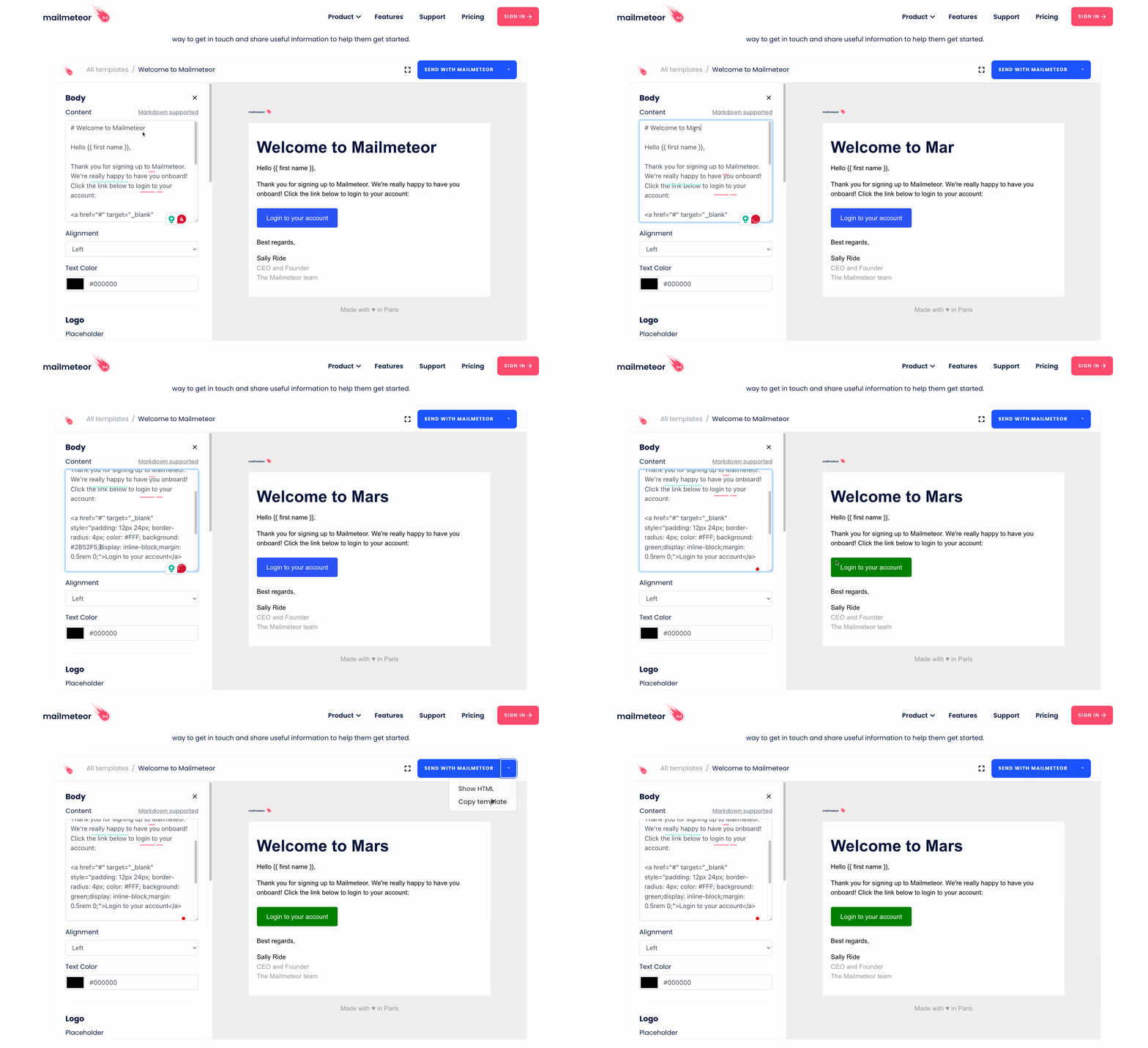
If coding isn’t your thing, you can use an HTML email editor, such as the one offered by Mailmeteor’s template library.
These tools let you visually edit an existing HTML template — adjusting button colors, fonts, layouts, and more — without needing to know the underlying code. Many advanced editors also offer drag-and-drop elements to help you build your email effortlessly.
Once your design is complete:
- Switch to the preview mode or export feature and copy the rendered HTML (not the raw code).
- Paste the HTML into Gmail’s email composer and save it as a template for reuse.
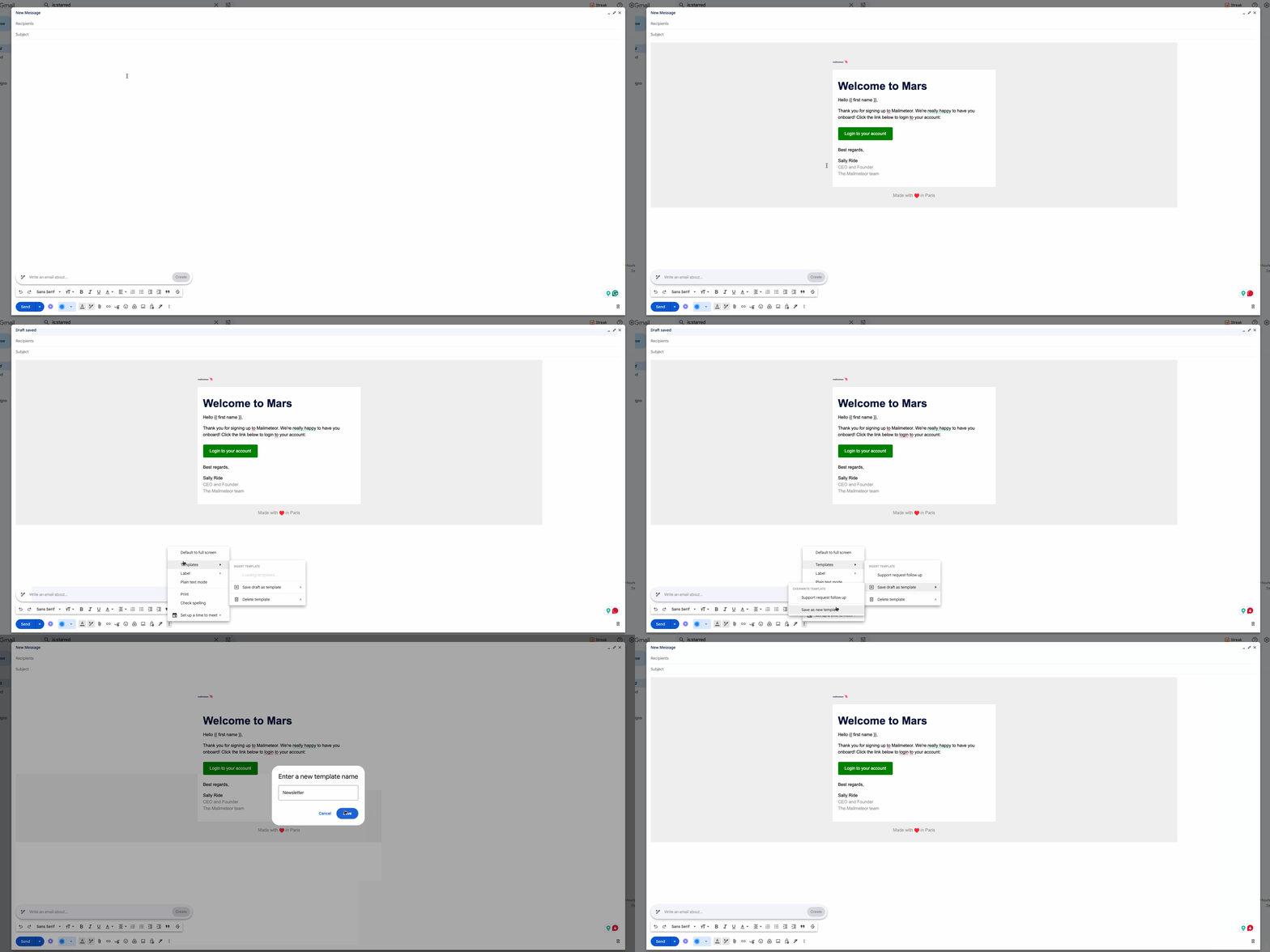
And voilà — a fully designed, branded template ready to reuse.
Testing Your HTML Template
Before sending, always:
- Send a test email to yourself to check formatting and responsiveness.
- Preview the email on both mobile and desktop to ensure consistency.
Need more help to set up your HTML template? Check our in-depth guide to creating HTML emails in Gmail.
Templates vs. Layouts vs. Custom HTML: Which Should You Use?
| Method | Best For | Skill Needed | Works on Mobile |
|---|---|---|---|
| Gmail Templates | Quick, repeatable plain-text replies | None | No |
| Gmail Layouts (Workspace only) | Simple branded newsletters using Google’s presets | None | No |
| Custom HTML | Fully branded emails with buttons and custom design | Some HTML, or a visual HTML editor | Depends on the tool you paste from |
| Mailmeteor Templates | Reusable templates you can share with a team and personalize at scale | None | No |
If you just want to stop retyping the same reply, stick with native Gmail Templates. If you want something that looks designed, an HTML editor — like the one in Mailmeteor’s template library — gets you there without writing code.
Want More Design Freedom? Create Templates in Google Docs
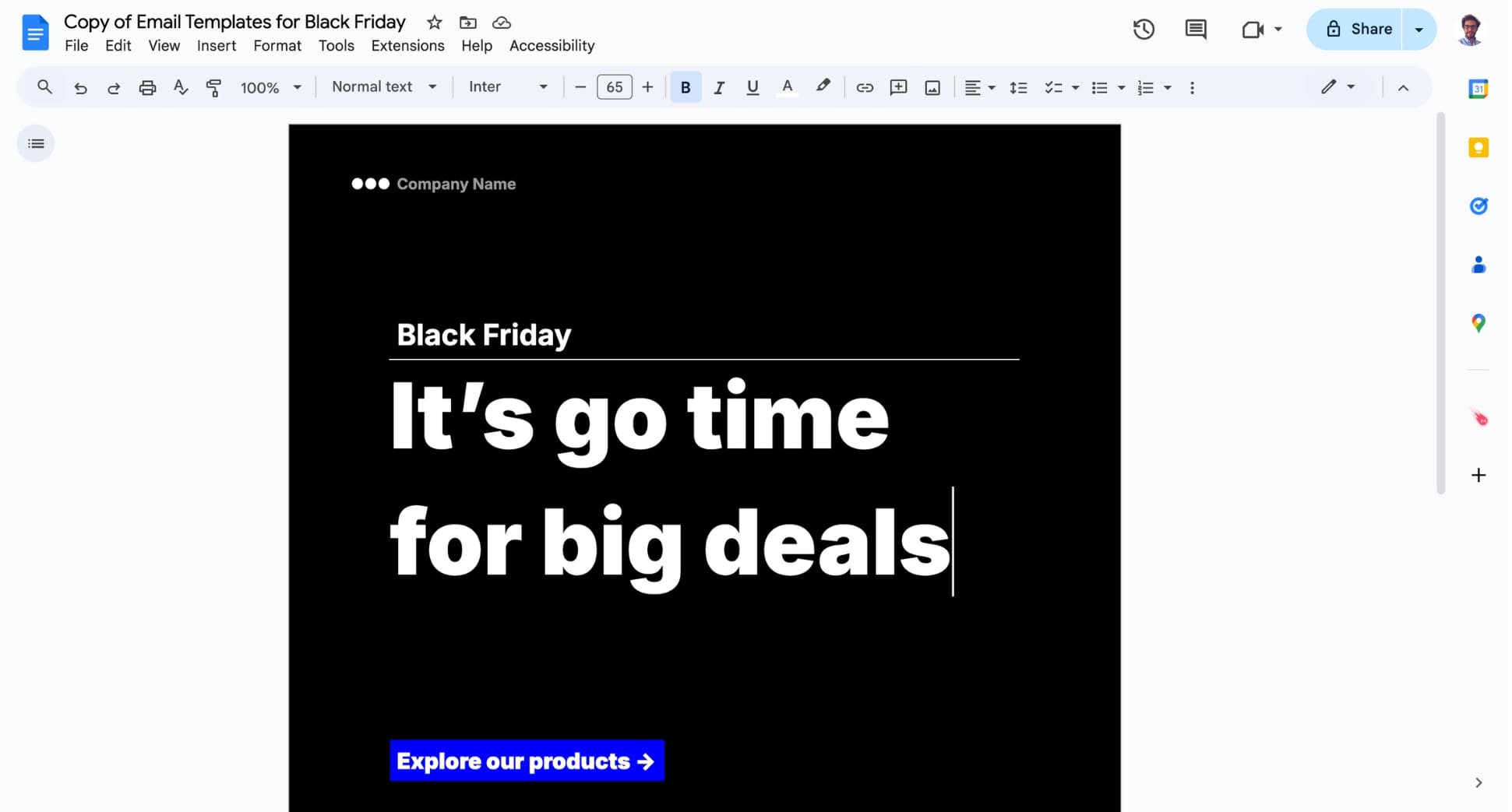
If Gmail’s built-in templates feel limiting, Mailmeteor for Google Docs lets you design a template using Google Docs’ familiar formatting tools and turn it into a fully responsive email. It’s a good fit if you want to:
- Collaborate with others on email drafts in real time.
- Leverage Google Docs’ formatting tools for polished templates.
- Seamlessly integrate with Gmail to send, track, and manage campaigns.
Ready to Do More Than Send the Same Email Twice?
Gmail templates are great for one-off replies, but the moment you need to personalize each message, share templates across a team, or actually see who opened what, native Gmail hits its ceiling fast.
That’s where Mailmeteor comes in:
✍️ Write and personalize templates in seconds with Mailmeteor’s AI-powered assistant
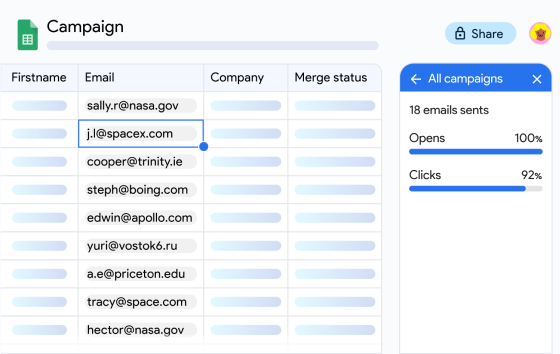
📬 Mail merge to send each template as a personalized, one-to-one email at scale
🔁 Schedule automatic follow-ups so a templated email that goes unanswered doesn’t get forgotten
📊 Track emails to see exactly when your templated emails get opened
Try Mailmeteor for Gmail today (it’s free!)
FAQs
Where do I find and edit my templates in Gmail?
Open Gmail on your computer. Click Compose to start a new email, then click the three vertical dots in the bottom-right corner of the email composer. Select Templates to find, insert, or manage your saved templates.
Does Gmail have free email templates?
Yes, Gmail provides free email templates, but you need to enable them first. Go to Settings > See all settings > Advanced tab, enable Templates and save changes. You can then create and use templates from the compose window.
How many templates can I save in Gmail?
Gmail no longer publishes an official number on its Templates help page. Most users report a practical ceiling around 50 saved templates per account — treat it as a rule of thumb rather than a hard, documented limit.
Can I use Gmail templates on my phone?
No. Gmail templates only work in Gmail on a computer — there’s no Templates option in the Android or iPhone Gmail app. Text replacement shortcuts on your phone’s keyboard are the closest built-in workaround for short, frequent replies.
Can I share Gmail email templates?
No, Gmail doesn’t have a built-in feature for sharing templates — they’re tied to your individual account. Mailmeteor for Gmail solves this: you can share a template with up to 10 collaborators, even across different Gmail or Workspace accounts, so your team can work from the same reusable messages.
Does Gmail have a newsletter template?
Not for standard Gmail users. However, Google Workspace customers get access to Layouts, which include a customizable newsletter template. For more flexibility, you’re better off using an HTML editor, which lets you design newsletters exactly how you want them.
Is there a free tool to generate Gmail templates with AI?
Yes — Mailmeteor’s free AI Email Writer can draft a message for you from a short prompt, which you can then save as a Gmail template. It’s a fast way to get a first draft when you don’t want to start from a blank page.