You open Gmail, and there it is — an email you sent 3 days ago, floated back to the top of your inbox with a small nudge: “You may want to follow up on this”. If you’ve ever wondered what that is, why it showed up, or whether you can turn it off, you’re in the right place.
Gmail nudges are a built-in reminder feature designed to help you stay on top of unanswered emails. They’re helpful for some people, mildly annoying for others, and confusing for most.
In this guide, we’ll explain how Gmail nudges work, what triggers them, how to turn them on or off, and what to do if the default nudge system doesn’t quite fit the way you work. Here’s what we’ll cover:
- What Are Gmail Nudges?
- Why Gmail Nudges Appear in Your Inbox
- How to Turn Gmail Nudges On or Off
- How to Dismiss a Gmail Nudge
- Should You Use Gmail Nudges?
- A Simple Alternative to Gmail Nudges
Sounds good? Then let’s dive in.
TL;DR: Here's what you need to know about Gmail nudges:
- What they are — Automatic reminders Gmail surfaces when a conversation has gone quiet for a few days
- How to turn them on or off — Toggled in Gmail settings under General
- How to dismiss one — By hovering over the nudge and clicking the X
- Whether to use them — Useful for occasional follow-ups, but limited if you manage a high volume of emails
- A smarter alternative — Mailmeteor's automated follow-ups give you more control
What Are Gmail Nudges?
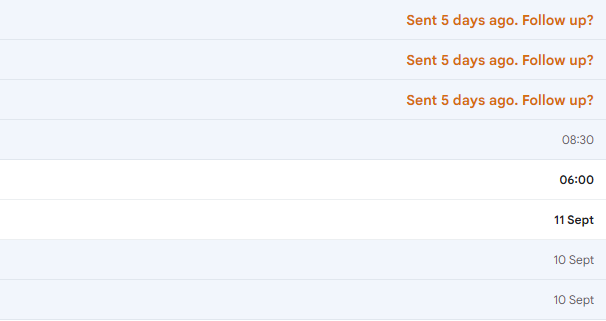
Gmail nudges are automatic reminders that resurface emails you may have forgotten to respond to. They appear directly in your inbox. No separate notification, no pop-up — just an email quietly promoted back to the top with a short suggestion underneath it, like “Sent 4 days ago. Follow-up?”
Google introduced nudges as part of Gmail’s Smart features. The idea is simple: instead of letting important conversations get buried under new mail, Gmail proactively reminds you when a thread has gone quiet for too long.
There are two types of nudges:
- Reply nudges — Gmail reminds you to reply to an email you received but never responded to.
- Follow-up nudges — Gmail reminds you to follow up on an email you sent that hasn’t received a reply.
In both cases, the email reappears near the top of your inbox with a short prompt in orange text beneath the subject line.
Here’s what it looks like:
Why Gmail Nudges Appear in Your Inbox
Gmail nudges don’t appear at random. They’re triggered by a specific set of conditions that Gmail monitors automatically in the background. Under the hood, Google uses machine learning to decide which emails are worth nudging you about — factoring in your email habits, your relationships with specific senders, and the context of the conversation.
Here’s what typically causes a nudge to appear:
- You received an email but didn’t reply — After a few days of no response, Gmail may resurface the message with a reply prompt.
- You sent an email that got no response — If the recipient hasn’t replied after a few days, Gmail may nudge you to follow up.
- Gmail considers the message important — Nudges don’t apply to every email. Gmail factors in signals like whether the message was sent directly to you and whether you’ve exchanged emails with that person before.
The timing of a Gmail nudge can vary. In practice, nudges tend to appear somewhere between 2 and 5 days after a conversation goes quiet — though this isn’t guaranteed.
However, nudges may not appear if:
- The email was sent to a large group or mailing list
- You already starred, snoozed, or archived the thread
- The message was filtered into a label or folder other than your main inbox
- Gmail doesn’t flag the sender or conversation as high-priority
How to Turn Gmail Nudges On or Off
Gmail nudges are turned on by default. If you’d like to disable them (or re-enable them after turning them off), here’s how to do it.
- Open Gmail.
- Click the gear icon (⚙️) in the top-right corner and go to See all settings.
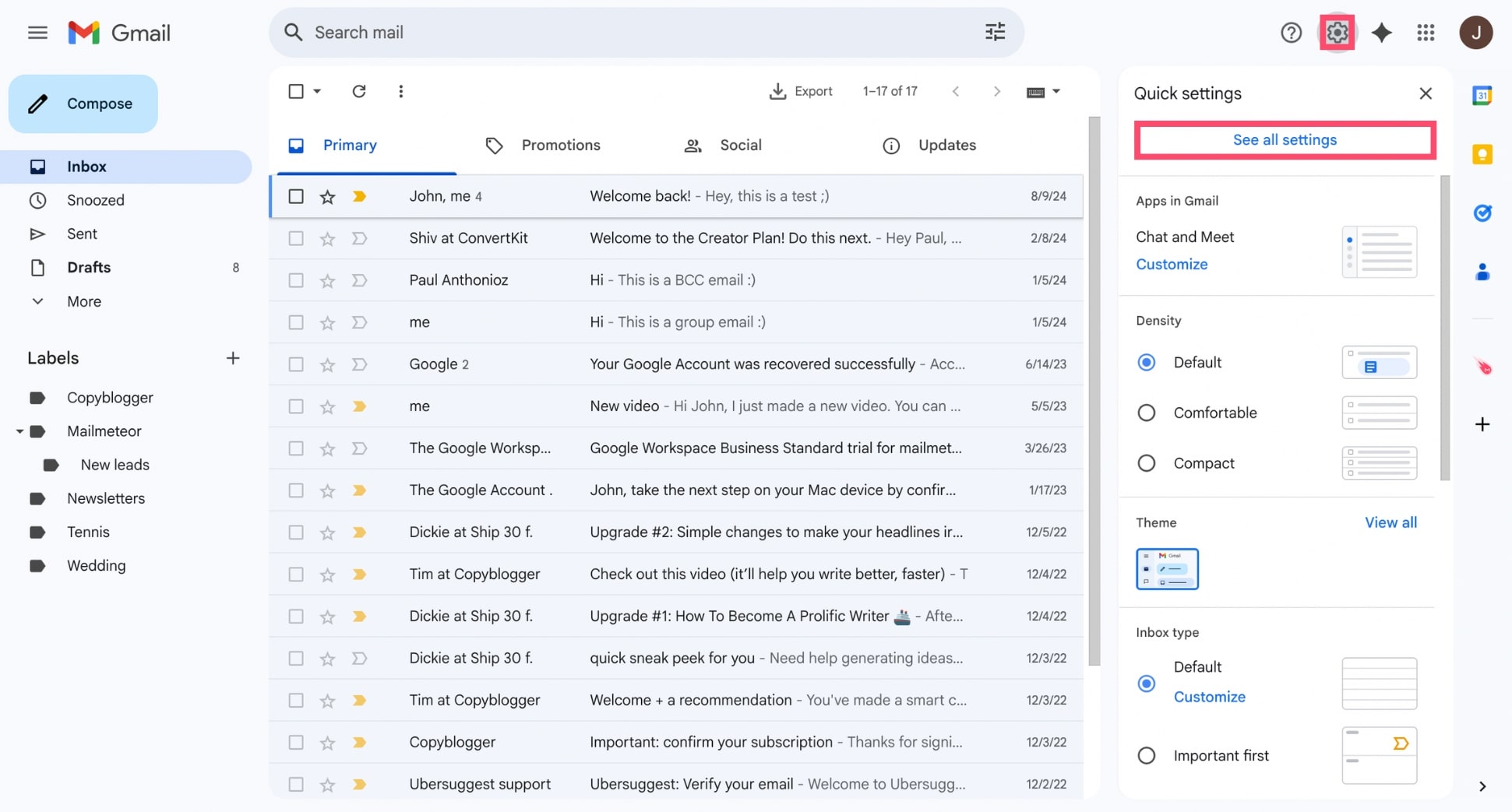
- In the General tab, scroll down to the Nudges section.
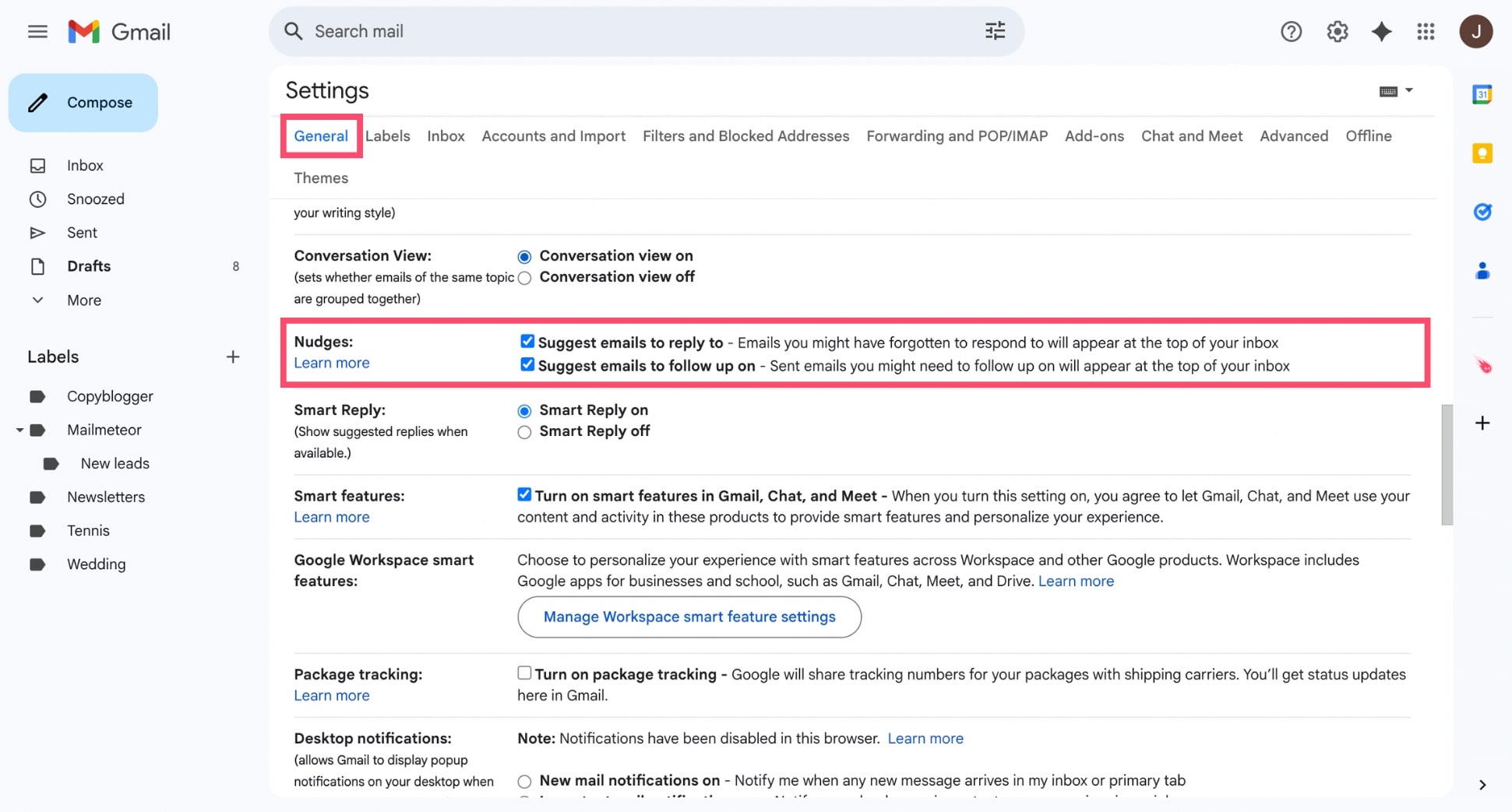
- Check or uncheck either option:
- Suggest emails to reply to — controls reply nudges
- Suggest emails to follow up on — controls follow-up nudges
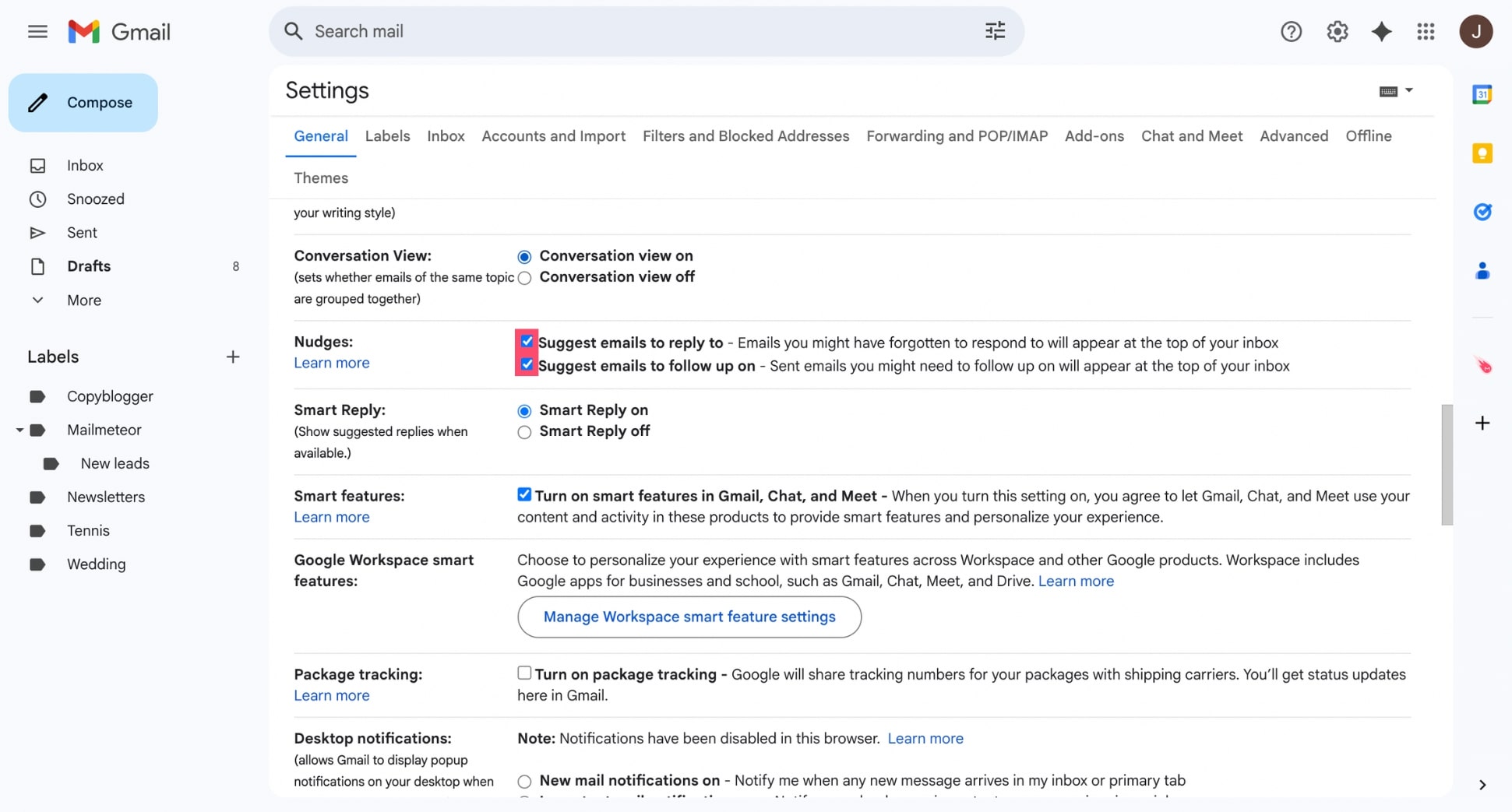
- Scroll to the bottom of the page and click Save Changes.
And voilà. Your nudge preferences are saved immediately.
How to Dismiss a Gmail Nudge
If a nudge appears for an email you’ve already handled or simply don’t want to be reminded about, you can dismiss it without opening the thread. Here’s how.
On Desktop
If you hover your mouse directly over the orange nudge prompt (the “Received 3 days ago. Reply?” text), a Dismiss nudge? message should appear next to it. This removes the reminder without affecting the email itself.
In some cases, you can also silence a nudge simply by opening the email. Gmail interprets this as you being aware of the message, and the reminder will often disappear on its own when you return to your inbox.
On Mobile
The Gmail app doesn’t have a dismiss button for nudges. The easiest way to clear one is to tap into the email, then tap the back arrow to return to your inbox. Gmail treats this as acknowledgment, and the nudge prompt should disappear.
If you’d rather not open the email, you can swipe it instead — either to archive or snooze it, depending on your swipe settings. Archiving removes it from your inbox, while snoozing brings it back at a time you choose, nudge-free.
Should You Use Gmail Nudges?
Gmail nudges are a useful safety net — but they work best in specific situations. Here’s an honest look at when they help and when they fall short.
Nudges are a good fit if you:
- Send a moderate volume of emails and occasionally lose track of threads
- Want a passive reminder system that requires no setup
- Only need to follow up on a handful of conversations at a time
However, nudges may not be enough if you:
- Send outreach or sales emails at any kind of volume
- Want control over which emails get reminders and when
- Are managing multiple active conversations simultaneously
The core limitation of Gmail nudges is that they’re entirely passive. You can’t tell Gmail which emails matter most, you can’t set a follow-up delay, and you can’t guarantee a nudge will appear at all. For casual personal use, that’s fine. But for anyone managing outreach or client communication, it’s not a reliable system.
A Simple Alternative to Gmail Nudges
Gmail nudges are a helpful reminder system — but they rely on Gmail’s judgment. If the reminder doesn’t appear, it’s easy to miss a follow-up or lose track of an important conversation.
That’s where automated follow-ups come in. Instead of waiting for Gmail to resurface an email, tools like Mailmeteor let you decide exactly when follow-ups are sent. Once your sequence is set, the system handles the rest automatically.
With Mailmeteor’s simple add-on, you can:
- Set triggers based on recipient behavior — follow up only if the email wasn’t opened, clicked, or didn’t get a reply — or send regardless
- Choose your own timing — schedule follow-ups after a set number of days, hours, or even minutes
- Personalize every follow-up — each message is tailored to the recipient, just like the original email
- Track opens, clicks, and replies — so you always know where each conversation stands
- Send at scale — follow up with dozens or hundreds of contacts without managing each thread manually
No more relying on Gmail to remind you. Your follow-ups go out automatically, at the right time, to the right people. Try Mailmeteor today (it’s free) and never let an important email go unanswered again.
Happy sending 💌
FAQs
What triggers a Gmail nudge?
A Gmail nudge is triggered when a conversation has been inactive for a few days. This usually happens when you receive an email but don’t reply, or when you send a message and don’t get a response.
Can Gmail nudges send emails automatically?
No. Gmail nudges are reminders only — they don’t send emails on your behalf. They simply highlight messages that may need a reply or follow-up. If you want emails to be sent automatically, you’ll need to use automated follow-ups.
Can I customize when Gmail nudges appear?
No. Gmail doesn’t let you control the exact timing of nudges. You can turn them on or off in your settings, but the system decides when to show reminders based on message activity and importance.
Do Gmail nudges appear on mobile devices?
Yes. Gmail nudges appear on both desktop and mobile devices, including Android and iPhone. Once the feature is enabled in your account, the reminders will show up across all devices where you use Gmail.
Why don’t I see Gmail nudges in my inbox?
There are several possible reasons:
- The conversation is too recent
- Nudges are turned off in your settings
- You already replied to or archived the email
- Gmail doesn’t consider the message important enough
Nudges appear only after a few days of inactivity, so you may simply need to wait.
How long does it take for Gmail nudges to appear?
Gmail nudges typically appear between 2 and 5 days after a conversation becomes inactive. The exact timing depends on message activity, sender importance, and Gmail’s internal signals.


