Swipe gestures are one of the fastest ways to handle emails in the Gmail app. With a quick swipe, you can archive messages, delete them, mark them as read, or snooze them. By default, Gmail archives emails when you swipe left or right. But you can easily change this behavior and customize what each swipe does.
In this guide, you’ll learn how to change swipe settings in Gmail on Android and iPhone. We’ll also explain which swipe actions are available, and how to disable swipe gestures if you prefer managing emails another way.
How to Change Swipe Settings in Gmail
Gmail lets you customize swipe gestures so that swiping left or right on an email performs the action you prefer. This can help you process messages faster — for example by deleting emails with a simple swipe.
On Android
To change swipe settings in Gmail on Android:
- Open the Gmail app.
- Tap the menu icon (☰) in the top-left corner.
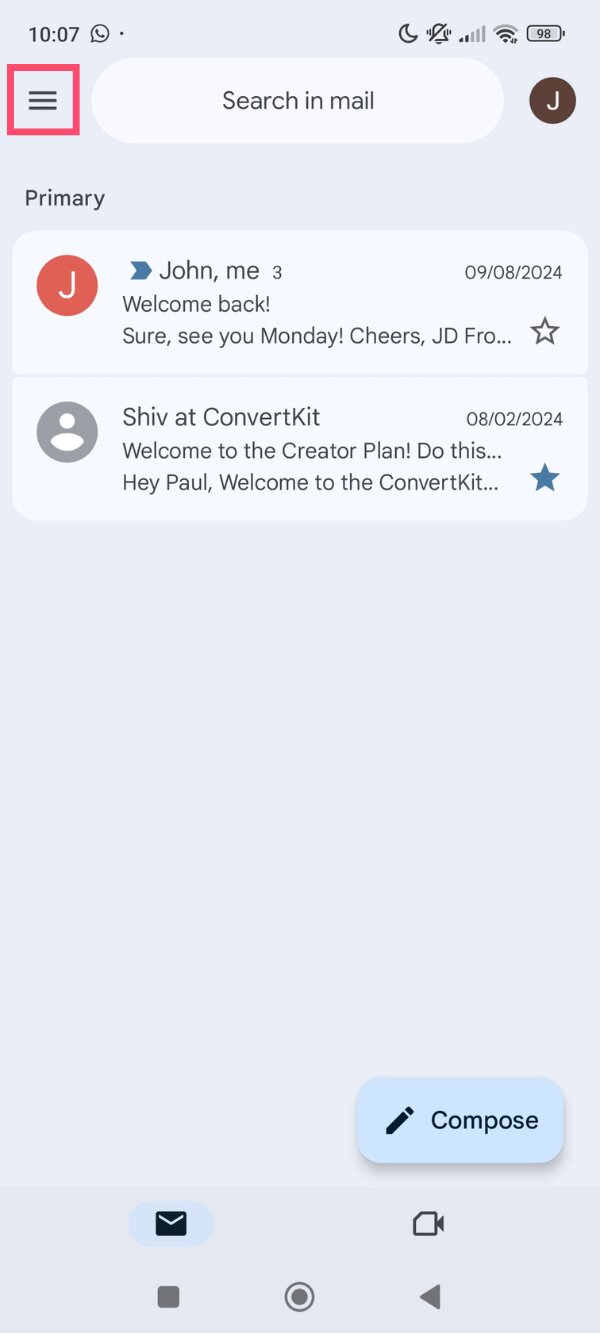
- Scroll down and select Settings.
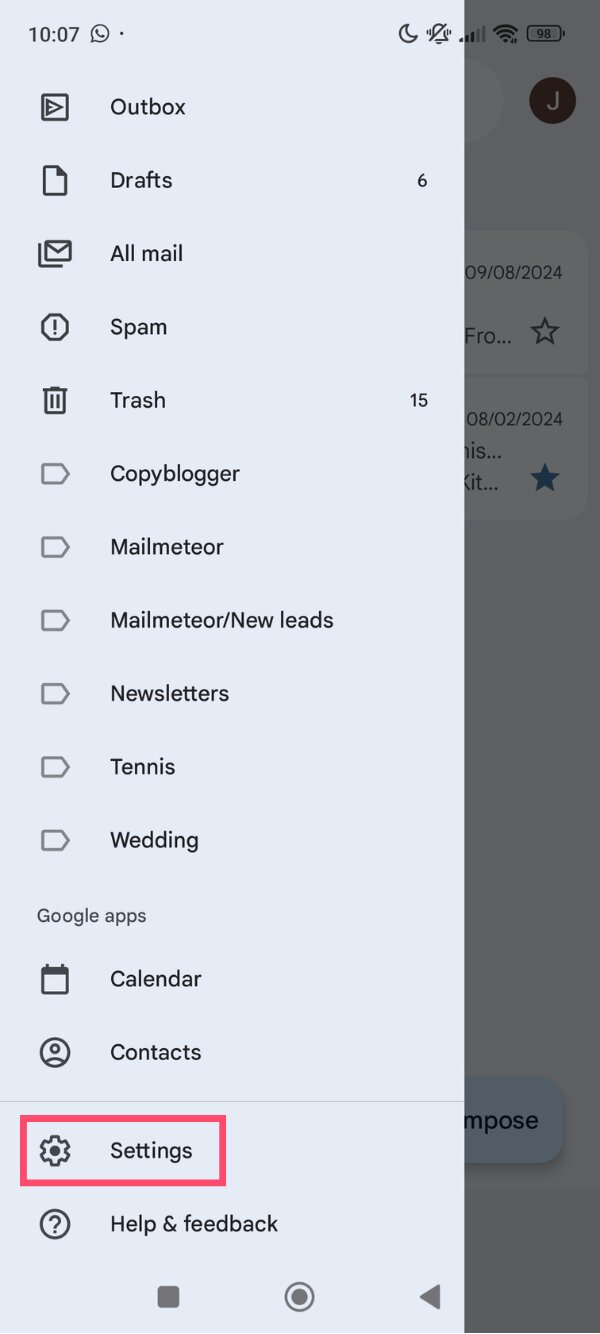
- Tap General settings.
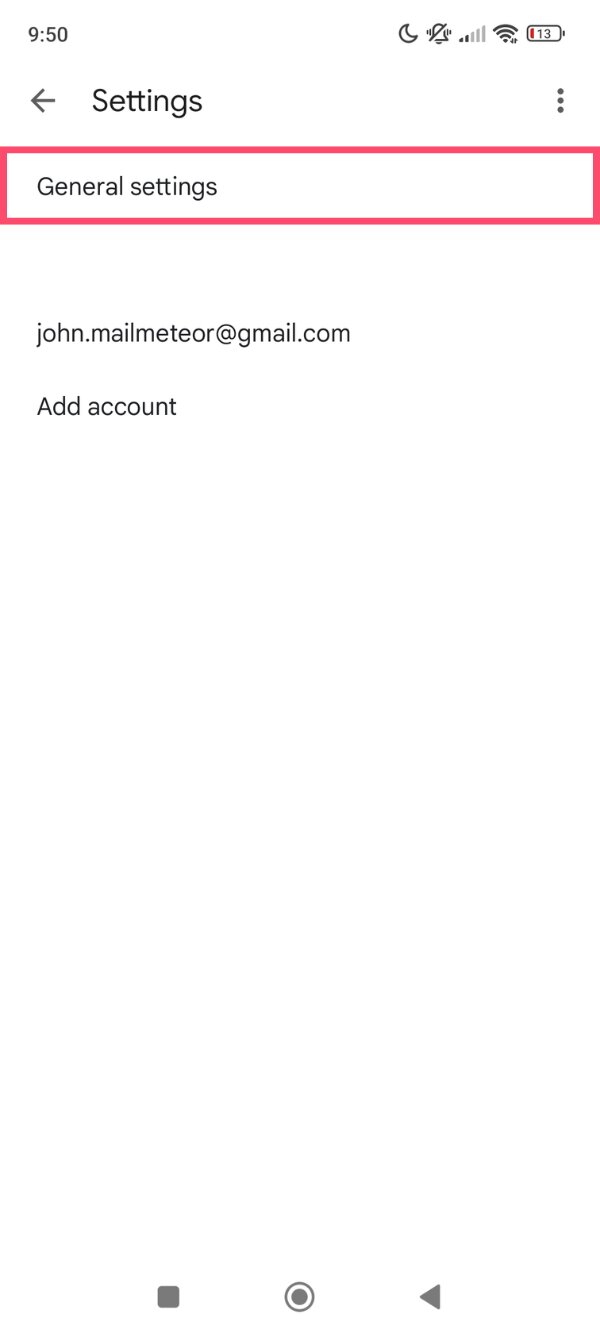
- Choose Swipe actions.
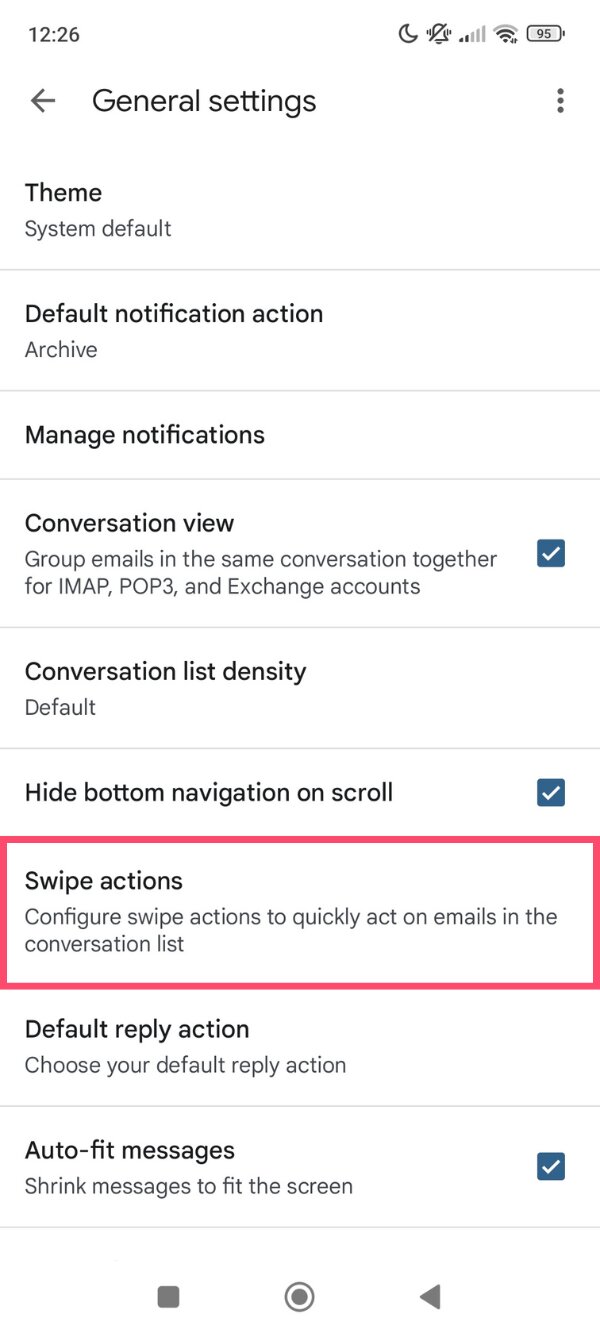
- Tap Change under Left swipe or Right swipe.
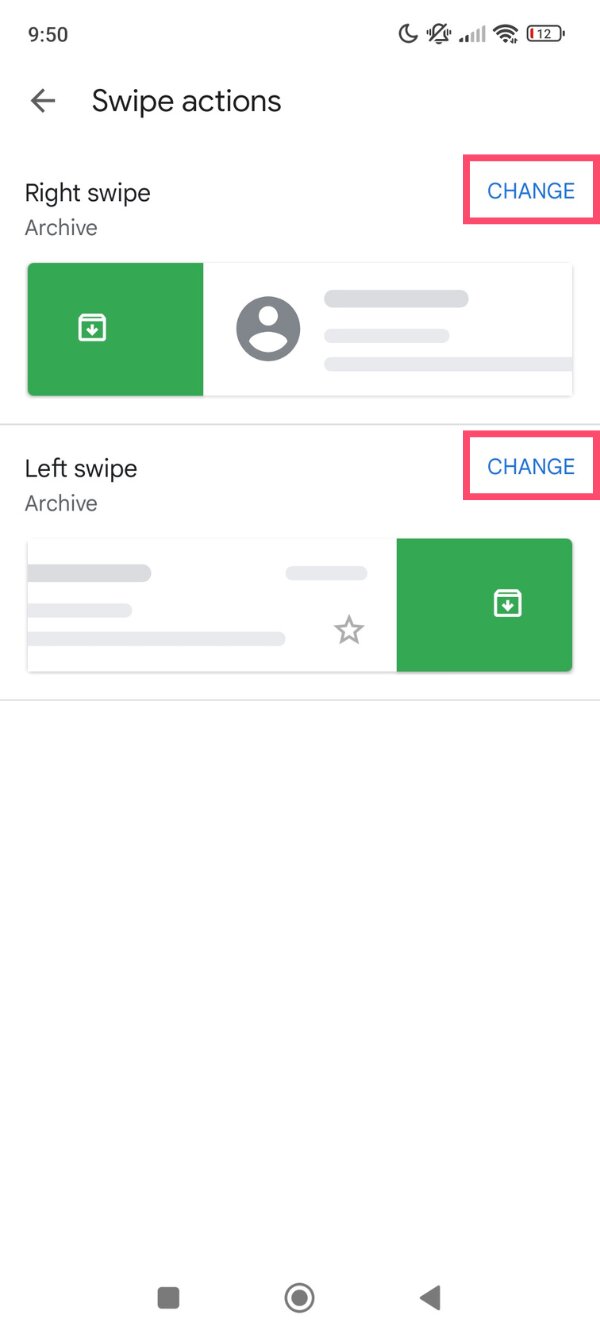
- Select the action you want.
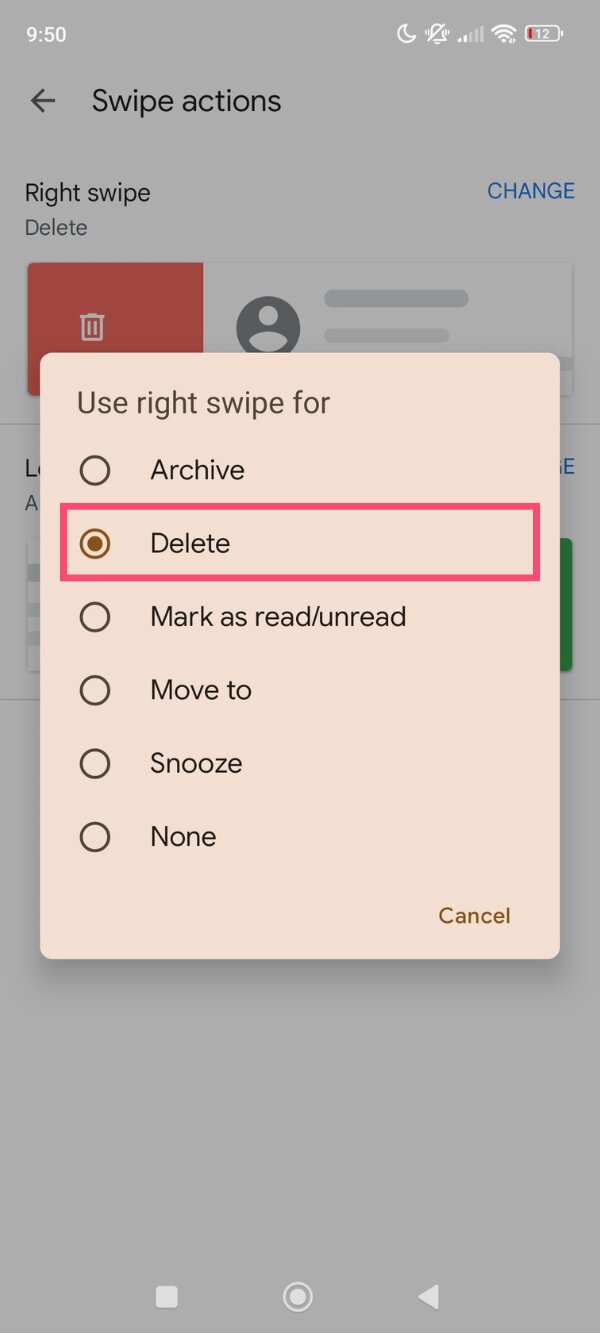
And voilà. Once saved, Gmail will apply the new action whenever you swipe an email in your inbox.
On iPhone
To change swipe settings in Gmail on iPhone:
- Open the Gmail app.
- Tap the menu icon (☰).
- Go to Settings.
- Select General settings.
- Tap Swipe actions.
- Choose Change under Left swipe or Right swipe.
- Pick the action you want Gmail to perform when you swipe an email.
All done. After updating the settings, swiping left or right on a message will trigger the action you selected.
What Swipe Actions You Can Set in Gmail
Gmail allows you to assign different actions to swipe gestures. These shortcuts help you process emails faster without opening each message, making it easier to keep your inbox clean and organized.
Here are the swipe actions you can choose from in Gmail ⤵️
| Swipe action | What it does |
|---|---|
| Archive | Removes the email from your inbox but keeps it in your account under All Mail |
| Delete | Moves the email to the Trash |
| Mark as read | Mark messages as read without opening them |
| Move to label | Organize emails by moving them to a specific label |
| Snooze | Temporarily hides the email and brings it back to your inbox later |
| None | Disables the swipe action so swiping does nothing |
You can assign different actions to the left and right swipe gestures. For example, many users set left swipe to delete emails and right swipe to mark messages as read for faster inbox management.
How to Disable Swipe Gestures in Gmail
If you prefer not to trigger actions when swiping emails, Gmail also lets you turn swipe gestures off completely. When disabled, swiping an email in your inbox will no longer archive, delete, or move messages.
To disable swipe gestures in Gmail:
- Open the Gmail app on your phone.
- Tap the menu icon (☰).
- Go to Settings.
- Tap General settings.
- Select Swipe actions.
- Tap Change under Left swipe and choose None.
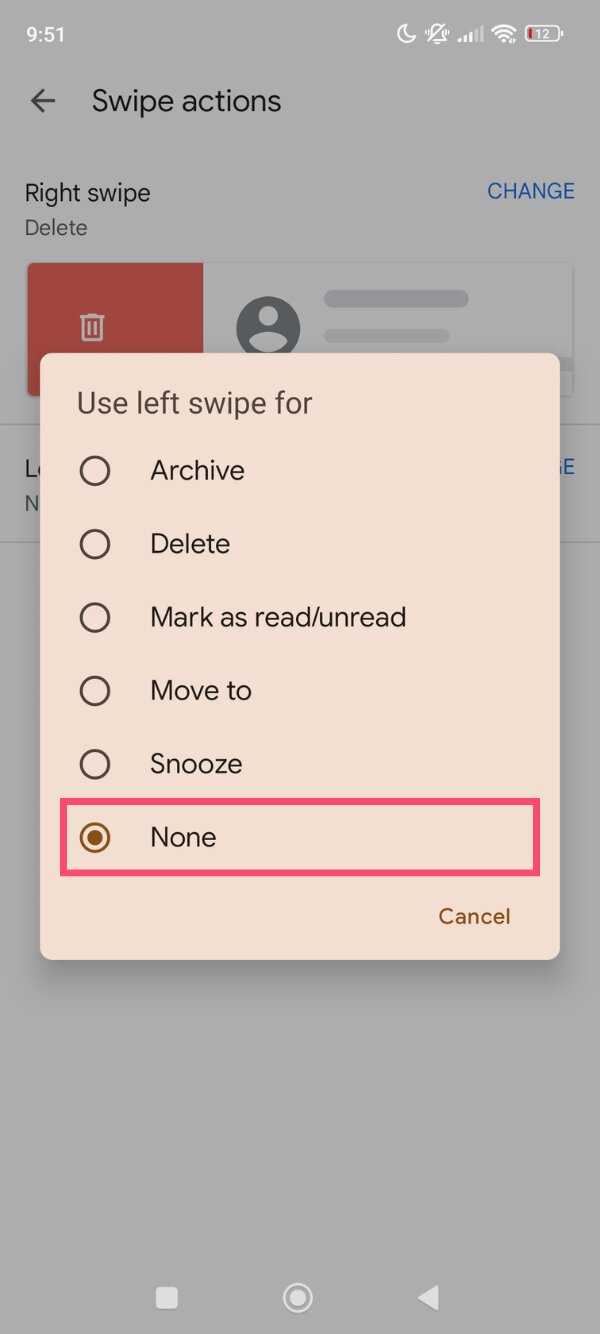
- Repeat the same step for Right swipe and select None.
Once both swipe directions are set to None, swipe gestures will be disabled in Gmail. You’ll still be able to manage emails using the toolbar buttons inside each message.
Conclusion
Customizing swipe settings in Gmail is a simple way to process messages faster. By choosing what happens when you swipe left or right — whether it’s delete, archive, snooze, or mark as read — you can clear your inbox with just a quick gesture.
And if you want to save even more time, AI can take your productivity further. Mailmeteor’s Gmail AI assistant helps you write better emails, generate replies, and organize conversations.
With Mailmeteor, you can:
- Write better emails in seconds with AI-powered drafting and tone adjustments directly inside Gmail
- Keep your inbox organized automatically with smart email categorization that reduces noise
- Send personalized email campaigns without leaving your inbox
- Never forget a follow-up thanks to automated reminders and sequences
- See exactly what happens after you send with real-time tracking for opens, clicks, and replies
- Protect your sender reputation with smart scheduling and drip sending
Want to process your inbox faster and spend less time writing emails? Try Mailmeteor today (it’s free!) and boost your email productivity.
FAQs
What Happens When You Swipe an Email in Gmail?
When you swipe an email in Gmail, the app performs the action assigned to that swipe direction. Depending on your settings, swiping can archive, delete, mark the message as read or unread, move it to a label, or snooze it.
Where are swipe settings in Gmail?
Swipe settings are located in the Gmail mobile app. To find them, open the app and go to Menu (☰) > Settings > General settings > Swipe actions. From there, you can choose what happens when you swipe left or right on an email.
How do I change swipe to delete in Gmail?
Open the Gmail app and go to Settings > General settings > Swipe actions. Tap Change under the swipe direction you want to modify, then select Delete. After this change, swiping an email in that direction will move the message to the Trash instead of archiving it.
Where do my swiped emails go?
It depends on the swipe action you’ve set in Gmail. Swiping an email may archive it, delete it, mark it as read or unread, move it to a label, or snooze it. You can change these behaviors anytime in the Swipe actions menu.
Can I set different actions for left and right swipe in Gmail?
Yes. Gmail lets you assign different actions to each swipe direction. For example, you can set left swipe to delete emails and right swipe to mark messages as read.
Why does Gmail archive emails when I swipe?
Gmail archives emails by default because archiving removes messages from your inbox without deleting them. If you prefer deleting messages instead, you can change the swipe action to Delete in Settings > General settings > Swipe actions.


