Want to know if someone opened your email? Discover the best tools and techniques to track email reads — even without a read receipt.
You sent an important email — a sales pitch, a job application, a client follow-up. And now… silence. No reply. No reaction. Just the nagging question: Did they even open it? Or am I being ignored?
With inboxes overflowing and new privacy features from Apple Mail and Gmail, knowing if someone read your email has become trickier than ever. Trickier — but not impossible.
In this guide, we’ll show you how to tell if someone opened your email. From read receipts to email tracking tools and manual tracking pixels, you’ll learn the best ways to track opens — and the key limitations you need to be aware of.
| Method | Cost | Simplicity | Accuracy | Best for | Key Limitation |
|---|---|---|---|---|---|
| 1. Request a Read Receipt | 💲 | Medium | ★☆☆☆☆ | Internal or business emails | Recipient can refuse or block the request |
| 2. Use an Email Tracking Tool | 💲💲 | Easy | ★★★★☆ | Sales, outreach & marketing | Privacy features can reduce accuracy |
| 3. Add a Manual Tracking Pixel | 💲 | Hard | ★★★★☆ | Developers, custom setups | Requires hosting & GDPR compliance |
| 4. Ask the Recipient Directly | 💰 Free | Easy | ★★★☆☆ | Personal or high-value follow-ups | Not scalable; no certainty if ignored |
Here’s what we’ll cover:
- 1. Request a Read Receipt
- 2. Use an Email Tracking Tool
- 3. Add a Manual Tracking Pixel
- 4. Ask the Recipient to Confirm They’ve Read Your Email
1. Request a Read Receipt
Most email providers — like Gmail, Outlook, and Yahoo Mail — let you request a read receipt. When you enable this option before sending, you’ll receive a notification once the recipient opens your message.
How to Request a Read Receipt
In Outlook, you can simply go to Options > Request a Read Receipt. In Gmail, however, things are a bit trickier. This feature is only available for Google Workspace accounts – and you need to configure read receipts.
Here’s how to do it:
- Create a Google Workspace account.
- Sign in to your Google Admin console using your admin account.
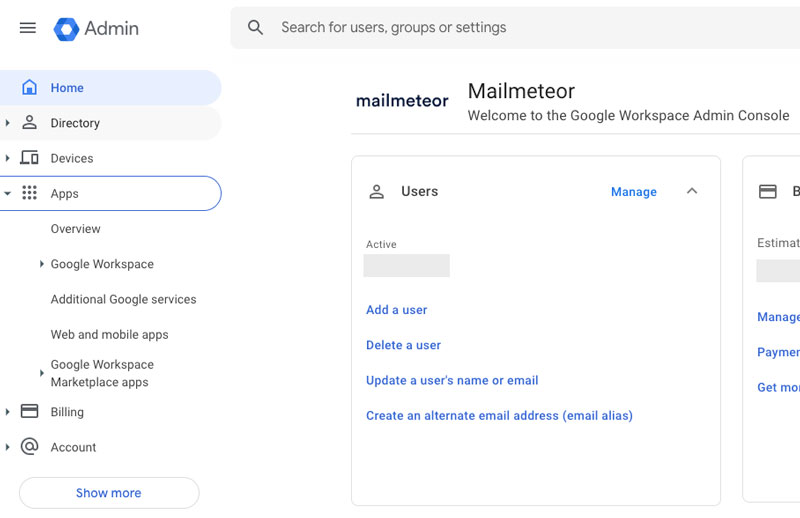
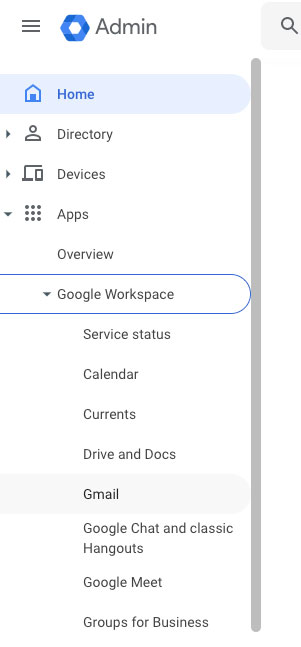
- Navigate to Apps > Google Workspace > Gmail > User settings.
- Select Email read receipts.
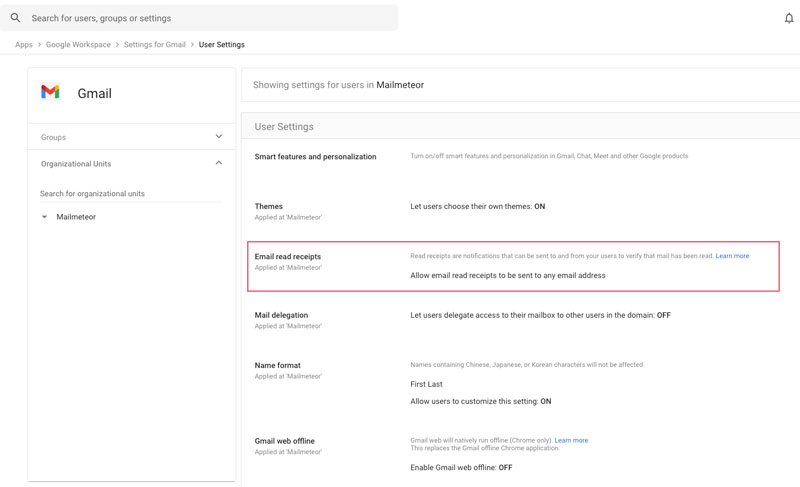
- Choose Allow email read receipts to be sent to any email address.

- Save your changes.
- Sign in to Gmail and click Compose.
- Click the More options (⋮) icon in the lower right corner and select Request read receipt.
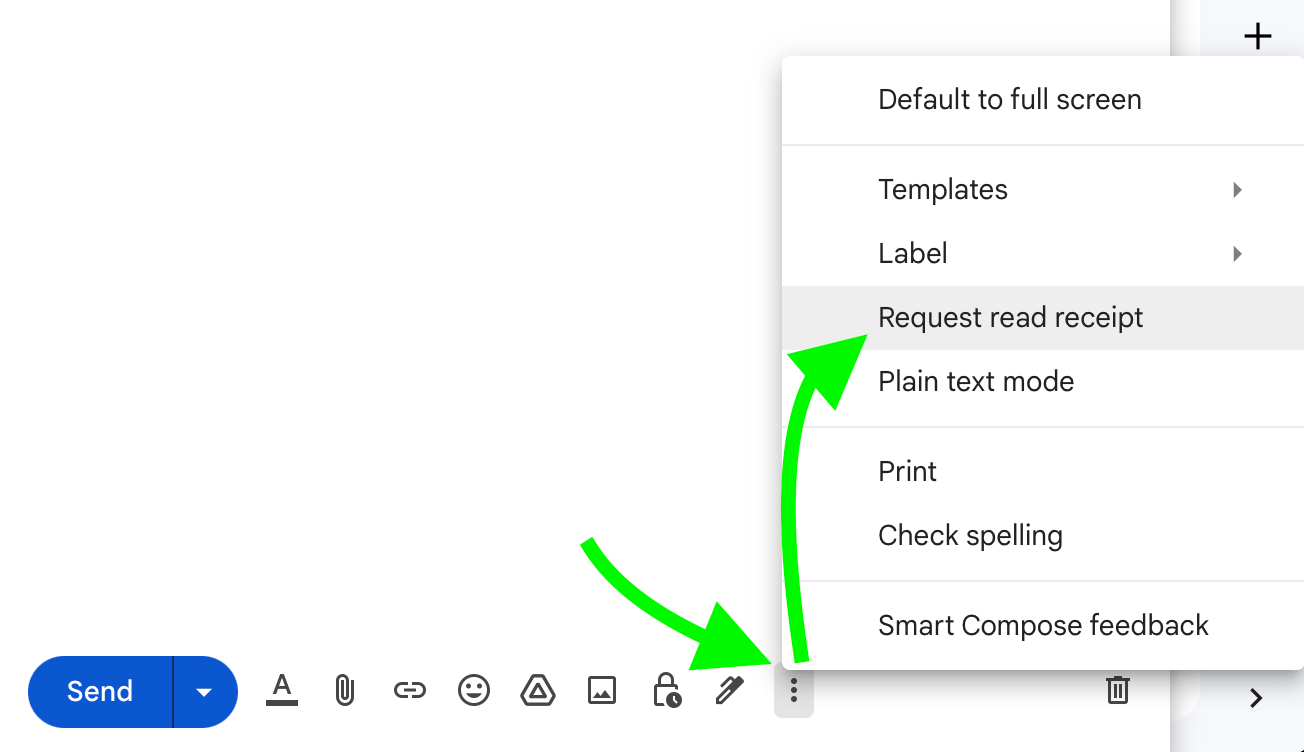
- Press Send.
And voilà. When the recipient opens your message, you’ll receive a notification.
Limitations
It sounds simple, but there’s a catch: read receipts aren’t guaranteed. The recipient can decline to send the confirmation or have the feature disabled entirely. Some email apps also ignore read receipt requests for privacy reasons.
Our opinion on this? Read receipts can be helpful for internal communication (like within the same company domain). But they’re not reliable for cold outreach or external contacts. And they can annoy your recipients.
Cost: $ Simplicity: Medium Accuracy: ★☆☆☆☆ Best for: Business emails sent within the same organization.
2. Use an Email Tracking Tool
If you want more reliable insights, use an email tracking tool. These tools add a tiny invisible image — called a tracking pixel — to your message. When the recipient opens the email, the image loads and triggers an instant notification.
Unlike read receipts, tracking tools don’t depend on the recipient’s approval. They can show you when, where, and how many times your email was opened. Some even track clicks and replies, for a more complete picture of engagement.
How to Set Up an Email Tracking Tool
With Mailmeteor, you can enable email tracking in one click. You’ll see who opened, clicked, or replied to your email — all directly inside Gmail.
Here’s how:
- Install Mailmeteor’s Gmail add-on.
- Once installed, every email you send from Gmail will be automatically tracked for opens and clicks.
- To see if an email was opened, simply hover over the double-checkmark icon.
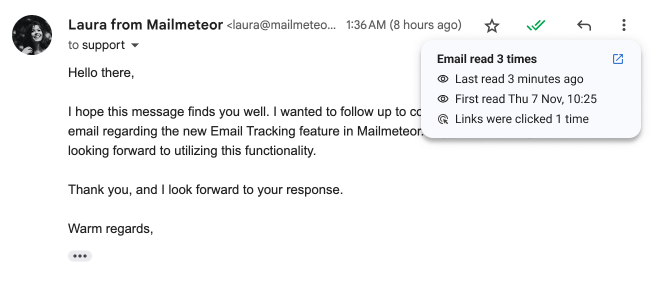
Need more insights? Open your Mailmeteor Dashboard to view detailed analytics, such as open rate, bounces, and unsubscribes. You can also ask Mailmeteor to send you a notification every time someone opens your email.

Limitations
However, modern privacy features make tracking less accurate. Apple Mail Privacy Protection (MPP), for instance, automatically preloads images on Apple’s servers — so your tracking pixel might be triggered even if the recipient never opens your message.
Gmail’s image caching works differently but creates similar problems. When someone opens your email, Gmail loads and stores all images — including your tracking pixel — on Google’s servers.
After that, Gmail serves the cached version instead of calling your tracker again. This means you’ll only see the first open event, and you won’t get precise data like the recipient’s device, IP address, or exact open time.
Cost: $$ Simplicity: Easy Accuracy: ★★★★☆ Best for: Sales, outreach, and marketing emails.
3. Add a Manual Tracking Pixel
If you’re technically inclined, you can track email opens by embedding a manual tracking pixel in your email’s HTML.
How it Works
When the recipient opens your message and their email client loads images, it requests the pixel’s URL from your server — signaling that the email was opened.
Each time this happens, your server logs the event, allowing you to capture details like timestamp, IP address, and user agent for deeper insights.
Here’s an example:

Limitations
This approach gives you full control over your tracking data, but it’s also complex and limited. You’ll need to host the pixel, collect the data securely, and comply with privacy regulations like the GDPR.
Plus, image-blocking and privacy protections from Apple Mail and Gmail can still prevent your pixel from firing.
Unless you’re building a custom system, a dedicated tracking tool like Mailmeteor is a simpler, safer option — giving you the same insights without the technical overhead.
Cost: $ Simplicity: Hard Accuracy: ★★★★☆ Best for: Developers or advanced users who need custom tracking.
4. Ask the Recipient to Confirm They’ve Read Your Email
Sometimes, the simplest approach is also the most effective — just ask. If your email goes unanswered, sending a polite follow-up can help you confirm whether it was read. A short, friendly message often does the trick:
Hi [Name],
Just checking in to see if you had a chance to read my previous email.
Best, [Your Signature]
If you want to make this process easier, tools like Mailmeteor let you automate follow-ups in Gmail. You can schedule reminders or send a second email automatically if the recipient hasn’t replied after a few days.
Limitations
While this approach is simple and personal, it’s not scalable. Sending manual follow-ups to dozens (or hundreds) of contacts can be time-consuming. And if your message is too insistent, it may come across as pushy.
And if you still don’t get a response, you won’t know why. Was the email ignored? Did it go unnoticed? Or did it bounce altogether?
Cost: Free Simplicity: Easy Accuracy: ★★★☆☆ Best for: Relationship-based or one-to-one communication.
Conclusion
Knowing whether someone has read your email isn’t always straightforward. Between privacy protections, image caching, and personal settings, no tracking method is 100% accurate.
Still, by combining the right tools and strategies, you can get a clear picture of your email performance:
- Read receipts are fine for internal use
- Tracking tools like Mailmeteor give you reliable, privacy-friendly insights into opens and clicks
- For high-value conversations, a simple follow-up email often works best
FAQs
Can I know if someone opened my email without them knowing?
Yes, you can use email tracking tools or extensions that insert a hidden tracking pixel into your message. When the recipient opens the email and loads the images, the pixel is triggered, letting you know the email was opened — all without sending a read receipt or notifying the recipient.
Can you tell if someone forwarded your email?
Most email tracking tools can’t tell if an email was forwarded. However, some platforms — like Mailmeteor — can detect when your tracked email is opened multiple times, which could indicate it was shared or forwarded. Still, these signals are indirect and not always conclusive.
What if my email was read but I didn’t get a reply?
If your email was opened but went unanswered, it could mean a few things: the recipient might be busy, uninterested, or unsure how to respond. In this case, it’s a good idea to follow up after a few days. Keep your follow-up polite, concise, and value-driven to encourage a response.
How to request a read receipt in Gmail?
To request a read receipt in Gmail (Google Workspace accounts only):
- Open Gmail.
- Click “Compose.”
- Write your email.
- Click the three-dot menu in the lower-right corner.
- Select Request read receipt.
- Click Send.
Just keep in mind that this method isn’t foolproof. The recipient can decline the request, and personal Gmail accounts don’t support this feature.
How do tracking pixels in emails work?
Tracking pixels are tiny, invisible images embedded in your email. When the recipient opens the email and the images load, the pixel is triggered and sends a signal back to the sender’s tool — letting them know the message was opened. This method is common in email marketing, but not 100% accurate due to privacy protections.
Are email tracking tools legal?
Yes, email tracking tools are legal in most countries. However, you must comply with privacy regulations like the GDPR or CAN-SPAM Act. That means being transparent about data collection and avoiding invasive tracking (like location or device data) without consent.
Can recipients block tracking pixels?
Yes. Many modern email clients — especially Apple Mail — offer features that block image loading or tracking pixels by default. This means your email could be opened without triggering the pixel, making it harder to know whether it was read.
What is the best email tracking tool?
There are many great email tracking tools depending on your use case. Choose a tool that matches your volume, budget, and desired features. Here are a few top options:
- Mailmeteor – Best for Gmail, Outlook and Zoho Mail users who want a cost-effective, privacy-friendly email tracker.
- Mailtrack – Simple Gmail extension with real-time open notifications.
- Streak – CRM built into Gmail with email tracking included.


