Important emails get buried. It happens to everyone — a client follow-up slips under a newsletter, a deadline reminder disappears under a thread of replies, and suddenly you’re scrambling to find something you should have actioned days ago.
Gmail has a built-in solution for this: importance markers. They let you flag the emails that matter most, teach Gmail what to prioritize, and keep your inbox focused — on any device.
In this guide, we’ll show you how to mark emails as important in Gmail and how to go further, from automatically flagging emails from key senders to setting up a Priority Inbox that puts what matters front and center.
TL;DR: Here's what you need to know about Gmail importance markers:
- What they are — A yellow arrow (›) that flags emails worth paying attention to, visible only to you.
- How to mark an email as important — Click the arrow next to the email in your inbox, or tap the three-dot menu on mobile.
- How to mark all emails from a sender — Set up a filter to apply the importance marker automatically.
- How to send a high priority email — Gmail has no native flag for this, but subject lines, formatting, and automated follow-ups can do the job.
- How to use Priority Inbox — Enable it in Settings to surface your most important emails at the top automatically.
Here’s what we’ll cover:
- What Does “Mark as Important” Mean in Gmail?
- How to Mark an Email as Important in Gmail
- How to Mark All Emails from a Sender as Important
- How to Send an Email as High Priority in Gmail
- How to Use Priority Inbox to See Important Emails First
- Should You Use Gmail’s Importance Markers?
Sounds good? Then let’s dive in.
What Does “Mark as Important” Mean in Gmail?
In Gmail, marking an email as important means flagging it with a small yellow arrow (›) so it stands out in your inbox. It’s a way to tell Gmail — and yourself — that a message deserves attention.
Here’s what the importance marker looks like:
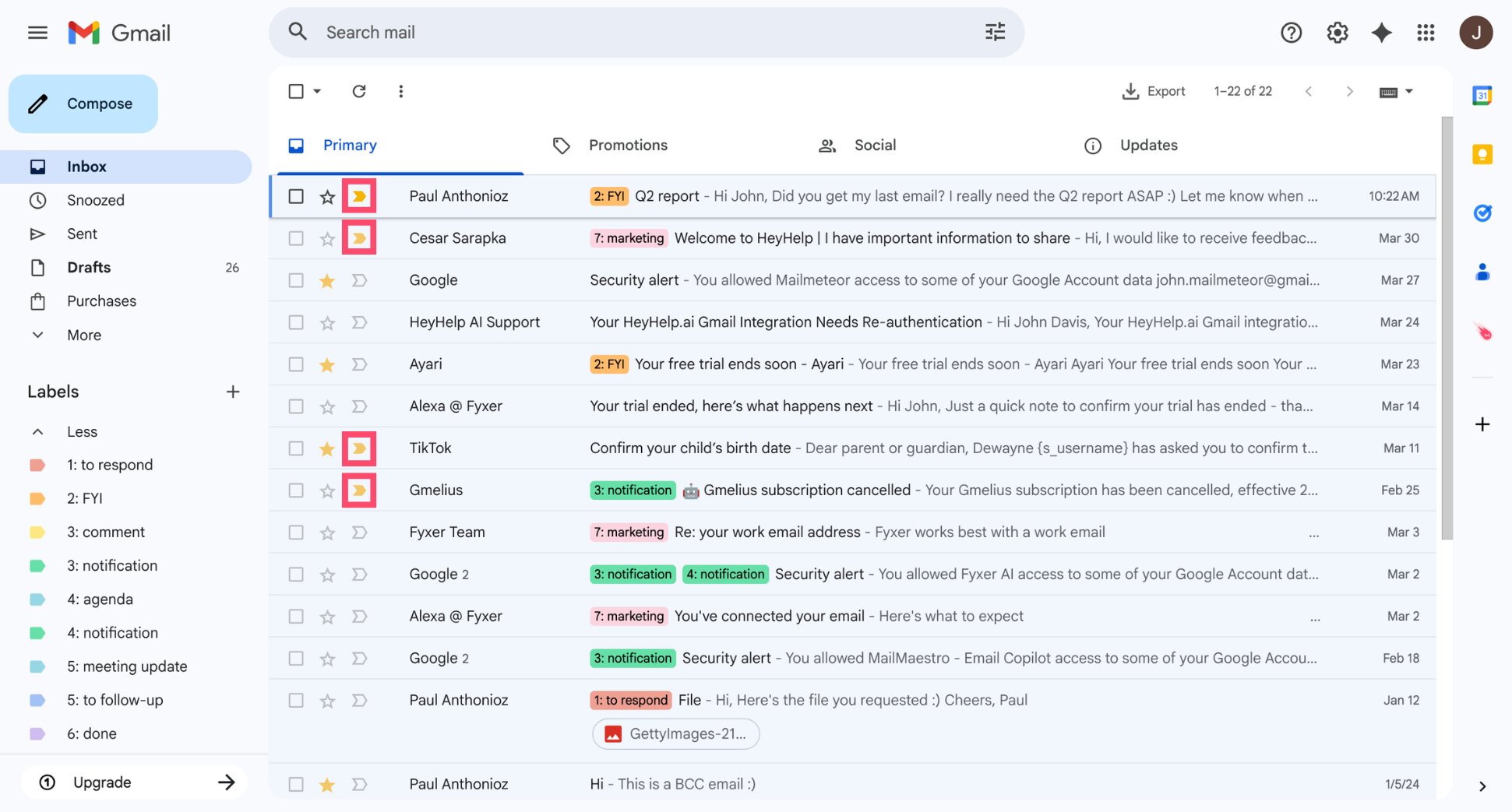
There are 3 ways an email can be marked as important in Gmail:
- Manually — you click the marker yourself to flag a specific email
- Automatically — Gmail predicts which emails matter to you based on your behavior and marks them on your behalf
- Via filters — you set up a rule so that emails from specific senders or matching certain criteria are always marked as important
Gmail uses machine learning to analyze signals like who you email most, which messages you open quickly, and which threads you reply to. Over time, it builds a picture of what’s important to you and starts marking emails automatically.
Gmail doesn’t always get it right — but you can correct it by clicking the marker to toggle importance on or off. The more you do this, the better it gets at predicting which emails actually matter.
How to Mark an Email as Important in Gmail
You can mark any email as important directly from your inbox or while reading it. Here’s how to do it on desktop, Android or iPhone.
On Desktop
You have two options depending on where you are in Gmail.
From your inbox:
- Open Gmail.
- Find the email you want to mark as important.
- Click the importance marker (›) to the left of the sender’s name.
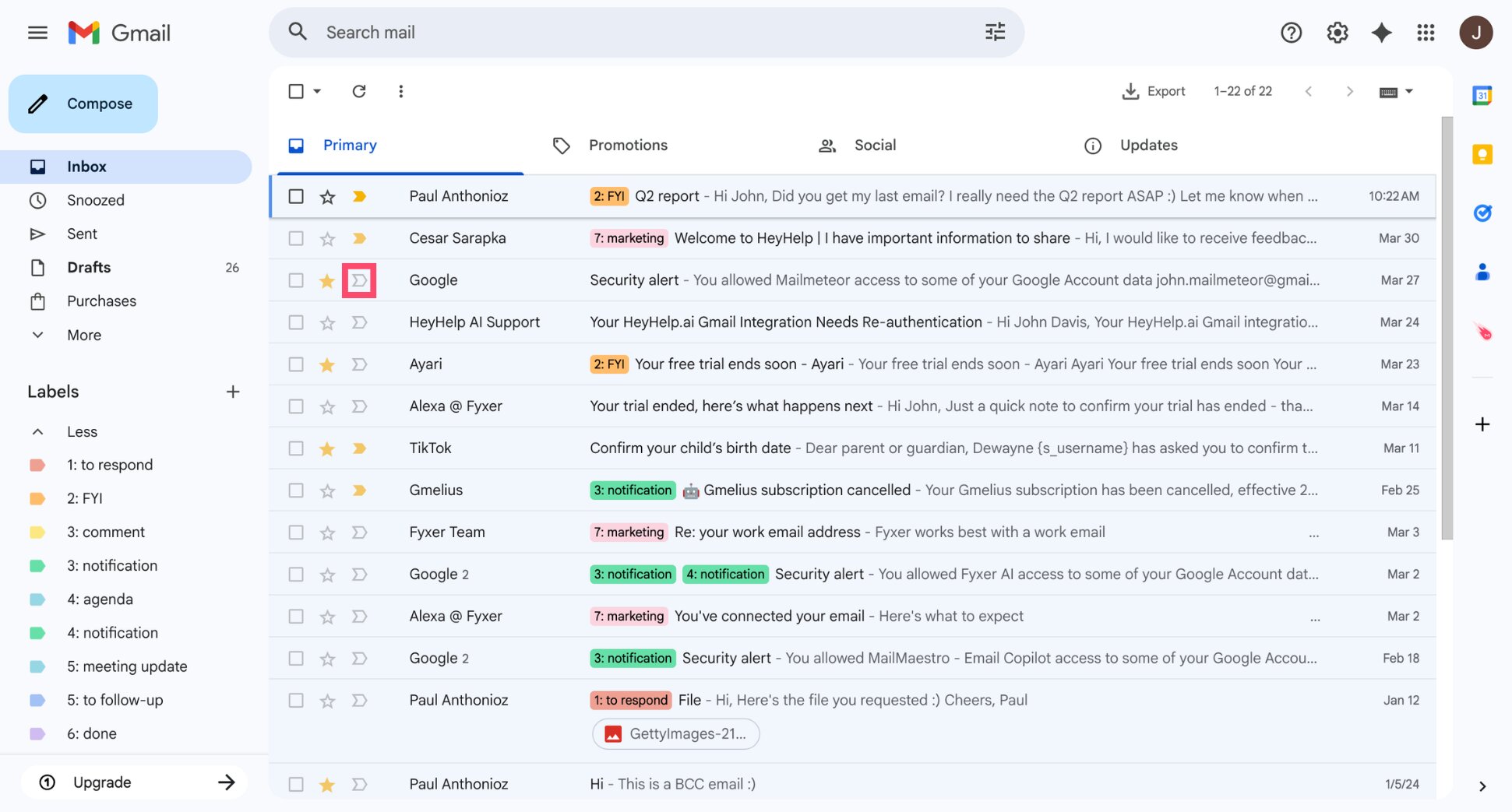
The arrow fills in yellow to confirm the email is now marked as important. You can click it again to remove the marker.
While reading an email:
- Open the email.
- Click the importance marker (›) to the right of the subject line.
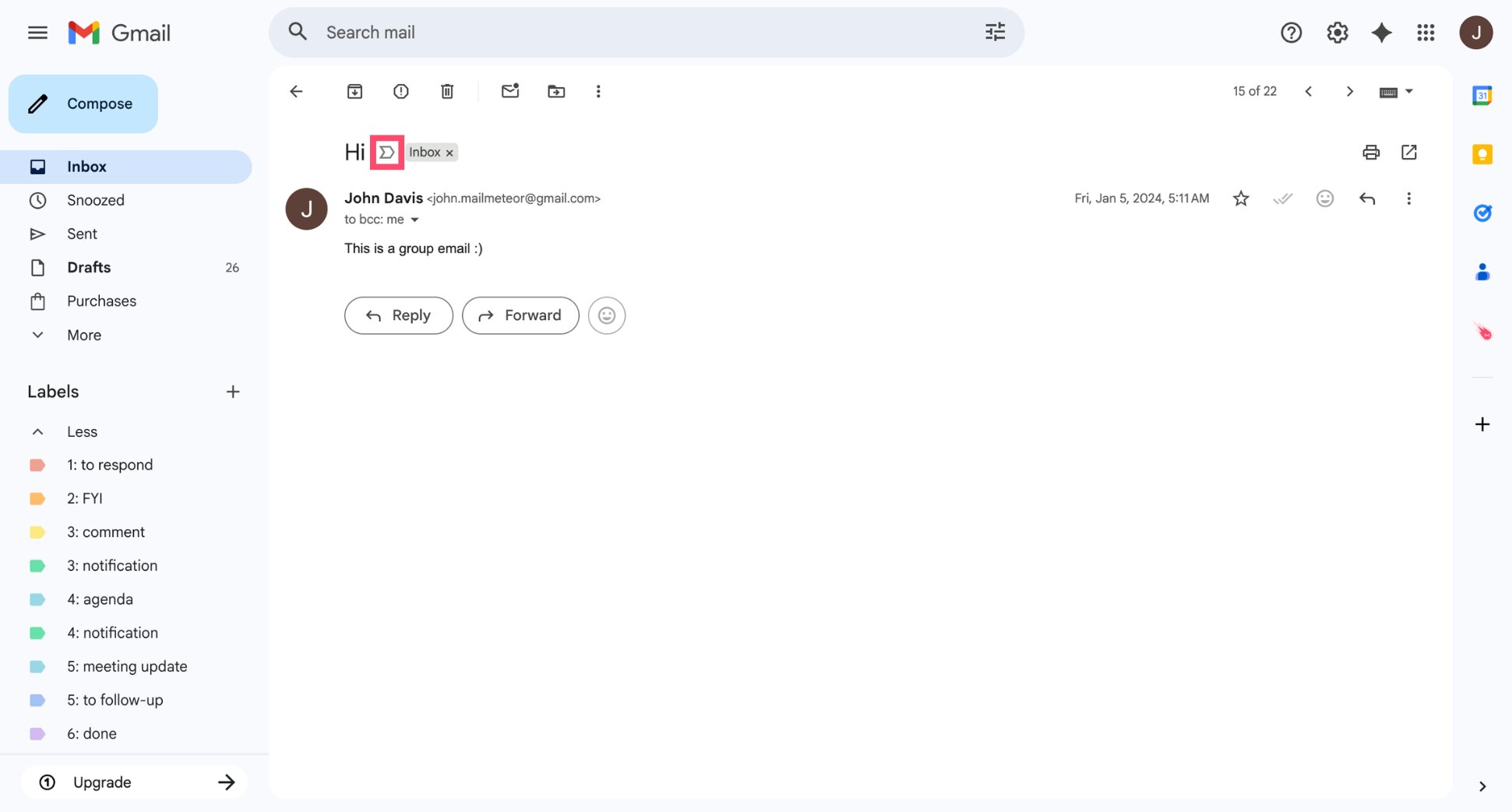
And voilà. The email is now marked as important.
On Android
- Open the Gmail app.
- Find the email in your inbox and long-press it to select it.
- Tap the three-dot menu (⋮) in the top-right corner.
- Select Mark as important.
And that’s it for Android.
On iPhone
- Open the email.
- Tap the three-dot menu (⋮) in the top-right corner.
- Select Mark as important.
All done — the email is marked as important on iPhone.
How to Mark All Emails from a Sender as Important
If you always want emails from a specific person to be marked as important, you don’t need to do it manually every time. Gmail lets you set up a filter that automatically applies the importance marker to any email from a given sender.
- Open Gmail.
- Click Show search options (the sliders icon) on the right side of the search bar.
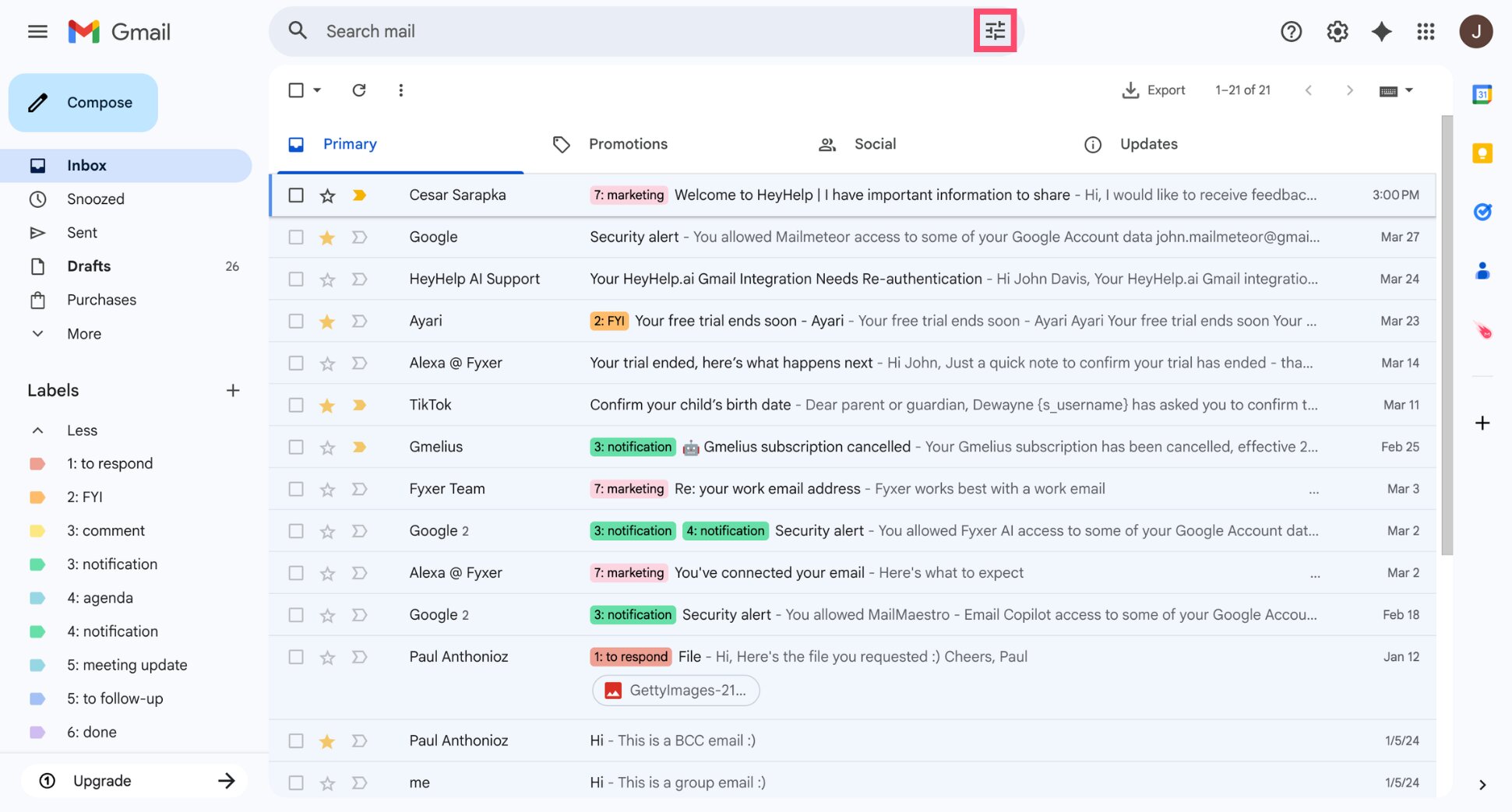
- In the From field, type the email address of the sender.
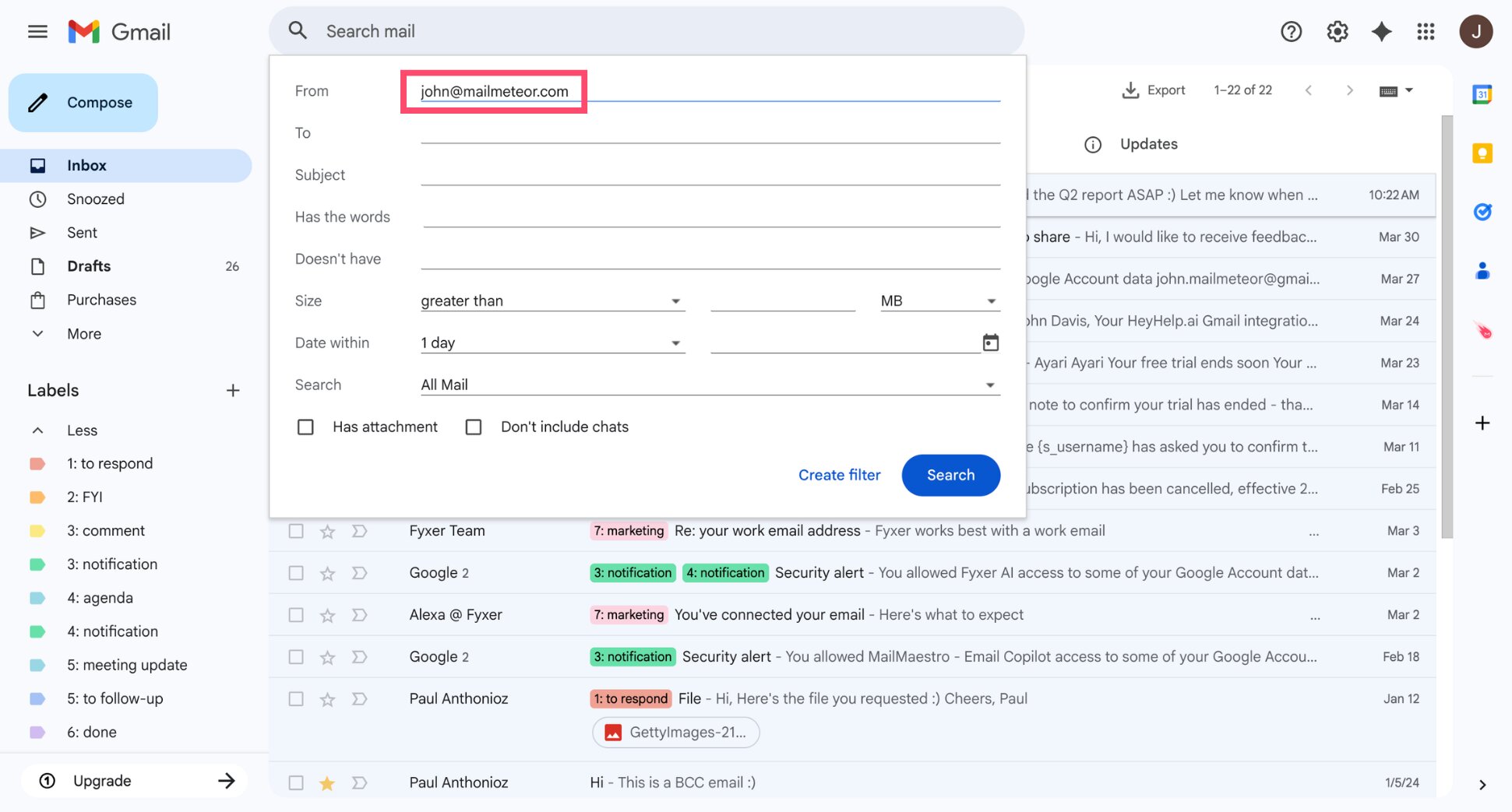
- Click Create filter.
- Check Always mark it as important.
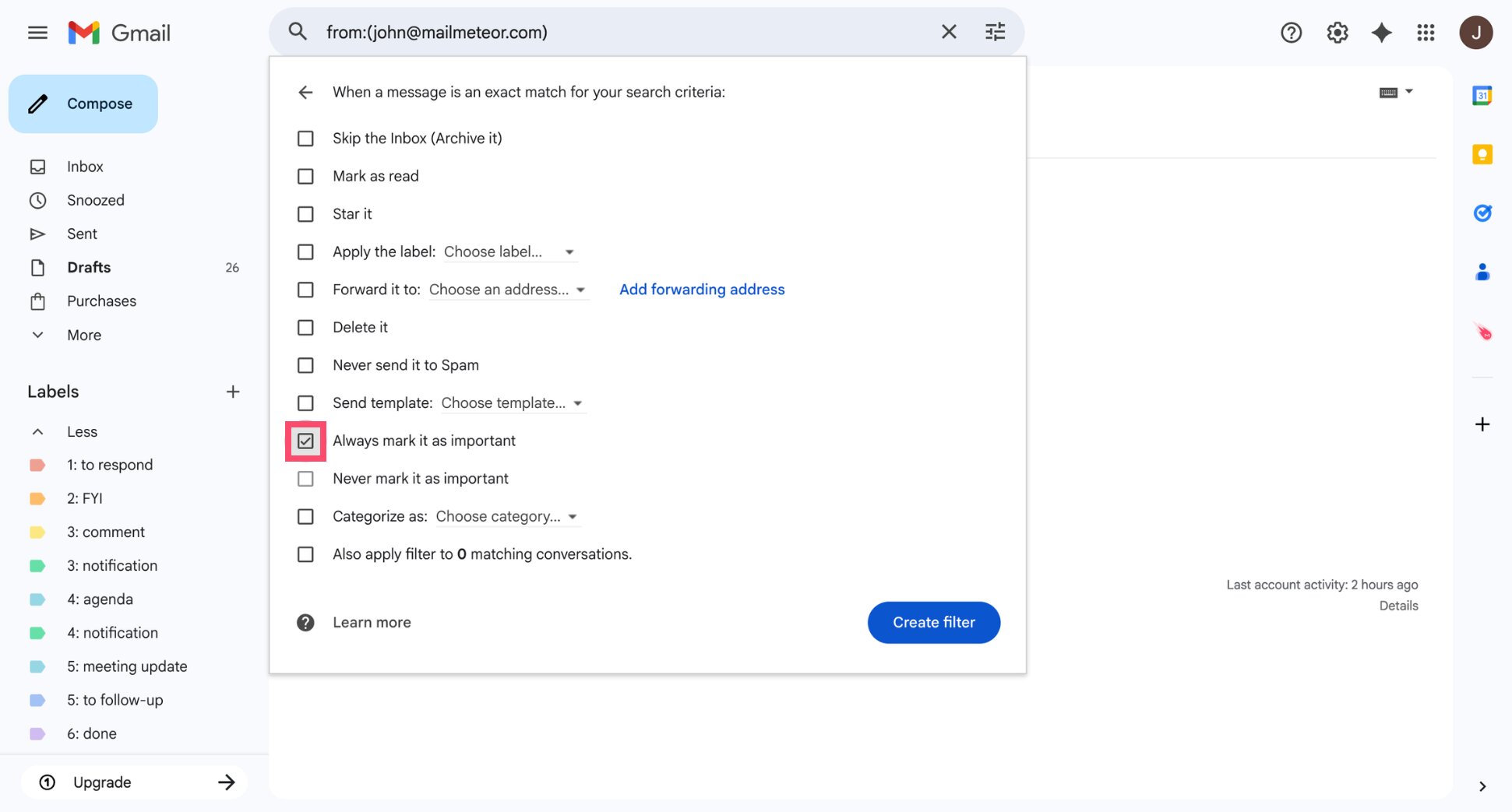
- Click Create filter to confirm.
And voilà. Every email from that sender will now be automatically marked as important.
How to Send an Email as High Priority in Gmail
Gmail doesn’t have a built-in high priority flag for outgoing emails — unlike Outlook, there’s no button to mark a message as urgent before hitting send. The recipient won’t see any priority indicator on their end, regardless of how you’ve marked the email in your own inbox.
That said, there are effective ways to signal urgency without a dedicated button ⤵️
- Use your subject line. It’s the first thing your recipient sees, and the easiest place to set expectations. Be direct about what’s needed and when:
- Urgent: feedback needed by 2 PM today
- Action required: Q3 budget approval
- Please confirm attendance by EOD Friday
- Format the email body. Use bold text for deadlines and action items, keep paragraphs short, and lead with the most important information. The easier your email is to scan, the faster you’ll get a reply.
- Follow up automatically. Sometimes one email isn’t enough — people get busy, miss messages, or mean to reply and forget. Setting up an automated follow-up ensures your message stays on their radar without you having to chase manually.
Mailmeteor makes this straightforward. You can schedule follow-ups to send automatically if your email goes unopened or unanswered — with full control over the timing and the message.
How to Use Priority Inbox to See Important Emails First
Marking emails as important is useful — but if your inbox is still cluttered, those markers can get lost in the noise. Priority Inbox solves this by splitting your inbox into sections, with important and unread emails at the top and everything else below.
Here’s how to enable it:
- Open Gmail.
- Click the gear icon (⚙️) in the top-right corner.
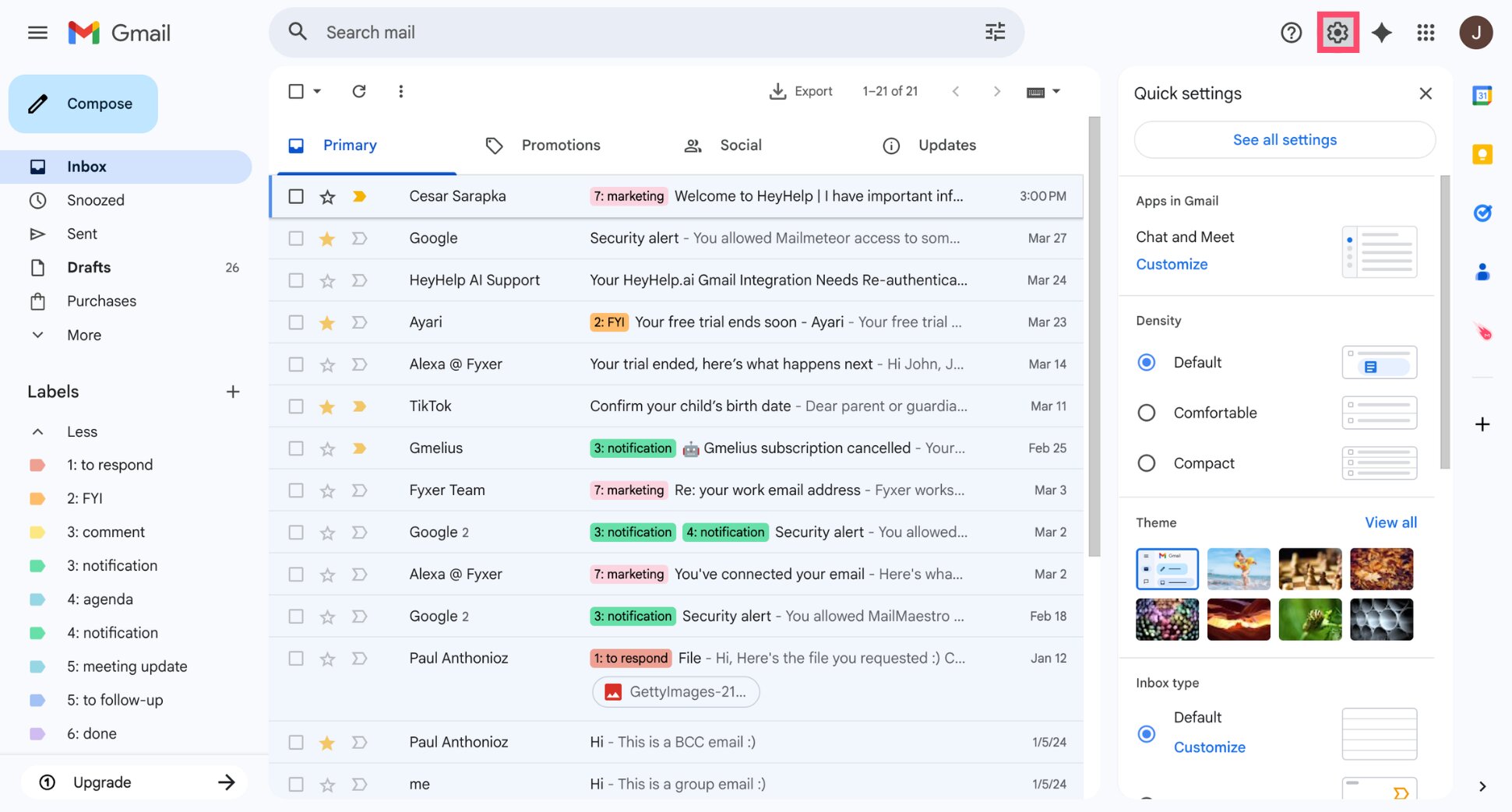
- Under Inbox type, select Priority Inbox.
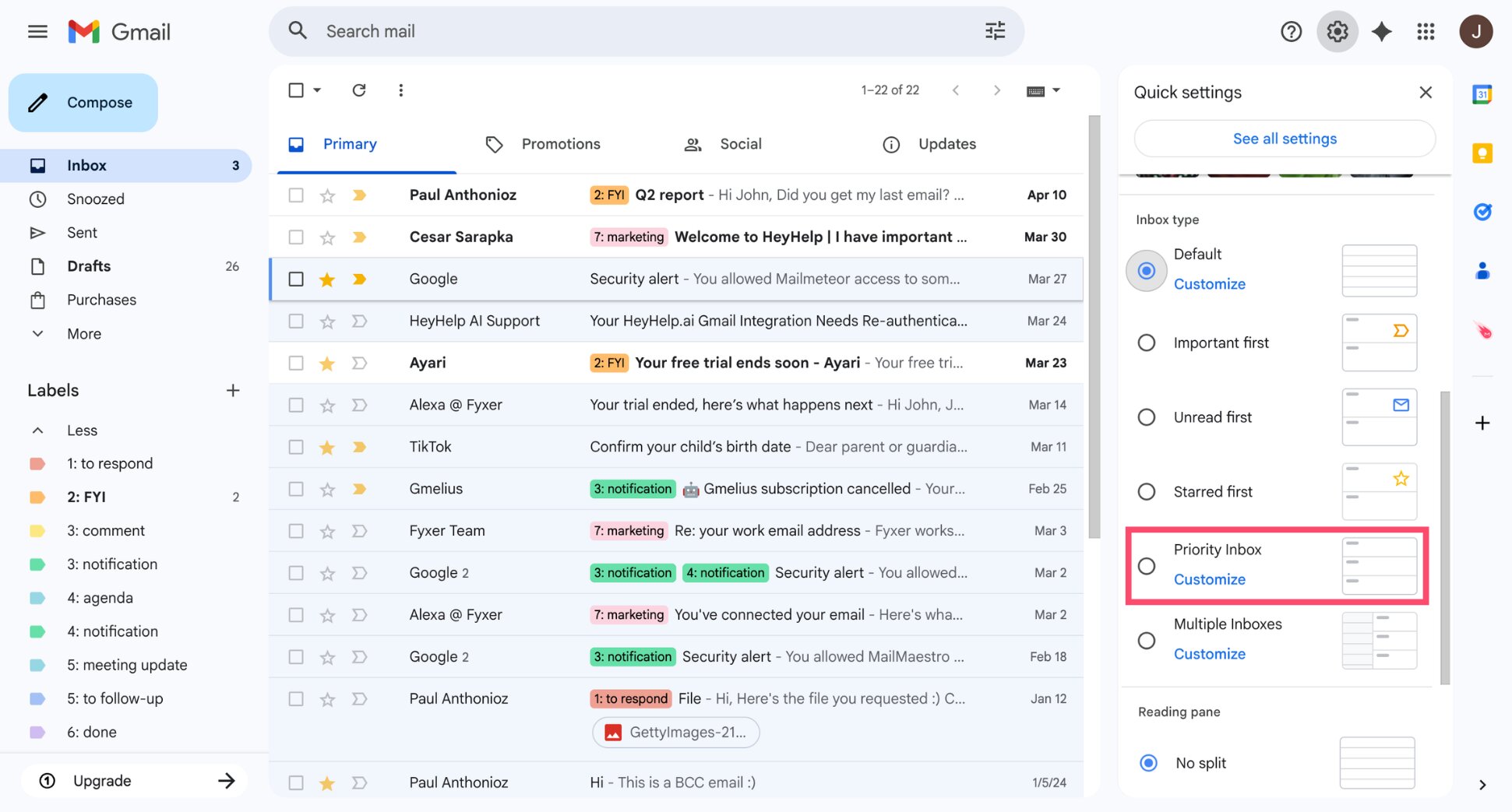
And voilà. Your inbox is now split into sections based on importance.
By default, Priority Inbox shows 3 sections ⤵️
| Section | What it shows |
|---|---|
| Important and unread | Emails Gmail considers important that you haven’t read yet |
| Starred | Emails you’ve manually starred |
| Everything else | All remaining emails |
However, you can customize these sections to fit the way you work. To do so, go to Settings > See all settings > Inbox. Then scroll down to the Priority Inbox sections area to add, remove, or reorder them.
Should You Use Gmail’s Importance Markers?
Gmail’s importance markers are a simple, zero-setup way to keep your inbox focused. If you receive a manageable volume of email and want Gmail to do some of the sorting for you, they’re worth enabling.
Importance markers work well if you:
- Want a passive system that learns your habits over time
- Mostly need to organize emails for yourself, not signal priority to others
- Use Priority Inbox and want to surface what matters automatically
However, they may not be enough if you:
- Send outreach or sales emails and need recipients to act quickly
- Manage a high volume of conversations and need more control
- Find yourself constantly correcting Gmail’s predictions
Importance markers are a great inbox tool — but they stop at your inbox. They can’t help you write better emails, get more replies, or make sure an important conversation doesn’t go cold.
That’s where Mailmeteor comes in. Its AI assistant works directly inside Gmail to help you do more with every email you send and receive.
Here’s what you can do with Mailmeteor:
- AI email writing — draft and improve emails in seconds, directly in Gmail
- AI summaries — get the key points of any email thread without reading every message
- Smart labels — automatically categorize incoming emails so your inbox stays organized
- Automated follow-ups — send follow-ups automatically if your email goes unopened or unanswered
- Mail merge — send personalized emails to hundreds of contacts in one go
- Email tracking — see when your emails are opened, clicked, and replied to
Try Mailmeteor’s AI assistant today (it’s free!) and turn Gmail into a productivity tool that actually works for you.
FAQs
What does the importance marker look like in Gmail?
The importance marker is a small yellow arrow that appears to the left of the sender’s name in your inbox. When filled in yellow, the email is marked as important. When empty, it isn’t. You can click it at any time to toggle importance on or off.
Can the recipient see when I mark an email as important?
No. Importance markers are only visible to you. They’re a personal inbox organization tool. Marking an email as important has no effect on how it appears in the recipient’s inbox.
How does Gmail decide which emails are important?
Gmail uses machine learning to predict which emails matter to you. It factors in signals like who you email frequently, which messages you open quickly, which threads you reply to, and how you’ve manually adjusted importance markers in the past. The more you use Gmail, the better it gets at predicting correctly.
How do I turn off importance markers in Gmail?
Go to Settings > See all settings > Inbox, then find the Importance markers section and select No markers. You can also stop Gmail from using your past behavior to predict importance by selecting Don’t use my past actions to predict which messages are important.
Can I mark multiple emails as important at once?
Yes. Select the emails you want to mark by clicking the checkboxes next to them, then click the More menu (three dots) at the top of your inbox and select Mark as important. This works on desktop only — the Gmail mobile app doesn’t support bulk actions for importance markers.
How is marking as important different from starring an email?
Both are personal inbox tools, but they work differently. Stars are always manual — you add them yourself. Importance markers can be set manually or predicted automatically by Gmail. If you want a quick visual flag, use a star. If you want Gmail to help surface what matters, use importance markers.
How do I mark an email as important on the Gmail mobile app?
Open the email, tap the three-dot menu (⋮) in the top-right corner, and select Mark as important. You can also do this from your inbox by long-pressing the email and selecting Mark as important from the menu that appears.


