Looking for a way to pin emails in Gmail so important messages stay at the top of your inbox? You’ve probably noticed there’s no Pin button in Gmail — which makes it hard to keep track of emails you need to reply to later.
By default, Gmail pushes older messages down as new ones arrive. That means important emails can quickly get buried under newsletters, notifications, or low-priority messages — even if you’re not done with them yet.
The good news is that while Gmail doesn’t offer a true pin feature like Outlook, you can keep important emails at the top of your inbox — using stars, inbox settings, and a few practical Gmail workarounds.
In this quick guide, we’ll show you exactly how pinning works in Gmail — and the most reliable ways to keep important emails visible.
Here’s what we’ll cover:
- Can You Pin Emails in Gmail?
- How to Pin Emails in Gmail Using Stars
- Other Ways to Keep Important Emails at the Top in Gmail
Sounds good? Then let’s dive in.
Can You Pin Emails in Gmail?
Not exactly — Gmail doesn’t have a dedicated Pin feature like Outlook. There’s no button that lets you lock a single email at the top of your inbox forever.
What Gmail does allow, however, is prioritizing emails using stars, importance markers, and inbox layout rules.
These tools let you surface important messages and keep them visible above the rest of your inbox — even as new emails arrive.
So while Gmail doesn’t call it pinning, you can achieve a similar result by using the right combination of built-in features.
How to Pin Emails in Gmail Using Stars
In Gmail, starring an email is the closest thing to pinning it. When an email is starred and your inbox is configured to show starred messages first, that email stays at the top of your inbox — even as new messages arrive. This works for both personal Gmail and Google Workspace accounts.
On Desktop
Here’s how to pin email in Gmail on desktop:
- Open Gmail
- Click the Star icon next to the email you want to pin.
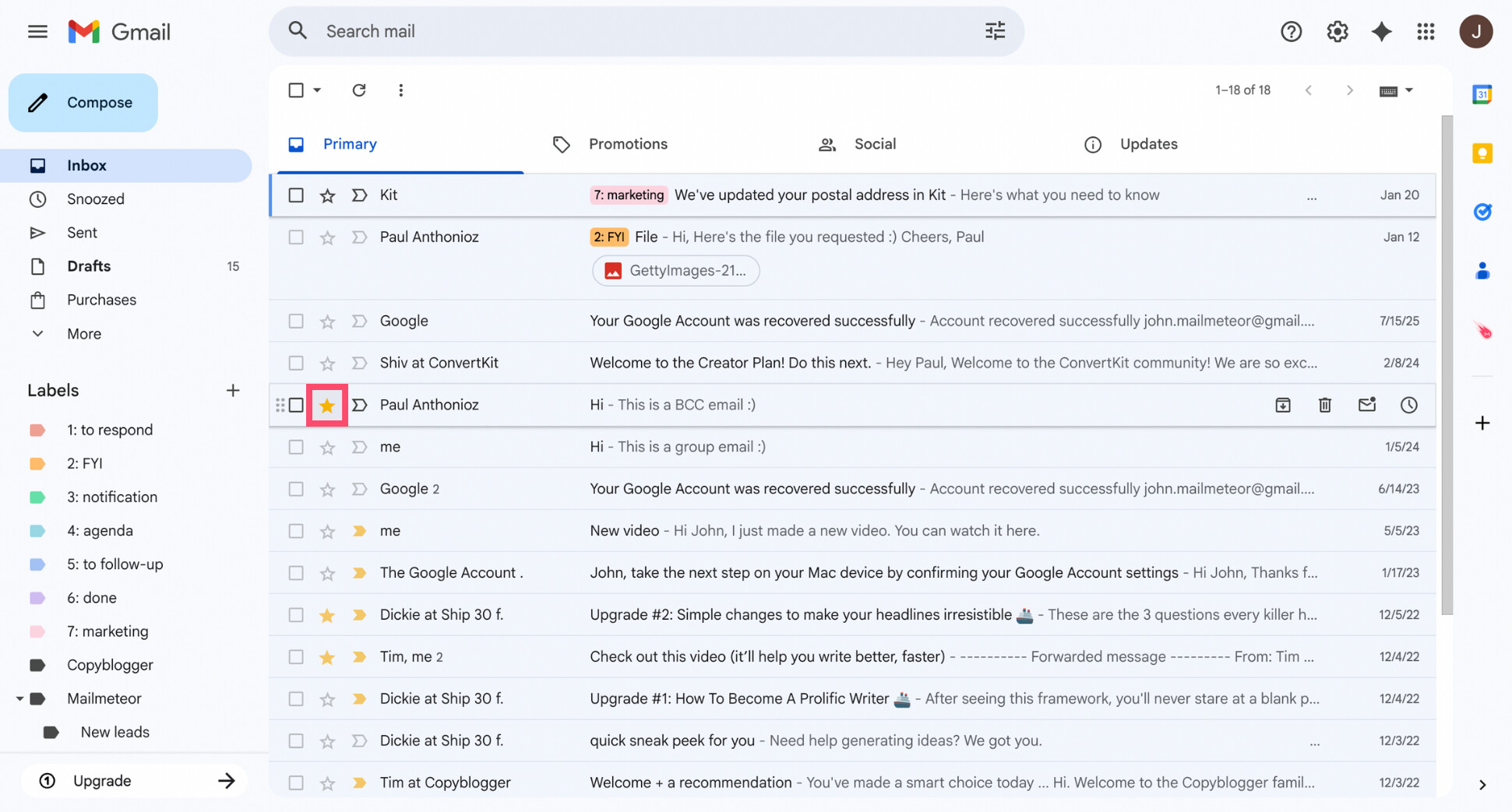
- Make sure your inbox is configured to show starred emails first:
- Click the gear icon (⚙️) in the top-right corner.
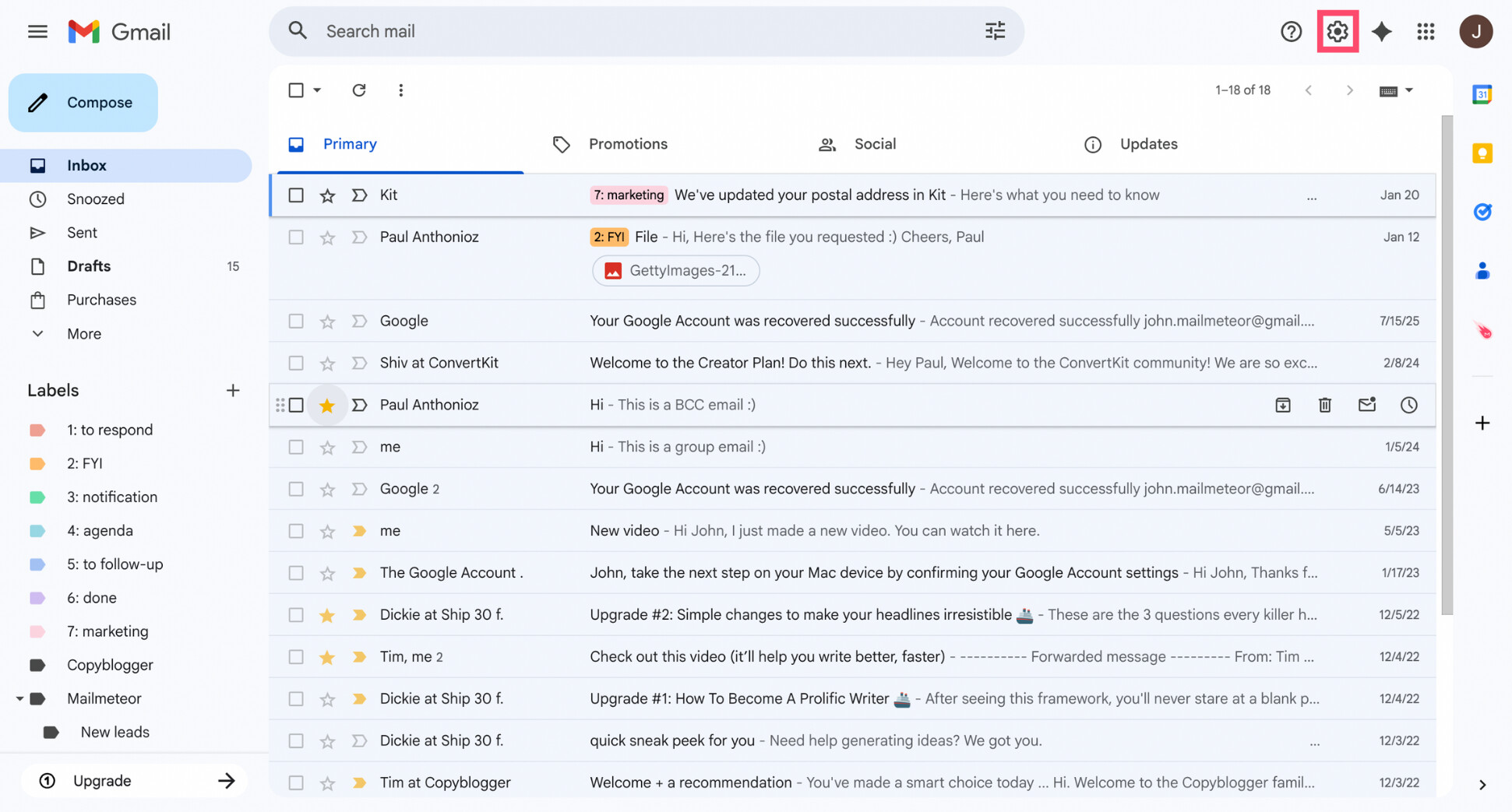
- In the Quick settings panel, under Inbox type, select Starred first.
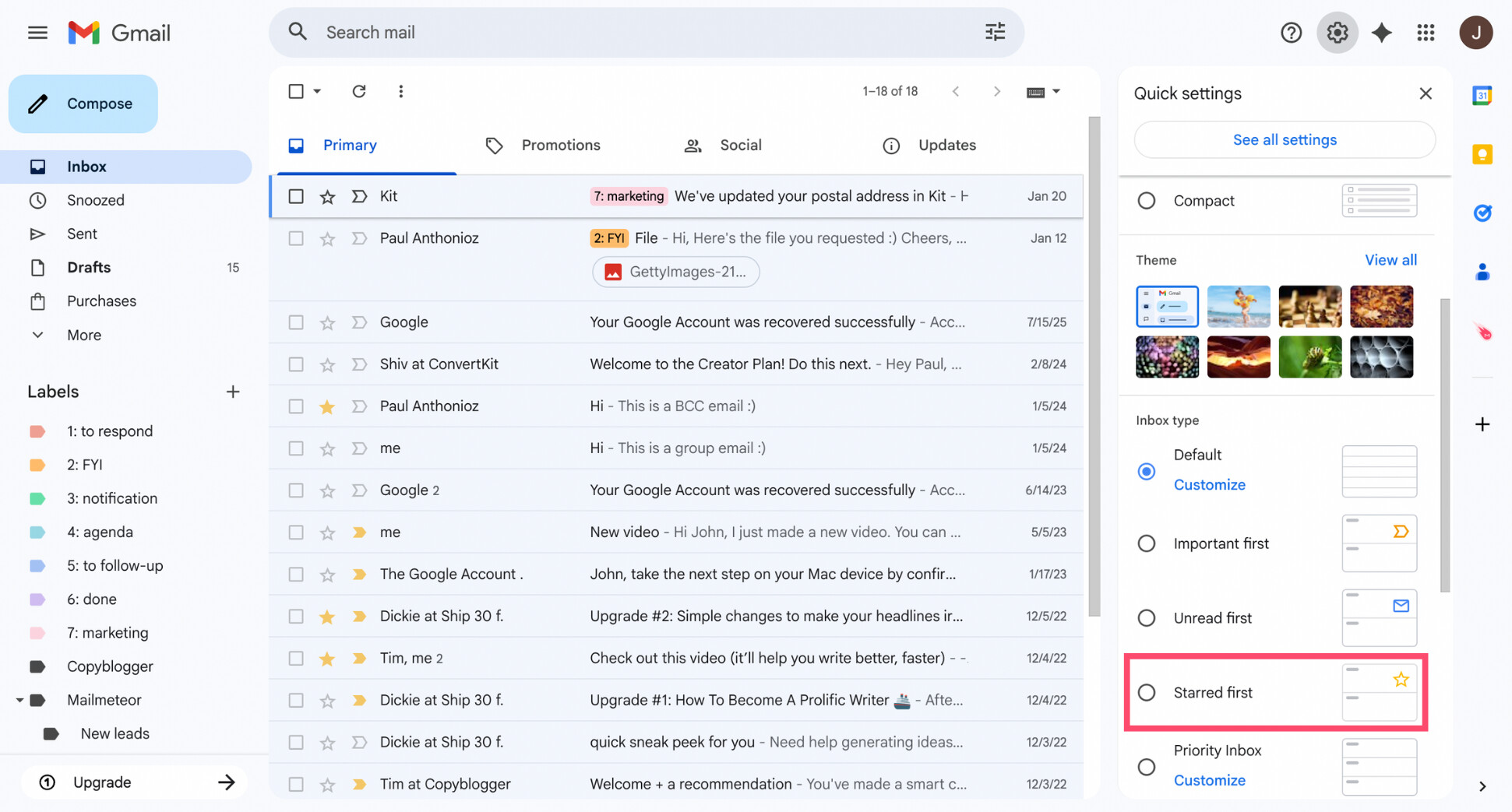
- Click the gear icon (⚙️) in the top-right corner.
That’s it. Once your Gmail inbox prioritizes starred emails, any message you star will stay at the top — effectively pinning it until you remove the star.
Here’s what it looks like:
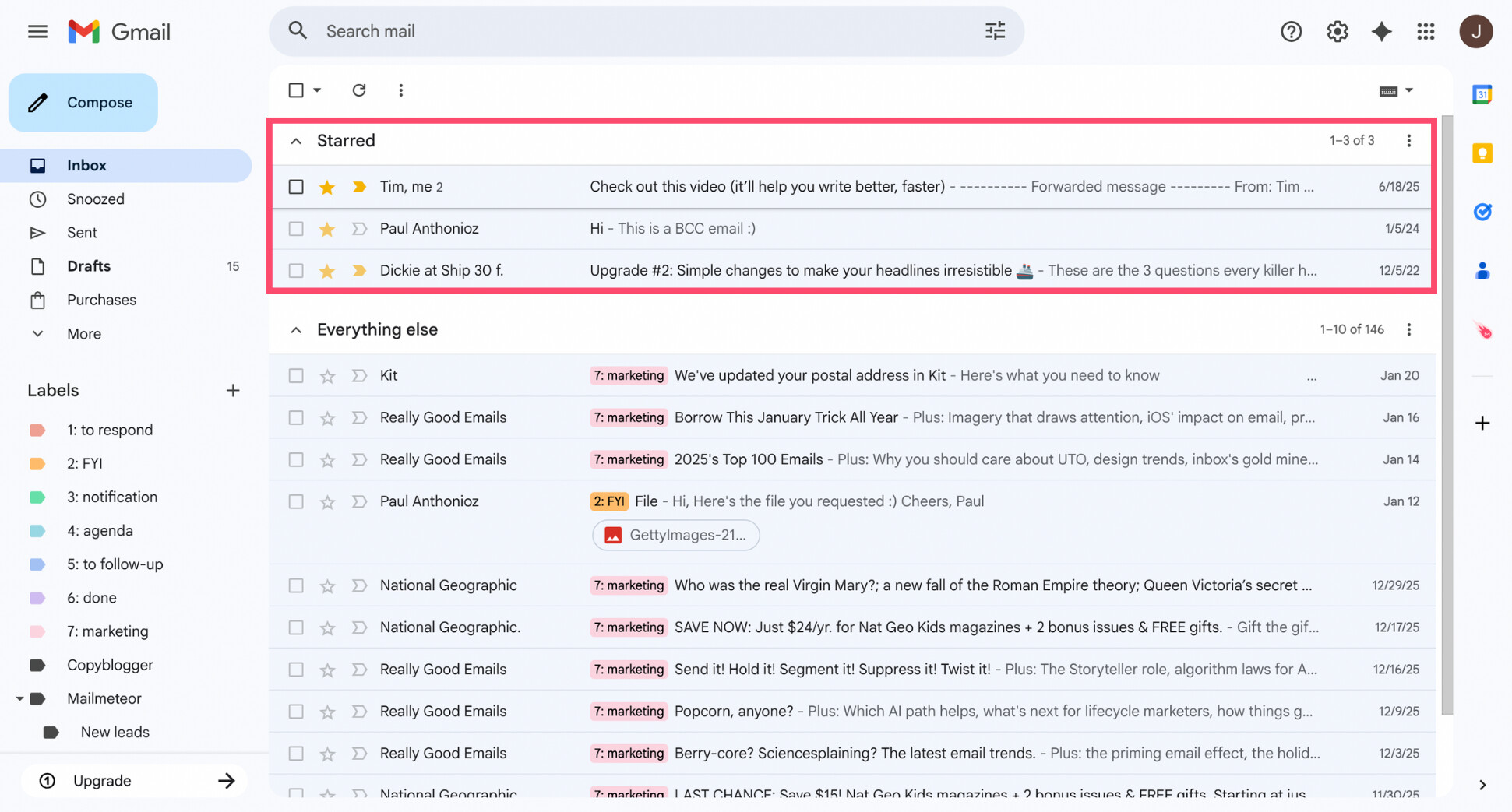
To unpin an email, just remove the star or change your inbox layout.
On Android
Here’s how to pin email in Gmail on Android:
- Open the Gmail mobile app.
- Tap the Star icon next to the email you want to pin.
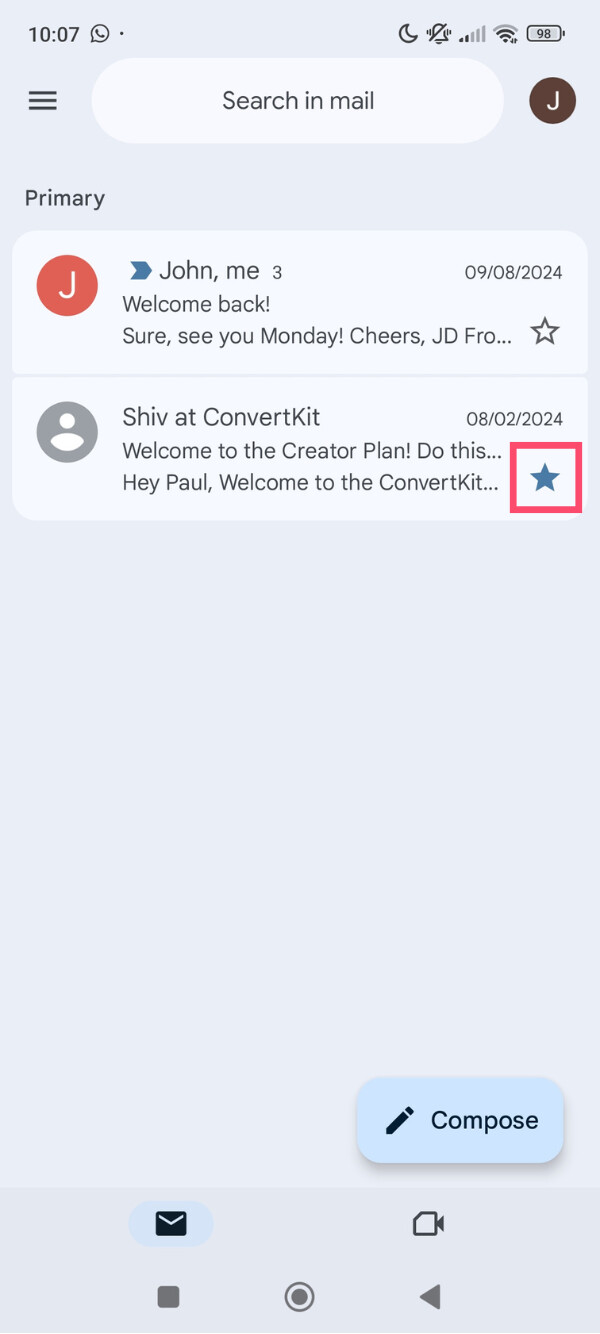
- Make sure your inbox is set to prioritize starred emails:
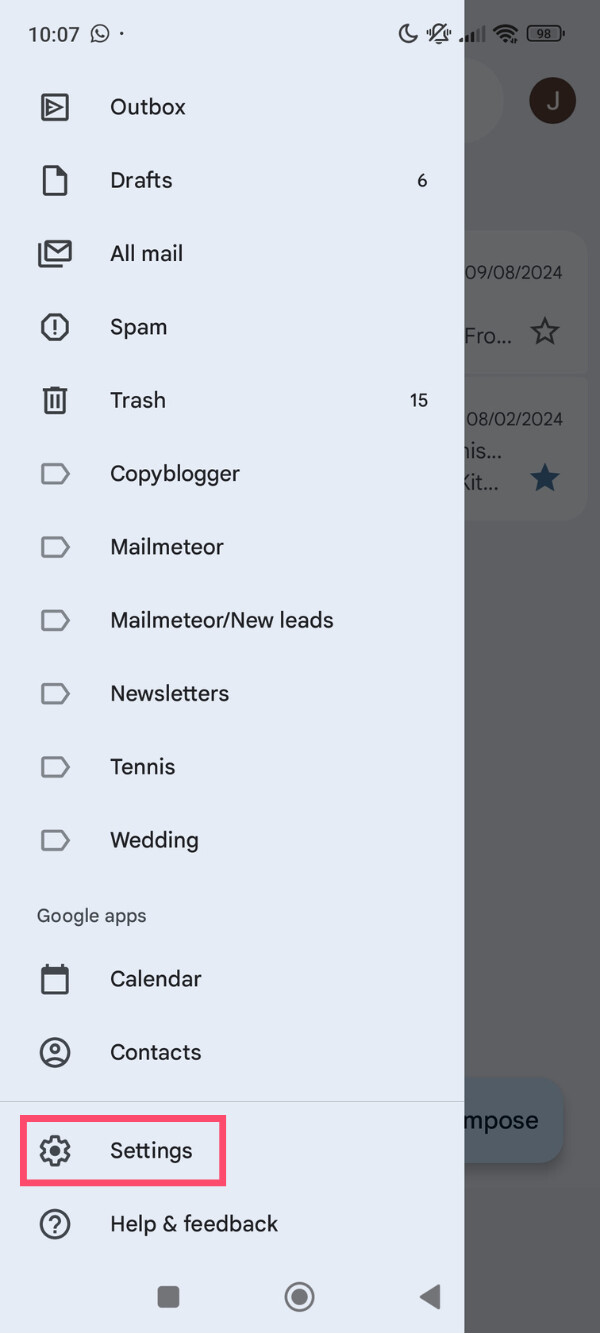
- Tap the menu icon (☰) in the top-left corner.
- Scroll down, tap Settings, and select your email account.
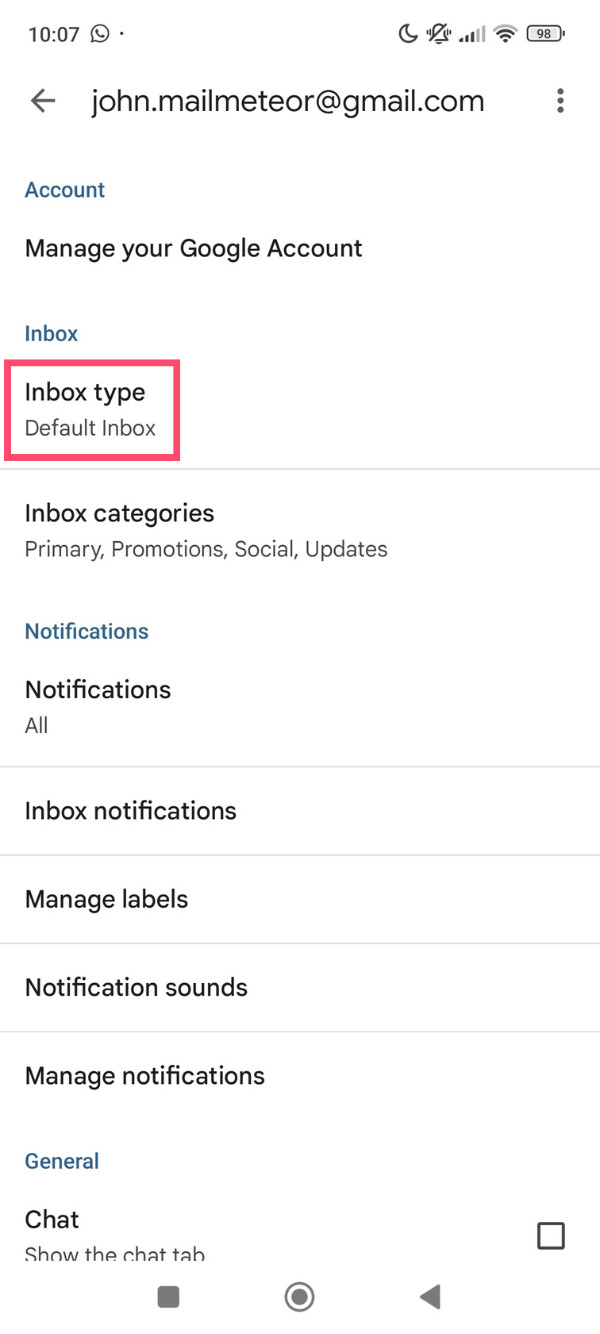
- Tap Inbox type.
- Choose Starred first.
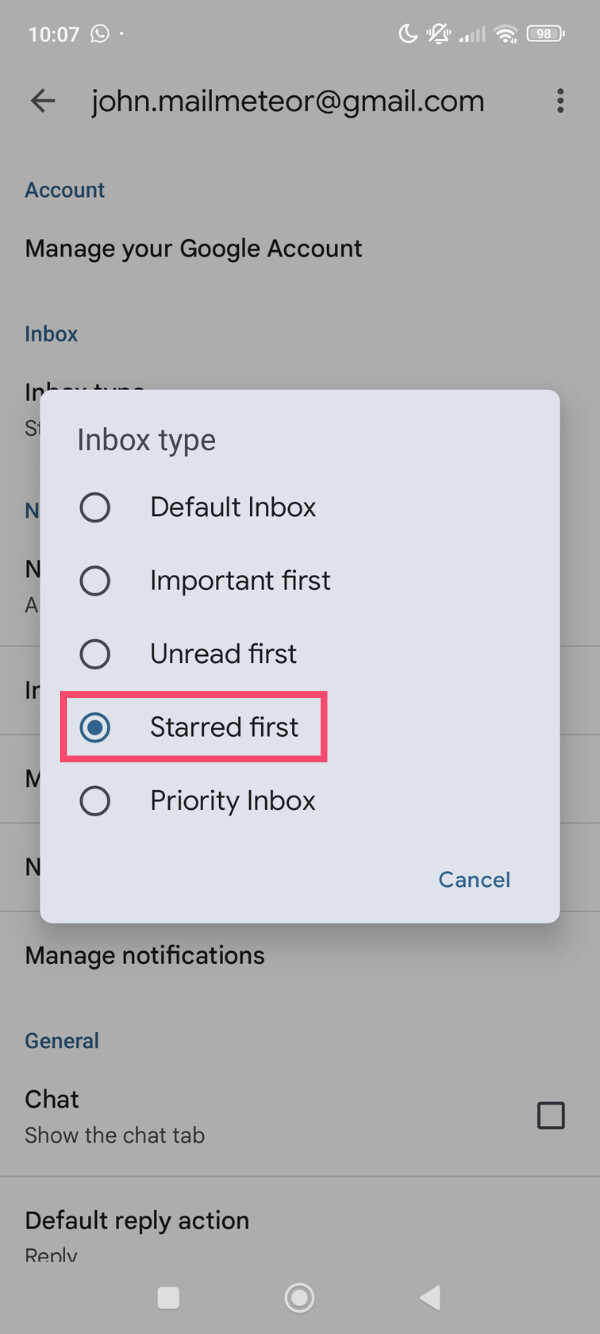
Once Starred first is enabled, any email you star will be pinned at the top of your inbox. This is Gmail’s closest equivalent to pinning emails on Android.
On iPhone
Here’s how to pin email in Gmail on iPhone:
- Open the Gmail app on your iPhone.
- Tap the Star icon next to the email you want to keep at the top.
- If needed, set your inbox to prioritize starred emails:
- Go to menu (☰) > Settings, then choose your account.
- Tap Inbox type, then select Starred first.
With this inbox layout, starring an email keeps it at the top until you remove the star or switch layouts.
Other Ways to Keep Important Emails at the Top in Gmail
Starring emails is the most reliable way to pin messages in Gmail — but it’s not the only option. Gmail also offers a few alternative tools that can help surface important emails and keep them easier to find.
Mark Emails as Important
Gmail’s Important marker is another way to keep priority emails near the top of your inbox — especially if you use the Important first inbox layout. Unlike stars, this system is partly automatic, but you can also control it manually.
To pin emails marked as important in Gmail:
- Open Gmail
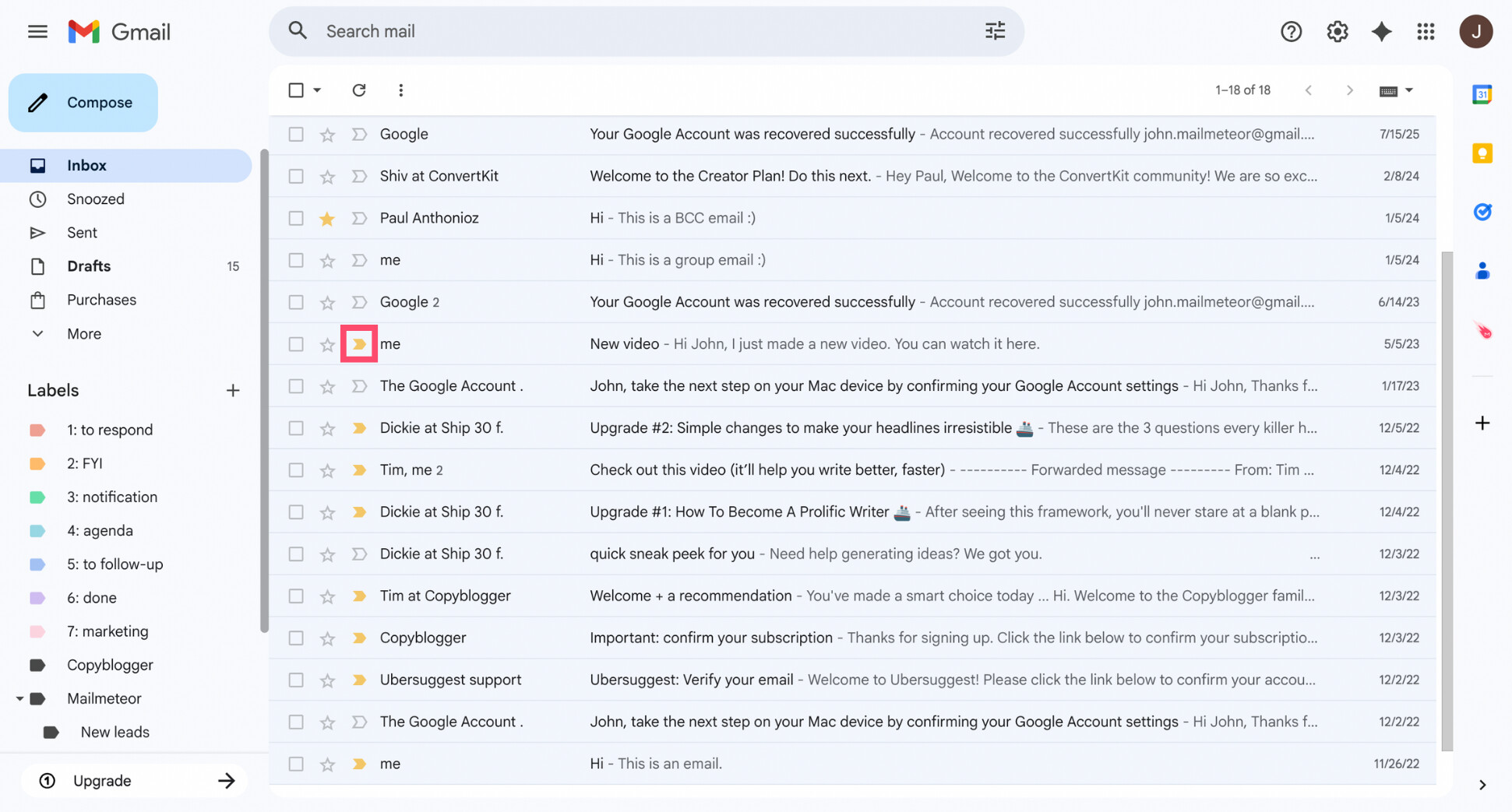
- Click the Important marker next to the message you want to pin. A yellow arrow means the email is marked as important.
- Make sure your inbox is set to Important first:
- Open Gmail Settings (⚙️)
- Under Inbox type, select Important first.
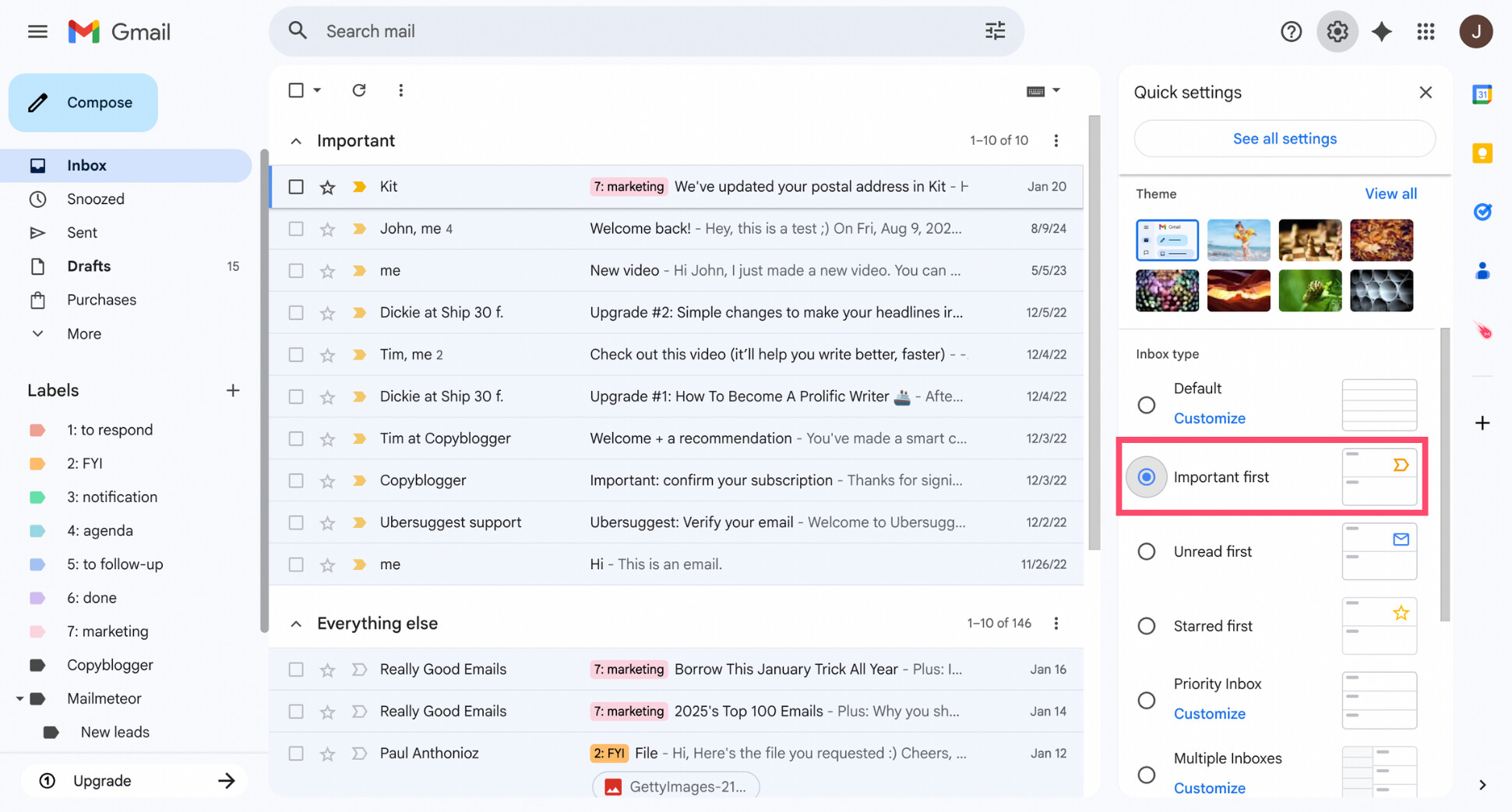
Once enabled, emails marked as important appear at the top of your inbox. But keep in mind that Gmail may automatically mark many emails as important. So this is better for prioritizing messages than precisely pinning them.
Create a Label for Important Messages
Labels don’t technically pin emails in Gmail, but they’re a powerful way to keep important messages easy to find. Instead of forcing emails to stay at the top, labels let you group and access priority messages in one click.
Here’s how to surface important emails in Gmail using labels:
- Open an email you want to prioritize.
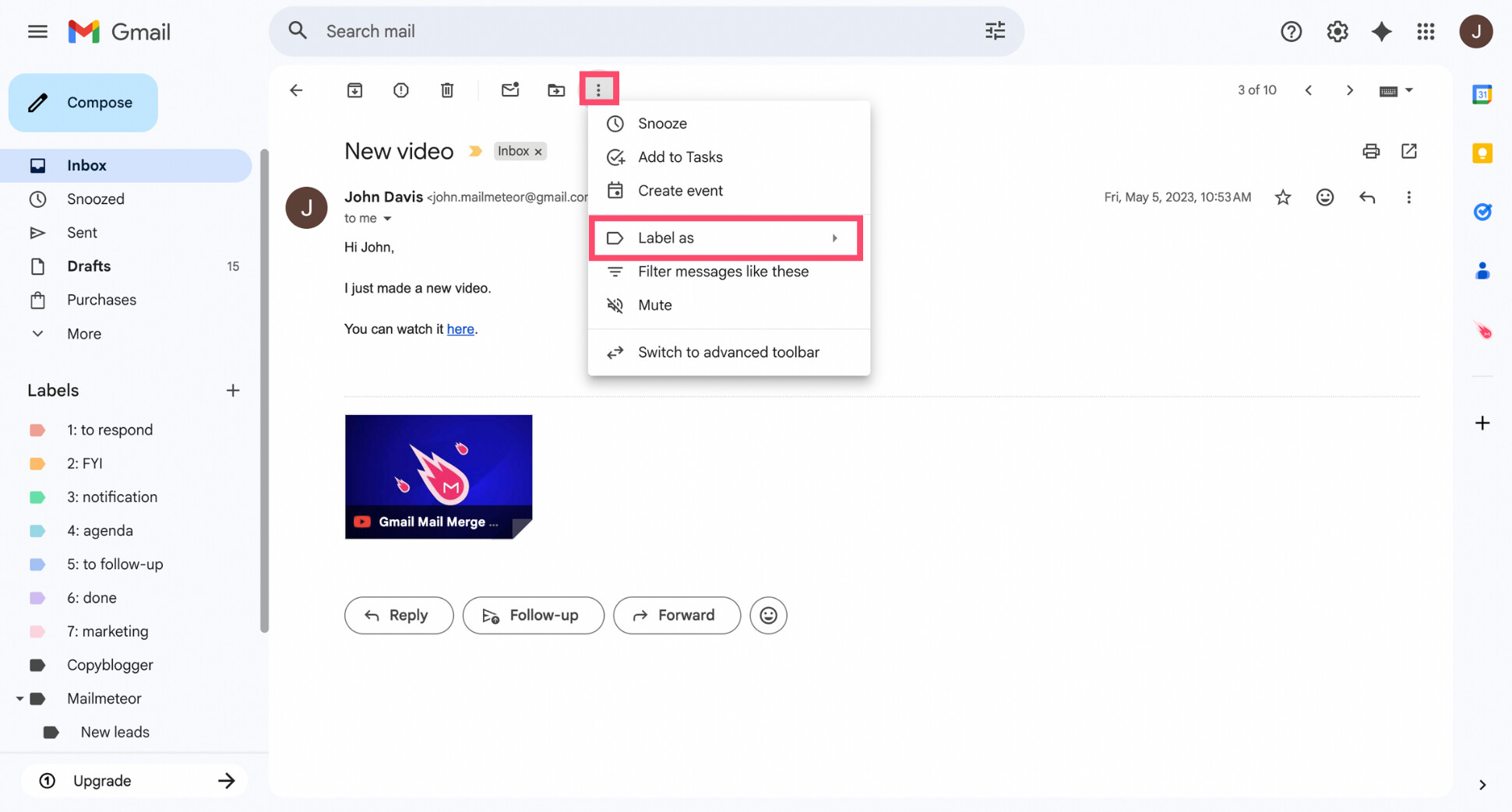
- Click the three vertical dots at the top and select Label as.
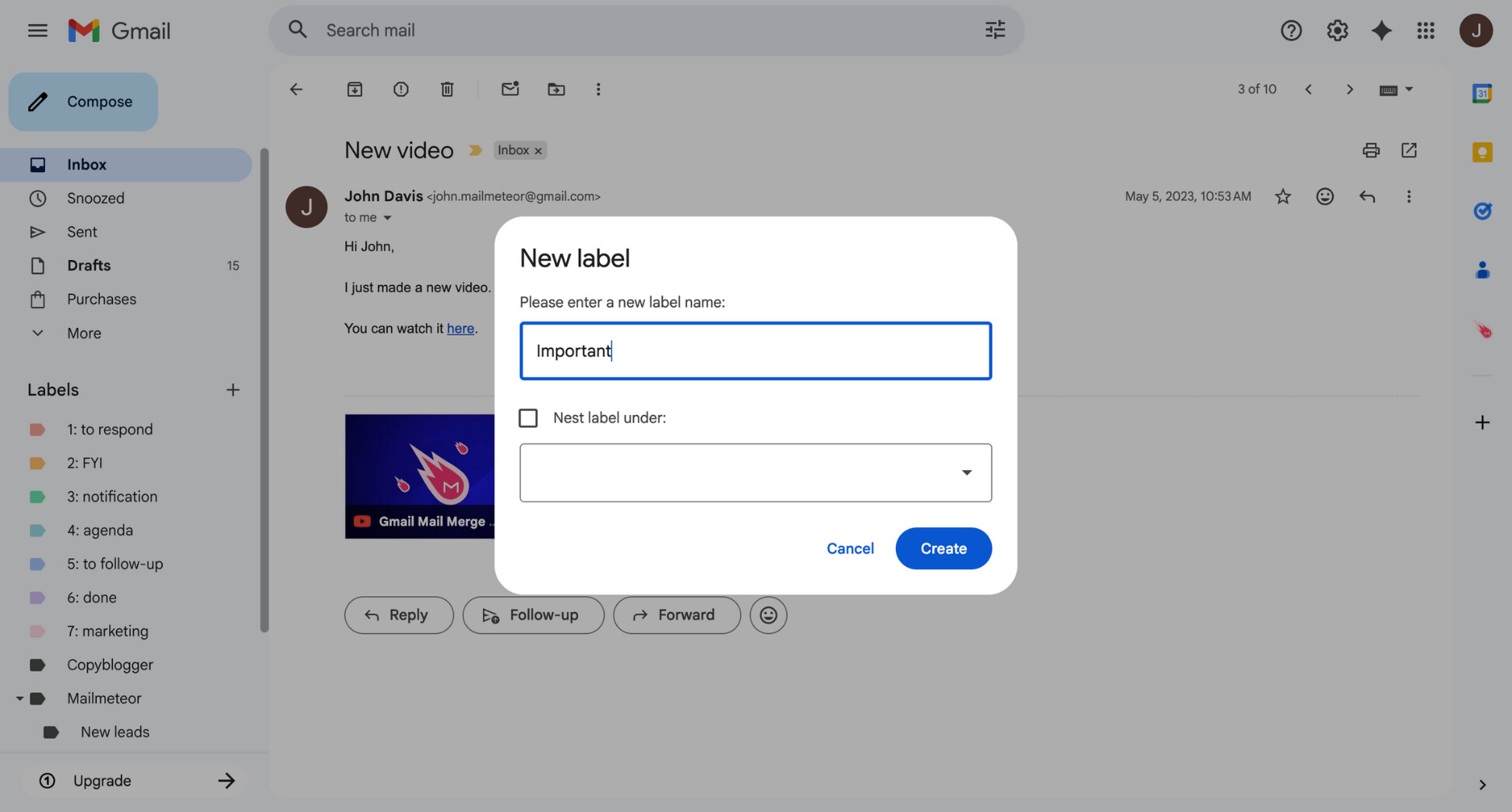
- Choose an existing label or click Create new.
- Apply the label to the email.
You can then access all labeled emails instantly from the left sidebar — no scrolling required. Labels won’t keep emails physically at the top of your inbox like stars do — but they’re excellent for long-term tracking and clean workflows.
Turn Emails into Tasks
If your goal isn’t just to see an email, but to remember to act on it, turning emails into tasks can be a useful alternative to pinning. Gmail integrates with Google Tasks, allowing you to convert any email into a task that appears in your task list — separate from your inbox.
Here’s how to turn an email into a task in Gmail:
- Open the email you want to keep track of.
- Click the three vertical dots.
- Select Add to Tasks.
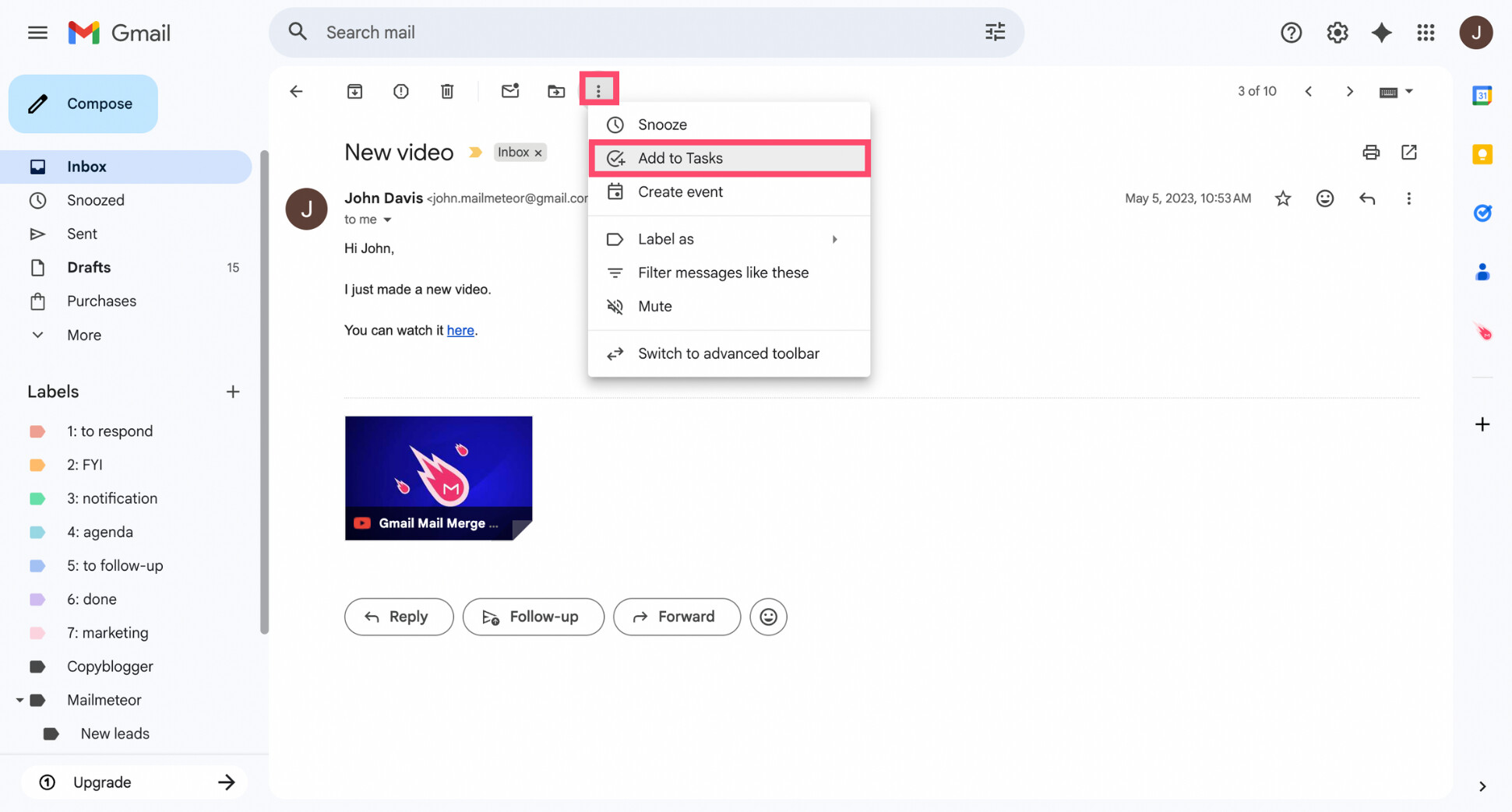
And voilà — your email is now saved as a task. You can access it anytime from the Google Tasks icon in the right sidebar, where it appears with a direct link back to the original message. Tasks won’t pin emails, but they’re perfect if your main issue is remembering to follow up, not keeping the email visible in your inbox.
Conclusion
Gmail doesn’t offer a one-click Pin button like Outlook — but that doesn’t mean you’re stuck losing track of important emails.
The most reliable way to pin emails in Gmail is to star messages and set your inbox to Starred first. It’s simple, and gives you full manual control. Alternatively, Gmail’s Important marker, labels, and Tasks can also help you surface priority emails — even if they don’t truly pin them.
That said, pinning only solves the visibility problem. If your inbox keeps filling up, the real challenge often becomes knowing when to reply, who to follow up with, and how to stay organized without constantly checking your inbox. That’s where an AI-powered email assistant like Mailmeteor can help.
Our free Gmail add-on lets you:
🏷️ Auto-label incoming emails to keep your inbox clutter-free
✍️ Write emails faster with AI, directly inside Gmail
⏰ Schedule follow-ups so important conversations never slip through
📊 Track opens and replies to know when to follow up
⚡ And much more — without leaving Gmail
→ Try Mailmeteor for Gmail today (it’s free!)
FAQs
Does Gmail have a pin feature like Outlook?
No. Gmail doesn’t have a true “pin” feature like Outlook. Instead, it lets you keep emails at the top using stars, importance markers, or inbox layout settings.
Can I automatically pin emails in Gmail?
Yes — indirectly. You can create a Gmail filter that automatically stars certain emails. If your inbox is set to show starred emails first, those messages will appear at the top — effectively pinning them automatically.
Why do some emails appear at the top of my inbox automatically?
Gmail may place emails at the top if they’re starred, marked as important, or if your inbox is set to prioritize important messages. This behavior depends on your inbox configuration.
Can I pin emails in the Gmail mobile app?
Gmail’s mobile apps don’t support pinning either, but you can star emails on Android and iPhone. Starred emails will appear at the top if your inbox is configured accordingly.
How to unpin emails in Gmail?
To “unpin” an email in Gmail, simply remove its star or change your inbox settings so starred or important emails are no longer prioritized.
Can I pin just one email in Gmail?
Not exactly. You can star a specific email to keep it at the top of your inbox, but Gmail doesn’t support exclusive pinning. If you star multiple emails, all starred messages will appear at the top, not just one.


