Tired of digging through your inbox to find critical emails? With Outlook’s Pin feature, you can stick your most important messages right at the top — visible, organized, and easy to access when you need them.
Whether you’re following up with a client, waiting on documents, or managing a busy workflow, pinning emails ensures nothing slips through the cracks.
But depending on which version of Outlook you’re using, the way you pin emails can slightly vary — or might not be available at all.
In this guide, we’ll show you how to pin emails in Outlook (on web, desktop, or mobile). We’ll also share the best alternative ways to highlight key messages and stay organized.
Here’s what we’ll cover:
- How to Pin Emails in Outlook Web
- How to Pin Emails in Outlook for Windows
- How to Pin Emails in Outlook for Mac
- How to Pin Emails in the Outlook Mobile App
- Alternative Ways to Highlight Important Emails
Sounds good? Then let’s dive in.
How to Pin Emails in Outlook Web
Outlook on the web makes it easy to keep important emails at the top of your inbox using the Pin feature. Here’s how to do it:
- Go to Outlook.com and sign in.
- In your inbox, hover over the email you want to pin.
- Click the pin icon (📌) that appears on the right side of the message.
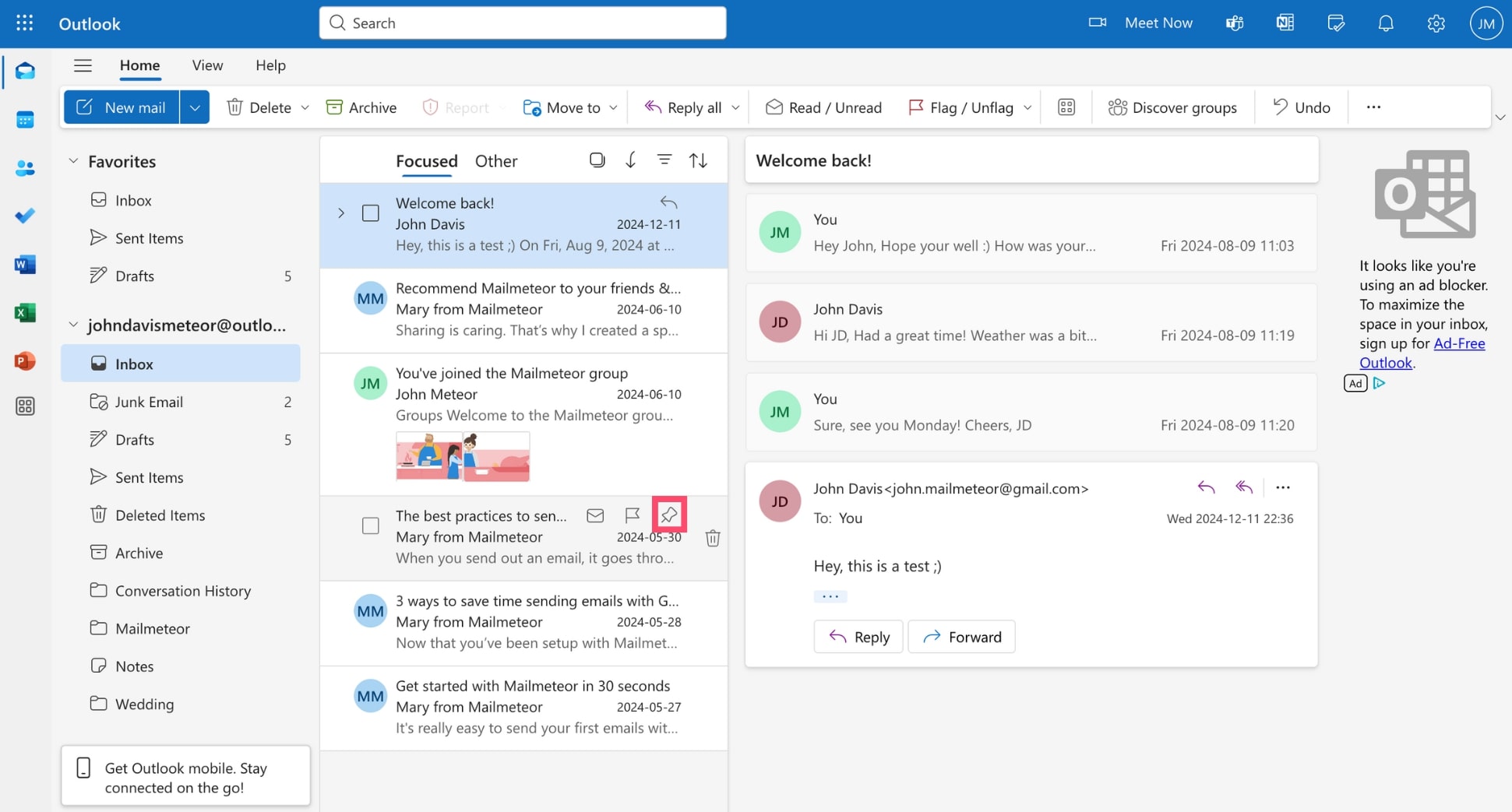
The pinned email will instantly move to the top of your inbox under the Pinned section and stay there until you unpin it — even as new emails arrive.
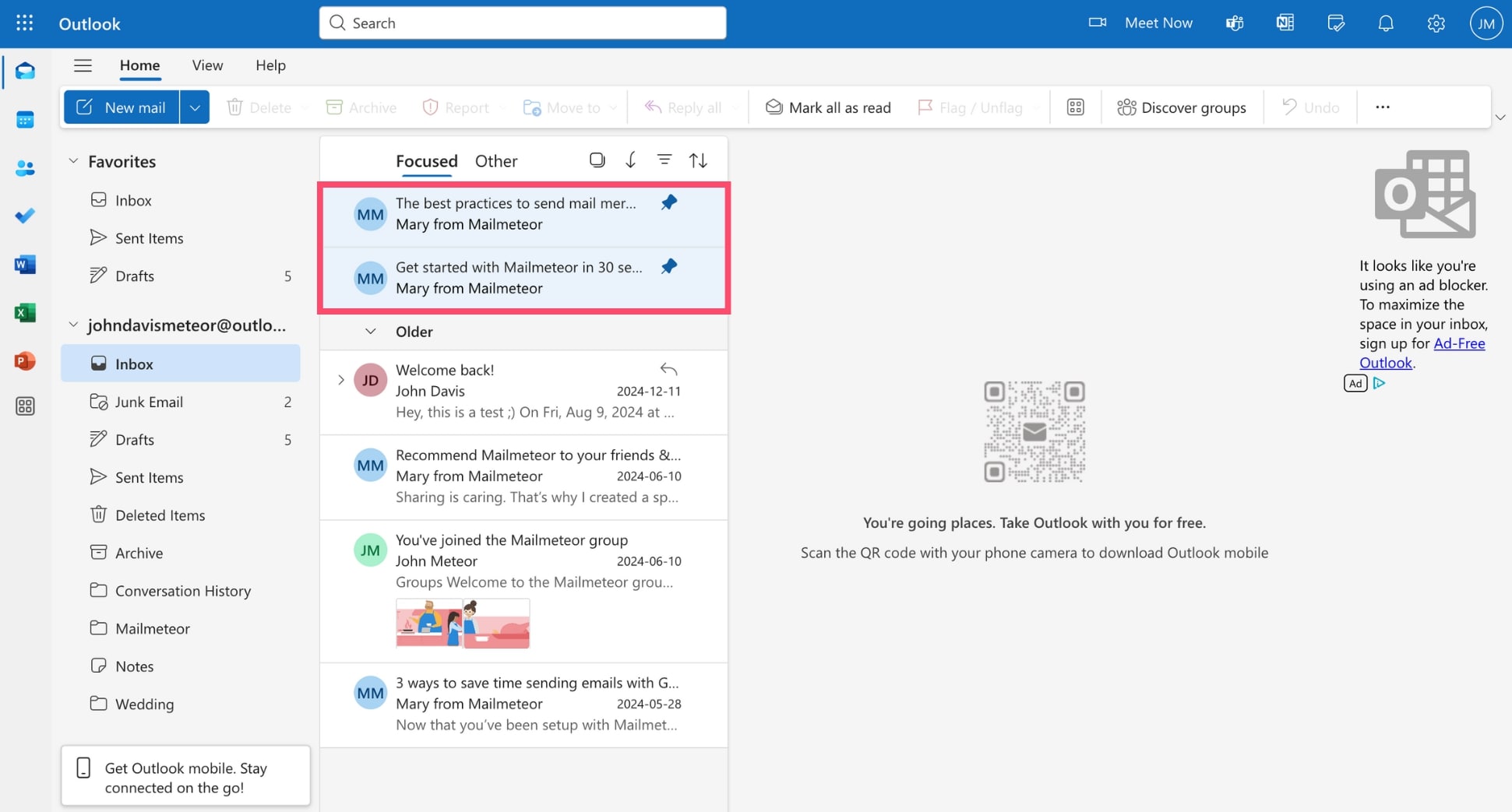
To unpin that email, simply click the Pin icon once more. The message will return to its normal place in the chronological inbox.
How to Pin Emails in Outlook for Windows
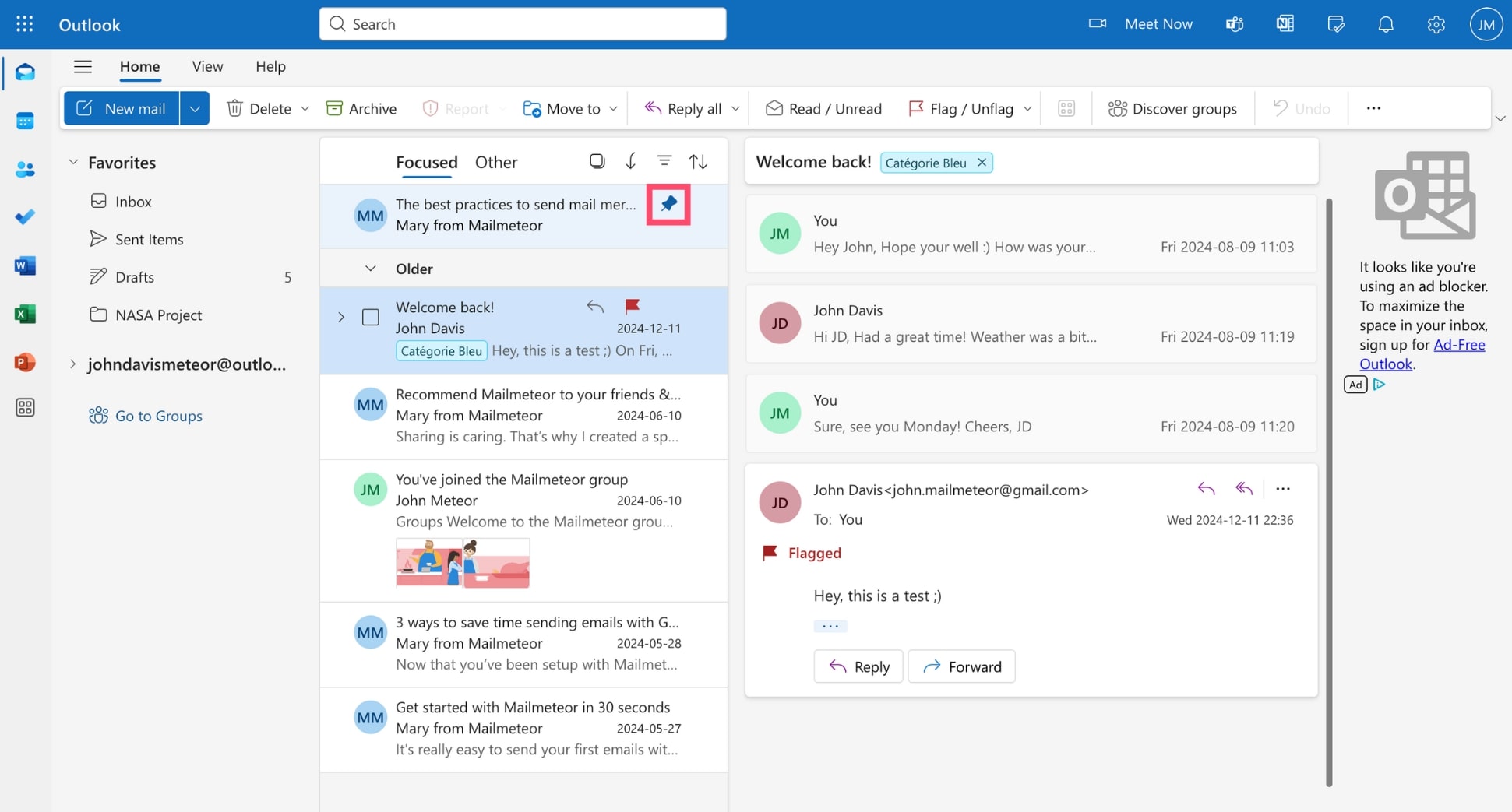
In the new Outlook for Windows, you can pin important emails directly from your inbox. Here’s how it works:
- Open the Outlook app on your Windows computer.
- Navigate to your Inbox or any folder.
- Hover over the email you want to pin.
- Click the Pin icon.
The message will move to the top of your inbox (in the Pinned section) and stay there until unpinned.
How to Pin Emails in Outlook for Mac
If you’re using the new Outlook for Mac, the Pin feature is available — but only in the updated version. Here’s how to pin an email on Mac:
- Open the Outlook app on your Mac.
- In your inbox, find the message you want to pin.
- Hover over the email and click the Pin icon.
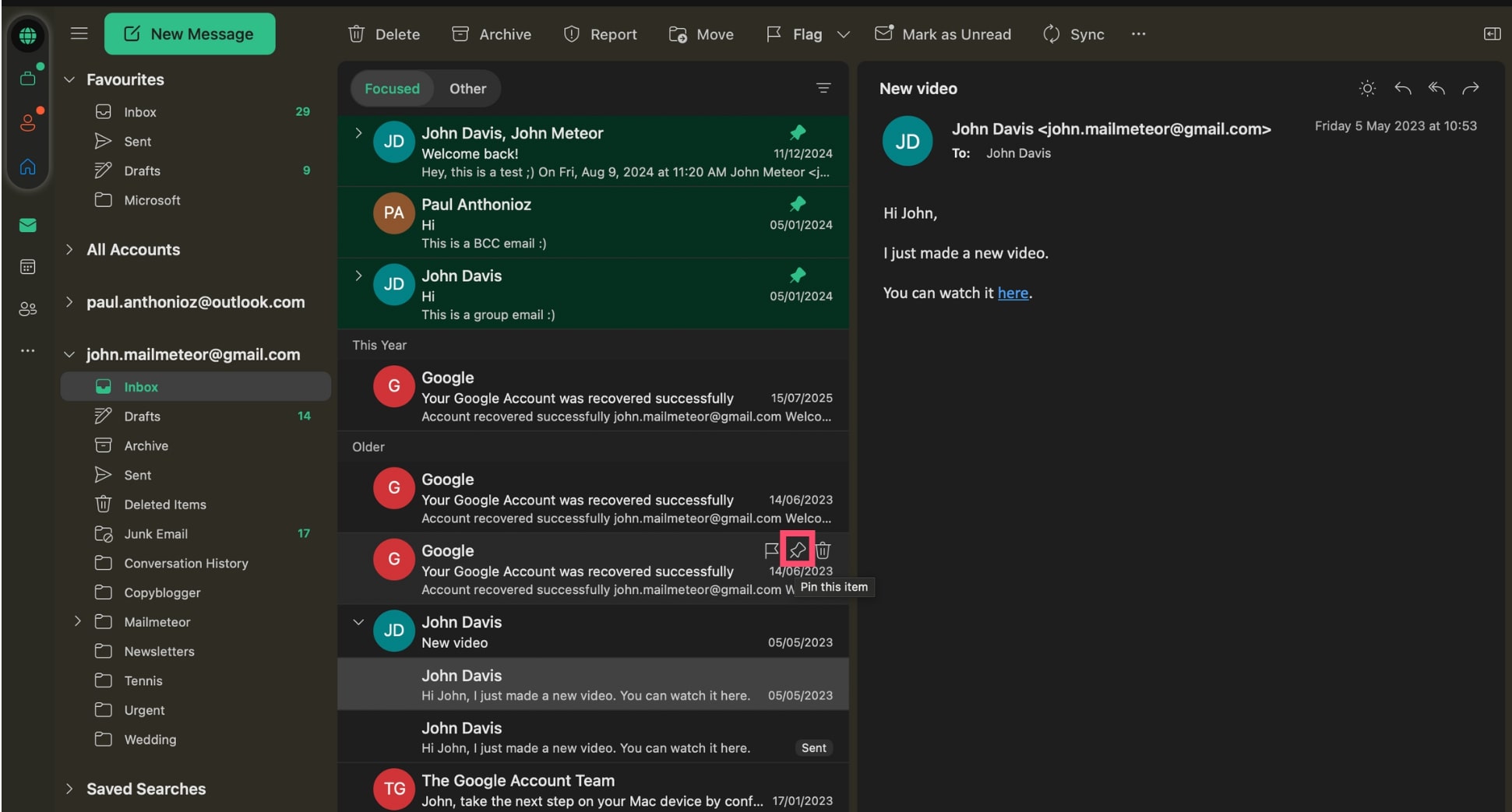
The email will be moved to the top of the inbox. You can unpin it at any time by clicking the pin icon again.
How to Pin Emails in the Outlook Mobile App
Lastly, you can pin emails directly from your smartphone using the Outlook mobile app for iOS or Android. Here’s how:
- Launch the Outlook app on your mobile device.
- Open the email you want to stick at the top of your inbox.
- Tap the three dots (•••) in the top-right corner.
- Select Pin from the menu.
Your pinned email will move to the top of your inbox within the app. To unpin it, repeat the same steps and choose Unpin.
Alternative Ways to Highlight Important Emails in Outlook
If you can’t use the Pin feature — or simply want more ways to organize your inbox — Outlook offers several other tools to keep important emails front and center. These alternatives work across all Outlook platforms, including the classic desktop app.
Flags
Use flags to mark emails that need follow-up. Flagged emails automatically appear in your Tasks and To-Do List, making it easier to track them. You can even set reminders for flagged items, so Outlook will nudge you to take action.
To flag an email:
- Hover over the message.
- Click the flag icon.
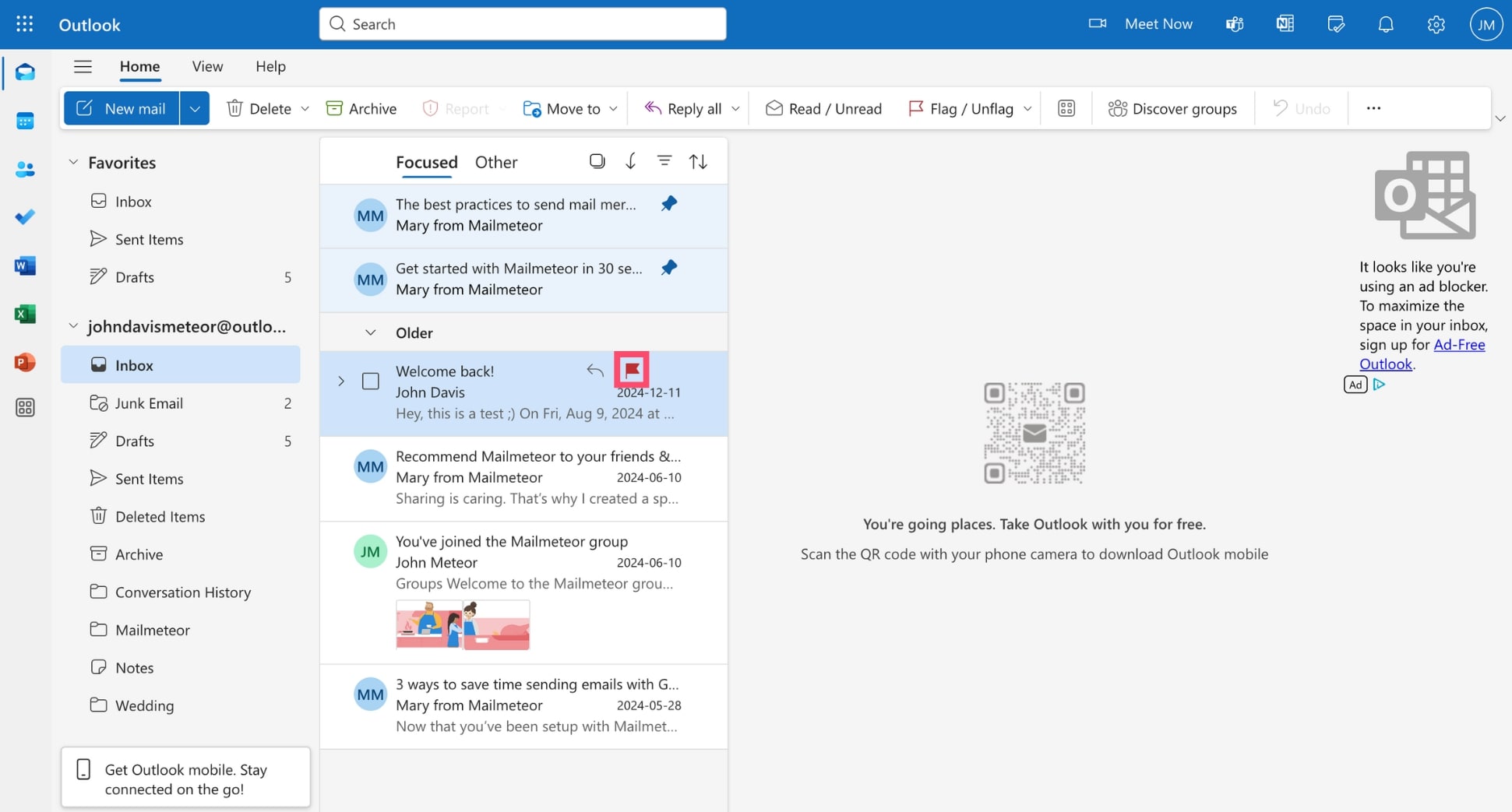
- Right-click the flag to add a reminder or due date.
Color categories
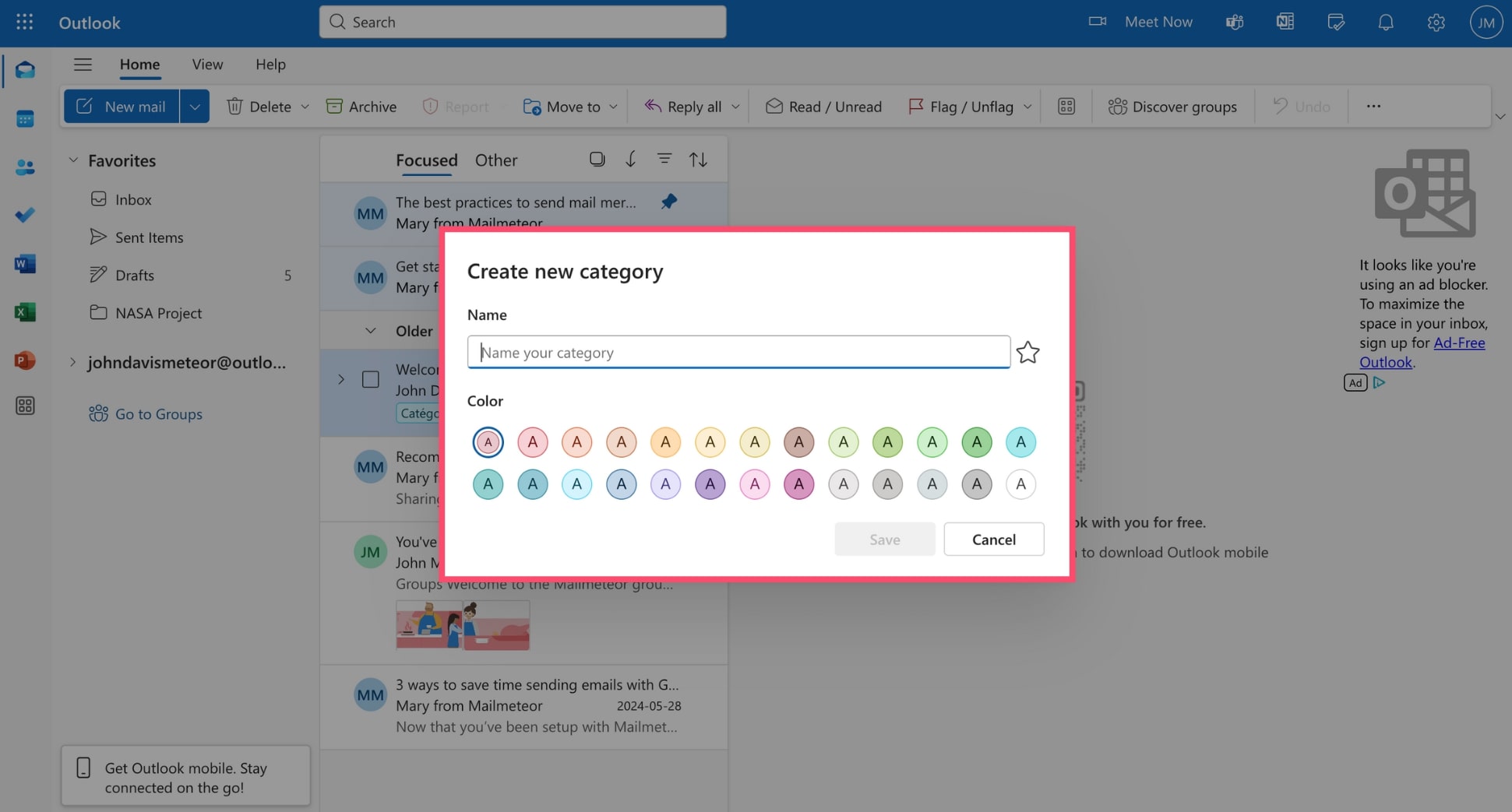
Outlook’s color categories let you tag emails based on projects, people, or urgency. You can customize the labels and assign them to emails, calendar events, and more. It’s a great way to visually organize your inbox and find key messages faster.
To add a color category:
- Right-click the email.
- Select Categorize.
- Choose a color or create a custom one.
Folders and favorites
Moving important emails to specific folders — and marking those folders as Favorites — is a reliable way to stay organized. Create folders for clients, topics, or urgency levels, and drag emails into them manually or with rules.
To create a Folder and add it to Favorites:
- Click the three dots (•••) next to your inbox.
- Select Create folder.
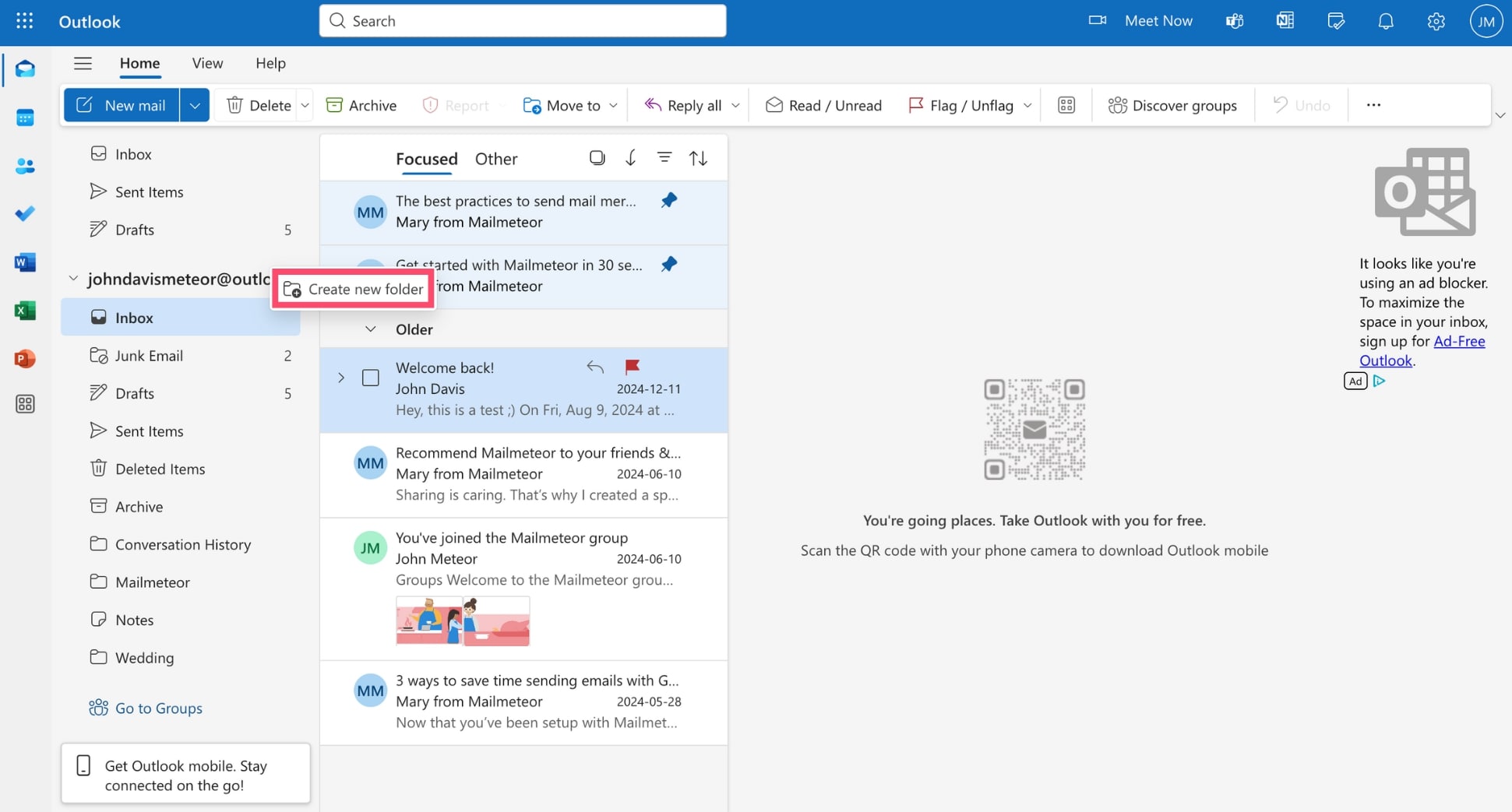
- Name your folder.
- Right-click the folder.
- Click Add to Favorites.
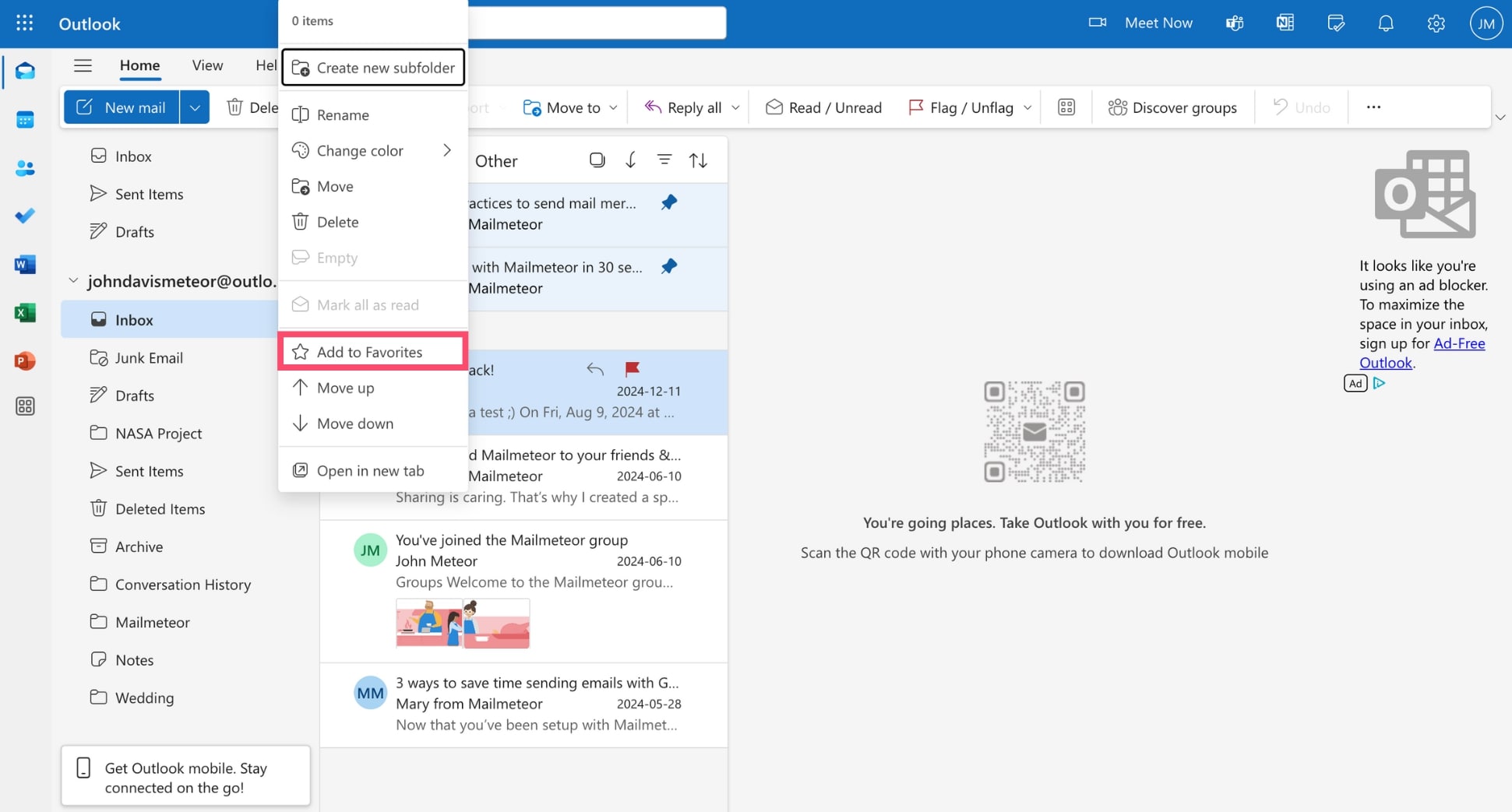
This pins the folder to the top of your navigation pane for quick access, allowing you to find important emails in a snap.
Focused Inbox
With Focused Inbox, Outlook uses AI to detect and highlight messages you’re likely to read or respond to — placing them in the Focused tab. Less important emails go to the Other tab.
To enable Focused Inbox:
- Sign in to Outlook.
- Go to Settings > Mail > Layout.
- Choose Sort messages into Focused and Other.
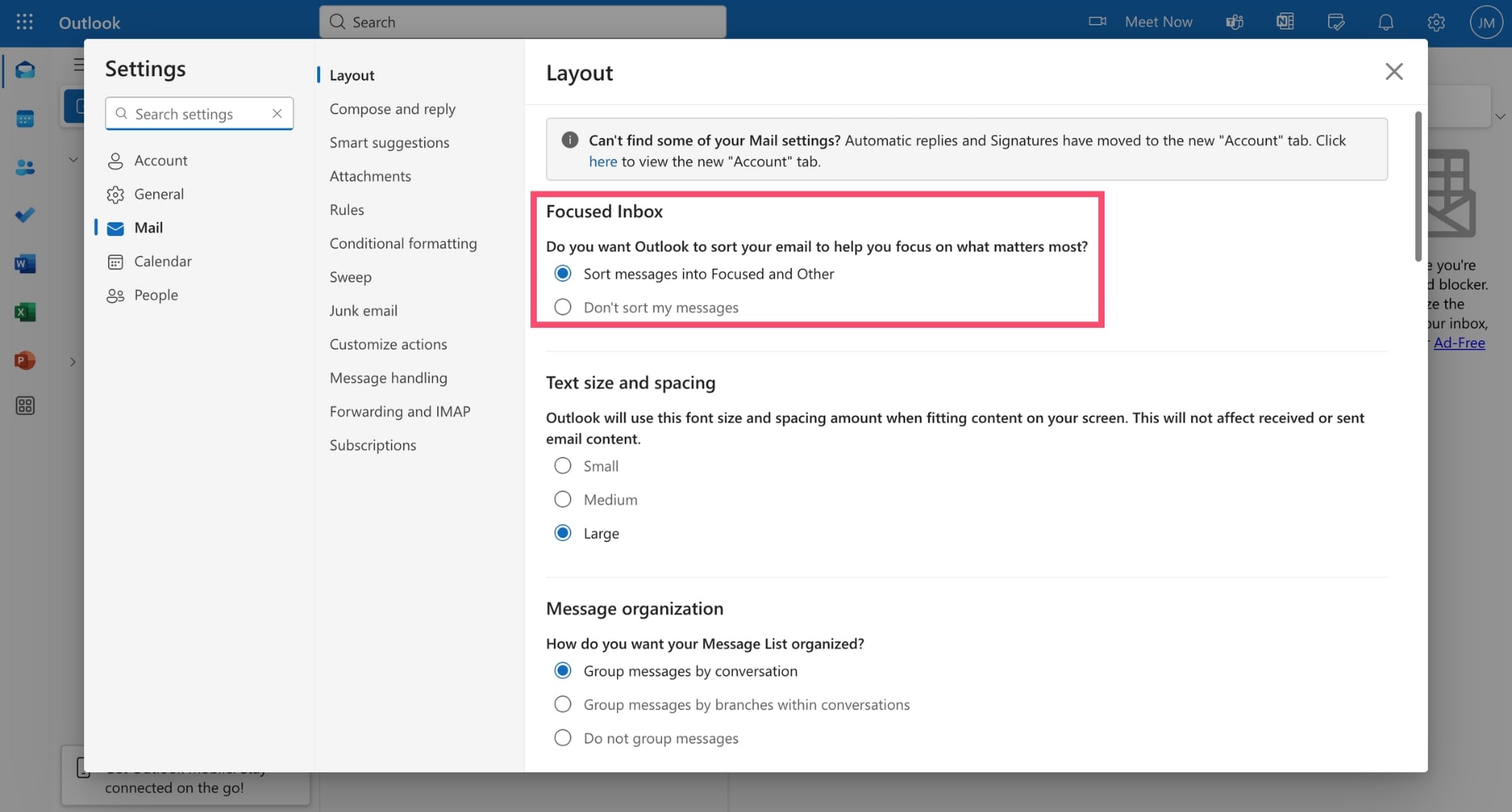
While not customizable like pinning, Focused Inbox helps reduce clutter and makes high-priority emails easier to find.
Conclusion
Pinning emails in Outlook is a simple but powerful way to stay on top of your most important messages — whether you’re working in the web app, using the new Outlook desktop experience, or managing emails on mobile.
But if the Pin feature isn’t available on your version of Outlook, don’t worry — tools like flags, folders, color categories, and Focused Inbox can help you prioritize your messages just as effectively.
And if you’re looking to level up your email game? Try Mailmeteor — the easiest way to send mass emails in Outlook, schedule follow-ups or track opens and click in real-time — all without leaving your inbox.
FAQs
Why can’t I pin emails in my Outlook?
If you don’t see the pin icon, you might be using an older version of Outlook. The pin feature is available in:
- Outlook on the web (Outlook.com or Microsoft 365)
- Outlook mobile app (iOS and Android)
- New Outlook (Windows and Mac)
However, it’s not available in the classic Outlook desktop app or certain Mac versions. If you’re using an older version, try accessing your inbox via the web or updating to the new Outlook to enable pinning.
Do pinned emails sync across devices?
Yes — between Outlook Web and Outlook Mobile, pinned emails are synchronized. A pin made in either interface reflects in the other. However, the classic desktop version (legacy Windows Outlook) does not support this feature, so pinned messages won’t carry over. If you’re using the new Outlook for Windows, pinning will sync across web, desktop, and mobile.
What’s the difference between pin and flag in Outlook?
Pin keeps the email at the top of your inbox for easy access. Flag marks an email for follow-up and adds a reminder or due date. Flagged emails can be sorted, searched, or added to tasks across Outlook versions. Use pinning for quick access and flagging for task management.
Can I pin multiple emails in Outlook?
Yes. You can pin as many emails as you want. Each pinned email will appear at the top of your inbox in the order they were pinned. You can also unpin any email at any time by clicking the pin icon again.


