Need a quick way to mark important emails so you don’t forget to reply or follow up? Gmail’s star feature lets you highlight messages in seconds and find them again without digging through your inbox.
But stars can do more than flag a single message. You can use different star colors to signal urgency, keep track of pending replies, or surface the emails that still need attention — all without moving messages into folders or setting up complex rules.
In this guide, you’ll learn how to star emails in Gmail on desktop, Android, and iPhone, change star colors, find starred messages quickly, and automatically mark incoming emails so the right conversations stay visible until the job is done.
Here’s what you’ll learn:
- How to star emails in Gmail
- How to change star colors in Gmail
- How to quickly find starred emails
- How to use stars to organize your inbox
- How to automatically star emails in Gmail
Sounds good? Then let’s dive in.
How to Star Emails in Gmail
When you star a message, Gmail adds a visual marker and places the email in the Starred label, making it easy to find later and keep important conversations visible. It only takes a click or tap. Here’s how to do it.
On Desktop
To star an email in Gmail on your computer:
- Open Gmail.
- Find the email you want to mark.
- Click the star icon to the left of the message.
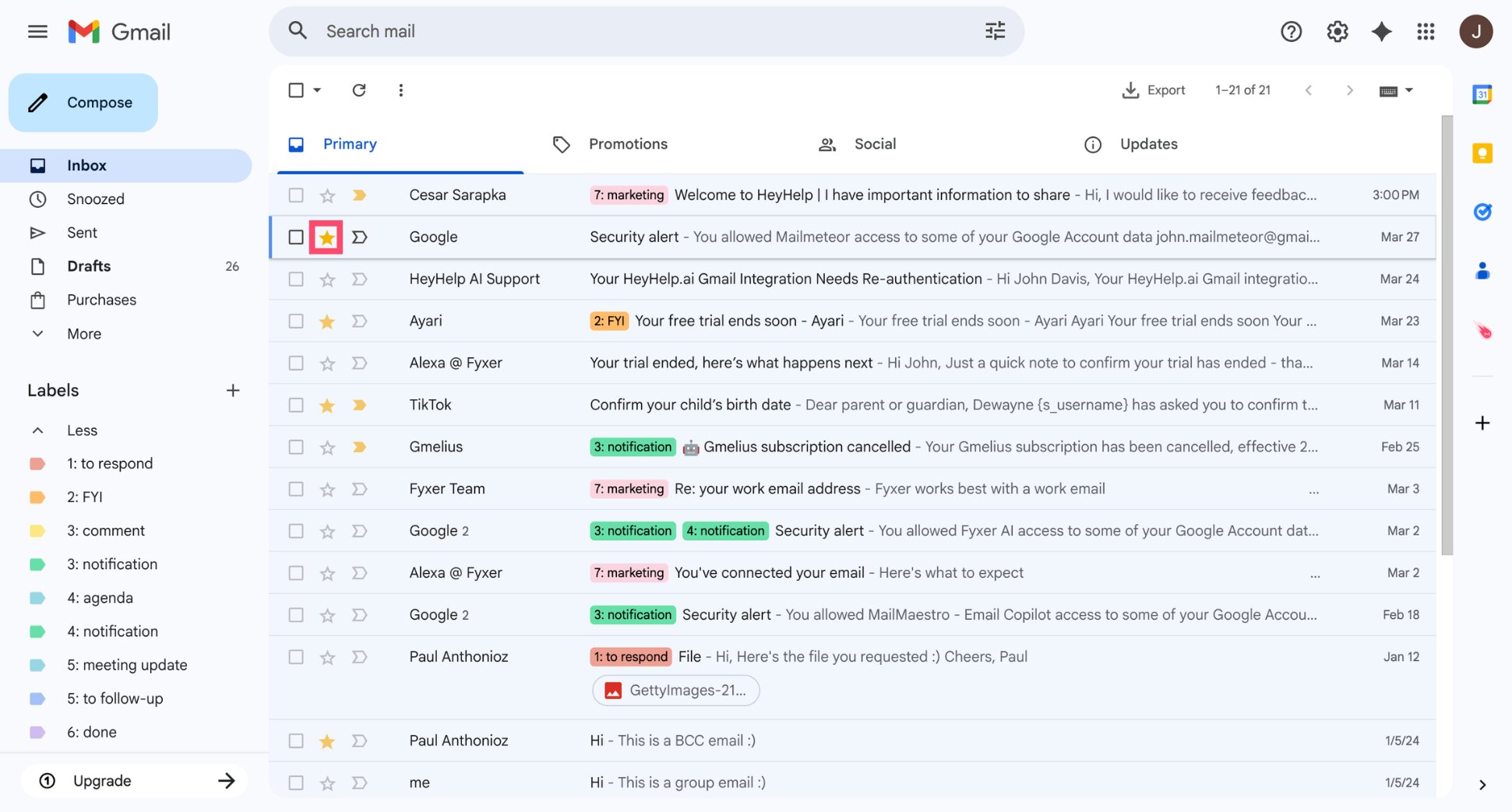
And voilà. The star will turn yellow, indicating the email has been starred.
On Android
To star an email in Gmail on Android:
- Open the Gmail app.
- Locate the email you want to mark.
- Tap the star icon next to the message.
You can also open the email and tap the star icon at the top of the screen.
On iPhone
To star an email in Gmail on iPhone or iPad:
- Open the Gmail app.
- Find the email you want to mark.
- Tap the star icon beside the message.
The email will be starred immediately and added to your Starred label.
How to Change Star Colors in Gmail
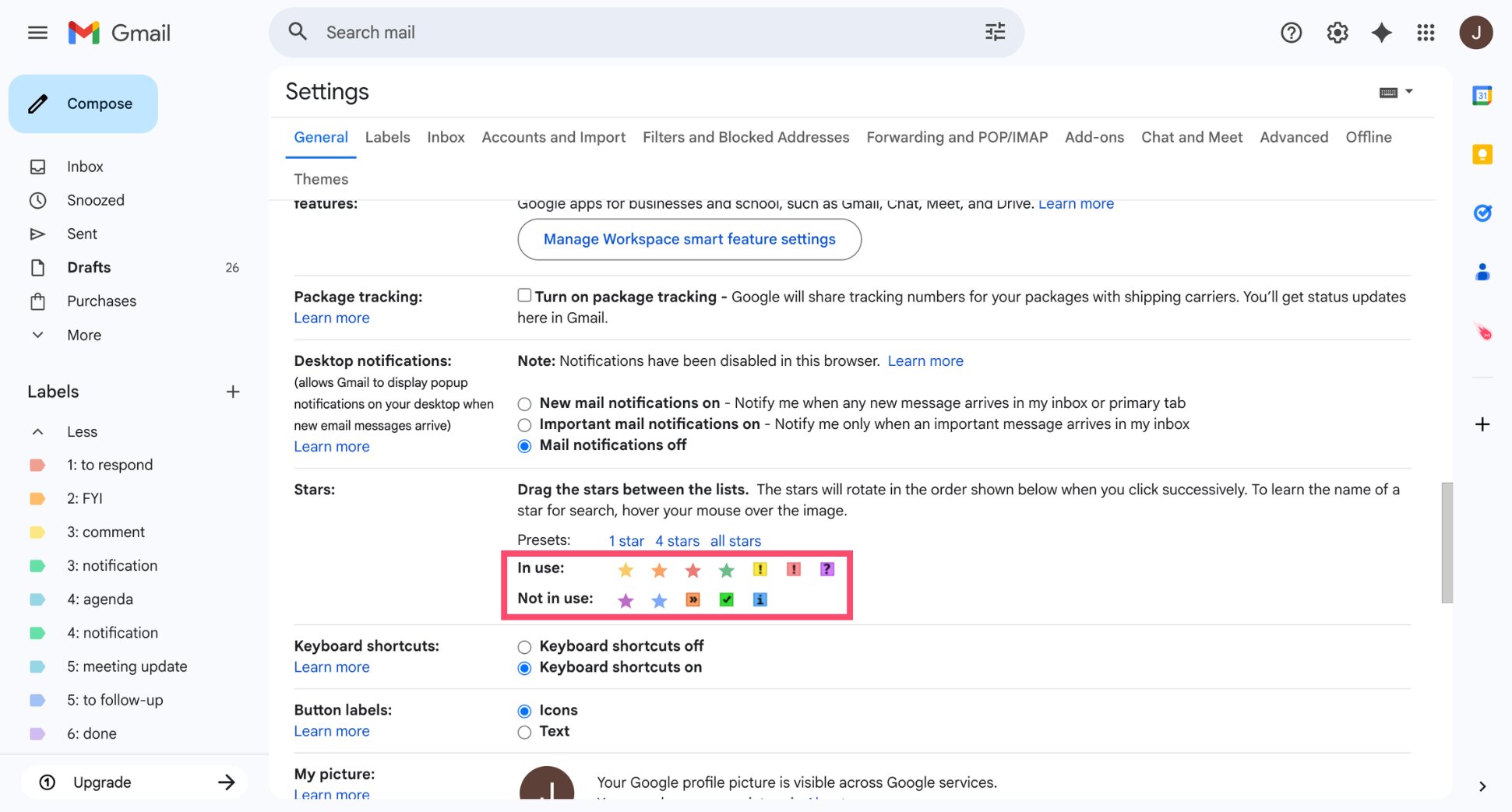
Gmail lets you use more than one star color to organize your emails. Instead of relying on a single yellow star, you can enable additional icons — such as red, blue, green, or check marks — to signal priority, status, or next steps.
To change star colors in Gmail:
- Open Gmail.
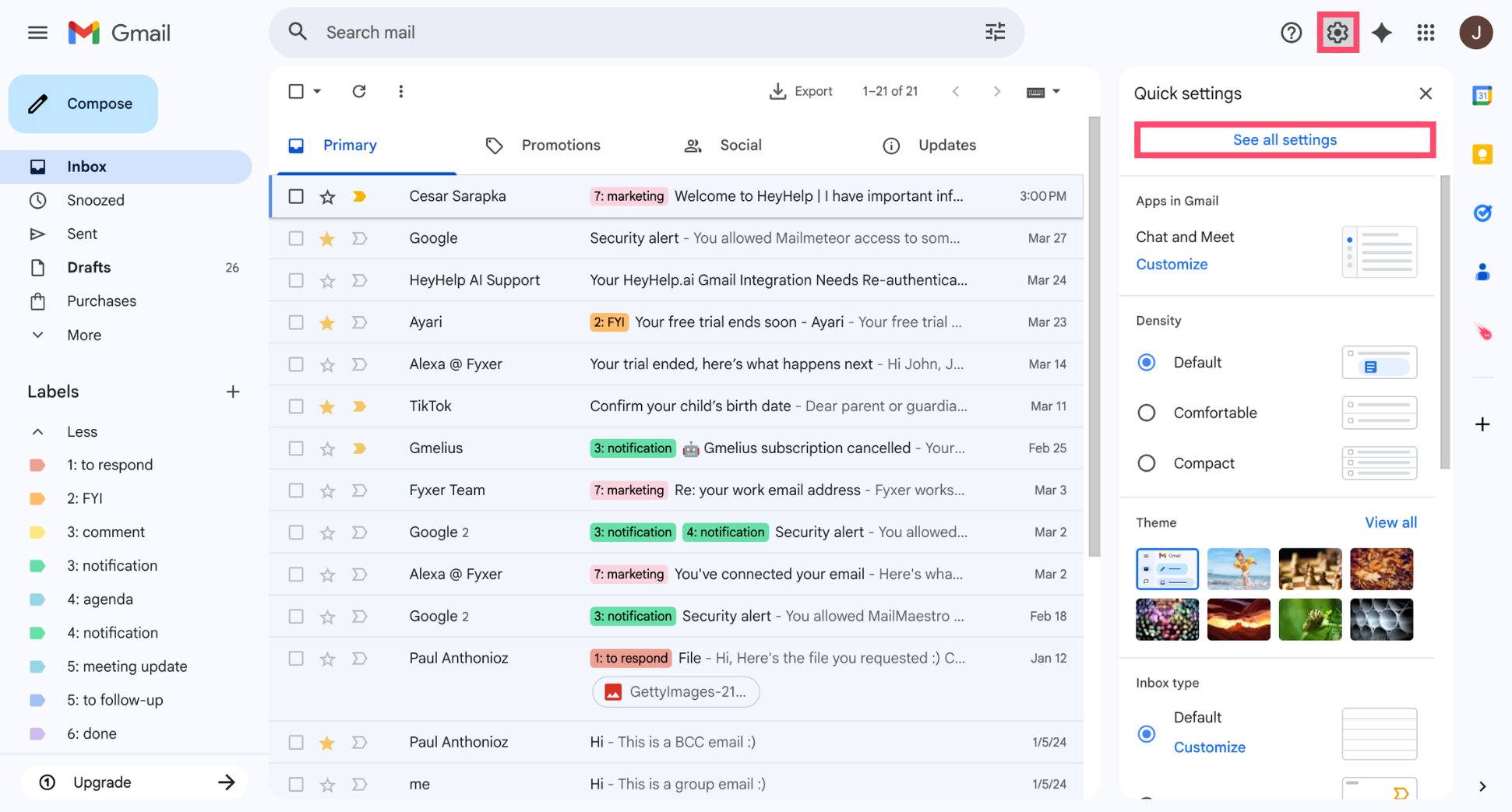
- Click the gear icon in the top-right corner.
- Select See all settings.
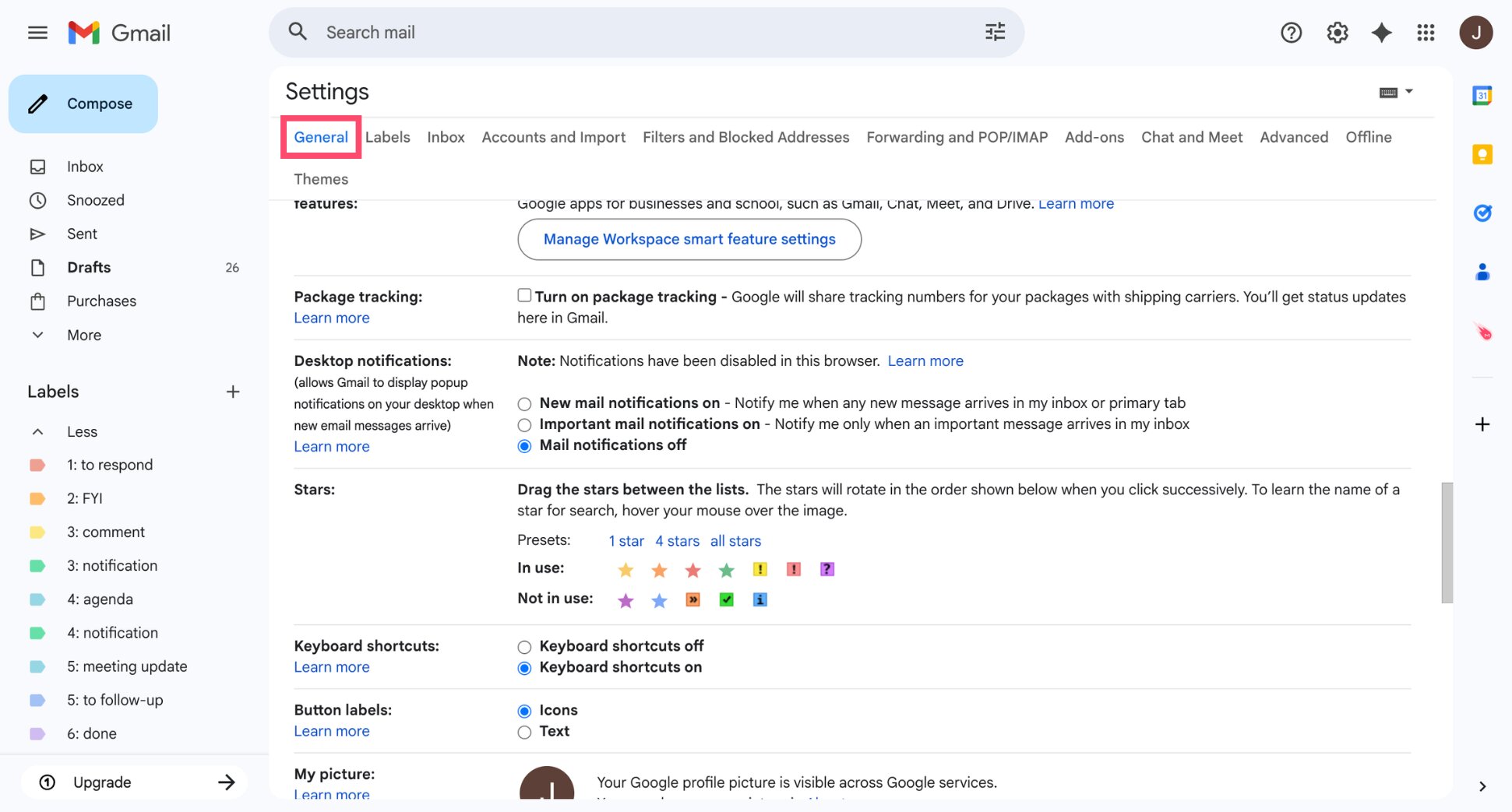
- In the General tab, scroll down to the Stars section.
- Drag the star icons you want to use into the In use row.
- Click Save Changes.
Once enabled, you can assign different star colors by clicking the star icon next to an email until the desired color appears.
How to Find Starred Emails in Gmail
Once you start starring messages, you need a fast way to locate them later. Gmail makes this easy by grouping starred emails in a dedicated label and allowing you to search for them using simple commands.
Using the Starred Label
When you star an email, Gmail adds it to the Starred label without moving it from its original location. The message stays in your inbox, but also appears in the Starred view for quick access.
To find starred emails using the label:
- Open Gmail.
- In the left sidebar, click Starred.
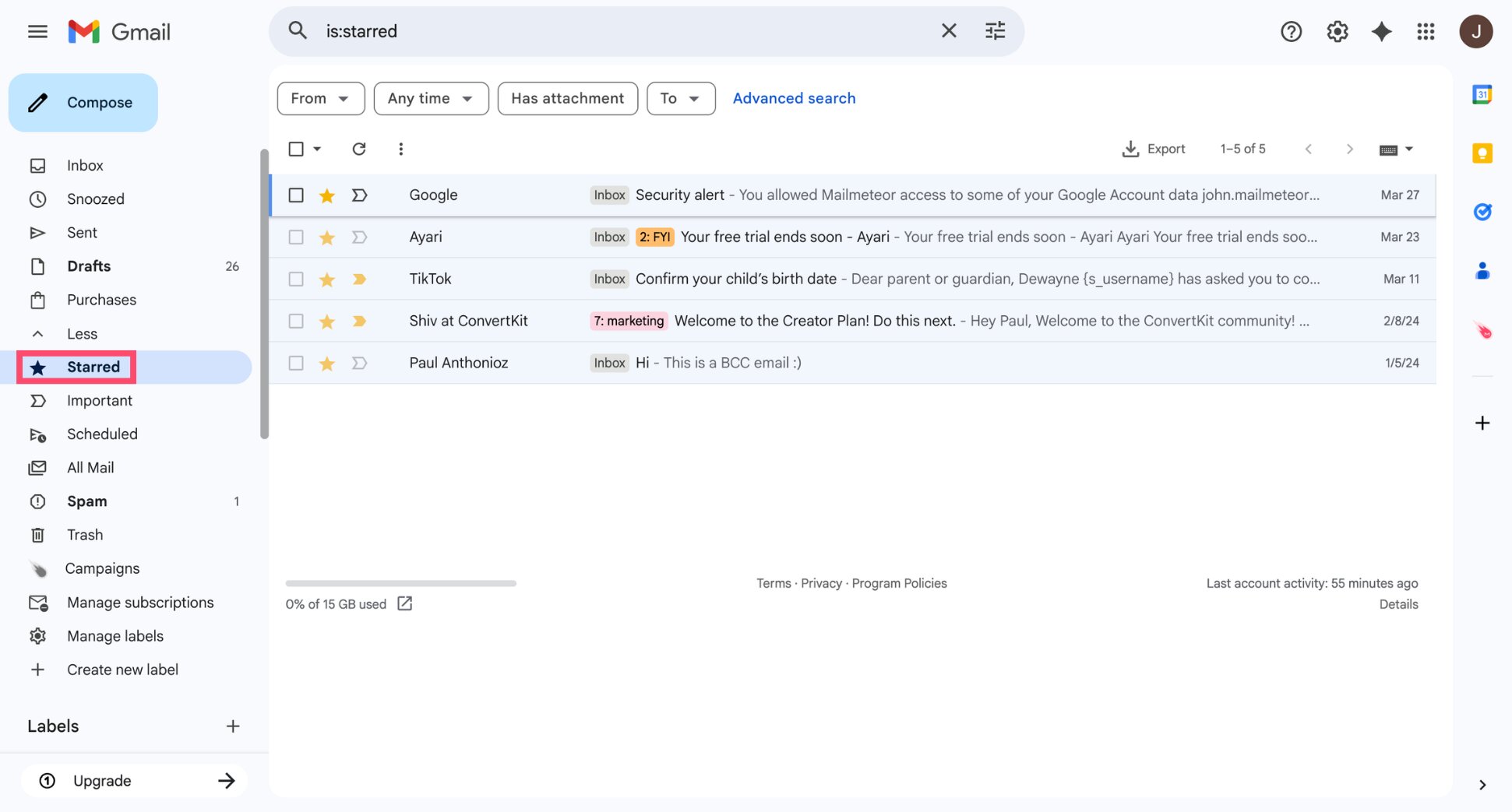
And that’s it. Gmail will now display all messages you’ve starred — including emails that have been moved out of your inbox.
Using the Gmail Search Bar
You can also find starred emails using Gmail’s search bar. This method is especially useful if you have many starred messages or use multiple star colors.
Find All Starred Emails
To search for all starred messages:
- Open Gmail.
- Click the search bar at the top of the page.
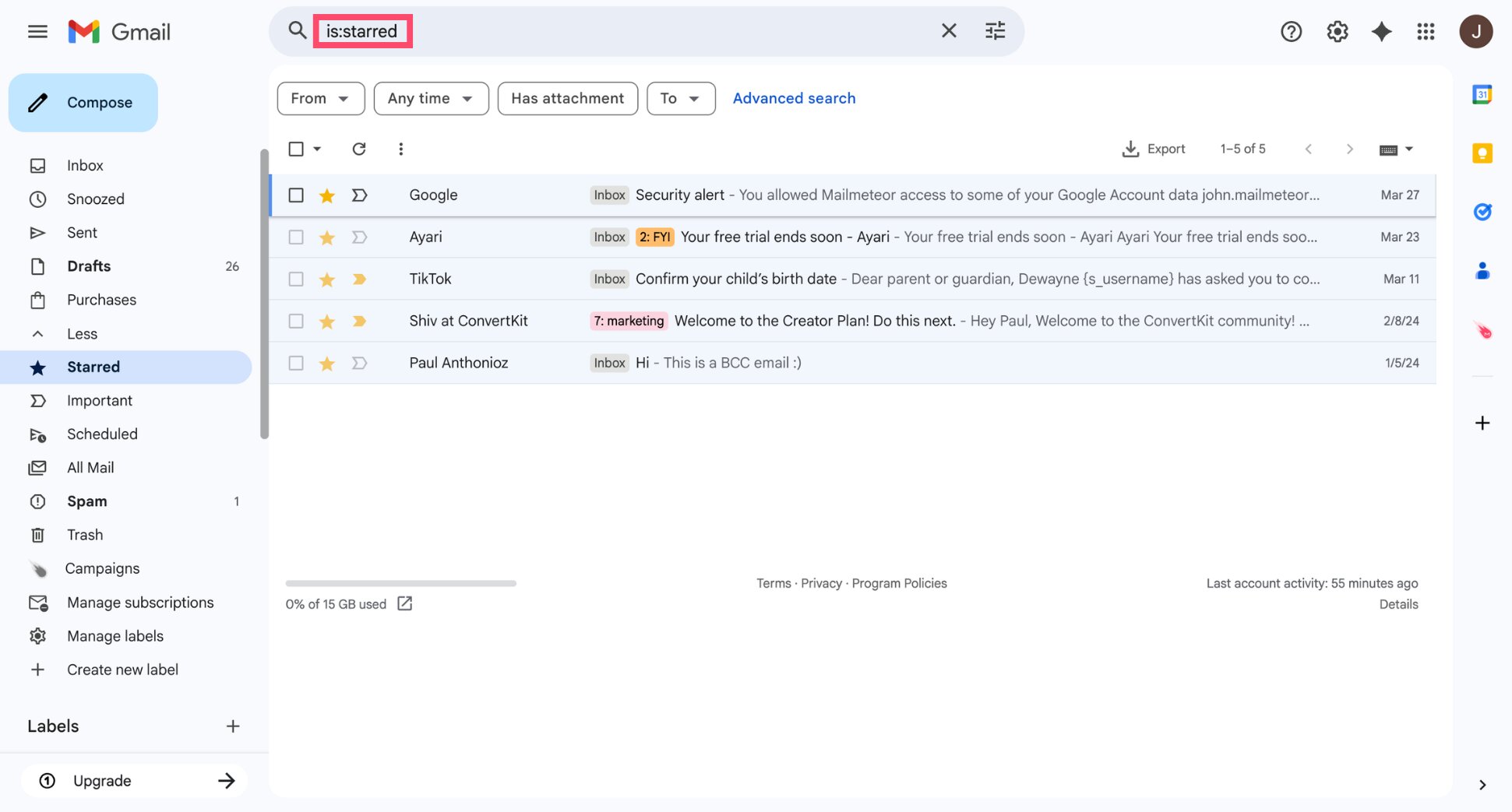
- Type is:starred.
- Press Enter.
All done. Gmail will display every message you’ve starred — including emails that have been archived.
Find Starred Emails by Color
If you use multiple star colors, you can also search for a specific one using the has: operator.
For example:
- has:yellow-star
- has:orange-star
- has:red-star
- has:purple-star
- has:blue-star
- has:green-star
- has:red-bang
- has:orange-guillemet
- has:yellow-bang
- has:green-check
- has:blue-info
- has:purple-question
These search commands let you quickly locate emails by priority, category, or task status.
How to Use Stars to Organize Your Inbox
Now that you know how starring works, let’s look at how to use this feature to boost your productivity. Many users struggle with inbox fatigue, where important messages get buried under a constant stream of newsletters, updates, and notifications.
Used strategically, stars can turn your inbox into a functional workspace — helping you surface key emails, track what still needs action, and stay focused on the conversations that matter most.
Use Star Colors to Prioritize Emails
The default yellow star is great for general bookmarks, but using multi-colored stars allows you to prioritize at a glance. Instead of clicking every email to see what it’s about, you can develop a color-coded system that signals the level of urgency.
For example:
- Red star: High priority. Needs attention within the next hour.
- Orange star: Medium priority. Complete by the end of the day.
- Blue star: Low priority or informational. Reference for later.
The exact system is up to you. What matters is consistency. By assigning colors, you can scan your inbox and immediately know which threads to open first, saving you from decision paralysis every time you refresh your mail.
Track Follow-Ups and Pending Replies
One of the biggest productivity killers is forgetting to follow up on an email. A simple way to prevent this is to use stars as a “waiting room” for conversations that aren’t finished yet.
For example:
- Green checkmark: Use this for emails where you’ve completed your part, but are waiting for a final confirmation.
- Purple question mark: Assign this to threads where you’ve asked a question and are waiting for a reply.
If you archive these emails, they will stay out of your main inbox view, but you can quickly review all pending conversations by searching has:purple-question once a week to see who you need to nudge.
Use Stars as a To-Do List
You can also use starred emails as a lightweight to-do list directly inside Gmail. To set this up, open Gmail, go to Settings and, under Inbox type, select Starred first as your inbox layout.
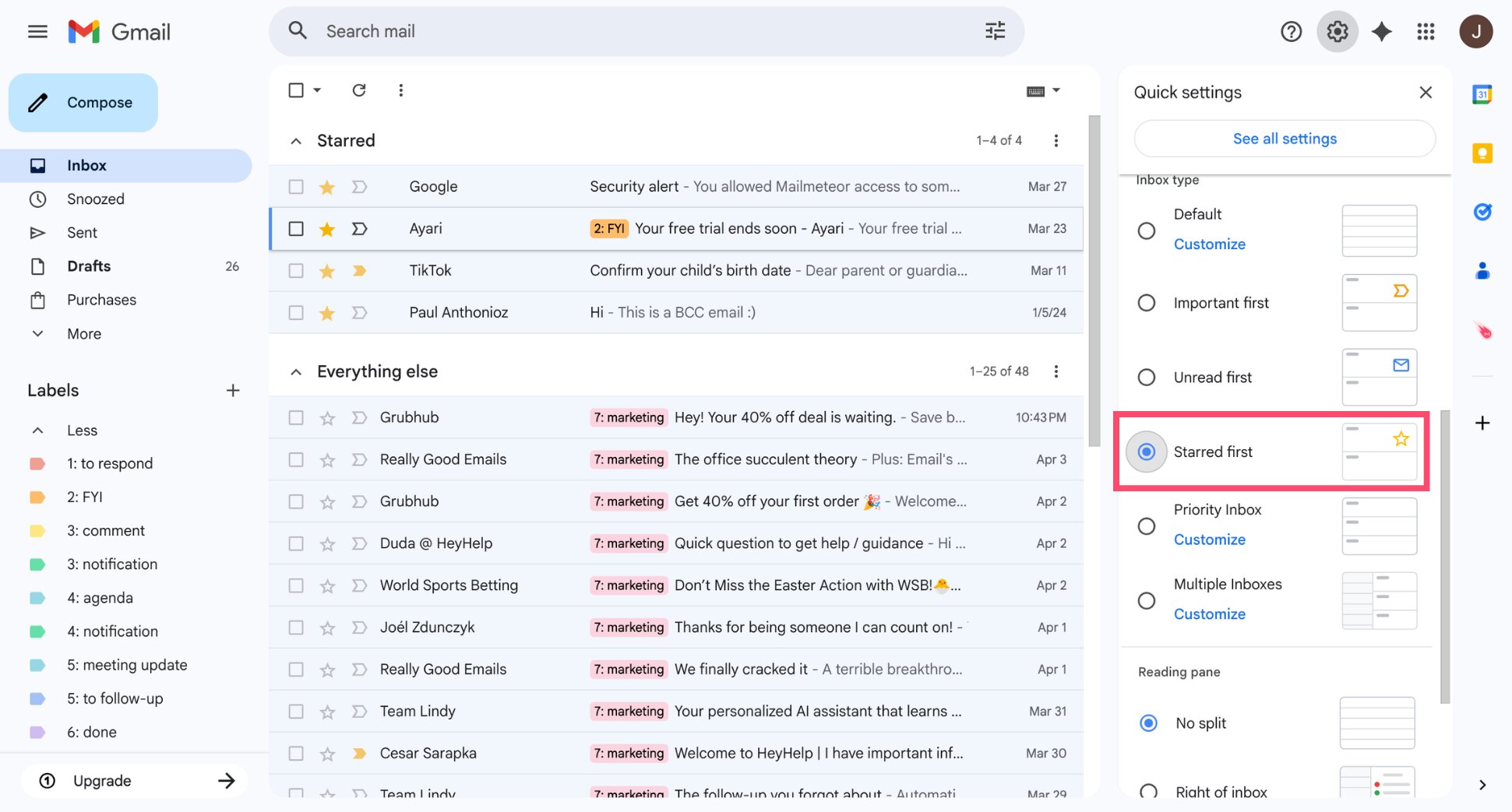
This moves all starred messages into a dedicated section at the top of your screen. As you complete a task or reply to an email, simply unstar it. When the Starred section is empty, your work for the day is done!
How to Automatically Star Emails in Gmail
You can automatically star emails in Gmail by creating a filter. This is useful for highlighting messages from important senders, tracking specific projects, or flagging emails that require immediate attention.
Here’s how to set up automatic starring in Gmail:
- Open Gmail.
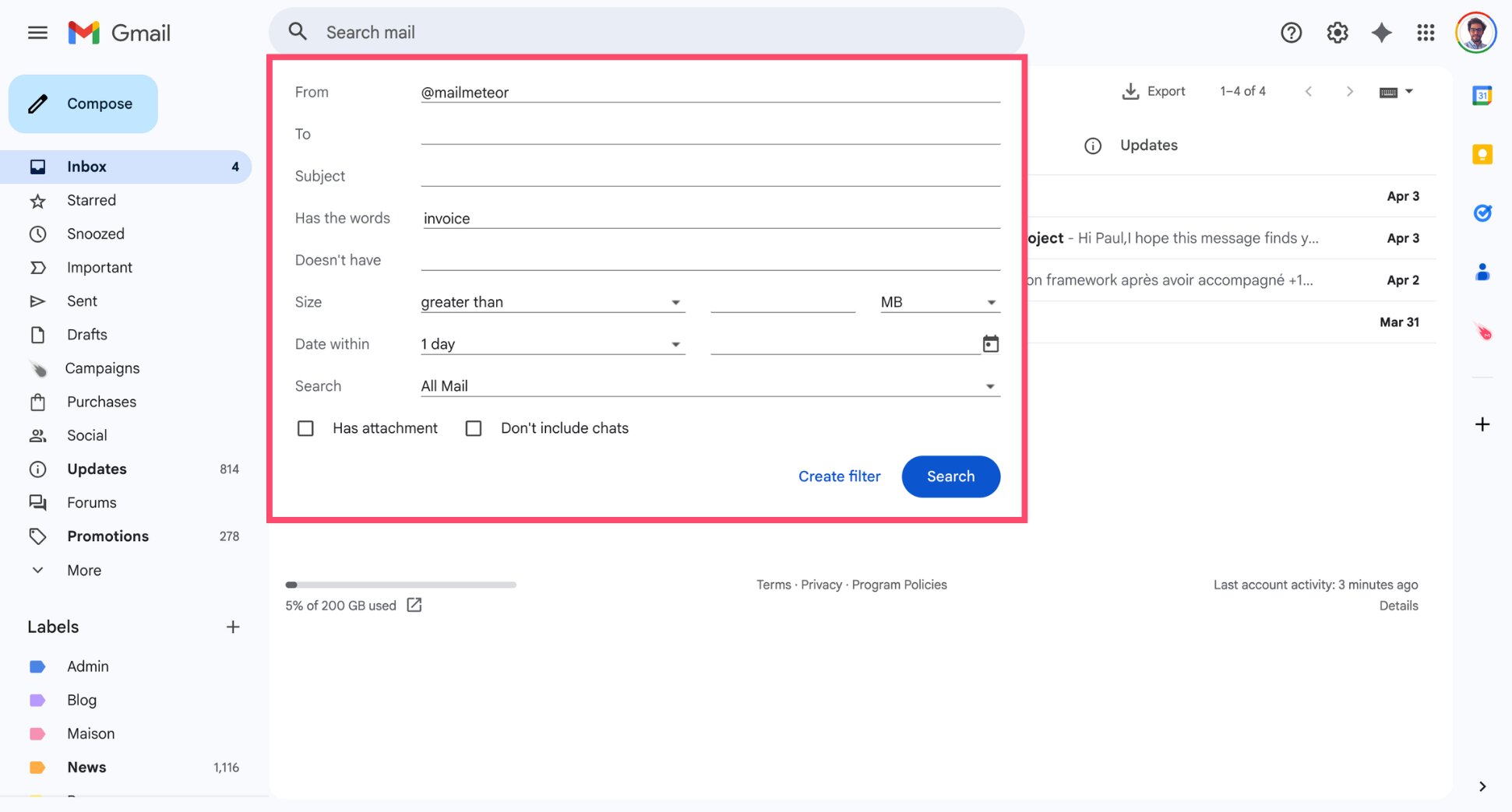
- In the search bar, click the Show search options icon (the sliders on the right).
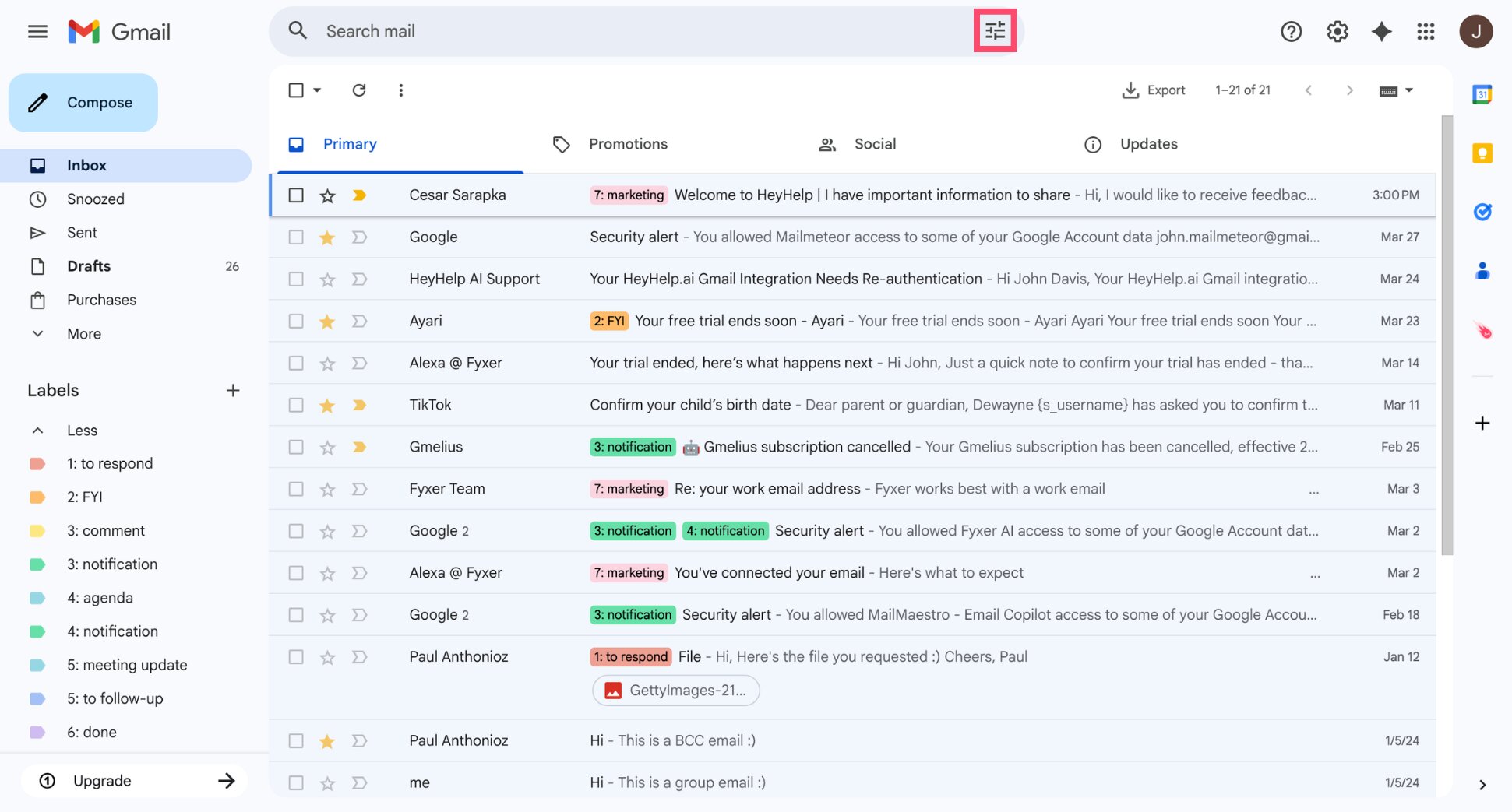
- Enter the criteria for the emails you want to star automatically (for example, a sender, subject, or keyword) and click Create filter.
- Check the box Star it.
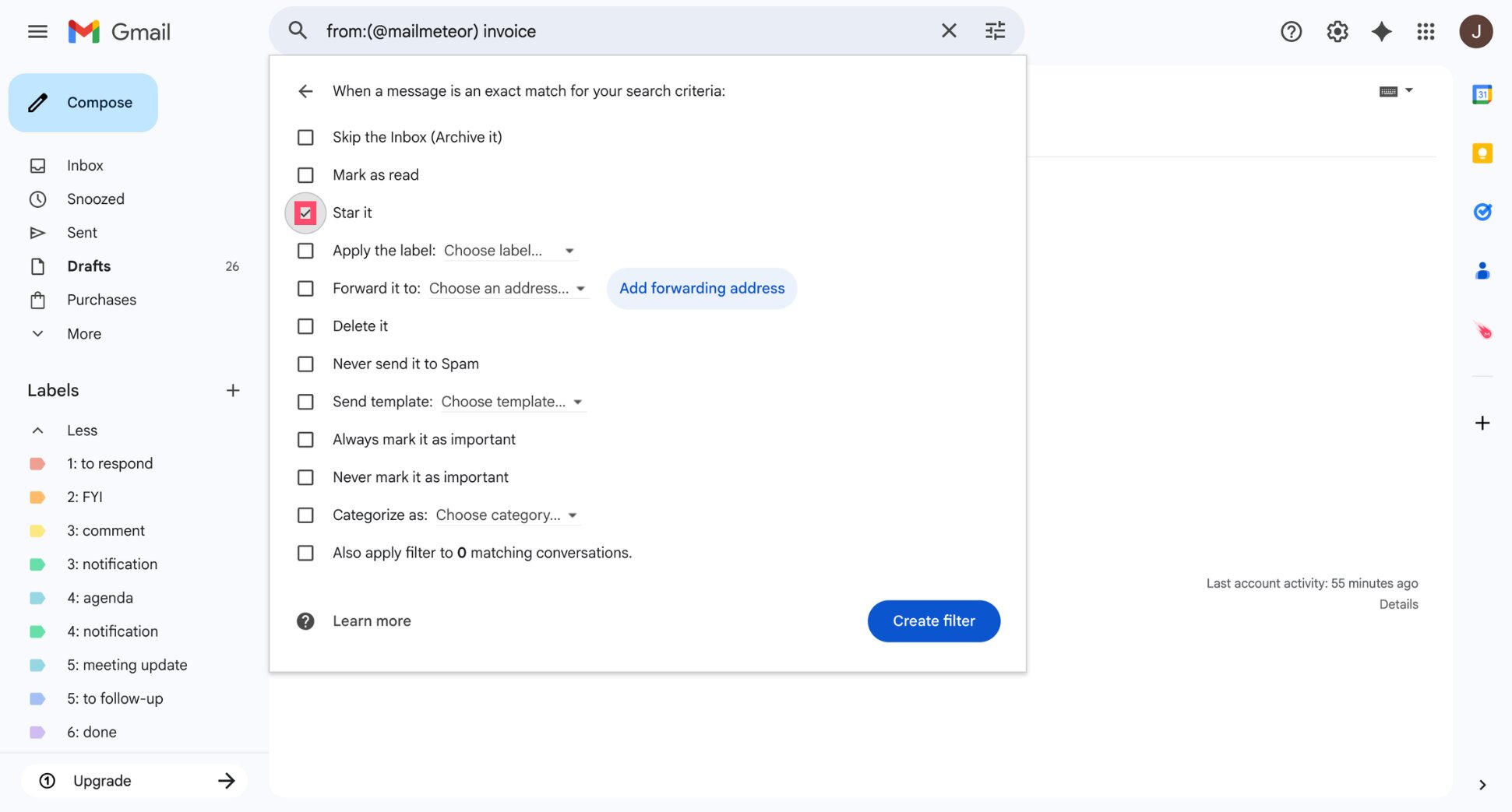
- Click Create filter again to confirm.
And voilà. Gmail will now automatically add a star to any incoming email that matches your criteria.
Start Using Stars to Stay Organized
Gmail stars are one of the simplest (and most effective) ways to stay on top of your inbox. With just a click, you can highlight important messages, track follow-ups, and keep key conversations visible until the task is done.
Used consistently, stars can also become a lightweight productivity system — helping you prioritize work, avoid missed replies, reduce the time you spend searching for emails, and prevent email overload.
And if you want to go beyond manual organization, tools like Mailmeteor can help you manage your inbox even faster. This Gmail AI assistant helps you track conversations, follow up at the right time, and keep high-priority emails from slipping through the cracks.
- Write emails faster with AI-generated drafts and replies
- Send personalized emails at scale using mail merge directly from Gmail
- Automate follow-ups so you never miss an important response
- Categorize and prioritize emails automatically
- Track opens, clicks, and replies to know when to take action
Instead of spending time sorting emails, you can focus on responding to the right messages at the right moment. Try Mailmeteor today (it’s free!) and see how much easier it is to stay in control of your inbox.
FAQs
What does a starred email mean in Gmail?
A starred email in Gmail is a message you’ve marked as urgent, important or requiring attention. Starring an email helps you find it quickly later and keep track of tasks, follow-ups, or priority messages.
Do starred emails stay in the inbox?
Yes. Starred emails stay in your inbox unless you move or archive them. Starring a message does not change its location — it only adds a visual marker. You can still find the email in the Starred label, even if it has been archived.
How do I remove a star from an email in Gmail?
To remove a star, click or tap the star icon until no star is displayed. If you have multiple star colors enabled, each click cycles through the available stars. Continue clicking until the star disappears completely.
Where do starred emails go in Gmail?
When you star an email, Gmail adds it to the Starred label while keeping the message in its original location. To view all starred emails, click Starred in the left sidebar, or search your inbox using is:starred.
How to put starred emails on top in Gmail?
You can configure Gmail to show starred emails first in your inbox.
To enable this setting:
- Open Gmail.
- Click the gear icon.
- Select See all settings.
- Under Inbox type, choose Starred first.
- Click Save Changes.
Your starred emails will now appear in a dedicated section at the top of your inbox.
Can I star multiple emails at once in Gmail?
Yes — Gmail lets you star multiple emails at once.
Here’s how to do it:
- Select the emails you want to star by tapping or clicking the checkboxes next to each message.
- Tap or click the More icon (the three dots) in the toolbar.
- Select Add star.
And voilà. Gmail will apply a star to all selected emails at once, saving you time when organizing or prioritizing multiple messages.


