Someone accepts your offer and hears nothing for the next 3 weeks. They’re not worried yet. But they’ve got a laptop to hand back, a notice period to work, and a small voice asking whether they made the right call — and silence from their new employer does nothing to quiet it. Meanwhile you know exactly what they need: the welcome note, the first-day logistics, the paperwork, the intro to their manager. It’s the same set of emails you sent the last person. Which means it’s worth automating.
TL;DR: Here's how to automate new hire onboarding emails:
- Map the sequence first — 5 stages from offer acceptance to day 30
- If you're hiring in batches — send each stage as a mail merge to the whole cohort
- If you're hiring one at a time — build a follow-up sequence instead, with each email triggered by a delay after the last
- Leave the manager's welcome alone — this email should never be automated
Here’s what we’ll cover:
- What emails should a new hire receive?
- How to send onboarding emails to a group of new hires
- How to automate an onboarding sequence for a single hire
- New hire onboarding email templates
- Common mistakes to avoid when automating onboarding emails
Sounds good? Then let’s dive in.
What Emails Should a New Hire Receive?
A new hire should receive 5 emails between accepting the offer and their first month: a welcome, a first-day logistics email, a paperwork request, a day-one message, and a check-in at the end of week one.
Larger companies sometimes run longer sequences — 8 to 12 messages is common, and enterprise onboarding programmes go further — but 5 covers most of what a new starter actually needs.
Here’s the sequence, with the timing that matters:
| Stage | When | What it does |
|---|---|---|
| Welcome | Within 24h of signing | Confirms the start date and says something human |
| Paperwork | 2 weeks before | ID, bank details, emergency contact, signed policies |
| First-day logistics | 3–5 days before | Time, place, who to ask for, what to bring, dress code |
| Day one | Morning of the start date | Schedule for the day, the people they’ll meet |
| Week-one check-in | Friday of week one | Asks how it’s going, while it’s still easy to fix |
Anything beyond these 5 is a nice-to-have: benefits explainers, tool digests, 30-day and 90-day check-ins, an intro to the wider team. Add them once the core new hire onboarding emails are running reliably.
How to Send Onboarding Emails to a Group of New Hires
To send onboarding emails to a group of new hires, run a mail merge from your candidate sheet — one send per stage, personalized per row.
Here’s the workflow ⤵️
1. Build Your New Hire Sheet
Open a Google Sheet. Then add one row per new hire, and one column for each detail that needs to be personalized.
| Spreadsheet column | Merge tag | Example |
|---|---|---|
| First name | {{ First name }} |
Amara |
| — | their personal address, not the work one | |
| Role | {{ Role }} |
Warehouse Associate |
| Start date | {{ Start date }} |
Monday 6 April |
| Start time | {{ Start time }} |
08:30 |
| Location | {{ Location }} |
Unit 4, Eastgate Park |
| Manager | {{ Manager }} |
Priya Raman |
| Buddy | {{ Buddy }} |
Tom Okafor |
Send to the personal email address — the work account usually doesn’t exist yet, and it’s the single most common reason onboarding emails go nowhere.
2. Install Mailmeteor for Google Sheets
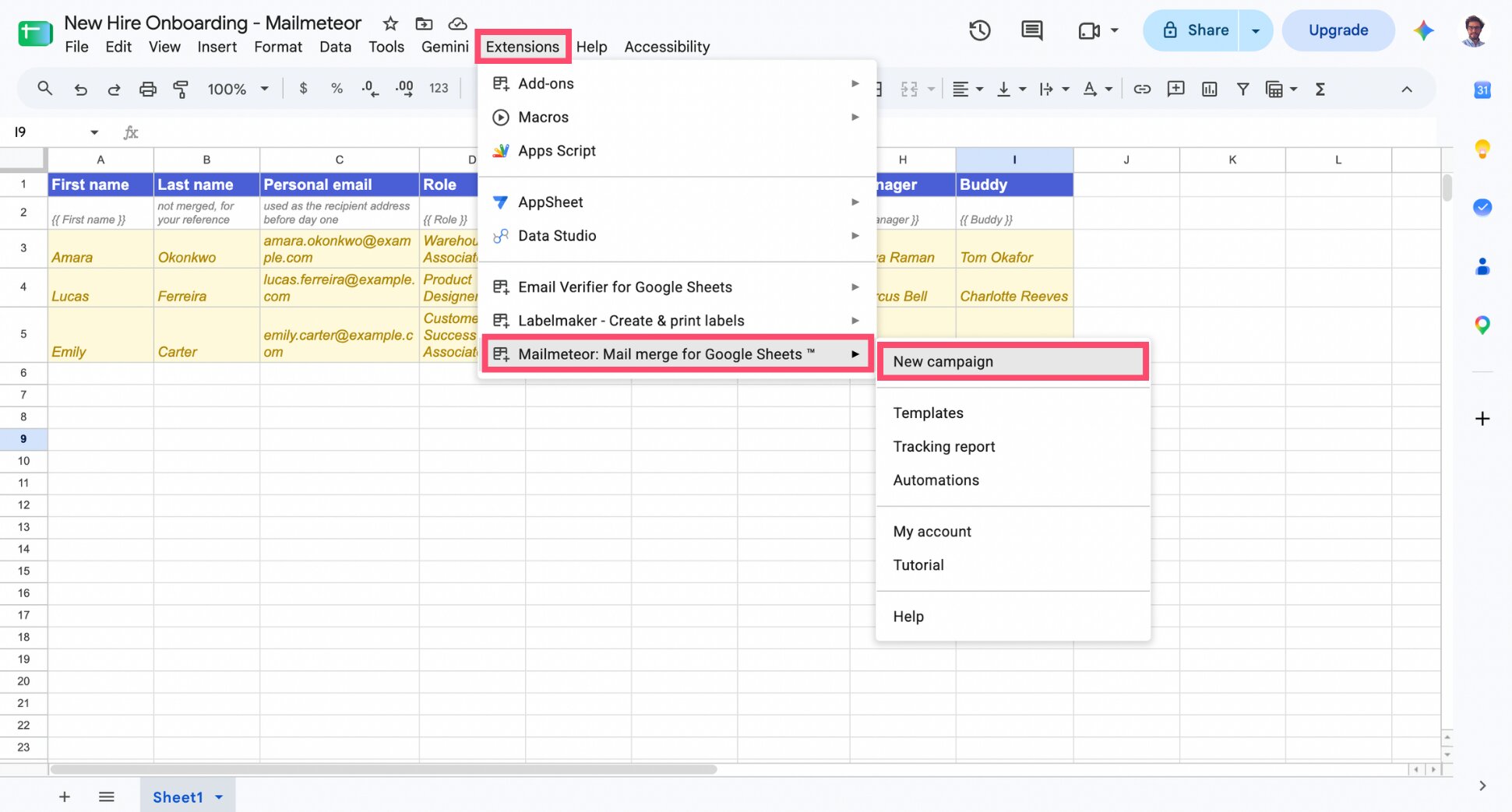
If you haven’t already, install Mailmeteor from the Google Workspace Marketplace. Then open your sheet, and go to Extensions > Mailmeteor > New campaign.
3. Personalize Your Onboarding Emails
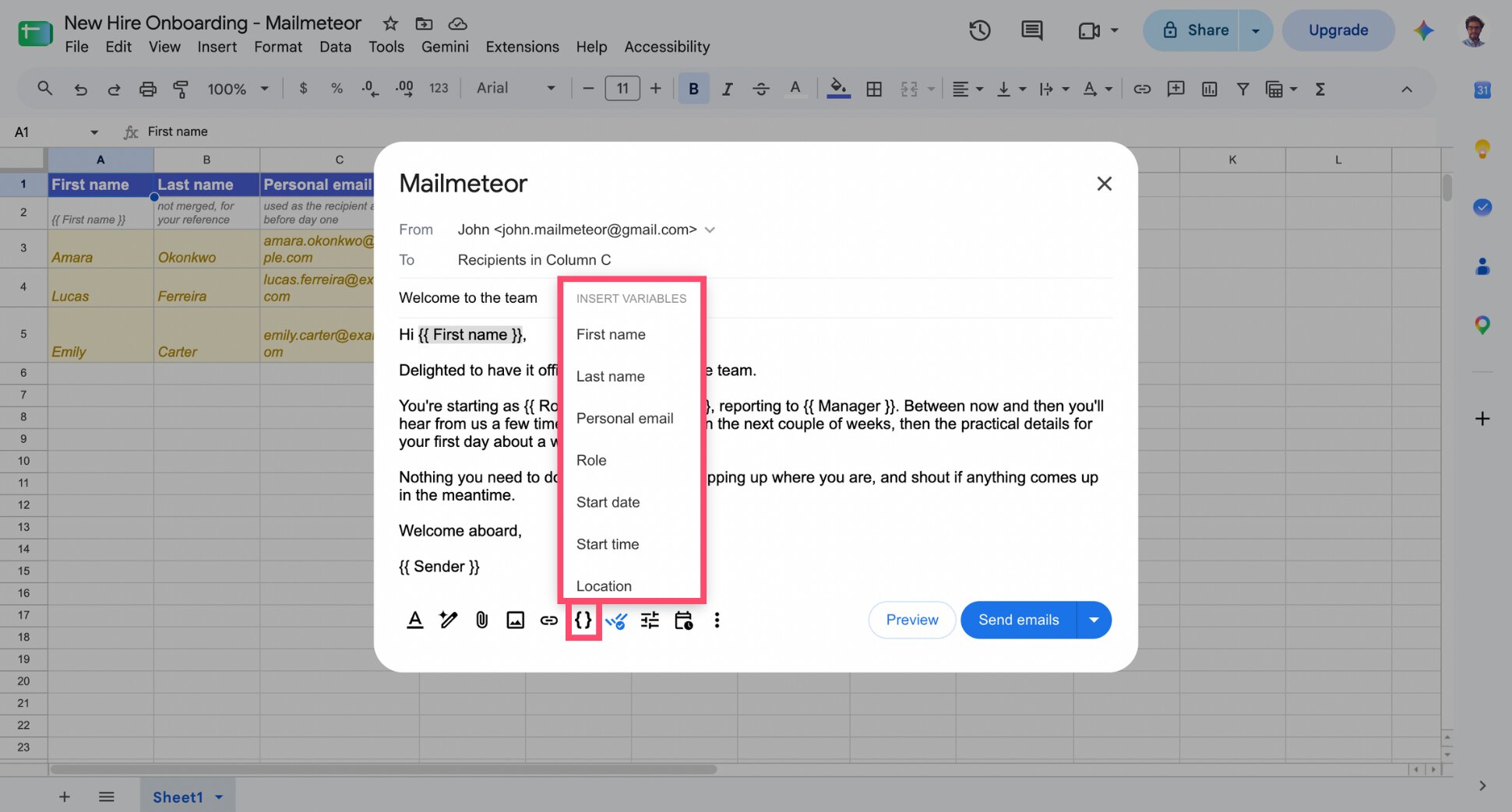
Write your first email — the welcome one. Place your cursor anywhere the copy should change per person, click Insert variable, and pick the matching column — Mailmeteor pulls that value from your spreadsheet for each recipient.
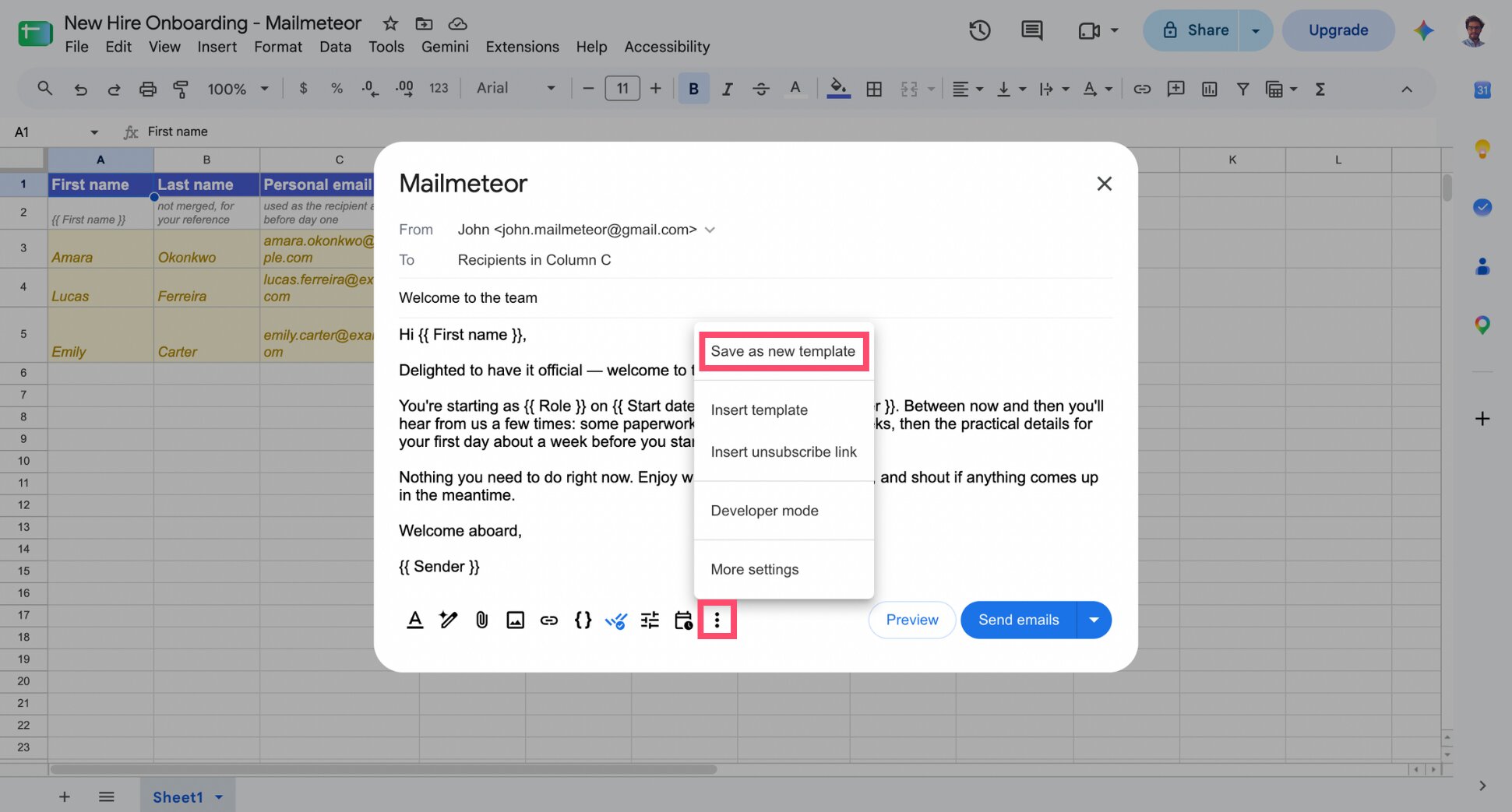
Once your draft is ready, go to More options > Save as new template, name it, and click Save. Repeat for the other 4 stages: paperwork, first-day details, day one, and the week-one check-in.
4. Preview and Check the Dates
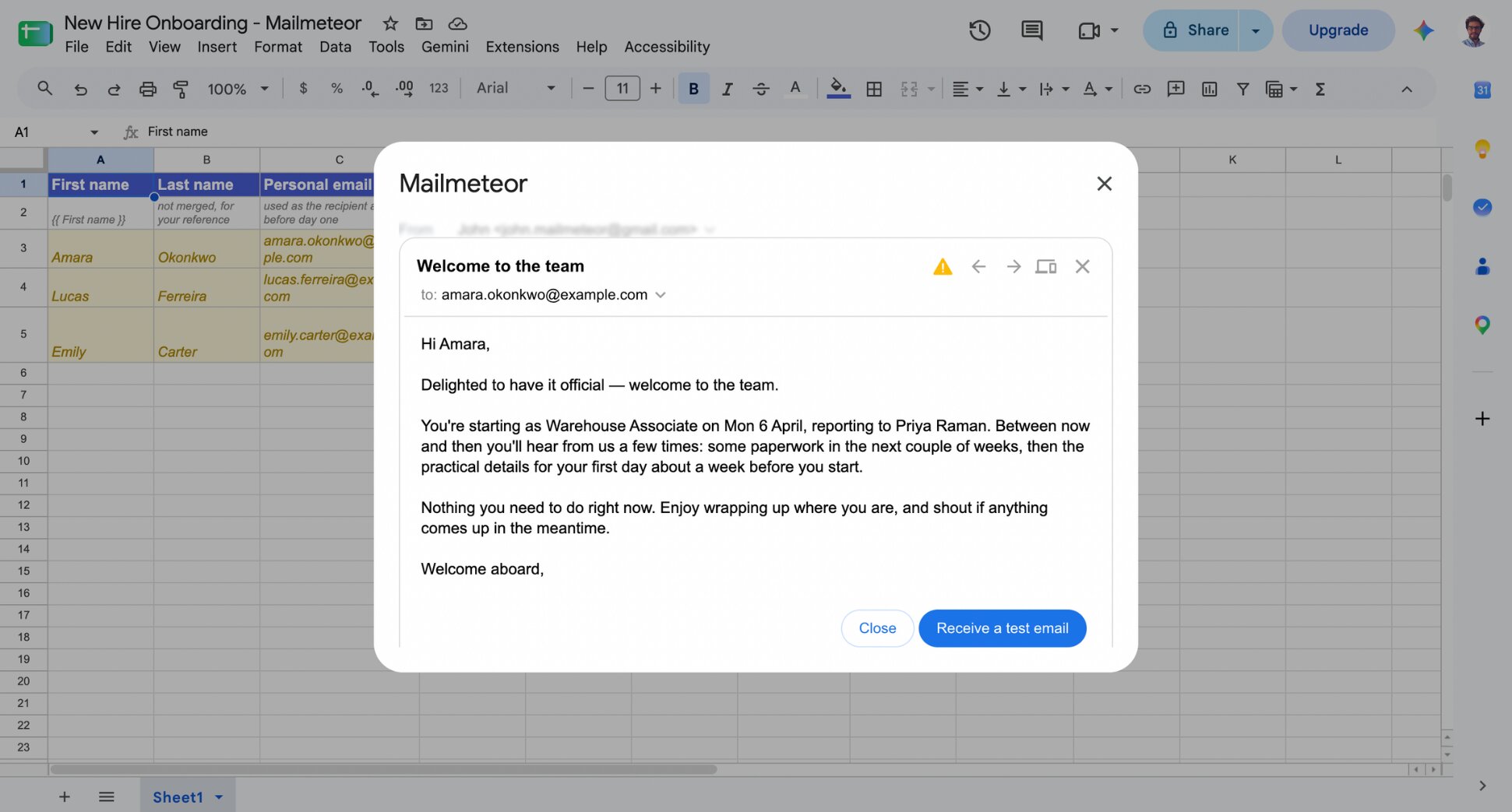
Preview several rows before you send anything. The failure mode here isn’t an empty first name — it’s a wrong date. Check the start date and start time columns against your actual records before every send, not just the first one.
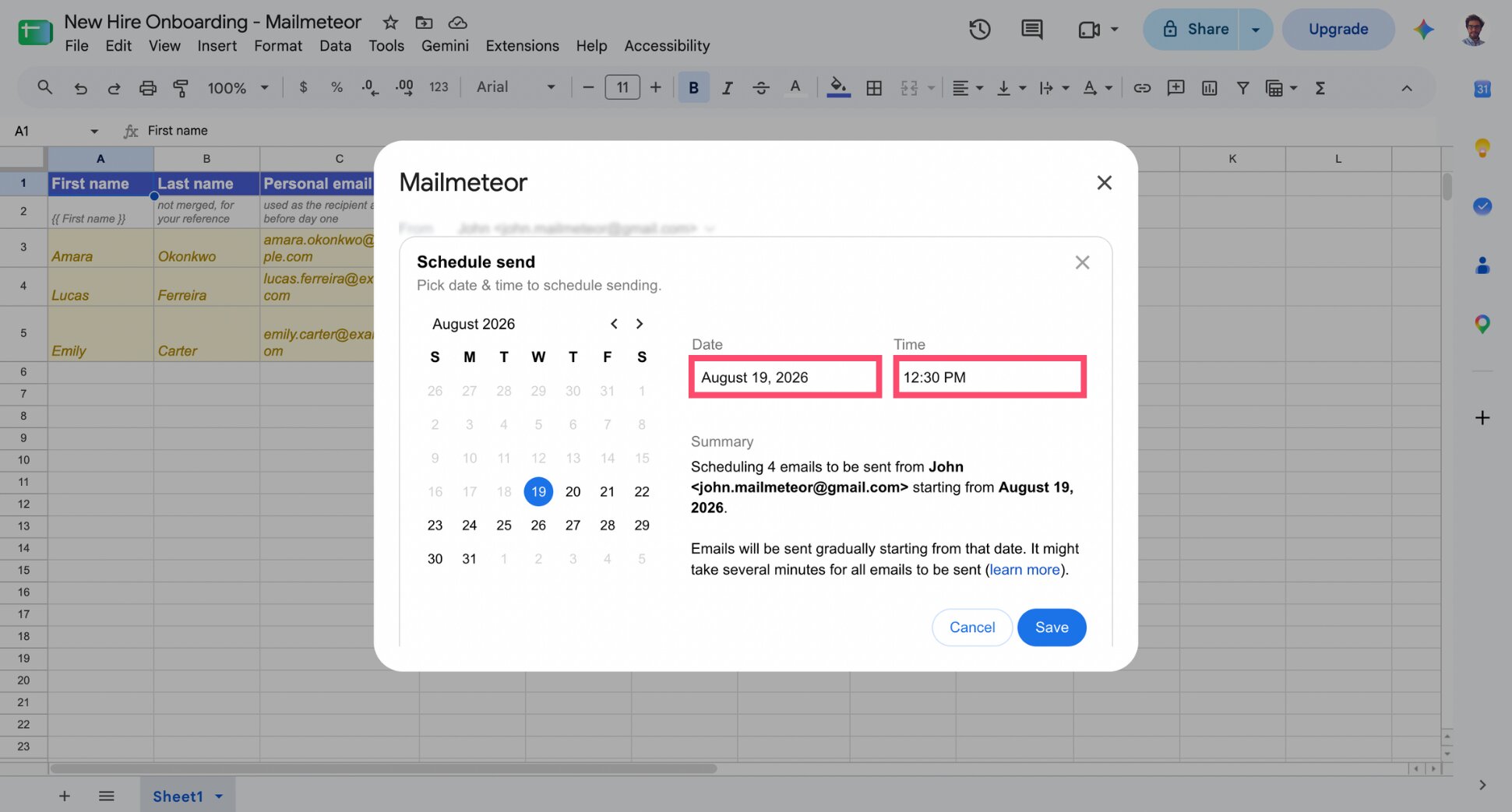
5. Send Each Stage to the Cohort
Because everyone in a cohort shares a start date, send each template to the whole sheet, timed against that shared date:
- Welcome — the day the offer’s signed
- Paperwork — two weeks before the start date
- First-day details — three to five days before
- Day one — the morning of
- Week-one check-in — the Friday after
How to Automate an Onboarding Sequence for a Single Hire
Staggered start dates are the harder problem to automate, because everyone’s day one falls on a different date — there’s no single moment to schedule the whole sequence against.
Mailmeteor’s follow-ups solve this by triggering off intervals rather than exact dates, so instead of scheduling five separate sends, you send once and let the sequence run itself.
1. Open Mailmeteor and Write Your Welcome Email
Open your sheet and go to Extensions > Mailmeteor > New campaign. Write your welcome email as usual, and personalize it with merge tags for name, role, manager, and start date.
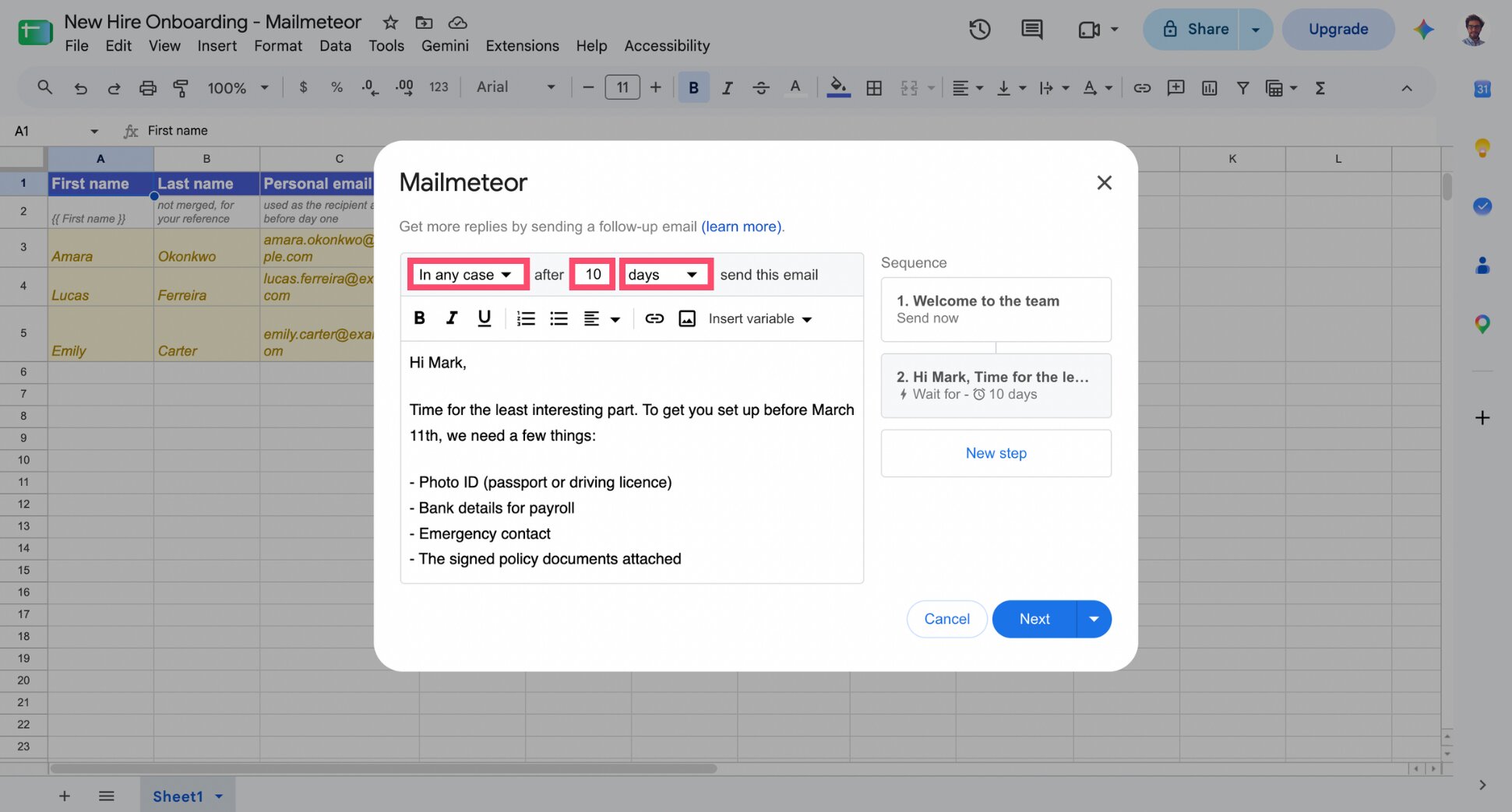
2. Add Your Paperwork Request as a Follow-up
Next to the Send button, click the arrow and select Follow-up. Write the paperwork request, then set the trigger to In any case and the delay to a few days — enough to land roughly two weeks before a typical start date.
3. Chain the Remaining Emails as Further Follow-ups
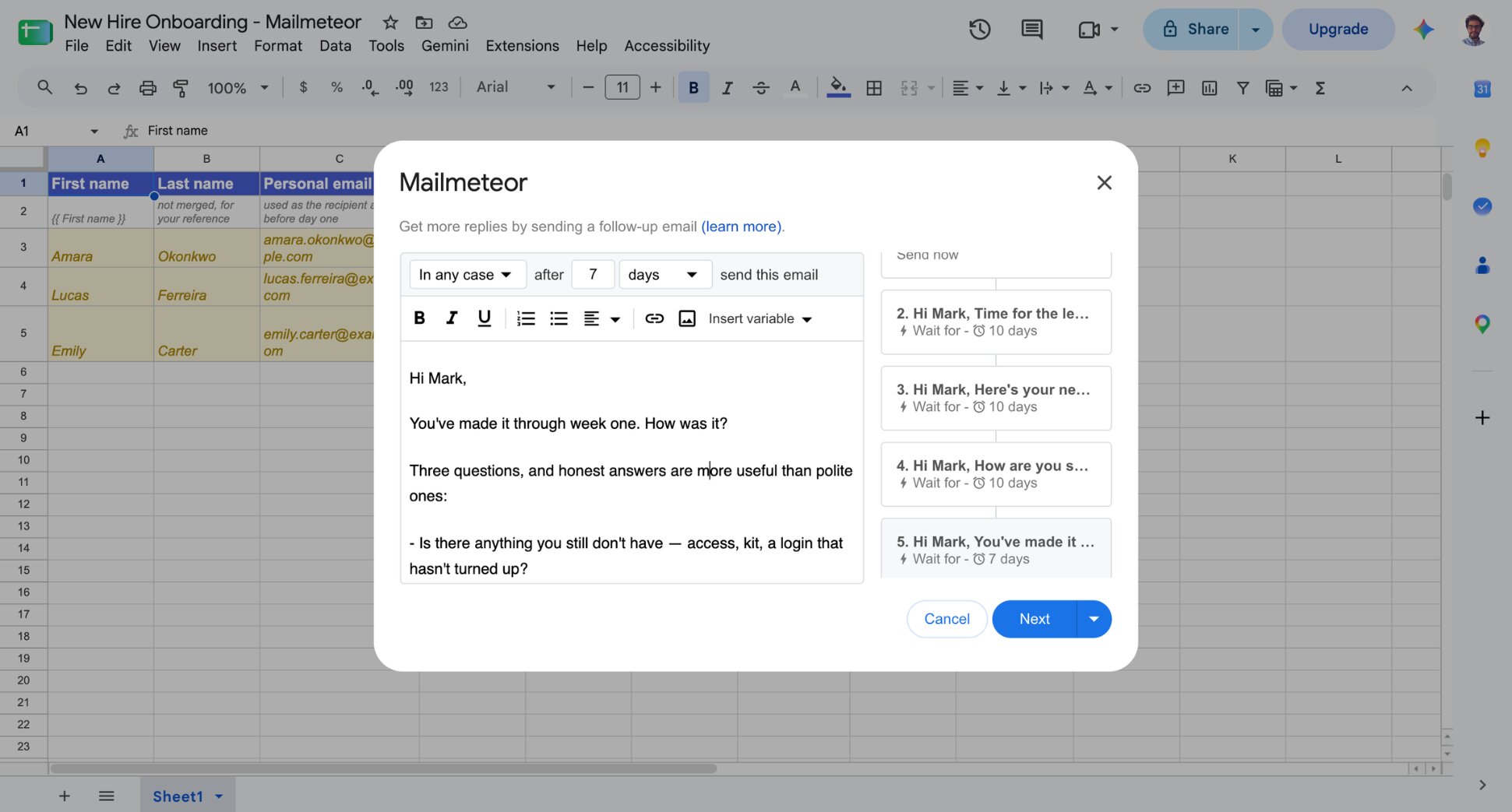
Click New step to add a follow-up email for each remaining stage — first-day details, day one, week-one check-in — and set the delay for each relative to the one before it. You’re building the whole 5-email sequence in one campaign.
4. Send Once Per New Hire
Preview your campaign. Then press Next > Send the day someone accepts a job offer. From there, the onboarding sequence runs on its own. Nothing to schedule by hand as each date arrives.
New Hire Onboarding Email Templates
These new hire onboarding email templates cover all 5 stages of the sequence — welcome, paperwork, first-day details, day one, and the week-one check-in — with merge tags already built in. Write them once, and every future hire runs through the same sequence.
Welcome Email Template for a New Hire
Hi {{ First name }},
Delighted to have it official — welcome to the team.
You’re starting as {{ Role }} on {{ Start date }}, reporting to {{ Manager }}. Between now and then you’ll hear from us a few times: some paperwork in the next couple of weeks, then the practical details for your first day about a week before you start.
Nothing you need to do right now. Enjoy wrapping up where you are, and shout if anything comes up in the meantime.
Welcome aboard,
{{ Sender }}
New Hire Paperwork Request Email Template
Hi {{ First name }},
Time for the least interesting part. To get you set up before {{ Start date }}, we need a few things:
- Photo ID (passport or driving licence)
- Bank details for payroll
- Emergency contact
- The signed policy documents attached
Could you send these back by the end of next week? That gives payroll enough time to have you on the system for your first pay run.
If anything’s awkward to get hold of, tell me and we’ll work around it.
Thanks,
{{ Sender }}
First-Day Details Email Template
Hi {{ First name }},
Not long now. Here’s everything you need for your first day:
When: {{ Start date }} at {{ Start time }}
Where: {{ Location }}
Ask for: {{ Manager }}
Bring: photo ID, and that’s it
If you’re delayed in the morning, don’t stress about it — reply here or call the number in my signature.
See you {{ Start date }},
{{ Sender }}
Day One Welcome Email Template
Hi {{ First name }},
Welcome — genuinely glad you’re here.
Here’s roughly how today goes:
- Morning: setup with IT, then a walk round with
{{ Buddy }} - Midday: lunch with the team
- Afternoon: sit down with
{{ Manager }}to talk through your first few weeks
You’re not expected to produce anything today, or this week. Ask as many questions as you like — {{ Buddy }} is your first port of call, and my door’s open too.
{{ Sender }}
Week One Check-in Email Template
Hi {{ First name }},
You’ve made it through week one. How was it?
Three questions, and honest answers are more useful than polite ones:
- Is there anything you still don’t have — access, kit, a login that hasn’t turned up?
- Is anything about the role different from what you expected?
- What would have made this week easier?
Reply whenever suits. If it’s easier to talk, say so and we’ll find 15 minutes next week.
{{ Sender }}
Common Mistakes to Avoid When Automating New Hire Onboarding Emails
Most HR onboarding email failures come down to bad data or bad timing, not bad copy. Here’s what to check:
- Sending to the work address — It usually doesn’t exist yet. Use the personal address for everything before day one.
- The wrong start date — The costliest error in the sequence. Someone takes a day off and turns up to a locked door.
- Emails that keep arriving after a hire falls through — Automation doesn’t know the offer was withdrawn. Keep the sheet updated.
- Silence between signing and starting — The gap this whole sequence exists to fill. Even a two-line email in week one of a four-week notice period does the job.
- Too much in one email — 5 short emails at the right moments beat one enormous welcome pack nobody finishes.
Wrapping Up
A new hire’s first month shouldn’t run on whoever remembers to write the next email. Five templates and a filter fix that permanently.
Here’s how Mailmeteor makes each step easier:
📊 Your new hire list is already the tool — no separate platform to set up, your Google Sheet does the work.
🏷️ Every email reads like it was written for one person — start date, location, manager and buddy, pulled straight from your own columns.
⏰ Nothing depends on you being online at 8am — schedule the day-one email and it sends itself.
✍️ The first draft is already written — generate each email with AI, then adjust the tone to sound like you.
🔔 You’ll know if someone’s gone quiet — tracking shows whether a new hire has opened their onboarding emails, so you can follow up before day one arrives.
Mailmeteor lets you send up to 50 personalized emails a day for free, no credit card required — enough to run your first onboarding sequence. Try Mailmeteor today and never scramble for a welcome email again.
Not sure a spreadsheet-based workflow is enough as you scale? See how Mailmeteor compares to dedicated recruiting and outreach tools.
FAQs
How do you automate onboarding emails without an HR system?
Keep your new hires in a Google Sheet with columns for start date, role, manager and location, write one reusable template per stage of the sequence, and send each stage as a mail merge. For staggered start dates, schedule the sends or use an automation trigger so each email goes out at the right moment for that person.
How many onboarding emails should a new hire get?
Five onboarding emails cover everything a new starter actually needs: welcome, paperwork, first-day details, day one, and a week-one check-in. Larger companies sometimes run 8 to 12. But more isn’t automatically better. Each email you send to new hires should have a clear job.
Should HR onboarding emails be personalized?
The logistics ones need accurate merged details (name, start date, location, manager…) but they don’t need to sound personal. The exception is the manager’s welcome, which shouldn’t be automated at all. It should be written by the person the new hire reports to and sent from their own inbox.
How soon after someone accepts an offer should they hear from you?
Within 24 hours. That first email doesn’t need to say much. A short welcome confirming the start date is enough. But the gap between silence and the next contact is where new hires quietly start reconsidering. Waiting until closer to the start date to say anything at all is the most common mistake here.