You posted one role. You got 94 applications. You interviewed 6 people, made one offer, and now 93 people are sitting in an inbox somewhere, refreshing nothing, waiting on an email that nobody has time to write.
So it doesn’t get written. Not out of malice. It just loses to the next job opening. The awkward part is that one rejection email takes 90 seconds to write. But 93 of them take an afternoon. And that’s a mail merge problem, not a writing problem.
TL;DR: Here's how to send personalized rejection emails in bulk:
- Build a candidate sheet — one row per candidate, with a column for the stage they reached
- Write one template per stage — screening, first interview, final round
- Merge and preview — map your columns to merge tags using Mailmeteor, then check a few rows before sending
- Turn off tracking and follow-ups — neither belongs on a rejection
- Schedule the send — so it lands at a reasonable hour
Here’s what we’ll cover:
- Why Send Personalized Candidate Rejection Emails?
- How to Personalize a Rejection Email at Scale
- How to Send Candidate Rejection Emails in Bulk from Gmail
- Candidate Rejection Email Templates
- Common Mistakes to Avoid When Sending Bulk Rejection Emails
- How to Handle Replies from Rejected Candidates
Sounds good? Then let’s dive in.
Why Send Personalized Candidate Rejection Emails?
A rejection is the last impression you leave, and silence guarantees a bad one. A candidate who gets a clear “no” keeps a neutral-to-positive view of your company. A candidate who gets nothing tells people about it.
There are (at least) 3 reasons why sending a personalized rejection email is worth the 20 minutes it takes:
- It respects what the candidate put in — Someone who took a portfolio exercise, a technical test, or even just an hour prepping for a phone screen has earned a real answer, not silence.
- It stops the “did I get it?” emails — Every unrejected candidate is a candidate who might follow up in three weeks asking for a status update. A clear no now is less work for you than a vague no-reply later.
- Your future pipeline is sitting in that list — The person you rejected for a mid-level role is the person you might want for the senior one in 18 months. That only works if the relationship ended cleanly.
- Your employer brand is built in this exact moment — for every hire, there are dozens who don’t get the job, and for them the rejection is often the only real interaction they’ll have with your company. That’s what ends up on Glassdoor or Indeed.
Those are reasons to send a rejection. Personalizing it matters for a different reason: it proves a human looked. A rejection with the right name and the right role reads as a decision. The same email with “Dear Candidate” reads as a filter.
How to Personalize a Rejection Email at Scale
Personalization at scale isn’t about writing each message individually. It’s about deciding which parts of the email vary by row and which parts stay fixed — and being disciplined about the line between them.
Personalize these fields:
- First name — the minimum bar.
- Role applied for — matters most if you’re hiring for several positions at once.
- Stage reached — determines which template the candidate gets.
- Recruiter name and title — so the email comes from a person.
- Short reason (interview stages only) — one clause, written by you, in a spreadsheet cell.
Never personalize these:
- The decision itself — never automate the outcome. A human decides, every row.
- Invented specifics — “We were impressed by your portfolio” merged into 93 emails, including people with no portfolio, is worse than saying nothing.
- AI-written feedback — generated feedback on a candidate you barely reviewed is a fabrication with the person’s name on it.
As a rule of thumb, the further a candidate got, the fewer of them there are, and the more you can afford to write:
- 90 screening rejections is a pure merge.
- 8 post-interview rejections can each carry a one-line reason you typed yourself.
- 2 final-round rejections should probably be read one by one before they go.
How to Send Candidate Rejection Emails in Bulk from Gmail
Here’s the workflow, from start to finish ⤵️
1. Build Your Candidate List in Google Sheets
One row per candidate, one column per merge field. Column headers become your merge tags, so name them cleanly.
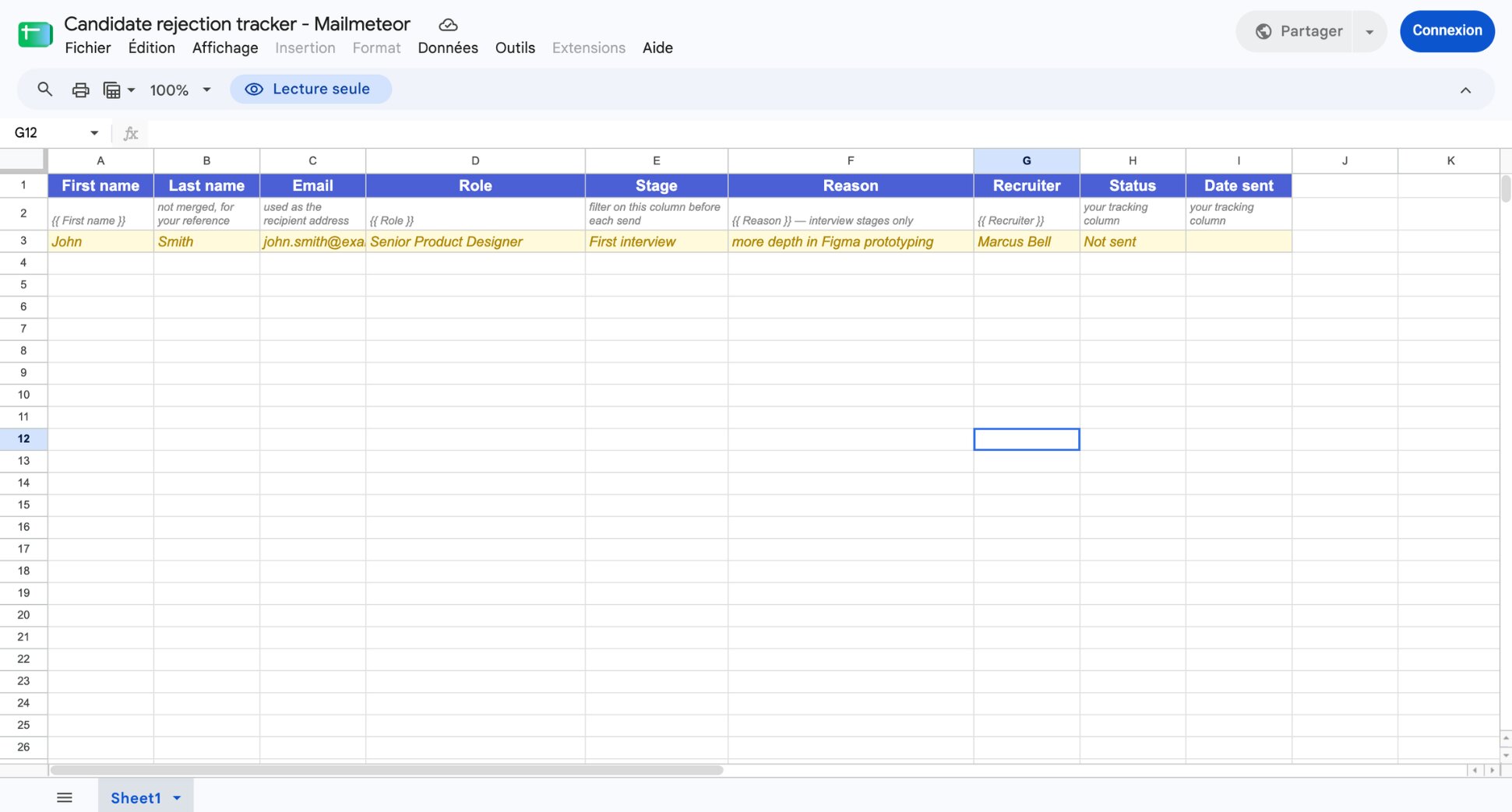
| Spreadsheet column | Merge tag | What the candidate sees |
|---|---|---|
| First name | {{First name}} |
John |
| — | used as the recipient address | |
| Role | {{Role}} |
Senior Product Designer |
| Stage | — | filters which template they get |
| Reason | {{Reason}} |
more depth in Figma prototyping |
| Recruiter | {{Recruiter}} |
Marcus Bell |
The Stage column is the important one. It never appears in the email — it’s how you split the list into 3 sends, one per template.
2. Install Mailmeteor for Google Sheets
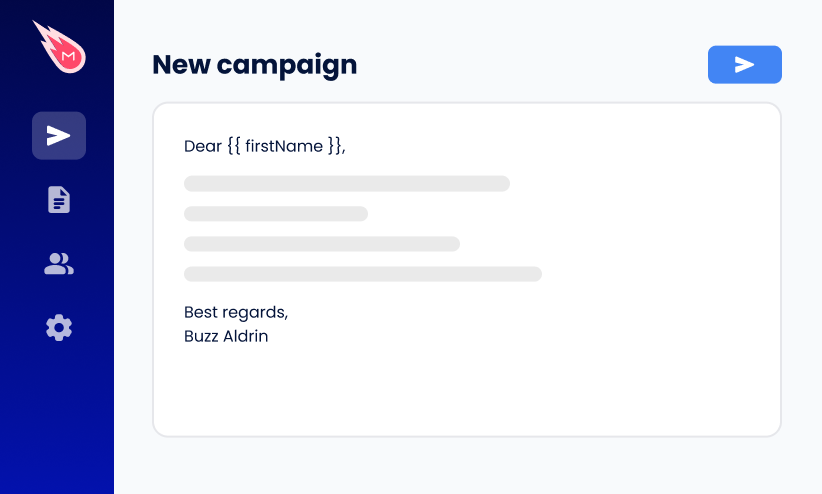
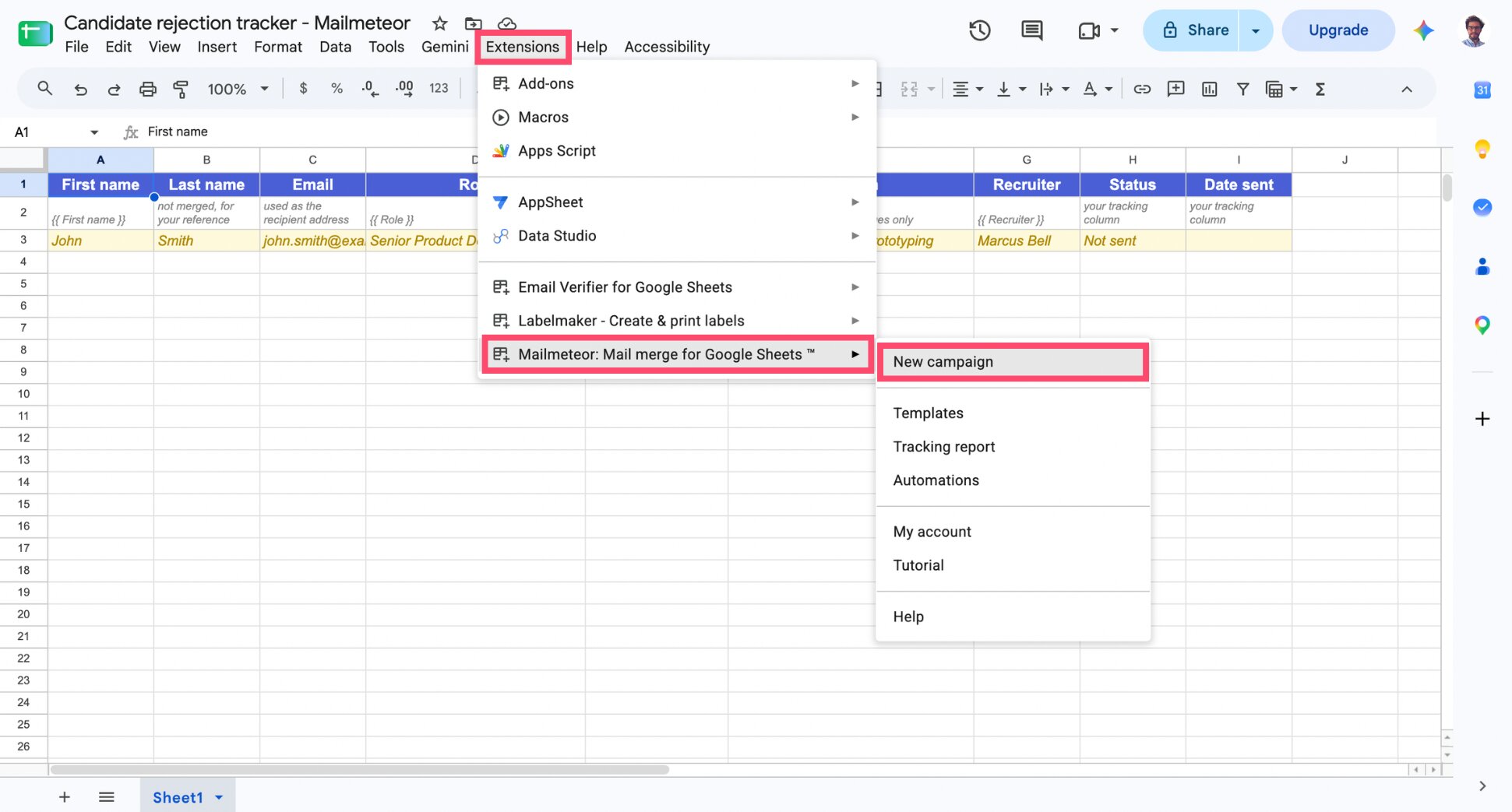
If you haven’t already, install Mailmeteor from the Google Workspace Marketplace. Then open your sheet, and go to Extensions > Mailmeteor > New campaign.
3. Write Personalized Candidate Rejections
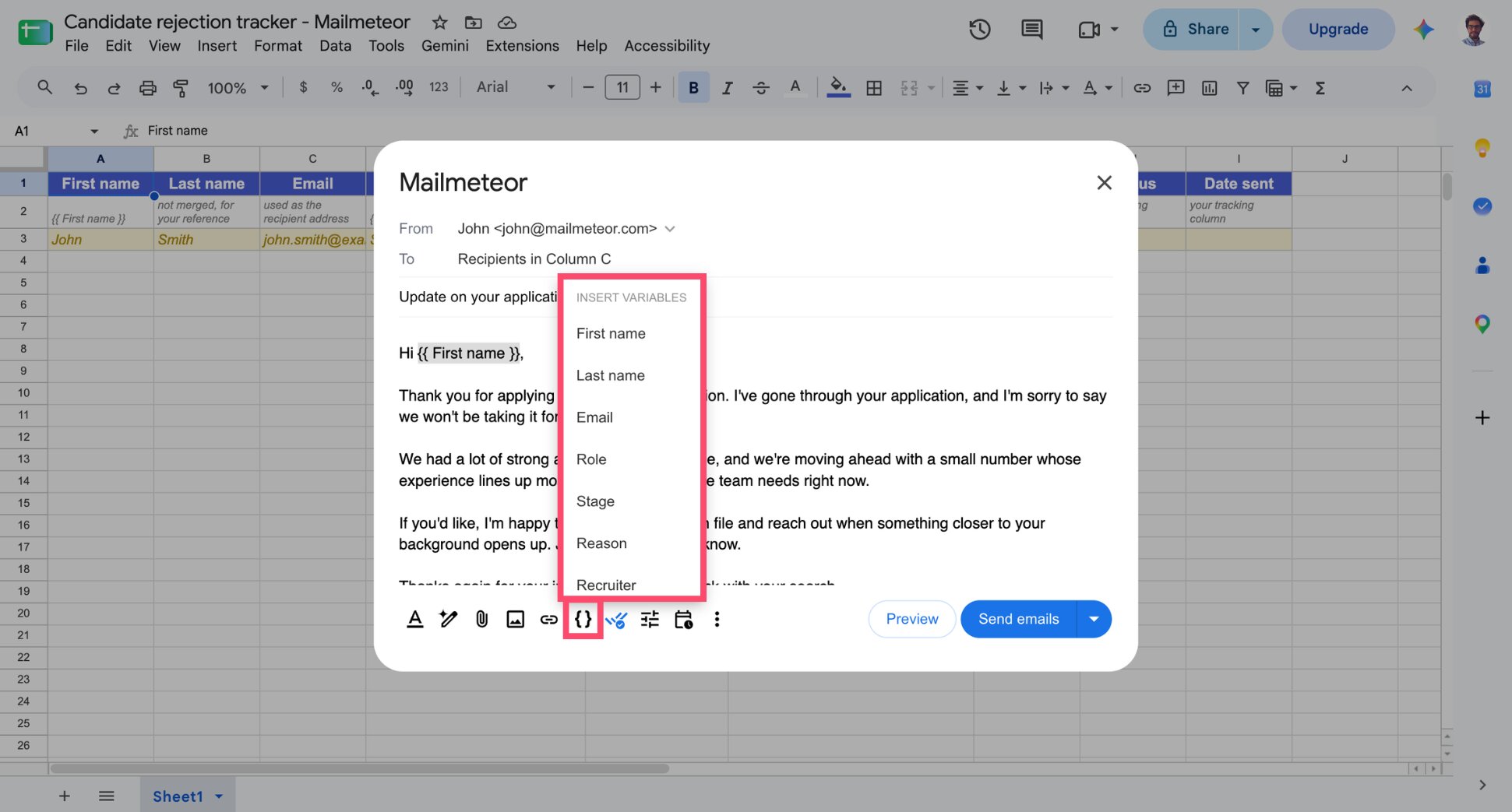
From there, you can write your first rejection email — the post-application screening one. Wherever you want a detail to change per candidate, place your cursor there, click Insert variable, and select the column. Mailmeteor inserts the matching merge tag automatically.
4. Save Your Rejection Emails as Reusable Templates
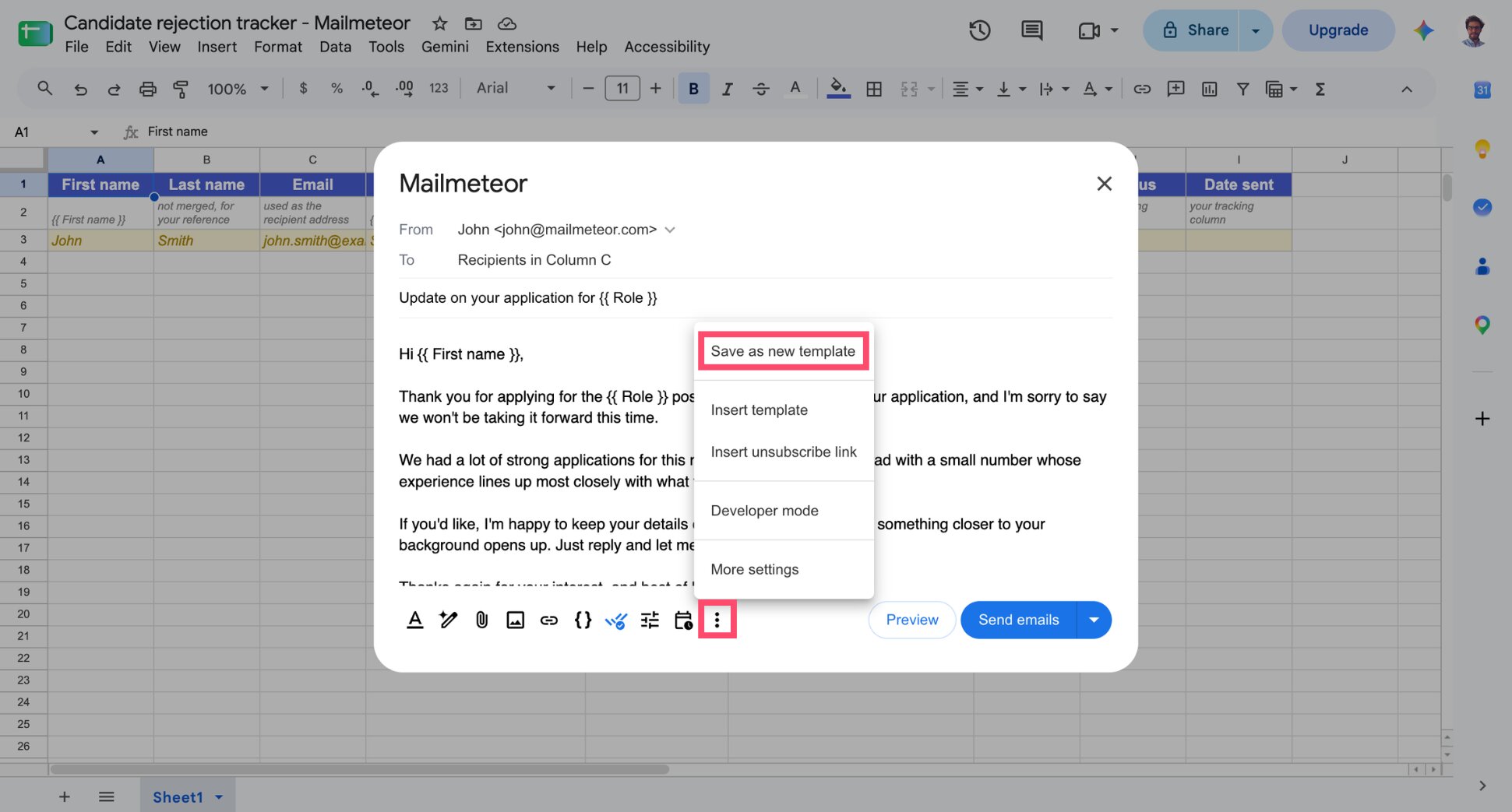
Once your email is ready, go to More options > Save as new template, name it, and click Save.
Repeat for the other two stages. Write a post-first-interview email, then a post-final-round one. Next time you need to send rejections, there’s nothing to write — just filter your sheet and pick the right template.
5. Filter Your Sheet to One Stage at a Time
Before sending, apply a Google Sheets filter on the Stage column. To do so, go to Data > Create a filter so only the candidates at that stage are visible.
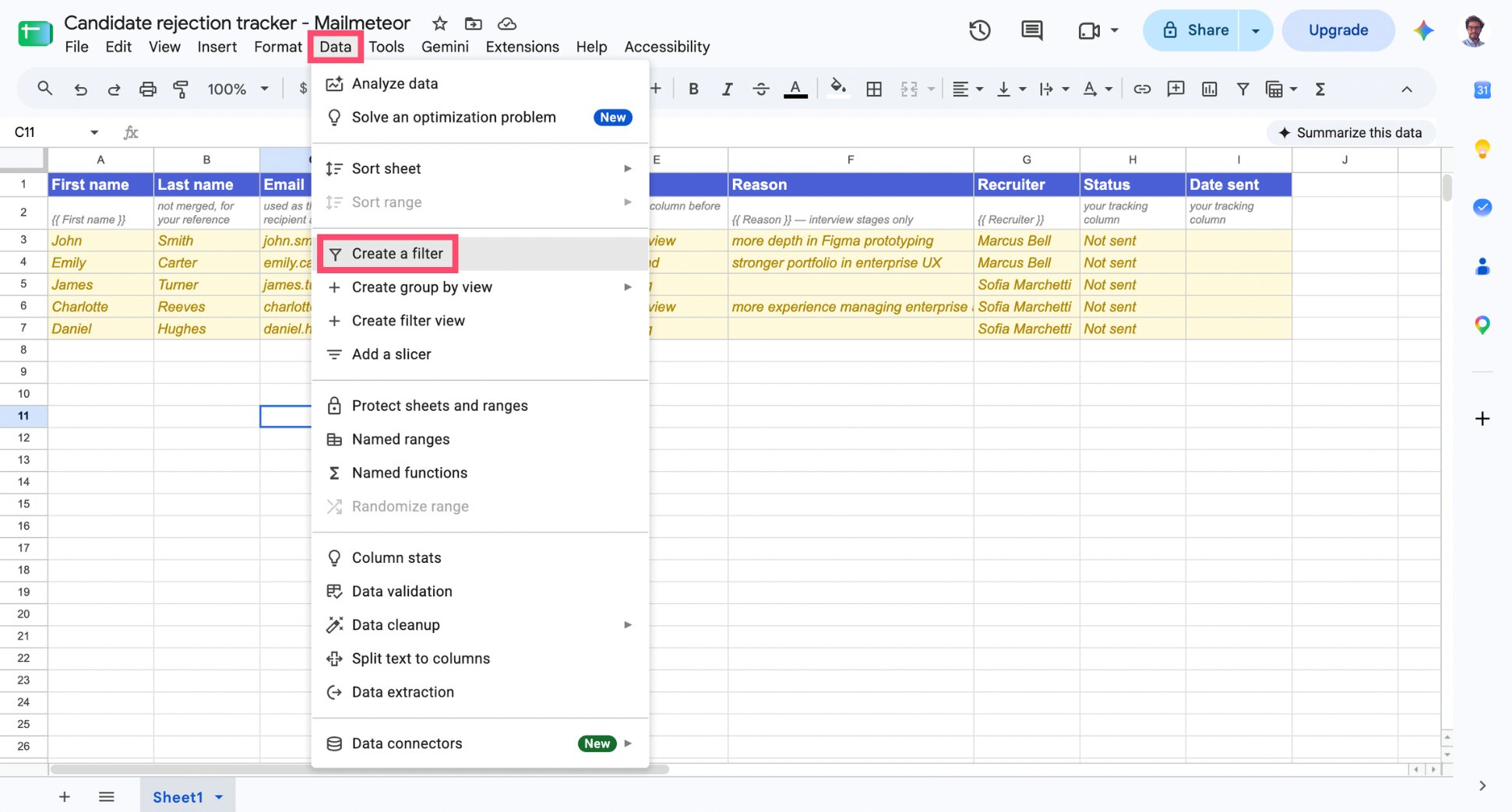
Mailmeteor sends to visible rows only — so filtering to “First interview,” for example, means only those candidates will receive the first-interview template. Alternatively, you can create 3 tabs — one for each stage — and run a mail merge in each tab.
6. Preview Before You Send
Back in Mailmeteor, click Preview and click through several rows — not just the first one. You’re checking for two things in particular: empty cells and mismatched rows.
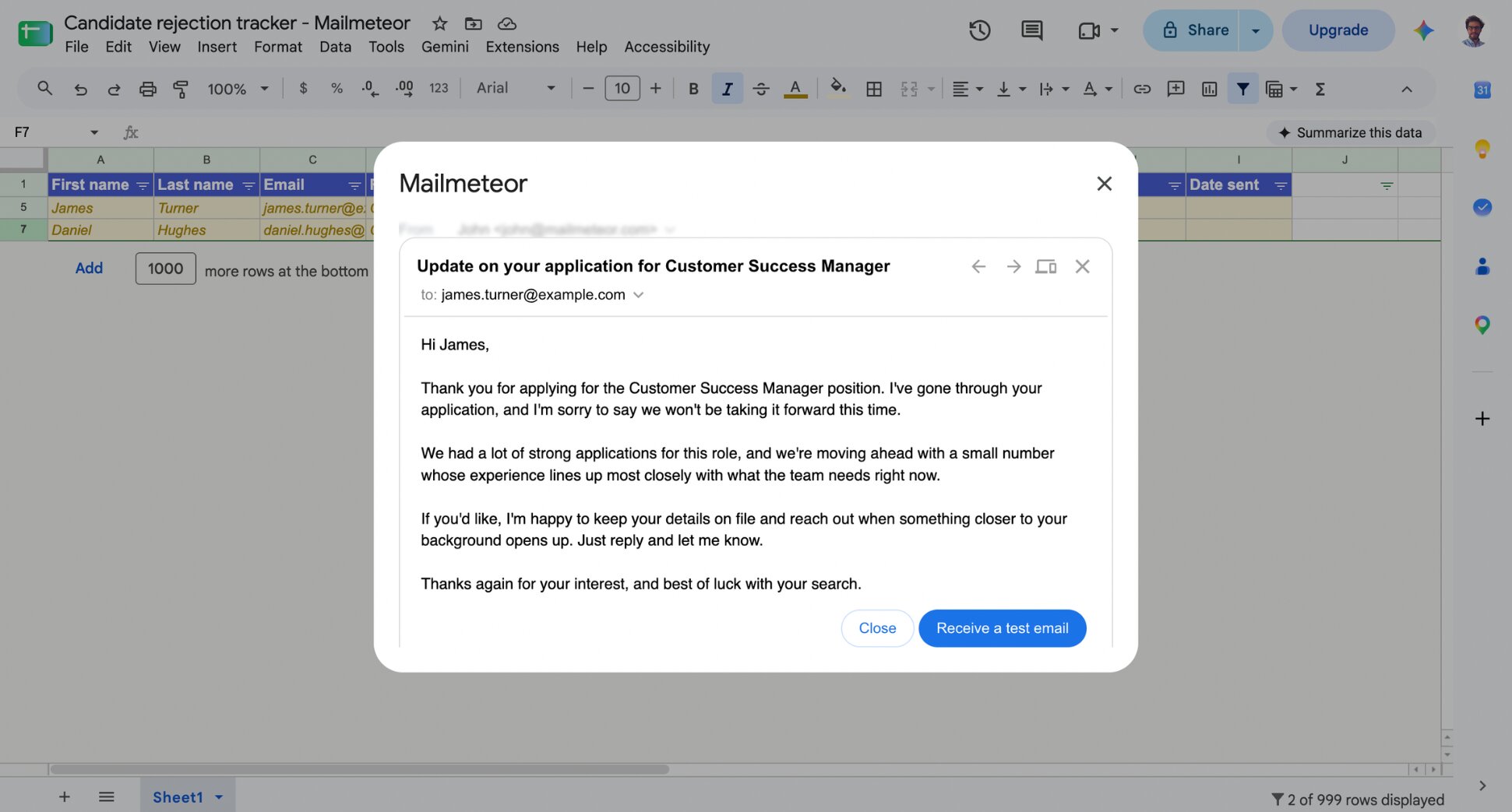
A blank first name produces “Hi ,” which announces the mail merge more loudly than anything else you could do. And if your sheet’s been filtered or sorted since you last checked it, make sure each row still lines up with the right candidate.
7. Schedule and Send Your Rejection Campaign
Two timing rules worth following:
- Not Friday evening — A rejection landing at 6pm Friday sits with someone all weekend with nobody to ask about it.
- Not the same minute as the offer — Give the accepted offer a day to be signed before the rejections go out.
Mid-morning, midweek is the safe default. Set your send time, then click Send — or schedule it for later from the same menu.
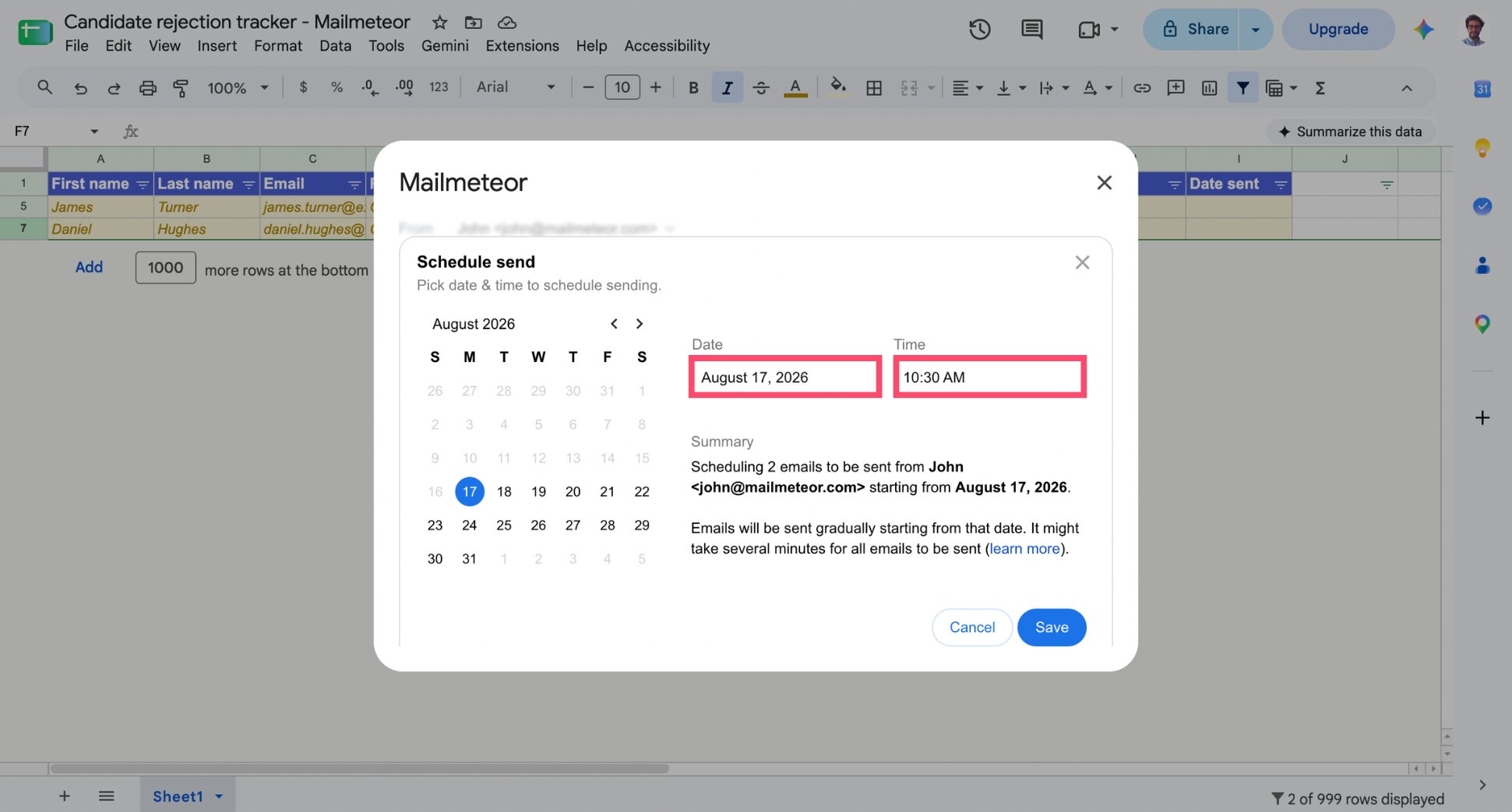
Once it’s sent, update your Status column so you know who’s been told. Then repeat steps 5 through 7 for the other two stages.
Which Settings to Turn off Before Sending Rejection Emails
Two defaults that make sense for outreach and are wrong here:
- Open tracking — Mailmeteor lets you track opens and clicks. But there’s no decision you’ll make based on whether someone opened their rejection, and monitoring that is a little grim. Turn it off.
- Automatic follow-ups — A “just circling back!” on a rejection is a disaster. It reads as either a mistake or, worse, indifference. If your Mailmeteor account has follow-ups enabled, double-check none are attached to this campaign before you send.
Candidate Rejection Email Templates
These templates come with merge tags built in and are meant to be adjusted, not used word for word. Match the tone to how you’ve already been writing to these candidates.
Rejection Email Template After Application Screening
Hi [First name],
Thank you for applying for the [Role] position. I’ve gone through your application, and I’m sorry to say we won’t be taking it forward this time.
We had a lot of strong applications for this role, and we’re moving ahead with a small number whose experience lines up most closely with what the team needs right now.
If you’d like, I’m happy to keep your details on file and reach out when something closer to your background opens up. Just reply and let me know.
Thanks again for your interest, and best of luck with your search.
[Recruiter]
Rejection Email Template After a First Interview
Hi [First name],
Thank you for making time to talk with us about the [Role] position last week. After discussing it as a team, we’ve decided not to move you through to the next stage.
To be straightforward about why: we’re looking for [Reason], and we have candidates further along on that specific point. It wasn’t about the conversation itself, which we enjoyed.
I know that’s disappointing after the time you put in. If it’s useful, I’m glad to answer questions — just reply here.
Thanks again, and I hope we cross paths later on.
[Recruiter]
Rejection Email Template After a Final Interview
Hi [First name],
I wanted to get back to you quickly rather than leave you waiting: we’ve decided to make an offer to another candidate for the [Role] position.
I want to be clear that this was close. You made it through every stage and the team was genuinely torn. In the end the decision came down to [Reason] — not a gap in your work, but a difference between two strong candidates.
If you’d like a proper conversation about the process and where it turned, I’m happy to set up 15 minutes. And I’d like to keep in touch about future openings, because I think you’d do well here — let me know if that’s welcome.
Thank you for the time and effort you put into this. It was a lot, and it was noticed.
[Recruiter]
Common Mistakes to Avoid When Sending Bulk Rejection Emails
Any of these turns a considerate email into a screenshot on LinkedIn. And once it’s there, it’s not really about one candidate anymore — it’s employer brand damage, visible to everyone else deciding whether to apply.
- The empty merge field — “Hi ,” is the classic. Preview and check for blank cells.
- The wrong role — A mismatched column tells the candidate you’re not tracking who they are. Spot-check rows where someone applied for more than one position.
- The wrong template — Sending the screening template to someone who did three interviews is the worst version of this. It’s what the Stage column exists to prevent.
- Exposing the whole candidate list — Never put candidates in CC, and don’t use one giant BCC block either. A proper mail merge sends separate individual emails, which is the only clean way to do this.
- Offering feedback you won’t give — If you can’t answer the replies, don’t invite them.
How to Handle Replies from Rejected Candidates
Send from a real address and some people will reply. Not many — usually under one in ten — and they fall into 3 types:
- “Can you tell me why?” — Give one specific, factual, comparative reason: what the successful candidate had more of. Don’t critique the person, don’t offer a development plan, and don’t invent something to be kind.
- “Would you consider me for something else?” — Your best possible reply. Say yes if it’s true, be honest about timing, and move them into your candidate pool for future roles. This is the person you’ll be glad to have when the next req opens.
- The angry one — Rare, and usually a candidate who invested a lot. Reply once, briefly, without defensiveness — acknowledge the frustration, restate the decision, don’t relitigate the process. Then stop. You don’t owe a second round.
One rule across all three: replies get answered individually, by a person. The merge got the news out. The conversation afterwards isn’t a campaign.
Wrapping Up
Sending 93 rejections takes less than 20 minutes once your sheet and templates exist — and from then on, every future rejection round takes even less. Filter, preview, send with Mailmeteor. That’s the whole process.
Here’s what makes each step effortless:
📊 Your candidate list is already the tool — no separate platform to set up, your Google Sheet does the work.
🏷️ Every email reads like it was written for one person — name, role and stage are pulled straight from your own columns.
👀 Nothing goes out broken — preview every row and catch the empty fields before a candidate does.
⏰ Rejections land at the right moment — schedule the send instead of hitting go and hoping.
📁 You write the hard part once — three templates, reused for every rejection round after this one.
Try Mailmeteor today. Our free plan lets you send up to 50 personalized emails a day, no credit card required.
Not sure a mail merge tool is enough for your HR needs? See how Mailmeteor stacks up against the best email tools for recruiters.
FAQs
Is it acceptable to send rejection emails in bulk?
Yes, provided each one is personalized to the candidate and the stage they reached. Candidates object to being ghosted and to obviously generic mass mail — not to an email that names them, names the role, and reflects how far they got.
Should you tell candidates why they were rejected?
At screening stage, a general reason is enough and is all most candidates expect. After an interview, give one specific comparative reason — what the successful candidate had more of. Never invent a reason to soften the message.
How many rejection emails can I send at once from Gmail?
With Mailmeteor’s free plan, 50 emails a day and 500 a month. Starter raises that to 250 a day, Premium to 1,000. For one role with 90-odd applicants, the free plan means splitting the send over two days. If you’re hiring for several roles a month, you’ll want a paid tier.
Should rejection emails come from a no-reply address?
No. A no-reply address signals the decision isn’t open to conversation and undercuts everything the email is trying to do. Send from the recruiter who’s been in contact, or a monitored careers inbox. Most candidates won’t reply — the ones who do are usually worth talking to.
When should you send rejection emails?
As soon as the decision is final, ideally after the accepted offer is signed. Mid-morning midweek is a good default. Avoid Friday evenings and week-ends.
Do you have to delete a rejected candidate’s data?
It depends where you operate. In the US you’re often required to keep it — the EEOC sets a one-year minimum for application records. Under the GDPR you keep it only as long as you need it, with the period defined and disclosed. Either way, set a retention period, document it, and if you want to keep someone on file for future roles, ask their permission in the rejection email itself.