
How many emails do you receive per day? For most professionals, the answer is somewhere between 100 and 150. That’s A LOT of emails. And if you leave it at that, your inbox will quickly become cluttered. That’s where the Gmail archive feature comes in.
You can use Gmail’s Archive feature to store your important messages in a safe place without filling up your inbox.
But do you know where archived emails go? Where to find Gmail’s archive folder? And how to retrieve emails from the Gmail archive?
In this quick tutorial, we’ll show you how to do all that:
- What are archived emails in Gmail?
- Why Archiving is the Perfect Alternative to Deleting Emails
- Where is Gmail’s archive folder?
- How to retrieve emails from Gmail archive
- How to search for archived emails in Gmail?
Sounds good? Then let’s get started.
What Are Archived Emails in Gmail?
Want to keep your inbox clean and organized? Gmail gives you a few interesting tools to manage your old emails. Once you’ve received an email, you can either:
- Mute it – This will silence notifications and alerts for future messages in that specific email thread, keeping it aside without the need to delete it.
- Delete it – This will move the emails to Trash, where they will be permanently deleted after 30 days. But you’ll still receive future emails!
- Archive it – This will remove the email from your inbox and store it in the “All Mail” folder. You won’t see it in your inbox, but future messages will unarchive it and bring it back to your attention.
Why Archiving is the Perfect Alternative to Deleting Emails
Archiving emails can help you stay organized and keep your inbox under control without losing important information. If you’re not going all the way to Inbox Zero, archiving your emails is your best bet.
Here are the top benefits of using the archive feature:
- Decluttering: Keeps your inbox clean and focused on emails that require immediate attention, letting you set aside older and less urgent messages.
- Preservation: You will always be able to access the archived email in the future if you ever need it, much better than deleting it, right?
- Productivity: People who preach about the archive feature tend to claim a productivity bonus, this claim has some merit since a clutter-free environment does come packaged with a productivity boost.
- Labels remain intact: If you have been furiously organizing your Gmail inbox with labels, rest assured, they will remain intact and functional even if you archive your entire inbox.
This way, you can stay organized without worrying about accidentally getting rid of something important.
Let us quickly go through the process of archiving emails in Gmail:
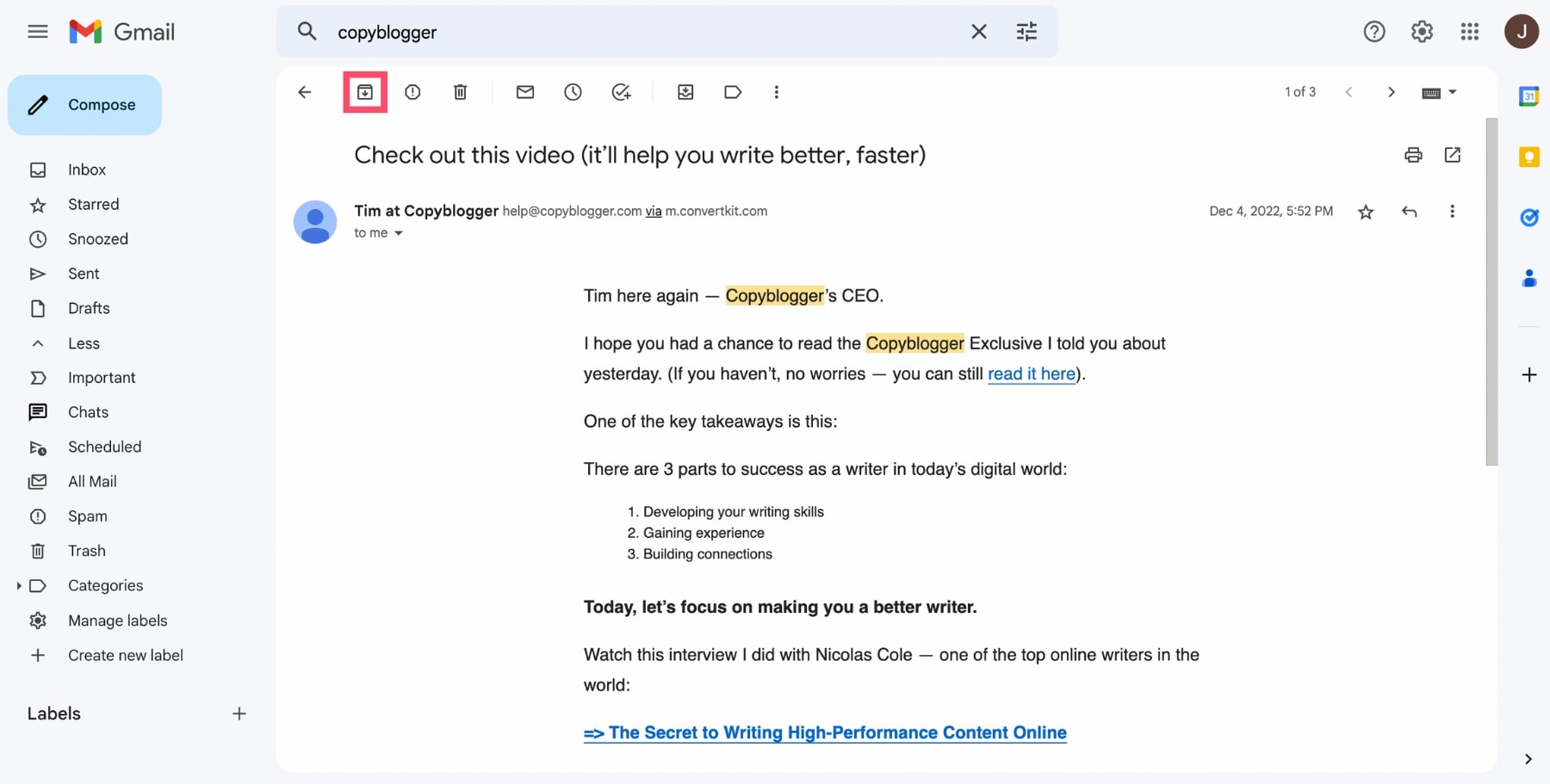
Once you archive a message, Gmail will remove it from your inbox. But that email won’t be deleted. It will remain on the Gmail server. And if you get a reply, it will pop back up in your inbox.
Where is Gmail’s Archive Folder?
OK, so you’ve archived an email. What now? Where did that email go? If you take a look at the Gmail menu, on the left side of your screen, you’ll quickly notice that the Archive folder is nowhere to be found.
And the reason is… There is no Archive folder in Gmail. How is it possible?
Each time a new email comes in, Gmail applies an “Inbox” label to it. When you archive a message, Gmail simply removes that label. This moves the email from your Inbox, to your “All Mail” folder.
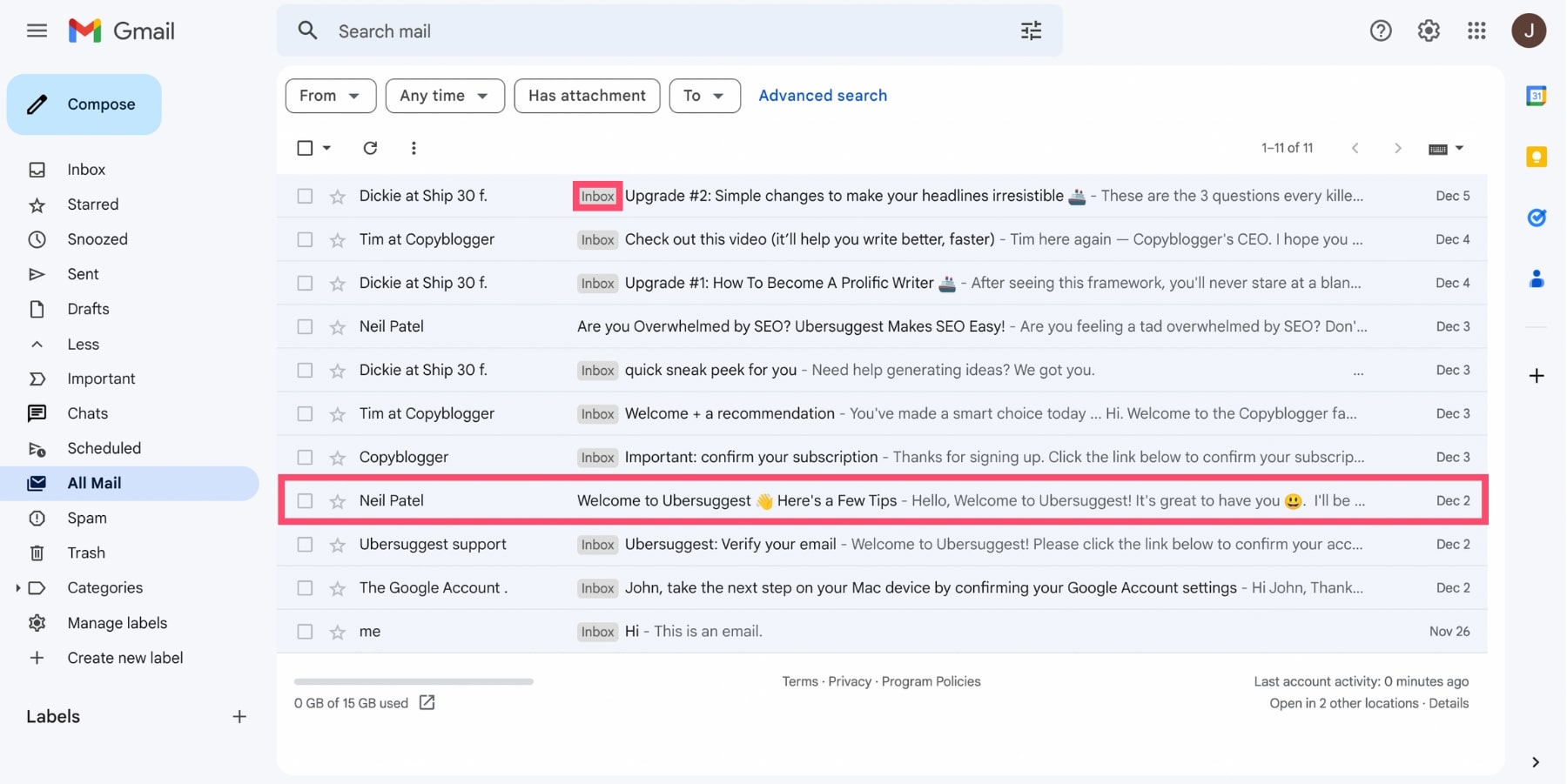
In this screenshot, you can see that all the messages have an “Inbox” label. Except for the two emails we’ve highlighted. Why? Because those two emails have been archived.
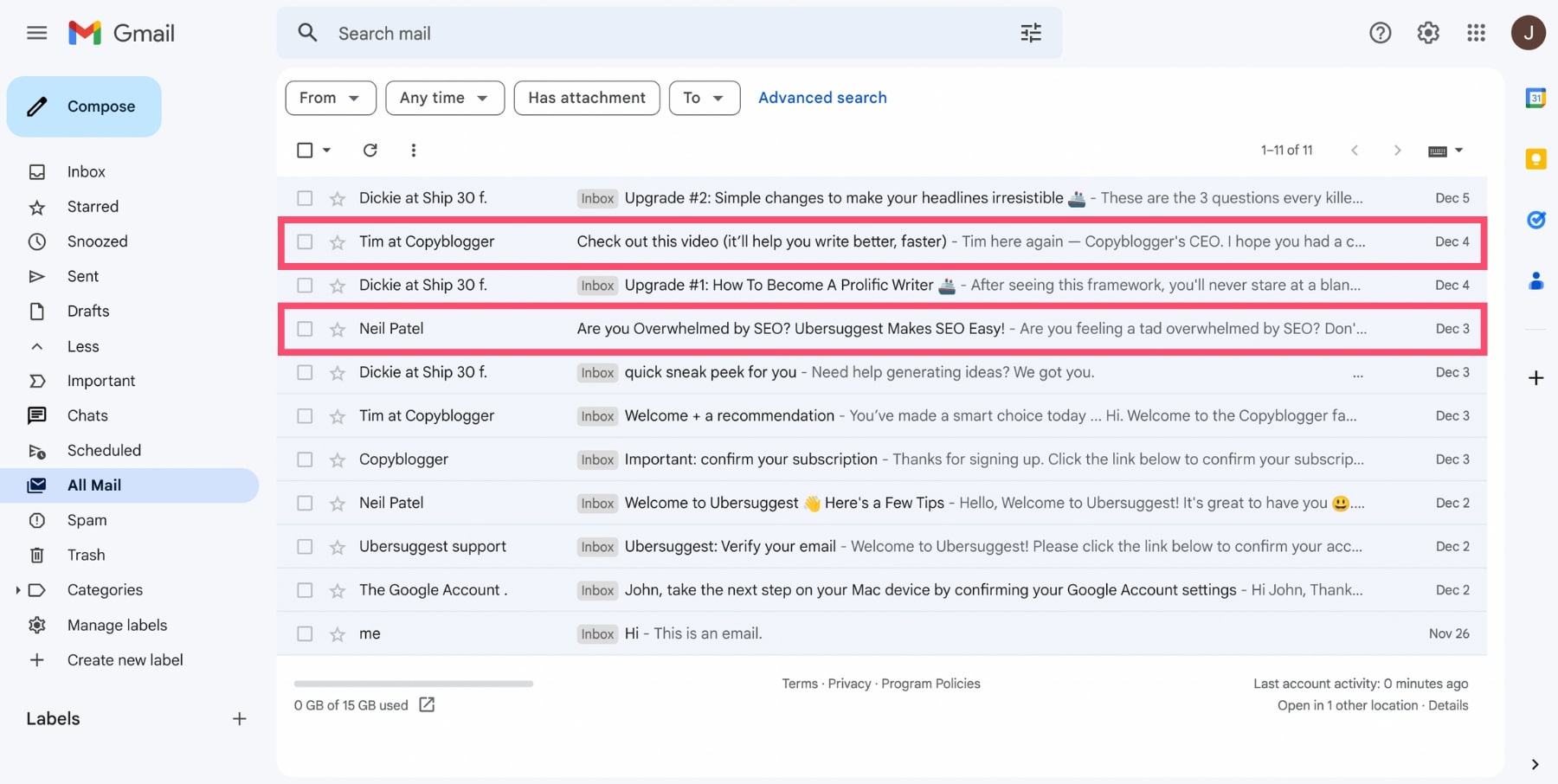
But if there’s no archive folder in Gmail… Where can you find the emails you’ve archived? And how can you retrieve them?
How to Retrieve Emails from Gmail Archive
The simplest way to find an email that you archived is to just search for it. This is because by default, Gmail search goes through all your all mail folder, which includes all archived emails as well as the emails you have muted or assigned a label to.
If you want to dig deeper, check out our guide on how to archive emails in Gmail.
However, if you simply need a way to find a folder with all your archived emails, here’s how:
On Desktop
To find the emails you’ve archived in Gmail from your computer, follow these 5 simple steps. The process is the same on PC or Mac.
Step 1: Log into your Gmail account.
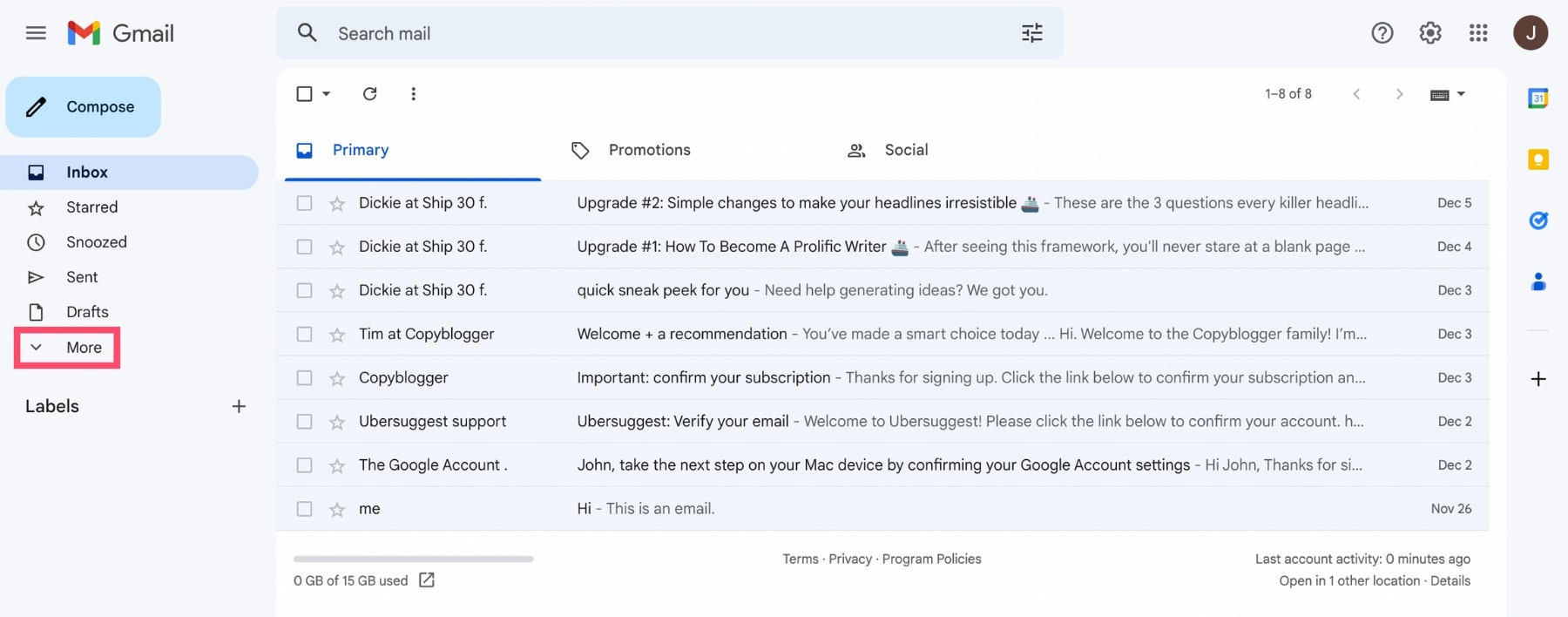
Step 2: On the left side of your screen, click on “More” to display all your email folders.
Step 3: Select the “All Mail” folder. In this folder, you’ll find all the emails you’ve received or archived.
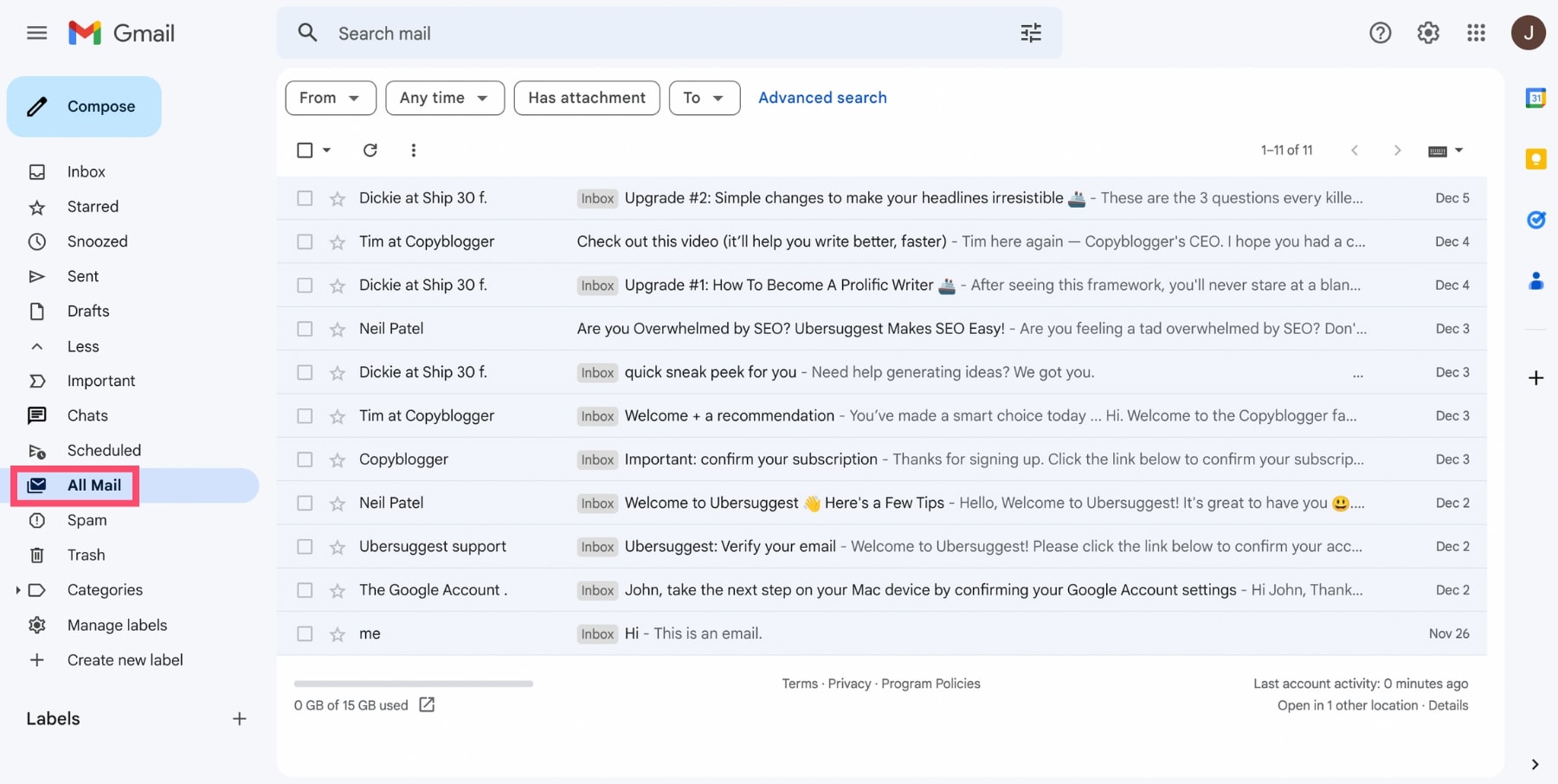
Step 4: Find the email you want to retrieve. Archived emails are easy to spot. They’re the ones without the “Inbox” label.
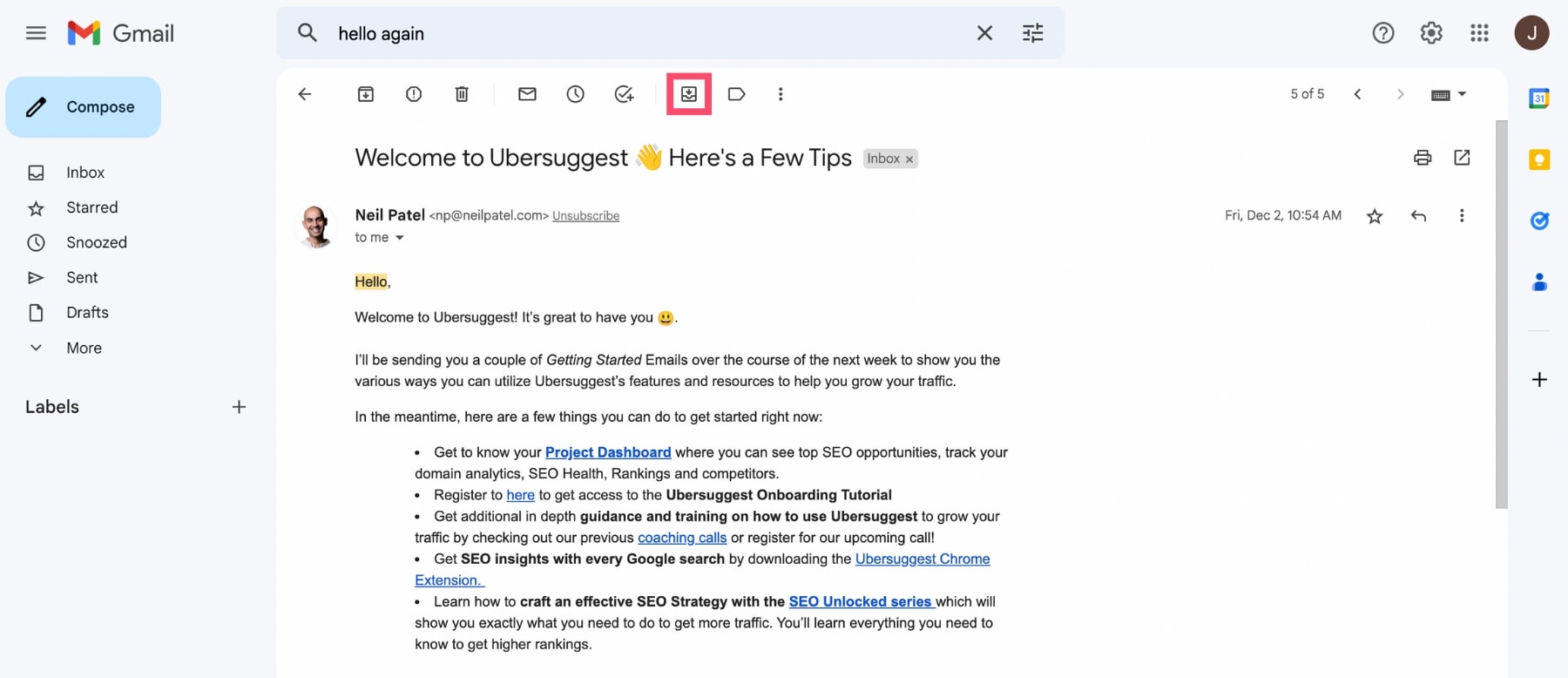
Step 5: Once you’ve found the email you wish to recover from the Gmail archive, open it and select “Move to Inbox”.
A confirmation pop-up will then appear at the bottom-left of your screen.
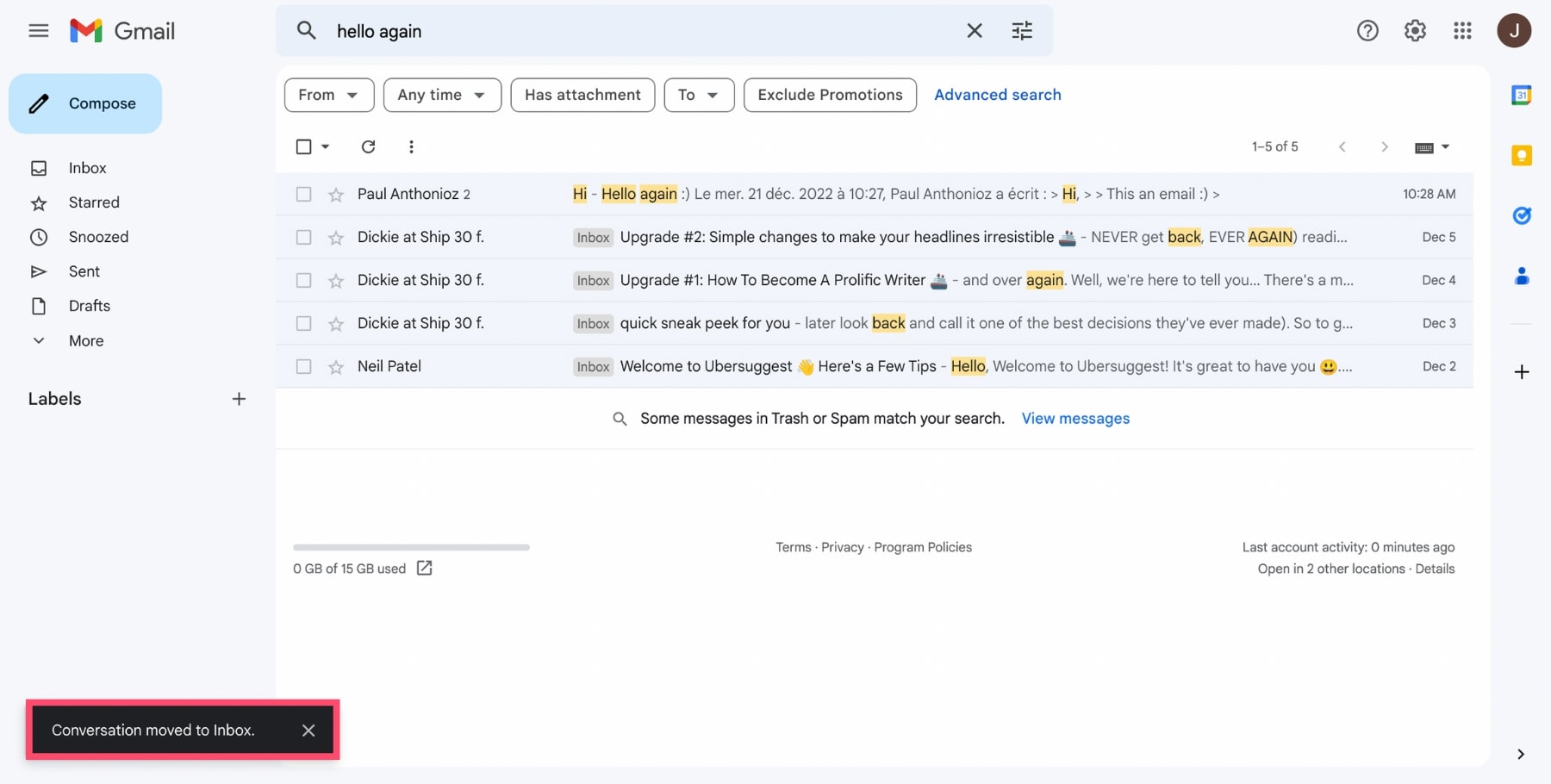
And that’s it. You’ve successfully retrieved an email from the Gmail archive. From now on, that email will appear directly in your inbox.
On Android
You send emails from your phone? Then you’re part of the 75% of email users. You can easily retrieve archive emails from an Android device. Here’s how to do it:
Step 1: Open the Gmail app on your Android device.
Step 2: Tap on the hamburger icon in the top-left corner of your screen to display Gmail’s menu.
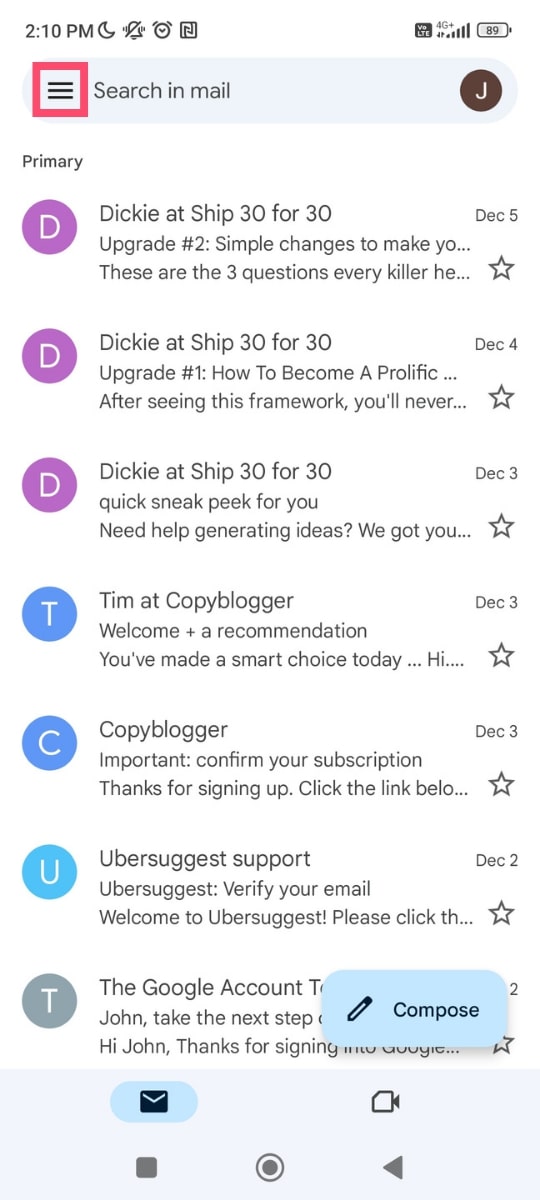
Step 3: In that menu, select “All emails”.
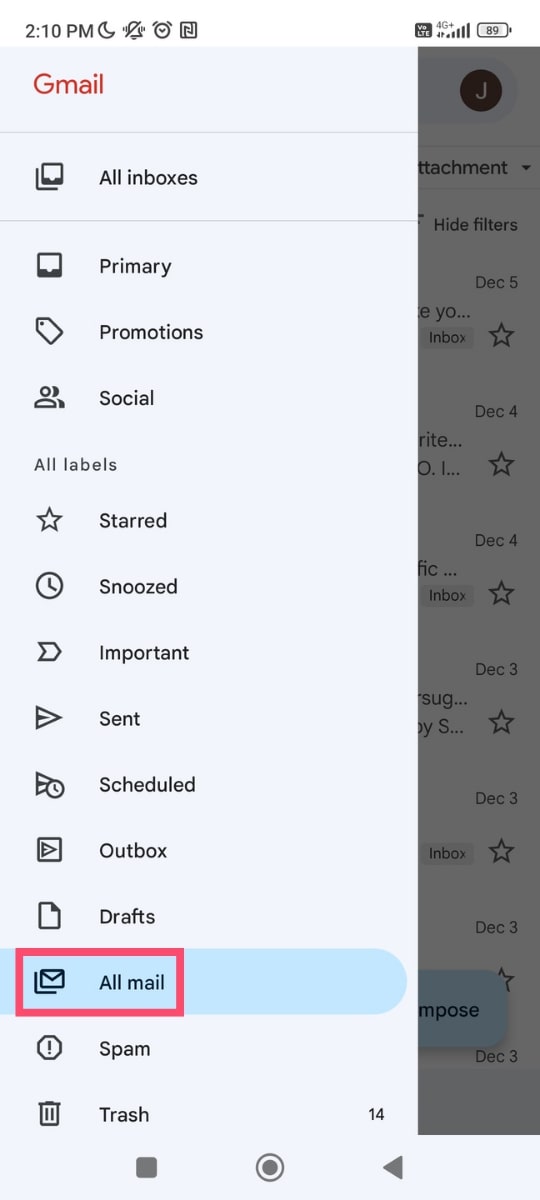
Step 4: This folder contains all your archived emails… As well as the emails that are in your inbox. The archived emails are the ones without the “Inbox” label. Find the email you want to unarchive. And open it.

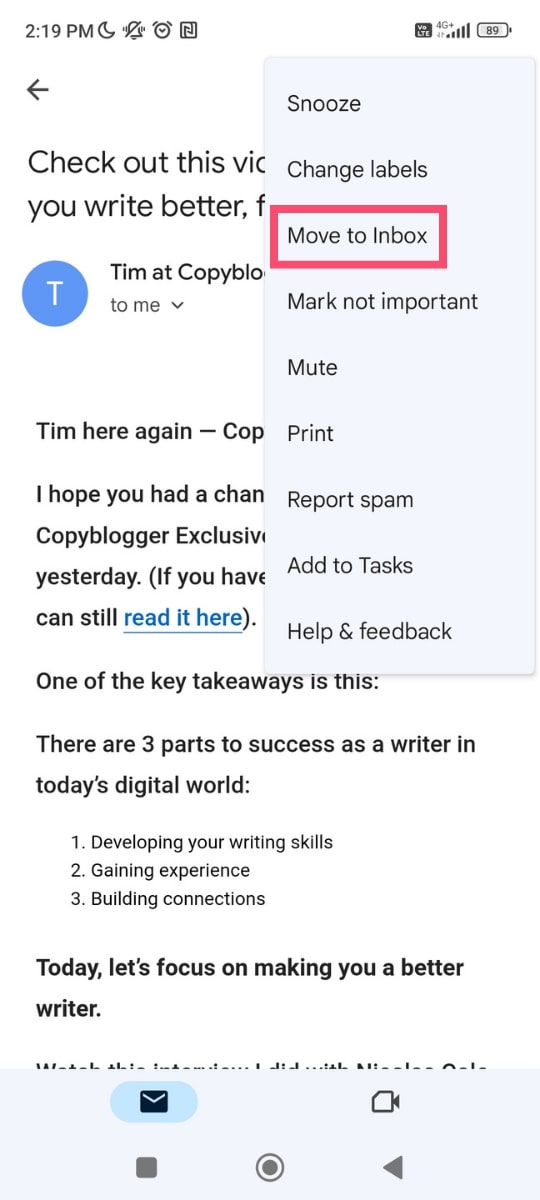
Step 5: From there, tap on the three vertical dots in the top-right corner of your screen. A dropdown menu will appear.

Step 6: Finally, select “Move to inbox”.
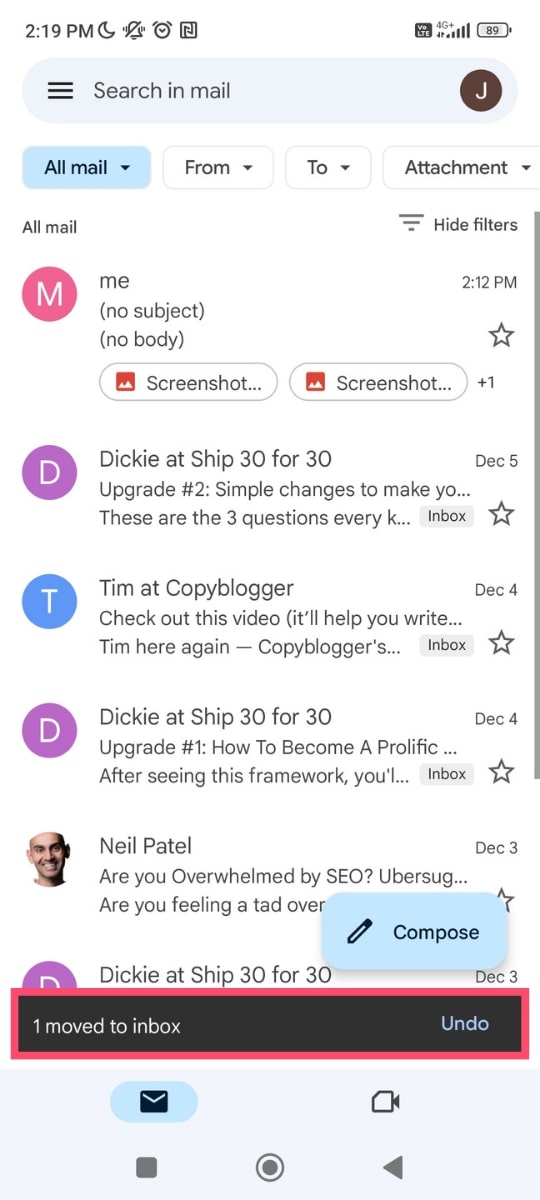
All done. You should now see a confirmation pop-up at the bottom of your screen. If you unarchived the wrong email, simply click “Undo” and that email will return to the Gmail archive.
On iPhone
The iOS version of the Gmail app makes it super easy to recover archived emails from an iPhone or an iPad. The steps are basically the same as on an Android device:
Step 1: Open the Gmail app.
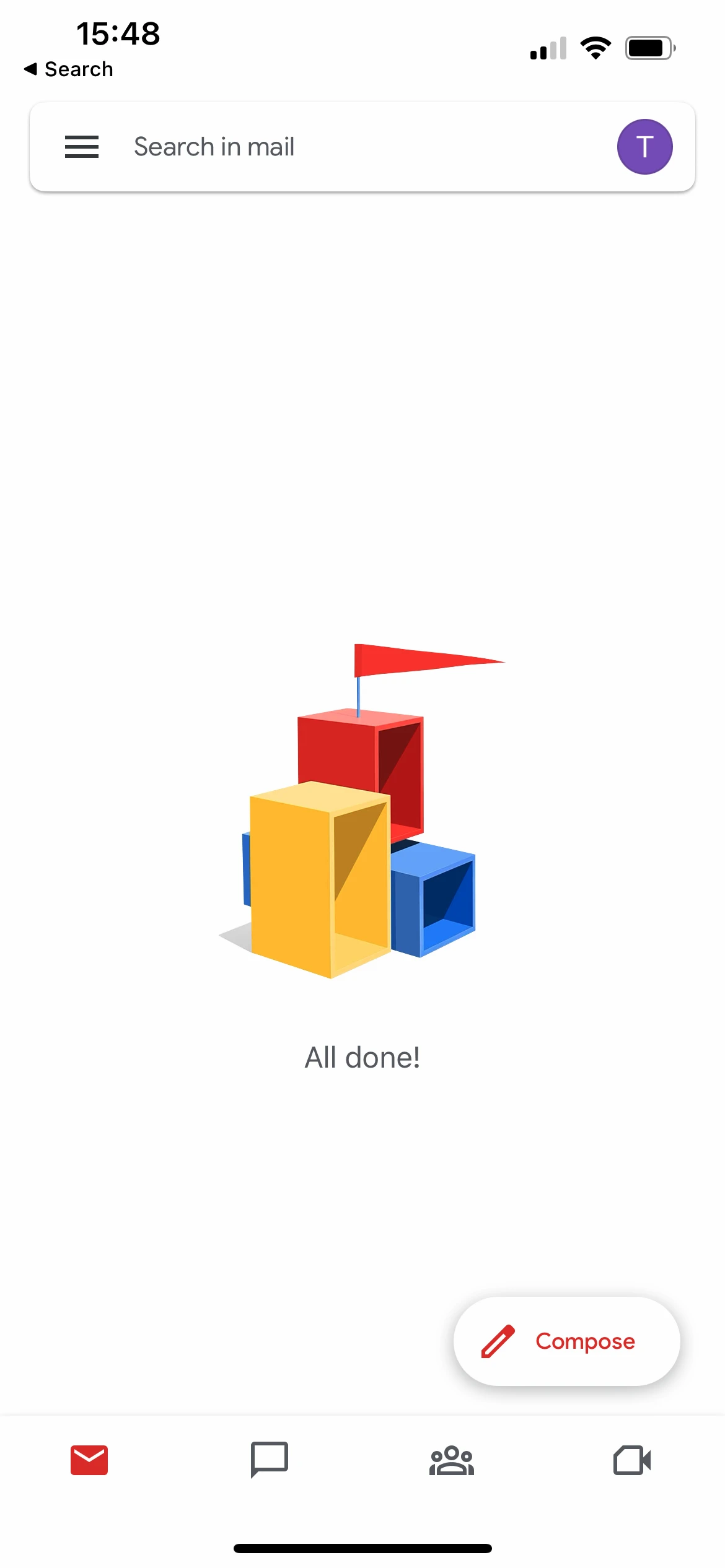
Step 2: Tap on the hamburger icon.
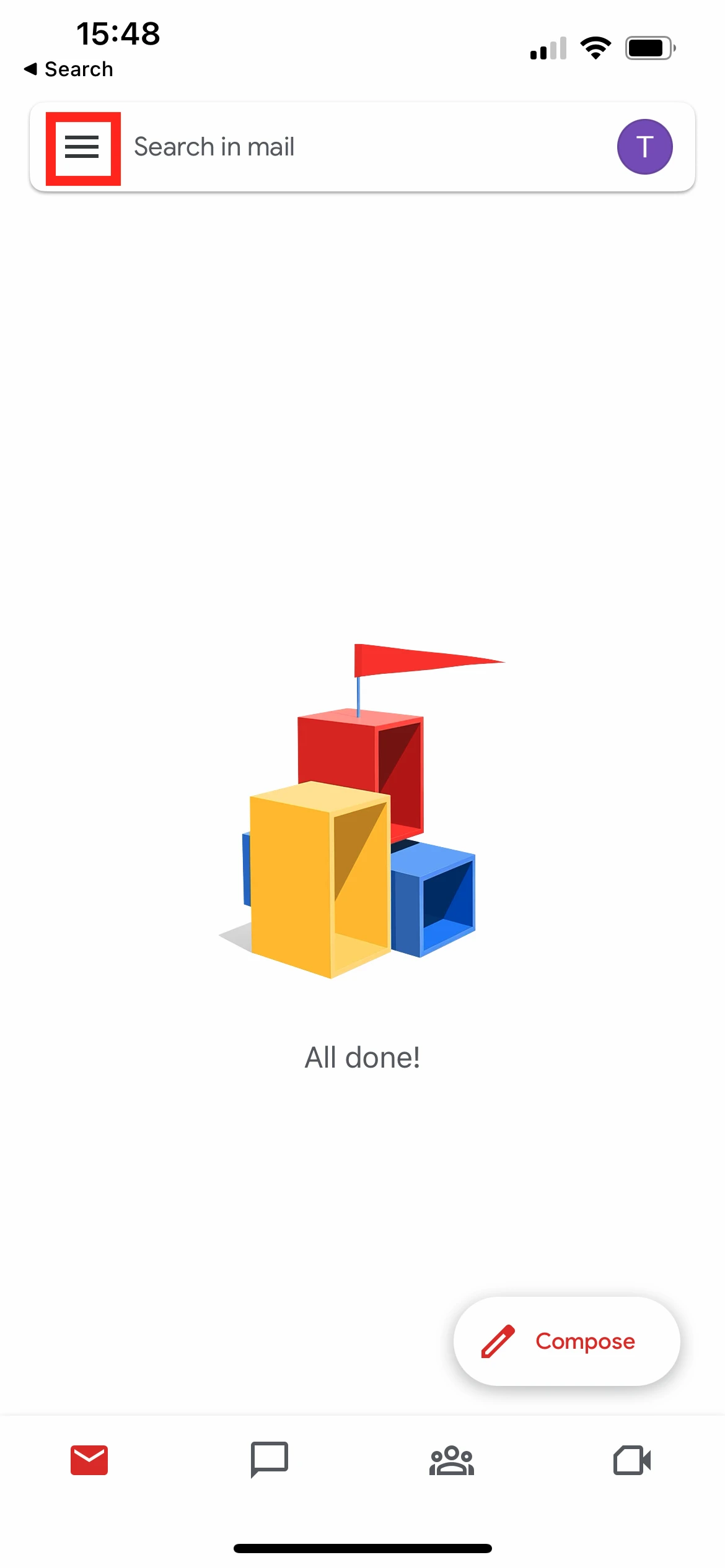
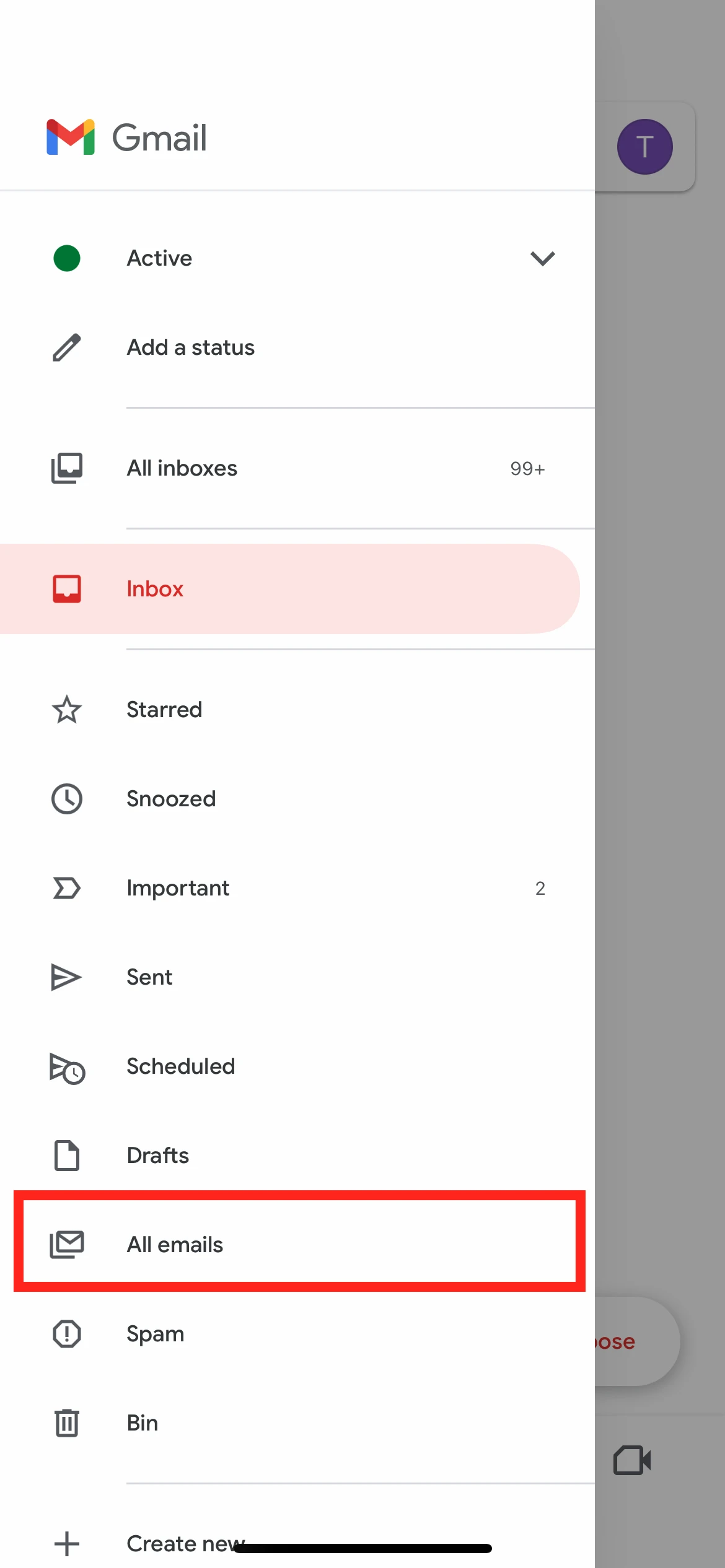
Step 3: Select “All Mail”.
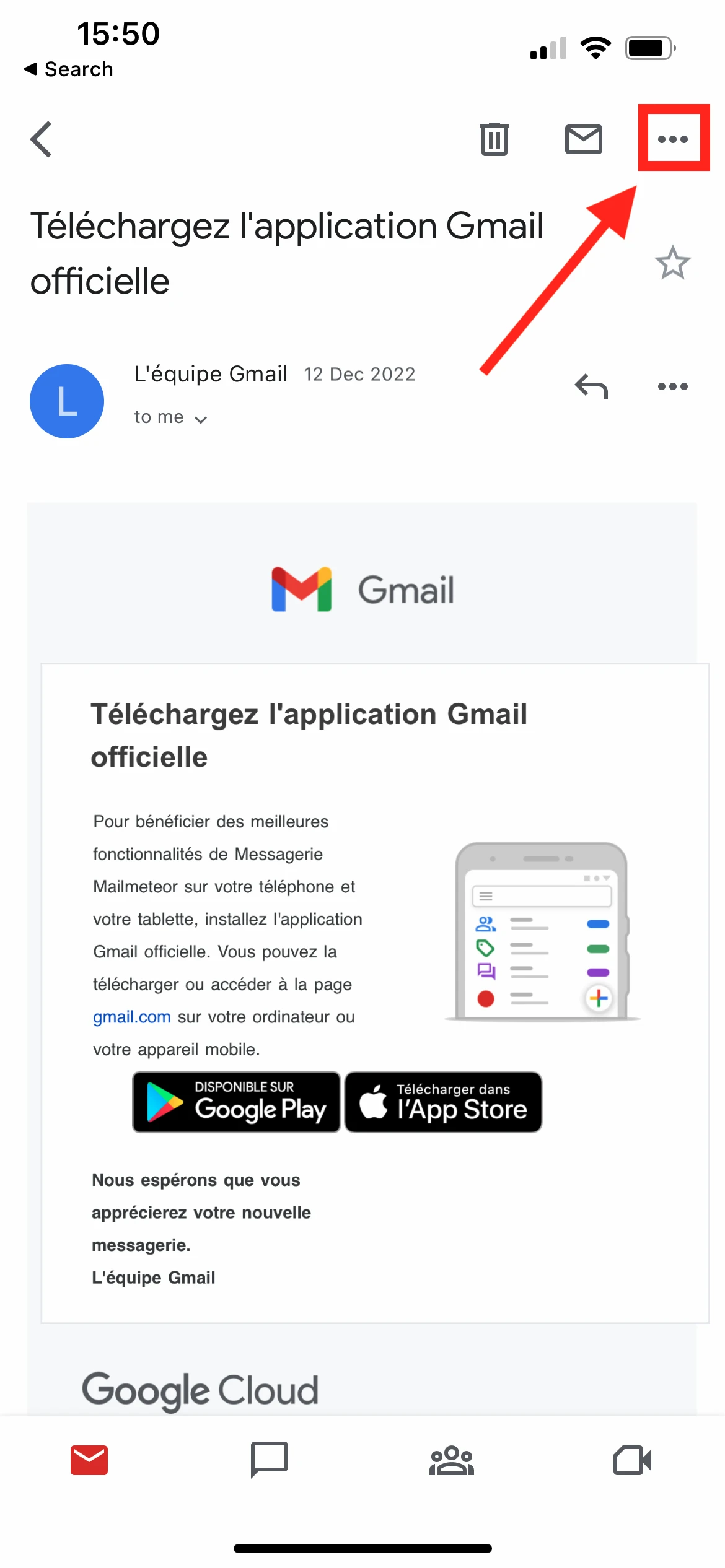
Step 4: Find the archived email you wish to retrieve and open it.
Step 5: Tap on the three vertical dots to display Gmail’s settings.
Step 6: Select “Move to inbox”.
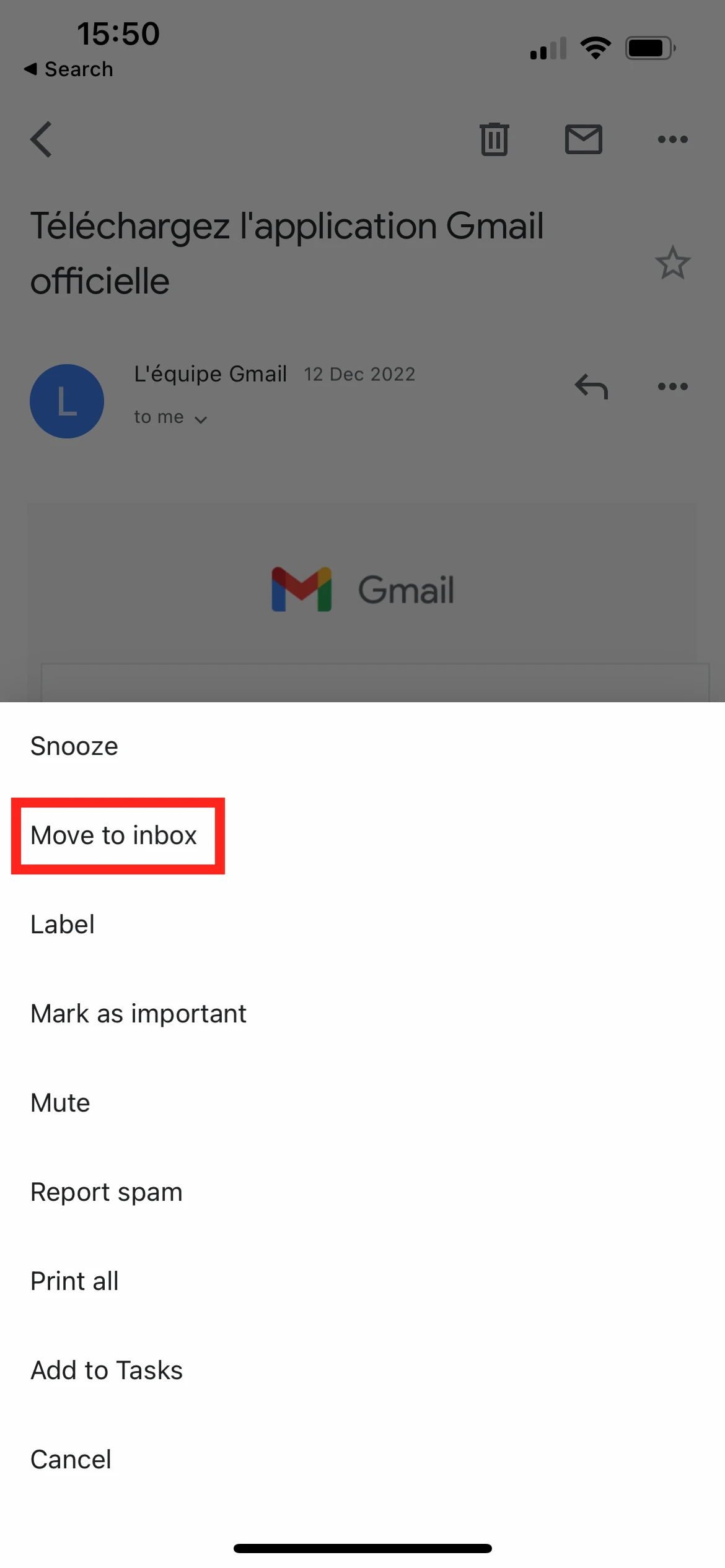
Easy, right? From now on, you should be able to see that email directly from your inbox.
How to Search for Archived Emails in Gmail?
Since there’s no specific folder for archived messages, browsing through the “All Mail” folder may feel like finding a needle in a haystack. Thankfully, you don’t have to do that. Y
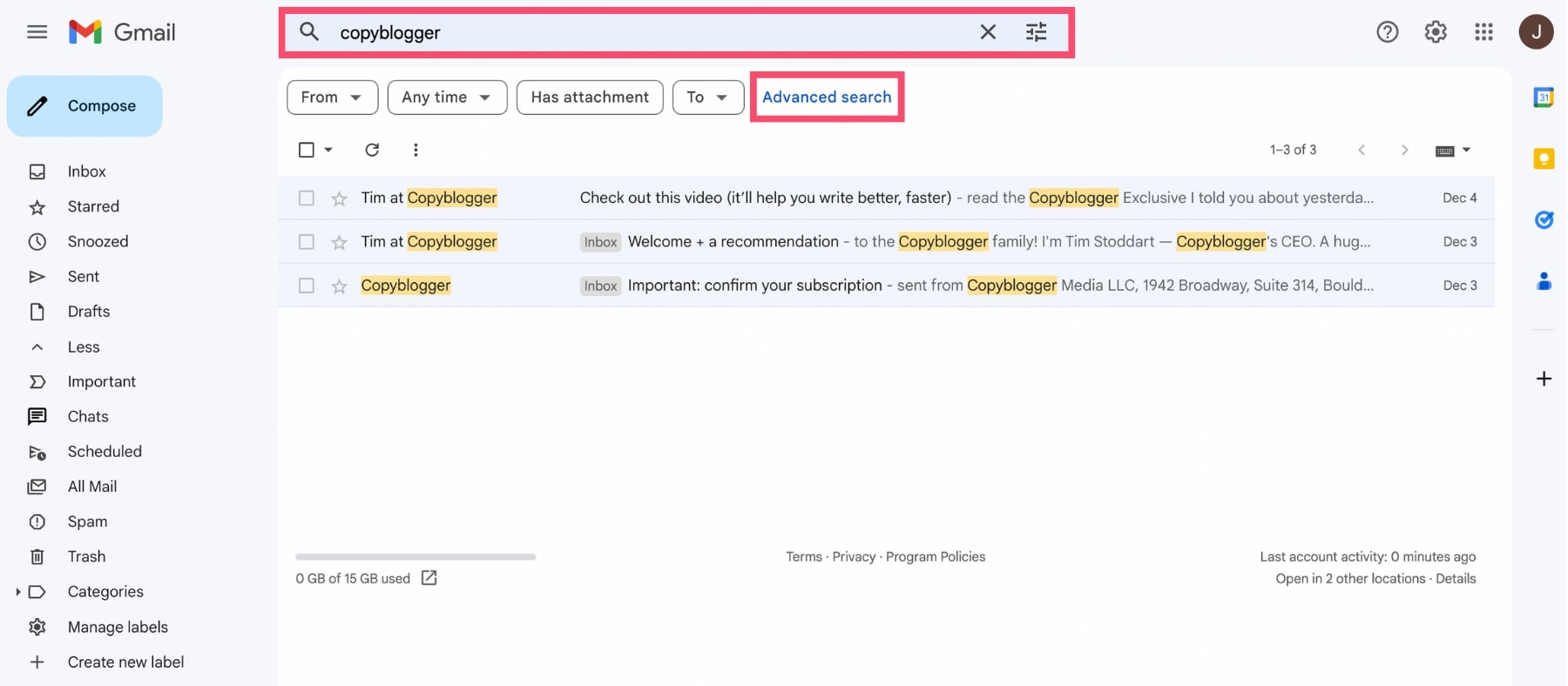
You can use Gmail’s powerful search bar to pinpoint the archived email you’re looking for. To display only archived emails in Gmail, use this search operator: is:archived.
You can then refine your search and narrow down results by entering relevant keywords, the sender’s name, or other specific details.
Conclusion
Gmail gives you a few options to keep your inbox organized. The Archive feature is one of them. You can use it to clean out an overloaded inbox without taking the risk of deleting important messages. Google will keep your archived emails indefinitely. And you can retrieve those emails in a few clicks at any given time.
But Gmail can do so much more than simply help you archive your old emails. Especially if you pair it with a Google add-on such as Mailmeteor to unlock exclusive new features, like real time email tracking, smart follow-ups, AI email drafting, auto labeling, and more.
Frequently Asked Questions
How do you delete archived messages in Gmail?
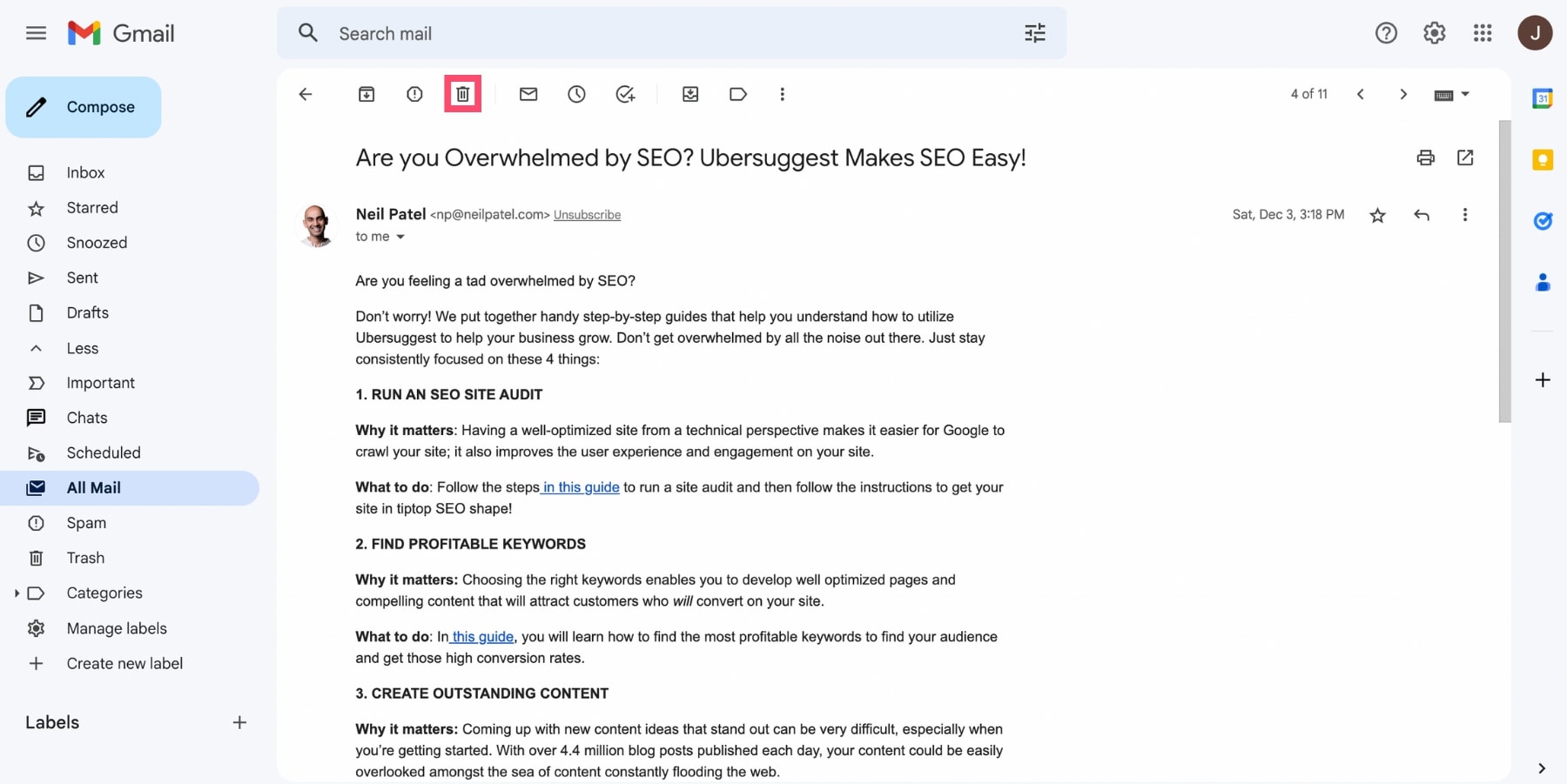
Once you’ve archived an email, Gmail will hold on to it indefinitely. Unless you delete it. To get rid of an email you’ve archived, find that email in the “All Mail” folder. Or use Gmail’s search bar. Then open the email and click on the “Delete” icon.
How can you retrieve archived emails in the Gmail app?
Just like when using the web version of Gmail, you can easily retrieve archived emails in the Gmail app. To do that, search for the message you want to recover. Then open it and tap on the three vertical dots. A dropdown menu will appear. From there, select “Move to inbox” to unarchive that email.
How to unarchive multiple messages in Gmail?
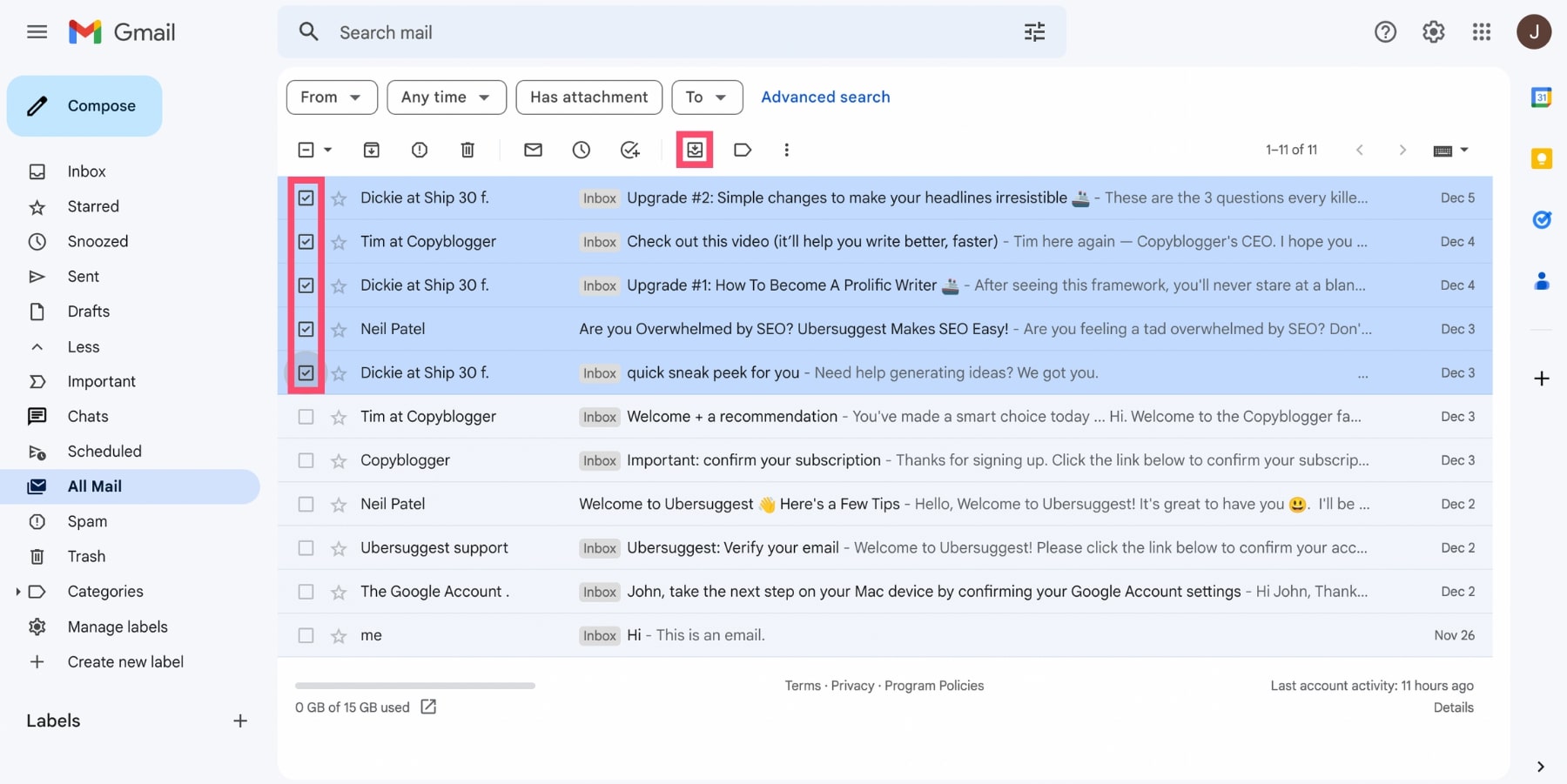
Want to retrieve multiple emails at once from the Gmail archive? Go to your “All Mail” folder. Select all the messages you want to unarchive. And click on “Move to inbox”.
Where do archived emails go in Gmail?
As we’ve seen, there is no Archive folder in Gmail. Google doesn’t actually move your email when you archive them. They just stop displaying it in your inbox. You can find those emails in the “All Mail” folder of your Gmail account.


