Writing emails in Gmail works for quick replies — but not when you need something polished or professional. If you want to collaborate with teammates, format your message properly, or avoid sending it before it’s ready, drafting your email in Google Docs is a much better approach.
With Google’s built-in Email draft feature, you can write and format your email in Docs, get feedback in real time, and send it through Gmail with a single click.
And if you want to go further — create templates, design more professional layouts, or personalize your emails — tools like [Mailmeteor’s Google Docs add]-on open up even more possibilities.
In this guide, you’ll learn how to create an email draft in Google Docs, how to send it via Gmail, and how to upgrade your drafts with templates and personalization.
Here’s what we’ll cover:
- What Is the Google Docs Email Draft Feature?
- Why Draft Emails in Google Docs?
- How to Draft an Email in Google Docs
- How to Create Better Email Drafts in Google Docs
Sounds good? Then let’s dive in.
What Is the Google Docs Email Draft Feature?
The Email draft feature in Google Docs is a built-in tool that lets you write, format, and prepare emails directly inside a Google Doc — then send them through Gmail with a single click.
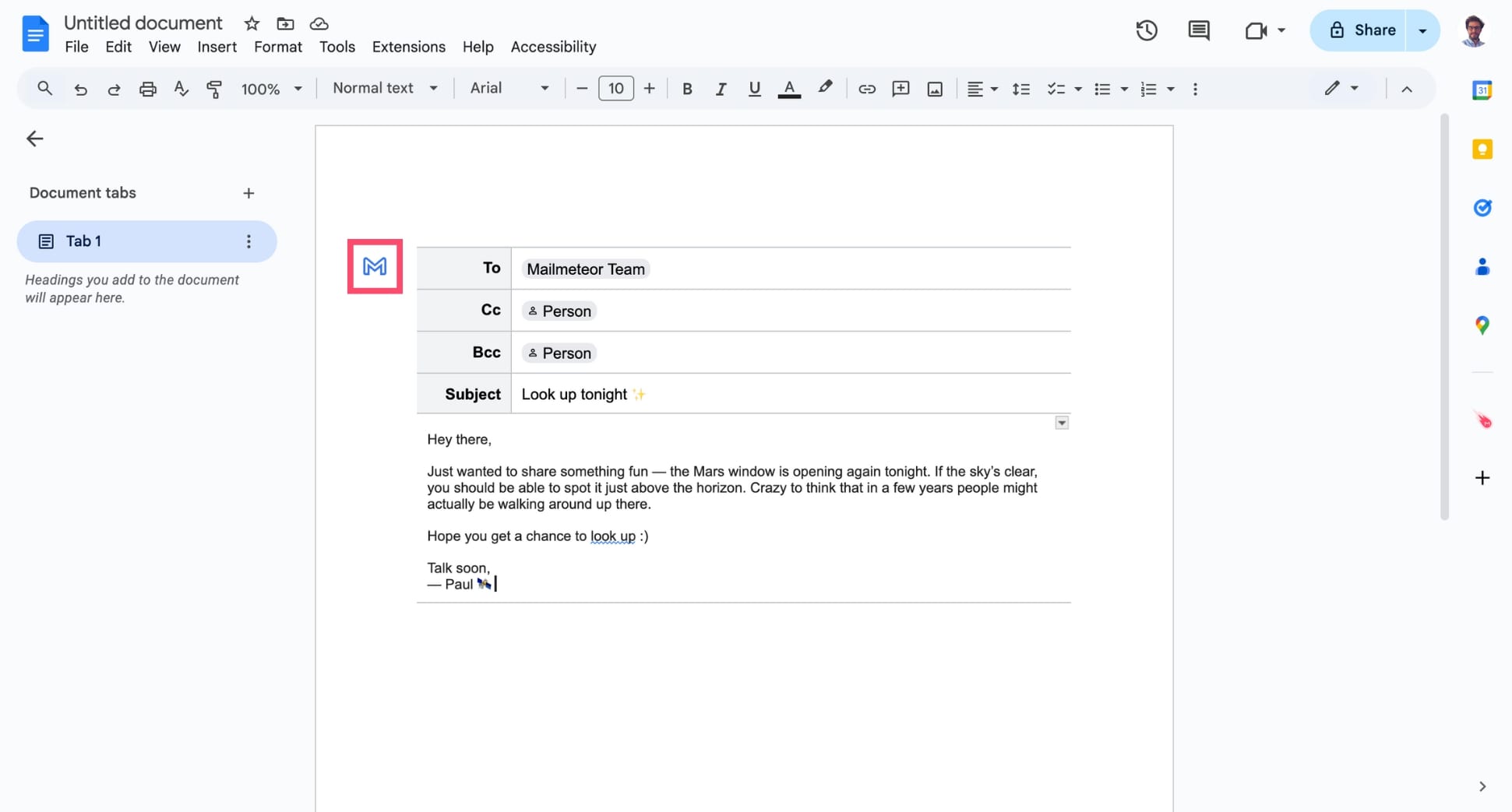
Instead of composing your message in Gmail’s limited editor, you can use Google Docs’ formatting tools to craft a cleaner, more polished email. This feature inserts a special block into your document that includes:
- Recipient fields (To, Cc, Bcc)
- A subject line
- A rich-text email body
- A Gmail preview button
Here’s what it looks like:
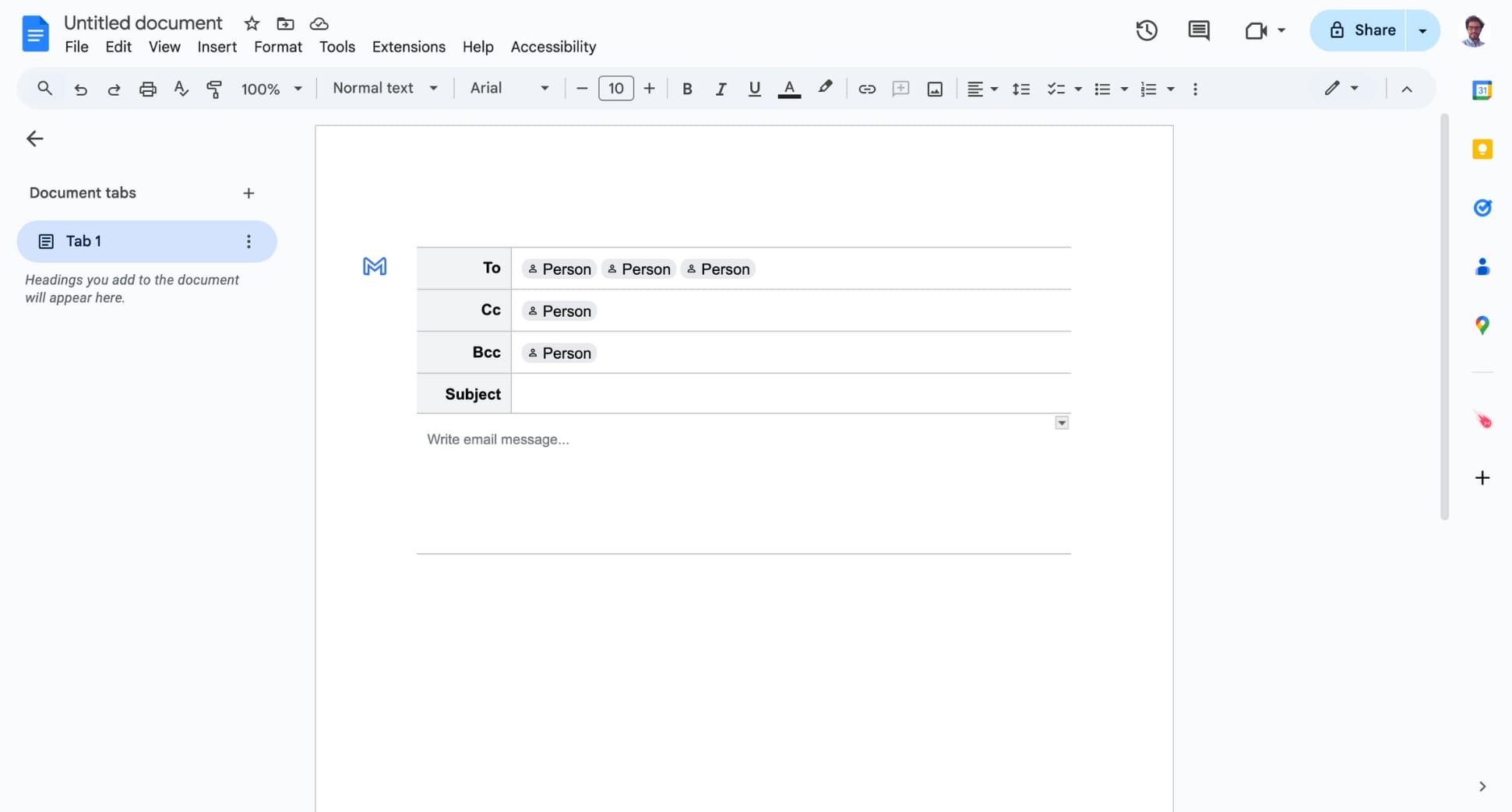
This feature is perfect for anyone who wants more control over their email writing process — especially if you need to refine your message, collaborate with others, or format content more clearly before sending.
Why Draft Emails in Google Docs?
Drafting emails in Google Docs gives you far more control than writing directly in Gmail. Unlike Gmail, Google Docs offers powerful editing tools, comments, suggestions, and version history — making it ideal for crafting important messages. Here’s why many people prefer drafting their emails in Google Docs:
Avoid Sending Unfinished Emails
When you write directly in Gmail, it’s easy to hit Send by mistake — especially if you’re multitasking or making quick edits. Drafting your message in Google Docs removes that risk entirely. You can take your time, refine the tone, and finalize your message safely before sending it to Gmail.
Format Your Email Drafts Better in Google Docs
Google Docs gives you far more formatting control than Gmail. You can use real headings, custom spacing, tables, different fonts, diagrams, and clean layouts that are difficult or impossible to create inside Gmail’s basic editor. This makes it much easier to design clear, readable emails.
Collaborate on Your Email Drafts
Need to get sign-off from a teammate or your manager? Google Docs is built for collaboration. You can share the draft, add comments, suggest edits, tag colleagues with @mentions, and track every change through version history. This is something Gmail simply can’t do. Perfect for teams.
Create Reusable Email Templates in Google Docs
If you frequently send similar messages, Google Docs makes it easy to turn your best email drafts into reusable templates. Just duplicate the document, adjust the content, and you’re ready to send. It’s a great way to save time and keep your communication consistent.
Add Power Features with Google Docs Extensions
For more advanced workflows, you can enhance Google Docs with extensions like Mailmeteor’s Google Docs add-on. This turns Google Docs into a full-featured email editor — far more powerful than Gmail’s built-in composer.
With this simple tool, you can:
- Insert variables to create personalized email drafts
- Design professional email layouts in Google Docs
- Schedule automated sequences and follow-ups
- Draft emails faster with a powerful IA assistant
- And so much more.
How to Draft an Email in Google Docs
Google Docs makes it easy to write, edit, and prepare your email before sending it via Gmail. Here’s how to use the built-in Email draft feature step by step.
1. Insert an Email Draft Block
Open a Google Doc. Then create a new document and go to Insert > Building blocks > Email draft.
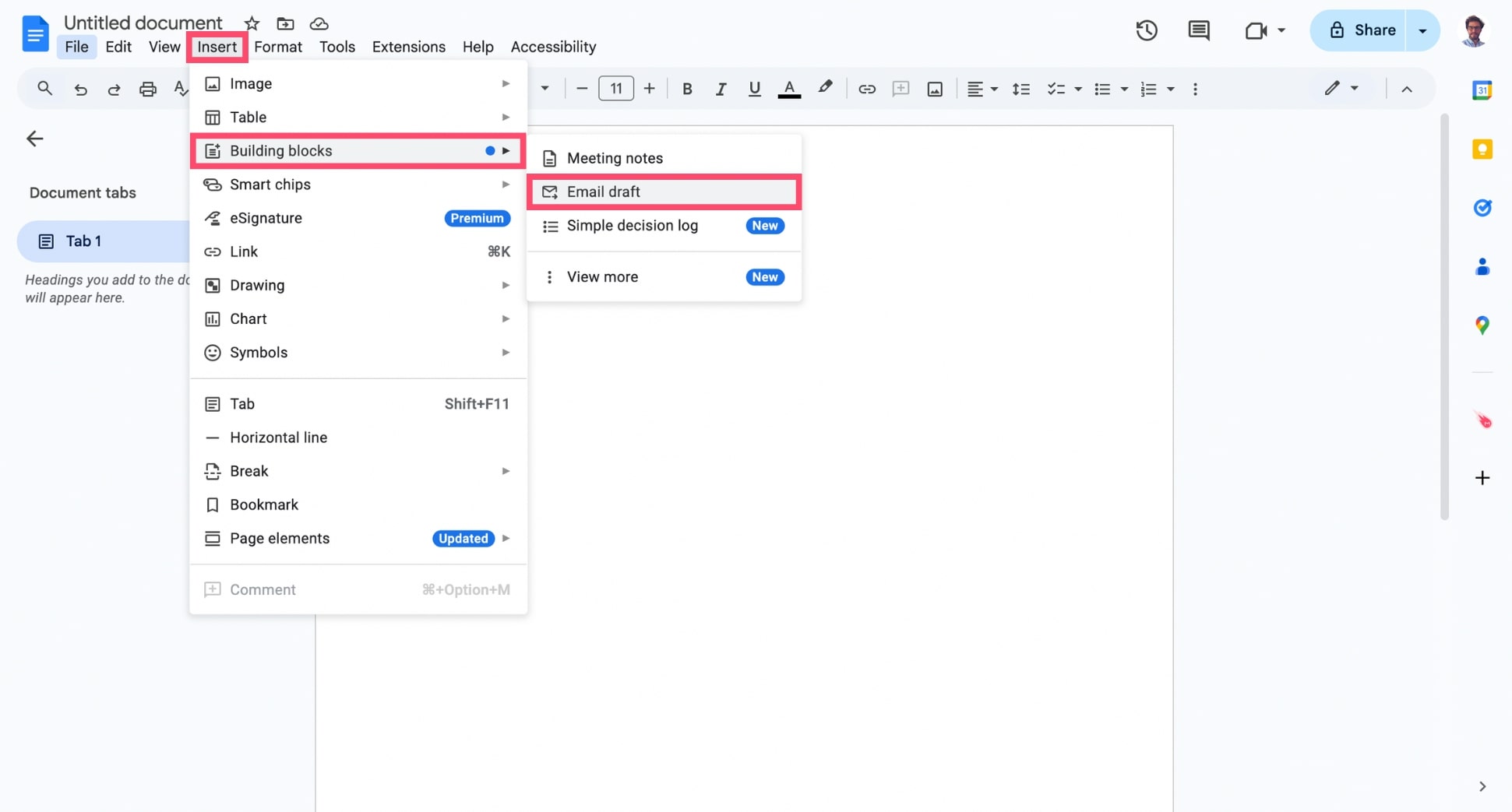
Google Docs will insert a special block that includes fields for the recipients, subject line, and email body. This is where you’ll write your message.
2. Add Recipients, Subject, and Email Body
Fill in the “To,” “Cc,” and “Bcc” fields as needed. Then add a clear subject line and start drafting your email using Google Docs’ rich formatting tools.
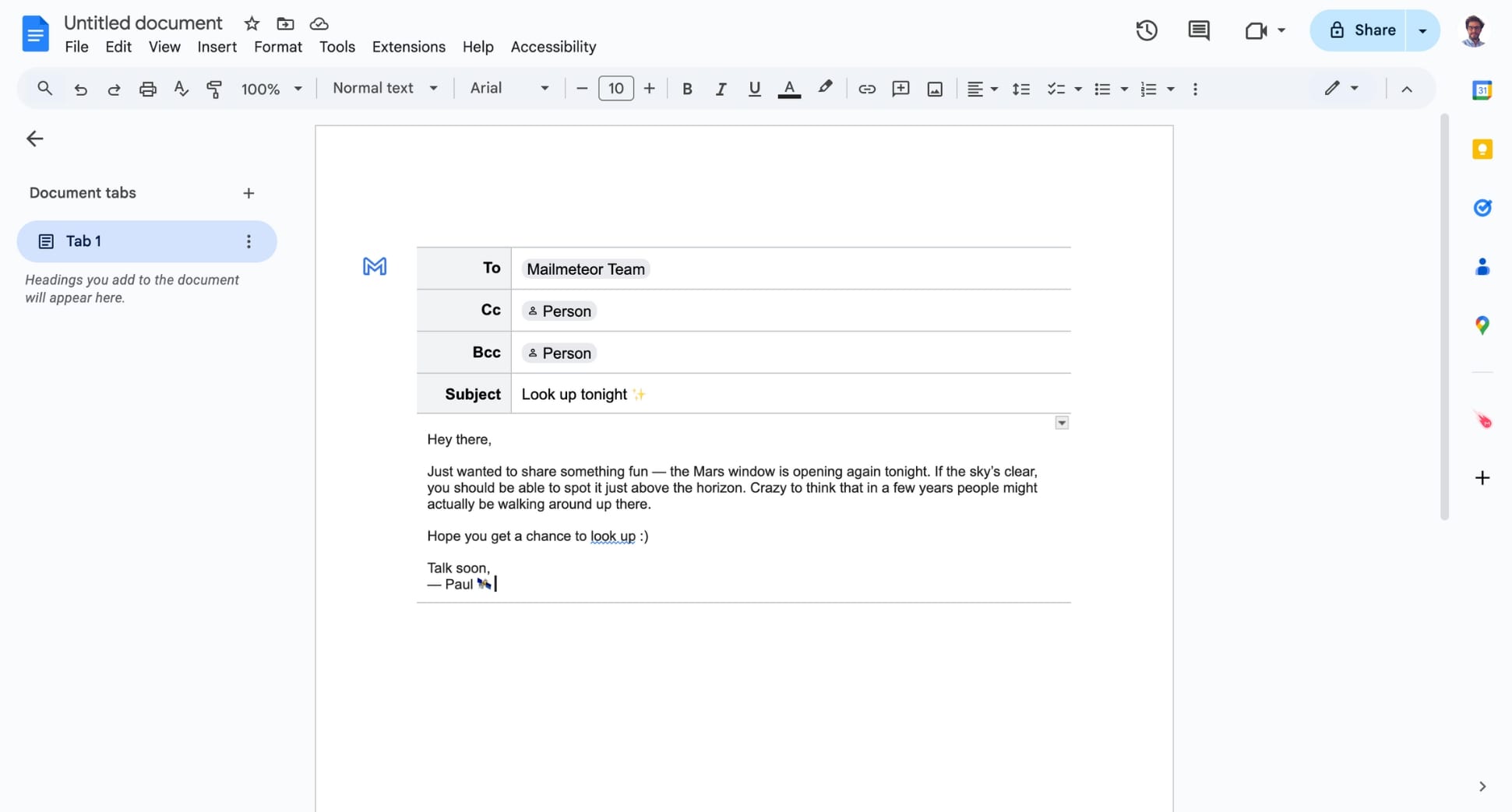
You can:
- Bold or highlight key sentences
- Include charts or drawings
- Insert tables or images
- And more
3. Collaborate and Refine the Draft
One of the biggest advantages of drafting emails in Google Docs is how easy it is to collaborate using the Share feature.
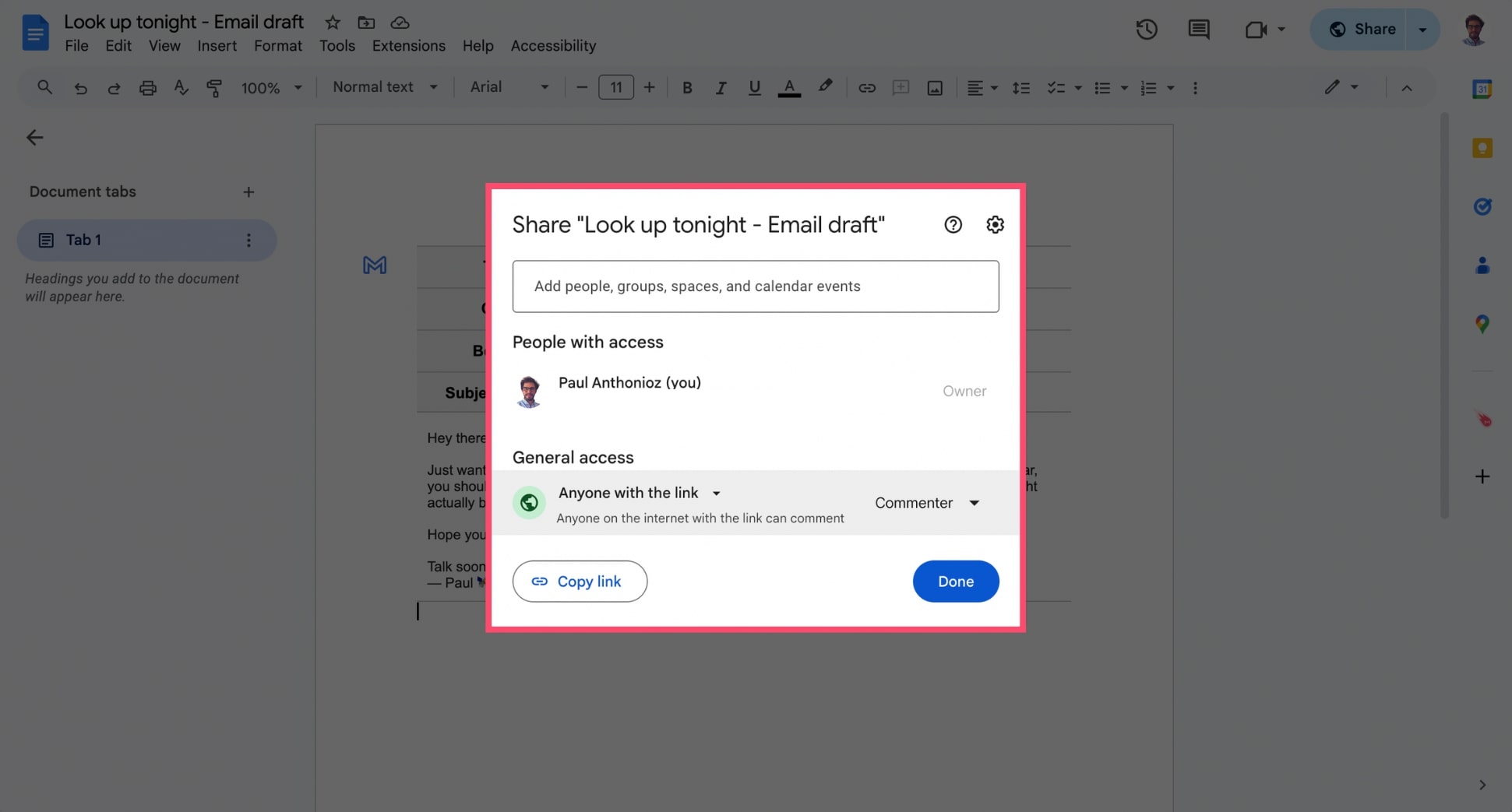
You can:
- Invite teammates to leave comments
- Use Suggesting mode to track edits
- Tag colleagues with @mentions
- Revisit earlier versions through version history
This makes Google Docs ideal for high-stakes messages, team announcements, or any communication that benefits from multiple reviewers.
4. Preview the Email in Gmail
When your draft is ready, click Preview in the top-right corner of the email block. This opens a Gmail-style preview so you can see exactly how your message will look.
It’s an important step, especially if you’ve used advanced formatting that might display differently in Gmail. Check the spacing, layout, and formatting to make sure everything transferred correctly.
5. Send Your Google Docs Email Draft
Make any final edits, attach files if needed, and — once everything looks right — click Send in the preview window.
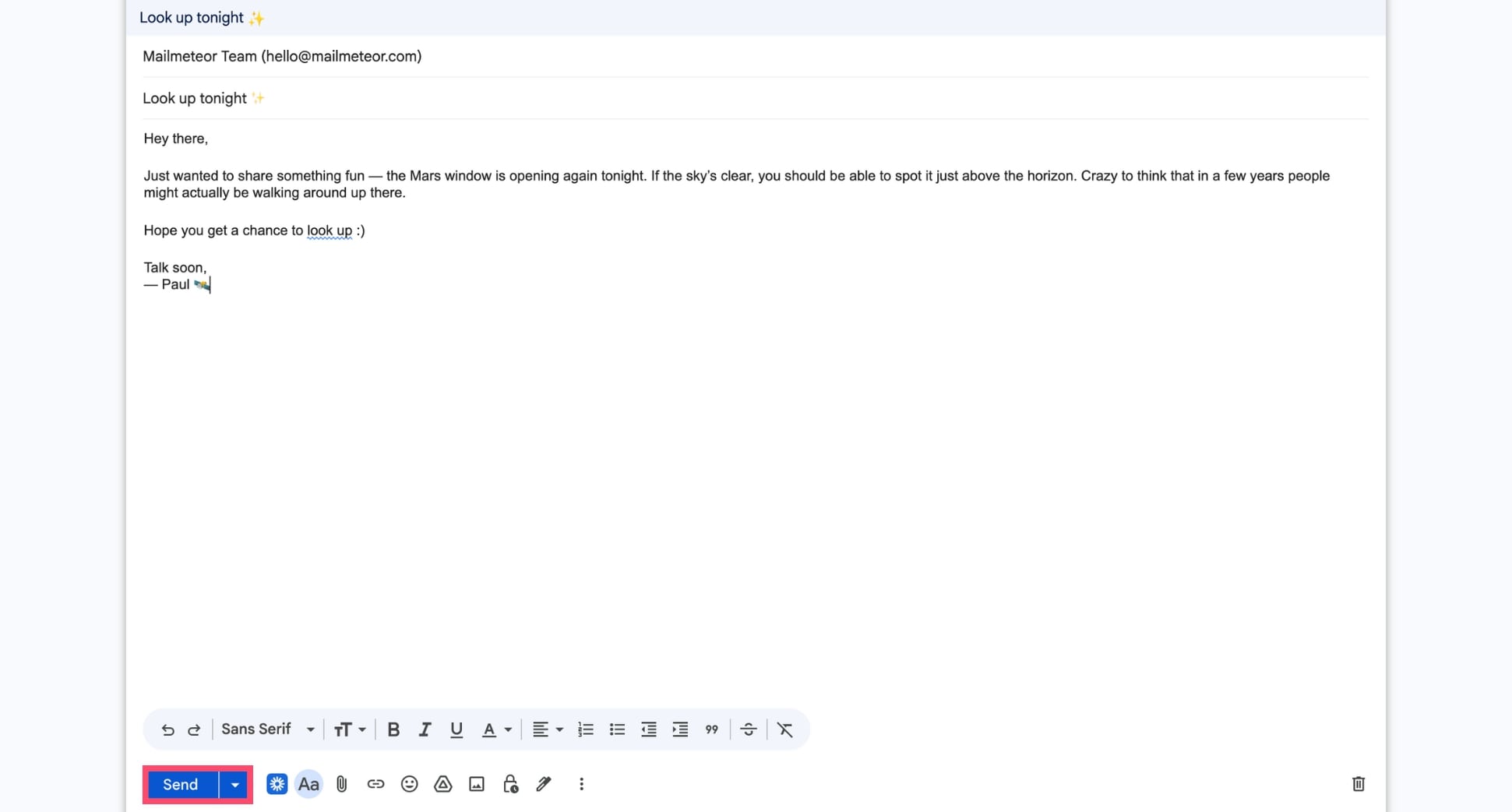
And voilà. Your email is now on its way, drafted in Docs and delivered through Gmail. Congratulations 🎉
How to Create Better Email Drafts in Google Docs
Drafting an email in Google Docs is a great start, but you can take your messages even further with a few extra tools and techniques. Whether you want to personalize emails or design more professional layouts, Google Docs gives you plenty of flexibility — especially when paired with the right add-ons.
Send Personalized Emails from Google Docs
Google Docs is great for drafting, but it can’t personalize emails for each recipient. If you want to send individualized messages — with fields like {{ firstname }}, {{ company }}, or {{ city }} — you’ll need a mail merge tool.
That’s where Mailmeteor’s Google Docs add-on comes in. It lets you insert personalization fields directly into your email draft, connect a Google Sheet containing your contacts, and send individualized emails through Gmail.
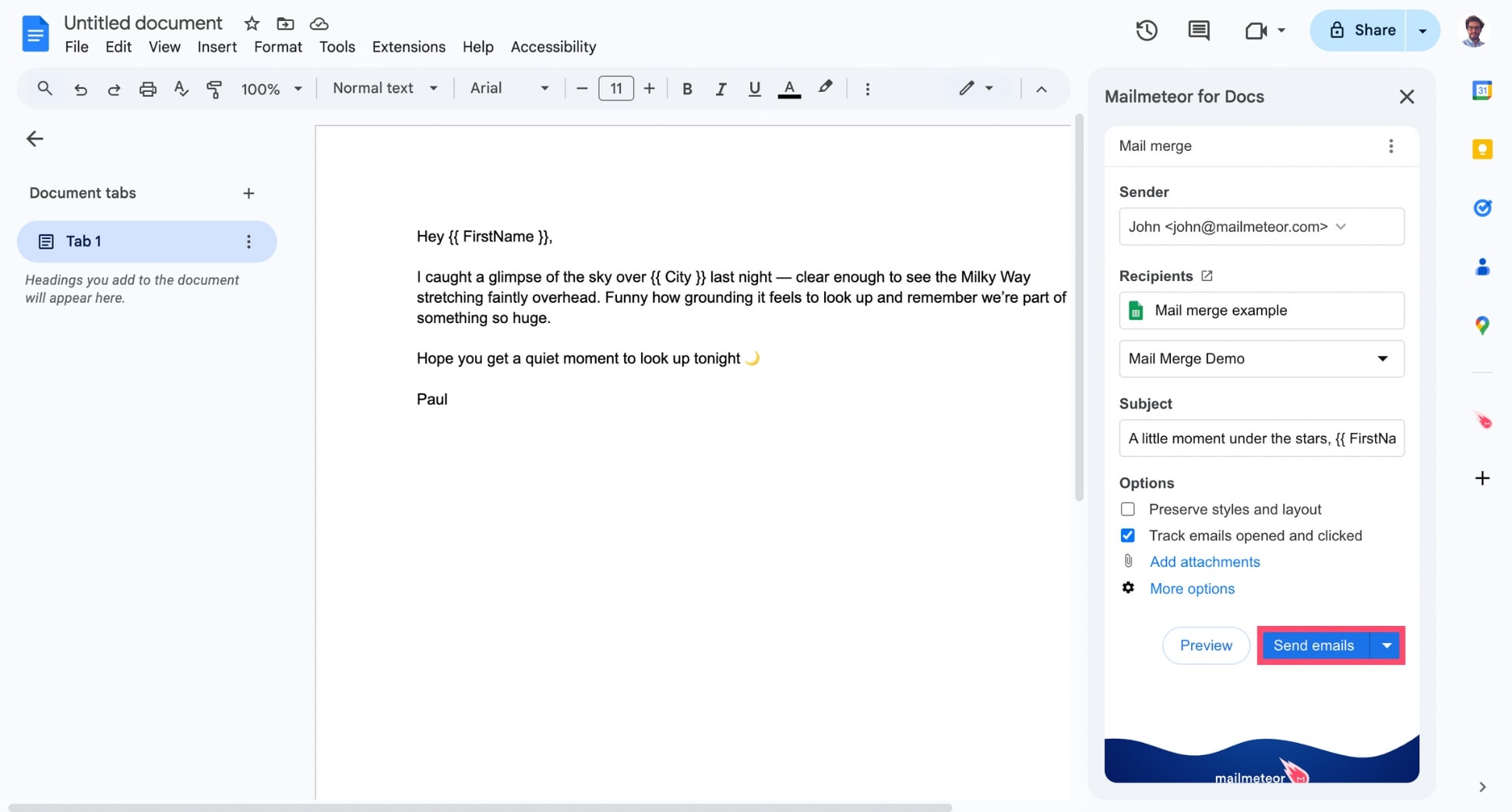
Personalized emails feel more human and get better engagement, especially for outreach, onboarding, follow-ups, and event invitations. If you want to learn how mail merge works in Docs, check out our detailed guide on mail merging in Google Docs.
Create Beautiful Email Templates in Google Docs
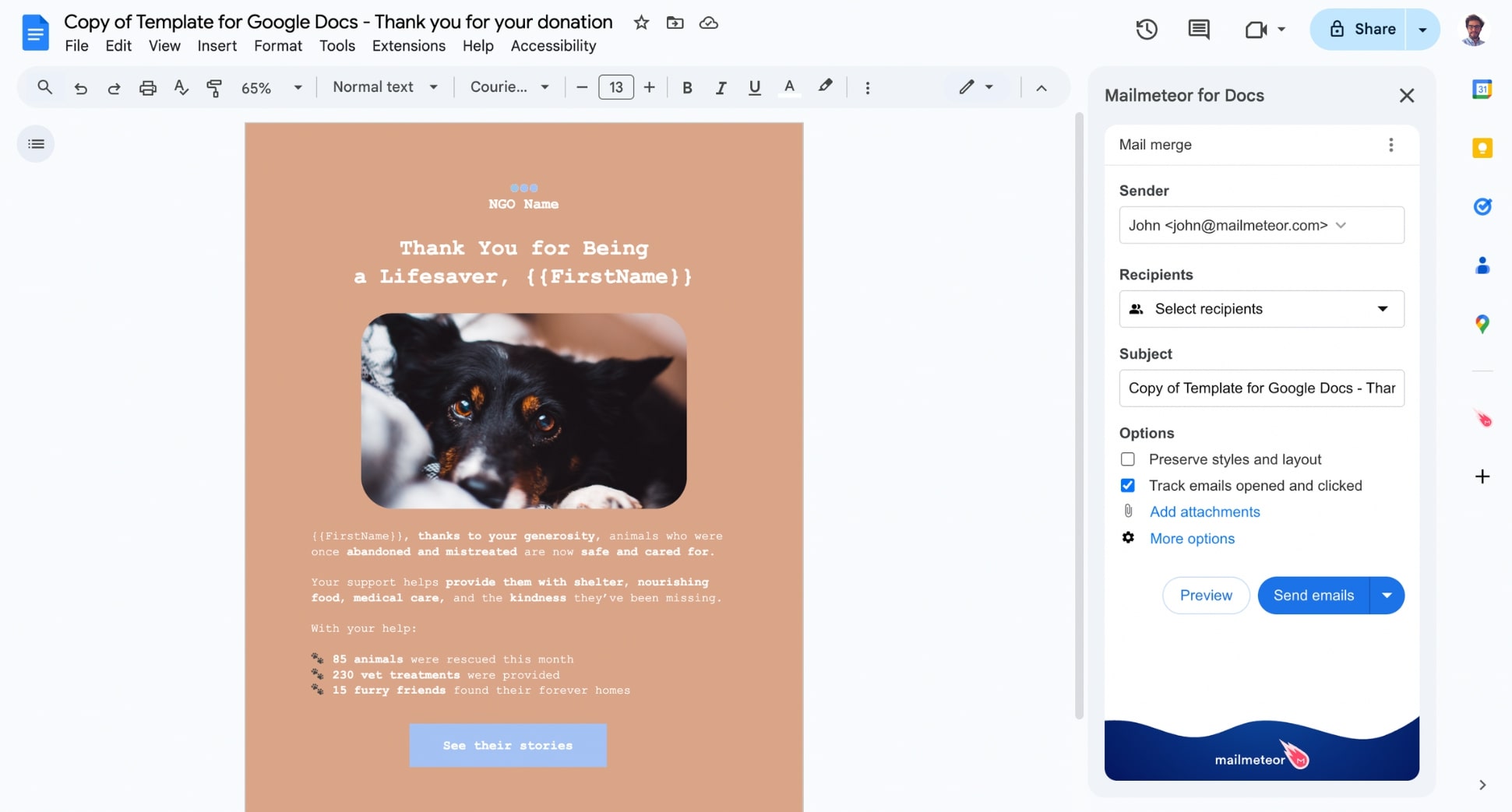
Google Docs is a great place to design clean email templates. You can use Docs’ formatting tools — background colors, images, tables, and typography — to build layouts that look far more polished than what you can create directly in Gmail.
Once your template is ready, Mailmeteor’s Google Docs add-on lets you send it straight from Docs as an email. By default, Mailmeteor converts your Google Docs file into HTML before sending, so your design turns into a real email layout.
Most styles are preserved during this conversion. However, the exact rendering can vary slightly depending on each recipient’s email provider, as HTML emails aren’t always displayed the same way across all inboxes.
If you need your email to look exactly like your Google Docs file, you can enable the Preserve styles and layout option. This feature generates an image snapshot of your document, ensuring every detail stays intact across all inboxes.
And if you prefer not to start from scratch, you can browse our collection of ready-made Google Docs newsletter templates, all fully customizable with your own text and branding.
FAQs
Can I send multiple emails at once from Google Docs?
You can send one email to multiple recipients using the Email Draft feature — just add several addresses in the “To,” “Cc,” or “Bcc” fields. However, Google Docs can’t send individual, personalized emails to each recipient. If you need to send the same email to many people as separate personalized messages, you’ll need a mail merge add-on like Mailmeteor for Google Docs.
Can I save email templates in Google Docs?
Yes. You can turn any Google Doc into a reusable template by duplicating it (File > Make a copy) and updating the content as needed. Many teams use folders to organize their email templates and keep them consistent. For even faster workflows, you can use Mailmeteor’s library of ready-made Google Docs email templates, designed for outreach, announcements, onboarding, and more.
How do I personalize emails drafted in Docs?
Google Docs alone can’t personalize emails for each recipient. To insert dynamic fields like {{ firstname }}, {{ company }}, or {{ city }}, you’ll need a tool like Mailmeteor. With Mailmeteor’s Google Docs add-on, you can insert merge fields, connect a Google Sheet with your contacts and send fully personalized emails through Gmail. Perfect for outreach, HR emails, event invitations, and more.
Can I design HTML emails in Google Docs?
Not fully. Google Docs supports rich formatting, images, tables, and clean layouts — but it doesn’t generate real HTML email code. When you send a draft to Gmail, some formatting (like custom fonts or advanced tables) may be simplified. For more polished, HTML-style designs, Mailmeteor’s Google Docs add-on lets you create professional layouts with blocks, buttons, and reusable templates.


