Want to send a Google Doc to someone via email — but not sure which method is best? This guide is for you.
Whether you’re collaborating with colleagues, sharing a final draft with a client, or sending personalized documents to a large list, there are several ways to email a Google Doc — and each has its pros and cons.
In this guide, we’ll walk you through all the best options — step by step. You’ll learn how to send a doc as a live link, attach it as a PDF, email it directly from Google Docs, or use Mailmeteor to personalize and track your sends at scale.
If your goal is not just to share a document, but to send it as an email message itself (for example, turning your doc into a Gmail draft or sending it as the email body), you may also want to read our guide on how to email from Google Docs.
Here’s what we’ll cover:
- How to Share a Google Doc by Link in an Email
- How to Email a Google Doc as a PDF or Word Attachment
- How to Send a Document Directly from Google Docs
- How to Send Personalized Google Docs in Bulk
- How to Manage Access to a Google Doc
- Tips to Boost Engagement When Sharing Google Docs via Email
But first — here’s a quick comparison table to help you choose the right method:
| Method | Best For | Format | Pros | Cons |
|---|---|---|---|---|
| Link sharing | Quick access for anyone | Live doc | Always up to date, easy | Needs correct permissions |
| PDF attachment | Final version, no editing | PDF, Word | Portable, can be saved | Not editable, outdated if doc changes |
| Direct from Google Docs | Quick 1:1 sends | Link or PDF | Fast, no switching tabs | Not ideal for large sends |
| Mailmeteor personalization | Bulk personalized sends | PDF or Live | Scalable, personalized, tracked | Requires Mailmeteor add-on |
Ready to learn how to share your doc like a pro?
Then let’s get started ⤵️
How to Share a Google Doc by Link in an Email
One of the easiest ways to share a Google Doc is by generating a shareable link and pasting it into your email. This method is perfect when you want recipients to view or collaborate on a live document — without sending attachments.
Here’s how to do it:
- Open your Google Doc.
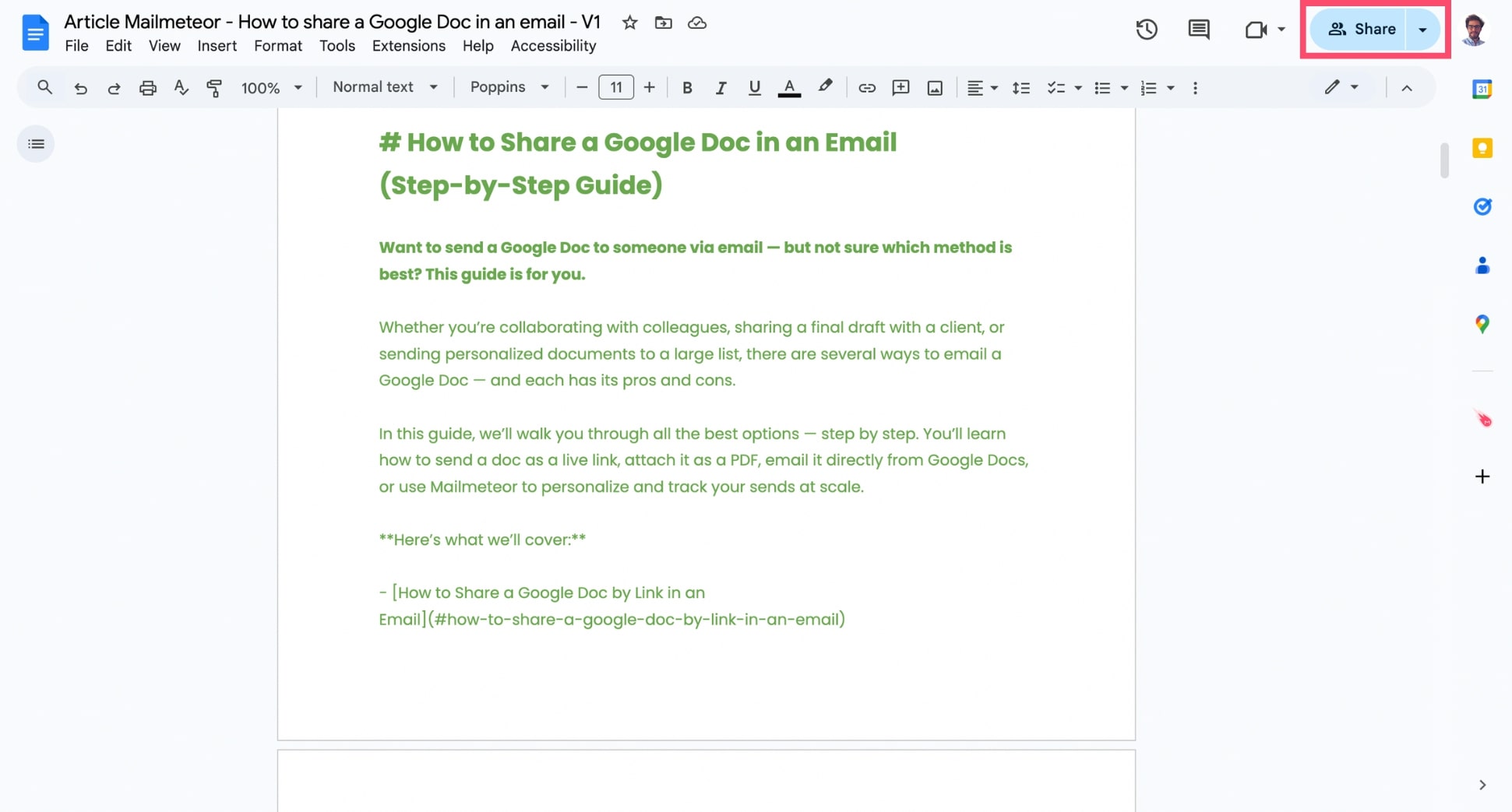
- Click the Share button.
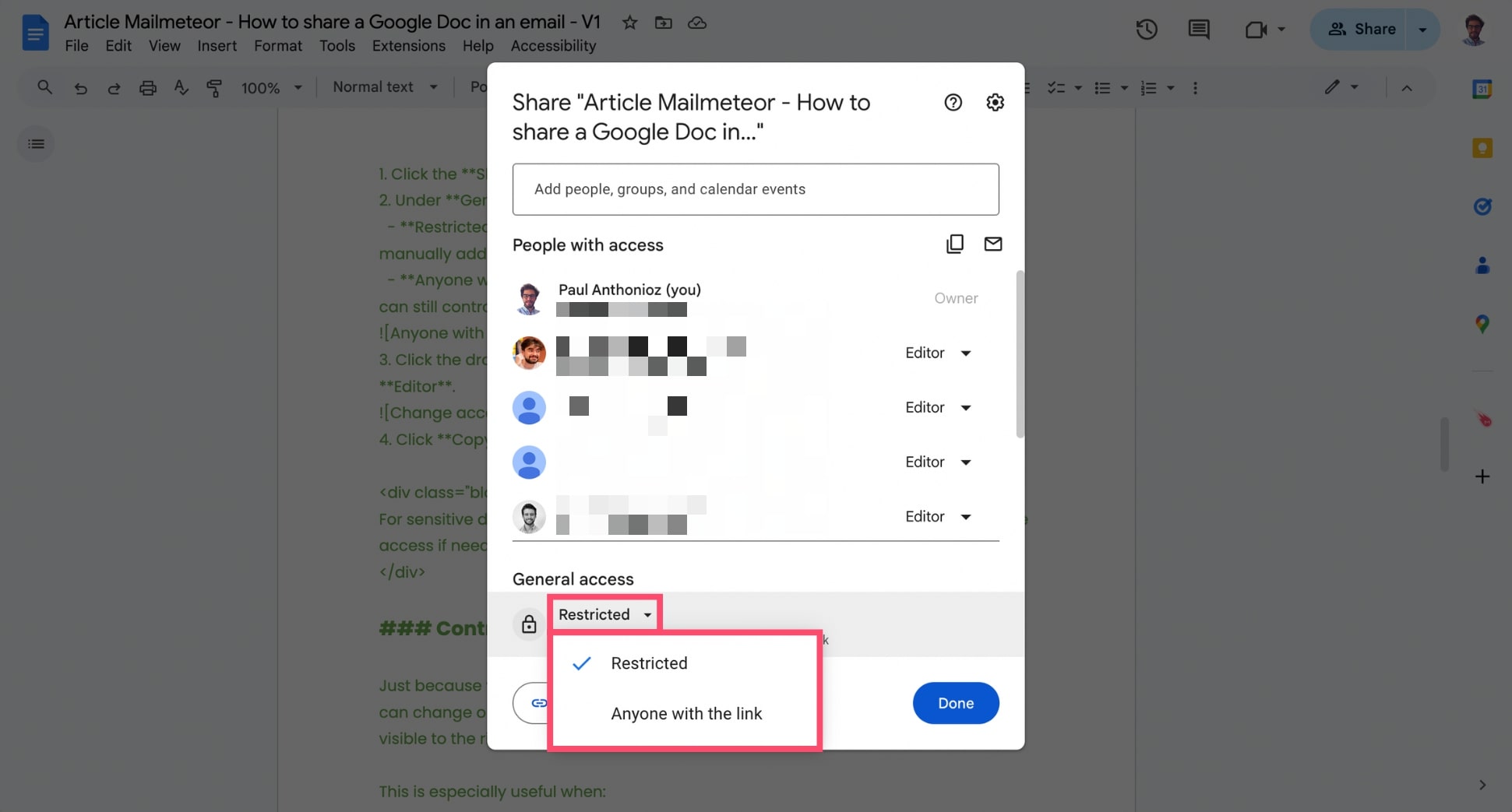
- Under General access, click the dropdown and select Anyone with the link.
- Choose the appropriate permission:
- Viewer – Can read the doc, but not comment or edit.
- Commenter – Can leave suggestions without editing content.
- Editor – Can make direct changes to the doc.
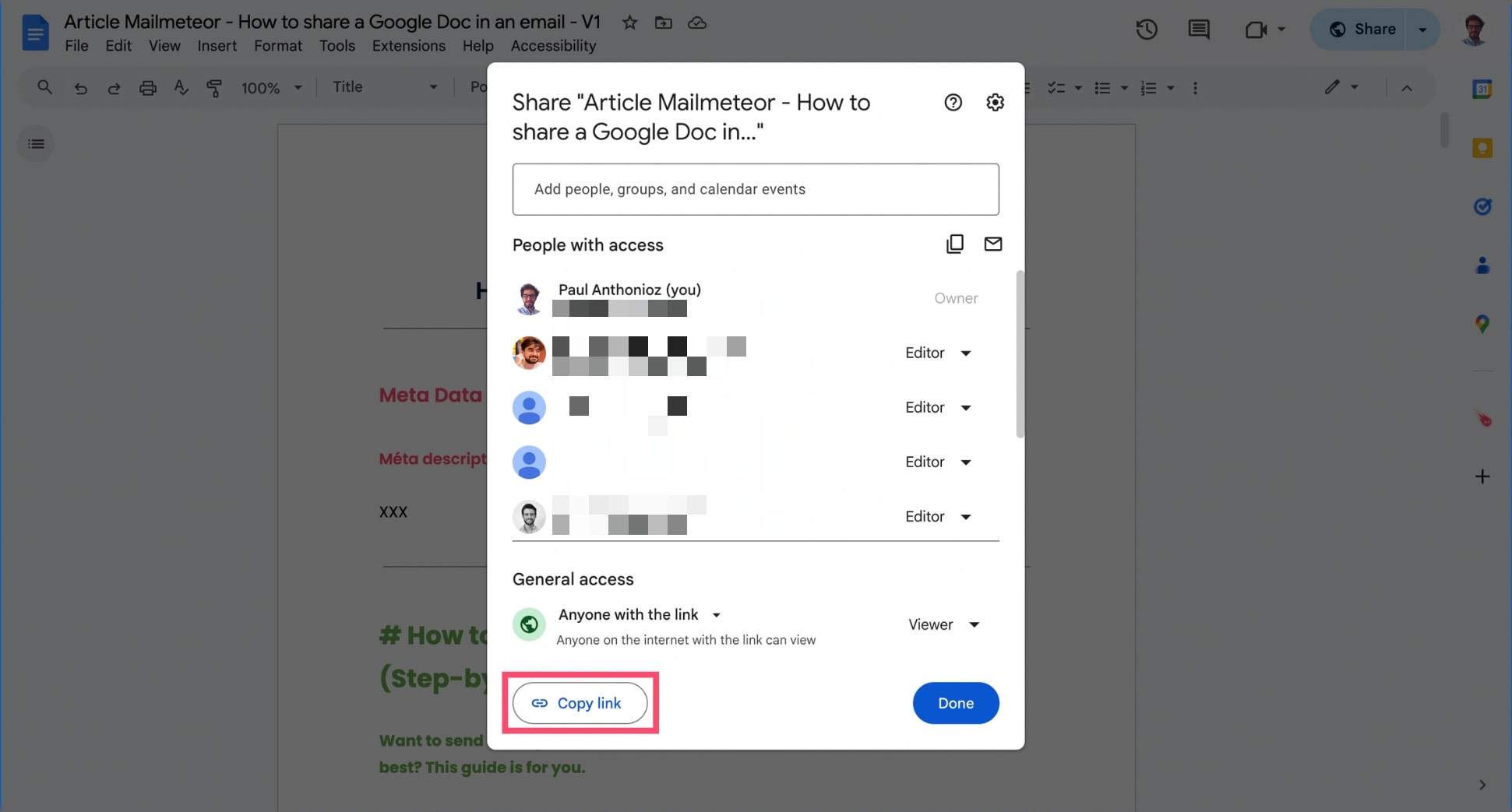
- Click Copy link.
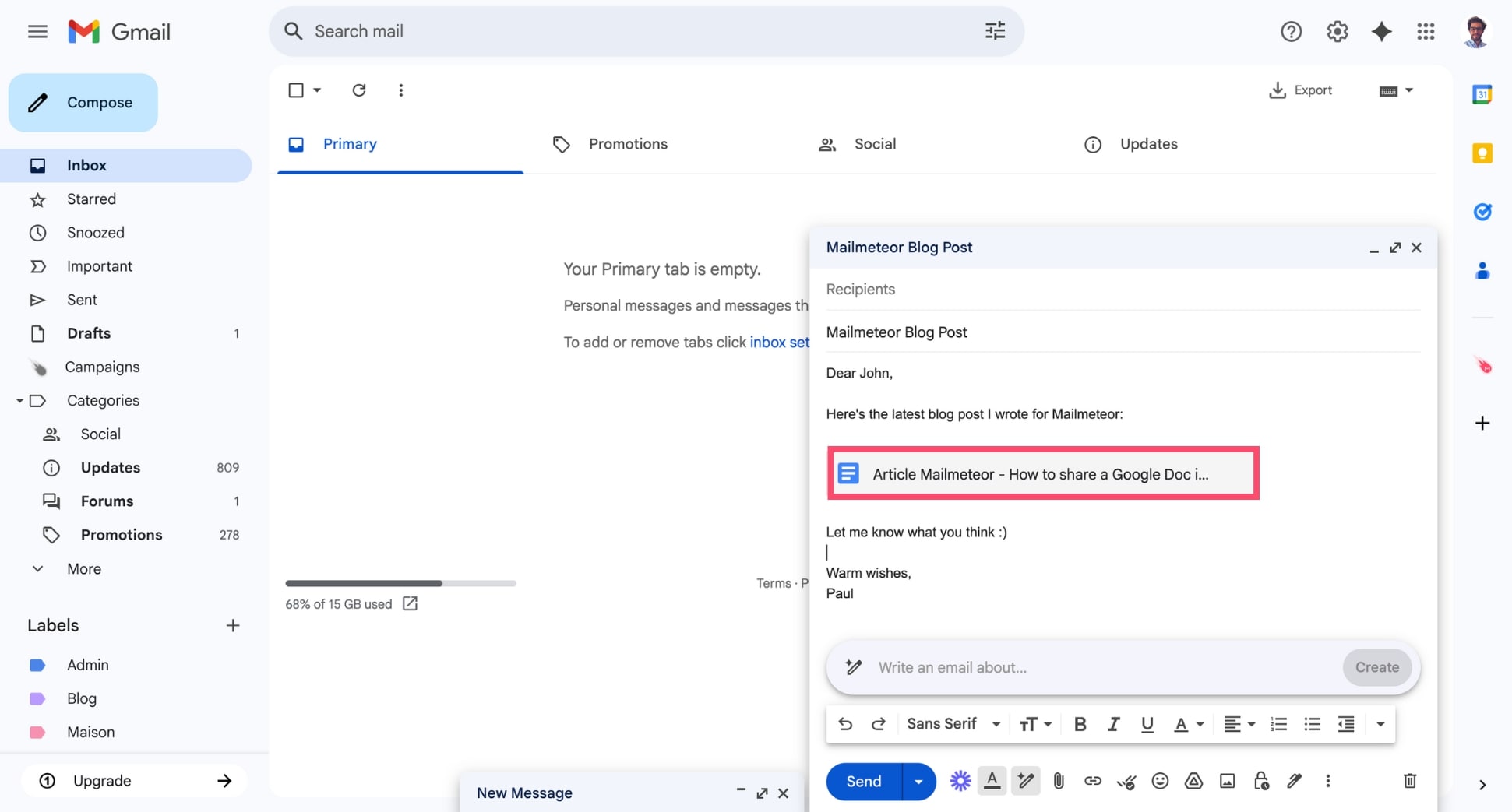
- Paste the link into your email message with a short explanation.
How to Email a Google Doc as a PDF or Word Attachment
Want to send a final version of your document that can’t be edited? The easiest way is to download your Google Doc as a PDF or Word file and attach it to your email. Ideal for sharing polished documents like proposals, resumes, or signed agreements.
Here’s how to do it:
- Open your Google Doc.
- Click File > Download, then choose:
- PDF Document (.pdf) – best for non-editable files
- Microsoft Word (.docx) – best for editable offline documents
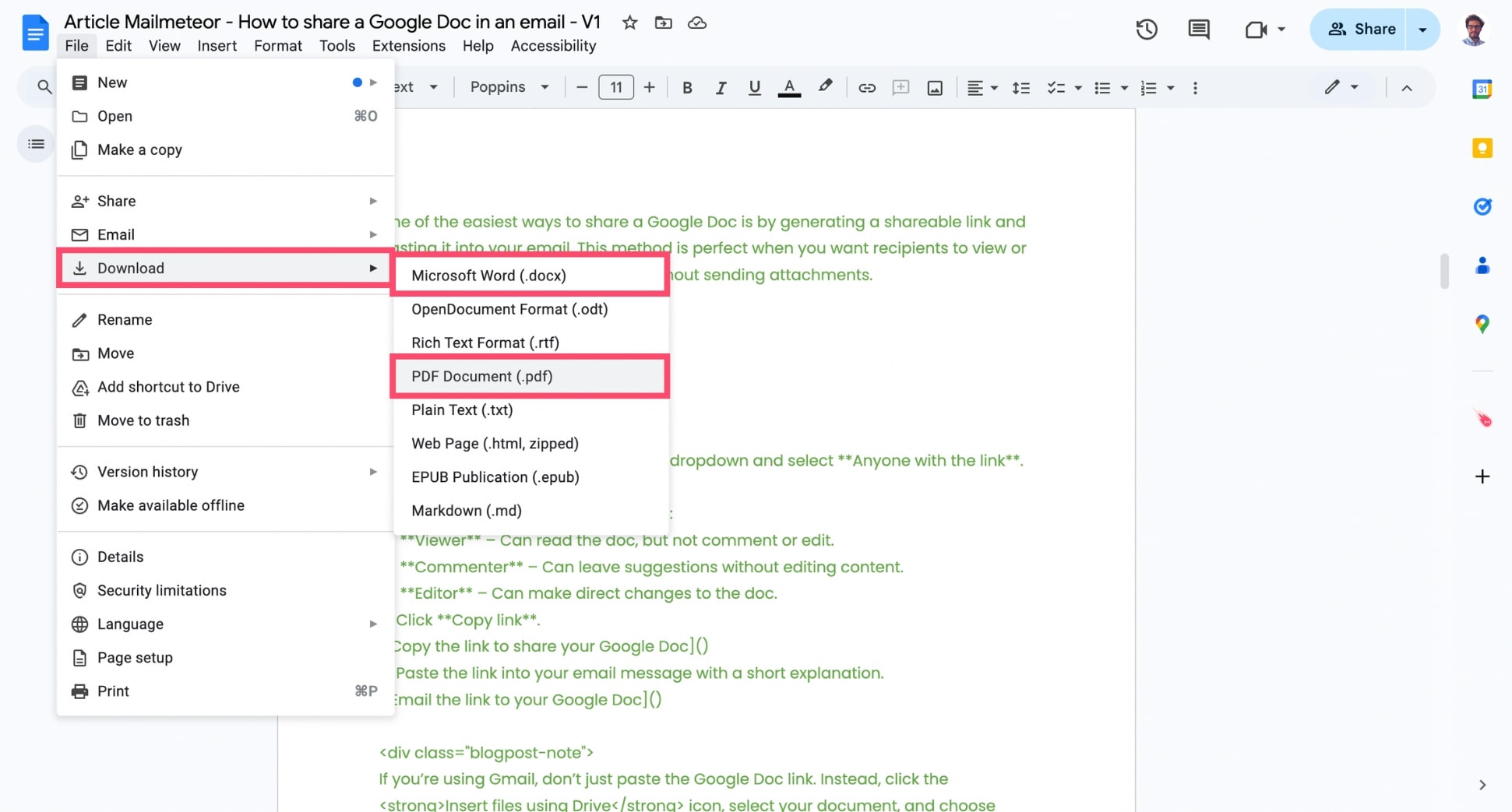
- Save the file to your computer.
- Open Gmail (or any email service provider).
- Start a new email and click the paperclip icon to attach your file.
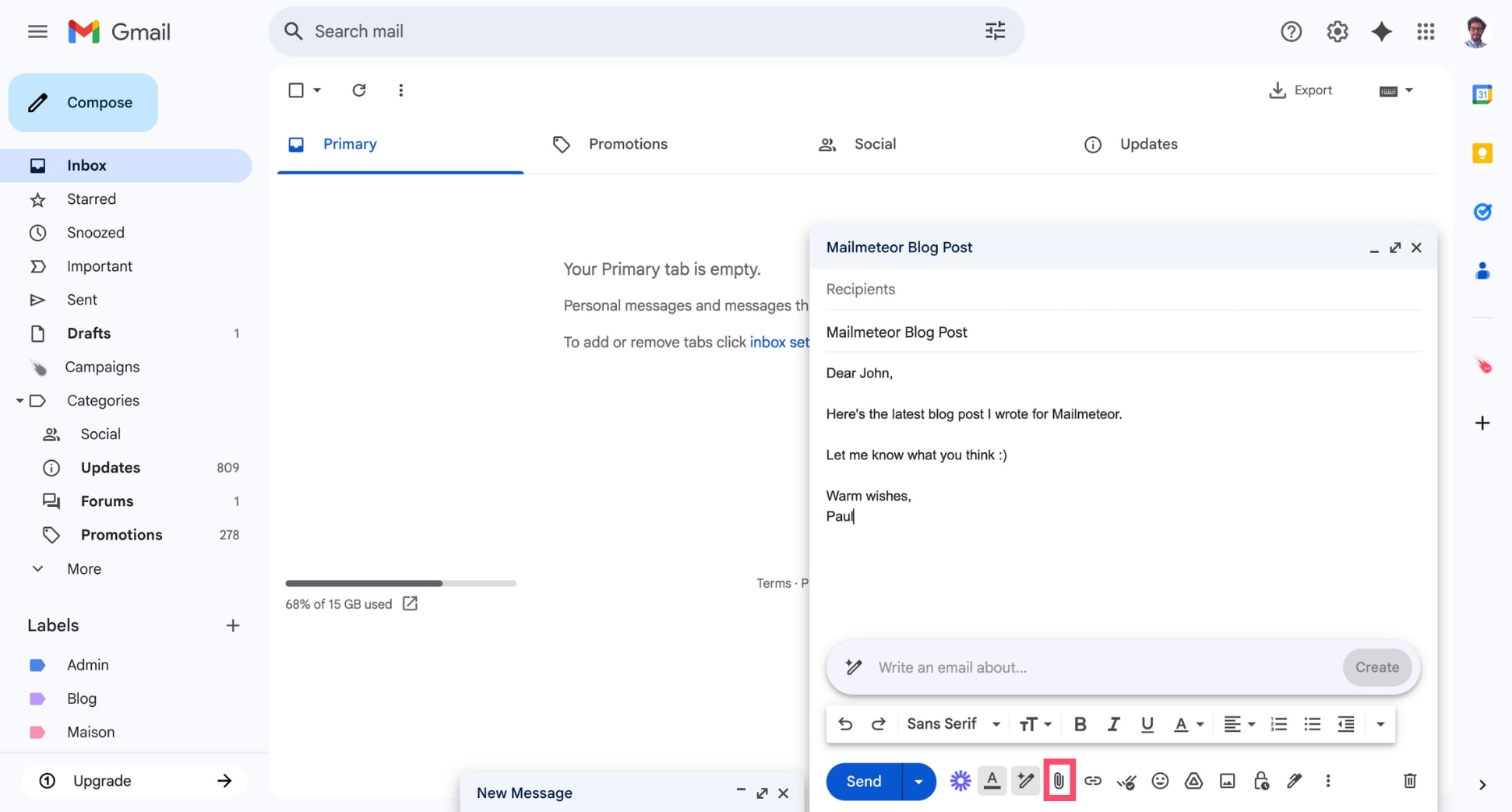
- Select your downloaded document and hit Send.
How to Send a Document Directly from Google Docs
Need to send your doc fast — without downloading or switching tabs? Google Docs lets you email a document straight from the editor. This built-in feature is perfect for quick 1:1 sends, like sharing a draft with a colleague or submitting a form.
Here’s how to do it:
- Open your Google Doc.
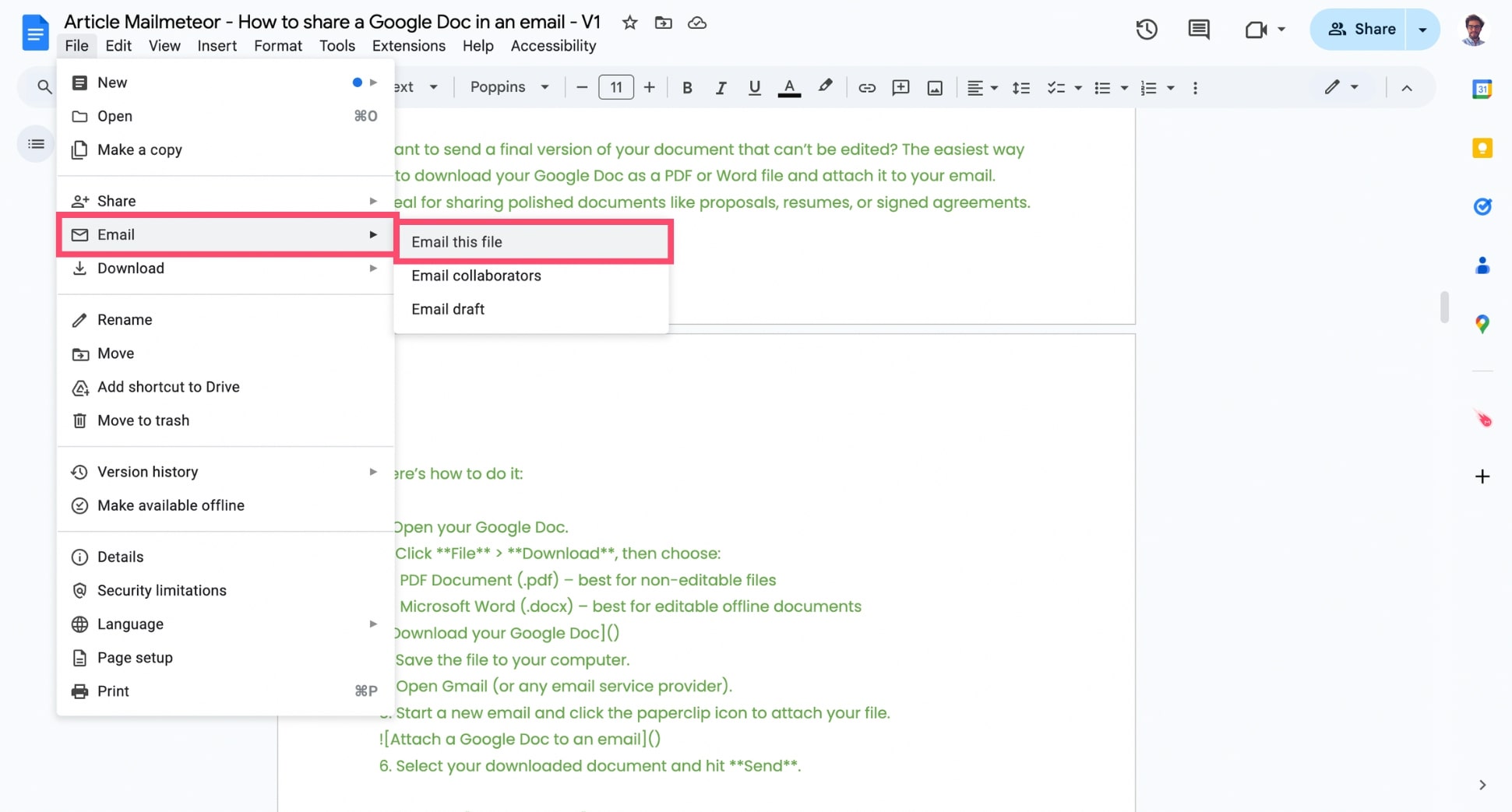
- Click File > Email > Email this file.
- In the pop-up window:
- Enter the recipient’s email address
- Add a subject and message (optional but recommended)
- Choose your format: PDF, Word, Plain Text, etc.
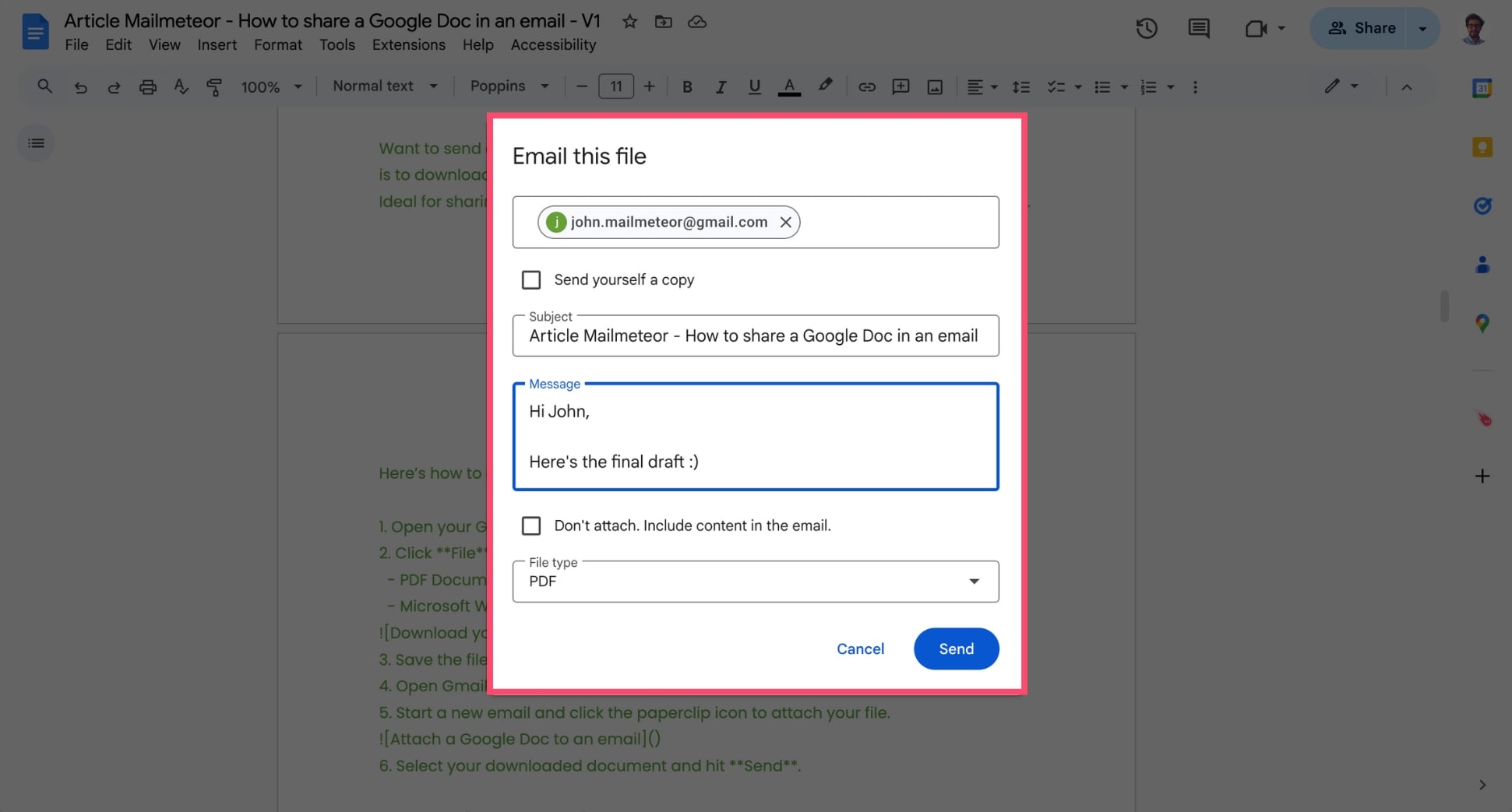
- Click Send.
How to Send Personalized Google Docs in Bulk
Need to send the same document to a list of people — but want each version to feel personal? Instead of copying, pasting, and editing your doc one by one, you can use Mailmeteor to send personalized Google Docs in bulk.
Here’s how to do it:
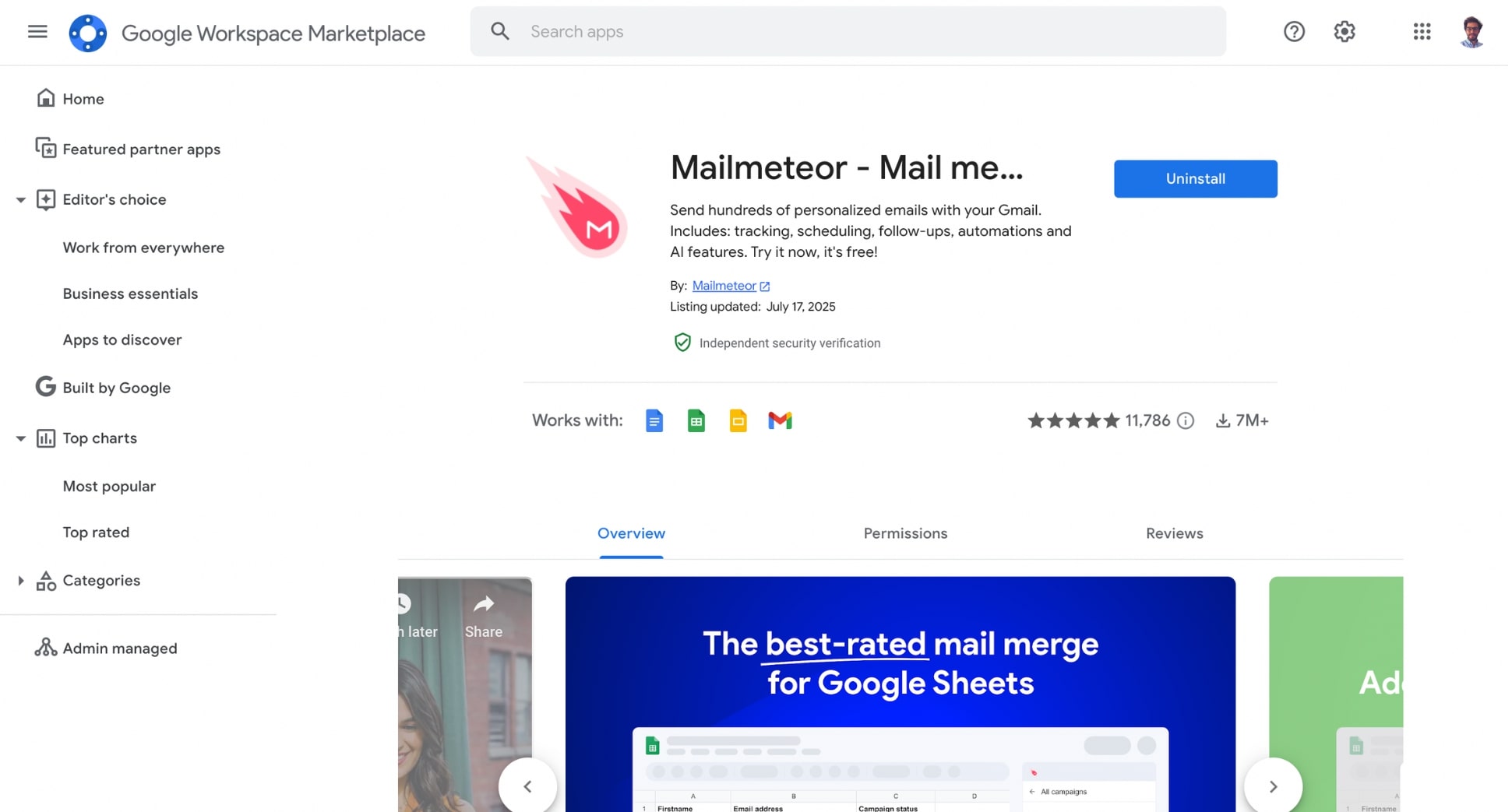
- Install Mailmeteor for Google Docs
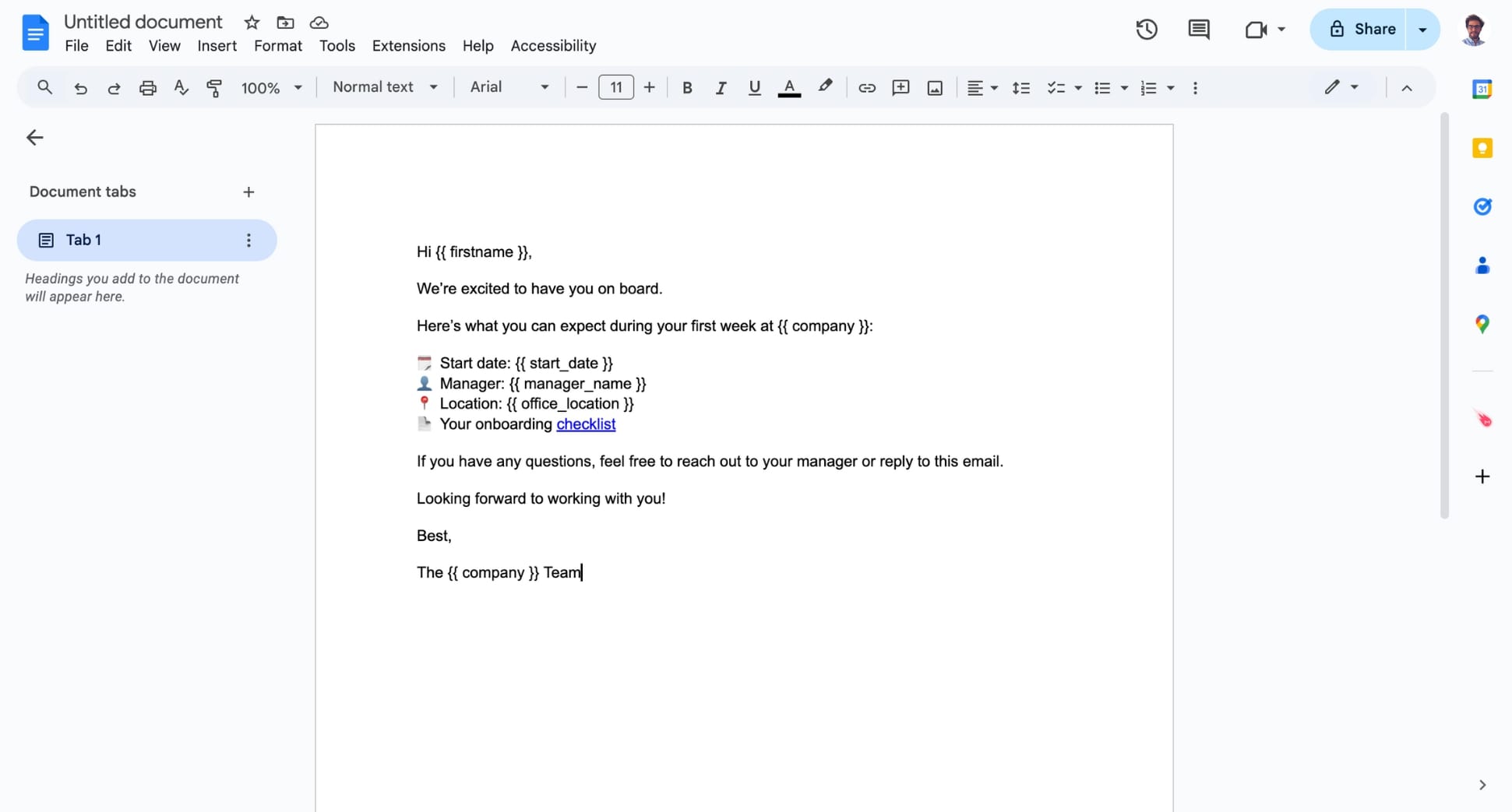
- Create your Google Doc template. Write your content as usual, but use variables like {{ firstname }}, {{ company }}, or {{ date }} wherever you want dynamic content to appear.
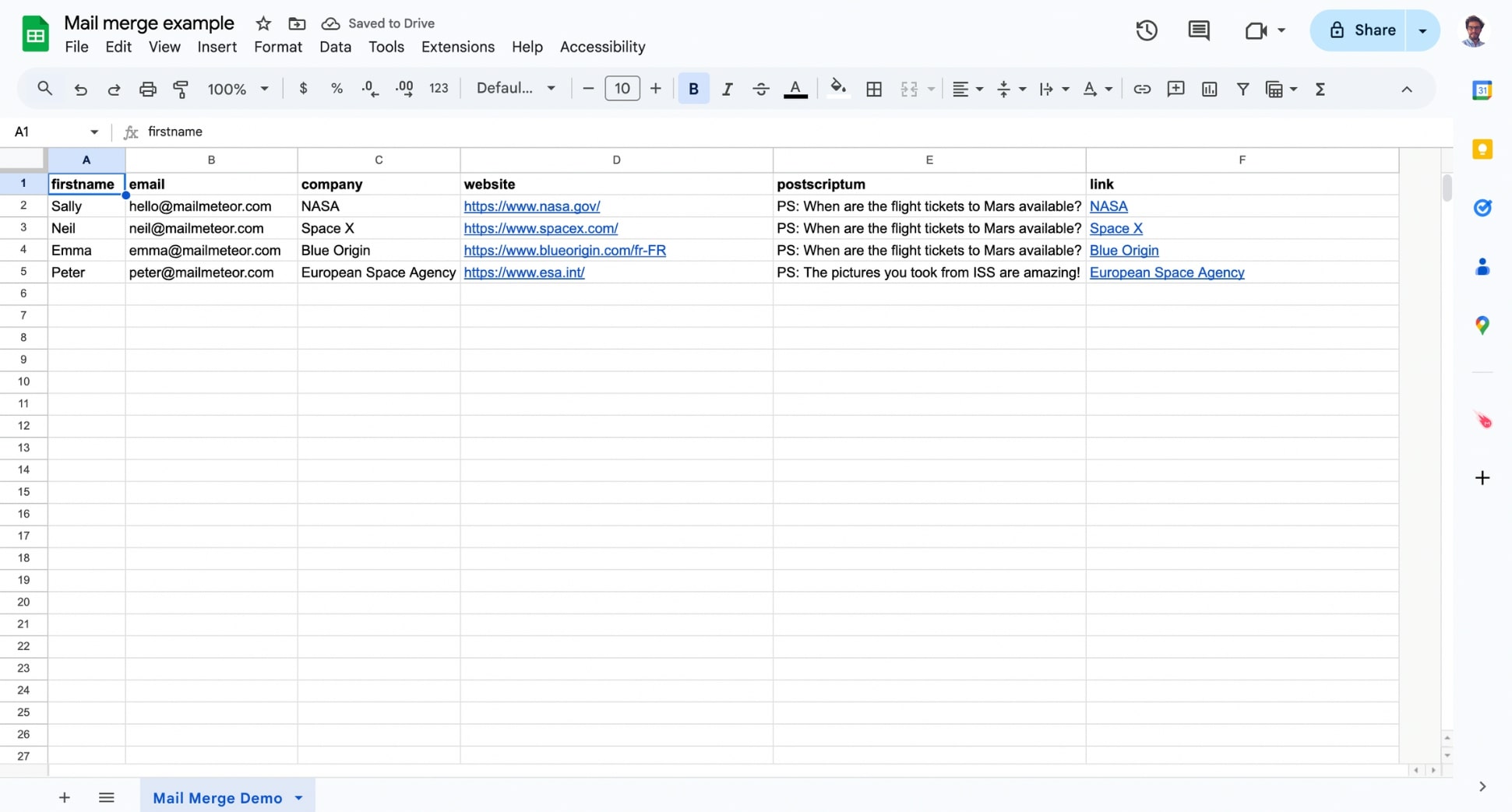
- Prepare your contact list in Google Sheets. Create a spreadsheet with the recipient information — such as firstname, email address, company — as column headers. Each row represents one contact.
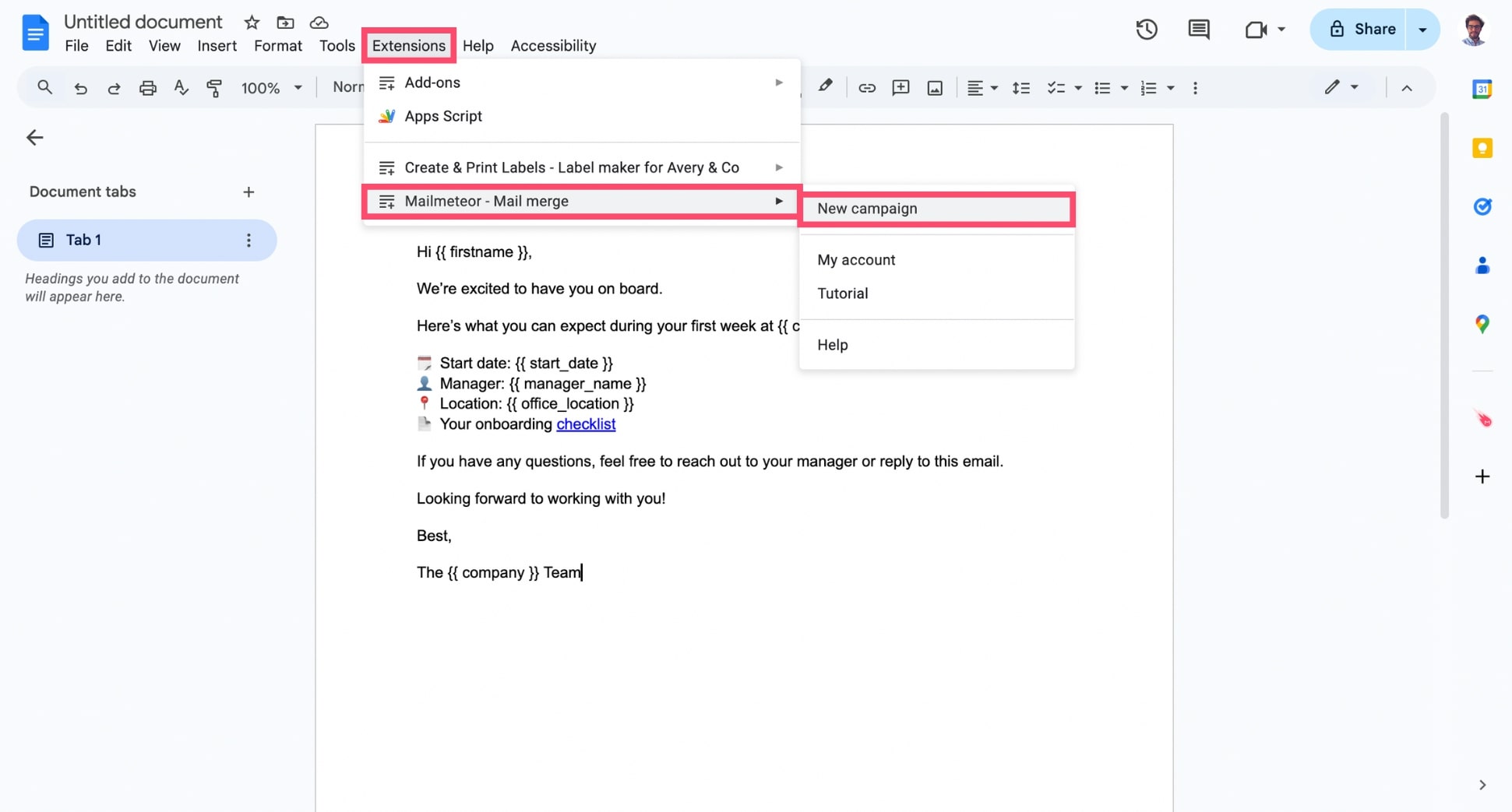
- In Google Docs, go to Extensions > Mailmeteor > New campaign.
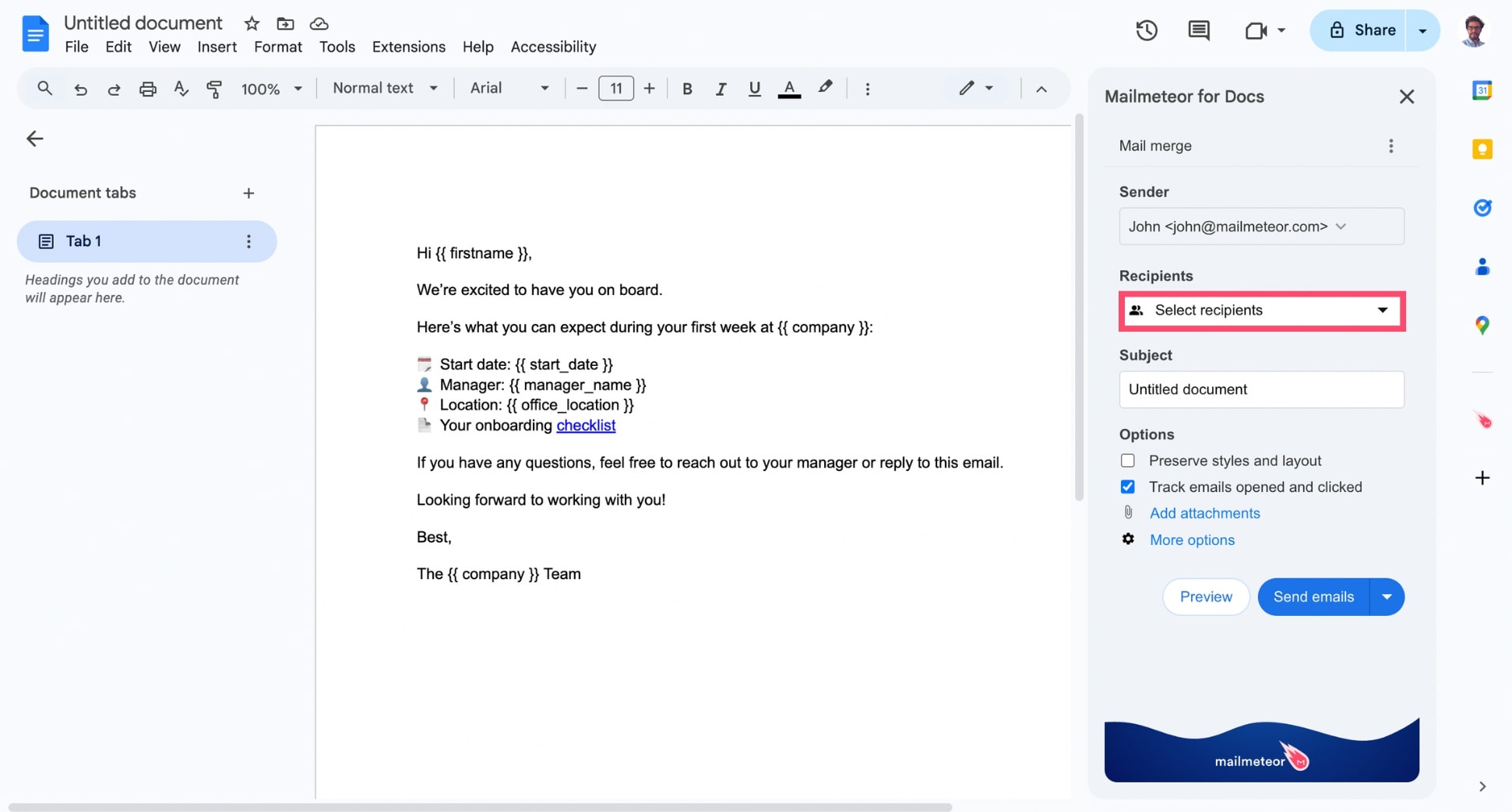
- Click Select recipients > Select a Google Sheets and upload your contact list.
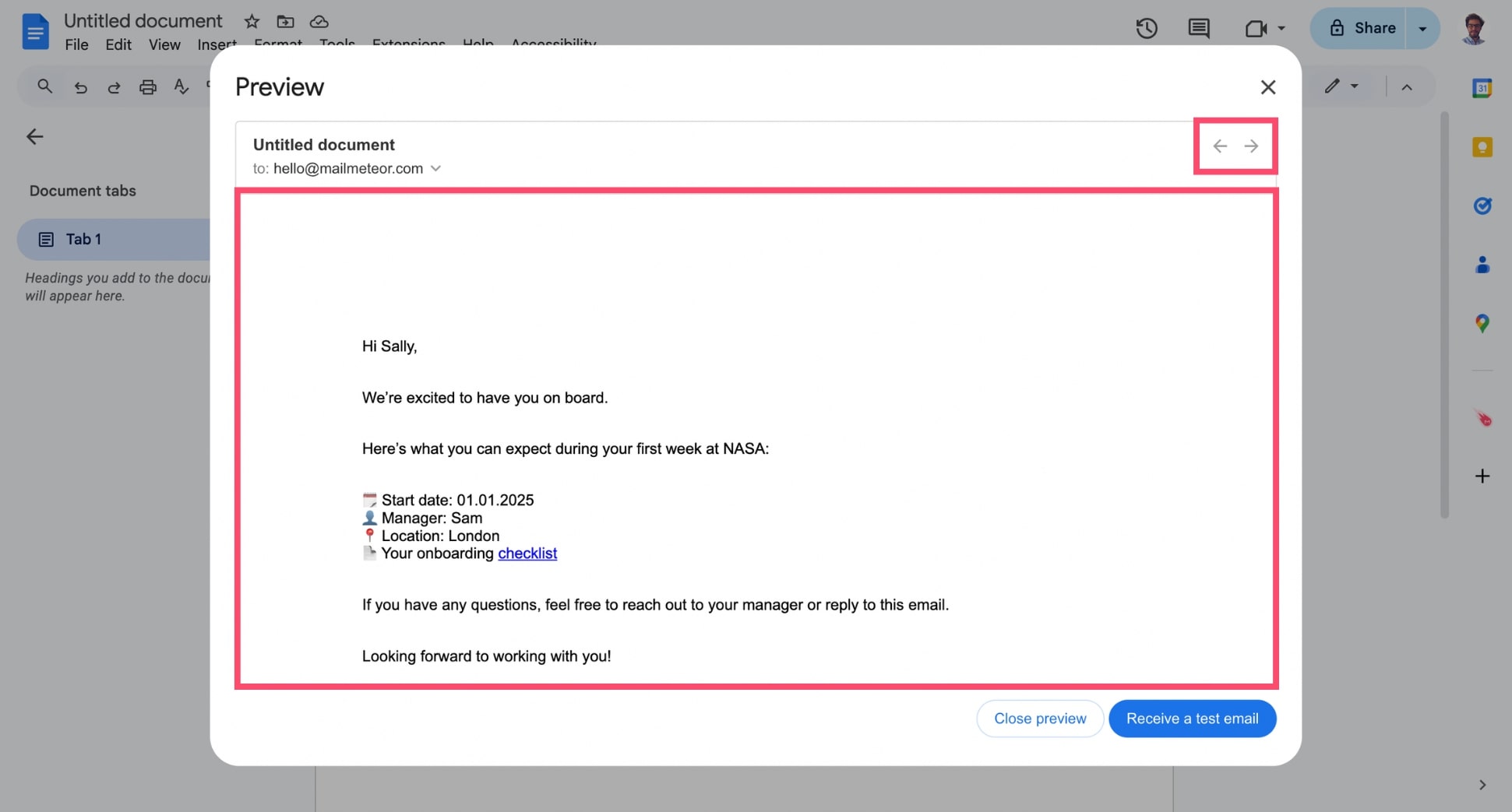
- Click Preview to verify that your {{ variables }} are automatically replaced with the corresponding data from your spreadsheet. You can use the arrows in the top-right corner to preview each copy of your Google Docs.
- Once you’re ready to share your Doc, click Send.
And voilà. Mailmeteor will automatically generate and send a personalized copy of your Google document to each contact via Gmail. To learn more, read our complete guide on how to mail merge in Google Docs.
How to Manage Access to a Google Doc
Sharing a Google Doc isn’t just about sending a link or an attachment — it’s about controlling who can see, comment on, or edit your document. Whether you’re sharing with one person or a large audience, managing access properly is key to keeping your content secure and your workflow smooth.
Set the Right Permissions
Before you share your doc, decide how much control you want others to have:
- Viewer: Can read the document, but not comment or edit.
- Commenter: Can leave comments and suggestions, but not change the content directly.
- Editor: Can make changes to the doc.
To set permissions:
- Click the Share button in the top-right corner of your Google Doc.
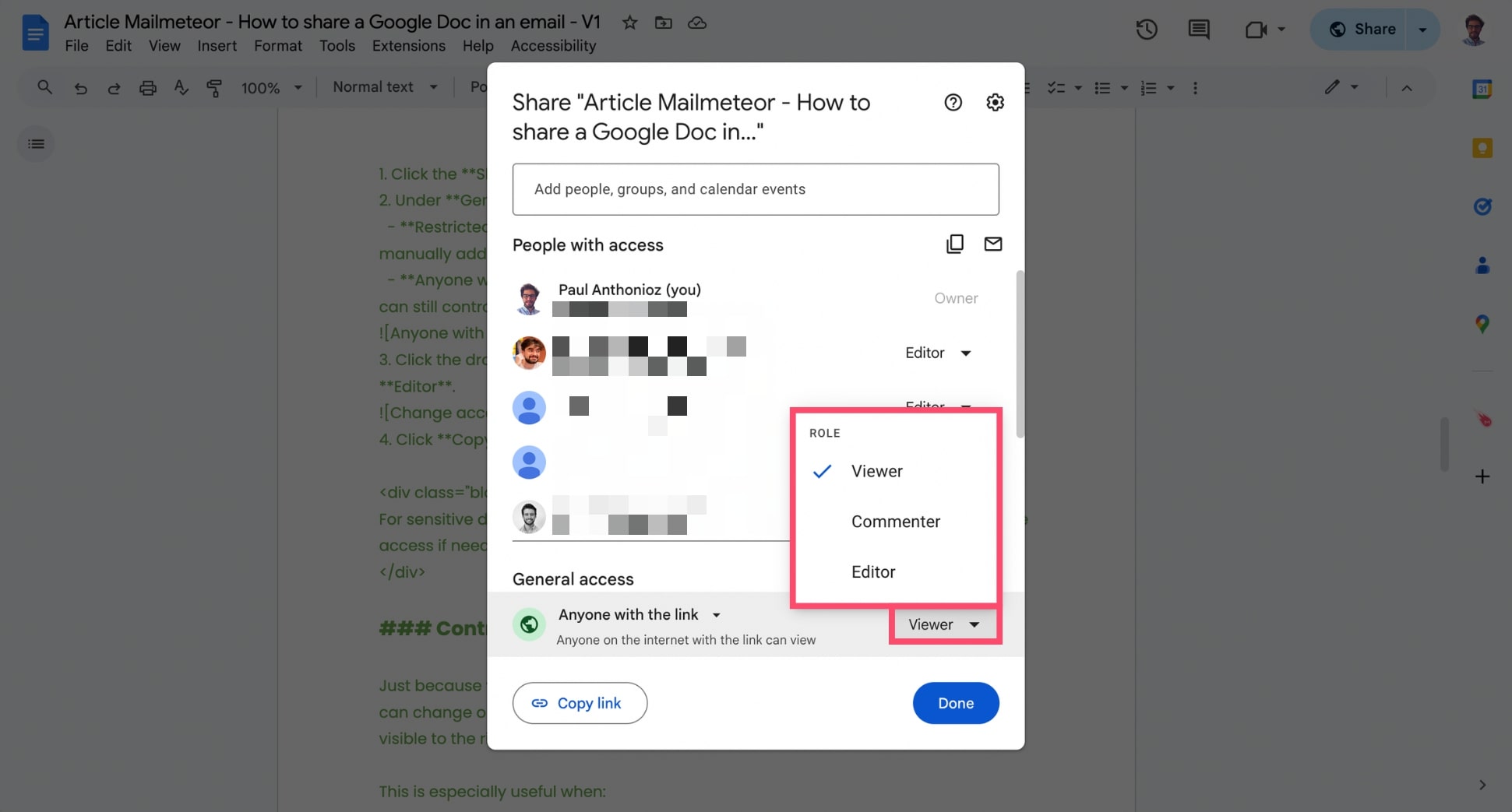
- Under General access, choose:
- Restricted: Only specific people can access the document. You’ll need to manually add their email addresses in the People and groups field above.
- Anyone with the link: Anyone who has the link can open the document. You can still control whether they can view, comment, or edit the file.
- Click the dropdown to select the access level: Viewer, Commenter, or Editor.
- Click Copy link and share it via email.
Control Access After Sharing
Just because you’ve shared a Google Doc doesn’t mean access is set in stone. You can change or revoke permissions anytime to keep your document secure and only visible to the right people.
This is especially useful when:
- A collaborator no longer needs access
- A document becomes outdated or confidential
- You accidentally shared too much access
To manage access to your Google Doc after sharing it:
- Click the Share button in the top right corner.
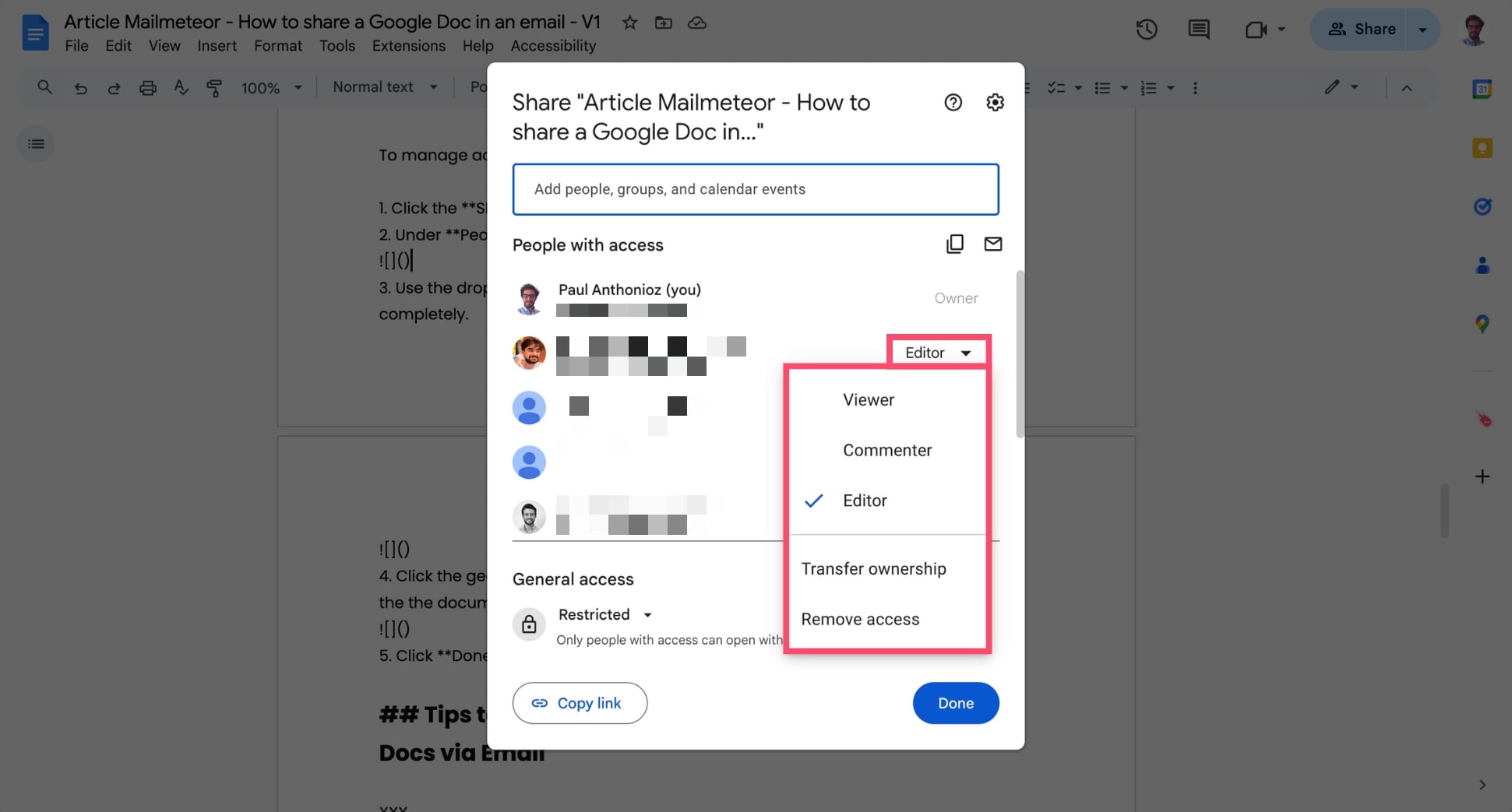
- Under People with access, find the person or group you want to update.
- Use the dropdown next to their name to change their role or remove access completely.
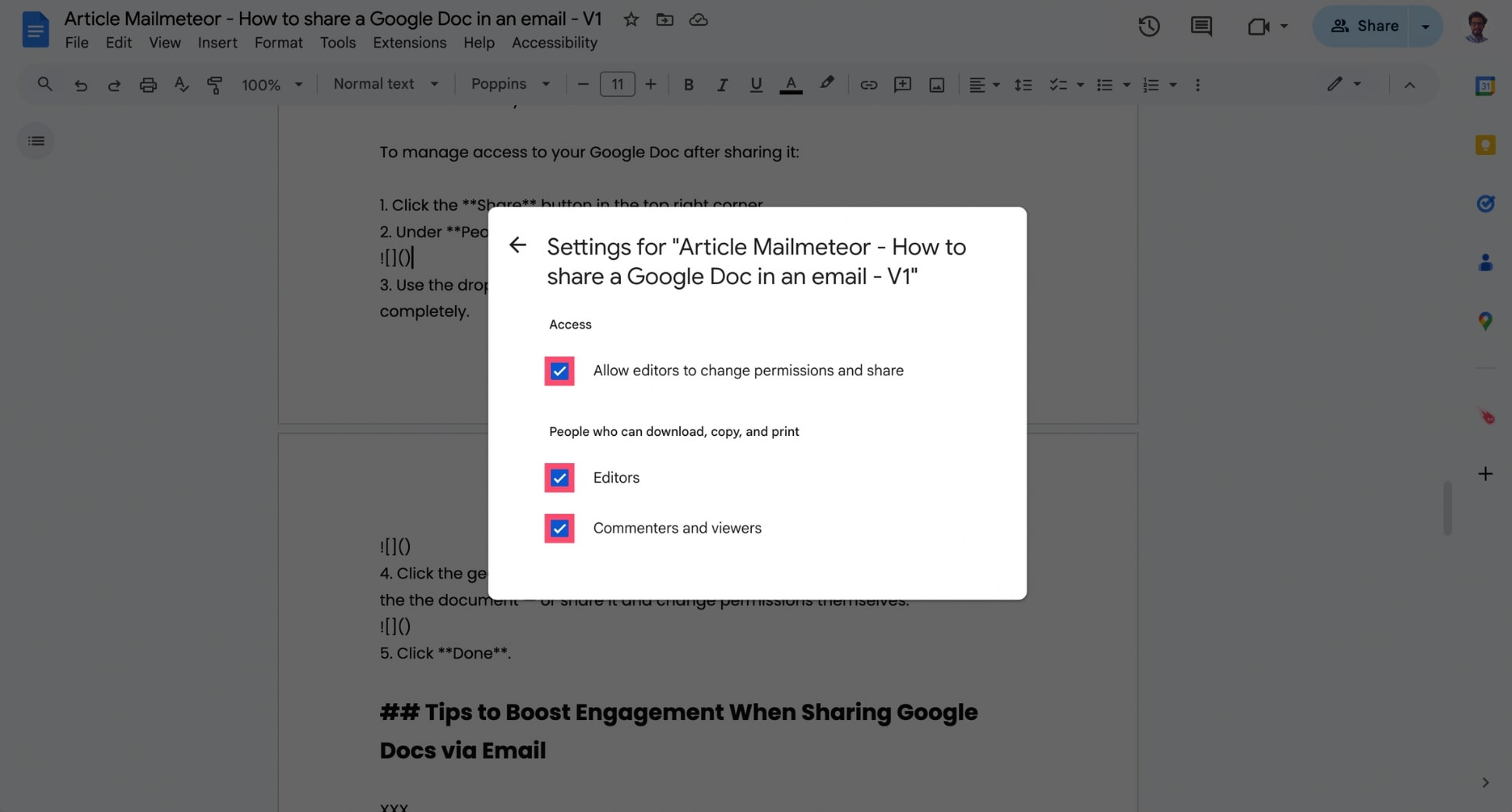
- Click the gear icon (⚙️) to control whether editors can copy, print and download the document — or share it and change permissions themselves.
- Click Done.
Tips to Boost Engagement When Sharing Google Docs via Email
Sharing a Google Doc is easy. But getting people to open it, read it, and take action? That’s where a little strategy goes a long way. Here are a few simple tips to increase engagement and make your shared document more effective:
1. Rename the Document Before Sharing
Before hitting Send, double-check your document title. Instead of something like Untitled Doc or v2-final, use a clear, descriptive name that reflects the content.
✅ Good: Marketing Plan – Q4 2025
🚫 Bad: Plan-2-rev-FINAL-v3-edited
A clean, professional title builds trust and makes it easier for recipients to find or reference your doc later — especially if they save it to their Drive.
2. Add Context in the Email
Don’t just drop a link and hit send. Context increases clarity and ensures your recipient actually opens and engages with your doc — instead of ignoring it or missing the point. So make sure to add a short message that explains:
- What the doc is
- Why you’re sharing it
- What you need from the reader (review, edit, approve, etc.)
Here’s an example:
Hi Sarah,
Here’s the latest draft of the Q4 campaign brief.
Could you take a look before Friday and leave comments if anything needs to change? Thanks!
Best, [Your Signature]
3. Track Engagement
Want to know if someone opened your doc? Left comments? Downloaded it? If you’re using Mailmeteor to share your Google Docs via Gmail, you can enable tracking to monitor:
- Who opened your email
- Who clicked the doc link
- When they engaged
These insights are especially helpful for sales follow-ups, project tracking, and document approvals — so you’re not left guessing.
Conclusion
Sharing a Google Doc by email isn’t one-size-fits-all. Sometimes you just need to fire off a quick link (with the right permissions). Other times, you’ll want to send a polished PDF. Or personalize each message in a large campaign.
No matter your goal, now you’ve got the tools to do it right. And if you want to go one step further? Try Mailmeteor the #1 rated Google Workspace add-on for email personalization and document sharing at scale.
Our free plan lets you send up to 50 personalized emails a day. You can also attach PDF files. Design emails in Google Docs. Schedule auto follow-ups. Track emails in real-time. Verify email addresses in bulk. And so much more.
Happy sending 💌
FAQs
How do I send a Google Doc in an email?
You can send a Google Doc in an email by:
- Sharing the link (with the right permissions)
- Attaching it as a PDF or Word file
- Emailing it directly from Google Docs
- Using tools like Mailmeteor to send personalized copies in bulk
Each method serves a different use case. If you want recipients to collaborate, sharing the link is best. If you’re sending a final version, consider attaching it as a PDF.
How do I share a Google Doc with someone?
Open your Google Doc, click Share in the top right, and enter the person’s email address. Choose their access level (Viewer, Commenter, or Editor), then click Send. You can also click Copy link to share the document via email or chat. Just make sure the permissions are set correctly.
How do I attach a Google Doc to an email as a PDF?
- Open your Google Doc.
- Go to File > Download > PDF Document (.pdf).
- Save the file to your computer
- Open your email and attach the file like any other document
How do I download a Google Doc to send it to someone?
Go to your doc, then click File > Download. You can choose from several formats: PDF, Microsoft Word (.docx), plain text, etc. Once downloaded, you can attach the file to an email, upload it to a different platform, or save it for later.
How do I share a Google Doc outside of my company?
By default, Google Workspace accounts may restrict file sharing to internal users only. If you’re trying to share a Google Doc with someone outside your organization:
- Open the doc and click Share.
- Under General access, change the setting from Restricted to Anyone with the link.
- Choose the appropriate permission: Viewer, Commenter, or Editor.
- Click Copy link, then paste it into your email.
Still can’t share externally? If you don’t see the Anyone with the link option, your admin has disabled external sharing. In that case, go to File > Download, and export the doc as a PDF or Word document. Then attach it to your email manually.
How do I copy a Google Doc link to an email?
Click Share in the top right of the document, then select Copy link. Before pasting it into your email, make sure the document’s sharing settings allow access to your recipient.
Why can’t I share a Google Doc?
If you’re unable to share a Google Doc, it could be due to:
- Restricted sharing settings in your Google Workspace account
- Trying to share with a restricted domain or email address
- Lack of ownership or access to change permissions
- Admin-level restrictions on external sharing
Check the document’s sharing settings or contact your Workspace admin for help.


