Your document is ready. Now you just need to send it — and that’s where things get confusing. Should you export a PDF? Share a link? Push it into Gmail? Send personalized copies? Google Docs offers all of these options — but none of them are front and center.
This guide brings everything into one place. Inside, you’ll learn 4 simple ways to email from Google Docs, depending on what you need to send — from sharing a link with the right permissions, to sending a PDF attachment, creating a Gmail draft, or delivering personalized emails with Mailmeteor.
Here’s what we’ll cover:
- Share Your Google Doc via Link
- Send the Google Doc as an Attachment
- Turn Your Google Doc Into a Gmail Draft
- Send Personalized Emails Using Mailmeteor
- Which Method Should You Use?
Sounds good? Then let’s dive in.
1. Share Your Google Doc via Link
Sharing a link is the fastest way to email a Google Doc. It keeps everything in one place, preserves your formatting, and ensures your recipient always sees the latest version.
How to do it:
- Open your Google Doc.
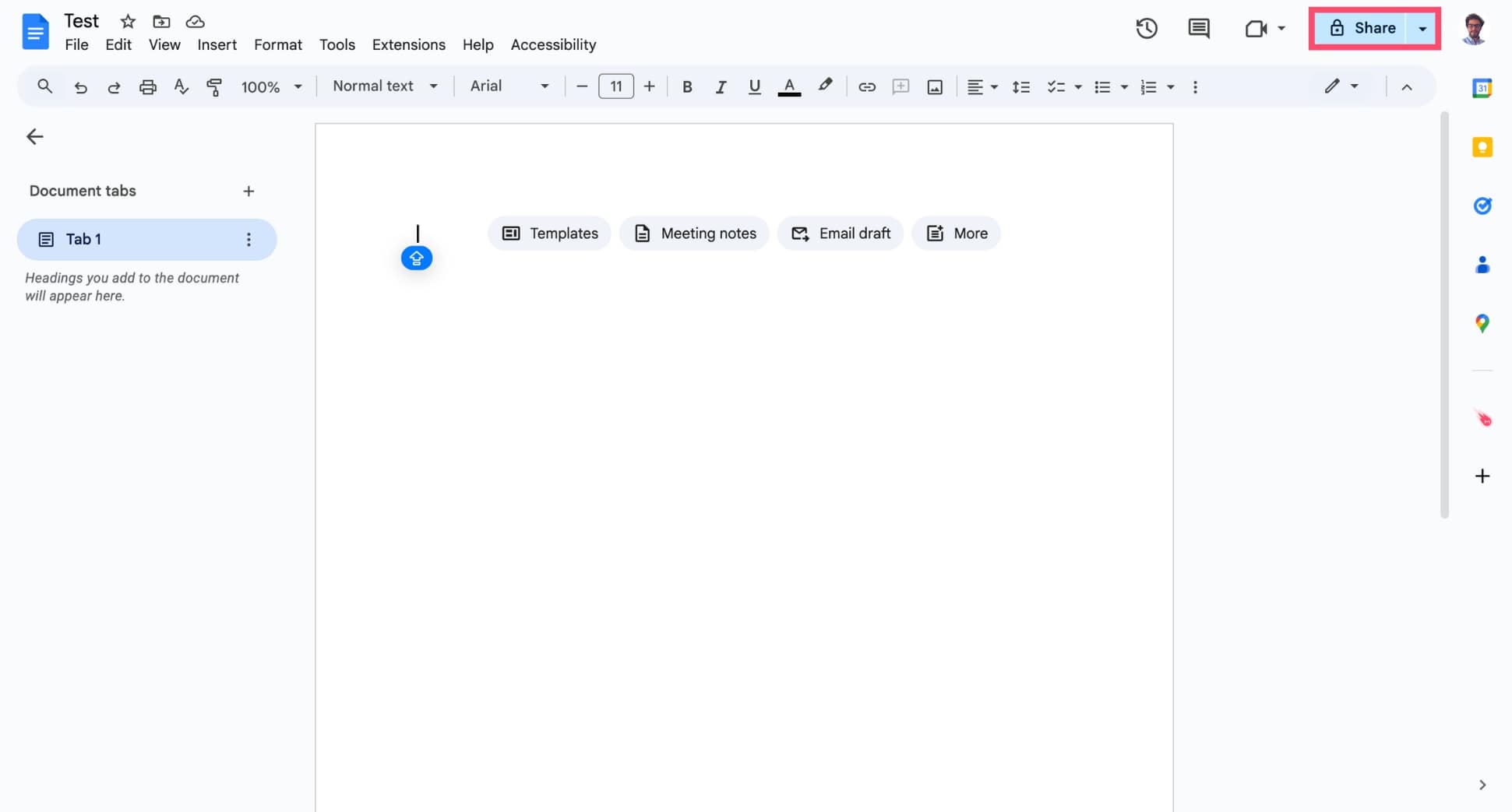
- Click Share in the top-right corner.
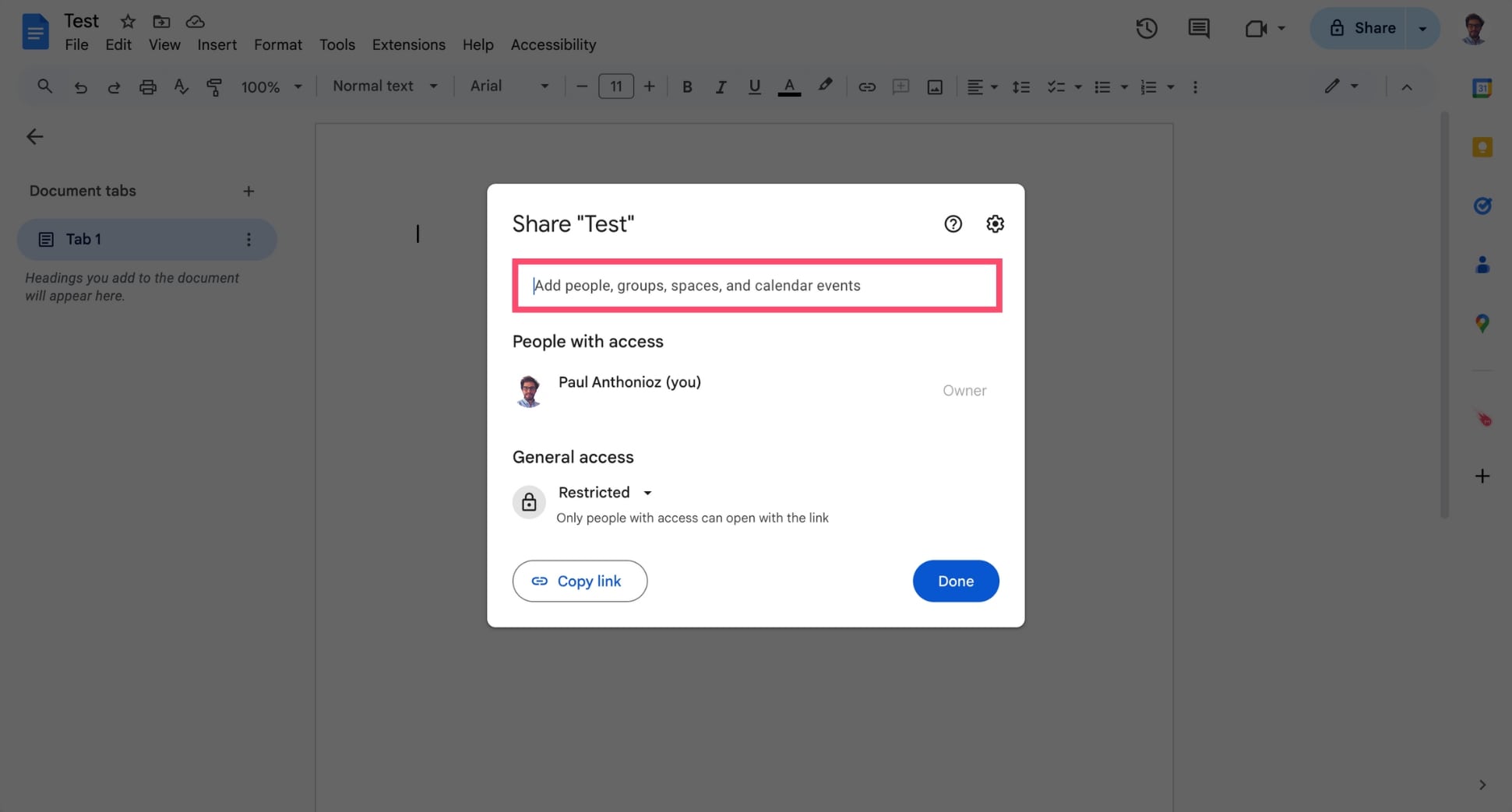
- Under Add people and groups, enter the email address of your recipient.
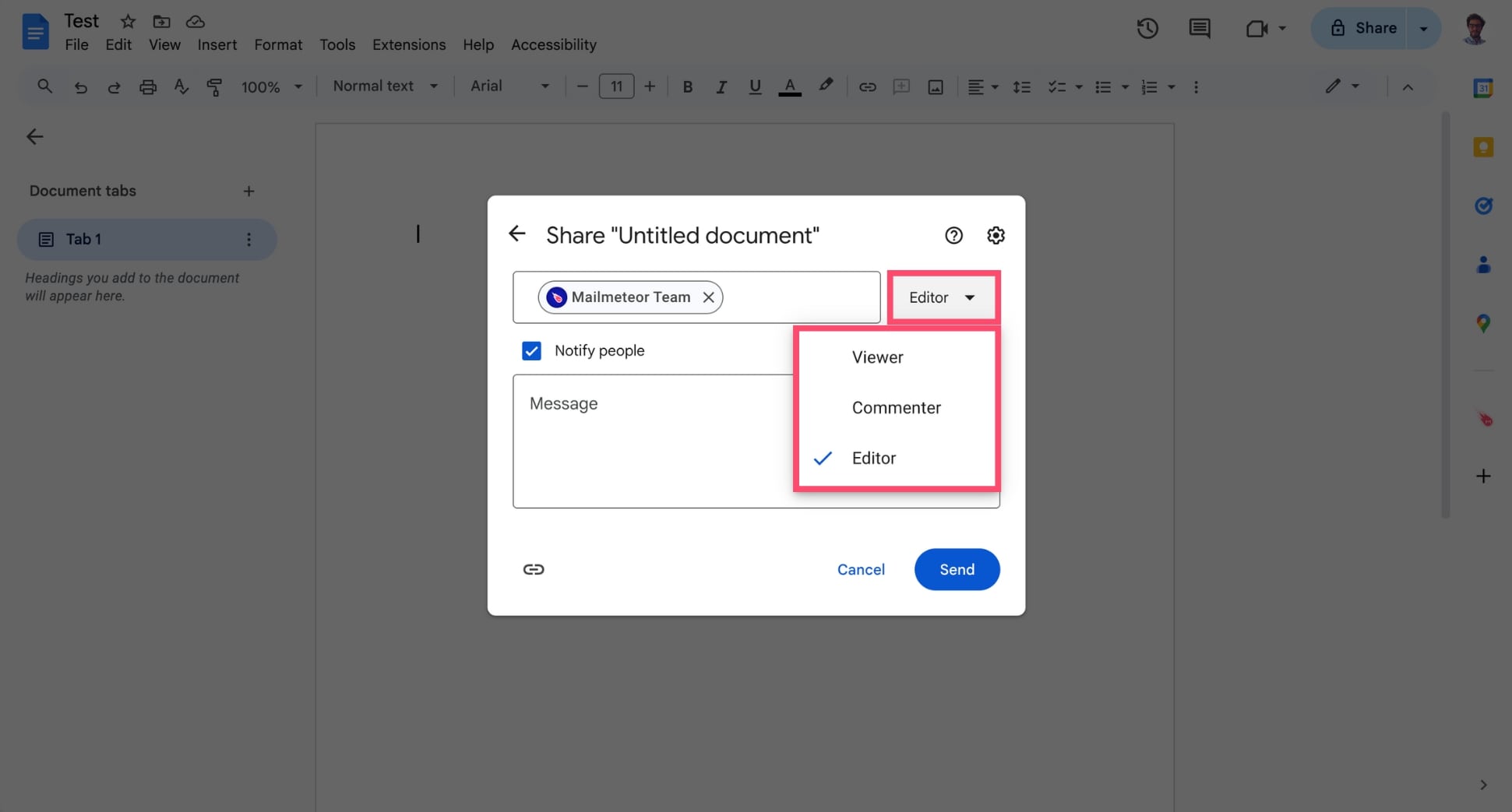
- Choose the permission level:
- Viewer — can read the document, but cannot make changes
- Commenter — can read and leave comments, but not edit text
- Editor — can fully edit the document
- Make sure Notify people is checked (this sends the actual email).
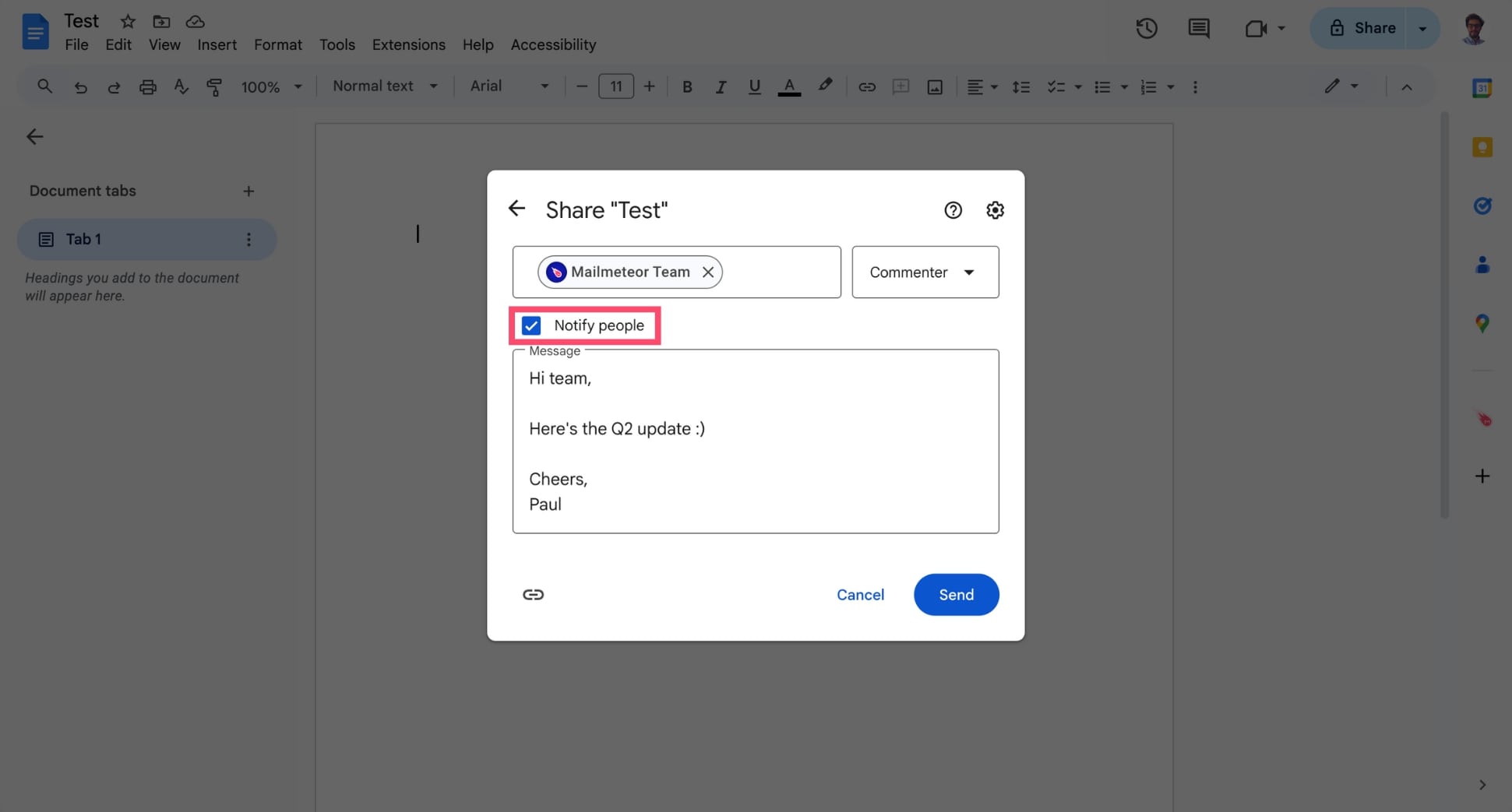
- Add a short message (optional but recommended).
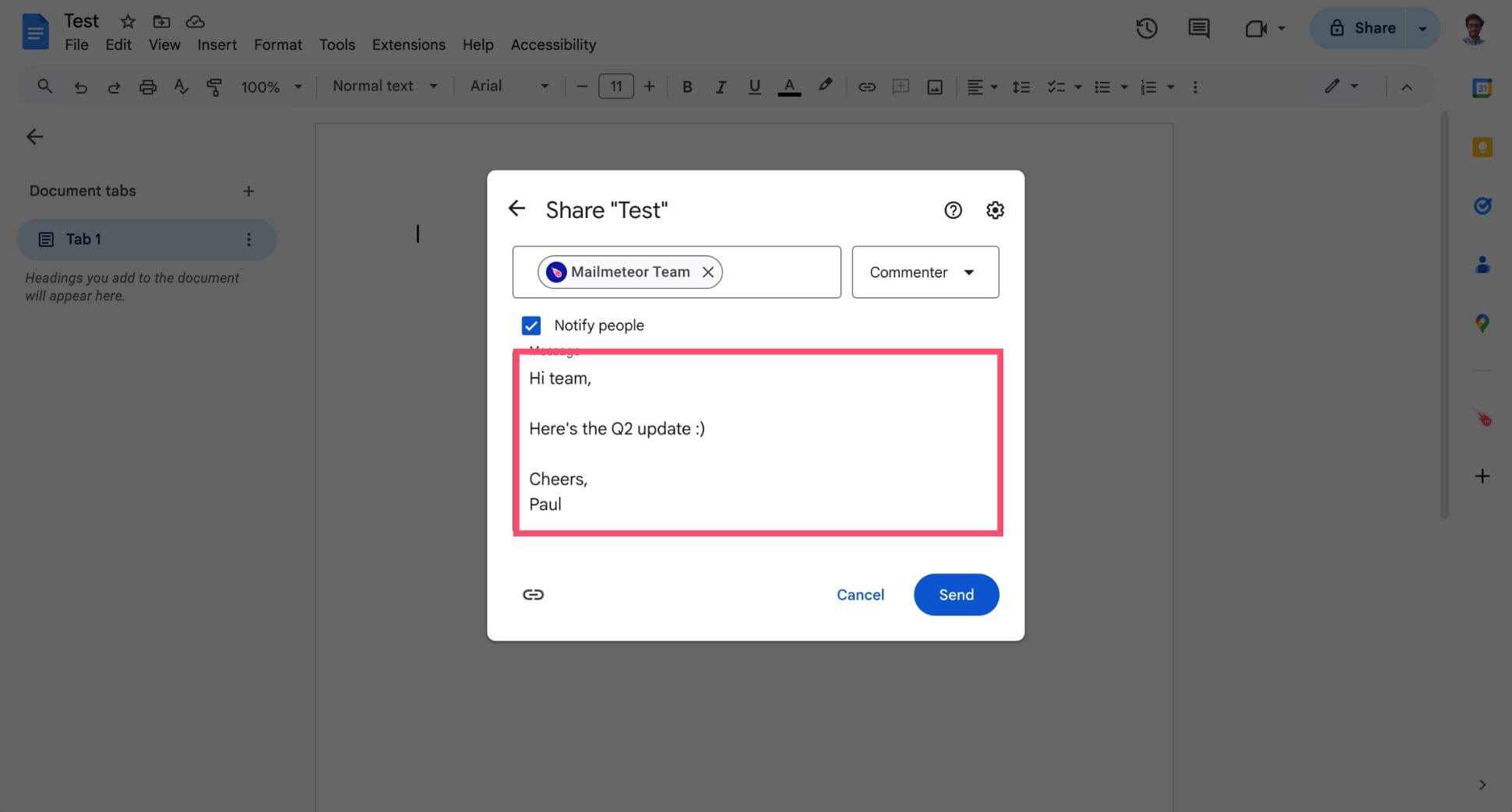
- Click Send.
And voilà. Your recipients will receive an email with your note and a secure link to the Google Doc you just shared. This is the simplest option when collaboration matters — or when you want zero file management hassles.
When to use this method:
- You want to share a read-only version
- You need feedback or comments directly in the document
- You want recipients to see updates without sending new attachments
2. Send the Google Doc as an Attachment
If you need to send a fixed, non-editable version of your document (like a PDF), Google Docs lets you email your file as an attachment — directly from the editor — so you don’t have to download anything manually.
How to do it:
- Open your Google Doc.
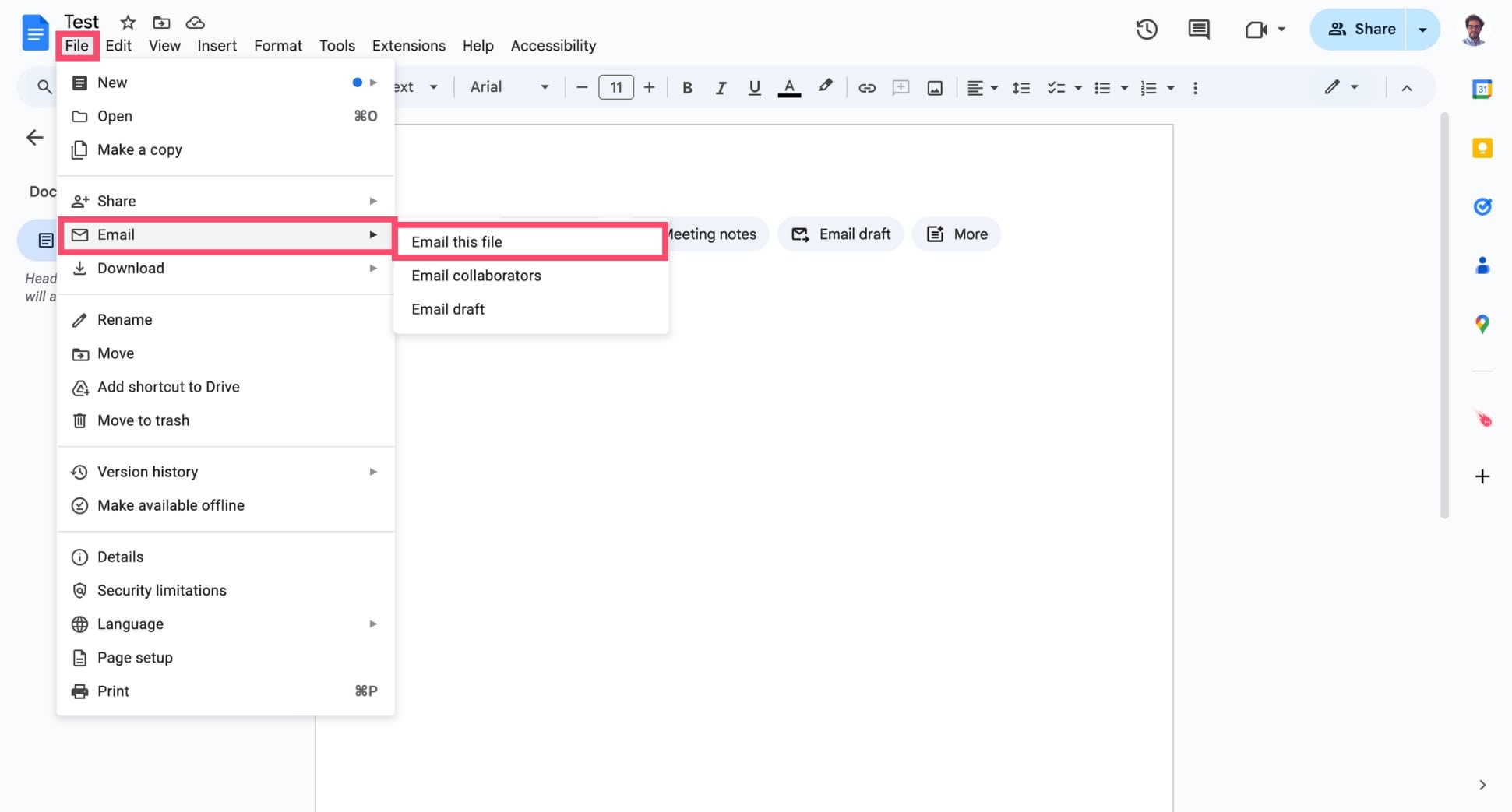
- Go to File > Email > Email this file.
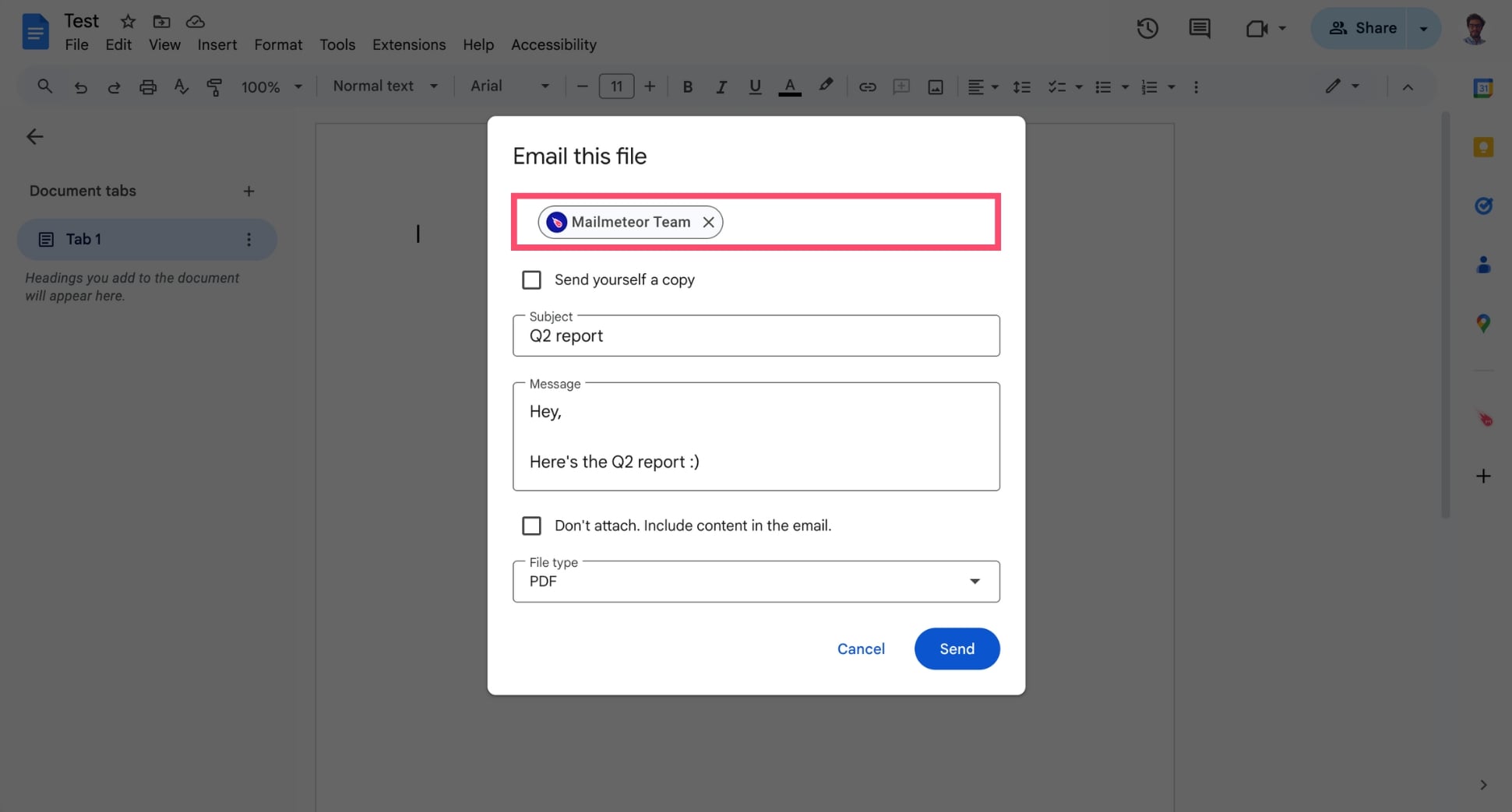
- In the popup, enter your recipient’s email address.
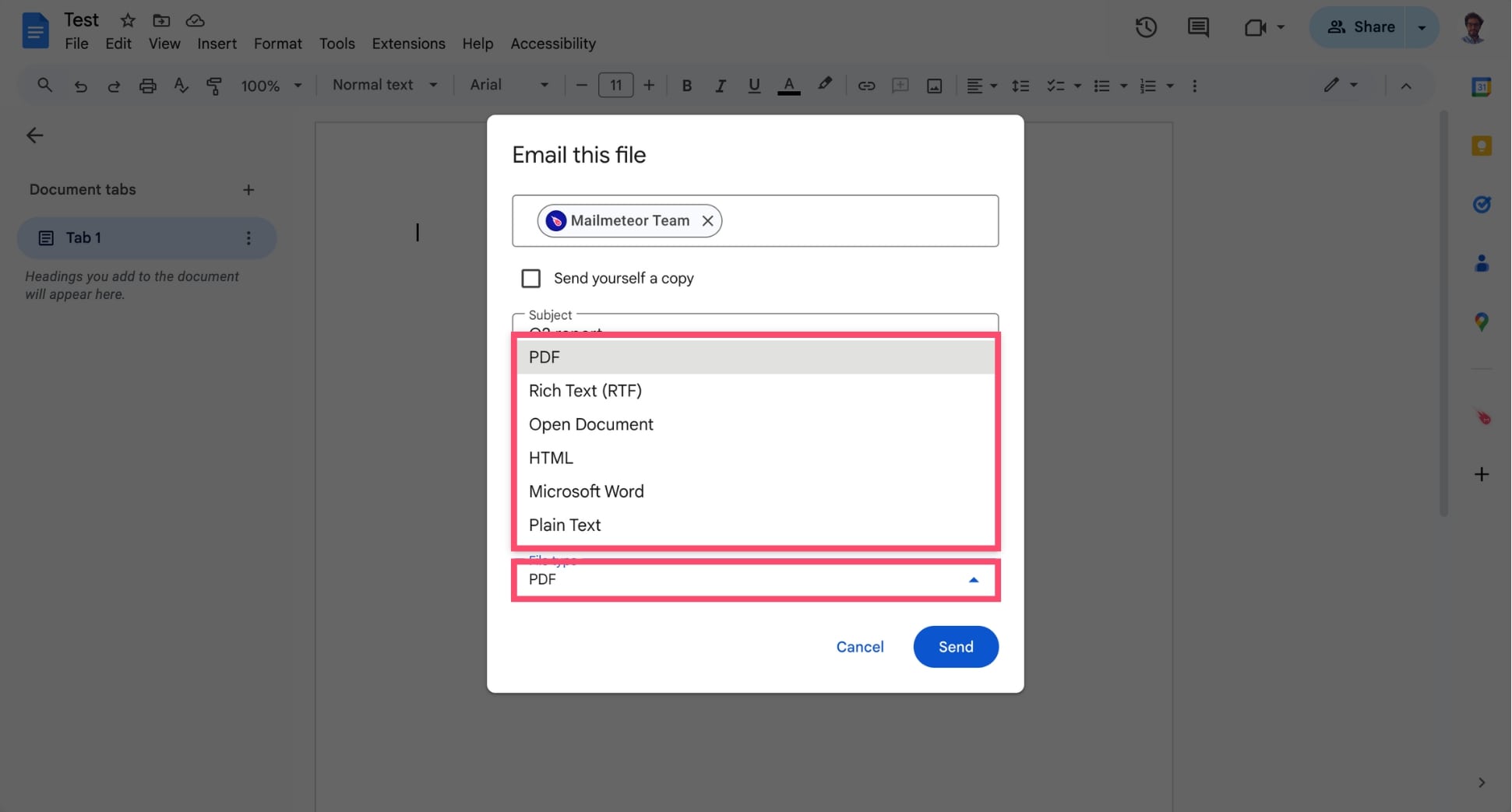
- Choose your format — the most common options are:
- PDF (best for preserving layout)
- Microsoft Word (.docx)
- Rich Text Format (.rtf)
- Add a subject line and message (optional, but helps with context).
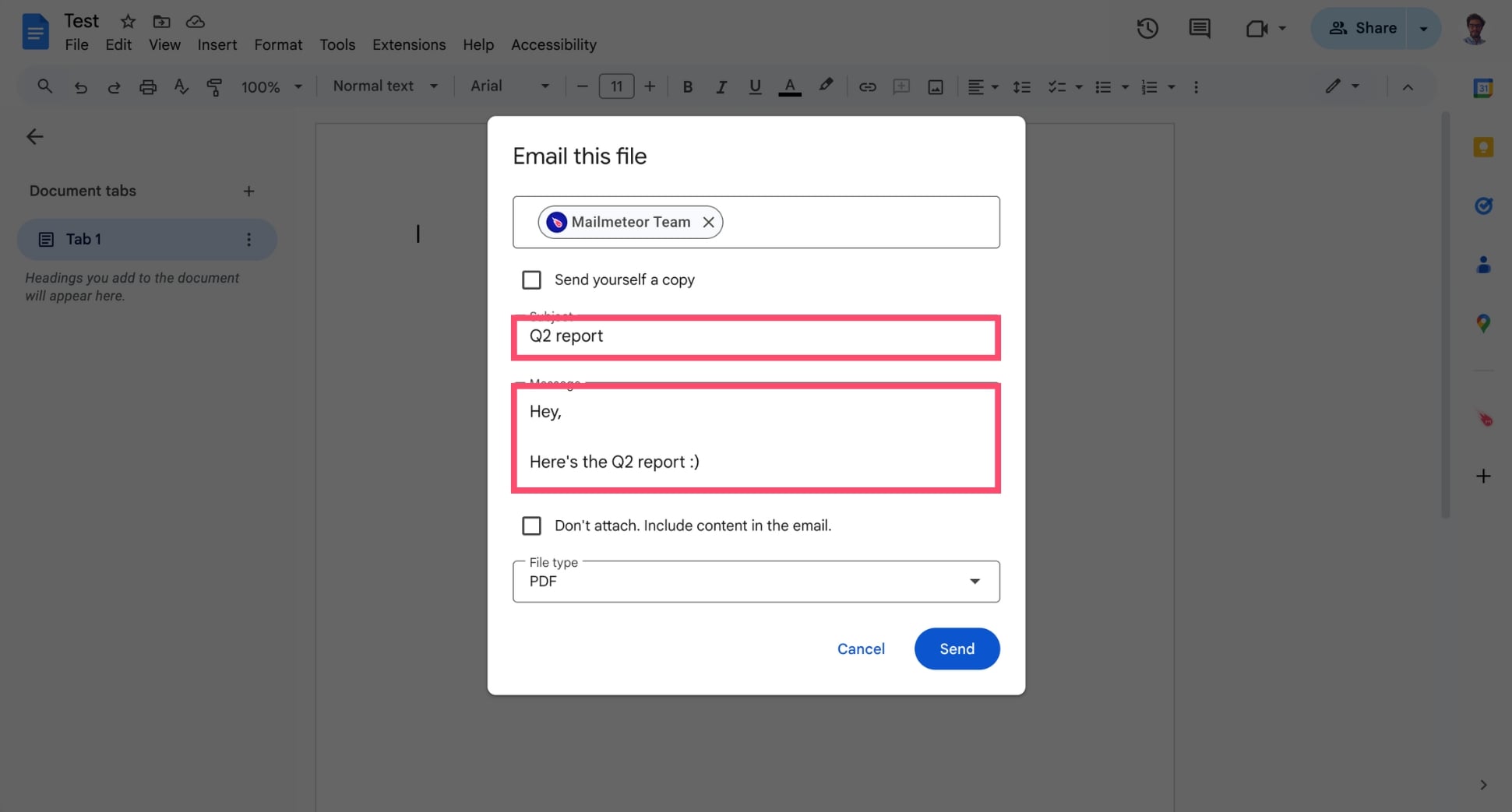
- Click Send.
And done. Your recipient will receive a standard email with your file attached — no Google Drive access or permissions needed. Ideal for moments when you want to send a final, non-editable version.
When to use this method:
- You want your document to look identical for every recipient
- You prefer email attachments over sharing links
- You don’t want recipients editing your file
3. Turn Your Google Doc Into a Gmail Draft
If you want to email your Google Doc as the body of an email — not as a link or attachment — Google Docs offers a built-in feature called Email draft. It takes your document and drops it straight into Gmail as a ready-to-edit draft.
How to do it:
- Open your Google Doc.
- Go to File > Email > Email draft.
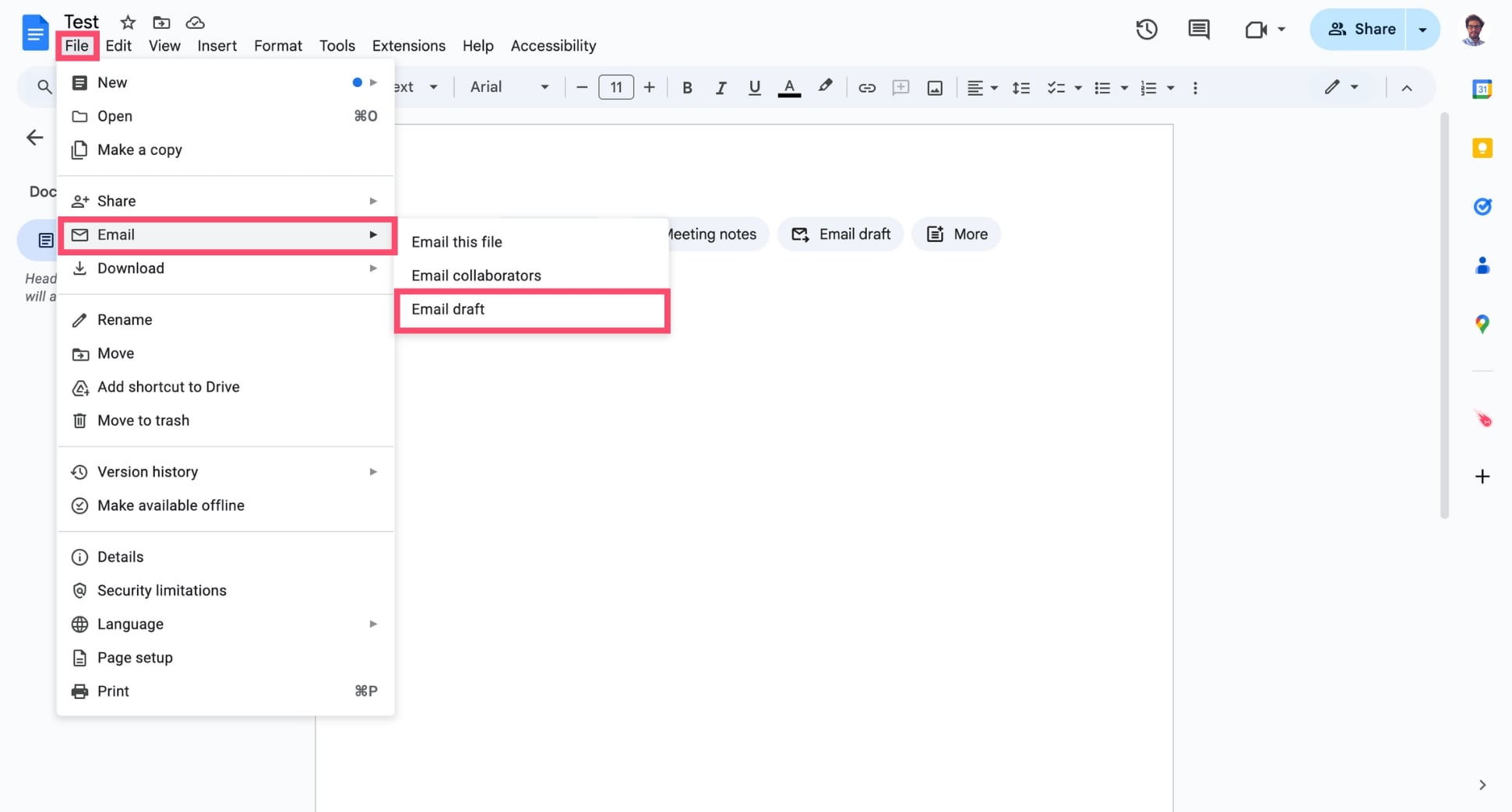
- A new block will appear. Enter your recipient(s) in the To, CC or BCC fields.
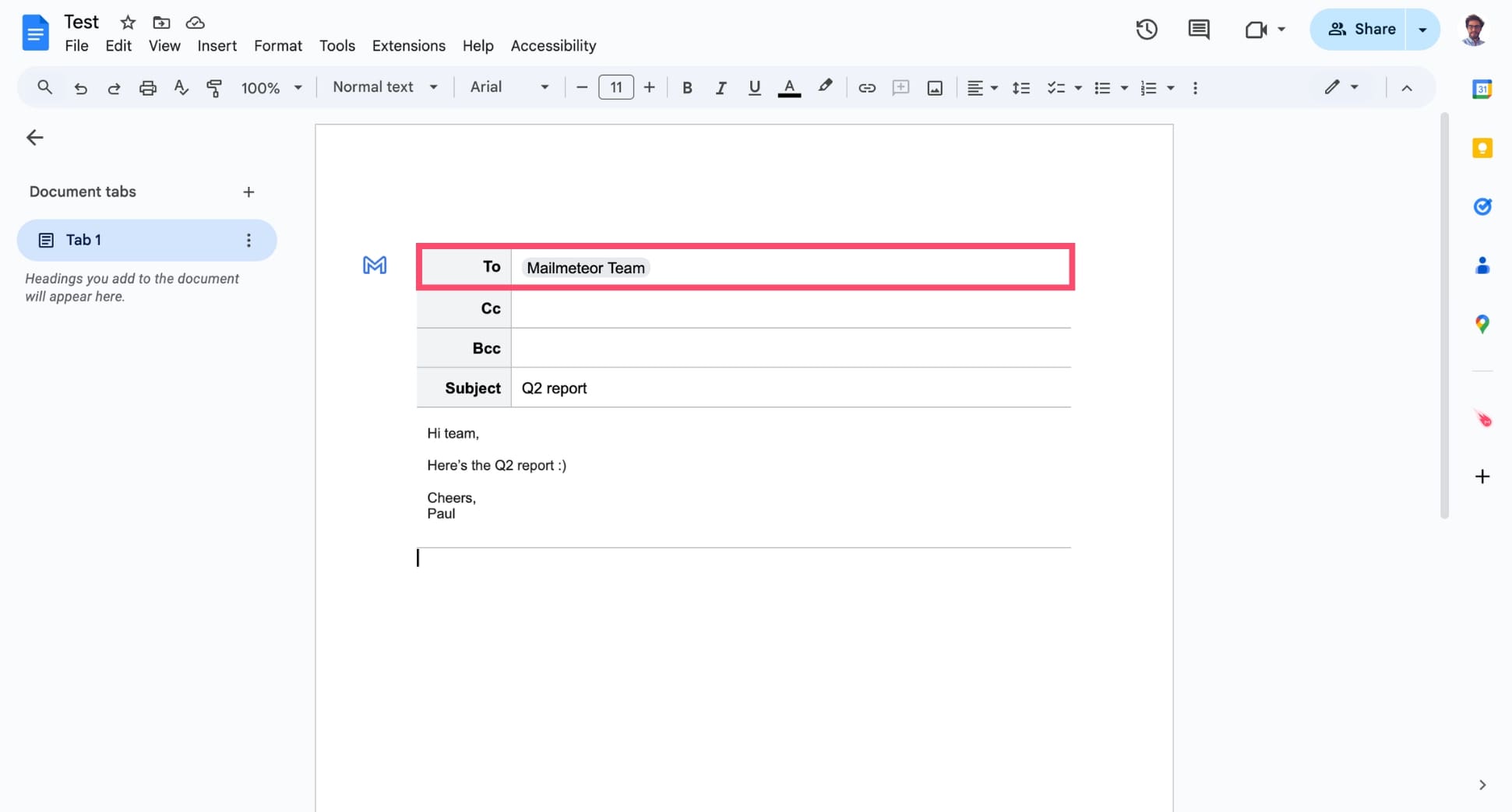
- Add a subject line and compose your message like you normally would.
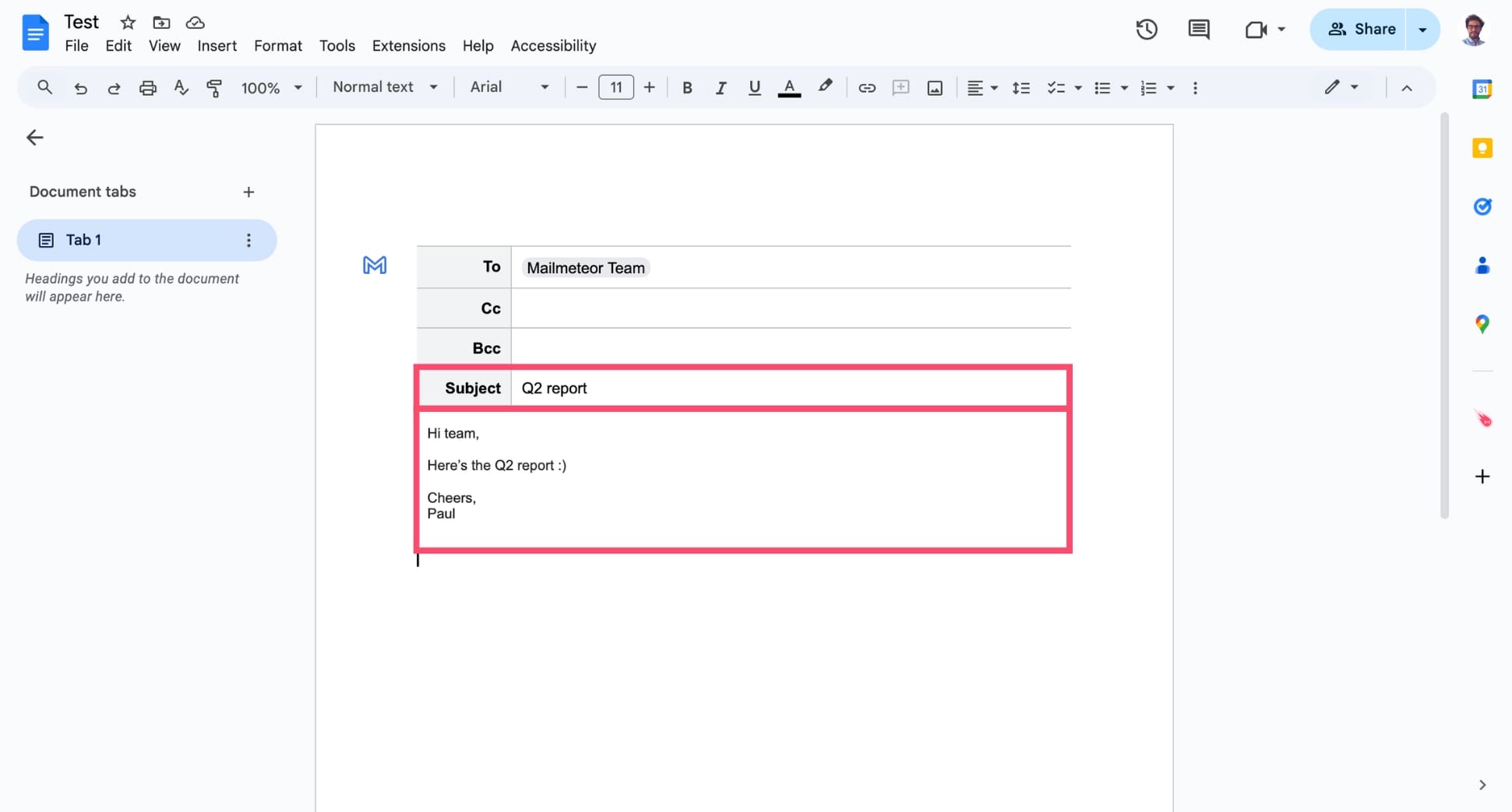
- Click Preview in Gmail to turn your document into a draft email in Gmail.
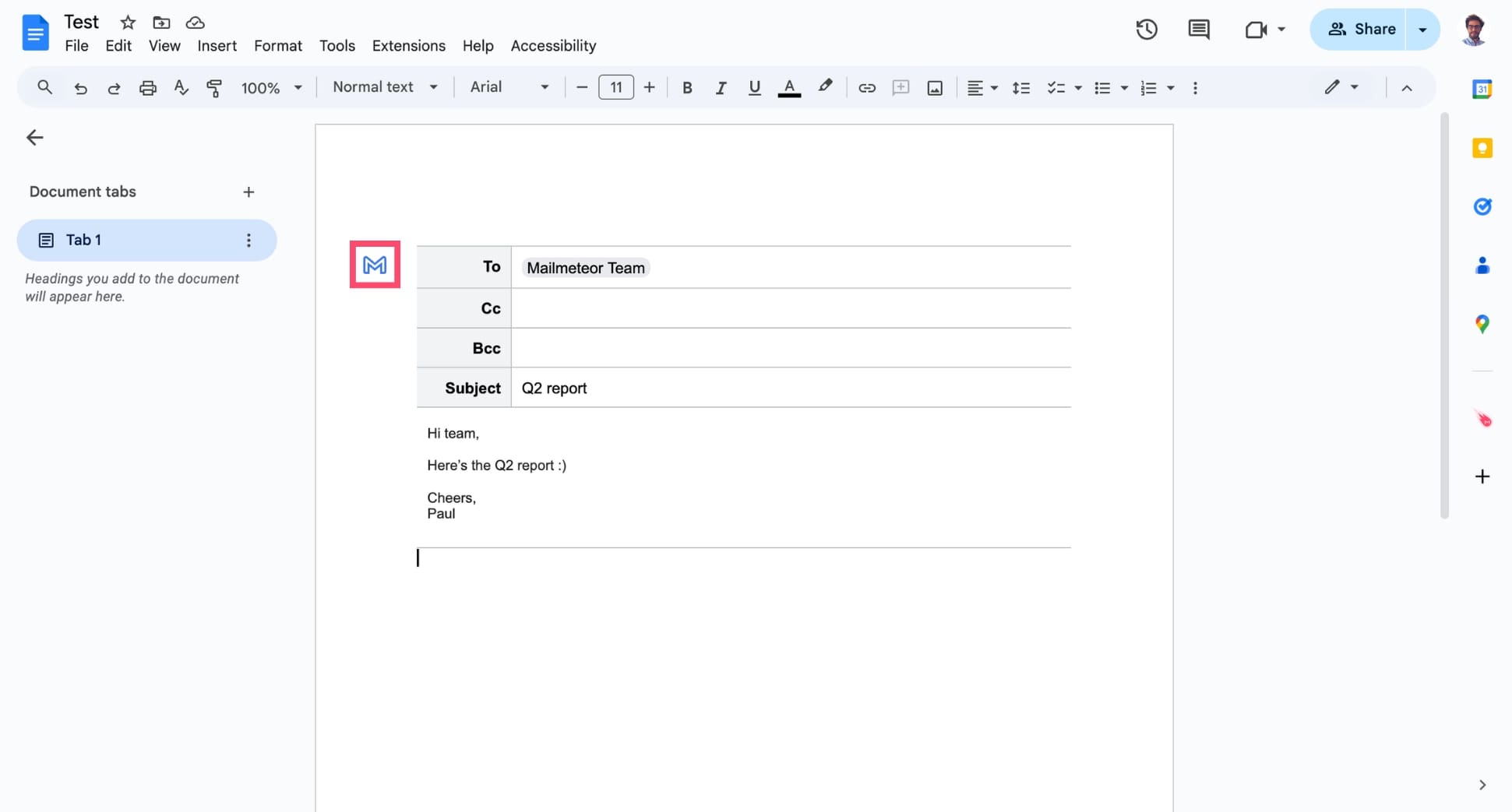
- Press Send.
And that’s it. Google Docs will generate an email with your document’s text and formatting. This is the best option for announcements, team updates, or anything where you want your content to appear directly in the email body.
When to use this method:
- You’re working on a formatted message
- You need the text to appear in the email body, not as a PDF
- You’re sending something that benefits from Gmail features (schedule send, labels, signatures, etc.)
4. Send Personalized Emails Using Mailmeteor
If you want to send great-looking emails or reach multiple people at once — each with their own name, message, or personalized version of your document — the easiest way is to use Mailmeteor for Google Docs.
How to do it:
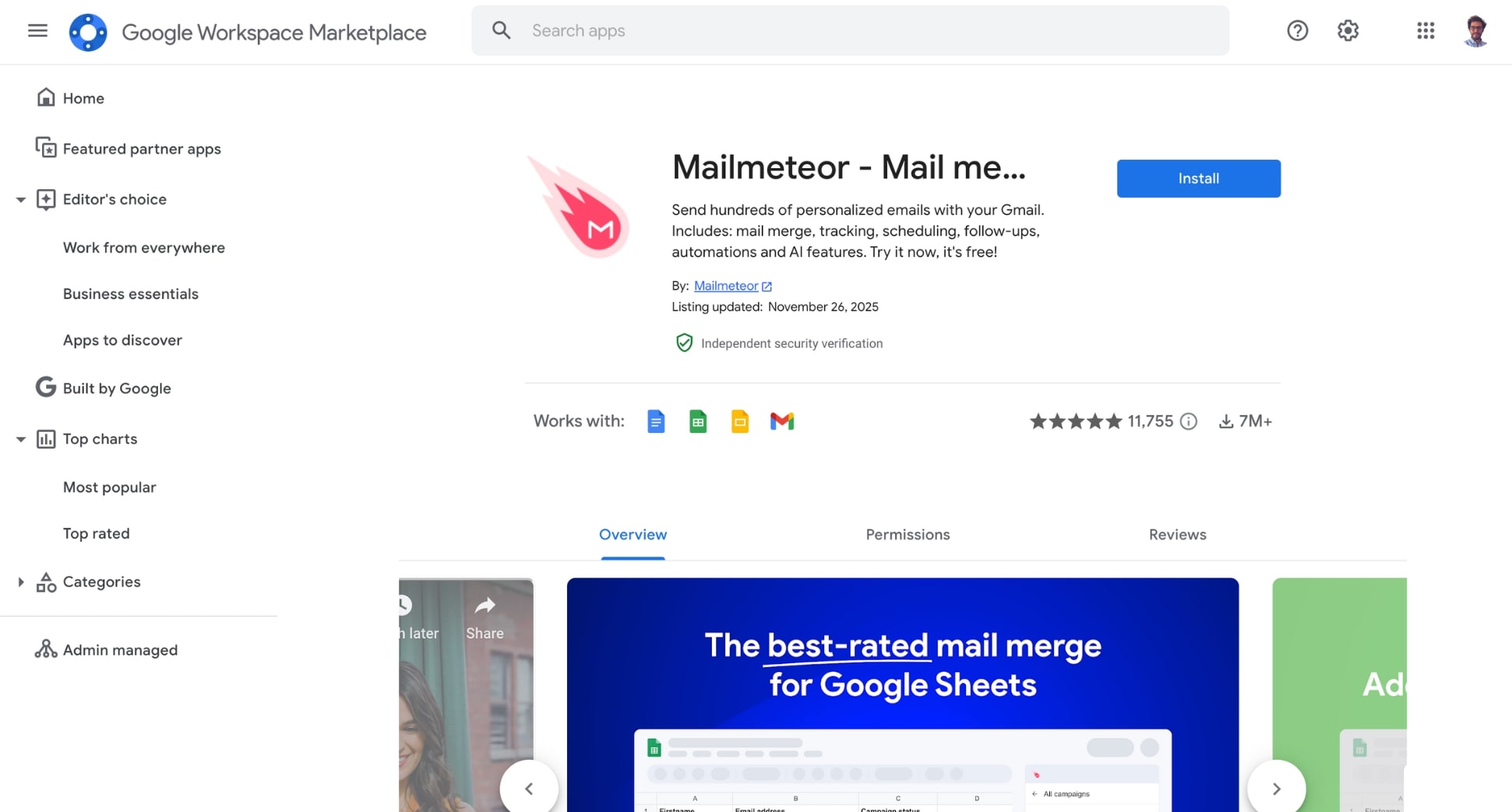
- Install Mailmeteor for Docs (it’s free!).
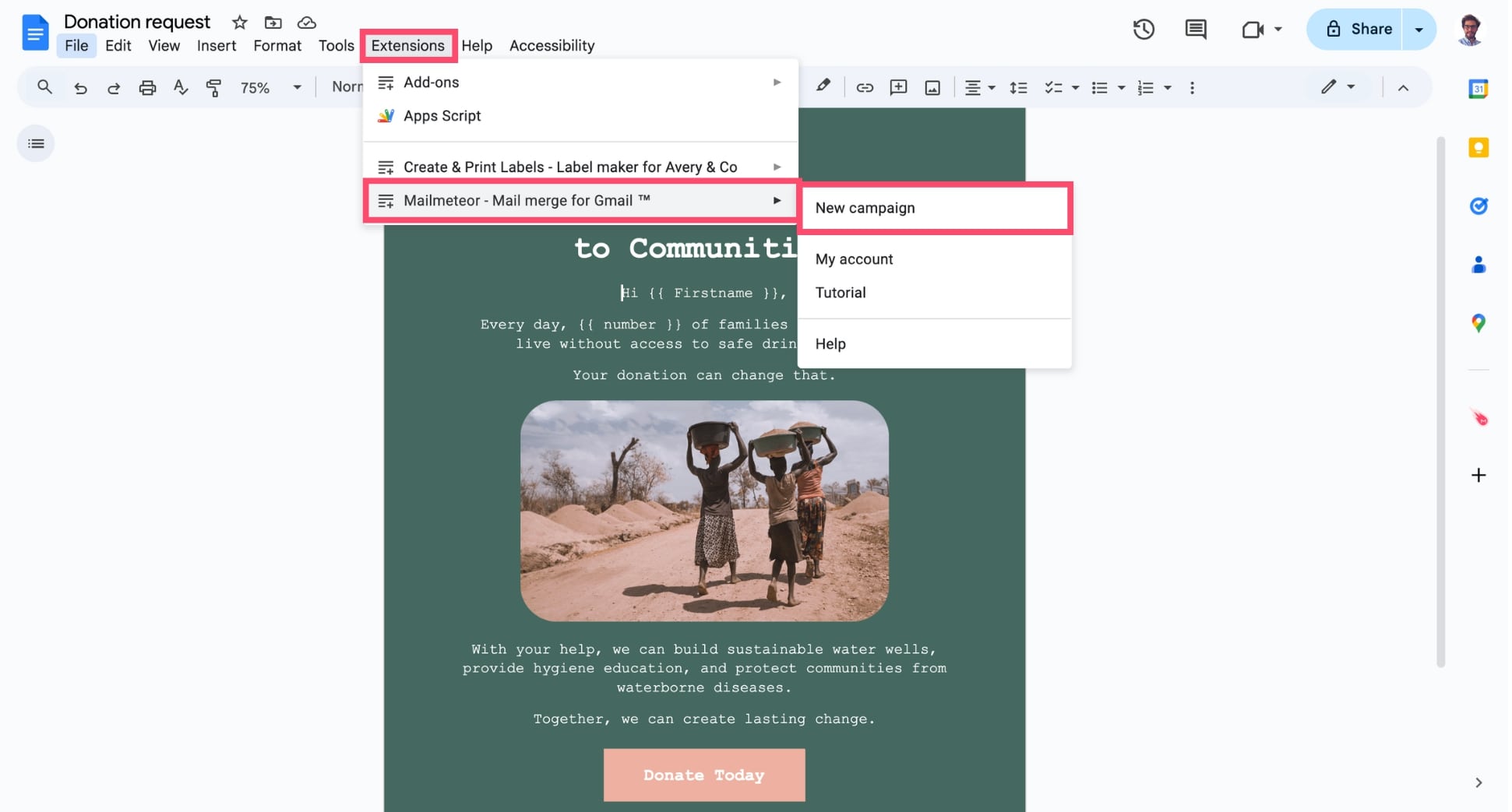
- In Google Doc, go to Extensions > Mailmeteor > New campaign.
- In the sidebar, add recipients from a CSV file, Google Sheets, or copy-paste email addresses.

- Personalize your email using variables like or .
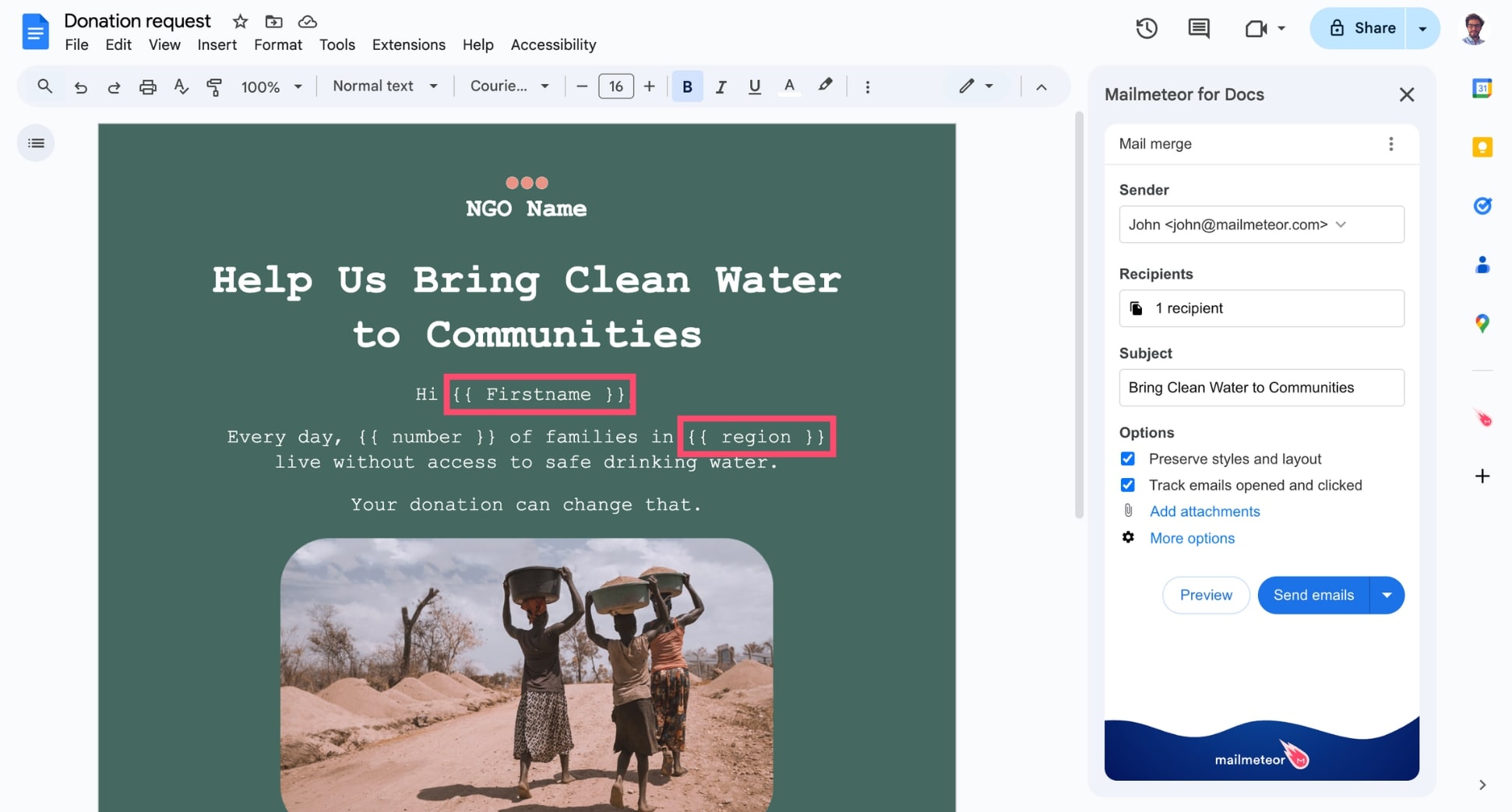
- Enable Preserve styles and layout if you want pixel-perfect formatting.

- Preview your emails, then click Send.
Mailmeteor will send a separate, personalized message to each recipient — directly through your Gmail account — while keeping your formatting intact. It’s the fastest way to send newsletters or any message that needs personalization at scale.
When to use this method:
- You need to send personalized versions of the same email
- You want to preserve your Google Doc formatting
- You want to track opens and clicks in real-time
Which Method Should You Use?
Each method allows you to send emails from a Google Doc — but the right one depends on what you’re trying to send and how much control you need. Here’s a quick comparison to help you pick the best option:
| Method | Best For | Pros | Cons |
|---|---|---|---|
| Share via link | Collaboration, feedback | Always up to date • No attachments to manage • Easy permissions | Requires Google account • Not ideal for formal messages |
| Send as an attachment | Formal documents, fixed layouts | Sends a clean PDF • No Drive access required • Looks the same for everyone | Not collaborative • Recipients won’t see updates |
| Turn into a Gmail draft | Sending your Doc as the email body | Email matches your Doc • Easy to edit in Gmail • Great for announcements or memos | Formatting may vary depending on email clients |
| Send personalized emails with Mailmeteor | Personalized emails at scale | 1-to-1 personalization • Perfect formatting • High deliverability • Track opens & clicks • Fastest at scale | Requires the Mailmeteor add-on (free plan available) |
How to choose quickly:
- Need collaboration? → Share via link
- Need a clean PDF or formal attachment? → Send as attachment
- Want the Doc to appear directly in the email body? → Turn into Gmail draft
- Need personalization or bulk sending? → Use Mailmeteor
FAQs
How do I email a Google Doc without giving edit access?
In Google Docs, go to Share > Add people, then change permissions to Viewer instead of Editor. You can also choose Copy link > Restricted if you want only specific people to access the file. For maximum control, email the document as a PDF attachment so no one can change the content.
How do I email a Google Doc to multiple recipients?
You can add multiple email addresses using Share > Add people, or send the document as a PDF using File > Email > Email this file. If you need to send personalized copies to many people at once, use Mailmeteor for Docs to run a mail merge and deliver individual emails directly from Google Docs.
How do I email a Google Doc as a PDF?
Open your document and go to File > Email > Email this file. Choose PDF as the attachment format, enter the recipient’s address, and hit Send. This is the fastest way to send a clean, non-editable version of your Google Doc.
Does Google Docs support mail merge?
Not natively. Google Docs can create Email drafts for Gmail, but it cannot run a mail merge on its own. To send personalized emails to multiple people, you’ll need an add-on like Mailmeteor for Docs, which lets you send individual, customized messages in bulk directly from Google Docs.
How do I email a Google Doc with formatting intact?
If you need your Google Doc to look exactly the same in the email, turn it into a PDF. Or install Mailmeteor for Docs and go to Extensions > Mailmeteor > New campaign > Preserve styles and layout. This sends an image snapshot of your document instead of converting it to HTML, so nothing breaks across email clients.
How do I email a Google Doc using Gmail?
Turn your document into a Gmail draft using the Email draft feature, or export it as a PDF and attach it manually. You can also share a link and paste it into your email if you prefer not to send an attachment. If you need to send personalized copies, an add-on like Mailmeteor makes the process much faster.
How do I email a Google Doc to a group or mailing list?
Use Share > Add people and paste the group address to give your mailing list access to the document. If you need to send individualized copies to many people at once, use Mailmeteor for Docs. It pulls data from a Google Sheet or mailing list to generate customized emails for each recipient — all in just a few clicks.
How do I schedule sending a Google Doc by email?
Scheduling isn’t available natively inside Google Docs. But you can schedule emails via Gmail’s Schedule send if you’re using the Email draft feature. Alternatively, Mailmeteor lets you schedule personalized or bulk sends at a specific date and time directly from Google Docs.


