Add images or emojis
To make your images looks nicer, you can add images and emojis in just a few clicks. Here’s how to do it:
How to add images
To add images to your emails, from the editor click on the image icon  . Then drag & drop your image to insert it into your email. Alternatively, you can click Choose an image and select your file.
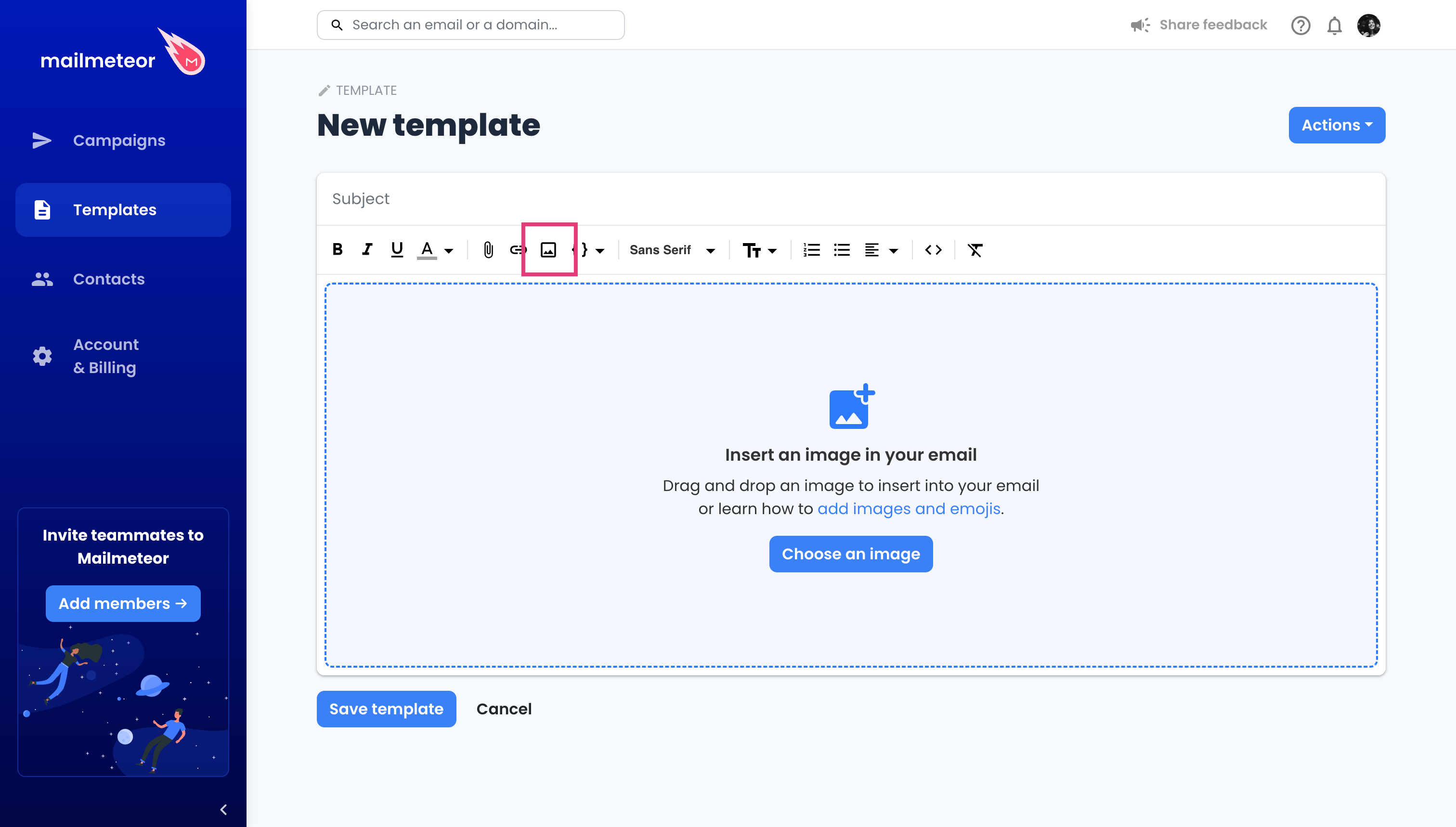
Mailmeteor will instantly insert the image into your email. You can then resize your image as you wish. For better accessibility, the name of your image will be used as the alt attribute, so make sure you don’t give it a goofy name.
Insert distant images
If you have already hosted your image online, you can also insert it into your email. Here’s how to do it:
- Upload your image online. ImgBB or Imgur are the two most reliable free services for uploading images online.
-
Copy the image. Right-click on the image and select Copy image.
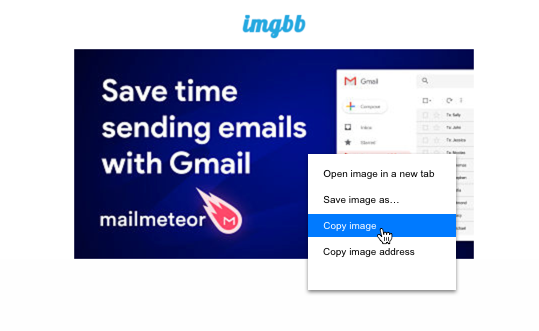
- Paste the image in your email template.
How to resize an image? If your picture is too large in width or height, you can click on it to resize it easily. Alternatively, you can resize it before uploading it. The ideal image width for an email is 600 pixels.
Your image is not showing? Make sure your images are correctly uploaded online. As explained, you can do this with free online services such as ImgBB or Imgur.
How to add emojis ☄️
To add emojis, simply copy and paste an emoji in your email subject or body.
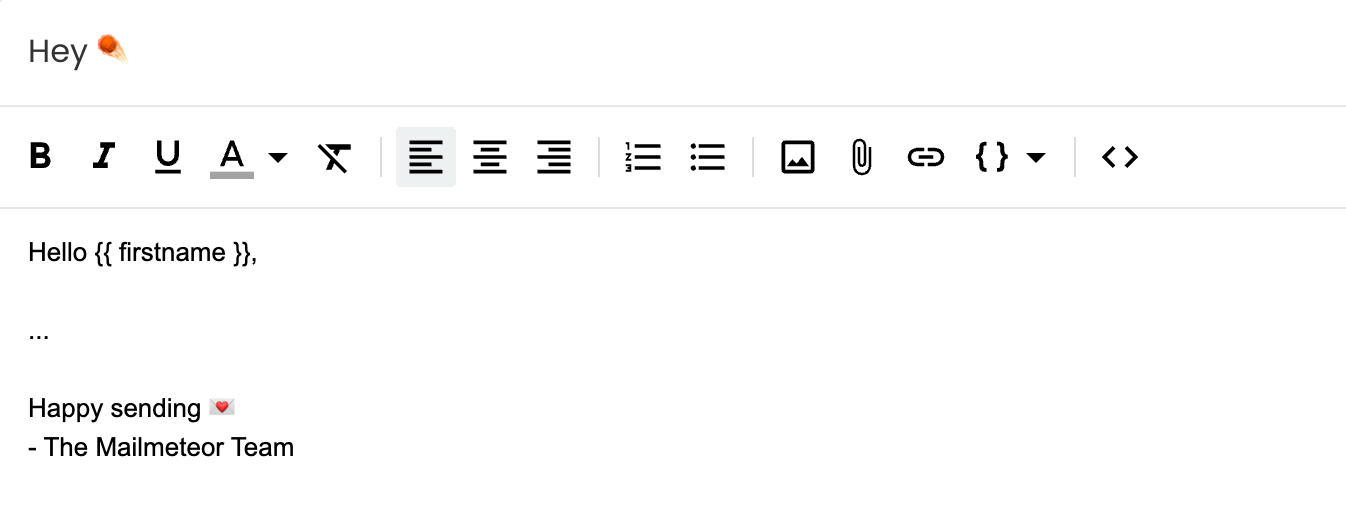
Even though emojis are cute, they can be considered spam in the eyes of spam filters. Use them sparingly!
You can use a keyboard shortcut to add emojis quickly.
- On Mac: Control + Command + Space.
- On Windows:
- Press Windows + ; (semi-colon)
- Or Windows + . (period)
How to add images
To add images to your emails, from the editor click on the image icon .
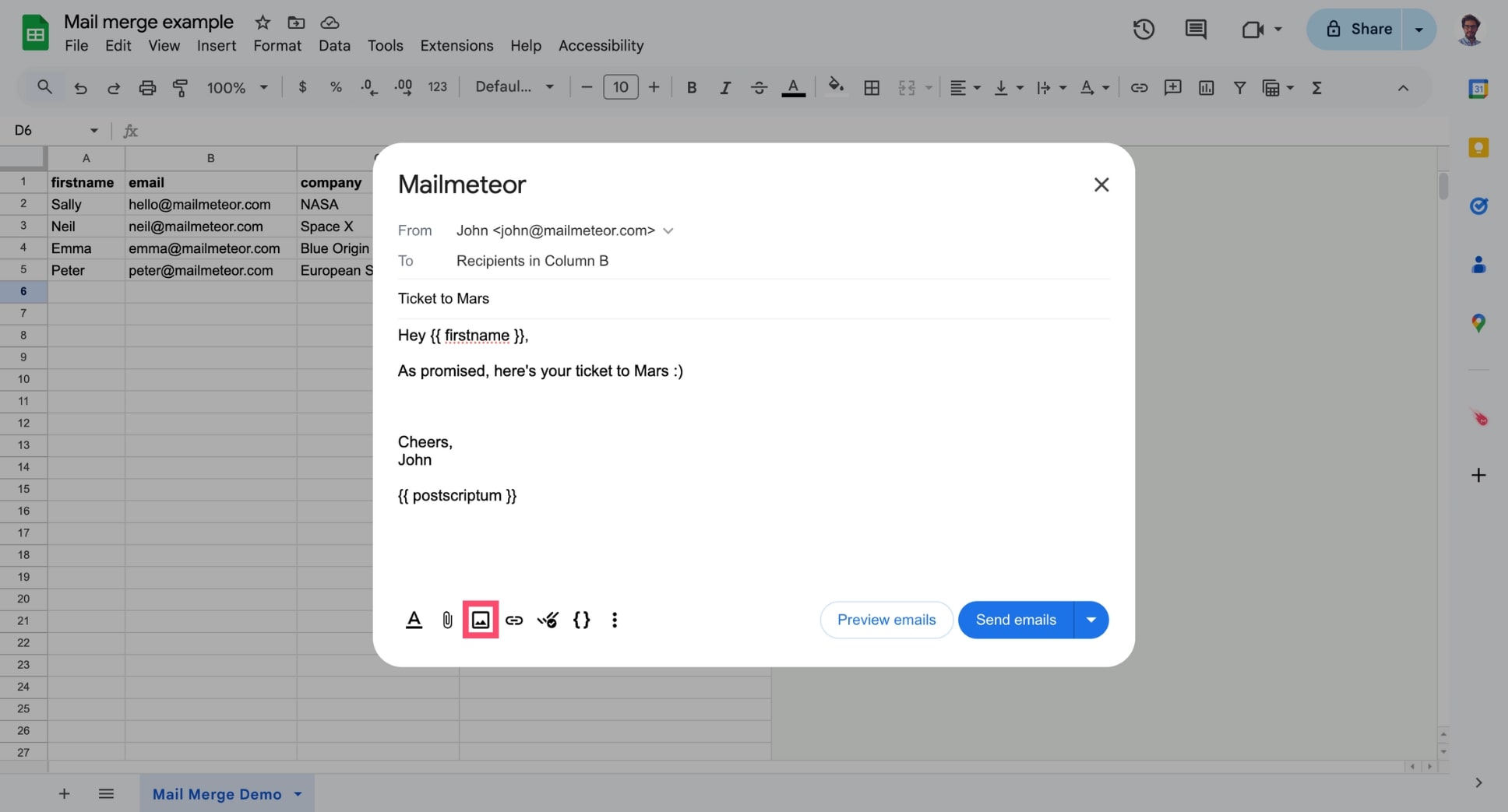
Then drag & drop your image to insert it into your email. Alternatively, you can click Choose an image and select your file.
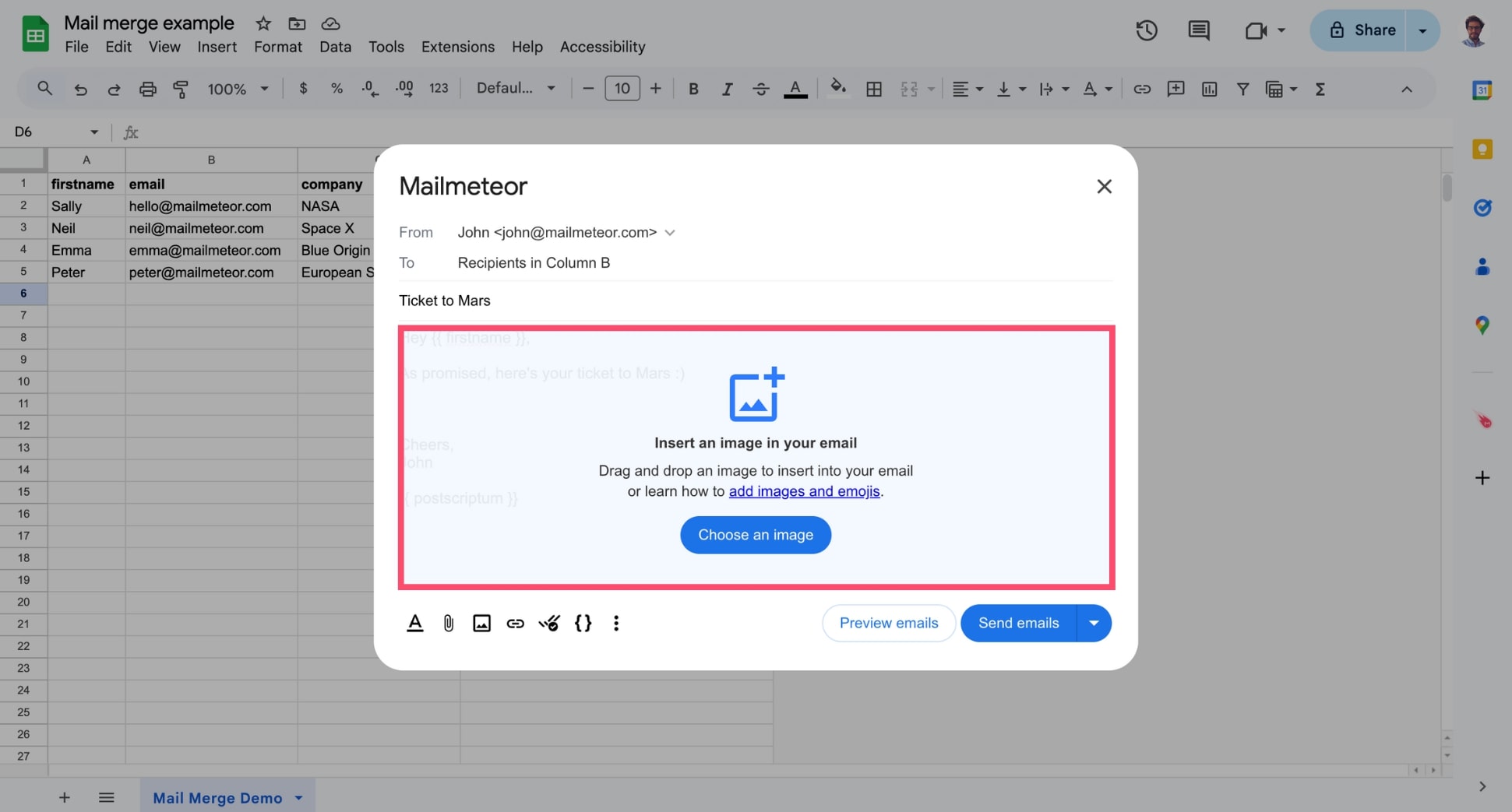
Mailmeteor will instantly insert the image into your email. You can then resize your image as you wish. For better accessibility, the name of your image will be used as the alt attribute, so make sure you don’t give it a goofy name.
Insert distant images
If you have already hosted your image online, you can also insert it into your email. Here’s how to do it:
- Upload your image online. ImgBB or Imgur are the two most reliable free services for uploading images online.
-
Copy the image. Right-click on the image and select Copy image.
- Paste the image in your email template.
Insert personalized images (advanced)
You can also use HTML code to send a personalized image to each of your recipients. However, this feature requires technical skills, so you may need to enlist the help of a web developer.
Here’s a spreadsheet that demonstrates how to send custom images in your mail merge. As you will see, column E, entitled “Image Code”, creates an img HTML element. You can then add an {{ Image Code }} variable to your email template. It will render the custom image that you want to send.
How to resize an image? If your picture is too large in width or height, you can click on it to resize it easily. Alternatively, you can resize it before uploading it. The ideal image width for an email is 600 pixels.
Your image is not showing? Make sure your images are correctly uploaded online. As explained, you can do this with free online services such as ImgBB or Imgur.
How to add emojis ☄️
To add emojis, simply copy and paste an emoji in your email subject or body.
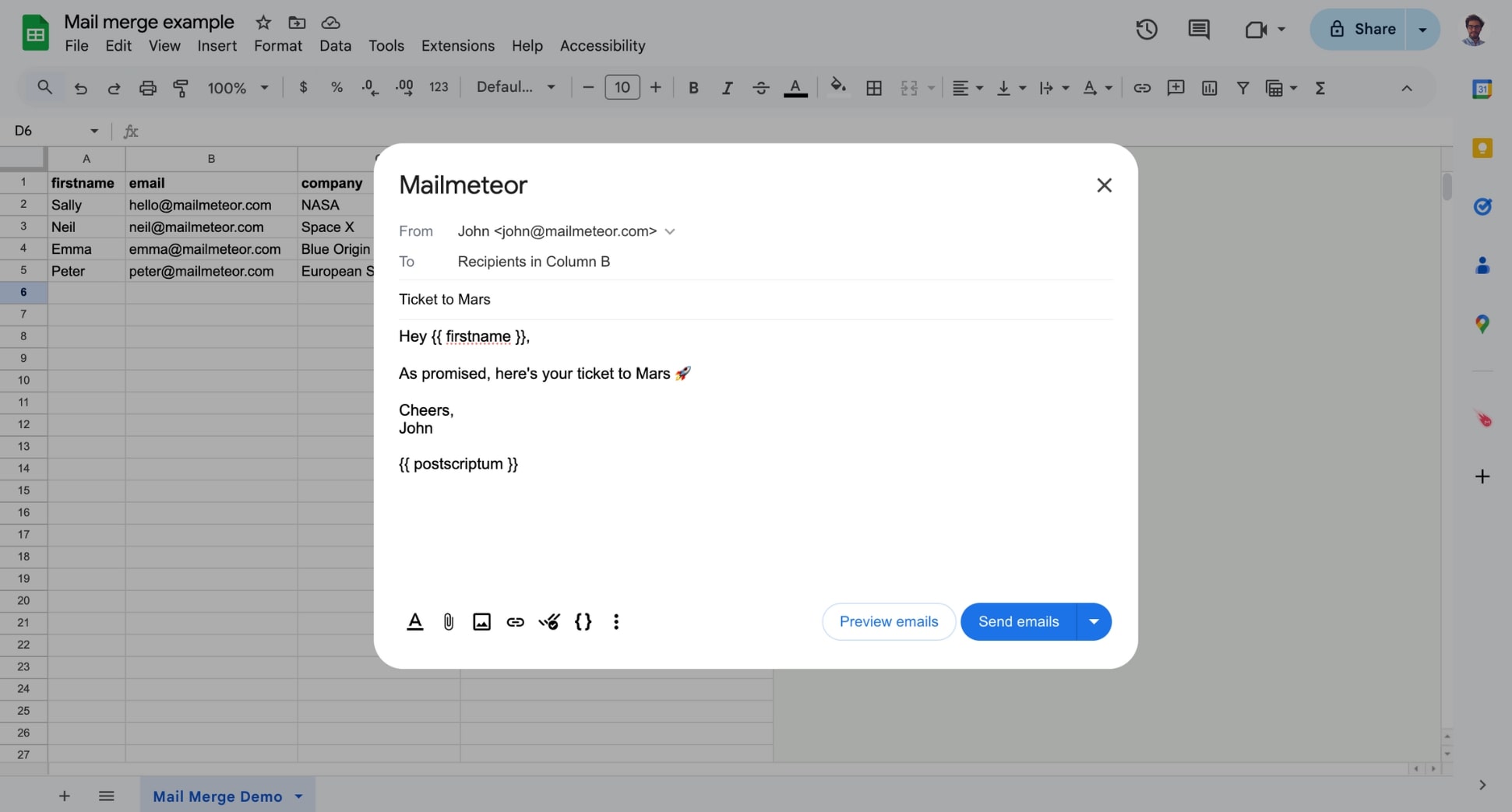
Even though emojis are cute, they can be considered spam in the eyes of spam filters. Use them sparingly!
You can also use a keyboard shortcut to add emojis quickly.
- On Mac: Control + Command + Space.
- On Windows:
- Press Windows + ; (semi-colon)
- Or Windows + . (period)
Video tutorial
If you’d rather watch a video, here’s a tutorial on adding images to your e-mails:
How to add images
Mailmeteor lets you design stellar emails directly from Google Docs and create unique layouts – with images, emojis, and more. Here’s how to add images & emojis to your emails with Mailmeteor for Google Docs.
1) Open Mailmeteor for Google Docs
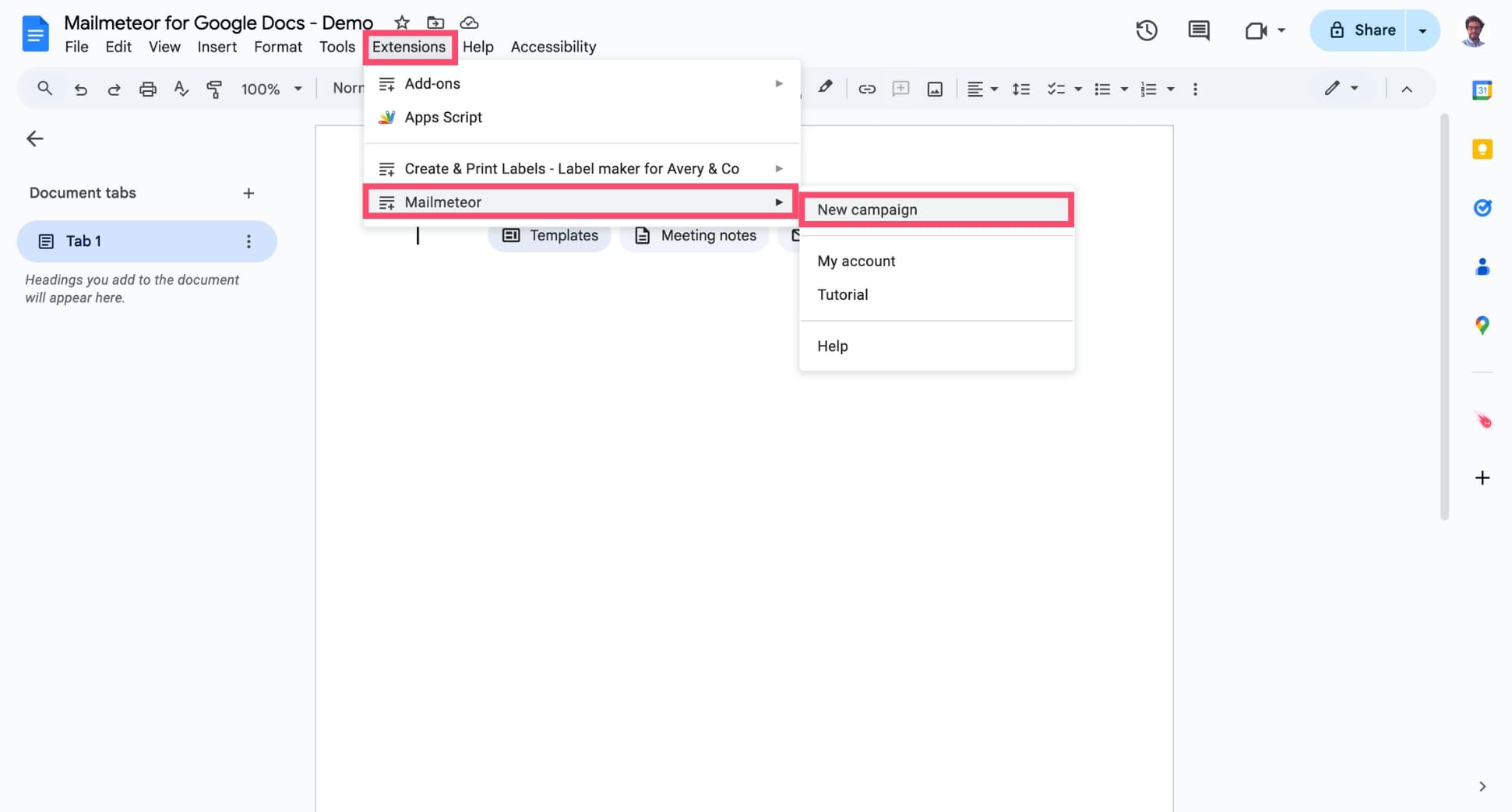
Open Google Docs. Then navigate to Extensions > Mailmeteor > New campaign and create a new campaign.
2) Insert images in your email template
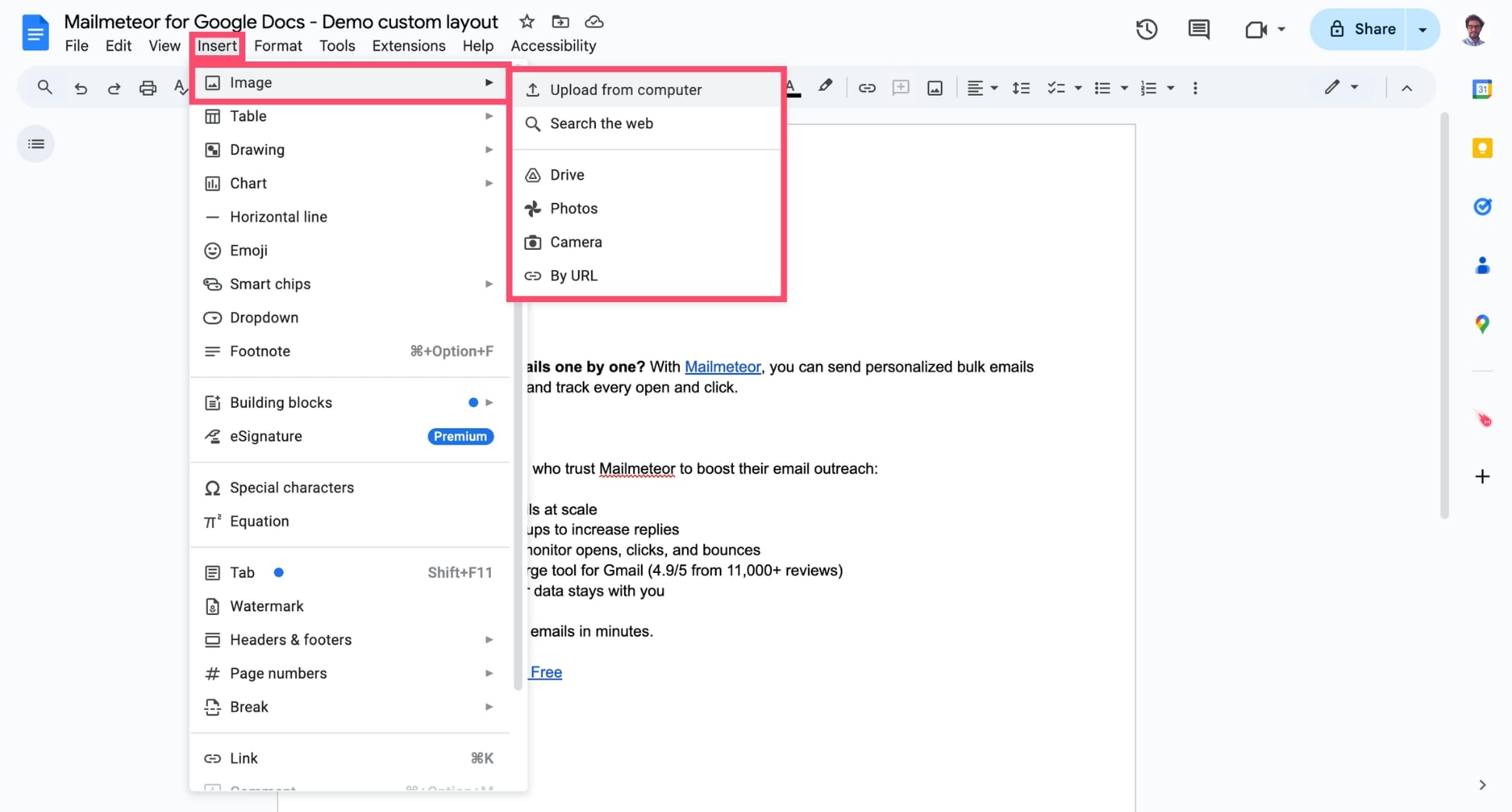
Position your cursor right where you want the image to appear. Then click Insert > Image. From there, choose:
- Upload from computer to select an image that is stored on your device.
- Search the web to include an image from Google Images.
- Drive to select an image stored on your Google Drive.
- Photos to insert an image from your Google Photos.
- Camera to take a picture with your device.
- By URL to upload an image stored online.
3) Edit your images before sending
You can now edit your image directly from Google Docs.
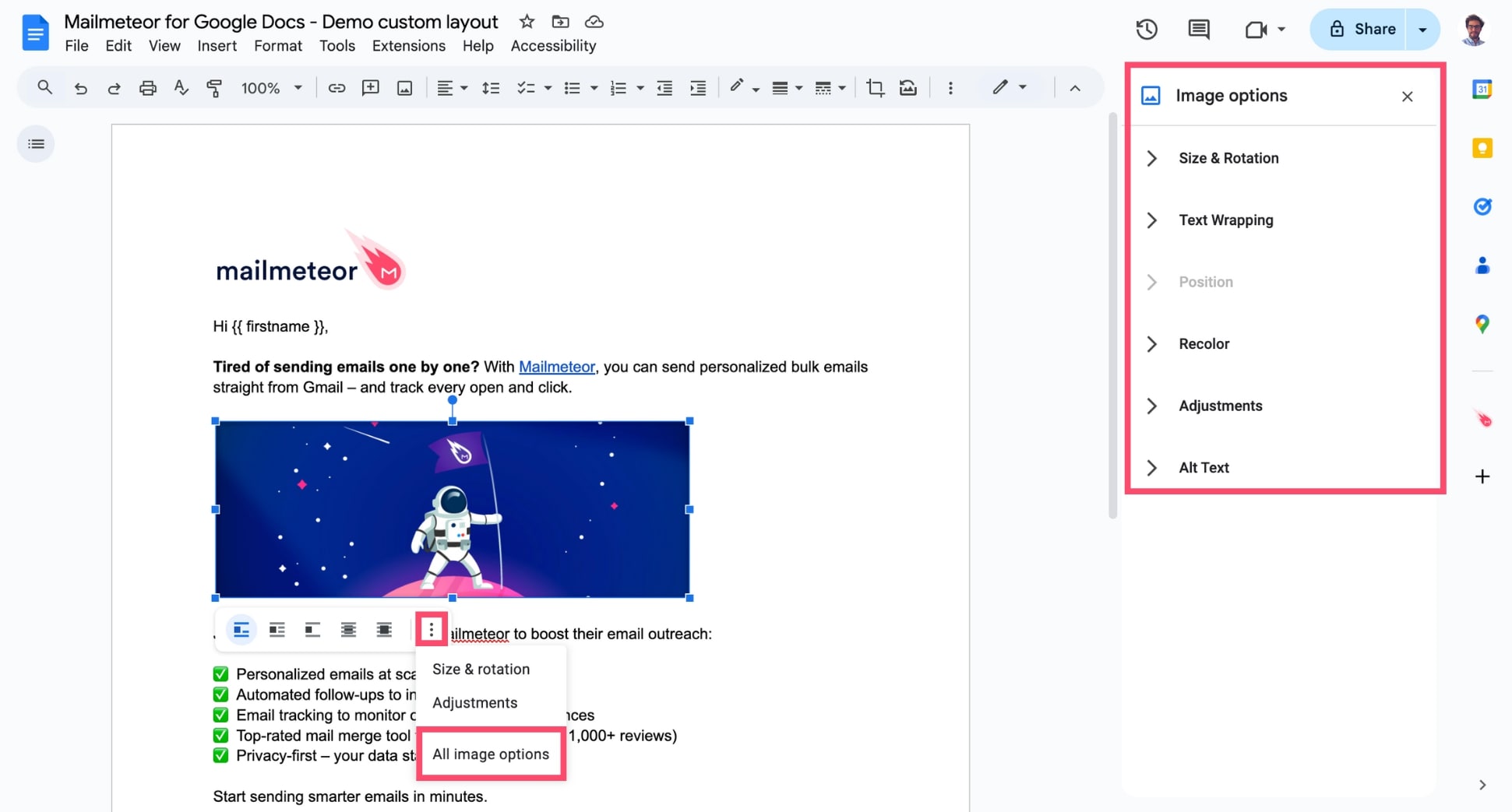
- Click your image to resize it.
- Double-click your image to crop it.
- Select the three-vertical dots, then All image options to change the colors of your image, rotate it, change its brightness or its opacity, decide how it aligns with your text, and more.
Want to make sure your emails will look exactly like in Google Docs? In that case, use the Preserve styles and layouts option. But keep in mind that personalized variables won’t work if this option is enabled.
How to add emojis ☄️
You can also add emojis to make your emails more engaging, eye-catching, and personable. Emojis help convey tone, highlight key points, and connect with your recipients on a more human level.
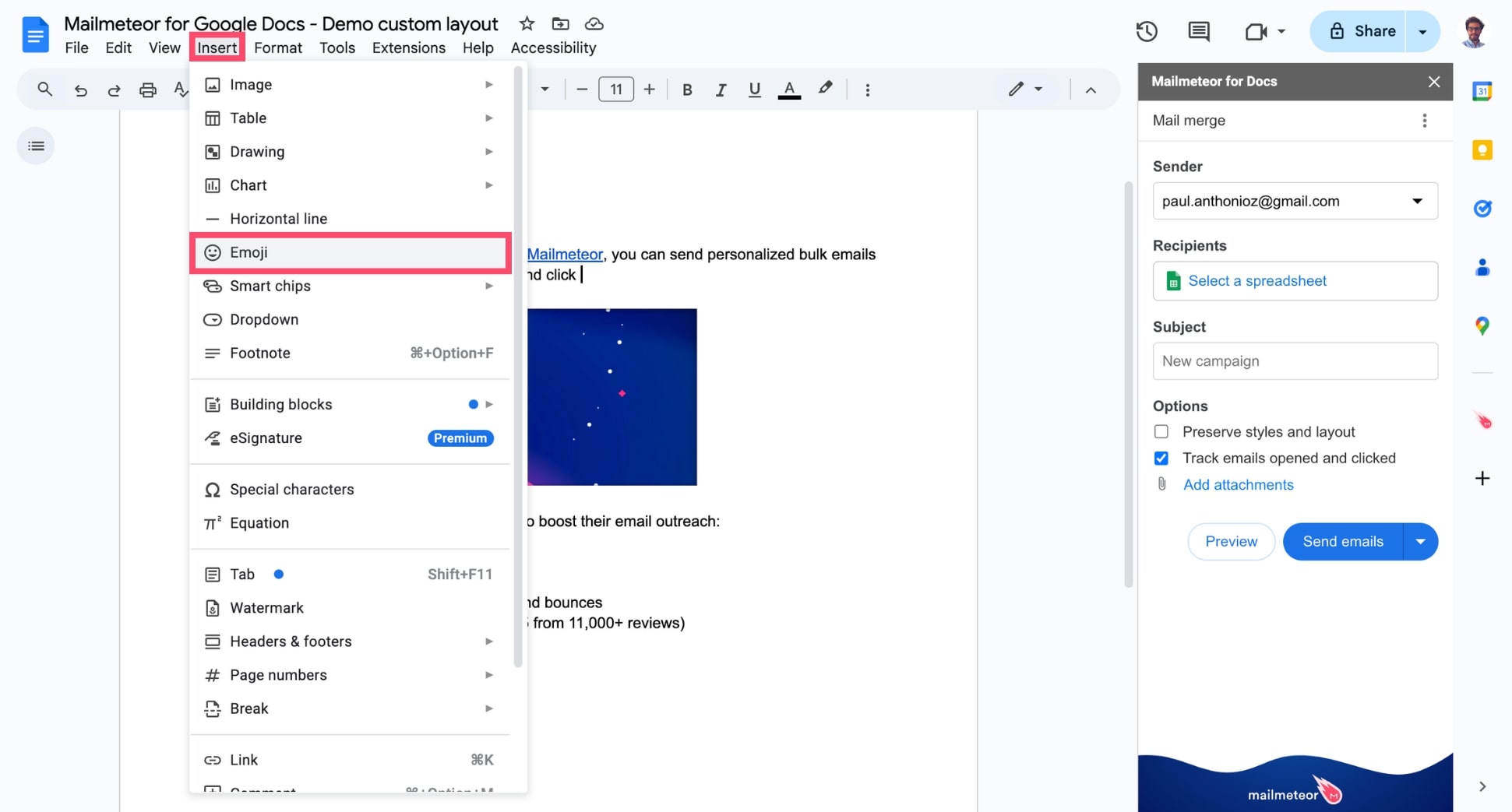
To add an emoji to your email, click Insert > Emoji.
Then select the appropriate emoji.
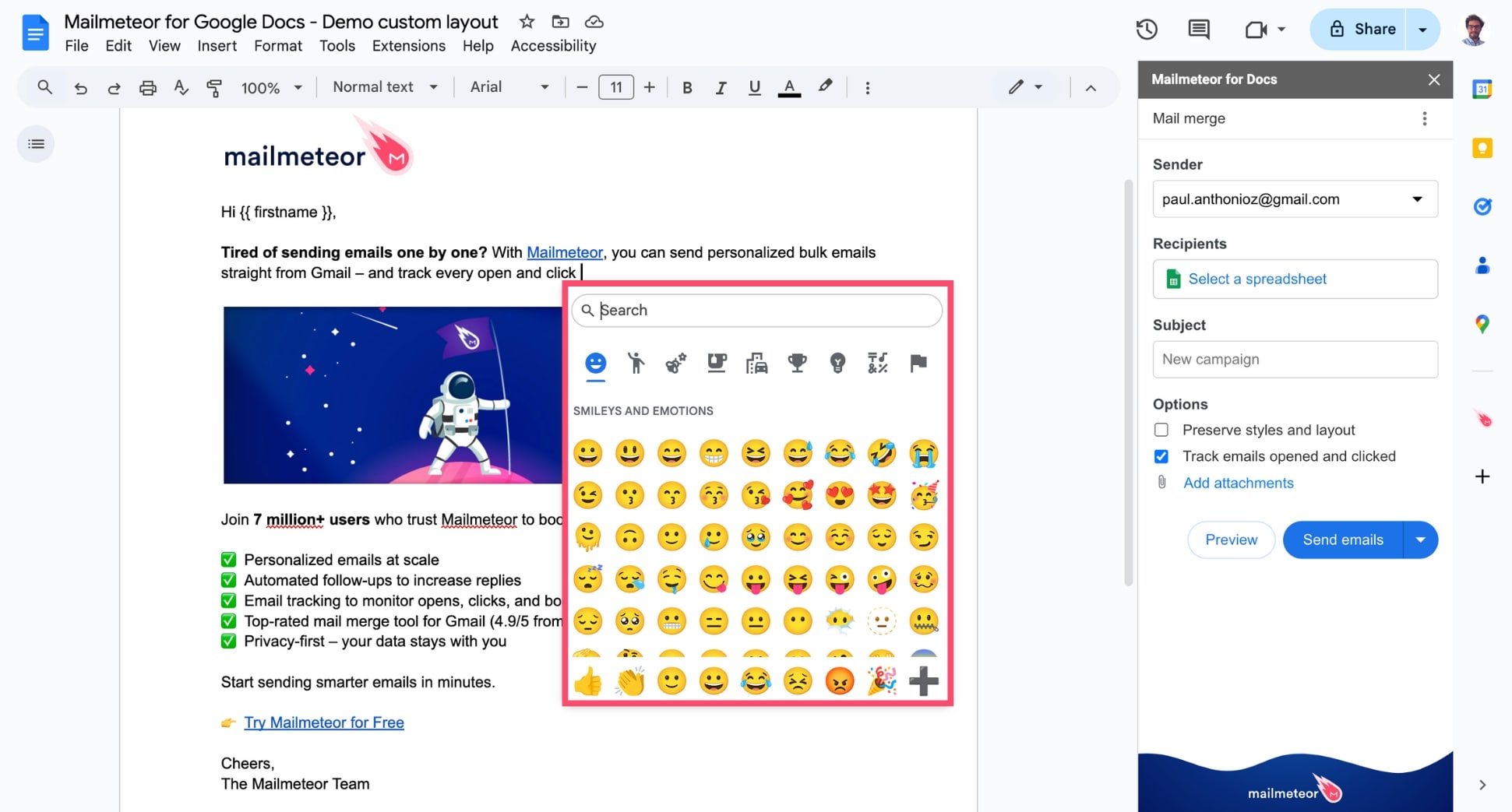
You can also copy and paste emojis in the Subject field to make sure your emails stand out in crowded inboxes.