Follow-ups & Sequences
A follow-up email is an automated email that is sent to a recipient following a first conversation. The follow-up email acts as a reminder for the recipient and is meant to prompt to reply or take action. This can significantly improve your results.
With Mailmeteor, you can do two things ⤵️
-
Email sequences.
Send a series of emails after at a few days interval. You can send a new email 3 days later. Then another email 1 week later. Email sequences, also called Drip campaigns, are a great way to onboard your new customers or to nurture your leads.
-
Auto follow-ups.
Send automatic follow-up emails to your recipients. You can set up conditional follow-ups. Meaning that your emails will be sent if certain conditions are met. For example, you can send an automated follow-up if the recipient didn’t open your first email.
.png)
Email sequence
How to send an email sequence?
Mailmeteor lets you send email sequences. It’s possible to send a simple follow-up as well as a multi-steps sequence over several days or weeks. A common use case is to send a follow-up email 3 days later if the recipient hasn’t replied yet.
- Open Mailmeteor Dashboard.
-
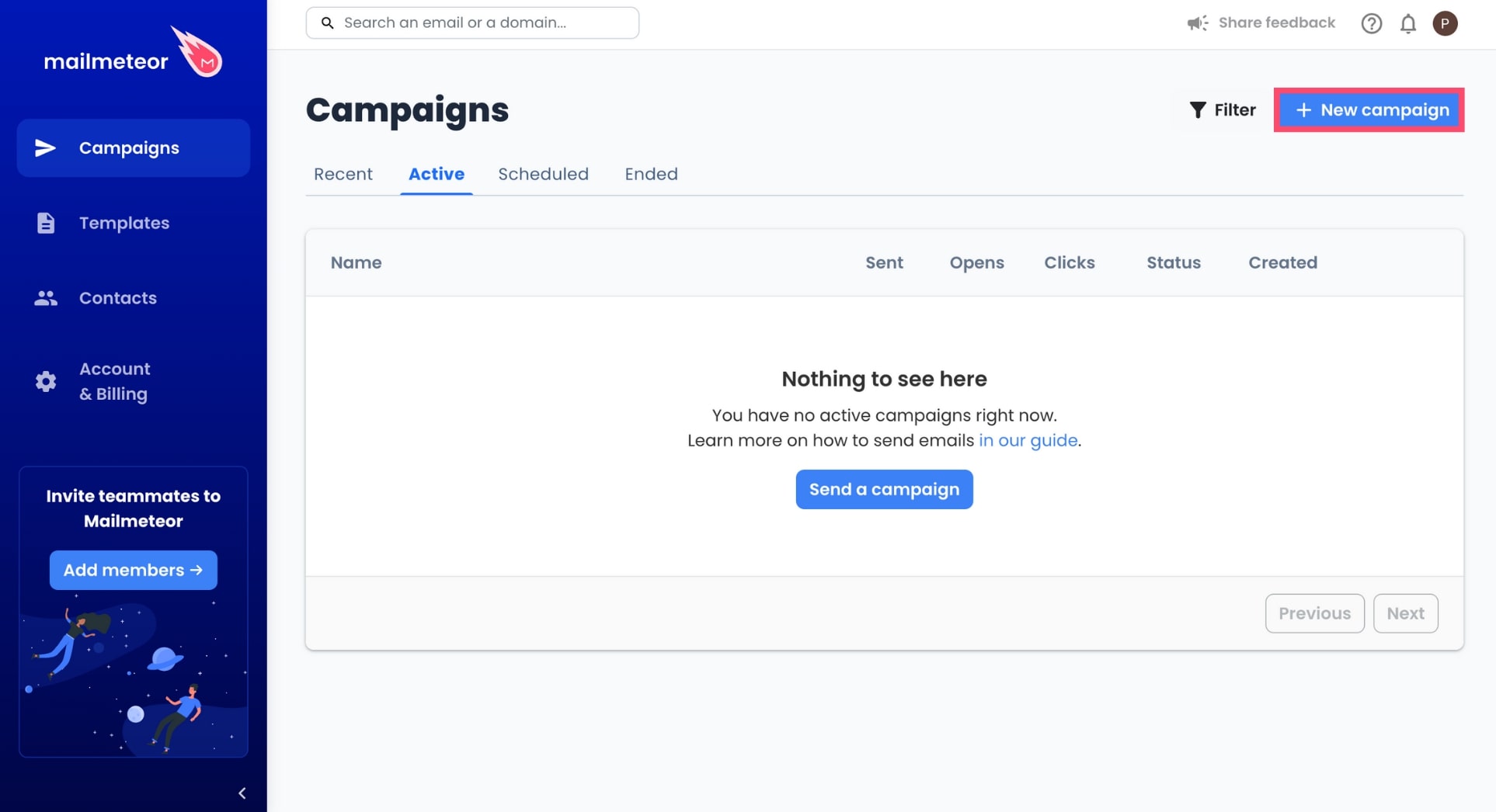
Click on New campaign.
-
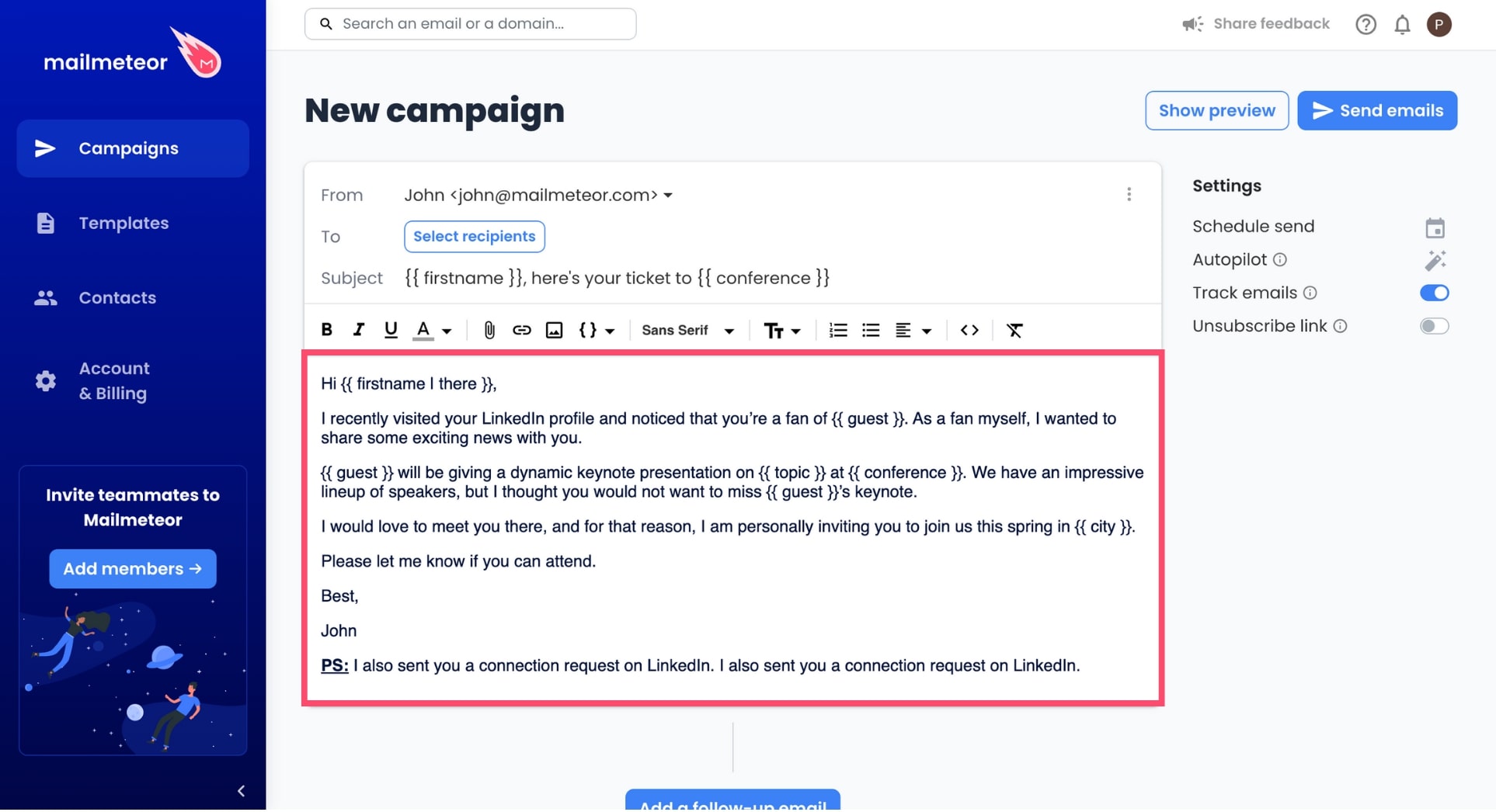
Compose the first message of your email sequence.
-
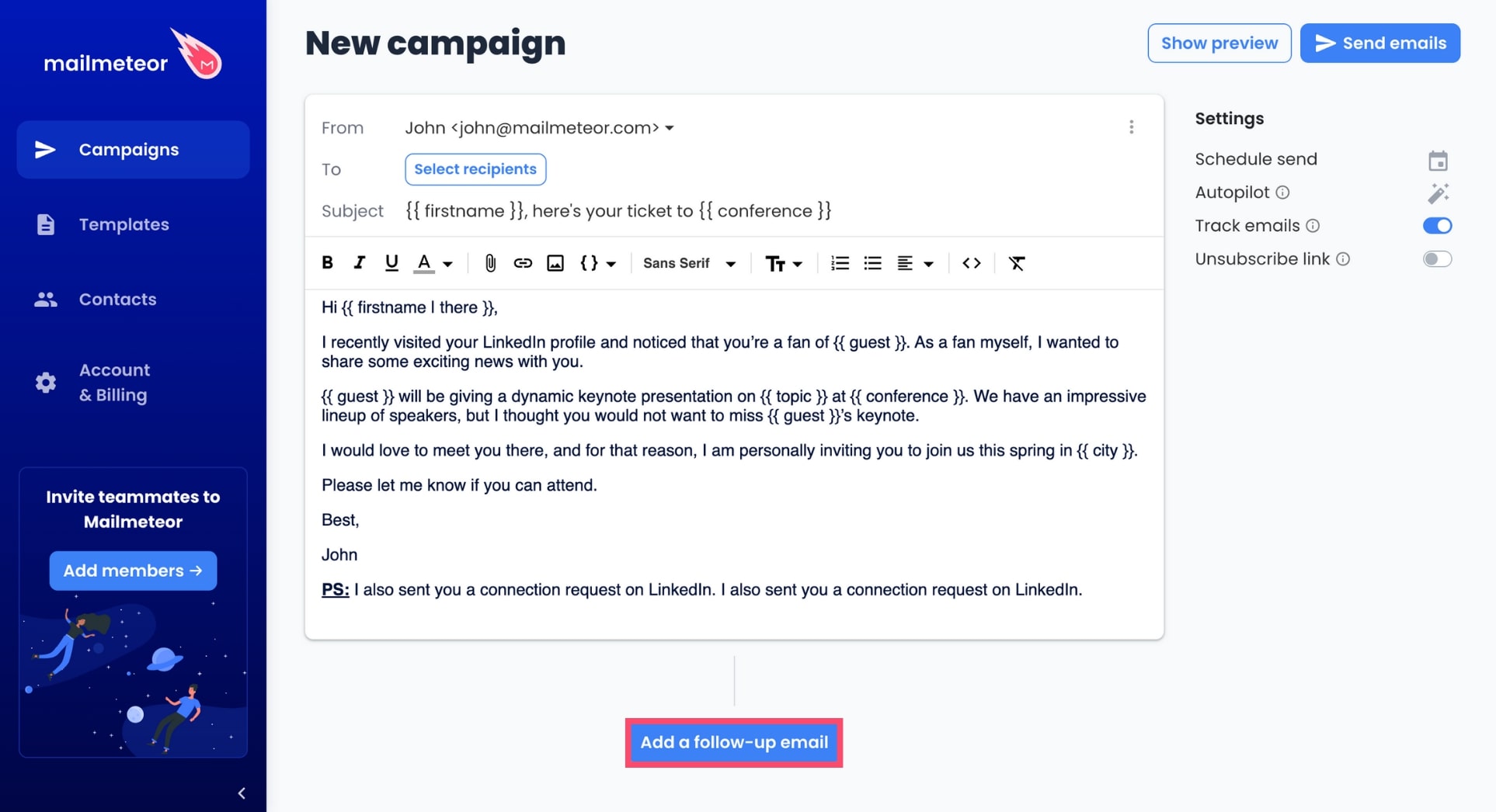
Next, click on Add a follow-up email to set up an automated follow-up.
-
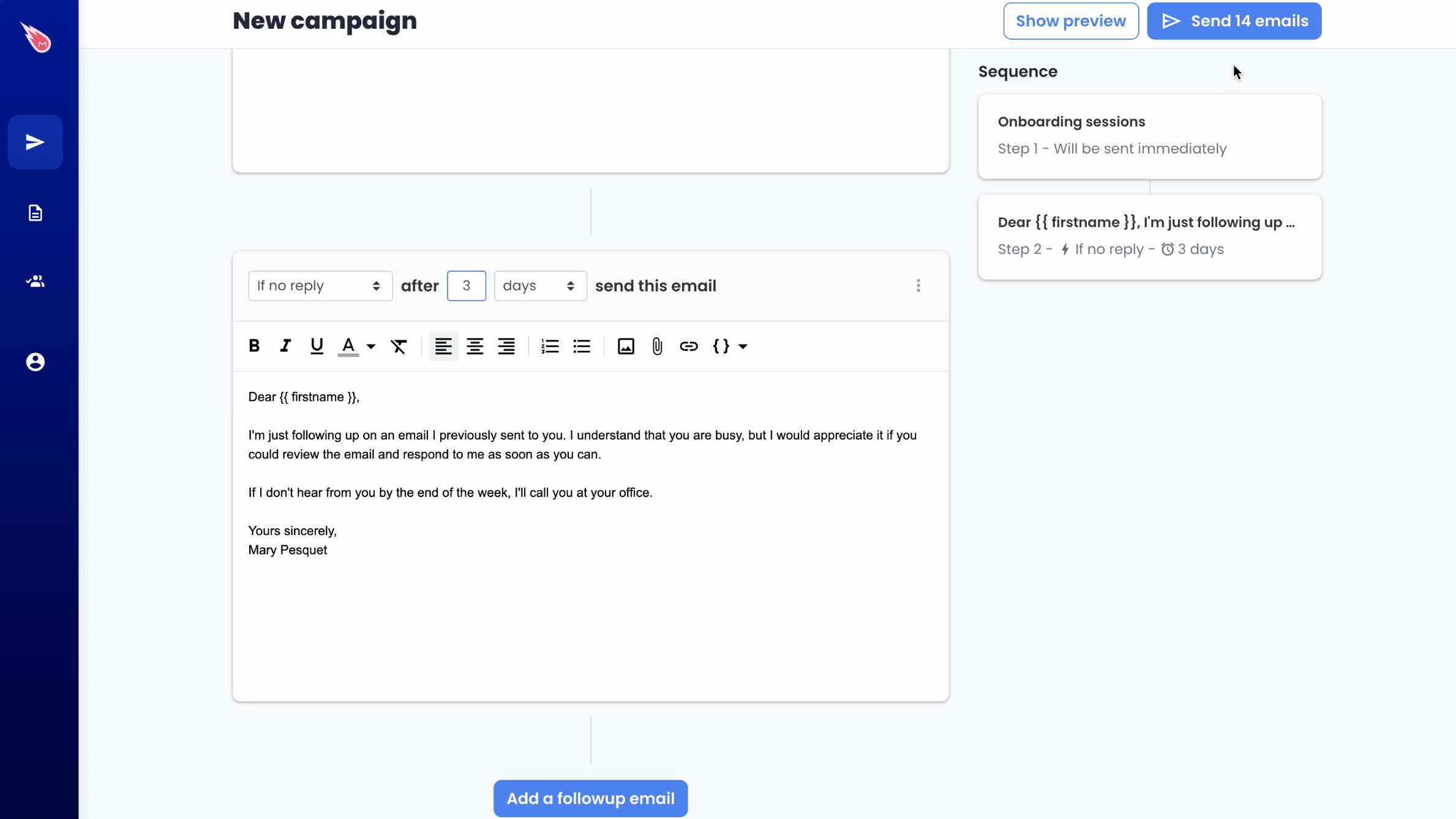
Write your follow-up email and select your sending options.
-
Once you’re ready, click on Send emails to lauch your sequence.
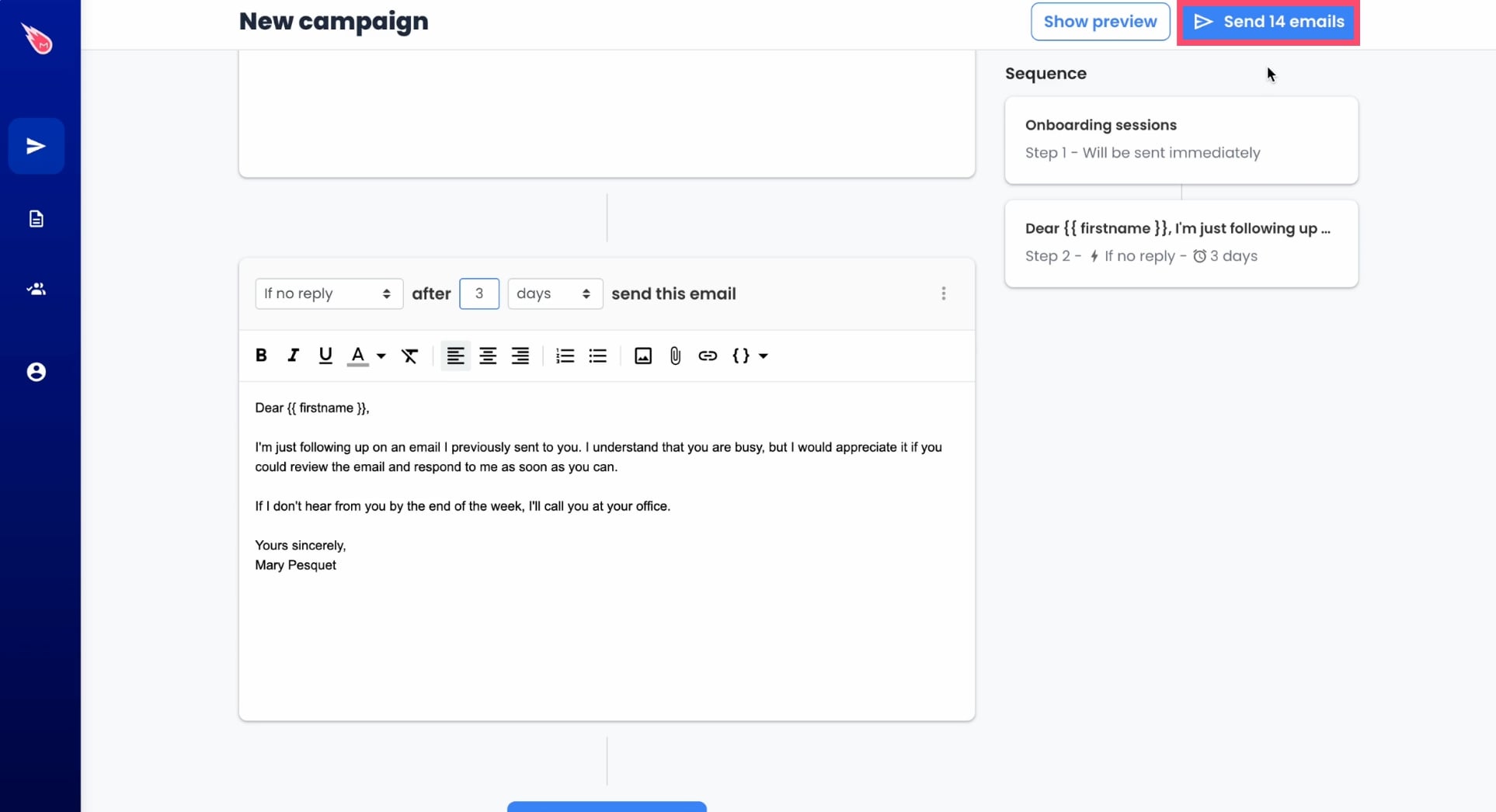
Pro tip: you can combine your follow-ups with other advanced features such as Autopilot or schedule send.
-
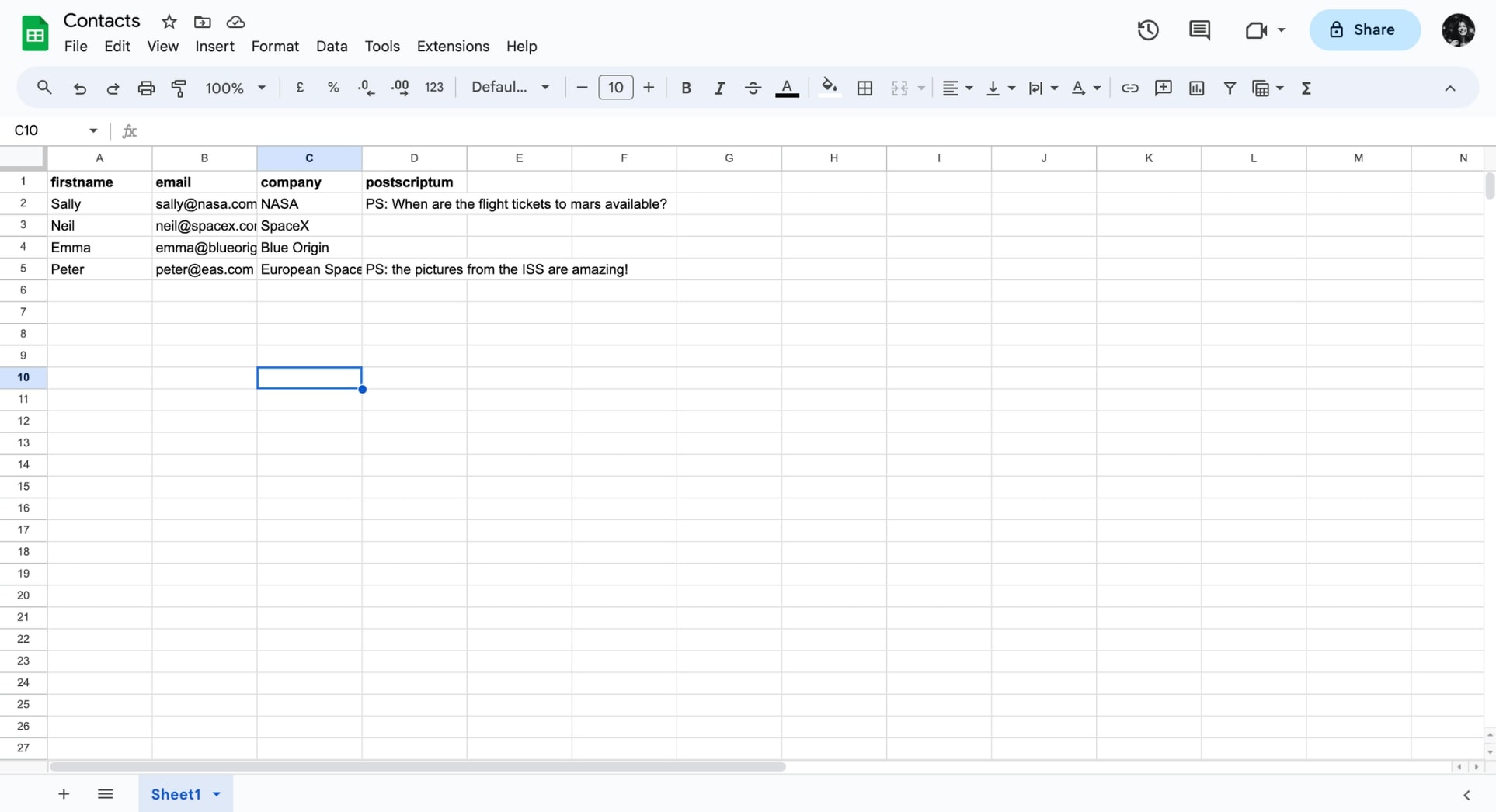
Open a spreadsheet and insert your contacts list.
-
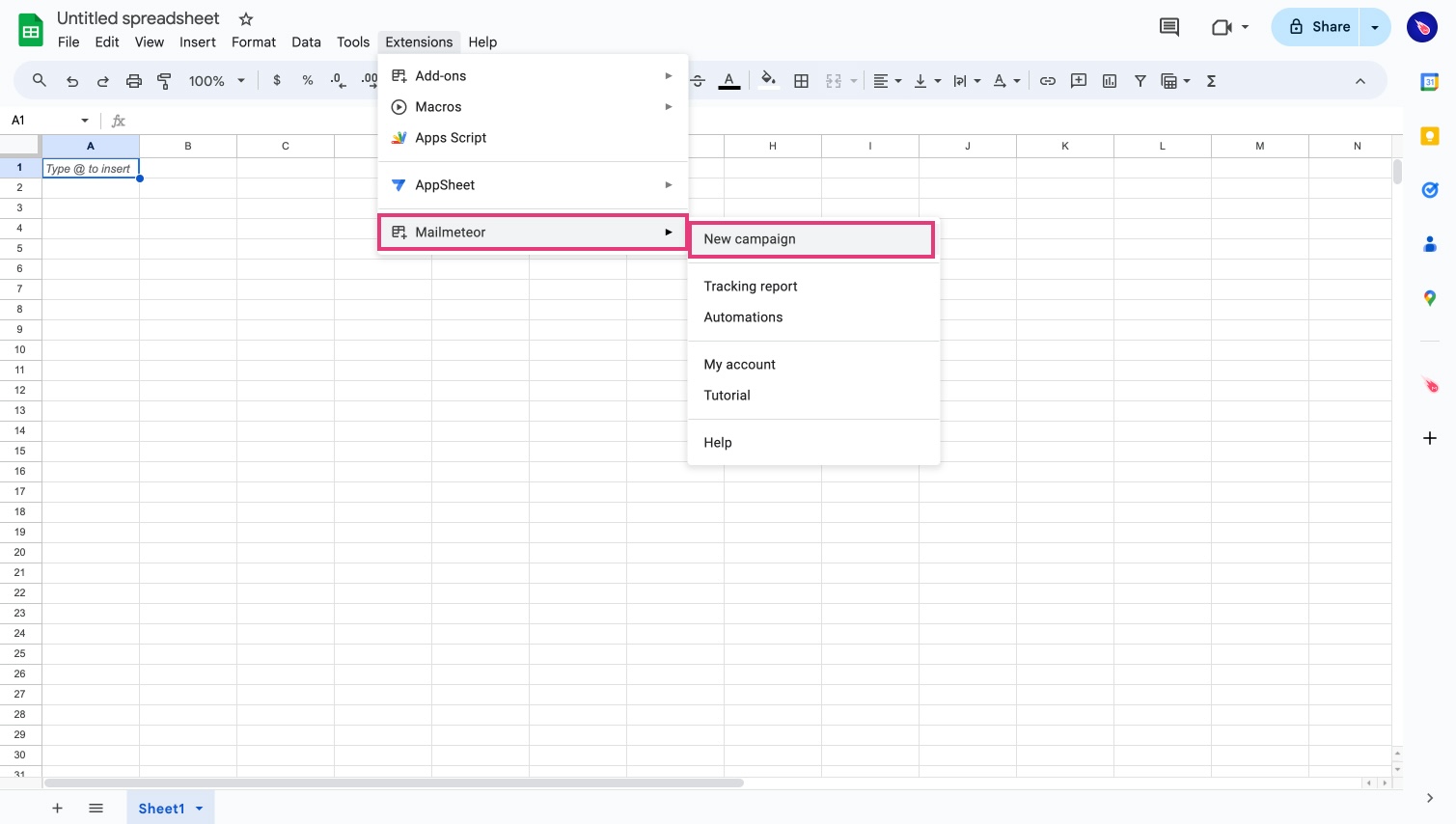
Open Mailmeteor by clicking Extensions > Mailmeteor > Open Mailmeteor.
-
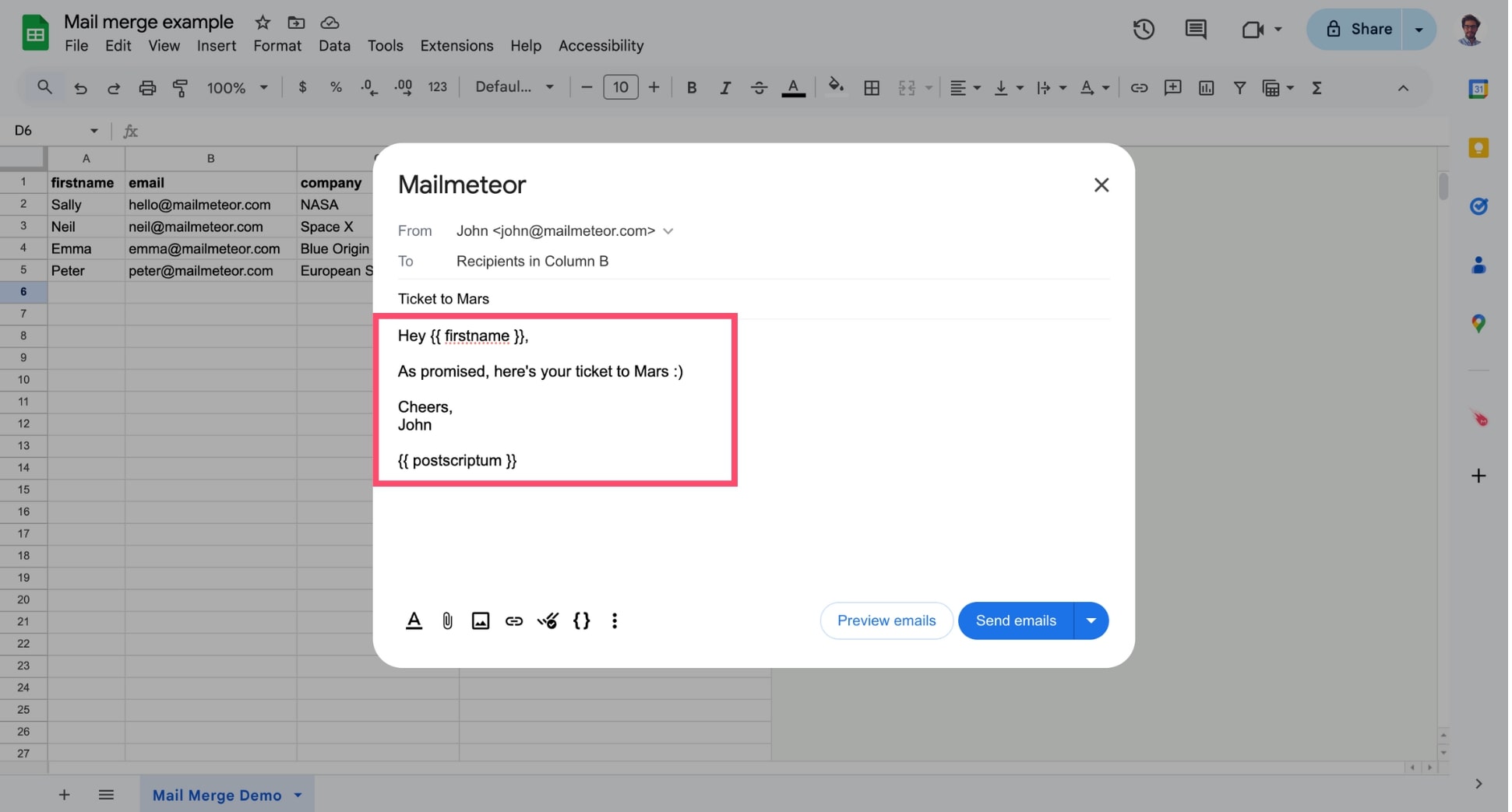
Compose your primary email or select a template.
-
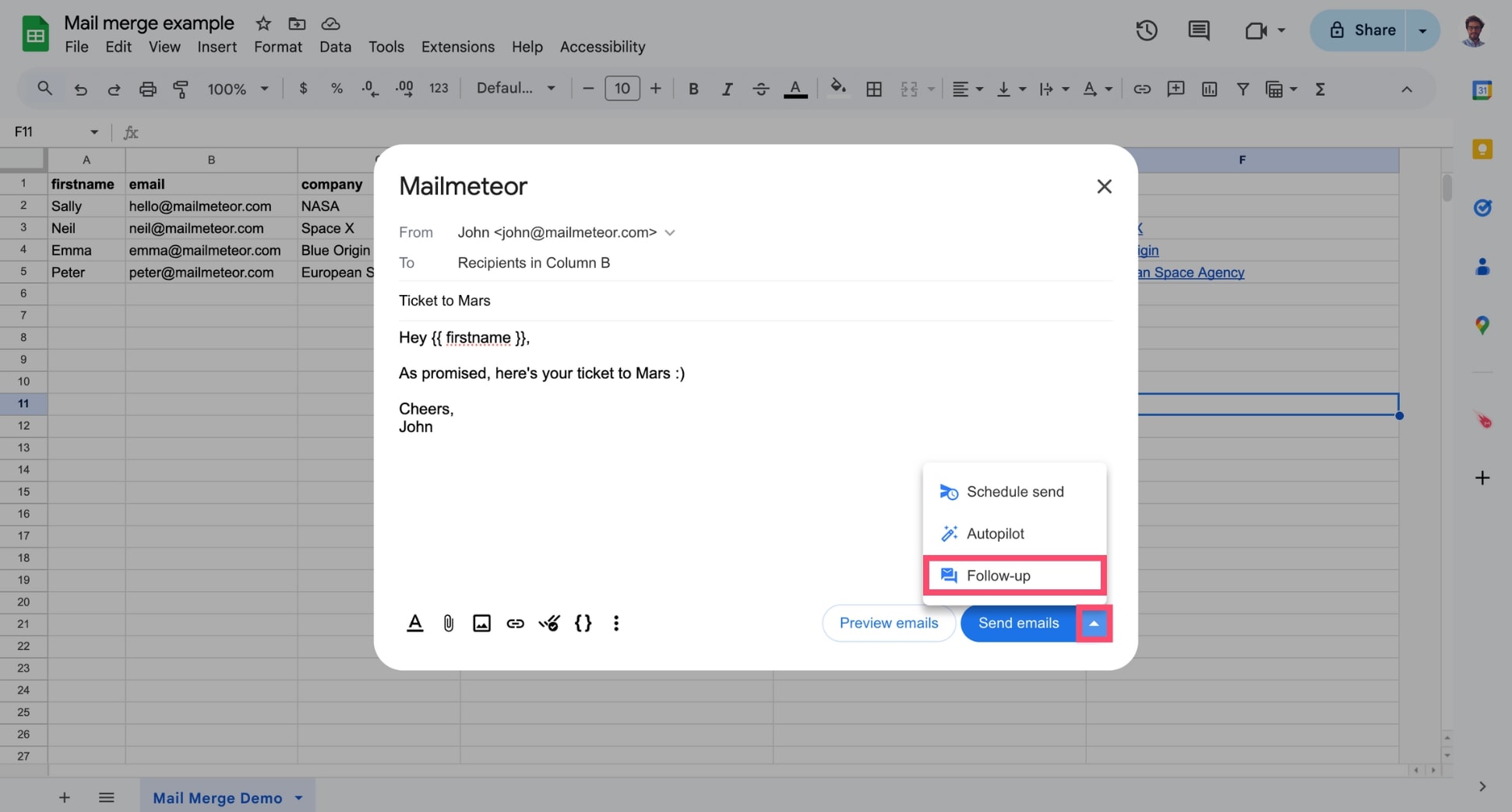
Next to Send emails, click the small caret symbol (“▼”) and select Follow-up.
-
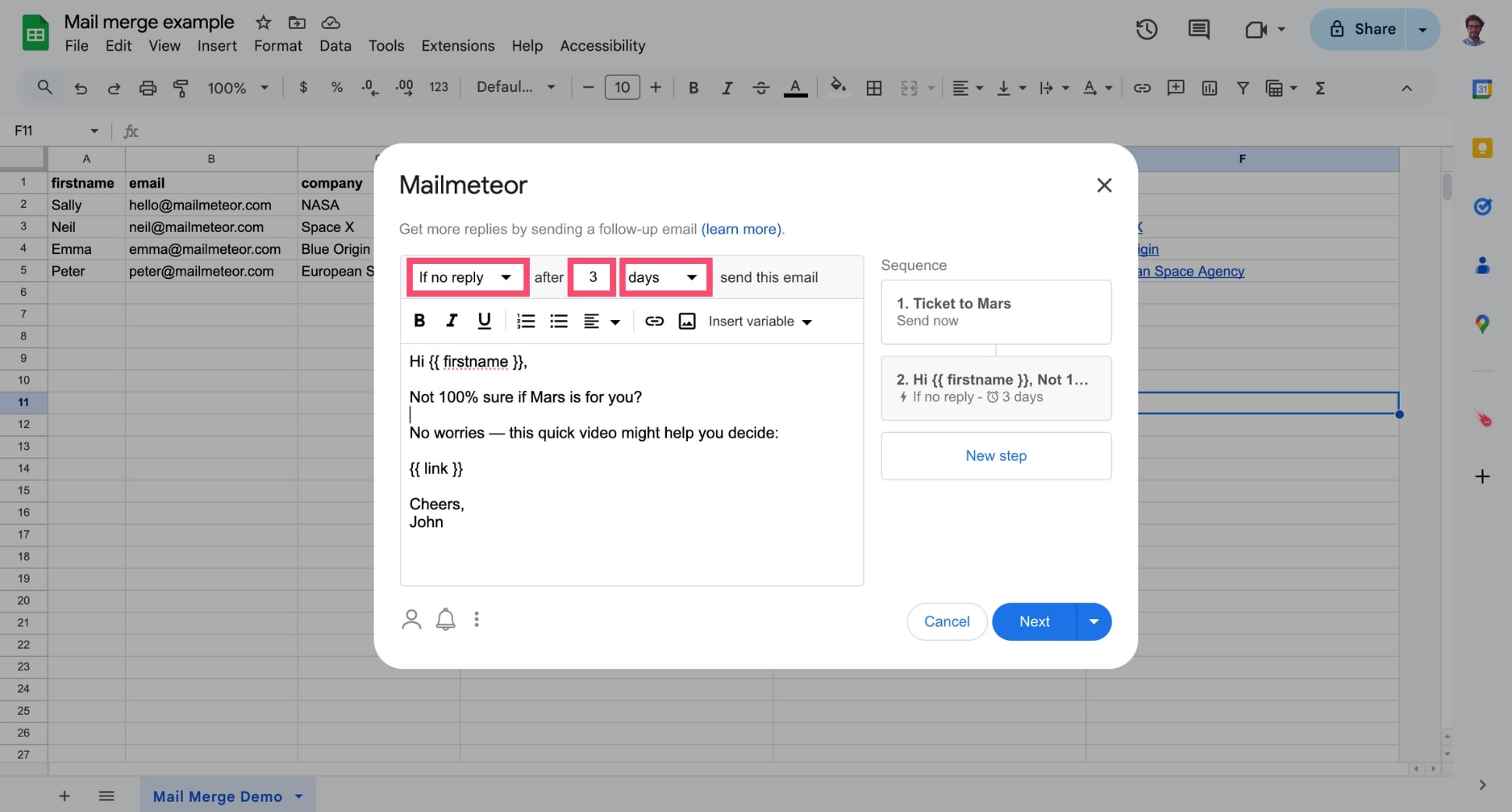
Write your follow-up message and define when the follow-up should be sent. You can specify a trigger (if the recipient didn’t respond, for example) and the interval after which the follow-up should be sent (3 days, 2 hours, or 1 minute).
-
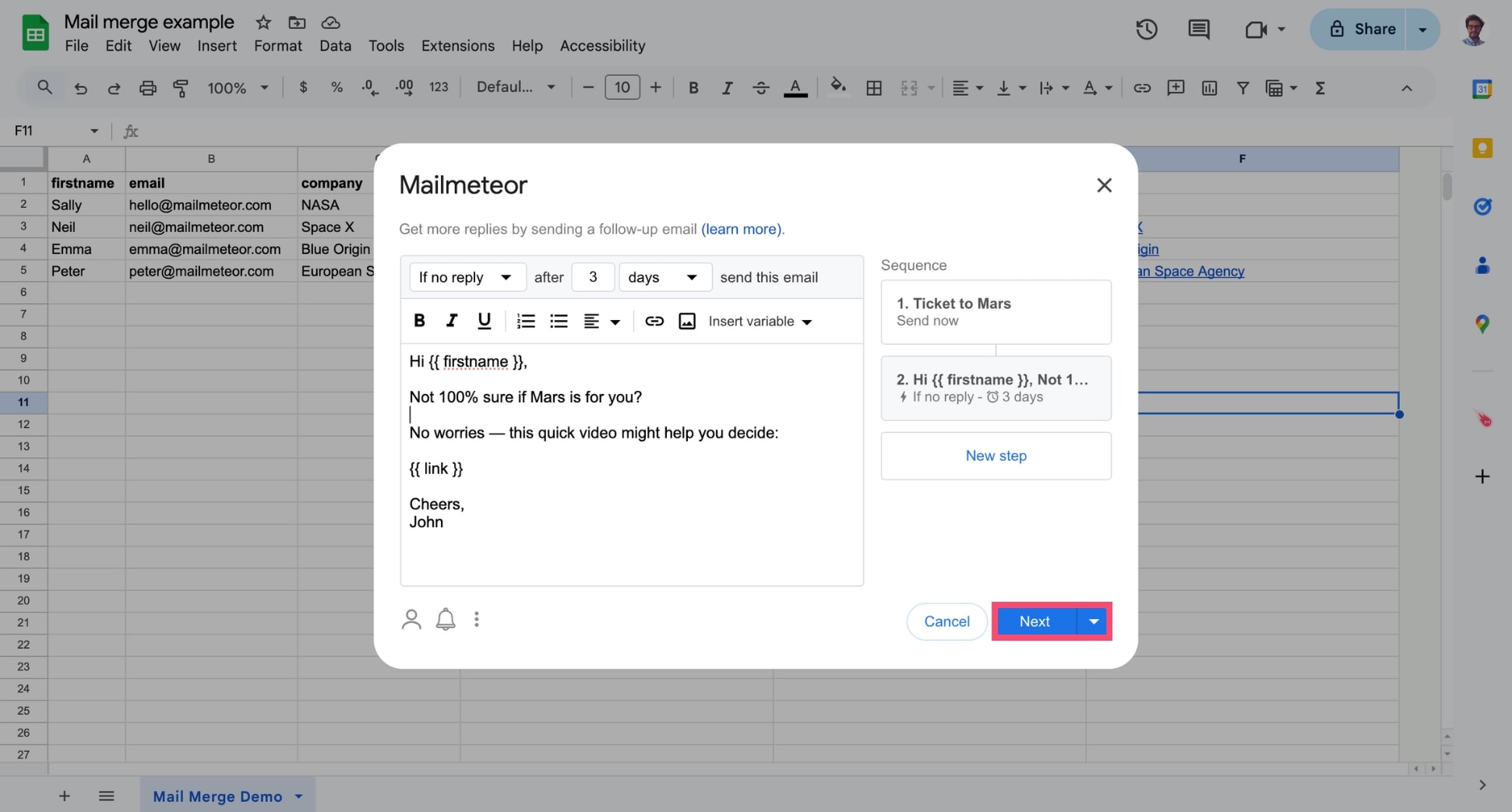
Once you are ready, click Next > Send with a follow-up. Or click New step to add another follow-up.
How to send a follow-up email as a reply?
Mailmeteor lets you send follow-ups either in the same thread or send follow-ups in separate conversations with different subject lines.
By default, Mailmeteor will send your follow-ups in the same thread. However, if you want to send your follow-up emails in separate conversations, you can do so from the Mailmeteor Dashboard.
- Create a new campaign.
- Compose your first email.
- Add a follow-up email to your campaign.
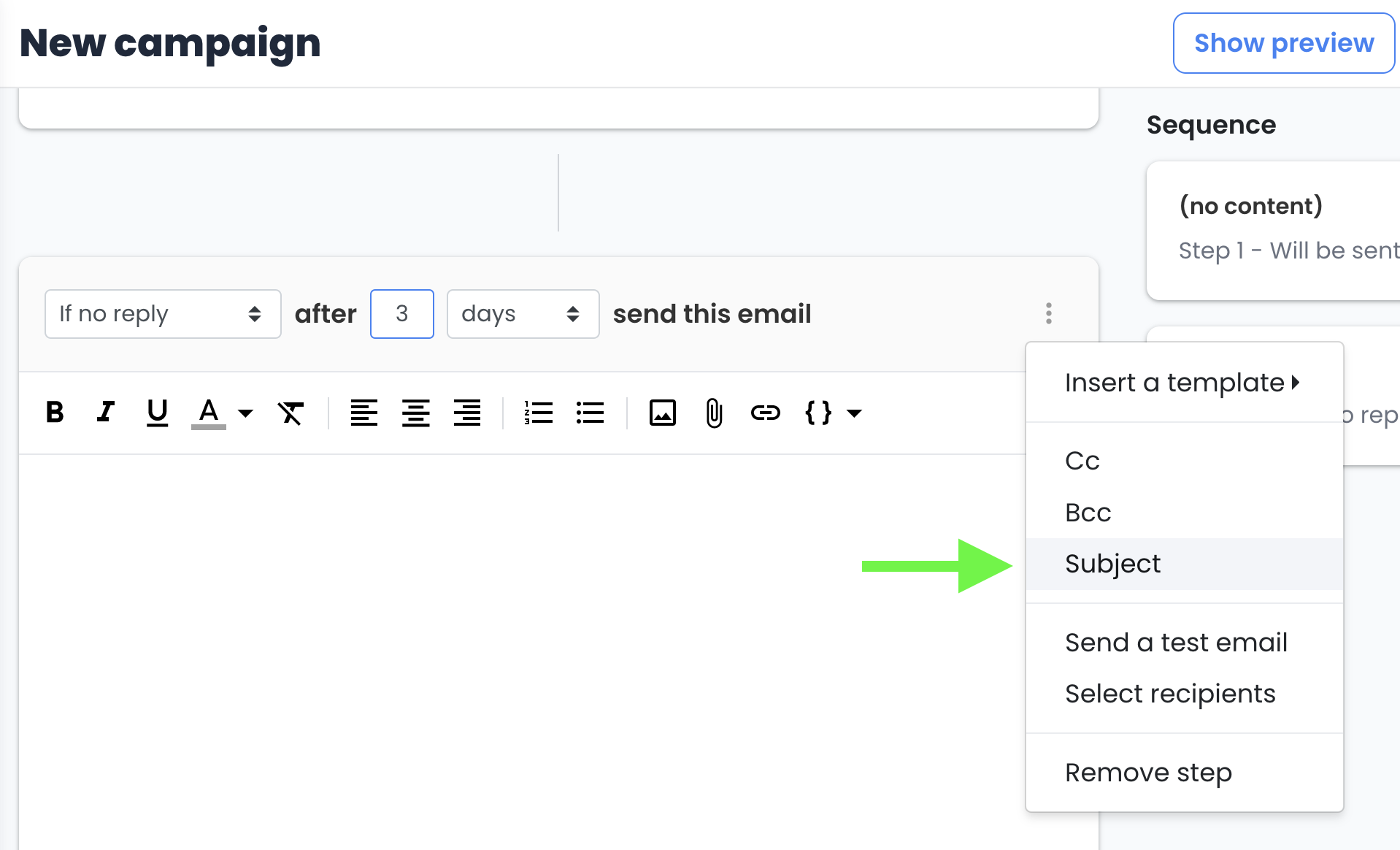
- Click on the three vertical dots, in the top-right corner.
- Select Subject to create another conversation with a new subject line.
Follow-up in another thread
Mailmeteor for Google Sheets will send your follow-ups as a reply (in the same thread). If you want to send follow-ups in a new conversation, you can do so from the Mailmeteor Dashboard.
How many steps can you add to your campaign?
There’s no limit to how many follow-ups you can add to your email sequence. However, it’s a best practice to keep your marketing sequence under 7 steps.
A perfect balance could be 3 steps in total. Otherwise, you may come across as too pushy, and your recipients may unsubscribe or, worse, flag your emails as spam.
When sending follow-up emails, you can also add images or attachments. Currently, you can only add attachments to your follow-ups from the Mailmeteor Dashboard.
Trigger-based follow-ups
With Mailmeteor, you can set up automated follow-ups based on your recipient’s actions. This is also called “behaviour based follow-ups”.
For example, you can:
- Follow up on an email after no response. Easily follow up on a recipient that didn’t respond. Set up a “reply stop” in case your lead responds.
- Follow up when a recipient doesn’t open your email. Resend an email to people who didn’t open your first email.
- Follow up when a recipient clicks a link. Send a follow-up if your recipients show interest in your content by clicking on a link enclosed in your first email.
Here are the different conditions you can use to trigger your follow-ups:
- IF no reply: send a follow-up if the recipient hasn’t replied yet.
- IF no open: send a follow-up if the recipient hasn’t opened the previous email.
- IF no click: send a follow-up if the recipient hasn’t clicked a link in the previous email.
- IF click: send a follow-up if the recipient has clicked a link in the previous email.
- IF open: send a follow-up if the recipient has opened the previous email.
- No matter what: no condition, the follow-up email is always sent.
You can also choose the interval between each step:
- After a few days: send a follow-up email one or several days later
- After a few hours: send a follow-up email hours later
- After a few minutes: send a follow-up email only after a few minutes
Limits
When selecting IF no reply, you can’t send emails from an alias. That’s because our system can detect replies from your primary account only.