Preserve styles and layout
When using our Google Docs extension, if you need pixel-perfect email formatting across all email clients, enable Preserve styles and layout to send an image version of your email.
How does Preserve styles and layout work?
When this option is enabled, Mailmeteor:
- Captures a screenshot of your document.
- Send the image version of your email to maintain its exact layout and styling.
- Ensures perfect compatibility across different email clients.
When this option is disabled, Mailmeteor:
- Converts your Google Docs into HTML format.
- Send your email as formatted text, but some styles may differ depending on the recipient’s email provider
How to enable Preserve styles and layout
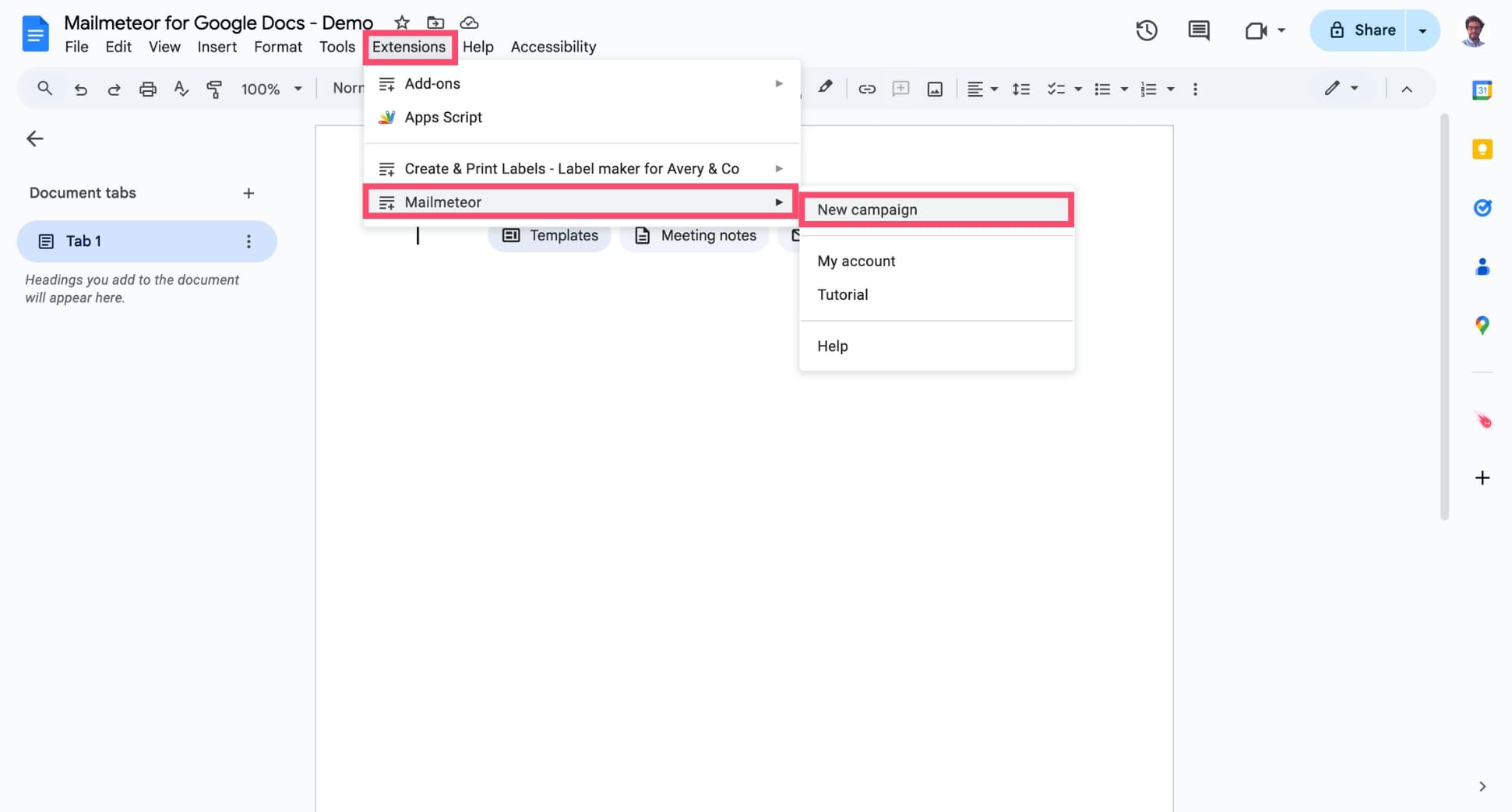
Open Google Docs. Then navigate to Extensions > Mailmeteor > New campaign.
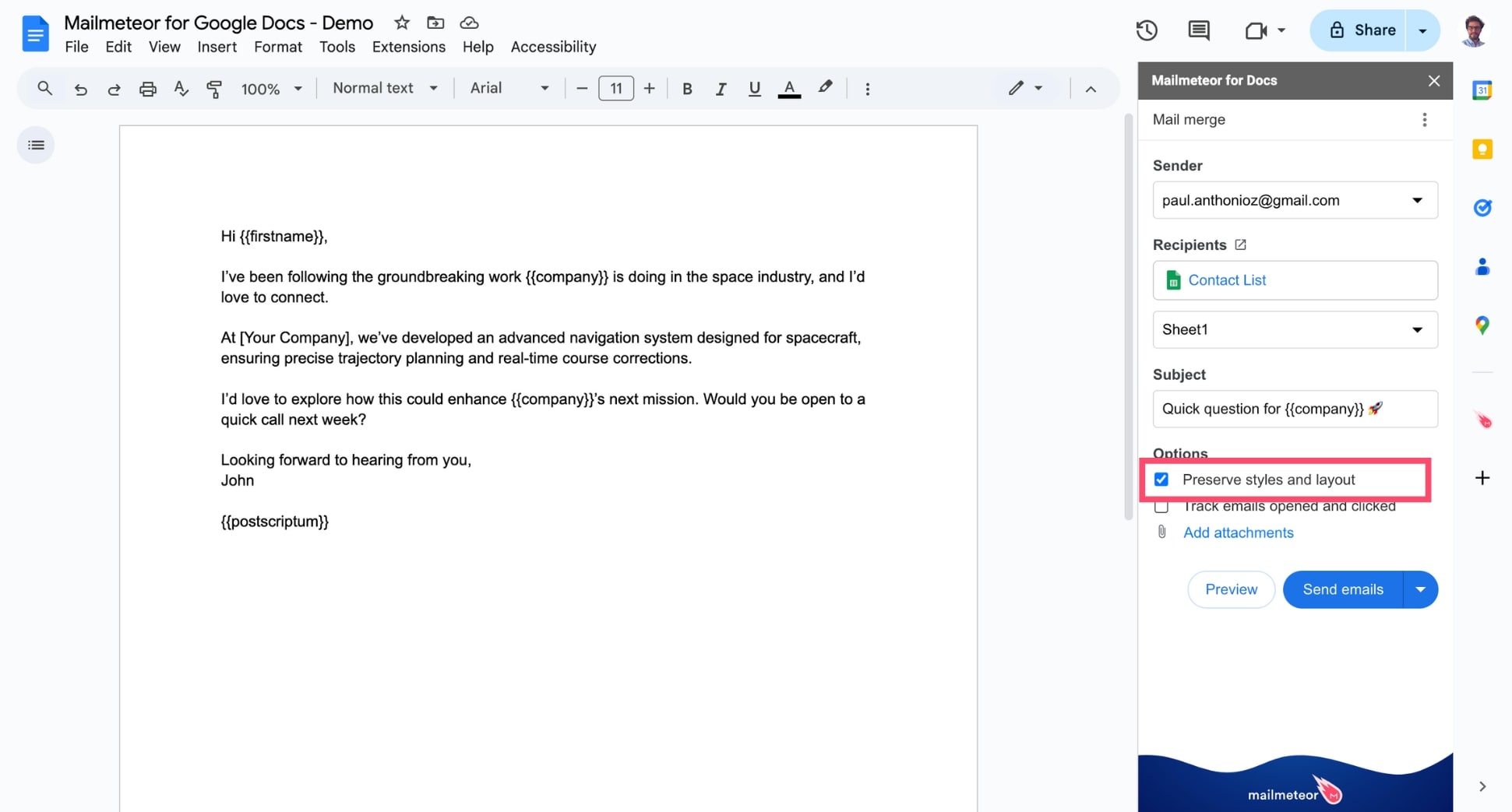
In the sidebar, under Options, select Preserve styles and layout.
When should you enable this feature?
Use Preserve styles and layout when:
- You want your email to look exactly like your Google Docs file, with no formatting inconsistencies.
- Your document contains complex layouts, custom fonts, or embedded graphics that might not be fully supported in an HTML email.
- You’re sending an announcement, invitation, or designed email where branding consistency is crucial.
Disable Preserve styles and layout when:
- You prefer a text-based email that adapts to different screen sizes and email
- You want recipients to be able to copy and paste text from your email.
- Your email contains personalized variables, or hyperlinks that you want to remain clickable.