Reading and replying to a conversation
Click any row in your pipeline to open the conversation in a side panel, with the whole thread and its attachments, without switching to your mailbox.
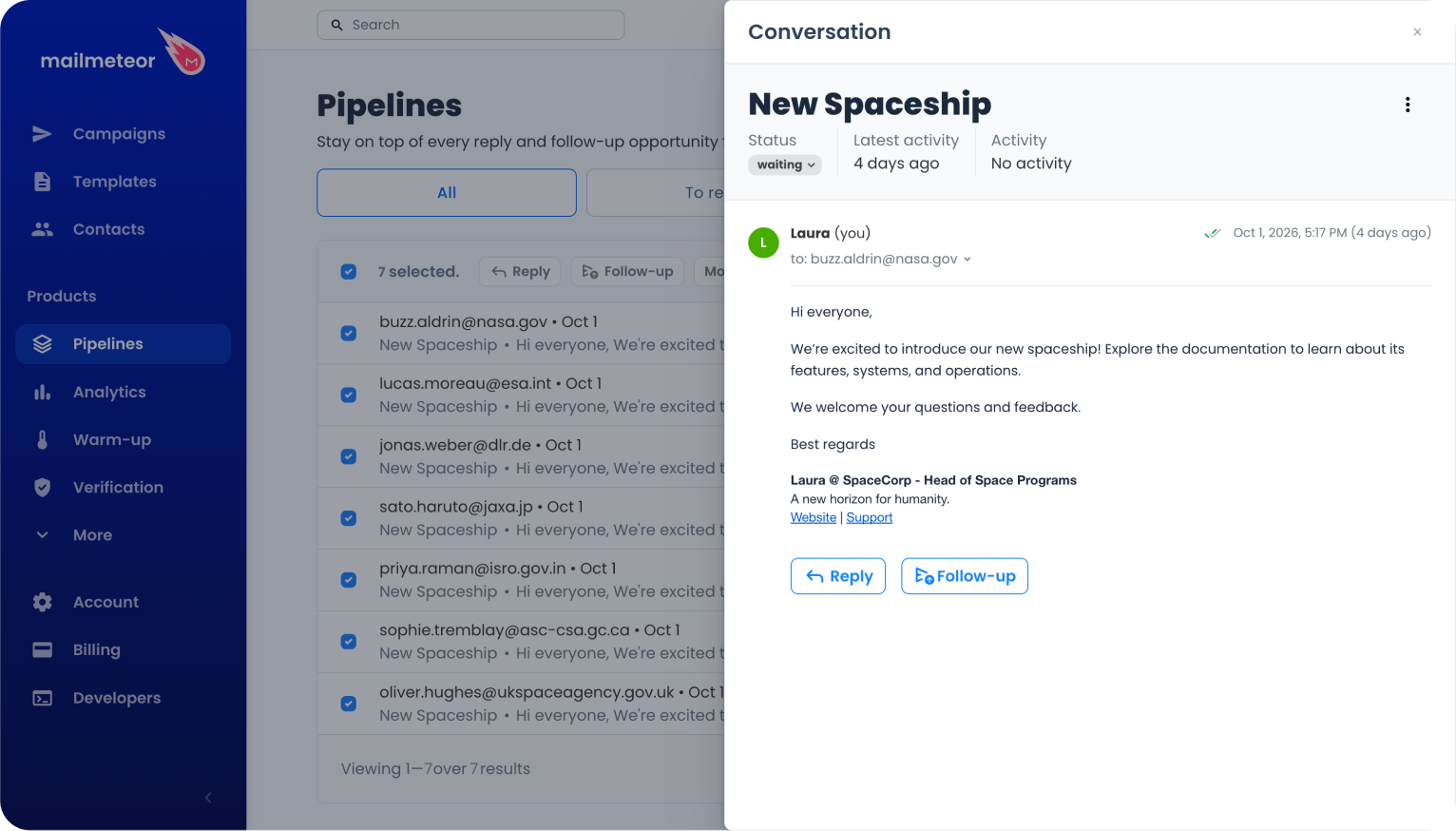
Opening a conversation marks it as read: its row stops being displayed in bold in the table, and if it is in To reply or To follow-up, the unread counter of that tab goes down by one.
Reading the thread
The latest message is always open. Older ones are collapsed so long threads stay readable: on a thread with more than three messages, the ones in the middle are folded behind a {n} more button. Click any collapsed message to expand it.
Inside a message you can:
- Click to: in the header to reveal the full addressing details, from, to, cc, bcc, reply-to, date and subject.
- Show the quoted history, hidden by default, to read what was quoted from earlier replies.
- Download an attachment by clicking its name at the bottom of the message.
The panel header repeats the essentials: the campaign subject, the conversation Status as an editable badge, the Latest activity date, and the Activity badges, opens, clicks, bounces and unsubscribes. When nothing has happened yet, Activity simply reads No activity.
Seeing whether a message was read
When the campaign was sent with email tracking turned on, each message you sent carries a small tracking icon on the right of its header. Hover it to see where that particular message stands:
- Email not read yet: the recipient hasn’t opened it yet.
- Email read {n} times, with the date of the last open and the number of link clicks. Click View more to open the full timeline of that email.
Replying
Click Reply at the bottom of the panel. Your default signature is added automatically. Write your message, attach files if you need to, and click Send. The trash icon next to it discards the draft.
Once the reply goes out, the conversation moves to Waiting, since the ball is now in your recipient’s court.
Pipelines replies to the recipient of the first message you sent in the thread. There is no reply-all or forward from Pipelines yet. For a thread with several participants, open it in your mailbox with View email in the ⋮ menu.
Scheduling a follow-up from the conversation
Click Follow-up, next to Reply, to have Mailmeteor send a message later if the recipient stays silent. See Scheduling automatic follow-ups.
When a follow-up is already scheduled, a banner appears at the bottom of the panel with its date, and a Cancel link to call it off. Clicking the banner itself opens the follow-up. The scheduled follow-up is also displayed in the list of emails.
The other actions
The ⋮ menu at the top right of the panel, also available at the end of each table row, gives you:
- Reply: same as the button, unavailable for Zoho Mail.
- Follow up: Gmail only.
- Mark as read / Mark as unread: only one of the two shows, depending on where the conversation stands.
- View email: open the original thread in Gmail, Outlook or Zoho Mail.
- View campaign: jump to the campaign this conversation came from.
- Archive: close the conversation.
Replying and scheduling follow-ups is not available for every provider. Outlook conversations can be replied to but not followed up, and Zoho Mail conversations can only be opened in your mailbox. A banner in the panel reminds you when you open one of them.