Cc/Bcc recipients
Sometimes, you’ll need to add Cc or Bcc recipients to a campaign. Whether it’s a colleague or a CRM tool, Mailmeteor makes it easy. You can even add reply-to address (but that’s another article).
How to add Cc recipients?
- Open Mailmeteor Dashboard.
- Create a new campaign.
-
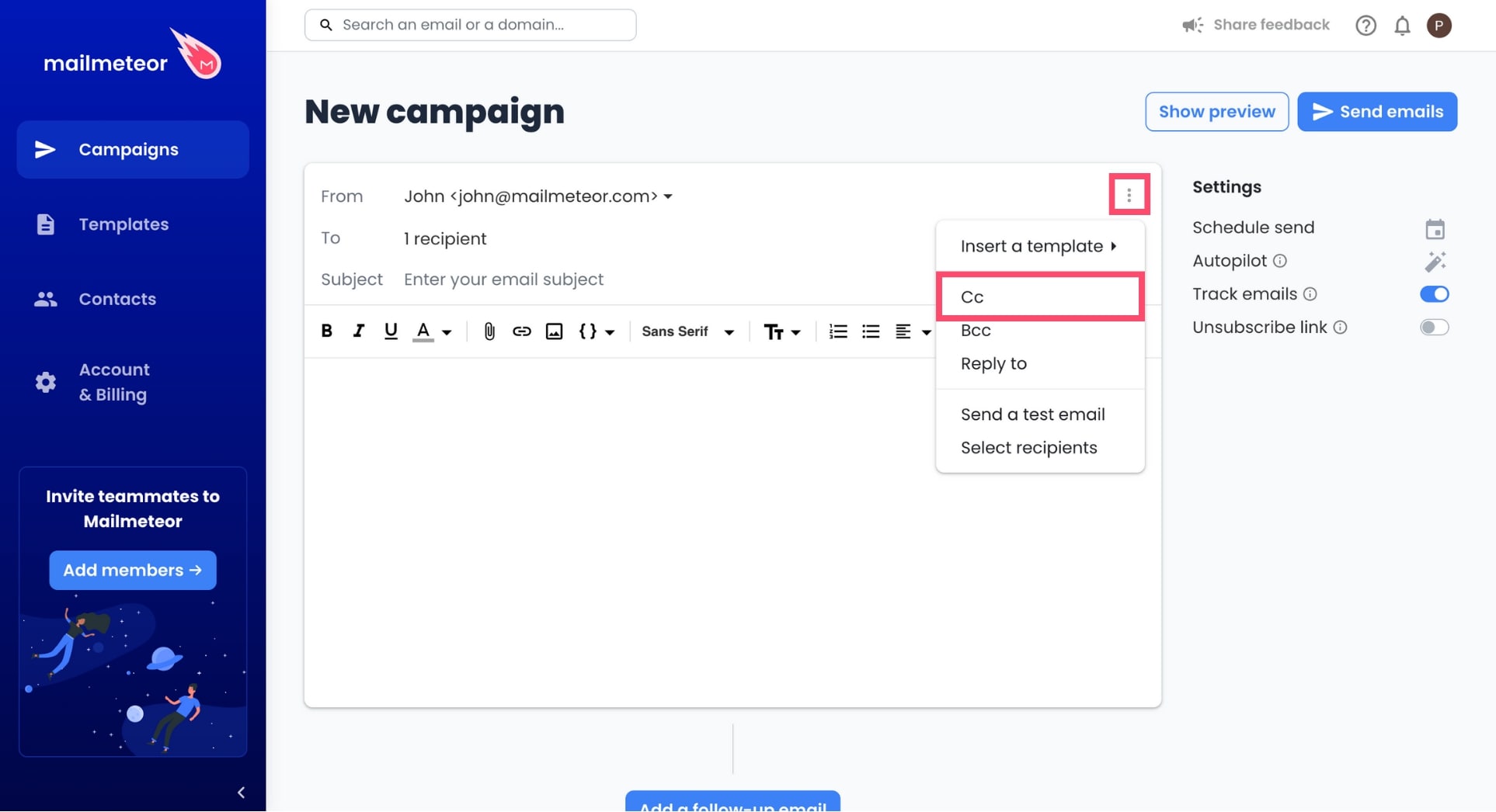
Click on the three vertical dots and select Cc.
-
In the Cc field, add your Cc recipients.
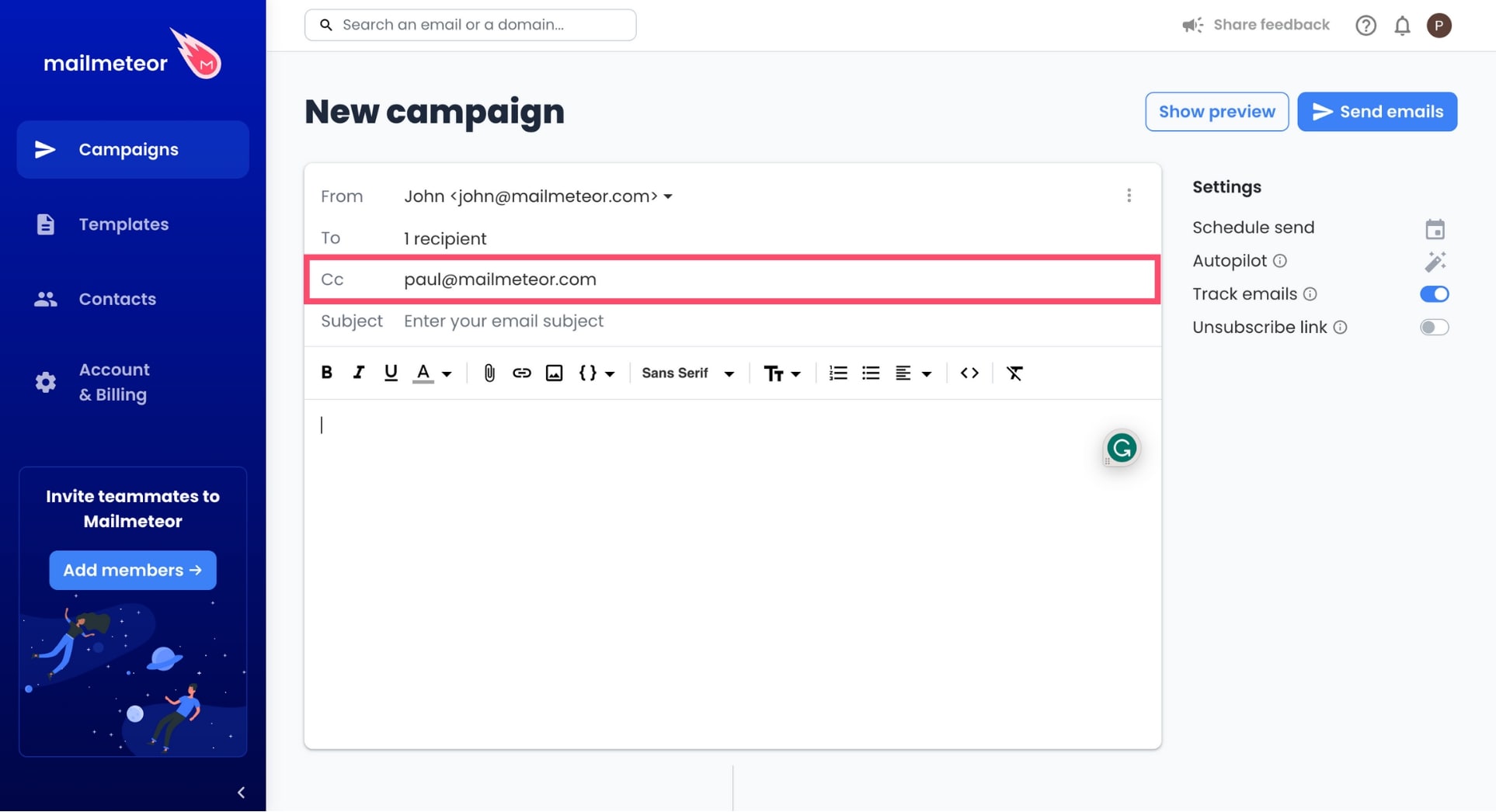
The Cc recipient will be the same for all your emails. If you want to add a specific cc recipient to each email, add a “cc” column to your CSV file or Google Sheets spreadsheet.
How to add Bcc recipients?
Like a Cc email, a Bcc email is an email you send to someone, while also copying in another recipient. The difference is that the main recipient isn’t aware of the second recipient.
Mailmeteor lets you add one or multiple Bcc recipients to your email campaigns. In this section, we’ll show you how to add Bcc recipients from the Mailmeteor Dashboard:
- Open Mailmeteor Dashboard.
- Create a new campaign.
-
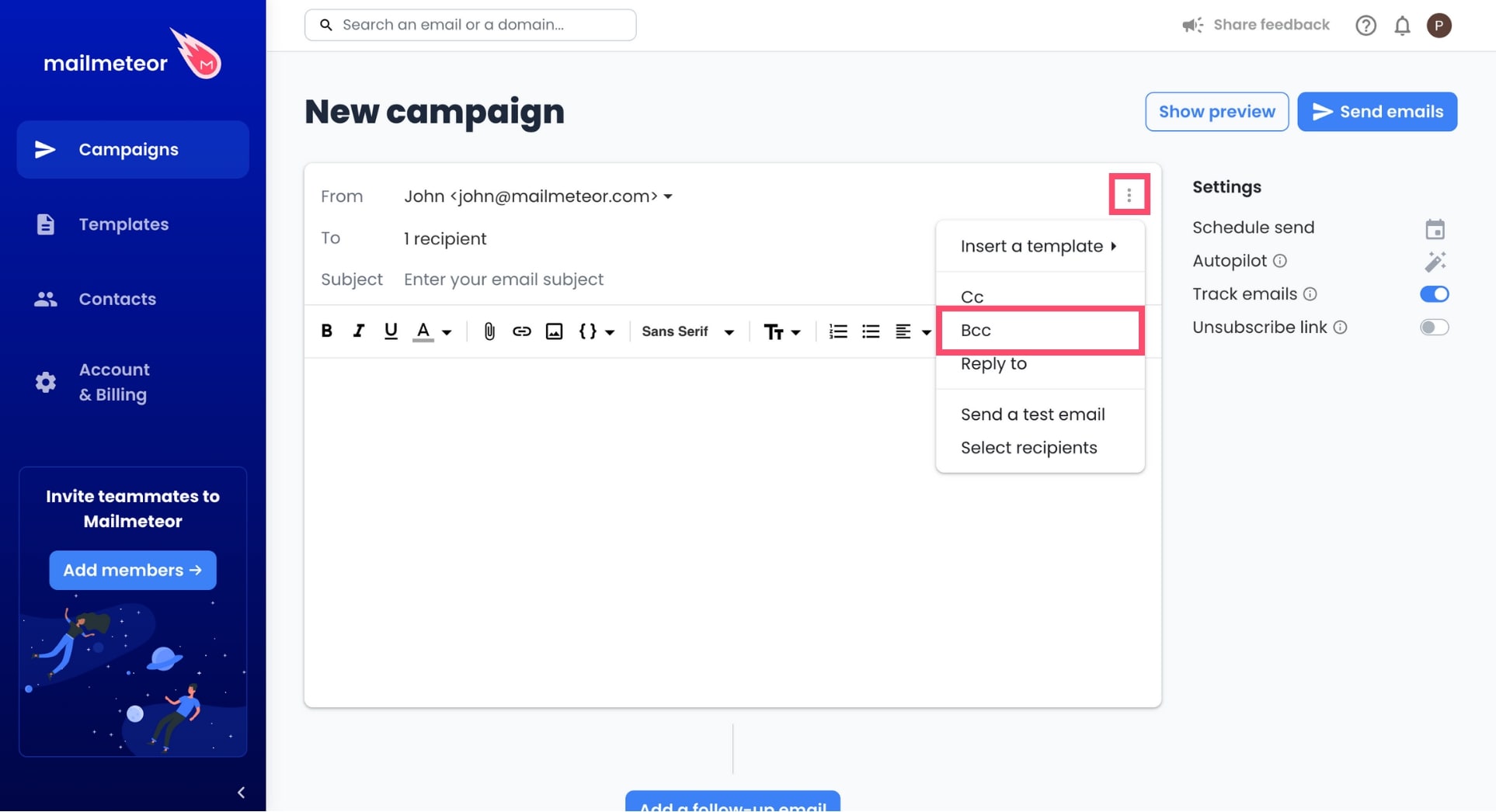
Click on the three vertical dots and select Bcc.
-
In the Bcc field, add your Cc recipients.
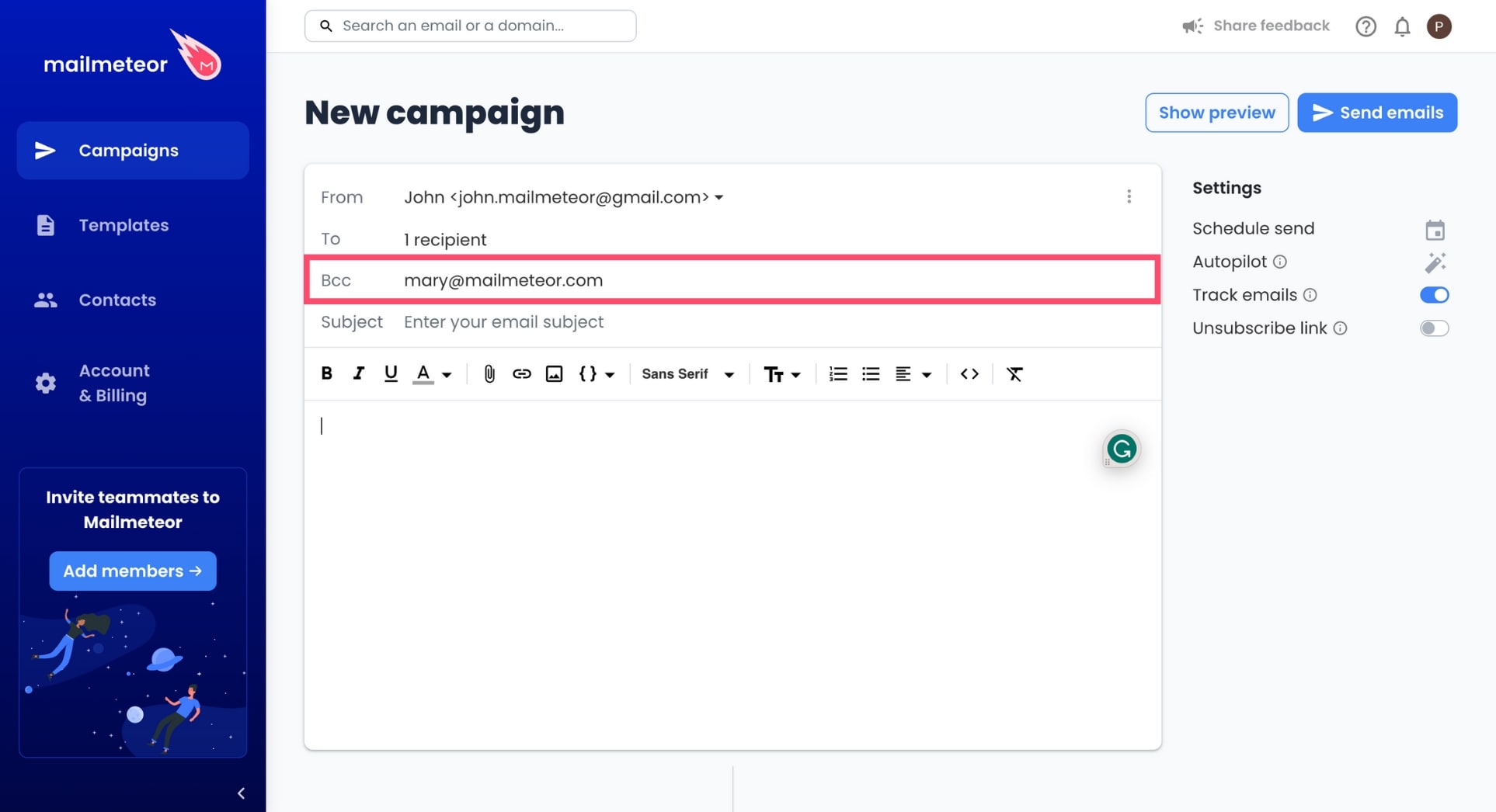
The Bcc recipient will be the same for all your emails. If you want to add a specific Bcc recipient to each email, add a “bcc” column to your CSV file or Google Sheets spreadsheet.
How to add multiple Cc or Bcc recipients?
If you want to Cc or Bcc multiple addresses at once, separate each email address with a comma.
Video tutorial
Here’s a quick video tutorial to show you how to add Cc and Bcc recipients in Mailmeteor:
- Sign in to your Gmail account.
-
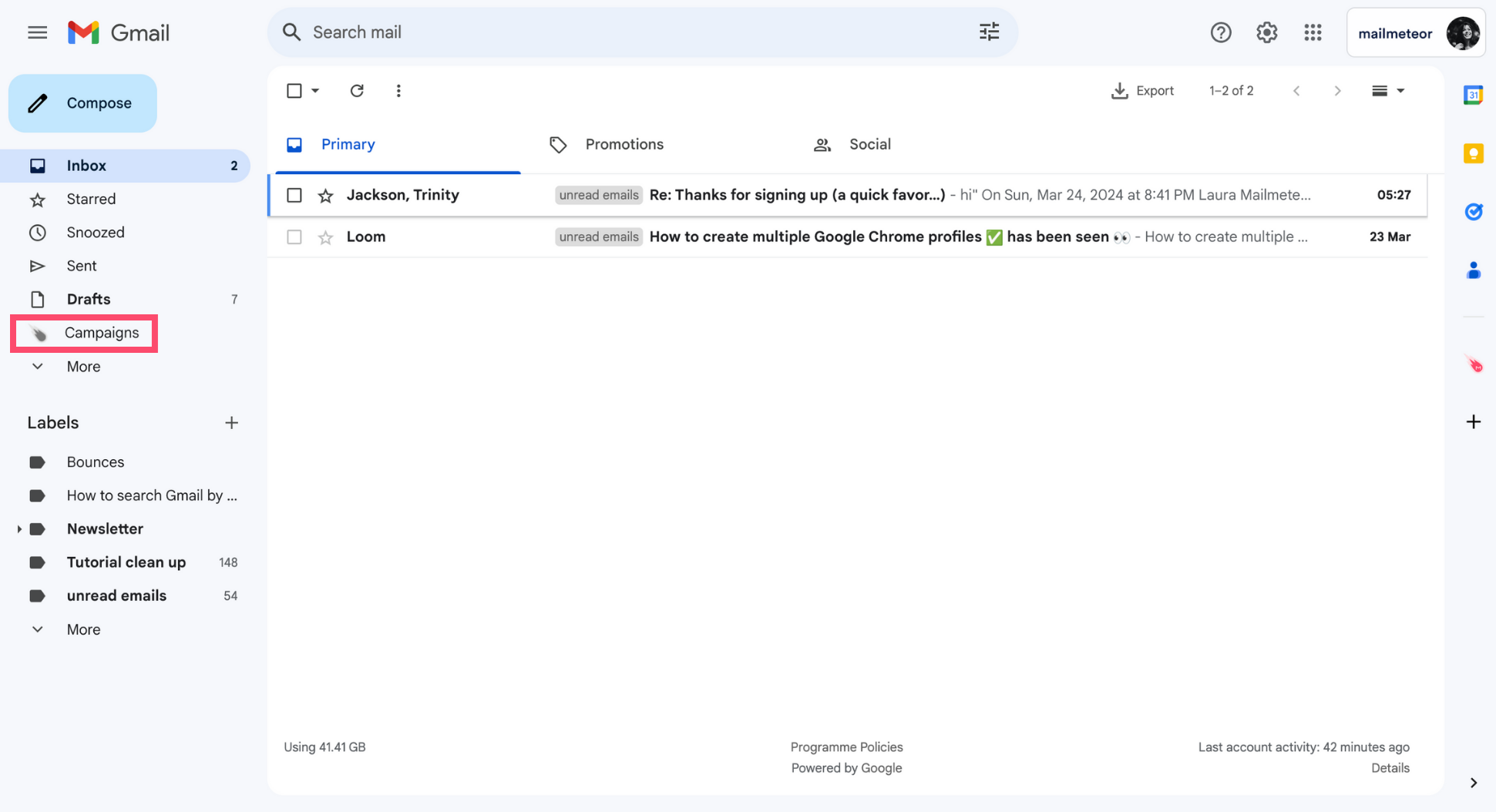
Open the Campaigns tab.
-
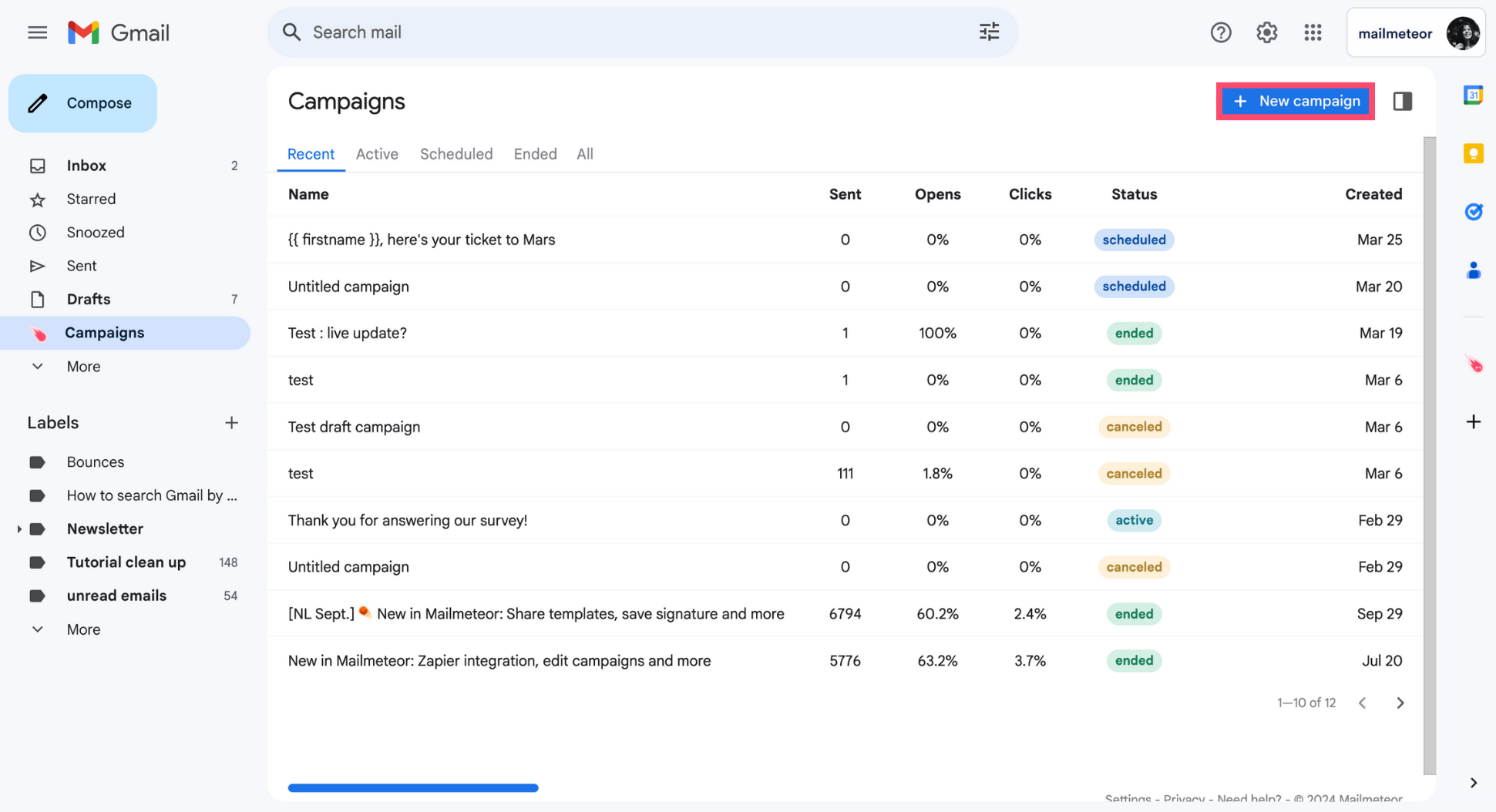
Create a New campaign.
-
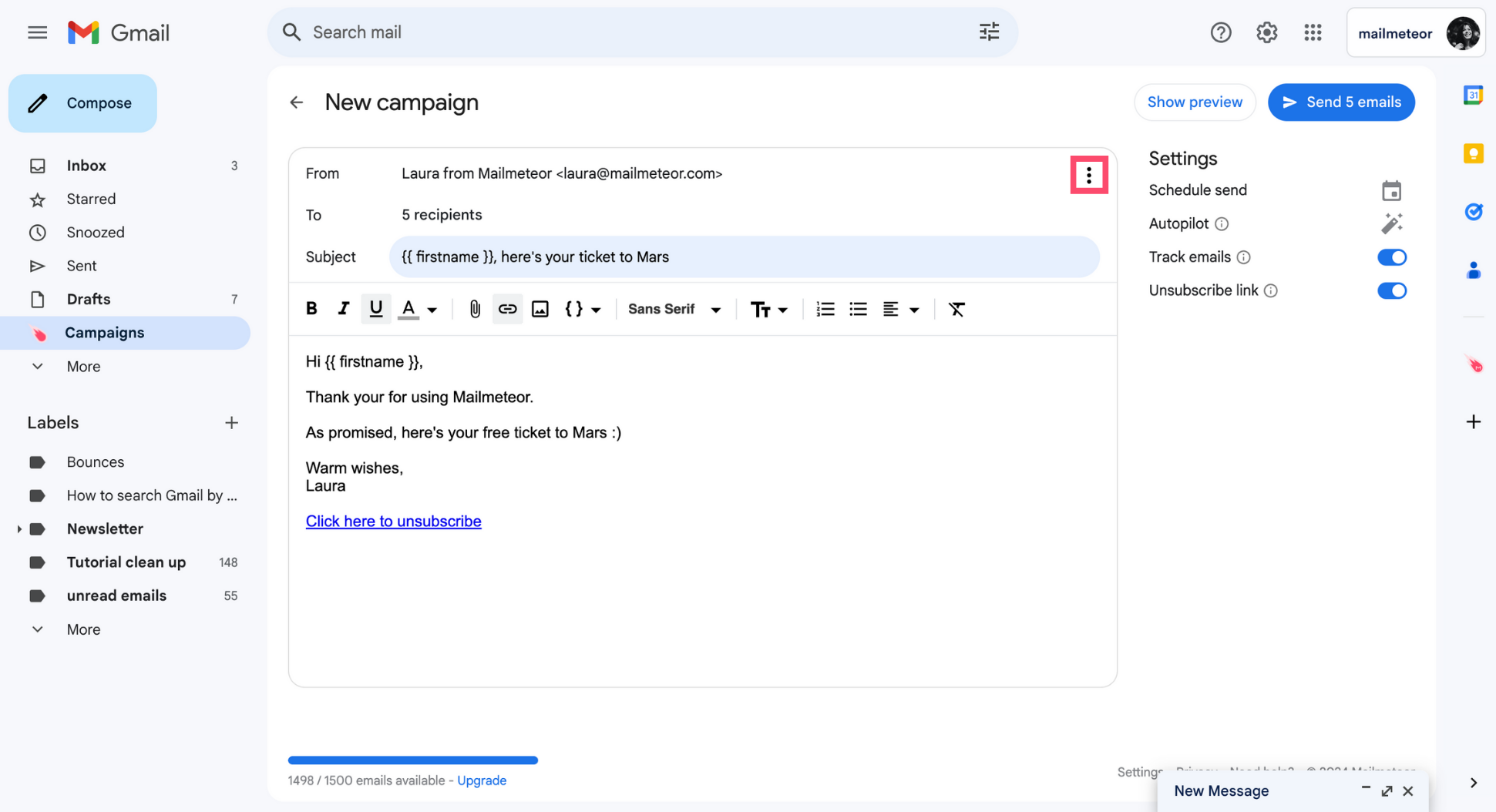
Click the three vertical dots to open the More options menu.
-
In the dropdown menu, select Cc.
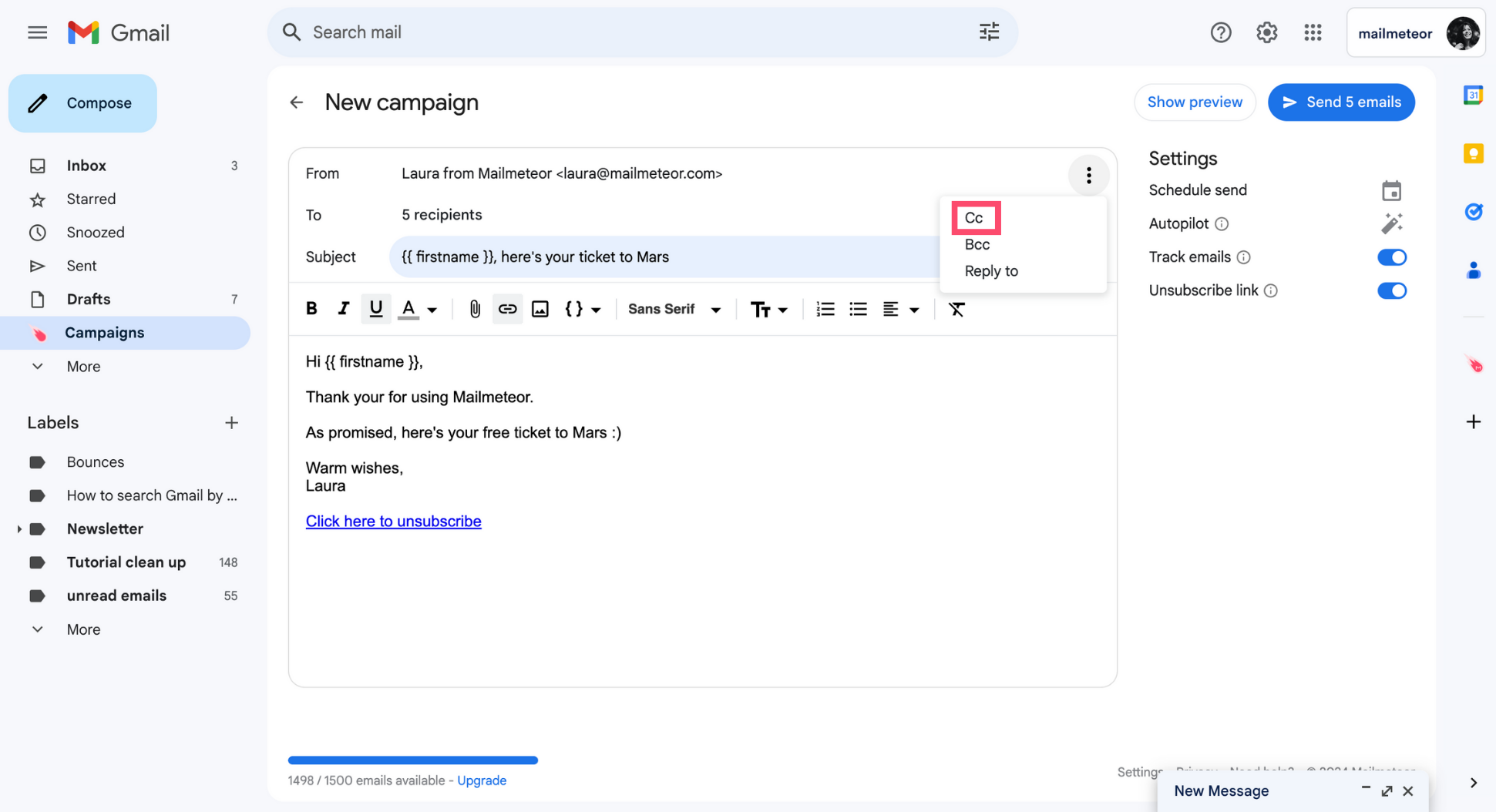
Everyone on the email will see who is listed in the Cc field.
-
Add your contacts to the Cc field.
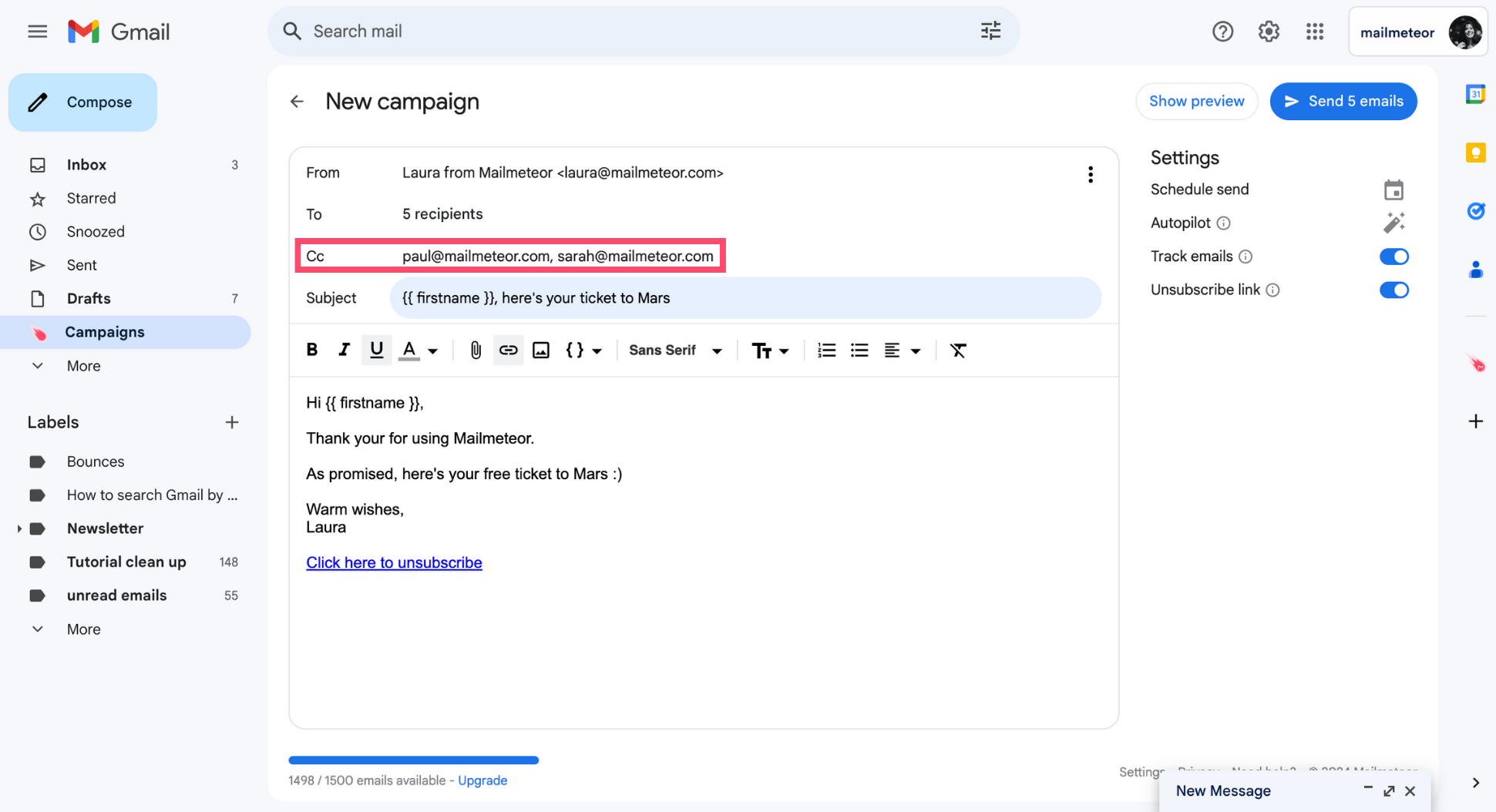
To add multiple Cc recipients at once, separate each email address with a comma.
How to add Bcc recipients?
Use Bcc to add invisible secondary recipients to your email campaigns.
-
Go to Campaigns.
-
Create a New campaign.
-
Click the three vertical dots.
-
Select Bcc.
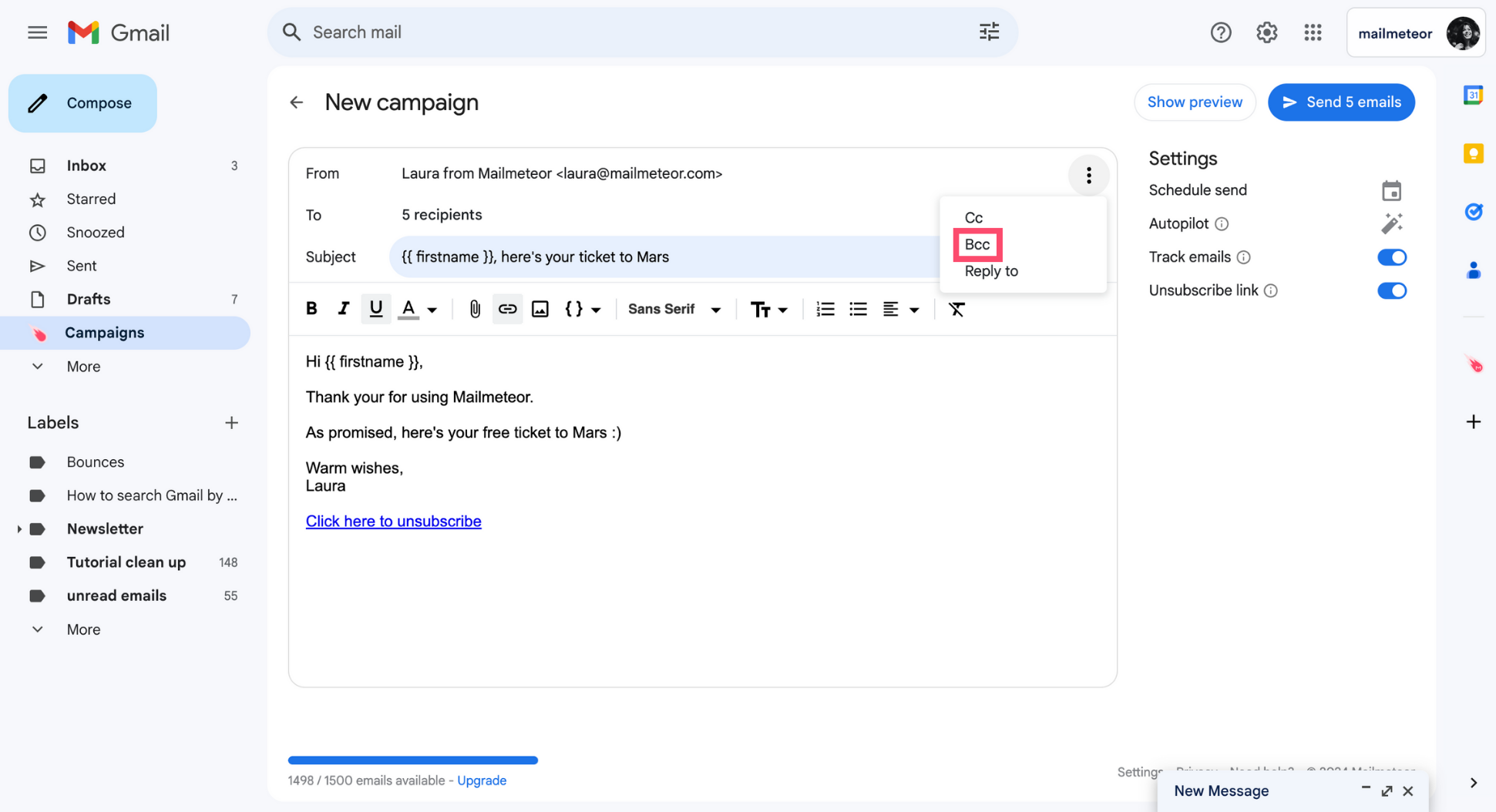
Everyone on the email will be able to see that you’ve used the Bcc field. But people won’t be able to see the identity of the Bcc recipients.
-
Add your contacts to the Bcc field.
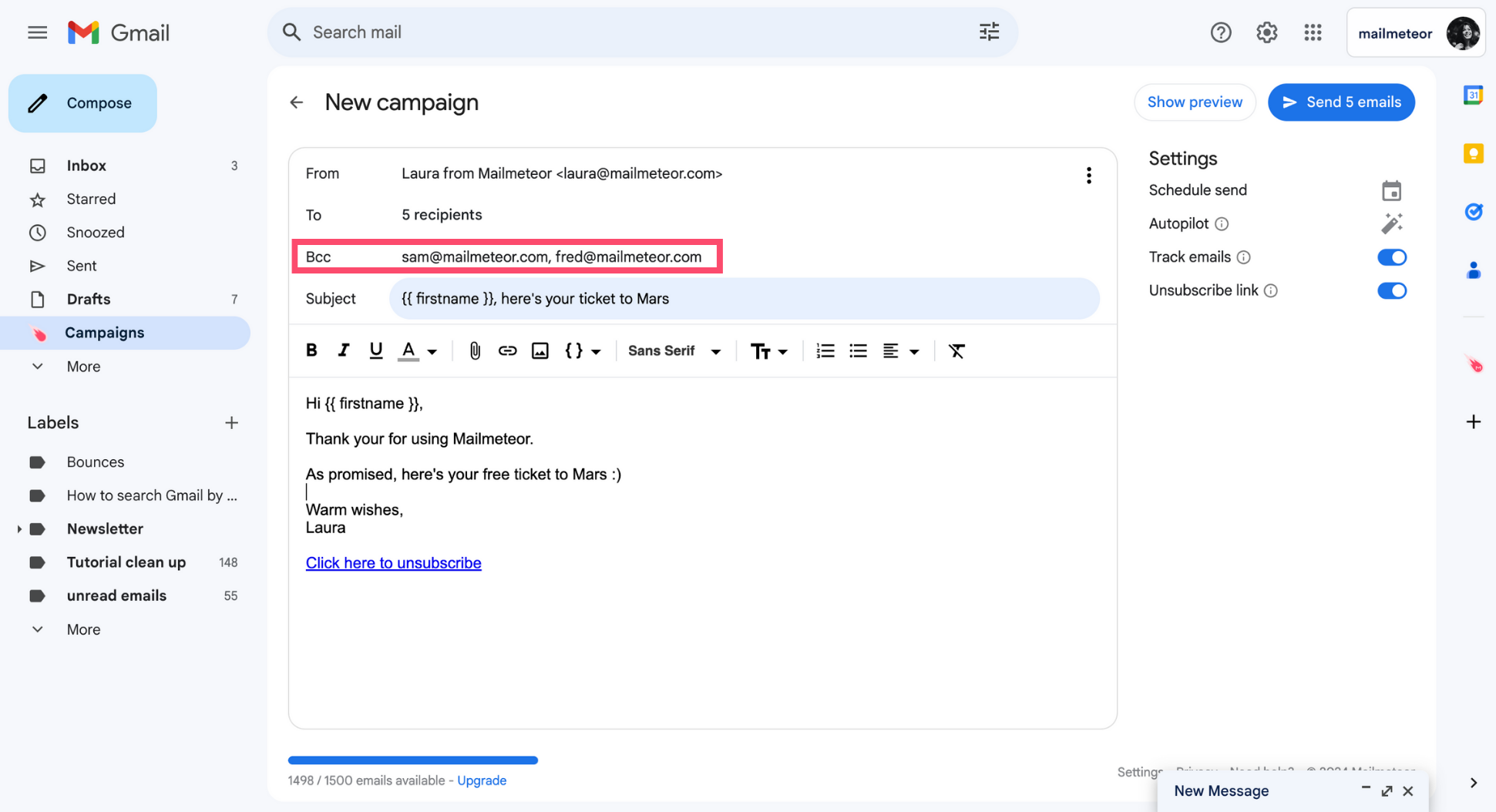
To add multiple Bcc recipients at once, separate each email address with a comma.
- Add a new column to your spreadsheet.
-
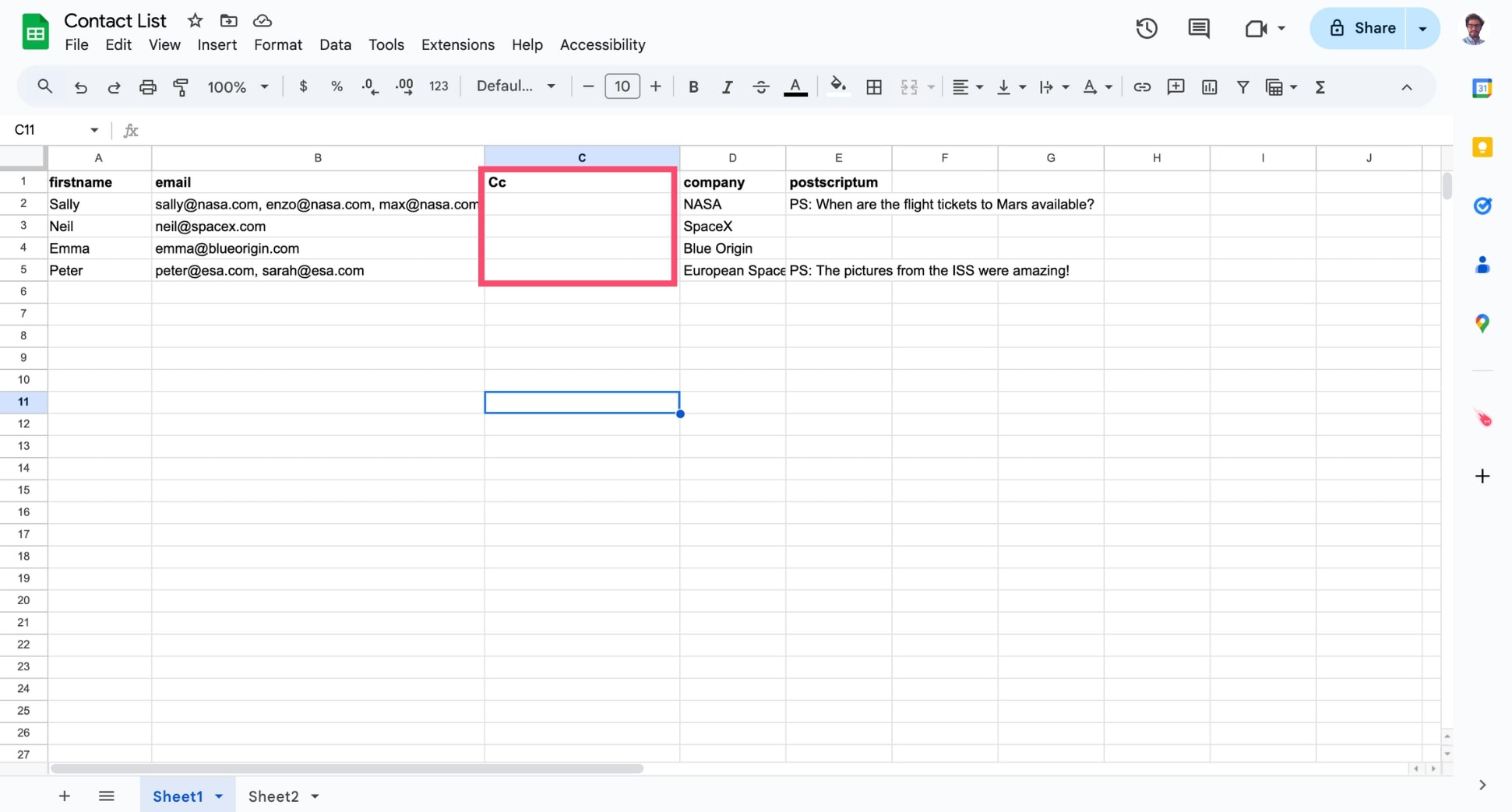
Name it Cc.
-
Fill this column with the email addresses of your Cc recipients.
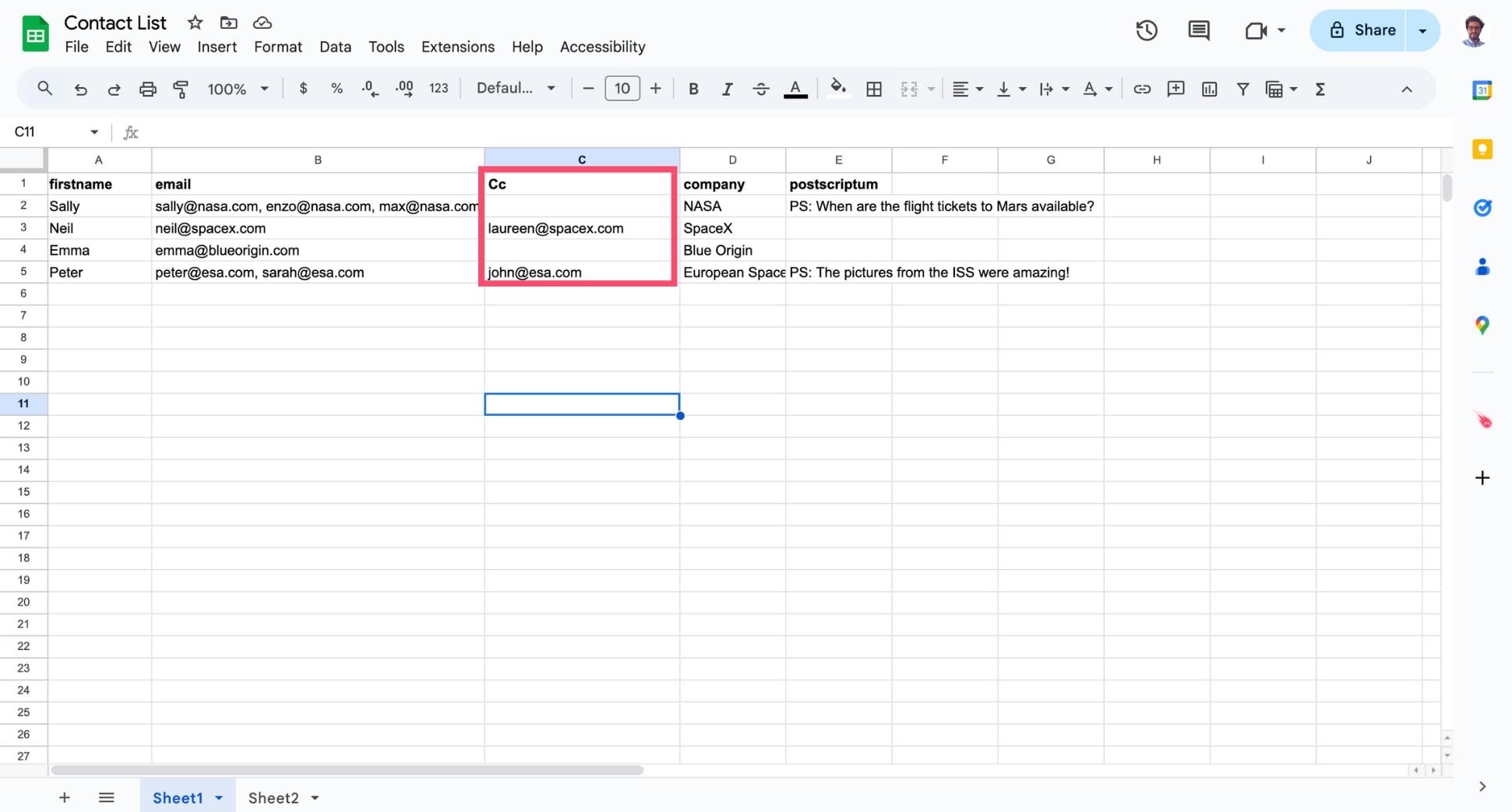
In this example, John will be added in Cc to Peter's email.
How to add Bcc recipients?
Open your contact list in Google Sheets. Then add a new column, and name it Bcc.
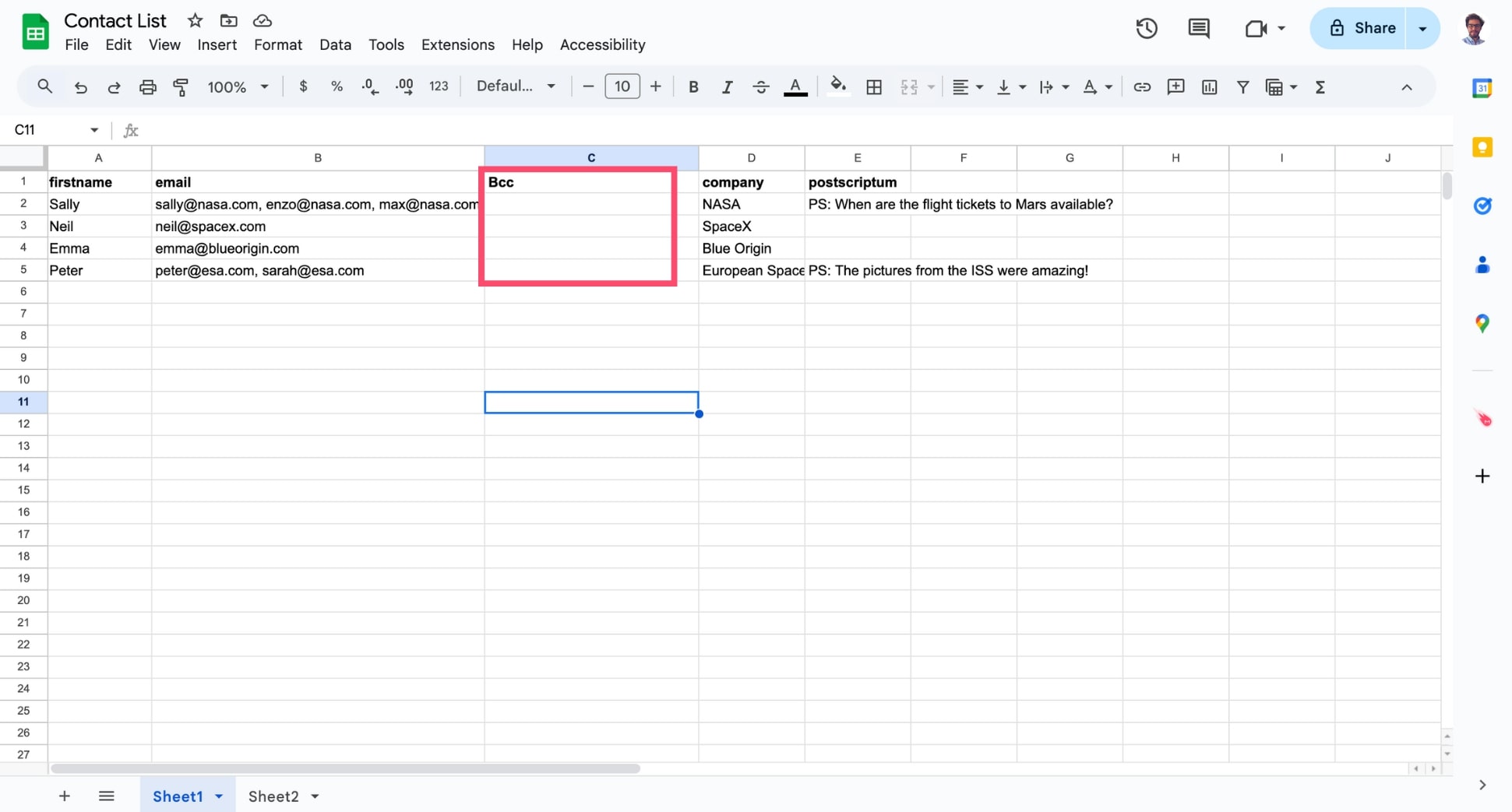
Fill this column with the email addresses of your Bcc recipients.
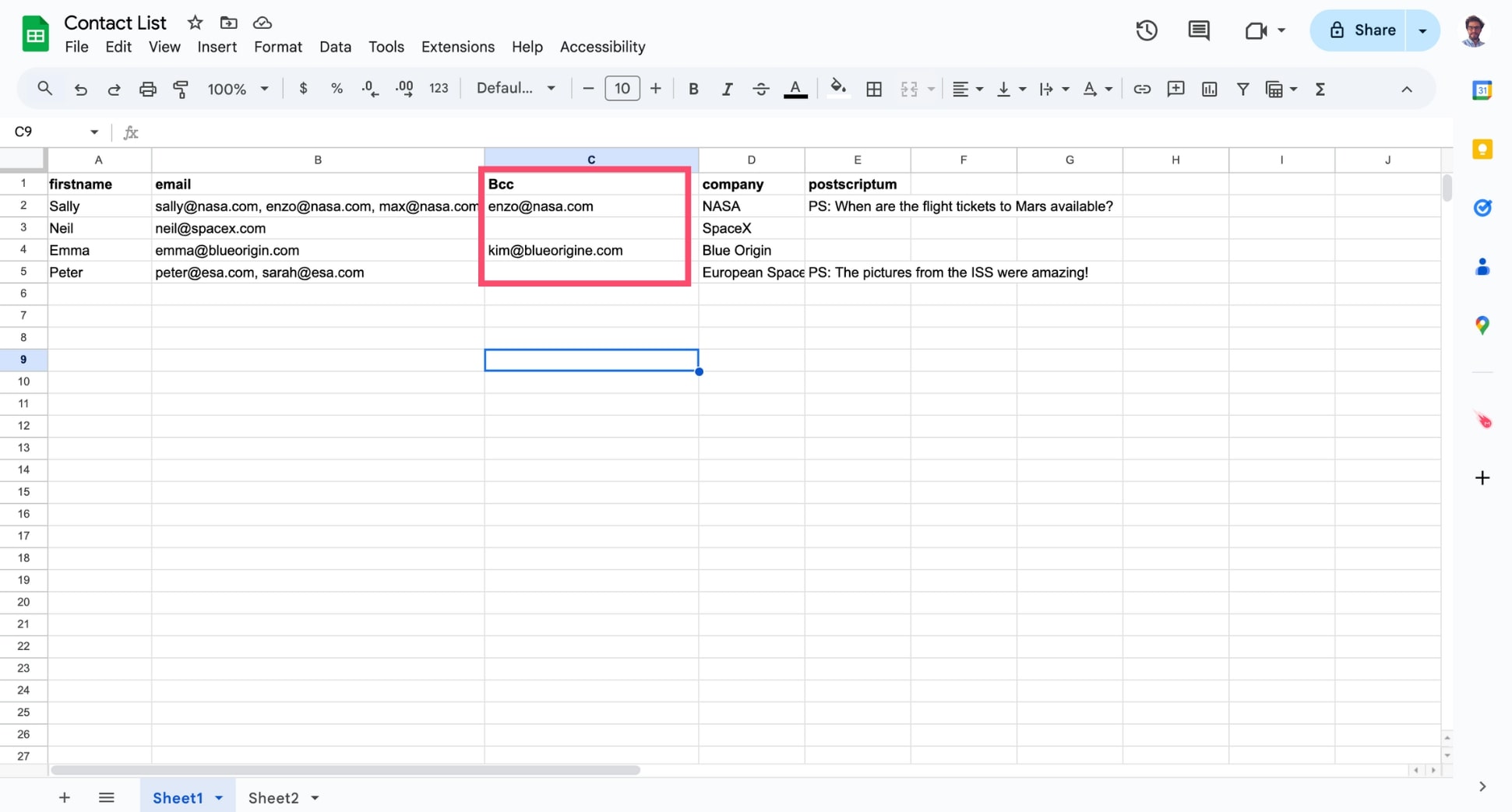
In this example, Enzo will be added in Bcc to Sally's email.
How to add multiple Cc or Bcc recipients?
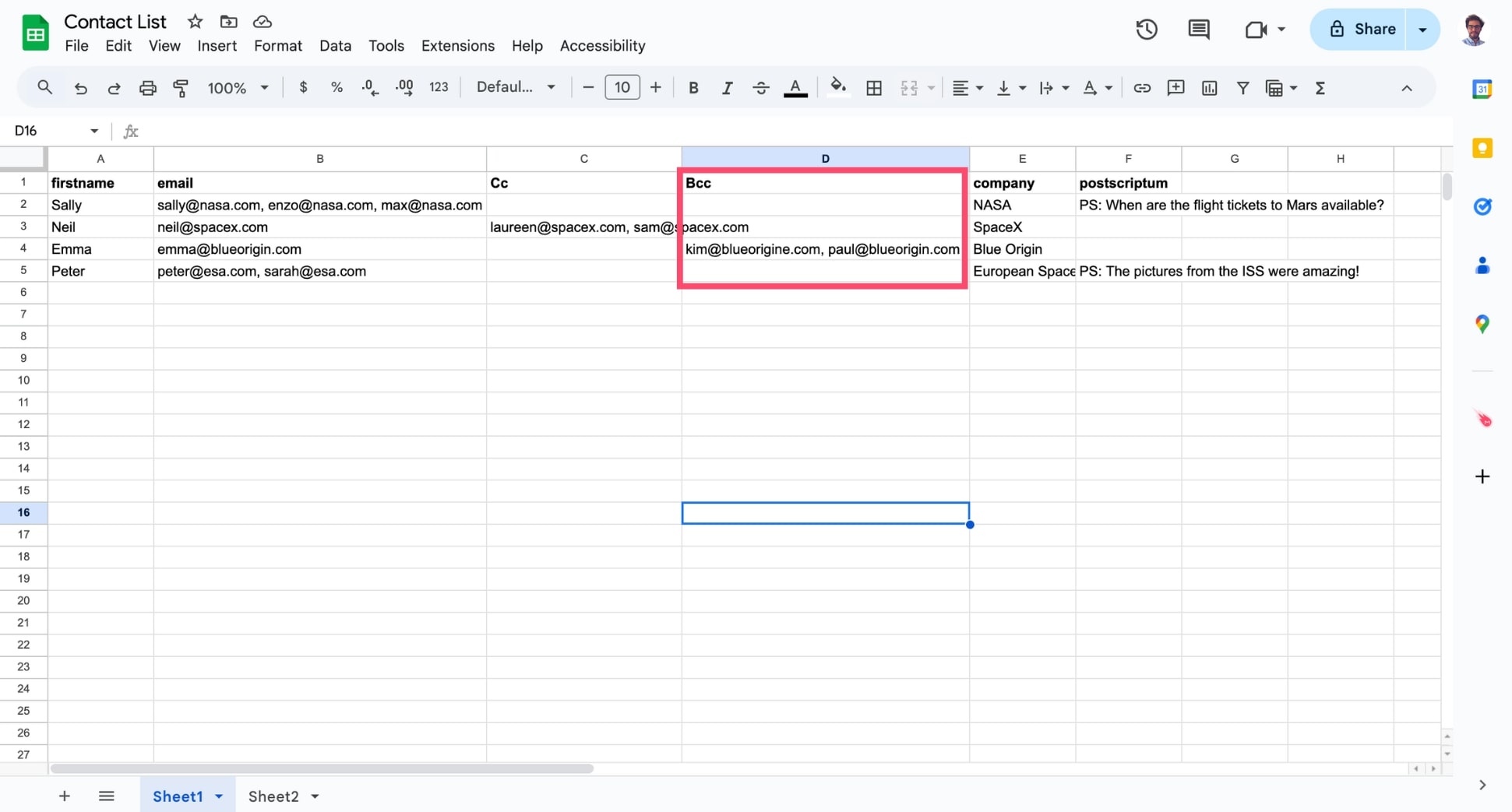
Sometimes you might want to add multiple cc recipients (or multiple Bcc recipients or both). Simply enter all email addresses in the same cell, separated by commas.
- Add a new column to your contact list (either a CSV or a spreadsheet).
-
Name it Cc.
-
Fill this column with the email addresses of your Cc recipients.


In this example, John will be added in Cc to Peter's email.
Need to Cc more than one recipient? In that case, type multiple email addresses in the same cell and separate them with a comma.
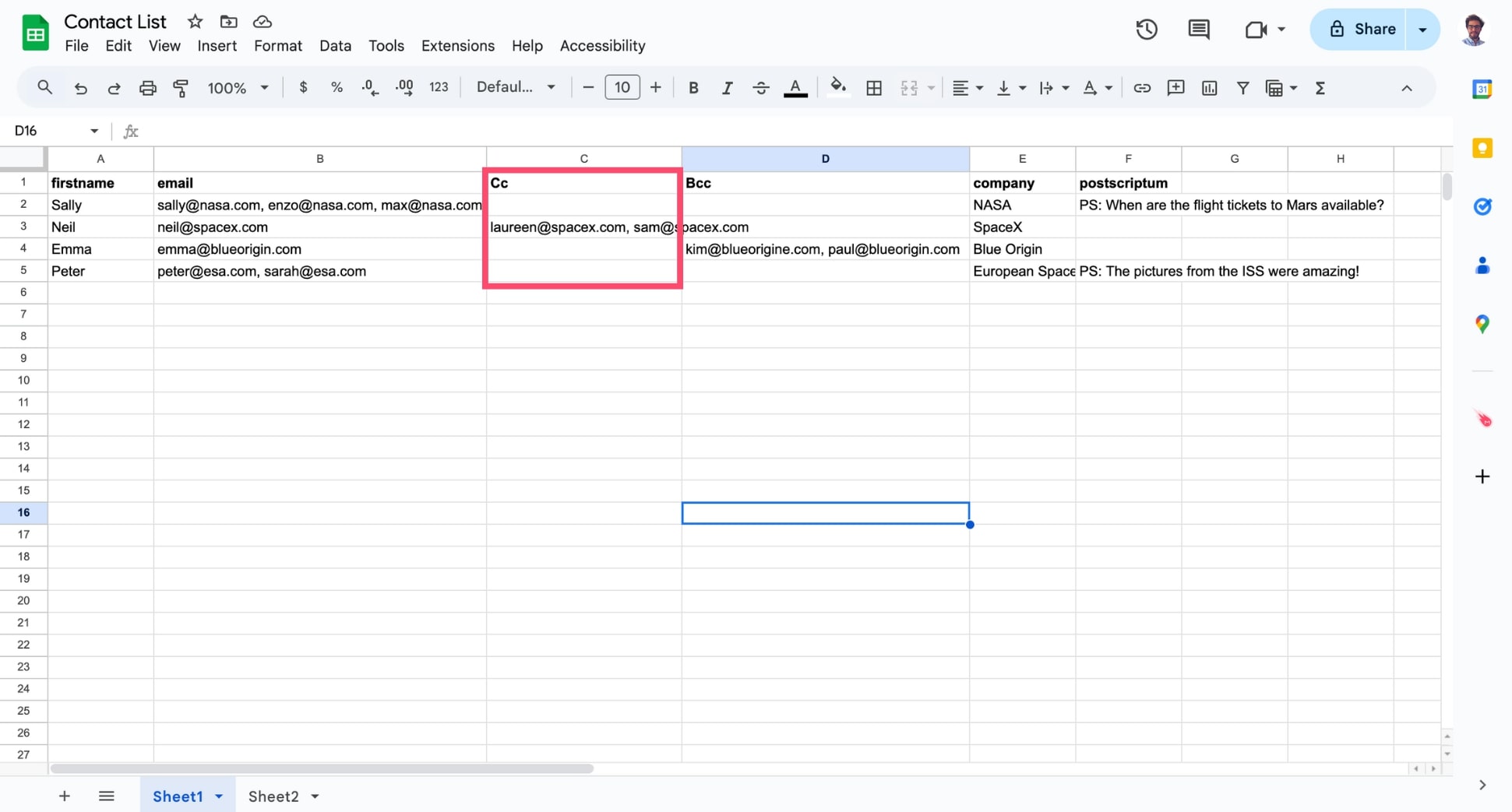
How to add Bcc recipients?
Open your contact list in Google Sheets. Then add a new column, and name it Bcc.

Fill this column with the email addresses of your Bcc recipients.

In this example, Enzo will be added in Bcc to Sally's email.
Need to Bcc more than one recipient? Simply enter all email addresses in the same cell, separated by commas.

- Add a column to your spreadsheet.
- Name it “cc” (in lowercase).
- Add your Cc recipients in this column.
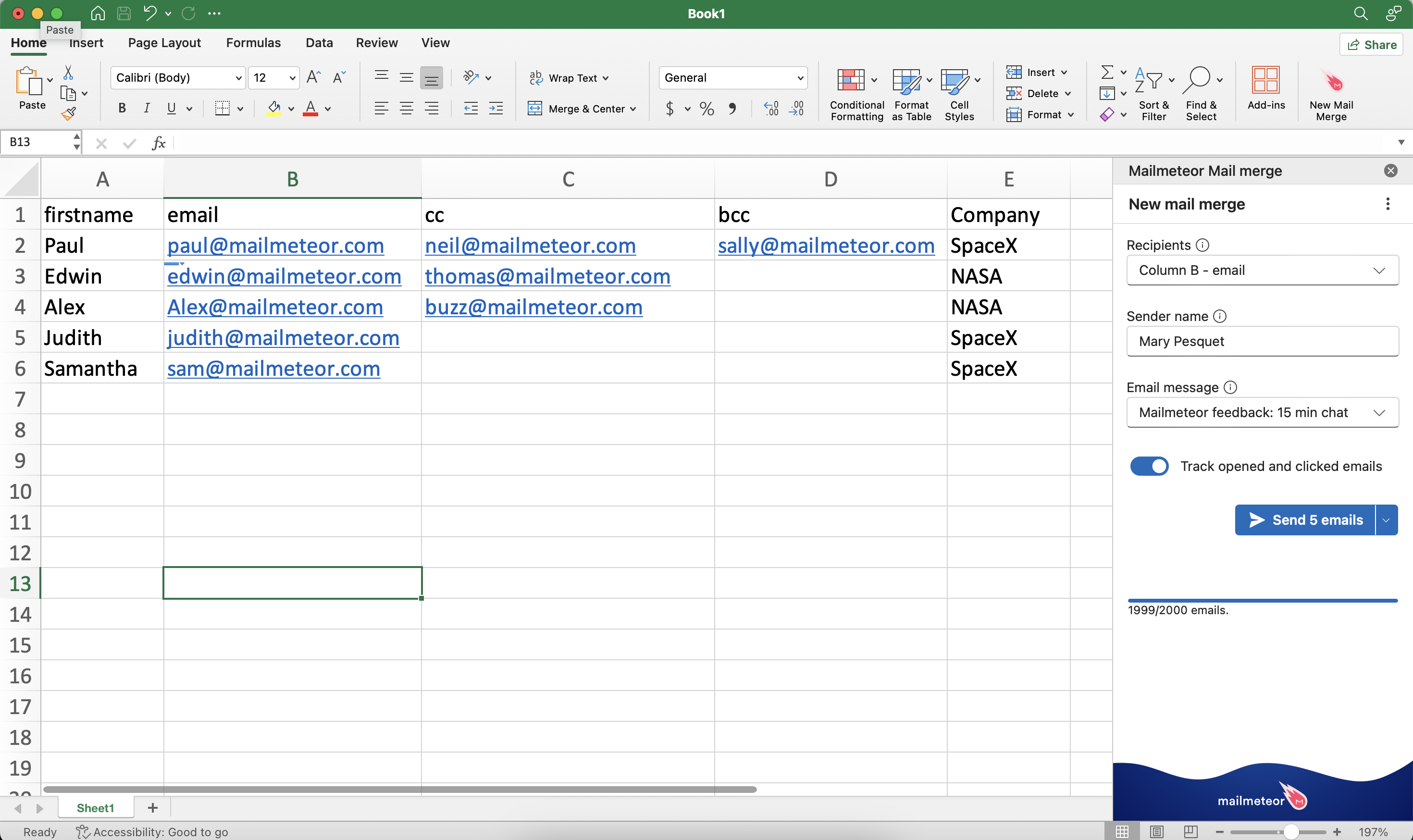
In this example, Neil will be added in Cc to Paul's email
How to add Bcc recipients?
Bcc stands for Blind carbon copy. Like a Cc email, a Bcc email is an email you send to someone, while also copying in another recipient. The difference is that the main recipient isn’t aware of the second recipient.
Mailmeteor lets you add one or multiple Bcc recipients to your email campaigns. In this section, we’ll show you how to add Bcc recipients from the Google Sheets add-on:
- Add a column to your spreadsheet.
- Name it “bcc” (in lowercase).
- Add your Bcc recipients to this column.
In this example, Sally will be added in Bcc to Paul's email
How to add multiple Cc or Bcc recipients?
If you want to Cc or Bcc multiple addresses at once, add your recipients in the cc and bcc columns and separate each email address with a comma.
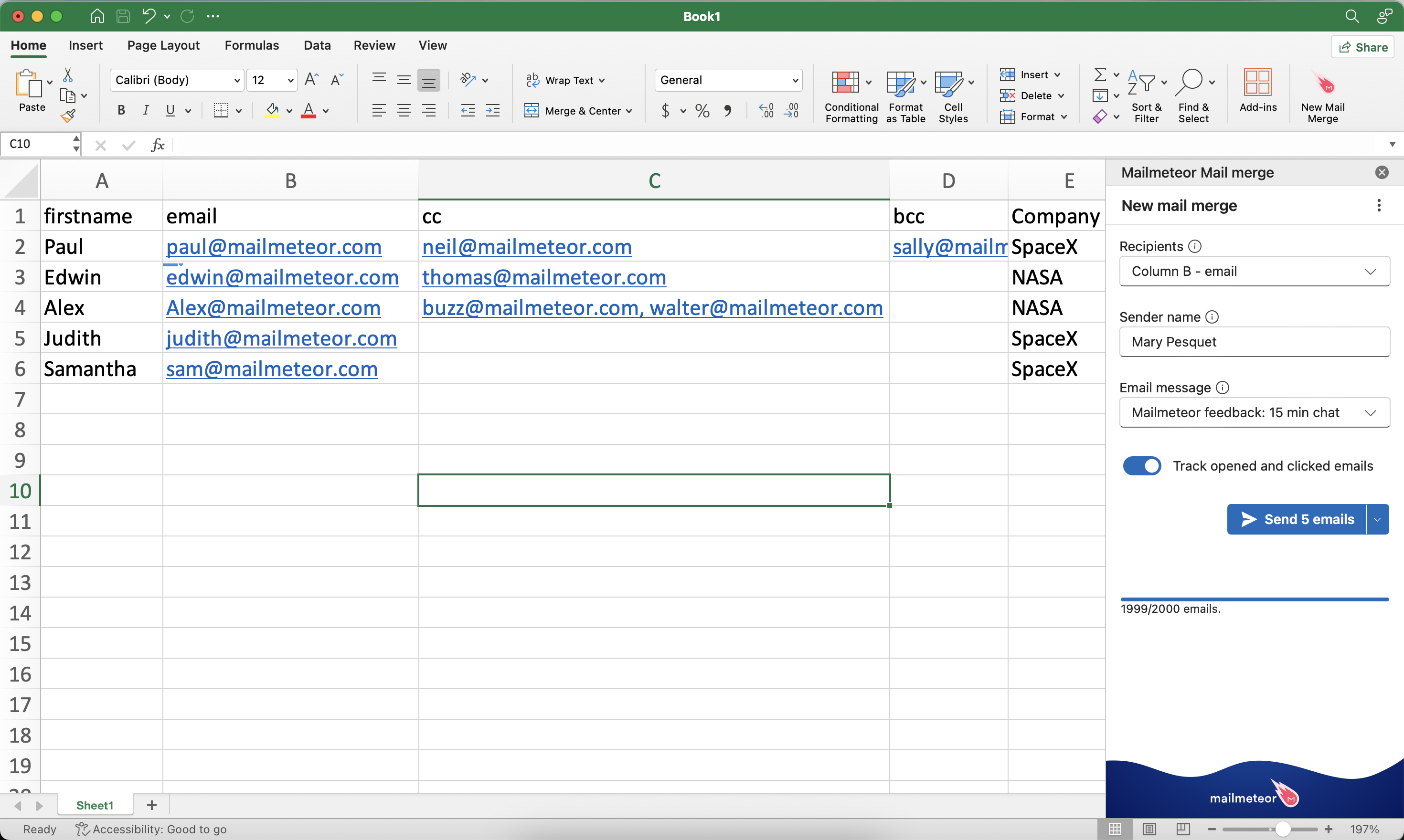
In this example, Buzz and Walter will both be added in Cc to Alex's email
Cc and Bcc recipients are deducted from your sending quota like standard recipients.