Acting on several conversations at once
When you are catching up on a large campaign, you rarely want to open conversations one by one. Select several rows in your pipeline and act on all of them at once.
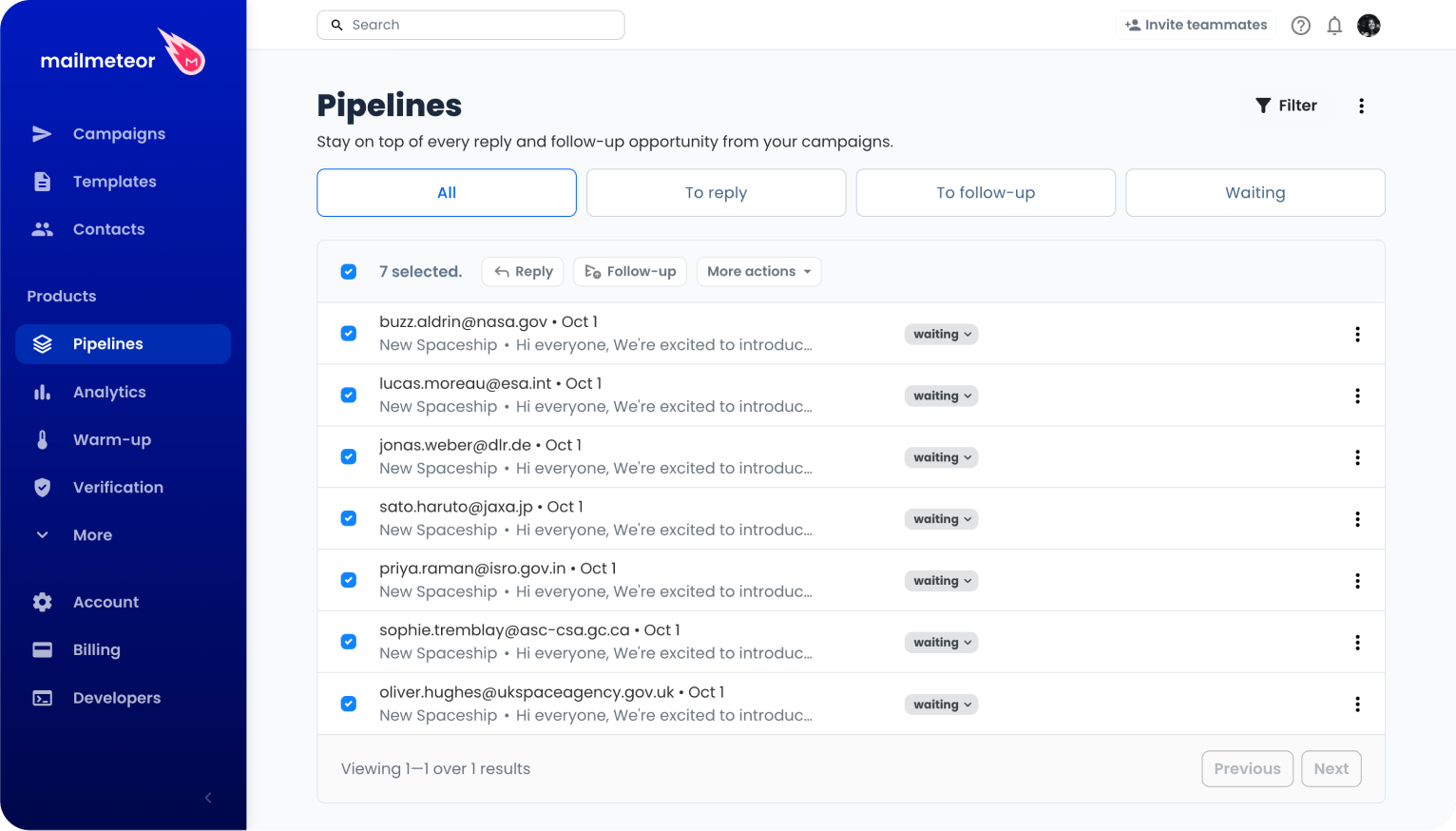
Selecting conversations
Tick the checkbox at the start of each row you want, or the one in the table header to select every conversation on the page. An action bar appears as soon as one row is selected, and tells you how many conversations it holds.
Since the table shows 20 conversations per page, the header checkbox selects at most 20 conversations. When your filter matches more than that, a Select all {n} items link appears next to the count: it extends the selection to every conversation matching your current filters, across all pages. Every action in the bar then applies to that whole selection. Use Clear selection to go back.
Sending a batch reply
- Select the conversations you want to answer.
- Click Reply in the action bar.
- Write your message once. Use Show preview to check how it renders on desktop and mobile, and Send a test email to send yourself a copy.
- Click Send {n} replies.
Mailmeteor sends one separate reply per conversation, each in its own thread. Your recipients never see each other, and nobody receives a group email. Every conversation you answered moves to Waiting.
A conversation is skipped if Mailmeteor has no original email or no recipient to reply to. The confirmation tells you how many replies were actually sent.
Scheduling follow-ups in batch
- Select the conversations.
- Click Follow-up in the action bar.
- Compose your follow-up, and set its condition and delay.
- To build a sequence, click Add a follow-up email and add as many stages as you need. Each new stage reuses the cc, bcc and reply-to of the previous one.
- Click Schedule {n} follow-ups.
The same sequence is scheduled for every conversation you selected. See Scheduling automatic follow-ups for the available conditions.
Changing the status in batch
Click More actions > Change status, then pick to reply, to follow-up, waiting or archived. This is the fastest way to archive a batch of conversations you are done with.
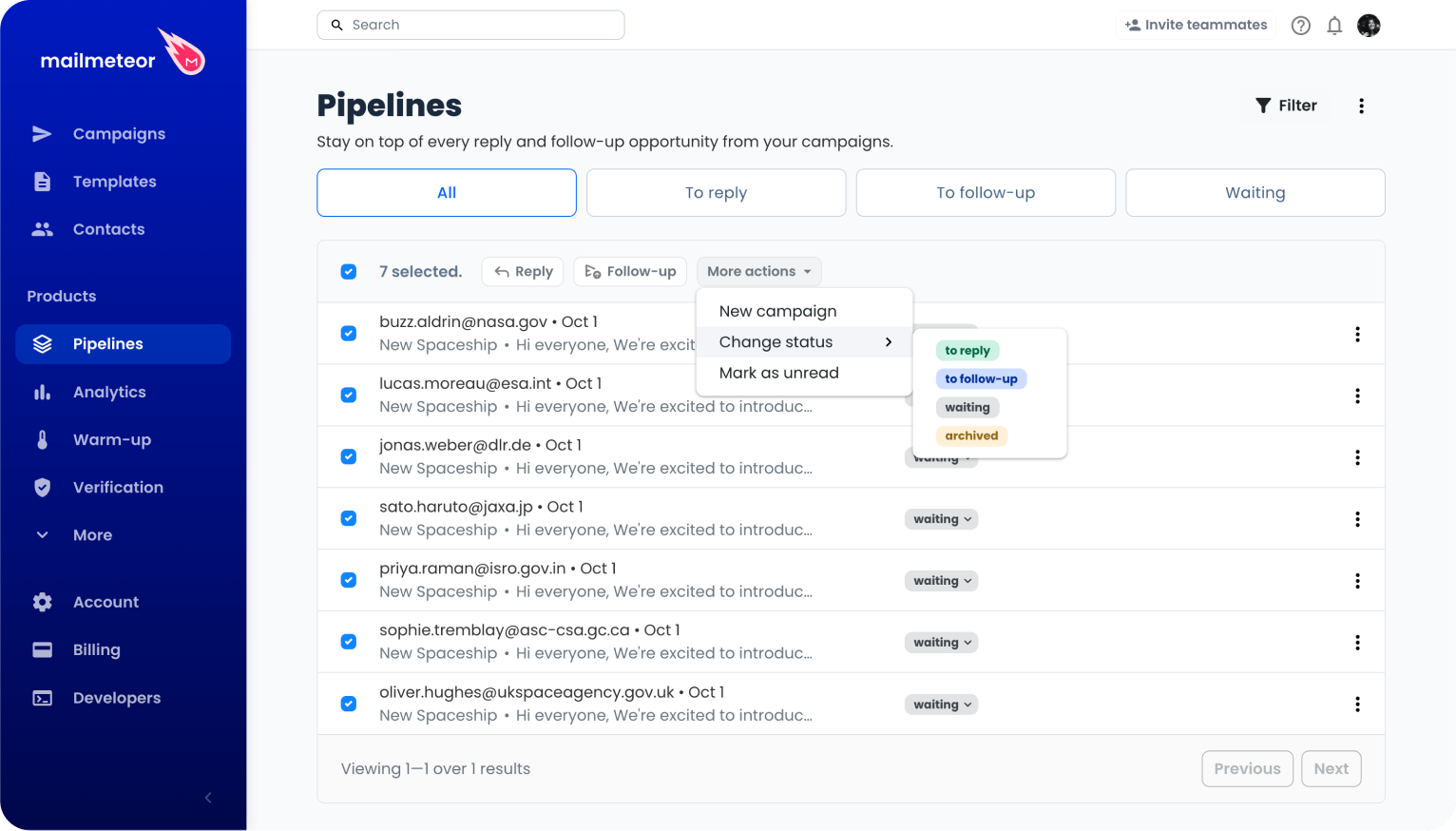
On a large selection, Mailmeteor runs it in the background and tells you when it’s done, so the update may take a moment to appear in the table.
Marking conversations as read or unread
Click More actions > Mark as read to clear a batch of conversations from your unread counters without opening them one by one.
Only one of the two entries shows at a time: Mark as unread replaces it when every conversation you selected is already read.
Starting a campaign from a selection
Click More actions > New campaign to open the campaign composer with the recipients of the selected conversations already filled in. Duplicates and your own address are removed automatically.
Batch actions are part of Pipelines, included in the Professional and Business plans. See pricing.