Send with Autopilot
Autopilot offers advanced options to maximize your campaign’s deliverability, including throttling, selective sending, and daily email caps.
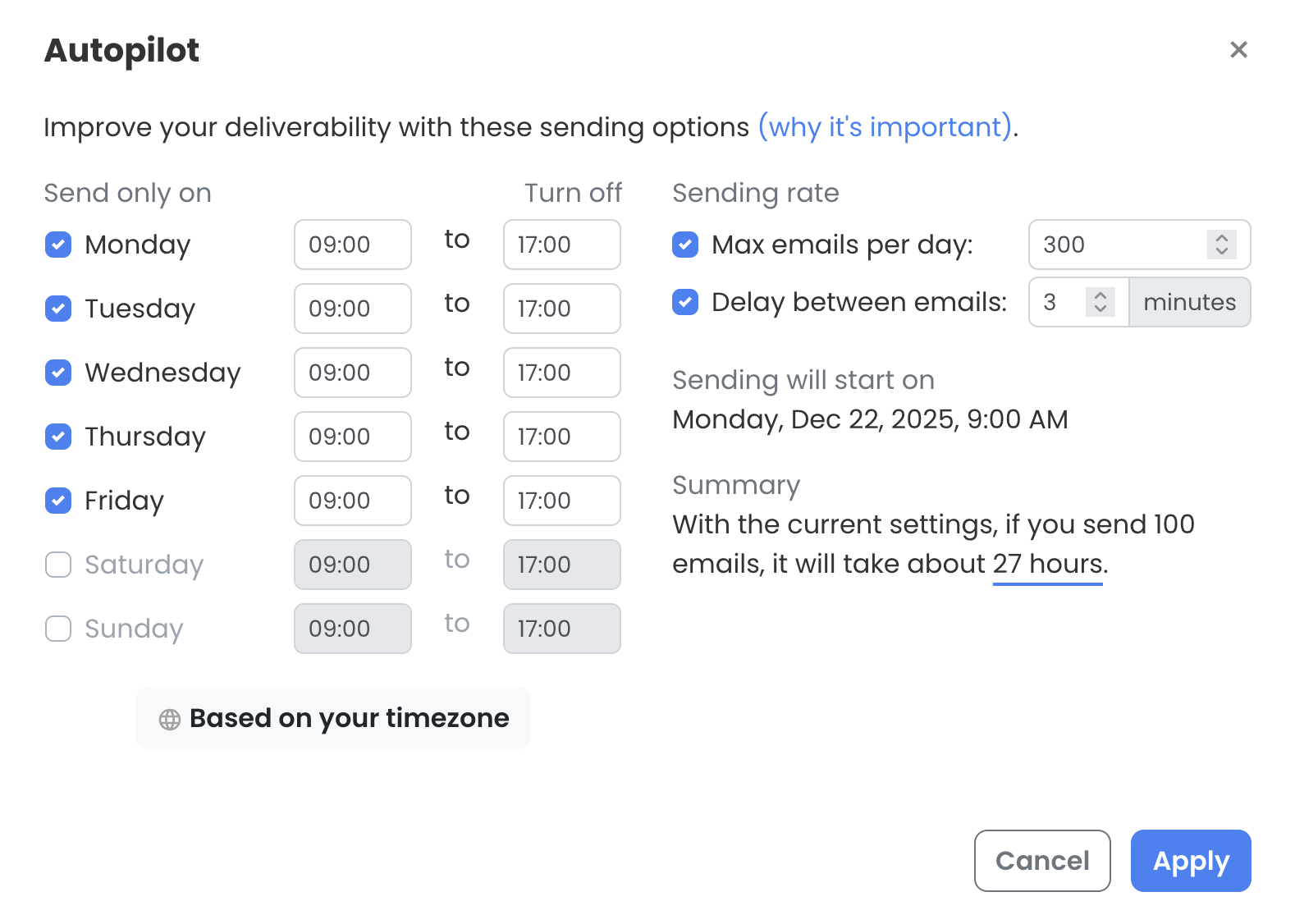
Mailmeteor Autopilot interface in the Dashboard
This feature is especially helpful for power users, such as growth marketers or sales reps, looking for a solution to increase their open and click-through rates.
What can you achieve thanks to Autopilot?
The Autopilot interface lets you define:
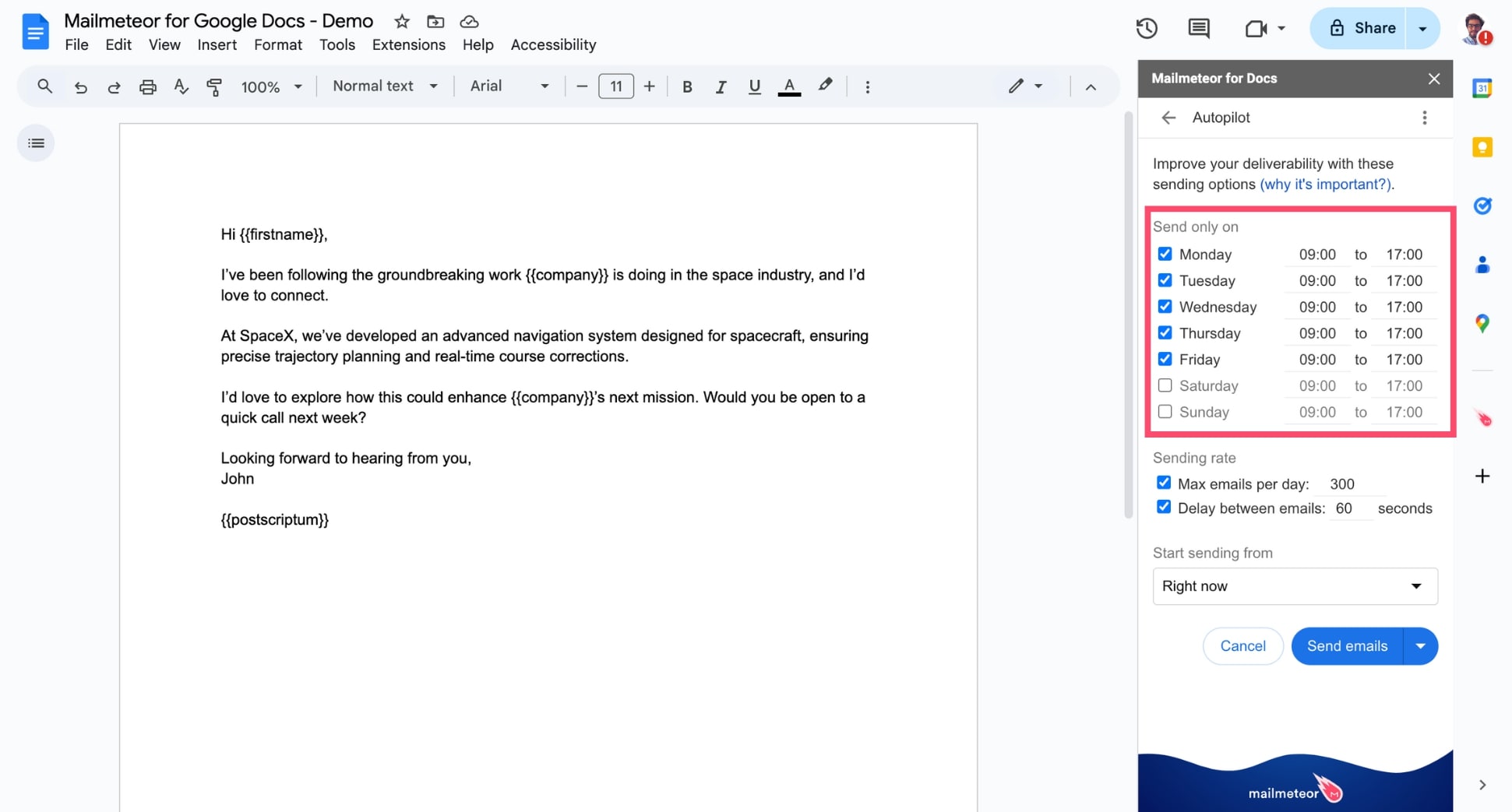
- On which days of the week you want to send emails (e.g. Monday to Friday)
- On which hours of the day your emails should be sent (e.g. 9 AM to 5 PM)
- In which time zone emails should be sent (e.g. your recipient’s local time)
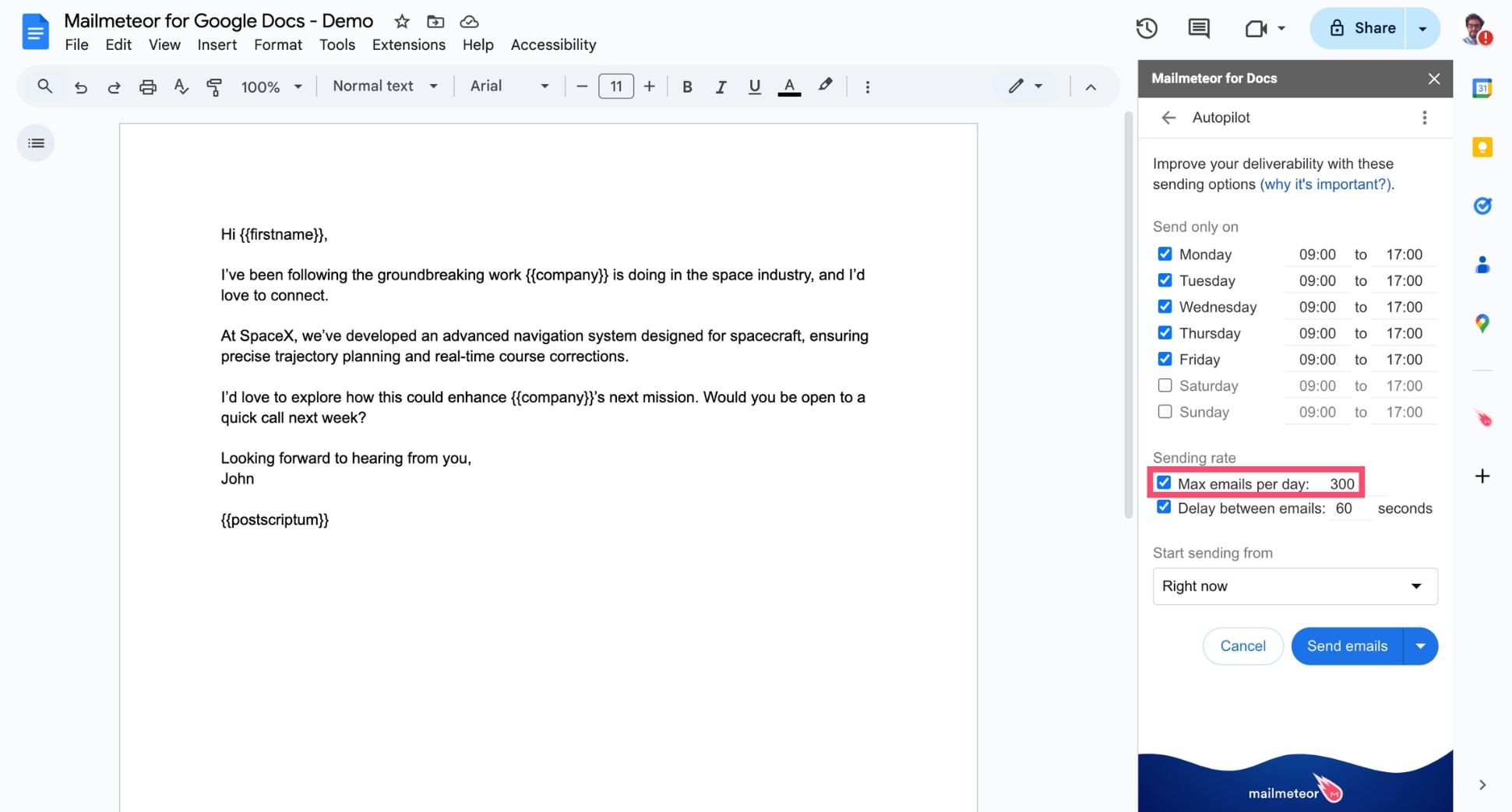
- How many emails you can send per day (e.g. 300 emails/day)
- The time interval between each email (e.g. send one email every 60 seconds)
- When to start sending the emails (e.g. right now)
You can customize each setting to achieve your email marketing goals. With optimal settings, your messages will have a better chance of reaching your recipients’ inboxes.
When you change a setting, Mailmeteor gives you an estimate of how long it will take to send all your emails (e.g. “about 2 days” in the screenshot above).
Where to find the Autopilot settings?
From the Mailmeteor Dashboard, you can quickly define Autopilot settings at campaign creation. Here’s how to do it:
- Go to Mailmeteor Dashboard.
- Create a new campaign.
-
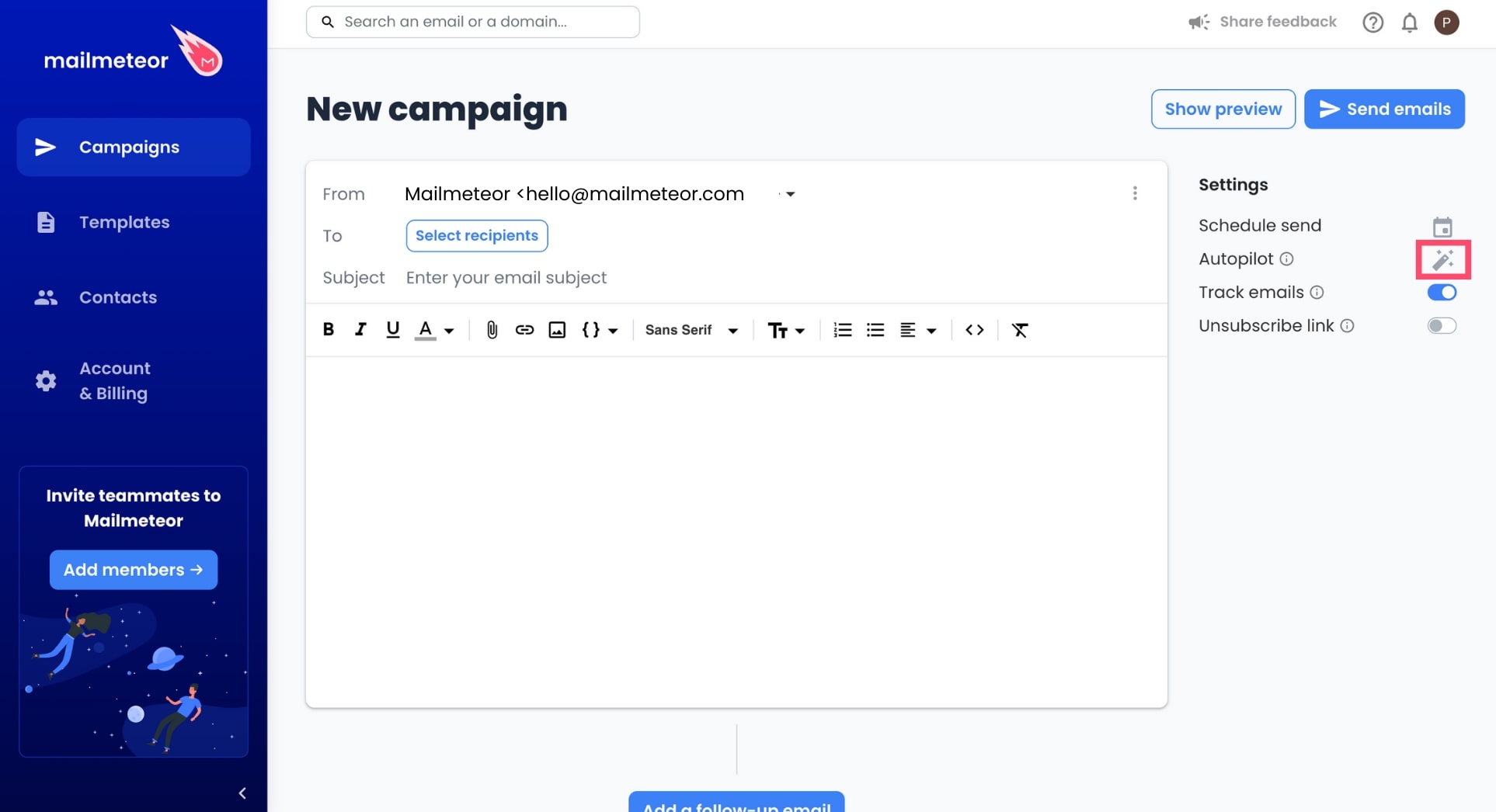
Click Autopilot.
- Sign in to your Gmail account.
-
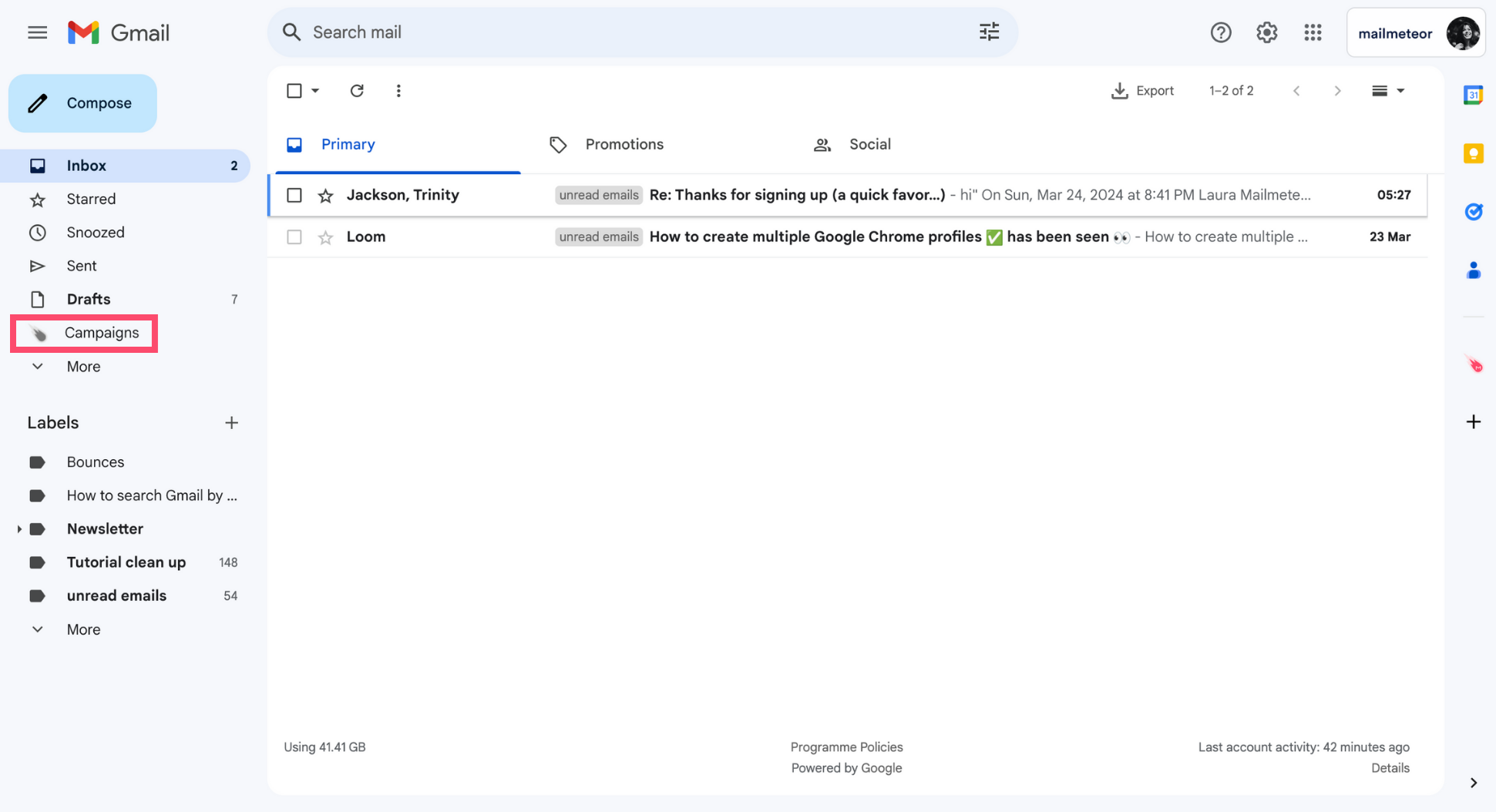
Go to Campaigns.
-
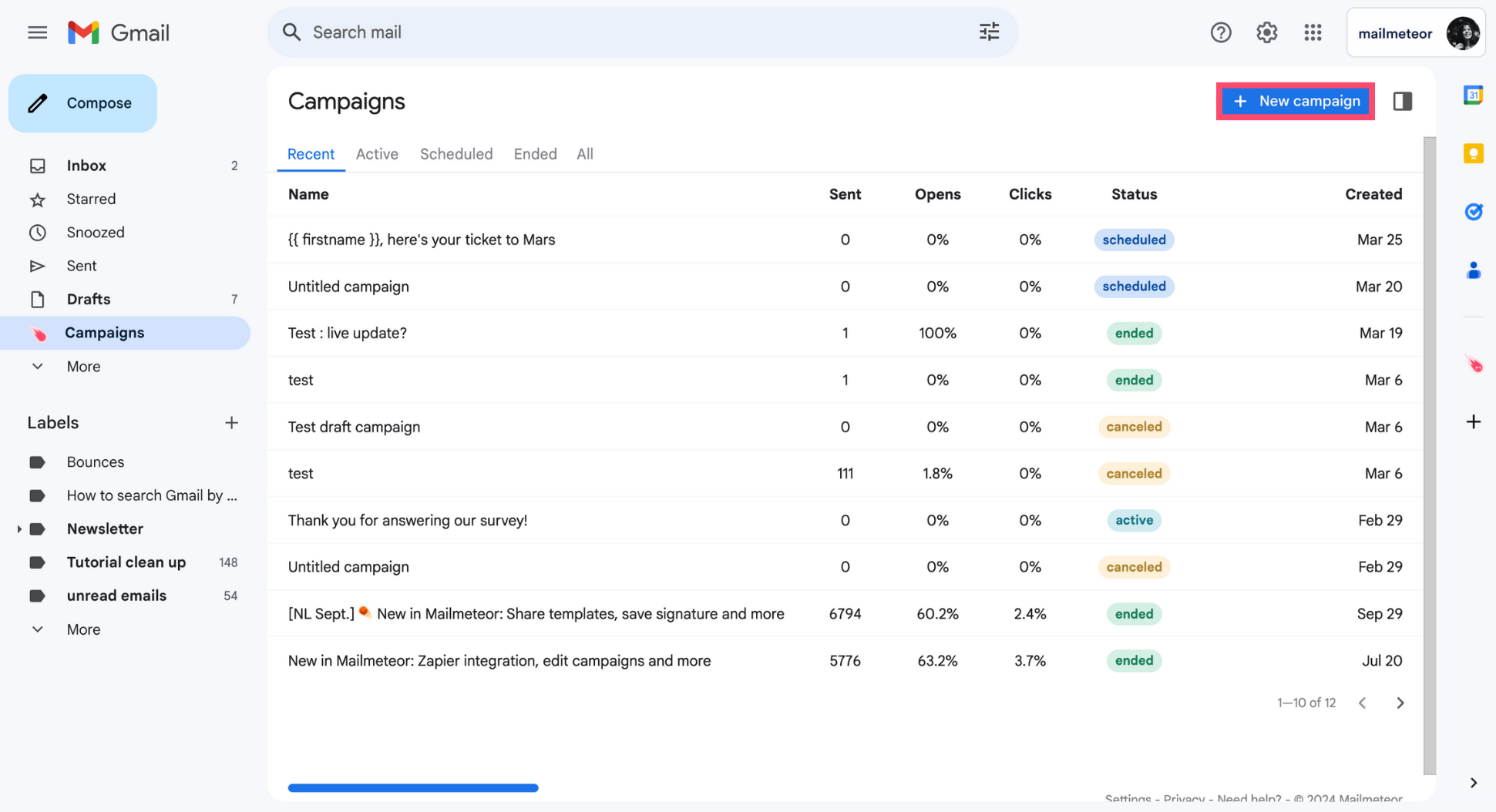
Create a New campaign.
-
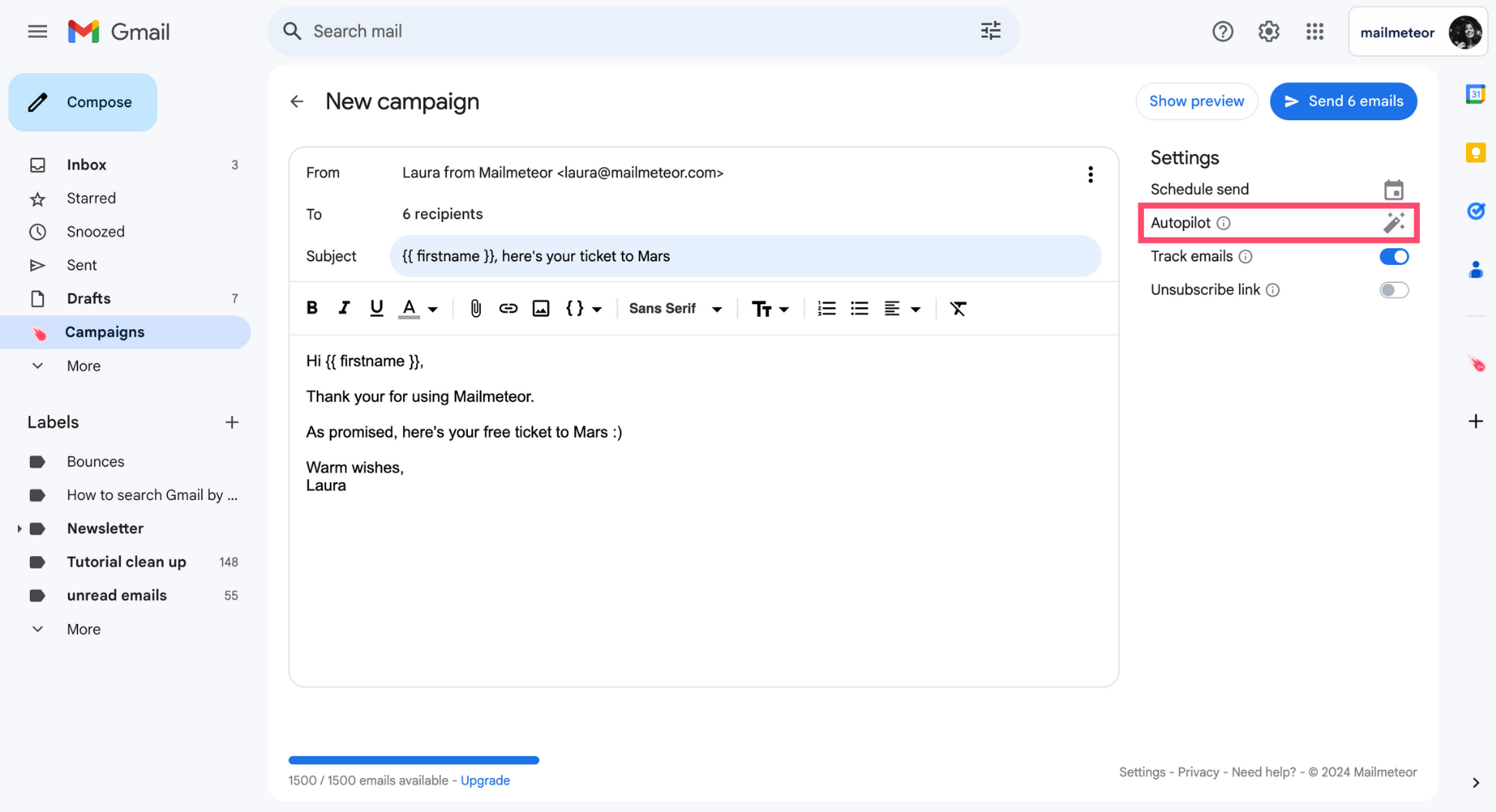
Under Settings, click the Autopilot icon.
-
Configure your sending options.
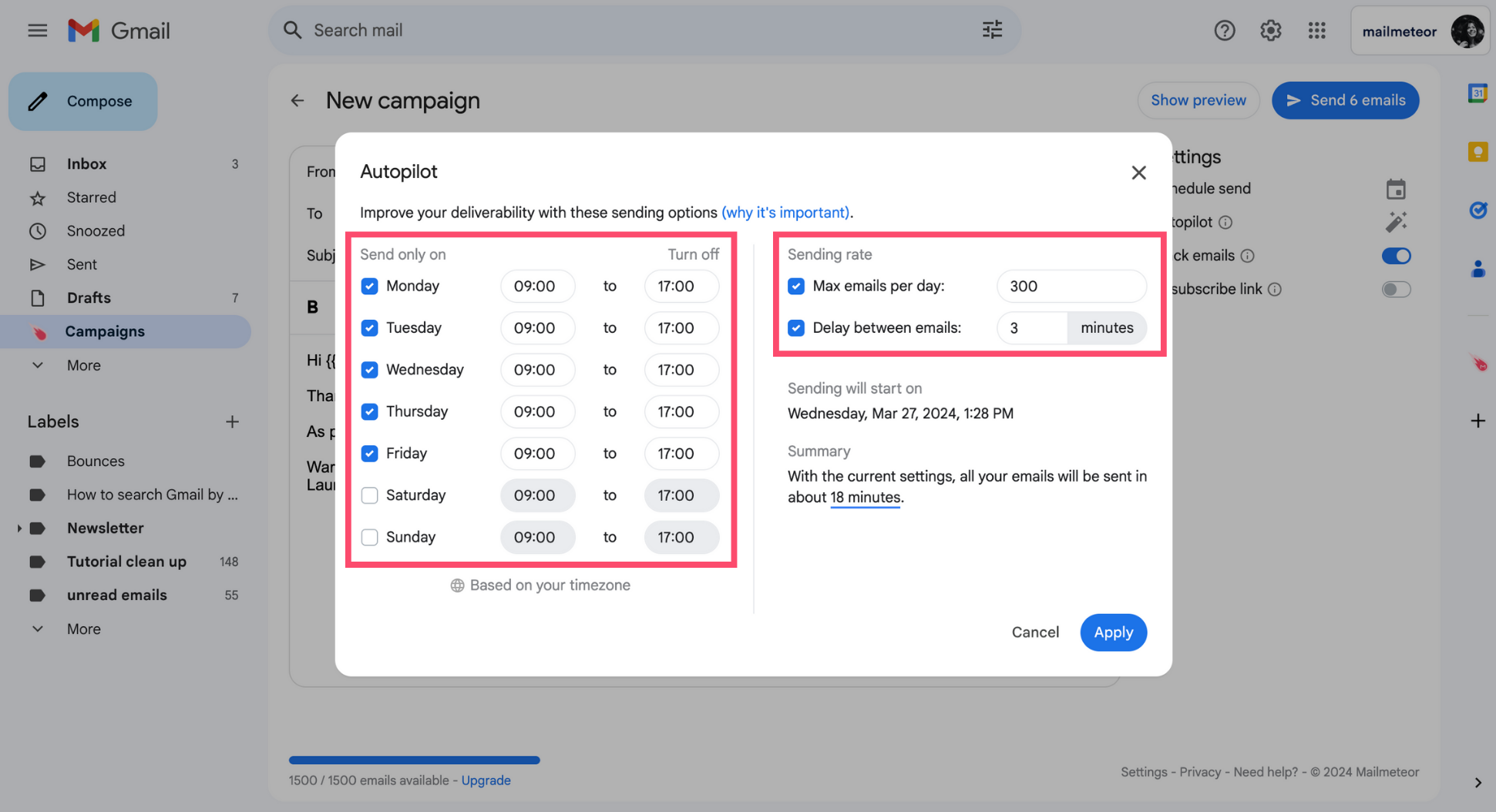
Mailmeteor gives you an estimate of how long it will take to send all the emails based on the sending options you configured.
-
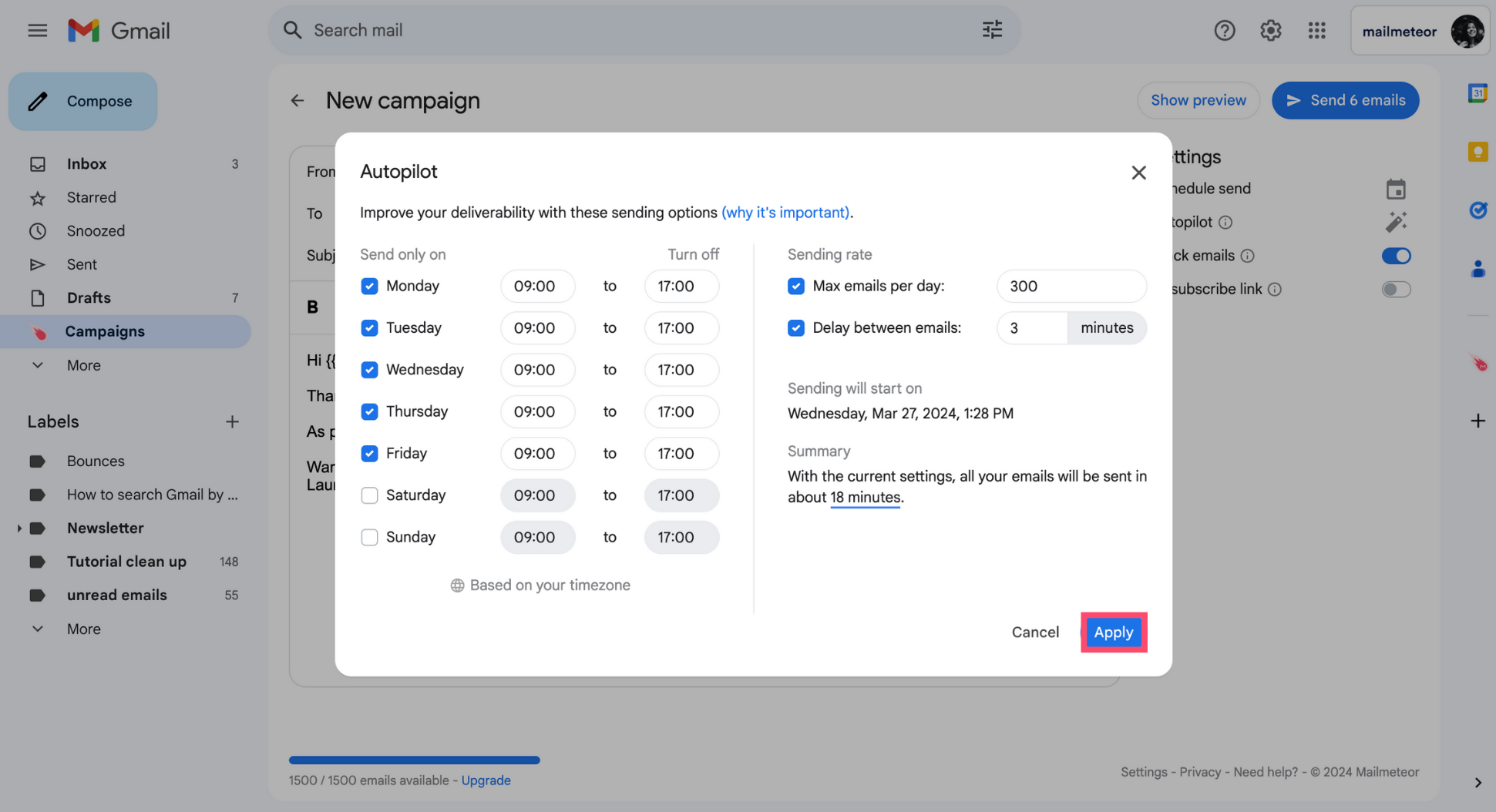
To confirm, click Apply.
Using Mailmeteor for Google Sheets, you can quickly define Autopilot settings when doing a mail merge. Here’s how to do it:
- Open your Google Sheets spreadsheet.
-
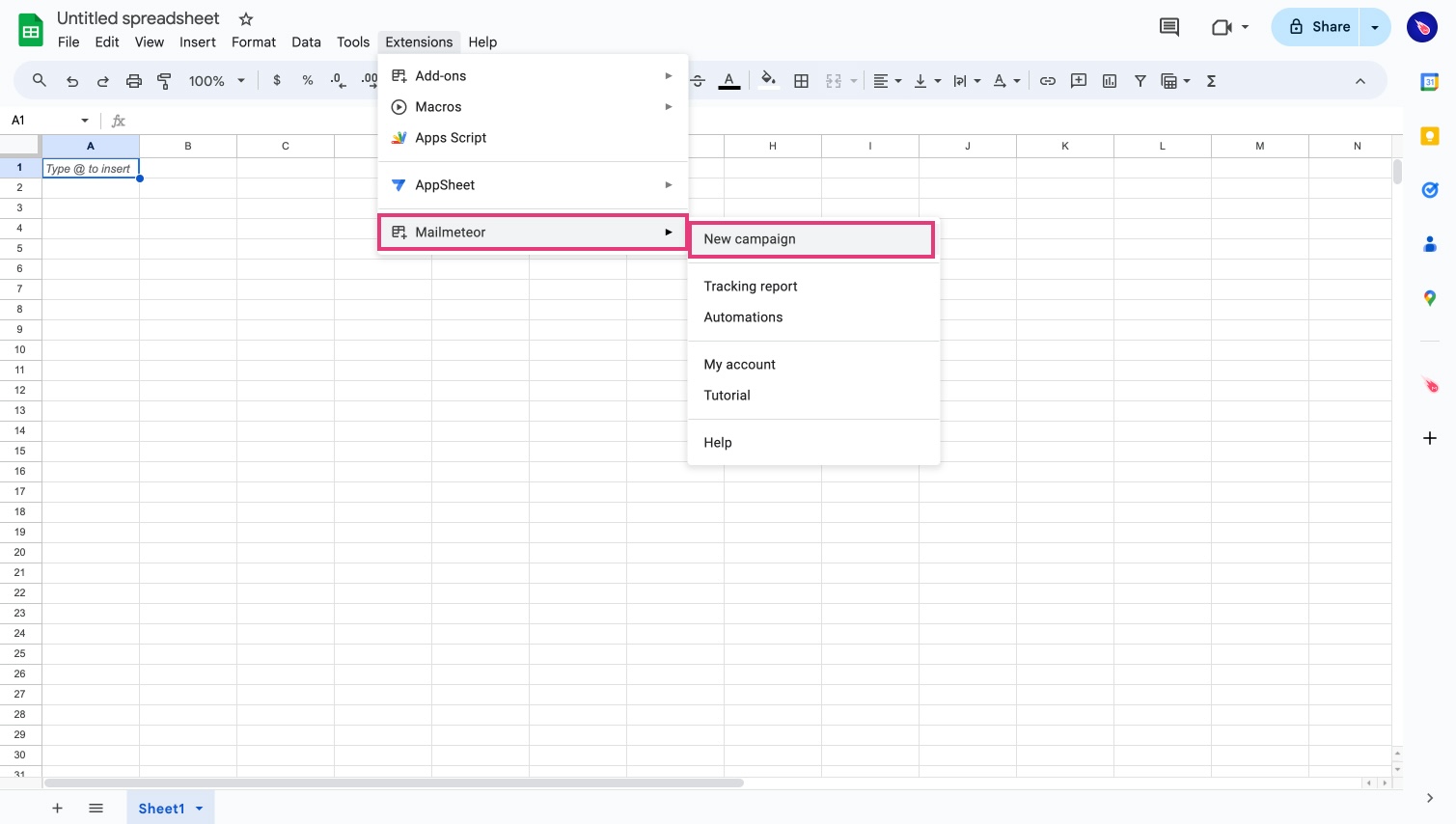
Open Mailmeteor from the menu by selecting Extensions > Mailmeteor > New campaign.
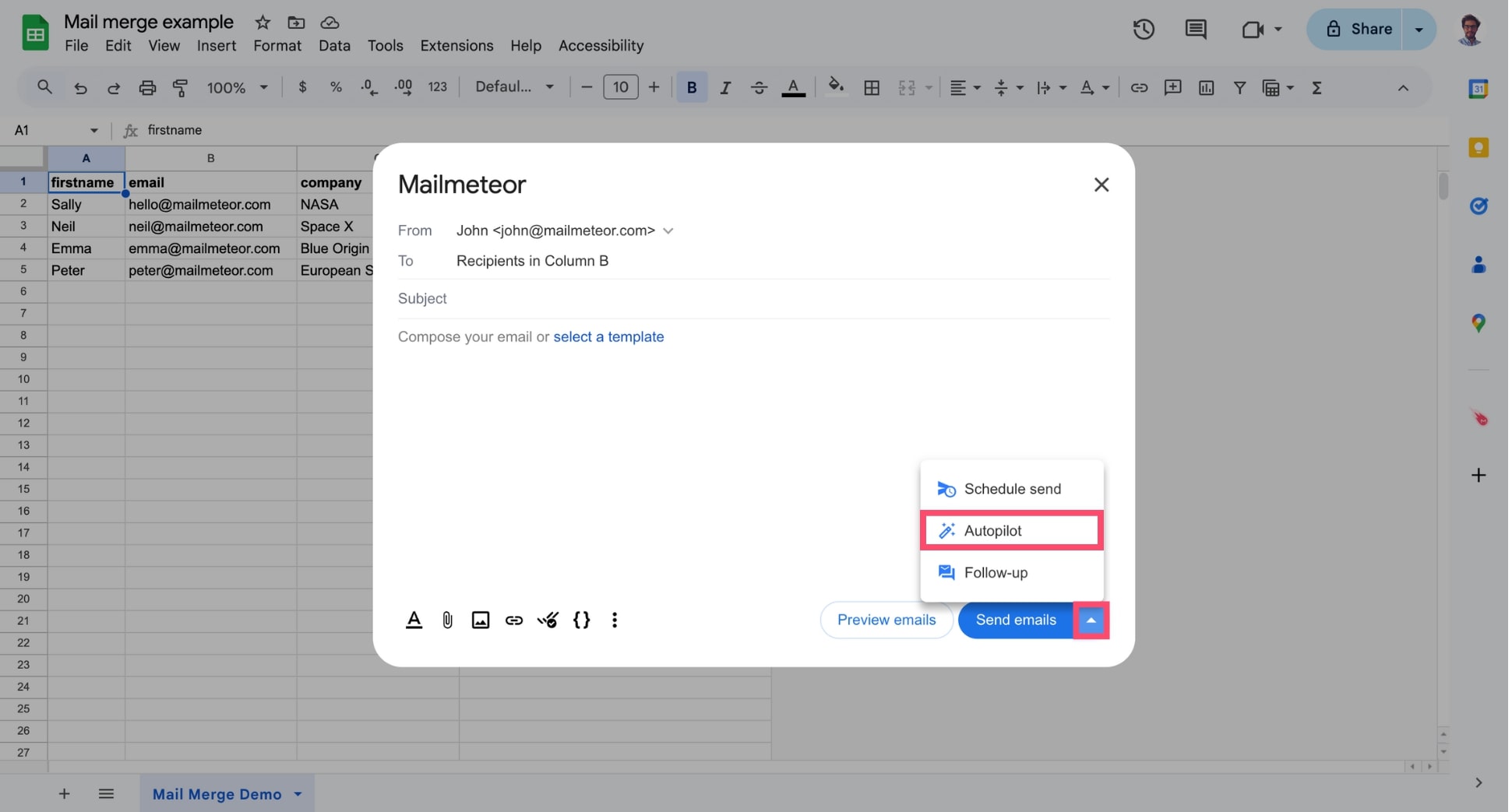
- Next to Send emails, click the small caret symbol (“▼”) and select Autopilot.
Using Mailmeteor for Docs, you can send your campaign with autopilot settings. Here’s how to do it:
- Open your Google Docs document.
- Open Mailmeteor from the menu by selecting Extensions > Mailmeteor > New campaign.
-
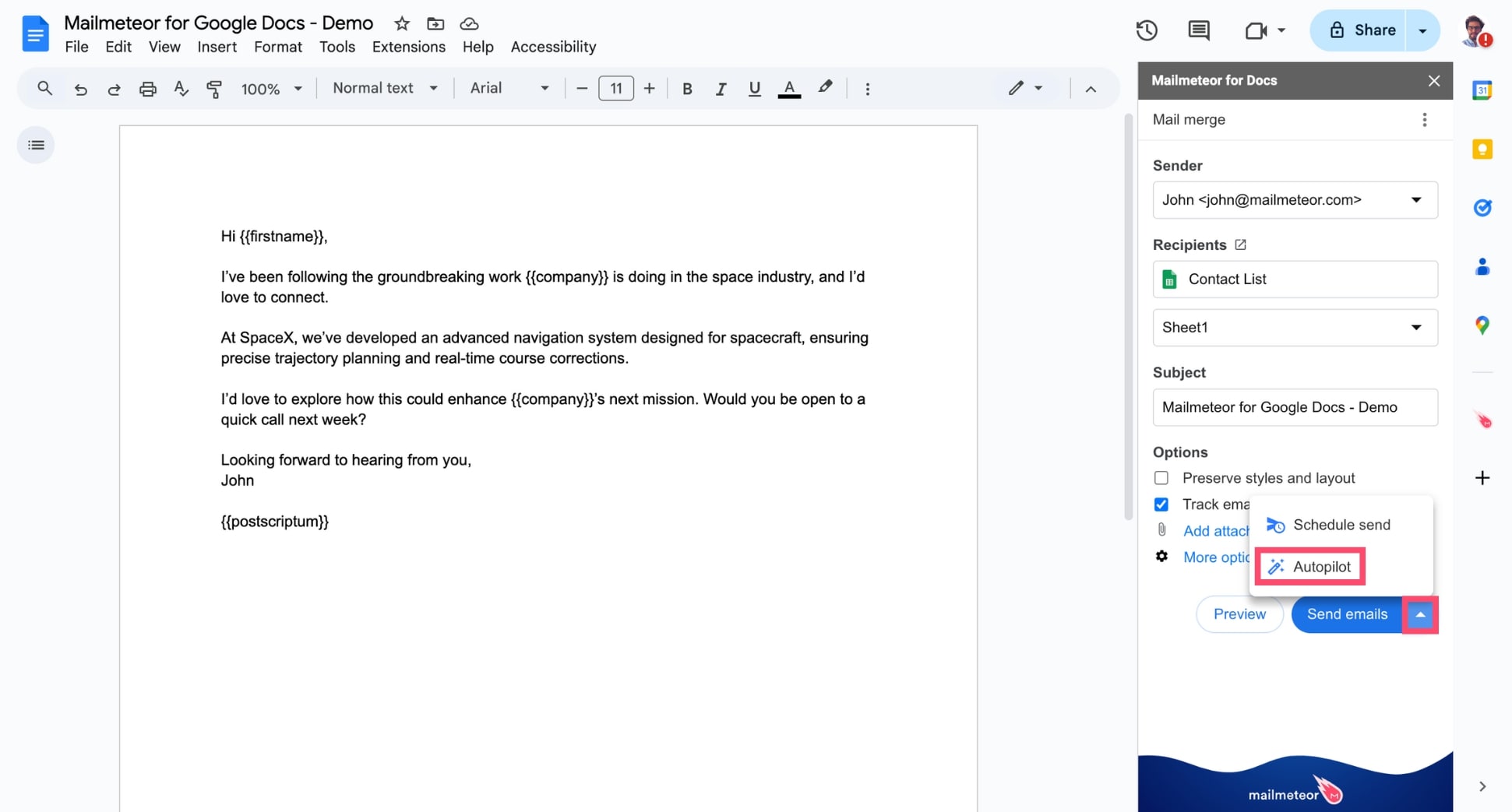
Click the caret symbol (▼) next to Send emails and select Autopilot.
Autopilot options
From there, you can do 3 things:
Let’s take a look at each option:
Send only on
Autopilot gives you full control over when your emails are sent. Choose specific days and times for delivery to optimize engagement by sending emails when your recipients are most likely to open and respond.
Sending rate
Autopilot helps improve the deliverability of your campaigns by adding a delay between each email. This technique, called email throttling, prevents your messages from landing in spam.
Instead of sending hundreds of emails at once, Autopilot spaces them out, mimicking human-like email activity to bypass spam filters. You can customize the delay to control your sending speed.
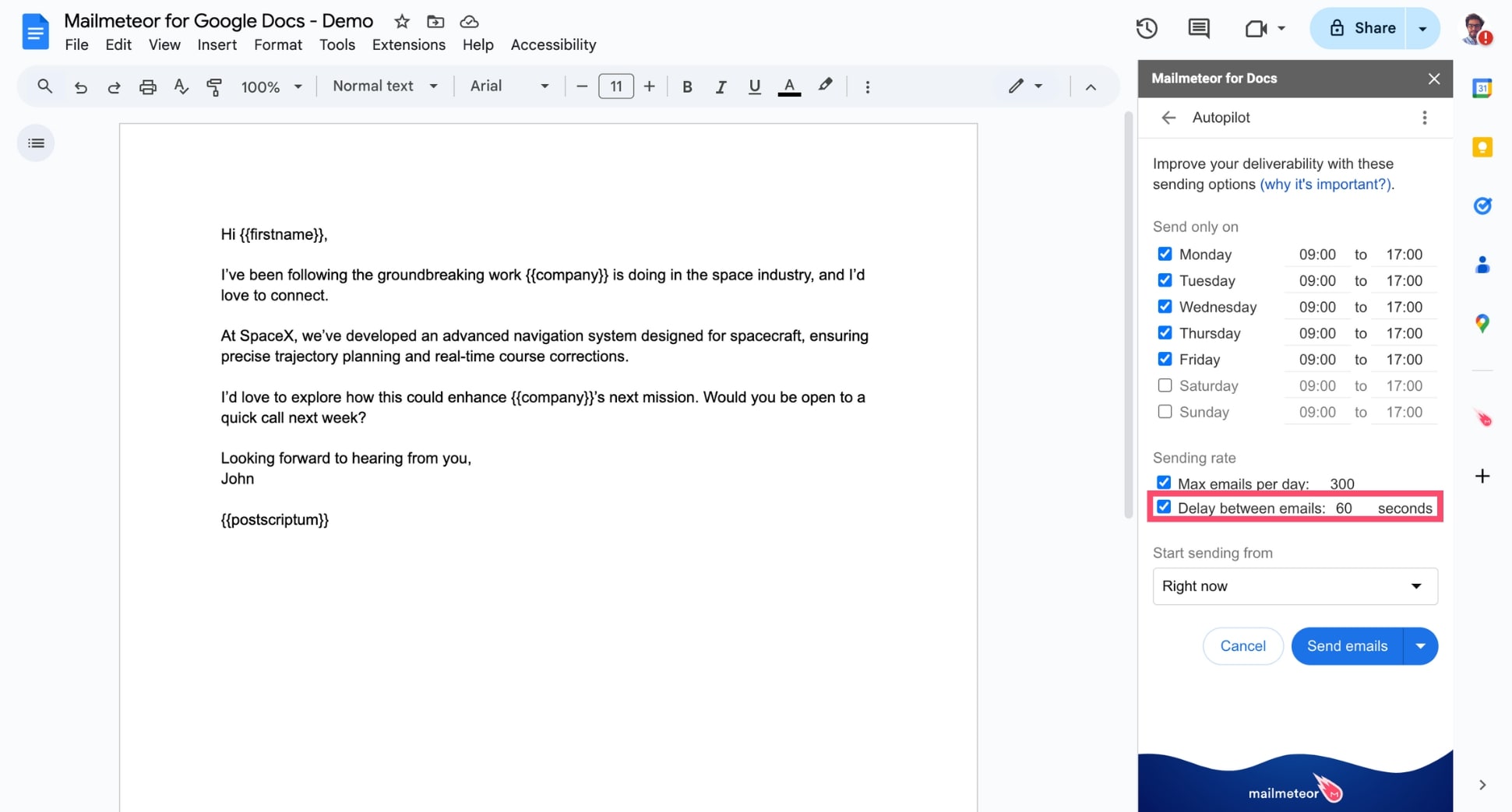
Longer pauses mean better deliverability.
Autopilot also lets you set a daily limit on the number of emails you send. This helps you stay within the daily sending limits of your email provider, reducing the risk of account suspension and improving deliverability.
Start sending from
Lastly, you can set a specific start time for your campaign, so your emails begin sending exactly when you want. By default, Autopilot gives you 4 options: Right now, Tomorrow, Wednesday, or Next week.
What happens next?
Mailmeteor will automatically send emails based on the schedule you’ve set:
- If you’ve added a sending delay, emails will be spaced out to avoid spam filters.
- If you’ve set a specific start time, your campaign will begin at the designated moment. No manual action needed.
You can review your campaign anytime from the Mailmeteor Dashboard.
What are the limits of Autopilot?
Autopilot is a powerful tool, but it comes with a couple of limitations:
- The maximum delay for sending your emails is 120 days.
- You can only add up to 10,000 contacts in your Autopilot campaign.
Why is it important to focus on deliverability?
Whenever you send an email campaign with Mailmeteor, there are several factors to consider to make sure that your emails will be well-delivered to the inbox of your recipients.
Some of these factors are in the hands of Mailmeteor, some are in your hands, and some are in the hands of the email service providers (ESPs), such as Gmail, Yahoo, or Outlook.
Autopilot gives you more control over your deliverability rate. By defining exactly when and how your emails should be sent, you can 10x your email deliverability.
.png)
Having a "normal sending activity" improves the deliverability of your campaign.
Want to learn more about email deliverability? Check out our 10 tips to level up your Gmail deliverability and get the most out of your email marketing efforts.