Reply-to address
A “Reply-To” lets you send an email from one email address and tell the recipients to reply to another. In Gmail, Outlook, and other email clients, when your recipients click “Reply”, they will automatically respond to the “Reply-To” address.
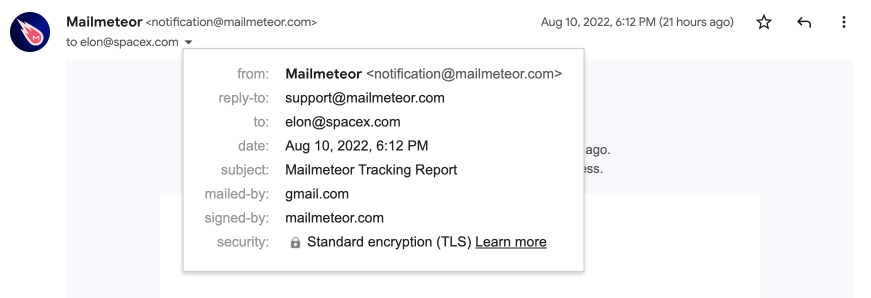
It’s helpful when you send emails from a generic email address (such as [email protected]), but you want the recipients to reply to another address (such as [email protected]).
How to add a reply-to?
- Open Mailmeteor Dashboard.
- Create a new campaign.
-
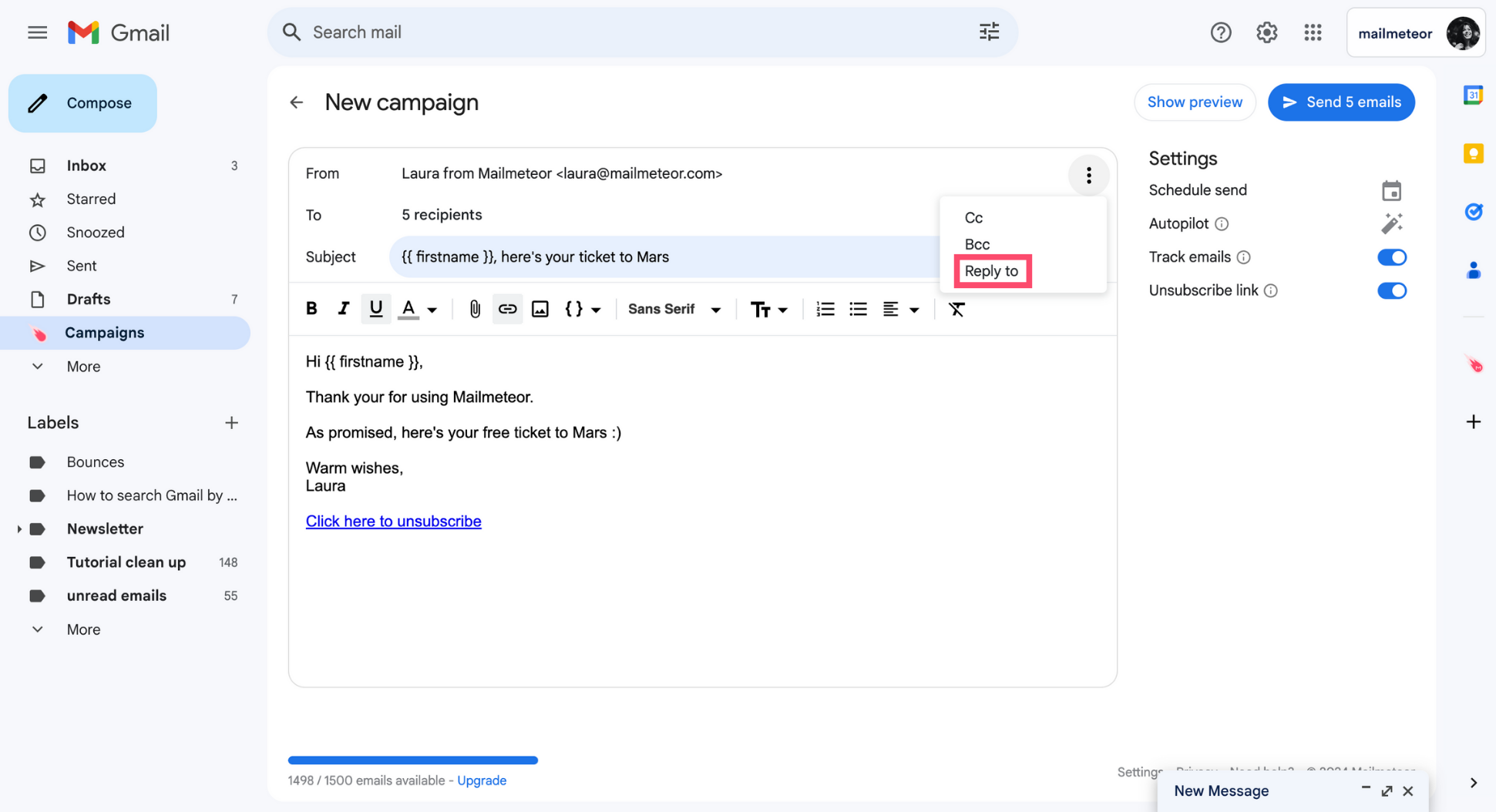
Click on the three vertical dots and select Reply-To.
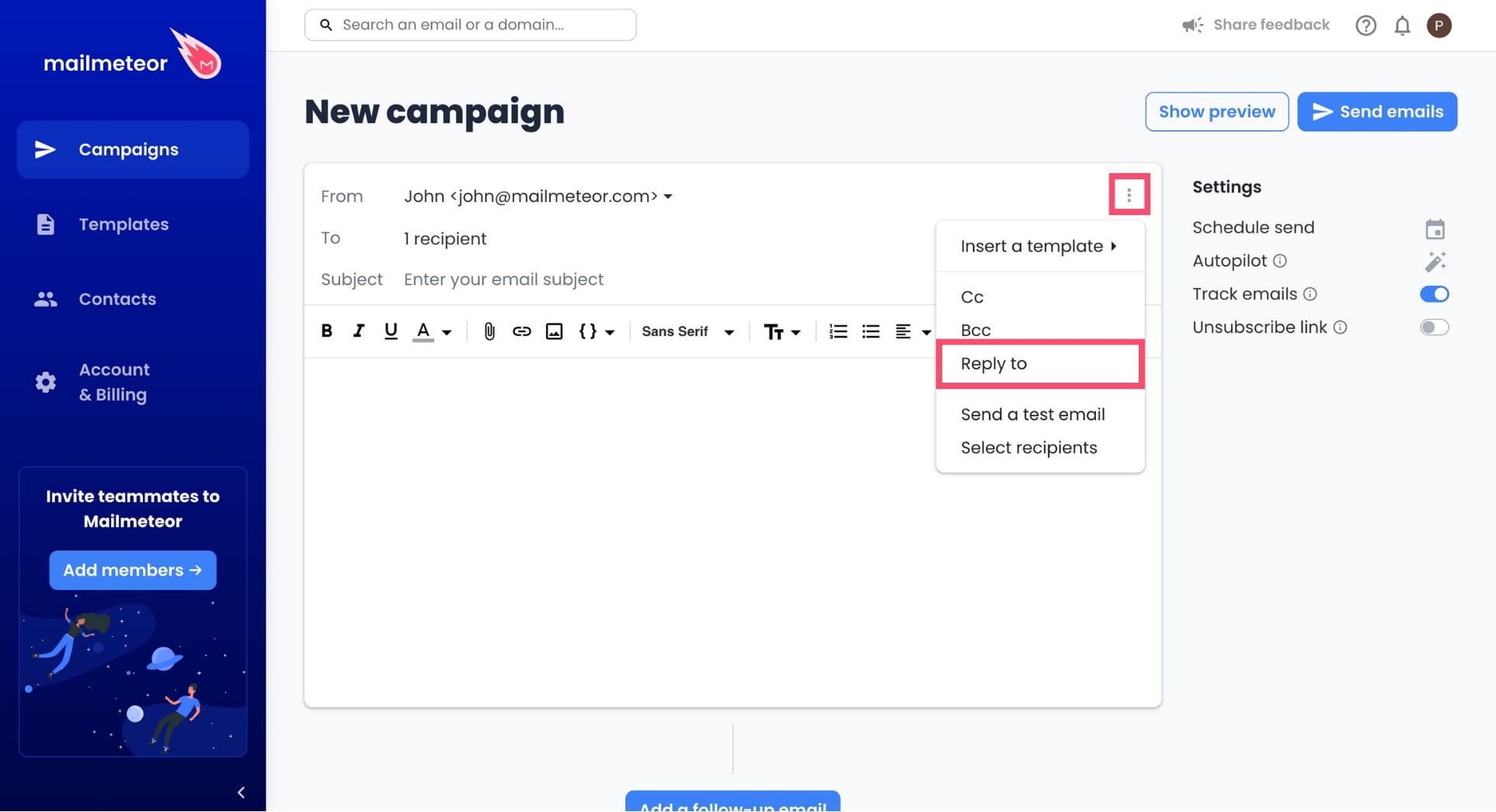
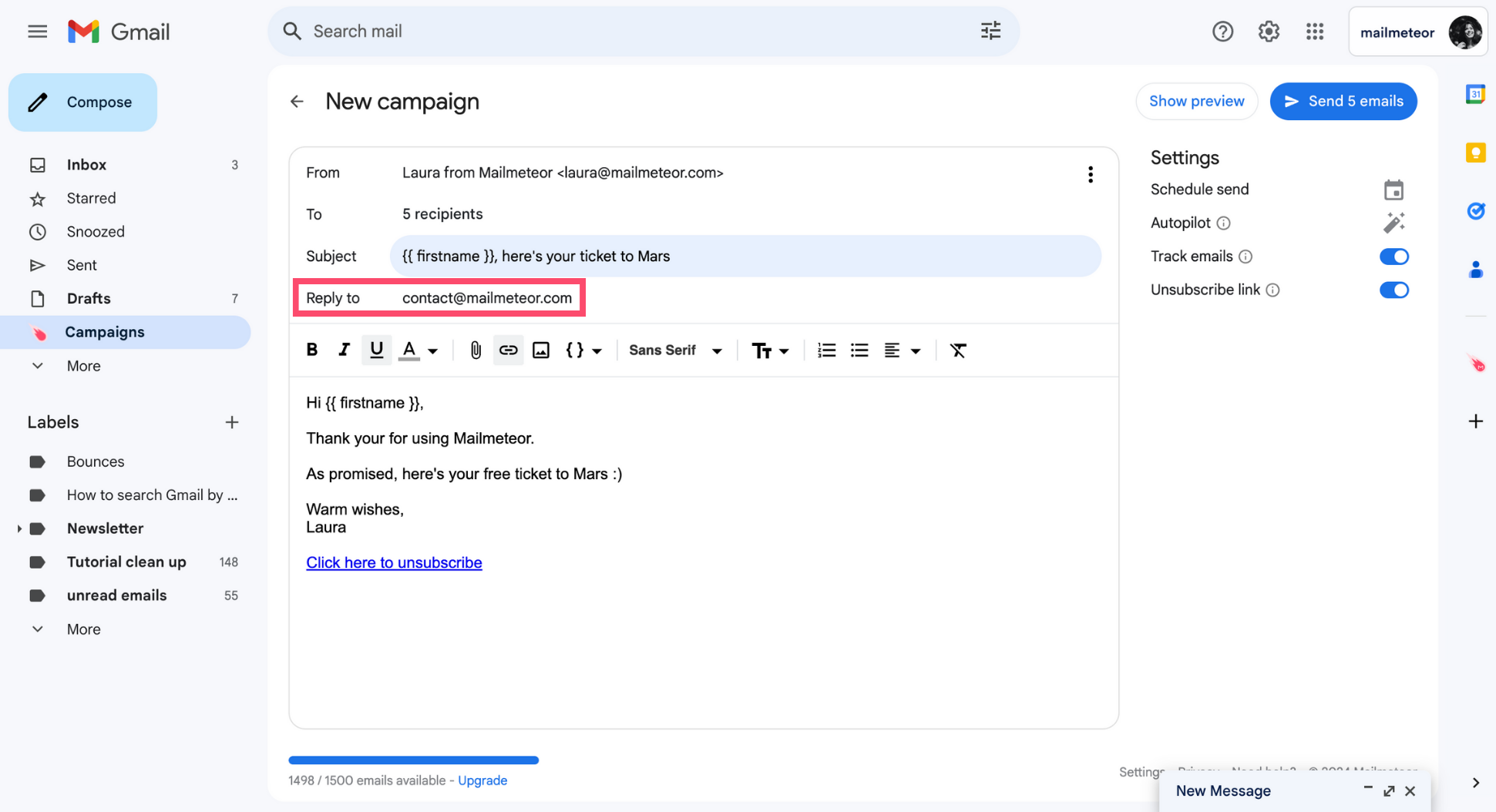
- Enter your Reply-to email address.
Each of your recipients will receive an email with the reply-to email address you’ve selected.
- Sign in to your Gmail account.
-
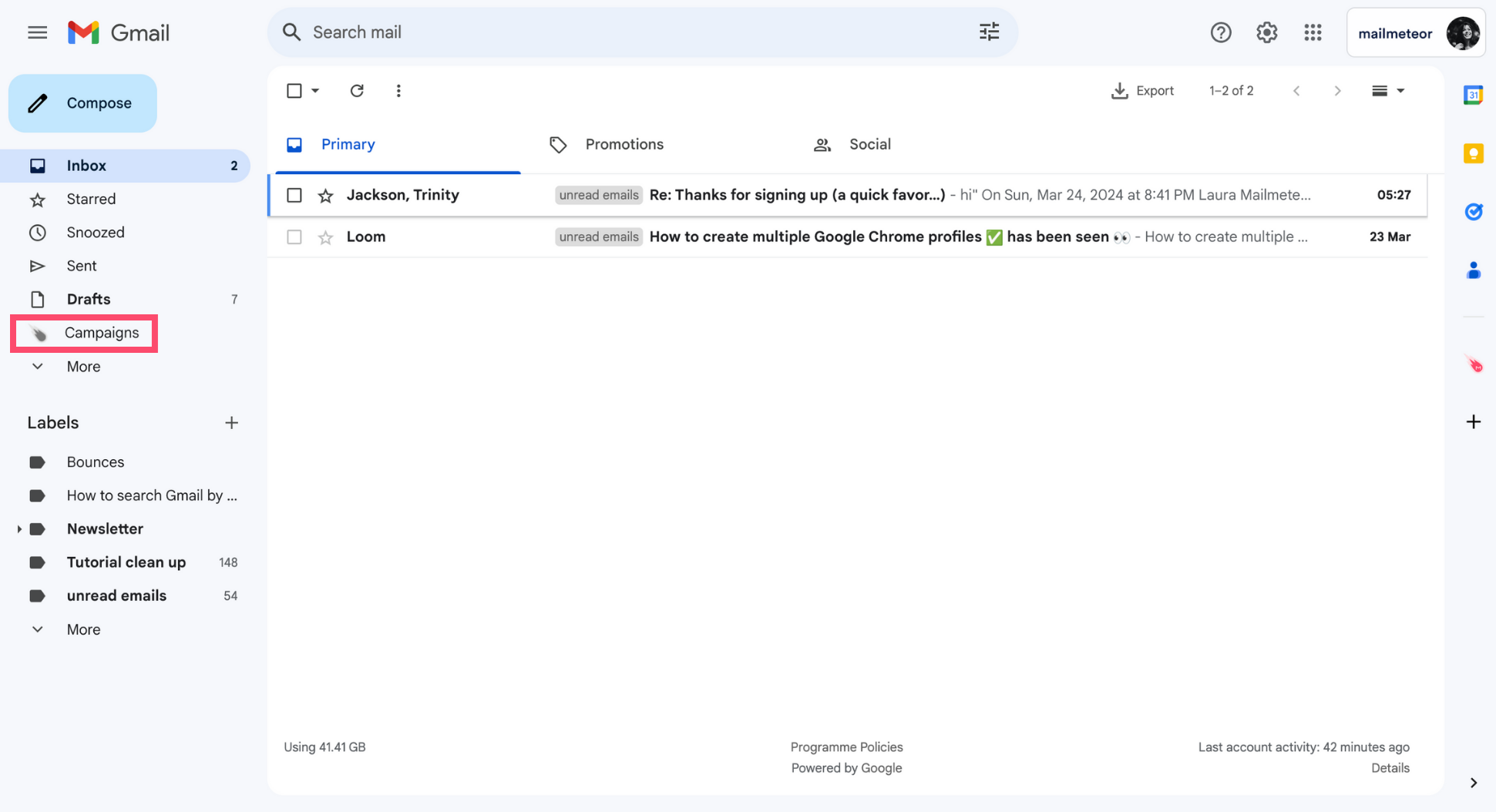
Go to Campaigns.
-
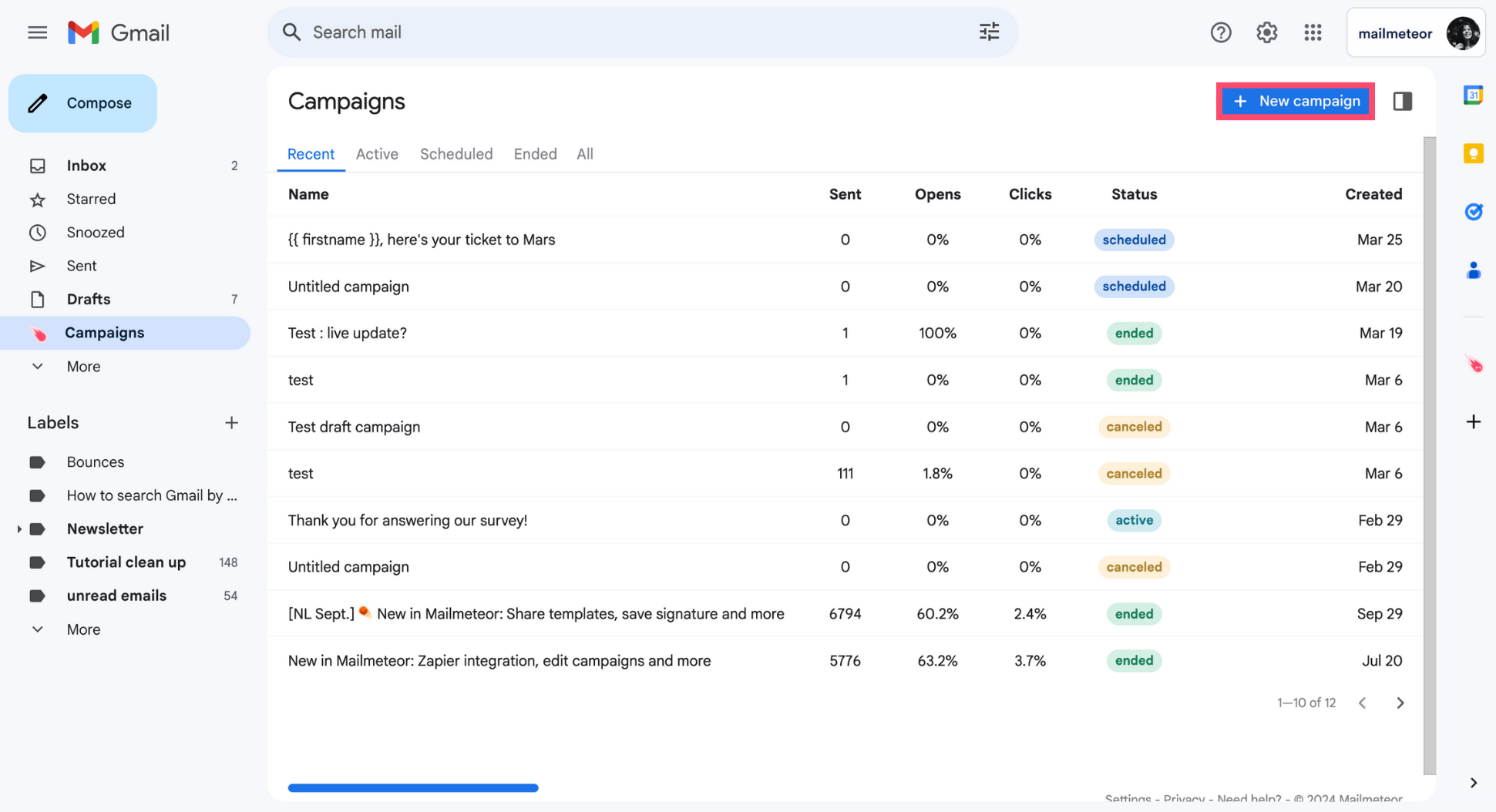
Create a New campaign.
-
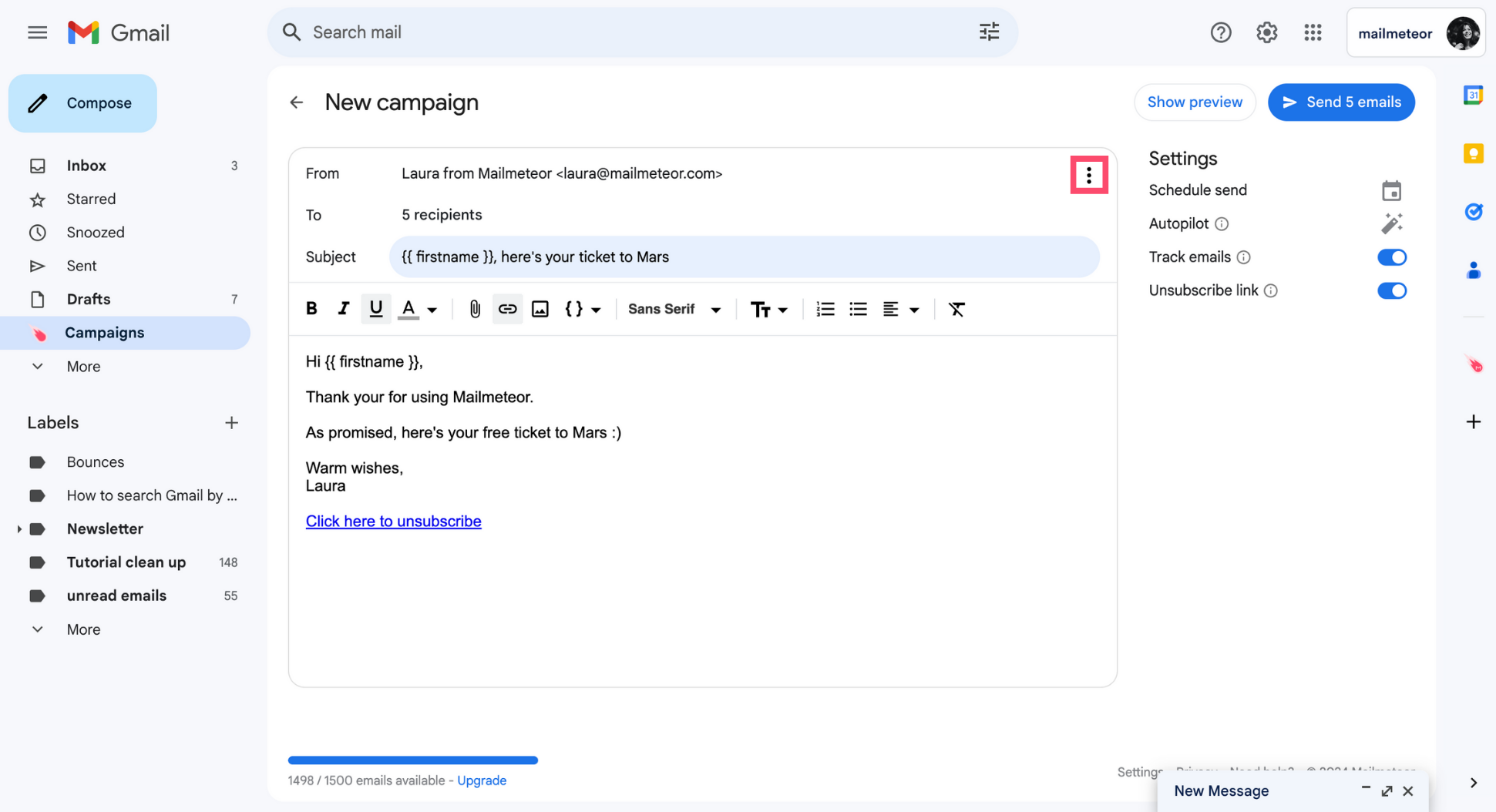
Click the three vertical dots.
-
Select Reply to.
-
In the Reply to field, add your reply-to email address.
- Add a new column to your Google Sheets spreadsheet.
- Name it “reply-to”.
- Add your Reply-to email address.
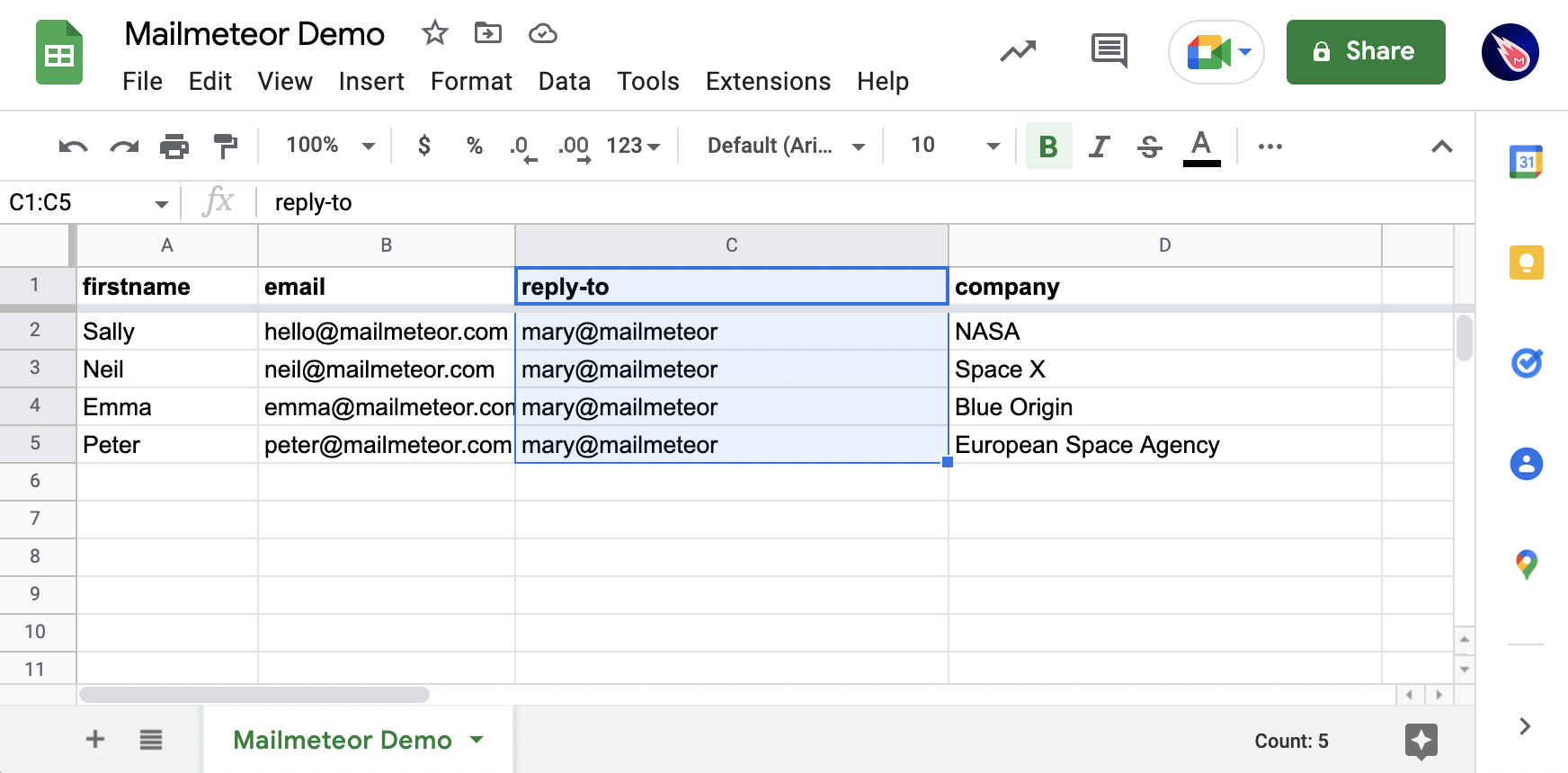
In this example, each email will have a reply-to set to [email protected]
Make sure to add exactly ‘reply-to’ in lowercase. Mailmeteor is case-sensitive.