Create a sender
Here’s how to create a sender and start sending emails with it:
- Sign in to the Mailmeteor Dashboard.
- Go to your Account, then click on the Senders tab.
-
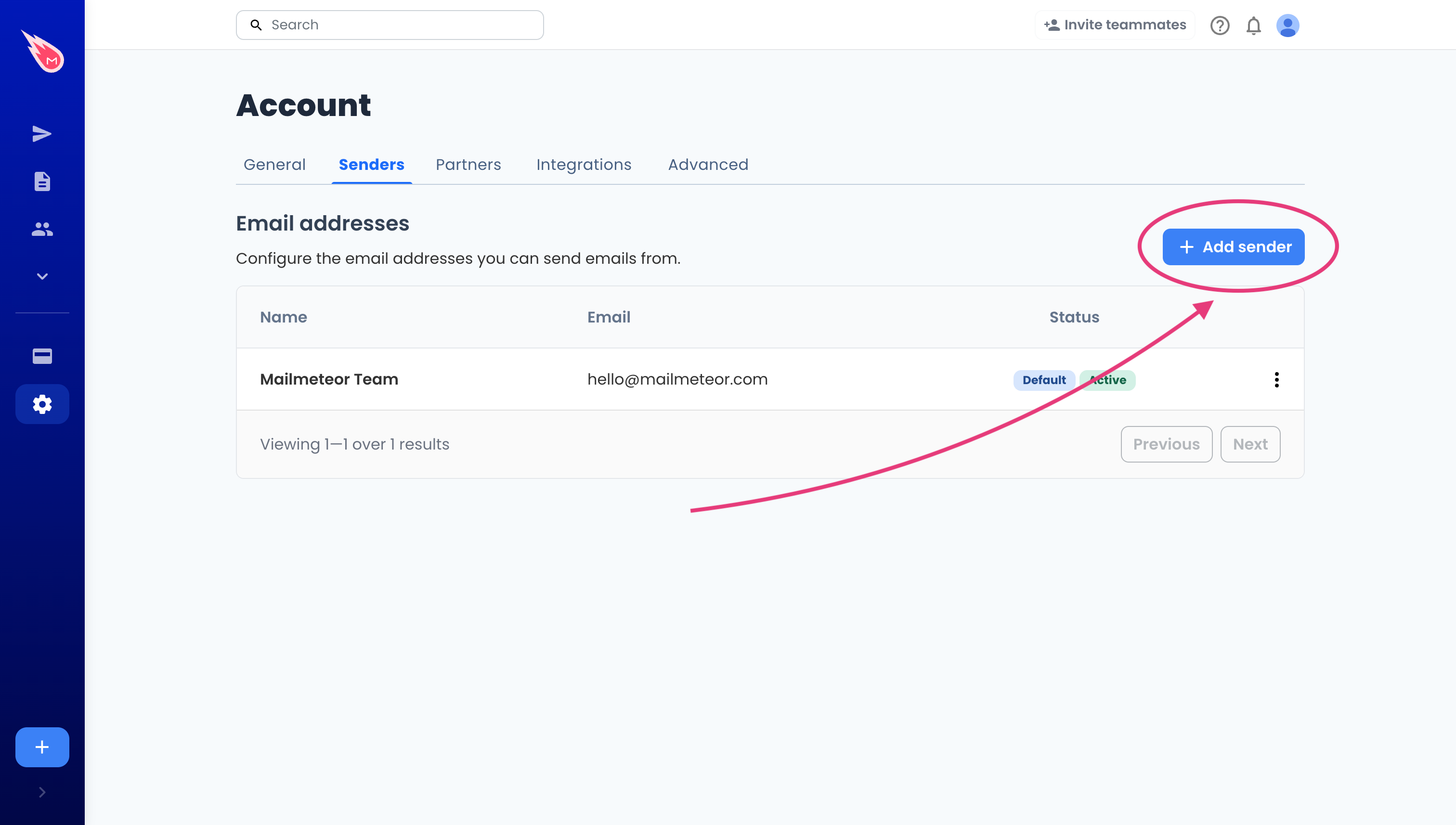
Click on Add sender.
-
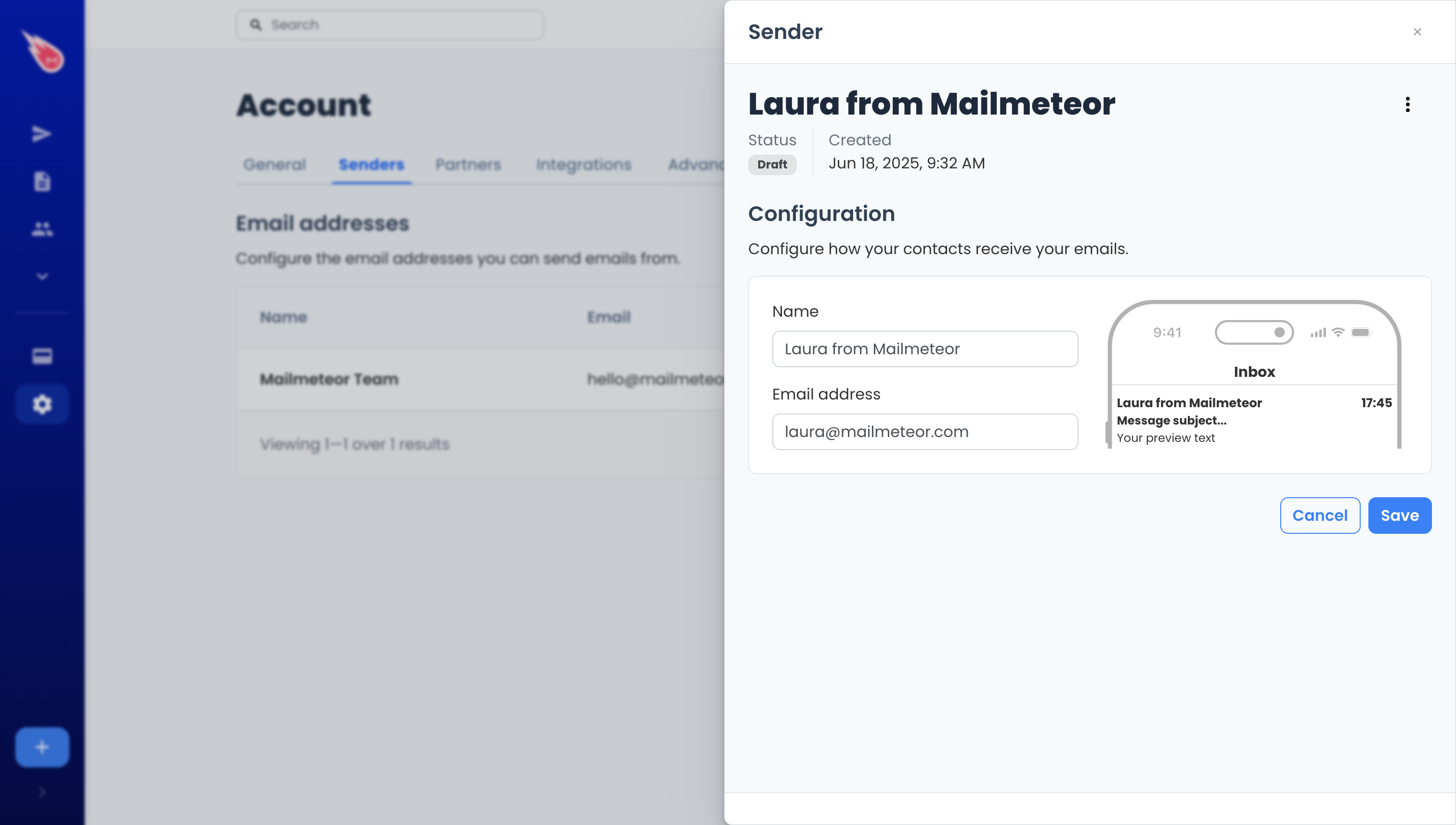
Enter the name and email address of your new sender, then click Save.
-
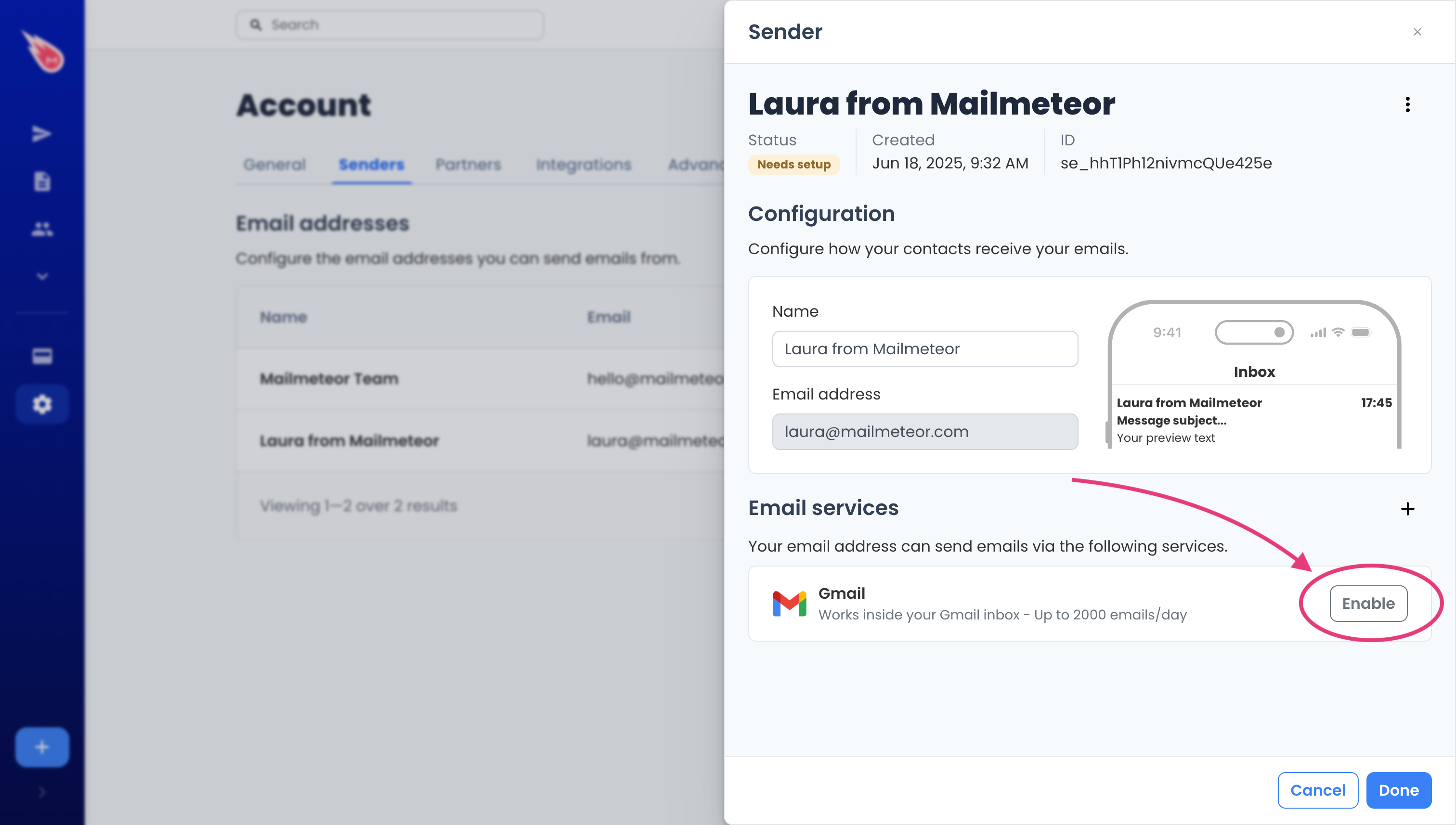
Choose the service you’d like to use to send the emails. If the email address uses Gmail (or Google Workspace), click on Gmail. If it uses Outlook, you’ll see an Outlook option. Next to the sending service, click Enable.
-
Follow the configuration steps until the sender is marked as active.
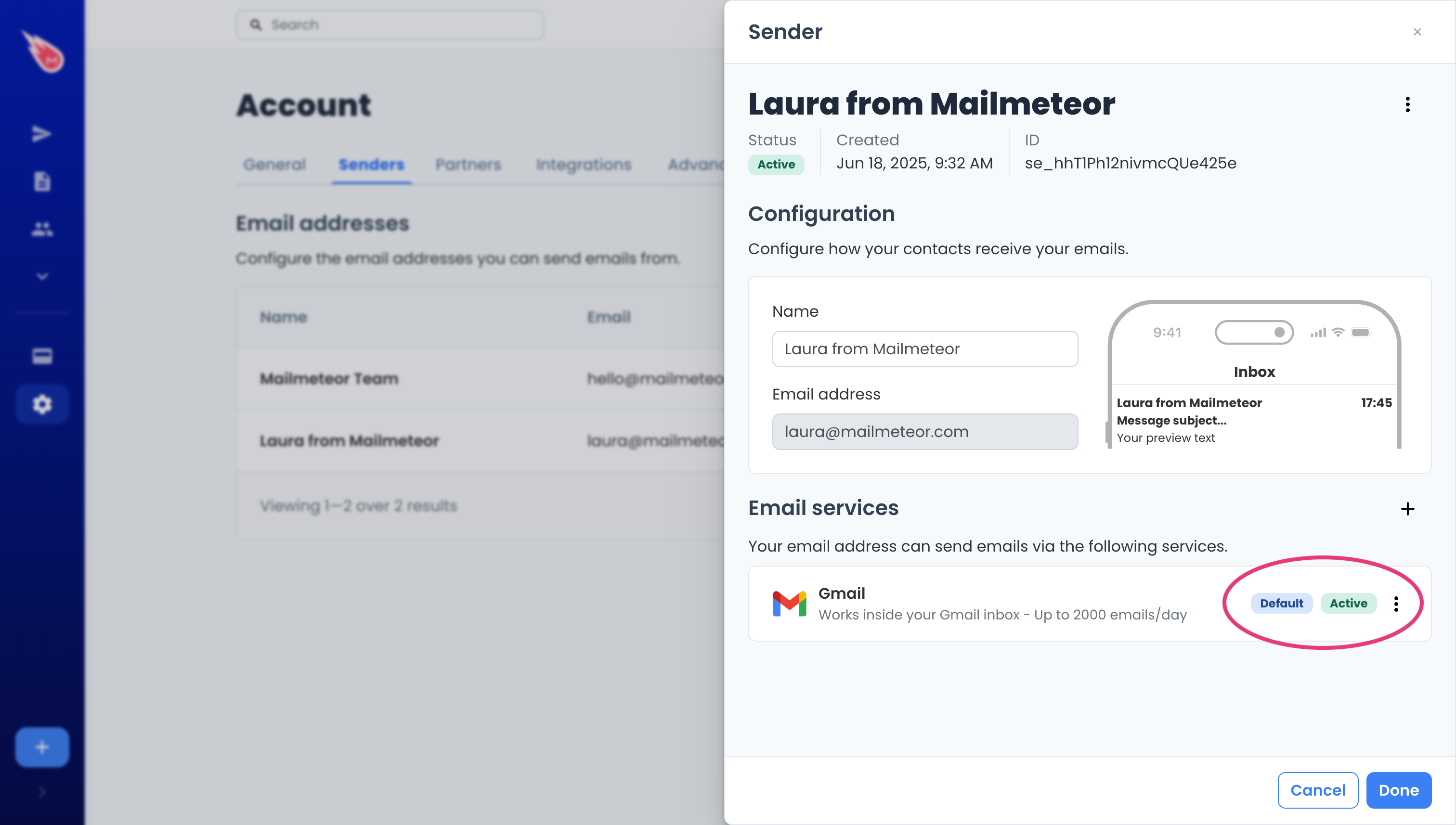
Your sender is now ready. Congrats! 🥳 Now, to send messages from this sending email address, create a new campaign and, next to the From field, click the caret symbol (“▼”) and select the newly created sender.