Understanding conversation statuses
Pipelines gives every conversation one of four statuses, so you always know what to do next. Statuses are set automatically as your recipients react, and you can always override them by hand.
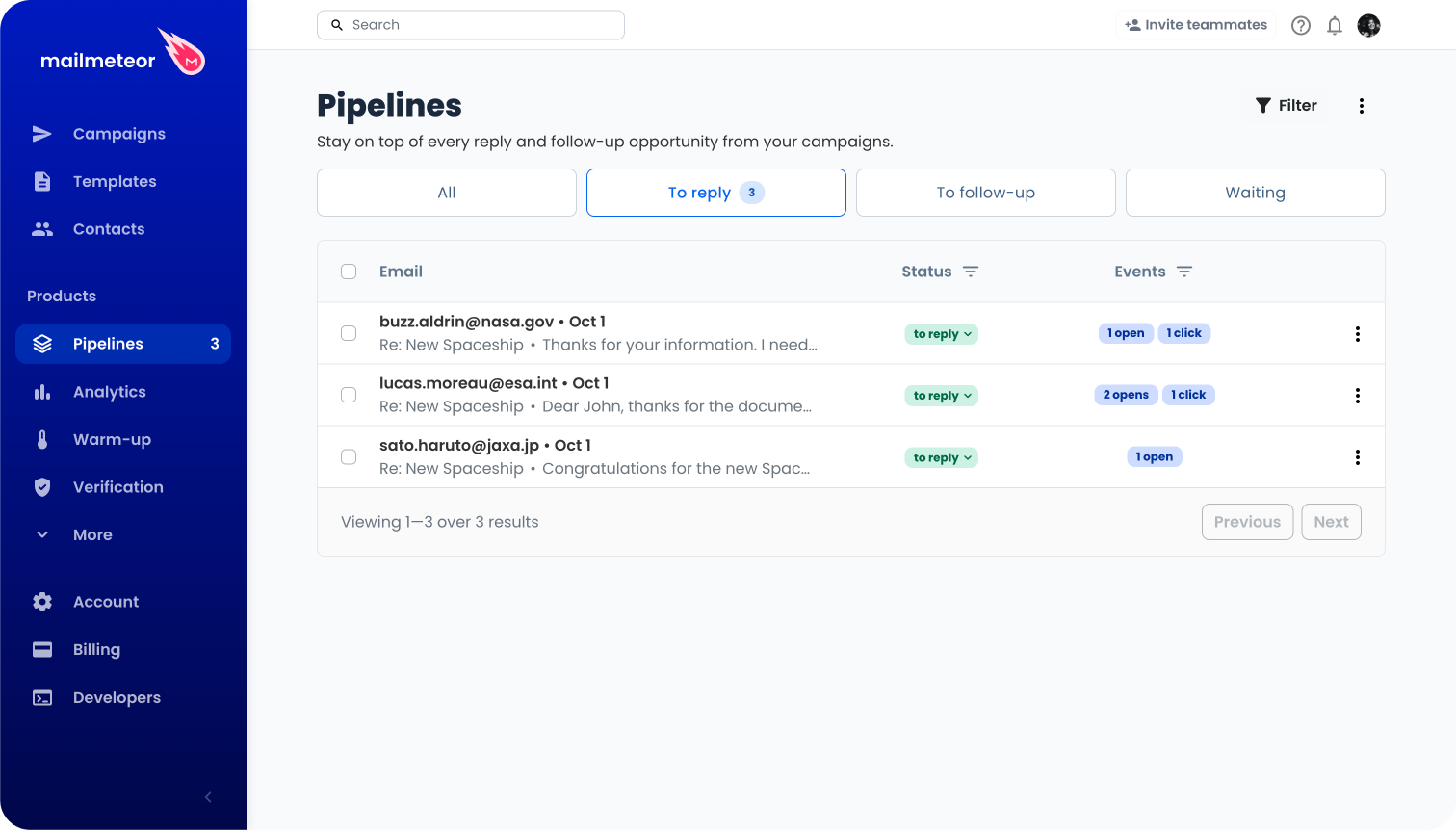
The four statuses
| Status | What it means |
|---|---|
| To reply | The recipient replied to your email. It's your turn to respond. |
| To follow-up | The recipient went quiet after your last reply. Time to follow up. |
| Waiting | The recipient hasn't replied yet. Nothing to do until they do. |
| Archived | The conversation is closed, either because you closed it or because it went nowhere. |
How statuses move on their own
You rarely have to touch a status. Mailmeteor moves them as the conversation lives:
| What happens | New status |
|---|---|
| The recipient replies. | To reply |
| You answer, from Pipelines or from your own mailbox. | Waiting |
| A conversation the recipient had replied to at least once stays in Waiting for 5 days. | To follow-up |
| A conversation stays in Waiting for 21 days. | Archived |
| The email bounces. | Archived |
In practice, a thread that never got an answer is archived after 21 days, while a thread that went somewhere comes back to you after 5 days of silence.
Filtering by status
Four tabs sit above the table: All, To reply, To follow-up and Waiting. They are the quick way to work one pile at a time.
The counters next to To reply and To follow-up count the unread conversations of that status, not all of them. A conversation you have already opened is no longer counted, even though it stays in the tab.
The Status column header carries a funnel icon listing the four statuses as checkboxes, Archived included. Use it to combine statuses, for instance To reply and To follow-up together, or to see your archived conversations on their own. Untick everything to go back to all statuses.
There is no Archived tab, and archived conversations never show up in To reply, To follow-up or Waiting. To find them, tick Archived in the Status column filter. They also remain visible in the All tab.
The tabs and the Status column filter act on the same thing, so picking a status in the column filter moves you out of the tab you were in. The other filters, Date, Has follow-up, Campaign and Type, are kept when you switch from one tab to another.
How to change a status manually
- Open your pipeline.
- In the Status column, click the status badge of a conversation.
- Pick the new status: to reply, to follow-up, waiting or archived. A checkmark shows where the conversation stands today.
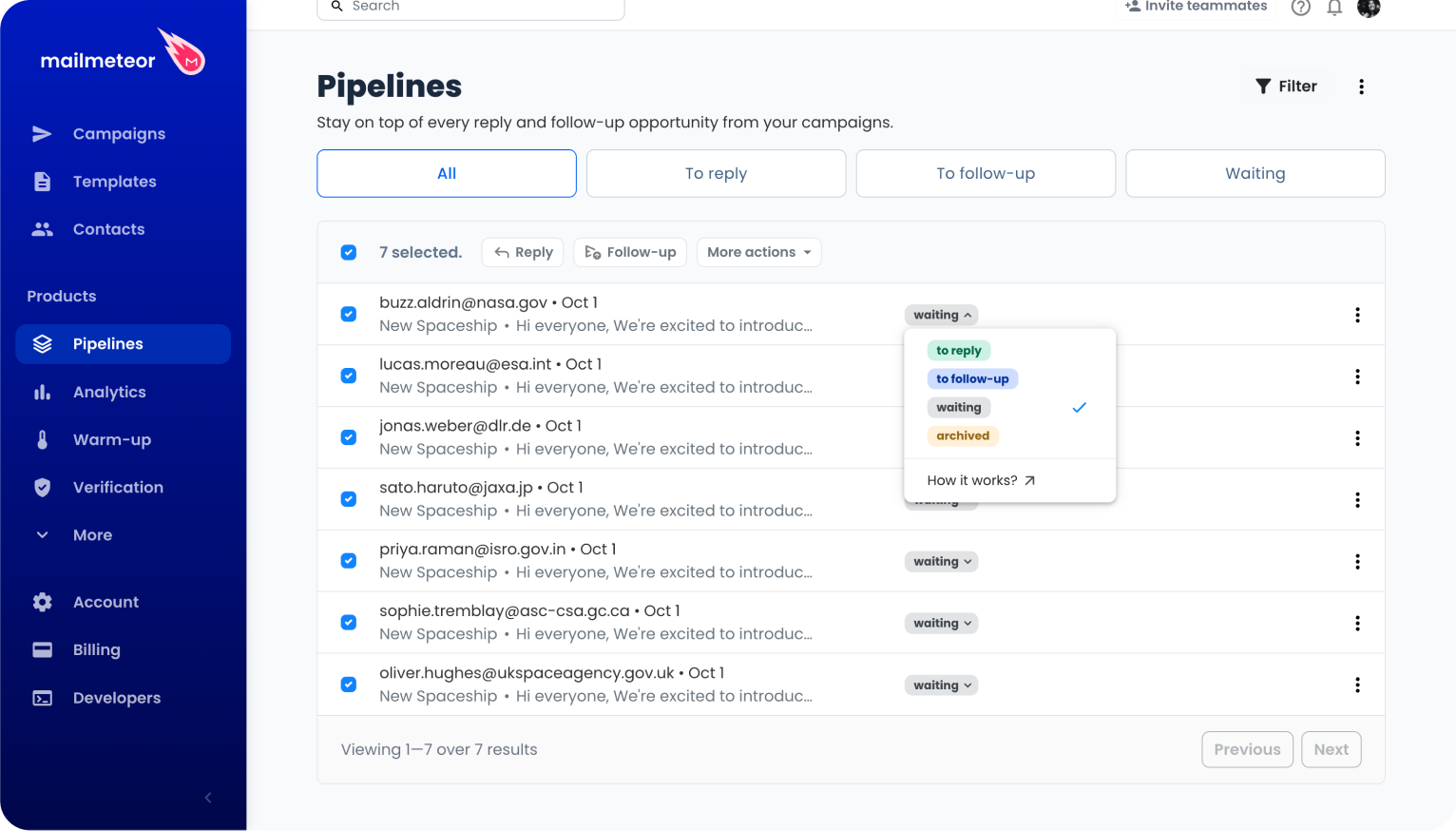
You can do the same from inside a conversation, next to Status in the panel header, or on several conversations at once with batch actions. The How it works? link at the bottom of the menu brings you back to this documentation.
A manual status does not stick forever: the rules above keep applying. And running Sync inbox resets every status you set by hand.
How to archive a conversation
Archiving closes a conversation without deleting it. Use it when a thread is settled and you don’t want it in your to-do list any more.
- From the table, open the ⋮ menu at the end of a row and click Archive.
- Or set the status to archived, from the badge or from the conversation panel.
Archiving never deletes anything. An archived conversation stays in the All tab, and you can bring it back at any time by giving it another status.