How to send emails with SMTP in Mailmeteor
This feature is currently in beta.
Connect your mailbox hosted by OVH, Hostinger, Yahoo Mail, iCloud, or your own mail server to Mailmeteor to send personalized email campaigns and detect replies. Mailmeteor can integrate with any SMTP server.
How does it work?
Your mail server has two roles:
- Sending server (SMTP): tells Mailmeteor where to send your emails from.
- Reception server (IMAP): lets Mailmeteor detect replies and bounces.
IMAP is optional. You can send emails with SMTP alone, but you’ll need to connect IMAP for Mailmeteor advanced features to work properly (e.g. reply detection).
Connect your mail server
1. Open the configuration
- Sign in to the Mailmeteor Dashboard.
- Go to Senders and create a sender.
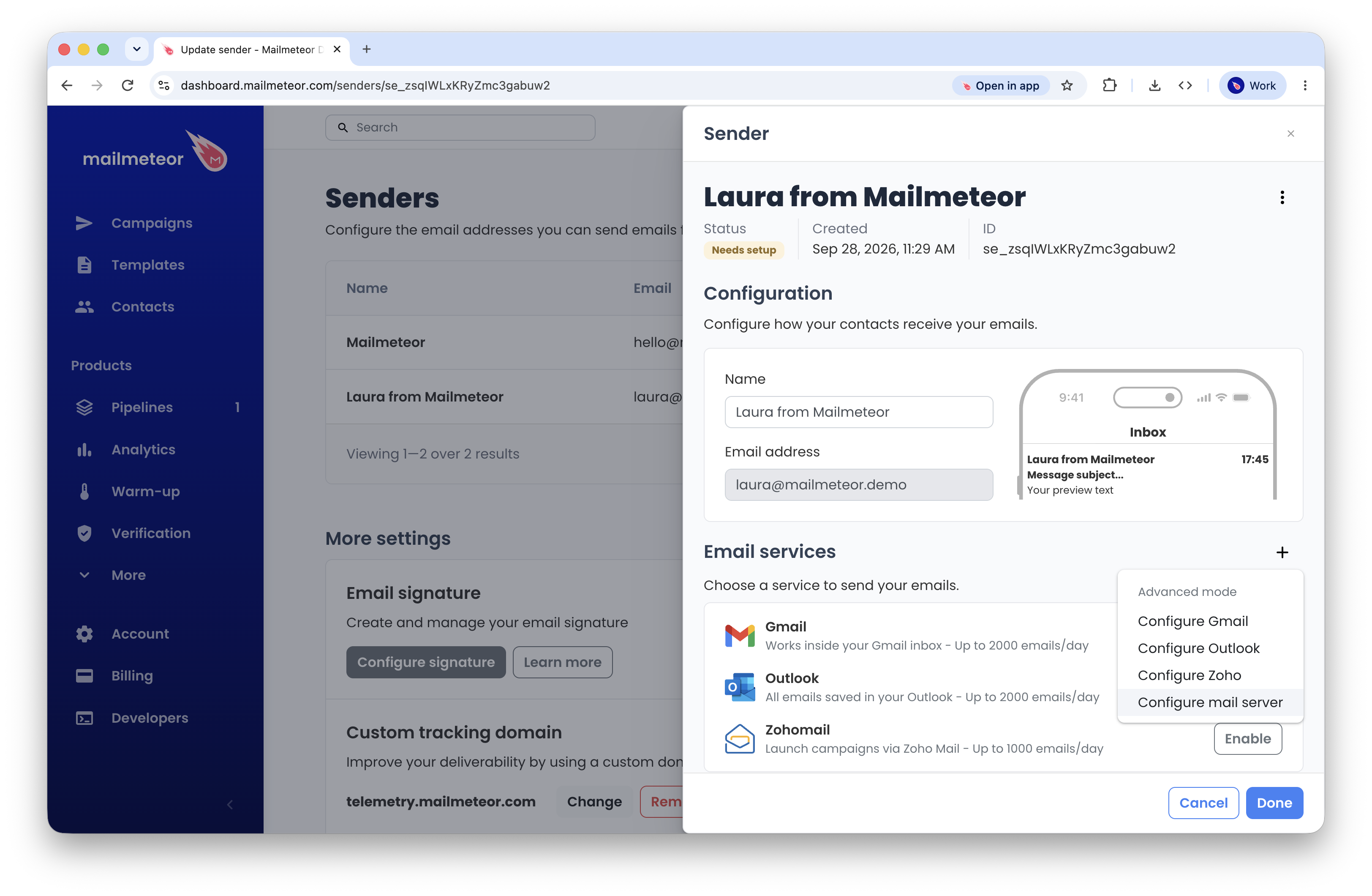
- Next to Email services, click the + button, then select Configure mail server.
2. Set up the sending server (SMTP)
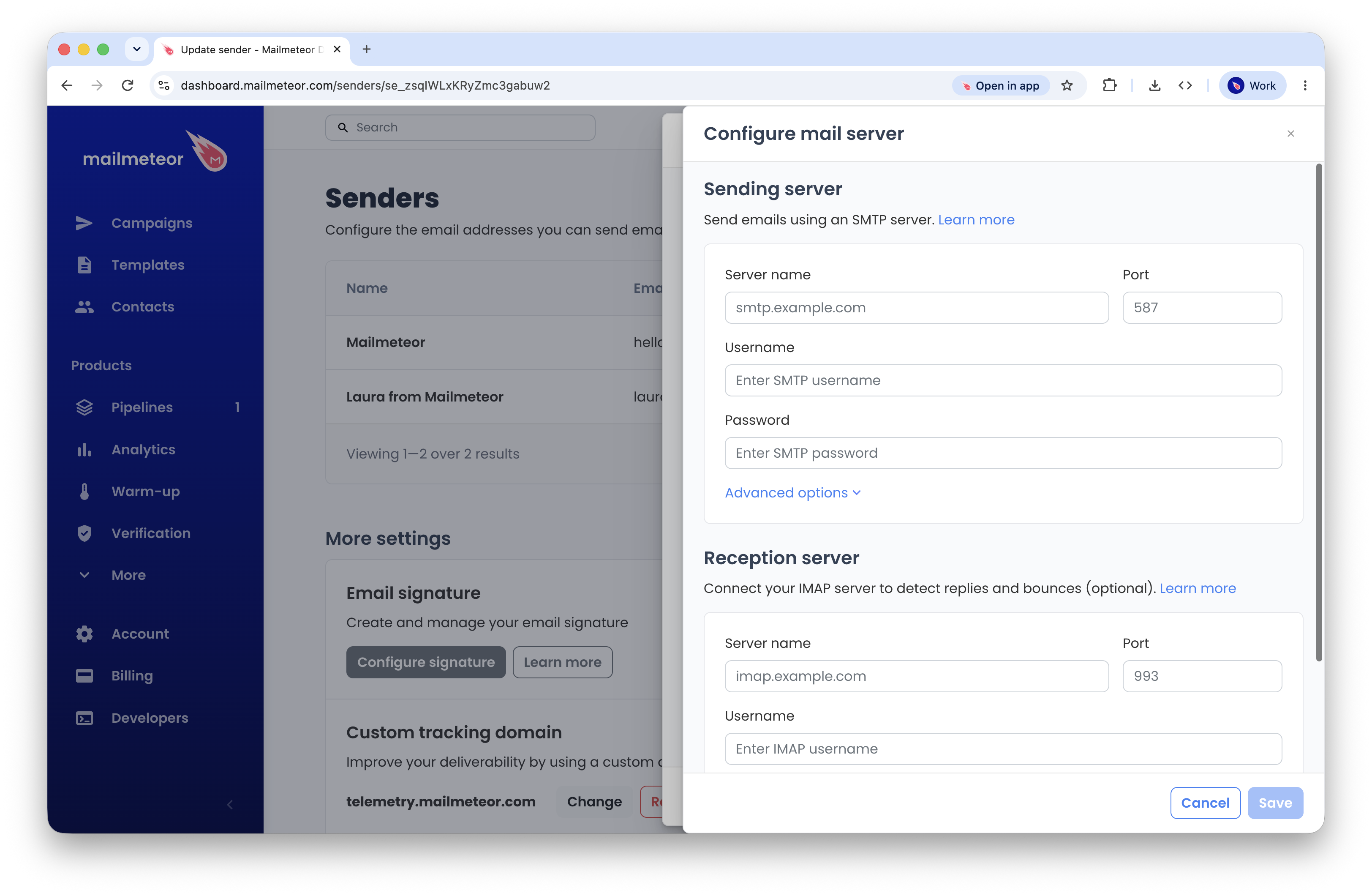
Under Sending server, enter your provider’s SMTP details:
| Field | What to enter |
|---|---|
| Server name | Your provider’s SMTP address, such as smtp.hostinger.com. |
| Port | The connection number given by your provider, usually 465 or 587. |
| Username | Usually your full email address, such as [email protected]. |
| Password | Your mailbox password, or an app password if your provider requires one. |
Not sure what to enter? Check your email provider’s documentation for its SMTP settings, or browse the settings for popular providers below.
If your provider specifies a security setting, check Advanced options. SSL/TLS and STARTTLS are ways to encrypt the connection. Use the setting that matches your provider’s port.
3. Set up the reception server (IMAP)
To detect replies, fill in Reception server with the IMAP details for the mailbox where you receive them:
- Server name: your provider’s IMAP address, such as
imap.hostinger.com. - Port: your provider’s IMAP port, usually
993for an encrypted connection. - Username and password: the login details for that mailbox.
These are often the same login details as your sending server, but check with your provider if you’re unsure.
4. Save your settings
Click Save, then Done to close the sender settings. You can now select this sender in the From field of your campaign. If it has several email services, you can set a default service.
Settings for popular providers
Here are a few common configurations. Your settings may vary depending on your email plan or region. You can find the details in your provider’s email settings, or ask the person who manages your mailbox.
For OVHcloud MX Plan mailboxes in Europe:
| Setting | Sending server (SMTP) | Reception server (IMAP) |
|---|---|---|
| Server name | ssl0.ovh.net |
ssl0.ovh.net |
| Port | 465 |
993 |
| Security | SSL/TLS | SSL/TLS |
| Username | Your full email address | Your full email address |
| Password | Your mailbox password | Your mailbox password |
Other OVH plans or regions may use different servers. Check your OVHcloud configuration details.
For Hostinger Email:
| Setting | Sending server (SMTP) | Reception server (IMAP) |
|---|---|---|
| Server name | smtp.hostinger.com |
imap.hostinger.com |
| Port | 465 |
993 |
| Security | SSL/TLS | SSL/TLS |
| Username | Your full email address | Your full email address |
| Password | Your mailbox password | Your mailbox password |
Hostinger also supports SMTP port 587 with STARTTLS. Use your email mailbox password, which may differ from your Hostinger account password. Check the settings for your email plan in Hostinger’s configuration guide.
For iCloud Mail:
| Setting | Sending server (SMTP) | Reception server (IMAP) |
|---|---|---|
| Server name | smtp.mail.me.com |
imap.mail.me.com |
| Port | 587 |
993 |
| Security | STARTTLS | SSL/TLS |
| Username | Your full iCloud Mail address | The part before @icloud.com, or your full address if needed |
| Password | An app-specific password | The same app-specific password |
Generate an app-specific password in your Apple Account before connecting. See Apple’s iCloud Mail settings for details.
For Yahoo Mail:
| Setting | Sending server (SMTP) | Reception server (IMAP) |
|---|---|---|
| Server name | smtp.mail.yahoo.com |
imap.mail.yahoo.com |
| Port | 465 |
993 |
| Security | SSL/TLS | SSL/TLS |
| Username | Your full Yahoo Mail address | Your full Yahoo Mail address |
| Password | An app password | The same app password |
Generate an app password in your Yahoo account security settings before connecting. See Yahoo’s SMTP and IMAP settings for details.
For AOL Mail:
| Setting | Sending server (SMTP) | Reception server (IMAP) |
|---|---|---|
| Server name | smtp.aol.com |
imap.aol.com |
| Port | 465 |
993 |
| Security | SSL/TLS | SSL/TLS |
| Username | Your full AOL Mail address | Your full AOL Mail address |
| Password | An app password | The same app password |
Generate an app password in your AOL account security settings before connecting. See AOL’s email configuration guide for details.
For Fastmail:
| Setting | Sending server (SMTP) | Reception server (IMAP) |
|---|---|---|
| Server name | smtp.fastmail.com |
imap.fastmail.com |
| Port | 465 |
993 |
| Security | SSL/TLS | SSL/TLS |
| Username | Your full Fastmail login address | Your full Fastmail login address |
| Password | An app password | The same app password |
Use the email address you log in to Fastmail with, and generate an app password with mail access. Your plan must include SMTP and IMAP access; Fastmail Basic plans don’t. See Fastmail’s server settings for details.
For SendGrid, enter these details under Sending server:
| Setting | Sending server (SMTP) |
|---|---|
| Server name | smtp.sendgrid.net |
| Port | 587 |
| Security | STARTTLS |
| Username | apikey (enter this exact word) |
| Password | Your SendGrid API key |
Create an API key with Mail Send permission in SendGrid. This key acts as your password when connecting Mailmeteor. See SendGrid’s SMTP setup guide for details.
You’ll also need to verify your sender in SendGrid. For campaigns, follow SendGrid’s domain authentication steps to confirm you own the domain you’re sending from.
SendGrid doesn’t provide an IMAP inbox. To detect replies, enter the IMAP details of the mailbox where you receive them under Reception server.
Frequently asked questions
My email provider isn’t listed. Can I still connect it?
Yes. The providers above are just examples. Mailmeteor can connect to any SMTP server, including a server managed by your company. Ask your provider or IT team for the SMTP settings to send emails and the IMAP settings to detect replies.
Using Gmail, Microsoft, or Zoho? Keep using the Sign in option for your provider in Mailmeteor. This includes Google Workspace and Microsoft 365. These integrations use OAuth, a secure way to connect your account without entering your email password in Mailmeteor. You don’t need to configure SMTP or IMAP for them.
I bought my domain from OVH or Hostinger, but use Gmail. Which option should I choose?
You need to choose the service that hosts your mailbox. For example, if you bought your domain from OVH but your email runs on Google Workspace, your mailbox is managed by Google. In such case, use Sign in with Google instead of a mail server connection. The same applies to mailboxes managed by Microsoft or Zoho.
Can I keep using my usual inbox?
Yes. Your mailbox stays with your email provider. You can keep opening your emails and replying to contacts from your usual email app. Connecting it to Mailmeteor lets you send campaigns through that provider and, with IMAP, detect replies.
Does connecting an SMTP server let me send unlimited emails?
No. Your email provider’s sending limits still apply, along with your Mailmeteor plan’s limits. Check how many emails your provider allows per hour and per day before launching a campaign.
My emails are sending, but replies aren’t being detected. What should I check?
Check that you’ve filled in Reception server with your IMAP settings. SMTP handles sending only, so a working SMTP connection doesn’t mean reply detection is set up.
Make sure IMAP access is enabled with your provider and that you’ve connected the mailbox where replies arrive. If replies go to a different inbox, check that inbox’s connection details.
Why can’t Mailmeteor connect to my server?
Start by checking these details:
- Server name and port: copy them from your provider’s email settings and use the matching security option.
- Username: most providers require your full email address.
- Password: use your mailbox password, which may differ from the password for your hosting account. If your provider requires an app password, generate one in your account settings.
- Access: check whether your provider asks you to enable SMTP or IMAP connections first.
You can use our free SMTP Test Tool to check your sending server connection and find settings for more providers. This tool tests SMTP only. If you’re still stuck, share the connection error with your provider or IT team so they can help you check the settings.