Creating a new template
With Mailmeteor you can create highly-personalized, reusable templates to email multiple recipients at once and save time.
How to create a new email template
- Open Mailmeteor Dashboard.
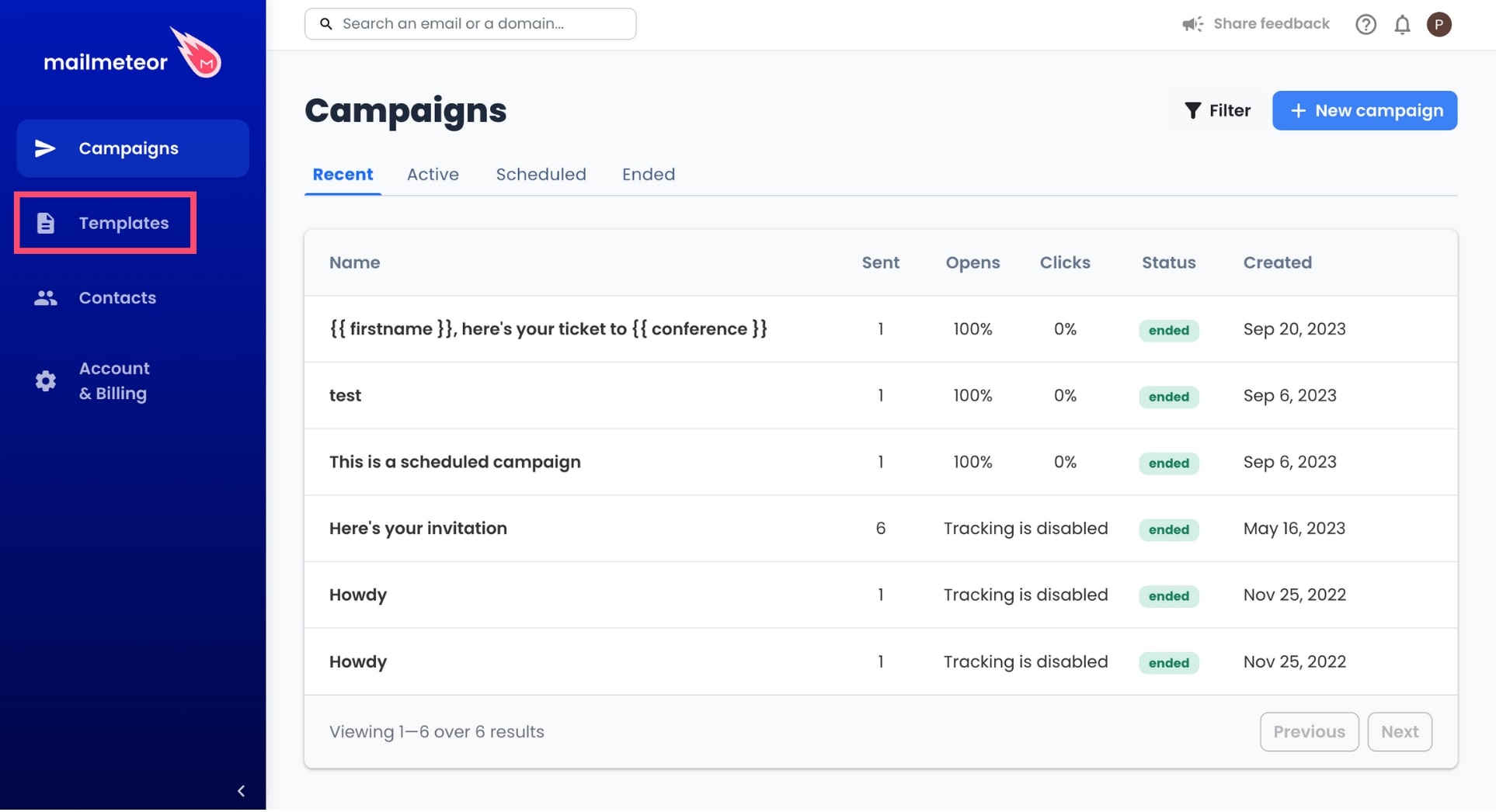
- In the left-side menu, go to Templates.
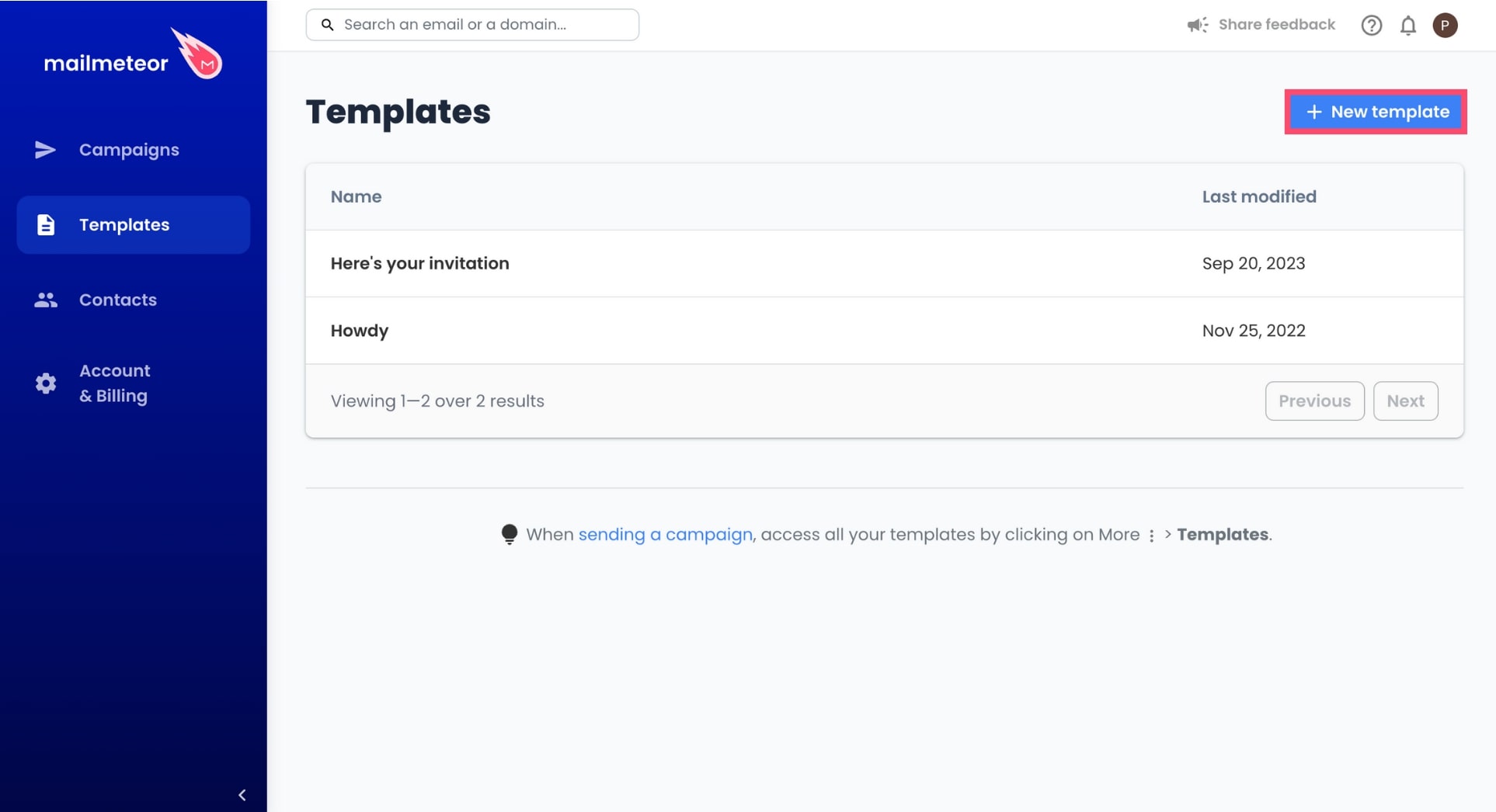
- From there, click New Template.
- Compose your message and add a subject line.
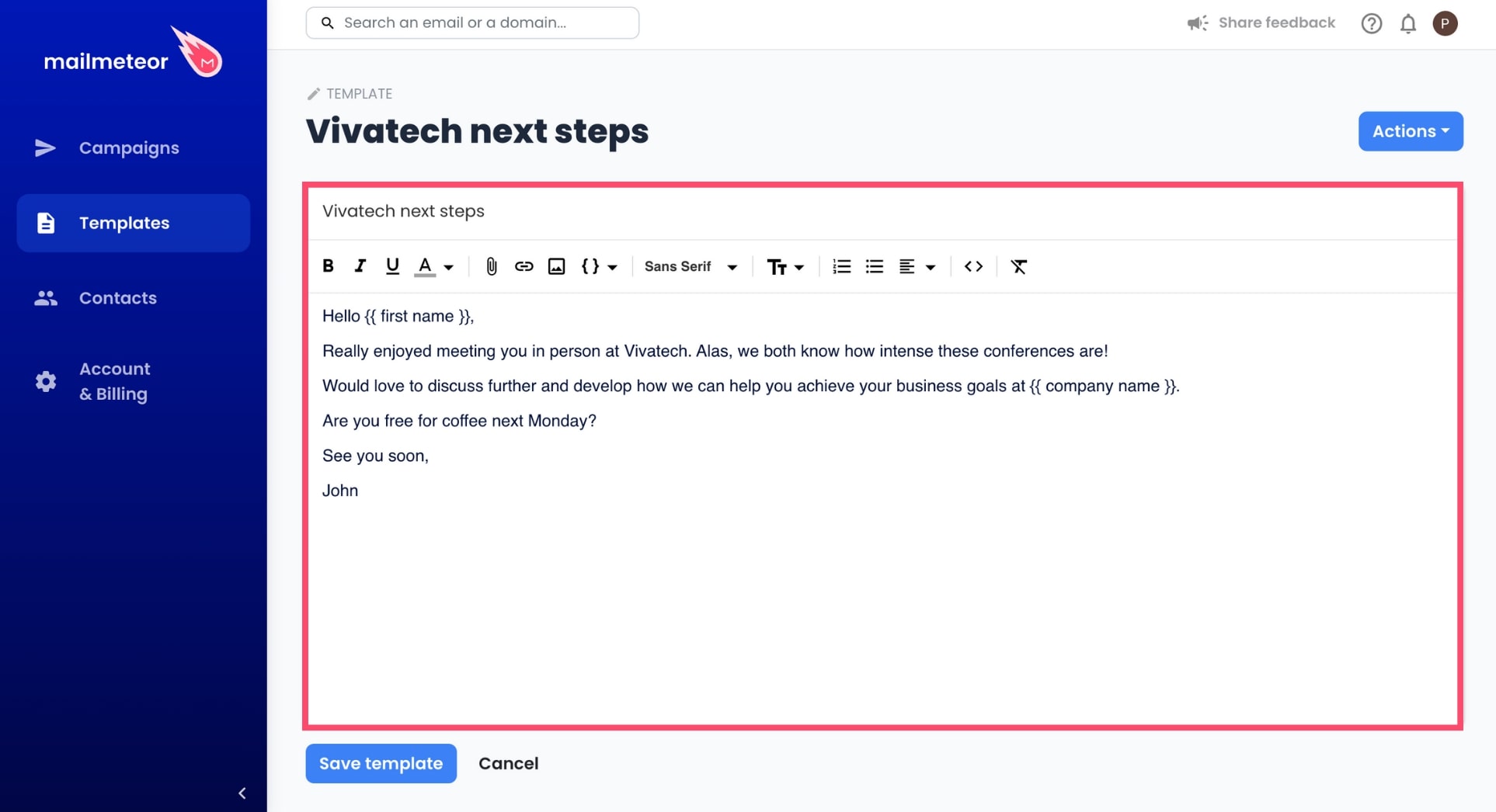
You can use the Mailmeteor editor toolbar to format your template, add an attachment, emojis, or images, and insert personalized variables. And if you need some inspiration, take a look at our library of 40+ ready-to-use templates.
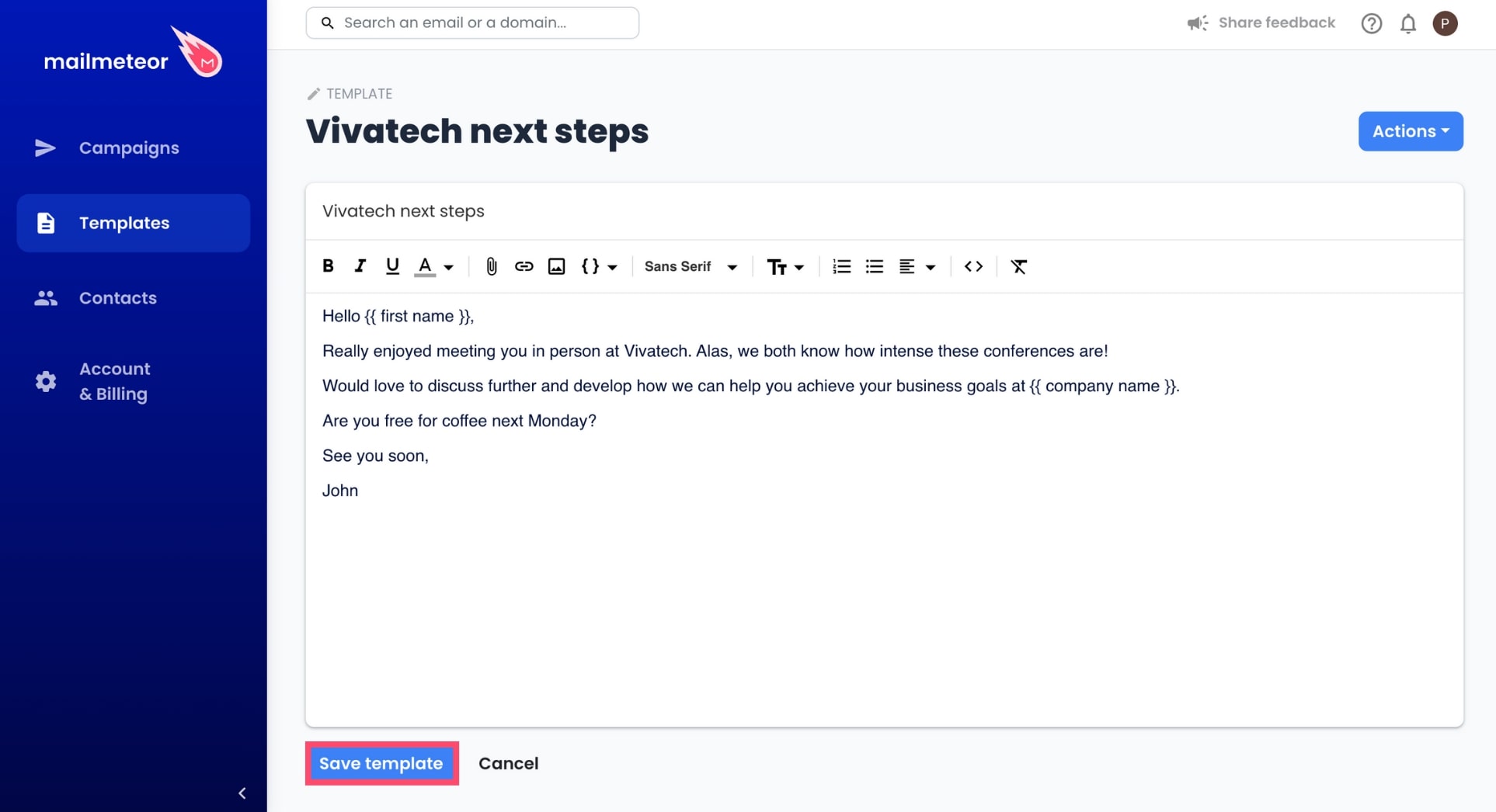
- Once your template is ready, click Save Template.
-
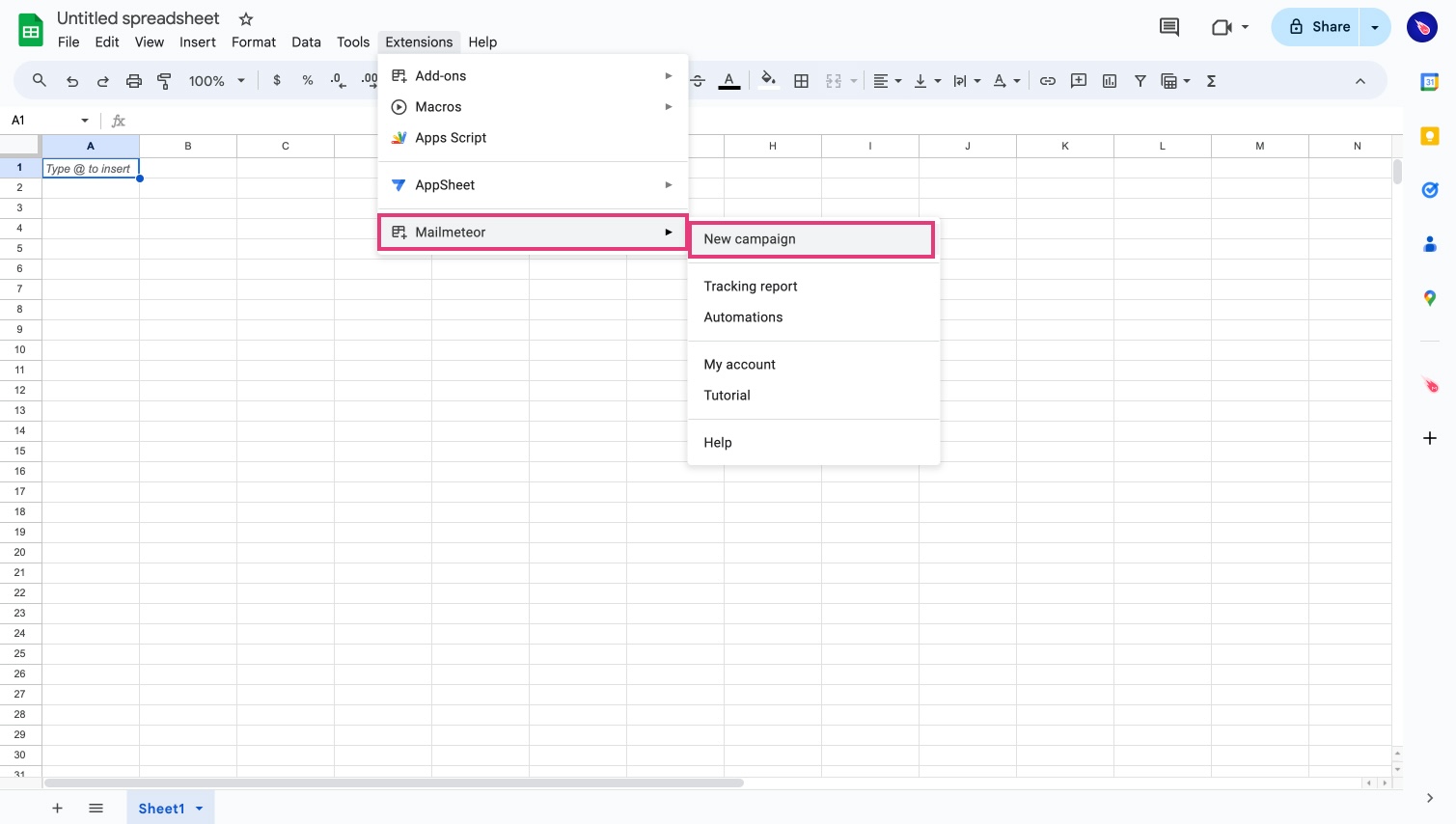
Open Mailmeteor.
-
Write the content of your email. Don’t forget the subject line.
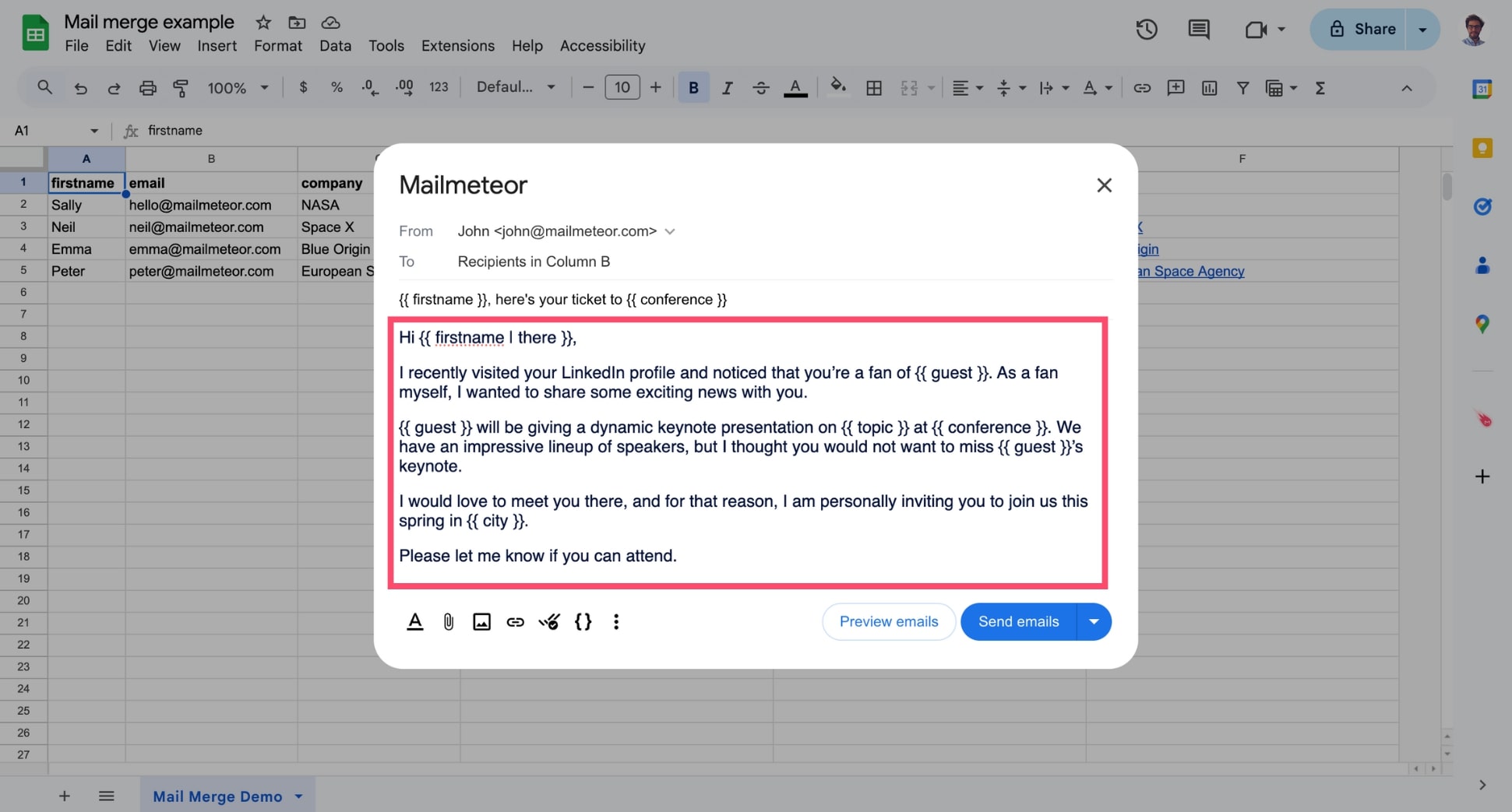
You can add formating, personalize with variables, insert images, and more.
-
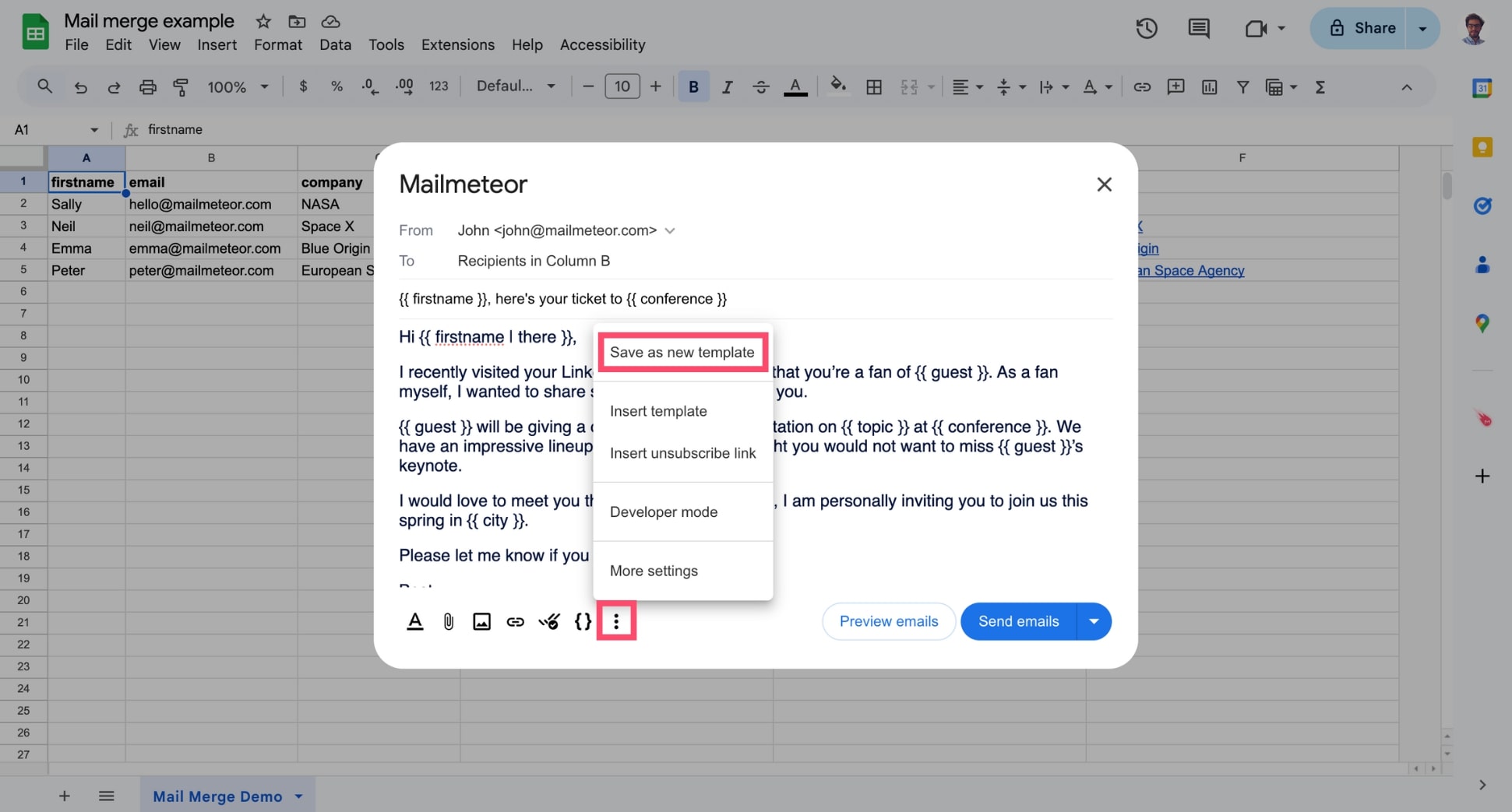
Once you’re ready, click the three vertical dots and select Save as new template.
-
Name your template. Then press Save.
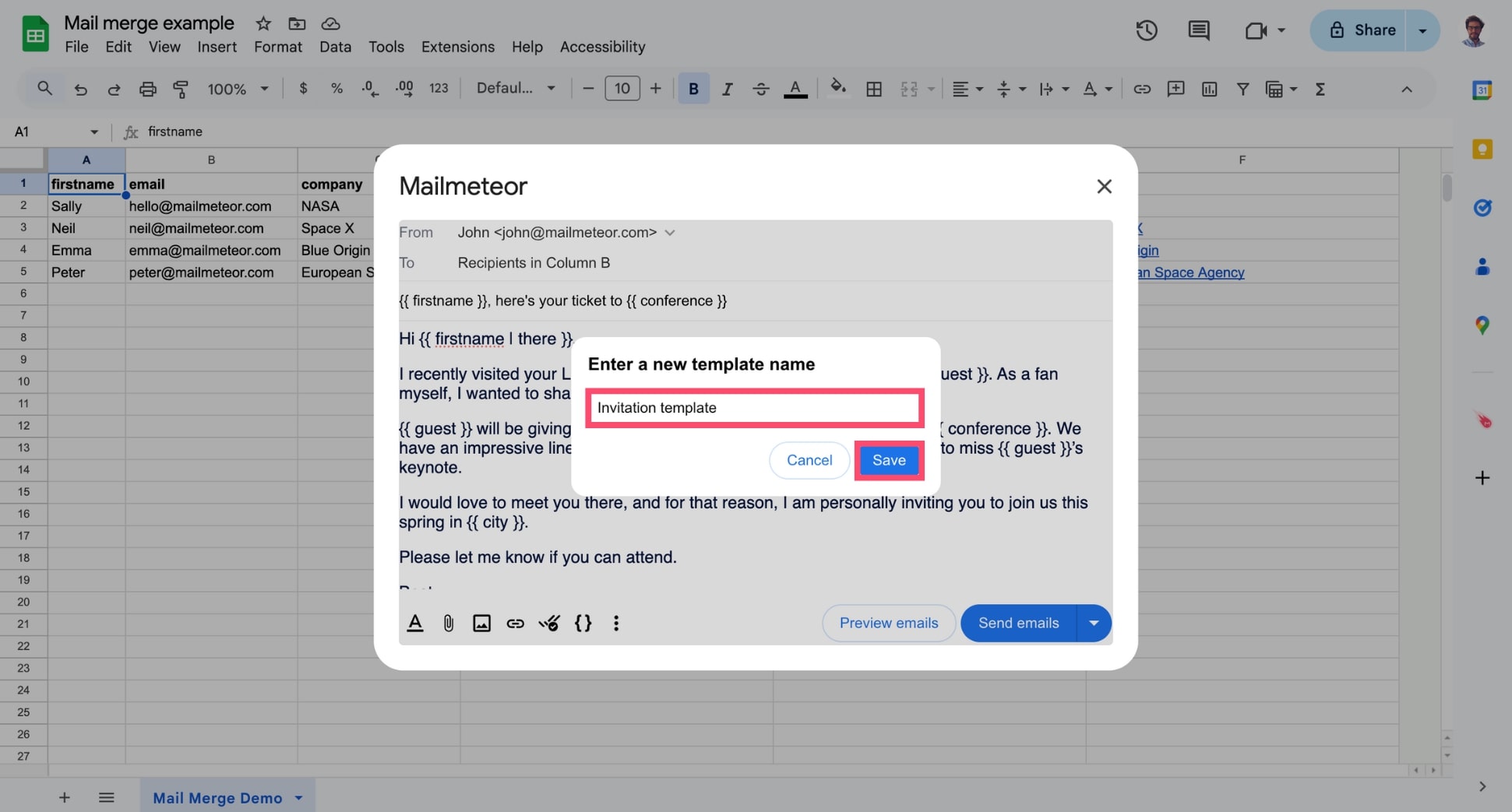
And voilà. You can now reuse this template in future campaigns to craft personalized emails in just a few clicks and save time.
Once you’ve saved your template, you can view, edit, or delete it from the Templates tab in the left-side menu.
Video tutorial
If you prefer watching a video, here’s a quick tutorial on how to use email templates in Mailmeteor: