Pipelines
Pipelines gives you one place to see who replied to your campaigns, who is still waiting for you, and who needs a follow-up. It turns your mail merge replies into a clear to-do list, without leaving Mailmeteor.
Every reply to a campaign you sent shows up here automatically. There is nothing to set up.
Pipelines is included in the Professional and Business plans. See pricing.
How to open Pipelines
- Sign in to your Mailmeteor Dashboard.
-
In the left side menu, click Pipelines.
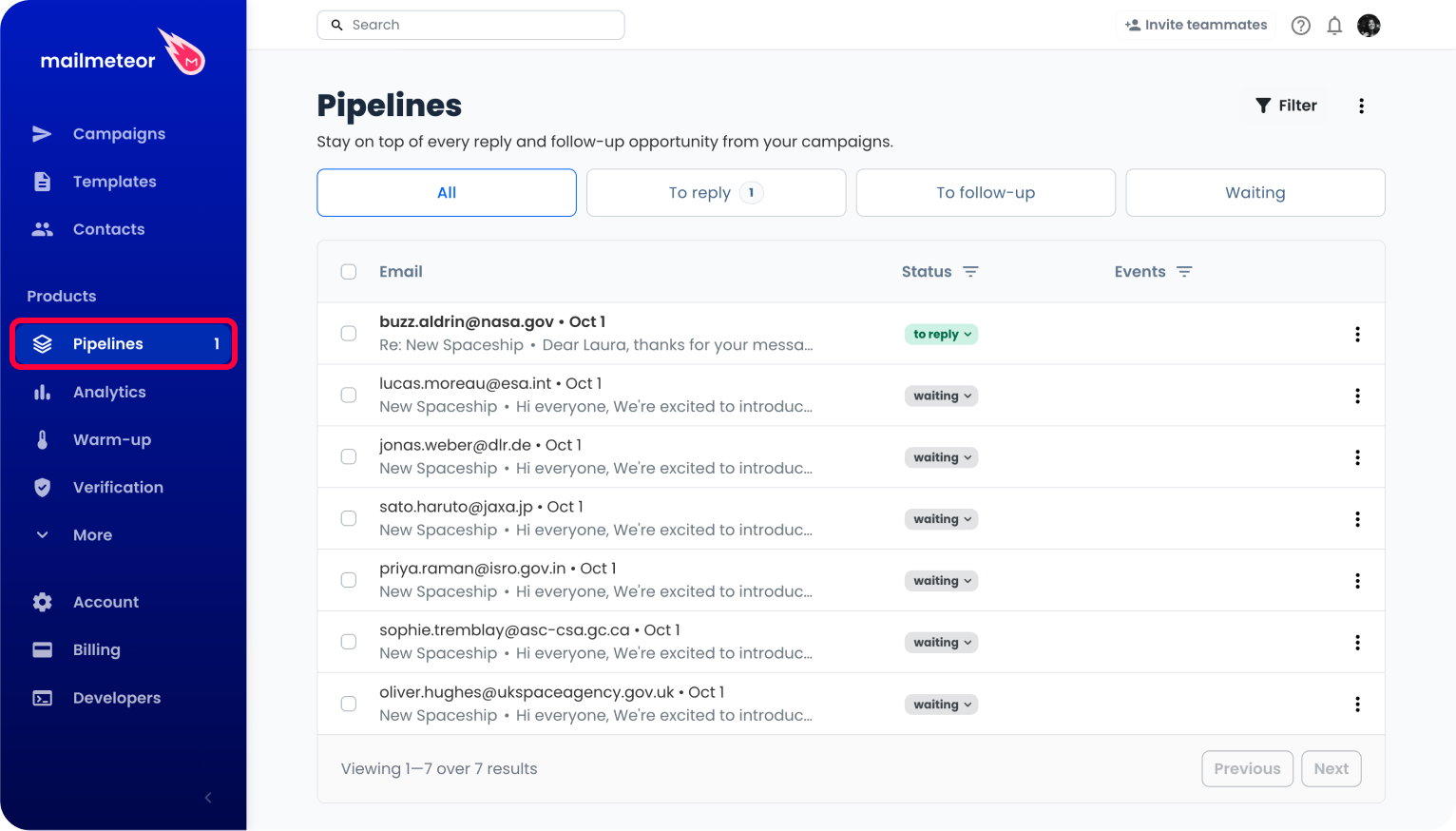
The number next to Pipelines in the side menu counts the conversations you haven’t read yet that are waiting for an action, in other words the unread to reply and to follow-up ones. Above ninety-nine, it reads 99+.
What you see in the table
Each row is one conversation.
- Email: the recipient, the date of the last activity, then the subject of the campaign and a preview of the latest message. Conversations you haven’t opened yet are shown in bold, like an unread email in your inbox.
- Status: where the conversation stands: to reply, to follow-up, waiting or archived. See Understanding conversation statuses.
- Events: what happened to the email: number of opens, number of clicks, and a bounced or unsubscribed badge when relevant. Counts above nine are displayed as 9+. The column stays empty when there is nothing to report, and is hidden on smaller screens.
- A last, unlabelled column holds the follow-up indicator. When a follow-up is scheduled for a conversation, a small icon appears there. Hover it to see when the follow-up goes out, or click it to open the conversation on that follow-up.
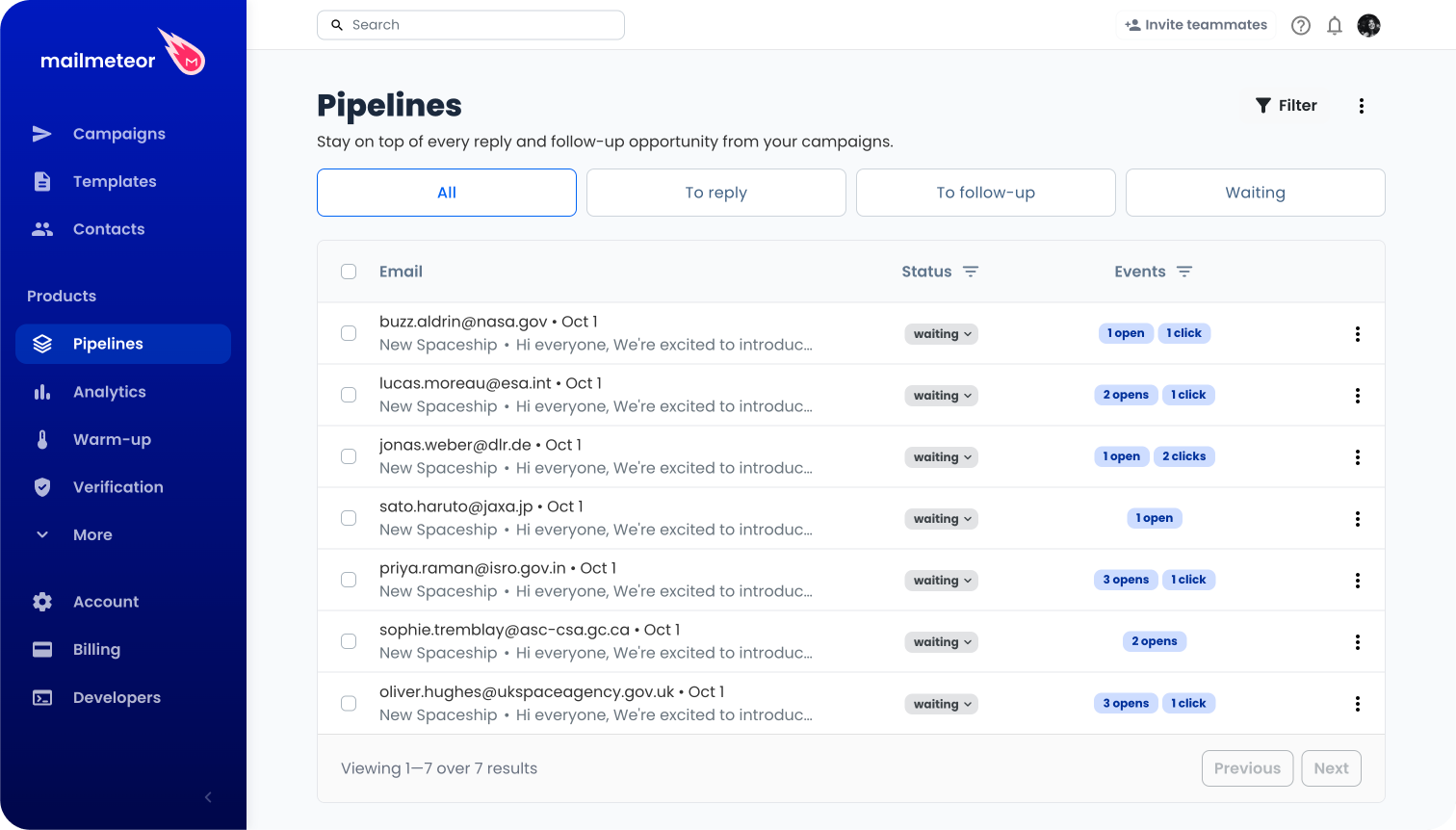
Conversations are listed 20 per page. The bottom of the table recaps the range you are looking at, such as Viewing 1—7 over 7 results, and Previous and Next move from one page to the next.
Finding a conversation
Three things narrow the table down, and they combine.
The tabs: All, To reply, To follow-up and Waiting. See Understanding conversation statuses.
The Filter button, at the top right of the page. Set one or more of the following, then click Apply:
| Filter | What it does |
|---|---|
| Date | Keeps the conversations whose latest activity falls within the Last week, the Last month or the Last 3 months. |
| Has follow-up | Yes keeps the conversations with a follow-up scheduled, No the ones without. |
| Campaign | Narrows the table down to a single campaign. Paste a campaign ID such as cp_1be548bbcfba7ed1d730f0278f465ebbg. |
| Type | Unread or Read. |
The button shows how many filters are active, and your filters are kept when you switch from one tab to another.
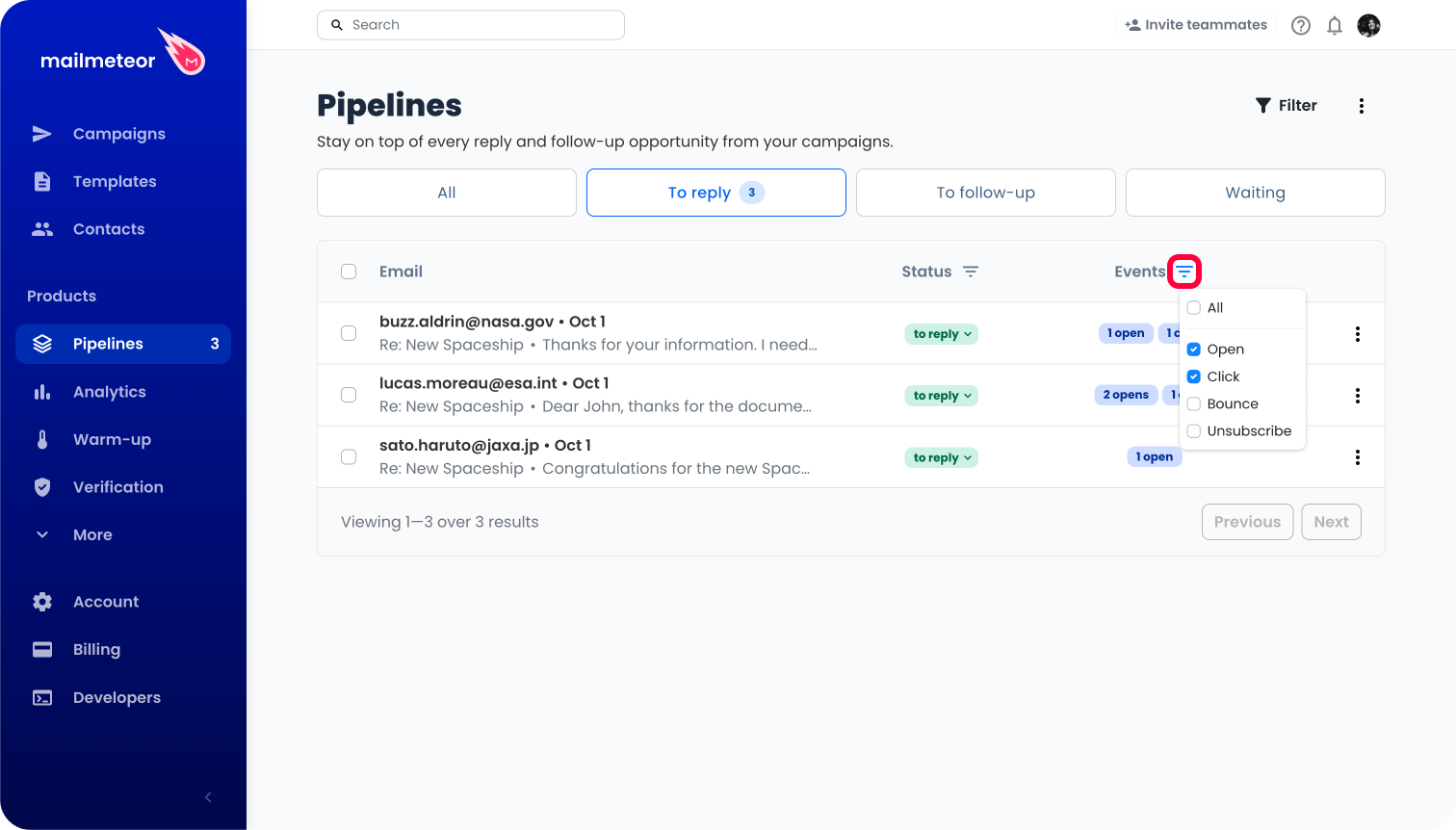
The column filters: the funnel icon in the Status and Events column headers. Both are lists of checkboxes, so you can tick several at once: To reply and To follow-up, or Bounce and Unsubscribe. Untick everything, or pick All in the Events column, to clear the filter.
Read and unread conversations
A conversation stays bold until you open it. Opening it marks it as read.
You can also set it by hand, without opening the conversation: in the ⋮ menu at the end of a row, click Mark as read or Mark as unread. The same two actions exist in the conversation panel, and on several conversations at once with batch actions.
The counters next to the To reply and To follow-up tabs count the unread conversations only, not every conversation of that status. They refresh every 10 minutes. To see the latest conversations in the table itself, reload the page or switch tabs.
Getting an email when work piles up
Mailmeteor emails you when your pipeline needs attention:
- when you have 5 conversations or more to reply to,
- when you have 3 conversations or more to follow up with.
Each of these is sent at most once a week. To turn them off, go to Account > Notifications, and use the two toggles of the Pipelines section.
Syncing your inbox
The first time you open Pipelines, Mailmeteor goes through your campaigns to build it, and a banner tells you so. It takes a few minutes, and the table fills up on its own when it’s done.
You can also run it again later: click the ⋮ menu at the top right of the page, then Sync inbox, and confirm.
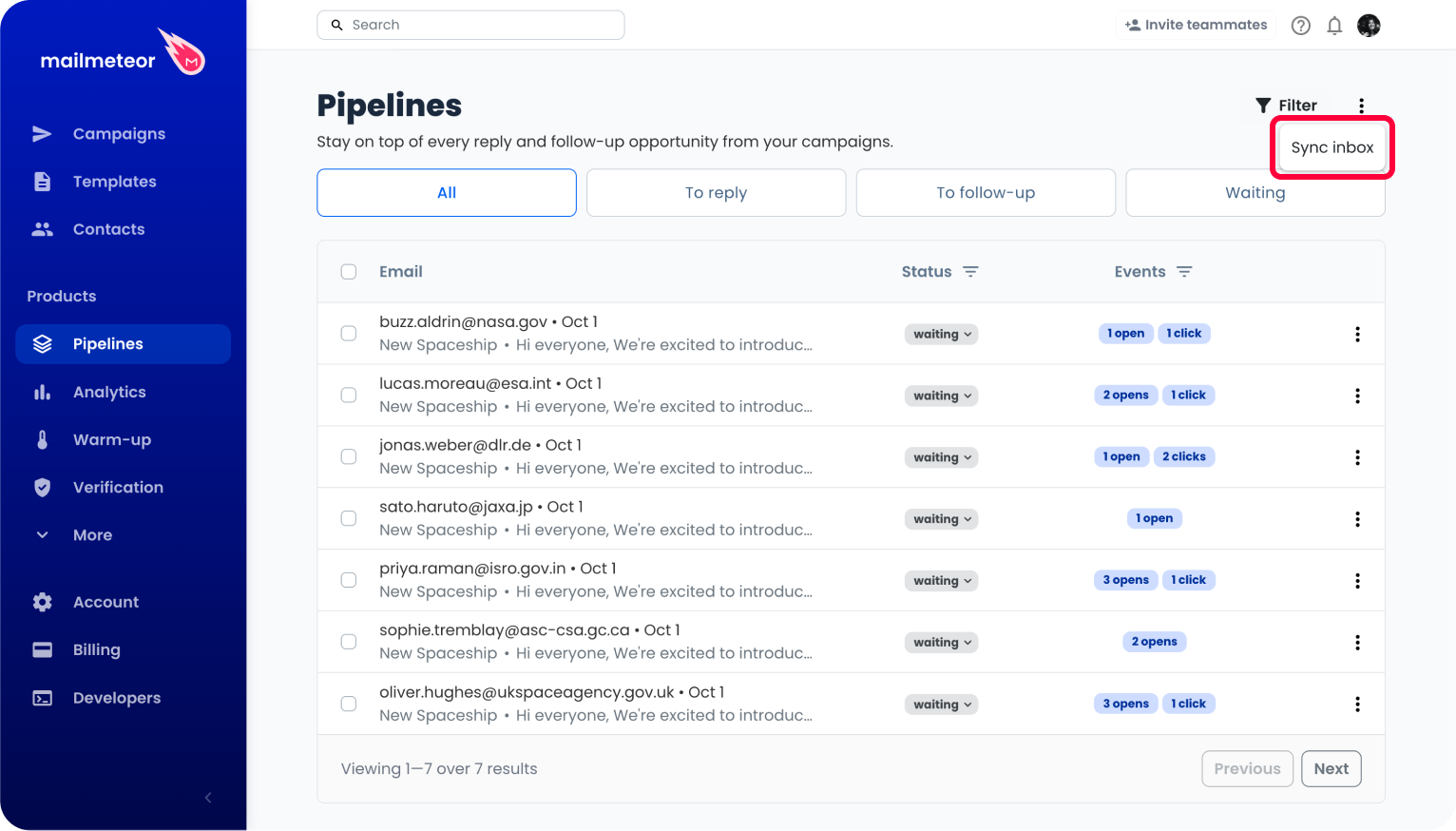
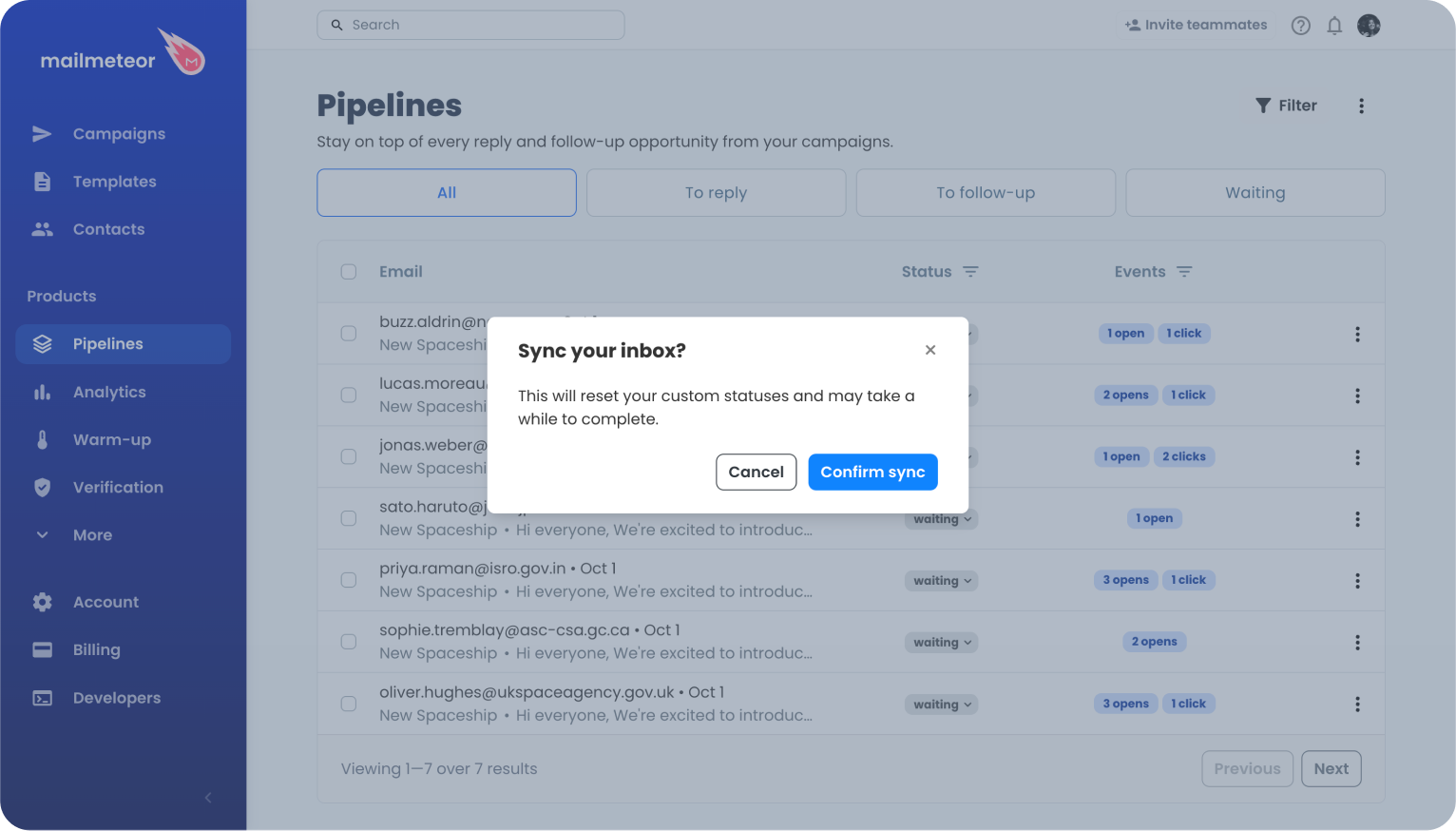
Syncing your inbox resets the statuses you set by hand, and may take a while. The action stays disabled while a sync is already running.
Turning Pipelines on or off
Pipelines can be turned on or off from your account settings:
- In the left side menu of your Mailmeteor Dashboard, click Account.
- Click the Settings tab, then scroll down to Products settings.
- Use the Enable Pipelines toggle.
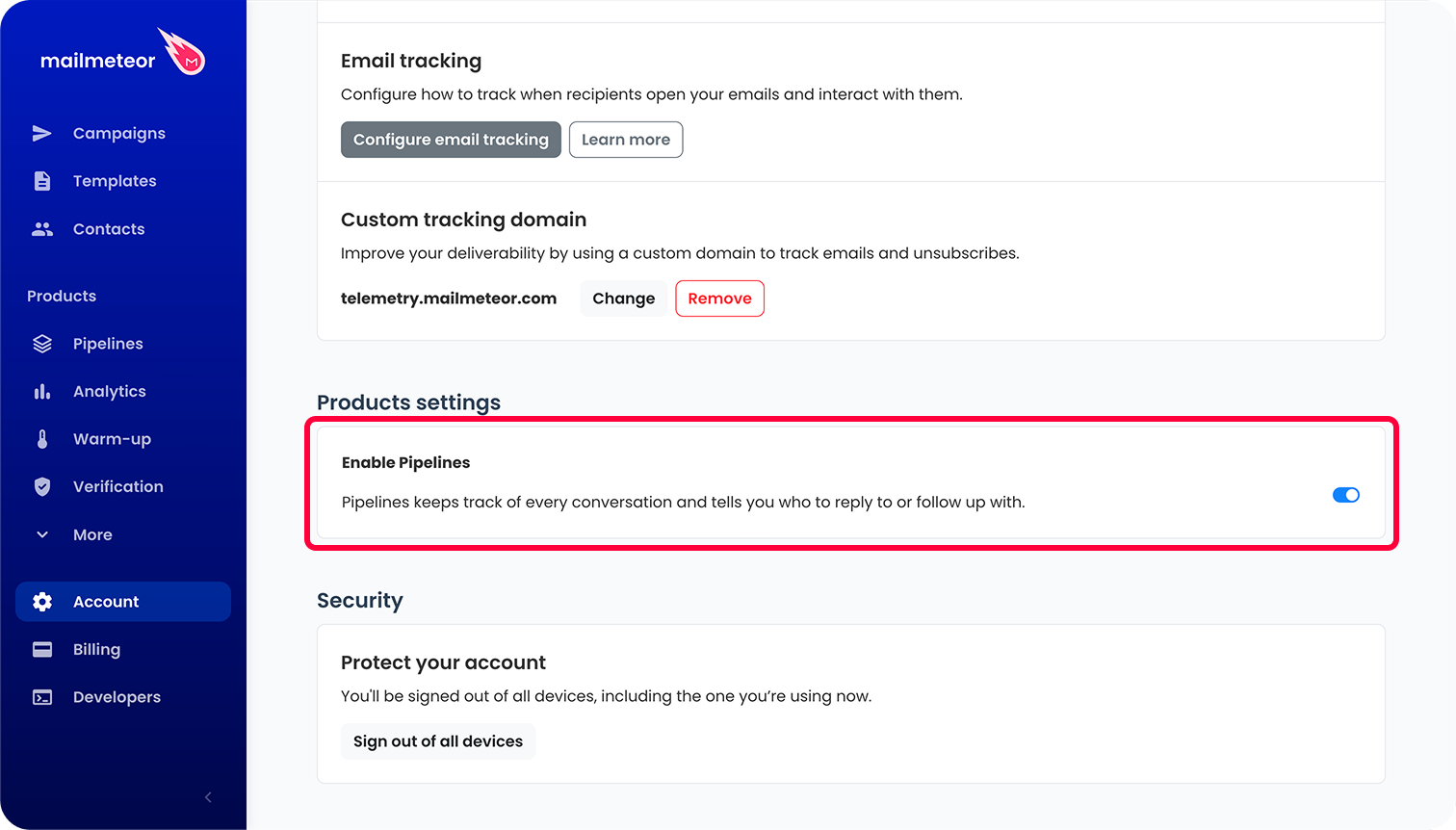
When Pipelines is turned off, Mailmeteor stops syncing your emails into Pipelines and no longer sends any email related to Pipelines.
Which email providers are supported
Pipelines detects replies for campaigns sent from Gmail, Outlook and Zoho Mail, but not every action is available everywhere yet.
| Action | Gmail | Outlook | Zoho Mail |
|---|---|---|---|
| Reply detection and statuses | ✅ | ✅ | ✅ |
| Read the conversation thread | ✅ | ✅ | ✅ |
| Reply from Mailmeteor | ✅ | ✅ | ❌ |
| Schedule a follow-up | ✅ | ❌ | ❌ |
| Open the thread in your mailbox | ✅ | ✅ | ✅ |
When you open an Outlook or Zoho Mail conversation, Mailmeteor displays a banner reminding you that some actions are unavailable for that provider.
Campaigns sent through your own SMTP server are not covered by Pipelines yet.