More options
When setting up an automation in Sheets Automation, you can configure options that control how emails are filtered, sent, and tracked.
Conditions
Conditions let you restrict which rows trigger an email. When a condition is set, the automation only proceeds if the row meets the criteria you define. Rows that don’t match are skipped.
To add a condition, click Add condition in the automation builder. A “Continue if…“ panel opens where you configure two things:
- Apply to range: the column to evaluate (e.g.
A:A). You can type a column letter or use the grid icon to pick one. - Criteria: the rule that must be true for the automation to run.
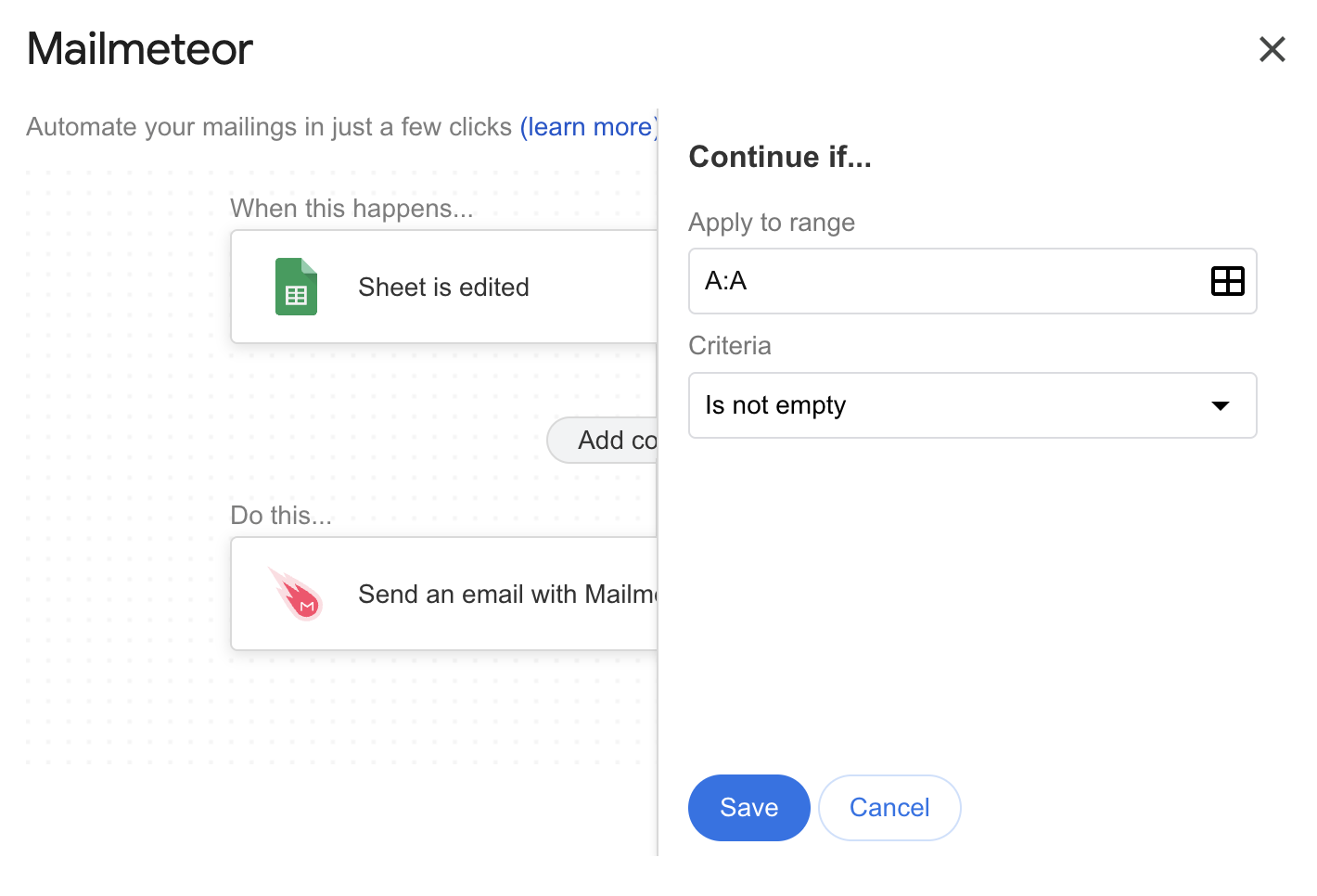
Adding a condition to a Sheets Automation
The following criteria are available:
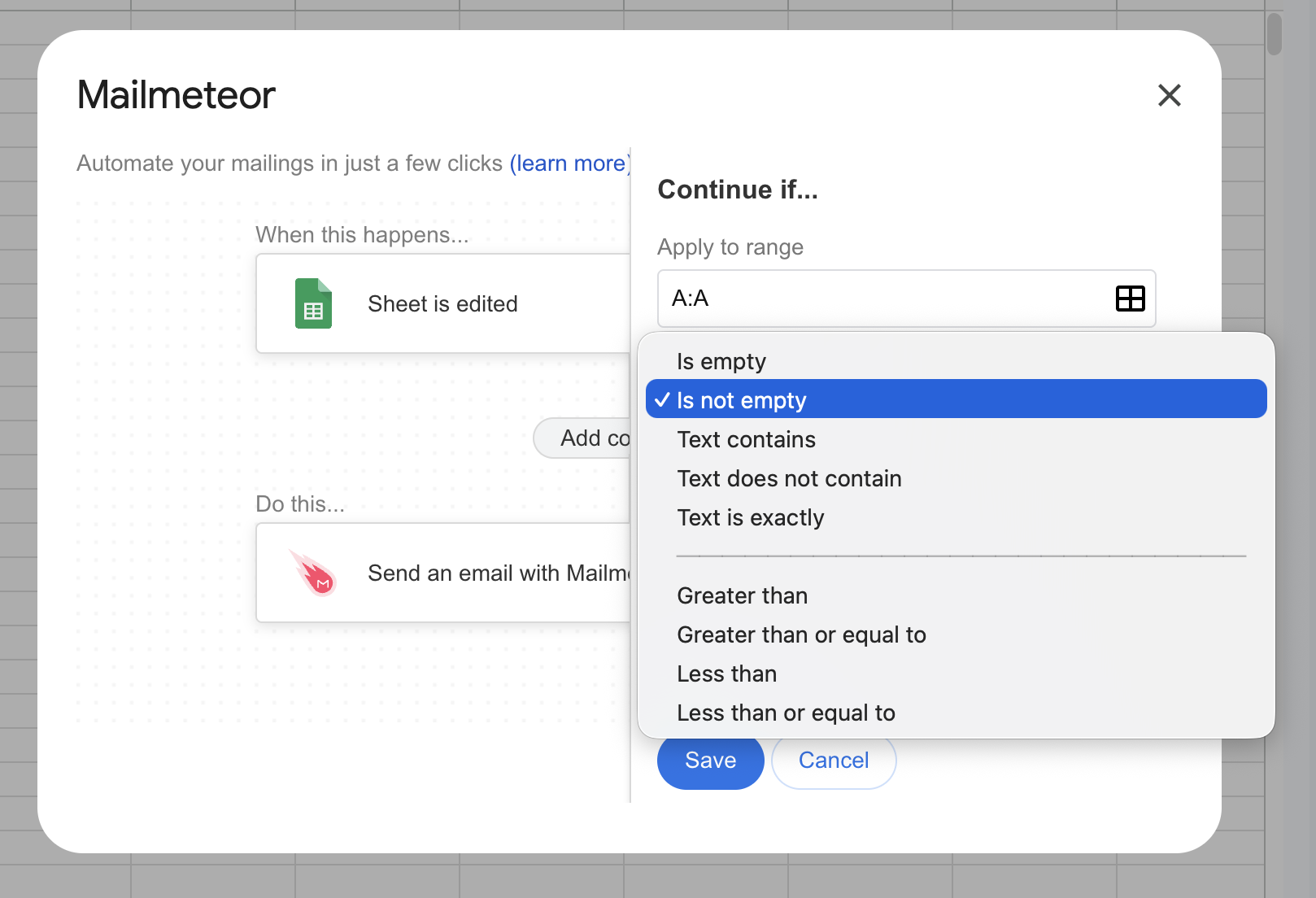
Available condition criteria
| Criteria | Description |
|---|---|
| Is empty | The cell has no value |
| Is not empty | The cell has any value |
| Text contains | The cell value includes a given string |
| Text does not contain | The cell value does not include a given string |
| Text is exactly | The cell value matches a string exactly |
| Greater than | The numeric value is strictly greater than a threshold |
| Greater than or equal to | The numeric value is greater than or equal to a threshold |
| Less than | The numeric value is strictly less than a threshold |
| Less than or equal to | The numeric value is less than or equal to a threshold |
A common use case is pairing Is not empty with a status column. For example, only send a confirmation email when the “Payment” column is filled in.
Limit to one email per row
This option prevents the automation from sending more than one email to the same row.
By default, automations like Spreadsheet is edited trigger every time a row changes. Without this option, a recipient could receive multiple emails if their row is updated several times. Enabling Limit to one email per row ensures each row only ever receives one email, no matter how many times it gets edited afterward.
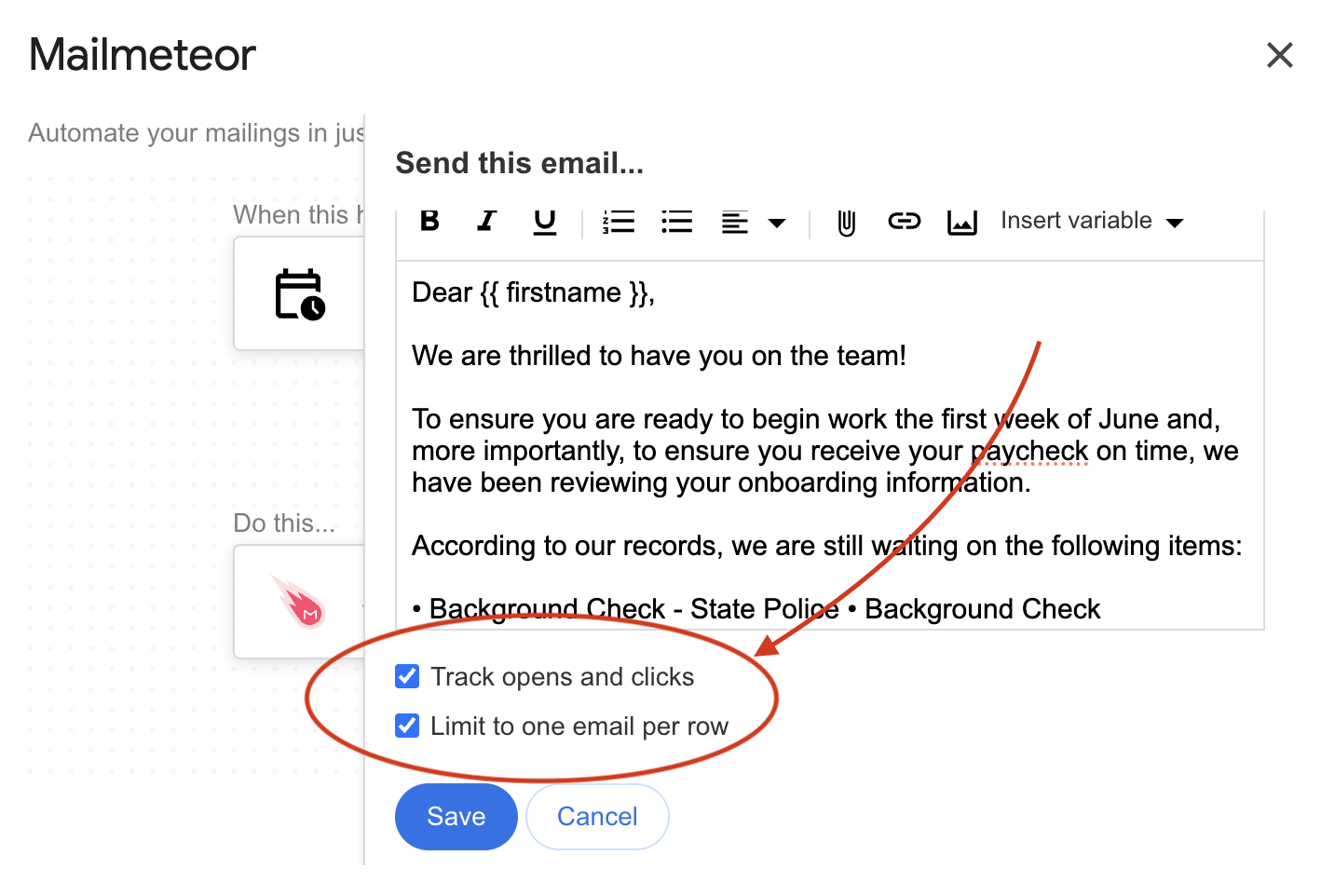
Email options in the Sheets Automation email editor
This is especially useful when you want to send a one-time notification (a welcome email, a payment confirmation, an onboarding message) and need to guarantee it is only sent once per contact.
The “Limit to one email per row” option is available for all automation triggers. It is particularly recommended for the Spreadsheet is edited automation to avoid duplicate sends.
Track opens and clicks
Enable this option to track whether recipients open your emails and click on links. When enabled, Mailmeteor records open and click events for each email sent by the automation.
This relies on Mailmeteor’s built-in email tracking and lets you monitor engagement directly from your analytics dashboard.