Bulk actions
Bulk actions let you act on multiple emails at once directly from your Gmail inbox. Instead of opening each conversation one by one, you select a group of emails and handle them together in just a few clicks.
Before you begin, make sure to install our Chrome extension.
What you can do with bulk actions
Once you select one or more emails in your Gmail inbox, the sidepanel shows a Bulk Actions menu with the following options:
- Create a mail merge — turn the selected conversations into a new Mailmeteor campaign, with each contact pre-filled.
- Schedule follow-ups — send a follow-up to each selected thread automatically.
- Export emails — export the selected conversations and their contact information.
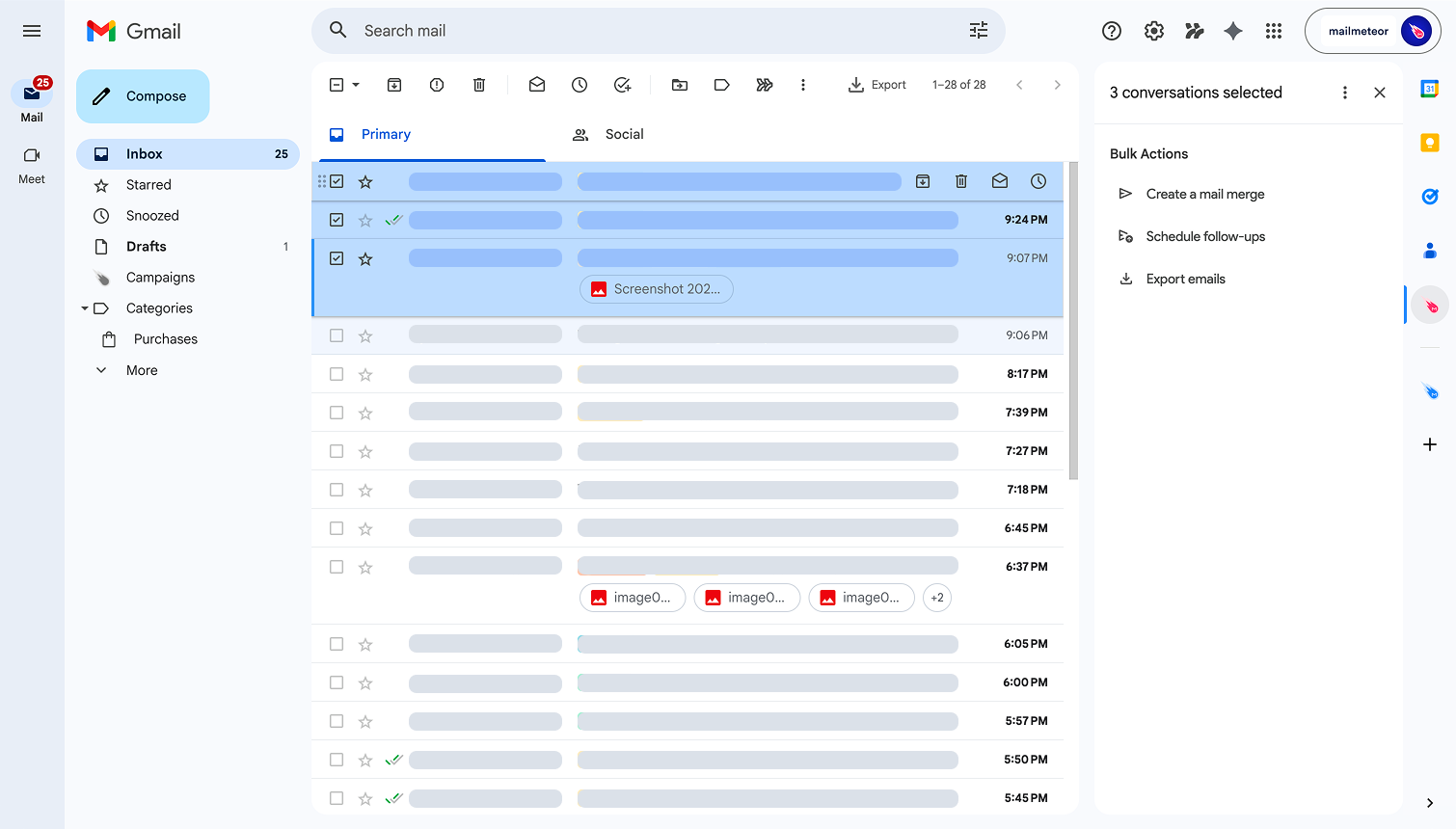
Select emails in your inbox to reveal bulk actions in the sidepanel.
How to use bulk actions
- Open Gmail with the Mailmeteor extension installed.
- Check the checkbox next to one or more emails in your inbox.
- The sidepanel will update to show the number of selected conversations and the available bulk actions.
- Click the action you want to run.
When bulk actions are useful
Bulk actions work especially well in a few common situations:
After a campaign. When replies start coming in from a Mailmeteor campaign, you can select the ones that need a follow-up and schedule them all at once, rather than handling each reply individually.
Re-engaging cold leads. If you spot a group of contacts who never responded, select their threads and turn them into a new campaign without any copy-pasting.
Exporting a filtered list. If you’ve used auto-labels to filter your inbox (for example, all emails tagged to follow-up), you can select them and export the list in one step.