Your Gmail inbox is where a lot of workdays begin and end. Knowledge workers spend 2.6 hours per day on email on average — nearly 30% of the workday, according to a study by Harvard Business School. When that much time is spent reading long email threads on a bright white screen — especially later in the day — eye fatigue becomes hard to avoid. That’s where Gmail dark mode comes in.
By switching Gmail to a darker interface, you can reduce glare, make text more comfortable to read, and give your eyes a break — without changing how Gmail works. Whether you’re checking emails at night, working long hours, or simply prefer a darker look, this small setting can make a noticeable difference. In this guide, you’ll learn how to enable Gmail dark mode on desktop, Android, and iPhone.
Here’s what we’ll cover:
- What Is Gmail Dark Mode?
- Why Should You Turn On Dark Mode in Gmail
- How to Enable Gmail Dark Mode
- Gmail Dark Mode Not Working? Common Fixes
- Alternatives to Gmail Dark Mode
Sounds good? Then let’s dive in.
What Is Gmail Dark Mode?
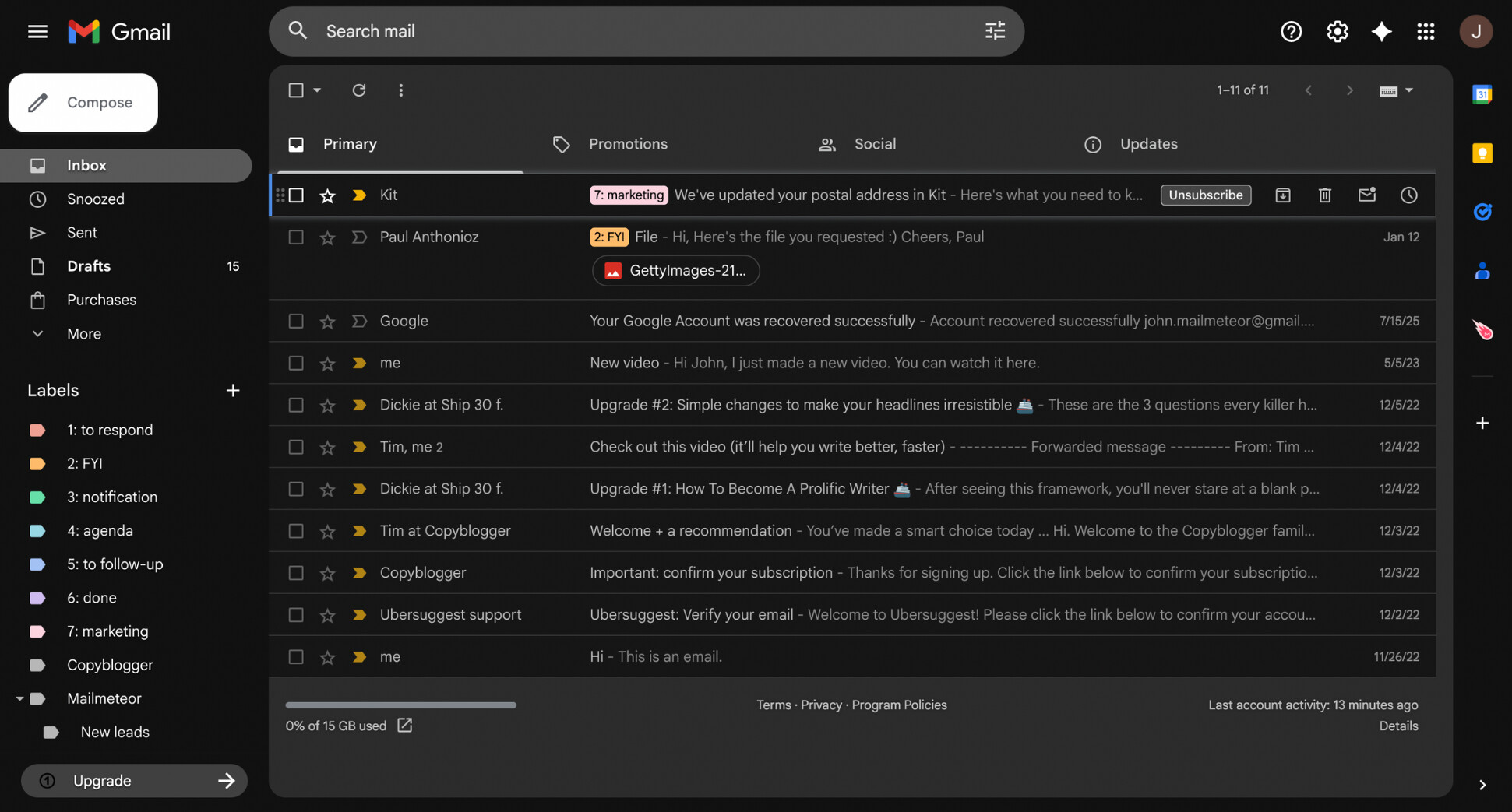
Gmail dark mode is a display setting that changes Gmail’s interface from a bright white background to darker shades of gray or black, with lighter text on top. The goal is simple: make your inbox easier on the eyes — especially in low-light environments.
When enabled, dark mode applies to most of Gmail’s interface, including your inbox, sidebar, and settings. But it doesn’t change how Gmail works or how your emails are organized — only how they look.
Here’s what it looks like:
Why Should You Turn On Dark Mode in Gmail
Over 80% of smartphone users regularly use dark mode across apps and systems. And Gmail is no exception. If you spend hours in your inbox each day, switching to dark mode can make a real difference. Here’s why.
- Reduce eye strain: Dark mode lowers glare and harsh contrast, which helps reduce visual fatigue when reading emails for long periods — especially in low-light environments.
- More comfortable in the evening: Bright white screens can feel overstimulating late in the day. Gmail dark mode reduces overall brightness, making nighttime email checks feel easier and less aggressive.
- Save battery on mobile devices: On phones with AMOLED screens, dark mode can significantly reduce power consumption — saving up to 60% of battery life compared to bright interfaces.
- Personal preference: Some people simply prefer a darker interface. If it feels better to you, that’s reason enough — Gmail dark mode doesn’t change how Gmail works, only how it looks.
How to Enable Gmail Dark Mode
You can enable Gmail dark mode in just a few steps. The exact process depends on whether you’re using Gmail on desktop, Android, or iPhone. Here’s how to turn it on for each device, so you can switch to a darker inbox.
On Desktop
Here’s how to turn on Gmail dark mode on Desktop:
- Open Gmail.
- Go to Settings.
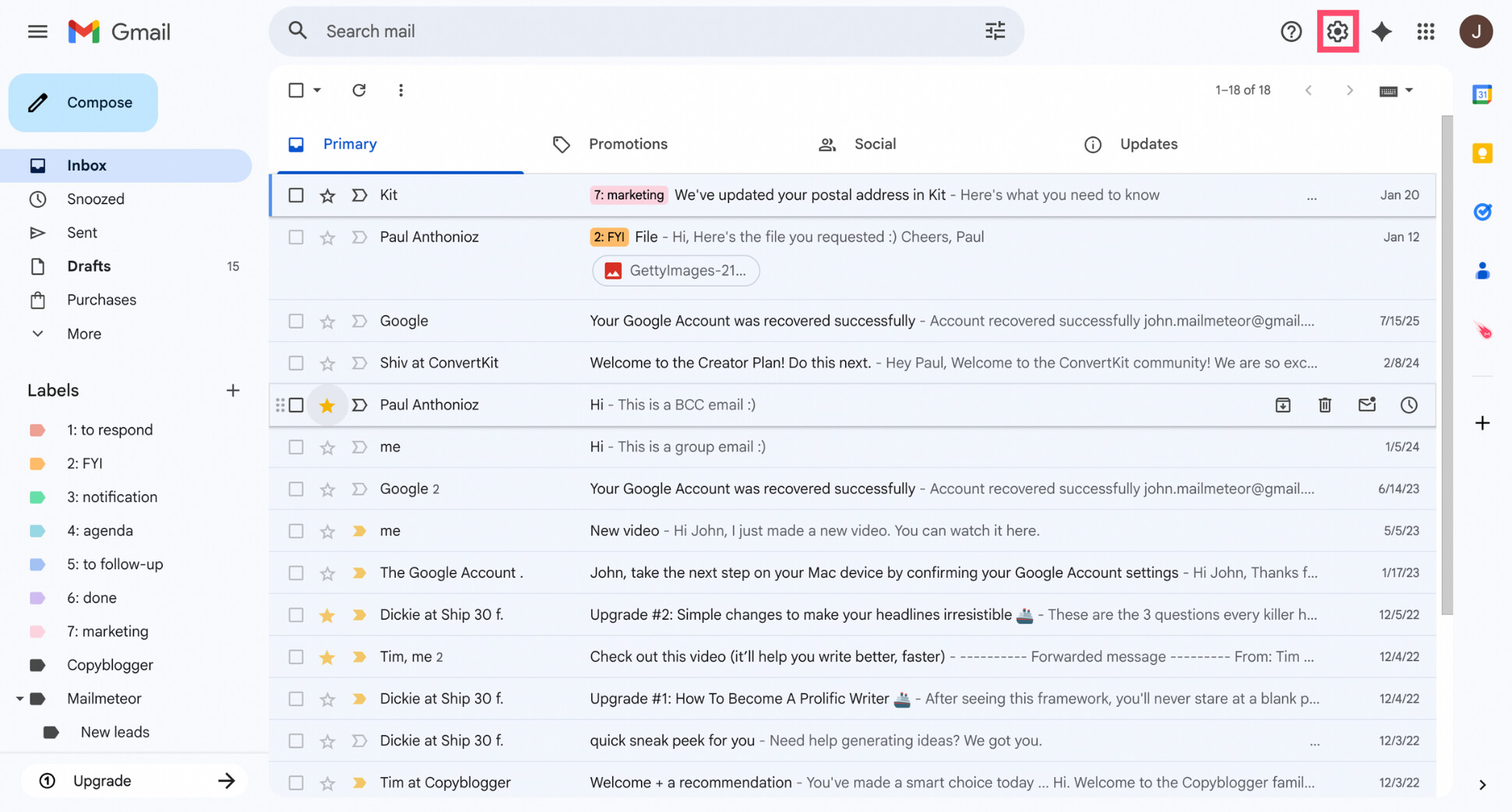
- In the Quick settings panel, under Theme, click View all.
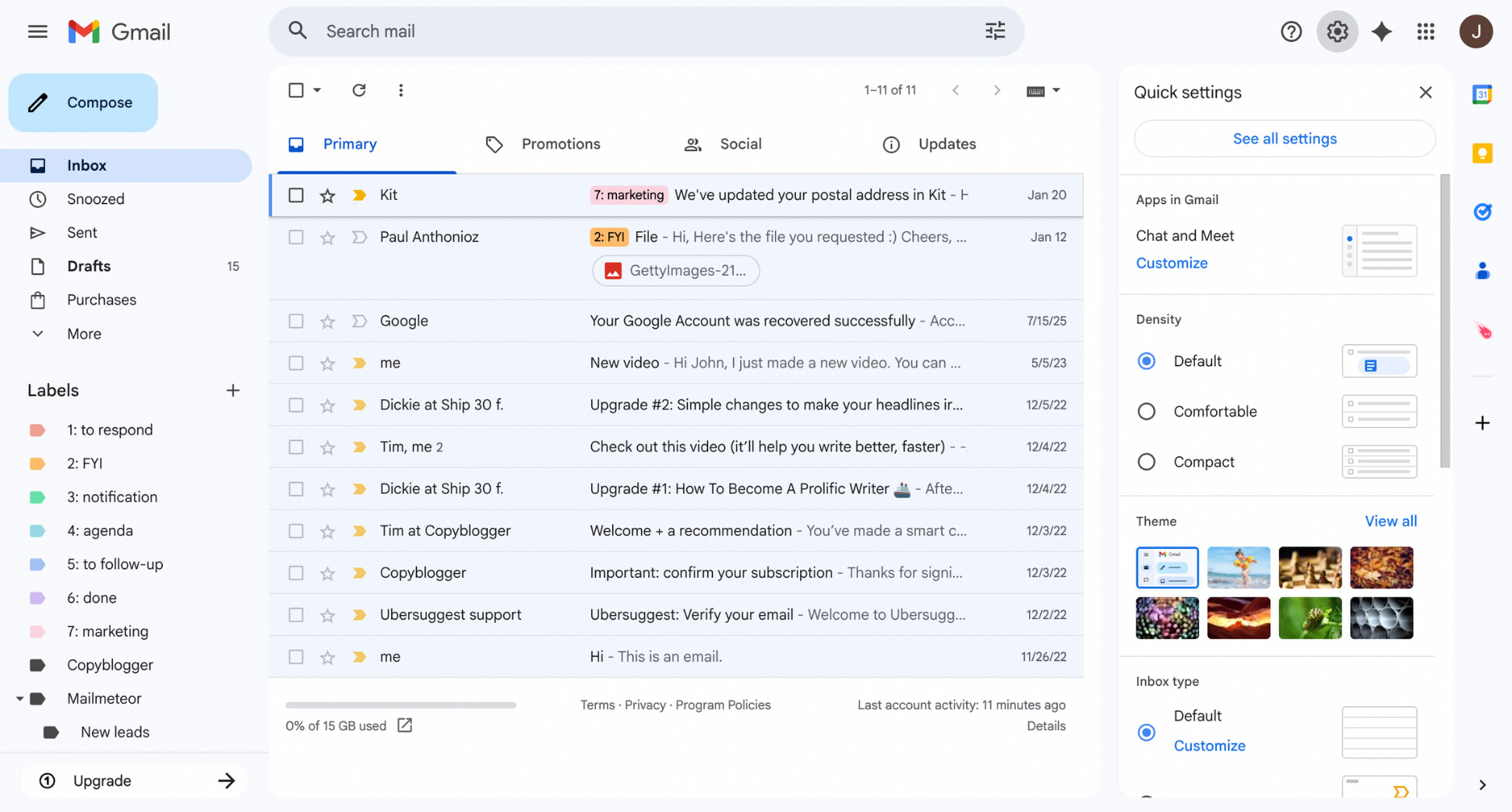
- Choose the Dark theme, shown as a black preview tile.
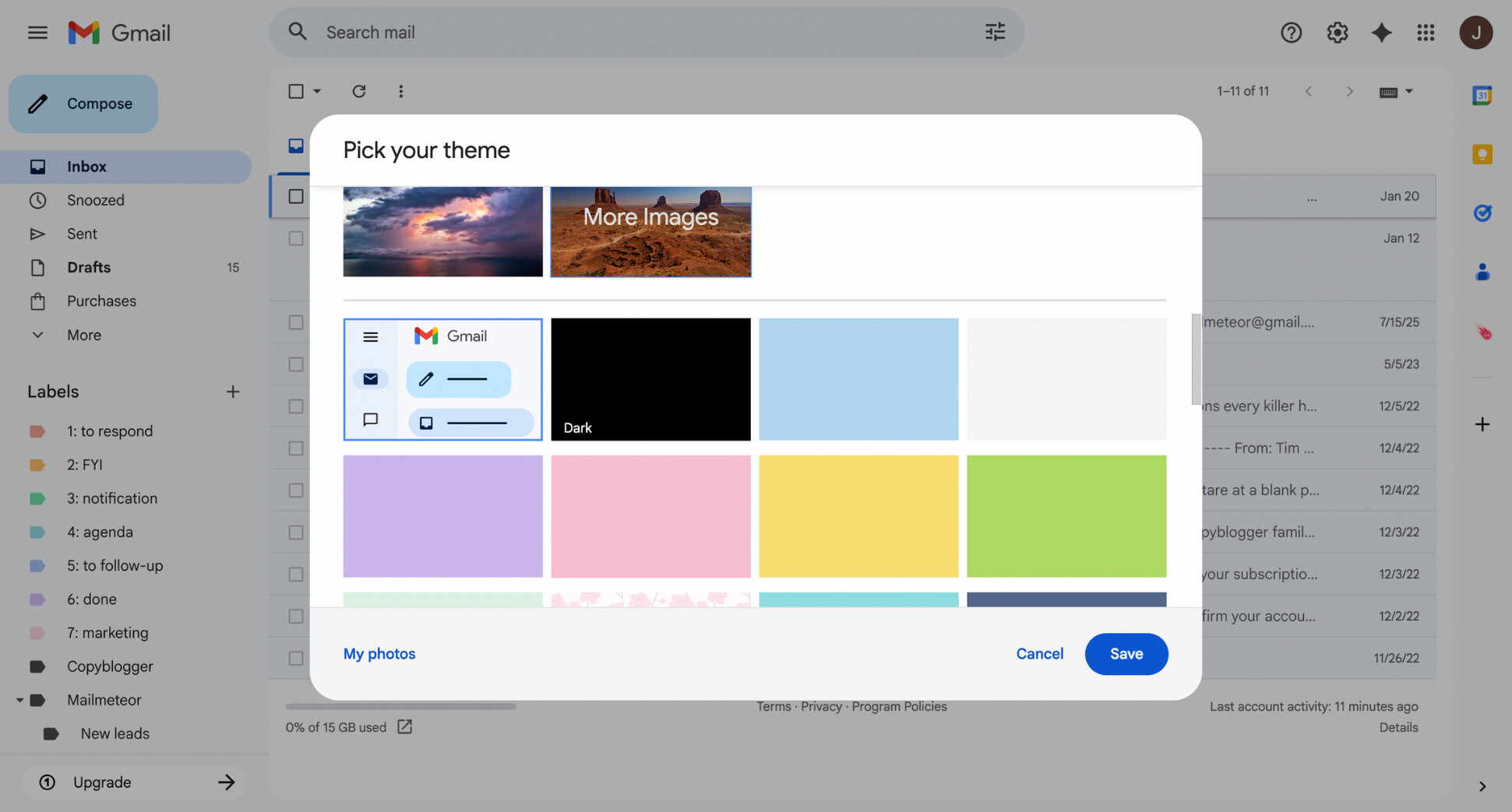
- Click Save.
And voilà. Gmail will now stay in dark mode until you switch themes again.
On Android
Here’s how to turn on Gmail dark mode on Android:
- Open the Gmail app on your mobile.
- Tap the menu icon (☰) in the top-left corner.
- Scroll down and tap Settings.
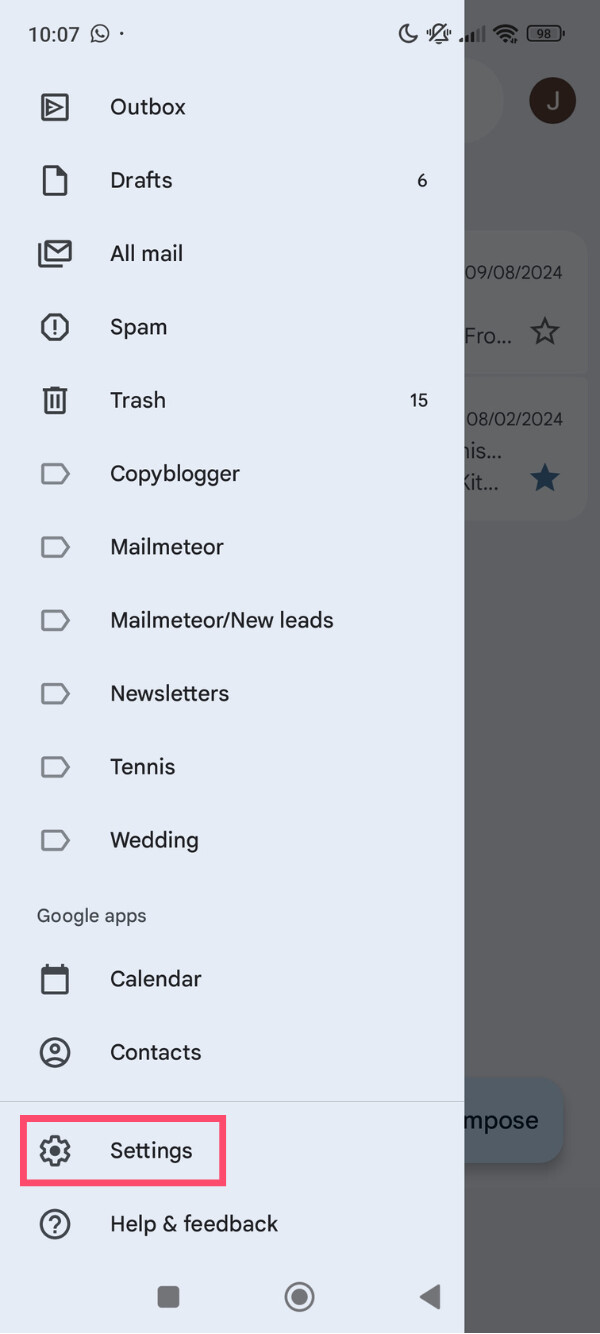
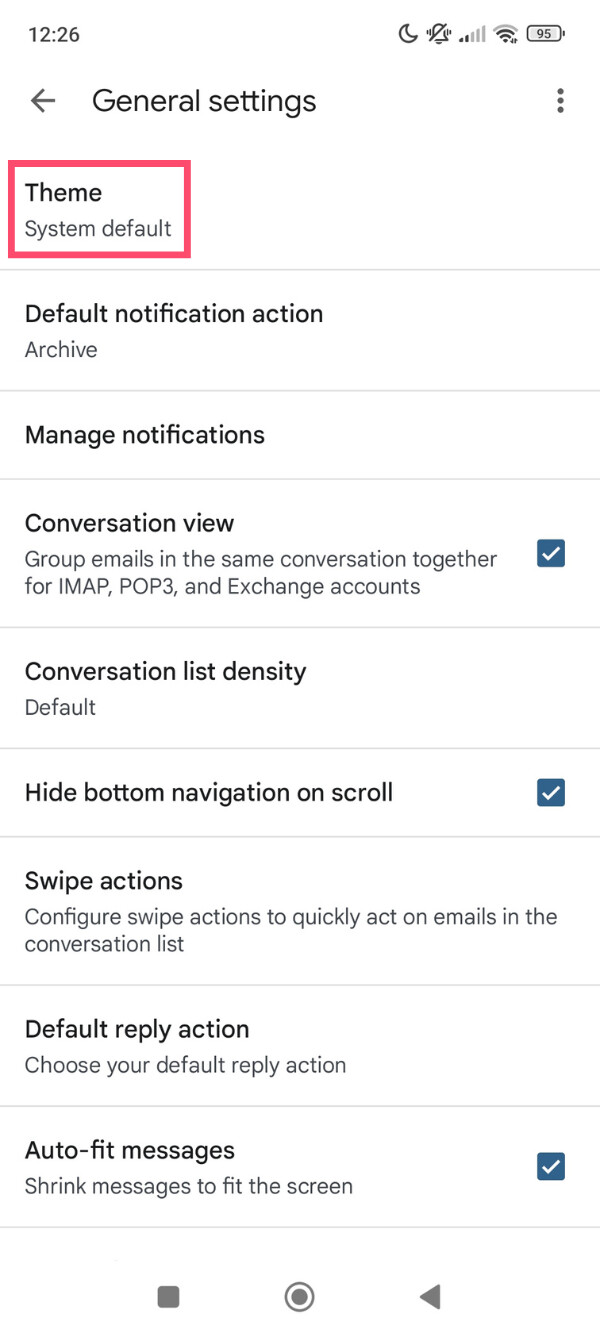
- Go to General settings > Theme.
- Choose Dark — or System default if you want Gmail to follow your phone’s appearance settings.
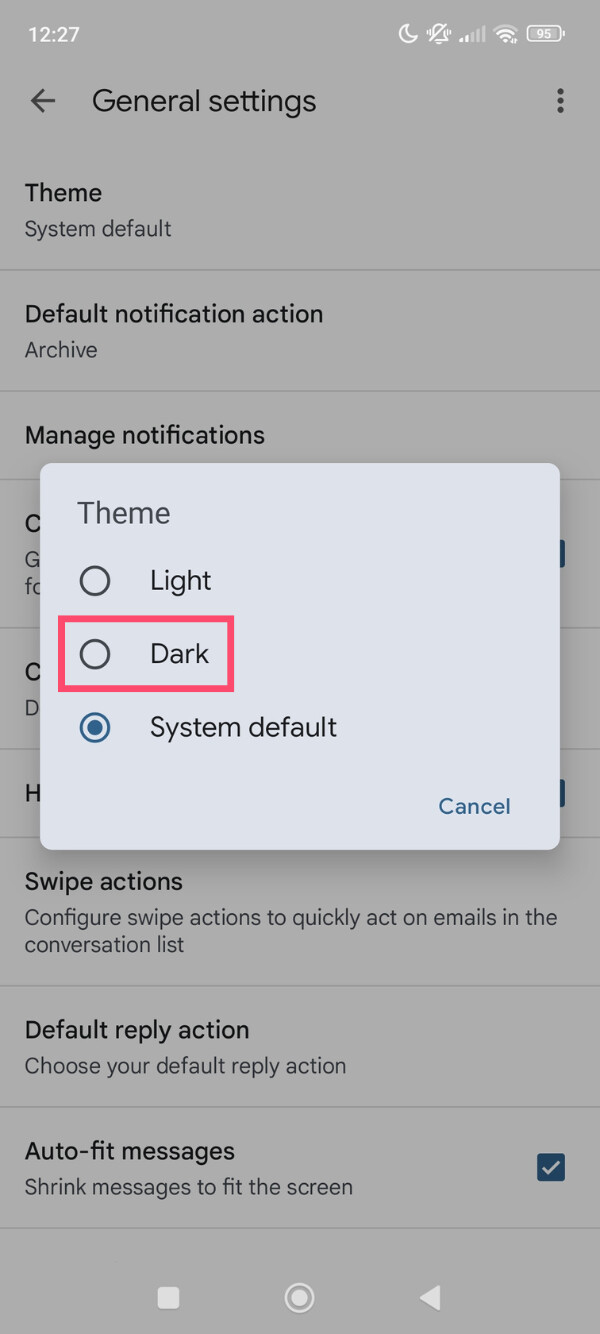
That’s it. Gmail will now use a dark interface on Android, either permanently or in sync with your system theme.
On iPhone
On iPhone, Gmail doesn’t have its own dark mode toggle. Instead, it follows your iOS appearance settings
Here’s how to turn on Gmail dark mode on iPhone:
- Open the Settings app on your iPhone.
- Tap Display & Brightness.
- Under Appearance, select Dark.
Once enabled, Gmail automatically switches to dark mode along with the rest of your apps. To turn it off, just switch your iPhone back to Light mode.
Gmail Dark Mode Not Working? Common Fixes
If Gmail dark mode isn’t showing up — or suddenly switches back to light mode — it’s usually due to a settings issue, a browser conflict, or how certain emails are designed. Here are the most effective fixes to try.
1. Make sure Gmail and your browser are up to date
Before changing any settings:
- Update your browser (Chrome, Safari, Firefox, etc.)
- Update the Gmail app if you’re on mobile
- Refresh Gmail or sign out and back in
Outdated versions can prevent dark mode from applying correctly.
2. Check browser extensions or settings
Browser extensions — especially dark mode, theme, or accessibility tools — can override Gmail’s built-in dark mode.
Try this:
- Open Gmail in Private mode
- Or temporarily disable extensions
- Or test Gmail in a different browser
If dark mode works there, an extension is likely the cause.
3. Force dark mode in Chrome
If Gmail dark mode still doesn’t work in Chrome, you can force dark mode at the browser level. Here’s how:
- Open Google Chrome.
- Type
chrome://flags/#enable-force-darkand press Enter. - Set Auto Dark Mode for Web Contents to Enabled
- Restart Chrome and reload Gmail.
This forces dark mode across most websites, including Gmail — but it may affect how other sites look.
4. Some emails will stay white (and that’s normal)
Even with Gmail dark mode enabled, some emails may still appear white. This happens when:
- The sender used fixed white backgrounds
- The email’s HTML styling overrides Gmail’s dark mode
- Images or layouts are locked to light colors
Unfortunately, there’s no universal fix for this — it depends on how the email was designed. Gmail can’t override all custom formatting.
Alternatives to Gmail Dark Mode
Gmail’s native dark mode is useful, but it doesn’t always behave the way you’d expect. If parts of your inbox still feel too bright, or some emails refuse to turn dark, there are other options worth trying.
Use System-Wide Dark Mode
Instead of changing Gmail alone, you can enable dark mode at the system level on your device. This forces supported apps — including Gmail — to follow your operating system’s appearance settings.
While this won’t magically darken every email, it does reduce visual contrast when switching between Gmail and other apps. That consistency can make long work sessions more comfortable, especially if you spend your day moving between email, documents, and messaging tools.
Use a Browser Dark Mode Extension
If Gmail’s built-in dark mode feels inconsistent on desktop, a browser extension can give you more control. Dark mode extensions apply a darker theme across websites — including Gmail — without relying on Gmail’s built-in settings.
Popular options include Dark reader and Mignight lizard, which let you adjust brightness, contrast, and color tones. Just keep in mind that extensions can sometimes affect layouts or colors in unexpected ways. If Gmail looks off, try adjusting the extension’s settings or disabling it temporarily.
Reduce Screen Brightness and Blue Light
If your main issue is eye fatigue rather than Gmail’s interface specifically, adjusting your screen settings can help just as much. Most devices offer built-in features like blue light filters, adaptive brightness, or warmer color modes that make screens easier to look at after dark.
These settings don’t change Gmail’s design, but they reduce overall screen intensity and harsh light — which can make long email sessions more comfortable, especially in the evening or low-light environments
Conclusion
For anyone who spends hours in their inbox, Gmail dark mode can make a real difference. By switching to a darker interface, you reduce glare, improve reading comfort, and give your eyes a break.
Whether you’re on desktop or mobile, enabling dark mode only takes a few clicks. And if Gmail’s native dark mode doesn’t behave how you’d like, system-wide settings, browser extensions, or screen filters can help you fine-tune the experience.
That said, visual comfort is only one part of a better inbox. If your real challenge is staying organized, replying faster, or keeping track of important conversations, an AI-powered assistant can go even further.
Mailmeteor’s free Gmail AI assistant helps you:
✍️ Write clearer emails faster with AI
🗂️ Organize conversations automatically
⏰ Schedule smart follow-ups so nothing slips through
📊 Track opens and replies — directly inside Gmail
📤 Export emails and conversations whenever you need them
👉 Try the Mailmeteor Gmail AI assistant for free and turn your inbox into a calmer, more productive workspace.
FAQs
Does Gmail have a dark mode?
Yes. Gmail has a built-in dark mode on desktop, Android, and iPhone. On desktop and Android, you can enable it directly from Gmail settings. On iPhone, Gmail usually follows your system’s light or dark appearance settings.
Does Gmail dark mode sync across devices?
No. Gmail dark mode settings are device-specific. Enabling dark mode on your desktop won’t automatically enable it on your phone, and vice versa. You’ll need to turn it on separately on each device.
Can I set Gmail dark mode to follow system settings?
On Android, you can set Gmail to follow your system theme. On iPhone, Gmail typically follows iOS appearance settings by default. On desktop, Gmail dark mode is controlled independently through Gmail’s theme settings.
Why are some emails still white in Gmail dark mode?
Because Gmail doesn’t fully control how emails are designed. Many emails are built with fixed backgrounds or styles, so they stay white even in dark mode. This is normal and depends on how the sender formatted the email.
How do I change Google dark mode back to normal?
To switch back to light mode:
- Desktop: Gmail settings (⚙️) > Themes > choose a light theme → Save
- Android: Gmail settings > Theme > Light
- iPhone: Change your iOS appearance to Light under Settings > Display & Brightness
Is Gmail dark mode better for your eyes?
It can be — especially in low-light environments. Gmail dark mode reduces screen glare and can feel more comfortable when reading emails at night or for long periods. That said, some people still prefer light mode during the day.


