Right after you hit Send, you spot the typo, the wrong attachment, or — even worse — that the email went to the wrong person. We’ve all been there. The good news? You can delete or recall an email you’ve already sent — but only if your email provider supports it, and only within a small time window.
Made a mistake? No worries. In this guide, we’ll show you how to delete a sent email in Gmail, Outlook, Yahoo Mail, and ProtonMail. You’ll learn what works, what doesn’t, and the steps to take when recall isn’t possible. We’ll also share simple tools and settings you can enable to prevent mistakes in the future.
Here’s what we’ll cover:
- Can You Delete an Email After You Send It?
- How to Delete an Email You Sent
- What to Do If You Can’t Delete the Email
- How to Prevent Mistakes in the Future
Sounds good? Then let’s fix that email.
Can You Delete an Email After You Send It?
Most inboxes don’t let you truly recall an email once it has been delivered. What they do offer is a brief Undo Send delay that stops the email before it leaves your outbox, or — in Outlook’s case — a limited recall system that only works under very specific conditions.
Here’s a quick comparison of what each platform allows:
| Email Provider | Can You Delete a Sent Email? | Time Window | Notes |
|---|---|---|---|
| Gmail | ✔️ Yes (Undo Send) | 5–30 seconds | Cancels delivery before it reaches the recipient. Reliable and easy to use. |
| Outlook | ⚠️ Sometimes (Message Recall) | No fixed limit (depends on unread status) | Works only if both sender and recipient use Outlook on the same Microsoft 365/Exchange system and only if the email is unread. |
| Yahoo Mail | ✔️ Yes, but mobile only (Undo Send) | 3 seconds | Undo Send exists only in the Yahoo Mail mobile app. No unsend option on desktop. |
| Apple Mail | ✔️ Yes (Undo Send) | 10–30 seconds | Delays sending before the email leaves your outbox. Requires macOS Ventura or iOS 16+. |
| Proton Mail | ✔️ Yes (Undo Send) | 5–20 seconds | Lets you cancel an outgoing message before delivery. Once delivered, it cannot be deleted. |
How to Delete an Email You Sent
The ability to unsend an email depends entirely on your email provider. Some services let you cancel a message a few seconds after sending it. Others offer recall features that work only in very specific conditions.
In Gmail
Gmail gives you a short window after sending an email to retract it. By default, this window is 5 seconds, but you can extend it to 30 seconds in your settings. When you recall an email in Gmail, it’s as if you never sent it.
Here’s how to delete an email you sent in Gmail:
- After sending an email, look at the bottom-left corner of your screen.
- You’ll see a small pop-up with Message sent and an Undo option.
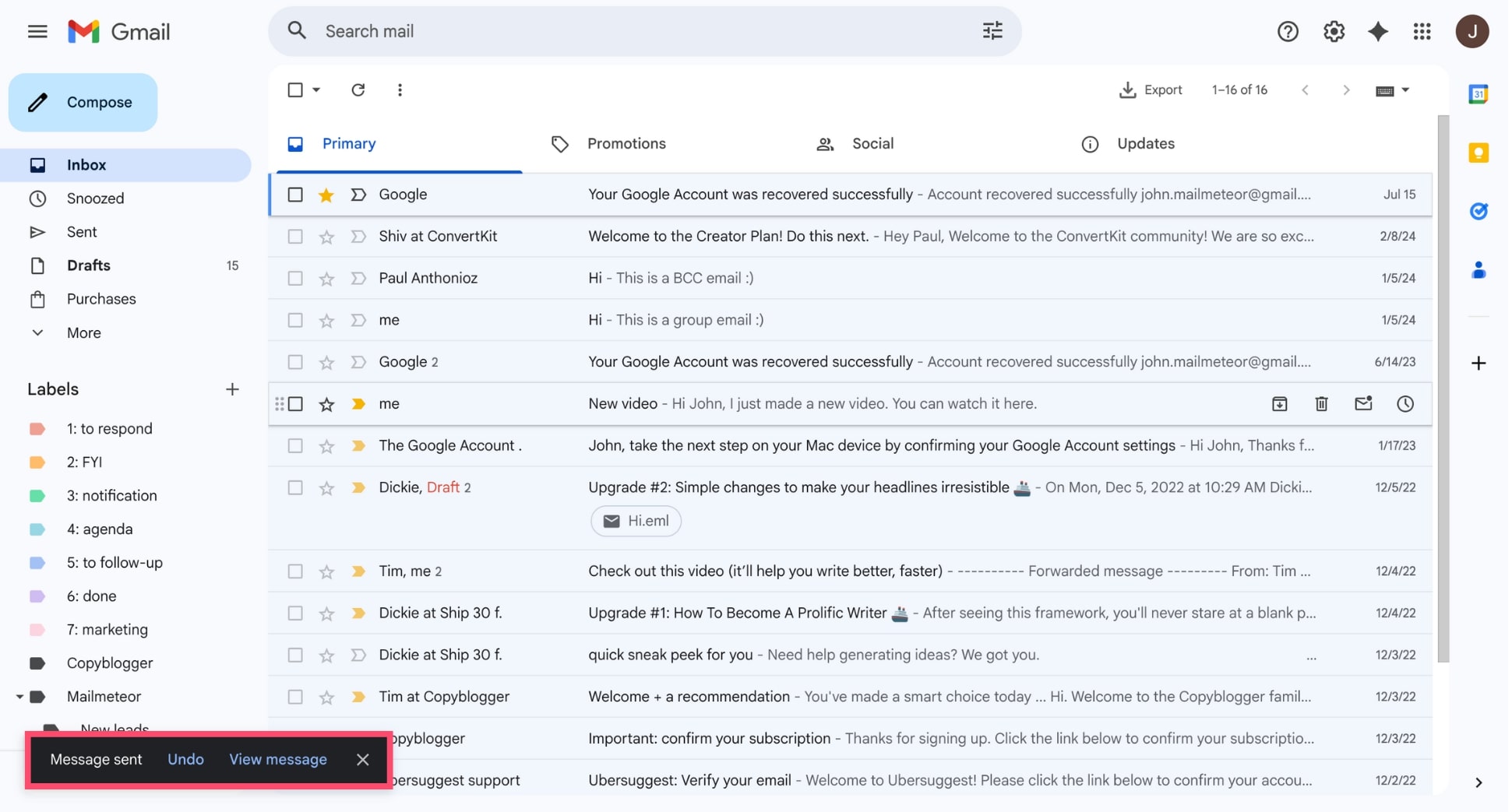
- Click Undo within the allowed time window.
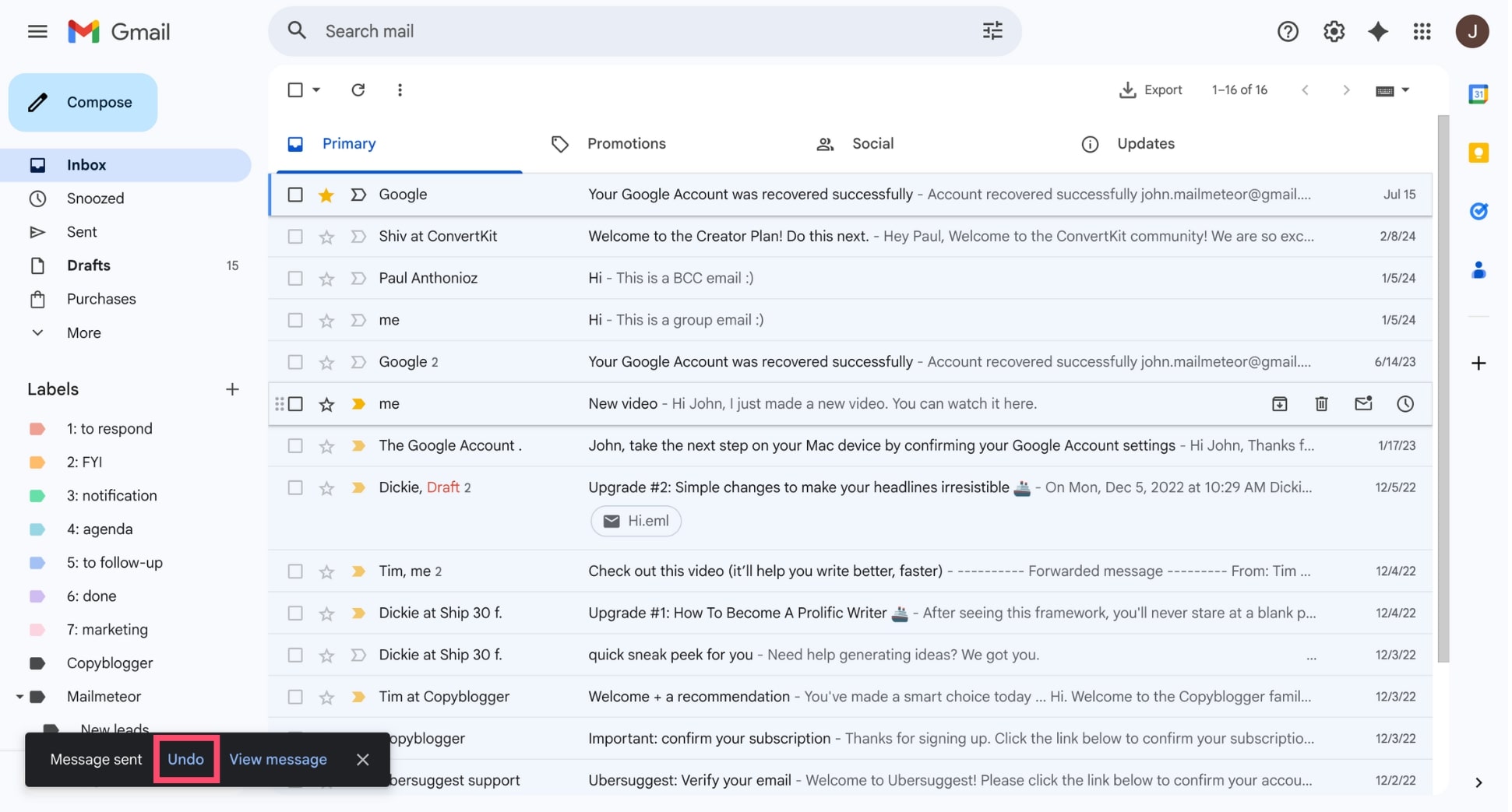
And done. Gmail will pull the message back and reopen it as a draft so you can edit or delete it. Once the Undo window expires, however, you cannot delete the email. It has already been delivered.
In Outlook
Outlook offers a unique feature called Message Recall, which lets you attempt to replace or delete an email after it has already left your outbox. Unlike Gmail’s Undo Send — which simply delays delivery by a few seconds — Outlook recall works after the message has been delivered to the recipient’s inbox.
Here’s how to delete an email you sent in Outlook:
- Open Outlook and go to your Sent Items folder.
- Double-click the message you want to recall to open it in a new window.
- In the top ribbon, select Message.
- Click Actions > Recall This Message.
- Choose one of the two options:
- Delete unread copies of this message
- Delete unread copies and replace with a new message
- Click OK.
And that’s it. Outlook will attempt the recall — but success is not guaranteed. This feature only works when both you and the recipient use Outlook within the same Microsoft 365 or Exchange organization, and only if the email is still unread.
In Yahoo Mail
Yahoo Mail does not offer a true unsend or recall feature. That means once an email has been delivered to someone else’s inbox, it cannot be deleted. You can delete the message from your Sent folder, but this only removes it from your own mailbox.
Here’s how to delete an email you sent in Yahoo Mail:
- Open Yahoo Mail.
- In the left sidebar, select Sent.
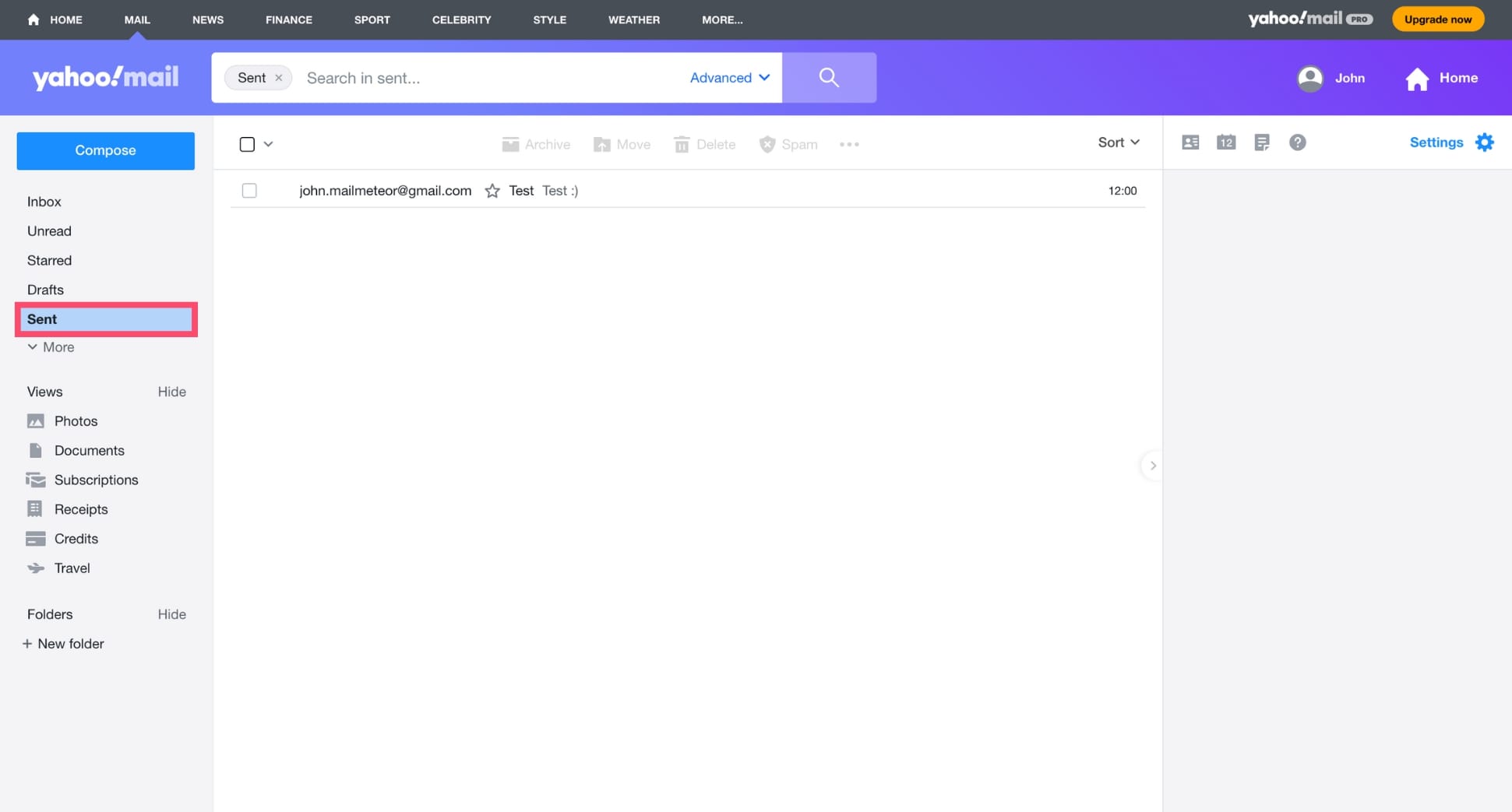
- Open the message you want to delete.
- Click the Trash icon to remove it from your account.
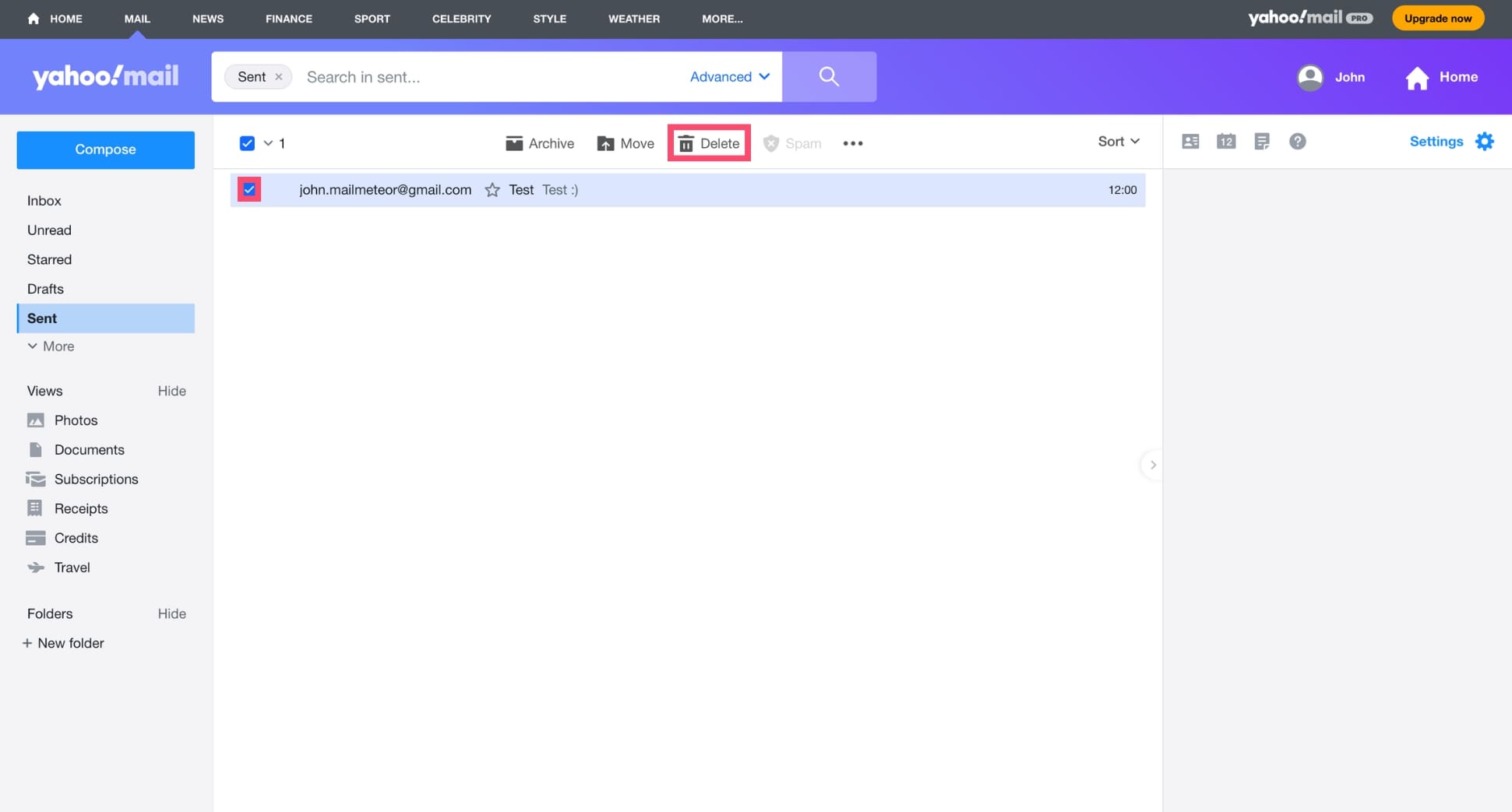
This helps you clean up your mailbox, but it does not retract the email from the recipient. Yahoo Mail does offer an Undo Send feature — but only in the mobile app, and it only gives you a 3-second window to cancel a message.
In Apple Mail
Apple Mail doesn’t offer a true unsend or recall feature once an email has been delivered to the recipient. However, it does include a short Undo Send window that lets you stop an email before it leaves your outbox.
Here’s how to delete an email you sent in Apple Mail:
- After hitting Send, look at the bottom-left corner of the Mail window.
- You’ll see an Unsend option for 10 to 30 seconds (depending on your settings).
- Click Undo Send to cancel delivery and return the message to your Drafts folder.
In Proton Mail
Proton Mail also doesn’t allow you to delete an email once it’s delivered, but it does include a helpful Undo Send feature. So if you want to prevent an email from going out — or quickly “unsend” it — you can do so within a short delay.
Here’s how to delete an email you sent in Proton Mail:
- After sending, an Undo button appears briefly at the bottom of the screen.
- Click it before the delay expires (10 seconds by default).
- The email is pulled back into Drafts so you can revise or delete it.
What to Do If You Can’t Delete the Email
Sometimes, no matter how fast you react, you simply can’t delete or recall the email — either because the time window has passed, your provider doesn’t support unsending, or the message was already opened.
If that happens, the quickest fix is to send a short follow-up correcting the mistake. Keep it simple, factual, and focused on what needs to be clarified. A prompt correction minimizes confusion and shows professionalism.
For example:
Quick correction to the email I just sent — the attachment was missing. Here’s the right file.
How to Prevent Mistakes in the Future
Even if your email provider lets you recall or unsend messages, the safest strategy is avoiding mistakes in the first place. A few simple habits — plus the right tools — can dramatically reduce the chances of sending something you regret.
Double-Check Your Email Before Sending
It sounds obvious, but most email mistakes happen because we hit Send too quickly. Before sending any important message, pause for 5–10 seconds and review the essentials. Here’s the checklist I like to use:
- Recipient: Is this going to the right person?
- Attachments: Is the correct file attached?
- Links: Do they point to the right place?
- Tone: Does the message sound clear and professional?
- Details: Dates, times, amounts — are they accurate?
A brief final check is often enough to catch the errors you’d otherwise notice only after clicking send.
Add a Delayed Send Buffer
One of the easiest ways to avoid sending emails you’ll regret is to delay delivery by a few seconds. This gives you a built-in safety window to catch typos, wrong recipients, or missing attachments before the email actually leaves your outbox.
Most email providers let you enable a short delay. In Gmail, for example, you can extend the Undo Send window to 30 seconds. It adds almost no friction — but it prevents a surprising number of mistakes.
Here’s how to do it:
- Open Gmail on your computer.
- Go to Settings > See all settings.
- Under the General tab, scroll to Undo Send.
- Choose a send delay of 5, 10, 20, or 30 seconds.
- Click Save Changes.
And voilà. Every time you send an email, Gmail will show an Undo button for the duration you selected, giving you a final chance to stop the message before it’s delivered.
Use an AI Assistant to Flag Mistakes
If you write emails quickly, it’s easy to miss typos, unclear sentences, or a tone that doesn’t land well. An AI email assistant helps you avoid those mistakes by giving you a clean, polished draft from the start.
With Mailmeteor’s AI Email Writer, you can:
- Generate a clear, professional email in seconds
- Rewrite your message in a warmer, clearer, or more concise tone
- Define your own writing style so the AI writes like you
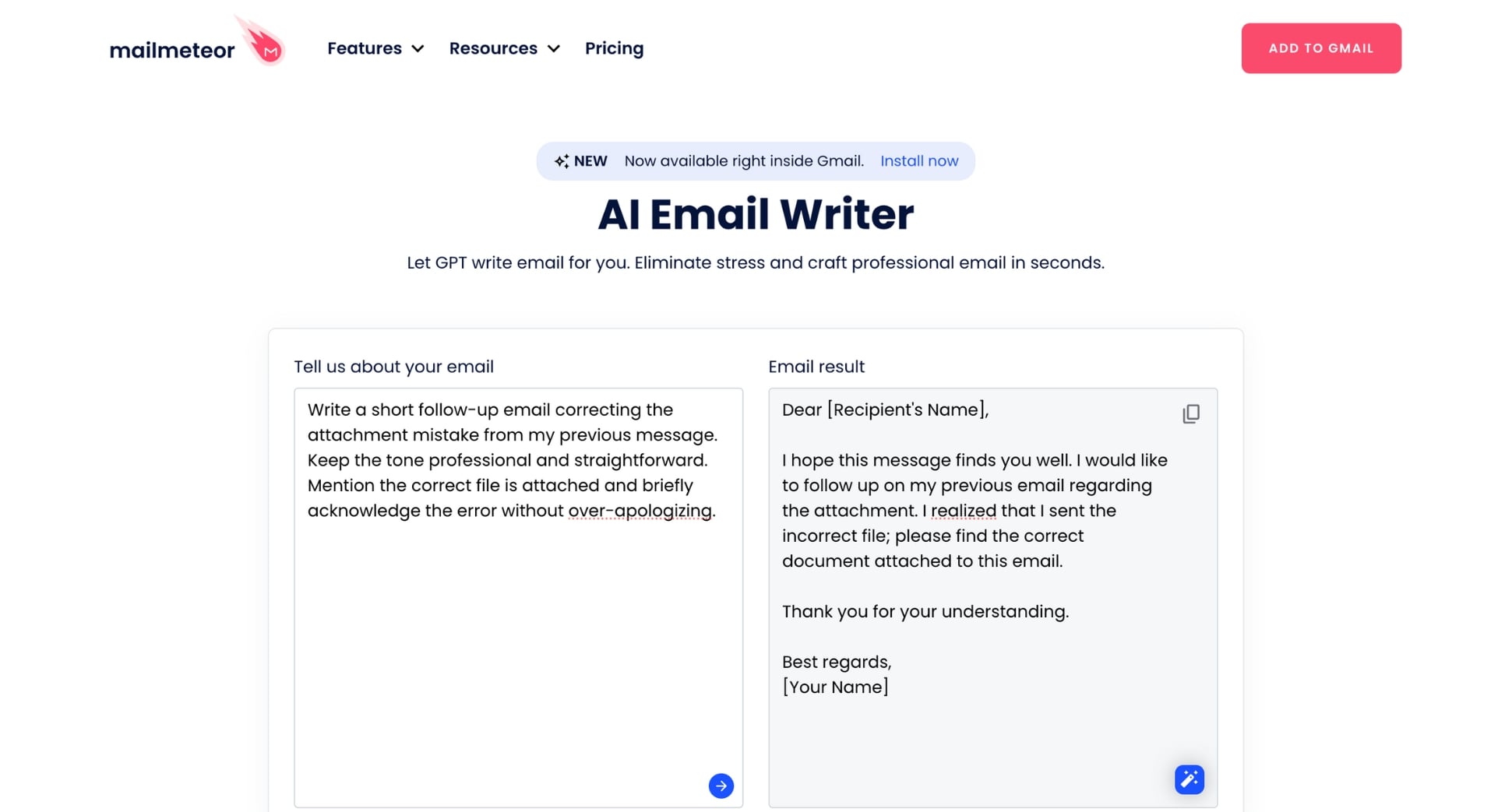
No more rereading the same lines ten times. You start with a solid, well-structured draft — which means far fewer “oh no…” moments after hitting Send, and far more confidence in every email you send.
Schedule Emails Instead of Sending Immediately
If you tend to send emails on autopilot, scheduling is an easy way to avoid mistakes. Instead of sending immediately, schedule your message a few minutes ahead — giving yourself time to catch typos, wrong recipients, or missing attachments.
Here’s how to schedule emails in Gmail:
- Compose your email.
- Click the arrow next to Send.
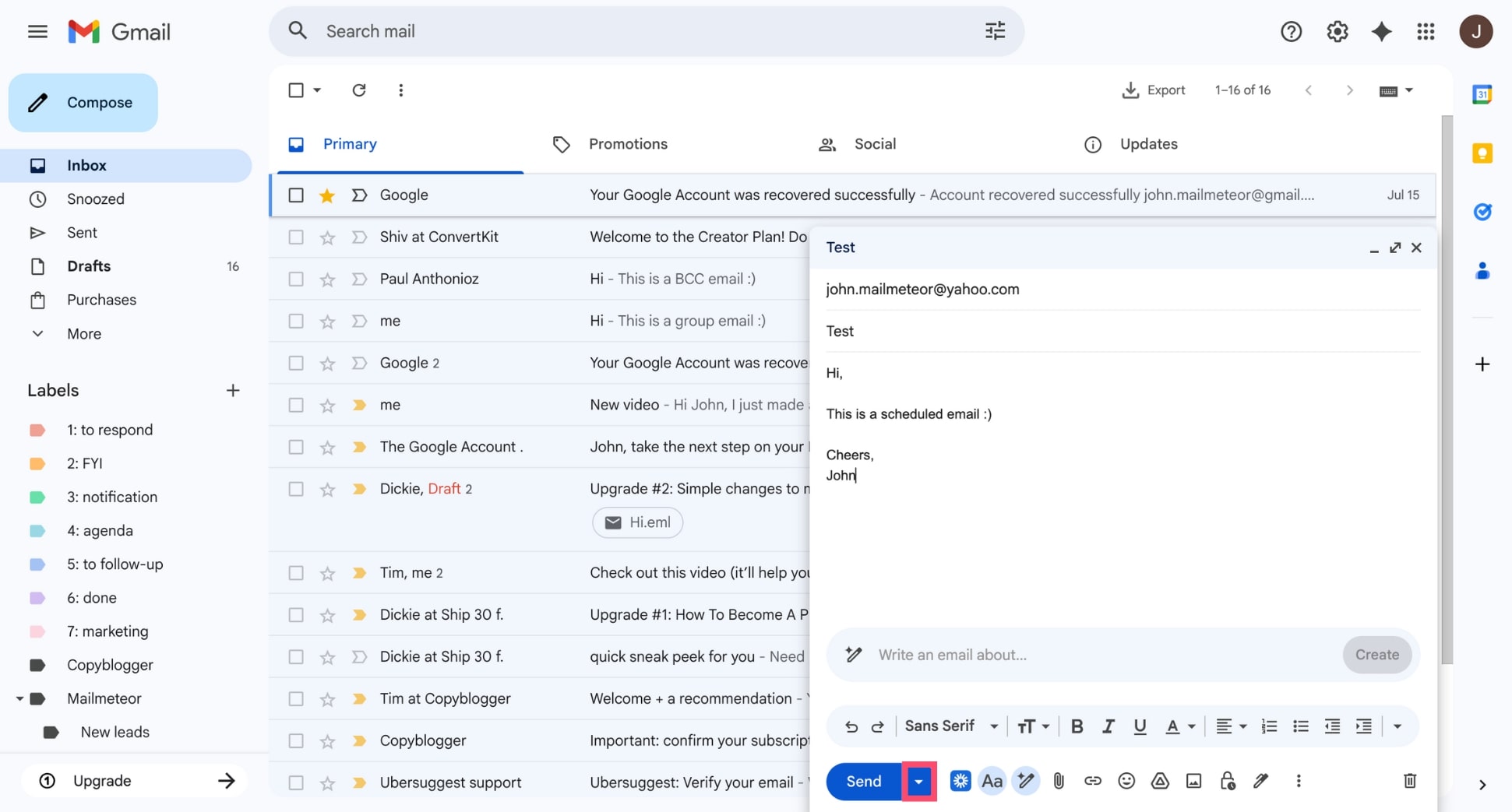
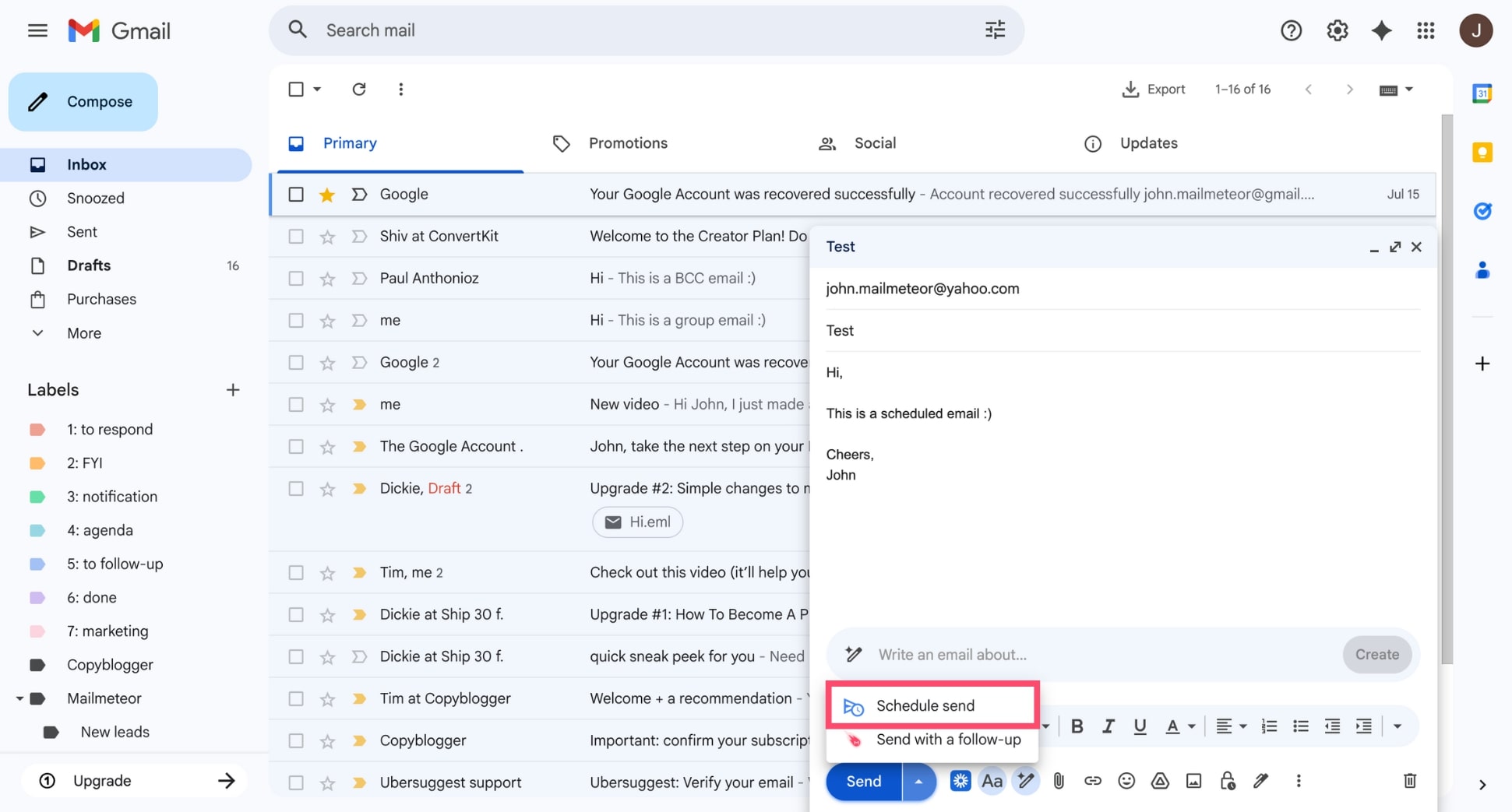
- Select Schedule send.
- Choose one of the suggested times or set a custom date and time.
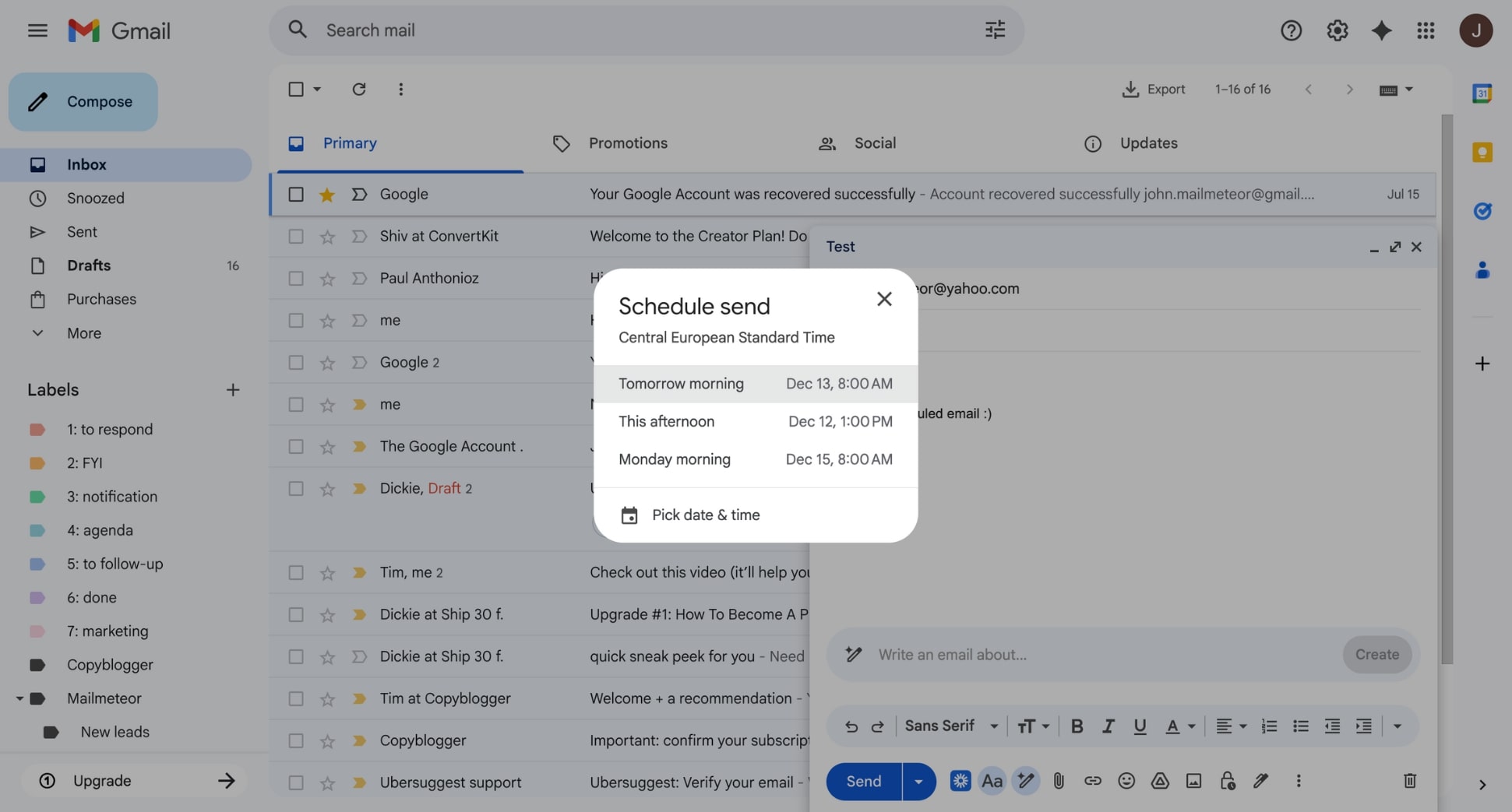
And that’s it. If you catch an issue before the scheduled time, you can simply open the message, fix it, and reschedule — no panic needed. This also works in Outlook, Yahoo Mail, Proton Mail, Apple Mail.
Conclusion
Deleting an email you’ve already sent isn’t always possible — but as you’ve seen, many providers now offer short undo send windows or recall options that can save you in a pinch. And even when recall isn’t available, a quick correction message usually fixes the issue.
To avoid mistakes altogether, enable a send delay, use scheduling, and let AI draft your emails more clearly. With the right tools and habits, you’ll catch issues before they hit someone else’s inbox — and send every message with confidence.
FAQs
Can you delete an email after the recipient reads it?
Usually, no. Once an email is delivered, you can’t delete it from someone else’s inbox. However, Gmail’s Confidential Mode is one exception. If you sent the email using this mode, you can set an expiration date or use Remove access option to revoke the recipient’s access at any time, even after they’ve opened it. The message won’t be deleted from their inbox, but its content (body, links, attachments…) becomes unreadable.
Does deleting an email from your sent folder delete it for the other person?
No. Deleting an email from your Sent folder only removes your copy. The recipient keeps their copy unless their email provider automatically filters or removes it (which is rare).
How long do you have to unsend an email?
It depends on the email provider:
- Gmail: 5 to 30 seconds
- Outlook: recall works only if the recipient hasn’t opened the email and is on the same Exchange server
- Yahoo Mail: 3 seconds
- ProtonMail: 5 to 20 seconds
- Apple Mail: 10 to 30 seconds
If the email has already left the server, it cannot be pulled back.
Why didn’t my Outlook recall work?
In most cases, Outlook’s recall fails because:
- The recipient already opened the email
- The recipient uses Gmail, Yahoo, or any non-Exchange account
- You and the recipient aren’t on the same Microsoft 365 or Exchange server
- The message was moved by a rule before recall tried to retrieve it
Can you delete an email from someone else’s inbox?
No — you cannot delete or modify an email once it has been delivered to another person’s inbox. Email protocols treat sent messages as the recipient’s property. The only exception is internal systems like Exchange or Microsoft 365, where an administrator has special rights, but this is not something regular users can do.


