Gmail groups emails together by default. For some people, that’s helpful. For others, it’s frustrating. Replies get stacked under old messages, unrelated emails end up in the same thread, and it becomes harder to see what’s new, what needs action, and what you’ve already dealt with.
The good news is that you’re not stuck with it. Gmail gives you several ways to separate emails — whether you want to fully disable threading, split emails by sender or subject, or organize messages into distinct inboxes. In this guide, we’ll show you how to separate emails in Gmail, step by step, on desktop and mobile.
Here’s what we’ll cover:
- What Is Conversation View in Gmail?
- Why Gmail Groups Emails Together by Default
- How Should You Separate Emails in Gmail?
- How to Separate Email Threads In Gmail
- How to Separate Emails by Sender or Topic
- How to Separate Email Accounts or Inboxes in Gmail
What Is Conversation View in Gmail?
Conversation View is a Gmail feature that automatically groups related emails into a single thread. Instead of seeing each message separately in your inbox, Gmail stacks replies, forwards, and follow-ups together under one conversation — showing the full exchange in a single view.
Conversation View can be useful if you want to follow long discussions. But it also has drawbacks. When Gmail groups emails together, new messages can get buried inside old threads, unrelated emails may end up combined, and it becomes harder to scan your inbox at a glance.
Why Gmail Groups Emails Together by Default
Gmail groups emails to keep inboxes cleaner and easier to follow. By stacking replies, forwards, and follow-ups into a single thread, Gmail gives context to conversations and makes long exchanges easier to read from start to finish — especially when multiple people are involved.
From Google’s perspective, this reduces visual clutter and helps users track ongoing discussions — especially if you receive a lot of replies every day. But the grouping logic isn’t always accurate. Gmail doesn’t rely on replies alone. It also groups emails that appear related, even when they’re not.
Messages may be combined if they share:
- The same subject line
- The same sender or domain
- Similar wording or automated templates
- Close timestamps (for example, multiple actions on the same website)
That’s why Gmail can merge separate orders, shipping updates, or notifications into a single thread — even if the emails are unrelated and no one replied. This behavior is intentional. But when context turns into confusion, separating emails gives you back control over what you see — and how you manage your inbox.
How Should You Separate Emails in Gmail?
There are multiple ways to separate emails in Gmail. Not sure which method to use? Here’s a quick way to choose the right option based on what you’re trying to do:
| What you want to do | Best solution |
|---|---|
| Completely separate all emails | Turn off Conversation View |
| Split one specific conversation | Change the subject line when replying |
| Keep emails from one sender separate | Create a filter by sender |
| Separate emails by topic or purpose | Create a filter by subject |
| Stop mixing work and personal emails | Switch out of All Inboxes |
| Visually organize your inbox | Use Inbox types (Unread first, Multiple inboxes, etc.) |
Below, we’ll walk through each method step by step ⤵️
How to Separate Email Threads In Gmail
If Gmail keeps stacking messages into long, confusing threads, there are two simple ways to separate email in Gmail. You can turn off Conversation View entirely, or you can force Gmail to start a new thread for a specific reply.
The first option is a permanent fix that affects your whole inbox. The second is a one-off workaround when you only want to split a single conversation. Choose the method that fits how much control you want.
Turn Off Conversation View
The simplest way to separate email threads in Gmail is to turn off Conversation View. This stops Gmail from grouping messages and displays every email as its own, individual entry in your inbox — no stacking, no threads.
On Desktop
Here’s how to separate email threads on desktop:
- Open Gmail.
- Click the gear icon in the top-right corner.
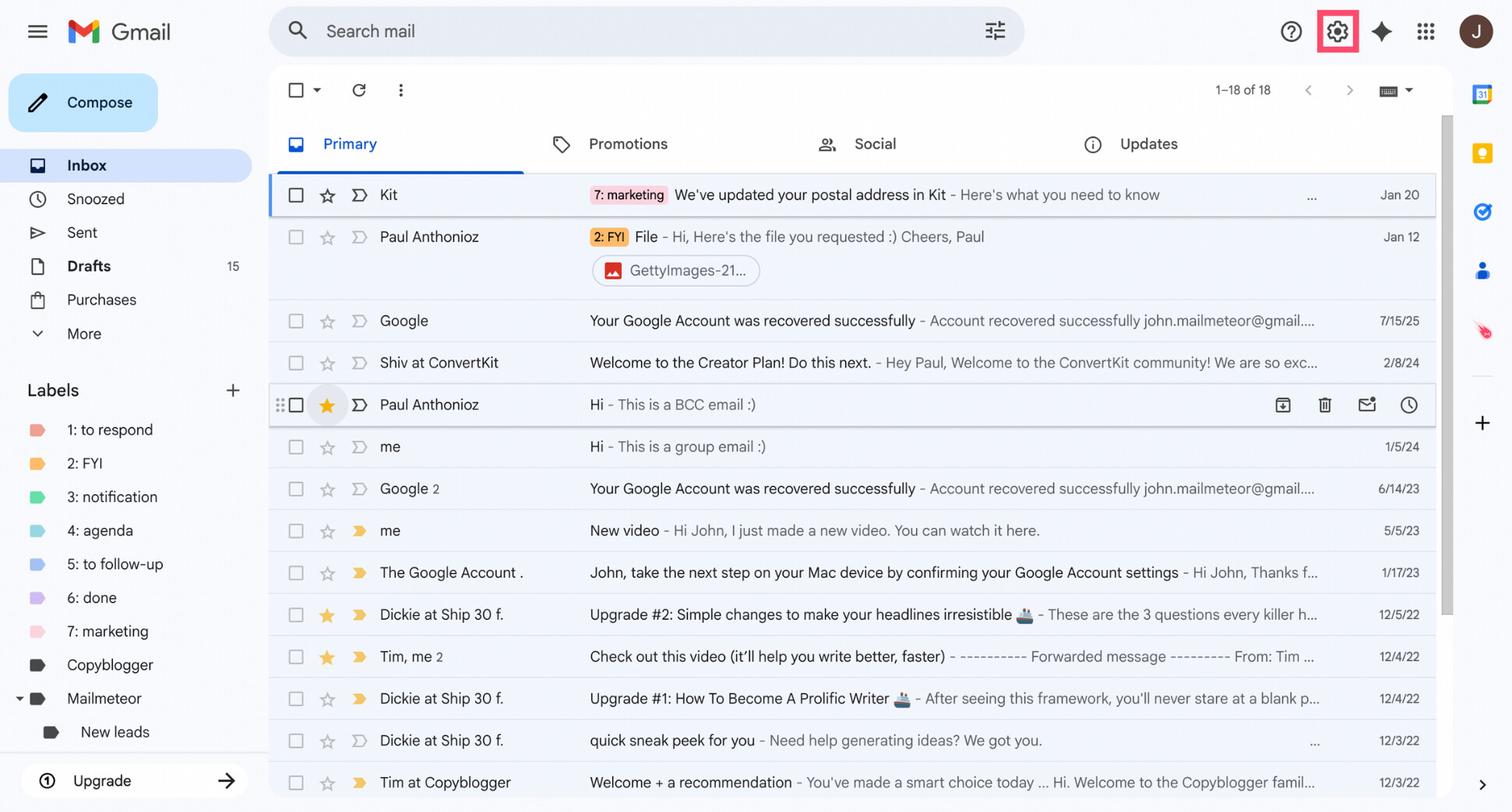
- Select See all settings.
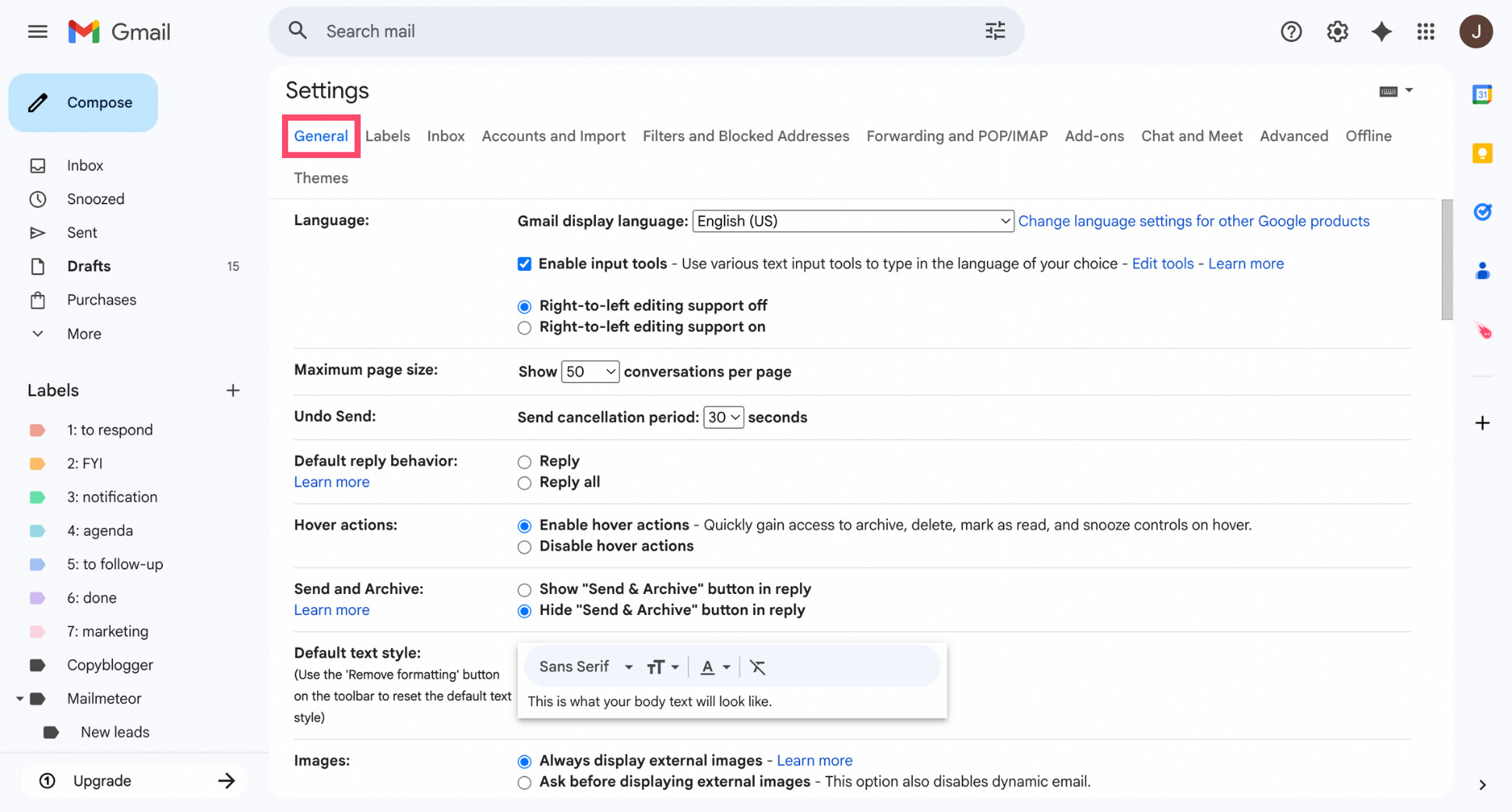
- Stay on the General tab.
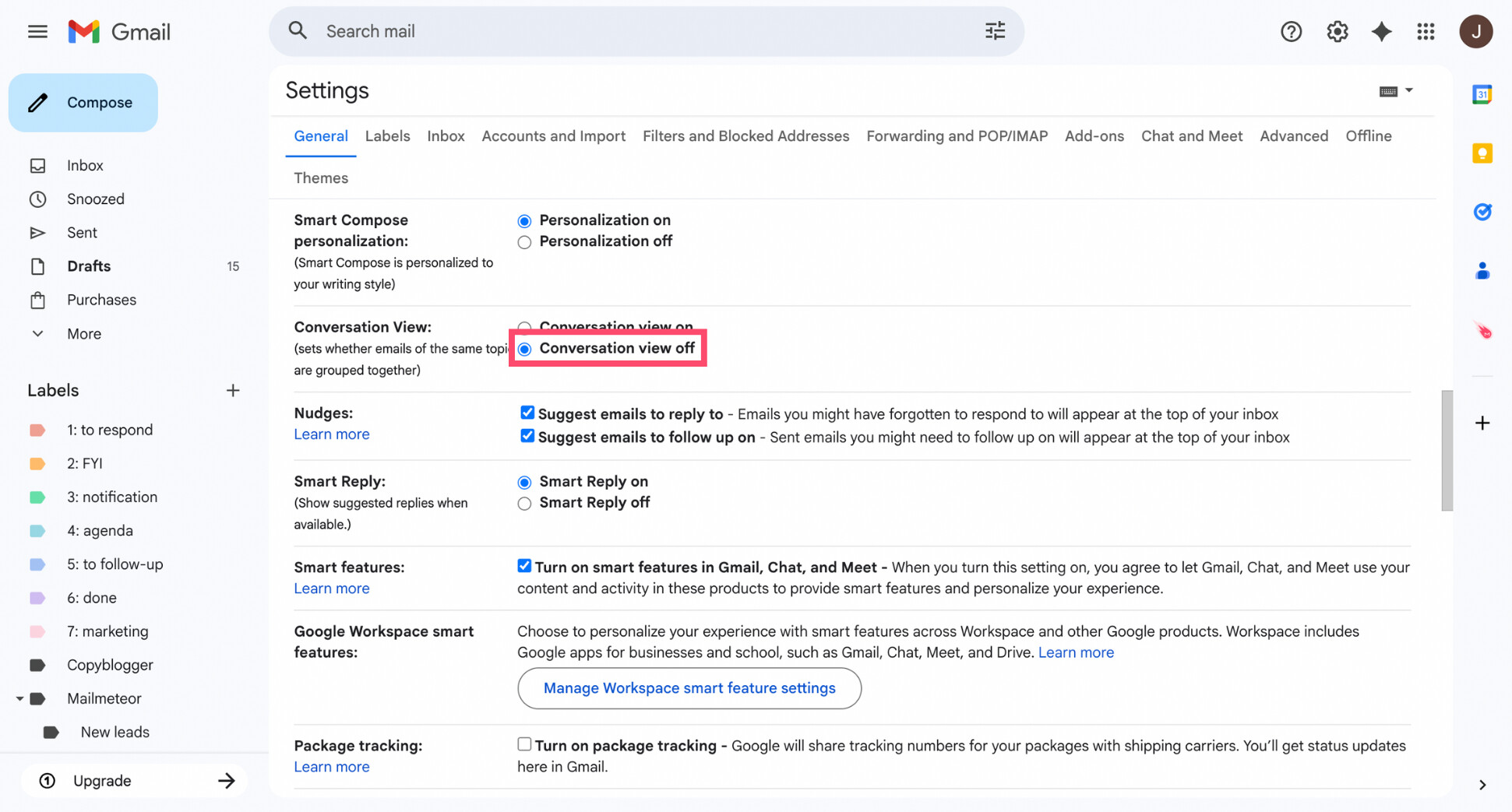
- Scroll down to Conversation View.
- Select Conversation view off.
- Scroll down and click Save changes.
And that’s it. Gmail will reload your inbox and immediately separate all emails — including old conversations. From now on, every message will appear as its own email instead of being grouped into threads.
On Android
Here’s how to separate email threads on Android:
- Open the Gmail app.
- Tap the menu icon (☰) in the top-left corner.
- Scroll down and tap Settings.
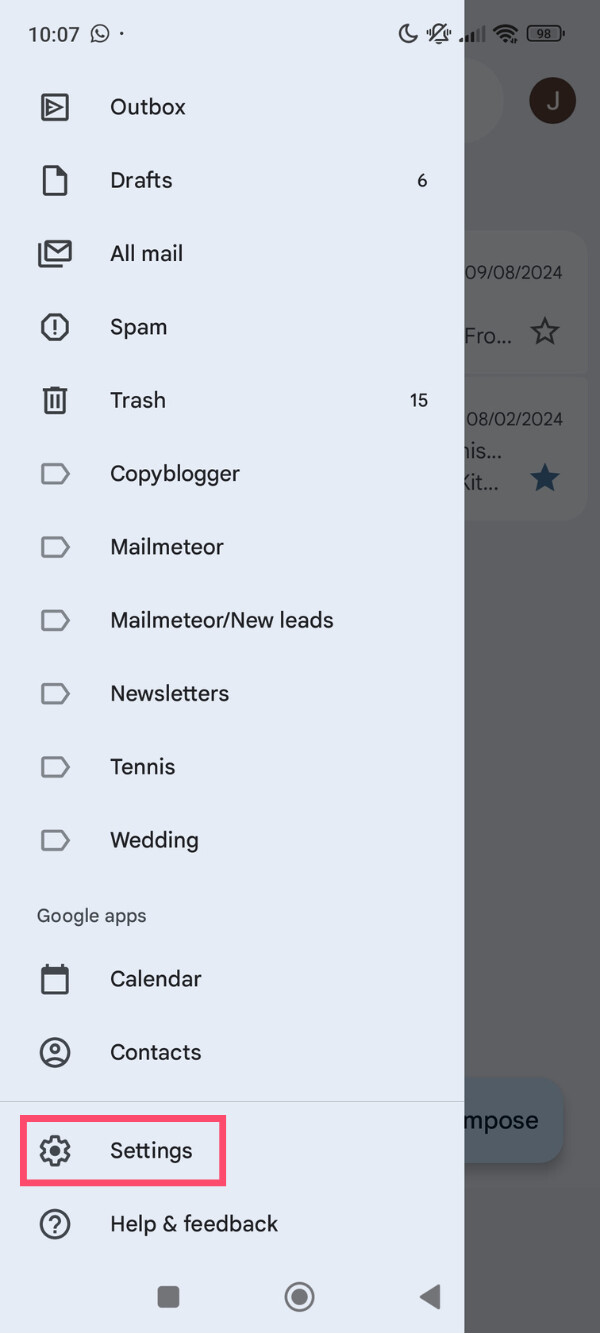
- Select the Gmail account you want to change.
- Scroll to the Conversation View section.
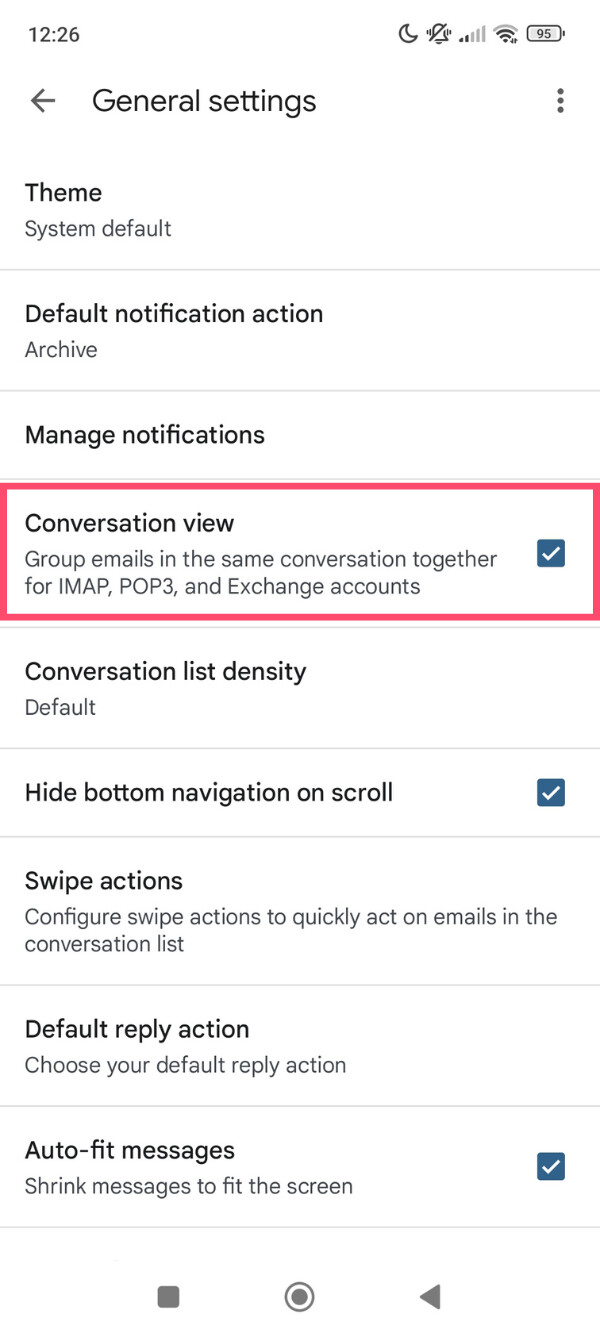
- Toggle Conversation view off.
And voilà. Once disabled, Gmail will stop grouping emails into threads on your Android device. Each email will appear as a separate message in your inbox — including future emails.
On iPhone
Here’s how to separate email threads on iPhone:
- Open the Gmail app.
- Tap the menu icon (☰) in the top-left corner.
- Scroll down and tap Settings.
- Select your Gmail account.
- Under Inbox, find Conversation View.
- Turn off Conversation View.
And done. Gmail will immediately stop threading emails on your iPhone. New messages will no longer be grouped together, making it easier to scan and manage your inbox.
Force a New Thread by Changing the Subject Line
You can also manually force Gmail to start a new conversation by changing the subject line when you reply. When the subject changes, Gmail treats the message as a new thread — even if it’s part of the same discussion.
Here’s how to do it:
- Open the email you’re replying to.
- Click Reply (or Reply all).
- Edit the subject line — even a small change is enough.
- Send the email.
Gmail will create a new conversation, separate from the original thread. However, this only affects that specific reply. Future replies with the same subject may still be grouped unless you keep changing it.
How to Separate Emails by Sender or Topic
Turning off Conversation View separates threads. But sometimes that’s overkill. In many cases, you just want emails from a specific sender — or around a specific topic — to stop cluttering your main inbox. That’s where filters come in.
Separate Emails From the Same Sender
If you want emails from a specific sender to be kept separate from the rest of your inbox, filters let you do that automatically. Here’s how:
- Open Gmail.
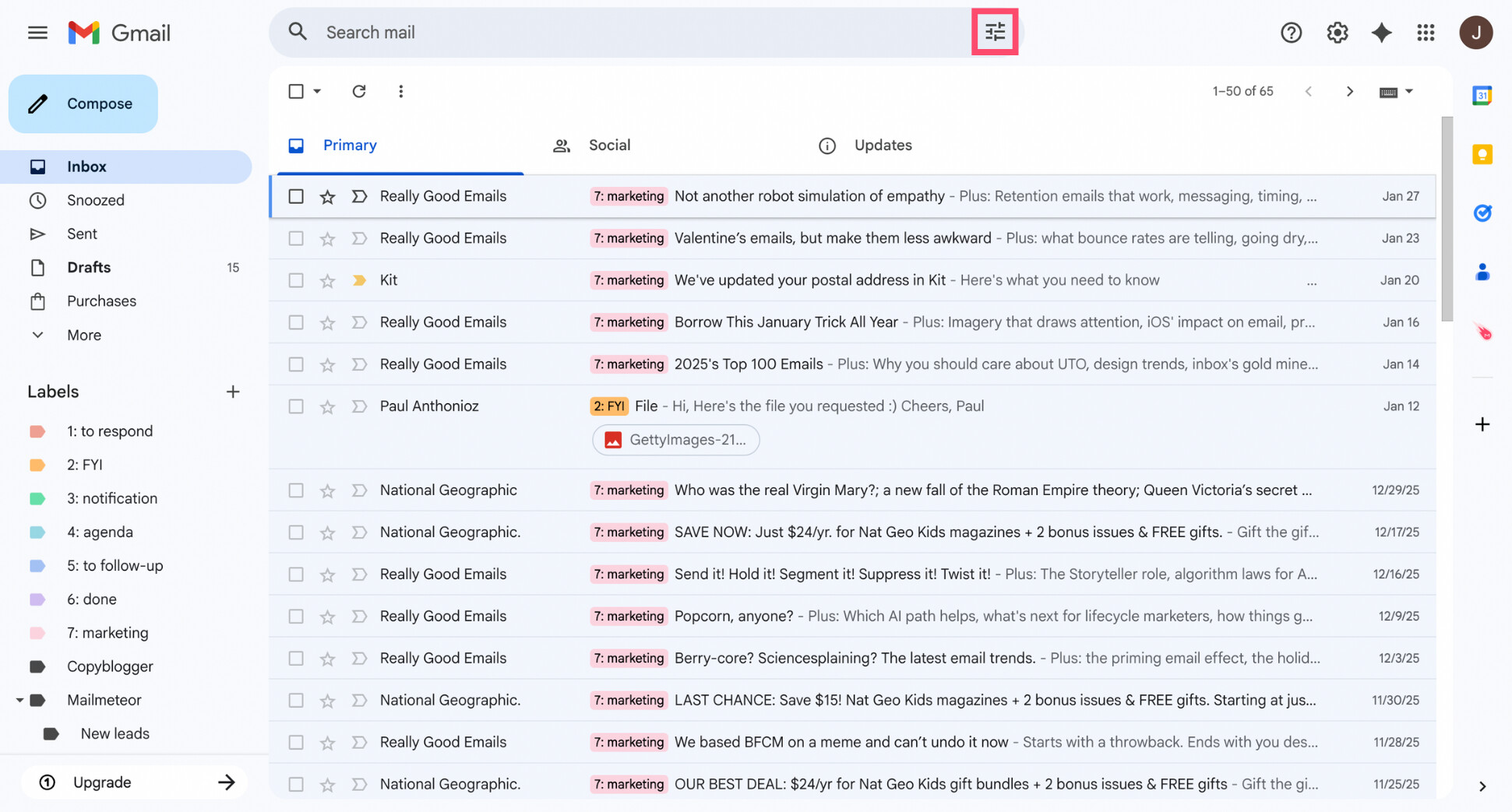
- Click the Show search options icon in the search bar.
- In the From field, enter the sender’s email address or domain.
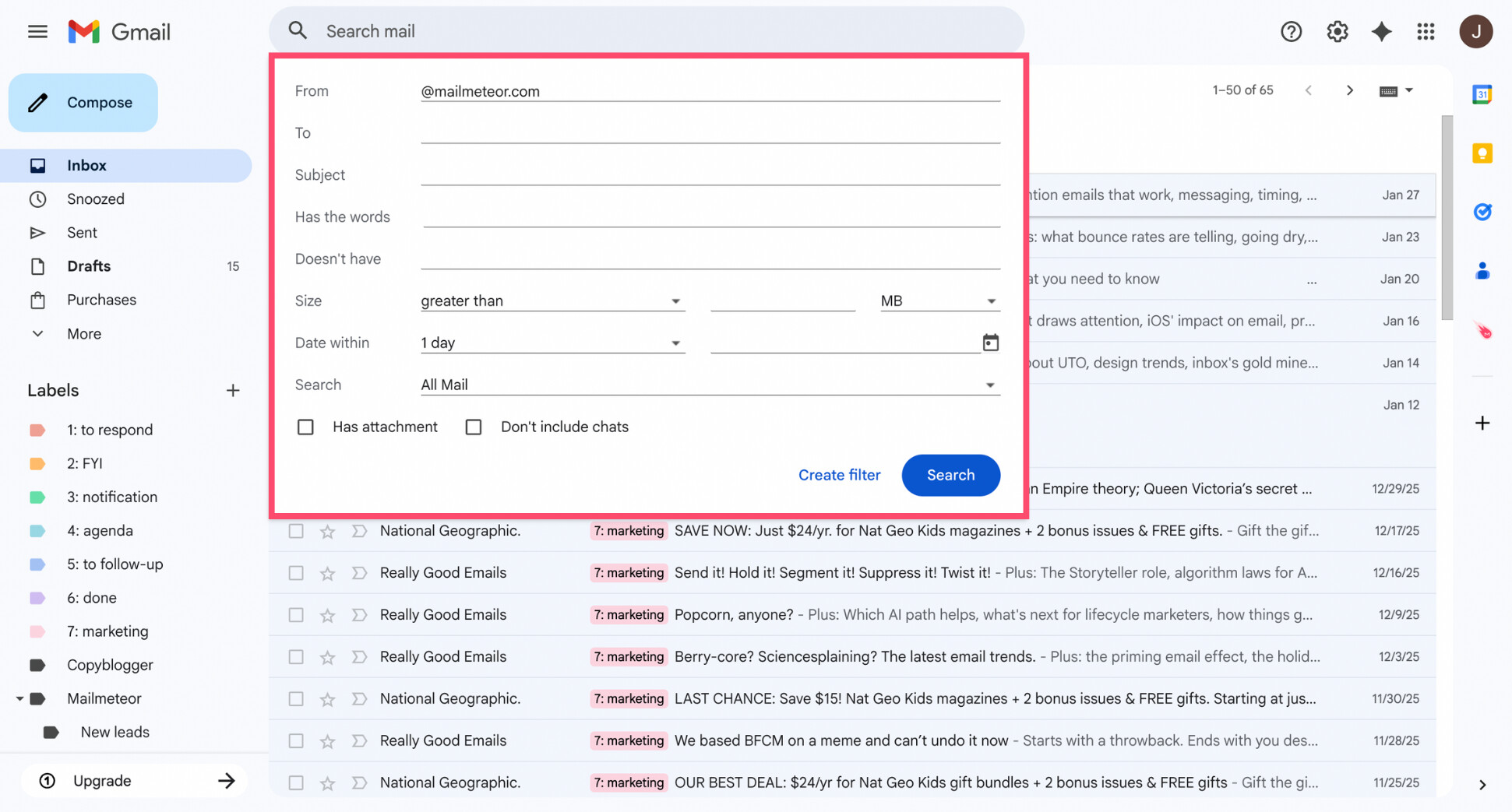
- Click Create filter.
- Choose what Gmail should do with these emails:
- Apply a label
- Skip the Inbox
- Mark as read
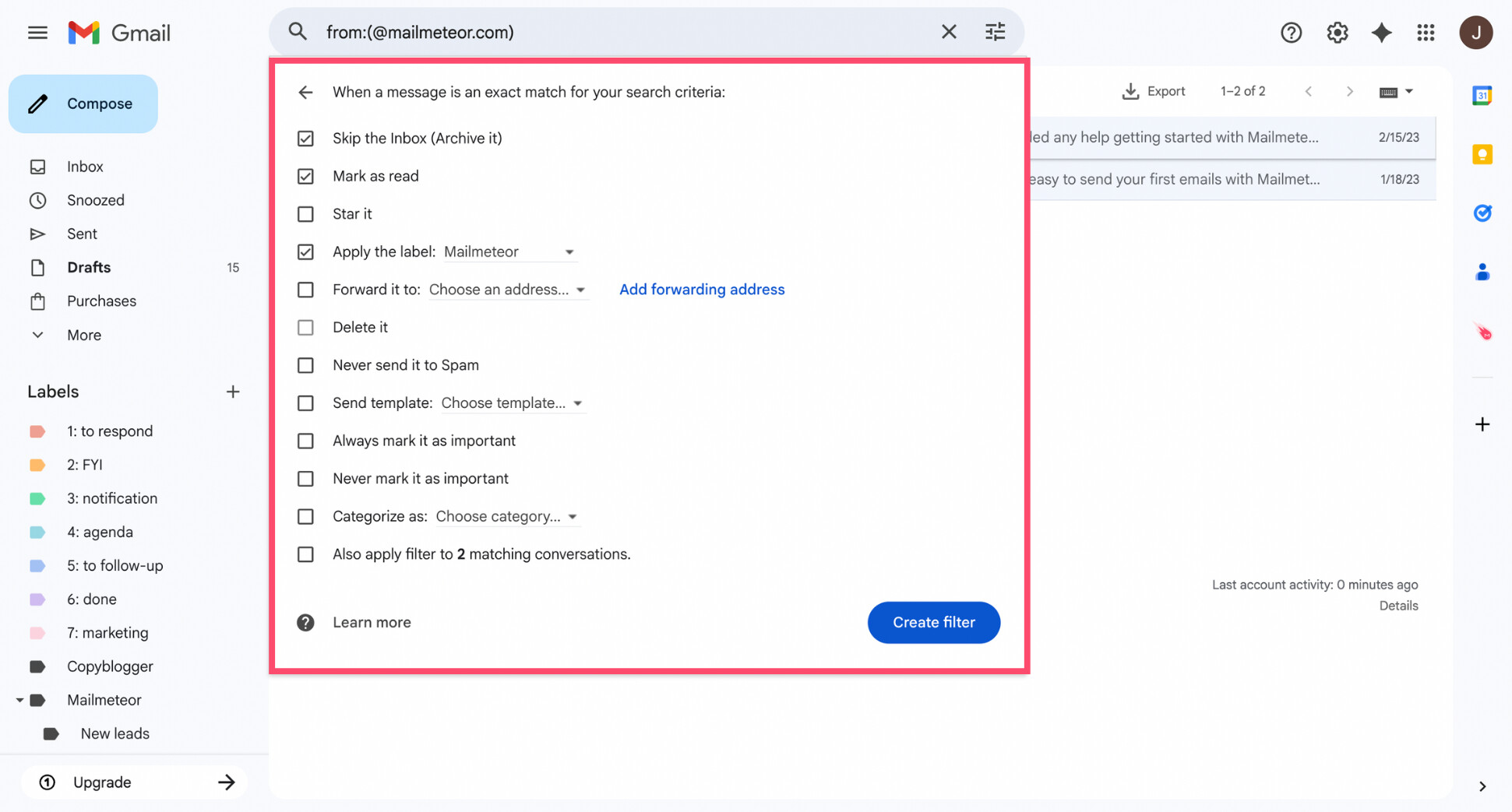
- Click Create filter again.
All done. From now on, emails from that sender will no longer appear mixed with the rest of your inbox. They’re still there — just clearly separated.
Separate Emails With the Same Subject Line
You can also separate emails based on what they’re about — not who sent them. If multiple emails share a recurring subject, you can route those messages into their own label so they don’t appear alongside unrelated emails. Here’s how:
- Open Gmail.
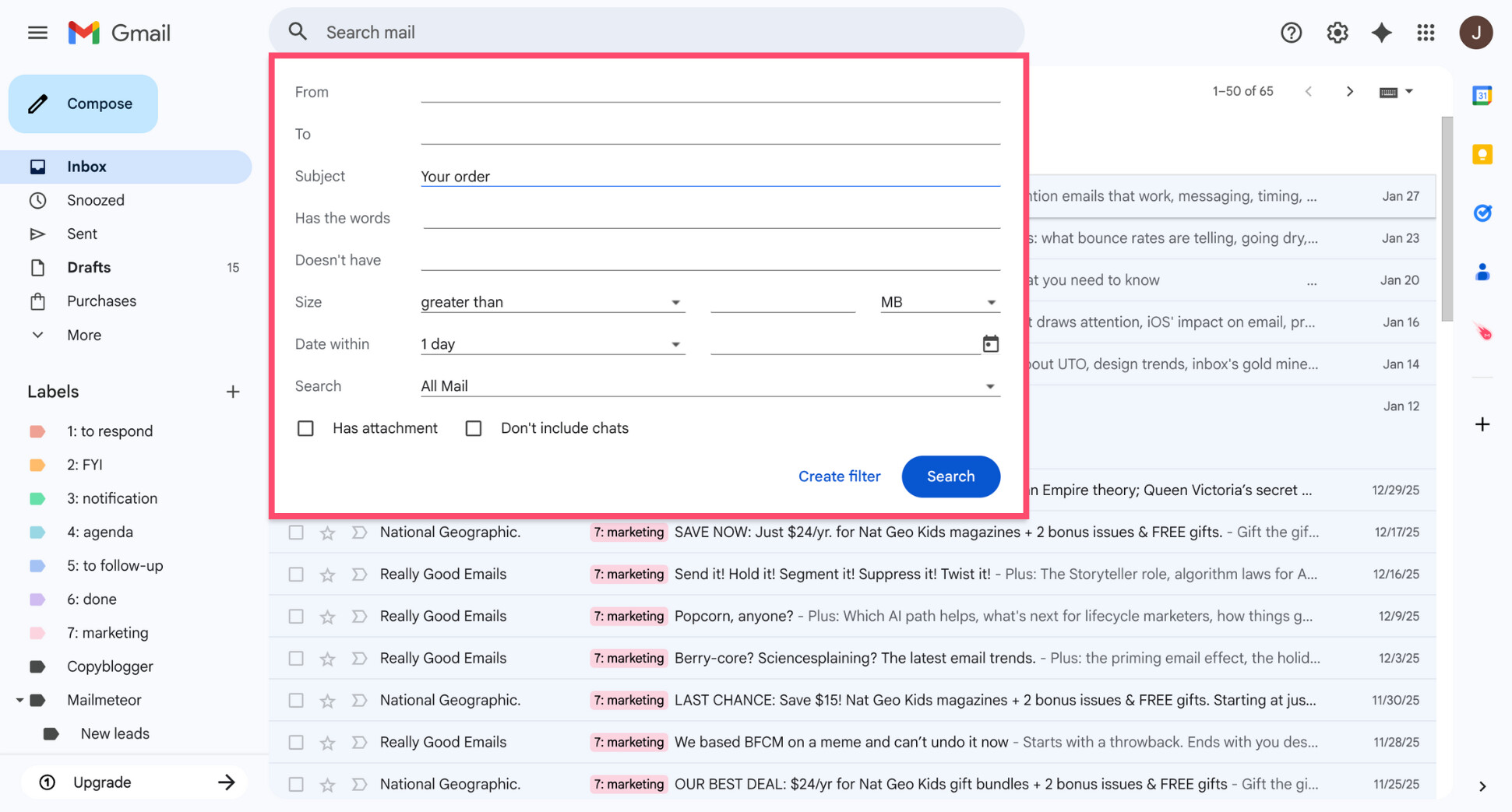
- In the search bar, click Show search options.
- In the Subject field, enter the recurring subject text. For example, if Gmail keeps grouping emails titled Your order has shipped, enter Your order.
- Click Create filter.
- Choose how Gmail should handle these emails.
- Click Create filter again.
This separates emails by topic, even though Gmail may still treat them as part of a conversation internally. Visually and practically, those emails are now kept apart from the rest of your inbox.
How to Separate Email Accounts or Inboxes in Gmail
Sometimes the issue isn’t email threads — it’s that emails from different accounts or purposes all end up mixed together. Gmail makes it easy to separate messages by account or by inbox type. Here’s how it works.
Separate Multiple Gmail Accounts
If you use several Gmail accounts and you’re currently seeing emails from multiple accounts mixed together, it means All Inboxes is enabled. Switching to a specific account instantly separates them.
On desktop
To separate multiple Gmail accounts on desktop:
- Open Gmail.
- Click your profile picture in the top-right corner.
- Select the Gmail account you want to view.
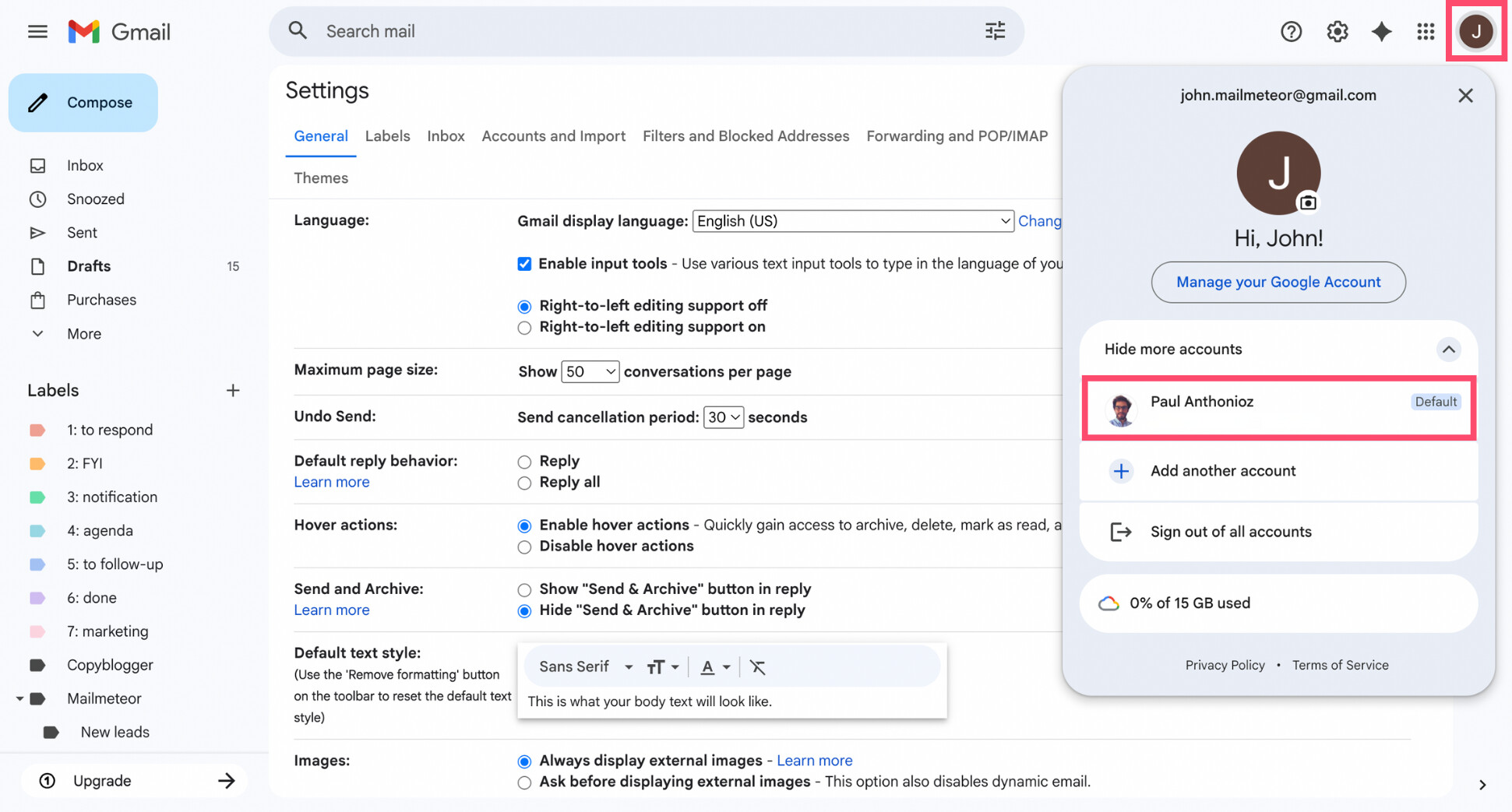
Gmail will now show only emails from that account.
On mobile
To separate multiple Gmail accounts on mobile:
- Open the Gmail app.
- Tap the menu icon (☰) in the top-left corner.
- Tap the email address you want to view.
This switches you out of All Inboxes and shows messages from one account only.
Split Emails Using Inbox Types
Inbox types let you split your Gmail inbox into separate sections based on how messages are classified — without turning off Conversation View. This is useful if you want emails visually separated by type rather than fully unthreaded.
- Open Gmail.
- Click the gear icon in the top-right corner.
- Select See all settings.
- Go to the Inbox tab.
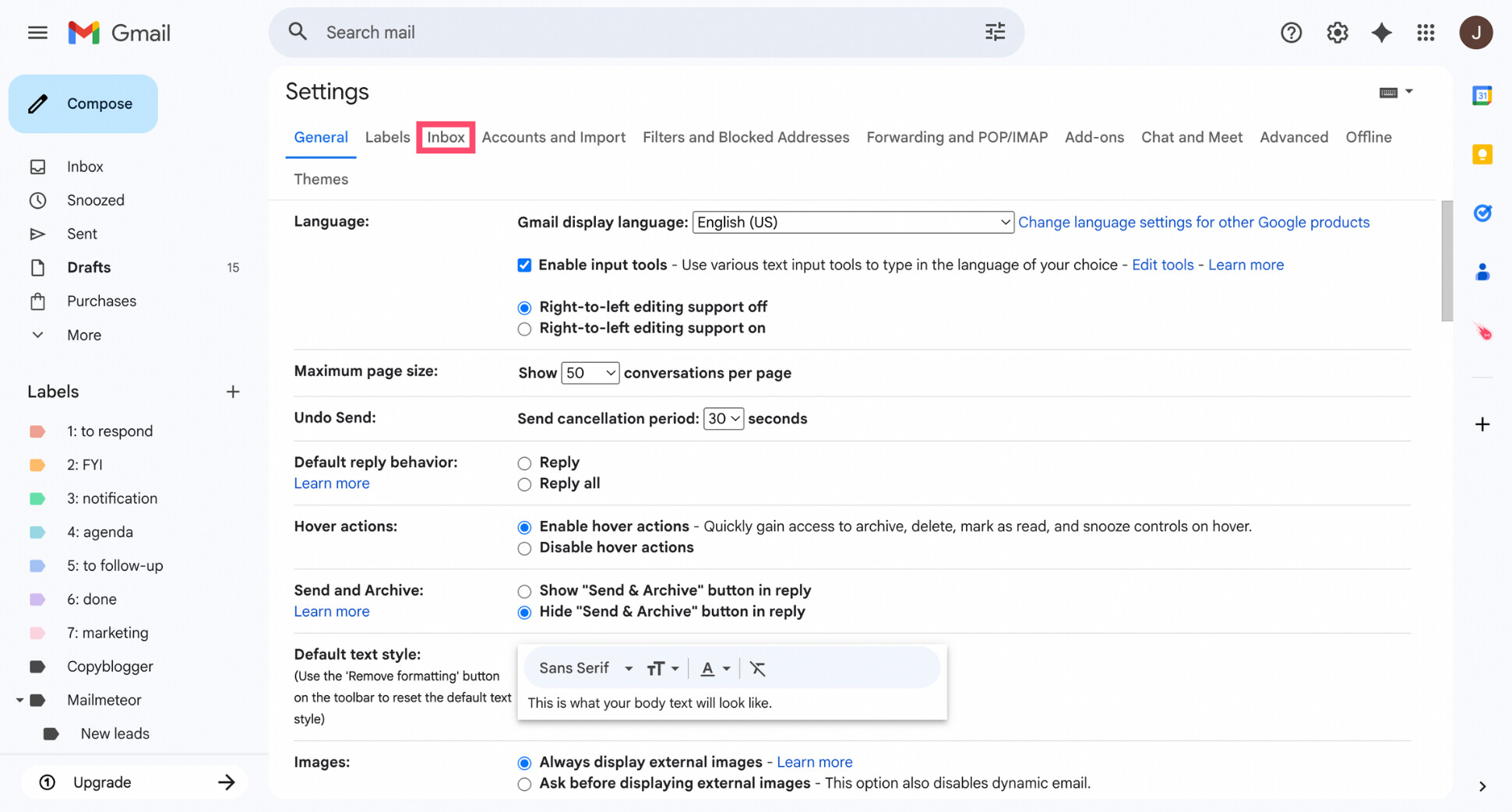
- Under Inbox type, choose one of the following:
- Default – Uses Gmail’s automatic categories (Primary, Promotions, Updates…)
- Important first – Shows important emails at the top
- Unread first – Separates unread emails from the rest
- Starred first – Highlights starred emails
- Multiple inboxes – Creates separate inbox sections using custom rules
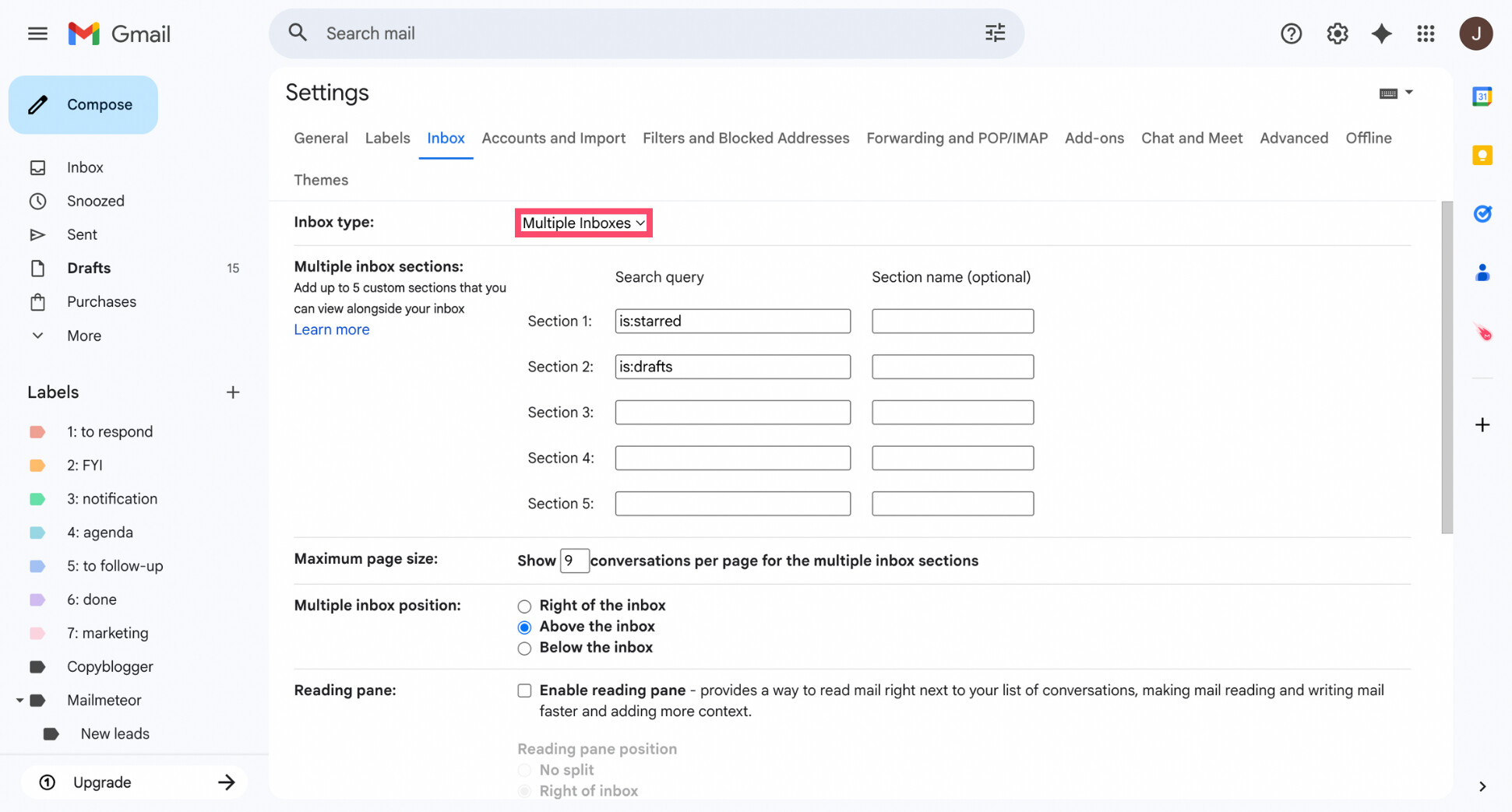
- Scroll down and click Save changes.
And voilà. Gmail will reload and display your inbox using the selected layout. But Inbox types don’t stop Gmail from threading emails. They change how emails are displayed, not how conversations are grouped.
Conclusion
Gmail’s email grouping isn’t a bug — it’s a design choice. And once you understand how it works, you get to decide how much control you want.
If you want full separation, turning off Conversation View is the most effective solution. If you prefer a lighter touch, filters, labels, inbox types, or account separation can help keep emails organized without changing how Gmail threads conversations.
And if the real issue isn’t just grouping — but email overload — there’s another way to regain control. The Mailmeteor AI email assistant works directly inside Gmail to help you focus on what matters most.
It can help you:
✨ Identify and prioritize important emails
🔁 Automate follow-ups so nothing slips through
✉️ Write and send personalized emails faster
📊 Track replies and engagement in real time
📤 Export emails and conversations
👉 Try the Mailmeteor AI email assistant today (it’s free!) and turn Gmail into a calmer, more intentional workspace.
FAQs
How do I stop Gmail from grouping emails together?
Turn off Conversation View in Gmail settings. This disables email threading and shows each message as a separate email in your inbox. On desktop, go to Settings > See all settings > General > Conversation View > Off, then click Save Changes.
Why does Gmail group emails with the same subject?
Gmail groups emails with the same subject because it assumes they’re part of the same conversation. Even without replies, messages that share a subject line, sender, or similar timing can be combined into one thread.
Will turning off Conversation View separate all emails?
Yes. Turning off Conversation View separates all emails — past and future — into individual messages. Each email will appear as its own entry in your inbox instead of being grouped in threads.
Can I split a single email out of a thread?
No. Gmail doesn’t let you split one message out of a thread while keeping Conversation View on. To fully separate emails, you must turn off Conversation View or use filters and labels as a workaround.
How do I separate emails from the same sender in Gmail?
Use Gmail filters. You can create a filter based on the sender’s email address and automatically apply labels, skip the inbox, or route messages to a specific inbox. This keeps emails from the same sender visually separated.
How do I separate emails in the Gmail app?
On the Gmail mobile app, you can turn off Conversation View in Settings. Open the app, go to Settings > Select your account > Conversation View, and toggle it off. Emails will then appear separately.
How do I stop Gmail from combining inboxes?
If Gmail is showing emails from multiple accounts together, disable All Inboxes or switch to a specific account view. In the Gmail app or web interface, select the account you want instead of viewing combined inboxes.


