Transferring emails between Gmail accounts might sound complicated — but it doesn’t have to be. Whether you’re switching to a new email address, merging multiple inboxes, or just backing up your data, there are simple ways to move your messages without losing a thing.
Google offers built-in tools that handle most of the heavy lifting for you. And if you prefer more control or need a full backup, there are manual options too — all safe, free, and surprisingly quick to set up.
No matter your reason, the key is choosing the right method for your needs. Do you want to import everything at once? Forward only future messages? Or export a clean archive you can store offline?
| Method | Best For | Speed | Needs Login? |
|---|---|---|---|
| Gmail Import | Moving everything to a new inbox | ✅ Slow (can take hours) | ✅ Yes |
| Forwarding | New emails only or selected messages | ✅ Fast | ✅ Yes |
| Google Takeout | Full backup/export | ⚠️ Manual | ✅ Yes |
In this quick guide, we’ll cover:
- How to Import Emails from Another Gmail Account
- How to Automatically Forward All Emails
- How to Use Google Takeout for Full Backup
- How to Manually Forward Emails
Sounds good? Then let’s dive in.
Method 1 – Import Emails from Another Gmail Account
The easiest way to transfer emails from one Gmail account to another is by using Gmail’s built-in Import mail and contacts tool.
This method uses POP3 to pull emails from your old account into your new inbox — no third-party tools needed.
It’s ideal if you want to move all your old emails and contacts into a new Gmail account, and you only need to set it up once.
Step 1 – Log in to your new Gmail account
Go to Gmail and sign in with the account where you want your old emails to be transferred.
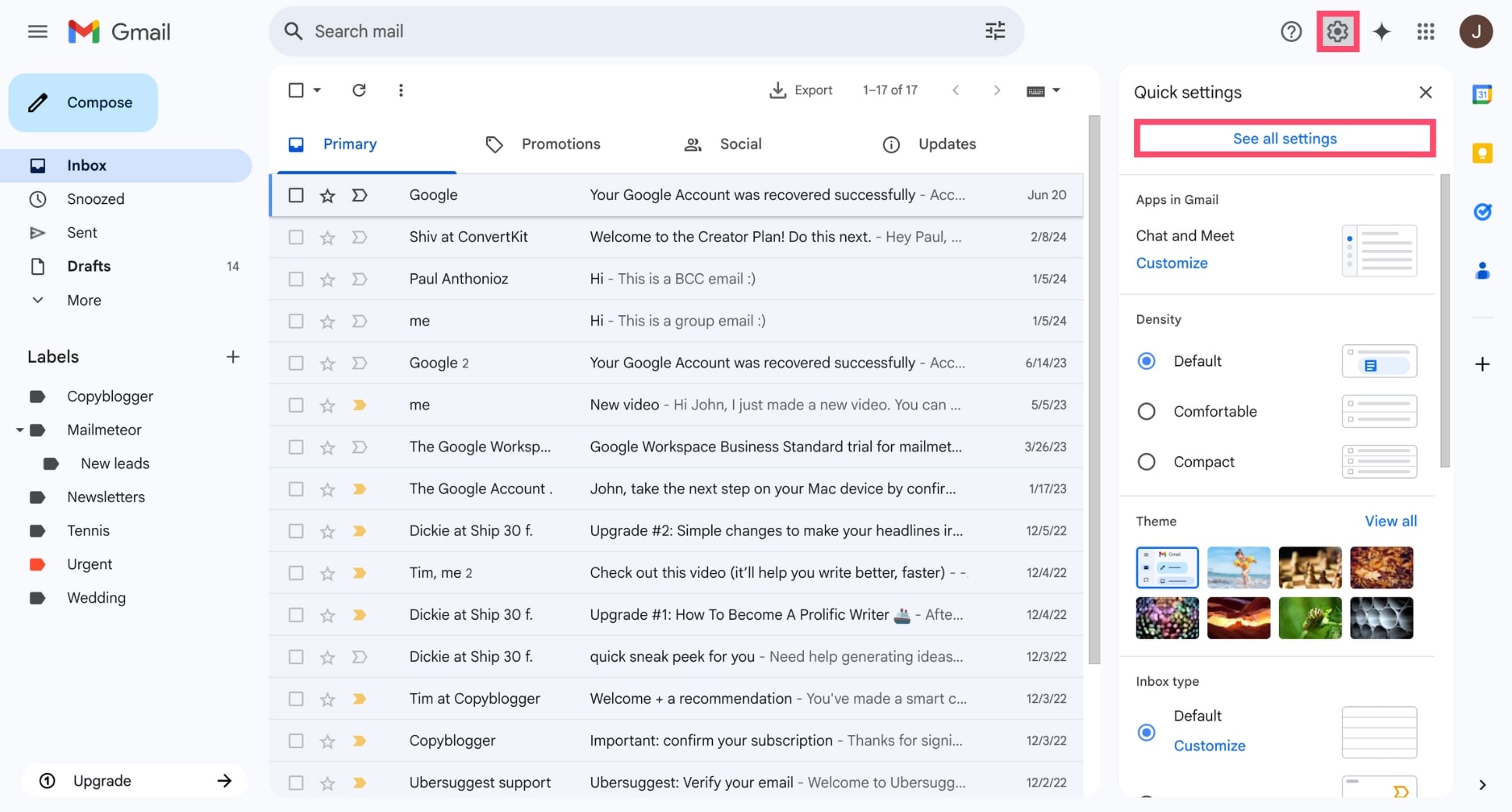
Step 2 – Go to Settings > Accounts and Import
Click the gear icon (⚙️) in the top-right corner, then select See all settings.
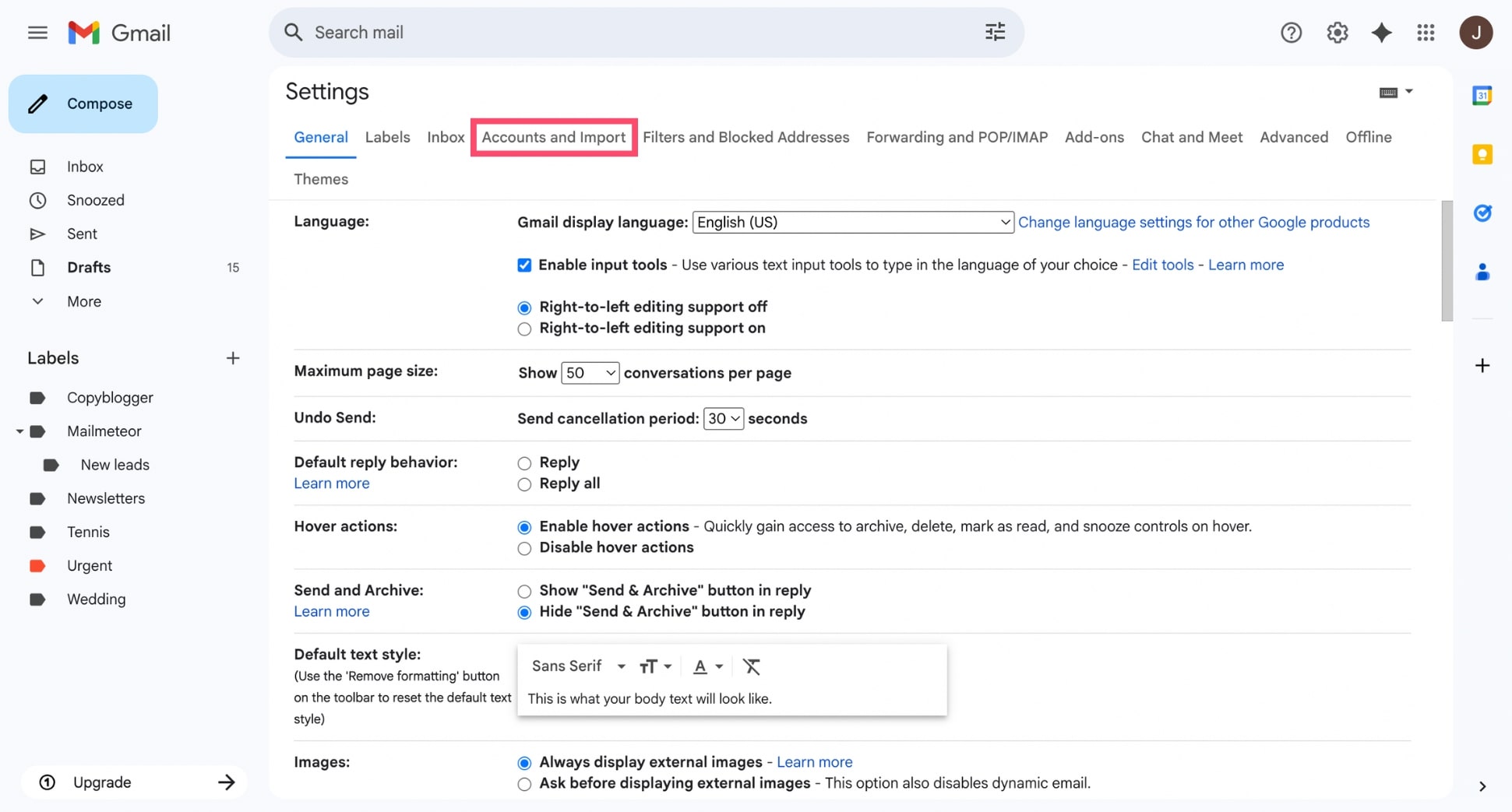
From the settings menu, go to the Accounts and Import tab.
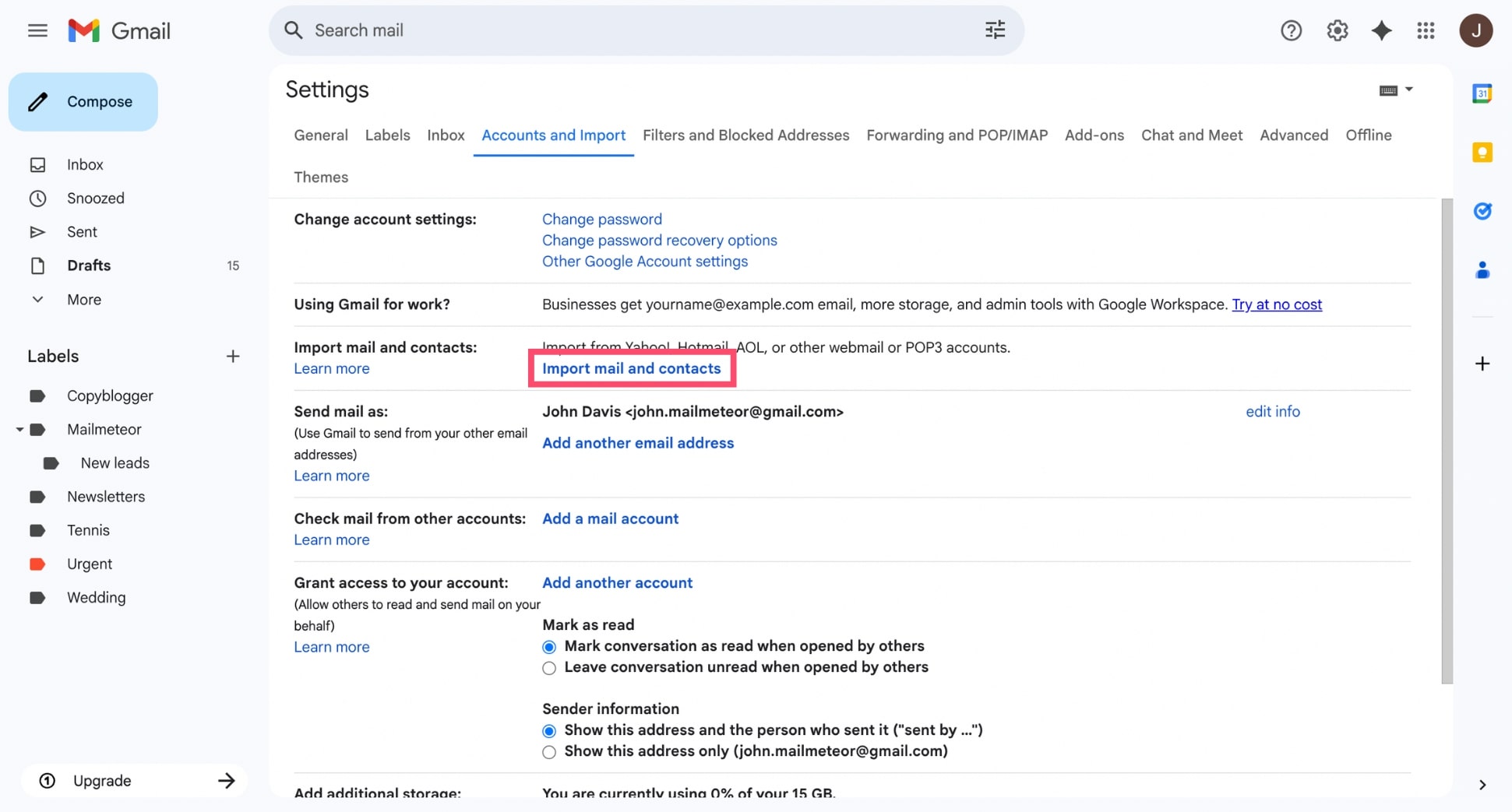
Step 3 – Click Import mail and contacts
Under the Accounts and Import tab, look for the section labeled Import mail and contacts and click on it. A pop-up window will appear asking for the old email address.
Step 4 – Sign in to your old Gmail account
Enter the Gmail address you want to import emails from. Then click Continue.
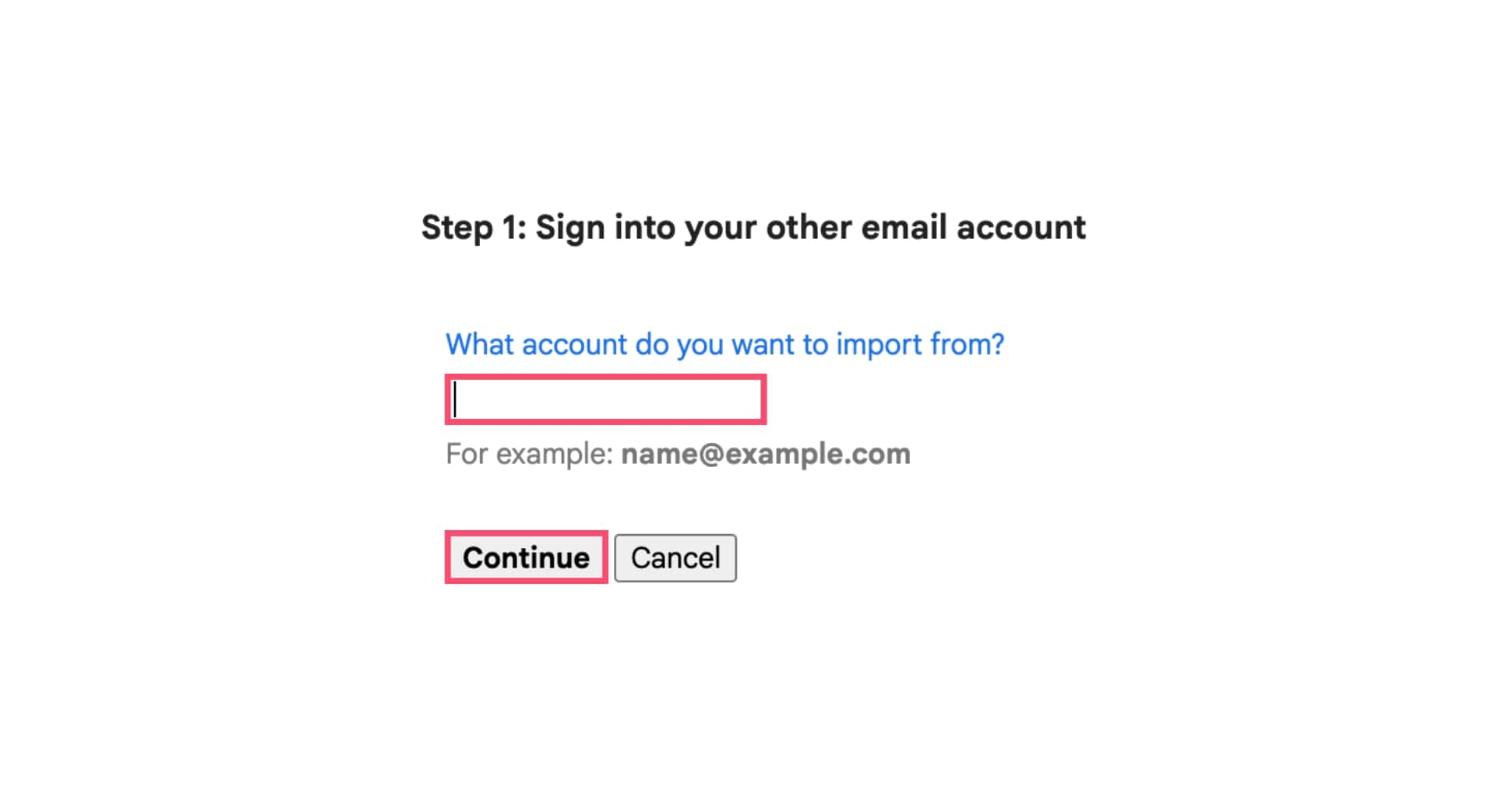
You’ll be prompted to sign in and grant access to your old account. If you have 2-step verification enabled, you may need to use an App Password instead of your usual login.
Step 5 – Choose what to import
After signing in to your old Gmail account, Gmail will ask what you want to bring over. You can select one, two, or all three of the following:
- Import mail – Transfers all your old messages to your new Gmail inbox. These emails will show up with a dedicated label so you can easily find them.
- Import contacts – Moves your entire contact list, including names and email addresses, into your new account.
- Import new mail for the next 30 days – Automatically forwards any new emails received in your old account to the new one for the next 30 days.
Check the boxes based on what you want to move.
Step 6 – Start the import and wait for completion
Click Start import, and Gmail will begin transferring your messages. The process runs in the background and may take several hours or even a couple of days depending on how many emails you have.
Imported emails will appear in your new Gmail account under a label like: Imported from [email protected]. Original labels from your old account won’t transfer — everything will be grouped under the import label.
Method 2 – Automatically Forward All Emails to Your New Gmail Account
If you only want to transfer new emails or a specific set of messages, adding a forwarding email address is the way to go. It’s fast, easy to set up, and gives you full control over what gets forwarded.
Step 1 – Enable forwarding from your old Gmail
- Log in to your old Gmail account.
- Click the gear icon > See all settings.
- Go to the Forwarding and POP/IMAP tab.
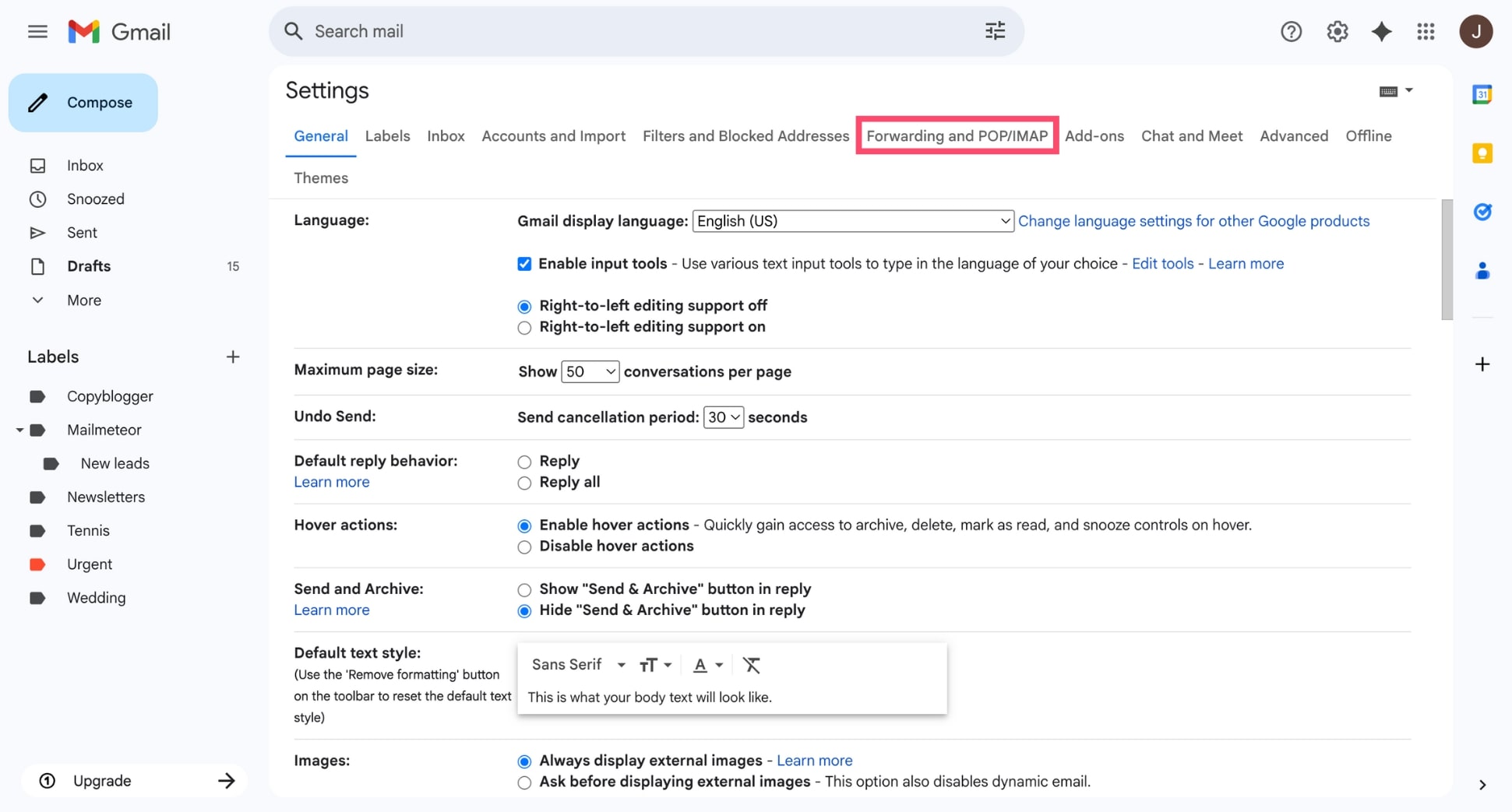
- Click Add a forwarding address.
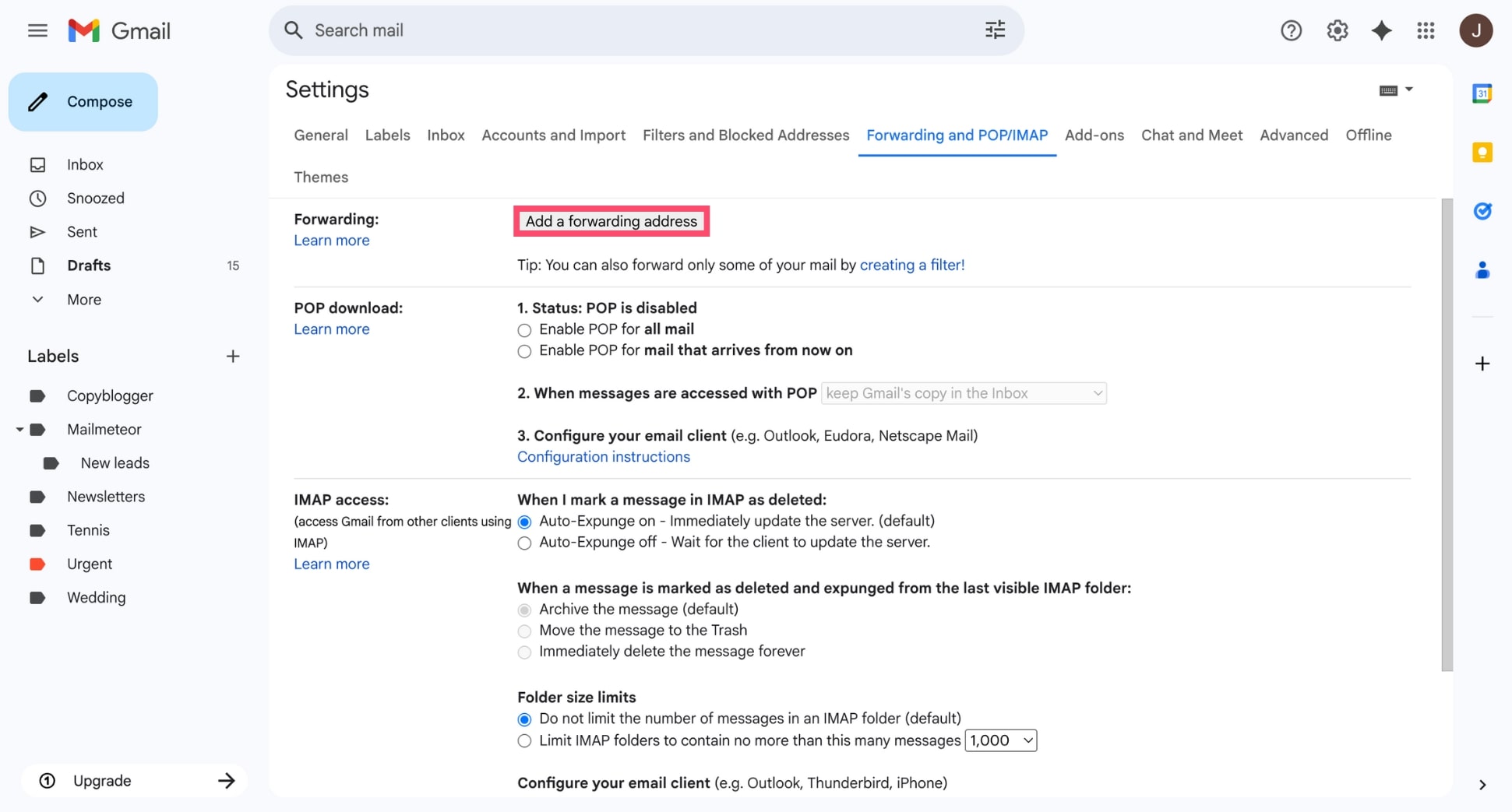
Step 2 – Add your new Gmail address
Enter the email address where you want to forward messages (your new Gmail account). Click Next, then Proceed to send a verification email.
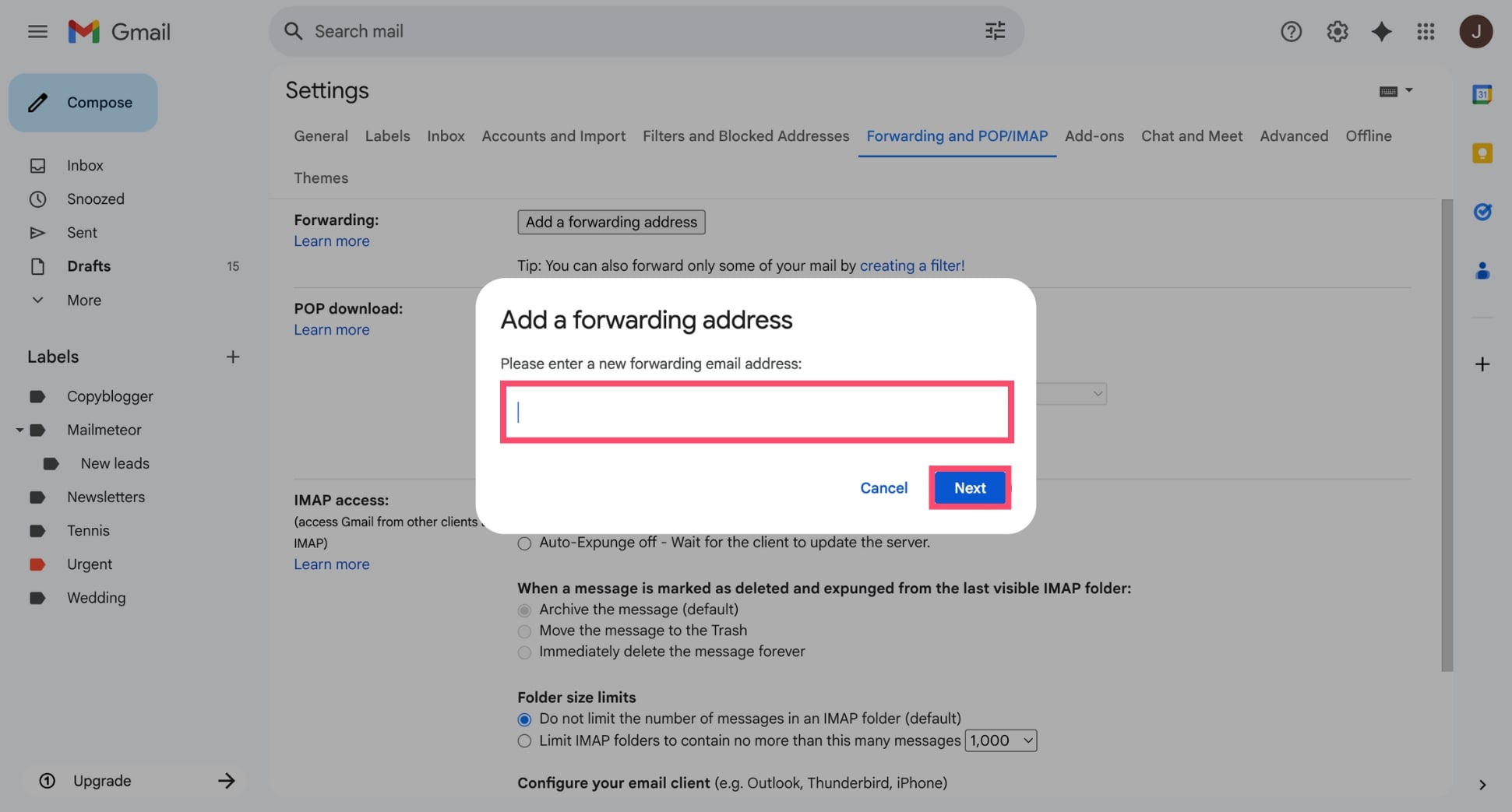
Step 3 – Verify the request and confirm the link
Check your new Gmail inbox and open the confirmation email from Google. Click the verification link to approve the forwarding request.
Step 4 – Set up a filter to forward only selected emails
You can choose to forward all incoming mail or set up a filter to forward specific types of emails:
- In your old Gmail account, go to Settings > Filters and Blocked Addresses.
- Click Create a new filter.
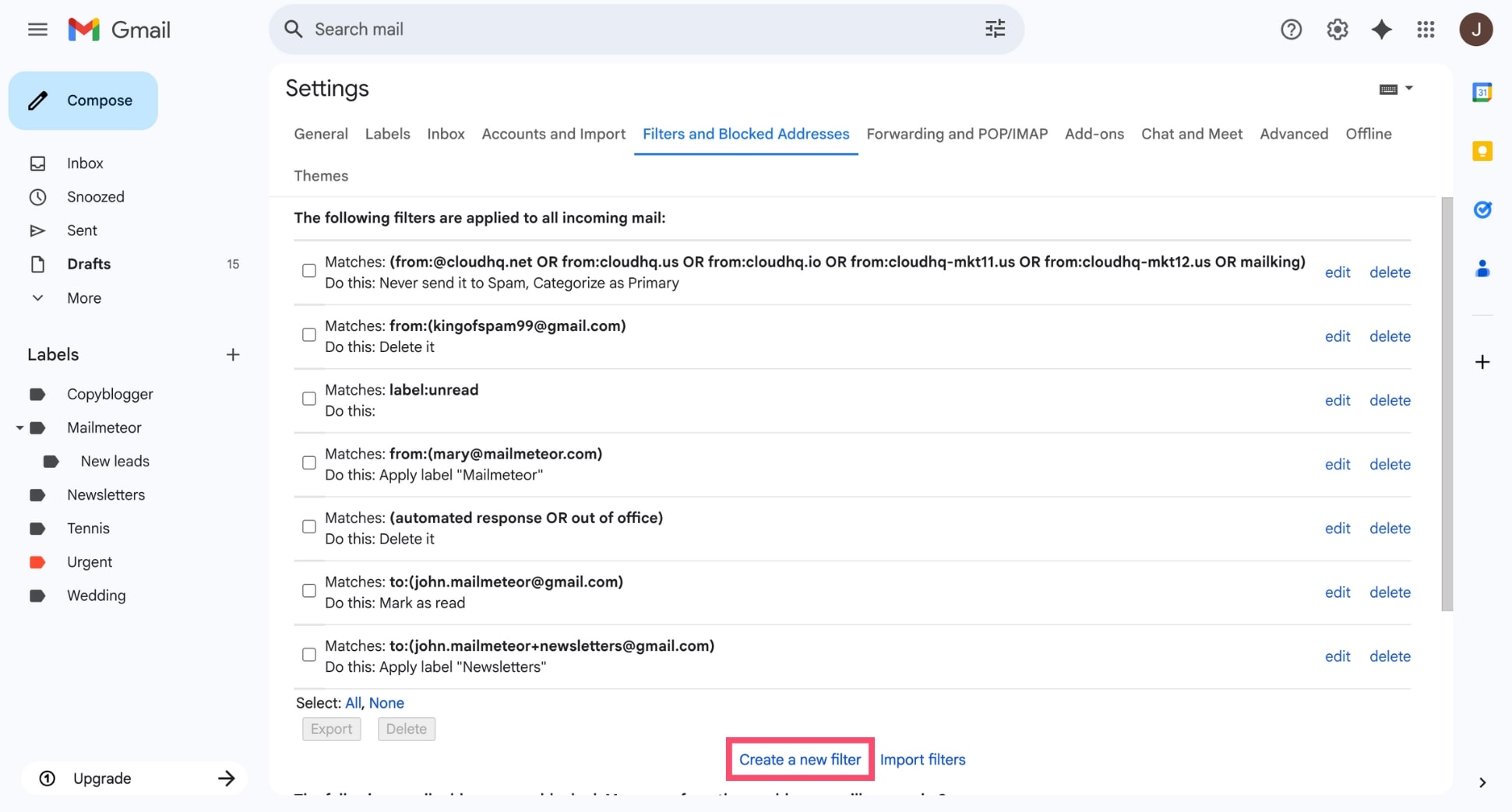
- Enter your filter criteria — such as sender, subject line, keywords, or whether the email has attachments.
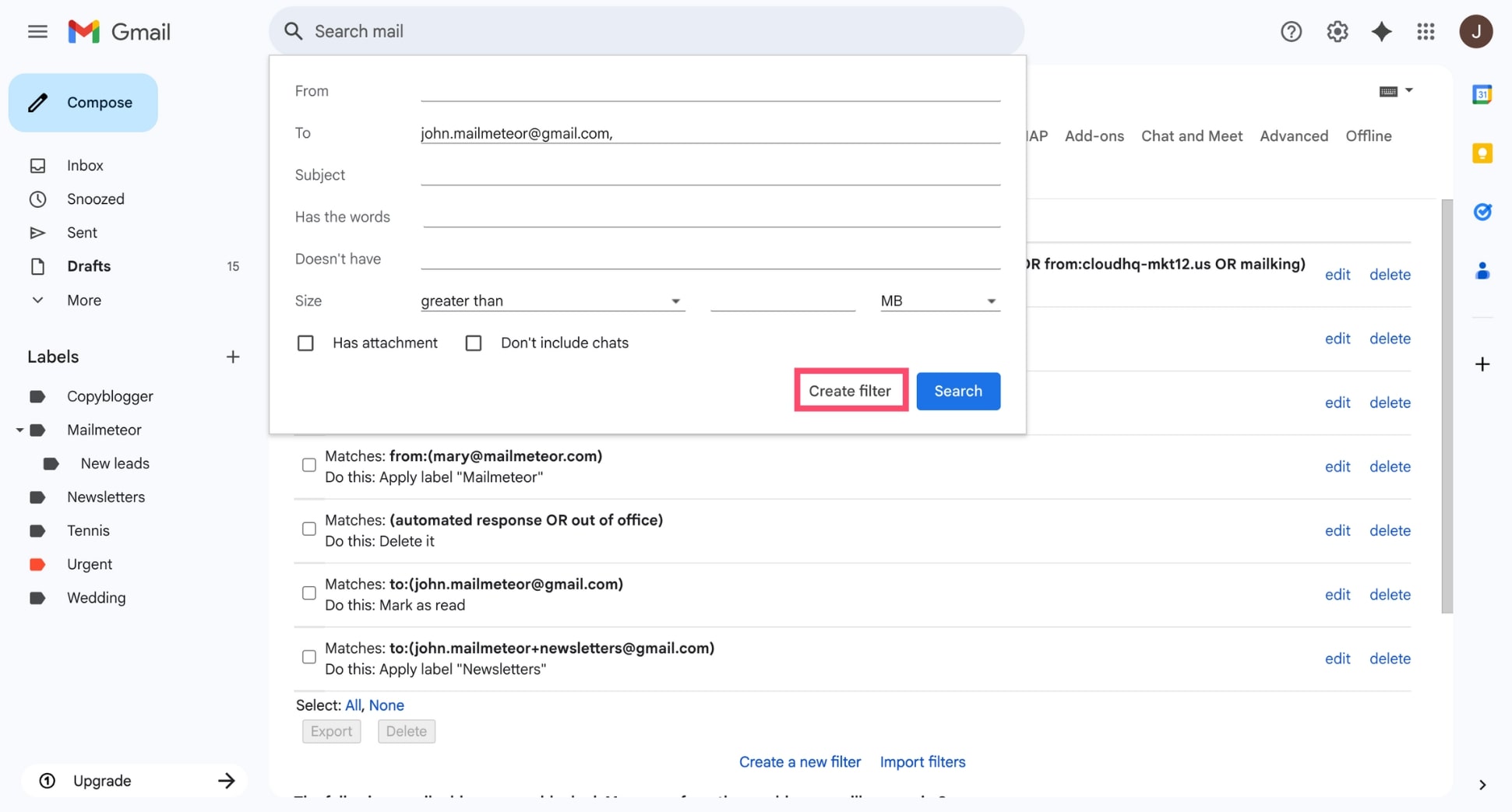
- Click Create filter, then check Forward it to and select your new Gmail address.
This method doesn’t transfer existing emails — only future emails that meet your filter criteria will be forwarded.
Method 3 – Use Google Takeout for Full Email Backup and Transfer
Want to export your entire Gmail inbox — including old messages, attachments, and labels? Google Takeout is the best tool for a complete backup.
Takeout lets you download all your Gmail data as an MBOX file, which you can then import into another Gmail account or email client like Thunderbird.
Here’s how to use it:
- Go to Google Takeout.
- Deselect everything except Mail.
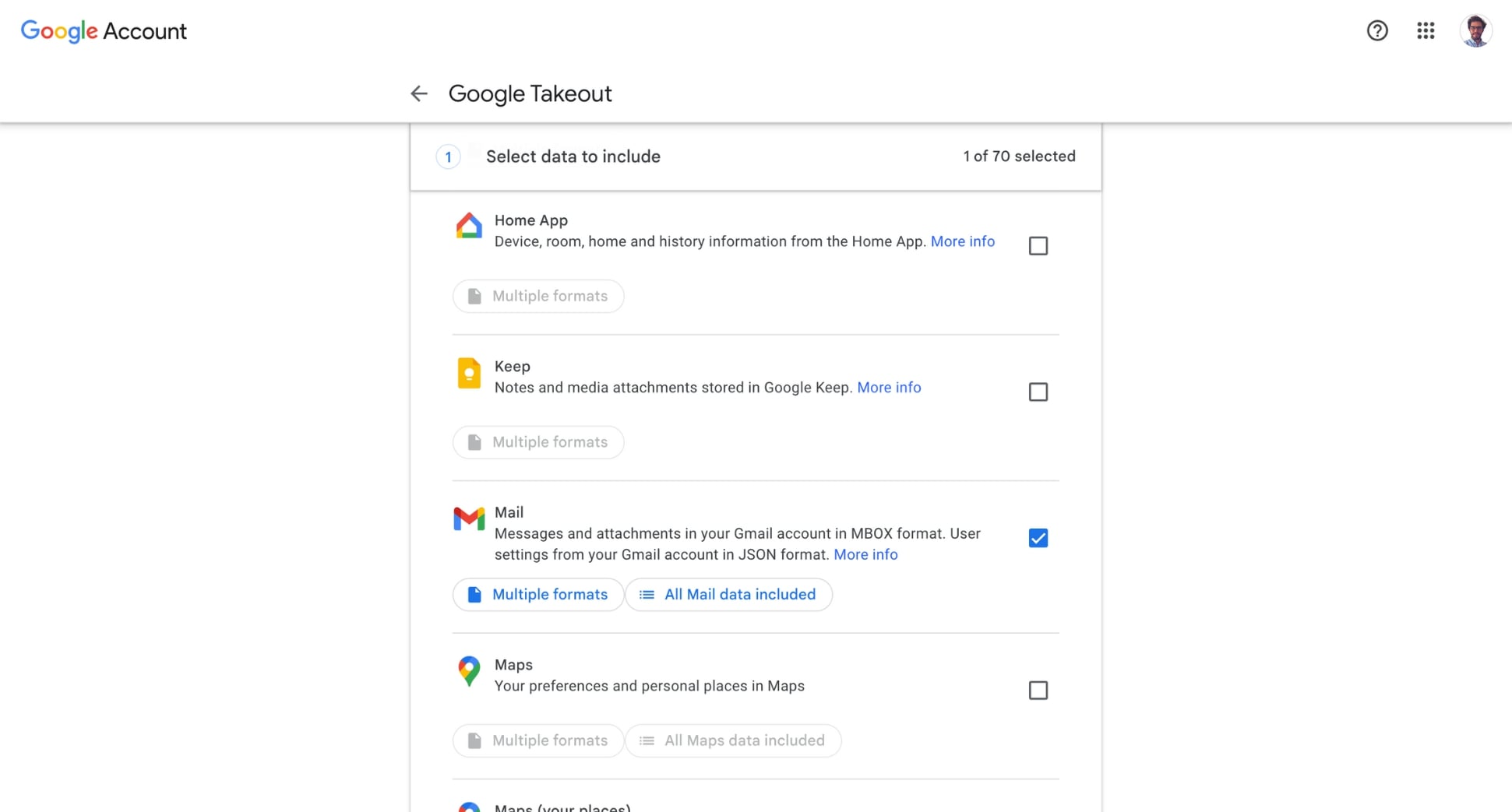
- Click Next step.
- Choose your delivery method (email link or direct to Drive, Dropbox, etc.).
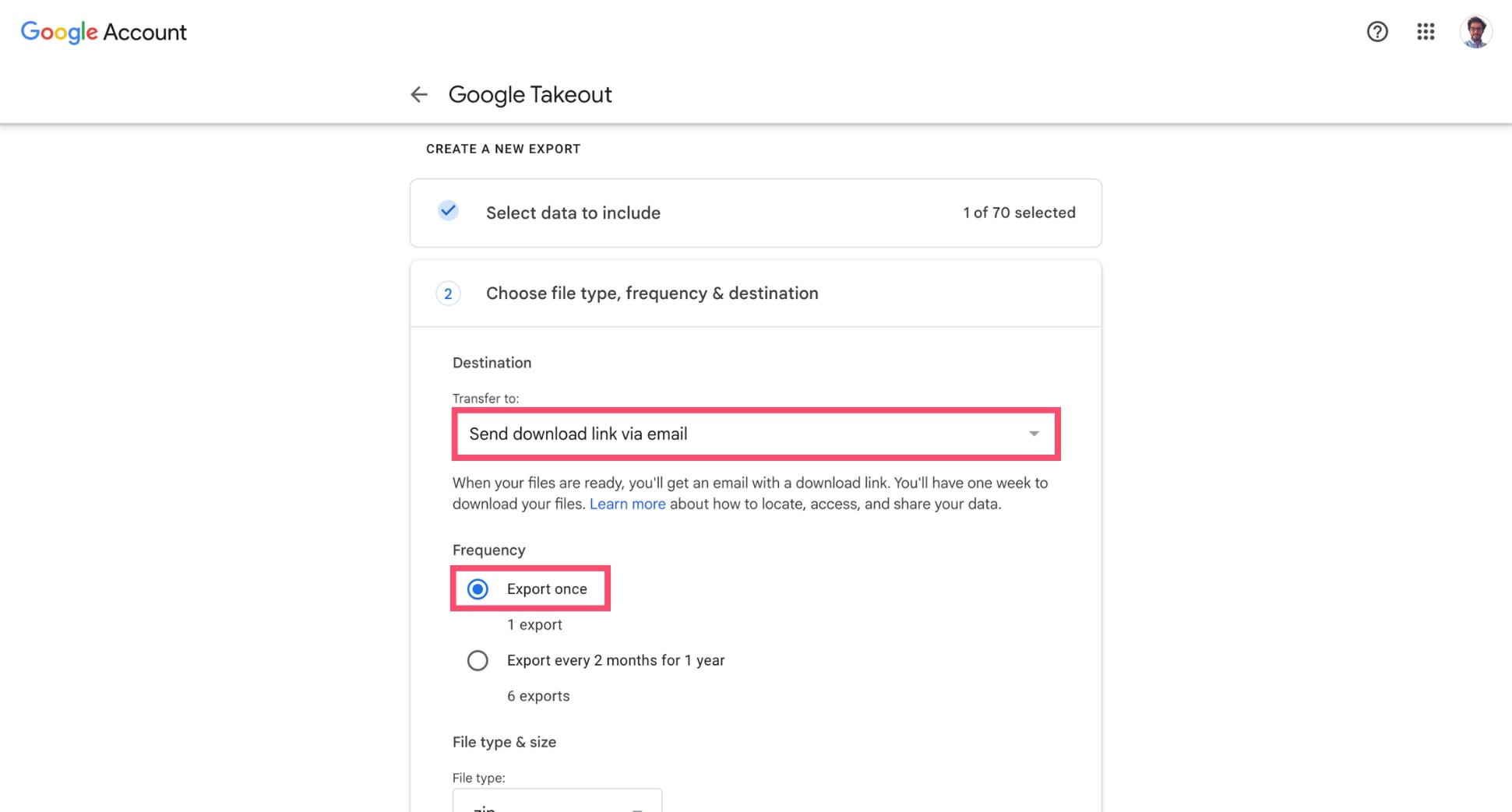
- Click Create export.
Google will generate a download link — this may take a few hours or more depending on inbox size. Once downloaded, you can use email software (like Thunderbird or Apple Mail) to import the file into your new account.
Method 4 – Manually Forward Emails
Lastly, if you only need to transfer a handful of emails from one Gmail account to another, manual forwarding is the simplest solution. It works best when you don’t want to set up filters or import entire inboxes. Here’s how it works:
- Open the email you want to forward in your old Gmail account.
- Click the three dots and choose Forward (⤴️).
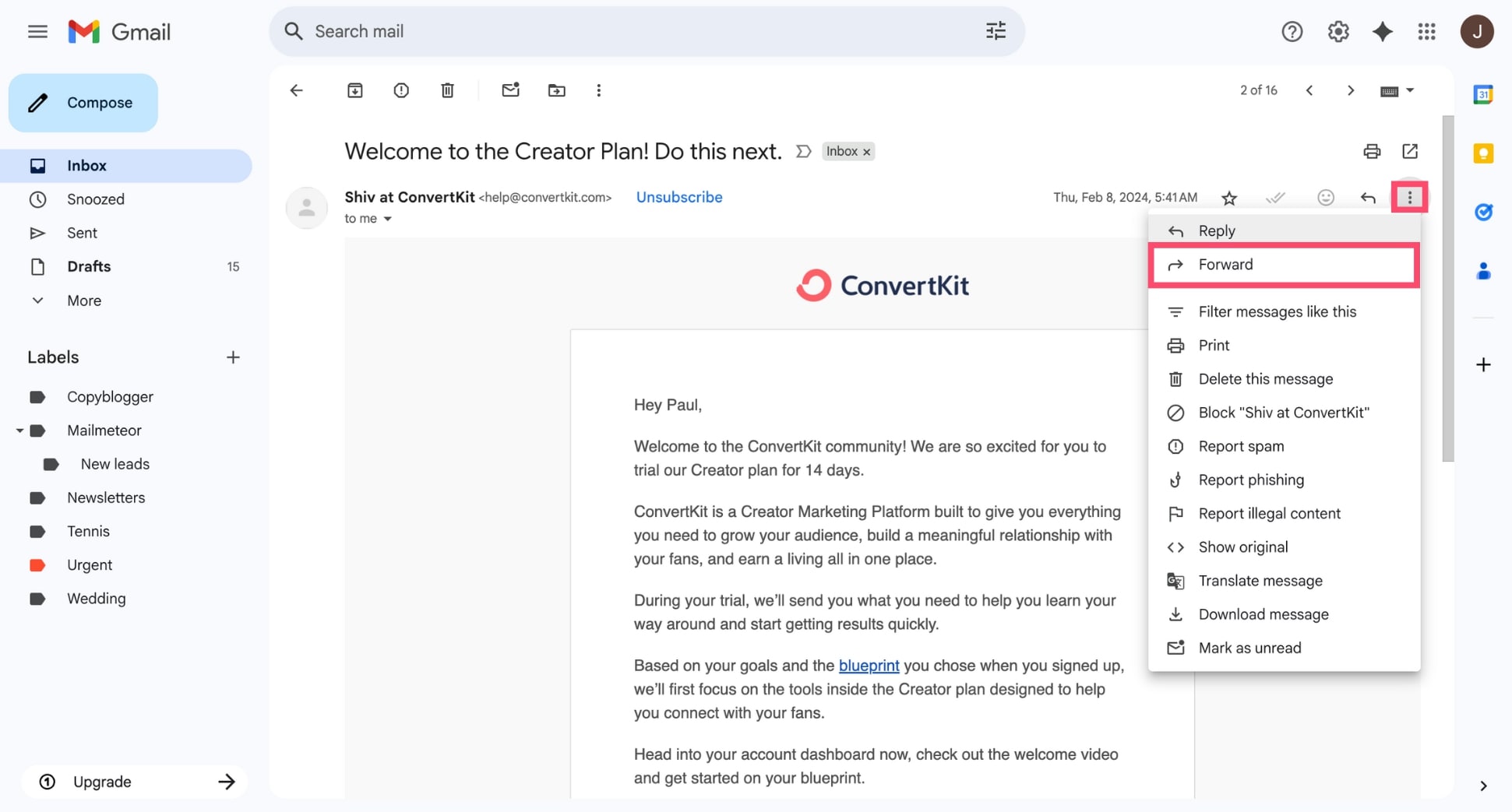
- Enter your new Gmail address in the recipient field.
- Click Send.
Repeat for each email you want to transfer.
Conclusion
Transferring emails from one Gmail account to another is easier than it seems — whether you want to move everything over, forward only selected messages, or back up your inbox for safekeeping.
Use Gmail Import for a one-time transfer of all emails and contacts. Set up Forwarding or Filters for ongoing or selective email transfers. Or use Google Takeout for a full email archive you can store or import elsewhere.
Want to export your emails in just a few clicks? Try Mailmeteor, the #1 Google Workspace add-on to download your Gmail data as a spreadsheet. Perfect for backups, offline access, or CRM imports.
This simple tool also lets you send personalized emails, schedule follow-ups, track opens and clicks in real-time, verify email addresses in bulk, and so much more. Get started for free — no credit card required.
FAQs
Can I transfer only selected emails from Gmail?
Yes. While Gmail’s built-in import tool transfers all emails, you can use filters and manual forwarding to move only selected emails. In your old Gmail account, go to Settings > Filters and Blocked Addresses, and create a filter based on sender, label, or date. Then choose to forward matching emails to your new Gmail address.
How long does Gmail import take?
It depends on how many emails you’re transferring. Small inboxes may import in under an hour, but larger ones can take up to 2 days. Gmail continues importing in the background, so your emails will appear gradually under a label like “Imported [[email protected]]”.
Can I transfer emails without giving access to my old account?
Not entirely. To transfer emails using Gmail’s import tool, you’ll need to log in to your old Gmail account and grant temporary access. If you prefer not to do this, consider exporting your emails via Google Takeout and importing them manually into another email client.
Do attachments and labels transfer too?
✅ Attachments are included when using Gmail’s import tool. ⚠️ Labels may not transfer exactly as-is — Gmail will usually add a new label like Imported from… instead of preserving custom ones. For full label preservation, consider using Google Takeout or organizing emails after the import.
Can I use this to merge two Gmail accounts?
Yes, to a certain extent. Gmail’s import tool can help you merge inboxes, but it won’t sync calendars, drafts, or filters. For a true merge, you’ll want to:
- Import all emails
- Set up email forwarding
- Enable Send mail as in your new account
This ensures you can manage everything from one inbox moving forward.
How do I export all emails from Gmail?
You can use Mailmeteor’s free Gmail Export Tool to export your emails in just a few clicks:
- Install Mailmeteor.
- Sign in to your Gmail account.
- Click Export and select a date range.
- Choose the email fields you want (subject, sender, labels, etc.).
- Press Export to receive a downloadable file by email.
It’s a quick and secure way to back up your inbox or export data to use elsewhere.


