Unsubscribe link
Adding an unsubscribe link lets your recipients opt out from your emails, thus reducing the risk of being flagged as spam.
To add an unsubscribe link, you can use the {{ unsubscribe }} variable. It will be replaced by a special link that Mailmeteor uses to handle unsubscribe requests. Here’s how it works:
- Open Mailmeteor Dashboard.
- Create a new campaign.
-
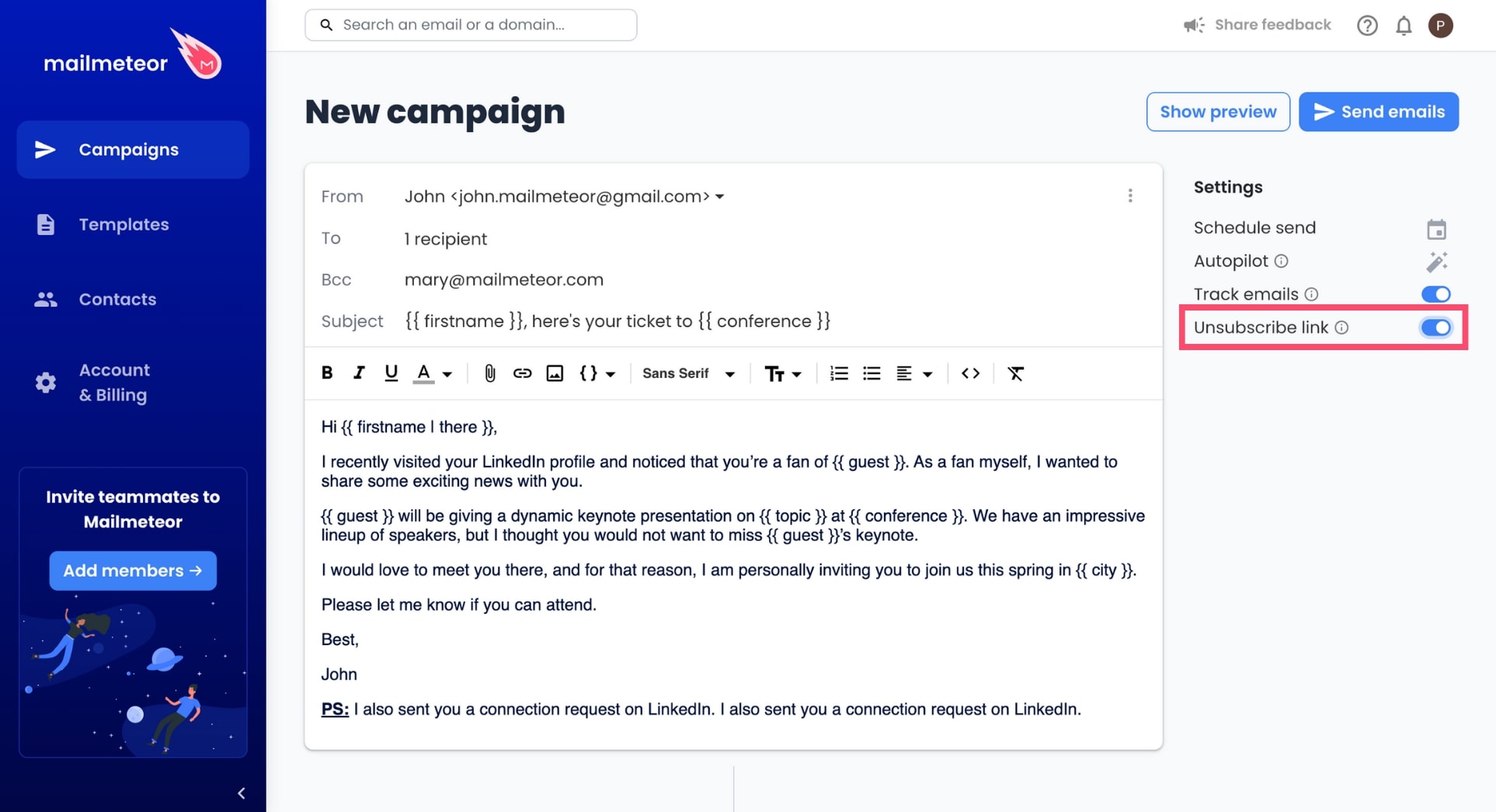
In the right-side panel, enable Unsubscribe link.
-
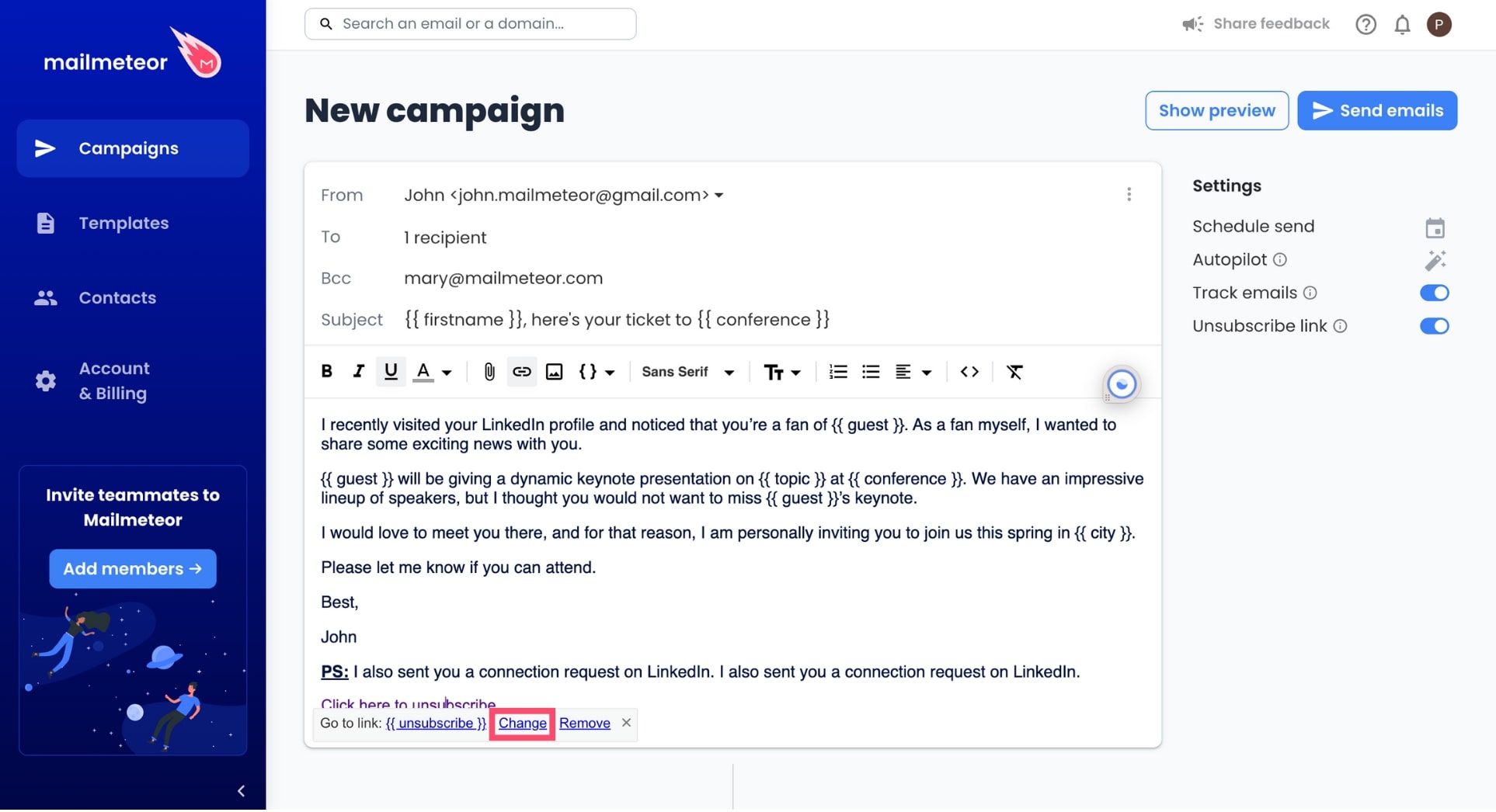
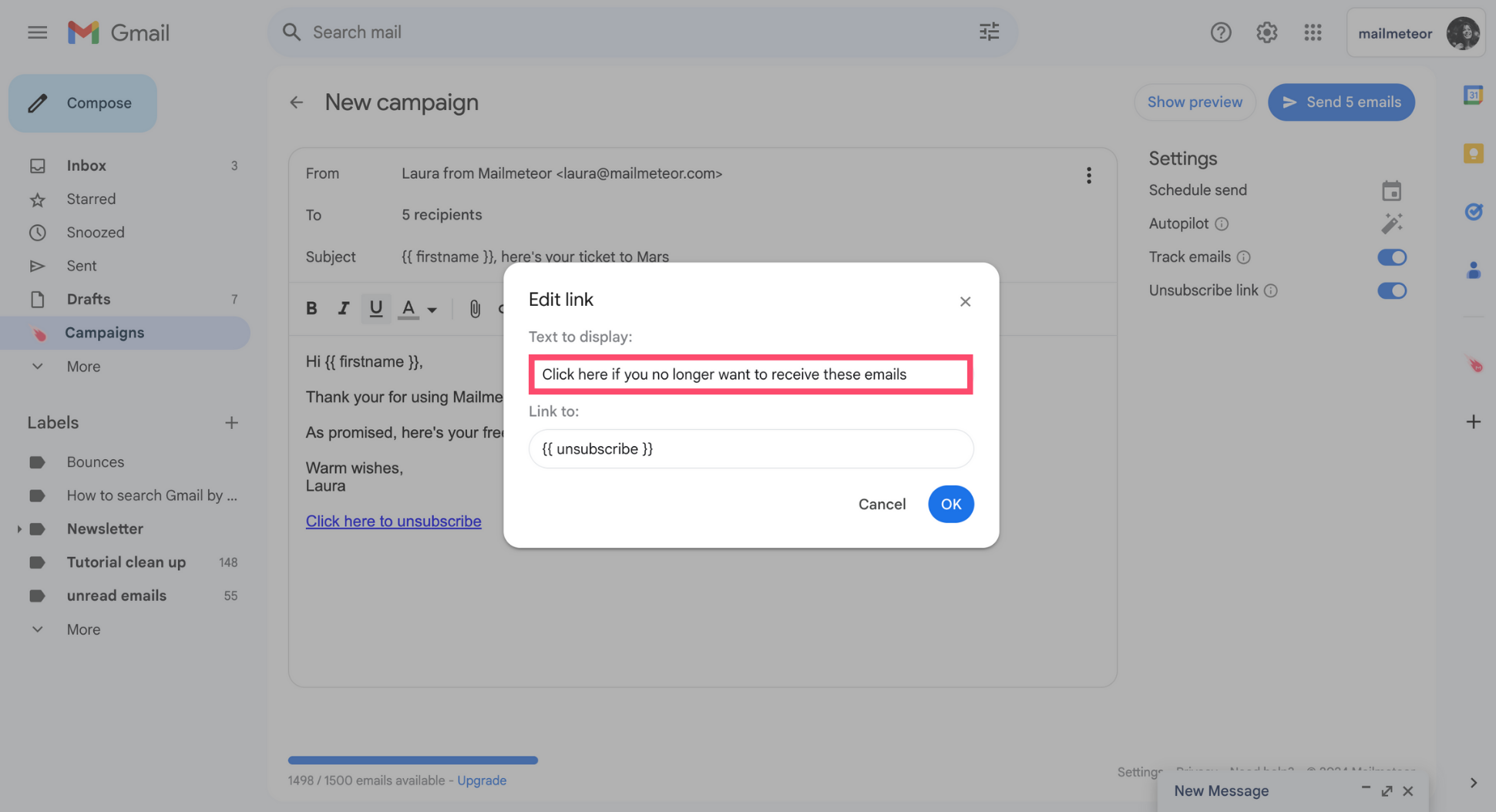
Mailmeteor will automatically add an unsubscribe link at the bottom of your email. To edit this link, click it and select Change.
-
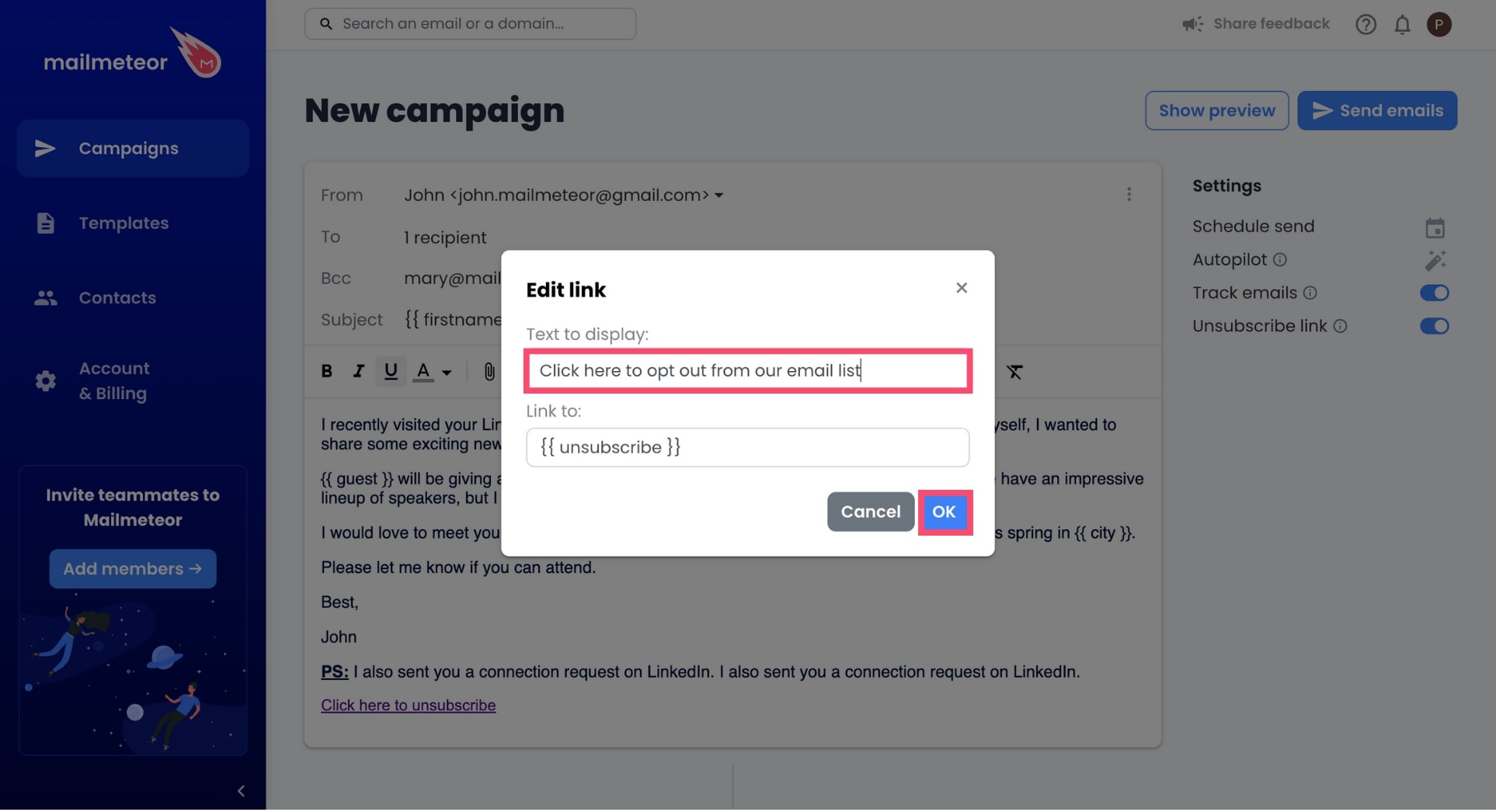
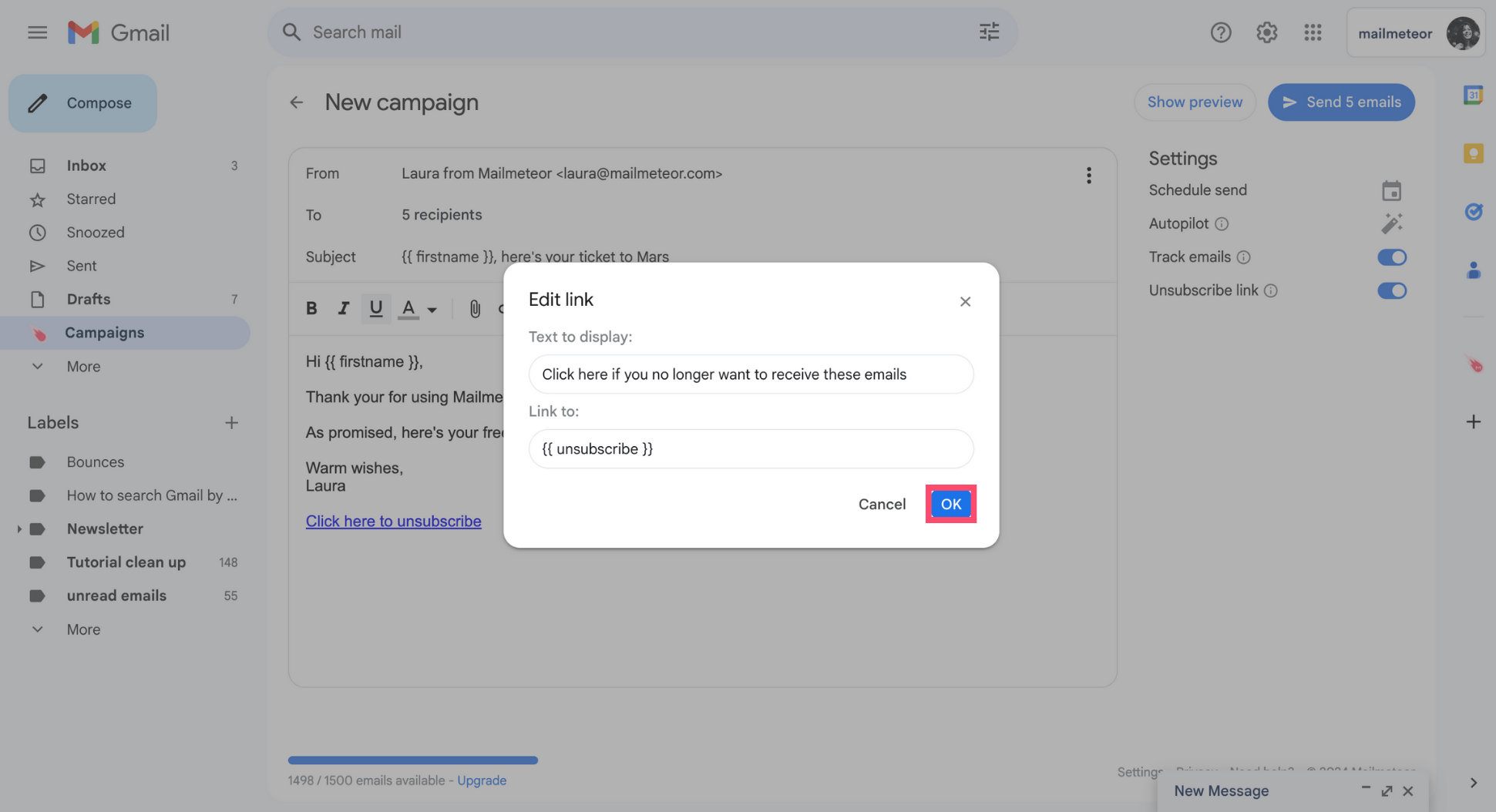
Change the anchor text of your unsubscribe link. Then press OK.
Once you’ve sent your emails, Mailmeteor will automatically convert the special variable {{ unsubscribe }} into a unique unsubscribe link, making it easy for each of your contacts to unsubscribe.
- Sign in to your Gmail account.
-
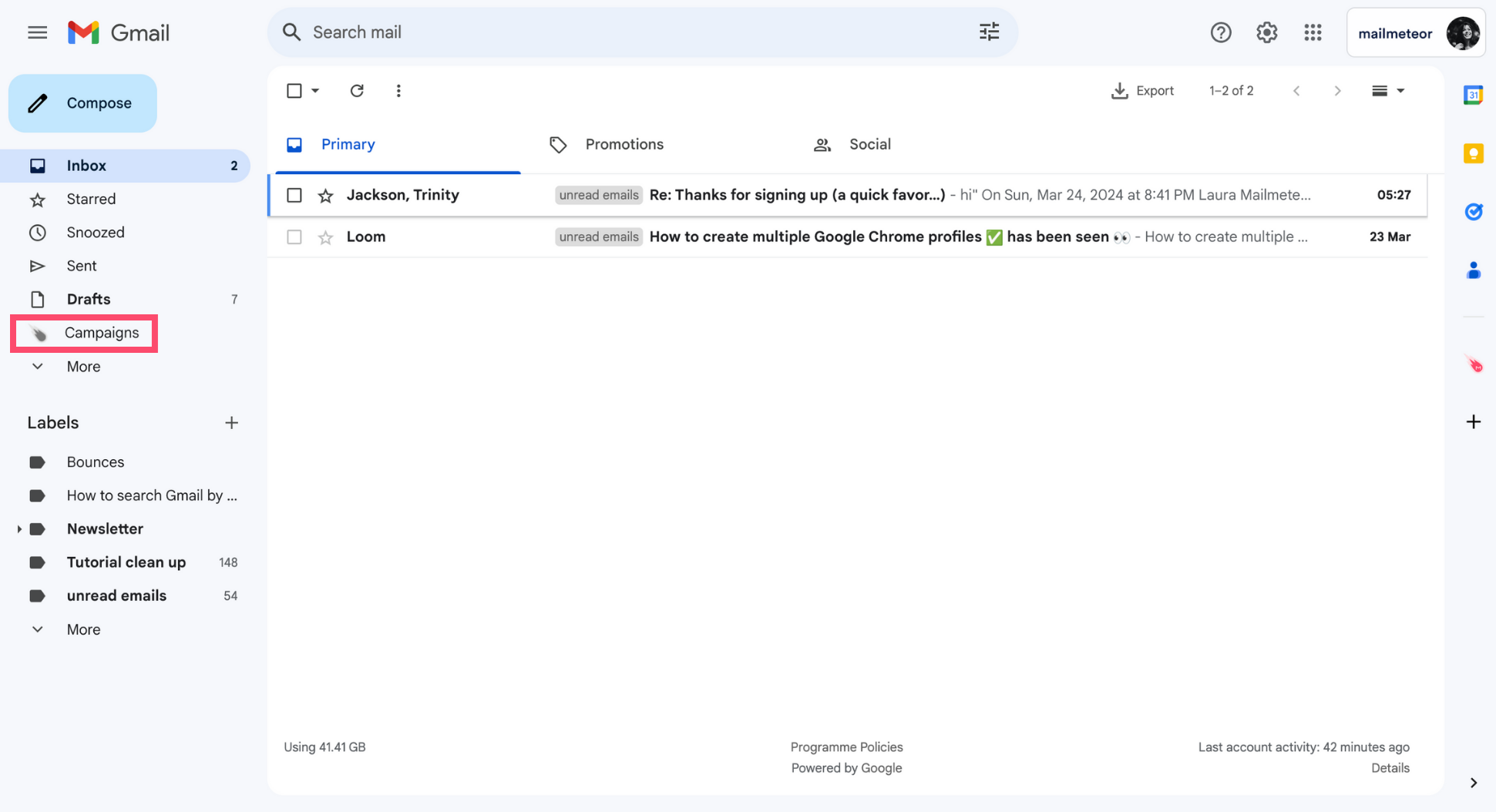
Go to Campaigns.
-
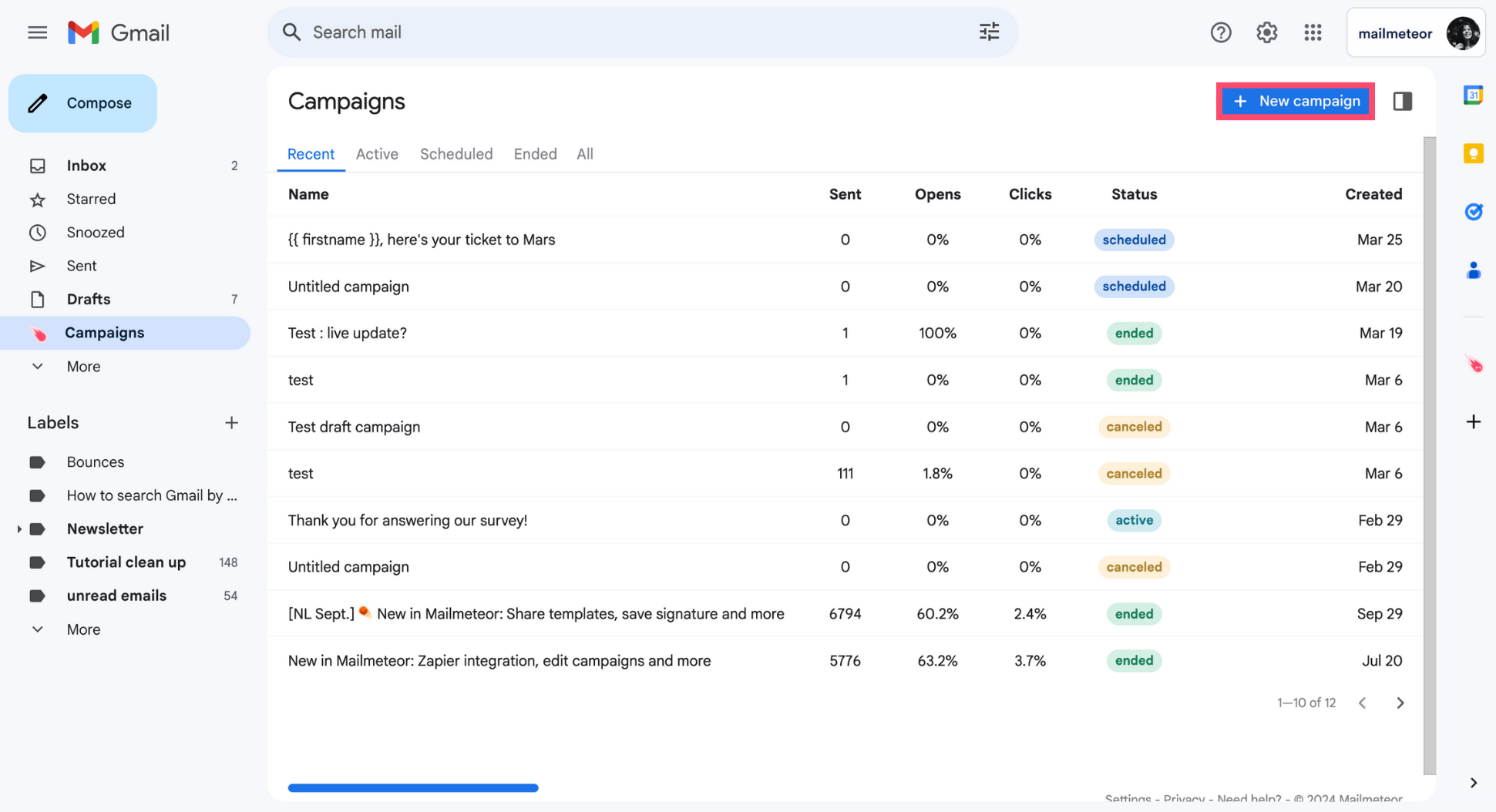
Create a New campaign.
-
Compose your email, add some recipients, and activate the Unsubscribe link option in the Settings of your campaign.
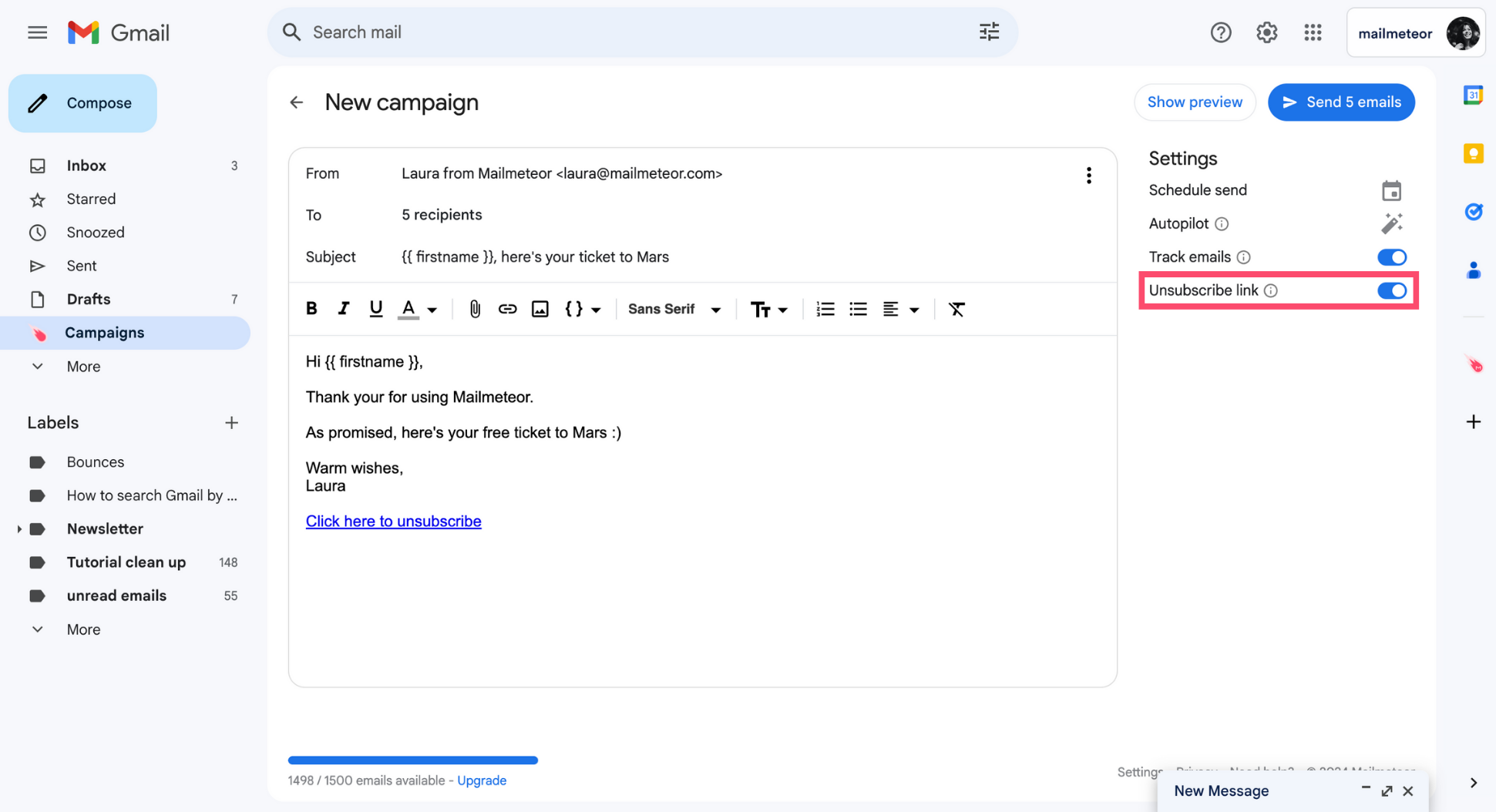
And voilà. Mailmeteor will now insert an unsubscribe link at the end of your email.
How to edit the unsubscribe link?
-
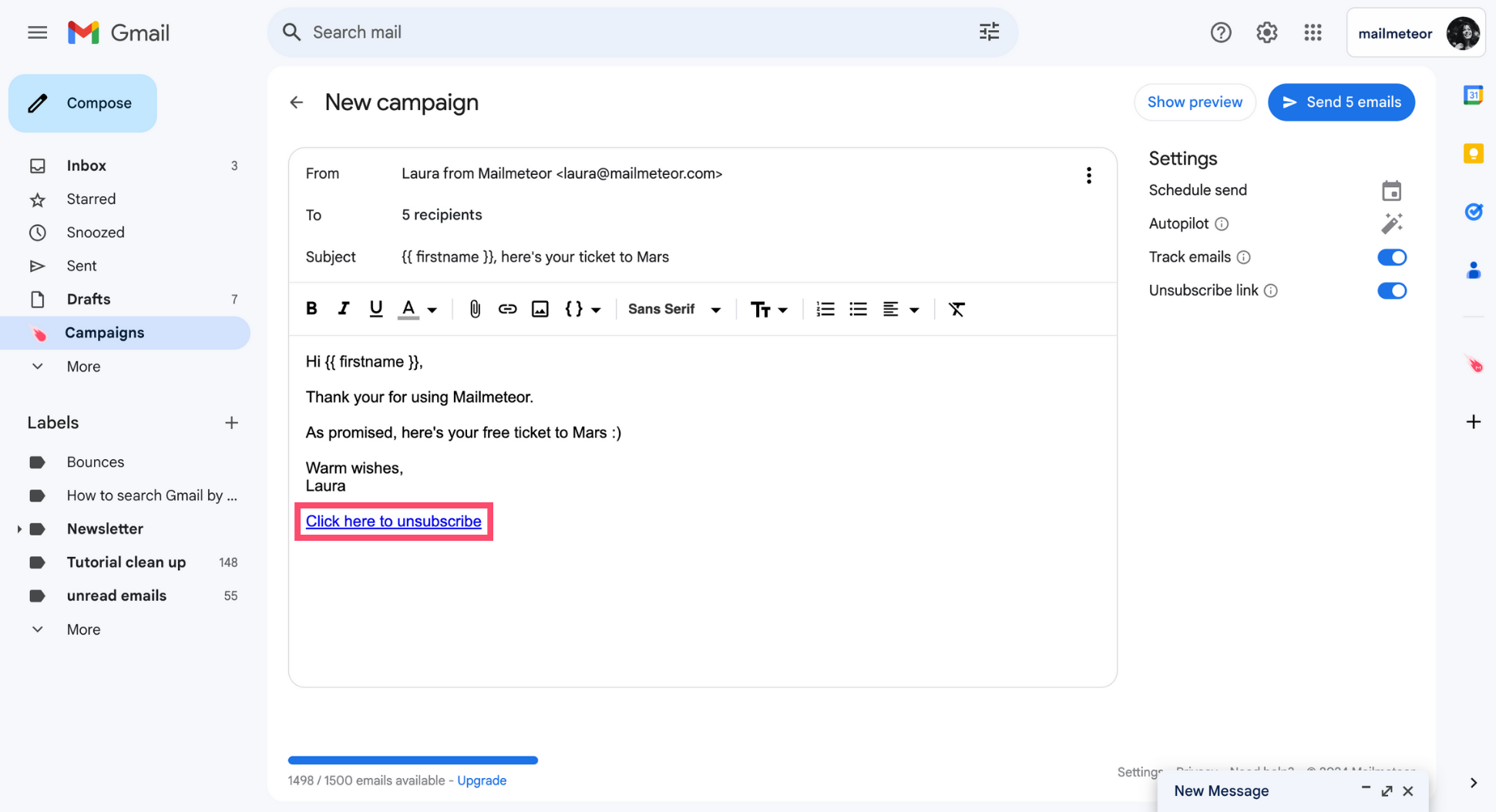
Click the link.
-
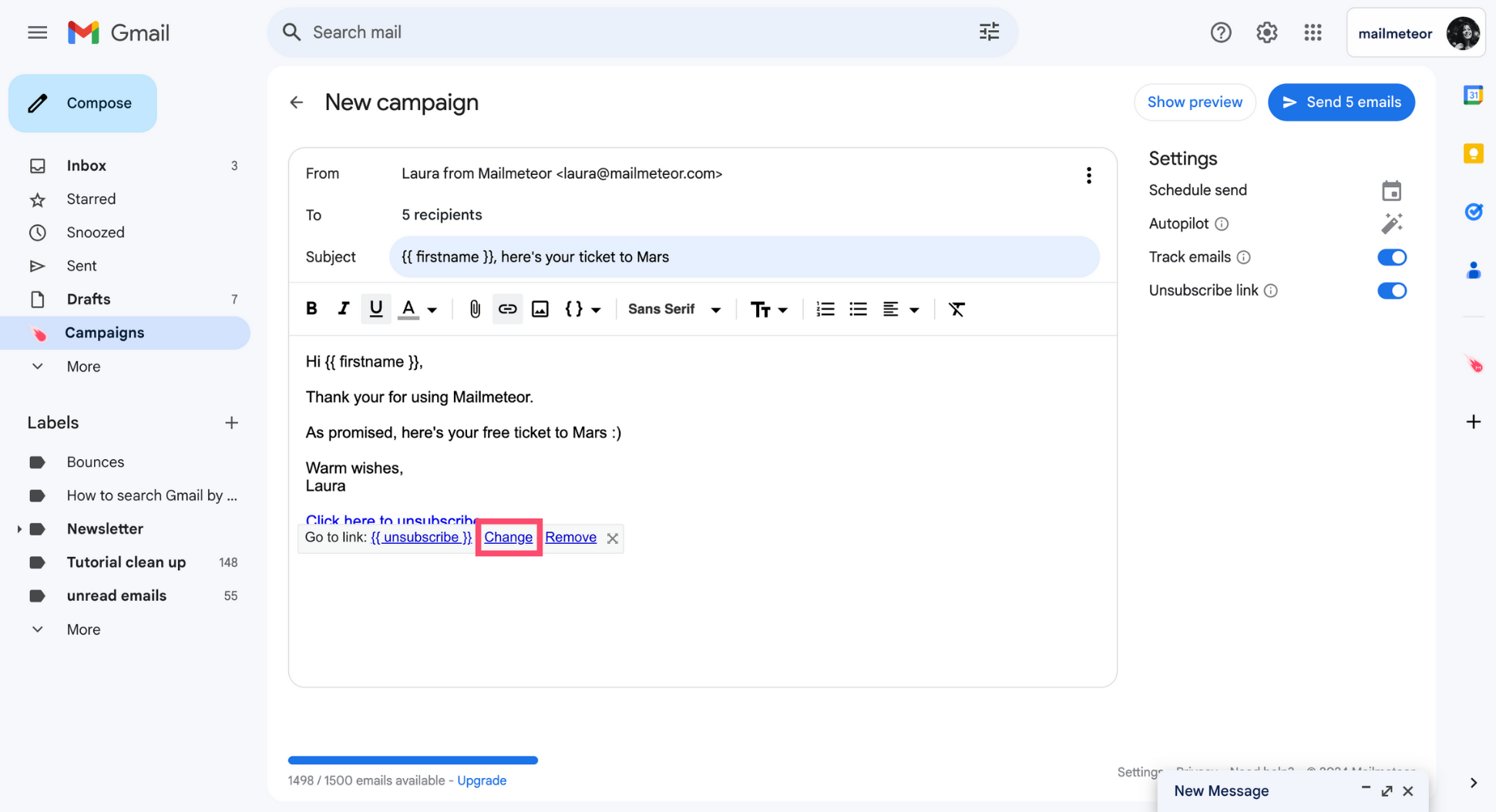
Select Change.
-
Edit the text to display.
-
Press OK.
-
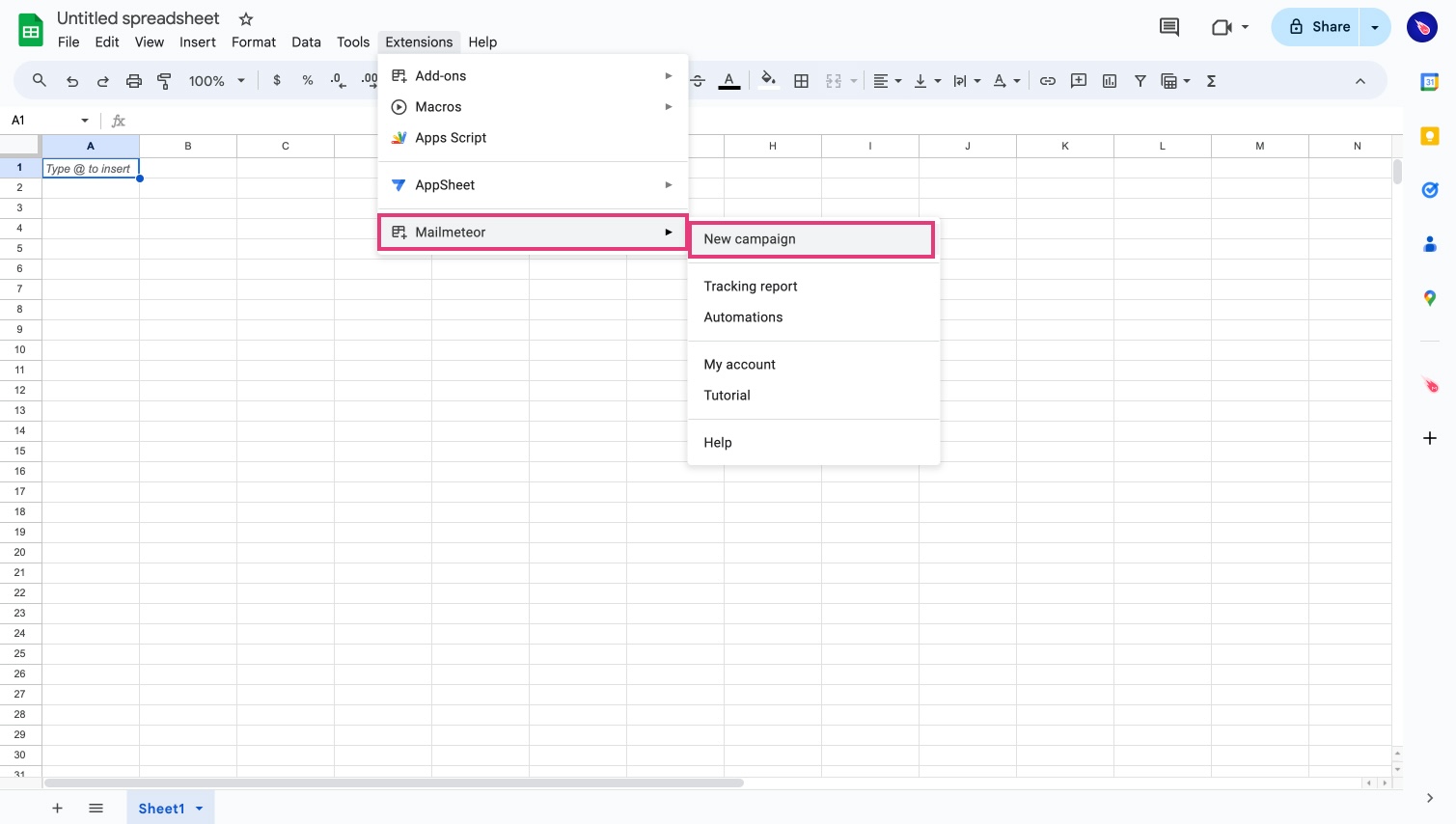
Open Mailmeteor for Sheets.
-
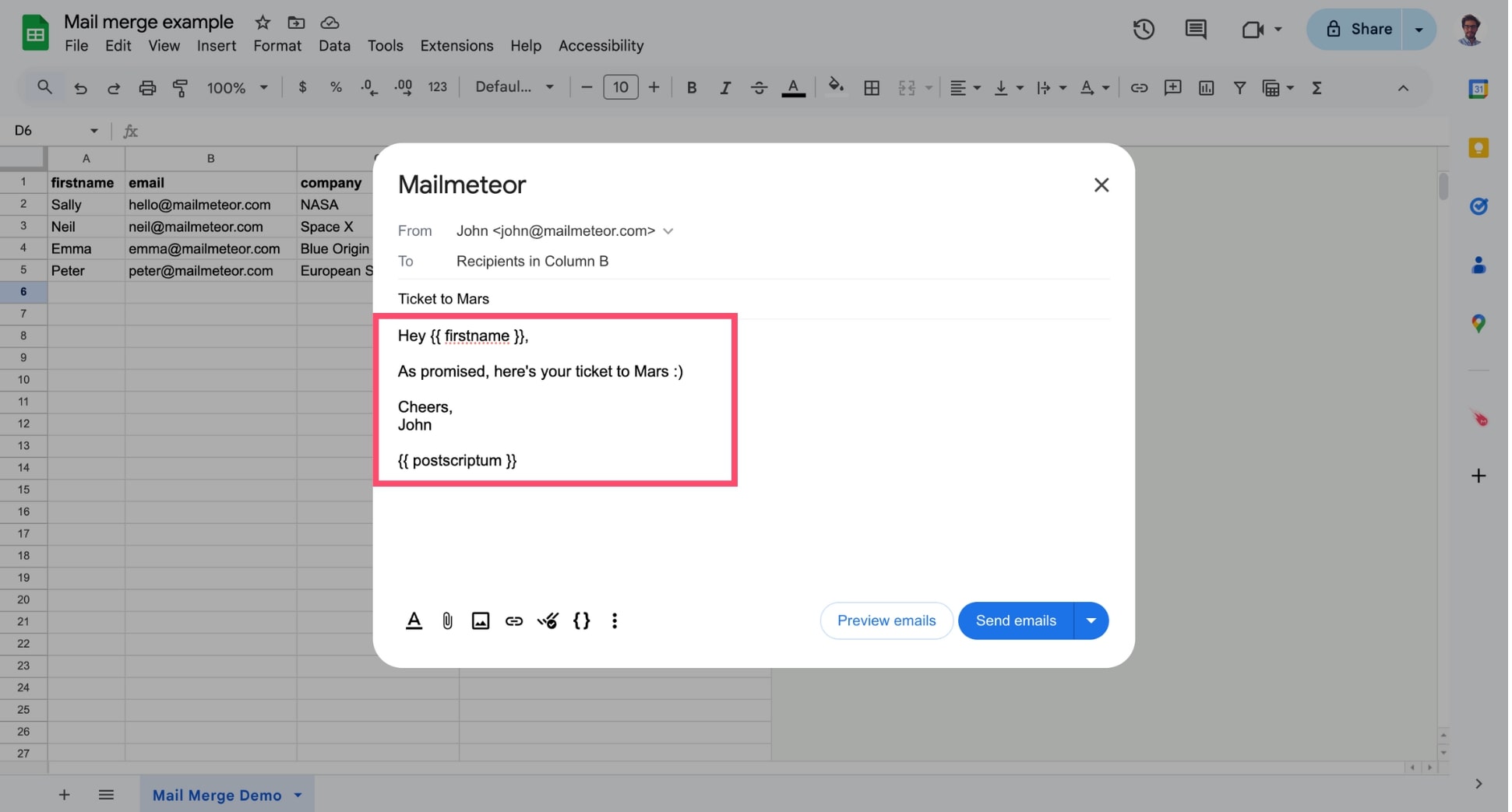
Compose your email or select a template.
-
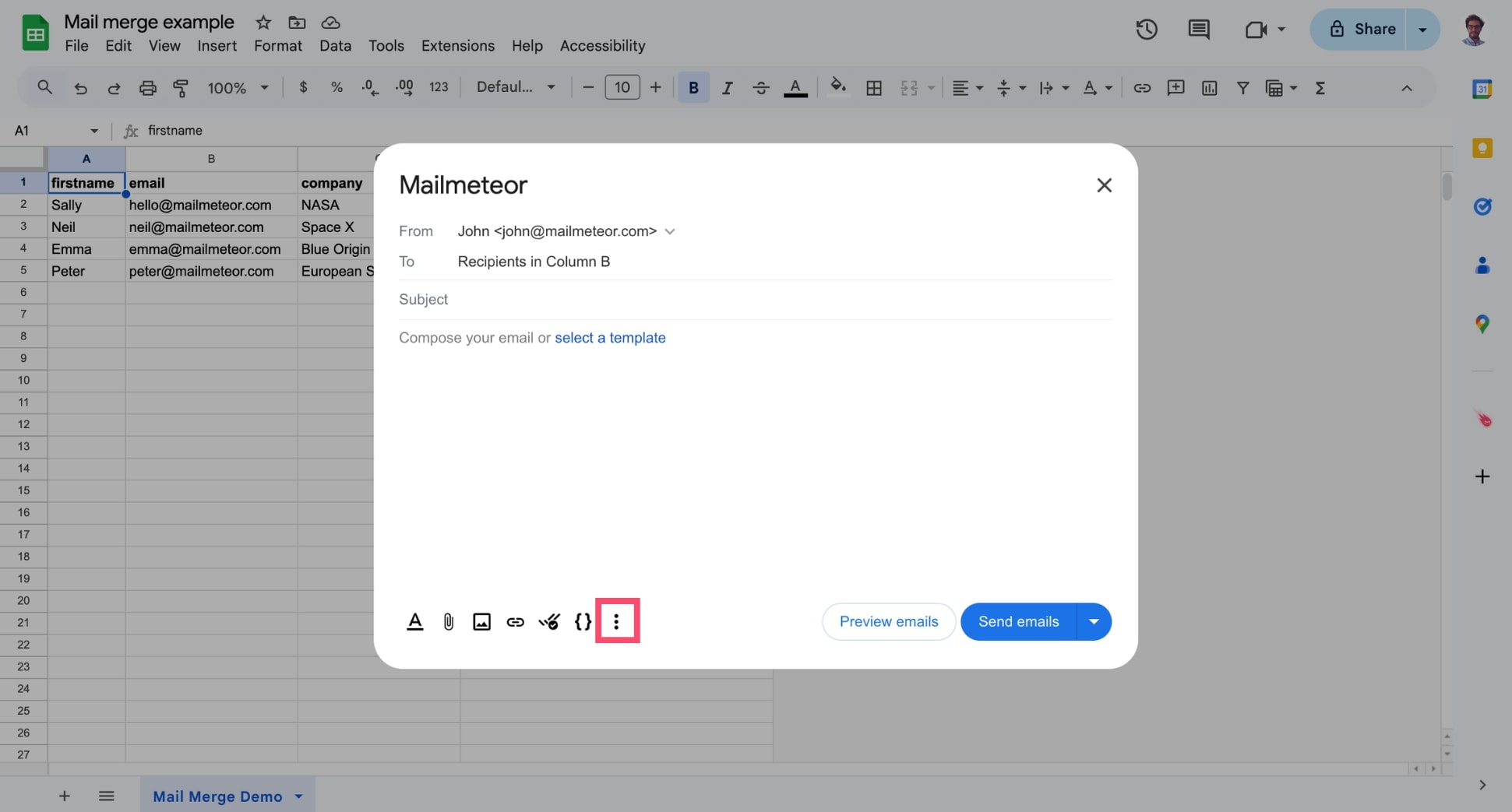
Click More options (the three vertical dots).
-
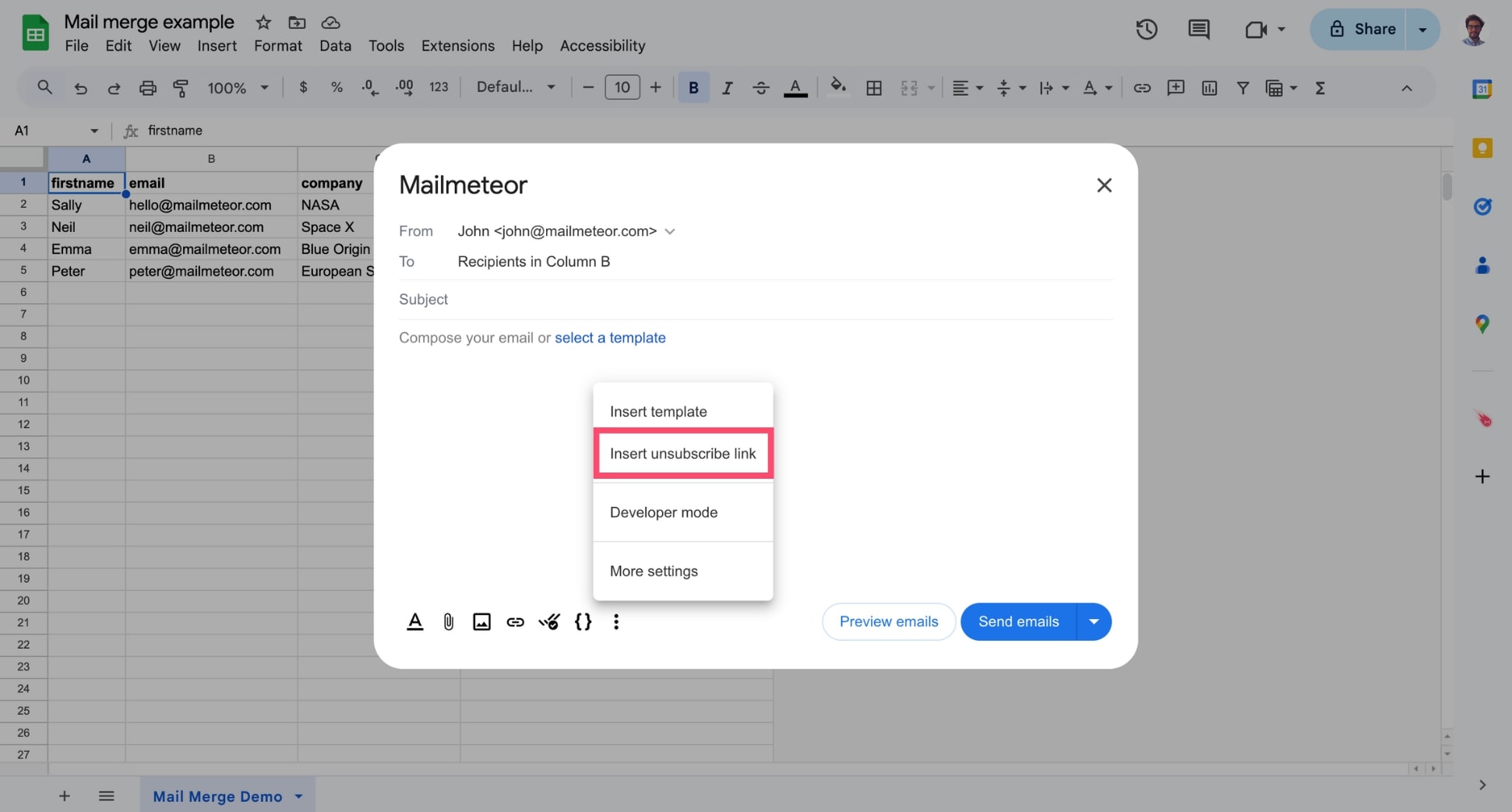
Select Insert an unsubscribe link.
You can not add an unsubscribe link from our mail merge extension for Google Docs at the moment. But we’re working towards making this available.
Please look at the tutorial for the Dashboard on how to insert an unsubscribe link in your template.
What happens when a recipient clicks the unsubscribe link?
Whenever a recipient clicks the unsubscribe link, they are redirected to an unsubscribe page that looks like this ⤵️
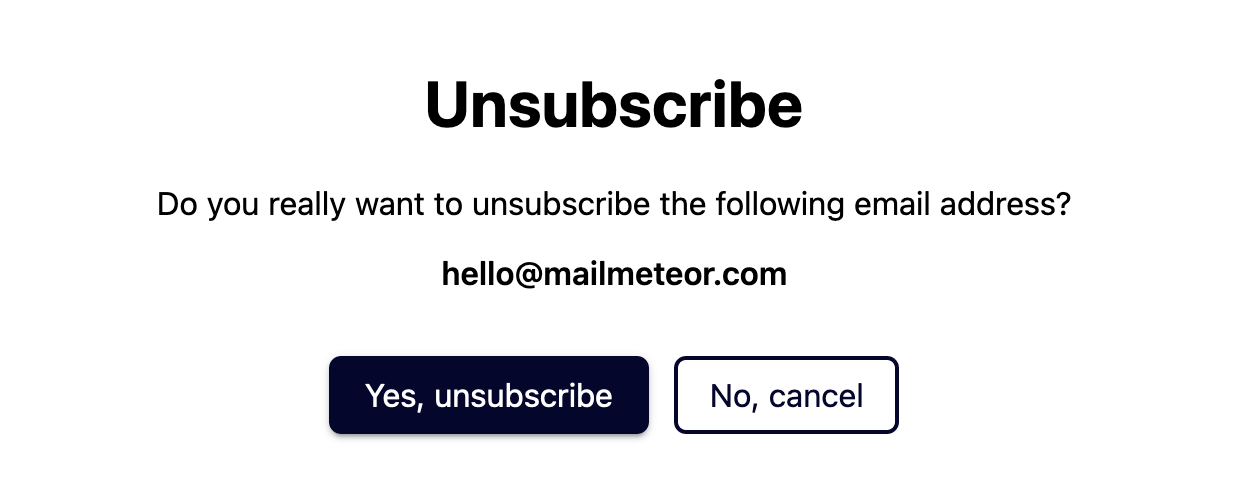
If the recipient confirms they want to opt-out from your campaign, their email address is automatically added to your unsubscribers list.
This means that Mailmeteor will no longer send emails or follow-ups to this recipient. You can monitor unsubscribe requests from your tracking report.
If you send yourself a test email, the unsubscribe link will redirect you to a generic page. It’s normal if you don’t see the unsubscribe page in this case.
Does Mailmeteor support One-Click Unsubscribe?
Yes. Whenever you insert an unsubscribe link to your emails, Mailmeteor will automatically make available One-Click Unsubscribe to make it easier for recipients to unsubscribe and comply with the latest guidelines for bulk senders.
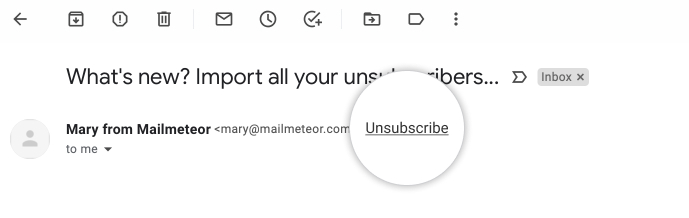
One-Click Unsubscribe feature in an email sent via Mailmeteor
How to deal with people who unsubscribed?
Once someone opts out of your list, their contact information will be stored in Mailmeteor Dashboard.
If a recipient has been added to your unsubscribe list during previous campaigns, Mailmeteor will no longer send your emails to this recipient.
How to resubscribe a contact?
- Sign in to the Mailmeteor Dashboard.
-
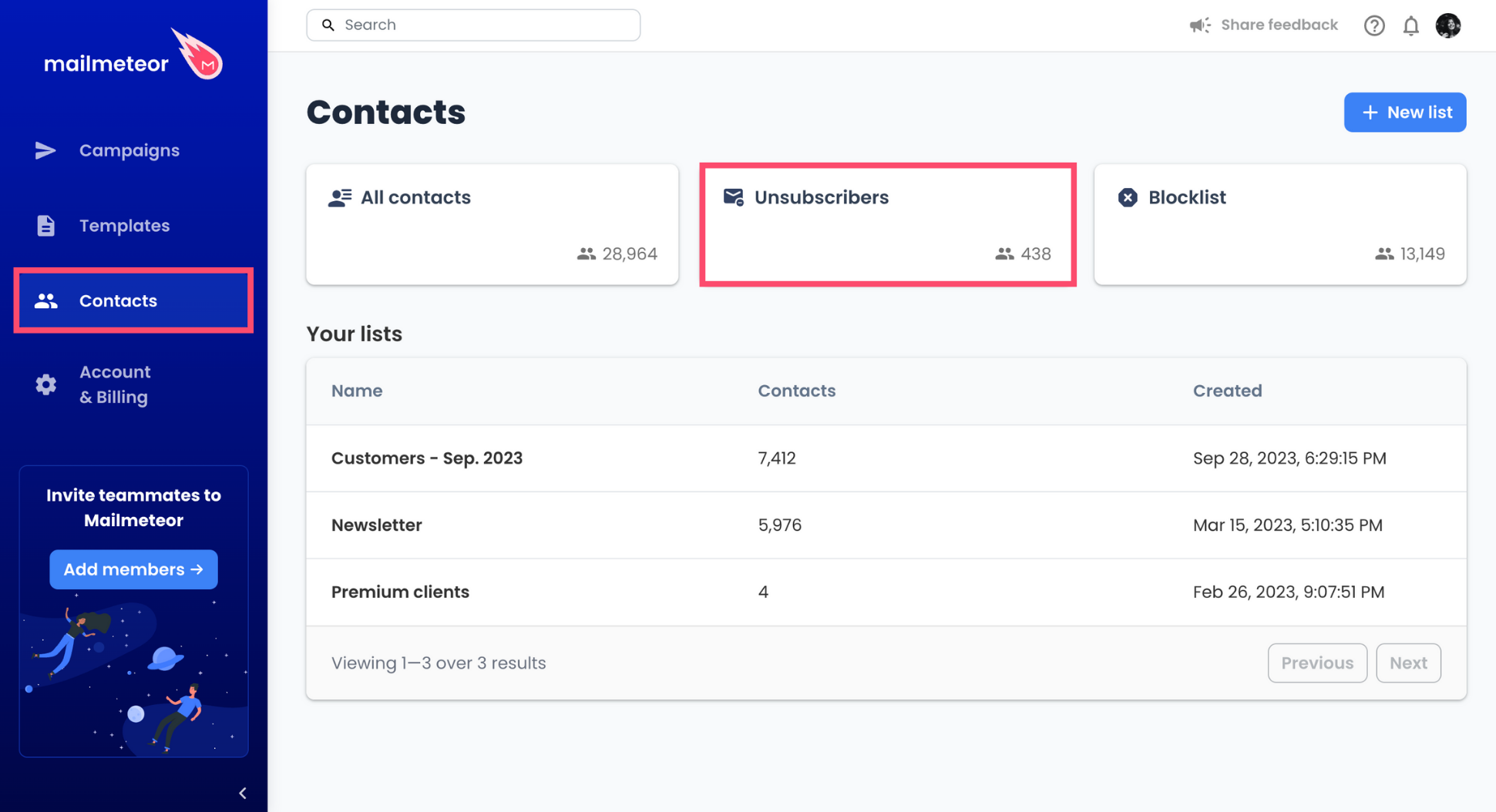
Navigate to Contacts > Unsubscribers.
-
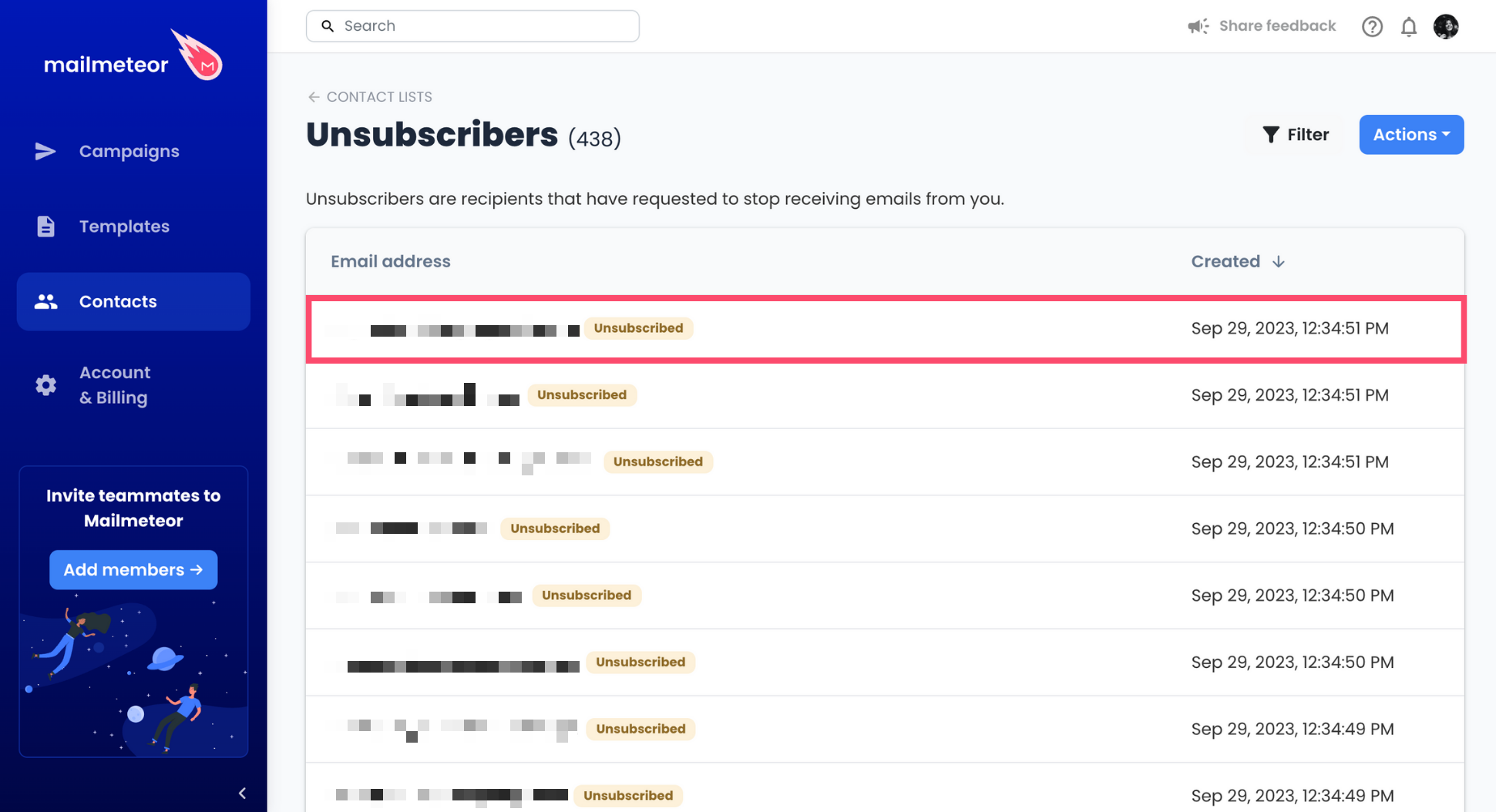
Select the contact you want to resubscribe.
-
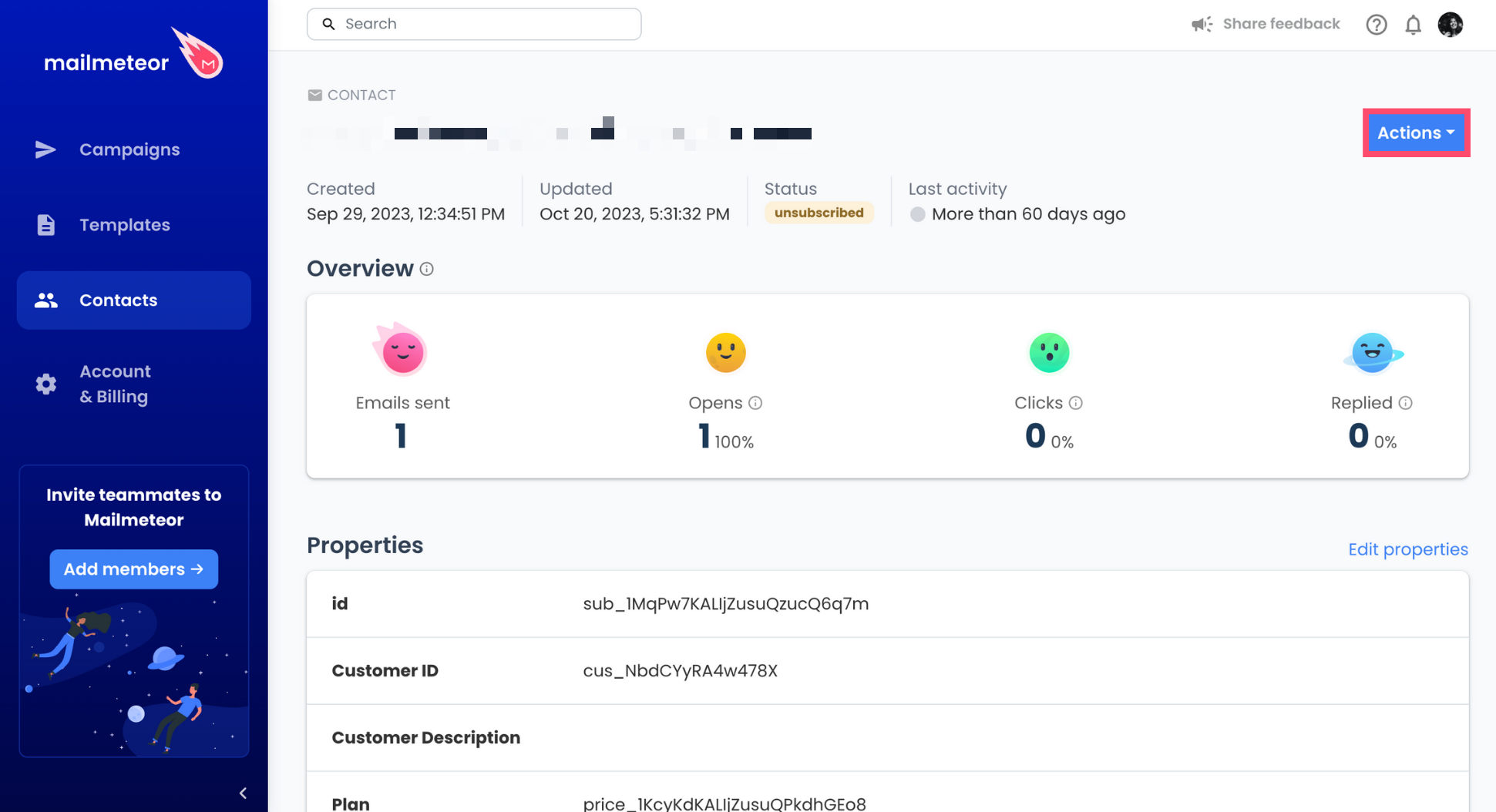
Click Actions.
-
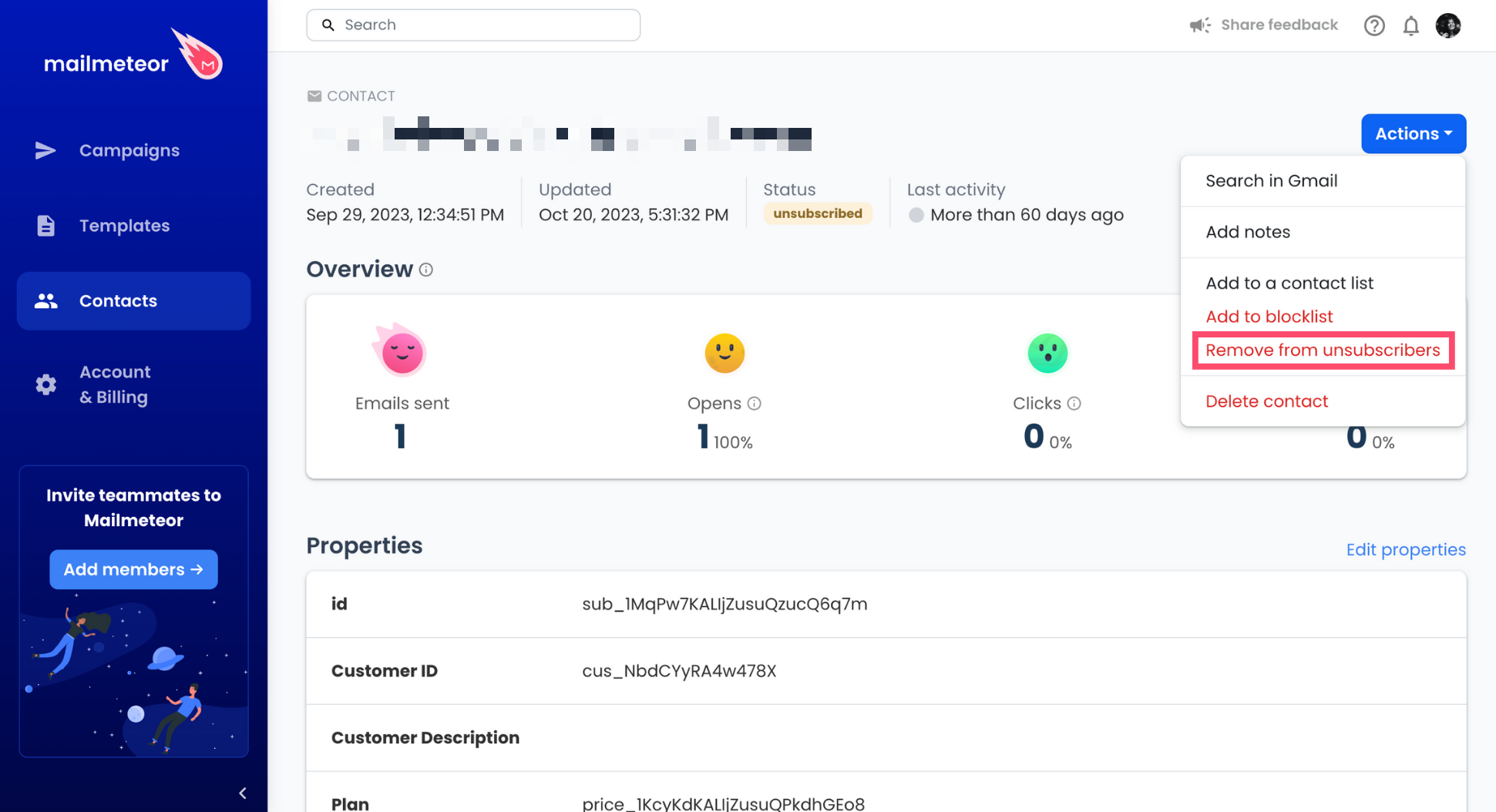
Select Remove from unsubscribers.
Only resubscribe a contact if they explicitly requested it. Disregarding your contacts’ preferences may harm your email reputation and lead to legal problems.
Best practices regarding email opt-out
It’s best to include a way to unsubscribe when sending cold emails (unsolicited emails to recipients you have had no interaction with in the past) or a marketing newsletter.
It does not necessarily have to be a link. But it needs to be clear and when people ask you to stop emailing them, don’t just ignore them.
Including an unsubscribe link will reduce your odds of being flagged as spam by people who no longer want to receive your messages.
In some countries, you are legally required to include a way to unsubscribe from your list if you send commercial emails (e.g. in the USA with the CAN-SPAM). Contact your legal advisor if you’re not sure what to do.
Video tutorial
If you prefer to watch a video, here’s a tutorial on how to add an unsubscribe link to your emailing campaigns with Mailmeteor:
No video yet