Tracking
Mailmeteor provides real-time tracking, giving you full visibility into your emails after sending. Monitor opens, clicks, replies, and bounces, gain valuable insights, and optimize your outreach strategy for better results.
How to track emails?
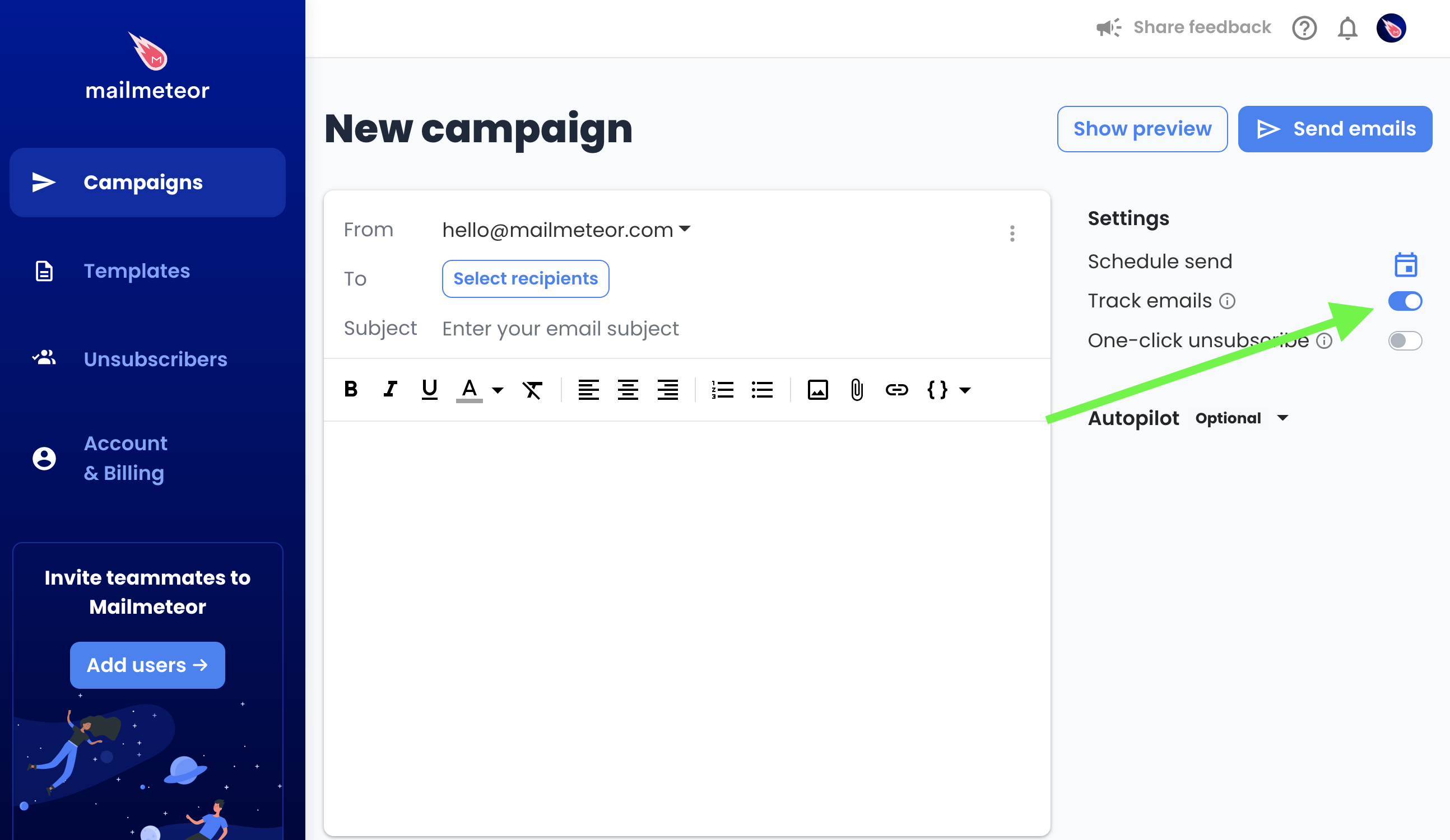
- Sign in to Mailmeteor Dashboard.
- Go to Campaigns.
- Create a New campaign.
-
Turn on Track emails in your settings.
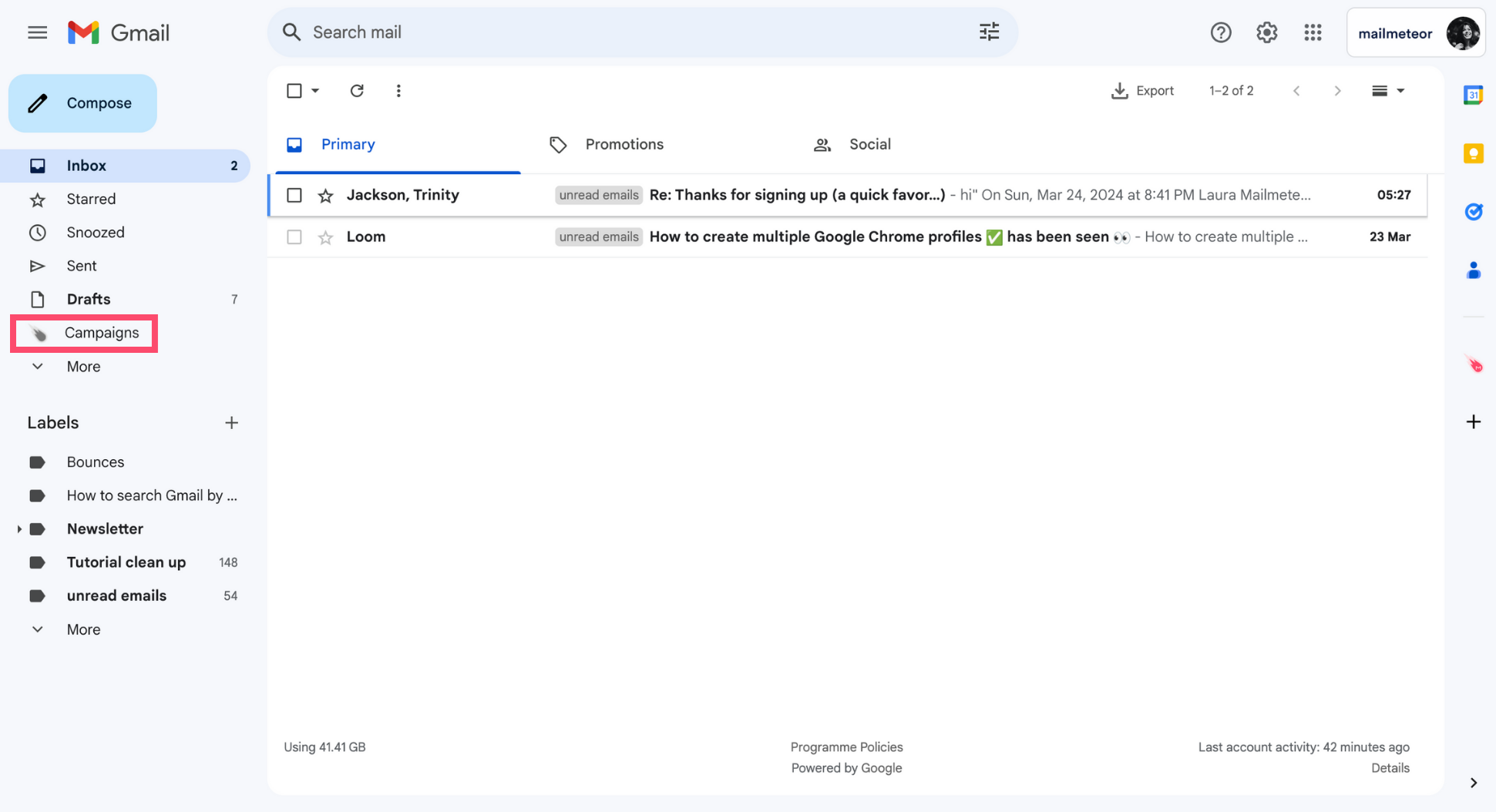
- Sign in to your Gmail account.
-
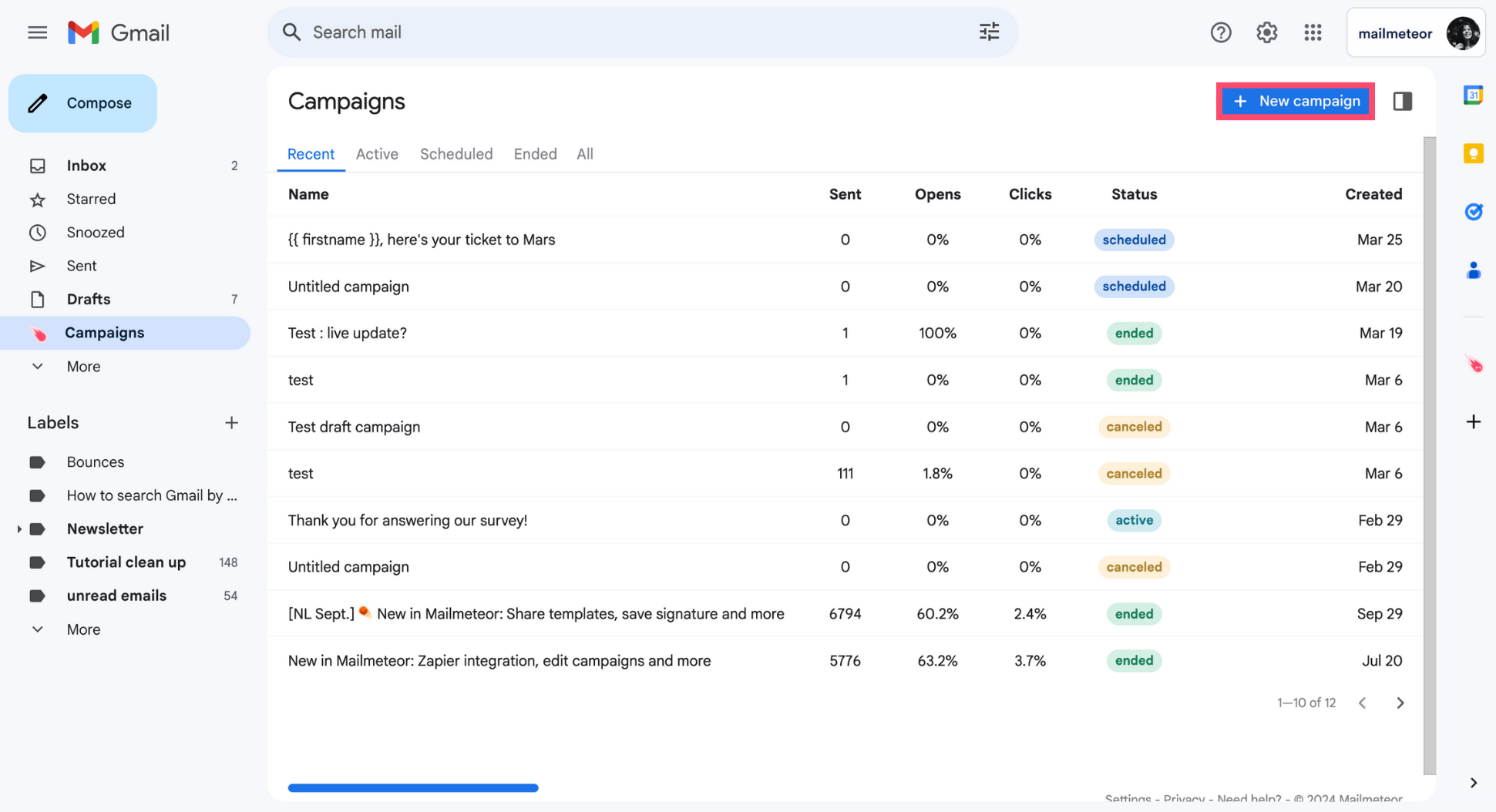
Go to Campaigns.
-
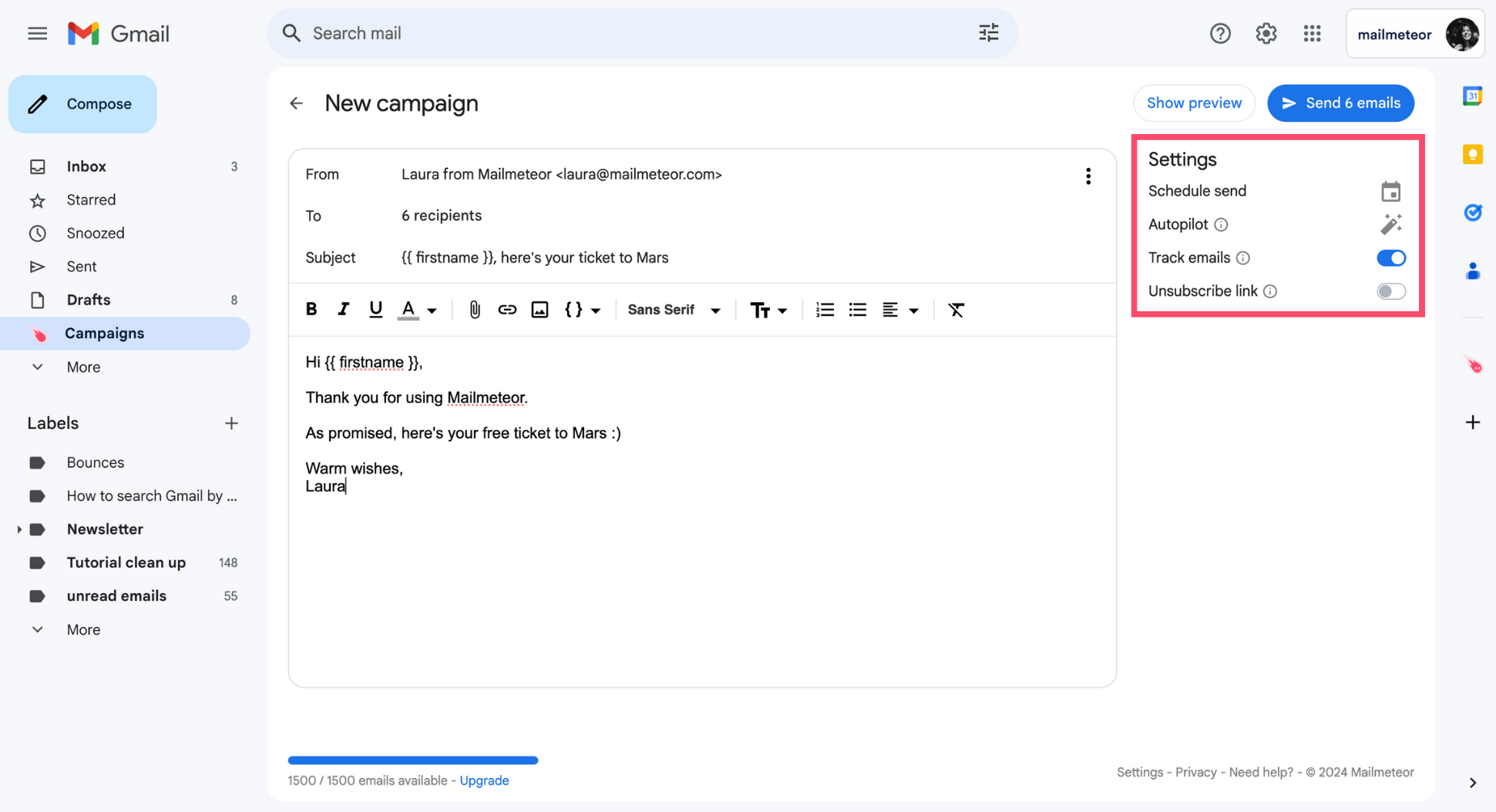
Create a New campaign.
-
Under Settings, activate Track emails.
- Open your Google Sheets spreadsheet.
- Open Mailmeteor from the menu. Extensions > Mailmeteor.
- Create a New campaign
-
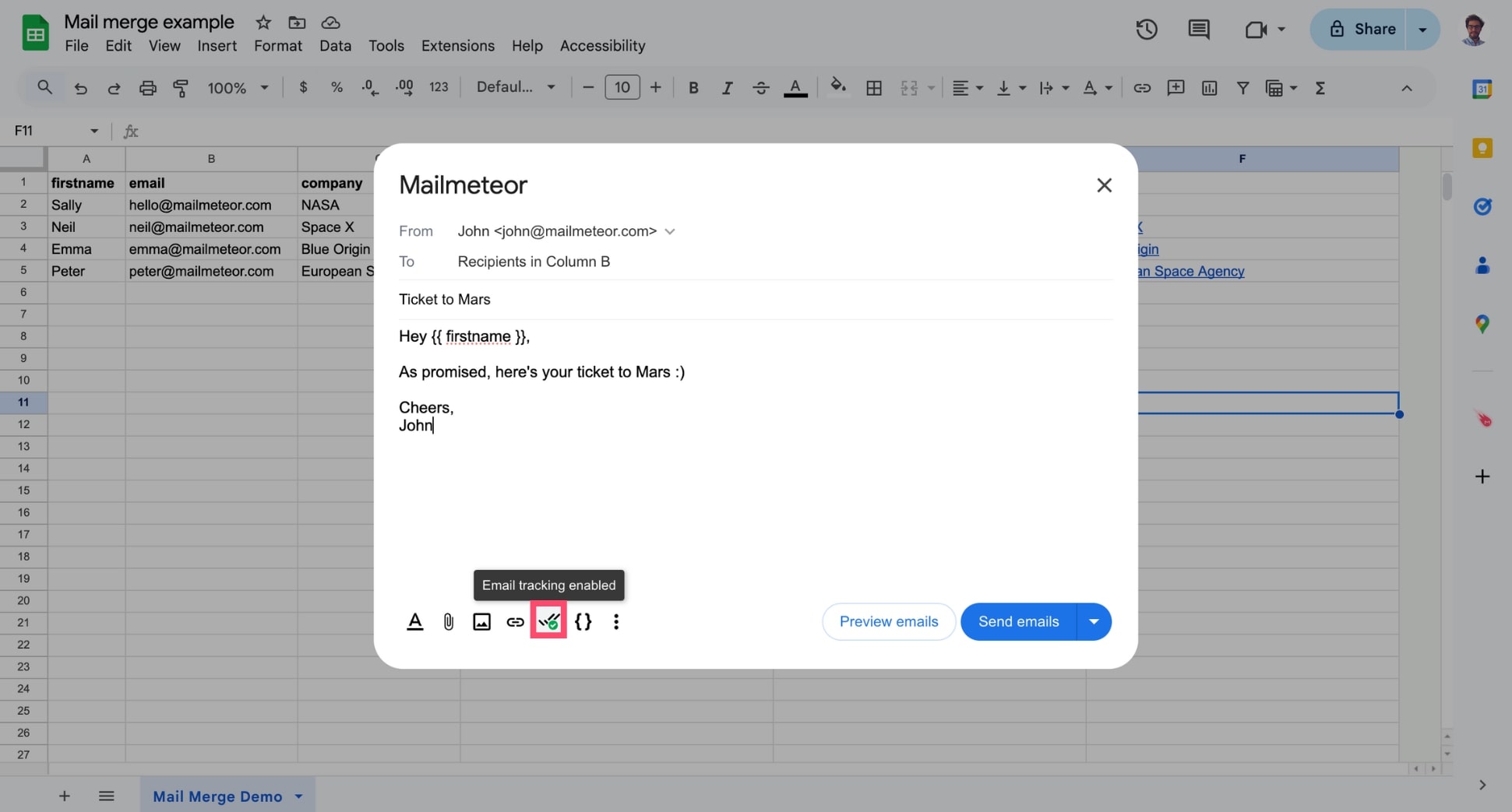
In the toolbar, make sure the tracking icon is turned on.
- Open your Google Docs document.
-
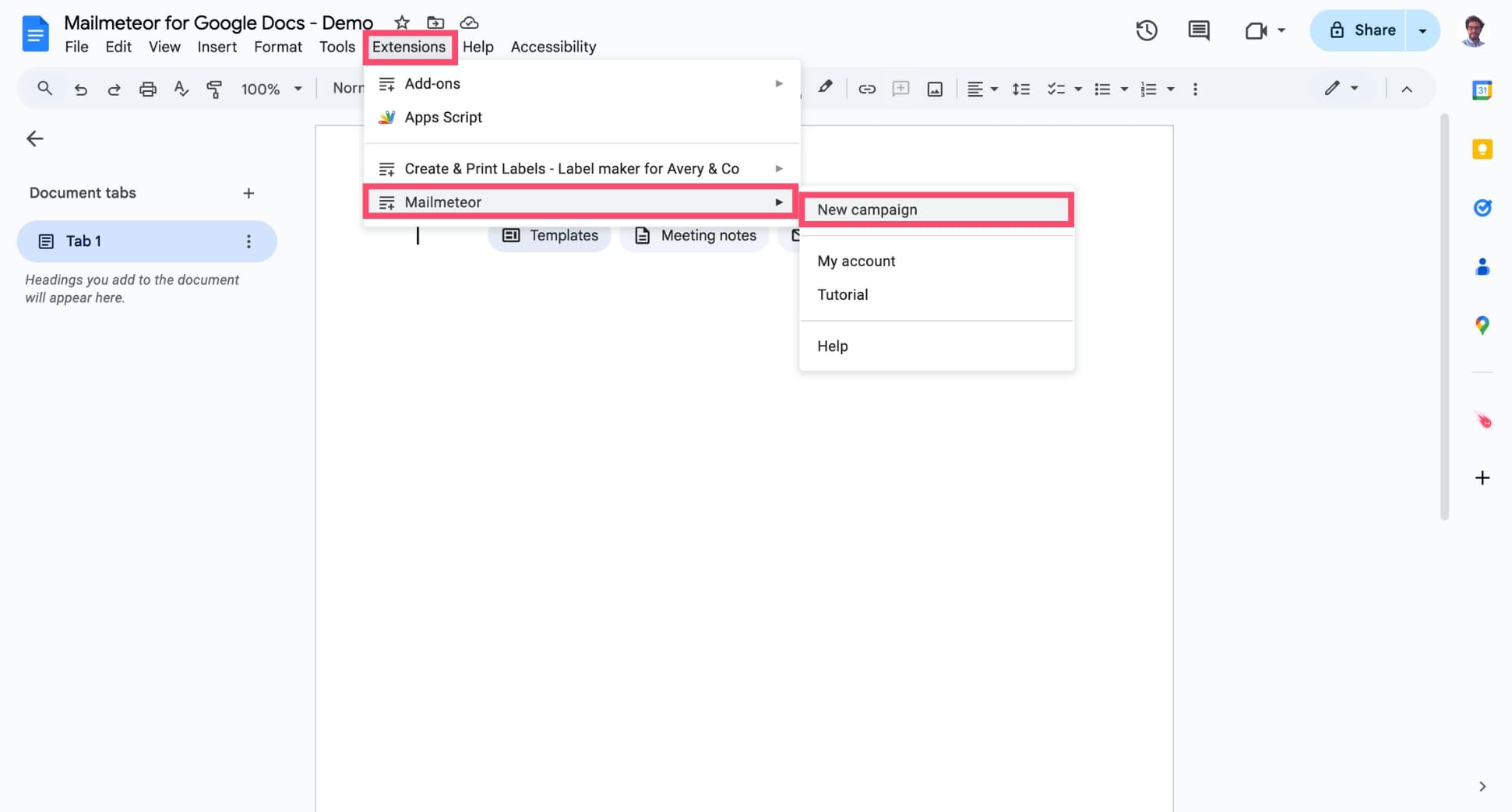
Open Mailmeteor for Google Docs from the menu by selecting Extensions > Mailmeteor > New campaign.
-
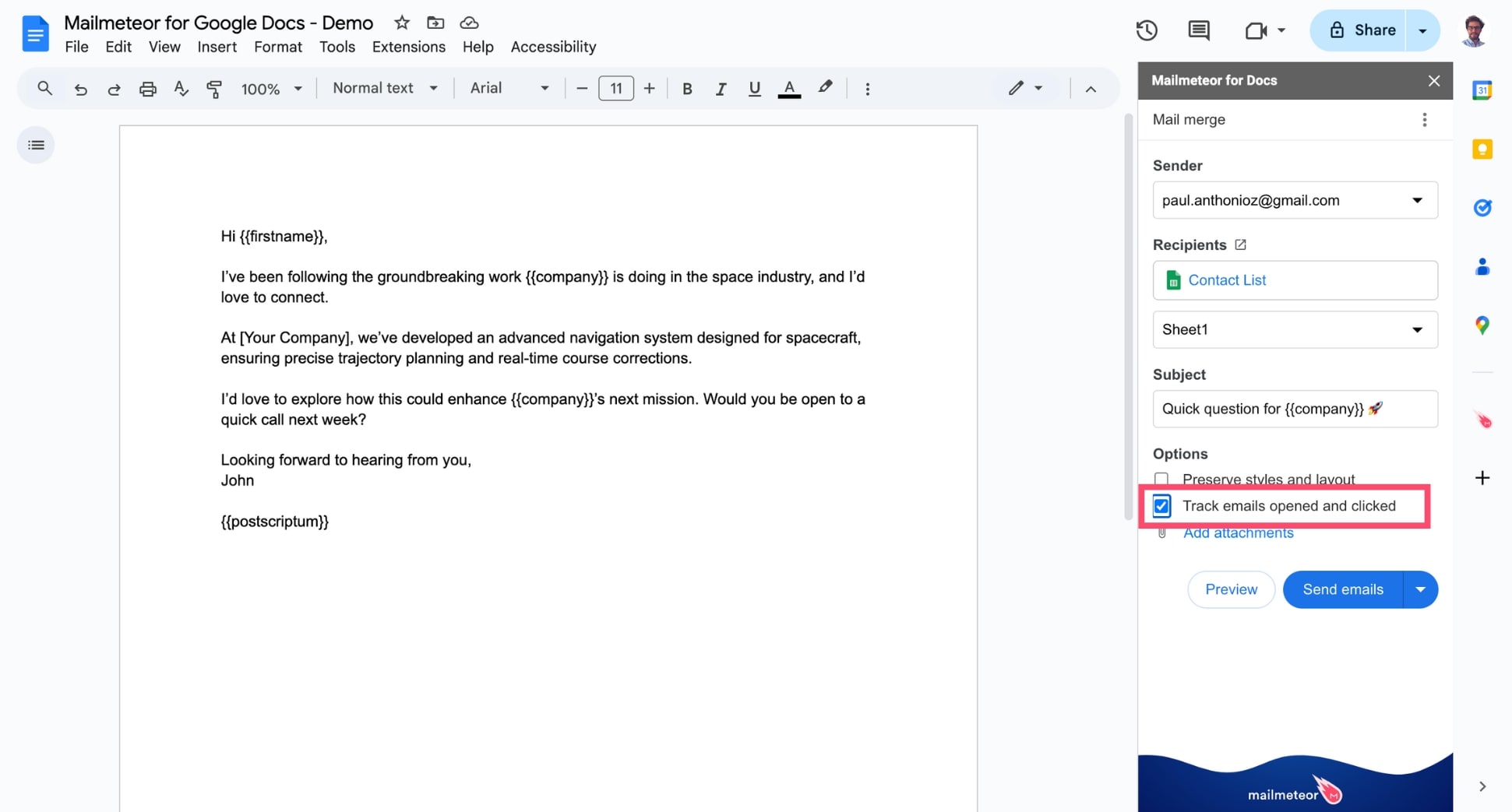
In the sidebar, under Options, select Track emails opened and clicked.
And voilà. You can now send your campaign and let Mailmeteor take care of the rest. We will monitor how your recipients interact with your emails and provide you with a detailed tracking report in real-time.
How can you access your campaign report?
Mailmeteor generates a new tracking report for each campaign you send. You can monitor your performance whenever you want. To access your report, follow these steps:
- Sign in to Mailmetor Dashboard
- Go to your Campaigns and select your campaign.
- In the campaign page, access the Overview section.
Here’s an example of how the tracking report looks like in the Mailmeteor Dashboard:
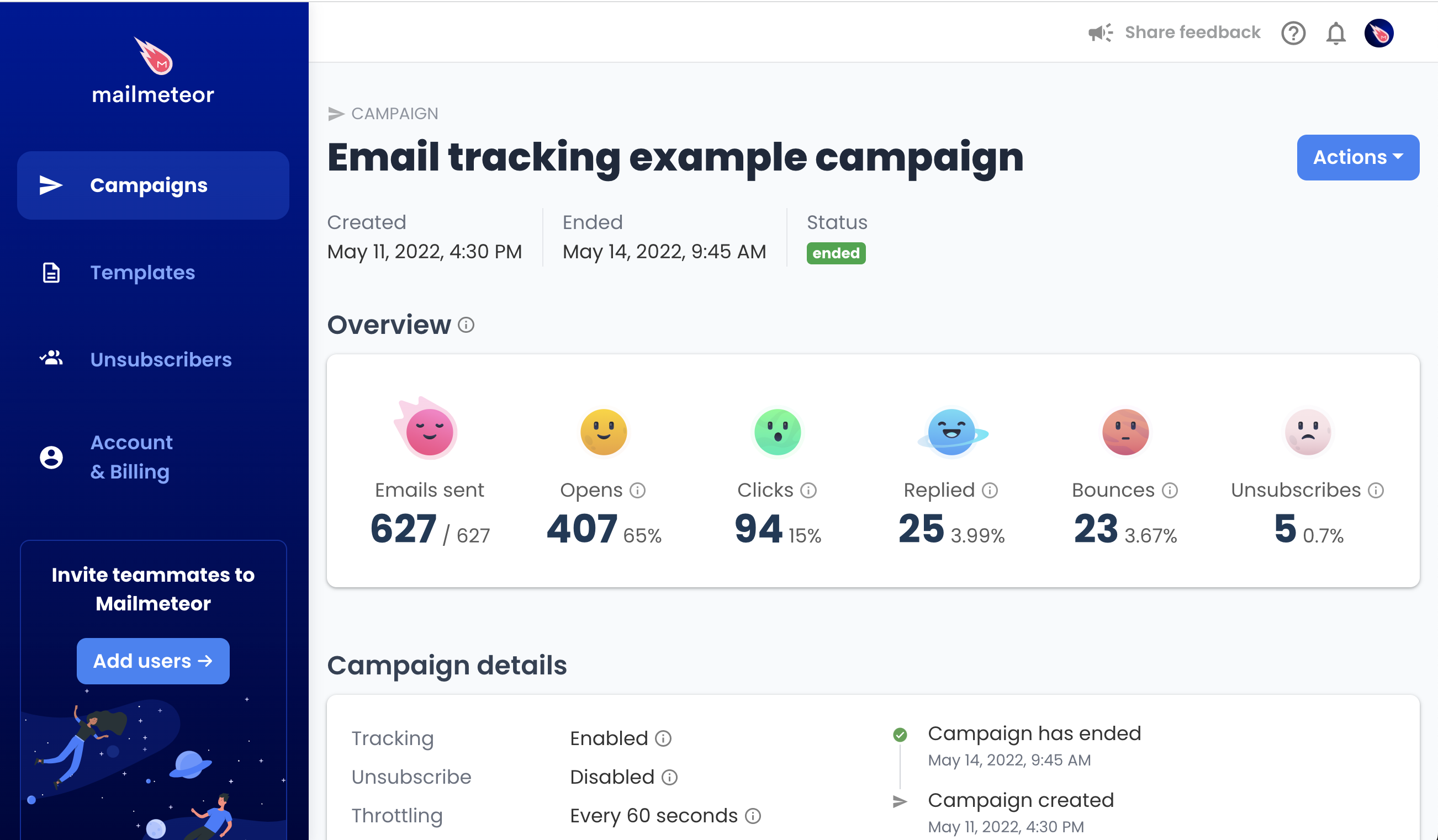
Tracking report in Mailmeteor Dashboard
If you use our extension for Google Sheets, you can also get tracking within your spreadsheet (learn more).
-
Go to Gmail and open the Campaigns tab.
-
Select the campaign you want to monitor.
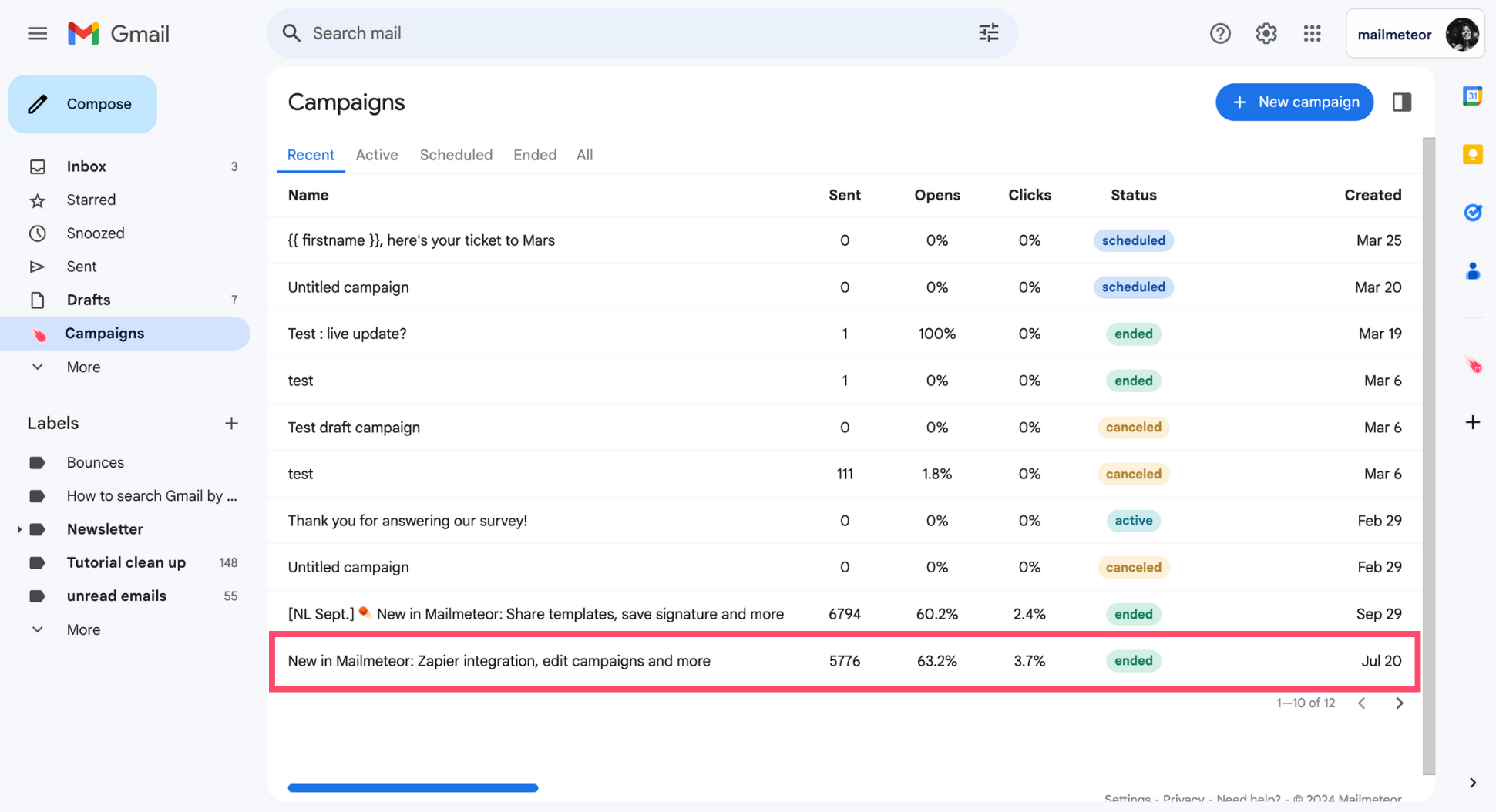
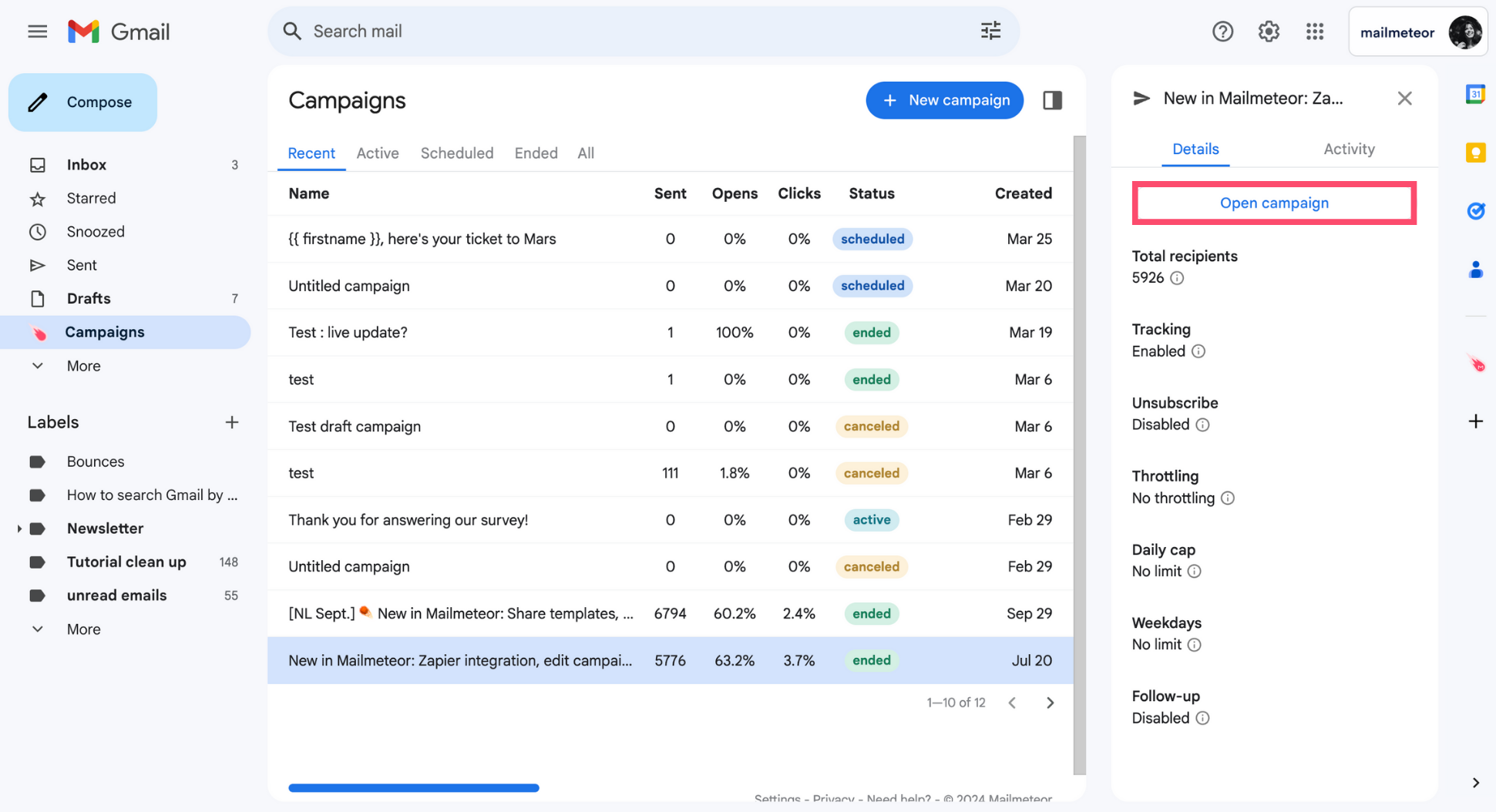
-
Click Open campaign to access your tracking report.
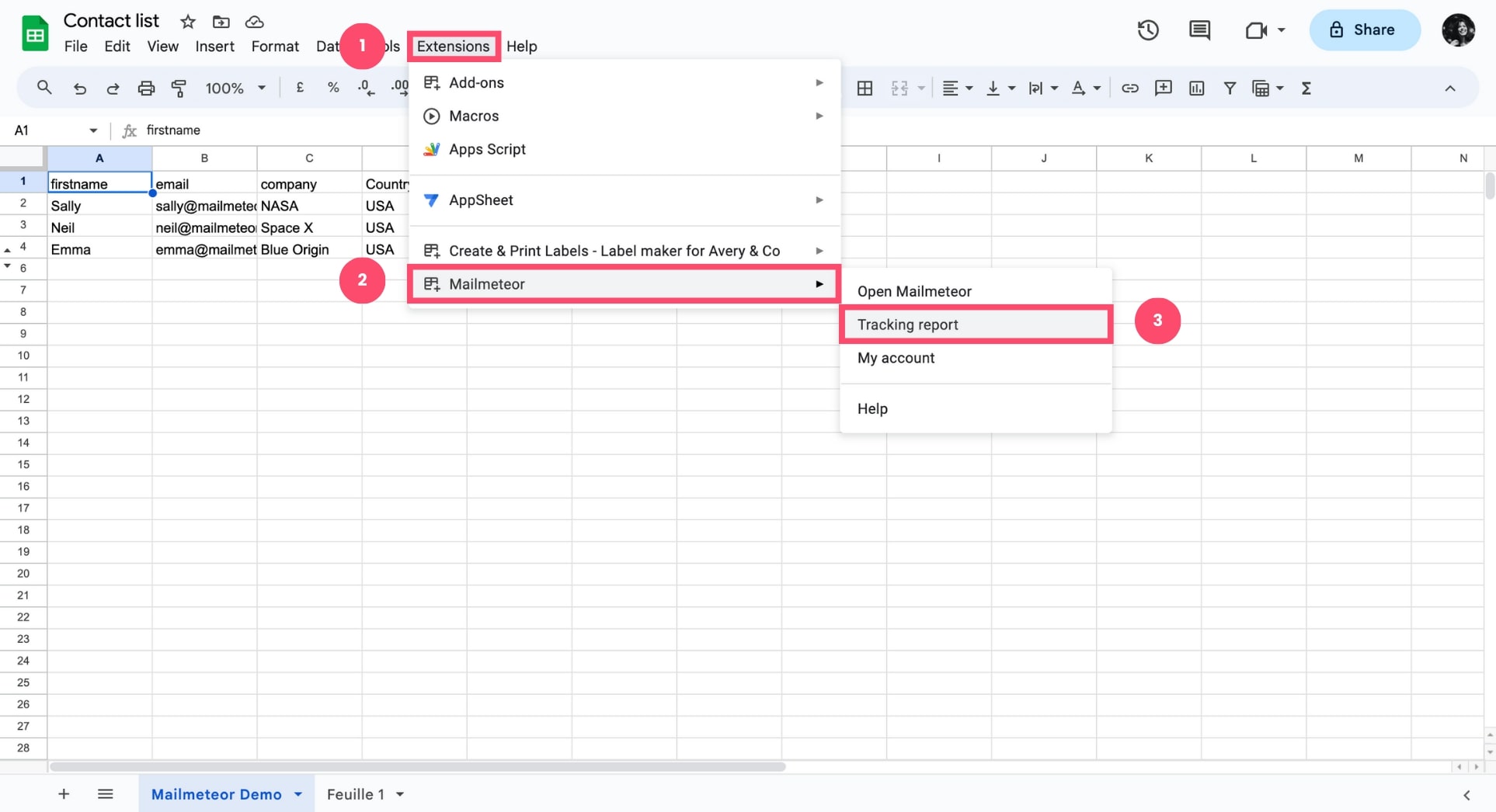
- Open your spreadsheet in Google Sheets.
-
In the menu, go to Extensions > Mailmeteor > Tracking report.
You can also access your campaign report from the Dashboard (learn more).
If you encounter an Access to tracking report denied error, it means we are having trouble authenticating your account. Please refer to this guide for assistance.
Once tracking is enabled, Mailmeteor automatically generates a tracking report in your Google Sheets spreadsheet.
A new Campaign status column is added, allowing you to see which emails have been opened, clicked, or replied to.
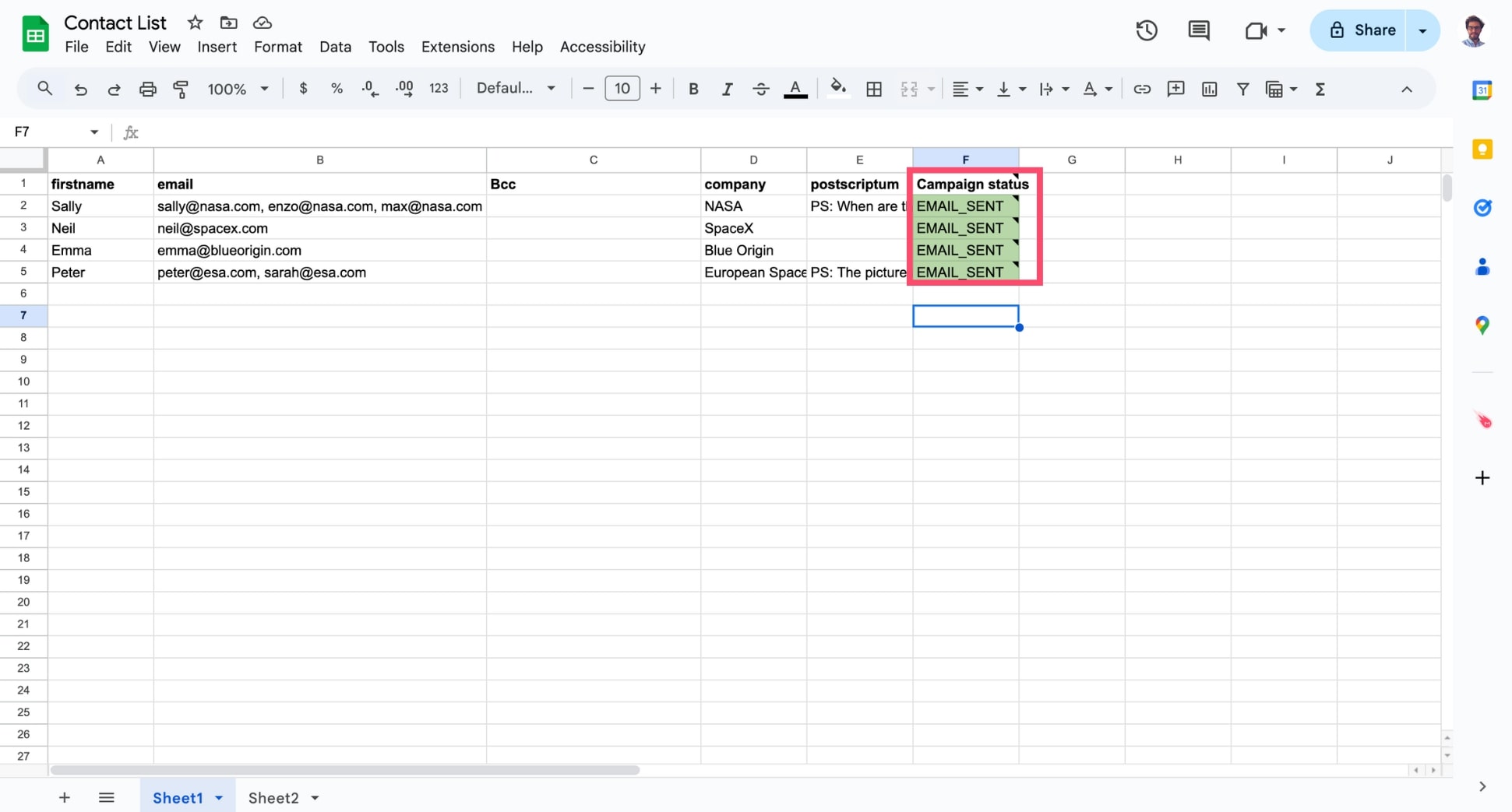
This report is updated in real-time, allowing you to monitor the performance of your campaign precisely, and refine your strategy accordingly.
What can you track with Mailmeteor?
With Mailmeteor, you can monitor your recipients’ engagement in real-time. We help you track up to 6 key metrics:
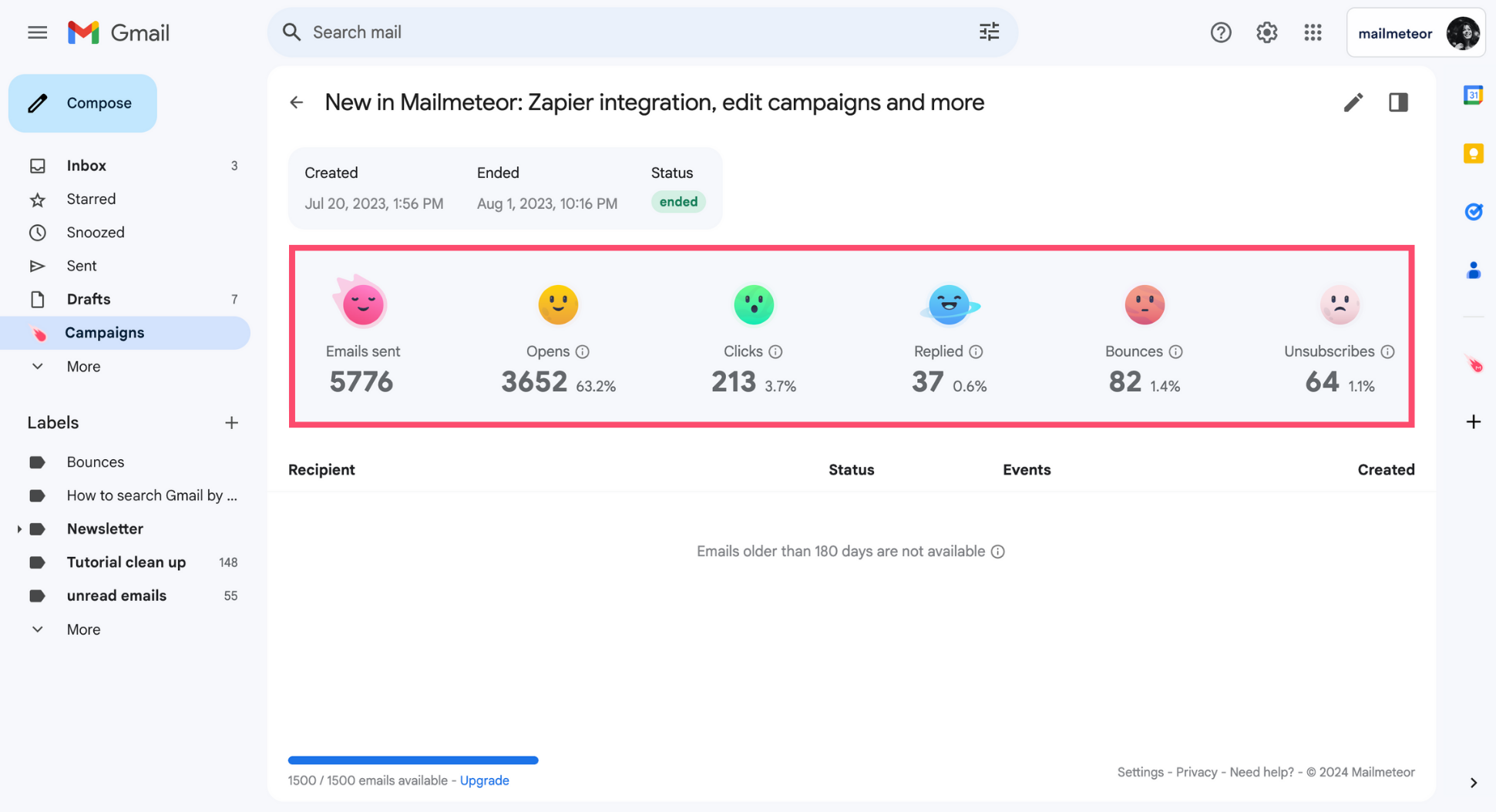
- Sent: Mailmeteor sent your email successfully
- Opens: The email was opened by one of your recipients
- Clicks: Your recipient clicked a link inside your email
- Replies: Your recipient responded to the email
- Bounces: The email bounced back, which means the recipient didn’t receive the email
- Unsubscribes: Your recipient opted out of your email list (learn more)
Going further
Some regulations require you to get your recipients’ consent before tracking their emails. Learn how to comply with tracking consent regulations.