Is your Gmail inbox flooded with newsletters, promotions, and emails you don’t remember signing up for? Most inbox clutter comes from subscriptions — and unsubscribing them one by one can feel like a never-ending task.
The good news? Gmail already includes built-in tools that let you stop unwanted emails, review all your subscriptions in one place, and cut down inbox noise — often in just a few clicks.
In this guide, we’ll walk through 4 simple ways to unsubscribe in Gmail, including how to unsubscribe in bulk, why some emails don’t stop right away, and how to shut down senders that ignore unsubscribe requests.
Here’s what we’ll cover:
- How to Unsubscribe From Emails in Gmail
- Why You May Still Get Emails After Unsubscribing
- How to Stop Unwanted Emails When Unsubscribe Doesn’t Work
- How to Keep Your Inbox Clean Going Forward
Sounds good? Then let’s dive in.
How to Unsubscribe From Emails in Gmail
Gmail offers 4 ways to unsubscribe. Some messages can be stopped in a single click, directly from your inbox. Others require an extra step — like confirming on the sender’s website or using Gmail’s subscription manager.
Here’s how each method works ⤵️
| Method | Best for | How fast it is | Requires leaving Gmail | Works in bulk |
|---|---|---|---|---|
| Gmail Unsubscribe button | Legitimate newsletters | ⭐⭐⭐⭐☆ | No (in most cases) | No |
| Manage subscriptions | Cleaning up many subscriptions | ⭐⭐⭐⭐☆ | No | Partially |
| Unsubscribe link in email | Emails without Gmail button | ⭐⭐⭐☆☆ | Yes | No |
| Bulk unsubscribe app | Large, cluttered inboxes | ⭐⭐⭐⭐⭐ | No | Yes |
1. Use Gmail’s Unsubscribe Button
When Gmail detects that an email comes from a legitimate mailing list, it displays an Unsubscribe button at the top of the message, right next to the sender’s name. This is the fastest way to stop marketing emails in Gmail — and it doesn’t require any extensions or extra tools.
To use Gmail’s unsubscribe button:
- Go to Gmail.
- Open a recent email from the sender you want to unsubscribe from.
- Click Unsubscribe next to the sender’s name.
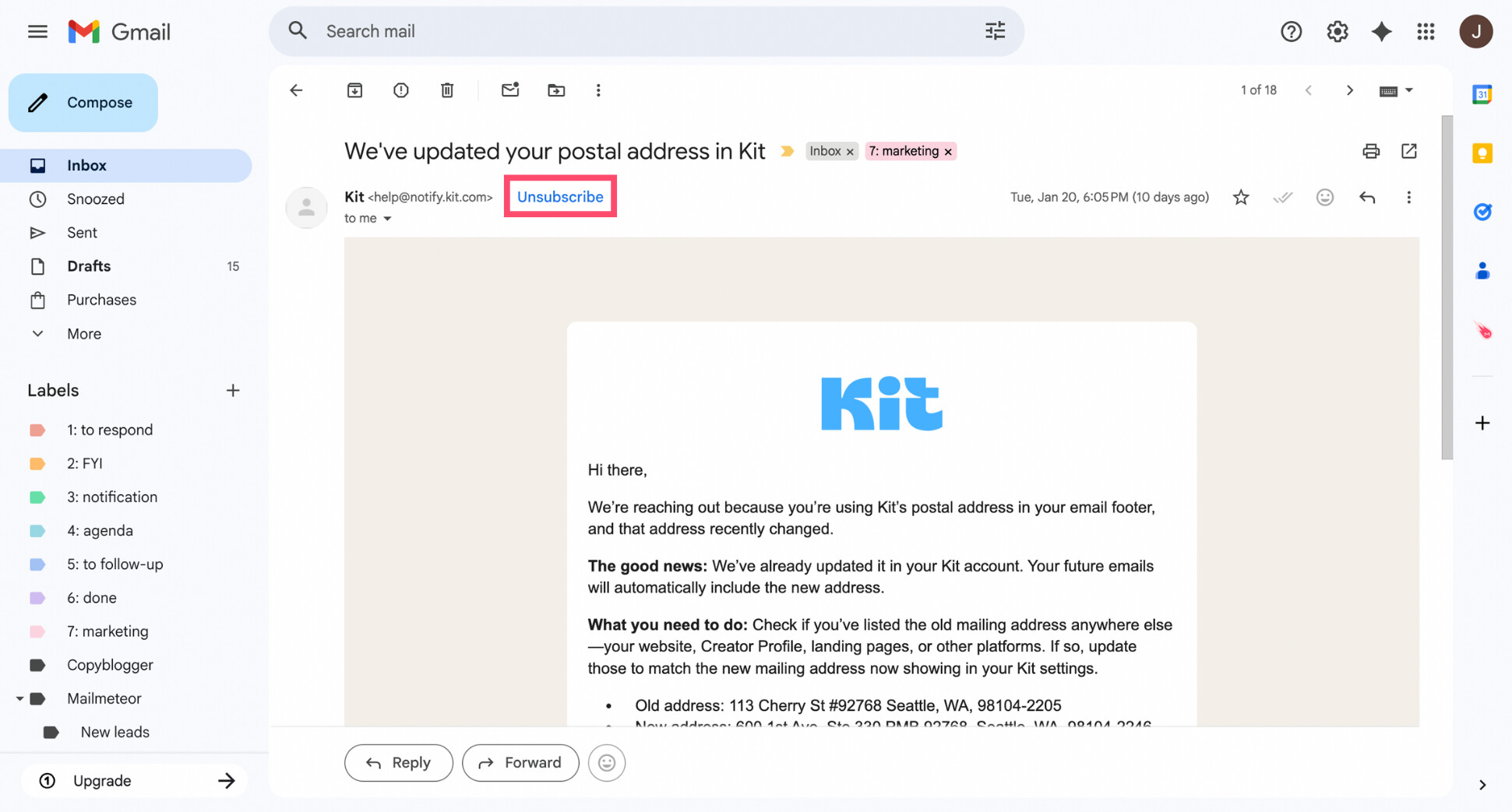
- Confirm when prompted.
What happens next depends on how the sender set up their emails. Some mailing lists support Gmail’s one-click unsubscribe standard, which lets Gmail send the unsubscribe request automatically on your behalf. Others redirect you to the sender’s official unsubscribe page for a quick confirmation.
2. Use Gmail’s Manage Subscriptions
If you’re subscribed to dozens of newsletters and promotional emails, unsubscribing one by one can still feel tedious. That’s where Gmail’s Manage subscriptions view comes in.
This feature shows all your active email subscriptions in one place, grouped by sender and sorted by how often they email you. It’s designed to help you spot the biggest inbox offenders and unsubscribe faster.
To manage your subscriptions in Gmail:
- Open Gmail.
- Click More in the left sidebar.
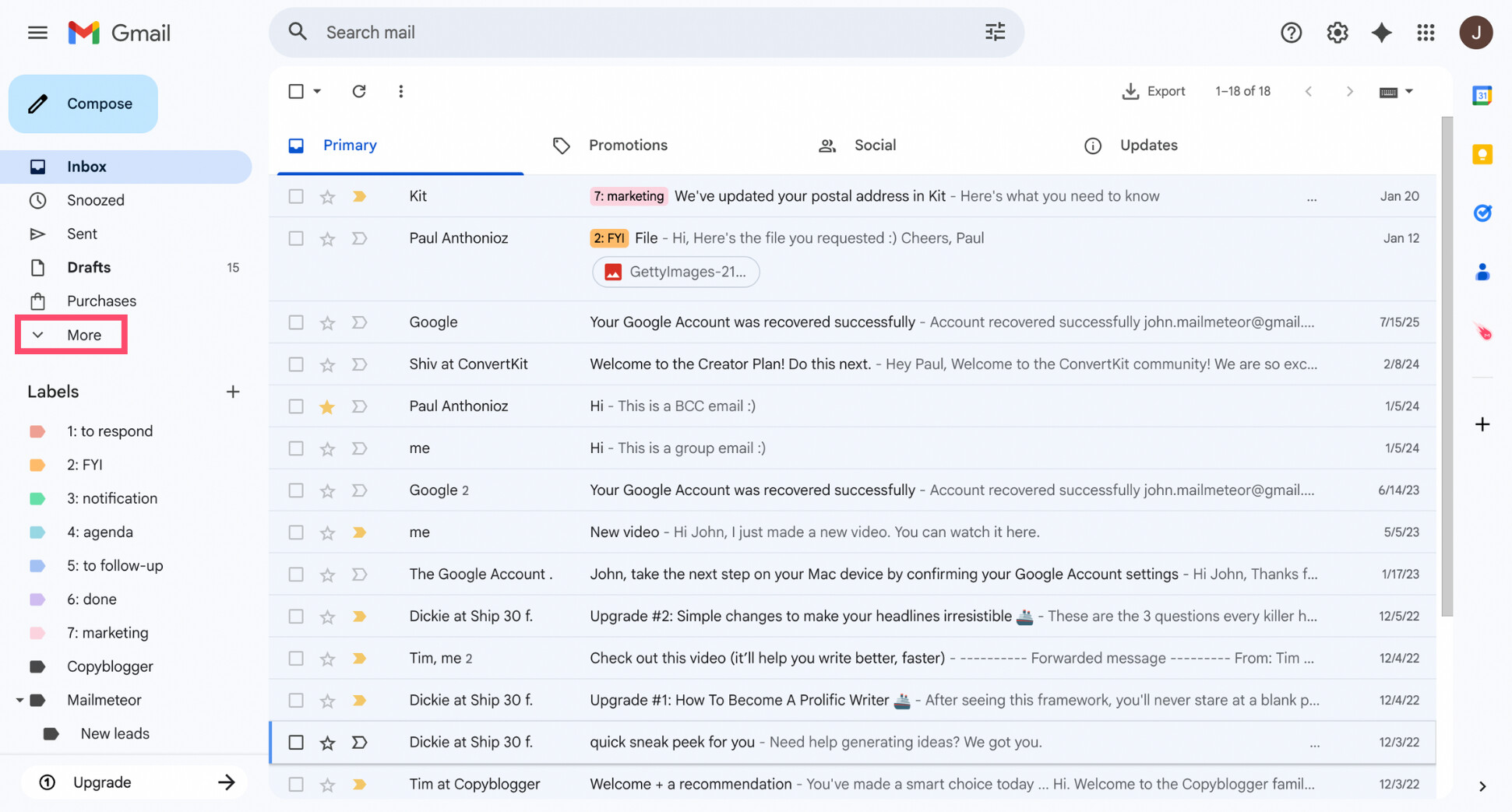
- Select Manage subscriptions.
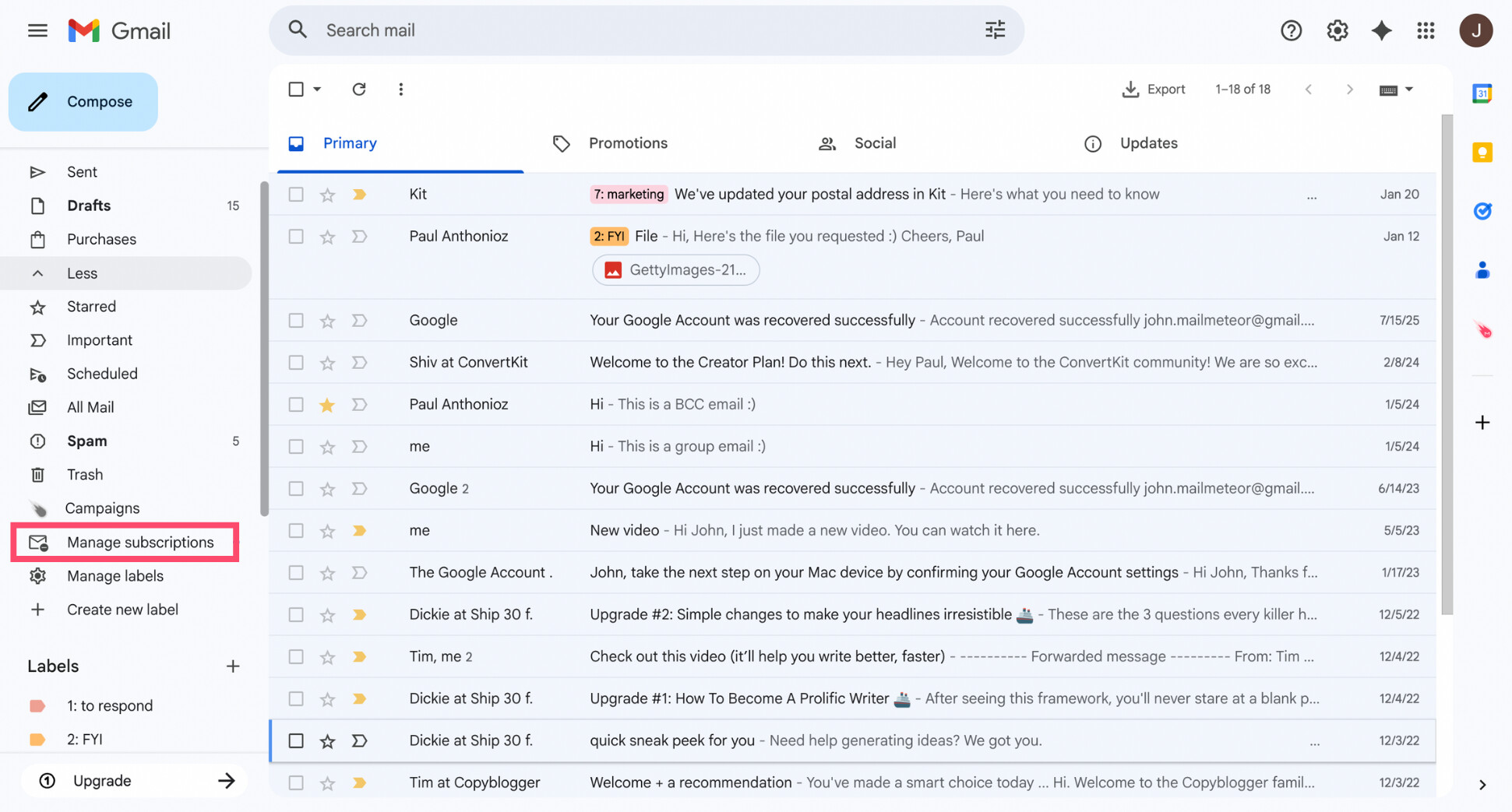
- Review the list of senders and click Unsubscribe next to any subscription you no longer want.
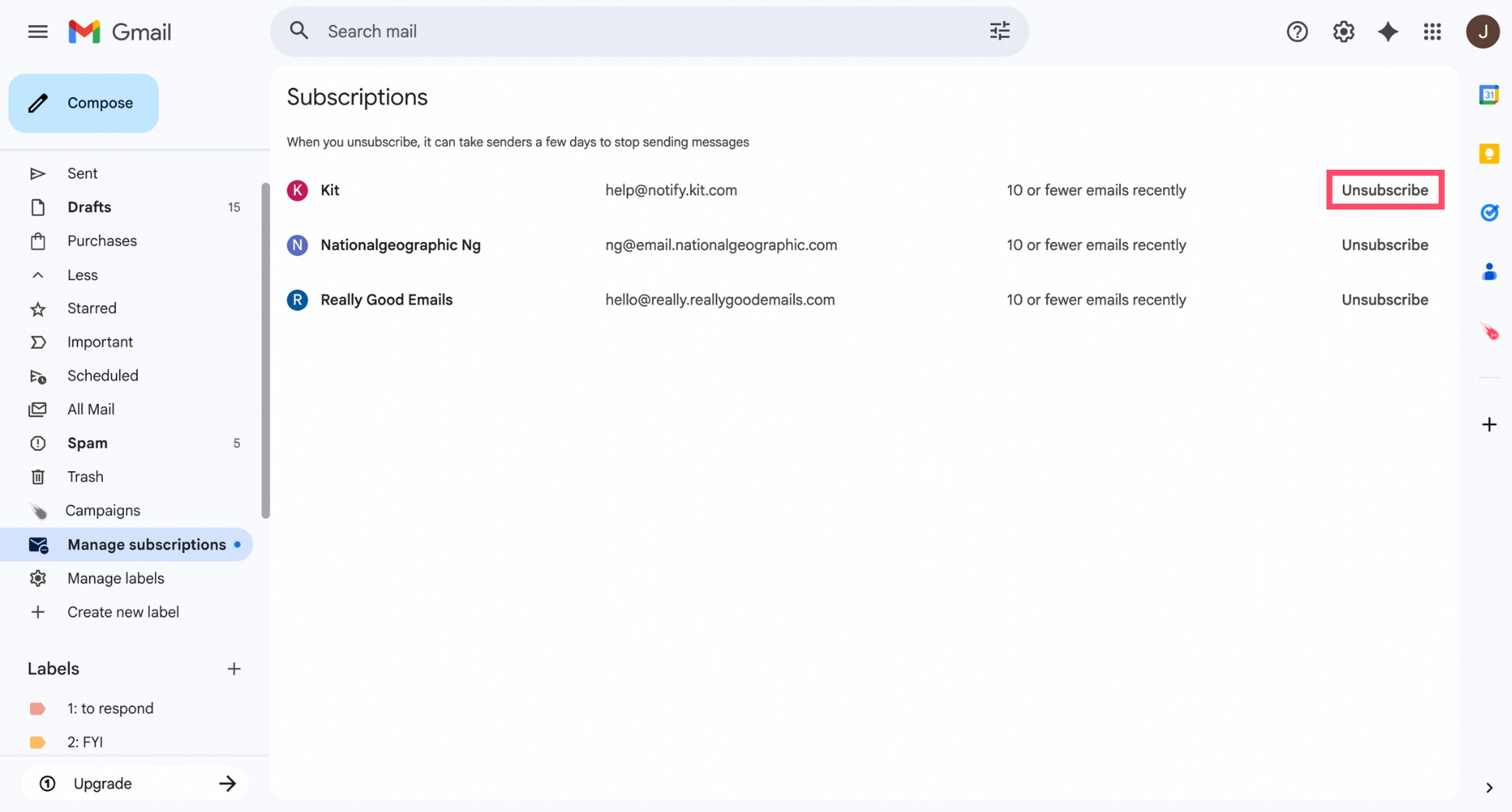
When you unsubscribe from this view, Gmail sends the unsubscribe request for you — just like the Unsubscribe button inside an email — without forcing you to open each message individually.
3. Use the Unsubscribe Link Inside the Email
If Gmail doesn’t display an Unsubscribe button, look for the unsubscribe link inside the email. Legitimate senders are legally required to include one under GDPR and CAN-SPAM.
Scroll to the bottom of the email and look for a link labeled Unsubscribe, Manage preferences, or Opt out. Clicking it will usually take you to the sender’s website, where you can confirm that you want to stop receiving emails from that mailing list.
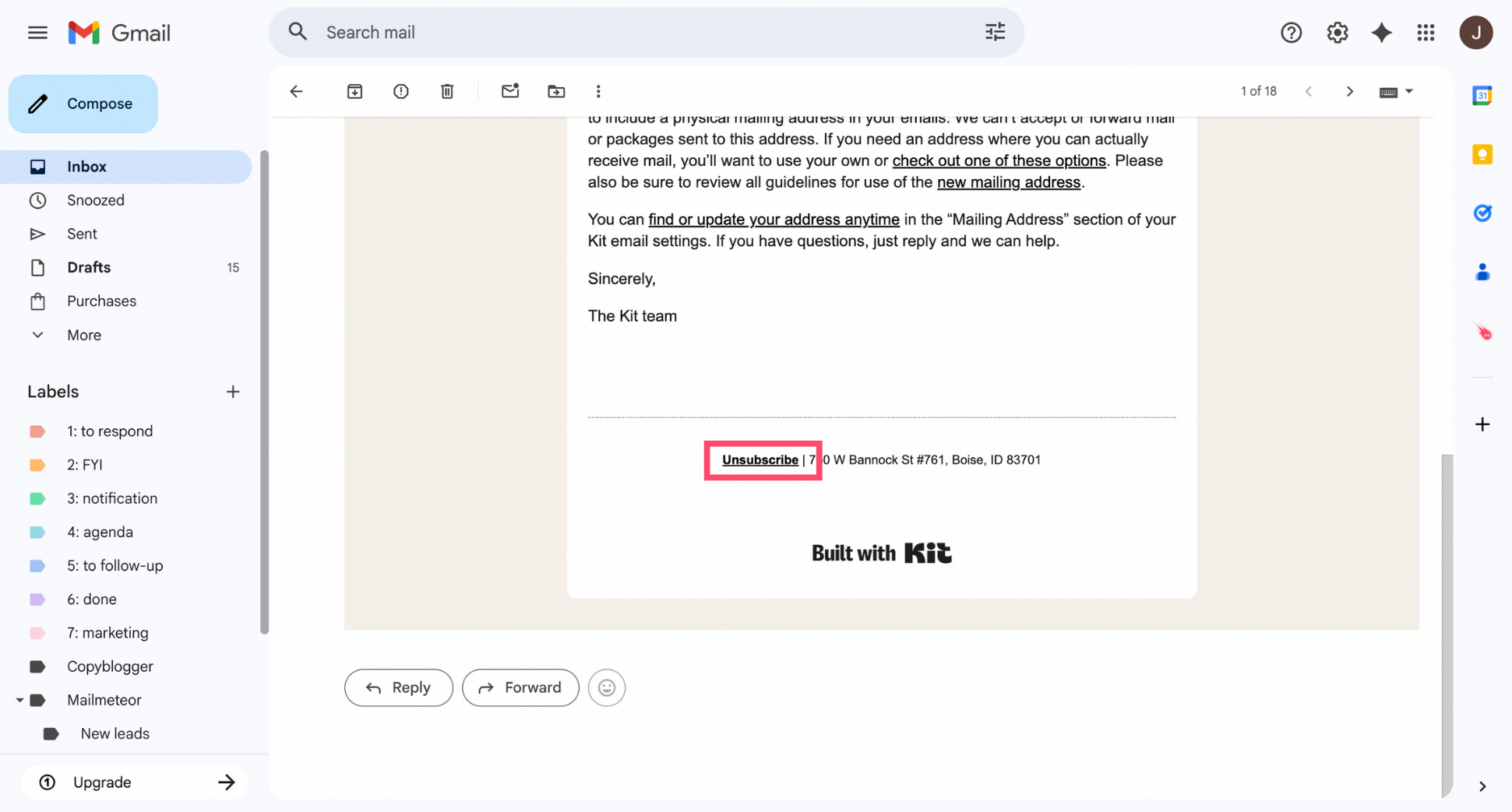
In most cases, this only takes a few seconds. Once you confirm, the sender should remove you from their mailing list — though, just like with Gmail’s unsubscribe button, it may take a few days for emails from that sender to fully stop.
4. Use a Bulk Unsubscribe App
If your inbox is truly overloaded — hundreds of subscriptions, years of accumulated newsletters — Gmail’s built-in tools may feel too slow. In that case, a bulk unsubscribe app like Clean Email, Unroll.me, or Mailstrom can help you clean up much faster.
These tools connect to your Gmail account and scan your inbox to identify mailing lists and promotional senders. Instead of unsubscribing one sender at a time, you can review everything in a single dashboard and unsubscribe from multiple senders at once.
Most bulk unsubscribe apps automate the same process Gmail uses behind the scenes. Some also add extras like grouping subscriptions by category, auto-cleaning old messages, or muting senders that don’t respect unsubscribe requests.
That said, you’re granting a third-party app access to your Gmail data, and features, pricing, and privacy practices vary widely. For light inbox cleanup, Gmail’s native Unsubscribe button or Manage subscriptions view is often more than enough.
Bulk unsubscribe services make the most sense when your inbox feels completely out of control and you want to clean it up quickly in one pass — not as a default tool for everyday email management.
Why You May Still Get Emails After Unsubscribing
Unsubscribing usually works — but it’s not always instant, and it’s not always perfect. If you’re still receiving emails after clicking Unsubscribe in Gmail, it’s likely for one (or more) of these reasons:
- Unsubscribe requests take time to process: Most senders don’t remove you immediately. It’s common for emails to keep coming for a few days while your request is processed on their end.
- You unsubscribed from only one mailing list: Many companies use multiple mailing lists (newsletters, promotions, product updates, events). Unsubscribing from one doesn’t automatically remove you from all of them.
- The sender uses multiple email addresses or domains: Similarly, some senders email from different addresses (e.g. news@, offers@, updates@). Unsubscribing from one address won’t stop emails from the others.
- The sender ignores or delays unsubscribe requests: Less reputable senders may technically accept unsubscribe requests but continue sending emails anyway — or stop only after repeated attempts.
- You recently interacted with the sender: Making a purchase, creating an account, or confirming an email address can re-add you to a mailing list, even if you unsubscribed before.
- The email isn’t a real subscription: Scammy or low-quality emails sometimes include fake unsubscribe links that don’t actually remove you from anything.
If emails keep arriving after several days, or if the sender doesn’t respect unsubscribe requests, your best option is to mark the messages as spam or block the sender. Gmail will then stop delivering them to your inbox — regardless of what the sender does.
How to Stop Unwanted Emails When Unsubscribe Doesn’t Work
Unsubscribing works for most legitimate newsletters — but not always. Some senders ignore unsubscribe requests, delay processing them, or keep emailing you from slightly different addresses or lists.
When that happens, it’s time to stop playing by their rules. Gmail gives you stronger tools, like marking email as spam or blocking a sender, to shut those emails down completely and protect your inbox going forward.
Mark Emails as Spam
If emails keep coming after you’ve unsubscribed — or if you never opted in to receive them in the first place — marking them as spam is often the best option.
When you mark an email as spam, Gmail removes the message from your inbox immediately, and blocks similar emails in the future. This doesn’t just affect that one sender. It helps Gmail improve its spam detection for your account — and for others.
To mark an email as spam in Gmail:
- Go to Gmail.
- Open the email.
- Click the Report spam icon (the stop sign) in the top toolbar.
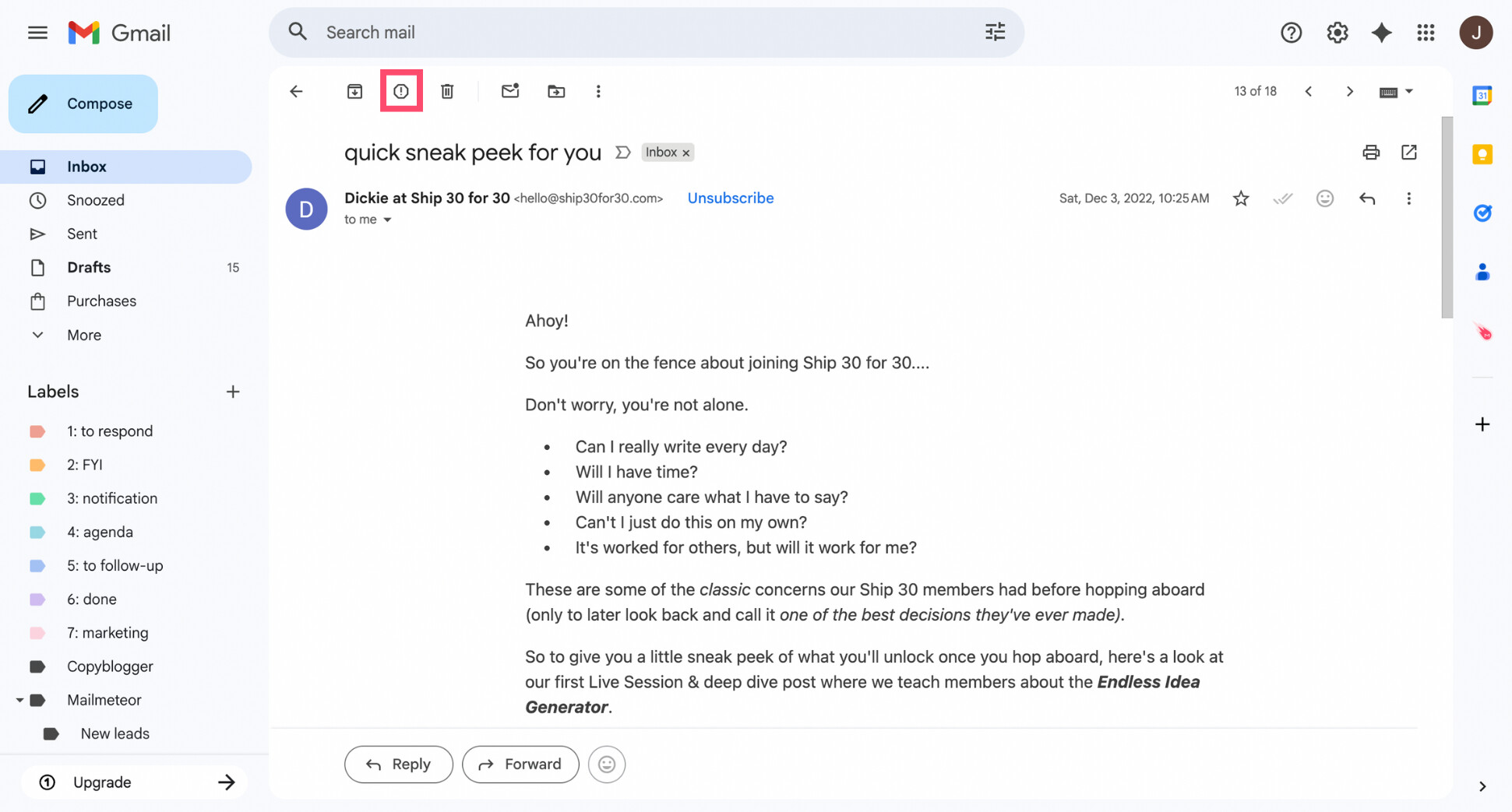
And voilà. Gmail will now move this email to the Spam folder, and future messages from that sender will be filtered automatically.
Block the Sender
Blocking a sender is the most direct way to stop emails from a specific address. Once you block someone in Gmail, all future messages from that sender are automatically sent to your Spam folder. They won’t appear in your inbox again.
This option works best when a sender keeps emailing you despite unsubscribe requests, when the messages are annoying but not outright malicious, and when the emails consistently come from the same address.
To block a sender in Gmail:
- Go to Gmail.
- Open an email from the sender you want to block.
- Click the three-dot menu in the top-right corner of the email.
- Select Block [Sender name].
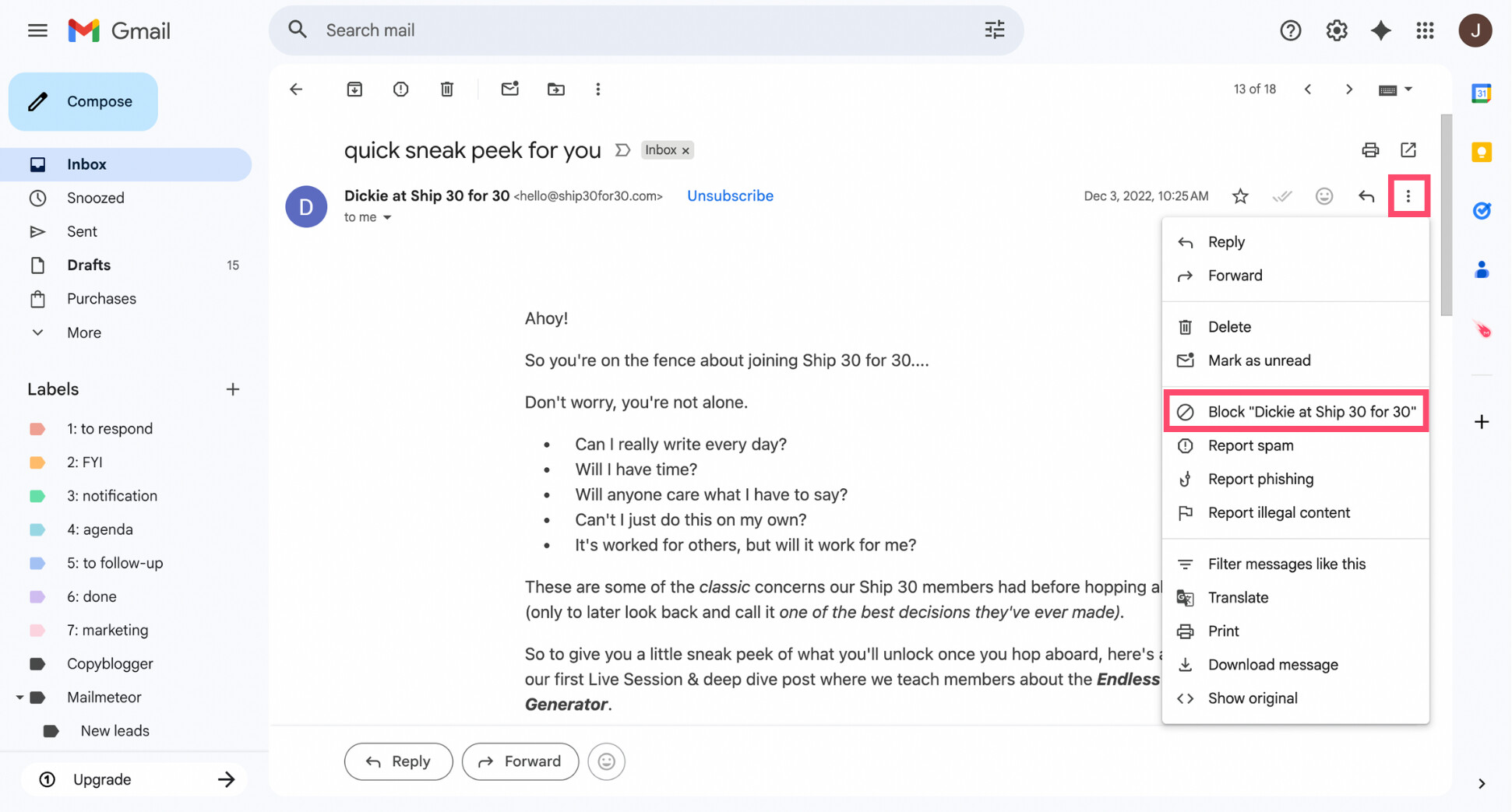
And that’s it. From now on, any email from that address will bypass your inbox entirely. If you want a more detailed walkthrough — including how to unblock someone later — check out our guide on how to block someone in Gmail.
How to Keep Your Inbox Clean Going Forward
Unsubscribing fixes today’s problem. A few simple habits can stop inbox clutter from coming back tomorrow. Here’s how to stay in control long-term.
Be Selective About New Sign-Ups
Before entering your email address, assume you’re signing up for ongoing emails, not just one download or purchase. If a site requires an email to continue, look for an opt-out checkbox, or use a dedicated signup address so your main inbox stays clean.
Use Gmail’s “+” Trick to Control Sign-Ups
Gmail lets you create aliases by adding a “+” and any word to your email address — and messages will still arrive in your inbox. It’s a simple way to protect your main inbox without creating new accounts.
For example:
[email protected] → [email protected]
You can use this trick when signing up for newsletters, free downloads, or online stores. Later, you’ll know where an email came from — and you can create filters to automatically label, archive, or delete messages sent to that address.
Review Your Subscriptions Regularly
Inbox clutter builds up quietly. Taking a few minutes every couple of months to review your subscriptions can prevent it from getting out of hand again. Gmail’s Manage subscriptions view makes this quick by showing which senders email you most often.
Keep Emails Organized Automatically
Labels, filters, and smart inbox rules help prevent clutter from piling up in the first place. Automatically sorting newsletters, promotions, and notifications out of your primary inbox keeps important emails visible — without constant manual cleanup.
Conclusion
Unwanted emails don’t have to be a permanent part of your Gmail experience. With the right approach, you can unsubscribe quickly, stop repeat offenders, and keep your inbox under control — without spending hours cleaning it up.
Start with Gmail’s built-in tools, like the Unsubscribe button, Manage subscriptions, and unsubscribe links inside emails. When those don’t work, don’t hesitate to mark emails as spam or block the sender.
If you want to go a step further, tools like the Mailmeteor AI assistant can help you stay organized automatically — by categorizing emails, reducing inbox noise, and letting you focus on what actually matters.
🏷️ Auto-categorize emails
📬 Send personalized emails at scale
🔁 Automate follow-ups
👀 Track email opens & clicks
📤 Export your email data
👉 Try the Mailmeteor AI assistant today (it’s free!) to keep your Gmail inbox clean, organized, and stress-free — without manual effort.
FAQs
Where is the unsubscribe button in Gmail?
In Gmail, the Unsubscribe button appears at the top of an email, next to the sender’s name, for supported newsletters and marketing emails. You’ll see it when Gmail detects a valid unsubscribe option from the sender.
Does Gmail’s unsubscribe button really work?
Yes — in most cases. When you click Unsubscribe, Gmail sends an unsubscribe request to the sender on your behalf or redirects you to their official unsubscribe page. However, Gmail can’t force senders to comply.
How do I manage email subscriptions in Gmail?
In Gmail’s left-side menu, click More, then select Manage subscriptions. You’ll see all your active subscriptions in one place, sorted by how frequently they email you. From there, you can unsubscribe from any sender in a single click.
Can I mass unsubscribe from emails on Gmail?
Gmail doesn’t offer true one-click mass unsubscribe for all emails at once. You can unsubscribe individually using Manage subscriptions, or use a third-party bulk unsubscribe app if you want to remove multiple subscriptions faster.
Does unsubscribing remove emails already in my inbox?
No. Unsubscribing only stops future emails from that sender or mailing list. Emails already in your inbox stay there unless you delete or archive, or filter them.
Why am I still getting emails after unsubscribing in Gmail?
There are a few common reasons:
- Unsubscribe requests can take a few days to process
- You may have unsubscribed from only one mailing list, not all
- Some senders ignore or delay unsubscribe requests
If emails continue after several days, you can mark them as spam or block the sender.
When should I mark an email as spam instead of unsubscribing?
Mark an email as spam if:
- You never opted in to receive emails from this sender
- The email looks suspicious or misleading
- The sender ignores unsubscribe requests
- There’s no clear or safe unsubscribe option
Unsubscribing is best for legitimate newsletters you once opted into. Spam is for emails you never asked for — or don’t trust.


