Spam emails are more than just annoying. They clutter your inbox, waste your time, and often try to trick you with phishing links, fake offers, or messages impersonating trusted companies. In fact, about 160 billion spam emails are sent every day, representing roughly 46% of the 347 billion emails sent worldwide daily.
The good news? Gmail gives you simple tools to report unwanted messages and keep them out of your inbox. In just a few clicks, you can mark an email as spam, automatically filter similar messages, and help Gmail improve its spam detection.
In this guide, you’ll learn how to mark emails as spam in Gmail on desktop, Android, and iPhone. We’ll also show you how to reduce unwanted emails in the future, so that you can retake control of your inbox and stop spam emails from piling up.
How to Mark Emails as Spam in Gmail
You can report unwanted emails in Gmail in just a few clicks. Once marked as spam, the message will no longer appear in your inbox, and Gmail will use your report to improve its spam filtering. Here’s how to do it on desktop, Android, and iPhone.
Desktop
To mark an email as spam in Gmail on desktop:
- Sign in to Gmail.
- Open the message you want to report as spam.
- Click the Report spam icon (the stop sign with an exclamation mark) in the toolbar at the top.
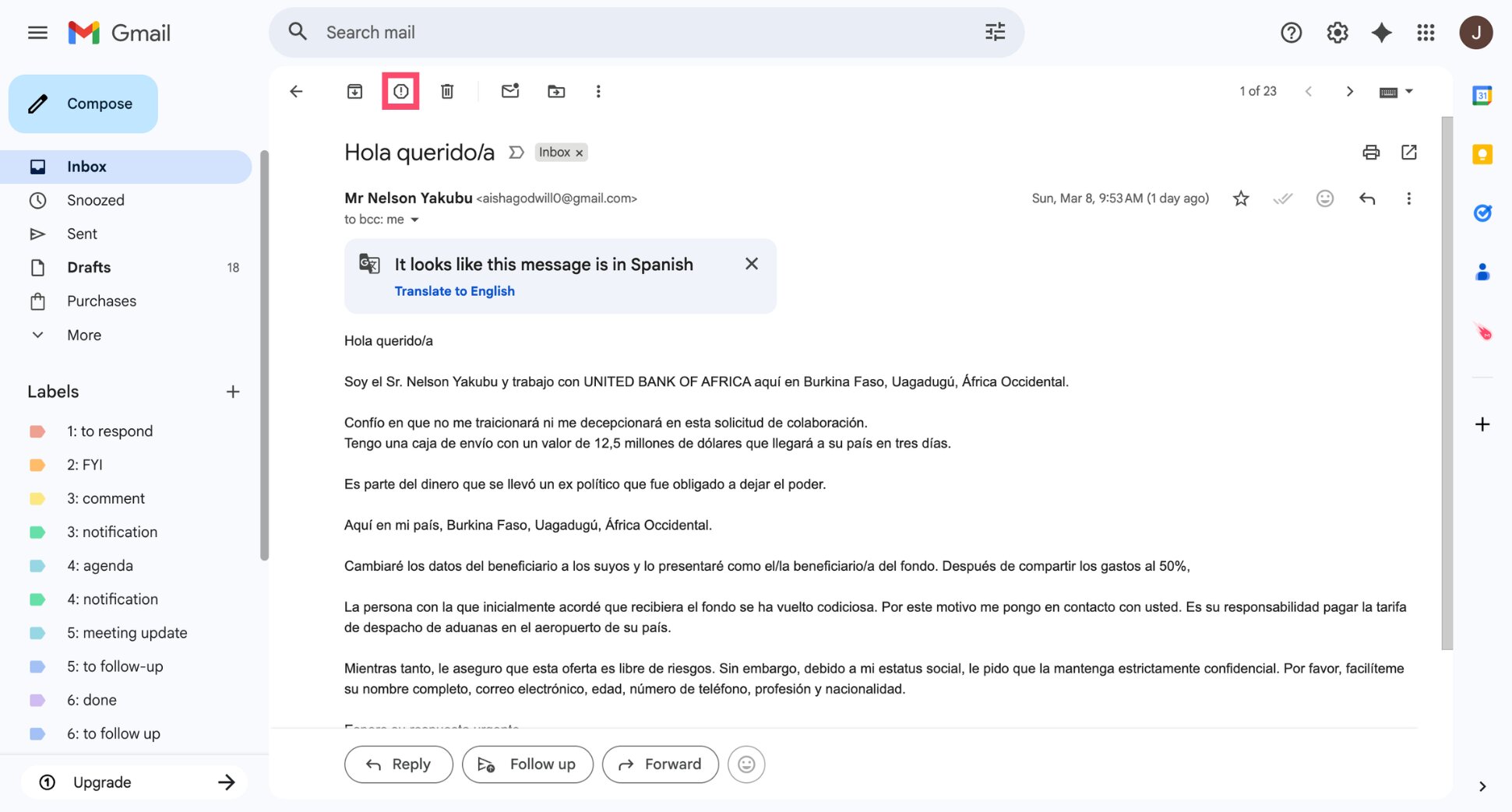
And voilà. Gmail will now move the message to the Spam folder and remove it from your inbox once and for all.
Android
To mark an email as spam on Android:
- Launch the Gmail app.
- Open the email you want to report.
- Tap the three-dot menu in the top-right corner.
- Tap Report spam.
All done. Gmail will now move the message to the Spam folder and learn to filter similar emails in the future.
iPhone
To mark an email as spam on iPhone:
- Open the Gmail app.
- Find the message you want to report.
- Tap the three-dot menu.
- Select Report spam.
And that’s it. Gmail will now send the message to the Spam folder and use the report to improve its spam filters.
What Happens When You Mark an Email as Spam in Gmail?
When you mark an email as spam in Gmail, several things happen immediately behind the scenes.
First, Gmail moves the message to the Spam folder, removing it from your inbox. Emails in this folder are automatically deleted after 30 days, so you don’t need to clean them up manually.
Second, Gmail uses your report to improve its spam detection system. Google analyzes signals from millions of spam reports to better identify similar unwanted messages and filter them automatically in the future.
Finally, future emails from the same sender are more likely to be flagged as spam and filtered before they reach your inbox.
When Should You Report an Email as Spam in Gmail?
Not every unwanted email should be reported as spam. Gmail offers other tools to manage unsolicited emails. And depending on the situation, it may be better to unsubscribe, block the sender, or report the message as phishing.
Here’s how to decide which option to use ⤵️
| If the email is… | What to do in Gmail |
|---|---|
| Unsolicited marketing or suspicious bulk email | Report as spam |
| Trying to steal passwords, payment details, or personal information | Report as phishing |
| A legitimate newsletter you no longer want | Unsubscribe from the mailing list |
| Repeated emails from the same sender | Block the sender |
Report as Spam
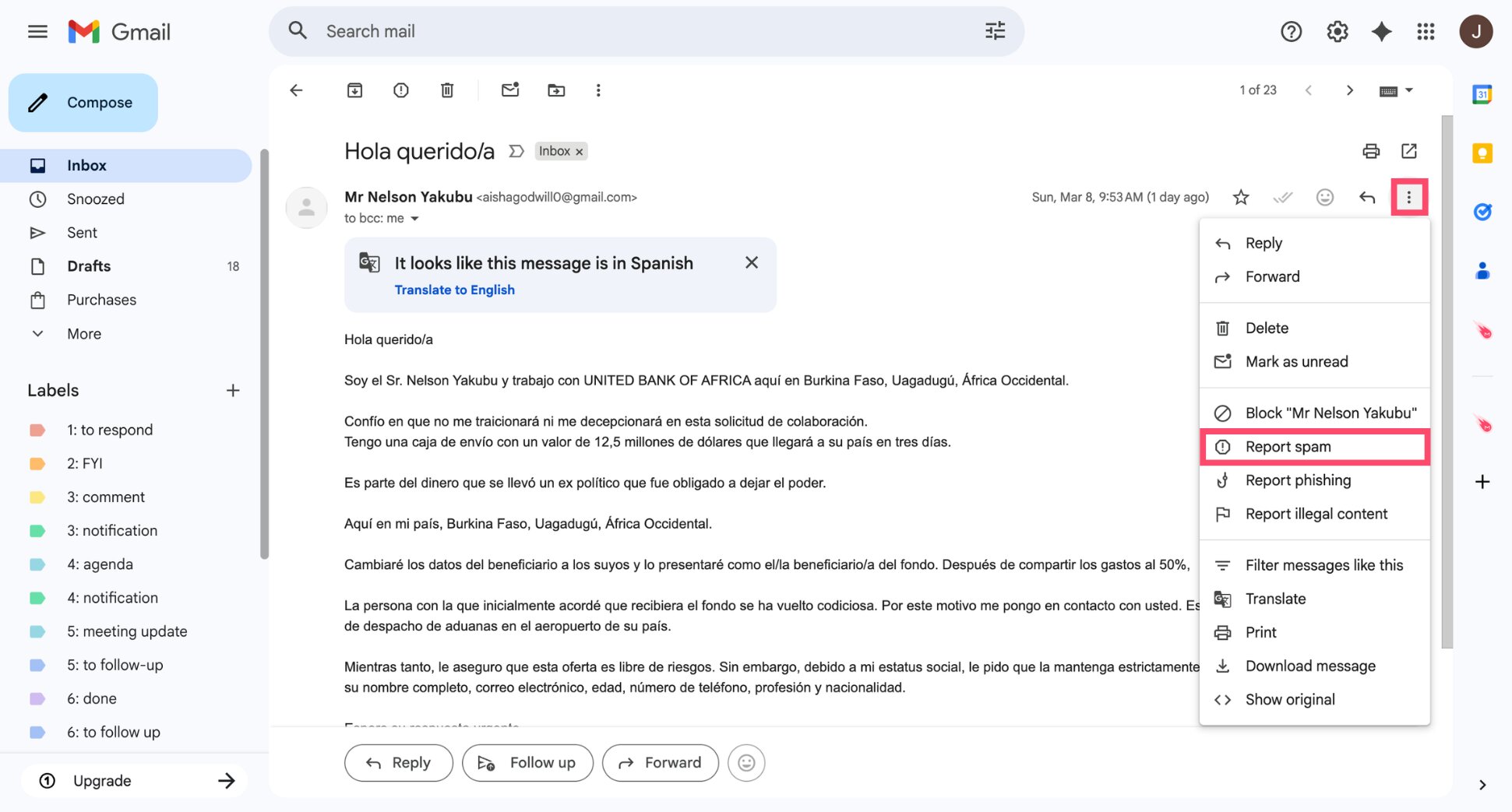
Use Report spam when the email is unsolicited, misleading, or clearly irrelevant. These are usually bulk messages sent to many recipients, such as promotional emails, suspicious offers, or repeated marketing messages from unknown senders. To report spam, open the email and click the Report spam icon.
Report as Phishing
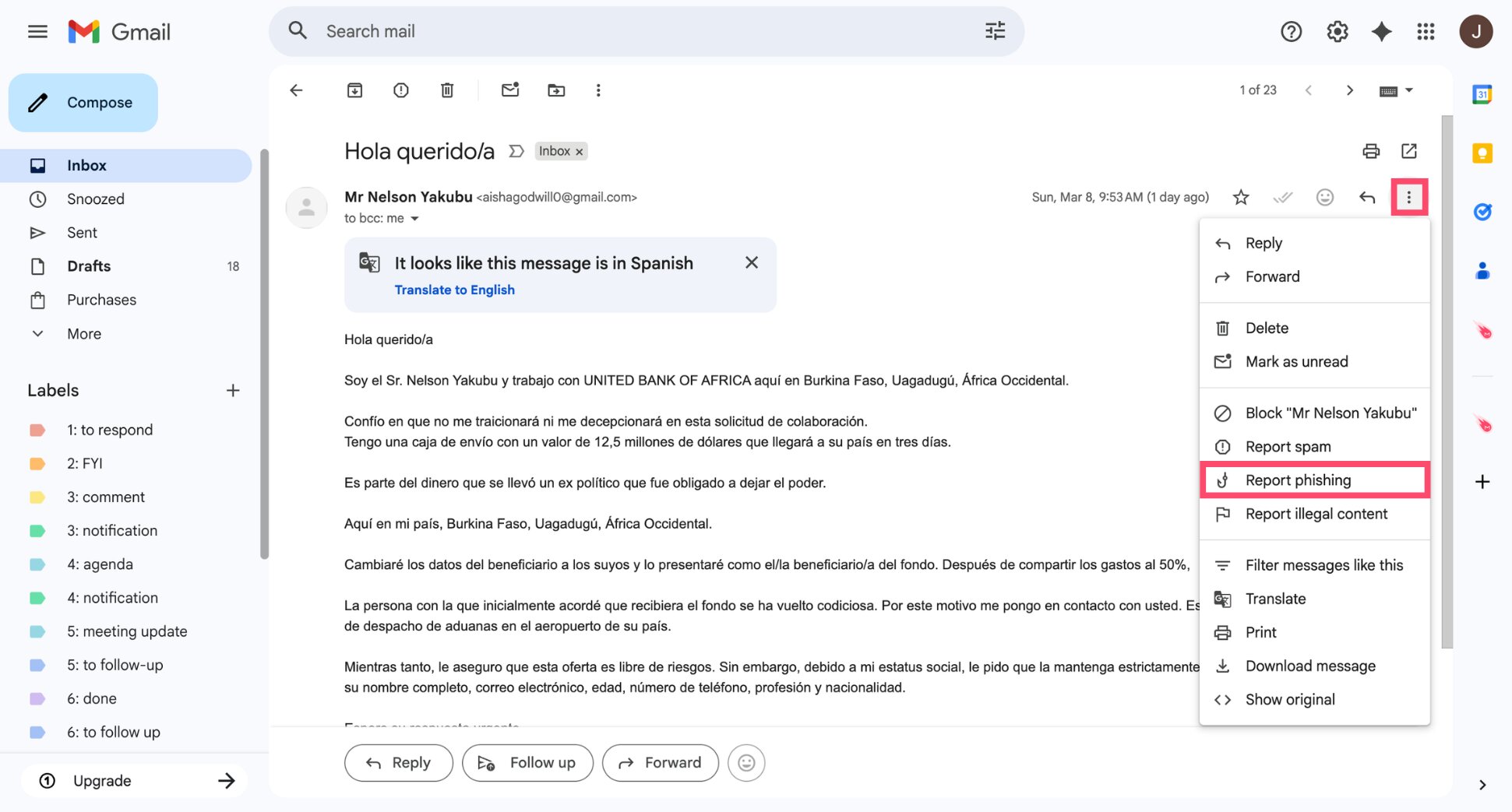
Choose Report phishing if the email is trying to trick you into revealing personal or financial information. Phishing messages often impersonate trusted companies like banks, delivery services, or online platforms. To report phishing in Gmail, open the email, click the three-dot menu, and select Report phishing.
Unsubscribe From a Mailing List
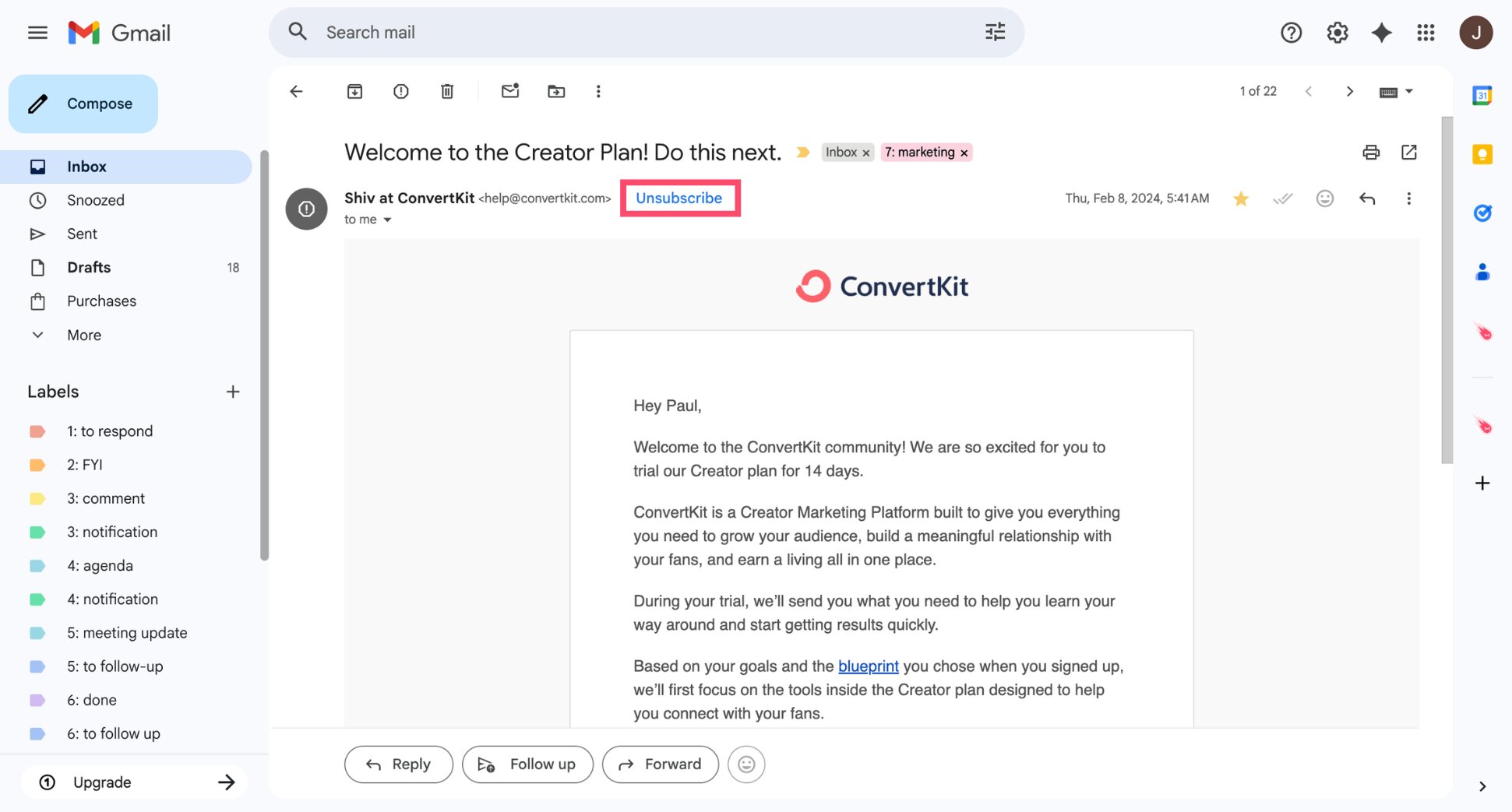
If the email comes from a legitimate company you previously subscribed to, it’s better to unsubscribe instead of marking it as spam. Most marketing emails include an Unsubscribe link at the bottom of the message, and Gmail may also display an Unsubscribe button next to the sender’s address.
Block a Sender
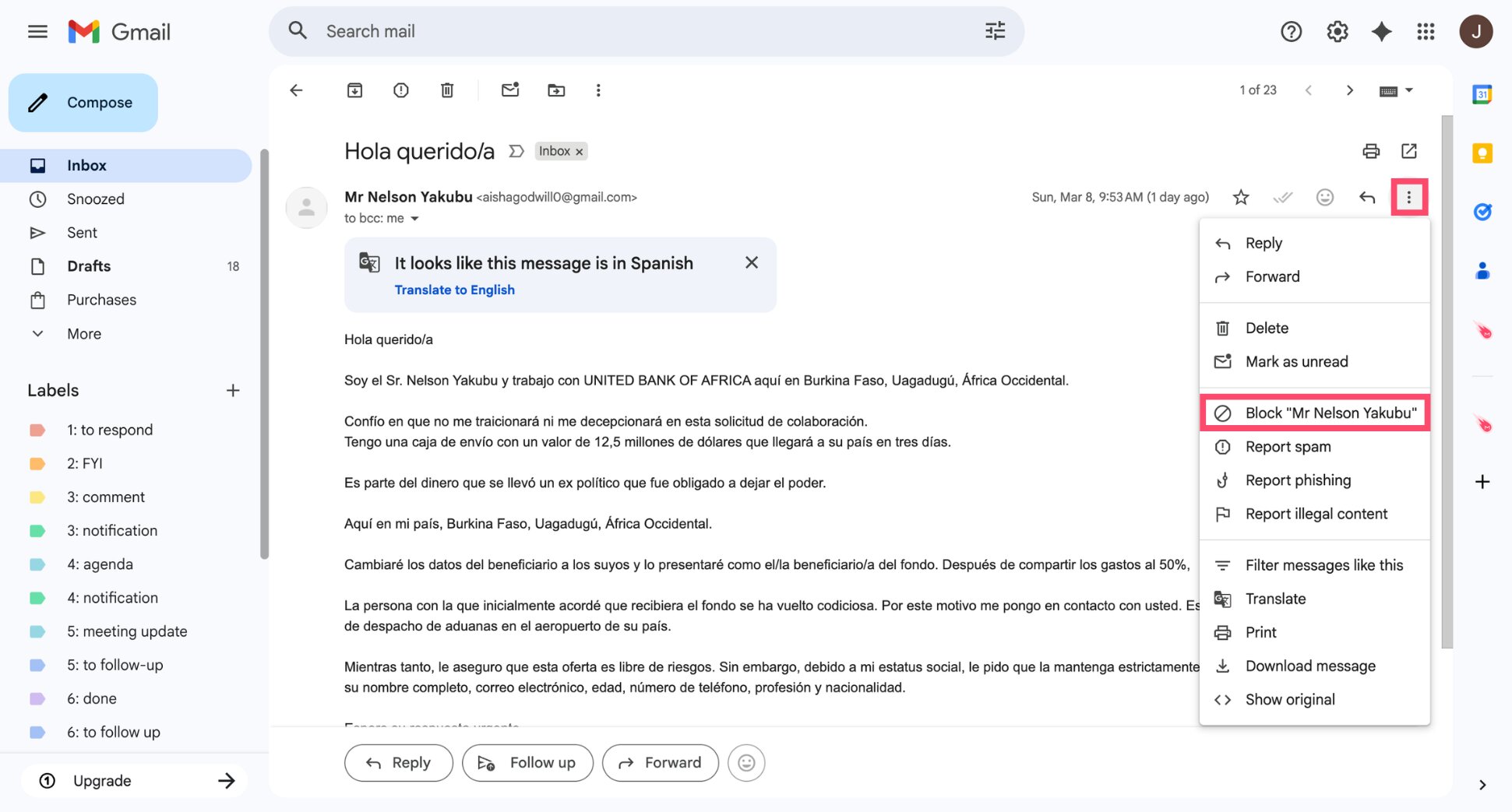
If a specific person or company keeps emailing you and you no longer want to receive their messages, you can block the sender. Open the email, click the three-dot menu, and select Block. Gmail will automatically send future emails from that address to your Spam folder.
Why You Might Still Receive Spam in Gmail
Even with Gmail’s powerful spam filters, some unwanted emails can still slip into your inbox. That’s because spam detection isn’t perfect — and spammers constantly change their tactics to bypass filters.
Here’s why you might still receive spam in Gmail:
- New spam campaigns: Spam filters rely partly on patterns. When a new spam campaign starts, Gmail may need a little time to recognize and block it.
- Emails that look legitimate: Some spam messages mimic real emails from companies or services. If the message appears trustworthy, Gmail may initially treat it as a normal email.
- You interacted with the sender before: If you previously replied to an email or clicked a link, or signed up for something using your email address, Gmail may assume the sender is legitimate.
- Your email address is widely shared: If your email appears on websites, public profiles, or data leaks, it may end up on spam mailing lists.
The good news is that reporting spam helps Gmail improve its filters. Each time you mark an email as spam, you help Gmail better recognize similar messages and block them in the future.
Conclusion
Spam emails are an unavoidable part of using email, but Gmail gives you powerful tools to keep them under control. By marking unwanted messages as spam, reporting phishing attempts, and blocking persistent senders, you help Gmail filter similar emails and keep your inbox cleaner over time.
If you send emails yourself, avoiding the spam folder is just as important as filtering spam. Tools like Mailmeteor help improve your email deliverability so your messages actually reach the inbox.
With Mailmeteor, you can:
- Verify email addresses to remove invalid contacts and reduce bounce rates
- Check your emails for spam words before sending a campaign
- Warm up your email address and build a stronger sender reputation
Want to improve your inbox placement? Explore Mailmeteor’s email deliverability tools and send better emails today.
FAQs
Can I mark an email as spam in Gmail without opening it?
Yes. In your inbox, select the email using the checkbox next to it, then click the Report spam icon in the toolbar. Gmail will move the message to the Spam folder without opening the email.
How do I mark multiple emails as spam in Gmail?
To mark several emails as spam in Gmail, open your inbox and select the messages using the checkbox next to each email. Then click the Report spam icon (the stop sign with an exclamation mark) in the toolbar at the top.
Where is the spam folder in Gmail?
The Spam folder is located in the left sidebar of Gmail. If you don’t see it, click More to expand the full list of folders. On mobile, open the menu (☰) and scroll down until you see Spam.
How long do emails stay in the Gmail spam folder?
Emails in Gmail’s Spam folder are automatically deleted after 30 days. This helps keep your mailbox clean without requiring manual deletion.
Can I recover an email that was marked as spam by mistake?
Yes. Open the Spam folder, select the email, and click Not spam. Gmail will move the message back to your inbox and use this feedback to improve its filtering.
Why are legitimate emails going to spam in Gmail?
Legitimate emails may end up in spam if Gmail detects suspicious content, unusual sending behavior, missing authentication (SPF/DKIM), or a low sender reputation. If your emails are frequently landing in spam, check our guide on Gmail deliverability to improve your chances of reaching the inbox.
Does reporting spam help Gmail block similar emails in the future?
Yes. When you report an email as spam, Gmail analyzes the message and uses the report to improve its spam detection system. Over time, this helps Gmail automatically filter similar unwanted emails before they reach your inbox.


