Ever been trapped in a never-ending reply-all thread? Or stuck receiving notifications from a conversation you no longer care about? Gmail’s mute feature lets you silence an email thread so future replies skip your inbox — without blocking the sender or deleting the messages.
If your inbox feels noisy or overwhelming, muting conversations is one of the quickest ways to regain control. In this guide, you’ll learn how to mute emails in Gmail on desktop, Android, and iPhone — plus how to find muted conversations, unmute them later, and understand the difference between mute and snooze.
What Happens When You Mute Emails in Gmail?
When you mute a conversation in Gmail, the entire email thread is automatically archived. Any future replies in that thread will skip your inbox and go straight to your All Mail folder instead.
Here’s exactly what that means:
- The conversation disappears from your inbox.
- New replies won’t bring the thread back to your inbox.
- You won’t receive inbox notifications for that thread.
Muting does not delete the emails. You can still find the conversation anytime using search or the is:muted operator. And this is reversible. You can unmute the thread whenever you want.
How to Mute Emails in Gmail
You can mute any email conversation in Gmail in just a few clicks. Here’s how to do it on desktop or on your phone.
On Desktop
- Open Gmail in your browser.
- Select the email conversation you want to mute (or open it).
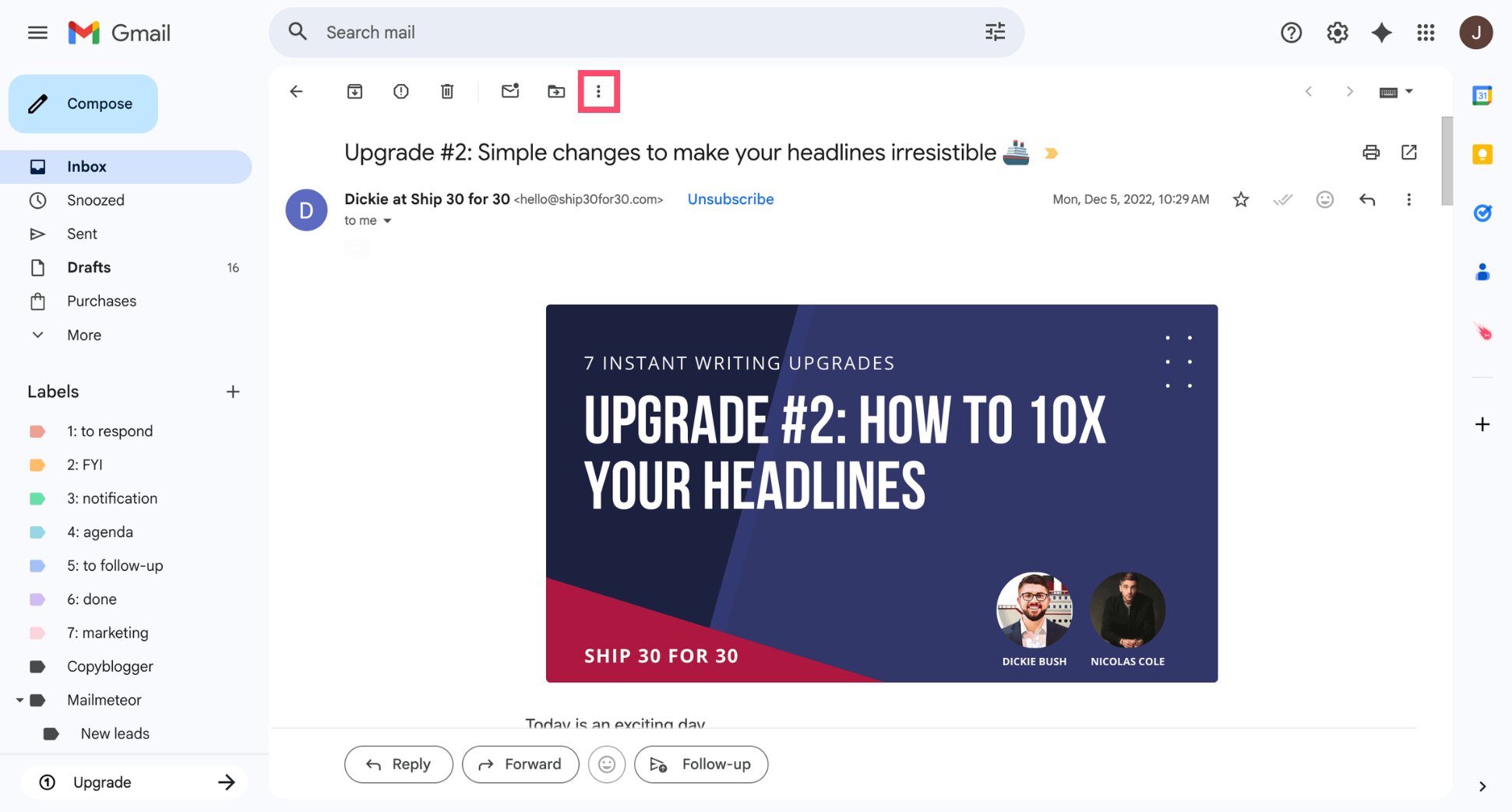
- Click the three-dot menu (More) at the top of the screen.
- Click Mute.
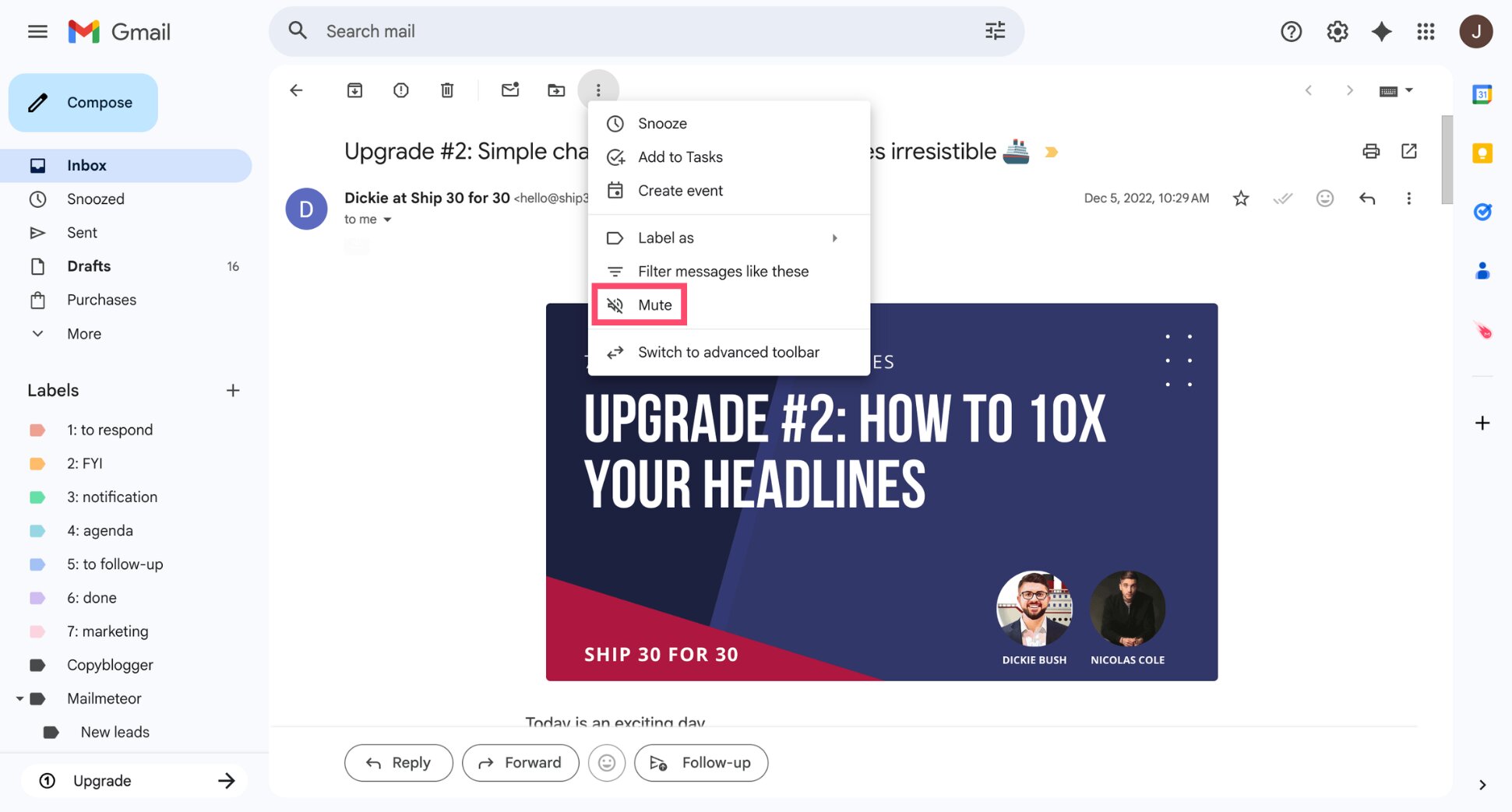
That’s it. The conversation is archived, and future replies will skip your inbox — without triggering notifications.
On Android
- Open the Gmail app on your Android device.
- Open the email thread you want to mute.
- Tap the three-dot menu.
- Tap Mute.
All done. Future replies in this thread won’t show up in your inbox.
On iPhone
- Open the Gmail app on your iPhone.
- Open the conversation you want to mute.
- Tap the three-dot menu.
- Select Mute.
And voilà. The conversation will be archived and won’t return to your inbox when new replies arrive.
How to Find Muted Emails in Gmail
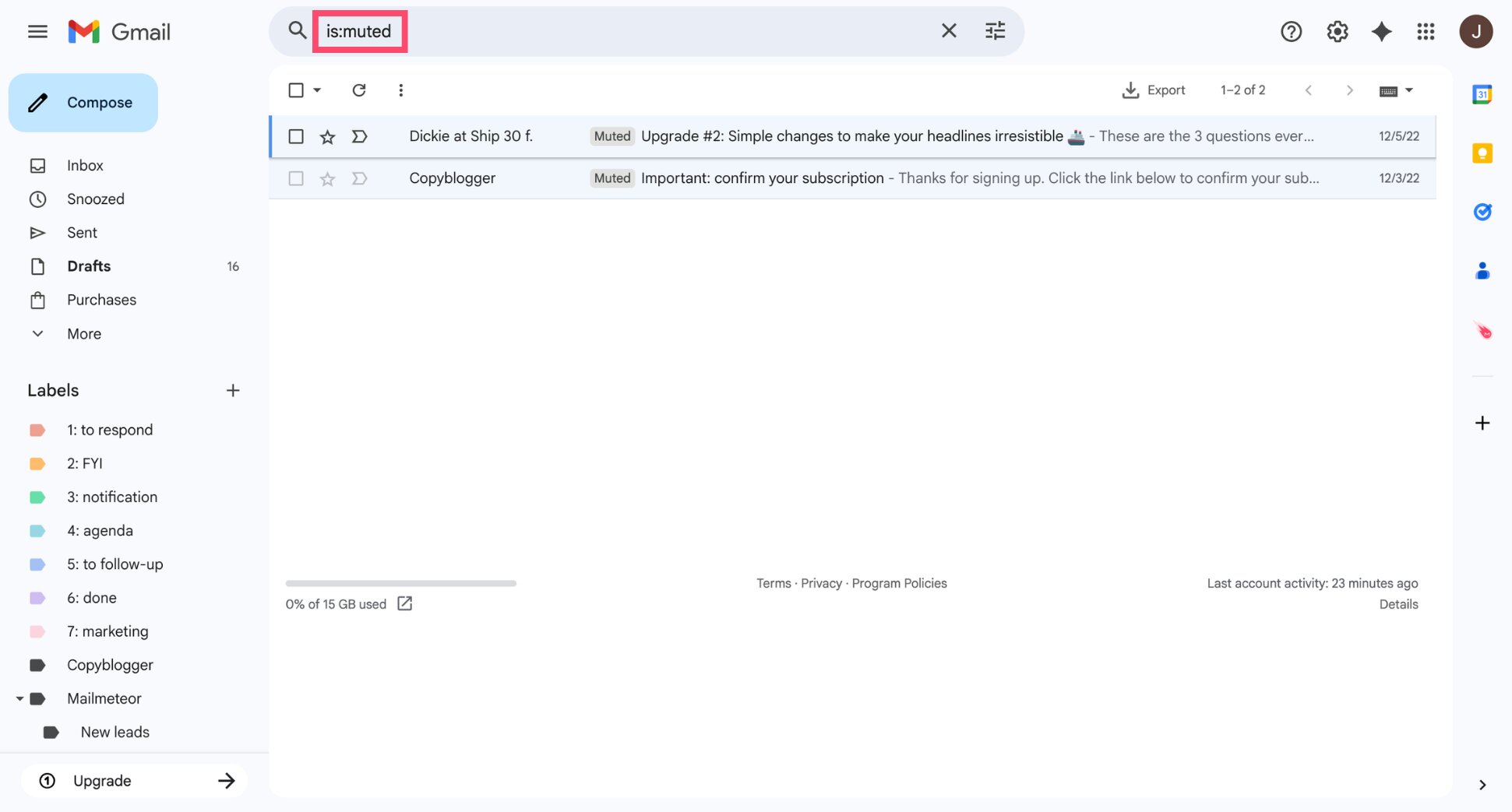
Muted conversations don’t disappear — they’re removed from your inbox and archived. Gmail automatically applies a Muted label to those threads so you can find them later. The easiest way to locate muted emails is to use Gmail’s built-in search operator:
- Open Gmail.
- In the search bar at the top, type: is:muted.
- Press Enter.
And that’s it. Gmail will display all muted conversations in your account.
How to Unmute Emails in Gmail
Changed your mind? You can unmute a conversation at any time. Once unmuted, future replies will appear in your inbox again.
- Open Gmail.
- Open the conversation you want to restore.
- Click the three-dot menu.
- Select Unmute.
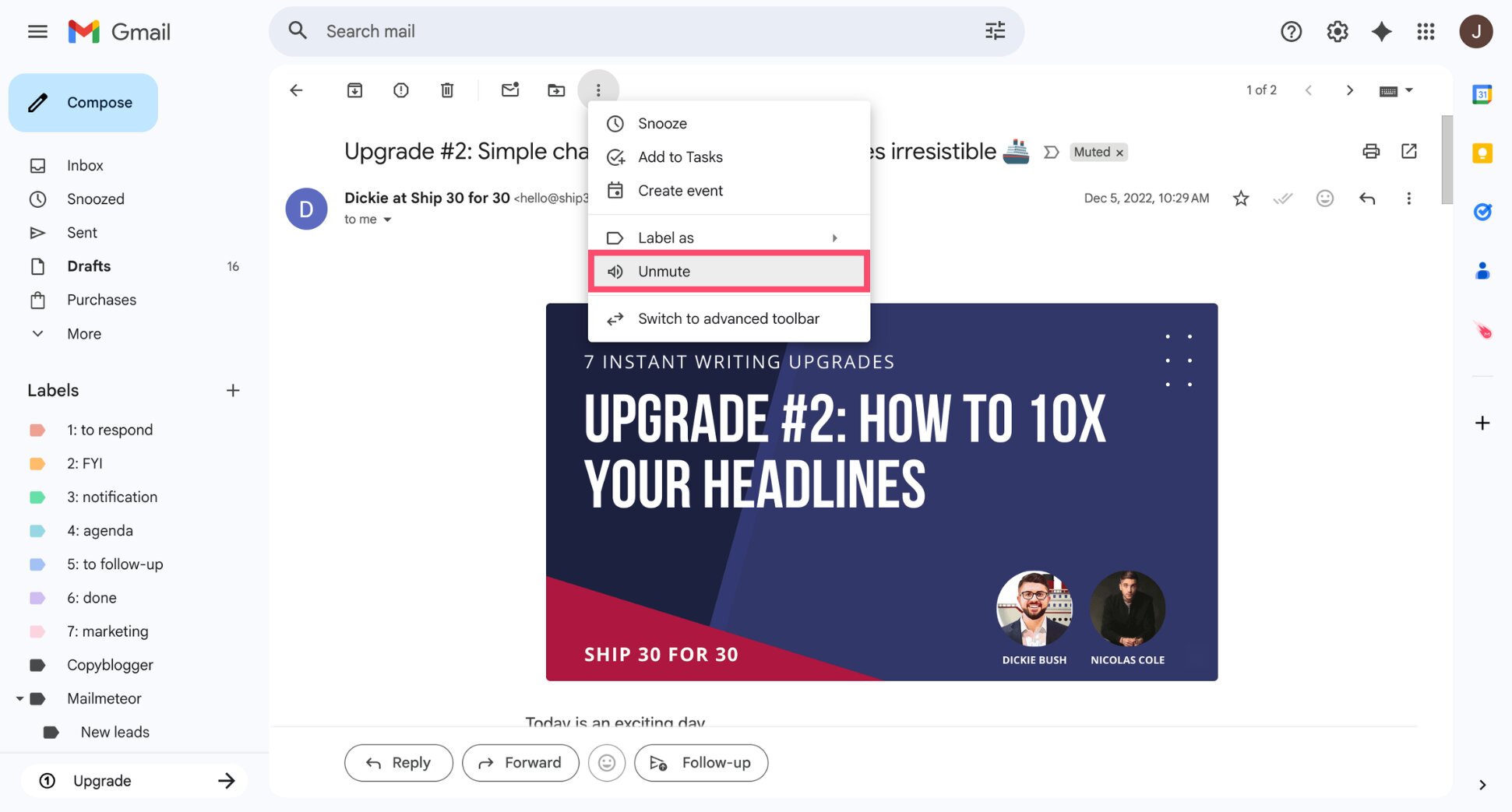
And voilà. The thread will now return to your inbox the next time someone replies — and new messages will trigger notifications again.
Mute vs Snooze in Gmail: What’s the Difference?
Both Mute and Snooze help reduce inbox clutter in Gmail — but they serve different purposes. Mute removes a conversation from your inbox and keeps future replies from returning. Snooze temporarily hides an email and brings it back at a scheduled date and time.
Here’s a quick comparison:
| Mute | Snooze |
|---|---|
| Hides a conversation until you unmute it | Hides an email temporarily |
| Future replies skip your inbox | Email returns at a scheduled time |
| No notifications for new replies | Notifications resume when it returns |
| Best for noisy reply-all threads | Best for emails you want to deal with later |
When Should You Use Each?
Use Mute when:
- You’re part of a long reply-all thread.
- You don’t need to participate anymore.
- You want to keep the emails but stop seeing them.
Use Snooze when:
- You need to respond later.
- You’re waiting for the right time to act.
- You want the email to resurface automatically.
Can You Mute Emails from a Specific Sender?
No — Gmail doesn’t have a built-in option to permanently mute a specific sender with one click. The Mute feature only works at the conversation level. If someone starts a new email thread, you would need to mute that thread separately. However, you can achieve a similar result using Gmail’s filter feature.
Here’s how:
- Open Gmail.
- Click the filter icon in the search bar.
.jpg)
- Enter the sender’s email address in the From field.
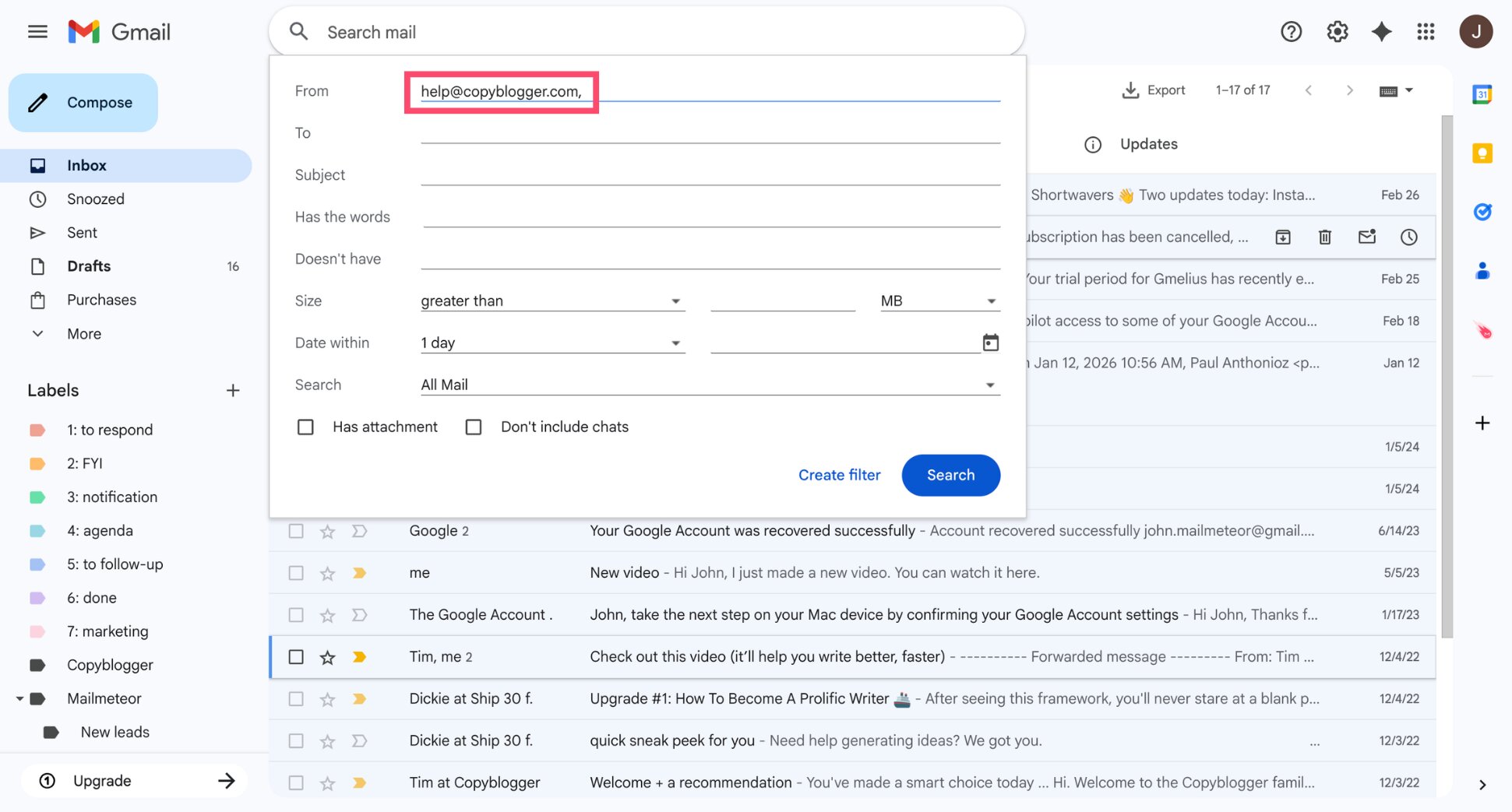
- Select Create filter.
- Check Skip the Inbox.
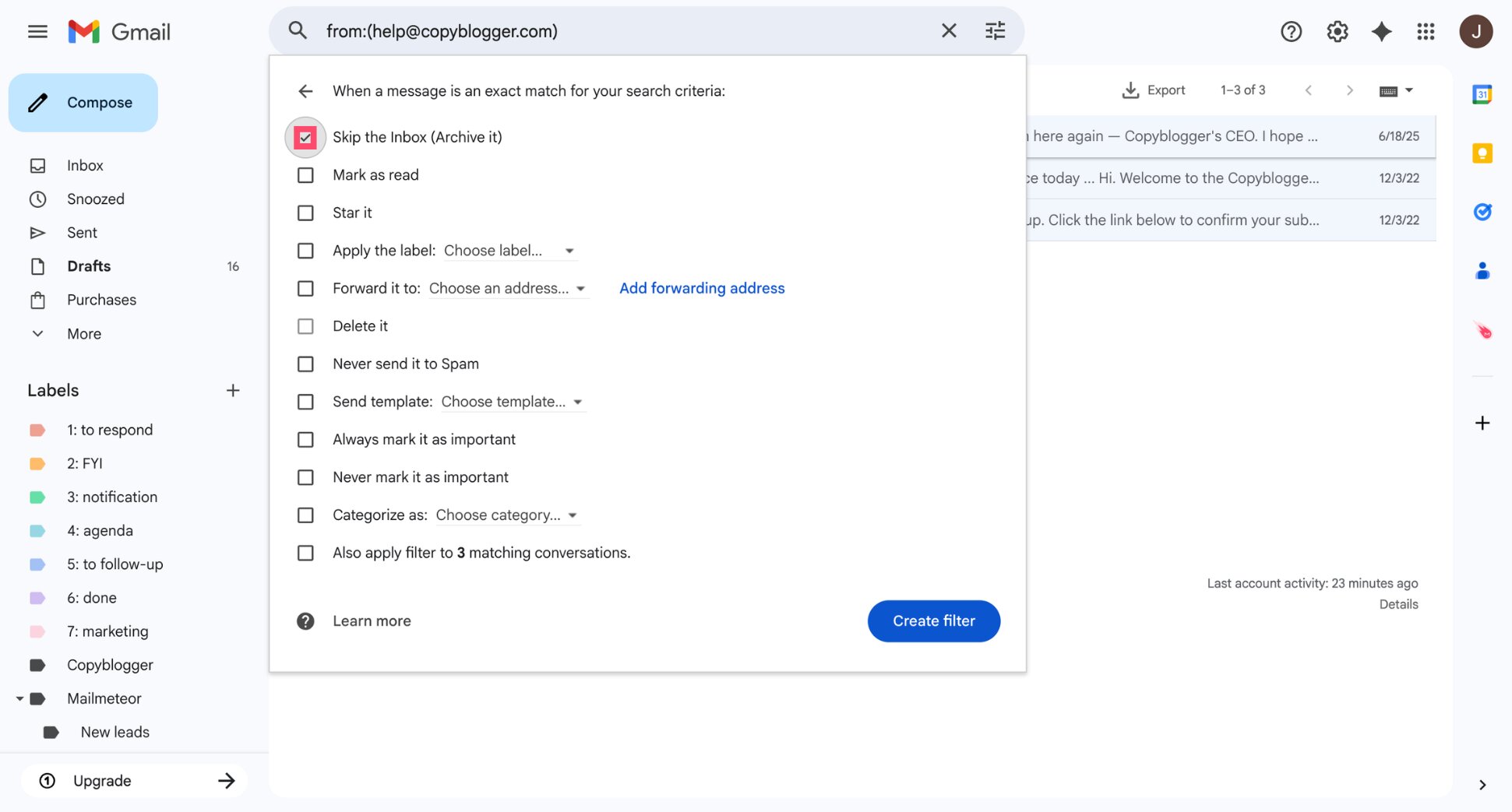
- Click Create filter.
And done. From now on, emails from that sender will bypass your inbox automatically — similar to muting them.
How to Stop Gmail Notifications Without Muting Emails
Sometimes, you don’t want to mute a conversation — you just want fewer notifications. Instead of muting emails, you can adjust your Gmail notification settings to control when and how you’re alerted.
- Open Gmail.
- Go to Settings > See all settings.
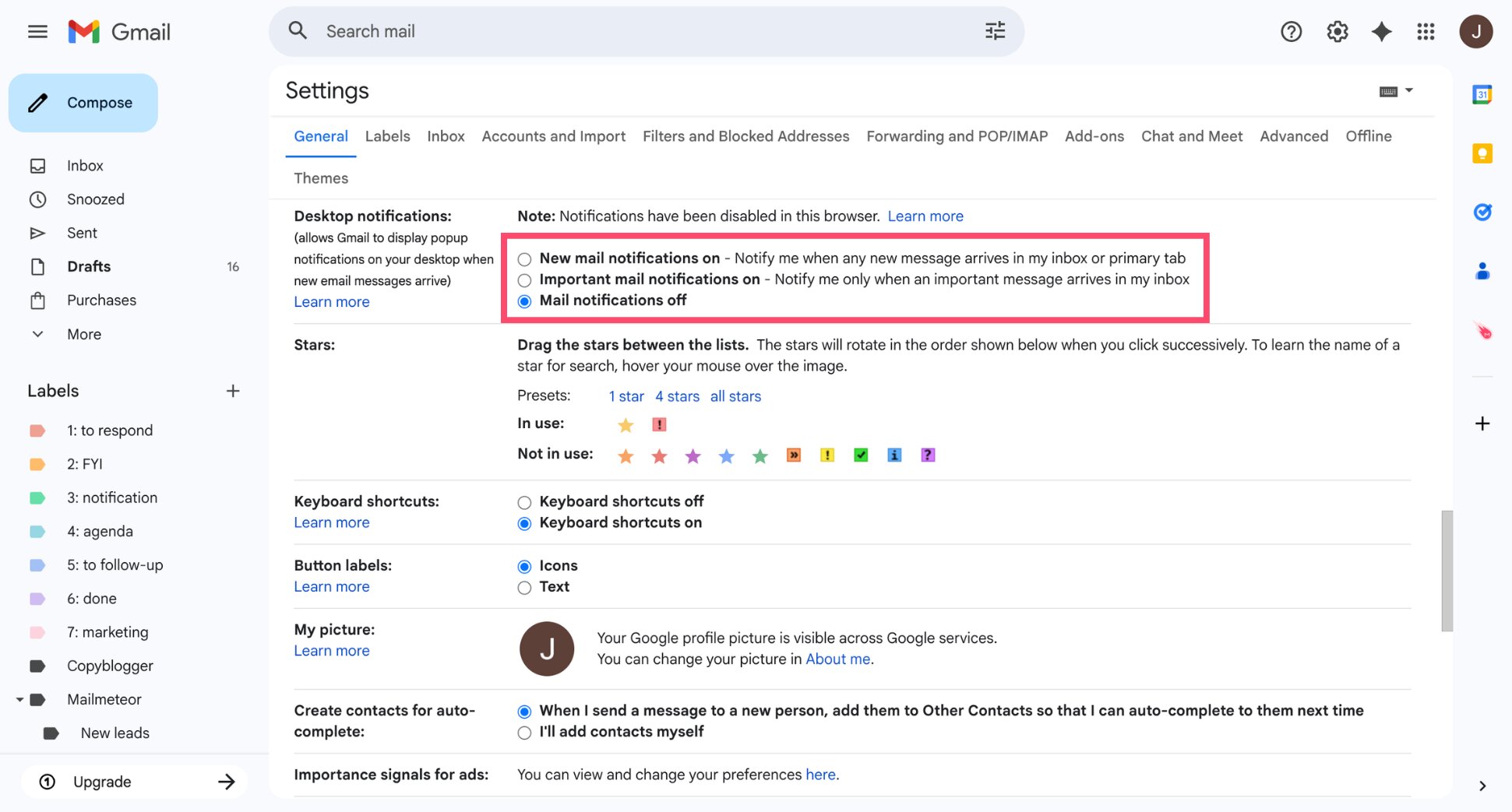
- Under the General tab, scroll to Desktop notifications.
- Choose:
- New mail notifications on
- Important mail notifications on
- Mail notifications off
- Click Save changes.
And done. This lets you silence alerts without muting conversations entirely.
Conclusion
Muting emails in Gmail is one of the simplest ways to reduce inbox noise without deleting messages or blocking anyone.
Whether you’re dealing with endless reply-all chains or conversations that no longer require your attention, this feature helps you stay focused on what matters.
But muting is just one piece of the puzzle. If your inbox still feels overwhelming, you can go further with Mailmeteor’s AI assistant for Gmail:
🚀 Send personalized emails at scale directly from Gmail
✍️ Draft smart, context-aware replies in seconds
📂 Organize and categorize emails automatically
🔔 Schedule follow-ups so important conversations don’t slip through
📊 Track email opens, clicks, and replies in real time
Try Mailmeteor’s AI assistant today (it’s free!) and turn your Gmail inbox into a faster, more productive workspace.
FAQs
Is muting an email in Gmail the same as blocking a sender?
No. Muting a conversation removes it from your inbox and prevents future replies from appearing there. Blocking a sender sends their future emails directly to spam. Muting hides a thread, while blocking filters a person’s messages.
Will the other person know if I mute a conversation in Gmail?
No. Gmail does not notify anyone when you mute a conversation. The other participants won’t know you muted the thread, and emails will continue to send normally.
Do muted emails trigger notifications?
No. When you mute a Gmail conversation, new replies skip your inbox and won’t trigger notifications. However, the emails still arrive in your account and can be found in All Mail or by searching.
Can I mute only reply-all emails in Gmail?
No. Gmail doesn’t offer a setting to mute only reply-all messages. You can mute an entire conversation thread, but not specific types of replies within it.
Does muting an email delete it?
No. Muting does not delete emails. It simply archives the conversation and prevents future replies from appearing in your inbox. The messages remain in your Gmail account and can be searched anytime.
Can I automatically mute emails from a specific sender?
Not directly. Gmail doesn’t have a built-in mute sender feature. However, you can create a filter that automatically archives emails from a specific sender, which works similarly to muting them.
How long does a Gmail conversation stay muted?
A Gmail conversation stays muted indefinitely until you manually unmute it. There is no expiration time or automatic reset.
Can I mute emails in Gmail temporarily?
No. Muting in Gmail is permanent until you unmute the conversation. If you want emails to return to your inbox later, use the Snooze feature instead.
Why do muted emails still appear in All Mail?
Muted emails are archived, not deleted. They’re removed from your inbox but remain in your Gmail account. You can find them in the All Mail folder or by searching using the is:muted operator.


