Gemini in Gmail is Google’s AI assistant built directly into Gmail. It helps you summarize email threads, draft replies, search your inbox, and find information using natural language.
These AI features are designed to make managing email faster and less overwhelming. But many users still wonder how Gemini works, how to enable it, how much it costs, and why it may not appear in their Gmail account yet.
In this guide, you’ll learn what Gemini in Gmail is, how to enable or disable it, and how to use it to summarize emails, draft messages, or find information in your inbox. We’ll also explore Gemini’s limitations, and share powerful alternatives.
What Is Gemini in Gmail?
Gemini in Gmail is Google’s built-in AI assistant. It is designed to help you manage your inbox more efficiently by analyzing your emails and providing useful suggestions directly inside Gmail.
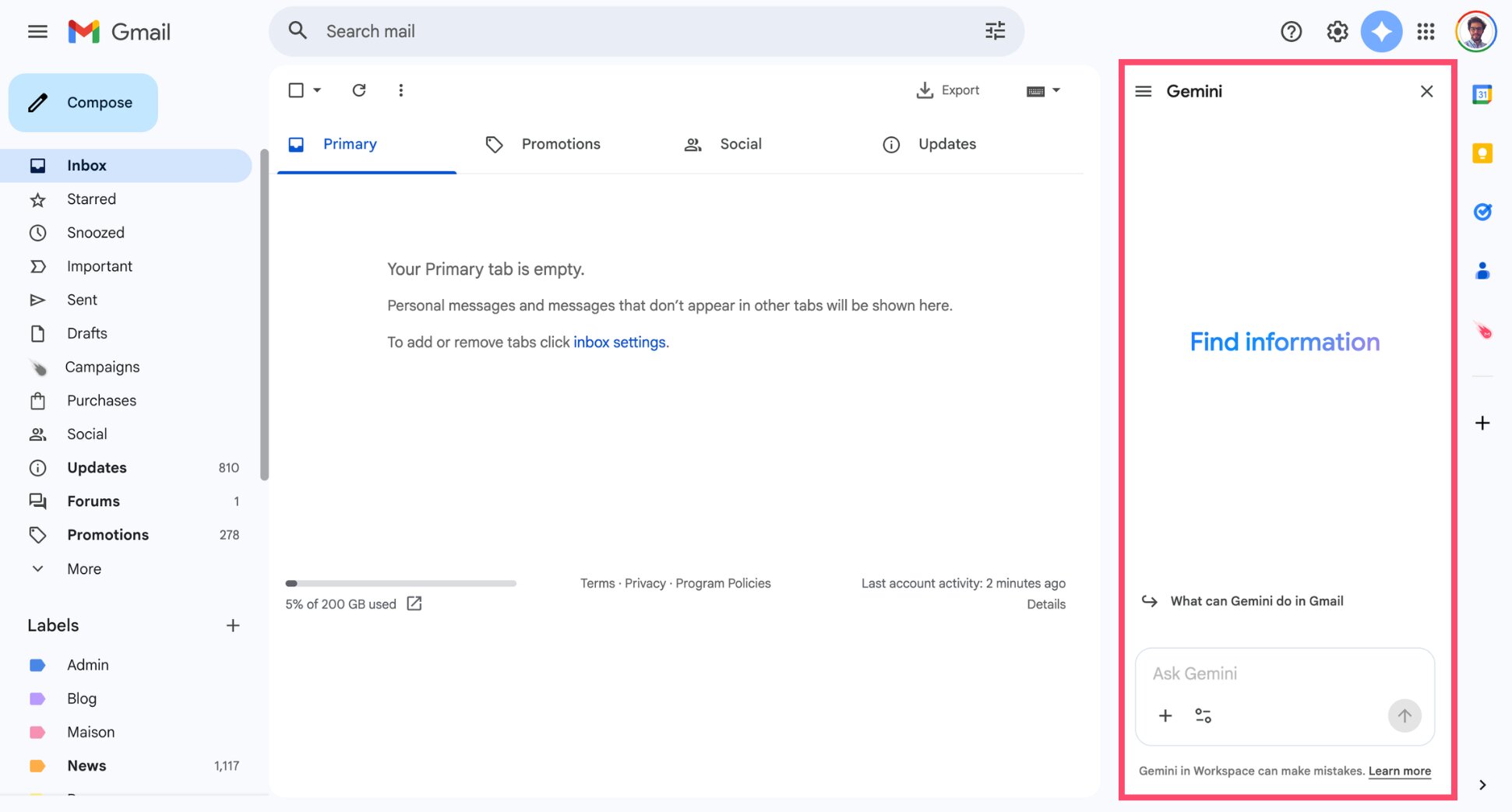
You’ll usually see Gemini as an AI panel in the Gmail interface. From there, you can interact with it using natural language — for example by asking it to summarize an email thread, draft a reply, or find specific information in your inbox.
Gemini builds on Gmail features like Smart Reply and Smart Compose, but with advanced capabilities. Rather than suggesting short responses, it understands the context of a conversation and generates complete answers or summaries.
As part of Google’s broader AI strategy, Gemini is also integrated across Google Workspace, including Docs, Sheets, and Drive. In practice, this means it can use information from your Workspace files to help you in Gmail.
How to Enable Gemini in Gmail
You don’t need to install an app to use Gemini in Gmail. If your account supports it, the AI assistant will appear automatically in the Gmail interface. However, Gemini in Gmail is only available with certain Google plans.
You may see it if you have:
- A Google Workspace plan
- A Google AI subscription
- Access through Workspace Labs or other experimental features
Where Is the Gemini Button in Gmail?
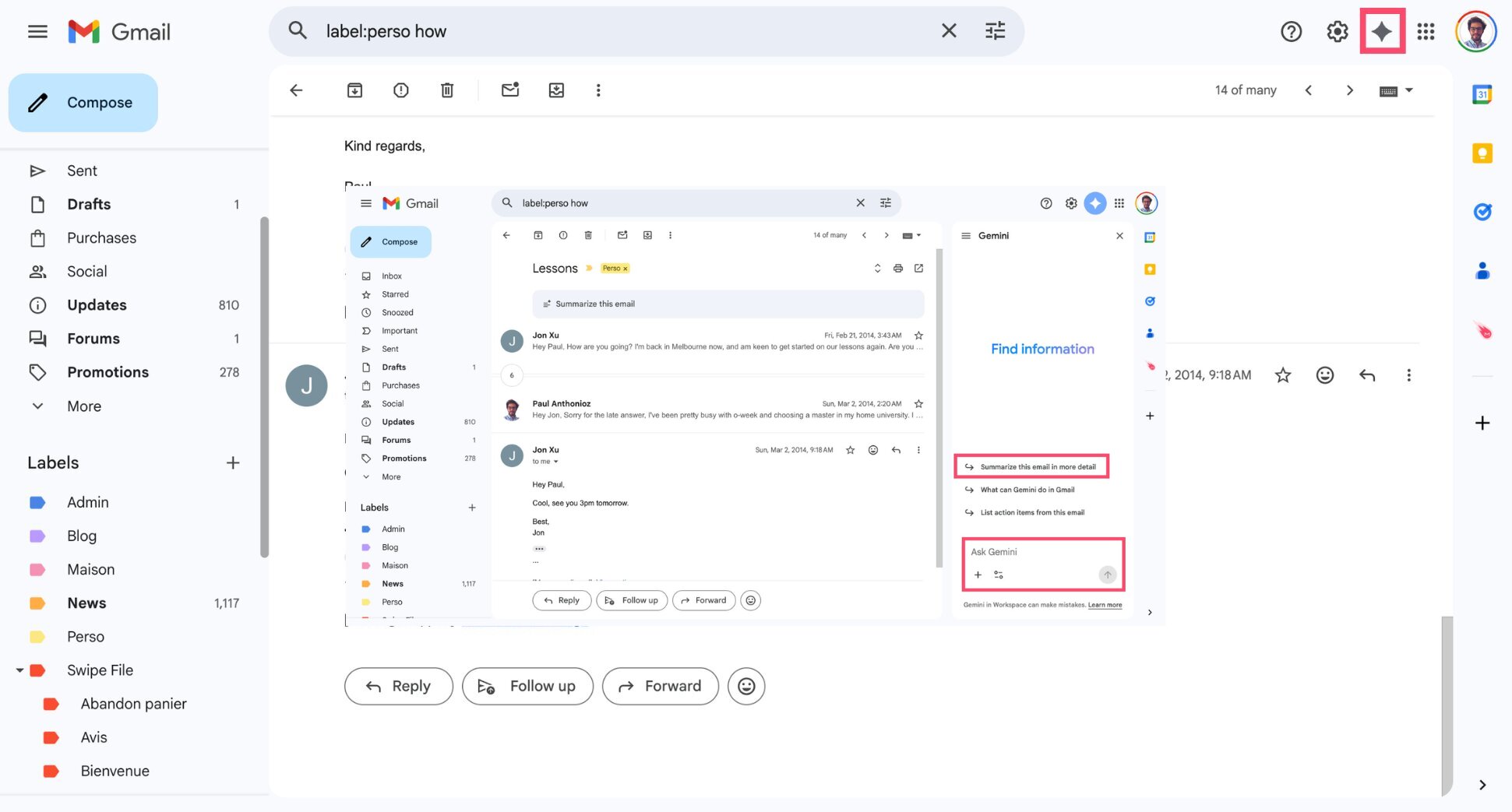
Once Gemini is available for your account, you’ll see a Gemini icon in the top-right corner of Gmail. Clicking this icon opens the Gemini side panel, where you can interact with the AI assistant directly from your inbox.
How to Use Gemini in Gmail
Once Gemini is enabled, you can access it directly from the Gmail interface through the Gemini icon or AI assistant panel. From there, you can ask Gemini questions or request help writing and summarizing emails using a simple prompt.
Here’s how you can use Gemini in Gmail to save time ⤵️
Summarize Long Email Threads
Long email threads can become difficult to follow, especially when multiple people are involved in a conversation. Gemini solves that by generating a short summary, helping you understand the key points without reading every message.
To summarize a thread with Gemini in Gmail:
- Sign in to Gmail.
- Open the email conversation.
- Click the Gemini icon to open the AI assistant panel.
- Ask Gemini to summarize the conversation.
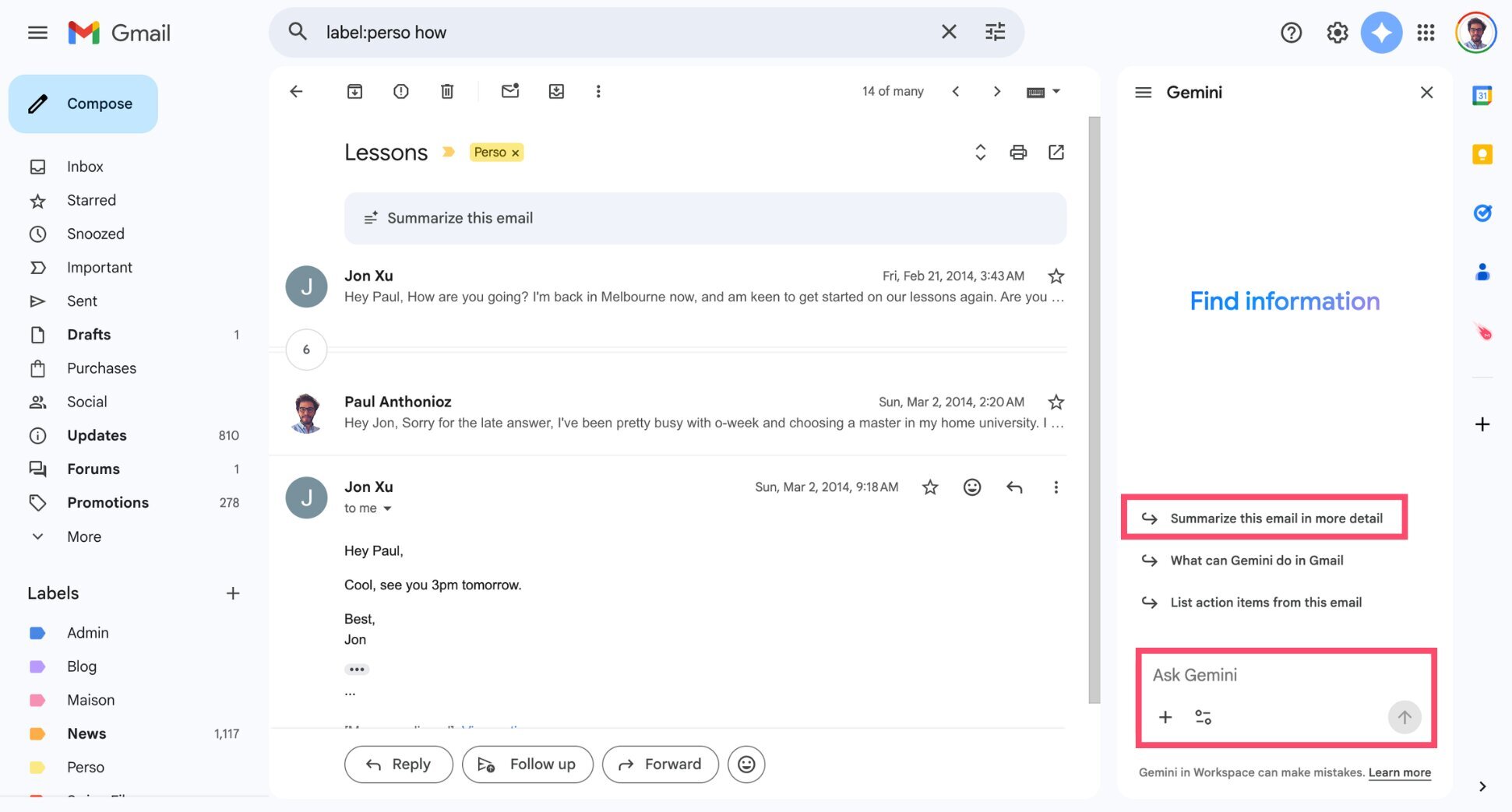
Gemini will generate a brief overview highlighting the most important information, such as decisions made, action items, or questions that still need answers. This makes it easier to catch up on long conversations and respond quickly.
Draft Emails Automatically
Writing emails can take a lot of time. Instead of starting from a blank message, you can ask Gemini to write a reply for you. The AI analyzes the conversation and generates a reply that you can review, edit, and send.
To draft an email with Gemini in Gmail:
- Sign in to Gmail.
- Open the email conversation you want to reply to.
- Click the Gemini icon.
- Ask Gemini to draft a reply (for example: “Write a polite reply confirming the meeting for next week.”)
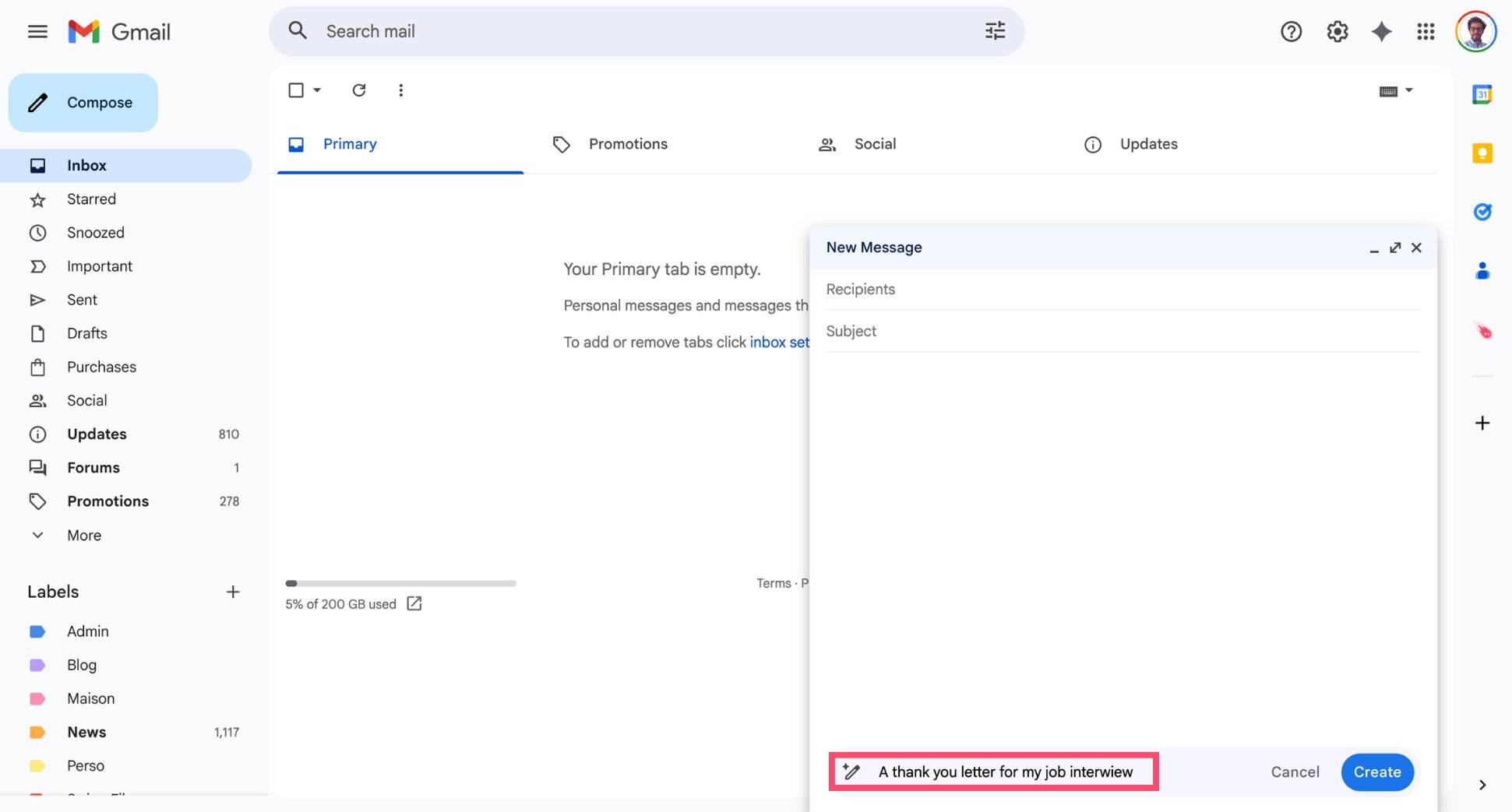
And voilà. Gemini will generate a complete response based on the context of the email thread. This feature is (very) useful for routine replies, meeting confirmations, or longer responses that would normally take a few minutes to write.
Find Information in Your Gmail Inbox
Finding information in old emails can take time, especially if you don’t know how to use Gmail search operators. Gemini makes this easier by letting you ask questions about your inbox in natural language.
Instead of manually searching through dozens of messages, you can simply ask Gemini things like:
- “When is my next meeting with Sarah?”
- “What did John say about the marketing budget?”
- “Find the email with my hotel reservation.”
To find information in Gmail using Gemini:
- Open Gmail.
- Click the Gemini button.
- Ask a question about your inbox (for example: “When should I meet up with Jon?”).
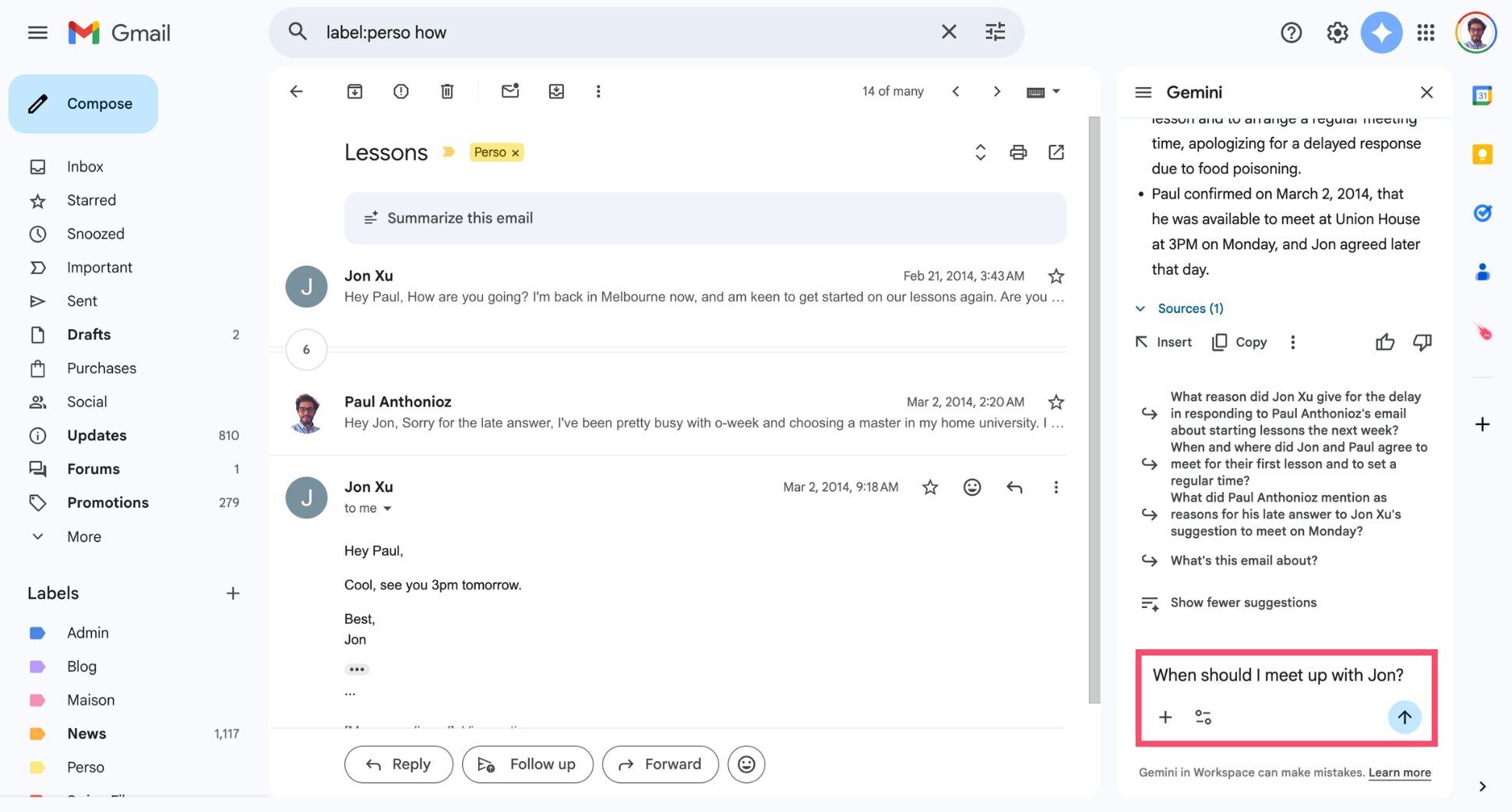
- Review the answer generated by Gemini.
And done. Gemini will scan relevant messages in your inbox and return a quick answer based on the information it finds. This helps you retrieve important details much faster than using Gmail’s traditional search.
Why Gemini Is Not Showing in Gmail
If you don’t see Gemini in Gmail, it usually means the feature isn’t available for your account yet. Google is rolling it out gradually, so it may only appear for certain users, plans, or regions.
Here are the most common reasons why Gemini may not appear in Gmail:
- Your Google plan doesn’t include Gemini: Gemini in Gmail is currently available through Google Workspace or Google AI plans. If you’re using a free Gmail account, some features may not be available.
- The feature hasn’t rolled out to your account: Google often releases new features gradually. So even if you’re eligible, Gemini may take some time to appear in your Gmail interface.
- Gemini features are disabled in your settings: Some AI capabilities depend on Gmail’s Smart features settings. If these are turned off, Gemini suggestions won’t appear.
- Your Workspace administrator disabled it: If you use Gmail through a work or school account, your organization’s administrator may control whether Gemini features are available and may have disabled them.
If Gemini is available for your account, you should see the Gemini icon or AI assistant panel directly inside Gmail.
Is Gemini in Gmail Free?
Some AI features are available in Gmail for free, but most Gemini-powered capabilities require a paid plan. If you use a free personal Gmail account, you may already have access to basic AI tools such as:
- Smart Reply, which suggests short responses to emails
- Smart Compose, which predicts text while you type
More advanced Gemini features — such as summarizing email threads, asking questions about your inbox, generating full email drafts, and proofreading messages — are currently included with paid Google plans.
For businesses, Gemini in Gmail is available with Google Workspace subscriptions, including:
- Business Starter: $6 / user / month
- Business Standard: $12 / user / month
- Business Plus: $18 / user / month
Google also offers consumer AI subscriptions that provide expanded Gemini access across its apps:
- Google AI Plus: $9.99 / month
- Google AI Pro: $19.99 / month
- Google AI Ultra: $249 / month
These plans unlock deeper Gemini capabilities across Google services like Gmail, Docs, and Drive, allowing you to summarize emails, draft replies automatically, and search your inbox using AI.
Is Gemini Reading Your Emails?
Yes. Gemini analyzes the content of your emails to draft replies, summarize emails, and answer questions about your inbox. This allows the AI to understand the context of a conversation and generate relevant suggestions. The process is fully automated, meaning no humans read your emails.
Google also states that customer data from Google Workspace services isn’t used to train Gemini models without explicit permission. In other words, Gemini may access your email content to provide its features, but this data isn’t used to train the underlying AI models.
How to Turn Off Gemini in Gmail
If you prefer not to use Gemini’s AI features in Gmail, you can disable them through Gmail’s Smart features settings.
Here’s how to do it:
- Open Gmail.
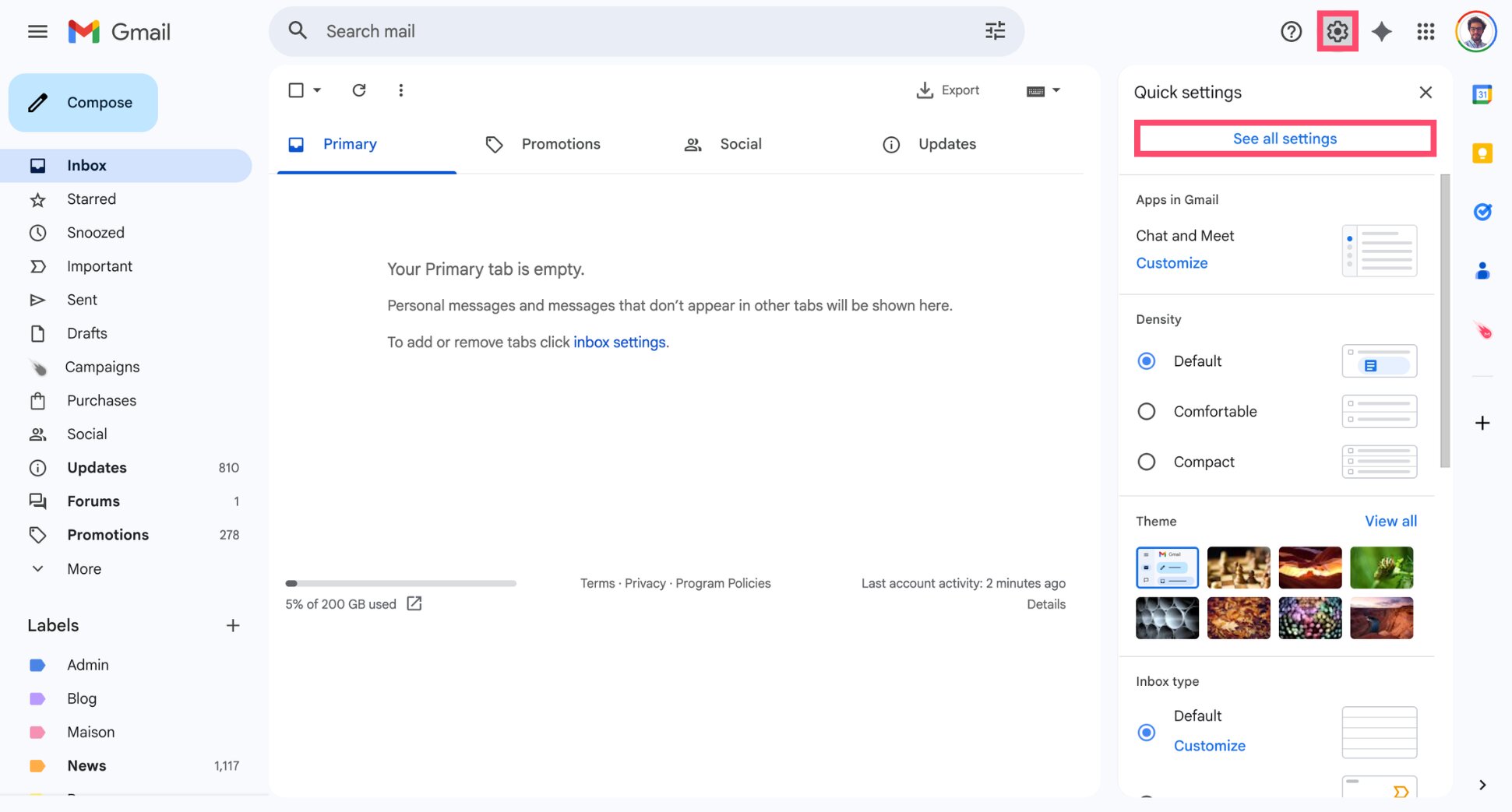
- Go to Settings > See all settings.
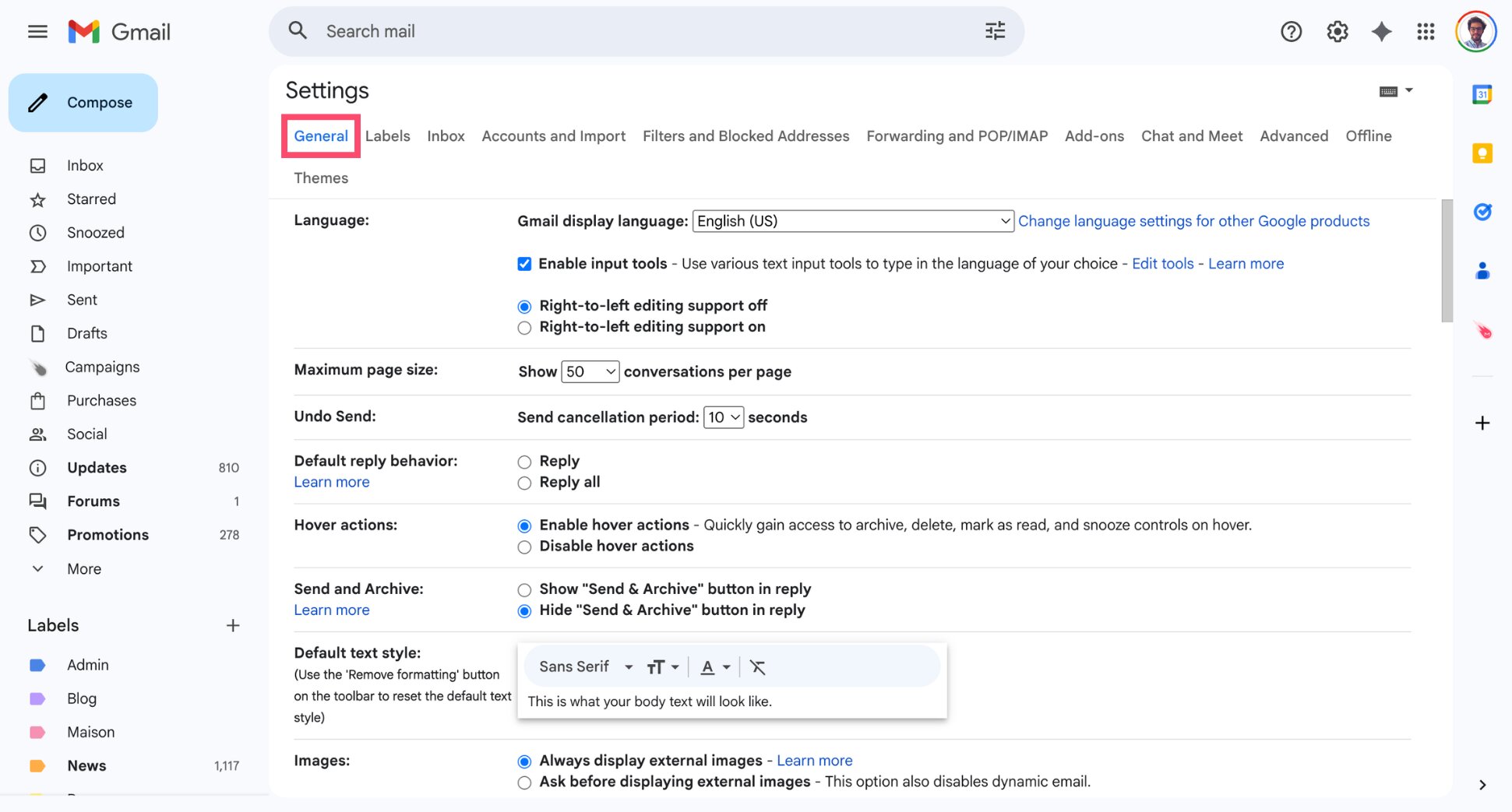
- Go to the General tab.
- Turn off Smart features, Smart Compose and Smart Reply.
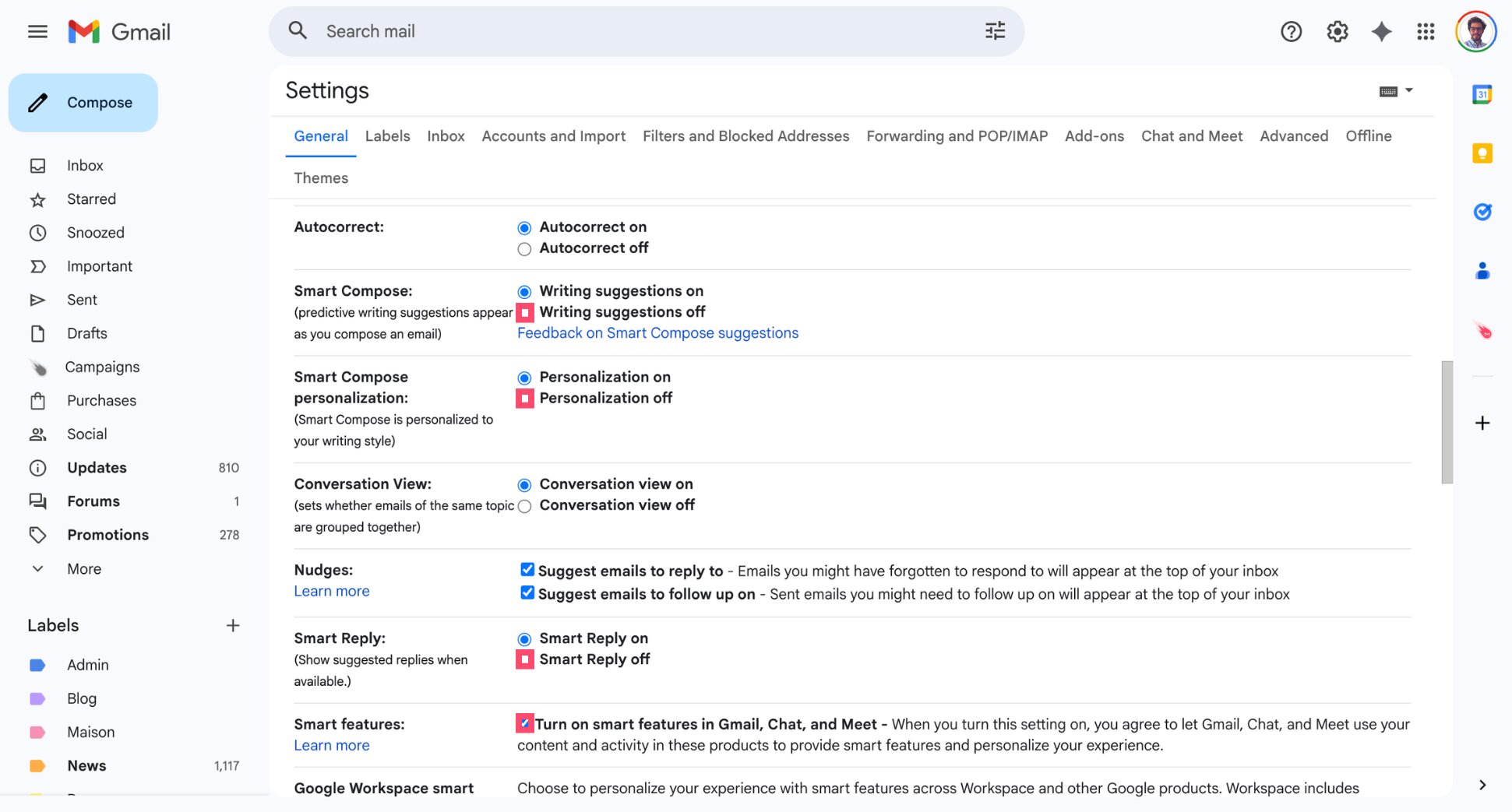
Once these settings are disabled, Gmail will stop showing AI-powered features such as Ask Gemini, Smart Reply, and Smart Compose.
Gemini in Gmail vs AI Email Assistants
Gemini is designed to make Gmail smarter by adding AI directly inside your inbox. However, Gemini focuses on helping you read and write emails faster.
Dedicated AI email assistants often go further by helping you manage and automate your email workflow.
| Feature | Gemini in Gmail | AI Email Assistants |
|---|---|---|
| Summarize emails | ✅ | ❌ |
| Draft replies | ✅ | ✅ |
| Email categorization | ❌ | ✅ |
| Ask questions to your inbox | ✅ | ❌ |
| Automated follow-ups | ❌ | ✅ |
| Email tracking | ❌ | ✅ |
| Mail merge | ❌ | ✅ |
For example, tools like Mailmeteor provide features designed for productivity and outreach, such as:
- Smart labels and AI inbox triage to automatically categorize emails
- Email tracking to see when a message is opened or clicked
- Automated follow-ups that remind recipients if they don’t reply
- Mail merge to create personalized bulk email campaigns
- Time tracking to see how long you spend managing emails
FAQs
Can I use Gemini in Gmail with a personal Gmail account?
Yes, but availability depends on your Google plan. Gemini in Gmail is included in Google Workspace and Google AI Premium subscriptions. If your account is eligible, you’ll see the Gemini icon directly in the Gmail interface.
Does Gemini work in the Gmail mobile app?
Gemini features are gradually rolling out to the Gmail mobile app on Android and iPhone, but availability may vary depending on your account and region. Some AI features may appear first in the desktop version of Gmail.
Can Gemini send emails automatically?
No. Gemini can generate drafts and suggest replies, but it does not send emails automatically. You always need to review the message and click Send yourself. This ensures you remain in control of what is sent from your inbox.
Can Gemini read attachments in Gmail?
Yes. Gemini can scan and analyze information contained in email threads and attachments, such as documents or PDFs, to generate summaries, draft emails automatically, or answer questions.
Does Gemini train on your Gmail emails?
For Google Workspace users, Google states that customer data isn’t used to train Gemini models without explicit permission. Gemini may still analyze the content of your emails temporarily to generate summaries, suggestions, or answers.
Is Gemini safe to use in Gmail?
Yes. Gemini runs inside Google’s Gmail infrastructure and follows the same security protections used by Google Workspace, such as encryption and account protections. And Workspace data isn’t used to train Gemini models without permission
Can I disable Gemini without turning off other Gmail features?
Some Gemini features are connected to Gmail’s Smart features and personalization settings, so disabling them may also remove other AI suggestions in Gmail. This includes features like Smart Reply and Smart Compose.