Most Outlook users have been nudged onto Microsoft Copilot and found it underwhelming. If you’ve spent time on Reddit’s r/Outlook, you already know: Copilot feels rigid, outputs are generic, and the price tag assumes you’re a large enterprise with an IT department to manage the rollout.
The good news? Copilot isn’t your only option. A new generation of Outlook AI assistants now works directly inside your inbox — drafting emails in your voice, triaging, tracking opens, managing meetings, and automating follow-ups without requiring a Microsoft 365 Enterprise licence.
Not all of them are worth your time, though. Some tools claim Outlook support but connect through a basic sync layer that misses folders, shared calendars, and anything that makes Outlook useful in a real work environment. Others produce drafts so generic you’ll spend more time editing than you saved writing.
We tested each tool thoroughly in a real Outlook environment — looking at how deeply it integrates, how usable the drafts actually are, whether the pricing is transparent, and whether you can get started without an IT ticket. What follows is the shortlist that made the cut.
- Microsoft Copilot — best for Microsoft 365 users who need deep integration across Word, Teams, and Outlook
- Superhuman — best for high-volume inboxes and speed-focused professionals
- MailMaestro — best for fast, tone-aware drafting as a native Outlook add-in
- Fyxer AI — best for professionals who need inbox organisation and meeting notes in one tool
- Jace AI — best for autonomous inbox management with voice-matched drafting
- Spark Mail — best for teams who want AI email features at an affordable price
- Lindy — best for building custom AI agents that work across Outlook and your other tools
- Mailmeteor — best for email outreach and tracking directly from Outlook
What Can An Outlook Ai Assistant Actually Do?
“AI email assistant” is one of those labels that can mean almost anything. Some tools write emails for you. Others sort your inbox. A few handle both. Here’s what they can actually do to help you manage your Outlook inbox ⤵️
- Email drafting and replies: AI reads an incoming message and generates a contextual reply in your tone. Quality varies widely. The best tools (Jace, Mailmeteor, MailMaestro) learn your writing style from past emails.
- Inbox triage and categorization. AI labels and sorts incoming mail by priority, type, or urgency so your inbox surfaces what actually needs attention. Useful if you’re receiving 100+ emails per day. Fyxer, Jace, and Spark all do this.
- Inbox search and querying. Ask your inbox a question in plain English like “what did John say about the contract last week?” and get an instant answer No digging through folders. Superhuman and Jace both do this well.
- Meeting notes and summaries. AI joins your Teams or Zoom calls, transcribes the conversation, and produces a summary with action items dropped directly into your inbox. Fyxer does this well. Copilot has a native version built into Teams.
- Workflow automation. Instead of just helping inside Outlook, some tools act across your entire stack — reading an email, updating your CRM, creating a task, and booking a meeting, all without you touching a thing. Lindy sits in this category.
The 7 Best Outlook Ai Assistants In 2026
Every tool on this list works with Outlook and has been evaluated on integration depth, draft quality, pricing transparency, and ease of setup. Here’s what you need to know about each one.
| Tool | Best For | Works in Outlook | Free Plan | Starting Price | Rating |
|---|---|---|---|---|---|
| Microsoft Copilot | M365 users needing cross-app AI | ✅ Native add-in | Copilot Chat only | $18/user/mo (add-on) | 4.4/5 |
| Superhuman | High-volume inboxes, speed | ✅ Full client | No | $30/user/mo | 4.7/5 |
| MailMaestro | Fast, tone-aware drafting | ✅ Native add-in | Yes (3 drafts/week) | ~$12/user/mo | 4.8/5 |
| Fyxer AI | Inbox organisation + meeting notes | ✅ Connects to Outlook | No | $30/user/mo | 4.1/5 |
| Jace AI | Autonomous inbox management | ✅ Connects to Outlook | No (7-day trial) | $25/user/mo | 4.7/5 |
| Spark Mail | Teams on a budget | ✅ Full client | Yes | $10/user/mo | 4.4/5 |
| Lindy | Cross-app workflow automation | ✅ Connects to Outlook | Yes (400 credits/mo) | $49.99/mo | 4.9/5 |
| Mailmeteor | Outreach and email tracking | ✅ Connects to Outlook | Yes (50 emails/day) | Free — paid from $4.99/mo | 4.9/5 |
1. Microsoft Copilot — Best For Microsoft 365 Users
Rating: 4.4/5
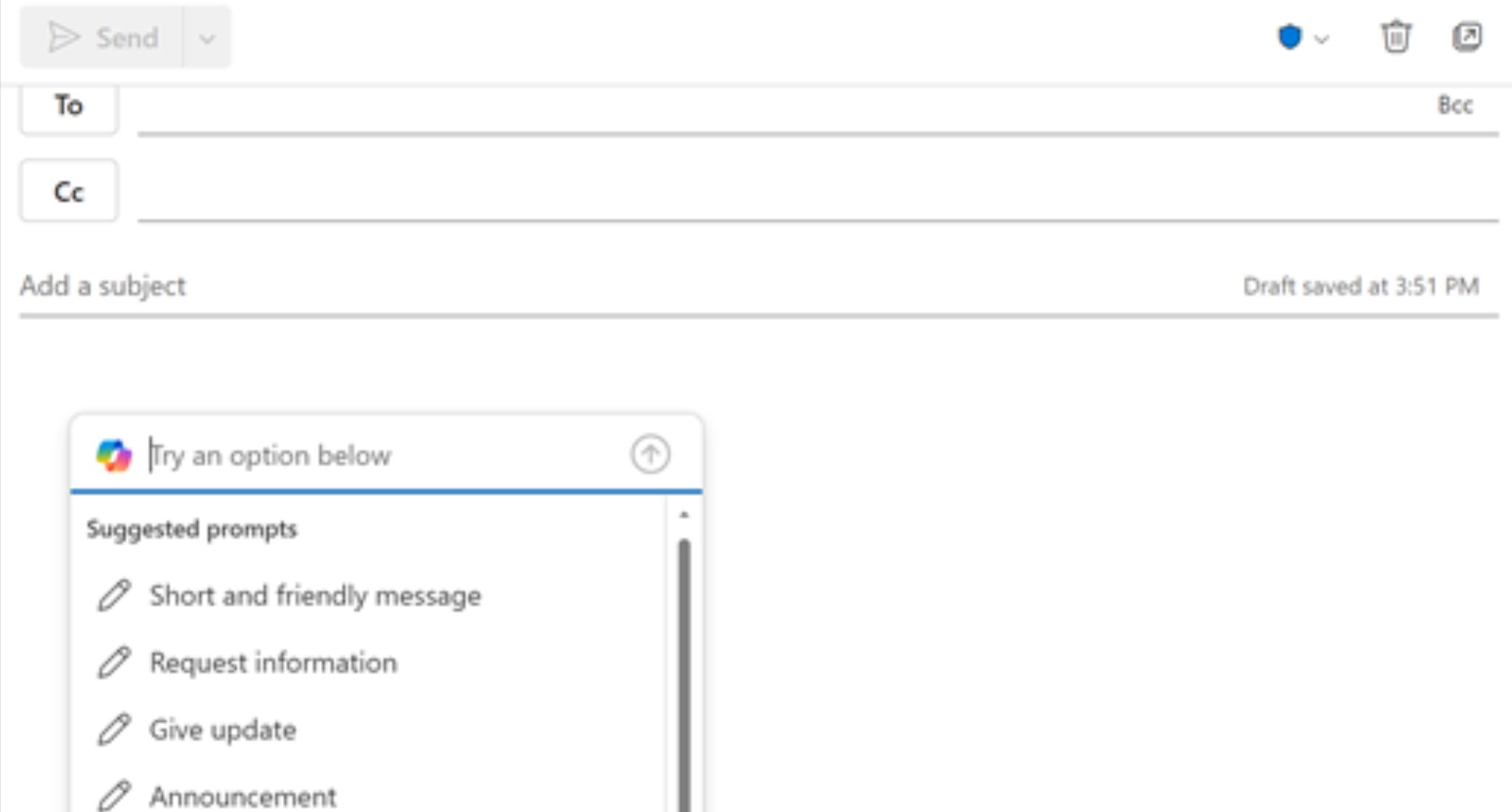
If your team already lives inside Microsoft 365, Copilot is the most natural first step. It’s built directly into Outlook and draws on your organization’s data across Teams, Word, Excel, and SharePoint to give context that no third-party tool can replicate.
Inside Outlook, Copilot can summarize long email threads, draft replies, flag priority messages, and help you schedule meetings — including checking availability across calendars and generating ready-to-send invites.
Pricing: Copilot Chat is included at no extra cost with eligible Microsoft 365 plans. The full Copilot experience requires an add-on, which costs $18/user/month for the Business plan or $30/user/month for Enterprise — on top of an existing M365 subscription.
Best for: Organizations already standardized on Microsoft 365 who need AI that works across Outlook, Teams, Word, and Excel — and have the IT setup to manage the deployment.
Limitation: Requires a qualifying Microsoft 365 subscription. No standalone option. The full Copilot experience is expensive for teams whose only need is better email drafting. Users also flag that outputs can feel generic on complex or nuanced emails, and the rollout typically requires IT involvement — which rules it out for individuals and small teams looking to get started in minutes.
2. Superhuman — Best For High-Volume Inboxes
Rating: 4.7/5
Superhuman is designed to help you get through your inbox as fastas possible. It replaces your default Outlook interface with a purpose-built AI email client that runs on keyboard shortcuts.
The AI layer generates contextual reply drafts from a prompt, summarizes long threads, auto-labels incoming messages, and suggests one-click short replies for quick acknowledgments. The drafting also adapts to your writing style over time.
However, Superhuman replaces your Outlook interface entirely. If you’re in an enterprise environment with shared mailboxes, compliance policies, or an IT-managed configuration, switching clients may not be feasible.
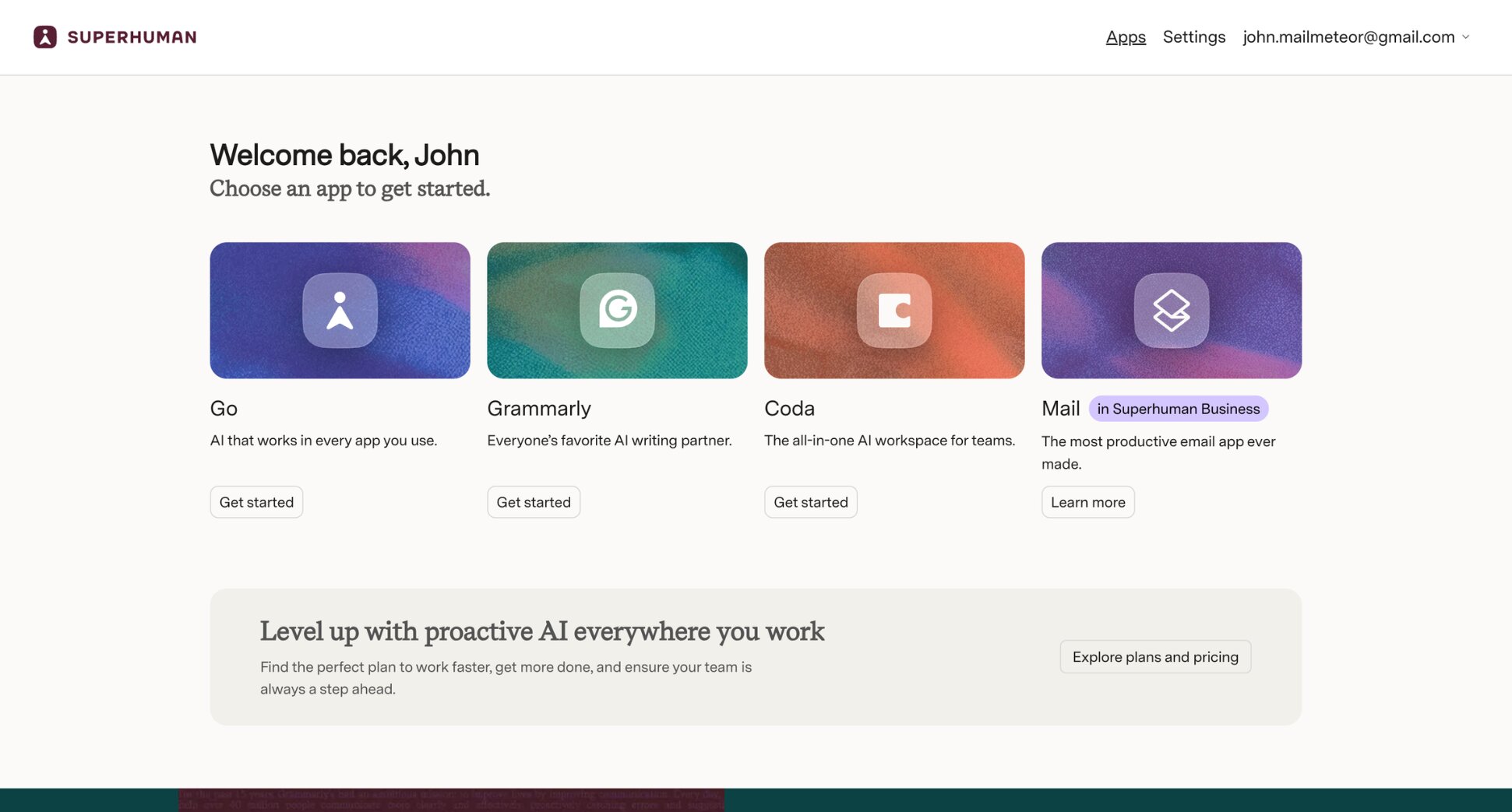
Pricing: Starts at $30/user/month (Starter). The Business plan at $33/user/month adds Ask AI, Auto Drafts, Custom Auto Labels, and CRM integration with HubSpot and Salesforce.
Best for: Founders, executives, and sales professionals who receive 100+ emails per day and want the fastest inbox experience available.
Limitation: Superhuman replaces Outlook entirely. You lose your existing interface, filters, and muscle memory on day one. The keyboard-shortcut-driven workflow has a real learning curve. And for enterprise users with shared mailboxes, compliance requirements, IT-managed configurations switching clients may not be feasible. At $30–33/month on top of existing M365 costs, the price is also hard to justify, except for power users.
3. Mailmaestro — Best For Tone-Aware Drafting In Outlook
MailMaestro installs as a native add-in — available directly from the Microsoft AppSource marketplace — and adds a fast-loading side panel to your inbox where you can generate, rewrite, or improve emails without leaving Outlook. The drafting quality is where it stands out.
MailMaestro offers fine-tuned tone presets that produce professional output quickly. It can summarize long threads, accept or decline meeting requests using calendar detection, and draft replies. A TeamsMaestro add-on is also available for meeting transcription and notes if you want to bundle both.
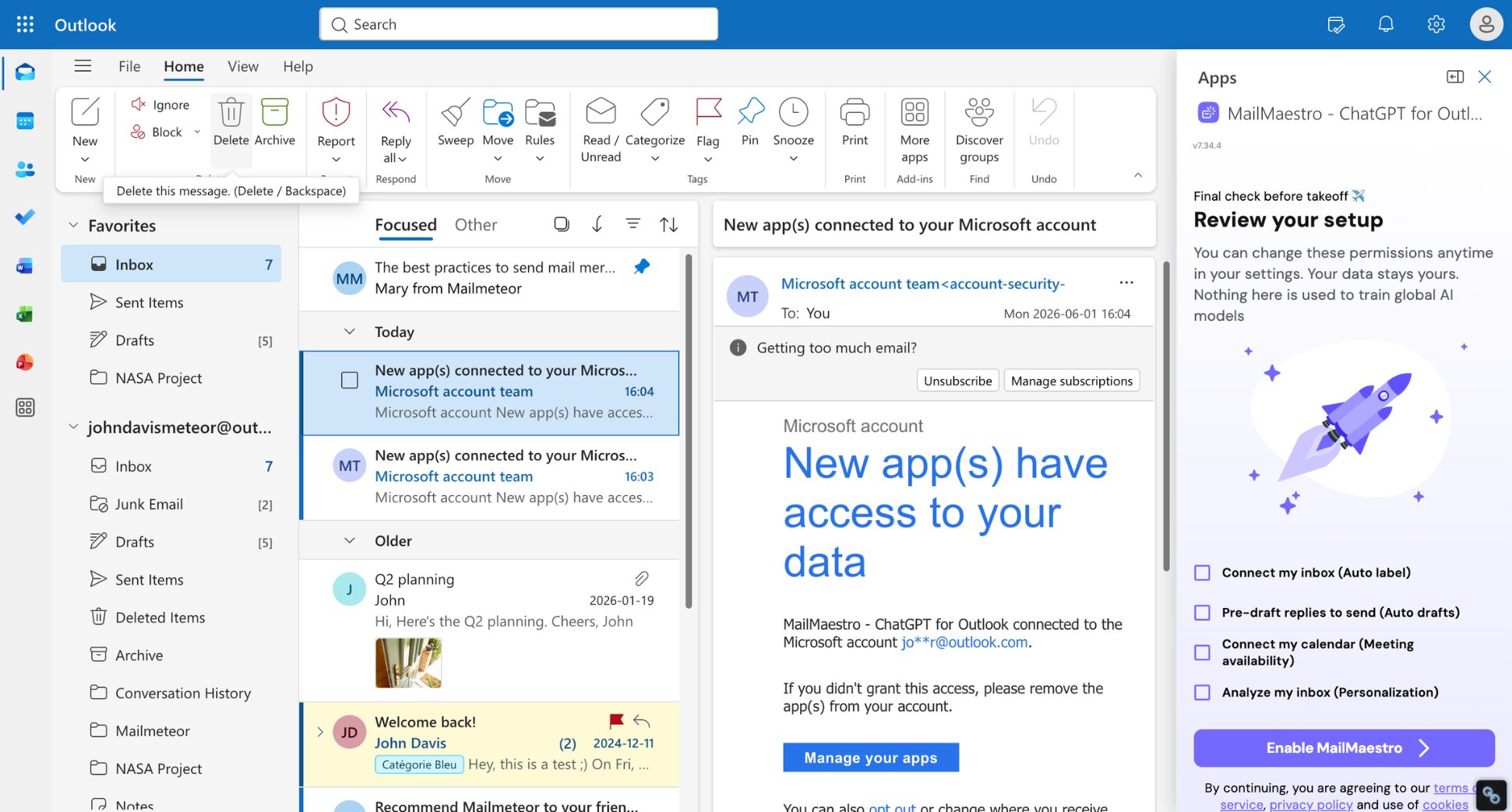
Pricing: Free plan (3 drafts/week). MailMaestro starts at $12/user/month. If you also need meeting notes, TeamsMaestro starts at $17/user/month, or bundle both with MaestroDuo from $25/user/month.
Rating: 4.8/5
Best for: Executives, managers, and busy professionals who need faster, better-quality email drafting directly inside Outlook without changing their workflow.
Limitation: Focused on drafting and summarization — no inbox triage, email tracking, or workflow automation. The drafts are professional and well-structured, but they don’t adapt deeply to your personal voice.
4. Fyxer Ai — Best For Inbox Organisation And Meeting Notes
Rating: 4.1/5
Fyxer AI goes beyond drafting to handle two of the biggest daily time sinks: inbox organization and meeting follow-up. Once connected to your inbox, this Outlook AI assistant analyzes your past emails to learn your communication style and priority signals, then works in the background.
Fyxer sorts and labels incoming messages automatically, surfacing what needs a response and filtering out noise. It generates replies that match your tone based on your email history. And it joins your video calls, transcribes the conversation, and produces summaries with action items — dropped straight into your inbox.
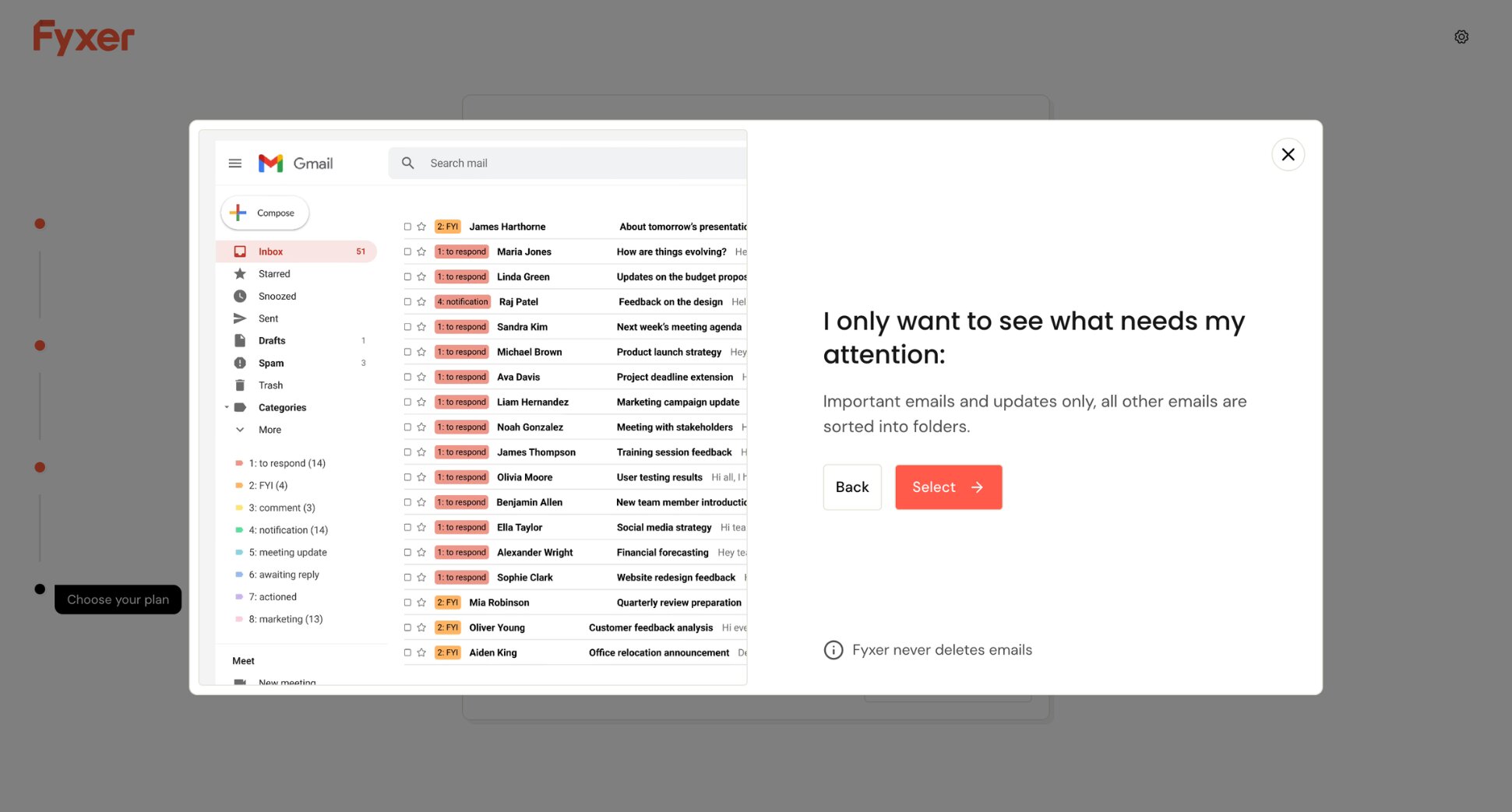
Pricing: Starter plan at $30/user/month (billed monthly). Professional plan at $50/user/month adds multiple inboxes, HubSpot integration, Fyxer Chat, and meeting scheduling across teams. 7-day free trial on all plans.
Best for: Professionals and executives whose workday is split between managing a busy inbox and back-to-back calls — and who want a single tool to handle both.
Limitation: No free tier once the trial ends. The inbox categories are fixed, you can’t create custom ones. No task extraction to external tools, no daily email briefing, and no outbound follow-up automation.
5. Jace Ai — Best For Autonomous Inbox Management
Rating: 4.7/5
Jace AI takes a more proactive approach than most tools. Rather than waiting for you to open an email and ask for help, it prepares drafts, organizes your inbox, and surfaces what needs attention before you even open your laptop.
It connects to your Outlook account and keeps your folders, categories, contacts, and signature fully in sync. Drafts Jace creates appear in both Jace and Outlook, and edits in either place stay synced. The drafting engine reads full thread context — including attachments, calendar events, and email history — to generate replies that sound like you.
An AI chat interface also lets you query your inbox in plain English and get an instant answer. Smart rules let you automate recurring actions: auto-categorize incoming mail, trigger CCs, file documents, or push updates to Slack or your project management tool.
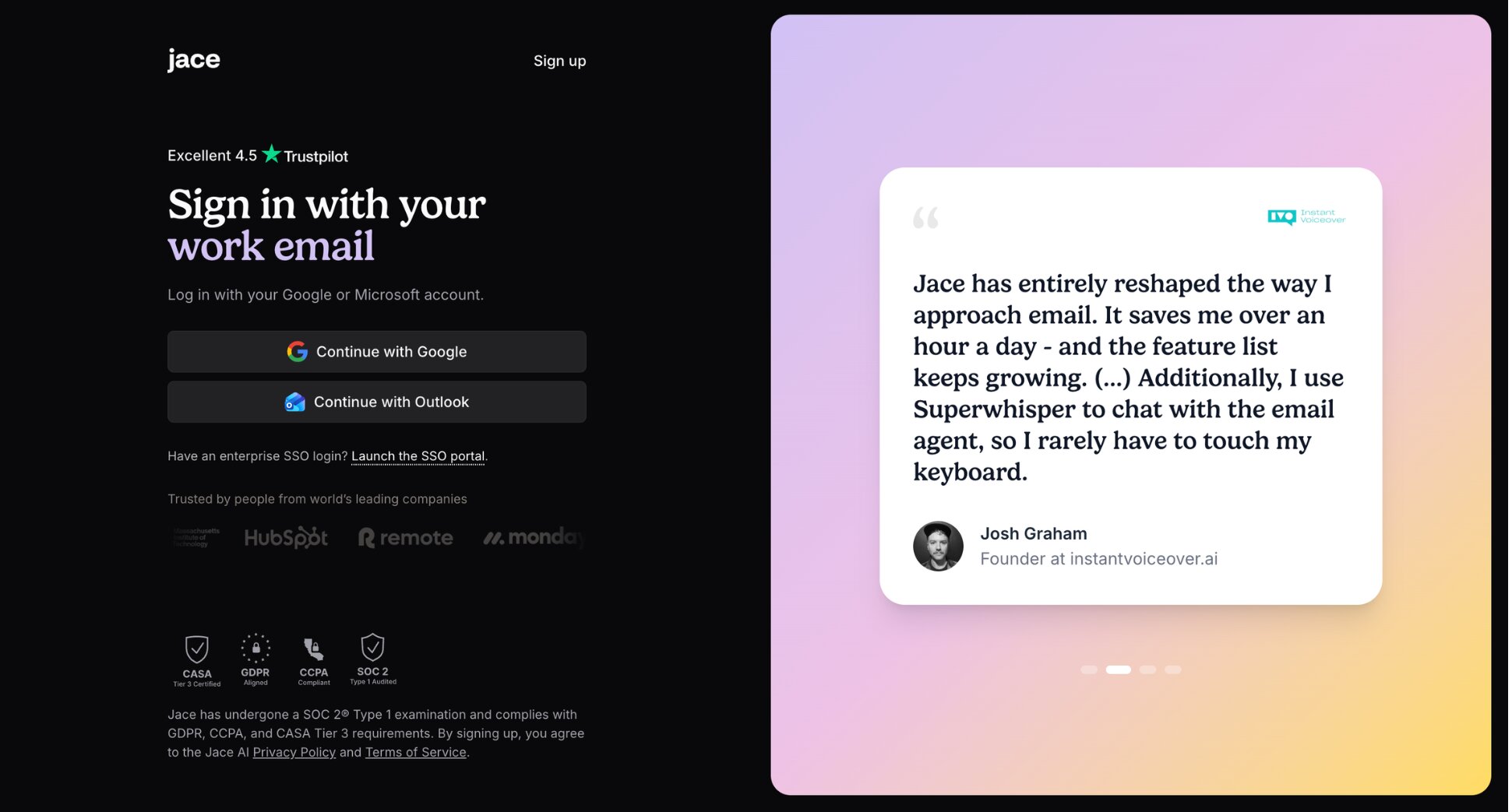
Pricing: 7-day free trial. Plus plan at $20/user/month (one inbox). Pro plan at $25/user/month supports up to 8 accounts.
Best for: Founders, consultants, and busy professionals who want an AI assistant that handles inbox management proactively, not just when prompted.
Limitation: Drafts require your review before sending — fully autonomous send is not available by default.
6. Spark Mail — Best For Teams On A Budget
Rating: 4.4/5
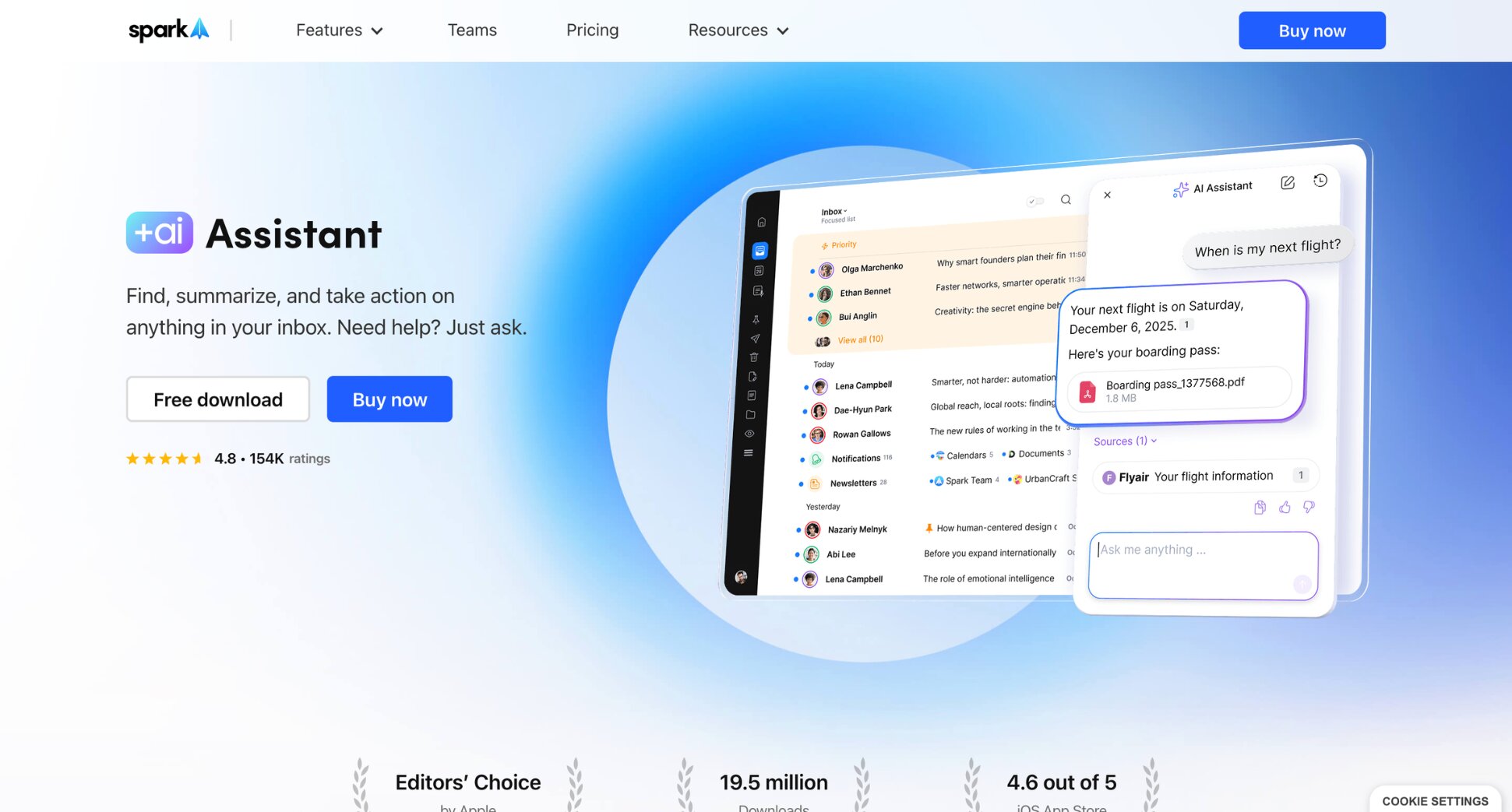
Spark is an email client that replaces Outlook’s default interface with a cleaner, AI-powered alternative. It works with Gmail, Outlook, iCloud, Yahoo, and any IMAP account, and is available across Mac, Windows, iOS, and Android.
The Smart Inbox automatically categorizes incoming messages into Personal, Newsletters, and Notifications. The AI Compose feature drafts new emails and replies based on a short prompt. For teams, Spark also adds shared drafts, internal comments, and email assignments.
Pricing: Free tier available (one account, limited AI). Plus plan at $10/user/month. Pro plan at $20/user/month for full team collaboration features.
Best for: Small teams of 3–10 people who share email management, or individuals who want AI email features without the price tag of premium tools.
Limitation: It’s not the deepest AI tool on this list. The triage is categorical rather than priority-based, and users report that the AI drafting features are more limited than the marketing implies. At $10/user/month though, it’s a meaningful step up from Outlook’s default experience at a fraction of the cost of the alternatives above.
7. Lindy — Best For Cross-App Workflow Automation
Rating: 4.9/5
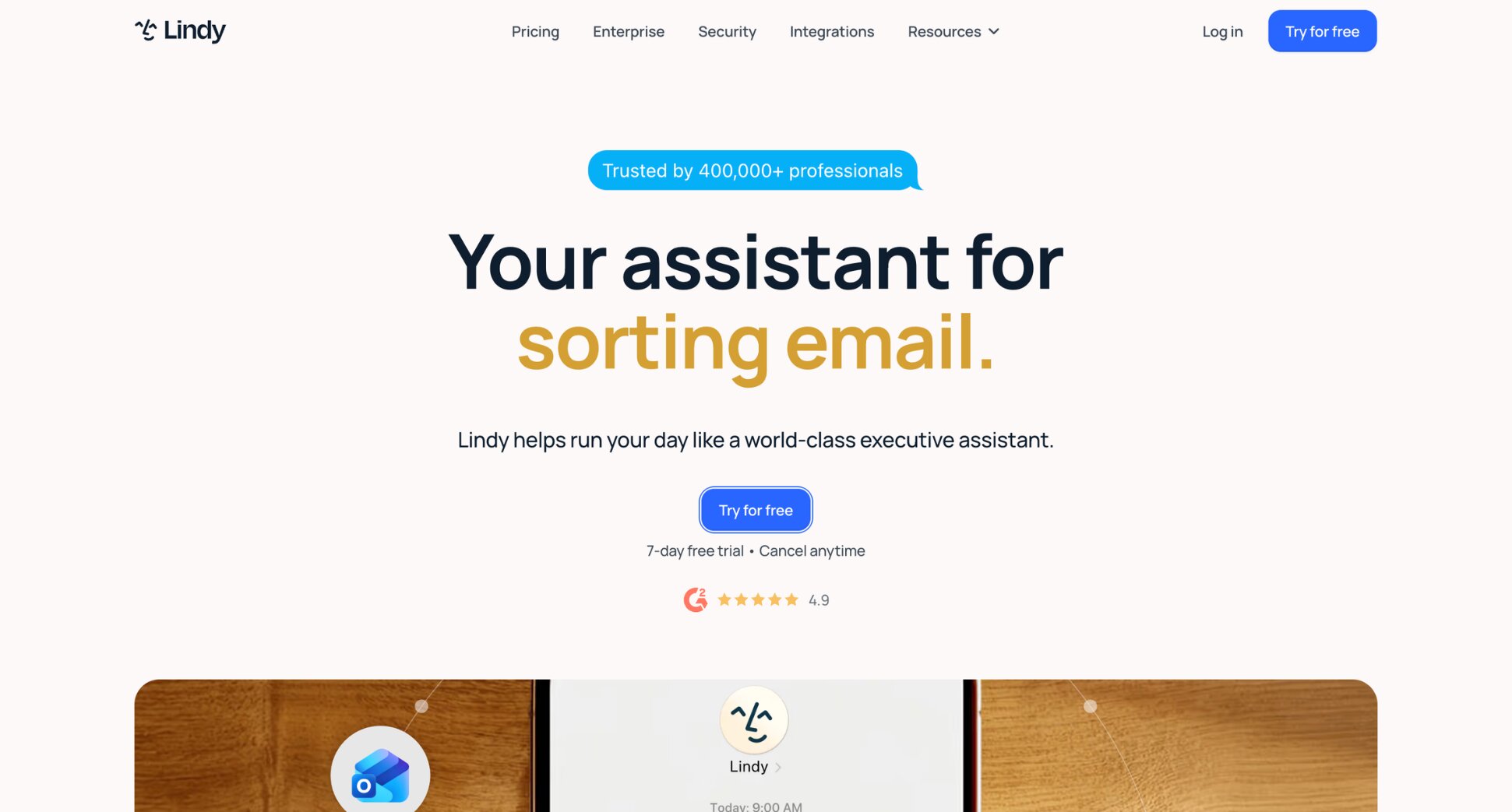
Lindy operates at a different level. Where most AI assistants help you write better emails, Lindy builds AI agents — autonomous workers that read an incoming email, update your CRM, create a task, and send a Slack message, all without you touching your keyboard.
You describe what you want in plain English. Lindy turns that into an automation that runs across Outlook and over 500 connected apps, including Salesforce, HubSpot, Notion, and Microsoft Teams. Each agent can be assigned a specific job, like lead qualification, support routing, meeting scheduling, or contract follow-up.
Pricing: Free plan (400 credits/month). Plus plan at $49.99/month. Pro at $99.99/month. Enterprise pricing on request.
Best for: Operations teams, sales teams, and small businesses who want email to trigger automated actions across their entire tool stack without writing code.
Limitation: The setup investment is real. Building and testing custom agents takes time, and the credit-based pricing can be hard to predict until you know how many actions your workflows trigger. Complex multi-step pipelines also burn through credits fast. This isn’t a plug-and-play tool you can evaluate in an afternoon.
Bonus: Mailmeteor — Best For Outlook Outreach And Email Tracking
Most AI email assistants focus on what lands in your inbox — not on what goes out. If you’re sending prospecting emails, following up on proposals, or need to know who opened what and when, Mailmeteor fills that gap.
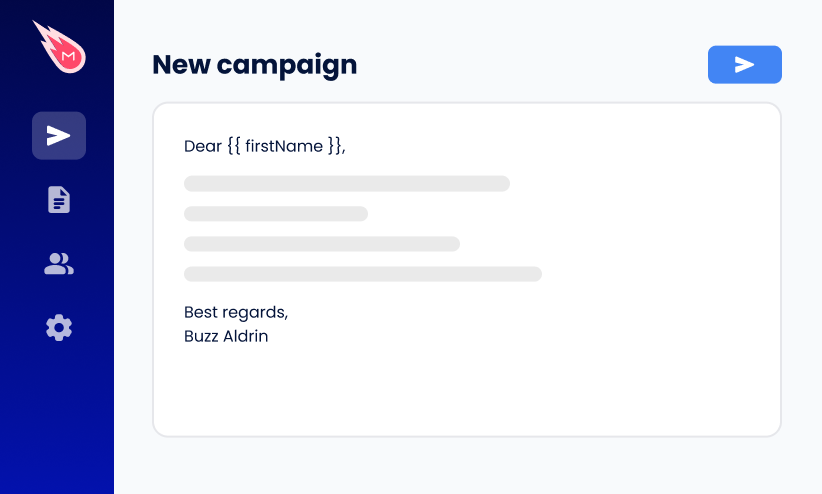
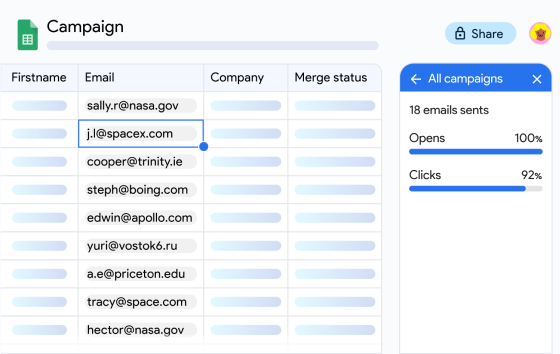
It works natively inside Outlook, sends personalized campaigns at scale directly from your account, tracks every open and click in real time, and automates follow-up sequences based on what recipients actually do.
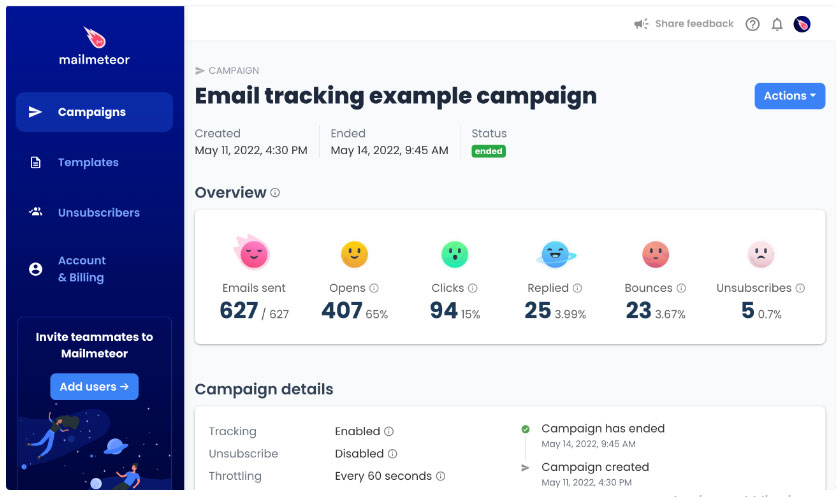
Here’s what you get ⤵️
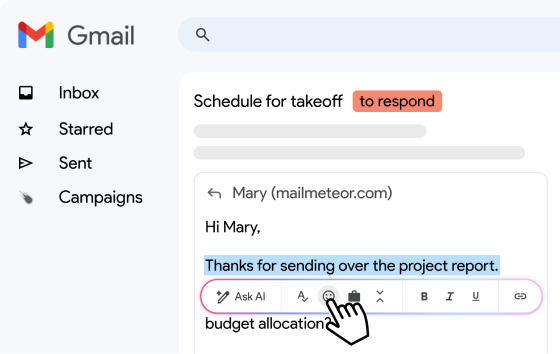
✍️ AI Email Writer — draft and improve your campaign emails before sending
📬 Mail merge — send personalized campaigns directly from Outlook or Excel
✅ Email verification — automatically verify addresses before sending
📊 Real-time tracking — see opens, clicks, and replies per recipient
🔁 Automated follow-ups — triggered by recipient behaviour
Try Mailmeteor for Outlook today (it’s free!) and start sending smarter outreach from Outlook.
How To Choose The Right Outlook Ai Assistant
Every tool on this list works with Outlook. The difference is what problem each one actually solves. Here’s how to narrow it down ⤵️
- You’re already on Microsoft 365 and need AI across your whole stack: Start with Copilot. The cross-app context — pulling from Teams conversations, SharePoint documents, and your calendar — is something no third-party tool can replicate.
- Your main bottleneck is time spent writing emails: MailMaestro is the most focused solution here. It installs in two minutes from AppSource, adds a side panel to your existing Outlook interface, and produces professional drafts with tone control.
- You process 100+ emails a day and speed is everything: Superhuman is the right call. You’re switching email clients entirely, learning a new keyboard-driven workflow, and paying a premium price. But the payoff is real for power users. You want your inbox organized and your meetings handled automatically: Fyxer AI covers both. It sorts your incoming mail, drafts replies in your tone, and takes meeting notes — all without you setting up complex rules. You want proactive inbox management, not just on-demand help. Jace AI prepares drafts and organizes your inbox before you open your laptop. Useful if you regularly start the day buried in a backlog.
- You’re a small team that wants AI email without enterprise pricing: Spark Mail is the most affordable option on this list. The free tier covers basic Smart Inbox sorting. The Plus plan at $10/month unlocks AI drafting and team collaboration features.
- Email is just the trigger and you want automation across your entire stack: If an incoming email should create a CRM record, assign a task, and book a follow-up call without you touching anything, Lindy is built for that. But budget time for setup.
- You’re doing outbound like prospecting, follow-ups, or campaign tracking: Mailmeteor connects to your Outlook account, sends personalized campaigns at scale, tracks opens and clicks, and automates follow-ups.
FAQs
Does Outlook have a built-in AI assistant?
Yes, Microsoft Copilot is built directly into Outlook for users with an eligible Microsoft 365 subscription. It can summarize threads, draft replies, suggest meeting times, and even auto-accept or decline meeting requests based on custom rules. The full in-app experience requires a paid Copilot license.
Is Microsoft Copilot worth it for Outlook?
For organisations already standardized on Microsoft 365, yes if deep integration across Outlook, Teams, Word, and Excel is the priority. For individuals or smaller teams who mainly need smarter drafting, the cost is hard to justify when standalone tools like MailMaestro or Spark Mail cover the most common use cases for far less.
What is the best free AI assistant for Outlook?
Spark Mail offers the most usable free plan. It includes Smart Inbox categorisation and basic AI drafting at no cost. MailMaestro has a free tier with limited drafts per month. Lindy offers 400 free credits/month. If your focus is outreach rather than inbox management, Mailmeteor’s free plan includes 500 emails/month.
How do I add an AI assistant to Outlook?
For native add-ins like MailMaestro, go to the Microsoft AppSource marketplace, search for the tool, and click Add. For standalone clients like Superhuman or Spark, sign up on the tool’s website and connect your Outlook account via OAuth. For outreach tools like Mailmeteor, go to your dashboard, sign in with your Outlook account, and you’re ready to send.
Can AI assistants work with personal Outlook accounts?
Most AI assistants are built primarily for Microsoft 365 Business accounts. However, Mailmeteor, Jace AI, MailMaestro, and Spark Mail all support personal @outlook.com addresses alongside Microsoft 365. Always check compatibility. Some tools list “Outlook support” but only work once your IT team has configured the integration.
Is it safe to connect an AI assistant to my Outlook inbox?
Reputable tools use secure OAuth authentication. You grant access without sharing your password, and you can revoke it at any time. Look for SOC 2 certified tools or tools that explicitly state they don’t use your emails to train their models. Microsoft Copilot is the safest option in regulated industries.
Can I use ChatGPT with Outlook?
Yes. The ChatGPT add-in for Outlook is available on the Microsoft AppSource marketplace. It lets you draft, summarise, and rewrite emails using custom prompts directly inside Outlook. You’ll need your own OpenAI API key to use it. It’s a good option if you’re comfortable writing prompts — less so if you want a polished, out-of-the-box experience with no setup required.
Can AI assistants schedule meetings from Outlook emails?
Some can. Microsoft Copilot does this natively — open an email thread, click “Schedule with Copilot”, and it checks everyone’s availability, drafts an agenda, and generates a ready-to-send invite. It can also auto-accept or decline meeting requests based on custom rules. Lindy can go further, handling scheduling autonomously across Outlook and your other tools.